Transcripts
1. Introduction: Do you want to learn
Affinity Designer to? Yes. Then this is the
right course for you. Welcome to Affinity
Designer to crash cost. In this course,
we're going to cover all the important basics to
get you started quickly. We will start with
the fundamentals. After getting turnover
user interface and how to navigate confidently, we will jump straight
into the different tools. You will learn how to create and manipulate shapes easily. You will learn how to work with color, gradients and swatches. Event. We will take a look
at how to create custom shapes using
the pen tool. After we covered all
the basic fundamentals, we will jump right into our
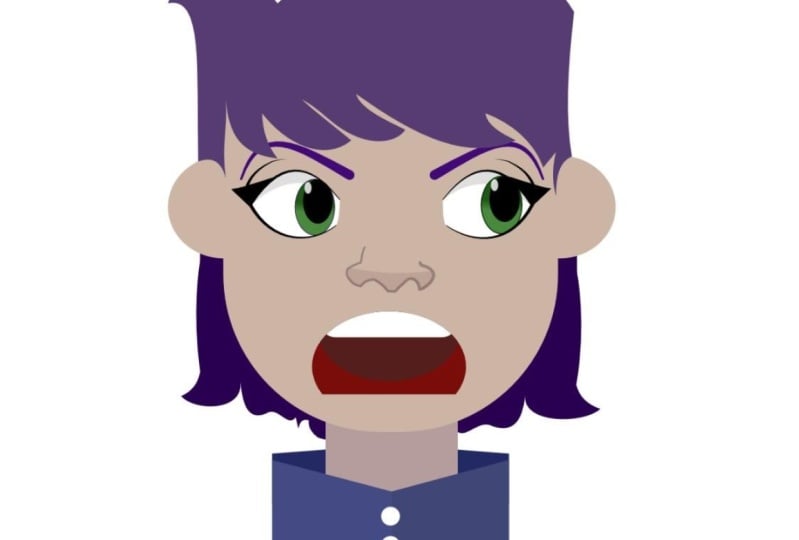
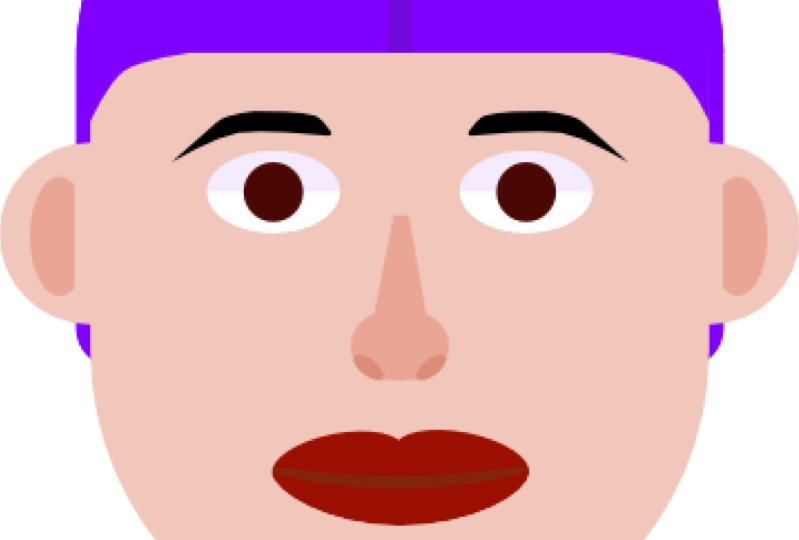
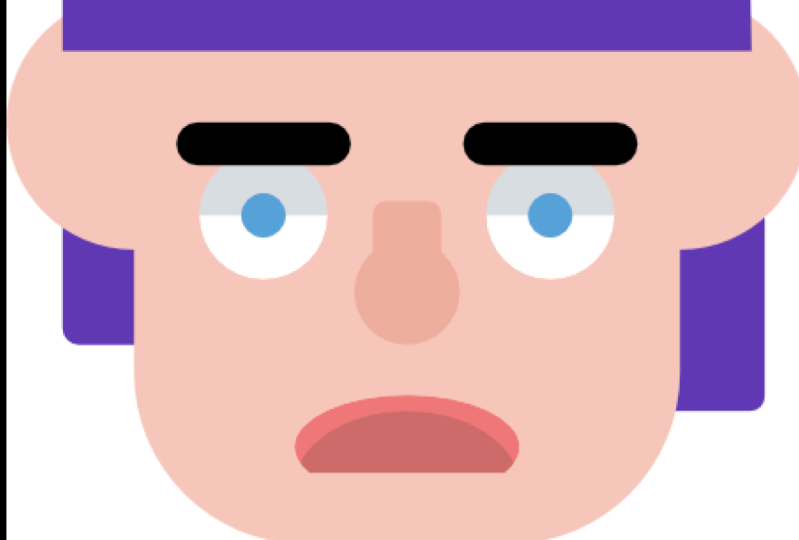
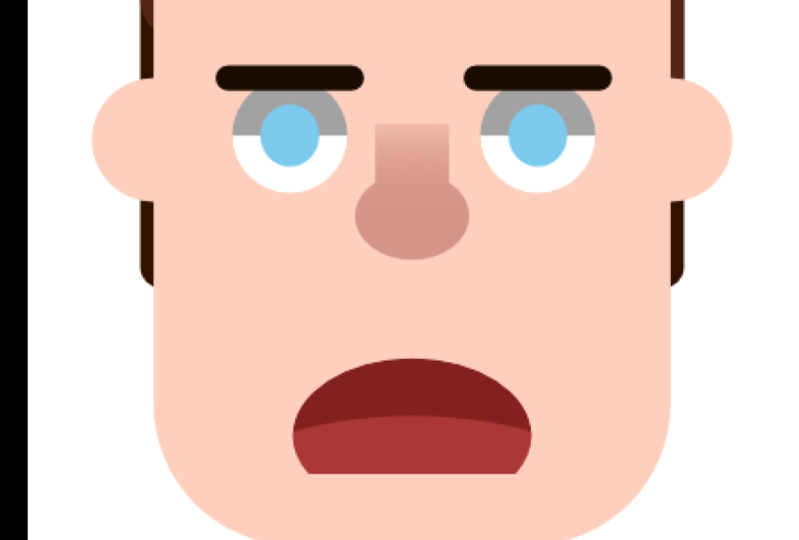
first practice project, a simple flat design character. Throughout this project, you will get to know
the layers panel. You've learned how to use the oil New Shape
Builder tool and get overall more comfortable with all the different tools
we've covered. Thus far. We will be learning all we
text tools and how to import and work with images by
creating a second project, a beautiful web
design hero section. So do you want to get
started with learning Affinity Designer to master all I've mentioned
and more today. When start watching
today and I will be seeing you inside the class.
2. Creating new Documents: Now if we open up the software, we are greeted by this
floating window right here, which is the new window. And here we can create
a new document. Now, if you've opened up, if you need to design
a before and you uncheck this box right here, which says show on startup. And you do not have
this window right here. You can simply open
it by going over to file the main menu up
here and clicking on New. Now that opens up a new window. So what exactly are
we looking at here? Now, on the left-hand side, we have a bunch of different
presets. Right here. We have different presets
for things like print. So we have a
ready-made A4 template or a letter size
template right here. You can select a preset by simply clicking on it with
your left mouse button. As you can see, the
right side actually changes depending on
what we have selected. Now we don't only
have print presets, we also have things like photo presets or
research as well, and even a couple of
different device sizes. Now, for our case, let's go to the
web section right here and click on full HD, F H D, ten ADP. So as you can see, this looks a bit weird because the orientation of our
preset is actually wrong. Now, you can flip it. You can change the orientation from horizontal to
vertical or the other way around by clicking one of these two buttons
so we can change it to landscape, to portrait. We want to keep it at landscape. Now, let's take a closer look at the actual options that we have to customize our
presets or our document. Now, under the Layout tab, we can change the page
width of the page, right? So let's say we want a
document to be taller, so let's say 2000 pixels height. Confirm it with Enter. And now you can see
our preview changed. And we now have a
Toile document. Below that. We have our DPI
or dots per inch option. Now for web work, be usually keep it at 72 dpi. But if you work on
a product, e.g. a. Flyer or something like that, coupon and select a
higher option, e.g. like 300. Now, we can also change the
document units right here. So right now it's a pixels and we're going
to keep that bad. But if you prefer working
in inches or centimeters, you can select that
as well, right here. Now, let's go over to the
next tab. Lead color to it. Right here, we can
change the color format. Rgb eight is selected right now. And that's what we're
going to work with. But e.g. once more, if you work with print e.g. coupon or select CMYK instead. Now, we can also add
some margins right here, or some bleed as well if you
work with print products. And that's pretty much it now to create this document right here, as we've created, just simply
click on the Create button. And now we have
our new document. Just like that.
3. The User Interface: Alright, let's take a look at the user interface of
Affinity Designer. Now, in the middle right here, this large space
occupying majority of the interface is our Canvas. Right here. We have our document that you've
created previously. And here we create
all of our designs. Here, do most of the work. Now, on the left
side of this Canvas, we have our toolpath of
all these colorful icons. Now, you have
different tools such as v currently
selected Move tool, the Pen tool to create
different shapes and paths. He have the fill tool, which will allow us to create gradients and work with color. We can insert a place
images right here. We can crop our Canvas. And we have access to these
different shape tools, such as the rectangle
tool, the ellipse tool. Now, one very important thing is below some of these tools
in the right-hand corner, we have this little
white arrow, e.g. on the diamond tool right now, if we write right-click on
a tool with this arrow, you can open up a menu
which hides more tools. So as you can see right here, we have a lot of different
shape tools available to us, which can be a really good
time-saver in some cases. Now we also have the all
new shape builder tool which just came with
Affinity Designer to. And also some texts tools such as V artistic texts
and different text tool. You're going to look at
the difference between these two in a later video. Now, if you've noticed, depending on the tool
we have selected, this context menu
up here changes. So right now it's on
the Shape Builder. But if you e.g. go
to the pen tool, you can see the options
change drastically. So now we can set e.g. we fill the stroke, we can change the
options of our stroke, David and stuff like that,
the different modes. Or if you go to the fill tool, you can actually change where the gradient should be
applied, is that e.g. on the fill or the stroke. You can write here. If you have an object selected, you can change the
type of gradient. And a lot of different things can be done in
this context menu. Now, let's move on
to the right side, which if you're using Affinity Designer
for the first time or you have not changed, anything about the software should look exactly like this. This is the default
configuration. Now, on the right-hand side, we have all these
different panels, such as the color
pattern, swatches, stroke of the layers panel, e.g. our different brushes. But you can use now, as you can see, a lot of different functions
built into his panels. And we can actually modify
what panels we want to have on the screen and which
ones we don't know, e.g. let's say we don't want the
quick FX styles right here. Let's say we don't
want be Styles panel. Click on it, invented
click and drag until it's out. In Venice. Simply click on Close Panel. And now we don't
have it anymore. But how do you get the
panel back if you need it? At a later point? For that, we go to our
main menu up here. Click on Window. And then we can open up all these different
panels right here. Now, if I say checkmark the pen, it is already present
on your screen. If there isn't such, e.g. on the assets panel. You can enable that panel
by clicking on it like so. You can also disabled
panels like that as well. Now let's move on to
this bar right here. The special thing
about Affinity, which you've probably
heard about already, is the different personas
that we have. Right now. We are in V designer persona, which allows us and gives us
all the different tools to modify vector shapes and work
with vectors in general. However, we can also switch
over to the pixel persona. And now we have a
raster based workspace where we can paint and draw in. We can make selections
and move things around, just like in Photoshop e.g. and one use case that e.g. is where you can create a character design
in a vector art. And when we apply
different texture and shading to it in the pixel persona using
raster based brushes, all in one single software, which is incredibly powerful
and really nice to have. A third persona called
the Export persona. This looks a lot simpler, which it, because it is, you don't have that
many tools right here. Now, this persona is incredibly useful when you work on
large UI designs, e.g. and you need to export multiple different assets for the developers of an app, e.g. which you have designed. And you can do all
that stuff with great control over everything
in the export persona. Now the last thing
I want to show you is this main menu up here. Here we have different
types such as file edit of even though
tab, which we've looked at. If you click on one, you
open up another menu, e.g. under File, give all the different
options regarding files. So we can create new files, we can save off pirates
and stuff like that. Now, one important thing for
you to take note of is wet. On the right side
of these menus, we have keyboard shortcuts. Specific actions, e.g. the safe function. You should use Ruby off just to be safe so you don't lose progress when anything
should happen, if UPC crashes or the software
crashes, safe RBI often. Don't have to go to
this menu all the time. You can simply
click Control plus S on our keyboard
and safe that way. Now, that's pretty
much everything but I wanted to
cover in this video. And in the next lecture
we're going to take a look and learn how to actually
navigate on our Canvas. You can zoom in, how you can move around. You can rotate the entire thing. All that stuff we're going
to cover in the next lesson.
4. Navigating our Canvas: Alright, now navigating in Affinity Designer to is
actually incredibly easy. Now for most things, there are multiple ways
to do the same thing. I would show you the
quickest ways to do them. So if you want to move
around your Canvas, you can simply hold down
the space bar like so. Your mouse changes to be hand. It's actually
toggles V hand tool. And now you can click and drag around in your
navigator, like so. Now, if you want to zoom in, you can hold down the Control
key on your keyboard. And now you can simply scroll
with your mouse wheel. You can scroll in and out. Now, we also have a specific
panel for navigation. That's V navigator panel. Now, usually you, if you have
the same user interface, you haven't changed anything. The navigator can
be found down here. If you don't have it,
simply go over to Window and click on Navigator. Now, wifi navigator,
you can click around on this canvas
or you can also drag. I want to move around. And you can zoom in
and out right here. You can also type
in a specific value like let's say you
want to zoom in 100%, type it in, and now you're
zoomed in 100 per cent. Now, we also have two different tools to zoom
in and to move around. And these can be
found right here. They are the final
tools in our toolbar. One is the View tool, which is a little hand icon. Now, without holding
the space bar, we can actually move
around on our Canvas. And the other is via Zoom tool. Now we can click, simply click on your canvas
and you can zoom in. If you hold the Alt key, you can toggle between
zooming in and zooming out. Like so. With both of these tools, you also can zoom in using
this slider right here. Now, that's pretty much
it about navigating. These were just the
fastest ways to do it. I prefer the keyboard
shortcuts and I recommend, but as you get used
to them as well, they will simply speed up
your workflow immensely.
5. Working with Shapes: Alright, let's take a quick
look at how to create and manipulate different trips
in Affinity Designer to. So if you want to
create a shape, Let's say we want to
have a rectangle. Go to your toolbar and select the rectangle tool right here. Now to actually
create the shape, you simply click and
drag onto Canvas. And you drag out a rectangle. So now this shape has all these different points in each corner and the
middle of each side. And these points let you change the shape
after creating it. So if he, if we hover over
the middle right here, e.g. we can see our cursor changes. Now, we can make it larger, e.g. same applies for
this side as well. And if we do the same
thing in a corner, we can change both
sides at the same time. Now, what if you want perfect square
where it's going to be pretty difficult if
you're trying to eyeball it. However, if you click out and
drag out a new rectangle, but instead of simply
eyeballing it, e.g. like. So, you press the Shift key and that
will lock the proportions in place and create
equal sides like that. Now, if you want to
rotate the object, you can click on
this handle right here and drag it to rotate it. If you hold down
the Shift key Here, we'll do that in 15 degree
increments, like so. Now, we can also change the
color of our rectangle by going to our color panel up here and simply selecting a
color from the color wheel. Or you go to the
context menu up here, click on fill and change
the color that way. Now, we can also
apply a stroke to it, a border, and that
we can do up here. Next to stroke, we click on this little line which is
currently crossed out. Then on the solid line. A border like that. We can also train a dashed line. Or we could use a vector
brush for our line. Change the size. It's simply use this
slider right here. Now, we have some other
options as well to manipulate the border so you can align
it differently if it should be outside of the
outline of our object, this blue outline,
but we have or if it should be inside
on the middle, e.g. and stuff like that, we
can change the caps. So if you have an open line, it'd be created with
the pen tool e.g. which we will take
a look later on. We can create, use
different caps for that. If you want to remove the line, simply click on
this little icon, no line style, like so. Of course we can also change
the color by clicking on this color field next to
stroke and changing its color. Like that. Now, to delete an object, you will simply have
it selected and venue press V Delete
key, like vet. Now in the end, all shape tools work pretty
much the exact same. Sum will have a few
more options to them. Like the Star Tool
e.g. down here. Let's drag out this star. You will see that we
have a few more options in our context menu, and we have these
red dots as well. Now, this will simply
allow us to manipulate the shape a little
bit more like so. We can add more points
next two points. Most of these things are
pretty self-explanatory. However, so it's really nice to have all these
different options. So if you right-click
on this icon, you can see we have a lot of
different shape towards way, way more than we have in a different software like
Adobe Illustrator, e.g. this can be real-time savers. And actually using them, it's actually
really, really easy. So if you need to create
a shape that could be derived from one of these tools are the exact same
shape that you need. Just use it, try it out and
manipulated to your liking. Now, trading ellipsis works the same as creating
different rectangles. If you want a perfect sphere, press V Shift key, and you will have
a perfect circle. Like so. That's pretty much it about manipulating and
creating shapes. I will see you in the
next video where we're going to talk about
the color panel.
6. Working with Colors & Swatches: Alright, Next, let's talk about the color panel and
v swatches panel. Now I'm going to divide the lesson about color
into two different parts. In the first lecture, we're going to talk
about V color panel, how it works, how it functions, how the eyedropper box
and affinity designer. And we're also going to
talk about Swatches, how they work, what they are, and how to create
swatches as well. And in the second lesson, we will learn how to work with gradients as well as
with global swatches. Now, let's start out
with the color panel. So the color pen can
be found by default. Up here in the right top corner. If you don't have
that, as always, go to Window and open it up, right here. Click on color. Now, let's take a closer look at this panel and dissect
it a little bit. Let's start out with
this top-left corner. The large color in the front is the current fill to
the current fill color. To change red color, we can't pick one from our
color wheel right here. This contains S, can see V3 changes and V color
in the background. If you click on that, you
can bring it to the front and edited is the border color. So what we have right here, the red border be wet stroke, is if you build tool, we can edit that as well and change it with
our colors right here. Now there's another
icon with smaller one in between the tool. By clicking it, you can
completely remove evil, the bottle, or the fill. Completely erased
the color from it. To bring the color back, simply select another color
from the color wheel. If you want to swap both
colors. So if you want e.g. the blue color over here, maybe it looks better as a border and we bought our
looks better as we feel, or we just want to
play around with it. You can press on these
arrows and v's swap colors. Now, next, we have
the eyedropper, the color picker tool as it's called in
Affinity Designer. And now how does this work? The color picker works a little bit different
when an alpha software, if you click and
drag on this icon, you can see if you
go into your Canvas, behalf of this zoomed
in view and we see the individual
pixels right here. We can actually select a color. So if we want e.g. this red color, let it go. And now we have this color space next to the eyedropper
is this red color. Now if you can click on that. And VFD red color
selected as our field. And that's how the
color picker box. Now, it's pretty useful. It saves color we have
picked so we can apply to multiple different
objects at once. And if you want to
change it again, simply hover over
a different color. So you can change the colors. Now. If you don't like
working with a color, we'll put one sliders
or a rectangle instead. Click on this burger menu. Here you can see sliders, boxes, or just be tinned like so. I prefer to geography,
color wheel. So it stays February. Now, if you work on
a project which has a predefined color code, e.g. we have just found this
amazing color and want to use it in your
illustration project. You can type in the hex code for that color in this field. Now of course, you
can also change the opacity of your color. Right now be filled is selected. You can change the
opacity of all fill. Same goes for the
bottom as well. Now, next up, let's
look at swatches. Swatches panel is by default
next to the color panel. If not, go to Window
and open it up. So what our swatches, swatches are pretty
much just saved colors. So if you have e.g. a sudden blue tone that you
use throughout the project. You can save it as
a swatch and David, readily, readily
available all the time. Now, all of these colors
here, our swatches. So if you select. Oh, circle. And click
on this orange color. We can apply this specific
orange color to our object. Now that goes for both
Borda and fulfill. So you can see if you can change the fill color using
swatches as well. Now how do we create
our own swatches? So to create our own swatches, Let's say if you want to have this red border
color as a swatch, select the object,
make sure that the color is selected
or indifferent. And press this icon right here at current fill to palette. Now this edit, the current
fill to our colors palette. We can also create
our own pellet to keep things a little
bit more organized. To do that, go to the
burger menu appear. You can either add a
application pellet, which is a color palette
that you can use on on all documents. No matter what. You could use a document pellet. And vet pellet is
only available and linked to recurrent document
that you've created. The palette for. This just gives you a lot more flexibility to
keep everything organized. So if you have a set of colors, but you want to, you know, you're going to use across a
lot of different projects. You may want to create
an application pellet. If you know you only use these
colors in this document. Just create a document
panel appellate and you can keep things
organized very easily. So let's create a
document to pellet. Click on it, change its name, let's just call it cost. Confirm with OK. Now we have a new palette and it's
at the top of our list. Trading a new swatch
is just as before. Simply apply it and
click on this button. And now you can change the
color using our swatches. Like so. Now that's pretty much all I'm going to teach
you in this lesson. In the next one, we're going to look at how to create gradients. How to create global swatches. Which will be very
interesting and very useful, especially for the people that want to go into
UI design, e.g. maybe it's not that
many colors and you can play around with them
rarely, very easily. But I'm going to show
you what I mean by that in the next lecture.
7. Gradients & Global Swatches: Alright, next up in the
second color video, we're going to talk about
gradients and global swatches. Let's start out with gradients. Now there's two different
ways to apply a gradient. So first of all, select the shape that you
want to use, the graded on. Now, we can either go to fill and go to this
gradient tape right here. Or we can take the fill tool and we can click and drag and
create a gradient bad way. Now, this way it gives us a little bit more control
Over the actual gradient. Now, how do we change
this gradient? How do we adjust this?
How do we change the colors and stuff like that? Click on the color
box right here. And now you can see we
have this new window. We have this gradient,
a gradient preview. And here we have
these two points, V beginning point and the
end point right here. Now, with this point selected, you can change the
color by going onto the scalar field and simply
apply a color right here. The same cost for the end point, select the point and apply
another color. Like so. Now, you can change where
both of these colors meet. Using this middle point. You can adjust this in
this menu right here. You can also adjust
it right here, directly on our Canvas. Now, as you've just seen, I have accidentally
edit a different point, a new point by accident. Now how do we add new points? A week? Simply click on our
previous somewhere. To add a new point. B. Click on this little
gradient line. To add another point right here. We can move these points around by clicking
and dragging on them. And we can also change the type of colors
meet right here. Now, what if you
don't like that? How do I delete a point
from our gradient selected? Click on Delete
on your keyboard. Just like that. Now, we can change the
orientation of our gradient. Let's say we want to be
pink to start up here. And the gradient
to flow down here. You can hover over this
point and move it around. Like so, it's really easy. We'll make it just
a straight line. B, possibilities are endless. Now, there are more than
just linear gradients. We have different types as well. So under type, as you can see, if you can click on it
and this drop-down opens, we have elliptical, vf, radial, Chronicle and bitmap. Let's take a look at
a radial gradient. You can see the gradient
starts at this point. And the blue color, we end point goes all
the way around it. So I can see, you can change all
of this right here. Pretty much. It works exactly like
the linear gradient. Old gradients work the same, but they behave simply
a little bit different. Now, the same goes
for the elliptical. It's really similar to
the radial gradient. However, we can
change the width, the form of the circle itself
with the center right here. As you can see, it's
locked right now. It stays a circle. If you click on the lock icon appear maintain,
fill aspect ratio. The uncheck that you can see, we can change the shape of
this gradient right here. That's pretty much
our gradients work. Very simple, easy to use. Now, let's talk about swatches. Of course, you can add
a gradient swatch. Select the shape with the
gradient selected up here, and click on New Swatch. And now you have three swatch. So SIF mentioned in the
beginning of the lesson, you're also going to talk about global swatches to finish up our basic understanding
of how to use color in Affinity Designer. Now, what is a global swatch? A global swatch is just
like a normal swatch. You can apply to multiple
different shapes. However, if you edit
the swatch itself, you can change the the shapes for taffy swatch
applied to it will change throughout your project alongside your change
of this swatch. So you can get e.g. if you create a website with
a lot of different buttons, you can immediately make one
change and you can change the entire color of
all buttons used extra Waze website at once. So it's a real time
saver if used correctly. How do we create
a global swatch? Easy. Let's select
a color first. Open up color chooser.
Let's go with this color. And let's make this
a global swatch. So you click on your burger
icon at global color. Give it a name, and select the
color that we have chosen. Click on Add. Now we have this new swatch, but compared to
the other colors, we have this right the rectangle in the left,
bottom corner of it. And vet says that
it's a global swatch. Now let's create
some more objects that have the same
swatch applied. And let's change this swatch. Right-click on it, edit, fill. And as you can see, all the colors change
at the exact same time. Now, especially in UI
design, web design, these things are incredibly
powerful and time-saving. You can add a global swatch
to whatever object you want. You can make it any
color you want. You can edit to borders. You can make a gradient,
a global color. That's how you create
global swatches. It's incredibly powerful,
extremely time-saving. And you can pretty much
applied to any object, any text that you
needed to be on.
8. The Pen Tool: Alright, let's talk
about the Pen tool next. So what is the pen tool and
what can we do with it? Now, with the pen tool, we can pretty much create
any shape. We want. Any shape you can imagine, as long as we know how to
draw it or trace over it, he can create it. Now, the pen tool can be found
in the toolbar right here. It's this little pen icon. You can also use the
keyboard shortcut P to select it instantly. Now, how does this work? Now, you can click
on the canvas, wants to set your
starting point. And then you can click another time to create the second point. Let's see, you've
created a straight line. Now. You can also create
a curved line by clicking and dragging
on the canvas like so. If we click again, the curve will follow along it, like so, until this next point from Ben on its
straight lines again. Now, if you click and drag
and you create a curved line, but you want a
perfectly straight line after click on this
point once it, now you can create
a straight line. Now, how do you close
a shape so you can actually change the color
and you have it finished. Simply click on the
beginning point, this closest V-shape. Now, you can go to fill and you can apply any color to it. The same goes for
vibrato as well. Of course, you can change
the colors and work with them exactly like
you do with objects. Now, the Pen tool consists
of two different tools. We have the Pen tool to
create the shape itself, but now we have all
these different points. What if I want to
edit these points? Where we know to do this, right arrow comes into play. This, this, we can select
each individual point, B can move them around. You can drag these handles
to manipulate the shapes. We can add more points
to our curve as well. So shapes, these lines
are called curves. Now you can manipulate
them further. You can also delete points by, let's say we don't want
this one right here. We selected and we press V
Delete key on our keyboard. Now we deleted it. We can also change how
these points behave. So we have this node, this point right here. But let's say we wanted
to curve around. Now, we have these
different options under convert in our context menu. So let's look at V6. If you hover over them, you can actually
see what they do. So this one converts them to
a sharp point like this one. And this one, smooth swim out. And this one kinda
like adjusted smartly. It all just depends on what
you're working with here. Let's focus on VDS
converted to smooth option. E, F is point selected
with sharpen, we click on the converters move. Now we have a smooth curve. And we can also edit this curve using our
handles like so. You can drag these around. Now. That's pretty much how
the pen tool works. I quickly want to show you some more useful things to know. So if you create a curve using the pen tool and
you hold the Shift key, you can create a perfectly
straight line, e.g. at a perfect 45-degree angle. These things are
just good to know. In case you need to create shapes better use
these straight lines. Now, I'm going,
we're going to use the pen tool a lot more
in our practice projects. This was just a
quick introduction. I recommend that you
just play around, create some real
shapes like this one. Just get a feel
for the pen tool, how it works, how it behaves. Before you actually start
working on bigger projects. It can be a little
bit overwhelming if you've never used
design software before. If you've never created something
with a pen tool before, just play around with it and you will very quickly
get the hang of it. I'm sure of it.
9. Project 1 - Setting up the Document: All right, Welcome to be first
off to practice projects, but we are going to be
doing in this course. Now, in the following section, we are going to be creating a simple flat design character. Just so we can learn
a few more tools like the shape builder and how to create a rounded
rectangles and such. You're also going to touch on the Layers panel and
stuff like that. We are going to be learning
through a project, but we are going to create. So let's get started and
set up our new document. So we got over to File. You click on New. And let's say we want a
little bit more space, just so we have a little
bit more room to work with. Fh d v full HD ten ADP. Preset seems fine. And we're going to
be using that one. So make sure to select it in your preset list under
the web category. And click on create. Just like that. Now next up, we're simply
going to save our document. Cestodes a little
bit more structured. And what we can save it easily
to our destination file throughout the project so
we never lose any progress. Now how do we save the project? We go over to File
and click on Save. Now we're just going
to name our project, so we're going to call it led. He signed character. You can save this
wherever you can find it again on the desktop in a specific folder
for the course. It's your choice. Now, now that I've selected, you can see we actually
have the name, but we just named it up here. So if you have multiple
documents open, we can always tell
which one is which. Now in the next video, we're going to be taking a
look at the layers panel. And we're going to create the basic shape
of our character.
10. Project 1 - Creating the Body Shape | The Layers Panel: Alright, in this lecture, we are going to create our character's face shape
and overall body shape. So what we're going
to do is we're going to be creating a
portrait of a character, of a flat character. Something that you maybe see in these landing pages
and stuff like that. And while creating this, we're going to
learn how to create rounded rectangles and work with the so-called corner tool. And we're also going to take
a look at the layers panel, how it works, how to
move things around. And you're also going to learn
how to create of objects. Now, let's get started and
select the Rectangle Tool and drag out a tall ish rectangle,
something like this. You don't have to
copy me exactly. Free to work along me. But create your
very own character if its very own style to it. Maybe a different hairstyle, a little bit of a different face shape
and stuff like that. Play around with it. Have fun. So let's go for
something like this. Let's move this to the
middle and in a bit. Now next up, let's
change the color of this rectangle to
a more skin tone. So go with your color wheel between orange and red,
something like this. Adventure. Tone it down a bit like so. This seems fine for now. If you want, we can
change later on. Now, let's create
some rounded corners, because a phase is not a square. So I want to round these
bottom two corners. Now, the round the corner tool is right here in our
toolbar, this one. And now you can see if you
have the object selected, if we have our
rectangle selected, the points in each corner have turned into this white square. And veterans means that
they are not selected. Now to select a point, if I click on it, you drag over it and make
a selection that way. Now to round this, to create a round corner, simply click and drag like so. To create a rounded corner for multiple points if you want, because a face is symmetrical, both sides look the same. You can simply drag
a selection over both corners and round
them at the same time. Let's go for
something like this. And that's how you create
a rounded rectangle. How you create with
rounded corners. It's really simple. Now next up, I want this character to
have some ears, of course. And I am going to create
some basic yields using some see as some ellipses. So let's create a perfect circle by selecting the Ellipse tool, holding down the Shift key, and dragging out this circle. Let's go. Yeah,
something like this. And now to properly
align these years, I want them to be like this. The whole do you do this? At first, you need to make sure that you have a
snapping turned on. Now where can you find this? It's right up here. In vitro, in the little menu
bar that we have right here. This magnet is called snapping. And if it's enabled. And Affinity Designer
makes sure that if you align objects
with one another, they will snap together. So move fewer soccer to be
sight of your rectangle. And you can see this
green line appears and your circle will kind of like snap in place and
not move as easily. You can move it
alongside the x's. Like so. Now the middle of it is aligned to our
rectangle. Like so. Now of course, we
have two years. How do we do that? We duplicate this circle
using the Alt key. And if you hold down the Shift key at the
exact same time, it will move on the same height. I guess you could call it. Let's move it right here. Now, it did not snap. So we have to move it
alongside with x's. Again. If you hold down the Shift key, when you move an object, it will stay in line
like so. So we can't. Where we can move it
at 45-degree angles, but it will not move
down some, a few pixels. So let's align it. And you can see that
it's perfectly aligned. Affinity Designer, no sweat. Both these objects
are in the same row, I guess, and heavy, same height. So let's just keep it at vet. Now we have a phase, a phase shape with two ears. What if you want to move it? If we can make a selection, of course, like that. But what if we accidentally
move our face like that? It will not stay together? So how do we make sure
that if you click on it, select the entire face? Well, it's extremely simple. Right now, if you look at your layers panel
at the right side, you can see we have
three different objects. We have two ellipses
for our ears. And we have this curve, which is our rounded rectangle. Now let's select all of them. You can see that we selected objects are
highlighted blue. And if you press Control
G on your keyboard, selected objects will turn
into a group, a layer group. Now, if you click on this arrow, you can open it up to modify
the individual pieces. But now we can move
it around very easily and it's just
more organized. So if you're working
with large projects, if you have a lot of details
and stuff like that, make sure you group things up. So it's just a little
bit more organized. Now of course, we can
name this group as well. So if you double-click on this, we can name the
object base, e.g. now we have the face group, which is this right here. Now let's inspect the Layers
panel a little bit more. So we layers panel is here on the right
side. It's a panel. So if you accidentally close it or you don't
have it at all, go to Window and
click on layers, just as with every single
panel infinity designer to. Now, we have a few
more options here. So this, in this large area, we have all of our
different objects. The higher they are. So if e.g. this ellipse is a different color,
as you can see. It's indifferent. So what's
at the bottom is in the bag, and what's at the
top is indifferent. Now, we have some options so
we can change the opacity of individual objects if we want to write here using this slider. Next to that, we have some blend modes to change
how the color behaves. And down here, we have a
couple of more options. We can create a mask layer, we can add adjustment layers. And a lot, a lot of these different advanced
techniques and things. Now we're not going
to take a look at all of them in
this crash course. We just want to get you started quick so you can create
your own projects. Now, two really
important things. We are on the right
side, right here. Yeah, if we add layer and we
have the edge pixel layer. Now, the difference
between these two layers. So in Affinity Designer, if you have different persona's, so if we add a simple layer, It's always a vector layer, so we use different shapes
and stuff like that. So if we scale it, it does not lose quality. Now, a pixel layer is used
with the pixel persona. So we use our raster brushes on them and
all these things. So this raster based tools
are used on pixel layers. That's the main difference
between the two. And on the far right. On the far right we
have the remove layer. So it's pretty much
just a delete key. It deletes the currently
selected object. Now, if we want to lock
something in place, we have this lock unlock icon
appear at the top right. Now we can move it anymore. So if you select
this, you can see the points are crossed out. And if you try to move
it, make a selection set. And this layer will
not be selected. We can remove it by clicking
on this icon right here, or simply unlock it up here. Let's go back until we
have all our stuff. Unlock our object again. And let's create the
neck real quick. And we can move on with our actual character
design right here. Now for the neck, Let's
just create a rectangle. Like so. I'll be like, I want it to
be a little bit darker. So I am going to
make this shape a trusted little bit
darker like so. And now we need, as you can see, the neck is in
front of the face. Now, if we go over to our
layers panel, it's at the top. If you click and
drag on this object, move it all the way back down until this
blue line appears. Move it below the face group. Just like so. Now, that's pretty much it. And I will see you in
the next video where we're going to
create some shapes. We're going to add some
details to the actual face.
11. Project 1 - Adding Facial Features: Alright, welcome back to the next lecture of our
first rectus project. Now, in this lecture, we are going to be adding a few details to our character,
some facial details. So we're going to
treat the eyes. You're going to create
the nose and the mouth. And maybe add some
shading to our ear. Maybe we added later,
we'll see depending. So let's get right into it and
start out with creating v. I's, I guess. So.
Let's start out with the ellipse tool and draw
out some perfect circles, holding down the
Shift key like that. Next up, we're going to
make a copy of this circle. You can do it by pressing Control Z and Control V
to paste it in place. Now as you can see, we have made a copy and it's
visible in our layers panel. Let's change the
color to a blue. Maybe a little bit
darker, maybe this one. Now, this will be our pupil. Now I want to resize this one, the circle next to the blue one, so it's in the center
of our circle. How do we do it?
Simply drag it down. Now, if you hold the Shift key, the proportions will stay the
same when resizing objects. But I want it to be centered. How do we do that? We don't hold the Shift key, we hold the control key. Now. It's centered. So we, changes are made and the object stays in the middle. Holding down the
shift key again. So Shift plus Control Enter, you will re-size
it proportionally while it's being centered. So let's go with this one. A little bit big. So let's go back again. Shift control. Like so. Now I personally like it
if it has a little bit of shading on the eye itself. So let's do that. Now. What I'm going to
show you next is called layer masks, or masks groups, I guess it's a
really super simple in Affinity Designer
to trade these masks. So let's start out with
a basic rectangle and just drag it over
this shape until be, red line appears, until
it snaps to be middle. Now, let's make the
color a dark gray. Light gray, something like this. You can play around
with the slider. Now this doesn't
look quite right. So how do we make sure
that services are shading? How do we make sure that it only covers the area of our right? Soccer? Simply select the rectangle in our layers panel
and click Enter, drag it into the ellipse. Now as you can see, everything that's not within
the circle disappeared. Now that's because we've
made a mask group. And if you open up the ellipse, we have this new
arrow down here. You can see we have
our rectangle. We can still move it around and manipulate
it if you want. But everything that's not in
V-shape, in the main shape, the ellipse in our case, just gets hidden away. So it's really quick, really simple and very powerful feature of
Affinity Designer to it. So one of the reasons
why I love working with it's so much because
it's so convenient. Yeah, play around with it. So next up, let's add some eyebrows to his
character because this looks a little bit
I've tried to write. So let's go with
something like This. May be some very bushy eyebrows, a little bit smaller maybe, and darker as well. Now let's move this
rectangle to be very top. You're going to make an
AI group later as well. And let's round these corners by selecting the corner tool, selecting all corners and
rounding up to the maximum. So if you zoom out, it
looks a little bit grumpy. Maybe shorten them a little bit. Like so. Now let's make a group so we can copy and paste it easily. To select objects. In the layers panel. We can hold down the Shift key and click on the
integral objects. And you can see if
you make a set, can make a selection
that way as well. Now, group them up with
the shortcut Control G. Now we have a new group, double-click on
it and call it I. And let's make a copy of it as well by holding down
the Alt and Shift key. Like so. Space mode, maybe like this. Now next up, they are not
centered in on our face. So by holding down the Shift key and clicking on the other group, you make a selection. And now just move
them a little bit to the middle until it
snaps into place. Like so. Now the ears don't
quite look right. So let's go to our face group. Open it up, and select both the ellipsis
by holding down the Shift key and
clicking on each object. And just move him
down a little bit. Maybe like this
seems fine for now. At least we can always,
as you can see, change things up and
manipulate our groups as well. Nothing is fine.
Alright, next up, let's create the nose. Now, we're simply going
to make a rectangle. Let's start with a
rectangle first, maybe something like this. He has a little bit of a
bigger nose for the color. We're going to be using
the color picker. So going over to our color panel and we're simply dragging it
out to be colored vinegar. Selecting it now will be fused
to the color picker again. So all these things
are very repetitive. But that just tells us how important are these
small features and small tools are working
on actual projects. That's at a little bit
of face socket to snows. Like so. Maybe move it down a bit. Just manipulate the shapes. This looks, this
looks fine for now. Select both objects
and group them are fifth Control G. Now, to keep things organized, always name your layers by double-clicking on them
and typing out your name. Alright, next up, let's
create a simple mouth shape. We could use the crescent
tool to make a smiling mouth. Let's do that Actually. No, let's use V
segment tool instead. I think it could look
a little bit better. So select the segment
tool in our shape tools. And proud this shape. He looks incredibly grumpy. Let's change the color of
the mouth to a little bit, maybe a darker red. This could work. This could work. Yes. I want to add a
little bit of shading to the back of the
mouth as well. So we're going to
create a circle and drag out a shape
depending on how we need it. Next up we're going to
create another mask layer. Drag the ellipse into V
segment object, like so. Then to darken it up a bit, change up the color
until you are satisfied. Like so. Maybe we should reverse
the colors instead. So we're going to
pick this color and apply it to this shape. We're going to
darken this shape. Instead. I don't quite like this. So to go back, so if you're not
satisfied with something, simply press Control C answered
you add the step that you want to go back to like that. Let's play around with this color a little
bit more and it's not so overbearing,
so overpowering. Let's keep it at that for now. He looks very tired. So maybe he is a workout
coming home from a hard day. So what are we going to
do in the next video? We're going to be learning how to use the shape two
shape builder tool. And we're going to
give him a nice style.
12. Project 1 - Creating Hair using the Shape Builder Tool: Alright, welcome to
the next lecture in our first practice project. What are we going to
do in this lecture? We are going to be giving
our character some hair. Now, in this video, you will not only
see the process of grading the hair itself, but we're also going to be learning how to use the
shape builder tool. Now be Shape Builder Tool. Rubbish rod that Leah
explained allows you to combine shapes very easily. We can merge shapes together, create some unique
shapes and stuff like. Now, it has been in Illustrator
for a very long time. But it's only
recently got edit to Affinity Designer if Affinity
Designer to 0.0 update. So it's a really,
really new feature. And a lot of people have been waiting for it because
it's extremely powerful. And now we finally have it. So let's work a bit. Now. Let's get started with
creating some basic hair. First. Select the rectangle
tool and just draw a simple shape
like this may be no, I want to go with
this darker color. I don't want to go pitch black. I'm going to go with
this darkish blue. And let's round the
corners of it as well. Select the top corners and round them up
just a little bit. Not too much. Depending on what
you're going for. Like this maybe. Yes. Next up, maybe we can spread
it out a bit more. Like so. Next up, I want to add some darker hair to be
back off and the head. So let's select the rectangle. To trust rod this shape, make it a darker color and move it all the way down in
the layers panel like so. And also I'm going to
round up these corners, just a touch so
it's not too sharp. Little bit smaller, like that. Now next up, I want to actually use the
shape builder tool. So let's add some small
details to be here. Select the rectangle tool. Actually, I want to have
the same hair color. So let's pick that
with our color picker. Maybe have some hair
sticking out up here, maybe a little bit longer
down here as well. He had a rough day at work. Something like this. Maybe. Let's round the
corners of these shapes. Just a touch. Just to keep it consistent. You can play around with
this and I recommend it to just play around with
different hairstyles. And you try something
out for yourself. Because you will, you
will learn a lot from it. Not only working with
these different shapes, but you will also get a feel for navigating and everything. And it will get more
comfortable and just overall more natural with
time the more you use it. So what do we want to do next? I want this entire front, heavy entire front of the
hair to be one unique shape. Right now. It's just
split in different parts. Now, does it look good? Yes. And we want don't want to really see a different at first. But if it's one shape, it will actually be a lot easier to add
details to it later on. Because right now if you add
a layer mask to this shape, only if we add some shadows, it won't actually
reach this part here. This part here will be cut off, so we want it to be
one unique shape. How do we do it? We make a selection of
our parts, all the parts, but we want to be
in this shape. Now. Right now, you can see the selection vf is
intersecting lines right here. And you will see exactly
why I'm showing vivid. So select reshape below
the screen to down here, directly under our shape tools. And now all of our lines
off with different shapes. A little bit thicker
and highlighted. Now how do I make? Now? Now we need to
make a selection of what should be in our
new shape. How do we do it? Is simply drag. Now been highlighted. Area is selected area. We can add to it
easily by simply dragging over it like so. Now, all the, all these
shapes with different areas, different intersecting areas, the parts of it stand
out, are all selected. And if I click on the plus
icon in our context menu, we turn it into a single shape, the kind of merge all
of these together. Now, as you can see
in our Layers panel, we only have one layer left. If you hide it, you can
hide things by clicking on this little circle
next to the layer. You can see we have one shape, only know exactly
what we wanted. And that's how you use
the Shape Builder Tool. Alright, now that we have
our hairstyle finished, we have worked with the
shape builder tool. Make sure to finish the
hairstyle of your own character. And I will see you
in the next lecture.
13. Project 1 - Creating the Clothes: Alright, in this video, we are going to be giving our
characters some clothing. Now in our case, you're simply going to be
creating the neck itself, clubbing around the neck. Now, I've been thinking about
it and I want to give him something similar
to a simple shot, like a business shirt, right? So let's start out by
creating a basic rectangle. Like so. Make it a little bit bigger, just so we have a
little bit more room to Biograph down a bit like so. And let's give it a miss. Pale bluish color, like so. Now, I want to be
a little bit more triangular towards the bottom. So how do we do that? Now? We could just merge
it with a triangle. However, we can also manipulate these different
points by themselves. However, before that, we need
to convert it to curves, just like the pen tool. So with the objects selected, go to your context bar and
click on convert to curves. Now we have, we can use the node tool and we can
drag these points around. And we can also add
new points to it. So if we go to the center
of our illustration, we have our snapping enabled. We can click and add a new point and do the exact same
at the bottom as well. Click and add a new point. Now, we can simply drag
down this middle point down here to make it a
triangular shape. And I'm going to do the same
for this point right here. Like so. Now I do want to keep or add
a dark background, the back. So let's do it. Create another rectangle. Make sure that it's aligned properly and give
it a little bit of a darker color and move
it behind this curve. Like so. Let's make sure that we actually work in the
same area of our neck. So let's move these two new objects all
the way down here. And move the rectangle
that we've created, the dark one behind
the neck, like this. Alright, now we have
this basic shirt credit. You have the back right here. Actually, let's move
this up a little bit. So convert it to curves at the new point and just move it up just a bit so it
matches the front. With just gives it a
little bit more dimension. Let's add some detailing
to this as well. So let's make this side a little bit darker
than this side. So the light hits from
this from up here. And this is just a touch darker. How do we do with it? You
simply create a rectangle. Unfilled. It's aligned
in the middle. And move this rectangle from all the way up here
into our curve, give it a darker
color, is false. The wrong curve. Put
it towards the front. Actually, select a color. Now this doesn't need
to be that much darker, just so it's not
that land like this. Let's add some buttons
to his shirt as well. So let's create some circles
with the Ellipse Tool. Make them white. Maybe
a touch smaller. Align them to the middle. Maybe second one as well. I want these buttons to
be within the mask shape. So we don't. The second one
doesn't overlap here. And as you can see,
the layers work the exact same within
this mosque groups. So whatever is at the top, is at the top and
all the things at the bottom in the bag. Now we've created
our basic t-shirt. Let's now we've actually given our characters
some clothes as well. Alright, now you've learned
a little bit more how to use and manipulate
these shapes. You know how to convert
existing objects into curves, just as with the pen tool. So you can manipulate them with the node tool to get some
more customization going. And yeah, as you can see, it's incredibly simple
and easy to use as well. So make sure to play around with it gives
you character some clothes. Maybe something different
than a basic shot. And I will see you
in the next lecture.
14. Project 1 - Exporting our Character: Alright, in this lecture, in the final lecture of the
first practice project, we are going to be talking
about how to actually export our file as a PNG file. Now we have finished
our character design. Now we want to export it and
get it out there as a PNG. How do we do that?
So first of all, let's make sure that our dog, our actual object right here
is completely grouped up. This just makes things a little bit cleaner and easier to do. So make a selection over all of the character and press
Control G on your keyboard. Let's name this group character. Now, we have two
different ways of exporting something
in Affinity Designer. First of all, you can
go over to File Export. Now here we can export
the entire Canvas, right? So if we export
this as a PNG file, you get this result. We will have our character
in the middle right here, just as we flagged. But we have all this
whitespace as well. Now, how can we not
too bad, right? How do we make sure that only this right
here is export it? Well, we could do it in the
so-called export persona. Now, as mentioned
in the beginning, we have a few
different persona's. We have worked in vitro
sign-up persona so far, which utilizes vector tools. But we also have
the export persona, which fully focuses on
exporting your files. Now click on the
Export persona up here in your little
persona area. And now we have this
new screen right now. Pfe Slice tool selected. Now what's a slice right? Now? Be Slice tool allows
you to separate your Canvas and actually
export different parts of it, pretty much so e.g. right now we could create
a slice of this character, so we only have this
character selected. But a better example would be if you work in a July design, you have a bunch of buttons
and different elements. You can create a slide
for each of them and export all of them at once and send them over
to your developer. As an example of a use case
of the export persona. Right? Now, how do
we create a slice? You could simply click
and drag it out. Like so. Now this is not really useful because we would need
to really look deep into it. Make sure that we actually heavy corners properly
and everything is in it and we don't accidentally
leave something out. We don't want that. You can simply select our group in the layers panel
and click on Create slice. This slice is set
up perfectly and makes us perfect selection
around our character. Now, we want to export. Exporting is actually
really simple. We simply go over two
slices to be slices panel, which is next two
layers. By default. Now, how do we export a file now beyond
these slices panel. And up here we also have export options panel,
right here, e.g. we could select the file format, which by default is a PNG. But let's say we want
to export an SVG, e.g. maybe even a PSD jpeg. You have all these options
right here. Keep it at P&G. And to export the character
slides that we've made selected and click on this
little icon right here. This opens up your
file explorer. Now you can simply,
as you can see, PNG files as we save type. Let's just keep it at character. Click on Save it. Now you've exported
your character. It's really simple. And that's
how you export characters. And the basic functionality
of the export persona.
15. Project 2 - Setting up the Document & Guides: Welcome back to the second
project of this crash course. Now, throughout this section, which will consist of
six different videos, we are going to be
learning how to create this rep,
design right here. Now, we're going to
learn how to work with the different
types of texts, meaning texts such as this, which is trust, a single
word or a single phrase. But we're also going to
learn how to work with larger chunks of
paragraph texts. Now, you will also
learn how to work with these guidelines and how to
import and edit these images. So let's get started by
setting up our document, as well as our guides. Go over to File, click on New. And since this is going
to be a web design, you're going to over
to that category. And just as before, we're going to use the
full HD ten ADP preset, which is 1920 pixels
by 1080 pixels. Now, all with different settings
we can leave at default. Next up, we're going to create
our guidelines just so we have a little bit of constraint of where our
content actually is. Now to create guides, we first have to
activate our rulers. You can do it by pressing
Control R on our keyboard. This will bring up our rulers. Now, you can hover
over these rulers on each side and click and
drag out these guidelines. To delete a guideline, just simply click and drag
it back into the ruler. As you can see, that's
how it disappears. Now, for this design, I want these guidelines to be about 100 pixels from each side. So how do we do that? Well, we could use the
rulers to measure that out, but I feel like the easiest way to do that is simply create a rectangle with a
100 pixels width. Simply align the
wilderness that way. Now, if you want to
make a specific, if you want to set a specific
width to be rectangle, you can go over to
your Transform panel and type that in right here. Now, next up, we simply
click and drag out a guide until it lines
indicated by this green border. And then we're going to move our rectangle with the Move Tool to the other side and
repeat the process. Just like that. Delete your rectangle.
And now we've set up our basic document.
16. Project 2 - Working with Images: Alright, next up, we want to
set up our background image, just as we see in this
example right here. Now, there are a
few different ways to import a new image. The most obvious would be
to use v Place Image Tool. Now how does this work? You simply click on it. And now your File Explorer opens up and you can select the
image you are going to use. Click on Open. And now you have
this new cursor. And you can now either
click and open up the image at its full size. You can simply click and
drag out the image like so. Another way of importing
an image would be to simply open up
your folder with your image and simply
click and drag it into your new document. Like so. Now, this will be at a
very large resolution. So I'll zoom out a bit
and scale it down. Like so. About that. Now we have our image in place, so let's make sure that
we name it hero image. Now, next up, I want
to create an overlay for this image just so
it's not that bright. So let's select the
Rectangle Tool and drag a rectangle on
top of our image. Make it black. Turn down the opacity
a little bit. Just like that. Now this allows
us, and so we can use white text and
we can actually read and see the content
displayed on top of this image. It will just create a little
bit more contrast like that. And that's how you
work with images. Now, later on, I'm
going to show you how you actually apply some
effects to it as well. So you can see we
have this little bit of a blur going on in the
background right here. We're going to cover that
at the end of this section.
17. Project 2 - Working with Artistic Text: In this lecture,
we're going to take a look at the
Artistic Text tool. And for audit, we are
going to be creating this simple type based logo, as well as with navigation
items right here. So let's get started. First of all, make sure you
select the correct type tool. Now, as you can see, if you
hover over V type tool, we have this right arrow which indicates there are more
tools hidden behind it. With a right-click,
you can see we have the Artistic Text tool
and the frame text tool. Now we're going to cover
the Artistic Text tool in this lecture and different
texts in a later one. But we differences that you
use the Artistic Text tool for short texts like
a headline or a logo, or the navigation items. And different X2 to work
with larger chunks of texts, Different paragraphs and such. So select the
artistic type tool. And now you can either click and start typing or
you can click and drag out how large you
want the text to be. Let's call it Ireland. Relatives. Make sure that there's
no space between it. And now you can see we have these different options
in our context menu. When working with texts, I prefer to use via text panels. So let's go to Window and open up our text penalty
Character panel right here. So let's take a
look at this panel. Now, up here we have all of
our options for our font. So we can select a font. You can change its size, we can change its weight, as well as be fun to color. Now, for this logo, we are going to be
using the UI font, which is by default installed in Affinity Designer on your PC. And we're going to make
the font color white. Now, 35 points seems
fine for the logo size. You can change it by
either selecting one from his presets or typing
it out yourself. Now for the wage, with this logo, you
can see we have two different rates
applied to the same text. How do we do that is
simply go in and we make a selection of texts we want
different rate to be in. So let's select island. Now go to your font style
or your font weights. Open up the drop-down
menu and select Bold. Like so. This looks much
better than before. Next up, let's create
the navigation items. Once more. Select the Artistic Text Tool. Click on your canvas and
type one item out home. Before we create the
other menu items, Let's style this one. First. We are keeping the
font the same, but we're giving it 18
points or the size. And a regular rate. Now, 40 remain. Probably other options
in this panel. We're going to keep
everything as it is. We don't want any declarations, any declarations such as
underlines or double underlines. And we also don't want
to play around with the different transform
options right here. So right here we can
select the tracking of different letters so we
can make them space, be spaced apart a
little bit more, or we can change the line height and told much space
is between each line. All these things
we can manipulate in this section right here. But for now, let's ignore that. So with our first
menu item set traded, let's make some copies of it by holding down the Alt
and Shift key and clicking and dragging
on it two times. Now let's see what
menu items we want. You want an About button and
a locations button as well. So let's change this up
by double-clicking on it. You can highlight
the entire text and change it and locations. So let's move this a
little bit to the right. Just about that. We are going to be creating a pattern right
here and Ranvier, once we have time
and you're finished, you're going to align
everything properly. But for now, I think we are
making decent progress. And I will see you in
the next lecture where we're going to create
a nice button, nPr also going to learn how to align different objects,
easily, refund another
18. Project 2 - Aligning our Elements: Alright, let's create
the button and finish up our navigation menu. So first of all, let's start out with
creating a basic rectangle. Just about this size. We can always adjust for
Plato if you want to. Let's change the color
of it to a bright white. And also, I want these
corners to be fully rounded. So let's select the corner tool, select all points and round
them up to be max, like so. Now next up, I want to have some texts with inverse
button obviously. So let's select a menu item and copy it on top
of the button. Change its color for now, let's go with a solid black. Also makes sure that the text is above the background
of the button. Like so. Change the text to form
rotations to book. Now, this is a call
to action button, but we're going to use, yeah, This looks good. However, I want the color to be a little bit on the
more dark gray side, so it's not this
pitch black, like so. Alright, now let's
talk about alignment. So we could align the button
perfectly in the middle. Like so. However, we also have a few, we have a different way
to align it as well. So by pressing down
your shift key, you can select multiple
objects at once. And then we can go over here to this icon alignment
by clicking on it, be opened our alignment options. So up here we can make
the horizontal alignment. And down here we can align
it vertically as well. So we want the button to be perfectly aligned to V center. So what we're going to do, we don't want to align it to
the left, not to the right. We want to align it to
the center, like so. Same goes for the vertical
alignment as well. It could align it to
the top or the bottom. Well spaced it out equally. But let's align
it to the middle. Now PIP perfectly VFA texts perfectly aligned in the
center of our button. Let's group them up as well. And let's call them button
in our layers panel. Alright, This looks
good for now. But I think we alignment is a
little bit messed up still. So let's change that. First of all, we want to have the same space between each
of these four objects. So let's select all of them. Go to your alignment options. This time, you're going to use the final option
space horizontally. This mixture of at
the exact same space between each element. Also align vertical, alignment vertically
in the middle as well. Like so. Let's group them up so it's a little bit
cleaner in our document. Now select both the menu we've just created
as well as V logo. And go back to your
alignment options and align them to the middle. Now, everything is
perfectly centered as well. Just so we don't mess this up. Let's select both of our
elements and group them up S1. And call that group mitigation in your layers panel like so. And that's how you use
the alignment options to perfectly align and
space out your content.
19. Project 2 - Creating Paragraph Text: Alright, next up,
we're going to create all of this content right
here in the middle. Meaning you're going to create our headline,
sub-headline as well. And we're also going to be
working with paragraph text. And I'm also going to
show you how you can insert with filler texts easily. So let's start out by creating
this main headline first. Let's go to our document. Select the Artistic Text tool. Drag out some texts and
type out E headline. Like so. Now for the styling
offers headline going with a 96 point size, as well as a bold font weight. The color will be
white, like so. Let's drag that just about here and we can align
with perfectly later on. So next up, let's create
this tagline up here. Let's select it in our layers panel to make
it a little bit more easy. So as you can see,
this has a light font, a light font weight, and 2020 points in size, the font stays the same. So let's create it. Go back to your document. Let's zoom in a bit.
We see it better. Type out your tagline. Traveling has never
been this easy. Now, let's start
out with font size. So it's not in our
face like that. 20 points. And change your
font weight to light. Select the Move tool and move it down just a little
bit. Just like so. Maybe a little bit higher up. Like this. Next up, let's work. If the frame text tool. Now in the nth different
text tool works very similarly to the
Artistic Text tool. The main difference being
that we simply click and drag out a container for
our texts to be. Let's make it just
about this big. And we can fill this
container with filler text by right-clicking on it and
clicking the insert filler text. Not select your text box and
let's get to styling it. First of all, change the color
to white so we can see it, as well as the font family. To our UI font. For the font size, we are going with 18 points, just as we've been
navigation items like so. And that will be it. Make sure that we frame text is actually above your
colored rectangle. Like so. Now one thing about the
filler text is wet. It adjusts to the size
of the container. So if you make it bigger, it will start filling
up the new space. And if you make it smaller, it will remove the
old space as well. It's really convenient,
but we don't have that much control over our vice. Now, next up, we
want to increase the spacing between these lines so it's a little bit readable. So let's select your frame text and go over to your
character panel. Now, where do you, where do we actually change the distance between two lines? They can do it down here. It's called leading override. I'll be could either
choose a preset from this right here. We can type it out ourselves. So let's go with 24 points. This looks a lot better
and much more readable. This text down as
well, a little bit. Just about here. We are
almost done with this design, but we still want to have our two call to action
buttons right here. Now we've already created
one of these buttons. So let's just go over
to our navigation. We can do it in the layers
panel and simply copy the button from here and
paste it in up here. Like so. Yes, No need to work to create the same element twice if you're going to use it multiple times. If we element you trade is copy and paste it
within the groups. So let's say it's right here. It's still within the
group and we can easily move it around or weekend. It's still part of
this big thing, so it will move. Once we move the navigation, you can just drag it out of bed group by clicking
and dragging it up here. So we want two buttons. One is be white book now button
that we have right here. But we also want a little
bit not so intrusive. Contact Us button as well. So let's create that to do with copy and
paste your pattern, holding down the
Alt and Shift key. Let's make the space
just like that. So we want this button
to be transparent with a white outline
of one pixel. And we text within it. We also want to be white. Let's start with the
actual background. Now we could, we can
easily swap our colors in the color panel by clicking
the double-sided arrow. Now, we have a white outline, but we also have a
black background. Let's remove it by
clicking on TV, move color pattern
in our color panel. Next up, select your text and simply change the color
to white in the color panel. Just like that. Now, we have almost
finished our design. The only thing we have to do is look at the quick fx panel right here and learn how to create this little blurry
background that we have going on in this
design right here.
20. Project 2 - Adding final touches with the Quick FX Panel: Alright, let's wrap
up this project by trading a Gaussian
blur on our image. So how do we do that? It's actually incredibly
easy in Affinity Designer. The only thing we
have to do is select our image in our layers panel. And then go to the
quick fx panel, which is in the same group, SV layers by default. But if you don't have it, go to over to Window and click
on Quick f x right here. Now, in the quick effects panel, the FA bunch of
different objects. We can create outlines, we can create shadows
and color overlays. But we also have the Gaussian
Blur option right here. By enabling it, you can
create the Gaussian blur. Now, nothing changed so far because we first have
to select the radius. It should have. You can make
it extremely blurry like mad or just a
little bit like so. Now what this does in the end, investors IN is the main focus will be on the
headline and vector content of it and not
so much on the image. So we attention will be
where we want it to be. Let's go with, let's go with one pixel
for our Gaussian blur. Now, all of these
different options, but we have such SV
color overlay, e.g. in the end paper very
similar to each other. E.g. with the color overlay, you can simply select the color, change, what pairs
or do you like that? You can also disable it by
clicking on these checkmarks. Now, depending on what
you have in mind, play around with these options
into quick effects panel. Because creating shadows and drop shadows and all
this stuff is actually incredibly easy and quick to do. So. Now. So that's how you create
a simple web design in Affinity Designer to make
sure to practice it yourself. Maybe you can make a
variation of it and make sure you share it with
the other students as well. I would love to see
what you come up with and see your progress with
this amazing software.
 Kai Pruin, Webflow, Framer & AI Automation Instructor