Transcripts
1. Welcome to the Adobe Firefly Fundamentals Course: You ever imagined typing a
few words and watching them transform into a full artwork
right before your eyes? That's the magic
of Adobe Firefly, Adobe's very own
AI powered tool. And in this class, I'm
going to show you how to use it to bring your
imagination to life. Hi, I'm Pose kehiwi, a graphic designer and digital artist with over
six years of experience. I have been working with
clients all over the world with various types of
design and media works. Apart from that,
I've been teaching Adobe tools and creative
skills for years now, and I'm so excited to show
you guys how you can use AI to enhance your workflow
rather than simply replace. In this beginner
friendly course, you're going to start
by learning how to generate images
from some text. Then we're going to
refine those images using Adobe Fireflies
generated fill, which allows you to add, remove and expand your images. Then we're going to be building beautiful backgrounds,
some posters, and some Text Effects as
a part of the application of how you can use Adobe
Firefly to make real designs. You do not need any
graphic design or AI tool experience
because I'm going to be walking you through
each of the steps. All you need is that account, your computer, and
some curiosity. When you finish this course, you're going to know
exactly how to turn one idea into a
finished digital art. You're also going to have
a project to show for it, something that we're going to go over near the end of the course. So grab your coffee, your computer, and
let's get started.
2. How to Generate Images: Let's start with the basics, generating your first
image in Adobe Firefly. This is the homepage right here. You just type in
firefly at adobe.com, sign into your Adobe account, and this is what you should see. So it's really straightforward. All you do is describe the
image you want to generate, put in a prompt, and
you're all good to go. I'm going to do a
very simple prompt, such as a cozy cabin in the
snowy mountains at sunrise. With every prompt, you're going
to need some description. There needs to be a subject. There needs to be a
location and the setting, if you want to add
a certain style, that's also something we're going to look at in
the next lesson. But the more you
give Adobe Firefly, the closer that
result is going to be to what you're
actually looking for. On the left side,
make sure you have image and then
just hit generate. Firefly is going to create
multiple image options for us, and that's going to
happen instantly. Here's my four results. It's indeed a cozy cabin in the snowy mountains at
sunrise. Pretty spot on. And once you have your image, you can refine it further by
adjusting the aspect ratio, the content type, the colors, and everything else
on the right side. The first thing is
the image model. I'm using the latest one. There's also image for Ultra. There's also some partner models that you can see below if you're really into
flux generations and you've worked
with it before. Now you can integrate
it into Adobe Firefly. I'm going to stick with
Firefly Image four. Feel free to play
around with them. They will give you
different results because they are
different AI models. Next is the aspect ratio, which is the size of your photo. I have chosen four by three. You can go for a square,
a vertical shot, horizontal, and it really depends on what you plan
to do with this later on. Content type is about whether you want it
to be a picture, like an actual photograph
like these guys or a vector sketch sort of
thing with the art option. If you put it on auto, Firefly going to determine which type depending
on your prompt. Can play around with
the visual intensity, play around with
the composition. These are all things that I'll go over in the next lessons. But once you have your images, when you hover over any of them, you're able to give some feedback to Firefly
as to how well it did, trying to understand
your prompt. You can share it,
you can favor it, edit it further, open it in Photoshop web. Or
just download it. Essentially, when you
enhance it further, you're able to maybe
add something, remove it, and that's again, something that we're
going to look at further. But I do want to talk a
little bit about your prompt. Say I did not give it
that many description and I just had a cozy
maybe just a cabin. A cabin in these snowy
mountains. Let's generate. I'm not going to change
any of the settings, and let's just
compare what we get. As you can see, it's
clearly very different. The element of the sunrise
was completely removed. We're getting a very
midday look at this cabin. It is snowy. There are clouds. It is indeed mountains. And if I remove snowy
and just generate, I'm going to remove
that snow element. It's literal as to what
you put into your prompt. I'm also going to show you
what it's going to look like when we really
expand this prompt. Here, it's in the mountains, but there are no snow. All right. Now let's bulk
up this very simple prompt. I'm just going to go ahead
and copy the first one, put it over here, and
let's add more details. Since I want a photo, I'm going to describe that picture in terms
of the camera details, the quality, and
that sort of thing. I bulked up the prompt, as you can see, and I'm
just going to hit generate. Now I have introduced
a deer and some birds. There is the deer, the birds, smoke out the chimney, still, snowy mountains
and cabin and all. But you can see how just by
adding those subject words, I was able to completely
change my image. We went from this to this. Now, if you're unsure
as to how to go about expanding your prompt or what you even put in there, there are some prompt features such as suggestions
and enhancements. We also have unlimited access. Let me just delete
this completely and start from scratch. Let's say I know that I
want to include a cabin. I let go, you can see I'm
getting many suggestions. This could help me brainstorm as to where I
want to take this image. Let's try this guy, like Kevin under the Milky Way. When I let go,
there's more details. Now let's see what we
could do with this. Then there's more.
I'm just clicking. I'm not really typing
anything, as you can see. Just press some random
things and then it stops because when you
add too many details, you may end up
confusing the AI model. Now let's generate this
one and here's my photo. Once you're done
with your image, feel free to download or
highlight as a favorite. When I do that, I could
go to my files favorite, and then I can just take
a look at this photo. Over here, you're also able to look at your
generation history. So anything you created with Firefly is going
to be over here. Can also make some moodboards, and it's pretty cool. If you go to home,
you're going to go back to that original page. That's how you can generate
images with Adobe Firefly. Let's move into how we can
add styles and references.
3. Adding Styles and References: Next, let's make
your images stand out by adding some
styles and references. So we're going to
type a new prompt, something really simple again, such as a futuristic
city at night. Enter. In this same window
when you get your results, we're going to try
to alter it using the composition tab right
over here and the styles, we're going to
change this a bit. This is what we have. We got
four moons for some reason, but that could be
a choice as well. But now we're going to basically start with
the composition and tell Firefly how the outline of the
image should look like. We have some options. I
just went to gallery. We have abstract photography, line drawing, and
that's about it. But you're able to
add in your own. For example, if you want a city at night to
replicate your city, you can upload a photo of
your city and then have Firefly replace those
regular buildings with really cool ones like
this because this one just came out of nowhere and you can see that it's not
exactly identical. I'm just going to use one
of the photography ones just because we're
dealing with the road. And I think I'll just choose
this one. Let's go back. Now you can see that
I have it here. I'm able to adjust the strength. This is the default one, which is either high or low. I'm going to
generate it. You can see it's over here as well. I'll do one with a really
low strength and then one more with a higher strength. Immediately, you can see
the difference here. This is the regular strength
and this was our photo. It quite literally
copied that road and just added in those
futuristic elements. Again, we have those
multiple moons, but the city at night concept is being preserved very well. This was the low strength one. You can see that it starts
with the general idea, but it does switch it
around a little bit. We have this road starting from the middle,
going to the side. There's multiple roads
here and you can just see the difference from
the top and bottom. Now let's do full strength, which means that Firefly cannot make any adjustments to
my composition reference. I want it exactly
like that reference. Nothing else. As you can see, that's exactly
what it delivered. Now if you go over this photo, you can see that we're
dealing with a main road, but there's these side lines, and that was also
replicated here. The main road, these
two side things were there and we have four variations
that we can look over. Now, this was regarding
the composition, basically where the elements
are going to be placed. I'm going to show you
one more which is not really relevant to road aspect. Let's just pick a abstract
one, medium strength, just to show you that
there is a difference depending on which composition
reference you choose. There we go. Now I use
that ball as the main moon and maintain the rest of
the city at the bottom. Okay, so that's composition. I'm just going to hit
X to clear it out, and then now we can
look at styles. W styles, you're going
over the colors, the textures, the contrast, and that sort of thing, not so much the placement
of the elements. Once again, we're able to add in our own images or just browse the gallery, and
that's what I'm going to do. Have a popular
category, acrylic, watercolor, pencil,
three D, and many more. We also have some
photography ones, and there's so many
to choose from. Now because I want to make
this photo realistic, I'm going to go in that
category. Let's see. Let's do dramatic lighting or maybe a landscape
like this one. I'm going to choose
this as one of them, and let's try to explore
a little bit of these. I think I'll just go with
this. Not sure what that is. We actually have a City
at night reference, which is pretty good.
Going to close that. Again, we have the same
slider for the strength, going to start with medium
and just hit generate. Now you can see how my image was completely transformed and
brought into this look. This is a lot more realistic
in terms of the colors. Again, we have multiple moons, but that can be fixed later on. Then I could go down to effects, which is going to add
some additional things on top of your previous
two reference. You can do something
here, something here, and then blend it
all with an effect. So we have a lot of artsy
things like movements, if you're doing any
sort of illustration, but we also have some
effects for photography, and that's what I'm
going to go for because we're dealing
with a photo. I'm going to go to concepts and choose one of these
maybe beautiful. Then down here you get to adjust the colors lighting
and camera angle. That's especially
important if you're trying to make a
composition yourself. Color and tone really
straightforward. There's a preview on the left. I'm going to go with cool
tones, similar to what we have. Terms of lighting, we
can do one of these. I will do dramatic light, and then finally
the camera angle. Where is the camera
place, camera quotation. I'm going to go for landscape because that's exactly
what we're dealing with. Now, let's go ahead
and test this out. I'm going to keep my style reference medium
strength and generate. I could also try to add
a composition reference. Let's do this one maybe. Now I have all three working together to bring
my idea to life. Here's all the stuff we have. This is the results we see
how different these two look. This is a lot more realistic. Now I'm going to try our
ultimate combination, which is all of these cards,
and this is what we have. You can see how the road
in this image is kind of structured and how Firefly
tried to replicate that. We have this curvy
situation going around. And just for
reference, if I clear everything and
generate this again, and you can just
see the difference when we've cleared
everything out. This is not cool toned. It's not that realistic.
It's still an image. But this just goes to
show how important your style references and
style references are.
4. Generative Fill: Us explore one of Fireflys
most powerful tools, and that is Generative Fill. What we're going to
do is take one of these images that
we've generated and try to remove and replace
using that generative fill. This is where we left off. I'm sure you guys
recall we ended up getting multiple moons
for some reason, and that's a glitch that
could happen very often. It's not a weird thing at all. I'm just going to take
the one that I liked, like this one, and then
we're going to edit it. So what I want to
do is just remove these guys and maybe
amplify this moon. So let's go ahead and go
to edit on the corner. And hit generative film. This is where you
get to choose from one of these to make
your adjustments. Just to go over them real quick. Insert is going to allow you to add
something to the image. Remove is going to remove, expand we'll expand
the image entirely. We're going to
look at this later and then pan allows you to move your image around without moving any
of the elements. My goal here is to
remove the moons. Let's click on remove and
then just go over the moons. Down here, you get to add or subtract from your selection. So with add, I'm
just going to make a very big hole and let's say I accidentally went over the
building using subtract, I could bring back the
building and make sure that the only thing I'm removing is that moon alone
and nothing extra. If you want to change
your brush size, you just go over here. This is the size of the brush. This is the brush hardness, which is basically the
edges of your brush. Is it going to be, let
me just make it 100. You can see when I
click on with AD. It's a very sharp selection, whereas if I go back here and remove the
hardness to zero, it's going to be very soft to the point that
it's really small, even though it was
the exact same size. So the more soft the
edges of your brush is, the better it's
going to blend in. It's going to go
in with subtract and remove my selection. Next, we have brush opacity. How much of that
selection is visible? If I make a change right now, it's going to be faded sus
if I had my opacity to 100. Let's bring it back and set
these to the default values, which were around the middle. I'm just going to remove this completely and begin
by fixing this mod. I could use my pan to go over here and I'm just going to draw in my
thing one more time. Also have some options for Firefly to automatically
select the background. Let's say you want to
remove the background completely instead of going over everything with your brush, you just click on this once. Invert selection allows you to basically flip the
amount that you grabbed. Right now I'm only grabbing this tiny bit, but
if I click on this, I'm going to remove
everything else and only keep that tiny bit. Reset everything like this
and then when you're ready, you can hit and remove. For removing, there's no
prompt because basically Firefly is going
to use the details around the image to
fill in that spot. We're just going to
have to wait and then choose from the
options down below. And if you want, you
could create more. Let's say these are not
what I'm looking for. Just hit more and you're going
to get other variations. You can scroll through
your variations like this, choose to keep it or cancel. I'm going to keep it because
it did a pretty good job. Now I'm going to repeat the same thing with
the other moons. Just like that, I
remove. There we go. Now it looks pretty
normal, we get one moon. But what I want to
do now is get rid of this moon and replace
it with a much more bright or maybe
a colored moon just to fit this
fantasy environment. I'm going to
increase the size of my brush and just get
rid of this completely. Let's remove, and then
we're going to use the insert brush to
prompt in another moon. So you can see it gave
me another tiny moon, so I'm going to click on more. Hopefully, it's going to
give us one without it, but even if it doesn't, you can basically go
over one area more than once to get
your final results. I'll show you what
that looks like. I'm just going to
grab one of these like this one because
it's easier to remove, keep, and then just make
another selection there. And now I was able to remove
the moons completely. Now, let's switch
over to insert, and it's basically
the same thing you're choosing an area, but the only difference is that you're going
to have to put in a prompt for Firefly to
generate something for you. So I'm going to give
it a pretty big area, making sure that I don't
go over the buildings, and now you can see
we have a prompt box. You can see that
it says optional, but if you want
to add something, you would want to
describe what that is. Or else Firefly is going to just put in an
airplane there, and that's not what you want it. So I'm going to do a full moon. To fit this mod, I'm going to say
a pink full moon. The rest of the
options were the same, and it's pretty straightforward. I'm just going to grab this guy. Now I have a pink moon instead of the multiple
moons that we had before and it fits the
colors inside my landscape. With generative fill, you
can insert and remove and basically reimagine
your images in seconds. Now let's move on to how
to work with the expand.
5. Expanding Images: Finally, let's talk
about expanding images. So this feature lets you extend your canvas beyond
its original borders, and it's great for
whether you want to have one design made
for thumbnails, posters or wider compositions. So initially, when we made this, we use the four by
three aspect ratio, and that's exactly what
we're dealing with here. Let's say I want to post this
on my Instagram story or if I want to make this a landscape shot for a Facebook cover photo, I don't need to go back
and regenerate the image. I'm back in the generative
film where we left off in the previous lesson and
expand is the third option. There are some presets
down here for free form if you want to just choose a
size yourself for square, landscape, wide
screen, portrait, and you could just reset to
go back to the original. I'm going to try something
that's a little bit different. Square is basically
going to just add a little bit on the top and bottom too much going on there. But essentially, you could
use these handles to either extend or minimize
from these selections. Let's say I have square, but I only want this side, I could only have Firefly work
on extending the top side, so you don't really
need to stick strictly to the
options down below. I'll try a wide screen. It's going to extend the
left and the right side. All I have to do is generate and it's going to automatically generate matching
background details that blend seamlessly
with the original. Now you can see, it's
pretty seamless. It looks like it was
always a part of this. I'm going to keep this one and I could just keep
on adding to this. Let's turn this into a portrait. So here it is as
a portrait shot, you can see we really zoomed out from that original piece. We have more blurred roads over here and it all
looks pretty well. We even have a moon situation. Those could be like stars, but we already know
how to remove and add things using
the tools above. So we went from a four by
three image from the center into a portrait shot that
has a lot more expansion. Once you're done
with this, you can download it or share it to save your extended masterpiece. Oh.
6. Backgrounds: We already looked at how to use the generated fill
with the brush, to remove, the ad,
and then the expand. But now I'm going to show you
some real life application, and we're going to
use real images for this lesson and not so
much AI generated stuff. So I'm back to the homepage, and all we're going
to do is go to Image, and you should see Generative
Fill right over here. Click on it once and then upload your real
photos over here. I have some listed in
the resource pack. You can download those or
try it with your own images. Here's the first photo. We have this person
in this outfit, and what I'm going to do is use Firefly to change his outfit. With the insert brush, we're going to go
over his clothing or any area that
you want to change. Just make sure that you
are trying to be as careful as possible and that
your background is neutral. A lot going on in the background that may confuse the AI model. Once you're done, the
prompt box is going to show up and you can
type in whatever you want. I will do Hawaiian
shirt instead, generate, and then maybe we
can switch out his outfit. So here are some options. You can see how
realistic it looks, and it also mimics the lighting. So the light source is
coming from this angle, you can see how the
shadows cast it, and this part is
getting more light compared to this
side. Gonna hit Keep. Next, I could go in
for some sunglasses. Let's lower the brush size
and go over his eyes, basically where the
sunglasses would be. So if I make really big circles, the lens is going
to be big as well. Something like that. Here are some interesting sunglasses. You could go for
something that covers this eye or if you
don't want that, you can go around the eye, basically telling Firefly
where the lens should be. The type in maybe
glasses this time. And now he has some glasses. I'm going to go with this
one to match the outfit. You can also go in if you see
some of imperfections like this and then try to have
Firefly rebuild that area. There's this harsh
line around his neck. Basically, when we were
removing his outfit, the color selection may
not have been that good. Now I've selected
it with my brush. Nothing in the prompt
box, let's generate, and that will
hopefully smooth over that cut that we had initially. And there we go. Lastly,
we could give him a necklace just to
finish the outfit. Let's go for a smaller size, and I'm going to go over
the shirt a little bit, just so that it looks like
it's behind the shirt. So let's do, like, chains to keep it
minimal. There you go. You can see how by
going over the shirt, Firefly kind of casts that shadow and it looks
a lot more realistic. Let's go with this
one. So now we have completely
changed this person. I'm just going to
get the original. So this is the first
photo on the left, and this is what we have now, and it didn't really
take me that long. Now let's look at
a second example which deals a lot more with the background and not so much smaller elements like clothing, necklace or even sunglasses. So let's go back and
upload our second photo. So with this second image, we have these four people, a very neutral ish background. There's not a lot going on. And the first thing I want to do is remove these two people. Let's say you had unwanted
people in your images and then put them in a completely
different environment. So first, since I
only want to remove, I will switch over to the remove brush and just
go over these two people. When you're done, it remove, and that's gonna remove those extra people
for you. There we go. The background is cleared.
I'm going to hit keep. Now that we have
removed those two, I'm going to deal
with the background. Let's switch over to
the insert brush. So like the background. Basically, whenever you're
on the insert brush, you're going to
have a prompt box, and when you're on remove,
you're not going to have one. So if you saw that you're
not getting the box, just double check to make
sure you're on insert. Now I'm going to do a fun party with lights during golden hour. So here I'm instructing
about the colors, the lights, basically something that would fit with
what we have here. If I chose night
with disco lights, it's not going to
work out that well. So we got some options. There's some issues in the back. But this one could work. I'm going to hit Keep and
then using Insert again, I'm just going to go
over this character, and let's see what
we could put in. Let's put in Let's actually just hit Generate and
see what Firefly gives us. We could just switch
over to remove and just get rid
of another person. These two would be the main characters in this composition. Okay. So now we don't have
that additional person. I'm just going to hit Keep. This was another application
with backgrounds. You can, again, select the
background, put them in Paris, use the same brushes to add
smaller elements if you want. But those were just two
basically real life applications that you could explore
with these firefly tools.
7. Text Effects: Now that we've built
strong compositions, let's add some stylized text. We're going to explore Firefls
text effects model and learn how to bring words to life using different
textures and styles. Just switch over to image, then scroll down
to text effects. This is going to
open Adobe Express, essentially the way
it works is that you add a text I'm going
to give it a nice font. We have some recommended
ones over here. I'm just going to choose
something a little bit artsy, then maybe grab the
edges to make it larger. Whichever font you
want, select it, and then go to effects. Now, over here, you have your regular effects like
shadows, shapes and all that. But the top one is
where you get to use AI to create
different text effects. We have some default
ones such as, let me go here, such
as marble, glitter, gold, shiny marble
or even balloon, I'm going to go with
this dragonskin one, and there's tons
more to explore. There's a loading in
the corner and that is firefly working
on the texture. Now you can see we have
dragon skin over our text. But if you want, you can
also create your own. You basically
customize the text. So is it going to be
tightly or 400 text, medium or loose
when I go to loose? Basically, that means that it's not going to focus too much on maintaining the
shape of your letters. And since mine is a
sample letter anyway, I'm just going to go with loose. We have some tint if you want there to be
a certain color. So I will go with an orange
to mimic that fire effect, and then we have style. I'll stick to realistic. You can also grab
some inspiration. But when you click on it, it's going to apply those effects. But I'm going to
try with this one, so just generate let's see how firefly is going
to come in handy. There is my molten
dragon skin lava effect. You can see has great
shadows and highlights. The tint is definitely there. We have some gradients
going on as well. The only issue is our A, but that's because we
chose the lose option. I'll do one with a tight one just to show you a difference. And now you can see that
my A is a lot better. And this time it
really focused on maintaining every little
detail about this text. So play around with
these and you can create any sort of pattern
or texture that you want. But what if you
wanted to start from Firefly and not so much
directly into Adobe Express? All you really need is
basically a mold for Firefly to generate a texture
into those sets of letters. So I will switch
this up with sX. And I'm going to just delete this and start with
a completely new title. I'm in the text box. Just grab a title,
and I'll do a hello. Command or Control A. Let's give it a bulky
font just because that's going to show up a lot better for the texture
that I'm going for. Let's do a really big size. Going to grab the corner
and just lift it up. It right in the
center, and we're just going to
download this image. So it's just a very dark, bulky text in front of
a white background. Just give that a download. JP P&G doesn't really matter
because it's going to go in as an input for Firefly. So let's go to home
and text to Image. And basically, you're going
to start with a texture, a red, glowing glass ball. Said generate and then
work away from there. So basically, I
want my hello text to be made up of this texture. So just go for whichever
texture you like. Think this is pretty cool. Let's just generate some
similar ones and I will have it placed in front of a
neutral background front of a white background. So now we're going to upload our text into
composition reference. Just hit upload right over here, and then for the style, we're going to add our texture. Let's just click here style
reference, and generate. So I'm going to change my prompt actually and then
have it go ahead. Let's increase the strength
here and we're getting there. Now I'm going to try
with 100% style. Let's keep it there and you can see how we went
from this to this. So getting close for sure. Let's actually change
our aspect ratio. Lower the intensity so it can be less creative
with the results. Let me just lower
the strength and play around with a few
of those combinations. This one's a little cut out, but now that we've extended
it to a landscape shot, you can see that
it's getting there. The key here is to see how the exact reference that we put in is being maintained here. So the same font and all is being repeated. I'm not
sure what these are. But you can see how the
ball is consistent, and you were just playing around with
these different sliders. And what we could also do is
work on one single letter. So let's hit clear and then
put Let's turn this off. This is good. Let's
generate some similar ones. These aren't as fluffy. Okay. Now you can use this
as a style reference, and then just mention a letter. The letter G, just
letter G generate that. I didn't have any
compositions here. So let's see how
it puts this into the letter G. We got
some interesting stuff, but let's specify the green
ball as a green furry ball. Okay. And now you can see
we have a fairy letter g. You don't always
need a thing, a template for
firefly to follow. But the more simple the
prompt and the demand is, the better results
you're going to get. If I do the word green, let's see what we get
from this prompt. And now you can see I
got the word green. So it works both way. We get some
illucinations, as well. But we could always use our generative fill to remove if this is the result we want. And you can also see that it
has the reflection below. So you can either upload a
reference image or don't. But the text effects
that you get to create whether fully in Firefly or in Adobe Express can give you more opportunities when it comes to more complex compositions. Let's say you have a
great background image and you want to add
in a few words, maybe consider using
the text effect we've seen in this lesson to spice
up your regular letters.
8. Boards: A really helpful feature has now been added to Adobe Firefly, and that is the boards feature. So right below home, you will see that
it says boards. And when you click on it, you're immediately able
to either create a new board or drag in your files to
automatically make one. We also have some
samples for you to look at and draw
some inspiration from. But essentially, the
purpose of a board is for you guys to be
able to brainstorm that visual composition
that you're trying to get to either adding in different
shots that you like. If you're into illustrations, you can bring in the
different styles that you want to explore. I just opened this first one
film project by Sam fin, just to show you what a professional board is
going to look like. So from what we can
tell is for a film. This person is going to be
brainstorming the shots, the coloring, probably the
story line, and all of that. I'm just going to zoom
in with my mouse track. You can also use command and then use your scroll
wheel to go in or out. I'm just going to zoom right
into part one, the brief. They started with Well, here's a sample brief, but essentially what
they need to do. What's the opening scene about? Here are some options
that they're exploring. You can see they
have various shots that they made with AI. There's a mood board, so there's
some different examples, colors, then there's
some fun transitions, and it just goes on and on. Now, how do you work
around a board like this? When you press the
space bar that's going to enable the
search and over here is where you get to find the different shapes
and other assets. Let me look for an apple, and now I have pictures of an apple if that's
what I'm trying to do. Can also upload your own
work and then decide on the view so you can
zoom in to really get a good sense of
what these look like. When I select them, you can see that it allows me
to do multiple selections. Then you get to
place on the Canvas. Now I have all of these
Apple photos attached. I could click and drag or
just click one to drop them. You can see these are
coming from Adobe stock, which is Adobe's
own stock platform. You do need to have an
account with them to use it, but I'm just going
to leave it here to show you. Let's delete. You can click and drag to delete multiple
things or just one. But that's essentially how
you introduce an asset. On the right side, we have the select tool which
lets you select things. And then when you
have them selected, depending on what it is, you
get some additional options. This black rectangle,
when I press on it, you can see I get
variations, editing, converting, removing
background, crop, and download. That's in regarding something that you generate it
with AI with Firefly, it's the same options
you get there. You get more like this. If you like what you see here, you get to create
different variations. You can keep the style
and generate more options or just keep the subject and maybe switch
out the background. When you press on Edit, there is the generative
fill that brings you to the remove ad expand
brushes that we looked at. There is generative expand. There is edit text and images. It's currently beta,
but these text, these are basically
what you get to edit. It's going to be edited
with AI, of course. If you have regular
text like this, it just has your
regular options. Color, font, size, alignment, and then you get to
download this text alone. We also have these
standard things like copy a link to there, cut it, copy, paste, duplicate. Then since we're dealing with various assets in one canvas, these are the positioning them. Right now, you can
see this text is placed in front of
this black shape, and that's exactly
how we're doing it. But if I send it back maybe multiple times, it disappears. Now it's behind the rectangle and therefore not
visible to us anymore. Command or Control Z to undo, you can delete them, flip them. Even vertically, and
that's about it. The copy link is
especially helpful because when you have
a board like this and someone you
share it with them, they click on it, they get
greeted with this huge map. Giving them a
specific link to go directly to this particular
text is going to be really useful because if
you want the person to only pay attention to this part and not the
rest of your board, it would be a lot more efficient if you share
this link with them. I'm going to copy that link
and paste it in a new tab. Now you can see loaded
me into this text, so I wasn't brought
in like this. But if I share it from here, so the entire board, let me just do anyone with
the link copy, paste. Let's see how I'm
brought to this board. You can see all zoomed out, tons of things to look at, and that may be a little
bit overwhelming, especially if I don't know
what the purpose of this board is that's a major difference
between the links, while we're here, this
is the same layout that you get for any other
Adobe firefly interface. You put in an email or the person you want
to share it with. Here it shows you
who the owner is and if you want to share a link, having it on this option
basically means that only the people you've written their emails in here
can access this file, but you can also switch over to anyone with the link and then decide on whether they could edit the components
or just comment on. Next thing is making
another board. An artboard is basically a canvas that you get
to make separately. Let's say this artboard is
dedicated to the colors and I get to put in a text
explaining colors. I like red. Change the color. There we go. Then you can make another
artboard for maybe textures. And this way, you're able
to keep things organized. With art ports, think
of them as shapes. You're able to stretch it out, minimize it, and then
rotate it if you want to. Just be mindful of
the title over there. You can also type in a specific width and height and then the
background color. You can also edit them in
Photoshop and Adobe Express, and then we have the
same options here. The next thing is
your text tool, which you get to simply click and it brings
you this text box. Same settings here, you
just start typing in. If you change your mind,
you get to delete it. But we also have
the option for you to stretch it out or use one of these circles to minimize
and this circle to rotate. If you hold down Shift, you're able to do it in
a more precise manner. When I let go, you can
see it's more free form. If you wanted to
move something in a straight line because
with the move tool, I could click and drag and
it's all over the place. But if I wanted to move this
element in a straight line, all I have to do is
hold down shift. It goes in a straight
line, either up or down. These purple lines that show
up are basically your guides to ensure that they're evenly spaced from the
elements on the side. If you're trying to align
everything in one column, this will be extremely helpful. It even shows you the
little numbers as to how close or how far you
are from that other element. And then just use the backspace key on your
keyboard to delete it. The next thing is shapes. We saw a lot of rectangles here, but there's also options for
an ellipse and some lines. The way shapes work is that
first you choose your shape, click and drag to
decide the size. If you want it to
be a perfect shape, just hold down shift. Now we get a symmetrical let go, you can see it becomes
more free for. You're done, let go, and this is your new shape. You have the option to choose the fill color or the border. I'm going to have
to add some width to be able to see the border. If you change your mind,
just hit this button, and it's not going to
have that outline. You can also download
this element as it is. Again, we have the
same options as we did with the text and other shapes. Next thing is adding content. This could be things
that you upload. It could be a sketch, it
could be a photo, a video. You can also add
things directly from your Adobe Cloud storage that is linked to your account,
whichever you want to do. You're also able to open File
Explorer and just click and drag that picture onto the board and not
having to do it here. The right side, we
already explore the search tab for finding
assets that Adobe offers, whether it's an illustration, a photo, a sketch, and there's also different
categories you can explore. We have collages, we have
cinematic and many more. When you click on them,
you place it on Canvas, click to secure the position, and then we have
the same options. If you hit Fay and
choose more like this, it's going to create
different variations of this shape using Firefly. And I get a lot of options. These are all being
loaded right now. While it's being loaded, you will notice
these little lines. That's basically the spacing
between each of these. We make a little gallery, and now you can see Firefly made this many more
variation of this shape. Going to just put
in something else. Some other options are, again, keeping the style
or going to edit, apart from the firefly
editing tools, we also have the
following partnerships. If you're familiar
with any of these, you can go ahead and use
them through Firefly. Also convert, so we can
make this image to video, which is something we will
explore in the next lesson, but it basically animates
the static image, maybe by adding some gradients, some slight movements, and
that is going to require some additional video credits
from your Adobe account. You can remove the
background, crop, download, and then of course, we have all the other options. On the side, we have properties. This will only be applicable
when you click on something. Let's click on this circle. We're able to transform
it by choosing the X and Y coordinates
or the width and height, the angle that it can rotate on. You can flip it
around, rotate it. This is flipping,
horizontal or vertical. The options we had earlier right over here for fill and stroke, I uncheck this, it's not
going to have fill or stroke, and then this is
the stroke width. When I add it, you can
see we're going to get a slight red border. Blend modes are basically how two or more layers
blend into each other. For that, you're going to
need more than one shape. I will hold down Alter
uption, click and drag, then let go to get two circles, and then I'll change
one of the colors. If I choose a blend mode to be something other than normal, you can see how we
are able to see the other yellow shape through the green shape blend
modes are different. Multiply is going to darken and burn the first shape into the second shape where a
screen does the opposite. It's basically
darker or lighter. We also have opacity for how visible the selected shape is. You can also type
in a percentage and I'm just going to
put this back to normal. With any other element, those properties are
going to be different. I have a photo right over here. You can see that we have
the transform and then just not the fill and stroke color because this is
no longer a shape. When we go to text, it's the same thing except
we get the text options. It's really unique to what you're selecting
at the moment. And that way you get to make
some finer adjustments. If you're not sure
about the numbers, you can always just use your
move tool to move things around or use your arrow keys to make very slight movements. So up arrakey to go
up, down left, right. If you hold down shift, it's going to move a lot faster. If you let go, it's
going to be very slow. Next up, we have
generation history, so the things that
you have generated so far and then the comments. If anyone clicked on
your link game here, they could comment maybe
they don't like this text. That way, you're going to be
able to read their comment, react to it with either an
emoji or just a regular reply, add someone else so you can add their first name if
they're added to this board, of course, to give them a notification that you've
called them to do something. Can also place a pin to draw attention and
when you hit Submit, now that's going
to be a comment. So if you click this, that's going to resolve it. You can reply to the
comment, edited or delete. So when I hit resolve,
it disappears. On the top side, we
have the Share button. There's some new features you can learn about with
a Discover tab. There's a help and feedback tab, the Zoom, so you can zoom in or out or with the
following percentages. And then here are
your undo buttons. And if you wanted to
make a new board, it's really straightforward. You click on this button, and then you're met with this empty space because now you got to put
stuff in there. So you either generate image, video or preset to get started and start
brainstorming that big idea. Lastly, you can give
your boards a name. And that's going to be saved when you go back
to the homepage. So there's my new board. I'm able to open it,
share it, rename, duplicate, move it, or put
it in a different location. That's pretty much how
the board feature works. It's going to be a lot more helpful having this when you're dealing with
bigger compositions, if you want to do a lot
of editing, blending, such as the class project that we're going to do in a bit. This is going to help you
solidify that idea before you even start using your
credits to build the images, videos, sound
effects, et cetera.
9. Video and Audio: Let's explore Firefl's
newest creative tools, which are powerful add
ons designed to expand your workflow beyond just
regular static images. So when you go over here, we have a whole
new video section, which consists of a
lot of both voice, video and motion options that you can incorporate
into your designs. So just like images, we have text to video. So we're going to put in a
prompt and then get a video. Also put in an image and animate that and a
bunch of other things. I'm going to go over each
one and show you how to work with them and see how
that fits into your workflows. Let's explore from
the beginning. First of all, it's the model. We have some partnerships
here with Google, Gemini, y and of course,
Fireflies own model. We have the resolution
of the video. The higher it is, the higher
the quality is going to be. We have the aspect ratio, just like we did in the images, and then we have
frames per second. So how many frames of motion
are in 1 second of video? The higher this number, the more high quality
it's going to be. But currently, you can't
really change that. So it's at 24 frames per second. Lastly, is the duration. So this is set to 5 seconds. We have composition references. This is basically the same
thing as the image one. If you want to maybe have the subject in one
particular angle, you can upload your image and
Firefly will maintain that. Next, we also have
a camera reference. If you have a video that you really like the motion of it, let's say there's a
certain angle they chose or there's a certain speed
that the camera recorded, you can upload that
here and it's going to study that motion and apply it to what
you're going to make. Next, we have the shot size. You can do close up, medium, long shot or extreme long
shot. We have the angle. These are more technical, but you can explore with them. In terms of motion,
we're getting a little bit of preview
as to what it can do. Then we have some styles
pretty self explanatory. Lastly, we have the transparent background
option and seed. Seeds are basically a unique set of numbers that describe
a certain style. If you want to do
something like this, this design with the
particular colors, details and all will have
a unique set of numbers. Let's say, for example,
one, two, three, four. If I wanted to
generate a rabbit in this exact same put in
the seed number 1234, put in my prompt as the rabbit, and I will get the
exact same style. We also have the prompt
box right over here, and then we can put
in different frames. This could be a
video compilation. Yeah, first frame, second frame, and then you can build up maybe a 22nd video
just like that. We have the history here, prompt suggestion,
and then it tells you how many credits
it's going to use. Then of course, the generate. Let's go to image to video. When you click on
this, it's going to bring you to the same window, and that's because it's talking about the
references right over here. Then there's the generate
with background, like a removed background. This is this section. It's just a different
button to get there. Then we have some
translate video. This is if you want to
do multilingual stuff. You put it in and then
currently it has 15 languages, and these are the
languages that is Next up, we have text to Avatar, which is in parentheses Beta. This is going to let you
create your own spokesperson. These are some examples. You tell it's in
Beta because there's some weird outlines around
each of the characters. But if you plan to do
a fun AI experiment, this could be a
good place to come. You basically describe
the way the Avatar looks. The language, first of all, the accent can give it a Bsework maybe this person or
all the other ones. So many options here. Then you can decide
on the background. It could be a color or
an image of your own. Maybe you want to put your
company logo or something, you will do that easily
right over there. We have some very
basic backgrounds that you could just drag in. Once you're done, you can enter a script for your avatar to say. So if you have a
ten minute speech, you just paste the text, it generate, and it's
going to make it for you. Once it's done,
generate would be here. You get to listen to it, generate another one, and this is where the
video is going to be. Next up we have enhanced speech, so this is coming soon, but it's going to
remove background noise and isolate the speaker
in a cleaner way. Now on top of that,
we have audio, which will go well
with the video that you've made over here. You can translate different
audios into languages, basically brings you back to the same window because this
is for audio and video. Next up, we generate
sound effects, and then these two
are the same thing. Then we have voice to sound effects. Let's
start with this one. Sound effects are basically different sound bites
that you get to put into a video to emphasize
action, a event. Like if there's someone typing on a keyboard
in the video, you can create a sound effect
of that keyboard sound. The first thing you do
is describe the sound. You can decide on the duration. You can add some
timings or record your own voice trying to
imitate the desired as effects. So if I want a
certain bird sound, I could try mimicking that
myself into the microphone and fireflies just going to polish it up and make it
sound more like a bird. You're done, you get
to hit generate. You have a timeline here, which basically we
have a playhead so you can go past to a certain
second play button. We have mute or unmute. Can also upload your
video if you're trying to match that sound effect
to that moment that needs the sound effect and see if you want to maybe adjust the duration or add
another sound in there. Can also add an audio track. Let's say you want to
do a background music, just to see how well
this new sound effect is going to play in. And of course, you can clear everything and
start from scratch. Then the next thing is voice to sound effect,
which is the same thing. This little area is that button. Now for the video features, you do need special credits. This is separate from your
Adobe subscription and the credits that
you would use to create images
because with videos, there's a lot more
that goes into it and it does take longer. So you can purchase it there, add it to your account. There's some good deals
for you to explore. Lastly, we have some vectors. This pretty
straightforward text to vector or generative recolor. If you have a vector and you just want to switch
out the colors, vectors are basically two D illustrations,
such as this one. It could be a sketch, three D work, comic book
style, that sort of thing. This one, you can see does not require me to
get more credits. That's pretty much the video
features in Adobe Firefly. They're still fairly new, so it's only going to
get better from here. You can go ahead
and explore them. But for now, we're going to
move on to our class project, which is going to deal more with the static aspect of firefly. So the image making
compositions, and then taking it into Adobe Express to add
some final touches.
10. Class Project: Create a Mini Poster: Welcome to your class project. In this final lesson, we'll combine everything
we have learned so far, such as generating images, adding styles and references, using generated fill, expanding and creating complex text. We're going to use all
of that information to design a mini poster
from start to finish. By the end of this project, you'll have a very polished
design ready to download and share as your first composition
made with Adobe Firefly. So follow along, open up
Firefly, and let's get started. First, we're going to have to create our background image, and that's going to be
the basework and we're going to edit that and then add on different
elements to it. So right in this box, we're going to type
in background. I'm going to go with
something nature related. So maybe a serene mountain, like a sunrise, coma, the
lighting that I want. And then maybe some mist
in there and warm tones. I'm going to hit Enter to generate and then
I'll want one that is actually a portrait or actually let's
to a vertical one, and I'm going to turn this off just so I could
get a photograph. Let's generate. These
are still pretty good. We got the mist. We
got the warm tones. It's very cinematic indeed. But I do want it to be a
vertical shot just like these. These are perfect and it looks
really realistic as well. Of course, you guys can go
for an illustration just by switching over to art
and then generating. If you want to do
a specific art, remember that you can use
one of the styles to make it either abstract, colored
pencils, watercolors. But without any of that, I got a maybe minimal
illustration of that. Like that mountain lake. But now I'm going to
stick with one of these. Let's choose which
one is the best one. I think I really like this one, and we're going to
edit it further. When you edit, you have
a couple of options. We already looked
at generative film, but you can generate
similar to get more variations
close to this guy. You can use this as a
composition reference to make something else or use
it as a style reference. Just going to click on Generate
similar so I could see what other versions I can look at and then make my final
decision. All right. This is the variations. Going to try to hide
this guy so we can see this is the original and we got different
looks from it. I think I want to stick with the original and try
adding in some styles. Let's add this as our
composition reference. It's going to be
popped right in there. And then down here in Styles, we can go to
BrowsGallery and find the photography, landscape
section, actually. Choose one of these to
enhance the colors. You can see we got
some waterfall over here and I really like
the dark blue and green. I will use the medium
intensity for this, the strength for both. Well, actually, for composition, you want to bring
it to the maximum because I don't want it
to add any other element. For a good style reference, I'm going to head over
to pexels.com and choose an image that has the color grading
that I'm looking for. So I'm going to look
for lake photography, something similar to what
we're dealing with right now. And I'll just go with the one
that I like the colors of. You can see there are some
pretty good ones here. Just make sure that the elements are in this photo as well, such as the water, the mountain, the sky. And I believe we had
some trees, yeah. So, whichever you
like, just download it and import it
into your firefly. I think I will go with this
one. Let's download it. It's by this person,
and I'm just borrowing it for my generation. So upload it right over here. Once you have it, we can try experimenting
with the strength. I will start with the default, and then we can
maybe make one that is a little different. Going to remove the lighting and color since I added the
style reference already. All we have is composition
to full style to medium. Now you can see that it
held that same structure, but it's trying to incorporate
that reference image. Now let's try one with
the minimum amount of strength just to
refine our photo. Okay, so this is
looking a lot better. It is a little bit too intense. So I think I will now that I have a little
bit of the style added, I'm going to remove the
style reference and generate one more time from one of these guys,
so generate more. That's going to apply
the same prompt, the same references into
four other options. If that didn't work, we
could go into the one we like and generate more
similar to that one. I think this one, actually, this one looks the
best in my opinion, what I'll do is go over to
this pencil, generate similar. That's going to give us an
option to refine one further. It gave us more stones. Think I will stick
with this one then. But it's good to see
the other options. We have used Fireflies
image generation, text to image as step one. Step two, we use the references, either composition or style
to fine tune that generation. Third is using generated fill to add or remove
things from the image. I will go into this pencil on the image that I like
and go to Generate fill. What I want to do is add a little boat
somewhere over there, and in terms of removal, I don't think we have anything. Is unnecessary, maybe that white thing.
I'm not sure what it is. Let's start with that.
Go to remove and remove whatever part of your
image that you do not want. That's one part. I'm
just zooming in to make sure there's
no weird things. I think that was trying to
be a cabin or something. Then down here,
everything looks fine. There's that piece gone. Perfect. Let's
zoom it over here. I'll keep that generation and do the same thing. This part. I don't want anything to be distracting in the
background image because the focus is going to be the main text that we're
going to put on the image. Sometimes if you see that Firefly is not
really catching on, you could grab more of
the image just so that it could look at the surroundings and compute something
that blends in. Now I have removed every part of the image
that I don't want. Now let's add our little boat. I'm going to switch
over to insert, choose where I want
this boat to be. I think somewhere in the middle
would be nice like here. Let's create a nice
little space for it. Go and then type in
the prompt below. I think I will do
a wooden rowboat just so that it makes sense with this environment
and then generate. So this looks pretty good. I'm going to hit keep. And notice how by
introducing this boat, it sort of brought
in this halo effect. You can still use your
remove to kind of regenerate a certain part to make
that new element fit in. So I'm going to go
over that harsh, like, glitch that it had, the remove tool, and
then hopefully I will get a smoother reflection
like the ones on the side. So actually, this
looks like it has a little fishing rod situation, so I'm going to hit Keep
so now I have this boat. We got the reflection as well, and it fits perfectly
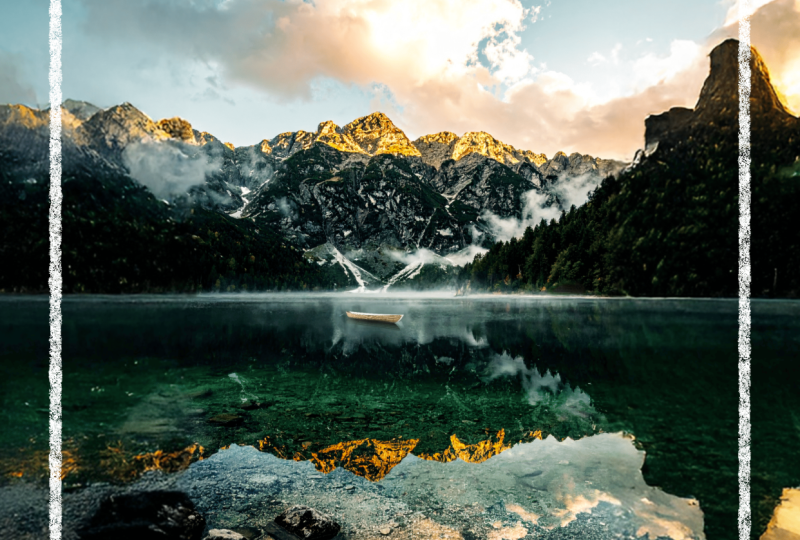
in this big landscape. Now we're going to
expand the canvas. Even though I did choose a
16 by nine aspect ratio, I could expand it to zoom out
from my mountain even more. Let's go to white screen
and just switch the two. Two, five, six, zero, and I'll just paste
that first number here. All right, so you can see how much work
Firefly needs to do. Let's generate and
see our lake scene. There we go. We have some rocks over here.
This one looks good. I'm not sure what this is,
maybe a piece of trash, but I'll go with the second
one and then click on Keep. Now we have more rocks. We have an extension
of the mountains, and then the sky, I think I will
introduce more clouds. Let's grab a nice region
and type in clouds. Just keep going back
and forth until your image is exactly
the way you want it, and then it's going to be a good base for you to
add new things on there. So there's the clouds,
got some options. I think this looks good.
And then press key. Once you're happy with
your background image, all you have to do
is download it. Now we're going to go into Adobe Express just by
switching over here, and I'm going to upload my background image
with this button. You have some options. You
can either edit the image, remove the background or
add it to a new design. If you click on Edit Image, basically, this is going
to be your background. I have some editing
options over here, but I also have access to all of the regular Adobe Express tools. What I'm going to do is grab a text and just put in
inspirational quote, I guess, start your journey. Command A, let's center
it, make it bold. Click away and then use the guides to make sure
it's in the middle, and I'll do another
one down here. So hold down Alt option
shift, click and drag. So we have two very
basic looking texts, and we're going to enhance
them with generative fill. So before that, I just want
to make sure that I have a good base for Adobe
firefly to work with. So I'm just gonna
highlight everything, make it bold, and then make
sure the size is what I want. So maybe like 240, the same thing down here. Just type it in. And I think
that's looking pretty good. Now let's go let's grab one of them and then
go over to effects. There are some pre made effects like shadows and all that, but we have some
generative effext effects. You could try some
of the options here, such as this one, I'm
not sure what that is. I think it's snow and this one
looks like a glass effect. You can see it starts
to work on your text. Let me just zoom in here. Curious to see what this
one is. Misspell Journey. There we go. Now we have
this disco ball situation. It's looking pretty fun. But if you want to do
a different style, you can just do that
with this pencil. Instead of disco ball, it's type in glass. Let's see if we can do that. We can customize the text. So any of these options, I'm going to stick to medium
and then choose your style. Since I'm choosing glass, it has to be realistic and there are some
inspirations as well. Um, let's see, gold
drip, balloon. I guess balloon
is a good option. Let me look at balloon first. I think glass is something
we should explore first. Glass, medium, realistic,
let's generate. And then down here, you have some options as to
how your glass looks. To go with this fourth one.
You can also generate more. We got some a pattern class. I go to go over to balloon. I think that would be
an interesting one. This fourth option
has more contrast. I'll choose that one, just let firefly generate the effect. Going back, I'm going
to add in some shadows. We have different types. Let's try lift.
Then you can edit it to work with the intensity. Maybe customized
would be better. Definitely more blur, and I think the color
is fine, actually. Play around with the
angle. There we go. So now I'm going to just repeat the same thing with
my other text. I'm just going to check real quick for color of my balloon. So you can just switch it here. I think, like a yellow color
would stand out better. So let's do yellow
three D printed balloon in the same style down below. It already preserves the
shadow effect that we had. Okay, so that's a lot better. It kind of matches the gold that we have on top with
the mountains. Now what you can do is
just go to the three dots, copy style, and
then paste it here. So right click Paste a style. And then because we're dealing
with different letters, we do have to just
redo the balloon part. So I'll go to
balloon and just hit yellow in the same
settings, really. I think this is the one. Yellow. There is our magic link message, and we even have one at the top. Those are the more
complex text effect. You can play around with
different textures, maybe add in some more. But what we're going to do now is do some final adjustments. So I do want a nice border, and I just need to go
over two elements, grab a shape and put it on top. Let's go to rectangles
and at a border, like a white one,
remove the fill, and I want to do a
rectangular frame. Let's go ahead and
increase that border 40. Round the corners, there are some styles here as well
if you wanted to explore. Now I'm just going to
go over in the corner. And fit this to the
size of my image. Make sure it's centered.
I'll go with this one. It looks cool, but I'm going
to make it a little tiny. Once again, make sure
it's in the middle. Changing the style can
alter the position. Be careful with
that one. Next up, we could add some
overall elements. This is where the layers
are showcased by the way. I'm now going to head
down to elements again, and I think we could
go for another shape, maybe a half circle just to show it try to do a logo, maybe. And for the color, I
could use the eyedropper to grab some of
that yellow color. Click away, and
there is my shape, like to replace one of
the eyes. And that is it. Your firefly powered mini
poster is now complete. So just make sure you
review your layout and everything aligned
using the guides. And then when you're satisfied, you just click on Download.
Choose the format. PNG will give you the
highest resolution, but you can go for
the other stuff if you want to print
or share it online. I will stick with a PNG. Then choose the size. The higher the sizes, obviously, the heavier
the file is going to be, but if you do choose
to print this, make sure you're choosing
the correct size, you can also order
prints with Adobe. That's an option
you can explore. I'm just going to stick with the default and
download my image. Here's my final product. You just created
a complete piece using every major
firefly feature. We started from generating, then styling to editing, we expanded the image
and finally added some text effects and a
border in Adobe Express. Well done, I hope you guys are satisfied with your pieces
and I can't wait to see.
11. Congratulations! What’s next?: Congratulations.
You just completed the Adobe Firefly fundamentals, design AI images and
creative typography class. In the course, you learned
how to generate AI images, refine them with the insert, remove and expand tool, and then put it all together
into one big composition. Now it's your turn.
For the class project, I'd like you guys to
build a mini poster or a visual composition using everything that we have learned. Start with a simple prompt, build up on it with some reference or
composition reference, edit it with some of the tools
with the generative film, and then finally add some text
to bring it all together. You're happy with the result, upload it into the
class Project Gallery, make sure to have
your prompt there so your classmates can see how you came about
making that design, and I will be checking the
gallery from time to time just to see how
well you guys are doing and provide some feedback. If you enjoyed
creating with Firefly, make sure to follow
me on Skillshare. Thank you for joining
me in this journey, and I hope to see you guys
in the next lessons where we see what else is possible
with Adobe Firefly.
 Skillademia Academy, Creative Skills for the Future