Transcripts
1. Intro to AD9 Coordinates in Affinity Designer : Hey there and
welcome. My name is Dolores napkin and
I'm coming to you from sunny, Manitoba, Canada. I'm so excited to
get to this stage. We are finally creating our
full pattern collection. A collection is a bunch of
patterns that go together. We've already created our hero. We've even added a ton
of interests to it by adding embellishments that we've created along the way. And we've added assets
to our asset gallery. Now what we're gonna do with those assets is create
some coordinate patterns. I'm really excited about that. I love creating the coordinates, one of my favorite
parts when I'm doing a complete collection, we're gonna be using
assets to do that, but we're also going to
be experimented with a couple of other
coordinate creation ideas. We're going to create a couple of different
versions of stripes. And I'm also going
to be showing you some really fun things like our repeated
triangular pattern. All in all. At the end of today, after you've done all this, you're going to be completely prepared and ready for action. That's what's so fun about it, is that at this point, you do have all the
skills that it takes to create what you need to
round out this collection. Collections that we're creating are what you would consider
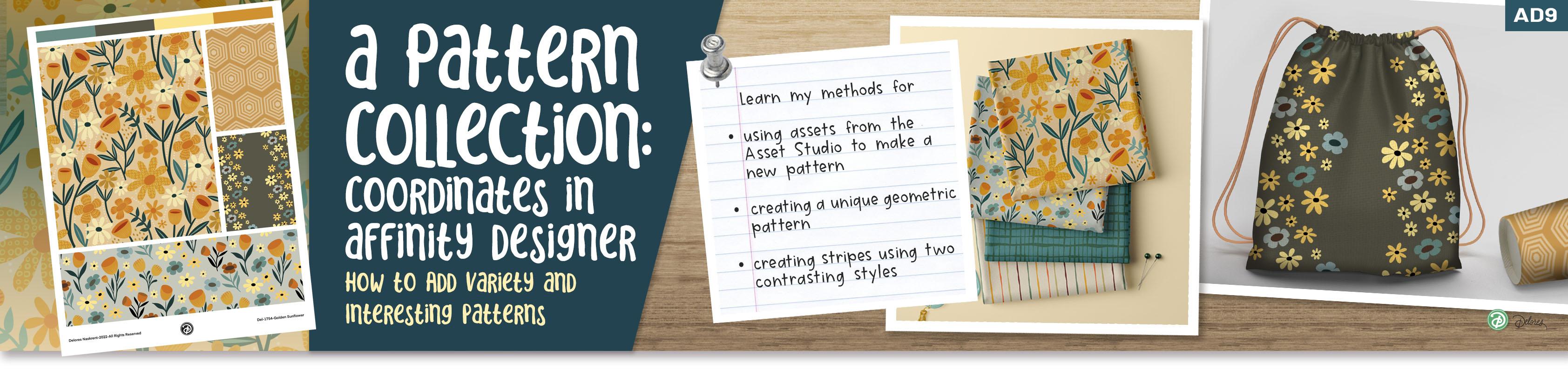
a mini collection. A full collection tends to have about 12 patterns or more even. But this mini collection, we can get away with three
or four patterns together. So that's what we're aiming for. And at the end of class, we'll have all of that
together for the big surprise. You'll have your patterns
ready and then you're gonna be able to just finish
everything off. And I don't want to
say anything more. My lips are sealed until we
get to that last lesson. So are you ready
to get into this? I share it out. So I'm going to meet you in that first lesson.
See you there.
2. Lesson 1 Inspiration and Overview: Hey guys, welcome to lesson one. You know, I always start with a little bit
of inspiration. And I know that we've done a
lot of research with these, with these patterns that
we've been working on. I just want to add
a little bit to that so we're gonna go
through this quick lesson. So I can talk to you
a little bit more about it. Let's get started. We are in the final class
of the three-part series, where we're producing a
collection of fabrics. And I wanted to just
show you some of the work that I have done with that same pattern that we started out with
weight at the beginning. So remember this way back then. I guess it's this one
here where we were adding all kinds of
textures to our motifs. This was the intermediate
one that I did. And then of course, the last one that we did in the last class, which I showed you
at the end of class. And of course what I
did is I went through and added a whole bunch
of my favorite motifs. Maybe I'll even add this
little branch here and just go to the collection that
I've been putting them in and add Asset From Selection. So I've really increase the
amount of flowers that I have available for when
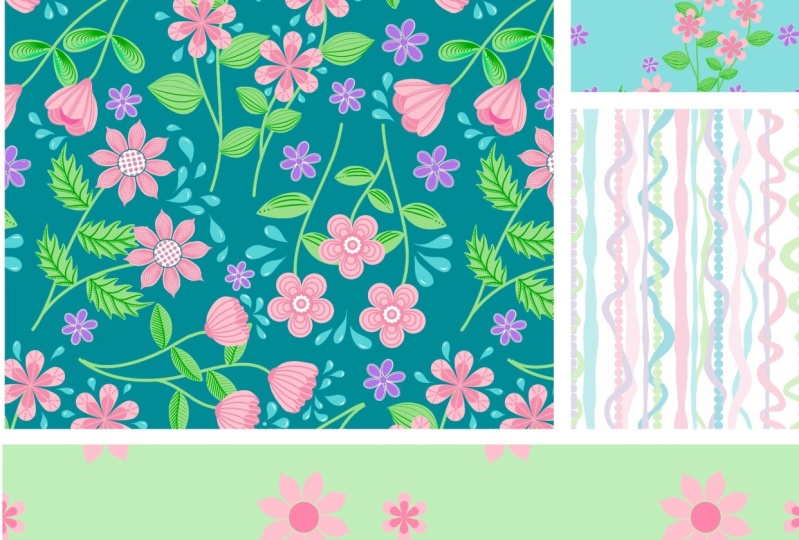
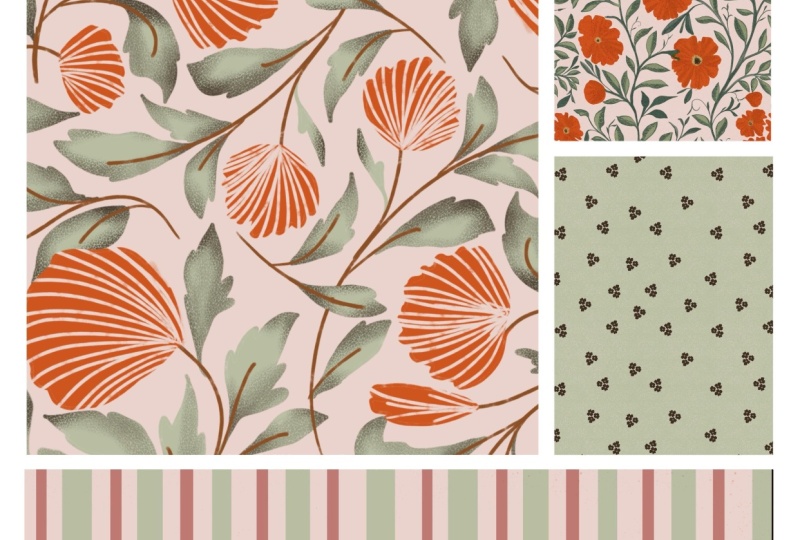
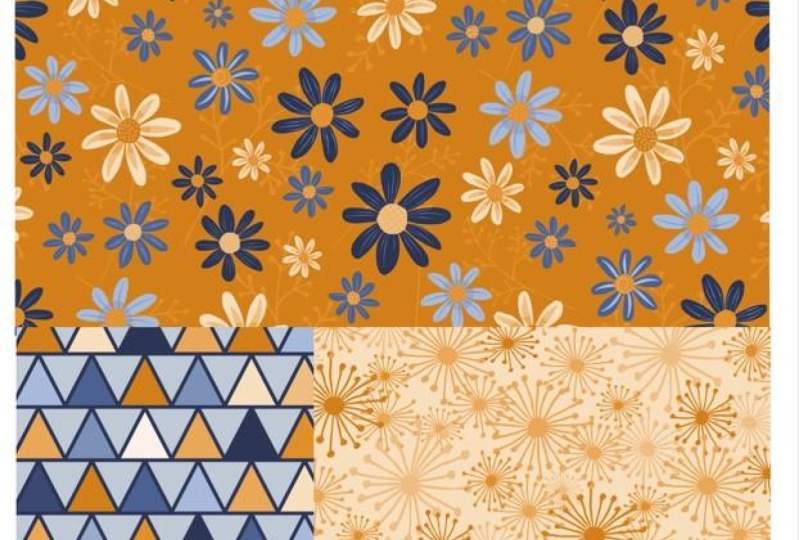
I'm doing my coordinates. And here are a couple of the ones that I
have produced to go along with the class and to obviously do my
mockups and things with. So that's one of them. This is another one so completely different
and yet really effective and will work really
nicely as a complement. And there's this
one that I made, a stripe with some
of the flowers. And you'll recognize
these flowers because these are
all flowers that we used in the other
patterns that we did. In this case, I
didn't have a lot of texture on them or details. That's something that
you can do when you're doing a set of coordinates. Coordinates don't have
to necessarily use any of the elements that we've done in any of the other patterns. I've been really on a turbo
tour of Affinity Designer producing all kinds of
different surface pattern designs that I'm going to
submit for art licensing. So here's an example of one of the Christmas ones I
did for Christmas 2023. So I haven't actually made the cell sheets or
anything for these. I'm just at that point, what I was doing was
creating all the coordinates for three or four hero
patterns for Christmas. So I've got this one here. The one I just showed
you, then one. And with this one, I definitely tied in that idea of adding little
things in the background, just like we did with the **** and Arctic inspired patterns. And then I think this one here, I think I'm still
working on this one, but there's another in the grouping that I'm gonna
be sending for Christmas. And then you see all the
coordinates that I've done. So I've done probably ten
different coordinates, some simple as stripes. That's gonna be one that
I'll be showing you today. I've done this sort of
alternate type of stripes. So this one is finer lines and a little bit more texture or movement to the lines than this, which I've just done kind
of a toss with one of the motifs that I have
to produce this pattern. Some of these have been
using a grid repeat, and some of them happen
using the half-drop repeat. So I'll be explaining as we go through and we're
creating those coordinates, different things
that you can do. So I've done some really
nice blender prints like this, this one, I originally drew the motifs in, Procreate just using
one of my lines. Sort of a tool that I have drawn all these kind of unusual
polygon shapes and so on. That I think is really nice. It will be great for Christmas, really will tie in nicely with most of the Christmas
ones that I've done. And this one which I think looks like stained
glass or something. And this is another one that hopefully we get to
end today's class. So this first lesson
here is just showing you the process I go through. I start usually with
the hero print. I do two or three of those
and then I just kinda go nuts creating a whole bunch of
coordinates and I'm not even sure which
ones I'm going to use something like this. I think we did this in
one of the other classes. This could work. And I'm still developing a few. So this is one that I'm
working on right now. This is how it's going
to look in the repeat. I still have to
colorize this one. And then this was one that
I was experimenting with. And this one was a little bit tricky getting the
repeat to work. But this is basically
another modified stripe. So we've got all those
different things going on. And these are amigos
goes back to a lot of the other florals
that I had been working on prior to Christmas, but I think that we have enough in our arsenal of
assets that we've created that we
could go through to create some blender
prints or coordinates that are going to
work great with that hero pattern that we created in the last
two classes. Alright. So let's get into it. Now. I also want to, before we end this lesson, take you into Pinterest and into one of my boards that I have
in surface pattern design, I have a board here
called coordinates. So pattern coordinates and also this pretty small patterns
could be wine where you would be able to find ideas
for creating coordinates. So very simple, some of
them, one single motif, definitely a lot of ideas
and this one polka dots, this is just sort of, I
would say like a lineup cut. Repeat that's been done. Here's some great ones
that are just lines and then definitely go into the
coordinates board here. You're going to see a lot
of different ideas here. And some of them inspired me for the patterns that I created. So that was kind of inspired me for that triangle
diamond one that I did. And there is something
like this that I created with a lineup tool. This one here, I think it's
something we could easily do. Same with something like this. There's another one
with that diamond. Look. There's so many great
ideas here and so simple. And these would
almost all of them be viable candidates
for what we're doing. So just a simple
Polka dot like this, but without it being fully
symmetrical would be great. One single motif, like a flower. You could definitely
go in and create these just quick in Procreate first and then trace them
and bring them in. I won't cover that. The whole process of
taking it into capture or your vectorization
tools that you're using, whether it's online
or Adobe Capture. But I just wanted
to mention it so that you think about
that as a possibility. I do have two or three and
I'll be showing you those. That's the way I did them, but I won't go through
the whole process with you since we've done
that already before. But look at some of
these ideas so simple. And I think that would be just so fun to have
as a coordinate. I can't wait. Actually see the different things that
you're going to come up with. Because seeing these and seeing your ideas is just further
inspiration for me. So I love looking at some of these that people are selling. And from there you can
get a lot of ideas. One of the things
that strikes me as soon as I open up
something like this is what a great color scheme
and what variety you can get from that
same color scheme just in the way you use things. So a dark background with
light motifs on top. I like these, you know, that's just single
colors. So many ideas. I mean, you could spend
hours and hours going through a Pinterest board like
this or a Pinterest trail. Getting ideas is not
going to be hard. And in the end you're
going to be thinking of things that you like and
applying that to your patterns. Here's another one that's
kind of those triangles. So I think we've just seen probably five
different ones that are just different
versions of the same idea. So that's a bunch of
inspiration for you. And now we can head into that first lesson
where we're going to start creating some of these.
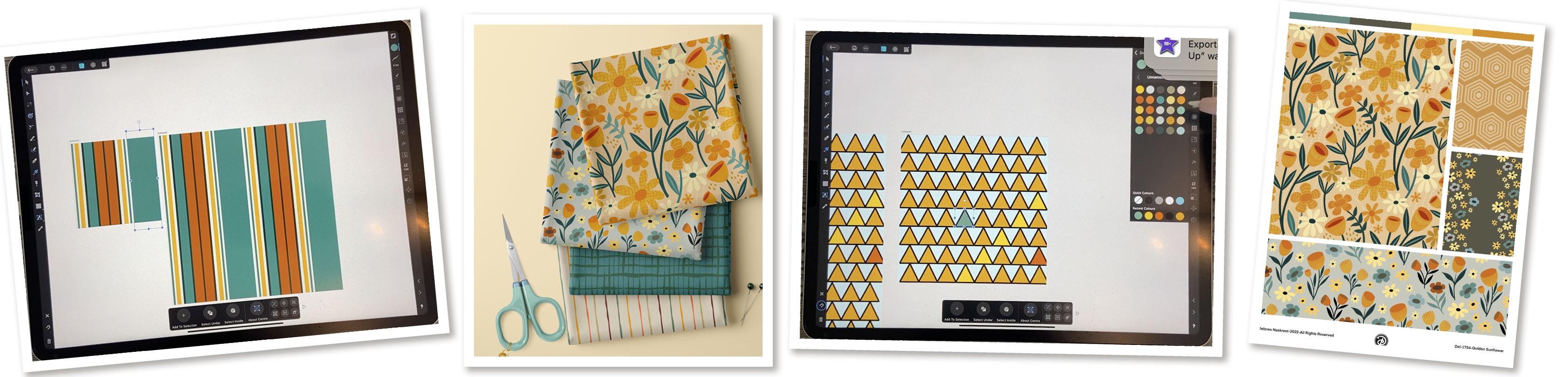
3. Lesson 2 Creating Stripes with Two Methods: Hi guys, welcome to lesson two. Lesson two here is
all about stripes. I'm gonna be showing you two completely
different methods. One of them is going to give you a really formal kind
of a straight stripe. And the other one
is going to give you the complete opposite. Let's get into it. I'm going to start
this by duplicating, which I've already done here, the half-drop repeat template. And I'm going to pull it up
to where I'm working here, closer to this set of patterns so they don't have
to scroll down for it. And then I've got my grid
repeat here as well. So that's an older
repeat that I have. You probably have it too. I think if we did this together, I just can't remember. Everything's named
work, my brain is full, it's going to explode. Okay. First things first, I
want to do a stripe. One of the things that I
don't know if you knew, but I was in the immersion
course with Bonnie Christine. So Bonnie Christine is a surface pattern
designer, very well-known. She's very popular
on Skillshare. I first came across her there and she opened her own
school several years ago, three or four years ago, and runs the Immersion Program, which is a surface pattern design development
program for artists. And I've been in that class, I just finished it a
couple of months ago. And of course I learned a ton. And a lot of what I do on a day-to-day basis was fully
reinforced by what she dies. Of course, she uses
just illustrator. She doesn't use Affinity
Designer and she has a method that's Different, let's just say in, in the sense that
she never works with seeing a full
repeat of her pattern, which I found really
interesting because that's one of the
things I really love and I do it in Illustrator. I do have a method, at least on the desktop
where I can view my entire pattern as I'm
working on it, on the iPad. It's not quite as easy, but there are ways
of doing that. I just found it
really interesting. That was one of the things that I that really stood
out for me is that she doesn't do it in this way and I just
can't see why not. The other thing
that I found really interesting was that she really discouraged newbies or people just learning with
doing strikes. Stripes are super hard to do. They're really hard
to make it work. So that's something
I would put off until you're really experienced. And that puzzled me because I actually don't find
strikes to be that hard. I'm gonna be showing you a couple of different
techniques. This first one is super easy. There's no way that
you can do this wrong. And that's by just using the rectangle tool and
drawing your lines. We can go in here, of course, and change everything
to be our color scheme. The way I have a setup here, I actually hate this setup. I like having my single
art board on this side, but I don't want to take the time to change
that right now. So I'm going to work with it. This rectangle I can
change the color of to be somewhat in the family
of what I'm working with. I'm going to change it to maybe, maybe this light color here. I'll make it even
lighter. So I'm dragging up here to
make it super light. So it's a version of
the teal that we have, but it's a light version of it. So I think that's a
good way to start. Now, this rectangle that I just drew did not go into the symbol, so it wasn't repeated. Now it's there. I don't know what
this pixel layer is, so I'm just going to delete. It. Must have been something
from another project. And one of the things I want
to do is go to my swatches. And first of all, I'm going to take the
stroke off of this stripe. And I want to go
and add this color. So this fill here
that I just created, I want to add it to my palette just in
case I needed again. So just add current
fill to palette. And now I've got that
light version in here. I find it easier to do this
because if I do need to, e.g. if I want to stroke this now, I could just get that
stroke and put it on there. And that would make
sure that I have no gaps there,
onwards and upwards. Let's continue with
our stripe creation. What I wanna do here is maybe to change the width on
some of those stripes, just to make it a little
bit more interesting, I could draw a new rectangle
or I could now it's simply duplicate this one and use my
move tool and move it over. And maybe in a case like this, I would use this little
thinner one on this side. Then duplicate this again, slide it over and
change the color of it. And of course, I'm going to
be sticking with the colors that are in my palette to
make this really interesting. So you could do repeats and you could keep the same
color on some of them. You can see now that as
I'm hitting Duplicate, it is also copying the distance that I
move that last copy. So that's something
to take note of. And nothing you
could do here is you could do something
like this where you've got a grouping of the stripes enclosed within sort
of a color block area. So that one, maybe you would
go to something super dark. Then that's going to
make this little set of stripes really stand out. You could duplicate one of the colored ones and then
slide it in over top. Now you can see that
if I don't have it completely enclosed
in that symbol. Won't join up, but because we're seeing the full duplicate here, It's definitely
helping us to make these decisions just
so that I can have a really different Stripe
than what I had before. I'm going to do this in a different way than my
original plain striped. So these are, I mean, it's obvious, so
easy to do this. This was a super easy version
of a striped just show you, and of course, this one is not difficult to match up at all. The second set of stripes, and I'm going to
show you though, has a little bit more
of a challenge to it. So let's, I'm just going
to finish that one off. Let me introduce a new
color here. Lakes. I don't like that. I don't mind that this has given us just a
really basic stripe and that could become part
of our coordinate set. Now, I should have
duplicated before starting, but I don't have it lower down. As a matter of fact,
it's right here, so I just duplicate this one. I will get rid of this copy. And let's go into here. And with this one,
I want to show you a different method
for creating a stripe. And this is going to
be the one that has a kind of a wiggly line. So when it comes to doing
something like a wiggly line, I personally like
doing a line with the pencil tool and I am
going to stabilizer on it. So I'm not getting it too crazy. But as soon as I drag
this one into the symbol, you're going to see
what the challenge is, and this is probably what
she was talking about. I'm just gonna get rid of these pixel layers
that are in here. I'm going to have to do go to my master and get that off of there so that every time I
duplicated, it's not there. So I bet this is what she
was talking about with the difficulty in
lighting up a stripe. And that's why I think, well, if she knew this method, she would realize it really isn't that hard to do stripes. So I'm going to show
you how I deal with everything joining
up and how we can make this into a more
interesting stripe. So first of all, let's
increase the thickness. So I am going to widen
it to about there. So that's about 40 points. Of course, you can color it to one of the colors
in your search. You know what your
color scheme is. We can go in and I forgot
that this was locked. Actually, even when it's
locked, just so that, you know, even when it's locked, you can still change
the color of it so we can set the stroke,
but that's okay. I can keep the stroke
that color and I can still change the fail
even though it's locked, which is something you
can't do in Illustrator. Okay, so we've got
the stripe here, the pattern or the repeat
of it, the challenge. And that's one of the things
I like about working with a stroke and not a
shape in this case, because we can then pretty
much perfectly lined it up here without doing too
much additional work. So I'm going to pull that line until I
get it almost perfect. And that's pretty darn close. Like if you were to look really, really close, you can probably see that that's still
off a little bit. But remember that
because it's assemble, you can make your
adjustments here. You can do it in
the actual repeat. So we could select either line, both of the lines and
make it work perfectly. So that is a pretty darn close
match down here and here. If we just make a slight
adjustment to that curve, we can see that we have succeeded in having
a perfect match. You can, at this point do anything that you
want with that line. You could delete some of
the points that are maybe making it more wiggly
than you want. And there are a bunch
of different things I want to show you
with this stripe that can help you make a really interesting
one in the long run. So we'll do that
in the next lesson because this one is
already 10 min long. So I'll meet you there.
4. Lesson 3 Adding Interest to A Stripe: Hi guys, welcome
to lesson three. So I couldn't squish all of the information into
that one lesson. So I want to add
this lesson here to give you some ideas on how to add interest to your stripes. Let's get to it. Okay, so I wanted to show you a few other things
that you can do here to make your stripe
more interesting. We could duplicate this tripe and definitely I
will be doing that, are repeating my stripe. But before I do that, I want to show you
a couple of things. So remember that because
this is still a line, we can go in here and
change the profile of it. So we could have
both ends the same. So we can let say, pull
those down to about halfway, trying to keep it
pretty consistent. Because we definitely
want that thickness to be similar enough that that
connection still works. We can make further
adjustments later. But I also want to show you
that what you could do here is make the line itself
have a ton of variety. So by working with
this line profile, we could do some
really cool stuff with that line just to make it really different
from the original, if it helps, make your line
wider to start out with. And what I like about this
is how it looks so remedies, so we could work on it to get that match
a little bit better. If it's not perfect,
we don't need to worry too much because we can also make a little
bit of a change to it. Once we convert it to a curve, a will expand the stroke
after we've done this part. And then we can make sure
that we have it matching, but you can get it
pretty darn close just by really experimenting
with this. There we go. That's
almost perfect there. So looking at it, I think that this
would be a line that I'd be interested in
having repeated. Again. Here, I would duplicate it. First of all so that I
have that still editable. And this one here, you could go in and create the outline for it and make
sure that it matches up. Now, just to be different
on this one here, I could do something
like rotate it. And of course, when
you rotate it, there is a bit of an issue there and you know what
the other thing that was probably giving me
a little bit of trouble was that I have
these hanging over so far. So that's why the
connection was a little bit harder
to match up by it. You can make sure that
it's shortened closer to the length of your
actual background, square root two so that you can work this a
little bit better. I mean, part of it is working with the thickness
and part of it is working with the
positioning of that end point. So could grab that end point to get it to match up perfectly. And because we flipped it, it looks so completely
different rate. So that's kinda interesting. I'm not sure why on this one, it's not matching up perfectly. And that might be
something to do with the positioning
of my squares. So I would have
to go back in and double-check that my
rectangles are all perfectly positioned like this
one needs to be perfectly zero-zero and I would go through and check
them all for now. I won't do that. I can check that at the end, but I just wanted to show you that this is a really great way to produce some variety
with your lines. Now the other thing
is you can also at this point expand the stroke. And now that is a fillable with any of the
patterns that you created. I don't know if it would
like this line is so thin, so most of the patterns
that we created in our last class
wouldn't work in here, but it's just something
for you to keep in mind. If you are working
with something that was waived thicker, e.g. which you can't really do. This stroke thickness. You might be able to fill it with just a really fine
stripe or something. So you could do something
like this where you expand the stroke and then you could
go and draw lines over top. And this is still the
line, that funny line, but we can take these
and let's change the color to one of
the other greens. So it's darker than
the background, but lighter than the stripe. And you could take that profile off or you can leave
it, It's up to you. But because of this back here, this shape here is an
actual shape now or curve, and it's not just
a regular line. We could take these we've created and have them
clip to the lines. So imagine the
possibilities with that. Of course, we could also go
through and take that profile off of there so we could
reset the pressure. So that is just a plain stripe. And then you could go through, Let's group that
right away while it's easy to select and
we can duplicate it. Duplicate the whole group. And then you see how
the second group here, you could slide it down. Now you've got these two. You can either take
all of these and slide them into that original
group to make that bigger. Or you could have just Continuing with the double
group and duplicate it. The bigger that group is, the faster you're going
to fill your shape. It doesn't have to
fill it everywhere, but you could do it so it
does fit feel everywhere. We can even do this
where we enlarge it. And you'll see that of course, that happens over here as well. So I just love this idea. Like this is something
I just thought of, like at midnight last night
as I was lying in bed, Hey, this is what I could
do with my stripes. This would be more interesting. You can tell I have no life ray, if I'm lying in bed and what I'm thinking about is
how am I going to fill that stripe when I'm working Affinity
Designer tomorrow, when I'm working on my
coordinate patterns, how could I do this? So that's the kind of thing
that goes through my mind. I know it's a sickness. But hey, girl has
a dream, right? So now we've got
this stripe that is completely enclosed
within the other stripe. That whole thing, we can
duplicate, duplicate it, and we can slide
that guy over you, anything you want,
turn it around. And the neat thing about it too, is you could enlarge it
and then everything else. You could go in and
change the color of it. So you could either do that
just the manual way by going through and
selecting everything. And of course we have it in a group because we
are so darn smart. We can take that these two and change them all
at once like this. Let's try orange. Why does this make
me think of Dr. Seuss the moment I see that. Okay, So let's also
change that background. So this one here will go in and make it I'm on the
wrong one, but that's cool. I'll leave it in yellow maybe. And I'll go back
to the other one, which is this one late. Well, I think what I did is
I duplicated everything. So all of these stripes
were duplicated, so easy to lose track of
where you are and what you're doing in this program because
of all this layering. But I'll go up nice and big and then I
should be able to grab that shape and then
change the fill on it. And how interesting is
this now as a coordinate. Now that you know how to do it, you can just go through and
create a ton of different, different stripes and work on making them as
interesting as possible. Now of course, now we
have this challenge down here of trying to
get that to match, but it is a shape
so we can work very easily on that by just
dragging out the ends. This one here, we might have
to do something like this. I'm going to make
that a sharp point. That way. I can barely find
that spot but that way. And this is why I hate having this one on this
side because I feel like it's completely
not intuitive for me. It's just not the way
that I need to work. So I'm going to do this so that that's rounded out in the
way that it's going to map. And then I'm also going
to pull it in just a tad. And it would take a
little bit of work, but it can be easily done to match us almost
there at this point. And there's that
little kink in there. You could decide to leave it, or you could just go
in here and of course, select it and smooth it out. So I would probably
take the bottom one out because I've
taught this now, working and then smooth it. I guess. I do have to turn it a
little bit and see if that affected the overlap and not really So I think
that looks okay. And that looks like a really
nice crepe ribbon that is floating there to
create our repeat. So I do have to go
in and figure out why that's not working there. There's an issue with
my repeat with my grid. But usually they can be things like that can be
figured out pretty quickly. And before I do any more
into my grid, repeat, I'm going to find
my grid that has the art board on this side. Do you ever do
want to change it? You can go into your
art boards and I don't know if you can just
select it and move it. I don't know if I've
ever done this. Honestly. Say I don't want to affect
the rectangle on it. That moves the whole art board. Okay, Well, here we go. I've solved my own problems, so I'm much, much, much prefer it here. That's because I'm right-handed. I just feel like this is
where I want to work on. I don't want to be over
top of this one here. So I would now go through
and complete this pattern. All of these things that
I'm starting and finishing, I will go in and finish. By the end of the class. I will have some of these
as my actual coordinates. I'm at this point just
wanted to give you ideas. But now you can see here
we've created two very, very different stripes
with that grid repeat. So I think the next
one I want to show you is just one of
these geometric ones. And I'm leaning towards showing you this one
because I think it's so pretty and I think that
we can work on that one. And now that I know how
to change my grid here, I'm going to check and see why that last symbol
wasn't lining up. And I will move this
to the other side. I'll do that off
camera and I will meet you in the next
lesson. See you there.
5. Lesson 4 A Triangle Pattern and Variations: Hey guys, welcome to lesson. For this lesson I want
to show you some ideas for creating something like really symmetrical
triangular pattern. I've just recently created this, so I thought it'd
be a great time to share it while it's
still fresh on my mind. Let's get to it. Okay, for this pattern, I fully prepared my art
board and my repeat, I cleaned out that
that was on there. Now I have a new master which I can duplicate at will and it has my first art board in
the position that I like. This one I want to do with
triangle as my repeat. So let's go into
the rectangle tool here and grab the triangle, and we'll pull our
first triangle. You can do this
whatever size you want and whatever
shape you want. So you could do it
tall and skinny like that or equilateral
if you want it. Perfect, you can hold down your single finger
to get it that way. And at the moment it's
got a stroke on it, which is fine because that's
exactly how I did it. I actually went in and I really thickened the stroke
on the outside. Let's actually go
into advanced here. I don't want rounded corners. I want them to be
nice and square. You can also change the
alignment of the line. Not sure, it's
going to make that much of a difference
at this point, but I do want kind of a blunt end that made it easier for me
to join them together. If you know what I mean. Here, I will also think about
how I want this to work. So I really want
to be able to have the same color on the outline
of all of the triangles. And I want this fill to be
different on all of them. So I think the best way
for me to accomplish this, to be to actually expand
this already at this point. Why I want to do that is
because I want to be able to join those outlines together into one solid shape at the end. So I'm not sure if
there's an advantage to doing it now or
wait until the end, I just think it might be easier so I can join them together, do the addition when I
have my single role, e.g. rather than when I have
the whole repeat done. So let's go ahead and do that. I'm going to go into here
and expand the stroke. So now there's two
different shapes here. You can see it immediately
put it in this way. So the triangle itself still overlaps into the
middle of the line. So that's what
makes it look like. It's still a stroke. What is actually separate? And it's behind that line, which is perfect really. So now what I wanna do
is group those two. And let's move this
right out to the edge. I'm going to put my snapping on. And for now I'm just
going to snap it so that it lines up to the
edge perfectly. I didn't stop to figure out size or anything like
that and how many are gonna go across
because I can let the program do the work for
me at this point here though, I want to duplicate
it and then I'm going to move it
into position here. Now, theoretically, I should
be able to hit duplicate, and here it's working perfect, That's exactly what I want. And wait a sec, I can see
that there's a problem. I must have duplicated it and
moved it up a little bit. I'm going to delete that
and I'm gonna duplicate it. And then I'm going to make sure that when I move it
into position here, it lines up to the top. I also do want to have that
quite overlapped the way that I have it there so that I can join them like
I mentioned before. So now I'm going to duplicate, and this time it looks
like it's perfect. So I'm going to go
ahead and duplicate until I have the
full width field. And I think I'll do one more. What I'll do here is take all
of these now and group them and then allow the program to do the work for me
in making it fit. Now, the only thing
here is that I probably don't have it
overlapping the end, the way I want it to join. A way I can show you that is by actually putting it
into the symbol here. So you see what I mean? So that's the join and I really actually want it to
overlap just a little bit. So I'm going to
select that group. So I have it selected. I'm going to have to
temporarily turn the snapping off here
because I need to be able to drag it
over the same distance as I had been overlapping
the original triangles. So that works for
that connection. And I'm not sure, but I think that I need to pull it over a little
bit here as well. It won't show in this part
of their group, Pete. It would in the long
run when I have like eight across or tan
across or something like that, you would see that there was a gap or that they
were just joining up at the point rather than overlapped a little bit
like I have them there. So this is perfect. That's exactly what
I need. I'm happy. Now the next thing I
want to do though, is go into this group here. And I want to open these all up. And this is why I'm
doing it now and not later when I have
this whole thing filled, I want to grab all of these, so all of the block and put
them into their own group. And I know I'm missing some, so I'm going to go
through and just Grab them and drop them into
that group and keep going. And I see there's
one here somewhere. Yes, here it is. And do I have them all? What's going on with this now? How did I end up moving
that? I don't know. I need to go back here a few
steps until I fix that out. So something
happened. I moved it. Don't know how
maybe this will be safer to just bring
them one at a time. And I can do the same
thing with the triangles. The triangles can now move
into a group together, like the fill part of it. So take your time here. It can be a little confusing. And so you know exactly why I
did it now and didn't wait. Now, you end up with
these empty groups here that you can just delete. And that kinda helps to clear up your layer palette
when you do that. Here's one that I didn't
grab that black from. And so that leaves a
couple of triangles here. Now we've got all the
triangle fills in one and we've got all of
the outlines in the other. Let's take all of these, select all of them. And at this point, you can see that they're
overlapping nicely. So we'll be able to do this. And now that is one
shape on its own. So that's going to make the
next part a lot easier, because what we're going
to do is duplicate it and we're going
to move it down. And you know what this is, I think I'm gonna do to
make it a lot easier for us is to take and
select both of them. But I'm going to move
this so that it snaps to the outside edge instead of it being overlapped on both sides. It's looking to work
as far as meeting up. It's still going to
line up perfectly. But at least this way
we can duplicate it and it's going to slide into
position here on the side. Then we can move it back
to get rid of this, which is kind of an
overlap that's happening. This is just going to help
us with the duplication. So let's duplicate,
move it down. And we can keep doing
this duplicate. And now it's going to do exactly what we did
the same distance. Now we don't know that we
can fit it all in rate. This is just a guess
and you can see that it didn't all
fit into our shape. And so we get this weird
thing happening here. So what we wanna do now
is select all of them. So let's grab them all. Actually, you know,
what we can do is group all of these that are the black outline together and then group all of these
that are the fill. And now let's grab
both of these groups. And in this case we're
just changing the height. So we've got that, it's working, it's
fitting perfect. And now we can just
duplicate it or move it over a little bit so that
we get this perfect match. Now, the issue that's happening
here is likely because the symbols here are not necessarily
overlapping correctly. So this symbol is the
very first one here. This is incorrect, like it probably should be
the second one and it should be behind and
moved up into this position. This will take a little
bit of work to sort out, but believe it or not, it doesn't matter because
if and when we are going to export this as
a single swatch, this is still what we need. This is the thing that
is the single swatch. As long as we make it work. And I'm going to move it over back to where
it was originally. And you can see that it will
work to be a perfect match. Okay, So now our next part
of our little escapade here is to go in and change the
fill on some of these. We could change the whole
group or we can go in now and individually select some that we changed to a different color. Go into our swatches, make sure we pick a color, selected the outline
instead somehow. Oh no, I know what I did. I went and I actually
altered the stroke on it. I don't want that. I want to alter the fill
of the filled triangles. That makes sense. Okay, So I picked three that
are right beside each other. But you understand
what I'm saying here is now we want to go in and pick and change the color of the fill on individual
triangles here. So that would be the next
part of your challenge, would be to go in and you
can either select them here. If you keep double-clicking, you'll eventually get to the triangle and you can fill
it with a different color. And I just want to go back to my color scheme here
because I'm pretty sure that we could use
pretty much any of those colors in there and
I think it's going to work. So the one that I
had worked on for the Christmas collections here, this one here, because I had
a lot of red and yellow. The contrast is what made it look really like stained glass. So think about that. You might want to take
some of these and brighten them a little bit and I
think they could still work for your collection. Something like that to make
sure that if you do that, that you go to your
swatches and you add that fill so that you have it there for making
additional changes. Then, like I said, remember that you can go and open all of
these if you wanted to, and randomly grab from all the different sets so that you could change
them all at once. So of course I did it in
too much of a pattern. I don't know if I
would want that, but do whatever it takes, go in and change your
colors here until you have a repeat pattern that works for what you want
as a coordinate. So that's just one more idea. Now the other ideas
that I want to show you are more along
the lines of this, where we pick a couple of
motifs and then make them work. And in this case we will
be using the drop repeat. So the half-drop,
you can see from this dark one here that
it's not repeating straight across the grid
does it's going to be dropping and giving us a little bit more of a
random-looking pattern. Okay, so we'll do that
one in the next lesson. I'll meet you there.
6. Lesson 5 Half Drop Floral Coordinate: Guys, welcome to lesson five. In lesson five here
we're going to use a half drop repeat
instead of a grid repeat. And we're going to produce a
bit of a floral coordinate. So this one will use some of those assets that we have
in the asset gallery. Sometimes when you go
through a process like this, you end up with
two hero patterns. So we'll try to take that into consideration as
we're producing this pattern. I want it to be a coordinate, but you just never know. Let's get into it. Okay, So for this
one we're going to use that half-drop repeat. And I know this is already a
duplicate I saved earlier. And I want to work with
some of the motifs that I have saved into
my assets folder here. So I think for me, the fastest way to
do this would be to just drop a couple
of them in there. So let's insert a couple of them and then we'll
work from there. So it's completely up to you. I know that you're
going to experiment. This is a really fun
part in my opinion because you can really
do some cool things. You can have a really
full pattern here with a whole bunch of the
motifs that you had originally. These are also motifs that I
used in the butterfly class. So I could definitely reuse
some of those motifs. Or I could go in and go to the
collection that I had been making with the motifs from this particular hero pattern
that I was working with. So let's just insert
a few of these. Some of them are
coming in really big, but that's okay because
they're vectors. We can do whatever
we want with them. Let me add this one, maybe this one, and
this one, and this one. So this is the same as that, but I want to use it on its own. That's interesting
to me that as I enlarge or reduce the dots are not scaling here or are
repositioning themselves. And I'm thinking that there's some kind of setting
that I could do and I think I could
have done expand those. I think I'll leave it because
I think the bigger dots are good when I'm reducing it here. Now, none of this is
currently in my repeat, so you can't see it over here. So let's start by doing that. And I also want to change
the background color here. Let's go into layers. Let's go down into this symbol. And I'm going to pick
maybe an intermediate, intermediate green there
for my background. And also I want to stroke
it with that same green. And maybe I'll just widen that a little bit
just to get rid of the little gap that
was formed there. Now it's not exactly the
perfect color for this flower. So maybe I will know should I lighten it
or should I darken it? Working on the stroke
and not the fill here? So let me do this first. And I think it might be fun
to do something like that, but let's just go with
something completely different. And you see the problem I'm having is that I've
got dark motifs, I've got for leitmotifs, and I don't want to
change them necessarily. I think I'll do this
and change the leaves and I'll just darken
it just a little bit. And then I'm going to add this current field because I also want the stroke
to be that color. So now we can't see
our leaves very well, but that's okay
because we can go in and change them in
the layers here. So this is the, this one here. So grab that and maybe
fill it with much lighter, and we'll go to this
flower as well. Okay, That's the
flower part of it. There's the stem and this one
is filled with a gradient. So I could change that
gradients by going back to my fill tool here and that
darkest color that's there, I'll change it to one
of the lighter tones. And you don't want, let me just change this to a solid or a linear gradient
to actually would be nice. So am I on the stroke here? Is that why they must have
a blending mode here? I've got an on
dark and so let me go back to normal.
And there we go. Now, my linear gradient
is working just fine. Okay, so now I want to
grab all of this stuff. So all of these motifs, and I need to put them
down here into the symbol. So now you will see
it repeated here. And it looks absolutely
awful because we haven't started to do any of the
work on our repeat here. So this is where you
start having some fun, and this is one of my
favorite things to do. I love that it's the
half-drop repeat, because then you can see
that they dropped down. The motifs are dropping
down a little bit here. And I know that I'm
going to be adding more, but the other thing
we can do is also duplicate some of the
ones that we have. It turn Snapping off. And you can start thinking about making little groupings of flowers and definitely
experiment with your sizing. So something like this
could work as a grouping. So maybe rotate it in this way. And that's one of
the reasons that I brought this stem into it too, because you could also use it on the additional flowers so that you could do
something like this. And remember these
are all editable. So we can go in here if
we wanted to and extend. That this reaches
this other one here. And you can go as far as putting the two
of them together so we could take this one and this one and add them together. Not sure what's going to
happen with the fill there. It looks like it just made
it into a solid fill, but I think we can
still go back in. Well, yeah, it's got
the gradient so we can still go in and affect it. So what I might do is
something like that. So that there's a
mid tone and then go in and darken that a lot at the bottom because
I really like that how it's fading into the background. So you can adjust
where you want that. I want this to be
the linear gradient. Lost it completely,
but that's okay. Do the light green, the bottom here, we'll
have the darkest green. And I kinda like that. It's this bottom one. I want to darken, not quite
as dark as the background, but I like that, so that's a really
good main motif. So let's make sure it looks
like everything is grouped, so that's perfect so that I
can move these as a unit. No, I don't have that
flower in there. Now I do. So this whole thing can move
as a unit. I like that. And it's basically, you're building a new
pattern completely. So you can even do things
like go back to some of those original patterns and decide like maybe while
this is the flower we used, maybe we should take
this one in here. So this one has two
little cupped flowers. Let's add that to our assets. Let's make sure first of all, that they're grouped and it looks like everything
there is a group so we can add it to our
assets and then go back to the coordinate
that we're building. And we can go into this
and insert this one. I'm going to flip this one over. And of course we're
going to need to go in and make changes to
some of the coloring, but that's okay,
that's easy to do. Just find the location of the one that you're
trying to change. And this is where you can
see how important it is that we have an organized
layers palette. This is not even as organized
as I normally like it, so that's lighten this up
or pick a lighter swatch. And now that motif works great. And we need at this point to just slide the whole
thing into the symbol. And then we have it
repeated over here. Having it in the symbol
really makes it a lot easier for us to figure
out positioning. Because we can see how this one interacts
with this one, e.g. so it's almost like straight across and I think that
seems to work pretty good. And at this point it's
just about adding the motifs that you think
are going to make it work and filling it all out, you can definitely
duplicate things. So you could duplicate
flower if you wanted to or if you go in and bring in the single version or a single version of something that might work in its place. So again, it's just a
matter of sticking it into the symbols so that you can see where it could work and then making adjustments
to the color. I think I would move it
in somewhere like this. And I'm going to need
to adjust the color. So there's a bunch of
different little things that I'm going to do here. These are all things
that I could do off-camera and then come back to you with a
finished pattern. And really, at this point it's just a matter of you
going through and doing whatever you
think works to make your lovely coordinate
that you're going to have. I think this one is
going to work really well because we were going to have a nice dark pattern
to go along with this one, different enough that it could be a hero pattern
on its own really, but different enough that put together it would work nicely. One of the things to
think about is scale. So in this case, maybe I'm having the
scale of this one too big to go as a
coordinate for this one. But these are all
things that you workout after you've
got the pattern made. And if it turns out
completely different, you could have two
collections here. You could have one based
on this and one based on this with coordinates
that would work. And of course you can go and create super
simple coordinate. So in the next lesson, what we're gonna do
is just a couple of motifs and a pattern
in the background. In fact, this one is just
one single motif that one little fern leaf repeated
and put over a background. So that should be
our last lesson in this particular series, last lesson of
creating patterns. That is, of course
we're going to be talking about mock-ups
as well in this class. So that's coming out. Alright, I'll see you in
the next lesson where we're going to build one of these really simple coordinates.
7. Lesson 6 Create a Less Detailed Floral Coordinate: Hi guys, welcome to lesson six. So as I feared, I ended up too detailed in that last floral. So on this one I want
to do completely basic, like really, really basic floral coordinate with
the half-drop repeat. So that we can use this as a blender print or a coordinate. Let's get to it. Okay, So for the last
coordinate that we're building, I'm going to use my
half drop repeat again. I'm going to go back down
here to duplicate it and drag that up to
where I'm working. Open that up. And what I wanna do is a
repeat that has just kind of a texture in the background and then one single
motif on the top. So first things first, I'm going to change my
color to be something more in this color scheme. Or maybe I'll use this one. I like this light green color. So I think we'll
even go lighter, maybe not quite that light. Add that. Then I can use it
for my outline, which to my outline
is big enough to reduce the chances
of a gap over here. And I want to work with one
of the patterns that I've already brought in here and I don't know if
you remember it, but we had brought in some of these little circles
and things that I had drawn in Procreate and then
outlined with Adobe Capture. So I'm going to insert
this one and you're going to see it's
absolutely gigantic. That was one that I had worked
on, really, really large. I know you can barely see it
here because of its color. And that's partly the
intent is to have it so that it's not very contrasty. So this is basically
the background that I had before lightening it. So this is the actual background and this is what I
had made it from. So I liked that there
isn't much contrast here because this has really
subtle in the background. I can even lighten it
a little bit more, so it's something like that. But I'm looking for now. We want to drop that
into our symbol right away because we also want to, it's gotta be over
the rectangle though. We also want to repeat
it a few times here. So I'm thinking the scale I want will be closer to
something like that. So I will duplicate
and then drag it over. In fact, I should
have my snapping, I should have my snapping
on so that I can duplicate and move
that straight across. I'm going to go a little
bit bigger so that I can engage that they're
touching right there. But I want to move them over just a couple of points here. So sometimes what
I do is I'll go in here and instead of manually trying to pull it away from the snap physician that
it goes into here. I can just increase this
by just sliding over it. You see that it's just moving
it just ever so slightly. And now I can duplicate it
and do the same thing here. I was hoping it would
duplicate it for me, but because I had made that
slight change, it didn't. Now I can grab all
three of these and make sure that they work
here within my square. And it's a half-drop, so it's giving us
a little bit of a reprieve with the
overlap or the match. I'm going to duplicate
it and I'm going to move it directly below. Now, the duplicate will work, and by coincidence it
almost fit perfectly. Now I have a little bit more of a gap here then I would like, this would be another
instance where I would take all of these and
group them together. I'm going to shut
my snapping off temporarily and I'm just
going to manually adjust it. And you can see now that that
has adjusted that space. I think overall it looks
good, it's repeating. And that's one of
the benefits of doing it in such a subtle, subtle change in color is that, that can be quite forgiving. So really, this is one of the easier types of coordinates
that you could create. At this point. Let's drag in or insert one of our other motifs. So the one I had done was this. I inserted this and grab it and put it into the
symbol above the pattern. And let's think about the
color scheme on this. So do we want to coordinate
that has something that contrast D or at this point
that we want to coordinate, that's just a little
bit more subtle. So here I might choose
that same color, which is really like
super, super subtle. And then let's
duplicate that one. I'm going to use the flip and flip it both vertically
and horizontally. And then think about my
positioning of this one. Now, I don t think
that's near enough. I think we're going to have
to have more of them in here. We might want to be actually doing these
a little bit smaller. So we've got two and
now we can decide, do we want to group these
and duplicate the group? Then move that into position. Do we want it to be
perfectly lined up? Or do we want to do something like this
where we have it a little bit staggered and
actually kind of like that. Just it's different from
the first one I did. And I think what I'll do
is I'll duplicate this again and move this one up. Let me get this out of here and think about the
positioning of this one. So I've got two motifs here. I know that this one
is hidden, so I can, that's this one and
this is the one that's off on the side here. So this one I think I
could just eliminate. Let's just kinda move
this one around. So do we want it to
fully dry up like this or do we want it to be
kind of in-between here? I think I'm going to
stagger it a little bit. I'm not sure at this point
whether that's going to work once I have the duplicate of it because anything like
this that's cut off. So this is really the only one. This one, we need to duplicate
it so that we can get the match up for it so that it doesn't get cut off
like it is here. So we'll duplicate it in place so it's right
on top of the other. And we're gonna go in here. And our y-coordinate
has to be changed for that one to be minus ten. That repeats it there
and that gives us the other half of it
and that sort of thing. My problem with it
is that it is kind of like creating non,
non symmetrical pattern. I don't know if
that works. To me. It looks a little bit off that. Let's say this guy here appears
to be out of alignment. You can mess around with this and do all kinds
of different things. The other thing you could do, I don't want to affect
that one because it's now got its double up here. But you could go in and experiment with
something like this, like tossing something
completely differently. And I actually kinda like that, that's kinda cute too. Or you could even take that out and introduce a
completely different shape. So this is just another
quick idea for you. This will be one that
I think would work in well with really nice
mini collection. And with a mini
collection you usually have your hero print and
then two coordinates. You could decide how complicated you want
that coordinate to be. I think for myself I
would probably do like my most detailed main pattern as my hero pattern and then
have something like this, which is just completely
out of the ordinary and completely different
than this one. I like that there's a geometric
so that could work or we could continue to develop
this one or this one. Overall, I think out of
what we've done today, we could probably have too many collections that really coordinate
nicely together. So ultimately, I'm not sure how I'm going
to end this project off in the next lesson is the surprise I was
telling you about. And that's going to be taking up the rest of today's recording. But by the time I do my wrap-up, I'll probably have the
mini collections together. Like I said, I'm doing
a submission for my agent and I'm doing
all this Christmas golf, but I can also submit
something like this. This could be a fall
floral collections. So I'm always
thinking ahead of how I'm going to use this
in my actual business. Making money with my art. Lots of different
things on the go here, but I promised you
that one last thing. And you're gonna get that
surprise in the next lesson. So I'm gonna meet you there.
8. Lesson 7 Bonus Lesson with a Free Download: Hey guys, welcome
to lesson seven. So here is my biggest surprise. I've been waiting all this
time to reveal this to you. So let's get into it. I have been waiting
for this moment. This whole class is
thinking about it has made me really
anticipate this ending. And I am thrilled to share
with you my cell sheets. So I'm going to just show you a few of the
ones that I've done just recently here for
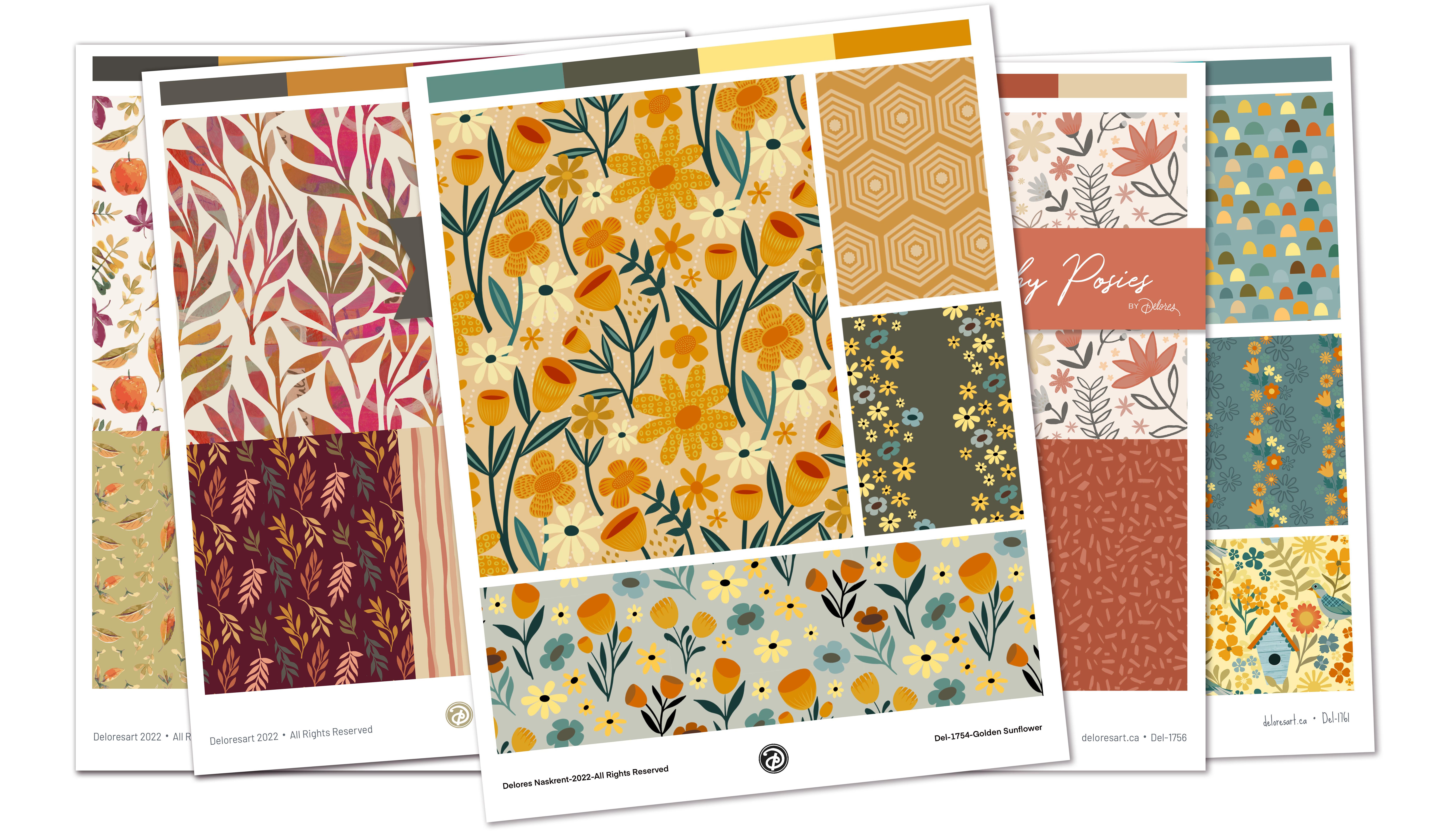
submitting for art licensing. So as you can see, I've got the name
of my collection. I've got strip with
the colors at the top. I've got the coordinates. And you can see with
every collection basically followed this idea. Now, this isn't for just
a pattern collection, because obviously
what I'm selling here is Flags in some cases, like in this case. And I think there was another
one, yeah, this one here. So I've created
coordinates to go with the flag because I
often find that I will have designed a flag and then they come
back at me with requests for other items
like let's say a pillow. The pillow would need a coordinating fabric
on the back of it. E.g. I think I've
done table runners. And what was in that last collection,
there was something, something else that required fabric or even the strips here. These are actual coordinate
fabrics that in fact, I never used to do it with a strip on the top
and the bottom, but this particular company
I'm licensing with, they required that maybe it's just a consistent
look that they've got across all of their
flags or something. So you can see basically the same idea as what we were
doing with our coordinates. These are all derivatives
of maybe that mean flag or maybe the first
main pattern that I did. You can see I have
repeated and used a lot of the same elements
to make new patterns. Here's fat or a version of
that triangle patterns. So this is the one
that I did that looks, I think looks like
stained glass. I thought it was
perfect for Christmas. And instead of just
having the roles of triangles all in
the same direction, I filled them so that they
look like diamonds, the stats. So that's just another
thing you could do with that little coordinate
that we created. I don't know if you've
ever seen my butterflies, but I've done a bunch
of butterflies. In fact, no, I don't
think you have. I'm creating a brush set
with butterflies and that's what gave me the motifs
for this particular set. And in this case, I've even got a watercolor pattern
that I've included. This one has a collage in the
background of the patterns. So that's something
we have never done a class on and could be
a class in the future. You can see that
I think somewhere down here with it, maybe not. I thought that
this pattern maybe I had used twice,
but I guess not. But here's a version of
that stripe that we did with this sort of wiggly line. And I know that you've seen
this artwork before because I think we used it in a class
as well as this one here. So a lot of things probably
look really familiar to you. And why this is all about for me is in helping you
take that next step, where you take your collections
and you get them ready, submit for some kind of
art licensing project. So here's the big surprise. I have created two versions
of the cell sheet, one for Procreate and one
in Affinity Designer. So first, since
we're in procreate, I'm just going to show you this one and I'm
going to show you how easy it is to use it. So we've got all of the
different parts here. These are the placeholders
for the pictures, which will be your patterns. And then here are
the color swatches which are very easy to fail. If you wanted to change a color, you would literally just select the layer that you have
changed your color here, select the layer
and then fill it. Or you could just simply be on the layer that
you want to fail and just drag to fill that
little section. Okay? Now as far as getting your
patterns in position here, you're going to want
to export them all as jpegs and Affinity Designer. So you'd have a
JPEG copy of this. It could be a photo,
it can be file. So let's do insert a file and we'll go into
my pattern design here. And you can see here, I know some of you
have asked me about organization and this
is how I organize. I know that the next number in the sequence of things that
I had submitted with 17 54. So I started at 17:55 to create all of these
different patterns. And you can see
here that I've got all of them saved here. So let's say this one here, this butterflies I want
to bring that went in. Now this is going to be
just a single swatch, so I don't know if that's
gonna be the best choice. Maybe this 11 of these, we'll see which
one works better. I mean, just show
you how it works is probably this will be adequate even though
it's not a full repeat. Once you have your
pattern there, I'm going to turn
this snapping off. So let's pretend that
this is a full repeat. You just place it
in position around wherever you want
your pattern to go. You're gonna be able
to move this around. But what you do is you choose. Which one you want it
to be connected to. And then you make a clipping mask with
it and you see there, then it cross it
to the exact size. So you would just go
through and continue to import patterns or images. So here's the flag. I'm going to import the foal. So this is like a I
would call this like a placement print or no, this is a mock-up. Actually. I think this is one
of the mock-ups that I've given to
you in the past. So just imagine that. And I do flags all the time. So this is something
you could aspire to do. This is that butterfly
one that we did. Let's put it into position here. I think this is the picture yet. And then all I have to
do here is clipping mask and you see how
beautifully it's cropped. So you're gonna get
this mock-up so that if you're more comfortable
working in Procreate, then I would highly
recommend that you use it. You can change the name of the pattern here or
put your name here. I always put a number. And you saw in my examples that I actually have my logo
in the middle here. So you can think about
how you do that bottom. If you need more
room at the bottom, you can just take all
these image placeholders. It's all in a group
and you could just simply resize that. So free forum if you want to have just more space
at the bottom. Okay, so that's the
procreate version. Let's up into Affinity Designer. And basically it's
the same idea. I have created it. This one's a little bit
different because I added this little banner to put
the name of the collection. You're going to probably
want to change the type, style and that sort of thing. Now here again, what you're
going to want to do is import whatever image
you want to position. So let's just take a look
at the structure here. So I've got a rectangle and
this is already all filled. So of course, you can see
that it is cropped it, Let's just get rid of
this one actually. You'll see that it's
just a place holder. So I would do the
same thing as I just did before where
I would import, so Place image, I'm going
to import it from Cloud. You can save them into your photos if that's
easier for you, but I'm going to
import it from here. Let us find another
pattern or image here. So I'll just import
this coordinate. It takes a second to download. Now, I don't know if
you saw that printing, but it said drag to
place your image so you can go ahead and drag, and we want to crop
it to that rectangle. So in this case, we are going to drag
it halfway down on the image name and
that crops it. And of course you still
have access to the image. You can just click on it. So if you were on something
else and then you, you thought, oh, I want
to reposition that. You can just click on it. And the image itself
will move and the actual placeholder
will stay in its place. I'm super excited to give you these two pieces that
you can work with. So you can work either
in Affinity Designer or Procreate and create some
of your mini collections. And they will literally be ready to submit for art
licensing at this point. I'm so excited for you. I guess that's it
for today's class. I'll meet you in the
wrap-up. See you there.
9. Lesson 8 Conclusion, Pep Tal and Wrap Up: Welcome to the
Ralph up you guys. I'm so glad that you
may hear and hopefully you've got a little mini
collection that you can present. Now of course, I always
love showing you my patterns on some mockups. So these mock-ups
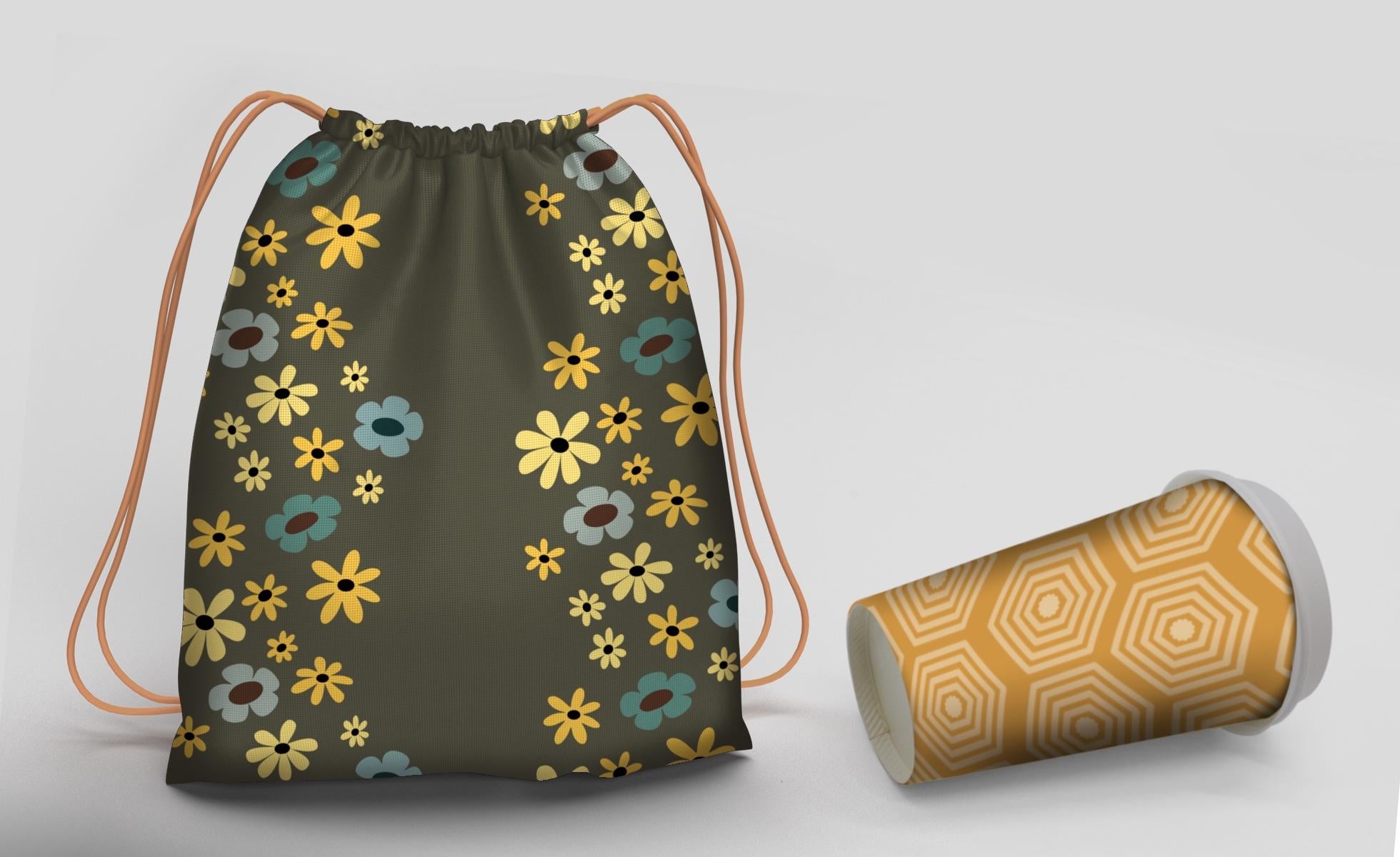
I'm showing you now are just a bunch
of the ones that I experimented with
once I had all of my patterns and
coordinates put together. Some of these mockups are
extremely detailed and I don't think I could ever
handle doing them on my iPad. So I just wanted to give
you that alternative. It's just a different
way to do it. I end up doing
these in Photoshop. You're going to have to
figure out ways that work for you and your workflow. And I know that
some of you don't even use a desktop computers. So I think maybe it'd be worth investigating
whether or not there are mockups available for
what you are looking for. Affinity Designer. And the other
possibility, of course, is to export these patterns as swatches that you can use in
a program like Procreate. There you can also use
Procreate mockups. And as long as you've got
that original swatch, you're gonna be able
to apply the pattern, whatever mock-ups that you have, lots of possibilities,
lots of things for you to do until I get my
next class released. You've got plenty
that you can work on. I would love to see you get into some really
good collections. Maybe do five or six of them. The best way to learn and
the best way to get good at this and fast at it is to
repeat, repeat, repeat. But what a fun thing
to repeat, right? It's a process that
is just so much fun. And really it's like problem-solving and
like doing puzzles. I always enjoy the challenge of trying to make things fit. So I think you'll enjoy it. If you do a bunch of them. For me, it's a labor of love. So if you haven't
done so already, I would suggest you hit that
follow button up there. That way you're gonna
be informed of any of the new classes I have as
soon as I release them. Also makes sure that you get your name added to
the mailing list on my website at the Laura start.ca because that's where
I do things like artists, resources, assets,
things like mockups, patterns, that sort of thing. And there's tons in
my artists resources already. Some of them are free. So make sure you
check it out and get your name on
that mailing list. I'm so glad that you went
through this whole process with me today and I am thrilled that you are producing
full pattern collections. Let's make sure that
we get a lot of stuff shared on the community so that you can
take a look at it. If you're watching
this on Skillshare, make sure that you post down in the projects and
resources area. Can't wait to see you in my
next class is Bye for now.
 Delores Naskrent, Creative Explorer