Transcripts
1. 01 course promo: Hi. Have you ever
wondered how to create 3D composition
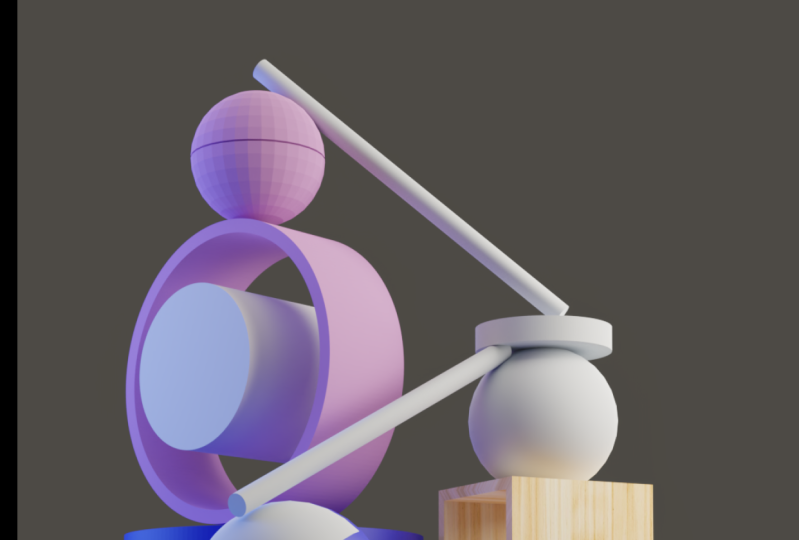
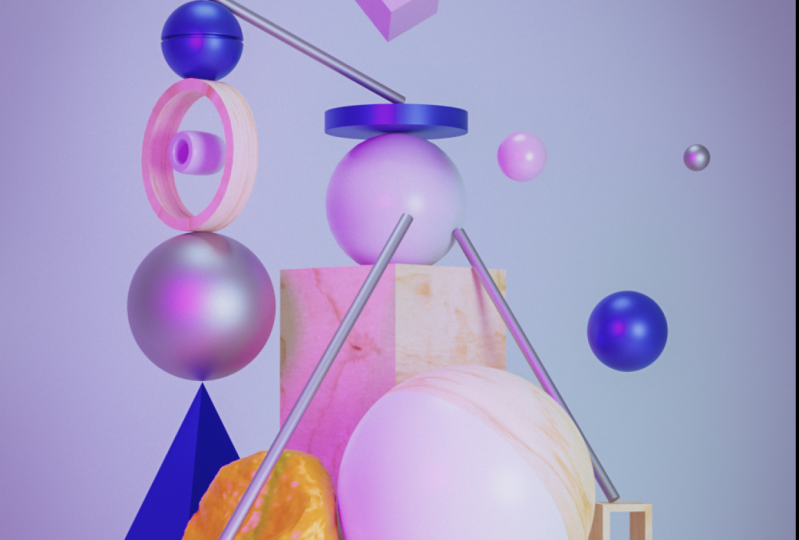
heart, which blended 3D? Then this course is for you. I'm Polish Allah. And in this tutorial, I'm going to be creating a 3D composition heart using the free software
called Blender 3D. Blender is a very
powerful 3D application with varieties of add-ons on plugins and a large community of artists and creators that
make it interesting to learn. In this course, I'm going to be showing you how I
created this earth. The modelling, the lighting, unevenly texture
in using Blender. This is really a
font cost to get on. So with no further ado,
let's get started.
2. 02 blocking out our shape: Welcome guys. For us to get started. We are going to be blocking
out our basic shapes. And the references we
are going to be using is already included
with this course. So let's get started. When we opened Blender 3D, Linda is going to automatically create some basic shape for us, such as UBA camera. Point. Like if you come over here to the viewport shading, we are going to see the
lighting on the cube. And also your rendering tab because we activate
automatically, because blender activated EV
able to give us this shaded. But we don't need any of
the basic cheap secrete. We're going to
select all delete. We are going to be
creating our basic shape. To do that, we're going to be pressing Shift E
on our keyboard. I'm going to start would
be for the base overhead. We're gonna be starting
with the basic shape. Cylinder. A cylinder is a clue, says primitive shape
to our halogen. So just hold, shift and move
up through the object here. And click cylinder. Makes sure your chin,
you're shifting back to the vesicle. Now, you will notice
that there is a basic tab created for hose
to took our basic shape. So we can reduce the
radius or increase it. We can reduce the depth, which can also be the height. To match our reference. We're going to
increase the vertices, at least enough, one that we
really need for this year. So we have created our bodies. Now. Outside. Any other please on
Blender shipping in. Also edit it again. We have to go to the moon to use some basic shape tools in
Blender. For us to headed. For us to go to the
Edit tab or headaches, mood, come over and
click Edit mode. You can see that we can pick the individual point lattices. And everyone fees
are expected liking. I'm going to be needing you
just to hold the shape. We can come to vertices here. Double-click on the vertices. Only shift. Click again. Coming to the bevel
year drug this shift, you're going to see
them with their names. So we see bevel. If a drug it. Because see that you are
able to easily bevel. Our ship To segment is okay. We can go back to our
object to move over here. Or we can switch from
objects to head. It's mood simply
by clicking tab. Okay, Let's continue. Demos moment. I want to create the camera so that I can be helpful too much, subject to direct proportion
of our reference. So for us to create the camera, Shift a, again, that's a camera. And select camera. So blender
efforts to create a camera. So it wants to go
to the camera view. On our number pad. Just click 00. We will be able to
go into our camera. But how can we make
sure we select the camera and mic the camera view in the
exact angle that we want. So to be able to do that, we just have to do is that
we can live the camera. We can drag the
camera by loading on a keyboard,
clicking into wounds. Unselected it asics, which is why it's even more better. Select, we can make sure
we have it specific view. I will want to see. Make sure we select the
camera view, a live view. And allowing active
camera to view. The camera will automatically
align to our specific view. What we still need
to add it onto, tricky to our liking. I've also be able to do that. Could come over to the scene editor here by
clicking this button here, how to put properties. So we need to change the resolution in order to
create this portrait mode. So false to abduct
portrait setting, we just have to change
some settings, settings. You also can repeat the
same thing that I'm doing. Or you can choose your settings. So I'm going to be putting it here because Zoom. But I will can see our camera. Now for us to draw commonly lead to come about by pressing in all perhaps you
can come to view. Select camera, view,
camera to view. The reason why I wanted
to select this is because once a local view to the camera, so that when we zoom in and out, we are moving the camera. So you also can go
on and do the same. So guys, for us to create
the rest of the ship, we just have to go again is
to treat shift in odd ship. So we're gonna be using the
UV Sphere, be pressing down. So the rest of the cheap, likewise, selecting the cone. The cone. We are going to be
reducing the value. It's got much to reference,
killing it down. Nucleus the bigger the camera around so that we can
see directly what we are doing with the right
chiefly Kagan 3D cube. Get it done. Skeleton, the zeta zigs
and zags zigs again. The camera again. Boston duplicate. Any hope. We have to press Shift. Unforced too much. It would reference you have
to change the orientation, skill in the x-axis. And the y-axis. Scale it up and also
rotated in the z-axis. So we can duplicate here
again by holding shift. So what we are just
doing right now is that we are just
adding some shapes that are closer
to our reference. We are matching ship. So it is not the final one, but we're just trying to
block our basic shape. So for host grid, so my
additional ships in blender, you must activate some add-on, that's Kim with Blender, you'll be able to use them. So come over to here, dict preferences on mixed-race, select the hard
on such odd mesh. Make sure you make
sure this is checked. If this is not checked,
you won't be seeing some additional rules
on when you shift it. So make sure you check that on. You also will see some of the additional ships when you want to create
some starting out. So all this is just proxies. Shin on. At this time you can make
sure you save your work. I'm going to Hesse as basic as any other
software likewise. So they had thoughts of
additional object, yeah. Most mixture that we, It's all a transformation
rendition that glue, but it's important to mess
up our object, right? Just blocking it out much
you need to achieve. You also can be used. And I didn't have to
look exactly like mine. But just make sure you try to match it as
close as possible. Because the proportional
also really mothers really create these
opinion image. Who just repeats it. These are just
basic, basic shapes. Can see we are already
close to what we are really looking to concrete another one. So guys, we just successfully
block out our basic shape. So you also can do your proxies. And this is exactly what hadn't seen for what I'm
referring to blocking out. You just don't need to
worry about the details. All yourself to first
do is just block some sudden shapes
that you know, they're close match to the reference that
you're working with. So see you guys. In the next episode,
we're going to be having some additional details
to our thank you guys.
3. 03 adding details to basic shapes: Welcome back guys. So we're gonna be adding
additional details to our half. And we need to do some sudden camera
settings in order to match to the reference. So coming back to the camera
here, I select Camera. We're only making the
focal length to be white. 120 millimeter. I'm going to be setting
the size of the sensor. No, to add additional details. All we just have to make sure he's not. We'll
go to the Edit. And as I said earlier,
and it's moody, can easily go to the
Edit mode simply by clicking Tab key
on your keyboard. Go to the Edit mode. Edit mode. We can
communicate these BCA. So to create contracts down, duplicate it in the
edit tool by pressing Shift key again in-degree. So we can make these shading
in the edit mode smooth. So when we select
Smooth moodiness, you notice that literally
means irregularity. Welcome to the top here. To ginormous
unselect normally is not enough to seize
on our cylinder. We just go to the
Edit mode or not. So by pressing Control, heart can go on and do the same. For this our ship here to create Good Three edit
mode selectivities. Pressing be the vertices. Exactly. Then we can extrude it. You have to do that again. Then select extrude
along numbers. So we just create that into
seeding, also, smooth. We can add some additional go into the edit mode again
on pressing Control R. When I'm adding these
additional edges, is because if I come over to the modifiers and I
had a subdivision, modify it to heat without those additional
edges to lapse AG, so we don't have this Shop. Now the reason why I had some additional additional go to the Edit mode. Once again, x ungulate feces. Select everything and
extrude along numerous. Woken up some
additional detailed. Likewise. Just select all these edges to begin. Segment. To select smooth. Likewise, hot deeds subdivision. Surface modifier can do the same
for this cylinder. Likewise, are some additional control, our control segments along. Any kid can add some additional
details if you want. So this is just the process
of going back and forth. You may add dumb
necessary details that you feel like
it's necessary. It's enough to look
exactly like mine. Don't have to be rigid
to use inside so you can increase it through
those two normals. Or inside. Your thick smooth. Had somebody chin up. I can just use simple subdivision surface. Can really come out really well. So over here I can just select this face and delete,
select everything. Then extrude along numerous. Shortly before we do that
most mixture that we make, we buy all transformation. If you don't apply a
transformation sometimes when you're in the extrusion, all Beverly neat,
It's won't be equal. So desire, you can
easily fix that. So you can see that easily. We are able to add the necessary diffuse
without wasting any time. This is the Paul
views in Blender. These easy, it is fast. It doesn't take a lot of time
to really get started with. Soft to do is just follow. It says tree. Curious. And
you also get the angle. We can just add some mixture. This one is also smooth. Or if we want, we can also add additional modifier subdivision. So we can add
subdivision surfaces. So these two smoothing it out. You have to note that
whenever you had some vision, is going to increase the time
to render the exact object. To be careful to use subdivision if you know
that is not a close-up shot, that we don't really
need the extra details. Wise not to use subdivision, you can just smoothing it out. And everything we
really work as well. I think I'm going to HQ. Is anyway able to quit his similar light like
our matching reference. So along with teeth, make sure you get your one
that is peculiar to you. So I'm just going to
mine eyes, I want more. Then I'm going to
create this backdrop on to create this
backdrop easily, all I just need is
just a simple cube. Then in the edit mode, delete all these feces. Then control bevel edge. There you have it. It's
super simple though. You can just go back
through the camera view. Now to add these extra details, this was possible
by using a plugin. And this plugin or
other one is also available for anybody
who actually want to purchase and to
download this ad. Destruction and the extra
details to your whole object. So when you install
it on your activity, you're going to find
ETA is going to is called one-click Tammy,
you can check it out. So all I just did was that
I just make the damage. So you can see that
easily wherever the create damages,
we start sculpting. So this is really,
really powerful compared to cop thing because this is procedure who can play along with it as
you want to get it. Example one you are looking for. So you can check
different noise style. So I think I'm okay with
the Cloud. Using the cloud. Least one exactly. So all I just need to do off
satisfied used to click Apply. So there you have it. So this is how you had additional details
through your shapes. So in the next episode, we are gonna be starting
with the lighting and we're gonna be adding
materials in the common one. Likewise, I'm sure that you have learned something
from this episode. So see you in the
next episode, guys.
4. 04 lighting: Welcome back guys. So in this episode we
are going to be creating our studio lighting
to light up our hook. Now, if you notice, if you click Render, you, you will notice
that we cannot see our ship because light
is not in our scene. So we need to create
our own light and soda to concede hour shifts. So we are going to be
using a three-point light, and we're only going to
be using IT area light. Lighting in blended 3D is
powerful and it is accurate. So the two different
rendering engine, we have EV and we have cycles. The workbench, you don't
need to know that. This is just a basic one. So we have EV and
we have cycles. So if we use a BV, it's random or faster
than does cycles. Cycles is more accurate. Accurate in terms of it takes
a lot of time to calculate both the apples to have an accurate and his
cabbies rendered. So we're gonna be
using cycle on a GPU. You can select the GPU. So I'm going to be adding
the light by pressing. When did we add in a real life? There's going to be a
real light lighting up our scene from the top. And forced to see our
light easily real-time, we can just mixture, we select EV, kill it up. As you can see, CLR
like GitHub link to. So we can create
another area light. S1 is going to be E1. Likewise, lead to disease. The last lecture we're
gonna be adding o, which is the third one. The light hope to background is going to serve us
like a rim light. We're going to be. I want
to speak about psychosis. I think I see a lot
of time to render. So good. I'm wrong. Pause this at the moment. We need to group our collection so that it
would be easier for us. So you can select all three
lights, auditory area, light, press M on our
keyboard and create a new collection poly
light on a mirror. But also we can move our
camera also to lighten camera can be object. The reason why it's
important to avoid till an organized
collection is that it will be easier for you to edit any particular object
without getting confused. So we can go to
the first areola, which is a top limit as the top. The second one. The second one can be made. On the last one, we can call it. Who can name it, whatever
you want to limit what I think I'm okay with that. So the top, I'm going to
set the power to remove, I'm going to set it to 60 and
I'm going to pop through. So if we switch back to EV, you can see what our Min light, I'm going to be certain
it to be office. I'm going to study before. We can just quickly do we
do a test render using EV? See that instantly we're
able to see our object, but we don't have that shadow and light goes into really
us, we really wanted to. So we're gonna be using cycles, but so that it can
render move faster. We're going to reduce
the maximum samples. And also we are
going to be reducing the the resolution to fix it so that when we are
doing the final render, we can increase it
to honored present. So let us click Render Image. So as you can see, this is really adding up
what I'm going to mix them, sorry, the settings hinges. So you can come over to the resolution and I can make it thousand kids
and it feels great. Nikki, 1500 on I think I'm
going to zoom it lead to and we really have composition
guides in Blender, like the rule of thought, a dissenter, like the diagonal. This is really important if
you really want the ratio. So this is important
to really match the important shapes in order to create a
pleasant composition. So Migdal use, make sure
you make use of it. So I'm going to be
reducing the light of the main one thing that's
too powerful to 1 fifth. And I'm also going to
change the exposure. I'm going to change
your exposure. I'm going to be
increasingly exposure. Oh, you can long as
you want it to be, doesn't have to be exact. But if you really want to off similar similar light like
mine followed the seth in. Who can go back again and
just surrender to see. Oh, he meets lights and
really come out really well. So guys. So we're able to
finish the rendered out. So it takes about two
minutes for ten seconds. Though. You also can do your
own test render and you can compare
the result with mine. And I'm I think I'm also going
to continue tweaking mind. So you also, you are
free to do the same. So once you get the exact
image that you're looking for, it is important to keep on adjusting just the
light, the camera. I didn't necessarily suffix. So on. It's important
that you don't need to crank up lots of
every, all the details. Make sure you keep on editing. In the next episode, we're going to be odd indeed, materials, which are just some
basic or simple materials. This is really important. On from there, we're going
to rent our financing. So see you guys in
the next episode.
5. 05 texturimg: Welcome guys. In this episode, we are going to be adding colors and textures to our scene. And to do that, we're gonna be using
some textures. No path from that.
Also, we're gonna be using colors from the reference. If you're also using your
own relative reference, you can pick some
colors from it. You can go to other column, chooses specific color
palette from it. Color palette is very important
because it's going to eat the visual of your
hats. Let's get started. So we are going to be creating the texture for the
bees to do that. So we're going to come
over to the material, just going to click
new material. So we're going to call it, would also see the node. We have two goodly. She didn't she didn't
talk **** in a forced to add a
the wood material because this is not a specific color that
we need to change, so forth to add
the wood material, all we just have to do
is just press P on true, select this node down
British-controlled. Yours doesn't work like that is because you are yet to activate, denote regular from
your progress. So good to prevalence. Such for all wrong. So make sure you
make a district to, district is going to respond to the key **** in the world. Press Control.
Bring up the image to show the mapping and the texture coordinates
so we can open. The necessary files
is already included. Who you are so-called use
download the material and how easily you
can see that really, we eat our materials,
which is simple. We can add this in my
theoria to this object. Likewise, just by
clicking the object, selecting these both in here. I'm just clicking. And if we noticed
that we are not, I'm in okay with the mapping
is we go to the UV editor. We're going to do an
automatic unwrapping uv just by Smith. So Blend has gotten too
easily opposed to unwrap our subjects so that the
texture can show very well. So I think that is it. So far so good the
rest of the materials. And then the rest of your
textures can come over to the, to the ground to 0, just call it BG, the buck grant,
concrete new grant. And just change the base color. Now the biblical
law wants to pick the exact color from this
image, which is the reference. You can open it with Photoshop. If you open it with Photoshop, you can just use the eyedropper
to select the hex code. Block two blender input. The Xcode, does the exact same. You use it for some
of the materials, some of your objects also here, so forth to select the
rest of the object. Material cannot go back again. Select the just make sure
you pick the right one. Pick the right saturation to
create a new comment away, Creek and Neil, one. Good. Hold. It is very simple. Same for the rest
of your Moodle. Now for this one, you notice that it has created two slot because I use that
plugin is going to create the amine inside and outside. The outside. I can select the outside and I go select
the same material. So when I choose another
one for the inside. So this, I'm gonna be using
the BG, the background. So these are going to
be using the bookstore. Yours can be different. So for this one to
show more clearly. To wrap it up it. But I just have to
trust It's much Rock. Sioux can see now that the
materials and really show through so called to the scene. Go back to Photoshop,
select this. Or can we input? Indeed, can just
select News materials. For the insight, can just
switch back to the slot. Select inside. So those all seem to it. So I think there's a different kind of be
called a year. I mean. So I'm going to select
sure it's acidic, these tight reduces saturation. For you to create these methods. Simply your script is simple
material and just increase the metallic tonight or reduce
or increase the roughness. And I think the environment
really plea huge path. Enlightened or passing
earlier you notice that the strength
of the environment, If you switch back from
from objects toward, you will notice that we already have the basic environment. So it can either be white. And I think I'm going to
make strength to lose. Points to me. Yours can be different. I'm okay with that. Switch it back to Object. And select pink. Can even name it pink. So it doesn't necessarily
have to be exactly like mine. Just make sure that you follow the reference
that you are using. For all secrete these type of effects that we asked two
materials to an object. It is very simple. We tell blender Ali just have to do is it is just to
create this slot, material slot and go
to the Edit mode. Select, select. I want to select all, I want to select all these
feces here so that I can be accurate off to make
sure that I click on the extreme as it can select, or does polygons
that are behind. So then I'll make sure I select
that slowdown set aside. So when I sit, our sciences bled as good to assign
that particular fees, this material to this
particular slide so I can select the boot. Easy. So we'll descent
then it was also done on, I can even root that
simulate Fifth. Symphony is also done here. Slots is created. Go to the Edit mode. We see that it's bottled. Kick us saying no, say the grid that
and change the swan. She got to o can choose
the exact bathroom. This one really concrete, a new material from here. So there you have
it. It is simple. So for us to see what
you've been doing. We can also render again, like we did earlier. Come over to the
rendering again, just click run that image. So guys, like I said earlier, rendering with cycles often takes a lot of
time to calculate. Its depend also on the
hardware that you're using. But the result is
always how query. And it creates a lot of simple and already
denoised image. This is, this, this is
really powerful and it is also fast compared
to competitors. The likes of room
in I meant teen and redshift is actually pretty
much faster rendering engine. So I think I'm liking the lighting of these
particular scene. And I think we're going
to take it a little bit further in the next
episode. Thank you.
6. 06 tweaking the render: Welcome back guys. In this final episode, we are going to be
tweaking our sin will be making some
necessary simple adjustment. And you also can follow along. So I'm going to come back
to the materials here. When I render it out,
I noticed shiny, which is not what
I'm really button, so I'm going to bring
the roughness night. I'm also thinking I'm going
to do the same for this. You can notice that when we, when we decrease the roughness, were able to get a
reflective material but when we increase it, so reflection is not
whole ducks trunk. These are also very important in helping us to
get the exact loop. We expect. Now for the final render, I'm going to
increase the sample. I'm going to reset
it back to the. So by right-clicking, you can reset it back
to the default. I think I'm going to keep the 2.7.5 because corruption
can also be made week. So I think I'm going to
drag this a little behind. And also I'm going to increase
the percentage back to Andrea so that the blender
can render the full frame. So I think I'm going to keep it at P&G because I'm
working with PNG. And if you want to
save it automatically, you can just Critical by uncivic taught to my directory that you want to save it to. But I'm not doing that for now, so I'm just going to
render it forced. Then I can save it after day. So I'm going to click Render. So guys are *****, took me about seven
minutes to render on. I like the result. So if you notice, even without production, noise in Blender is really powerful, I'm going
to save mine. You also consider videos. You can just press Alt
S and we are going to kick that off. I'm inheriting it
with Photoshop. So here in Photoshop
you're gonna be using common-law rule. So just to our picture, this is not something
just slight change. You also can follow
the same flow. You can just play along. Extra. Without Photoshop. Uat is now the shop can really help you to do the
mean, increase the vibrancy. And I just some subtle
details which are rendered. So I strongly believe that
you have learned something in creating your own
personal goal position using blended 3D. So make sure you
create your own. Kindly shared with me on social media if you really gain something
out of this course. So thank you very much and
see you the next time. Bye. Bye guys. Thank you.
 Paul Olusola, 3D Motion & Illustrator