10-Minute Collage: Add Funky Gradients & Shadows to Vintage Photos in Procreate | Kelley Bren Burke | Skillshare

Playback Speed


1.0x


  • 0.5x
  • 0.75x
  • 1x (Normal)
  • 1.25x
  • 1.5x
  • 1.75x
  • 2x

10-Minute Collage: Add Funky Gradients & Shadows to Vintage Photos in Procreate

teacher avatar Kelley Bren Burke, Artist & Educator

Watch this class and thousands more

Get unlimited access to every class
Taught by industry leaders & working professionals
Topics include illustration, design, photography, and more

Watch this class and thousands more

Get unlimited access to every class
Taught by industry leaders & working professionals
Topics include illustration, design, photography, and more

Lessons in This Class

    • 1.

      Welcome to Your Quick Class

      0:34

    • 2.

      Add Shadows + Gradients to Your Picture

      11:03

  • --
  • Beginner level
  • Intermediate level
  • Advanced level
  • All levels

Community Generated

The level is determined by a majority opinion of students who have reviewed this class. The teacher's recommendation is shown until at least 5 student responses are collected.

92

Students

11

Projects

About This Class

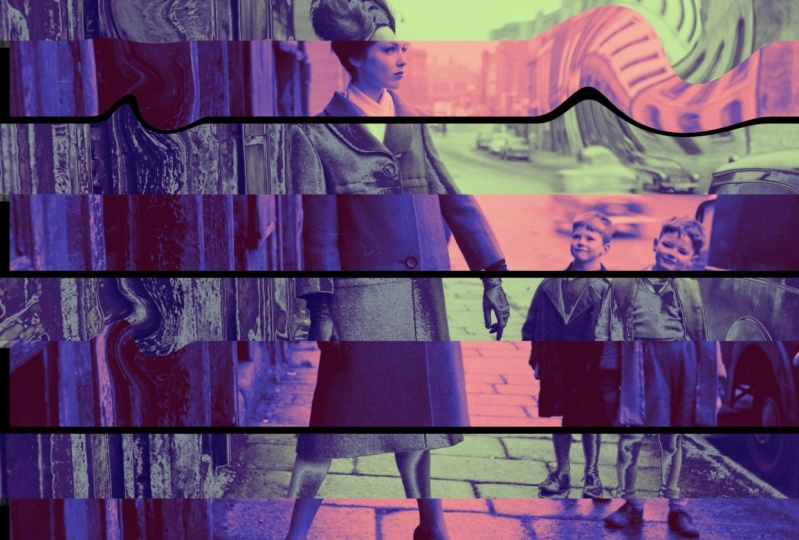
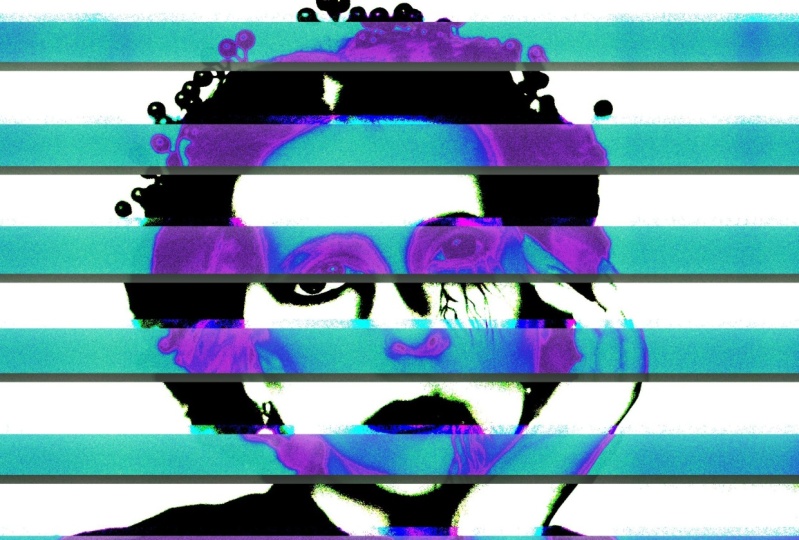
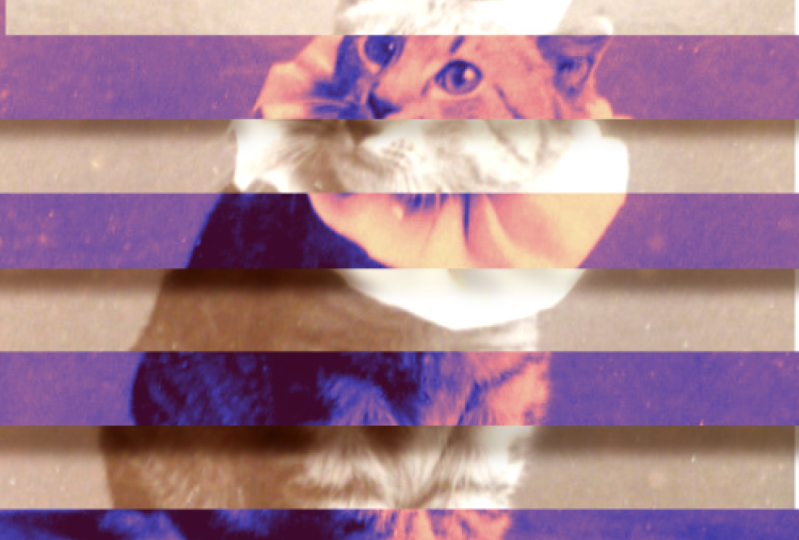
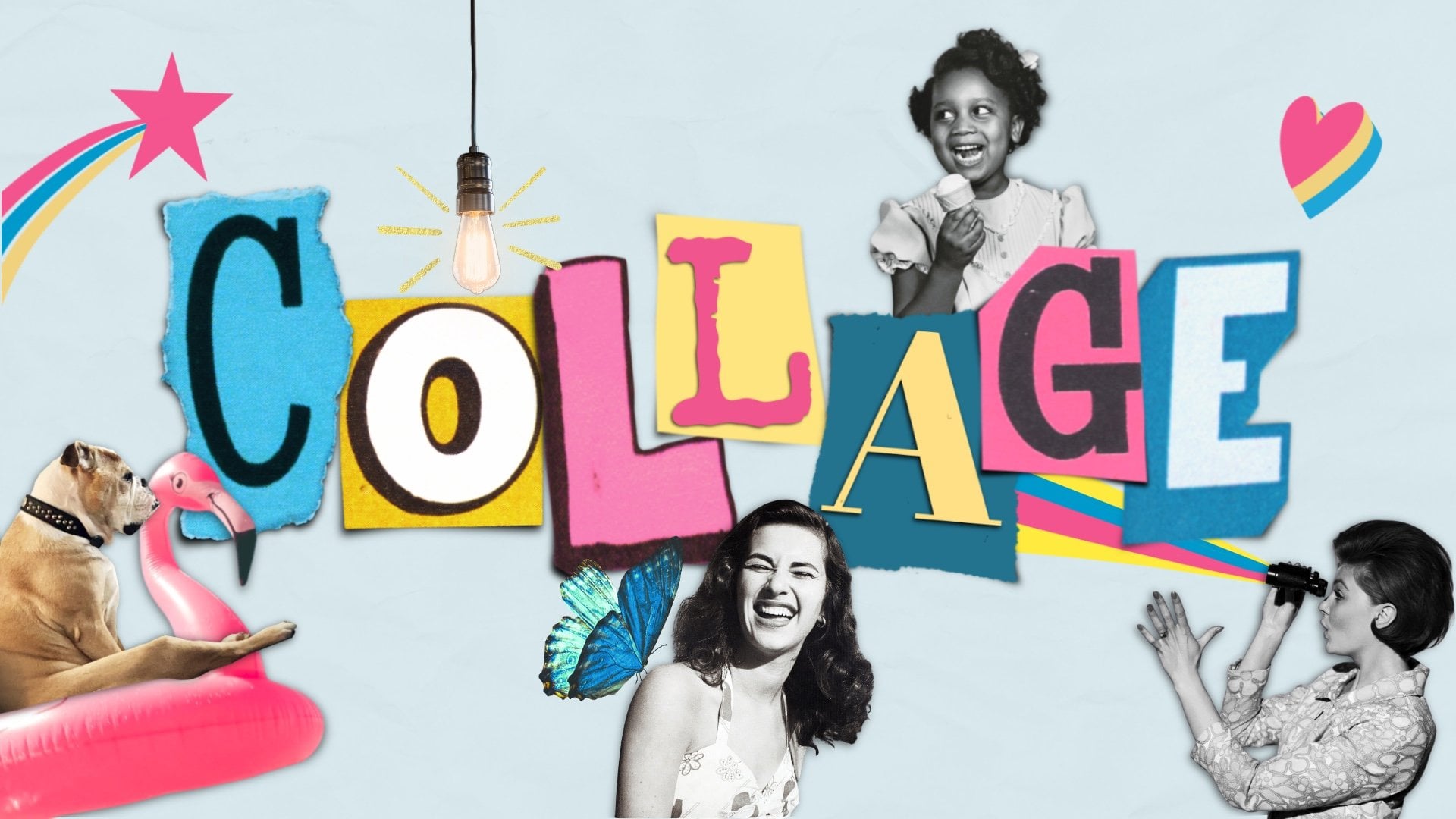
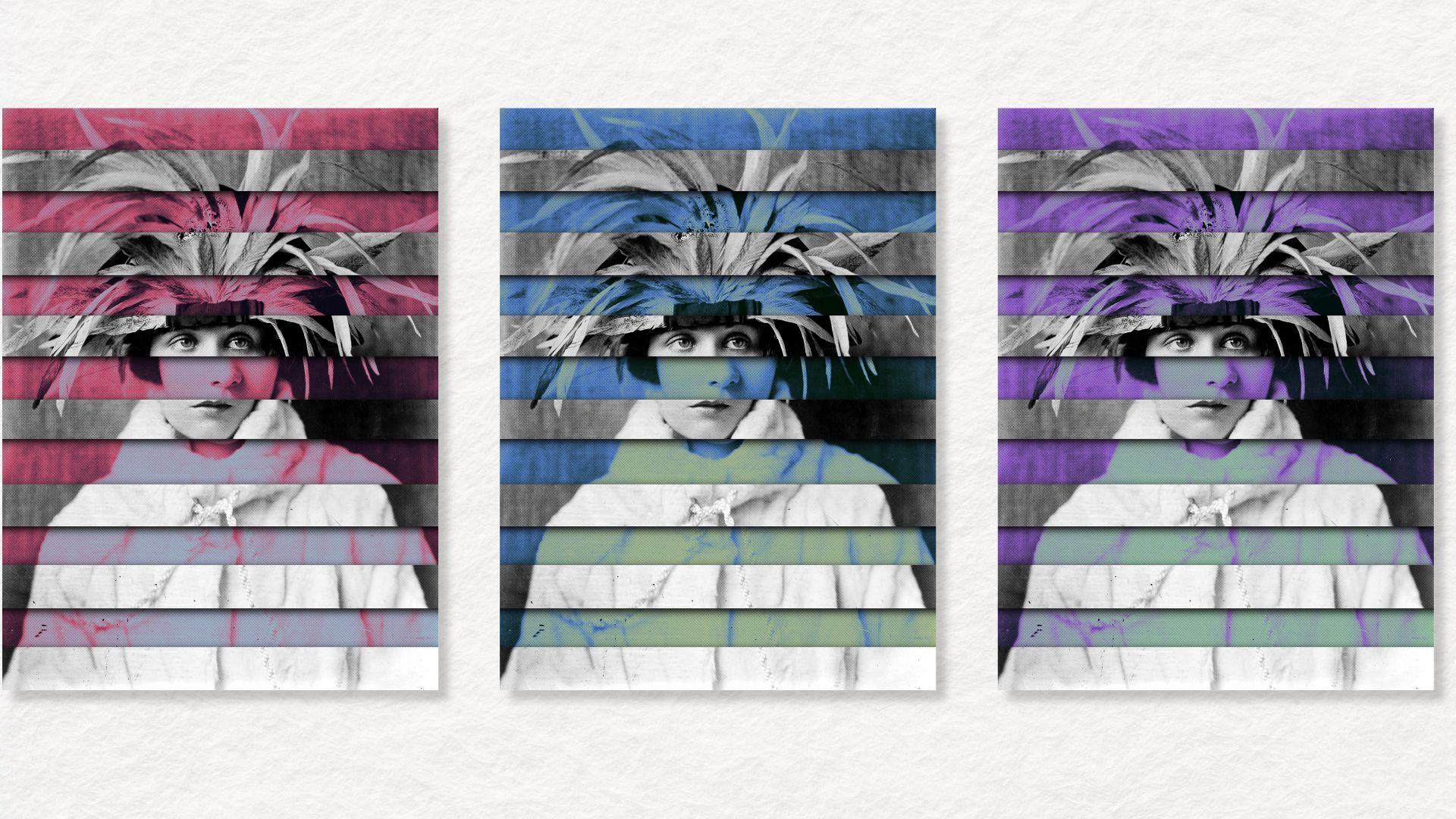
Want to elevate your digital art skills in just 10 minutes? In this quick tutorial, you’ll master a funky and easy technique to add gradients and shadows to vintage photos in Procreate. This unique approach will bring depth, color, and a modern twist to any vintage image, whether you’re designing collages, prints, or just experimenting with creative techniques.

By the end of the class, you’ll know how to transform flat, lifeless photos into vibrant, dimensional works of art—perfect for your next collage or digital project.

In this class, you’ll learn:

• How to apply colorful gradients to vintage photos for a bold, funky look.

• Techniques for creating realistic shadows that add depth and dimension.

• Procreate tips to make your workflow fast and easy.

Why You Should Take This Class

This class is perfect for anyone looking to quickly improve their Procreate skills while having fun. The technique is simple yet impactful, offering a fresh way to bring vintage photos to life. Whether you’re an experienced digital artist or a total beginner, you’ll walk away with a new skill you can use in your art and design projects.

This class is a sample of my most popular Skillshare class, Explore Collage Art in Procreate: 7 Prompts to Spark Your Creativity, so if you enjoy this, you’ll love diving deeper into more creative prompts and projects!
This class is designed for:

• Procreate beginners looking for a quick, satisfying win.

• Digital artists who want to experiment with gradients and shadows.

• Collage artists interested in modernizing vintage imagery.

No prior experience is required—just bring your curiosity and creativity!

Materials and Resources

To complete this class, you’ll need:

• An iPad with Procreate installed.

• A vintage photo (you can use one from your own collection or choose one from the resource library provided in the class).

Included Resources:

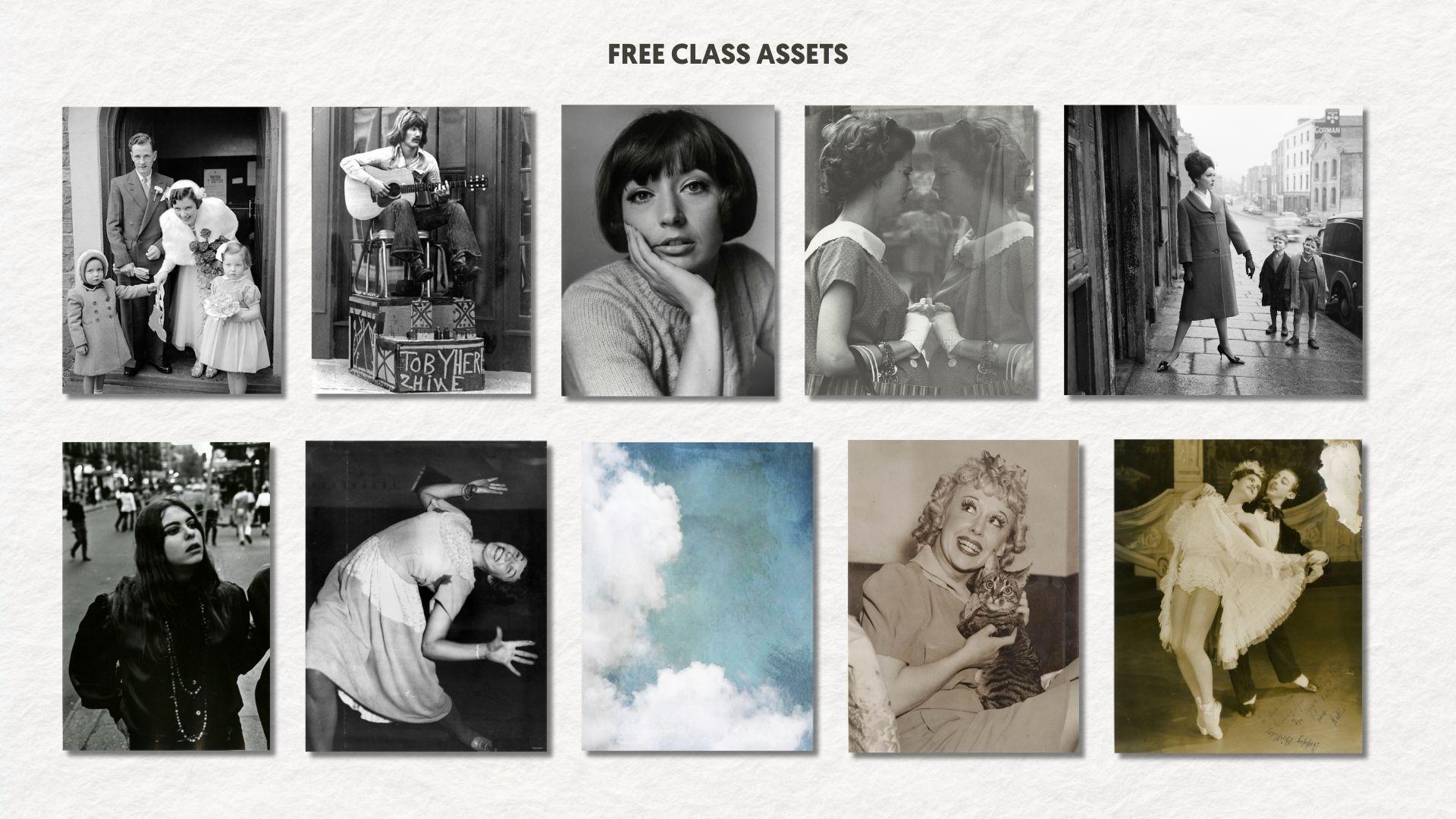
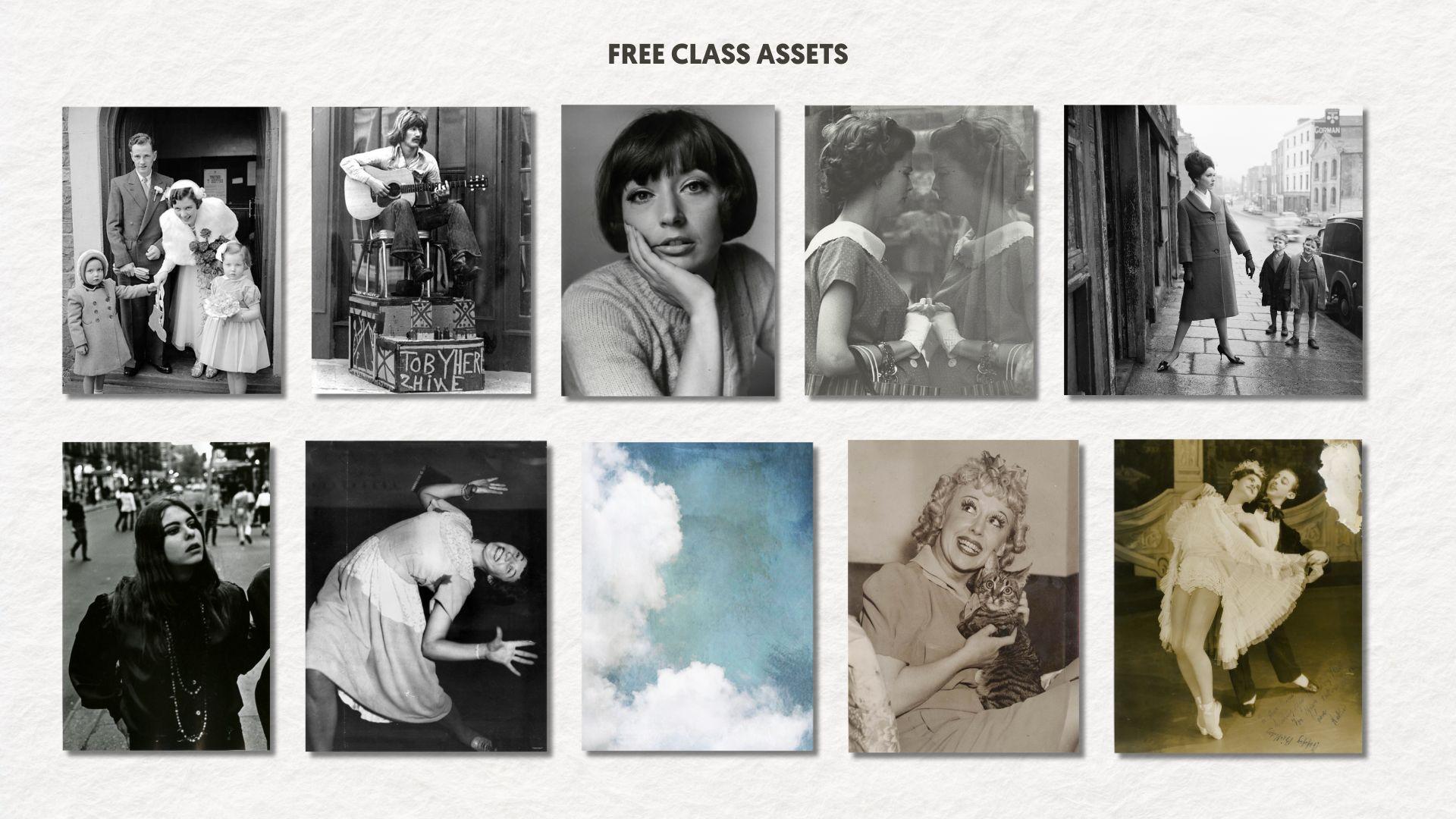
• Ten free vintage photos you can use to follow along with the tutorial.
MORE CREATIVE RESOURCES for you! 

7 Collage Prompts Class | Collage Fusion Collage Kit |  All of my Skillshare Classes | Freebies

Meet Your Teacher

Teacher Profile Image

Kelley Bren Burke

Artist & Educator

Teacher

In my Procreate classes, you'll learn playful collage techniques that make digital art fun and approachable. Skill optional. Curiosity required.
From retail floors to creative freedom. Still holding puppies.

Not too long ago, I was scraping snow off my windshield before sunrise, heading to manage a retail store I'd outgrown years earlier.

I spent 20 years as a store manager at Barnes & Noble. During the holidays, that meant six-day weeks of nonstop retail hustle. As an introvert and a creative, I was exhausted. I craved something that felt more like me, but I didn't know what that was yet.

Since then, two things changed everything:

I opened an Etsy shop in 2013 called Gems by Kelley, and more than a decade l... See full profile

Level: Beginner

Class Ratings

Expectations Met?
    Exceeded!
  • 0%
  • Yes
  • 0%
  • Somewhat
  • 0%
  • Not really
  • 0%

Why Join Skillshare?

Take award-winning Skillshare Original Classes

Each class has short lessons, hands-on projects

Your membership supports Skillshare teachers

Learn From Anywhere

Take classes on the go with the Skillshare app. Stream or download to watch on the plane, the subway, or wherever you learn best.

Transcripts

1. Welcome to Your Quick Class: Hello, I'm Kelly. I'm a digital artist, and I love using the Procreate app. I also love collage and collage prompts. Studies show that when you have constraints like a prompt, it actually enhances your creativity. I'm sharing a fun new prompt today stripes and strips. I'll walk you through the process of creating a collage using stripes and strips. We'll also be using Procreate's Gradient Map for some cool color changes. Let's get started. 2. Add Shadows + Gradients to Your Picture : So this is a sneak peek into the kind of prompts I share in my Skillshare class. Explore collage art in Procreate, seven prompts to spark your creativity. And here's something to get you started. I'm giving you ten free photos curated just for this prompt. All you need to do is grab them through the link in the description. Let's start by looking at a few collages that I've created using the stripes and strips technique that we'll be using today along with a gradient map. There's one right here, and you can see there's shadows and that her face is just a little bit off kilter for kind of an interesting effect. This is another one. This is the same one with a different gradient and here's one. I like the others better, but I think this is okay. And this is one that I don't think works well, and the reason I don't think it works well is that there's a lot of negative space or white space around this couple. There's not the same kind of visual interests going on like there is around the girls here or in this one where the profile takes up pretty much the whole page. So that's something to keep in mind when you're selecting a photo. I experimented with this one by putting a textured blue sky behind them, trying to get a different effect. I think it could be a really cool effect. I just don't think that was a great photo. This is the image that I am using today. I have a procreate canvas that is 12 by 16 ". And the first thing I'm going to do is duplicate her. So we have two versions. Actually, I want three. The bottom one, I will say, copy, don't edit. So we have one just in case we need one. So let's turn these bottom two off and work solely with the top layer here. I'm going to turn on a drawing guide right now. So toggle drawing guide on, and I'm going to edit the drawing guide. And with the drawing guide, you can change a lot of things. You can change the color. I think I'd like a lighter color with this. You can change the opacity and the thickness, and I'll bump this up so you can see what I'm doing. And you also want to change the grid size by moving this around. And for this project, I want 14 different horizontal rows. Okay, this is at 3:45, one, two, three, four, five, six, seven, eight, nine, ten, 11, 12, 13, 14. There we have it. So I'm going to hit Done. And what we're going to do is we're going to start removing strips in a really easy way using the selection tool. So it's selection, and I have rectangle selected, and then also add. And the first thing I look at is what I want to keep. And I definitely want to keep this eye right here. I think it's a really important image, and then we'll be able to keep with that to the top of her lips because we're going to be going in alternating rows. So I'm just going to start by removing the row above her eye, and I'm going to go off the screen and draw a rectangle like this. And if you don't know this technique, it can take a while to get the hang of it. So that's selected, I'm going to drag down and hit cut and paste. So it looks like it's still here, but you can really toggle it on and off. It's on its own layer now. So we're going to go back to this image, and we're going to do the same thing again. Selection, rectangle, and then we're going to alternate a row and cut that out. So cut and paste, turn off that and keep going in that fashion. Selection, rectangle, drag it across, cut and paste. Whoops. I'm glad I did this. I'm on the wrong layer, which is really easy to do. I didn't toggle back to this layer, but I can fix it really easily by toggling back to that layer and then hit cut and paste again and turn that off. And I'm going to keep going in that fashion, remembering this time to toggle back to this layer. So here we go. We have seven stripes cut out, and because I like some tidy layers, I'm going to group these little strips together in case we need them later, and I'm going to turn off the whole group, and there we go. I'm just going to tuck it behind just in case we need it later. So now we're left with these two layers, and they're exactly the same, so you can't tell right now that one has the stripes cut out. But we are going to go to the bottom layer, and we're going to play with the hue saturation and brightness. So if I can bring the brightness up here or down, to get a different effect. Here the brightness is up 48%, and I can also bring down the saturation, and that's at 27%. I think that looks pretty good, so I'm going to apply that. We're going to do a couple more things here. First, we're going to create a shadow. On the stripes layer, and we're going to do that by duplicating it and then hit Alpha lock and then change the color to a pure black, and I'm going to hit fill layer. I'm going to change the blend mode to multiply because I like the multiply blend mode for shadows. I am going to turn Alpha lock off. So I'm on our shadow layer right here and I'm going to give it a gauge and blur. So magic wand, gauge and blur. And as I slide it across the screen here, you can see the percentage increasing. So currently, this is a gauge and blur of about 13%. I like that. And so I'm going to apply that I'm going to group these two striped layers together, and I'm going to turn them off. And I'm going to move the shadows. But first, I want to see where the light is coming from the photo. The light is coming right here. I hits her hair, and there's more shadows on this side. So I'm going to turn this back on, tap on the shadow layer, tap on this arrow, and just tap down and to the left a few times so I can move that layer. That looks pretty good. You can see here that we have a little gap in the shadows because we moved them, and we're going to fix that. We're going to tap on this arrow again, and we're going to change to free form, and we're just going to stretch this out a little bit. So now we have our consistent shadows throughout. And that looks cool. The next thing we're going to do to give it a more interesting effect is we're going to tap on our bottom layer, and we're going to move it a little bit to give it a bit of a off kilter look. So I'm just going to move it down this way. I think that looks interesting, and I'm still on freeform, so I can stretch her over a little bit here. So it's just a little off kilter. If we wanted to increase the drama, we could give the top layer gradient map really easily. So I'm going to show you how to do that by duplicating the stripes layer and I'm going to turn off the one that we had already. I'm going to desaturate this layer, hue saturation and brightness and turn it all the way over here. So we're starting with a black and white image. And then I'm going to go to Magic Wand gradient map. And I am on a gradient map right here called mystic, and some gradient maps are preprogrammed in to procreate, and I think this is one of them, and how you change it is by moving these little squares around until you get an effect that you like. So we could do this one or we could keep going. I'm going to hit Done and try a different gradient map. I like instant a lot. That one also came with Procreate, and we can do more than one. So let's just duplicate this, turn it off and keep going. Now I'm going to change going to desaturate the top layer. Go back to Gradient Map and see if there's another one that we like. This one is called Venice and I put KBB on it, so it's probably one I created. And real quick, you would create a gradient map just by hitting plus, and it starts with black, and usually want two colors that are a little contrasty. We'll start with this being a dark kind of red purple, and then we'll tap this little square here, and make this a lighter color, another pink. Then you can tap in the middle and I could choose, say, a blue. I think that looks nice and move this blue around so we can get different effects. And I'm going to hit Done. I don't know if this is a perfect gradient map. I do think it's kind of cool, though. And you can keep adding as many different colors as you want by tapping and then moving it around. You can get some weird effects. I'm just going to go ahead and delete this one by tapping on it and trashing it. And then I can name this if I want to. It's right here. And I'm going to change its name to Burgundy Blue. And I'm going to put my initials in there so I know that I made it, and I'm going to hit Done. And now I hit Apply. So you can see the cool thing with this effect is that you can play with different options, different colors, and get different effects. I think I like this one the best, but I could keep playing with this all day. I hope you feel inspired to try the stripes and strips prompt. Don't forget to download your ten free photos. They're perfect for this project. If you love this idea, you'll find even more creative prompts in my skill share class. And if you want a treasure trove of collage materials, take a look at my collage kits. They're packed with unique assets to spark your imagination. You'll also find them linked in the description. Thanks for watching. I would love to see your stripes and strips collage. Please share it in the class resources. And I hope to see you soon.