When to Use Adobe Illustrator (& When to Use InDesign Instead)
Wondering whether to use Adobe Illustrator or InDesign? Here’s how to choose the right tool for your creative needs!



Adobe Creative Cloud’s growing set of applications and services is built to give professionals and beginners access to quality graphic design, web development and photography retouching tools. Adobe Illustrator and InDesign are two popular applications within Adobe Creative Cloud used by both graphic designers and digital designers.
If you’re an aspiring graphic designer, UX or UI designer, or web designer you might be curious whether Illustrator or InDesign are better suited for your needs. By discovering InDesign’s powerful layout design capabilities and Illustrator’s vector illustration and graphics editor, you’ll be able to choose the right tool for your specific design goals—whether that be ebook design or book cover design.
Adobe Illustrator vs. Adobe InDesign
Both Adobe Illustrator and InDesign have unique functionalities and strengths. Illustrator is built to create vector art and graphics like logos, icons, and illustrations that are infinitely scalable, so you can use them on stickers, t-shirts, and billboards.
Graphic designers often use Illustrator to create geometric icons, make realistic mock-ups, generate seamless patterns and design professional charts and graphs.
InDesign is for projects that require a lot of layout design like flyers, posters, ebooks, postcards, brochures, menus and resumes. Layout-heavy projects like poster design are easier to tackle in InDesign because the app has thousands of fonts, pre-made layouts and typesetting features.
UX and IU designers, web designers and graphic designers also like InDesign for its AI-powered tools, such as Generative Expand, which automatically resizes photos, and its text-to-image tool.
When to Use Adobe Illustrator
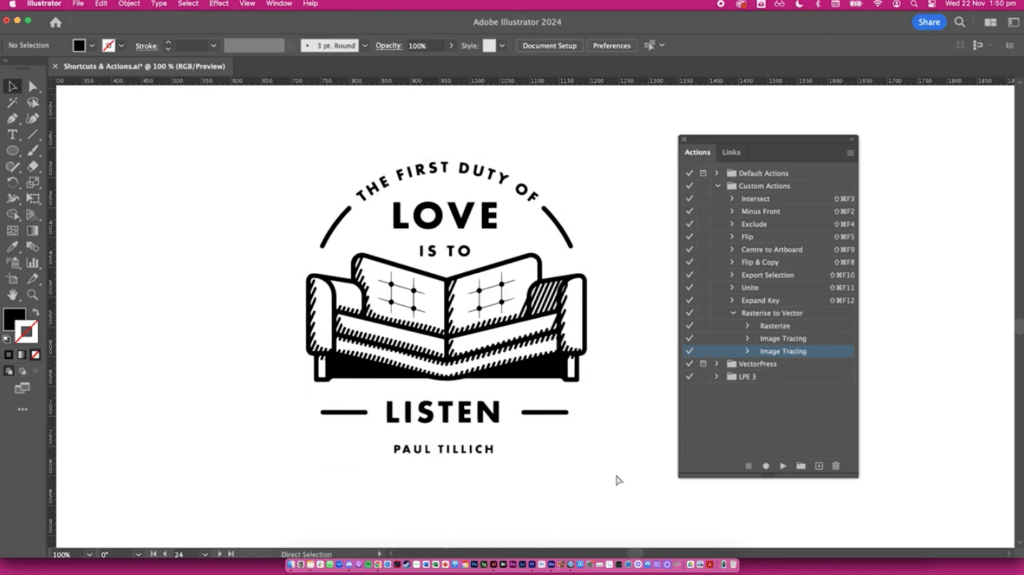
Before you dive into either Adobe Illustrator or InDesign, it’s important you take a second to figure out the type of projects you dream of creating as a designer, illustrator or artist. You can do this by creating a Pinterest board of designs that inspire you most or by making a list of your goals as a designer.
Then, take a look at a few of Illustrator’s design capabilities to see if they align with the projects you’re already excited about.
Greeting Cards & Invitations
You might be an event planner who wants to offer custom invitations to your clients or just a host extraordinaire who would love to create your own thank-you cards and invites. With Illustrator, you can make intricate designs and custom illustrations that can easily be transformed into showstopping greeting cards and invitations.
Logos & Branding
You’ll have complete creative freedom to make vector-based logos and other branding elements for any brand design project. Since vector-based graphics and illustrations can be infinitely resized within Illustrator, you can create images that look just as good on your client’s screen as they do on a billboard in New York City.
You can create a logo in Illustrator and design a whole branding suite complete with a custom color palette, logo, typography guide, submarks, icons and more.
Custom Illustrations
You can use Adobe Illustrator to make custom illustrations for a ski resort looking to sell stickers and mugs in their ski shop. With a blank Illustrator canvas, you can turn any idea into a full-fledged illustration.
Any graphics you make in Adobe Illustrator are scalable and can be transformed to work for both web and print. You can also generate color with simple text prompts and use the pen tool to easily make straight and curved lines.
Posters & Flyers
If the poster or flyer you want to make is filled with custom illustrations and graphic elements, you’ll likely find the workflow in Adobe Illustrator easier because you’ll have access to a lot more vector graphics tools. If you’re doing more than an artistic, one-page poster design that includes a lot of text, you’ll likely prefer the layout and text tools in Adobe InDesign.
When to Use Adobe InDesign
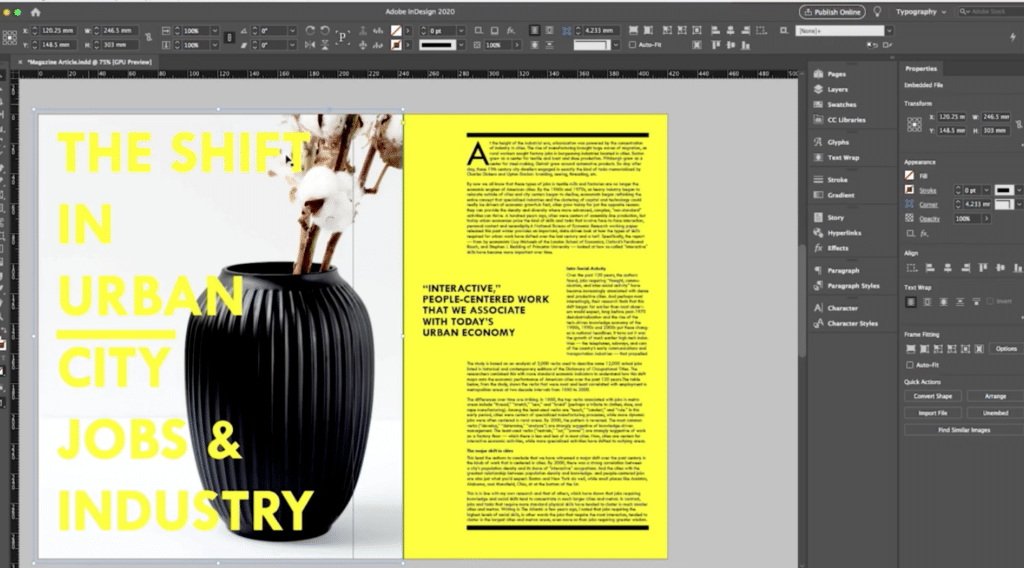
Creatives of all backgrounds enjoy using InDesign for its huge library of fonts, layouts, typography options and typesetting features. InDesign is often used during the final stages of a project because it’s usually where the photos are retouched in Photoshop, the vector images made in Illustrator and text will all come together into an aesthetically pleasing brochure, newsletter or company report.
If you were putting a zine together inspired by a recent trip to Morocco, you might start by creating graphics and other assets in Illustrator. You could make drawings of your favorite meals, camel illustrations and travel-inspired digital stickers like stamps and an airplane.
Then, you could combine your Illustrator-made illustrations and icons and text together within InDesign. You might use one of InDesign’s pre-made templates or its framing tools to create the perfect zine layout that would allow your graphics and text to exist harmoniously and better work together to share the best parts of your Moroccan getaway.
Some newer designers use InDesign as their introduction to Adobe because the templates make it easier for beginners to start their first projects.
Brochures & Pamphlets
When it comes to laying out multi-page documents like brochures, pamphlets and instruction manuals, Adobe InDesign has the power to help you handle multi-page layouts with ease. You can also make accessible PDFs that are optimized for screen readers and other assistive devices.
Magazines & Newsletters
InDesign offers thousands of fonts and type-setting features, making it a good software option for magazines, newsletters and other editorial design projects. Advanced typography tools like Auto Style, which takes a block of text and transforms it into the appropriate headers, subheadings and paragraphs, make it easy to manage text-heavy designs. You can even publish your creation online as an interactive version that includes buttons, slideshows and animations.
Books & Ebooks
Long-form content projects like books and ebooks also work well in InDesign. You can make custom page layouts with InDesign’s adjustable framing and spacing options and finish up by adding custom photos and high-quality typography.
Reports & White Papers
Putting together your company’s annual report or your master’s level research report doesn’t have to add hours to your workload. Within InDesign, you can combine charts, images, and text seamlessly with tools like Auto Style and the text-to-image tool.
Pros and Cons of Illustrator & InDesign
Adobe Illustrator
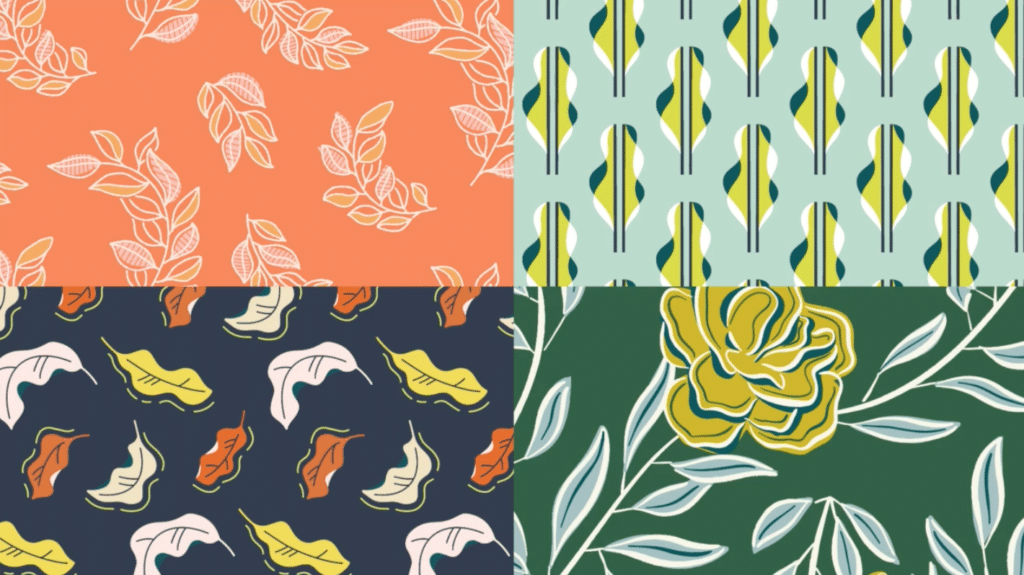
You’ll find yourself enjoying Adobe Illustrator for its precision in vector graphics, design scalability and your level of creative freedom. You can transform a blank canvas into an eye-catching logo, a seamless floral pattern or a custom illustration like a pet portrait.
Mastering graphic design skills like building complex shapes, creating a gradual color blend and making 3D artwork are all possible within Illustrator.
Some artists face limitations within Illustrator when it comes to its limited page layout features and steep learning curve for beginners. You’ll be able to make most of the essential elements of graphic design within Illustrator but you won’t have access to as many of the text or typography tools that you have in InDesign.
Adobe InDesign
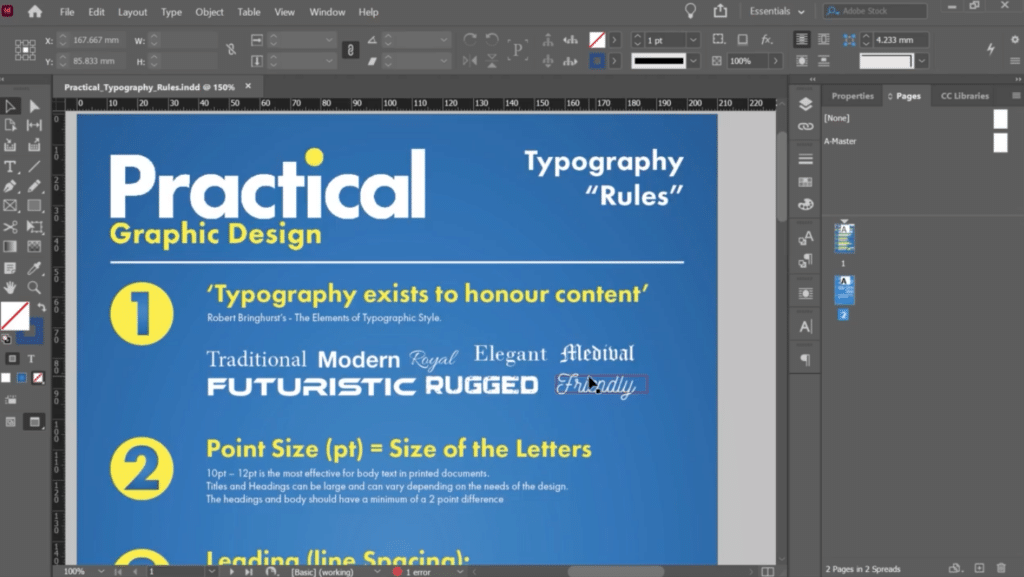
When it comes to building layout-heavy, multi-page documents, there’s no better option in Adobe than InDesign. InDesign offers machine learning-powered tools that will automatically and proportionally resize your layout design and typography as you move elements like images around.
You can also create frames for your text and typography, which allows you to easily adjust white space and aggregated images.
Designers will have less flexibility when it comes to detailed vector work and illustrations. You should create your vector graphics and images in Illustrator and then bring them into InDesign to organize them within your text.
Tips to Help You Choose the Right Adobe Tool
If you have a strong idea of the design project you want to complete, it shouldn’t be too hard to decide whether Illustrator or InDesign is better for your creative needs. First, start by understanding the scope of your project. You can ask yourself questions like:
- Will my project have multiple pages?
- Why am I/my team creating this project for?
- What are all of my final deliverables?
- Do I have any schedule or resource-related constraints?
Then, you’ll want to take your collaboration and exporting needs into account. Figure out the answers to questions like:
- Will I be working with other creatives throughout this project?
- What format do my final files need to be in?
- What are my printing needs?
If you still need help deciding which program to use, you can explore both tools with Adobe’s trial versions.
Key Takeaways on Illustrator vs. InDesign
Now, you’re likely ready to download your app of choice and start working on your new flyer for that upcoming neighborhood flea market or a logo for your new nail care brand. If you’re downloading Illustrator, you’ll love it for its versatility, powerful vector graphics machine and graphic design tools when you’re designing any custom illustration, greeting card or branding suite.
If you’re downloading InDesign, you’ll have fun using its pre-made layouts, typesetting features and thousands of fonts while building out your research report, ebook or upcoming newsletter.
Even if you decide to choose one app over another, you can always switch between the two for different projects and slowly learn the one you enjoy using most in your creative hobbies or line of work.
Over these next few weeks, work time into your calendar to experiment with one or both apps. You might also dive into more research or tutorials with expert teachers and the community of learners on Skillshare. No matter what your next step is, take the time to explore as many beginner projects, online forums and free versions of the Adobe Creative Cloud applications until you find the right one for you.
Related Reading
Calli Zarpas
Producer & Writer by occupation. Ceramicist & Newsletter Editor by avocation.
Graphic Design with Skillshare – Start Your Free 7-Day Trial Now!
Start Your Free Trial Today!- Unlimited access to all classes
- Graphic design classes for all levels
- Learn offline with Skillshare's app