Transcripts
1. Course Introduction: Hey there, my name's Scott declared and welcome to my course on Microsoft Office 365. Microsoft Office products including Word, PowerPoint and Excel, as well as the Microsoft operating system, Windows 10. This is a large course. There are over eight hours of video, however, it's been broken down into each specific product. So you can focus on whichever part of this course you would like to learn about. First, we have roughly 40 video modules with step-by-step instructions teaching you how to use Microsoft Office 365, Word, PowerPoint, Excel, and Windows ten. This course is for anybody who uses some of the most well known business tools in their day to day for themselves, or while working for a company or working as an entrepreneur and a founder. And you're trying to understand how to use the most well-known productivity and Office apps to basically improve your workflow, improve your productivity, and ultimately get more done. By the end of this course, you will have a 360 degree understanding of how to install, setup, use, as well as optimize your workflow through Microsoft Office products, your goal or your project at the end of this course will be to test out one new feature that I teach over in this course that you haven't ever tried out. You've never heard before. And tell me, give me some feedback on how that improves your workflow or your process. The true value add and discourse is that we go into everything. We do, the installation, we walk you through the step-by-step training of the different features of each specific product. But then we speak about productivity hacks, collaboration tools, and how you can use each of these products to make your life that much easier. This is the ultimate Microsoft product business training course. Let's jump right in.
2. MICROSOFT OFFICE 365 Overview: Hello and welcome. I'm doing now at the website of Microsoft Office 365. And you're likely to use some of the existing applications such as Word, PowerPoint, and Excel. Now in recent years, microsoft has added tools, taken tools away and move tools around for individuals depending on the way they want to interact with digital content and the Internet. And these options aren't necessarily all that obvious. Even within business class. There are at least two different kinds of plants. Now in this course, we will look at the business class version of Office 365. Depending on how you'd like to run your operation, you will have different tools that will help you to be more productive. And this is important because two things that Microsoft has focused on in redesigning office is teamwork as well as mobile productivity. And if all you use are the traditional tools of Microsoft Office, you can miss out on some benefits while not necessarily making a sacrifice in terms of price. So in this course, we will look at how you can use the tools together and how you can use them to be more productive. Okay, so with that, thanks, and I will see you in that first video.
3. Licensing Issues for Business: Welcome back. When you first begin to look at the Microsoft Office 365 plans, you'll notice that there is a business side and a home side. If you look at the home side, you'll notice that Microsoft states that the home version is licensed for home use. However, if you click over to the business side and you scroll all the way down to the bottom. You'll notice that all of the plans are licensed for commercial use. And what this means is that substantively all of the core applications are going to be the same. However, the business version now offers 24, 7 phone and web support. Now as of the recording of this video, there's no enforcement mechanism so that if you're using the home version and you're using it for your business. That doesn't mean then that Microsoft is going to somehow cut off your excess. What it basically means is that when you have a business version, you have an avenue to work through different issues that may arise with the use of your Office subscription. The first level of that support is going to be automated. If the automated system can I help you, then you'll be routed to leave messages with the support team. Now whether or not there'll be some enforcement mechanism in the future currently is unknown. But the trade off at this point is that if you need support, you can get a business version. Okay, so with that, thanks and I will see you in another video.
4. Home Vs Business Pricing: Welcome back. Now if you look at purchasing Microsoft Office 365 on either the home or business side, you'll notice that what you are purchasing is either going to be a yearly or monthly subscription. And that when you purchase the home subscription, you're basically purchasing usage for at least five individuals on their phones and their tablets. When you are purchasing the personal level, you're purchasing one usage of Microsoft Office 365. In fact, the home version even has a free trial for one month for 999 as of the recording of this video. Now the same is going to be true from the business side, you can either purchase a monthly or annual subscription. And again, with this subscription, one license covers usage on five applications among five individuals. Now with a business subscription included our productivity applications as well as Skype for Business, which we will be discussing in this course, which gives you both meeting and women are capabilities. You can also create a team site with SharePoint for those with whom you are sharing information. But you don't want to share that information outside of the team. And there are some cases where you might have a Home and Business subscription. So for example, you already have a home subscription. One of the things that gives you access to the business tools is going to be Microsoft Office 365 Business Essentials. It gives you both the services and productivity tools, while at the same time does not include any of the other Office applications. Theoretically, you'd have those options available to you through your home subscription. Although again, it's worth noting here that the business side is licensed for commercial use. The home version is not licensed for commercial use. Okay, so with that, thanks, and I will see you in another video.
5. Reasons To Consider the Home Version: Welcome back. If you were considering purchasing a subscription, there are a few things you'll want to think about, and you may already have the most popular subscription, which is the Office 365 Home subscription. If that's the case, it's quite possible that you could have a subscription where you're sharing Microsoft Office already with other individuals, either in your personal life or perhaps even in your business. What you can do is you can continue to use your home conscription until you're notified by Microsoft did that is inappropriate for commercial use. And you can add on the productivity applications one at a time with individuals that you intend to have on your team. And you can do that through the Business Essentials subscription. And you'll see here that you can add on individuals at a certain dollar amount per month. These individuals would have access to the essentials of collaboration, microsoft Exchange using Outlook storage, using OneDrive, SharePoint, which is the internet, Skype for Business, which is your communication and webinar application, as well as Microsoft Teams. And there are other applications which we will cover in this course. If you're starting at the beginning and you're trying to determine whether or not you will want the more expensive subscription on a monthly basis. You'll want to consider a couple of things. The basic core applications are going to be the same between OneDrive as well as Outlook through access. With the home version, you'll have access to a desktop version of Skype. But that is not Skype for Business. And there is a definite difference which you will see in this course. And it's quite possible that if you currently do not have a communications or webinar application, that the Skype for Business Application may be worth the additional fee that you are going to pay. Okay, so with that, thanks, and I will see you in another video.
6. Differing Levels of Business Pricing For Enterprise: Welcome back. Now if you're looking at the business pricing, you're going to notice on the left side menu that there is a link that says to see option for enterprise, which are also going to notice if you are a user of the Microsoft Publisher application is at that application is going to be missing from those that you have available to you. So if you click over to the sea options for enterprise, you're going to notice different plans for different pricing. First, for these plans you are going to be required to commit on an annual basis, so you will be paying all at once. Secondly, you'll have access to the publisher application, as you can see across most of the plants. Notice that there's a 12 and $8 plan which compare fairly closely to plan similar in price on the small business side. But you're also going to notice two other plants at 20 and 35 dollars per month on an annual basis. And of course this is going to be per person on your team. You're also going to notice that instead of the Cloud Storage being limited to one terabyte, that the storage is considered to be on limited. And at the highest range, Microsoft is offering you a phone system to use between those who are on your team. However, if you're not looking to add on any of the additional features at 20 or $35 a month. And you don't necessarily need the publisher application. You'll be able to use most of the applications in the small business section comparable to those at the enterprise level. Okay, so with that, thanks, and I will see you in another video.
7. Purchase and Set Up: Welcome back. Now once you login for the first time, you will have three basic things that you'll need to do. If you have purchased additional users, you'll need to add a user. And you can do that by coming to this section and clicking add a user. And this is where you'll specify what the person's name is, what their display name will be, as well as the username at the specified domain. Now Microsoft 365 will tell you how many licenses you have left. This will be based on what it is that you're going to be purchasing. And you're actually given the option of creating this user without a product license. And in some cases, when you have a gap between the time when someone's going to be one of your users and you may have revoked their license. They will be at the status, which are also going to need to do is to install your software. If you click this link that says install my software. What you'll have is all of the available software in this particular section. And so if you already have your core applications and you're not using Office 365 in order to get those core applications, you'll typically have Skype for Business, and that's the only one of the additional applications you're going to be using that actually can be installed to your PC. If you have the enterprise version, of course, you will also have Microsoft Publisher. What you'll also have access to do is to create a domain for your team. Now this is going to involve tying a domain to your entire Microsoft system. Or you don't have to add a domain to your system. You can use the existing free domain and it'll be tied to an e-mail address that you will be using. And typically you'll have a compound domain as the default if you're going to use the free version. And so you'll have your designated name and then you'll have the compound name on Microsoft.com and that'll become your default domain name. And when you use the email address associated with your Microsoft 365 account, you will have this compound domain name. It'll be your designated name. Dot onmicrosoft.com. Microsoft would designate that you will have your complete setup. Now again, if you want this domain to be a single name, you'll need to add in a domain, need to add in the domain, and then you'll need to go through the default settings. Okay, so with that, thanks, and I will see you in another video.
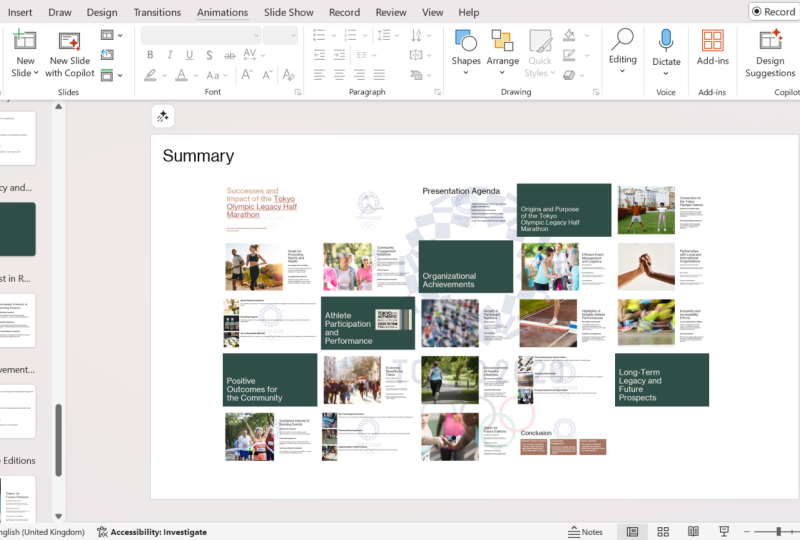
8. Using Office Applications Online: Welcome back. Now once you have set up your Microsoft Office, you can begin to use any of your core applications online. So for example, if you go to this square and you click it, you'll see that your applications will open up Microsoft Excel PowerPoint, or one note. In this case, we're going to open up Microsoft PowerPoint. And what you'll notice is that we can begin to use these applications in the Cloud. You'll recognize the menus. For example, there's an insert menu Design, menu transitions, menu animations, menu review, and this mirrors the actual desktop application. What you'll note is that while you work in these applications, the applications will be auto saved as you go. And once we've named our document, we can choose to click this via a link. We can then click this, Save a Copy. We can then choose to save a copy online. And then we can choose our folder in OneDrive. Once we have our folder open, we can create a new folder insight to further identify what we're saving. And then we can click Save document, will then have access to work on that document through our OneDrive. And so you'll notice that this is the folder that we carried. It would click inside of that folder. We see our document inside and we can do the same thing for all of our core applications. So for example, we can do that with Microsoft Word, excel, OneNote, and as we did it in PowerPoint. Okay, so with that, thanks, and I will see you in another video.
9. Using Office Applications Offline: Welcome back. You will probably be working with your Microsoft applications offline also. And you can have them installed to your desktop. And once you do that, you'll want to make sure that you are signed in to the right account when you're using your desktop applications. Now when you click on your account name, you may find that your Office 365 account is listed with your home account name. That means then that your Microsoft 365 account is connected. What that means is that regardless of what your subscription is, you can go to this file command and then you can save your document. So if you click Save, as you probably noticed that one of the places that you can save is your OneDrive connected to your Office 365 account. So for example, you can go ahead and click that link. When you click the Options button, you'll be asked to sign into your Microsoft 365 account. You'll then get a dialog box from Windows saying that you can actually use this account everywhere on your device or the one that you're using. If you want to be able to do that, you'll then have this box checked and then you'll click, Yes. Microsoft will tell you that they've added your account. You now have access to your organization's apps and services. You can then click Done. That means then that you can then save your document to the folder that we just created with our online account. For example, if we save this presentation and we click Save. And should also be able to see the drive from with END your actual PowerPoint document. And then we'll also be able to see our document in our online account within OneDrive. Okay, so with that, thanks, and I will see you in another video.
10. Do You Need to Be Internet Connected: Welcome back. Now as you can see, we can work successfully across both offline and online using Office 365. Now the question is, do you have to be signed in in order to use the documents? And the answer to the question is no, you do not have to be logged in in order to use Core applications on your device. However, when you want to save that document, you can also save the document onto your personal computer. However, if you'd like to be able to use the document online and you'd be able to use it without having to use the device that you create a new one, you will need to be Internet connected to save it to your online account. So while office works traditionally where you can save your document to your hard drive, you benefit most by saving your documents to the Cloud so that you will not be tied to one device or one location where you can continue to work on your document wherever you are. Okay. So with that, thanks, and I will see you in another video.
11. Using One Drive - Admin: Welcome back. By looking inside of the storage area of HDR, Microsoft 365 account, you'll notice on the bottom left-hand side, you see a link that says a OneDrive admin. And so in this case we're going to click that link. We're then going to have access to administer our OneDrive account. First, we can determine our sharing settings, and this will help us to share links from within our OneDrive. We can also control how our devices sink to the OneDrive account. So if you want to have your personal computer and the documents on it, sync to the documents on your online account. You can do that through this menu. When you have to dismiss someone from your team or from your group, you could determine how many days their files will be available in OneDrive. Through this menu, you can determine device access. So for example, if you wanted to limit access to the OneDrive account to specific IP addresses, you can do that. You can use the Compliance page in order to create alerts that will tell you when users performed specific activities inside of OneDrive. And you can also determine the notifications that individuals receive when they are interacting with your OneDrive. And once you've completed your system setup, you can then go back to the home button. Once you determine how it's going to be used, you are then ready to start working with your OneDrive inside of Microsoft Office 365. So with that, thanks, and I will see you in another video.
12. Using One Drive - Basic Functions: Welcome back. Now the main function of OneDrive is obviously storage. And so that means that you can upload any file into your OneDrive. So for example, what we can do is we can create any new folder. We can then enter that folder. And we can upload files either by dragging and dropping or by using this Upload menu item. While the file is uploading, when Dr will give you a status update, it can follow that status by clicking on the actual upload. But once the file is available, then what you'll be able to do is you'll be able to determine how you're going to share the file. For example, if you'll see the file is already private, what you'll want to do is you can click inside of this box and then you can click the share link. You can give the link to someone's specific by giving an e-mail address or you can send out the link as general. Now, you'll want to make sure that you're changing this designation that will determine how the user can interact with the link. So if we click inside of here, we can determine that anyone with this link can edit. Or what we can do is we can disallow editing altogether. We can also then set a specific expiration date for the actual link. Once we've determined how we want the link to interact, we'll then click Apply. And then we'll click this button that says Copy link. We can then copy this link and then make it available to others and having to be clickable. When the individual actually gets the link. In the case of this zip file, they can download all the files once, or they can download them one at a time. Where you can also do is to perform the same function with a specific folder. So for example, we can click inside of this link and we can share an entire folder and then determined the permissions from the dialogue box that Microsoft Office 365 gives us. Also, one drive is entirely searchable. So for example, we place our cursor inside of the search bar, and we were to type in a search term. We can see all of the available files and then we'll click see more results. And what you'll notice is that we've been given filters for those results. So for example, if what we want to do is we want to find only zip files that would pertain to what we're looking for. Onedrive will narrow those files down to the zip file. If we wanted to narrow it down to a particular word file, we can do that. Or any of the other designations that you have on this right side menu. Okay, so with that, thanks and I will see you in another video.
13. Skype For Business Installation: Welcome back. If you go to the admin section of your Microsoft 365 and you were to click the link that says install my software. You'll see here that there's a link to install Skype for Business. You can determine the language and the version and then you can click Install. Once you have the program download it, you can then click the executable file. You'll then need to go through the install process. You'll then have access to two icons. I have access to Skype for Business as well as your Skype for Business Record Manager. You'll need to accept the license agreement. Then click Start. You'll then need to sign in using your Microsoft Office 365 e-mail address. Then you'll be signed in to your Skype for Business panel. In order to customize, you'll need to go into this gear. That'll open up into your options area. You'll especially want to make sure that you have the right audio device, the right video device, and that you're recording will happen the way that you expect. Okay, so with that, thanks, and I will see you in another video.
14. Skype for Business Webinars: Welcome back. Now that you have basic Skype setup, you'll want to first make sure that your devices are set. And typically by default, you'll have a mike and you'll have some kind of audio, and that'll all be set up here. You'll need to select your devices and especially those that you would use in order to broadcast. But what you're going to do is you're going to go to your admin panel. You're then going to go to Teams and Skype. But once you are inside of Teams and Skype, you were going to go to the legacy portal. And once you're at the legacy portal, you're going to click on online meetings. You'll then want to click on broadcast meetings. And you're going to want to make sure that you are enabled for Skype Meeting Broadcast. Once you do that, you will then click Save. But one helpful thing that you'll want to do is you'll want to make sure to put in your help desk support URL for your attendees. Once you do that, you can go to Google or you can go to this URL broadcast, that Skype.com, which is the Skype Meeting Broadcast. You'll want to click that link. You will then be at the Skype meeting portal. And what you'll do is you'll then click New Meeting. And then you'll set the parameters for your meeting. You can determine what kind of access to the content you're going to have. The most cases what you'll do is you allow people to attend anonymously with no sign it. You can choose to create a video recording. You could choose to have the video transcribed. Once you've done that, you'll then click Create meeting. Now if you want to customize your attendee page, you can do that here at this customized link. What you're going to do is you're going to click this Join link. You're going to pick up this entire link. And when you get ready to start your meeting or prior to the meeting, what you can do is you can take this link and you can go to your web browser. And when you get to this link, what you can do is you can then sign in as an event team member. The application will then open up your Skype for Business. You will then click Open Link. To use the audio visual tools for Skype for Business, you will leave this default setting. You will then click okay. You can then choose what kind of content you want to add. You can then share your PowerPoint files. What your content is uploaded when you can do is make sure that your mic is unmuted. What you'll do then is Endo choose the content. And once you've chosen your content, you can then start your broadcast. Once you click the link, you will then start your broadcast. You're going to get a message saying it's going to start, and then your broadcasts will actually start. And you can begin going through your slides and anything else that you're going to want to do. Once you complete the meeting, you can go to this right-hand corner. You can then in your Skype meeting, you'll get a message saying OK. And you're meeting will then be over. And for those who have a wink, they will have been able to join you on your broadcast. And what you may want to do is you may want to create a video when they're going to login, since the process is slightly different than other webinar systems. Okay, so with that, thanks, and I will see you in another video.
15. Skype for Business Vs Skype for Desktop: Welcome back. Now Skype for business operates on a different platform than the desktop Skype. And if you want to add individuals to your Skype for Business, you can do that. You'll need to click this, Add a contact button. Now, you'll notice that Skype for Business is going to give you a couple of choices. You can add a contact within your organization. Those are going to be the people that you have as part of your team. When choose to add a person that's not your organization, you can use the regular Skype directory. You can also send a contact request to someone with an e-mail address only now this is going to require them to get Skype for Business. Now, if you're going to add people from the Skype directory, you can then click this link. And then you can identify that person by their Skype profile. What you could do then is you can then right-click this profile, this contact. And then you can add that person to your contacts list. What will happen then is that person will then receive a contact request and then once the accepted, then they can contact you on skype for Business. But once the person accepts, you will be able to chat with them or correspond with them inside of Skype for Business, however, you will want to note that they will not get the contact requests if they are already on the desktop Skype version, they will need to accept your contact requests and they will need to set up Skype for Business in order to correspond with you. So it's quite possible that you will have individuals on your Skype for Business contact, as well as your Skype for desktop contacts if you choose to use both in the very same way. Okay, so with that, thanks, and I will see you in another video.
16. Microsoft Outlook With Exchange: Welcome back. Now one of the applications that will provide maximum flexibility as well as productivity will be Outlook using Microsoft Exchange. And you do have an app as part of your Office 365 for Business. So what you'll want to do is you'll want to go and click inside of Outlook. Now, outlook will allow you to manage your email for up to five e-mail addresses in one location. And that means then that what you'll need to do is you'll need to change or connected accounts. You'll need to do is to click this link that says connected accounts. And what you'll do is you'll add in a new account. When you do that, you'll write in the email address and then the password. What will happen is then Office 365 will then begin to import your email in to your online management system. And once again, you can do this for up to five e-mail addresses. You can replicate this on the desktop application exists on your hard drive, however, you don't have to, but went to all your emails are setup. You'll be able to log in to any web browser to get access to a of your email. You'll log in to the address login dot Microsoft.com, and you'll sign in then with your Microsoft e-mail address. Once you're logged in, you will go to your admin panel. And then you'll click on the icon for Outlook. And you'll then be able to have all of your e-mail address in one place. Okay, so with that, thanks and I will see you in another video.
17. Outlook com Vs Microsoft Exchange: Welcome back. Now if you are already a user of Outlook.com, you probably already know that you can add your e-mail accounts to outlook.com to receive email and to manage email. And that you don't necessarily need Microsoft Office 365 in order to do that. However, there is one difference between the two that you'll want to take note of, especially if you have access to both systems and you're trying to choose which one you're going to use. Now the main difference is explained here in this article for Microsoft. And that is that sinking with your connected account to outlook.com is only one way. When you use Microsoft Exchange, you're actually going to be sinking in two ways. This means then that if you use Outlook.com, your email that you send is only going to appear at Outlook.com. It's not going to appear also in your connected account with Microsoft Exchange. It will appear in your connected accounts If you're looking to archive and you're looking to keep track of your e-mail for business purposes, it may be a good idea to use Microsoft 365 if you have the choice to make. But the basic core operations are going to be the same. And so you'll want to keep this in mind to determine whether or not you're going to continue to use Outlook.com or whether or not you'll use exchange at login dot Microsoft.com. Okay, so with that, thanks and I will see you in another video.
18. Managing Tasks With Planner: Welcome back. Now one of the applications you have available to you in Microsoft 365 is going to be the Planner application. If you go to your all applications, you scroll down and you'll look to see the Planner application. You want to click that link. Planner will then open up. And then what you'll do is you will click in the planner application is for those on your team to work together in order to establish a plan with things to do for each individual. So what you're going to do first is you're going to click new plan. You're going to give your plan a name that you can set this up so that anyone is connected with you within your organization on Microsoft 365 can see it, or you can make it so that only those that you invite to the plan are going to be able to see its contents. That's typically what you're going to do. You can go into the optional plant description and write it in. Once you do that, you'll then click Create plan. Then within your private plan, what you'll be able to do is to set up your tasks and then to set the due date and then assign them. When we get ready to make the assignment, we can then click in the email address. You'll notice if you write in the e-mail address of an individual that's not part of your team. They will not show up and you will not be able to assign this to them. They will need to be part of your team inside of Microsoft Office 365. I, once we've assigned a task, what we can do is we can then click Add task. And then we can set up our plan based on the tasks that we are planning. We can then organize those tasks by bucket. And what we can do is we can then start adding tasks based on the different buckets. In fact, what we can do is we can edit our existing tasks and add them to the bucket that we have. Team members can then follow the plant as it progresses on the chart. And when tasks are completed, it will reflect inside of the chart. And then the same t will be able to follow the plan as it progresses on the chart as well as the calendar. So the planner will allow those who are connected to you on Microsoft Office 365 to work together on a plan and to do it visually using the planner. Okay, so with that, thanks, and I will see you in another video.
19. The Teams Application: Welcome back. Now another application that you have access to through Microsoft Office 365 is going to be the Teams application. C. You can click the link here on the left side panel in your admin panel. That team will allow you to create a shared workspace with those you are connected to. Or they may be times when you may have certain individuals that you want to work on certain projects and it you don't want them to work on others. That's the case. You can create a shared workspace specifically for those individuals, for the specific project that you're working on. And you could do that through the Teams application. So you'll start the process by clicking Create team. You'll want to give your team a name. And then you'll determine the level of privacy. So you can have it so that only team owners can add members. Or you can have it so that anyone within your organization connected to you in Microsoft 365 can join. We are going to make this a private team. And then we're going to click Next. What we can then do is start adding individuals that we're connected to it, Microsoft 365, to be part of the team. Once we've added those individuals to the team, we can then click Close. Now Teams can operate in the Cloud, or you can also download the desktop app just as you operate any other app in the Microsoft 365 universe. You can go to the bar and you can start a conversation. Others obviously can continue the conversation. You can share files specifically for this team, either from your OneDrive or from your hard drive. And the project itself also has its own wiki, which allows you and your team in order to archive information as you discover it. And you can keep track of those Wikis inside of this area, within the shared workspace, you can also schedule a meeting. And the meeting can be set inside of the individual project. You can also make files available inside of your team application. So while the planner helps you to track your activity, the Teams application helps you to archive your activity as well as to share information in real time. Okay, so with that, thanks, and I will see you in another video.
20. Invoicing and Management Applications: Welcome back. Now there are ways for you to extend what you're doing inside of Microsoft 365. And if you go to your applications and you click Explore all of your apps, you'll then have a summary of all of the apps that are available to you. You scroll to the bottom of the page, you can click this button that says store or you can go to install other software. We're going to click go to the store. And you'll find that you can extend Microsoft Office 365 through this portal. For example, there are ways to generate PayPal invoices through Dynamics 365. There are also ways to use different applications that are already in existence to tie to your Office 365. If we were to write in the E, you'll notice that there is Zoho and voice. So if you already have a subscription, you can extend it into Microsoft Office 365 and either one of these cases. And we can also tie in other existing cloud-based services. For example, we can tie in the auto responder Mailchimp. We can tie in Adobe Creative Cloud, and we can tie in Zim desk. So what you'll want to do is you'll want to come to this page and you'll want to test out some of the applications that you're already using to determine whether or not there's a tie in to Office 365. In many cases there are such as this application tie into QuickBooks. In most cases you'll need the existing subscription. And in just as many cases there is a free trial in case you don't have this prescription, but you'd like to try the application to determine whether or not it's worth the expense. You're going to occur to tie into your Microsoft 365. Okay, so with that, thanks, and I will see you in another video.
21. Conclusion: In conclusion, we've looked at the core applications inside of Microsoft Office 365 to determine how we can use them more productively. You're probably aware that the core applications, as well as two of the productivity applications, OneDrive and Outlook, also work on the desktop. But you've seen the potential of being able to collaborate real-time in applications such as Teams and Microsoft Office 365 Planner. But nor do the maximised a real-time potential of working in Microsoft Office 365. You want to take the applications that are available on mobile and you'll want to install them. Also, not only does it give you access to the shared workspace, but it also gives you access to other members of your team in real time. And it makes working on your applications in the Cloud the most efficient way of being able to use this system. Okay, so with that, thanks, and I'll see you either in another video or in another course.
22. MICROSOFT OFFICE 365 Advanced Features Overview: Hello and welcome. The idea in Microsoft 365 is to allow you to be able to collaborate on documents and work with anyone all over the world depending on who you want to work with. So example, when you open up Microsoft Word and we open a new document. The idea here is for you to be able to share this document with anyone that you want to work with it, as well as to share this document with any one that you want to read it. And to make it as simple as hitting the share button and then sharing the link. And you're probably familiar with Google Documents. And this is something that Google Documents has done For as long as it's been in existence. It's always been an online document workplace. The hub of this, of course, is Google Drive at the submitted by e-mail. If you think about the relationship between these three entities, you'll get a sense for what Microsoft is trying to do with Microsoft 365, while at the same time providing you more tools and an admin panel to administer work on teams and companies. So in this course, we will explore the aspect of collaboration with individuals that you select for your team. Whether that team is internal to your business or whether or not that team includes individuals outside of your team, including both clients and suppliers. So we will look at some applications that you may not have heard of, such as Dell, Dynamics 365, Flow, forms, and sway. And while these things are somewhat similar to Google Docs, the way they work together is unique and gives you a different set of tools. So in the next video, we're going to take a look at two applications specifically within one of the enterprise versions. So in this case, you'll need to have a specific subscription in order to see it. And if you have a need for invoicing of some kind, you may want to pay attention to this next video. Okay, so with that, thanks, and I will see you in another video.
23. Other 365 Options: And you make your choice to purchase Microsoft Office 365. You can chat with a representative, and in some cases that will make the most sense once you understand some of the functions and how you can put them all together in one plan. Or you're looking at the Enterprise E10 addition, mainly because there's one aspect of this plan. It could be helpful and stands out from the core applications. One aspect of the plan is the enterprise video service. Microsoft gives you in your team space, an area where you can create videos, where you can control access and are encrypted for your team and can't be shared outside of the area. Have you sign up for the planned? You'll notice that in some cases, depending on your subscription, you already have access to it with Office 365, or there's an additional stream plan per user per month. Now, even though this is all going to be internal, you are trying to create something that's going to be searchable for individuals that you are going to be training. Perhaps you have outsources at various times that are gonna be joining your team and you want to provide training for them. You can use the stream application or to do that. Now in this case, we have just uploaded the video. We're going to click Publish now. And we can both share and embed this video. But note that this video will only be viewable by those whom we authorize in order to see it. And that really is the benefit of being able to use Microsoft Stream in the context of your Microsoft Office 365 account. Now one of the upgrade at business plans, you'll notice that Microsoft Office gives you a business center, and we're going to click inside of this business center. What you'll notice here is that you have a number of business tools. We're just going to skip the introductory screen. And two in particular that could help us would be invoicing where we can create both an estimate and then transfer that estimate into an invoice we're going to do right now is we're just going to create a test invoice. Once we have all the information in all we need to do is it then click sent. And then we can track that invoice in this area. We can also do online scheduling through the business center where you can customize your Booking page according to your schedule and then give this to your customers and your clients. And the business center is part of the Business Premium Plan. So it's a good idea when you decide on the features that you want to have, if you'd like to bring them all under your Office 365 umbrella, what you can do is you can start with a conversation with sales, because many of the features or services that you may be paying monthly for and go across different plans and Microsoft. Okay, So with that, thanks and I will see you in another video.
24. Admin Panel - Part 1: Welcome back. Now in order to have individuals working with you to collaborate, you'll need to be able to navigate the admin panel. And first you'll want to be able to add or edit users from this side of the admin panel, we're going to click active users. We're going to add in a user. Although in some rare cases you may be making someone in admin. Typically you'll be making them a user. You'll determine that here. Most importantly, here is where you will be able to add him to specific services that the user on your team is going to be able to use. Now what you'll see here is that there are several services that are available to this individual that we can determine. What we can do is we can turn on different services for the individual according to the project they're gonna be working on. So for example, if we decide that the individual needs to have access to stream, we can give them access to a certain level of 365 Business Premium. So for example, if all we want this person to work with is going to be planner and sway. All we need to do is determine the different aspects this person is going to be able to use inside of this subscription. And we can then add that individual to our users. And of course, we can then send the information to the individual's existing email. And there'll be using this username to get inside of our system. We can go to the Settings gear and then we can determine additional services that we're going to be adding in and their properties. So for example, if we decide to use the Bookings app, we can click into this application. And you can see that the bookings are turned on. What we can do though, is we can turn off any social sharing options. And so at the services link, you'll want to go through each of the sections to determine how you want the team to interact with each of these applications. Okay, so with that, thanks, and I will see you in another video.
25. Admin Panel - Part 2: Now, in addition to the services Admin Center, you are going to want to determine the use of certain applications. And in those cases, Microsoft actually has separate admins for those applications. For example, the use of Microsoft Exchange. This is where you're going to determine the use of e-mail within your system. Now, obviously you won't be able to look in or determined how email is sent, but you will be able to determine how this e-mail is going to affect the rest of what the user does while they're working within your team. If you're going to allow other people to use the live event and to conduct meetings. You are going to need to set policies. Now there's a sample policy already here, but you can add in to that policy depending on how you want this application to be used. Now Skype in particular, you can look at the legacy portal and as you recall, these settings will determine how your team will be able to use. Skype for Business. If you have individuals that will be using your OneDrive, you will want to be specific about how you want them to use it, as you can see here, when it comes to external sharing of links, you can make at most permissive or at least permissive. And again, this really depends on what it is that you're doing with your team. You could determine storage limits as well as days that files are retained. So the rest of the individual admin centers will depend on whether or not you are using these applications, either team, prior to allowing others to use them though, you will want to set the policies for them. Applications such as flow, Yammer, and dynamics can't extend outside of your team as well as outside your organization. So you are going to want to determine how users are going to be allowed to use it. And Office 365 also has a security and compliance panel where you can determine that your data, as well as your customers data is secure. Okay, so with that, thanks, and I will see you in another video.
26. Document Sharing and Collaboration: Welcome back. Now whether you're working on a document on your desktop or in your online portal, would you want to do is to make sure to click either of the share button. And when you click the Share button, you're going to want to click this link that says anyone with the link can edit. What this now does is this gives you some options. You can determine the specific people will be able to use the document. You could determine the only people within your organization will be able to use this link or people who've already had access. And what this does is allows you to limit the number of people who are working with you. Or even more specifically, if you have groups of teams working with you, you can limit access to this document to a specific team. Of course, what we wanna do is we want to save this document. We want to save it in a place where we know our team is going to have access to it. That means in this case, what we can do is we can save this to a specific folder, our OneDrive, where only the individuals in the team that we're going to be sharing this width will be able to access the document. Now of course, we can also check off specific people. And if we click apply, these individuals don't have to be inside of our organization. And here's the document in the individual's email box. I'm going to get the document. They're going to get a message that looks like this, allowing them to open the document as a secure link. Okay, so with that, thanks, and I will see you in another video.
27. Document Sharing and Collaboration With Delve: Welcome back, welcome back. Now one of the applications at Microsoft Office 365, places inside of your admin panel is called delve. And if you go down alphabetically, you'll see it. Now delve is a way to discover what other people are working on. And what you have are all of the people that you're connected to in your team or your organization on the left side panel. And in this case, all you'd need to do is to click on that person's name. And what you'll then find is that you'll see all of their documents available in one area, as well as dates and times. So for example, you'll see the green document that was produced earlier. Of course, as well as the invoice, as well as the other document. Now another way of being able to find content that others have done is to do so by search inside of Dell. And so you'll go to the search bar. And if you write in what you remember, you'll be able to find the document here inside of delve. And you'll be able to click on it. And you'll be able to access it either as the author or as a contributor. So what Dell does is it attempts to make it easier to find the documents that you need, as well as to collaborate with others as they work on the documents that they are working on. But one aspect of these documents is that you can click this More Options. And you can click in this area that says Who can see this. And office will then open up a right-side panel telling you who can actually see the document. So if you're working with outsourcers or you're putting together a temporary team and you're working inside of OneDrive, you will be able to know who's working on a document, as well as to be able to make comments through one shared area. Okay, so with that, thanks, and I will see you in another video.
28. Intranet with Sharepoint: Welcome back. We've looked at a number of applications that you can use in order to create a shared workspace to collaborate on documents. Yet another way to do that in Office 365 is to use SharePoint, which is considered to be an intranet. We're going to go ahead and start by clicking on SharePoint. And we can start the process by creating a site. The SharePoint sites are considered to be internal sites. They're not meant for your customers to see. So if you have Teams within a team, then you can use these sites as a way of displaying progress, as a way of displaying research, as a way of displaying what one part of your team is doing. And you can do that by clicking this team site button. So we're going to give this team site a name. And the site will have an address. Now you can't set the privacy settings so that the only people that can access the site will be the members. That's pretty much what you want to do with any intranet site. We're now going to do is we're going to click Next. And what you can do is you can add in other admins, you can add in other members. We're not gonna do that right now. We're just going to click Finish. Importantly, as you can see, this is another way of being able to view and share files among a specific team. So you can upload your documents here. Then all of our activity, as well as those who are on the team, will then show up here on the Intranet page. Heavy intranet site does work like a blog, so you're encouraged to write in comments on every page. You're also encouraged to update with a post. And again, we'll be able to follow all of this activity in one place. So SharePoint provides us a shared workspace where we can have conversations around ongoing projects or ongoing Teams. Or SharePoint is a little different in that we are encouraged also to incorporate those things from outside of the organization. Okay, so with that, thanks, and I will see you in another video.
29. Intranet with Sharepoint - External App Updates - Part 2: Welcome back. Now one of the things that we can do to make our SharePoint even more productive is to connect outside applications to our activity. So for example, there are connectors for Trello, Twitter, and wonder list. If that's one that you use. There are connections for Facebook pages as well as Mailchimp. You may recognize the connection for GetResponse. And this activity helps us to share appropriately inside of our SharePoint. For example, if we choose GetResponse, we can click Create after we create a name. And what happens is once we set up the API with GetResponse, we can have automatic notifications. When someone opens an email, when someone clicks a particular lake, when someone buys a product online. And we can designate these things based on our GetResponse account. And we can have those things updating inside of our SharePoint. So what you'll want to do is you'll want to check for the applications that you're already using. And then you'll want to build a connector into your SharePoint account for the most appropriate updates. Okay, so with that, thanks, and I will see you in another video.
30. PPT Alternative Onscreen Presentations with Sway: Welcome back. Now one of the productivity apps that you have available to you is an alternative to PowerPoint and allows you to put together presentations made for the computer screen that are shareable. And you can do that by going to your admin panel. And then you can pick up the app called Sway. Now what Sway allows you to do is to start with a template or to start from scratch. And you'll be able to edit sway just as if you would any other Microsoft document. Although the layout is always going to be a little, you can add in text or images and alignment within your document. So basically what you have in Sway is a way of being able to create a visual PowerPoint presentation made for a computer screen. And they're made to be shareable. So once you've completed your suede design, you can play it. And in order to return working again, you can just hit the Escape button. Now what you can do is you can collaborate on the creation of a Sway. So you can do that by going to this Share button. You can share with whom you want. You can share with specific people or groups, those in your organization, or anyone who has the link. And you can invite them to either view this way or you can invite them to edit this way. Now if you want more and more step, you can require a password to view or edit this way. Now although the sway is made for the computer screen, you can print this way. And you can print it as a PDF onto your hard drive. You can also export this way. You can export it into a Word document and a PDF as we just did. And you can see the document now in Microsoft Word. Okay, so with that, thanks, and I will see you in another video.
31. PPT Alternative Onscreen Presentations With Sway - Part 2: Welcome back. Now another way to start a Sway is to start from an existing document. And you could do that by going to this layout when you come into the front page of sway and then click Start from a document. So start with a Microsoft Word document. Sway will then begin opening this document. And what it will do is it will try to reproduce the content into reasonable portions that you can begin to work with in Sway. Once you have your content inside of a panel, you can begin to work with the text. You can add in an image and you can use suggested searches from being YouTube or Wikipedia. Now of course, if you're doing this for commercial purposes, you do want to make sure that you are responsible for either giving someone credit or making sure that you only use those images that have a commercial license. We can pull it out another form. And then we can add more images. And we can change and design the background of the entire presentation. We can insert videos into Sway. And so basically we can start with existing content and we can turn it into a presentation that we know is shareable then, as well as collaborative, so that we can work on this presentation with others. So we can test our presentation by clicking the Play button. So we'll see with others, we'll see. And then we can share the presentation with others. We can alter the layout. And if we like what we done, we can save our presentation as a template. So basically we have a way of being able to create a visual presentation that a shareable online and collaborative through Microsoft Sway. Okay, so with that, thanks and I will see you in another video.
32. Zapier Like Integrations with Flow - Part 1: Welcome back. Now another application you have available to you through Microsoft Office 365 is called flow. And if you go to this icon and click on it, you'll be brought to a series of automations that you can use in order to connect Office 365 to certain applications you're already using. For example, one of the things that you can do is you can sync events from your Office 365 Calendar to your Google Calendar. And all you have to do is turn on one of the flows to do that. And naturally in order to do this, what you'll need to do is you'll need to sign into your Google Calendar. You'll need to login. Then you'll need to give flows access to your Google calendar. Once you have everything in place, you'll then click the Continue button. And then you'll need to identify two specific calendars. Once you do that, you'll then click Create Flow. And now both calendars will be in sync. Every time the flow runs, you'll actually have the history inside of your float account. And Microsoft has several cookbook templates sets that you can use that are already in existence. For example, when it comes to Excel, you can track and manage our time and expenses. Without looking SharePoint, you can get notifications when certain events happen, such as an e-mail from a specific person. Or you could have photos, automatically upload it to OneDrive for Business. And Microsoft makes it easy to find certain connections through the applications displayed on the page. For example, one thing we can do is we can save our email attachments to OneDrive for Business. We can click Add this button. Once we do that, then our drives will be connected. Then we've just click Create Flow. And now we have another flourish saved our lists. So basically we can use the existing flows and place to find areas where we can consolidate work. Okay, so with that, thanks and I will see you in another video.
33. Zapier Like Integrations with Flow - Part 2: Welcome back. Now the most obvious thing to do with flows would be to use those that Microsoft office already has in place. However, you can start with applications that you're already using. So you can test to find out if there are connections already to them. And you can do that by using the search feature inside of Microsoft flows. For example, we can find several just by searching for Facebook. And if you'll notice there are some that don't necessarily have anything to do with Microsoft Office 365. For example, if we type in WordPress, we can find several flows that we have available to us. We can also search by category. For example, we can look at all of the social media flows or the events in calendars flow. And we can also further filter by popularity, by name and publish time. One of the most significant aspects of flow is going to be the sink category. So for example, when Dr. bios to Google Drive, we can copy files between one Drive and Dropbox. We can eliminate Microsoft Office 365 altogether and transfer files between Dropbox and Google Drive. As you can see, we can even copy files between box and SharePoint or sinking files between Dropbox and our FTP. So basically what we'll want to do is want to be able to search for those applications that were already using to find out how many connections there are that Microsoft Office 365 has set up through flows. Okay, so with that, thanks and I will see you in another video.
34. Slack Like Conversations With Yammer - Part 1: Welcome back. Now there's another way that Microsoft Office 365 gives you a way of being able to communicate with a group of people, either a team or people that work with you and for you. And you can do that through what's called the Social Network Yammer. You can access Yammer by going to the admin panel. And you'll see it there on your left side menu. You can then click Yammer. Now the way to think about Yammer is it is an internal social network among people that work together. Therefore, everything is based on what's happening inside of the newsfeed. You can post to the News Feed. There are various things that you can add to that post. You can add in a JIF. You're going to add in a file from SharePoint. You can add in another file from Yammer. Or you can upload a file from your PC. And the individuals that are going to be part of your gametes are going to be part of your group. However, if you are the admin, you can create a group within Yammer. And again, you have options of being able to limit the group activities visibility to those inside of the group or those outside of the group, yet within your team or company. And you can then add people to the group by their name or email. Then based on the invitations, the group becomes a place where you can post conversations, you can post files, and you can do all the things that you would do within a social network. You get then head back to the home menu, where you're going to be part of the network for your entire team or group. What this allows you to do is to follow the activity of certain individuals, as well as for someone to follow you. But there are other ways to post within Yammer. You can start a poll. You can provide praise to someone on the team. And you can make an announcement about something that has happened or something that is about to happen. As you've seen with other things in Microsoft 365, you do have applications that will run specifically for Yammer. Now a number of these are trial versions. So we've looked now and how to share our space inside of a more social network or one that's closer to the social media format. In the next video, we are going to take a look at how you can extend this network to the outside. Okay, so with that, thanks, and I will see you in another video.
35. Slack Like Conversations With Yammer - Part 2: Welcome back. Now there's another way that Microsoft Office 365 gives you a way of being able to communicate with a group of people, either a team or people that work with you and for you. And you can do that through what's called the Social Network Yammer. You can access Yammer by going to the admin panel. And you'll see it there on your left side menu. You can then click Yammer. Now the way to think about Yammer is it is an internal social network among people that work together. Therefore, everything is based on what's happening inside of the newsfeed. You can post to the News Feed. There are various things that you can add to that post. You can add in a JIF. You're going to add in a file from SharePoint. You can add in another file from Yammer, or you can upload a file from your PC. Now the individuals that are going to be part of your gametes are going to be part of your group. However, if you are the admin, you can create a group within Yammer. And again, you have options of being able to limit the group activities visibility to those inside of the group or those outside of the group, yet within your team or company. And you can then add people to the group by their name or email. Then based on the invitations, the group becomes a place where you can post conversations, you can post files, and you can do all the things that you would do within a social network. You get then head back to the home menu, where you're going to be part of the network for your entire team or group. What this allows you to do is to follow the activity of certain individuals, as well as for someone to follow you. Now, there are other ways to post within Yammer. You can start a poll. You can provide praise to someone on the team. And you can make an announcement about something that has happened or something that is about to happen. As you've seen with other things that Microsoft 365, you do have applications that will run specifically for Yammer. Now a number of these are trial versions. So we've looked now and how to share our space inside of a more social network or one that's closer to the social media format. In the next video, we are going to take a look at how you can extend this network to the outside. Okay, so with that, thanks, and I will see you in another video.
36. Adding On Applications with Dynamics 365: Welcome back. Now, one of the ways that you can extend the capability of microsoft Office 365 when you're working with it in team is to use the Dynamics application. And you'll see dynamics on the left side menu when I click that link as some of the applications are going to be free to you, Some have a cost available to them. And one way to search for them is to click the dialogue box and then do a search for the kind of or the name of the application that you'd like to apply. For example, someone has created an application for PayPal and voices as design that only two sending voice but to collect payment also. And there is a free trial for this application. And so with that being an example, we can take a look at some of the applications to determine which one fits best. In many cases, you're either using or working with these solutions. Apart from Microsoft, it might be cost beneficial to use it within Microsoft Office 365. Okay, so with that, thanks, and I will see you in another video.
37. Adding on Applications with Dynamics 365 - Part 2: Welcome back. Now in order to incorporate applications into Dynamics 365, there are a few things you want to know about the interface. There are four primary methods of being able to create apps. One is pre-built app section for microsoft Dynamics 365. There are also other outside applications that you can import or AppSource. There are Power Apps that had been built to extend Dynamics and old three bring different aspects of extensions to Microsoft through which ultimately extends your Microsoft Office 365. So we're going to start first with a few apps that have been created specifically for Microsoft Dynamics. And if you scroll down all the way to the bottom point to notice a section of pre-built applications. For example, the My Expenses application, which we add it to our Microsoft Dynamics, allows us to create expenses and submit them for approval. And once we delete all of the sample data out of the expense app, this app is made for us to submit your expenses to be approved. And what the app allows us to do is to provide our team the ability to submit their expenses for approval either prior to them spending it or after spending it and in need of being reimbursed. This is one of the applications that you can add to your Microsoft 365 and can be useful if you are working within a team. Another application pre-built by Microsoft is an onboarding task manager and allows you to create a list of things where if a person is new to your team, you can have them run through these things and have these things added to their to-do list. And you can set up resources for them as they go through their to-do list. So this is yet another application that takes advantage of all of the things that we're doing within Microsoft 365, as well as the existing resources within Outlook, as well as OneDrive. Okay, so with that, thanks, and I will see you in another video.
38. Create Surveys - Quizzes and Polls with Forms - Part 1: One of the other applications that we can use is the Forms application. And we can find this in the admin panel. If we click all apps, we can see a list of our applications and we can then click Forms. Now forums allows us to create surveys, quizzes, as well as to analyze data in Excel. Of course, the first two uses will be most relevant to us. We're going to do now is create a new form. We can add in our question. We can choose the kind of question that we are going to ask. And then we can write in our question and our options. And we can have latitude over how that question is expressed and decide if it's going to be required. And then we can make it saved. Now within forms, we will get an opportunity to look at the responses so that we'll know how people are responding to what it is that we are putting before them in terms of questions, we can preview our question. One personal computer as well as on mobile. We can change the appearance of the quiz by changing the theme. And once we've completed our question, we can then click Share. Then we could determine how we want. The survey would be shared. We can make it so that anyone with the link can respond. Well, we can make it so that people only within our organization can't respond. What we can also do is we can share this quiz so that we can have others to give their input on how it should be enacted. So for example, what we can do is we can share a link that will allow others to view it and edit it. And we can then take that link and decide that only people within our organization can view it and edit it. We can then copy this link. And then we can paste this link to others so that they can help us write the rest of the quiz or the survey. Okay, so with that, thanks and I will see you in another video.
39. Create Surveys - Quizzes and Polls with Forms - Part 2: Welcome back. Now the Forms app has within it a process called branching. And if you go to the very top and you click that the bats and you click branching. What we can have the questions do is we can have the questions send an individual to a certain place. In this case, you'll see that the options are either to go to the next question or D into the form. Go to the next question or the end of the form. So we're going to add in a few questions so that you can understand how this might work. So now there are four questions in the quiz. So we can look at the branching aspect. So we can go to this more from settings. And we can create branching. And we can determine that if the person answers true, we can send them perhaps to question 3. If the person answers false, we can send them to question two. We can then move on to the next question and we can branch them from this question. The answer one thing, we can send them to the into the form. They answered something else. We can send them to the next question branch from short answer. And we can also branch from the final answer. Every key is understanding that we actually will get the results and we'll get a summary of these results. Now, although Microsoft Forms did not analyze the results, we will have a good picture of what the data is telling us. Okay, so what bad, thanks, and I will see you in another video.
40. Using Microsoft To Do: Traditionally using Outlook gave you access to a task manager. However, and that task managers still exists inside of Office 365. And you'll see that it's still called tasks. However, Microsoft purchased and online task manager called Wonder List. And since that time they have incorporated the aspects of wonder list into their own to-do application. That's an expanded view of tasks and gives you more options. I wanted to take a look at Microsoft to do right now. And when you click the Get Started button, where you'll notice is at the different aspects of your profile that you have seen from other applications is now incorporated into your to-do. To recall this list from our discussion of the onboarding application. Now like Wonder List, you can create a new list and you can create your to-do lists based on that particular list and make it part of your routine. And what you can do is you can share the list with others on your team so they'll have access to the list that you were working on. And like the Wonder List productivity app, you have a feed of things that you are able to do and look at visually on a particular day. Okay, it's what that thanks, and I will see you in another video.
41. Advanced Feature Conclusion: Welcome back. Now we've been through a number of ways in which you can use Microsoft Office 365 in order to collaborate with a team in order to complete projects. We looked at the Social Work for a Teams call Yammer. And we looked at the team space for work projects called Microsoft Teams. We looked at the SharePoint application and we've looked at the Delft app. We looked at sharable content using Sway and shareable tasks using Microsoft ToDo. There are two things that we didn't do. One was to update the Power Apps system to work with Microsoft Dynamics. As you recall, we looked at the expense application in order to add to our Microsoft Office 365. And one of the ways that we need to do that is to add the app to our Power Apps dashboard. And you can find the expense app on the front page of your Power Apps dashboard. And so what you're going to do is you're going to click make this app. We're going to be given a dialog box. You'll then be able to customize the app to work the way you want, as well as to add the information that you want. We also want to make sure to get access to all of the applications that we're going to be using, along with our Microsoft Office 365 account online so that we can follow on Mobile also. And finally, if you don't have the admin panel yet for Office 365, you'll want to make sure that you have it in order to have access to all of the other features in Microsoft Office 365. Okay, so with that, thanks, and I'll see you either in another video or in another course.
42. MICROSOFT WORD Overview: Hello and welcome. You are now looking at the application, microsoft Word 2016. As of the recording of this video, it is the most recent version of Microsoft Word inside of the Microsoft Office 365 suite. And bank the viewer to look at other applications in the suite. Realized that it's no accident that many of the same menus and features and those menus are the same. And that's especially evident when you look at Microsoft Excel and Microsoft PowerPoint. However, Microsoft Word is for the creation of documents. And we'll be looking at each of the menus and this course and what they helped you to do to contribute toward creating documents. If you are a regular user of Microsoft Word, you're probably using many of the features are really available in the home menu. However, with each successive moved to the right from the insert menu to the design menu, to the Layout menu, to the references menu, and on through to the end. It's quite possible that you don't use many of the features in these menus in bank, they will give you latitude to create more complex documents. And so by the time you complete the course, not only will you be able to use the home menu more effectively, but you'll be able to use other items in the other menus to help you to create your documents. Okay, so with that, thanks, and I will see you in the first video.
43. File Menu: Welcome back. Now it's fairly obvious that you can begin typing as soon as you use Microsoft Word. However, there are certain aspects of each menu that are going to be helpful to you. And we're gonna go to this left side area. We're going to click file and you're going to find that this is going to open up to you. And you're going to find that you're going to have vacuum and you've worked with in chronological order. But one thing that you can do in this file is that you can pin documents that you work with often. And so all you need to do is to find the document that you want to pin. You're going to hover over that document. And then you're going to see a pen on the right-hand side. You can click that pin. That's going to make that document come to the top and then you're going to have access to it until you decide to unpin it. You can do the same thing with the Folders tab. You can come over, hover over the folder and then you can click this pin. That's going to pan that voltage to the top and you'll be able to use it whenever you come to this file area. And the other areas of your file menu are going to be familiar to you. You have saving commands here. You can save your document as a PDF and you can print your document, customize your print settings here and this link within the print menu, you have access to the page setup where you can click this link and you can set your page layout. You also have the share command. How to share command gives you the ability to share your document with other individuals so you can collaborate on it. So in this case, you're going to click this link. You're going to save it to your Cloud Drive and then designate the individuals that are going to be working with the document along with you. You can also present the document one line. If you click this link. If you use Office 365 and you can use Skype for Business to present your document. Or you can use the office presentation service, which is a free public service. If you click this link, you're going to see that there is no setup. A link is going to be created to share with other people. So what you're going to do is you're going to click this box. You then going to click Present Online. Word will then give you a link that you can share with others. And then you can start your presentation. And all you'll need to do is then click this button that says Start presentation. You will then be presenting the document to other individuals that have a link. And then once you've completed your presentation, you can click this button that says an online presentation. If you want to send invitations to other people. So there'll be able to see what you're doing. You can click this button that says send invitations. That will give you the opportunity to send the link to other people. And once you click the N online presentation, you'll see that other people will be disconnected. If you continue, you're then going to click and online presentation. Okay, so with that, thanks and I will see you in another video.
44. File Menu - Part 2: Welcome back. Now there are a few other important aspects of the file menu. And if you go all the way down to the left side and you click on this Options link. It's a good idea to go through each menu and familiarize yourself with each aspect. For example, one aspect in particular. Inside of the save command, you'll notice that you can have your documents auto saved every 10 minutes, which is the default, or you can reset it to another time level if you like. What this does is it keeps a version of your document. If you close the document without saving it. And so you can get access to the work that you've done up until ten minutes. If for some reason your computer shuts down or you forget to save and you can designate where that document is going to be saved here in this area, and going back to the general area. One of the things you'll notice is that since Microsoft purchased the LinkedIn social network, you now have integration between LinkedIn and Microsoft Office. And you'll be able to do this inside of word by making sure that this box is in enabling that process, you'd probably have to do this only once when you begin working with word, but it's a good idea to go through each level to determine which of these options are going to be most fitting to what you're doing with Microsoft Word. Okay, so with that, thanks and I will see you in another video.
45. Home Menu: Welcome back. Now when you open up a new or existing document, you're going to open up to the home menu, which is going to be your default. And you'll recognize all of the texts operations that you would in either PowerPoint or Excel or just about any other word processing software. So for example, you'll be able to change the nature of the text by highlighting the text and clicking any of the buttons where you want to effect some change. For example, if you want to change the color of the text, you can do that. I want to change the nature of the texts from normal to bold. You can do that. Clicking the button returns it to its original state. You can use italics underline. You can also use strikethrough and they return it to its original state. You can work in the paragraph tab. This will change your justification. For example, if you want to center justify, you can do that. You want to right? Justify, you can do that. Or if you want to even justify, you can do that. Now one thing you can do in the clipboard tab is you can use the Format Painter. And for example, if we were to click this link, said Format Painter, we can then find the area of the text that we want to make look like the area we paint it. And all we will need to do is we need to then highlight that new area, at least a mouse. And then you'll notice we were able to copy this same formatting over. Now whenever we want to undo a command, the undo command is at the very top. All we need to do is to click this backwards. Arrow, will be able to go back to the way we were. And in fact, we can go back several steps by clicking this down arrow and then finding the place that we want to go back to at the very beginning. Now you're likely very familiar with the editing tools such as find and find to replace, as well as select or select all, where we can then make changes to the entire block of text at one time. Okay, so with that, thanks, and I will see you in another video.
46. Home Menu - Part 2 - Styles: Welcome back. Now also in the home menu, you're going to notice the Styles tab. And the Styles tab allows you to customize your document and to make sure that you're doing the same thing consistently throughout the document when you're using various titles and subtitles. So for example, when you are putting together a document and you start with your title, one of the things that you can do is you can highlight this title. You can click this button and you can make sure that this is going to be designated as the title and that your style is going to be the same if you decide to use this very same thing in the document again. So for example, if we were to come down into the document, we were to place text on the inside. And we were to leave that text in the normal mode, which is going to be the default setting. If we want it, this title to look just like the other one, all we would need to do is to highlight this text. Then click this button for title. And then our title would be the exact same. It's possible to use styles to do subheadings also. So for example, if we were to place text inside of this area, what we could do is we can highlight this text, and then we can click this button to make this a heading. That's quite possible that we don't like the style of this particular heading. So what we could do is we could change the nature of this heading to another font. We can make it in the way that we want it. And then what we're going to do is we're going to go to this heading button. We're going to right-click the heading button. And then what we're going to do is we're going to click this link that says Update Heading 1 to Match Selection. So now whenever we go and we change something to Heading 1, What's going to happen is this text is going to appear. So for example, let's go to this area of the text. Then we're going to highlight this text. We're going to do is we're going to change this to the heading number one. We can also modify this text. So for example, if we wanted to go into heading, one, will want to click Modify. And we can assume that we want to center these areas of heading one. And what we can do is weekend then click Justify button so that whenever we use this heading, it's then going to be centered justified. We're then going to click Okay. And what you're going to notice then is that this title now is going to be in the center as well as the other one. We create it. Now typically if you are creating a manuscript, you can use the title button. For all of your titles. You can use your heading as the first heading or the first level of headings. And you can use the heading 2 button as the subheading. And this will help you, especially when you are putting together a table of contents for your manuscript. Okay, so with that, thanks and I will see you in.
47. Insert Menu: Welcome back. Now the next menu over it's going to be the insert menu. You have the pages tab tables, tab illustrations, tab add-ins, media, links, comments, header and footer. The text tab, symbols tab, then any additional tabs for your add-ins. Now in terms of the pages tab, it gives you an interesting set of options that you can add to your document. One handy tool is that you can add in a cover page. And by clicking this link, you're going to notice that word will give you some options to add in a cover page. And if you don't like the predesigned covers, what you can do is you can then choose one from the office.com database. And you'll see some here. And all you'll need to do is to just click on the one that you want. And then you can make your changes inside of the document. And you'll see that here. Then be at the beginning of your document. You can also then insert a blank page. This will give you the ability to place in any copyright information if you're creating a manuscript or even to insert your table of contents. Can also insert graphical objects including pictures, shapes, smart arts and charts. You can also add in any online media into the document. For example, we can then search a YouTube video, decide on our choice. And then we can click in the actual choice. And of course we can size down the thumbnail and we can arrange it in the way that we want. This won't be a clickable link to the actual document that will not be the entire video inside of your document. Of course, you can also insert a hyperlink. For example, if you want to hyperlink a particular part of your document, you can go to this link. You can then insert a link, and then you can place the URL in the place that you want the link to go. And of course, you can add in a header and footer into your document. Of course you can use the header and footer inside of your menu, or all you'll need to do is to come to the very top of your Word document. Click the very top and you'll see that your header will be available to you. Your footer will be available. Also. What's going to happen when you open this header? You're going to see you're going to get a separate menu for a header and footer tools. Now these tools are going to be specific to your working with the header and footer. When you've completed your work with the header and footer, all you'll need to do is to close this menu. You'll then be sent back to your regular document and come back to the insert command. What we're going to do here is stopped the video and we're going to take a look at a few more features inside of the insert command that will be particularly helpful to you when you're creating your documents. Okay, so with that, thanks, and I will see you in another video.
48. Insert Menu - Part 2: Welcome back. Now there are three additional features in the Insert menu that you'll want to take note that the first is going to be your ability to take a screenshot and add it to your document. So for example, if we know where we want to add the screenshot. And then we were to go to this menu and they were, were to click this link. We would then be given the available windows that we can take a screenshot up. We'll click the window they want to add, and then we'll add in the screenshot in this area. And of course to remove it or to retrace our steps, we can then click undo. We can also cross-reference other places in the document. So for example, if we were to click this button, we can choose the kind of reference that we want to create inside of the document. So if we want to reference a particular heading, we can do that. And we can click this link. We can choose the heading that we want to cross reference, will then select the reference. We can decide on how we want the reference to appear. So for example, we can have the clickable reference to the heading text. And we can then insert this as a hyperlink. Once we've completed this, we can then click Close. And what the individual will do when they click the link. There. Then taken to the area of the text where we designate. We can also insert symbols when we need to. We will need to do is to go to this menu, will then choose the symbols that we want to insert. We can then click on the link, then click Insert. Well, we can also do inside of Microsoft Word is to insert the old symbols. So for example, if we were to select the Alt key, and then we were to write in a number. If we know the old code, we can then have our symbol inside of our area. For example, if we know our code, all we'll need to do is to click the alt tab, will then write in our code, and then our symbol will be there. Now before this video closes, it's important to note that we can also create references by link using just the link command. So for example, if we wanted to highlight this area of the text and we wanted to make it clickable. And we want to create a hyperlink. What we'll do is we'll get this menu. And we're going to do is we're going to click place in this document. And then we're going to find the area where we want the link. Now we can actually use either a heading or a bookmark that we set with this key. Now in this case, what we're going to do is we're going to click this button. And where they're going to click, Okay. That means then that this heading or this text will then be clickable to the area of our document that we have specified. And we can do that by just hitting Control click. That'll take us to our other area that we highlighted. Okay, so with that, thanks and I will see you in another video.
49. Design Menu: Welcome back. Now the next menu over is going to be the design menu. And design menu is going to be similar to the design menu in both PowerPoint as well as Excel. And what you're going to be able to do is to change the theme which controls the look of your document. So for example, when you'll be able to do is to come to this left-hand corner. And you'll be able to change the look of your document based on Font and based on color scheme. So once you have a theme that you like, you can click the theme. Once you do that, what you're going to notice is that you have formatting structures that will appear within that theme. So you can change the formatting structure just based on the theme that you have chosen. So for example, we can choose a different kind of V. And then our titles will be different. Our Subtitles will be different. And you'll notice that here in this area, when you're working with a theme, you can change the fonts in that theme. And for the most part, you won't be working with colors. However, you can change the color theme. You can't change the color scheme inside of your theme. The theme that you're working with, you can change the paragraph spacing. And you can also change the effects. Now if you want to go back to the original theme, what you can do is you can go to this area and you can reset to the theme from the template. Now the page background will help you to decide on any branding and watermark you are going to use. Okay, so with that, thanks, and I will see you in another video.
50. Layout Menu: Welcome back. We're now looking at the Layout tab, which is the next tab to the right. And basically the layout tab helps us to control the final appearance of our document before we produce the PDF or before we produced the printout. And we can do that first in the Page Setup area. This is where we can either widen or make the margins more narrow. We can also change the orientation of our page. So for example, if we'd like to use a landscape method, what we can do is click this link, change the orientation to landscape. And of course we can change it back to the portrait method. We can also choose the total paper size. By clicking this menu, we can determine different kinds of document shapes that we're going to be using inside of the orientation that we have chosen. And we can change the number of columns that are content appears in when it's going to be appropriate. So for example, what we can do is we can change all of our content to two columns. You'll see our column line up in this way, which is more like a newspaper or magazine. And of course we can change it back to one column. When you're working and collaborating with other people on a document. One of the things you can do is you can refer to specific lines in a document. And you can do that by displaying the line numbers. And we can use the menu in order to give each line a number that can be referred to a course. In order to turn these line numbers off, we can turn that back off. And the paragraph tab, we can control our spacing and our indentation. So for example, if we want to make more space between our lines, we can do that. And we can control the indentation in this area. And you're basically going to use the Layout menu when you have completed your content. You have proof, read it, you have spellcheck that, and you are now ready to lay it out for the final processing or before you get ready to print. Okay, so with that, thanks and I will see you in another video.
51. References Menu: Welcome back. Now the next tab over is going to be the References tab. And if you are writing formally, this is where you're going to insert your citations for references throughout your writing. And in that case, your likely to either be using either footnotes or endnotes. Guy, if you are writing for academic purposes, you can use the style guide. And Microsoft Word has a style guide within it. For APA, The Chicago, and other academic references, Microsoft, we're actually gives you the opportunity to do a lookup of specific words inside of your document. So for example, if you highlight a certain term and you click the Smart Lookup, what'll happen on your right side panel is you'll get articles that you can view on your chosen text. What you can also do is use the researcher tab. Now the researcher tab, we'll pull open sidebar. You can write in the term that you'd like to research. Goal then hit Enter. And what the researcher tab does is it gives you citable sources as well as images that you can place inside of your document with the proper references. Okay, so with that, thanks, and I will see you in another video.
52. References Menu - Table Of Contents: Welcome back. Now if we had been consistent in applying our styles, we can use those styles to insert a table of contents into our document. So for example, one of the things we want to do is we want to go back to the home menu. And we want to make sure that our styles are going to be consistent. So want to make sure that all of the paragraph text is going to be in the normal category. We want to make sure that our subheadings going to be heading one. And so in this case, what we're going to do is we're going to make this subtitle. We're going to make it into Heading 1. And we're gonna do that by going to Heading 1. We're going to update the heading to match this election, and it is now hitting one. We're now going to change this sub heading to heading number 1. We're now going to do the same thing for any other subheadings which there are no longer. We're going to give our document a title. We're first going to highlight this text. We're going to change the case in the text. We're going to make this so that we capitalize each word. We're then going to take out the period where they'd like to center this title. And we're now going to change this to the title. We're going to do that by clicking this button. And then we're going to center our title. And for good measure, we're going to go back. We're now going to modify this. And we're going to make sure that it is going to be centered justified. Now for good measure, we are going to give our first paragraph a subheading. So we're going to do is we're going to now take a few spaces down. And we're now going to highlight this line and then make this heading 1. We're now going to do is we're going to insert a page break. So we now have a title page. We're now going to insert a blank page. So now we have our title. We have a blank page, we have our content. The reason we did that is we want to come back to our references section and we want to insert a table of contents. So we're going to do is we're going to click this drop-down arrow. And we're going to do is we're just going to build an automatic table. And you'll see one at the top. And what you can do is you can click any one of these tables of content that you want to place inside of your document. We're going to click this one. And basically now we have our table of contents according to our subheadings. And so the table of contents that will allow us to give our content a definite look. Now one thing that we can do is we can make sure that our content is going to appear on the pages that we want. And that we want to be able to update our table of content when something changes. And so in that case, let's assume that we go to our first sub-heading and then we input a page break. Now ordinarily we would not do this, but we wanna do is we want to create one subheading per page. So we're going to insert a page break here. We're going to come down to the next subheading and we're going to insert a page break here. So now what we have are subheadings on each page. But if we go back to our table of contents, it doesn't necessarily reflect now the new reality. So what we need to do now is go back to our references. We need to then click inside and that we need to update our table. Well, we're going to do is we're going to update the page numbers only. And now we see that our content is now on pages 345. And that is how you work with your table of contents in the references menu. Okay, so with that, thanks, and I will see you in another video.
53. Mailings Menu: Welcome back. Now the next menu over is the mailings menu. And you can use the mailings menu in order to prepare for an actual mailing with either envelopes or labels, you can input the data into those envelopes and labels using what's called a mail merge. Now to go into the Create tab, we can look at the parameters for creating labels and envelopes that we can print with our document. And in fact, when you open either the envelopes or labels, you'll notice that each one has a tab for the other. So basically what we can do here is we can write in the delivery address. And what we can do here, he has a weekend put in a return address. Now if you have your Microsoft Word connected to an electronic postage system, you can add that postage here. You'll need to be signed in. In order to do that. What you'll want to do is to make sure that your envelope is fed into the printer. And then you can click the button. Or what you can do is you can add this to the document. And then when your document is printed, if you have an envelope inserted into the printer at the right point, then the document will print 1, 2, that envelope. We can use the same process if we are going to use principal labels. We can do that. In this tab. We can click the Options button to determine exactly how we want to orient our content onto our envelope. We can also determine how we went to feed the envelope into our printer depending on how it works best. Okay, so with that, thanks, and I will see you in another video.
54. Review Menu - Part 1: Welcome back. Now the next tab over is going to be the Review tab. And there are two basic sides to the Review tab. Even though there are numerous elements and tabs, you're basically going to have areas where you can make changes to your document once you have completed. And it would be proofing speech, accessibility and language. What you can also do is you can collaborate and work with others and work with them on your document once it's been completed. And there you use comets tracking changes, compare and protect. This video we're going to focus on the first half of these elements, proofing, speech, accessibility and language. Now, with the spelling and grammar area, what we can do is basically spell check and grammar check our document. All we'll need to do to set this in motion is to click this link. So when we click the link, what's going to happen that he has that word is going to go through your document. And it's going to make suggestions based on basic grammar and basic spelling. And of course, all you need to do is you'll need to click on the proper choice or right in that proper choice, will come across another one. And we can make various decisions on. And then once the spelling and grammar check is complete, you can then click Okay. We can also take one word and we can try to find alternative words for it. So for example, if we highlight this word, we can use our source and we can then look for other words that we might use in its place. If we're trying to do a word count of our entire document or a particular section. We can highlight this section. We can then click word count and then Microsoft Word will give us statistics on that particular area. We can have certain parts of our document read aloud to us. So for example, if we highlight this area, we click Read Aloud. We can enjoy Reality. Vr is exactly what it sounds like. It is provides the opportunity to experience something that seems like a so you understand how your document sounds when it is red. You can do a check for accessibility to make sure your document is going to be suitable for every one that might want to read it. And we can also translate our document into different languages. So for example, we can do is we can click the Translate button. We can translate a specific selection. We can choose to use intelligence services. We can then choose the language that we want the document to be translated into. Then we have our translation. And what we can do then is we can then insert. We then have our information in. And if we want, we can then go in. And then we can then have this read aloud to us. Okay, so with that, thanks, and I will see you in another video.
55. Review Menu - Part 2: Welcome back. Now, when you are working with other individuals on one document, one of the things that you can do is you can work with the track changes panel. And in order to keep track of all of the things that you might do to a document and then all of the things as another individual might do so that you'll know what to put into the final version. So what you would do to start the process is you would come to the Tracking Area and you will then click track changes. This will keep track of all of the changes that are going to be made as you do them. Now if you don't want the changes to be shown, what you can do while you're working on the document is you can choose to have it so that only the original is going to show or there would be no markup showing. And what you and the other individuals can do is you can make changes to the document. And then Microsoft Word will be tracking those changes. You can also add in comments to talk about why you made the changes that you did. So for example, what we might do here is we might then take this panel and we might translate this back into English. And then we'll click Insert. And then what we would do then is we would then put in a comment in this area. We can then make corrections. And again, we can make comments about why we make the changes that we make. And then we can close out our comments. Now when the other individual is going to be reading a document, they can choose to look at the markup. So they can choose to look at a simple markup where they'll see our comments. Or they can choose to look at all the markup where they will be able to see our changes. They can choose then to accept all of our changes or to accept one change and then move to the next change. So there'll be able to monitor what we're doing. What we can also do is we can restrict the kind of editing that individuals will be able to make. And we can do that in this panel. So for example, we can add in formatting restrictions. We can add an editing restrictions. And we can add in the individuals that are going to be able to edit the document. Once we do that, we can click Yes and start enforcing this protection, this area. So are your review panel allows you to collaborate with others as well as to monitor the changes that they're making and then determine which ones are going to be most relevant. Okay, so with that, thanks, and I will see you in another video.
56. Review Menu - Resume Assistant: Welcome back. Now also in the review section, you'll notice on the right-hand side there is a handle for resume assistant and you can click that panel. Now basically when you undertake this, you will be sending information to link in, in order to complete this. So we're gonna do now is we're going to click the Get Started button. And basically what you would do is you would put in the role that you like to see examples for as well as the industry. Would do it. Then do is you would then click see examples. You can then read through the examples. You can determine it to be helpful by clicking yes. And you can copy and paste this information into your document. You can also look at live examples by clicking this link. And this will take you to link in. So you can see specific instances of individuals who have this in their profile. You can filter the examples by the skills. And you can use those that you feel are going to be most appropriate for your case. And you can do all this without going further into LinkedIn. Or you can take this route into LinkedIn to look at specific examples. Okay, so with that, thanks, and I will see you in another video.
57. View Menu: Welcome back. In. The next menu over is the View menu. And the view menu gives you a number of different ways to look at your document. So you'll be able to edit it as well as to be able to make additions. So for example, in the views tab, you can look at your document in different ways. You can look at it in grid mode, for example. And this is a way of being able to read through your content. In order to go back to the other view, through just go back to View and click Edit. It'll take you back to the editing view, which is the print layout. You can look at the web layout as it is. Or you can go back to the print layout. You can view your page and have a ruler. You can view it with gridlines. There'll be able to see those grid lines here. You can view it with a navigation pane. And this will give you access to all of your different titles and subtitles and help you to find different places inside of your document where you want to start looking. You get enlarge the text or the screen by zooming in. Or you can go back to 100% and zoom back out. You can also choose to look at short document side-by-side. And this will give you two pages at a time in order for you to view. Now the windows tabs give you different ways of being able to organize what you're seeing on your screen in order to work on different sections of the document at the same time. So if you want to control how you are seeing the document in order to make it easier to work on, you can come to the view command and use any of the tabs in order to make your document more readable as well as easy to work on. Okay, so with that, thanks, and I will see you in another video.
58. Basic Document Creation - Part 1: Welcome back. Now in this video we're going to go through some basic document creation. We're going to start from the Home tab. And basically what we're going to do is we're going to write in our information. Now in this case, we're going to go off screen and we're going to get some content. Will go to place it inside of the document as if we wrote it. So we're going to do first is we're going to now go to the view command. And we want to open up our navigation pane so that we can keep track of where we are in our document. So now I'm going to go back home command. And what we wanna do first is we want to place in our Subtitles, and we want to start placing our style inside of the document. So we're now going to apply our styles. My first calling this area, our title. And so we're going to click this link. We're then going to write in our headers. And so we're going to use heading number one. And so we're going to click through each of these headings and make them heading one. We're going to insert an image. And so we're going to come down into this area. And then we're going to insert an image from an online picture. So we're going to click this link. And we're going to put in this image and click Insert. Once we do that, we're going to size it down. And then we're going to center this image. We're going to do that in the home area by clicking the center justify. Now one of the things you might notice is that when we try it to center justify, we're justifying the entire paragraph here as not when we want to do. So we're going to do is we're going to left justify. We're then going to look at the properties of our picture. So what we're going to do is we're going to click this picture button. We're then going to look at the layout. Going to notice then that we don't have horizontal alignment available to us. So we're going to look at the advanced. We're going to click this button that says top and bottom. We're going to click Okay. We then have horizontal alignment available to us. We're going to center justify the image that our image is justified, and we retain our content justification. We're now going to need to make sure that this content is now left justified. We're going to now use our linking command. We're going to do is we're going to click this subtitle. We're going to give it a link. We're going to insert a link. We're going to put it as specific place and the document, and we're going to have it go to this area. And we're going to click, Okay. We're also going to hyperlink some content. We're going to click this area will go into Lake. We're going to link it to a webpage and they weren't gonna write in our webpage. We're now going to include a cover page. So we're going to click this cover page and we're going to add in a cover. We're going to write and the title and company name and address. We now have our cover page. We're now going to insert a blank page. We're going to use that blank page and now to put in our table of contents. So we're going to need to do is to go to the references area. We're then going to need to click in our table of contents. We're going to put in our automatic table, and then we have our table of contents. Now the next video, we're going to start the correction and the wrap-up process. Okay, so with that, thanks again. I will see you in another video.
59. Basic Document Creation - Part 2: Welcome back. Now as we edit and wrap up our document, what we're going to do is we're going to go to our review area. We're going to track our changes. We're then going to do is make sure that the only thing that we have showing is going to be the document yet with no markup. We're then going to do our spelling and grammar check by clicking this link. We're going to accept this change. We're going to ignore this change. We're going to accept this change. I'm going to ignore this change. What do I need to accept this change? We're going to accept this change. We're going to accept another change. We're going to accept this change. And now our spelling and grammar check is complete. We're going to now do is we're going to pick a different style. We're going to center justify this title. We're going to put in a page break, so we're going to need to go to the insert command. And probably in a page break. We now want to take this last paragraph. We want to make this our conclusion. Now going to do is we're going to place our cursor here again. We're then going to insert a page break. We're going to make this area last. We know from the bottom that we have 762 words we wanna do is we want to see how long our conclusion is. You'll see that we have 1609 versus the 762. We can also check that word count from the review pane. It'll give us the same information. We can close out of that. Well, we don't want to do is we want to compare it to the original document. So I'm going to go to this compare area. We're going to click compare. We're going to go to the revised document. And we wanted to see comparison will need to close and our visions pain as well as the Navigation Pane. And then we'll be able to look at our document in comparison to the original document. In order to do that, what I can do is we can show no markup for either document so that we can look at a proper comparison. Okay, so with that, thanks, and I will see you in another video.
60. File Type Saving: Welcome back. Now when you have completed your document, you've done all your editing. It's then time for you to be able to produce your document, whether you intend to print physically or you intend to do so digitally. So what you want to do is go to the file command and then you'll want to click Save as. And once you've chosen your drive, it's instructive to know. Once you've chosen your drive. And this is instructed to know what kind of file types are going to be available to you. We're going to do is we're going to click this drop-down arrow. And we're going to work through the different biotypes that you have available to you. You'll notice that you can use the DOC ex file and the docx file is the newer version of Microsoft Word. You may also see available to you a DOC file or doc file. And this is the older style Microsoft Word document you can save as a PDF file, and this is obviously the Adobe format. You can also save as a webpage, and typically you would be saving as a HTML file. This will allow you to upload what you have to your server as a web page. You can save as an RTF file. Now the RTF file will be a transferable extension that you can use and other applications. So you'll see at times that even if you aren't using Microsoft Word, you may find a document that opens in the RTF format. You can save your document as a plain text file. This will allow you to transfer your information into Microsoft Excel as well as to use in other applications. And you can also save as an open document text, which will allow you to use in open office. Now there's one more thing that you'll want to be aware of When you're saving as a Doc X file. And you're saving as DAG exe file from one of the older versions. You're going to notice that there's going to be a checkbox here that says maintain compatibility with previous versions of Word. And if you know that you're going to be using more than one version of Microsoft Word. This is a good idea to check this button. When you save this the first time. This will help you to maintain the ability to open documents. One other systems that may not have the updated version of Microsoft Word. Okay, so with that, thanks and I will see you in another video.
61. Conclusion: In conclusion, we've now worked through every menu and covered all the basics in Microsoft Word so that you'd be able to create a document, laid out, print it, and then save it either as a document or PDF. You should now be able to create references any place in your document. You should now be able to review and correct your document for spelling and grammar, and then be able to collaborate with others in marking the document up. You should be able to manipulate the documents view so that you'll be able to correct it and add to it successfully. And you should be able to insert links, blank pages, page breaks, and references. You should also now be able to work with Styles and keep them consistent throughout your document. And you now know how to track those changes in your navigational menu. You can now even use the integration between Microsoft Word and LinkedIn in order to create your resume. And you can use the Translate feature to translate your document into another language. Okay, so with that, thanks, and I'll see you either in another video or in another course.
62. MICROSOFT WORD Advanced Features Overview: Hello and welcome. In this course we're going to go in depth into some of the elements of the menus that will help you to be able to create more complex documents. For example, if you were to go to the file area and you were to go to the open command. One of the things you'll notice is that we can open from a number of places. We're going to look at how you would open the document from PowerPoint and Microsoft Excel into your Word document. We're also going to look at the dictation feature within Microsoft Word. We're also going to look at documenting your items inside of your document. And we're going to focus on looking at the texts and symbols tab and the design menu. We're going to look at the page background tab, which will add you to brand your documents. Also going to look at the Arrange Tab within the references menu. We're going to work with the index tab, which will help you to be able to create an index in the mailings menu, we will go through the basics of creating a mail merge. In the Review tab, we'll look a little closer at the resume assistant tab, as well as the link Notes tab within the view menu, will work with the windows. And we'll look at the interface between Google Docs as well as your mobile device. Okay, so with that, thanks, and I'll see you in the first video.
63. Importing From PowerPoint: Welcome back. Now if you're going to import content from Microsoft PowerPoint into your Word document, that process is actually going to start in PowerPoint. And what you're going to do in your PowerPoint file is you're gonna go to the file command. You're then going to click Save As. You're then going to click Export. And then what you're going to do is you're going to click this link that says create handouts. Then going to click this link that says create handouts. You can decide on how you want the information into Microsoft Word. For this sake, we're going to click Choose outline only. And what we're going to do now is we're going to click, Okay, and your content will then be in Microsoft Word. It will be arranged by a page as it was inside of your document. Now another way to do this would be to go to the view command. And then what you do is you'd go to the Outline View and go to the outline view. But you're going to notice is that you have all your content in one place. When you could do is you can copy and paste all of your content. Right-click and then copy that content. And you can drop that content into your Word document. Now when you get to the Word document, what you're going to do is you're going to click on your pace command. You're going to look at your pace preview. And you can choose which format that you actually want the content come in. Once you have this content side of your Word document, you can then begin to work with it as you would any other content. Okay, so with that, thanks, and I will see you in another video.
64. Importing From Word to PowerPoint: Welcome back. Now, you can take your content in Microsoft Word and you can export that content into Microsoft PowerPoint. And the way that you do that first is you would go to the view command. Once you get there, you would then choose the outline view. What you're going to notice is that you have some bullet points on the left-hand side. Now, each of those bullet points are then going to become slides in your PowerPoint presentation. The other thing you're going to want to take note of is that PowerPoint will take the title and it will pretty much only take that title if that's all that you have there. So what we're gonna do is we're going to take out the title. And what we're then going to do off-camera is that we are going to then place all of the content on bullet points that we want to show up on a separate slide. So what we've done now is we've broken up the content into bullet points according to the outline view. So what we're going to do now is we're now going to save this in the directory where our PowerPoint file is going to be. And we're going to save this and make sure that we notate that this is an outline. So we're then going to save our document. And then we're going to close the outline. You are then going to close the document. We're then going to do inside of Microsoft PowerPoint. So we're going to go to View command. We're then going to go to the Slide Master. We're going to do is we're going to go all the way to the top. We're going to work with the master slide. We're then going to pull this title slide down to the middle. Then going to get rid of the other content. And then we're going to close the Master view. What we're then going to do is we're going to click new slide. We're then going to get slides from the outline. We're then going to pick up our outline bio. We're then going to click Insert Microsoft PowerPoint. We'll begin the import process and will then have all of our content line by line in our slides. Okay, so with that, thanks, and I will see you in another video.
65. File Menu - Importing Content from Excel: Welcome back. If you have content in a Microsoft Excel document, you can export that content to a Microsoft Word document. Well, we're going to do first is we're going to go to the file command. Then we're going to go to export. We're then going to do is we're going to change the file type. And what we're going to do is we're going to change the file type to a TXT file. Once we do that, we're then going to click the Save As button. And then we will save the TXT file. We'll then close out of Microsoft Excel, will then have our new Word document open. We will then go to the file command. And then what we're going to do is we're then going to click Open. What we're looking for the document. What we're going to do is we're then going to look for text files. You'll then see our document open in this area, will then click Open. And then all of your content will then be inside of Microsoft word for you to begin to work with. We can also embed content from Microsoft Excel into our document. We can go to the object command, will then click object, will then look for Microsoft Excel. And we can get access to our Microsoft Excel worksheet. The other thing we can do is we can click the Create From File area. Well then browse to our Microsoft Excel file. Will then grab our file. We'll click Insert. Now we can choose to link to the item or we can display it as an icon. In this case, we're going to link to the file and display it as an icon. We're then going to click, Okay. And then our document will be available by click through this icon. Okay, so with that, thanks and I will see you in another video.
66. File Menu: Welcome back. Now, depending on how your content is arrange, you can import door content from Microsoft Word into Microsoft Excel. And so the process is going to be the opposite of importing content from Excel into Word. So what we would do in this case is we would go to our File command, and then we would save this document as a TXT file. The other thing we can do is we can use the export command. We can change the file type. We can change it by turning it into a plain text file here. Then clicking the Save As button. Once we do that, we'll then click Save. What you'll see here is you'll get a file conversion dialog box. You can use the default window. You can insert line breaks or not do that. In this case, we're going to leave it out. We're now going to click, Okay. Now what we're going to do is we're going to open up Microsoft Excel. And what we're going to do is we're going to go to our bio command. We're then going to open a document. We're going to ask Excel to look for text files. When we do that, we will see our bile. Well then open that file in Microsoft Excel. Now, depending on how your data is coming in, you can determine how you want it to be brought in. You'll get a preview here in this area. You'll then go through the wizard, you'll go to the next page. You can then insert a break line, delete a break line, or move a break line. In this case, we are then going to click Next. Will then come into this column. You can determine what kind of column you want to create. Once you've looked at your data preview, you can then click Finish. Now you'll see how your content will come over. Now this may not be exactly what you want, but again, depending on what you're importing in, in how you want it to come into your Excel file, you will be able to have access to all of the information. As you can see here, basically, each line represents the entire range of texts. So all of the content is actually in the a column. Okay, so with that, thanks, and I will see you in another video.
67. Voice Recognition and Dictation: Welcome back. Now, if you have a subscription to Office 365, then your license of Microsoft Word has available to it, a voice recognition software. It's what you're going to need to do is you're going to need to go to the sign-in button and you're going to need to sign into your account while you're in Microsoft Word. And once you're signed in, if you're in the home menu, you will see come available to you a tab that says Voice and dictate. So what you're going to do is you're going to click this button. You're then going to choose the language are going to dictate in, and this case we're going to use English. And then we will click on the microphone. One more thing you can do before you get started is you can go to this area, hover over the dictate button. Then you're going to click, Tell me more. You're going to see a dialog box open on your right-hand side. You will scroll down and then click on how to add punctuation. Then you'll see the exact words you need to use inside of the dictation software when you want to add in your punctuation. And once you have that available, you can then click the dictate button. And you will then begin to see Microsoft Word begin to dictate. You can then use the word period comma and use the words. You'll notice that those words are then going to be added to the document as your punctuation. When you're ready for a new paragraph, all you'll need to do is to say the word new paragraph. So for example, let's click the dictate button and then say new paragraph, new paragraph. And that is how you use the dictation feature inside of Microsoft word. Okay, so with that, thanks, and I will see you in another video.
68. Insert Menu-Documenting Items: Welcome back. Now there are ways for you to document certain items in your Microsoft Word document. And you can do that first with a signature line. And what you can do is you can click this link for Microsoft Office signature line. You're going to write in the signer. You're going to write in their title, and you're going to write in their email address. And you can place some instructions to your signer. You can also add in a space for your assignor to add in comments. Then you will click, Okay. Then you have in your signature line, you can further document the exact date and time according to when the signature happens or when the documents produced. And you can do that by using the date and time stamp. You're going to click in the date and time stamp. You're going to click the format that you want. And then what you're going to do is you're going to click this box that says update automatically. That's going to make sure that the exact date is going to appear whenever the documents created. We're then going to click Okay, if you're going to be using this on a regular basis, of course, you can use the set as default for it. You're going to now click Okay. And now you have in your date field, which is then going to be associated with this document. And then when we need to update the document on a particular date, all we'll need to do is to click this Update button or hit F9 and that date will change to what it actually is. Of course, this is a movable field, so we can't justify it any place that we want. Okay, so with that, thanks, and I will see you in another video.
69. Text and Symbols Tab: Welcome back. Now, as part of the insert menu in the texts and symbols tab, you do have some elements that you can make visual by using components and the tab, for example, like PowerPoint, we also have access to what is called word art. So we highlight a specific passage. What we can do is we can use our Word Art, and we can recreate that passage with colors, shapes, and designs. As you can see here. Once we do that, this will open a set of drawing tools and a separate menu. And as you can see here, the entire menu has changed. And we can add to this content and make it even more visual. And then in order to go back, we can hit the back button. That's possible that you may want to have a pull quote. Or you may want to play some special emphasis on some part of the text. When that is the case, you can use a text box. When you click the link, you'll notice that Microsoft Word will give you text boxes that you can choose from. And you'll see here that the textbox will be something that you can drag and drop any place inside your document. You'll also notice that when this happens, you'll have a menu come open where you have drawing tools and picture tools available to you that you'll be able to use in order to enhance the textbox. Of course, then to go back to the normal view and to take out what you've done, all you need to do is to hit the Undo button. Now when you are expressing an equation of some kind, you can use equations already written out for you in Microsoft Word and you can find them in this equation area. Now, typically you'll see these five equations that are popular in the Word document. However, Microsoft Word does have other equations available to you that you can find. And you'll see here the compound interest formula from entry-level finance. And finally, you can also use what's called a drop cap. So for example, if we highlight this text, you're going to notice that the drop cap actually becomes available to us. And then what we can do is we can click this button and we can choose how our job cap is going to appear. And as you'll notice, what happens is that the first letter of the paragraph becomes very large and then it's offset against the rest of the text. In this case, we can choose our options. We can then write in our Drop Cap and we can size it down or science that up if we need to. Okay, so with that, thanks and I will see you in another video.
70. Design Menu - Page Background: Welcome back. Now inside the design menu, you'll notice that you have a page background tab. You have some options that you can use in order to customize your document. One is a watermark. And basically when we click the watermarked button, what we're going to be doing is we are going to be placing special text on the document that will appear in a light tone so that we can let the reader know that they should treat the document differently than if they just received it without any instruction. So for example, if we click watermark, what we're going to see is that we have some customized texts. We can use confidential. We can use do not copy or we can use Do not copy. And again, all of these are variations of the other. We can also write in a custom wider mark. We can use a picture watermark, and that would include our logo or some other kind of picture. Or we can write in a text watermark. And you'll see that office gives us some other options. Asap, confidential, copy, draft, or original. We can choose the font and the size. We can choose whether or not the layout's going to be diagonal or horizontal. We're going to do is we're going to go ahead and click, Okay. And what you'll notice is that you'll see the word draft on the document in the background. What we can also do is we can change the page color. So for example, if we click this button, we can choose a color that we can make our document. As you can see here in the preview. But we could also do is we can fill our document. And in this case, we can use a gradient. We can use a texture of some kind. We can use a pattern, or we can use a picture if we want to brand our document. And we're now going to click, Okay. You'll notice that this picture is in the background. And one thing you're gonna notice is that this image is not going to be transparent. And let's assume that what you want is you want the image to be transparent. So if you want it, the picture to be transparent, what you do is you'd go back to your watermark. You'd go back to the Custom Watermark. What you do is you'd select picture watermark. And you're going to make sure that this washout is going to be clicked here. You're going to select your picture. You're going to scale your picture as to how you want it to appear. And then you'll click OK. And you'll notice then that your picture appears in the background. Yet it's going to be washed out in a pairing against the text. Okay, so with that, thanks and I will see you in another video.
71. Layout Menu: Welcome back. Now within the Layout menu, there is what's called the arrange tab. And you'll see that come available to you when you place an image in your document and you're trying to arrange the text around that image. So right now what we're going to do is we're going to place our cursor at the second paragraph and we're going to insert an image. So we're going to do is we're going to go back to the insert command. We're then going to get online picture. We're then going to use one of these images. And we're going to choose one that goes here. We're then going to click Insert. Now what you're going to notice is that the Arrange Tab then becomes available to us. So one of the first things we're going to do is we're going to size down this image to the level that we think is most appropriate. And then what we're going to do is we're going to position the text around the image in the way that we want. And so to do that, we can first use the Wrap Text button. And we can choose the way that we want the text to appear. And every time we hover over 1, we're going to get a preview. As you can see that here. So we're going to do is we're going to choose this component. We can also do is we can position the image. And we can do that with a preview showing us what each choice is going to give us. Now it assumes that we actually have the M line with texts component activate it. So assuming that we have the right component, activate it, we're going to click this one. And you'll see now that our image appears here. If for some reason we need to rotate that image, we can do that. And again, you can see a preview as you do it. And can also use the other tools that are going to be available to you. I'm course what you're going to do if you want to move on outside of this image, when you click your cursor in this area, you're going to be taken back to the home menu. If you then want to go back to the Layout menu, you can do that. Okay, so with that, thanks, and I will see you in another video.
72. References Section - Index Tab: Welcome back. Now, Microsoft Word gives you the ability to auto create an index for specific parts of your document. So in order to do that, what we're first going to do is we're first going to insert an index, an order to create the actual words that will be in your index. What you're going to do is you're going to highlight the word that you want to have, the index. So for example, you would highlight this word and then you're going to click Mark entry. If you want to put a sub-n tree under this word, you can do that, otherwise you can leave it blank. You do have some options. So if we wanted to have the reader to see something different inside of your index entry, you can do that. And if you want the page number to be bold, you can do that. So what you're going to do is you're going to click the mark all buttons so that every instance inside of the page and you will then be marking where this term actually exists. So we're going to click mark all what you're going to notice now is that this dialogue box doesn't clues. That means then that we can go and mark other words that we want to have into the index. And so for example, be white, select another word. Which case we're then going to click Mark entry. And then we're going to go through the same process. We're then going to find each word that we want to have inside of our index. We're going to mark it. We're going to click market entry. And then what we're going to do is we're going to click mark all. So now what we're going to do is we're going to close our mark entry box. And we're going to scroll all the way down to the end of the page. To do that, we're going to hit the Control End button. We're going to then do a Page Break. And instead of using the menu, we're just going to hit Control Enter. That's going to bring us to a page break. Then what we're going to do is we're going to go back to the references section. And we're going to click this link that says insert index. We're then going to select the kind of index that we want. So for example, one thing that we can do is we could decide we want to have a right of my page number and we can have a tab liter. We can then decide that we want to have a more classic format, one that looks like this. And then what we're going to do is we're going to go ahead and click Okay to create our index. You'll see then that we have then started the process of creating our index. Now you'll notice then that the paragraph markings are inside of the document. If we want those paragraph markings not to be seen, what we can do is we can go back to the home menu. We can then click this paragraph button and then we'll see how our index is actually going to look. So you can change the format based on how many words you're going to be placing inside of your index. But you can also create the index by making sure that you highlight and use the references section. Okay, so with that, thanks, and I will see you in another video.
73. Mail Merge - Part 1: Welcome back. Now inside of the mailings made you on the mail merge tab, what we can do with mail merge is we can take one document and send it to multiple individuals. And so what we can do to set up our mail merge is to first go to select recipients. And what we're going to do is we're going to type in a new list. Or we can choose from our Microsoft Outlook contacts. If we have them. With each new entry, we're going to click the New Entry button. And then we'll write down the pertinent information in our new address list. Once we have our list inside of our dialogue, we can then click, Okay. We'll save the information to our list database. And then what we're going to do is we're going to go start the mail merge. Now what we can do to start the mail merge is we can go through the step-by-step wizard and you'll see it in the right side menu. So in this case, what we're going to do is we're going to select the document type. In this case, we're going to select email messages. What we're going to do then is we're going to click Next for starting document. We're going to select the current document as our starting document will then going to go to Select recipients. Mail merge is going to ask you to either select an existing list or to type a new list. So we are going to select an existing list. So we're going to grab our list. We're then going to click Open. We're going to choose the names that we want by checking their name. And then we're going to click Okay. We're then going to write our e-mail message. Once we've done that, we'll then click Next. Once we preview our e-mail message will then click Next and we're then ready to produce our emails. Okay, it's what that thanks. And I will see you in another video.
74. Mail Merge - Part 2: Now that we have a basement recipient lists inside of our Microsoft Word document, we're now going to use the mail merge in order to send a letter including our document. And so what we would do is we would go to start mail merge. We're going to select that we're going to use mail merge to send letters. And then we're going to go back through the wizard. We have just selected letters. So we're then going to click Next. Of course we are going to use the current document and then we're going to click Next. We're going to use our existing list, which we picked up from our hard drive and that we already created it. So we're now going to click Next. So now what we wanna do is we want to write our letter just as we were instructed to write the email. So what we're going to do is we're going to insert a blank page here. I'm going to put our cursor at the very top. We would go back to the insert command. We're then going to place a page break. I'm going to scroll all the way back to the top and place our cursor there. And in this case, we're not going to add in the address block. We are going to click the greeting line. And we want our greeting line to look like this. So we're going to say To whom it may concern, or we can say, dear sir or madam. You have this particular case. We do have a name, so it's going to say dear, whoever the name is. We're then going to click, Okay. So our greeting line is going to appear here. We're going to left justify that name. And now what we're going to do is we're going to actually place in some other items. So we're going to click these more items. We're going to put in the email address. And then we're gonna click Close. We're then going to do is we're going to bring that email address down. So in this case, what we're going to do is we're going to shift enter and bring it down to this line. Then what we're going to do is we're going to go ahead and type our letter. So we now have our greeting line or e-mail address. We're now going to preview what the letter is going to look like. And you'll see here that this is where our letter is going to actually look. If we like our letter, only need to do is to make sure that we have all the right people receiving the e-mail. We have that here. We can then click Next to complete the Merge. And then all we'll need to do is we'll need to go in if we want to individual lies the letters, we can do that. Or we can print the letters as they are. And we can choose to print only this letter or we can print all the letters and we're going to click Okay for all the letters. Now in this case we are printing to Adobe PDF. Obviously what we would be doing is we would be printing letters to go into the envelope. So we would then click, Okay. And so here is our first page that would be printed, which would have the letter as well as the document. And if we scroll down to the middle, you'll see the second letter that we would have with our document. Okay. So with that, thanks and I will see you in another video.
75. Review Menu - Protect Tab: Welcome back. In this video, we want to take a closer look at the protect tab. The protect tab allows us to restrict the amount of editing that will actually happen with the document that we're going to be sharing with others to complete. And if you open the tab, you're going to come to this dialogue area on the right-hand side. And you can set what can be edited. So for example, if you choose this box, you can designate that everything is going to be limited in terms of formatting or you can have a recommended minimum. Now two things that you're going to want to pay attention to. Number 1 is making wholesale changes to the theme. You're probably going to want to block this and so you want to keep this area ticked. The other thing is to black the Quick Style Set. And again, this is a wholesale change. You'll probably want to keep this ticked That day that you probably won't keep tick will be the auto formatting to override formatting restrictions. In most cases, you're going to leave this on ticked. And the most important aspect is going to be your editing restrictions. And that you understand the choices that you have here in this drop-down menu. Now, the most conservative thing would be that you will only allow Track Changes to be edited. You can also allow is that the only changes that can be made would be commented changes, then know what someone did according to their comments. You can do it so that forms must be filled in or you can just allow their changes. Again, the most conservative way of being able to allow editing, yet to be able to track what's happening would be to use the track changes. And by using these features, you will have the ability to work with others on a document and yet keep track of what's happening in the final edit. Okay, so with that, thanks, and I will see you in another video.
76. Review Menu - Compare Tab: Welcome back. If you're working with rebrand double content, you may be rewriting that content in order to make it more unique. And you might be rewriting it in order to make it more readable. And that's the case. You will do well to go back and use the compare function to look at one document versus another. So you can look at the document you have versus the one that you started with. And you can use the compare feature in order to do that. And so what you'd do is you'd go to the Review menu. Then you come to the third tab. You would then click compare. Then you would start with the original document. And then you would look at the revised document. Now you can decide that you only want to look at a certain number of parameters in order to determine whether or not a document is different. And so in this case, we can narrow this down to anything that hasn't been inserted or deleted. But you can obviously keep as much of this as you want in order to make your comparison. Will then click Next, and then we're going to click, Okay. Then have a document with a comparison and all of the changes in front of you and how those changes came to pass. You'll also be able to hover over each of the length to know which are the authors made the changes. And then if you want to look at the final document, all you'll need to do is to go to you're attracting area. And then you'll need to click no markup. Then you'll have your final product. Okay, It's what that thanks, and I will see you in another video.
77. Review Menu - Resume Assistant Tab: Welcome back. Now in this video we want to take a closer look at the resume assistant that will be found in the review menu. And then in the resume tab. If we click open that tab, you'll notice that the role that has already been written in gets called freelance writer in the industry of marketing and advertising. And the first thing you'll see our sample work experience examples. Now these work experience examples come from actual LinkedIn public profiles. So you'll be able to determine what are those examples you might want to use. Now the next section down, what you're going to notice is that the skills that are being discussed inside of those profiles are listed here in this section. And again, these skills are taken also from LinkedIn. So if you're going to be talking about these keywords and your descriptions and through your resume, then you're going to be in sync with most of the profiles, again on LinkedIn. Now probably the most interesting aspect of the resume assistant is this link that says see more examples. And we're going to click this link. That's going to open up where you're going to see this highlight at the bottom of the experience. You're then going to click see examples on LinkedIn. What you're then going to see are real profiles of individuals who actually have the position that you have written your resume about. So you'll be able to look at actual professionals and how they describe themselves. If you're assigned into LinkedIn, you'll see the individuals within your network that have this experience also. And then you'll have insights on the actual position. You'll be able to see median salary. You'll be able to see the top companies that hire the individuals with this job description, you'll be able to see the top universities where the individuals come from and where these individuals actually work. And you'll be able to see where these individuals are located in the world. Now if you want insight on salary, you will need to log in. And this is probably the only point at which you'll need to log in in order to use the resume system. And then what you can do from this point is you can submit your current salary if you have one to determine whether or not you're going to be paid like other individuals. If you're a freelancer or if you are a salaried professional. Okay. So with that, thanks, and I will see you in another video.
78. Review Menu - Linked Notes: Welcome back. Now one of the least used applications inside of Microsoft Office is Microsoft OneNote. However, it is part of the review menu and it's on its own tab. You'll notice that you can click this button that's called linked notes. And basically, you can pick any folder inside of OneNote where you can place your note. However, it most importantly, any of the notes that you're going to be keeping in this document will always be linked to this particular article. So for example, we've written in notes into this area of OneNote. Now one of the things that you'll note is that if we were to hover over this area and were to click this area, you'll notice that we then have our OneNote menu. However, what we're going to do is we're just going to click inside of here, just so that we'll have the notes available. So if we were to close this note, one note would then go away and we would then be able to continue to work on our document. However, if we were to go to this link notes area and open it again, what you'll find is that this document specifically will always be available to us for this particular article. And so for everything that we are writing in terms of a document, for Microsoft Word, we can keep notes on that document within OneNote. Okay, so with that, thanks and I will see you in another video.
79. View Menu - Windows Tab: Welcome back. Now we are working with a document. They're going to be times when we may need to see two or three different areas of our document at the same time in order to do proper edit or in order to add to our content. And we can accomplish this with the Windows tab. So for example, if we were to click on new windows link, you're now going to notice two of the very same document. You'll see that one is labelled one here at the top. The other one is labeled the number 2. So if we were to go to the first document and we were to type in a change. And we were to change this text added in. And then bold it. And we're going to underline it just for good measure. So now we have this text inside of our first paragraph. If we were to go to the second link document and we were to open it, you'll find that we have that very same texts in the very same place in the linked document. So we can continue to work with the documents. And yet at the same time, we can look at other areas of the document. Here's document one. We look again at Document 2, you'll see the very same thing happening here. Now another way to work with your documents would be to split the document. So what we can do is we can click this split button. And you're going to notice them that are documented is going to be split into pieces. And they're going to move independently of each other. So we can look at two places in the document at the same time so that we'll know exactly what we're working on. And we'll be able to reference other things that we have written without having to switch back and forth between the pages. So this makes it easy for us to work on our documents and reference the right things in them. Okay, so with that, thanks, and I will see you in another video.
80. Interface with Google Docs: Welcome back. Now we can interface between Google Docs and Microsoft Word. And if we were to go to a Google Doc and open up a blank document, all we would need to do in order to bring in our content from Microsoft Word is to go to this file command. We would then need to go to the open command. We would then go to the upload command. We will then select a file from our computer. And then we can select our file that we're going to bring into Google Docs. We'll click Open. Google Docs will then upload the document. It will do the conversion for us into Google Docs. And we can go through the exact opposite process for a document that's already in Google Docs. So assuming we have this document from Google Docs, all we would need to do is to go to our File command. We would then need to download the document as a Microsoft Word document. And we can then save that document in our file. Once it's on our hard drive, we can open up a document as a Microsoft Word document. And you'll see the document available here. We can enable editing and we are then ready to begin working with our documents. Okay, so with that, thanks, and I will see you in another video.
81. Mobile Integration: Welcome back. Now you can also access your Microsoft Word documents on your mobile device. What you'll need is your Microsoft Word app on your mobile device. So you'll need to either go to your Android or iPhone store to get it. You'll then click Get. Once you have it, you'll then click Open. You'll then need to sign in to the same account that you use when you're working with your Microsoft Word documents. And so if you have been saving your documents to your OneDrive application, you can access those same documents from one drive through your mobile device. So in this case, we're going to access a document that has been saved to OneDrive and the viewer to access the document when you're looking at your desktop, what you'll notice is that the ability to save the document is no longer there because the document is now being auto saved to your OneDrive. And so we can then access the document on OneDrive. Once we have received the document, we can then begin working with the document here inside our mobile device. And we can also use the landscape mode. And what we can do with the new copy is we can make sure our autosave is going to be turned on. And then when we go back to our desktop, we can access this version that we had been working on in Arab mobile device. And we can access this document from the desktop and open it on our personal computer. Okay. So with that, thanks, and I will see you in another video.
82. MICROSOFT POWERPOINT Overview: Hello and welcome you. We're now looking at the home purchase page for Microsoft Office 365. And you'll notice that at the time of the recording of this video, you didn't purchase Office 365 for $9.99 a month or $99 per calendar year. And one of the applications in Microsoft Office 365 is going to be Microsoft PowerPoint. And currently you are looking at the most recent version of Microsoft PowerPoint, and it's called PowerPoint 2016. Now you can go to your sign-in area. And if you've already purchased Microsoft Office in order for it to work with all of your safe customizations, you'll need to make sure that you're signed in to the Microsoft account that you used when you purchased Microsoft PowerPoint. And the first menu, we'll look at it. Microsoft PowerPoint is going to be the File menu and to all the way to the left. And when you click open that interface, what you'll notice is that there are places for you to save your documents, as well as for you to open Microsoft PowerPoint documents from specific locations on your personal computer or in the Cloud that's associated with Microsoft PowerPoint. In this menu, you also have an Info tab. With the Info tab, you'll get civic information about the document that you're working with. And you can expand the view of those properties by clicking Show all properties. One of the features in the info tab is that you'll be able to protect the presentation by, by controlling the kind of changes that others can make to the presentation. And also in your left side menu, you'll see that you can open that new document. You can open an existing documents. And you can say the documents that you're working on, one of the features of PowerPoint 2016 is that any document that you're working with can be saved as a PDF document. Now, one of the other things that you'll see here in the tab is you'll see the account area. And this is where you can get information about updating your product and about your particular license. You can also sign into office through your PowerPoint document so that you'll be able to get any personalizations that you have made to the settings. And we have just gone through the basics on the File menu. And this course, we will walk through all of the basics of the menus as we go across the screen to the right. By time that we have completed that journey, you will be able to create basic to intermediate level PowerPoint presentations. Okay, so with that, thanks, and I will see you in the first video.
83. Using The Right Mouse Button: Hello and welcome you. We're now looking inside of Microsoft PowerPoint. And one of the controls that you'll have at your disposal is to be able to use your right mouse button just about any place where there is a link or a menu. So for example, if we were to go to the menu bar and we were to use our right mouse button. You'll see the restore it, minimize and close. However, if we were to go to the menu ribbon and we were to right-click any of the menu items. You're going to notice that you're going to get another menu. So for example, you'll get access to the quick toolbar. You'll be able to customize this ribbon or to be able to collapse the ribbon. When you're working inside of PowerPoint. If you go any place inside of your working back from it and you highlight anything or put your cursor into the document and you right-click that document, what you're going to see is you're going to see a list of options. Typically those that will mirror some of the options that you have in the menu bar. But right-clicking will give you access to the basic and most used applications inside of PowerPoint whenever you use it, going to the bottom bar will also give you the opportunity to right-click and then give you access to several different options where you can customize either the view or the PowerPoint document that you are working in At anytime that you insert or you're using something different than a particular text box, you'll also get a different set of references. So if we right-click, you'll notice here a smart art icon. You'll notice then that you get a different set of choices that you can make about this particular issue. You'll also be able to make different choices here in the menu brought up by your right-click. When you were doing an actual presentation, you can right-click on that presentation and you'll get a different set of options that you can use when you are presenting. And the right-click menu will change based on where you are in the menu. So for example, we're looking at the view menu. If we right-click there, you'll notice that this menu looks different than some of the other ones that we have seen. So if you're wondering what choices that you have when you were inside of a PowerPoint document and you can't remember exactly what you can do from the menu. One of the things that you can do is you can always right-click inside of any view where you are. And you'll get a list of options. It'll tell you some things that you can't do. And in many cases, this can either jog your memory or stir your creativity about things that you'll want to do on a particular document. Okay, so with that, thanks, and I will see you in another video.
84. The Home Menu - Clipboard Sub Menu - Editing Sub Menu: Welcome back. Now in this video we're going to look at the home menu. And one of the things that you'll notice right away about microsoft PowerPoint is that it probably looks similar to some of the other Microsoft applications that you might use frequently. For example, if you were to look at Microsoft Word, you'll see many of the same menu items. And you'll also see a ribbon that looks very similar to Microsoft PowerPoint. And that means then that many of the same features that you're already using and other applications you'll be able to use them in Microsoft PowerPoint. For example, you'll be able to cut and paste from your clipboard. For example, taking text from any place where you would go and copy that text. Means then that you can use the paste command V to paste the text in. And of course you'd have the option of using the right-click feature and then using the very same function. When it comes to cutting and pasting Microsoft Office in general, and PowerPoint in particular will allow you to see a preview of what you're about to cut and paste before you place it inside of your documents. So just by hovering over one of the options, you'll be able to see exactly how it's going to look inside of your document and then choose the one that you will want to use. And what you can also do is copy and paste between documents. So for example, if we wanted to take what's in this entire textbox and we were to click on the text box outline and we were to right-click and then copy this entire textbox. We can take the contents and then move them to an entirely different document. So for example, if we were to go to this area and then open a new document, we couldn't come to an entirely blank page inside of that new document. Right-click to paste and then paste that content into the new document and you'll see the existing text box. So many of the functions on the home menu function in the very same way as they would any document. So for example, if you wanted to find a particular word inside of your document, if you click the Find command, you then be able to write in what you're looking for and then find the content just as you would a written document in Microsoft Word. Now there are six sets of features inside of the home menu. There's the Clipboard, which we have talked about, the slide menu, the font menu, the paragraph menu, the drawing menu, and the editing menu. Now the drawing menu is very similar to the insert menu, because what you're doing is you're placing content inside of your PowerPoint document. Our next video, we're going to take a look at the slide sub-menu to the home menu. Okay, so with that, thanks, and I will see you in another video.
85. The Home Menu - Slides Sub Menu: Welcome back. We're now going to look at the home menu. And in particular, we're going to look at the slide sub-menu. Now one of the things that Microsoft PowerPoint allows you to do is to insert a new slide someplace inside of your PowerPoint presentation. Now, when you insert a slide, what you'll want to do is you'll want to place your cursor exactly where you want the slide to go. So if you want the slide to go between the first second slide or the second third slide, you'll need to place your cursor where you want the insert to happen. Then you'll need to click this new slide button. And that will place the new slide where cursor was. So we'll click this link. And in particular, one of the things that we can do is we can determine how the new slide is going to be laid out. So when we click this new slide, you'll notice that there's a drop-down menu. You can click the edge of that menu where the little triangle is. You'll notice that you have eight different layouts. So for example, we want to place a title slide in that area. We have a title slide where we can write in a title and a subtitle. You'll notice that we can drop in a title and content slide, which is the typical slide that you'll be working with. You'll notice that you can't drop in a section header where you have a title and a subtitle. You can drop in a tube content box so that you can have two different boxes content. Now one of the more interesting things that you can do is you can create content by going to the new slide button. And you'll notice here that you can go and click this link that says slides from outline. What this will do is this will open up a dialogue box where you can look at a Microsoft Word document that you have already created an outline width to bring that content into your Microsoft PowerPoint document. And you can create this outline by going to any Microsoft Word Document, going to the View command, clicking on the outline, and then making sure that your outline appears according to the format in the document. Meaning that you'll want to make sure that the points that you want to appear in a slide, you'll want them to be lined up with one of the bullet points. For example, if we hit the backspace here and we were too boring, some of the documents and lines into an outline form. Microsoft PowerPoint will pull these items into a PowerPoint slide. And you'll see that by going to the new slide command. Going to slides from outline, grabbing this document, clicking, Insert. And then you'll see the content come into your PowerPoint slide. Now there is a more detailed process that we will cover in a separate video to help you to be able to properly bring this content into your PowerPoint slide. Okay, so with that, thanks, and I will see you in another video.
86. The Home Menu - Font and Paragraph Sub Menus: Welcome back. In this video, we're going to cover the 50 and paragraph sub menus. And one of the things you'll notice is that you can write in your content and you can alter it just as you would any other word processing document, or perhaps if you've used Microsoft Word. So for example, if you have content written in, you can bold, italicize underline. You can color your text. And this is pretty standard for any desktop application. You can raise the size of the font. You can lower the size of the font. You can change the nature of the font. If you begin to work inside of a text box, as you can see here, we can even change the justification of a font. So for example, we can't center. We can write justify. We can equally justify. We can change the nature of a page from one column to two columns. In this case, you'll see two columns, but we could just as easily turn this into one column. Or we can change it to three columns. We can change the direction of a text. And we can choose whether or not we're going to use bullet points or not. And you can see in this case we've chosen none. We can go back and I can change it again to a certain kind of bullet. We can even change those bullets in two numbers. We can change the spacing between the lines. And we can also change the spacing between the characters. So for example, we can keep our spacing very tight between characters. We can make it loose between characters. So PowerPoint gives you the ultimate control over how you want your content to appear inside of your particular slide. Now whenever you were placing content inside your PowerPoint slide, everything in piers inside of an area. So for example, we can take this entire area by clicking on the outline. We can hit the Delete button and we have effectively taken away the entire dialog box. Of course, we can use the undo command to put everything back in. The undo command will be right there. This is important because placing content inside of your PowerPoint slides is going to be a function of finding the right box. For example, if we're going to change the content in this area, we're going to click inside of this text box. We're going to click inside of this text box though to change our title. So you now have the basic tools of being able to write content into any slide and make it appear however you'd like it to according to the needs of your presentation. Okay, so with that, thanks, and I will see you in another video.
87. The Home Menu - Drawing Sub Menu - Dictation Sub Menu: Welcome back. Now you'll notice that we have the drawing menu, and that is what we will cover in this video, in addition to one additional area that you will see once you were assigned into your PowerPoint application. Now, if we were to insert a particular slide and we were to insert a content slide. One of the things that we can do is to insert shapes. So for example, we can insert any of these shapes that will allow us to either manipulate the shape or to write inside of this shape. So for example, you'll notice that we have a textbox here. You'll notice that we have a rectangle, circle and other shapes. Now, what is interesting about the shapes is that if we were to place a shape inside of this area, what we would do is you'll see that there is a cross there. And we would take our cursor and we would draw the shape. That would then give us a shape to draw in. Then what we would do is we would then take our cursor and we can click inside of any of the font area. Now in this case, we've chosen to click Bold, we unbolded. And what we can do is we can now write text inside of this area. So for example, if we were to write in, we can write texts inside of the shape. And if we can highlight this text, we can change the nature of that text by using our menu. So for example, we can change the color of that text. We can change the font of that text. We can change the text to bold, and we can change the text italics. So basically, we can write inside of our shape and we can create our text to fit what we are trying to do. And of course, if we don't want the shape there, we can click the outline of the entire shape. We can click Delete and the entire shape would delete. So we're basically inserting a shape inside of our PowerPoint presentation and we can control the nature of that shape as well as the size of that shape. And you'll notice that the shapes fall into different categories. So for example, if you want shapes associated with a flowchart, shapes associated with stars and banners, shapes associated with call-outs. So for example, if we wanted to have a speech bubble, we would click the speech bubble shape. And then we would draw our speech bubble. And we can draw it to the size that we wanted to. We can then click any of the text buttons. You'll see your cursor there. You can then, if you didn't want it to be bold, you can take leveled out and you can then begin to write. And you'll see that shape. And once again, if we don't like the shape, we can change the nature of the shape. Or we can change the nature of what's inside of the shape. Or we can get rid of the shape altogether by clicking on the shape and clicking Delete. Powerpoint offers quick styles of shapes. So you'll see here that some are colored in the areas that we want them to be. And if we hover over them will be able to see exactly what they're going to look like. We can decide that we want the shape to be filled in a certain way so we can change the color of that spill. We can change the outline of that shape. So if we want to add in a border, we can do that and change the color of the border. We can change the nature of it. We can also change the effect of the shapes. So for example, if we want there to be a shadow, we can do that by going inside of this area. We can either do this with the textbox or we can trap a shape inside of the area. And we can change the nature of that shape. And of course, if you don't like what you've done and you want to start over, you can click the outline of the shape. Click Delete, and it will disappear altogether. Now one other menu item that you will see is that you will see a dictate command in the PowerPoint 2016. And if you click on this microphone, when you first use dictate for the first time, what you're doing when you click on intelligent services is that you're giving Microsoft the permission to look at your other content so that it can make better guesses as to what you're trying to say when you are dictating to your document, and when you are ready to begin dictation, you can click turn on again. Now in order to use dictation, you are going to need to be signed in to your Microsoft account. So what we're going to do now is we're going to click the dictation like and we'll choose the language that we're going to be working in. In this case, we're going to choose English from the United States. And then we'll click dictate. Now is the time for all good men to come to the aid of their country. Now to get more assistance on how to use dictate, all you'll need to do is to go to this drop-down arrow. You'll need to click then tell me more. And then the dialog box will open up directly into the dictate sub-menu. Okay, so with that, thanks, and I will see you in another video.
88. The Home Menu - Importing from Keynote and Google Docs: Welcome back. Now it's quite possible that you may have created presentation documents in the side of Google Docs, your best-case, you can import those documents into your PowerPoint presentation. So in order to do that, we're going to go to the Google Docs section called slides. And then we're going to go into one of our resident presentations inside of Google slides. And then we're going to go to the File menu. And then we're going to go to the download as command. And you'll see inside of Google Docs that you can download the presentation as a Microsoft PowerPoint file, pptx. And so all you'll need to do then is click that link. Once the document is saved to your hard drive, you'll then be able to open up the document as a PowerPoint file. And you'll see the document here. If you want to edit, you'll need to click Enable editing. You can also work with your Keynote file. You'll see here that we are inside of keynotes in iCloud. We are going to download a copy of this presentation. And you'll see then we can choose the format. In this case, we're going to choose PowerPoint. Once we have the file on our hard drive, all we'll need to do is to open it inside of PowerPoint. And then we have our file that we had been working on in Keynote, imported into Microsoft PowerPoint. Okay, so with that, thanks, and I will see you in another video.
89. The Insert Menu - 3D Models and Add Ins: Hello and welcome. Now in this video we're going to start working with the next menu over, and that's the Insert menu. We see the Insert menu. They're going to be several sub menus. You'll see the slides menu, which was also in the home menu. You'll see the ability to insert a table. That's the table sub-menu. You'll see the ability to insert several different kinds of images. And that's the images sub-menu. You'll be able to insert several different kinds of illustrations, and that's the illustration sub-menu. You'll also be able to create Zoom, and this is a way to make your presentation more dynamic, as well as to insert links, hyperlinks and action buttons. You'll be able to insert comments and this will help you to work with others on your document. And then you'll be able to insert areas where you will input content. For example, you can place textboxes. You can place a header and a footer, word, art, the date and time and all of this will be based on content that you place in. When you're looking for symbols to insert, you can use the symbols sub-menu. And then you can also insert multimedia and you can do that through the media sub-menu. If you want to insert flash applications and Flash videos, you can do that through this flash section. Now one thing that expands the scope of what your PowerPoint can do is to be able to use the add-ins section. And to do that, you can go to the Add in store and click Browse offer store. And then you'll have suggested to you applications that you can add to your PowerPoint presentation. Now to cover everything would be beyond the scope of this course. However, we are going to cover individually in a video. We're going to cover the insertion of images. We're also going to cover the insertion of multimedia. Now one thing that you'll note is that PowerPoint 2016 gives you the ability to insert 3D models. So we can insert either at 3D model from a file that we already have, or we can insert one from an online source. And Microsoft gives us several royalty-free images that we can choose from. And for example, let's say that we choose the electronics section. And then we decided to insert a laptop. And we're going to click Insert. This is solely using the 3D model menu, but it's another aspect of your PowerPoint presentation that you can use to your advantage. Okay, so with that, thanks and I will see you in another video.
90. The Insert Menu - The Images Sub Menu: Welcome back. Now in this video we are going to be discussing the insert menu. We're going to focus on the images sub-menu. And the image is sub-menu, allows you to add photos and images to your PowerPoint slide. I've easiest way to add an image to your slide wouldn't even involve the menu at all. What you'd be able to do is you'd be able to drag and drop a photo on to your slide. Of course, you'll be able to control the sizing. What you'll see when you have the cursor on top of the image or you have the box selected, is that you have a Picture Tools menu. And that'll give you options of being able to change the nature and the appearance of the image that you have placed inside of your presentation when you place your cursor so that it's not highlighting the box or the image. Your regular menu will then come back. Going back to the insert menu and we're going to click on top of this image. And then we're going to click on top of the bars and then delete it. We are then going to go to our Insert menu. We're then going to click on pictures. And this is going to do the exact same thing. Going to be able to grab an image from our hard drive. And then we're going to be able to insert that image to the area. And then we'll be able to control the sizing, of course. And you'll see again that the Picture Tools menu is then available, giving us options to change the appearance of the image. So going back to the insert menu, you'll then see that you have a section called one-line pictures. And this will give you access to images on the Bing search engine. Now, you are going to want to be aware of the rights to each and every one of these photos before you use it. And especially if you're going to be using it for commercial purposes, you don't want to use any of the being photos. Of course, you have the option of just pulling the images from your personal storage space on Microsoft OneDrive. And PowerPoint also gives you the option of being able to add in a screenshot. So for example, if we were to click this screenshot button, you'll notice that there are some screenshots that are already available. However, we're going to go ahead and we're going to take a screenshot. So we're going to click Screen Clipping. We're then going to take our plus button. We're going to outline the area where we want the photo to be taken. And you'll notice then that that photo is then onto our PowerPoint presentation. We can size it down. And again, you'll notice that we have the Picture Tools menu available. So we basically have the ability to add in a screenshot. And the last thing we're going to look at here is that we have the ability to add in an entire photo album. And to do that, we're going to click on this button. You're going to notice then that you have a button that you can click called file slash disc. And that's going to open up into a directory. And you're going to want to find the directory where the photos are, where you want to add yet multiple photos. And to do that, we're going to select all of the photos or just the ones that you want. We're going to click the Insert button. And it's going to bring us to another dialog box. We're going to do is we're going to highlight all of the images. We can then decide on how we want the images to be laid out. In this case, we're going to place one picture for every slide with the title. Now, you do have the opportunity to choose the kind of theme that this is going to go into. In this case, we're going to stick with the plain white Office Theme. Just click select. And then we're going to click Create. Then we have our photo images. And of course what you can do then is you can click on all four of these images. We can then right-click and then click Copy. We can then head to our presentation and we're going to place our cursor where we want those photos to appear that are going to actually then click Control V. Okay, so with that, thanks, and I will see you in another video.
91. The Insert Menu - Media Sub Menu: Hello and welcome. Now in this video we're going to work with the insert menu, and we're going to work with the media sudden in U. Now we can add video, audio or a screen recording, and we're gonna do all three in this video. So to do that, we're going to add in a slide, and we're going to place our cursor where we want the slide to be. We're just going to pick a blank slide. We're going to add it here. And we're going to start by working with the video menu. And you can add in an online video. So if you click this link, you're going to have two choices. You can then place a YouTube video here. And when you place the YouTube video inside of your PowerPoint presentation, you aren't actually placing the actual video. You're going to be placing a Lincoln that video. And when you do your presentation or the person clicks on the link, they are going to be taken to that YouTube video where they're going to be able to watch it inside of your PowerPoint presentation. So what you're going to do is you're going to want to search for the subject that you want there to be. And we might write in PowerPoint. And in this case what we're going to do is we're going to take the very first one. And we're going to click Insert. And that's going to give you the ability to put a link to this video inside of your PowerPoint presentation. Of course, we can make this as large as we want. Places where on the screen that we actually want it. Of course, if we click on the link, we can delete the video from this page. Going back to our Insert menu. When back to the video setting, what we can do is we can then click on online video again. And what we can do then is we can paste an embed code. So for example, if you have an embed code from a video, you can then place it in bed code inside of this box, and it will appear then on your PowerPoint presentation. And then the person who clicks on the actual link. There'll be able to watch the video inside your presentation. But once again, they will not have the actual video. There'll be watching it to the Internet. So they will need to have an Internet connection in order to experience the video. Now what you can also do is you can place an actual video inside your PowerPoint presentation. And when you do this and you grab a video from your PC, that video will then be part of your presentation. So this is going to make your PowerPoint presentation much larger in size because it will have the actual video depending on how large it is in the presentation. So we're going to grab a video from our PC. Once that video is in our screen, you're going to notice we have the controls here and we can size it down. And we can have it to appear however we want it to be. Now again, you're going to have available to you the picture menu, but you're going to have video tools so you can control the nature of the playback. You can control the nature of the format by using the controls that you get when you have the video highlighted. And we can undertake the same process with audio. So for example, if we go to the audio menu, we can pick up audio from an RPC. And what will happen is there'll be a player on this particular slide. And when we're doing our presentation, we'll be able to click on this part of the slide and have the audio play. And you'll see that here when it's in slideshow presentation. We'll click there. And then you'll notice that the video will play. We can also record an audio and we can click this link inside of our presentation. And then when we click this red button, we're then going to be able to record audio that will place a sound link inside of our PowerPoint presentation. So we're going to click this button and say that now is the time for all good men to come to the aid of their country. We click Okay. You'll notice then that we have, then again the button. Then to get rid of it, all we would need to do is click, Delete. And finally, one other thing that you can do inside of your PowerPoint presentation is to record your screen. And you can do that by clicking the screen recording button. And what you're going to do then is you're going to select the area that you're going to record or demonstrate. And when you're ready, then you would then click the record button. And once the video is completed, it's recording. You'll then have the video available to be sized inside your presentation. Now again, this is going to be a video that will be inside of your presentation and we'll make your video larger in size. Okay, so with that, thanks, and I will see you in another video.
92. The Design Menu: Hello and welcome. Now in this video we're going to discuss the next menu over. We have discussed the bio menu, the home, Then you, the Insert menu. And now we will discuss the design menu. And you'll notice that you have a number of different PowerPoint themes. And if you expand that area, you're going to see even more in these at ways that you can change the basic core look of your presentation. So for example, if we were to select a specific theme, you'll notice then that the entire presentation changes on different slides. Now in addition to each theme, you also have variants within that theme. So for example, we can decide that we can change this core theme to a different variant. And we can expand those variants in ways that we can change the colors. You change the fonts on that theme. We can change the effects on that theme. And we can change the background styles on that theme. And we can even format the background on a particular theme. So for example, we can change this, the variant too blue or too something closer to lilac or purple. And you can do this within each theme that you change. So again, if we change the theme, we can then look at the variant to that theme. And a particular color scheme on that game. You could make all of those changes without changing your core look. If you want to go back to the look that you originally had, all you need to do is to go back and click on a particular theme that you had. You can also change the slide size. And typically, if you are recording videos or you're working in a standard video format, you will be using the widescreen format. If you need to customize the size, you can do that by clicking Customize slide size. But typically you'll be working with a wide screen background. And this is going to be the default setting. And if it isn't, if for some reason you have a four by three slides size, you'll want to change it to the widescreen side. Then when you are recording PowerPoint presentations and videos, you will fit the screens of most people that'll be watching. Now you can also format the background of your slide. You can do that from this area of your panel. And one of the things that you can do in particular is you can do a picture or texture fill. So for example, if you were to click the picture or texture fill, what you can do is you can grab any file or a picture and you can place it in the background of that file. And once that picture becomes your background, what you can do is you can increase the transparency. And it's an easy way to rebrand your entire presentation. For an image that you already have. This can be across all of your images. You can click applied to all. And then it'll appear on all outdoor slides. You can return the slide back to its original state by going to the solid fill and then clicking apply to all. And then you'll see that your slide will appear the way it did before we began. And those are the basics of the design menu. Okay, so with that, thanks, and I will see you in another video.
93. The Transitions Menu: Welcome back. We have now looked at the file menu, the home menu, the insert menu, the design menu. And now we want to look at the transitions menu and transitions when you helped you to control the experience that the viewer has between your slides. And to illustrate this, you'll need to take a look at an actual slide presentation. So what we'll do is we'll go to the slideshow menu, and then we will start a presentation from the beginning. We will then switch over so that you can see the presentation on this video. And every time that we advance hours slide, you're going to notice that there is a plane transition. So there is nothing really happening in particular between the slides. But what we can do between the slides in the transitions menu is we can give a different effect, and you have a number of different effects that PowerPoint will allow you to do. So, for example, what we can do is we can place a Push transition so that every slide appears so that it pushes up the slide after it. Or we can use something like random bars where the slide will come in and appear in that manner. If we want to change the effect of that slide, we can do that by changing options. We can choose to have a horizontal bars at every transition is going to have a different option effect. So for example, if we choose the wipe effect, we go to the Effect Options, then the wipe effect is going to have different options. If we choose the morph effect, we choose Options. We're going to have different options for the morph effect. So what we can typically do is we can choose a transition hi to all so that it'll be uniform across all of our slides. And then when we do our slide presentation, and we're going to do one right now. And we switch over to our slides. You're going to see a different effect. Will now click Escape. And we're back to our slide presentation that we slide back to the beginning and we go back to our transitions menu. Now what we can do is we can then go back none. And then we're going to apply that to all. And then there will be no more transition between slides. And we can also add in a sound when the slide advances. And we can do that by adding in any of the sounds that we see here. We can choose the length of that sound by clicking this box. Now the length of the sound will be dictated by the mouse click. And so because of that, we're going to have this to be on auto. We can also change it so that the sound happens any specific duration. We can do that by Clicking on the up arrow so that you no longer see auto. And then you'll be able to change the duration here in this box. Now you can decide to advance the slide automatically. And the transition you can have to happen after a certain period of time which you will dictate by clicking this box and setting the timer in this area. Okay, so with that, thanks and I will see you in another video.
94. The Animations Menu - Part One: Welcome back. Now in this video, we are going to begin working in the animation menu. We've already discussed the File menu, Home menu, the insert menu, the design menu, and the transitions when you and the animations mean you, is very similar in nature to the transitions menu, except for all of the action will happen on the actual slide. In any of the elements that you have on the slide, you can control how and when they appear to the person, when your presentation is actually happening. So for example, you see a number of different lines of text. We can control when these elements are seen a, we can control how they appear one at a time during an actual presentation. So for example, if we were to choose one particular animation, the float in animation, you'll notice that all of these will be numbered. We can then preview that animation as to how it's going to appear during an actual presentation. Do that by clicking this preview button. We can determine that these animations will happen at a particular duration of period of time. Or we can determine that they will happen on a click. So for example, if we want it to happen during our presentation, when we click our mouse, we can click on Click. That means then that every time we click the mouse, one of these new elements will appear. And if you look closely, you'll notice that there are numbers and this is the order in which these elements will appear. You'll see the number one, number two, number three, and number four. All of these elements will appear in that order. An order to see how this is going to appear during an actual slideshow we're going to do is we're going to go to our slideshow menu. We're going to click from the beginning. And what we're going to do is display the animation. And you'll notice that each one comes in on the mouse click. Now if you click on one of the animation buttons, you can reorder when this element is going to appear by going to this reorder Animation tab. And you can move this animation to earlier or later in the presentation. So even though they appear in this order as you write them in, you don't have to leave them in that order. You can actually have it appear when you want. You'll just have to use this panel that says Reorder animation. Now in the next video, we're going to discuss the automation of your animations. Okay, so with that, thanks, and I will see you in another video.
95. The Animations Menu - Part Two: Welcome back. We're now going to complete our discussion of the animations and then do. And if we place our cursor where we have our animations, you'll notice that the animation menu is then going to be visible. And one of the things that you, as you can determine that your animations will start not necessarily click, but either with the previous animation or right after the previous animation. And basically what you're doing is you're setting the animations in motion when you do this. And then we set animations in motion. We need to determine how long the animation is going to take, as well as what will happen between animations. So we can set that emotion also. So now let's take a look at what this animation set will look like during an actual PowerPoint presentation. So in order to do that, we're going to go to our slideshow. We're then going to go to this panel from the beginning. And then we're going to swap out our presenter view. So now we have with the PowerPoint he's actually going to look like. And what you're going to notice is that when we set the presentation and motion, that all of the animations appear all at once. And basically what we've done is we've set up the animations to occur with the previous animation. And so you'll notice now that all of the numbers have turned to 0. Now what we can also do again is we can set them so that they come after the previous one. And so now let's take a look to see what will actually happen. So again, in order to do that, we're going to go to our slideshow. We're then going to go to the beginning. And then we're going to swap out the view so that we can see it happened. And as you can see, the animations are happening automatically one after the other, given the delay. But in order to retain the full control over your animations, you'll want to make sure that you do them with a click. Now what you'll notice is that what we need to do is we need to go back to animations would be to touch on the cursor. And they need to set these animations to occur after specific click. And we can do that most effectively by just making sure that we turn the detonations off. Then we can place our cursor again. And then we can set our animations again to go according to the order that we want them to. Again, you'll notice then that all of the sub points are going to occur with the number 9 animation. If we want these to occur in succession, what we're going to do is we're going to make sure to change this to on a specific click. And what that will do is that will renumber all of the other animations so that they happen in succession. Okay, so with that, thanks, and I will see you in another video.
96. The Slide Show Menu: Welcome back. We have now reviewed the File menu, the home menu, the insert menu, the design, then you, the transitions menu, the animations menu. And now we will move on to the slideshow menu. And this is actually where you are going to begin presenting your content. Now, you'll notice that there is a panel that is called the start slideshow panel, the Setup panel, and then the monitors panel. Now we're going to go out of order right now and we're going to first go to the Setup panel. And we're going to look at the setup slideshow dialogue. And when you open up this dialogue, what you're doing is you're setting your default for all of the presentations that you'll be putting together. Now the default here is going to be presented by a speaker, and that's the one that you're going to be working with most. This is going to allow you to click through your presentation from slide to slide, and it'll be presented primarily by one person. You can also do browse by an individual. And what this will do is this will allow you to present in a sizable window and you'll actually be able to click through your presentation. You can also set up by default that you will have presentations that will be browse at a kiosk. And what this means is that your presentations will run automatically. It's almost as if you are going to be having your presentations at some kind of trade show and your presentations would run automatically. That is what this setting is for. And again, this would be your default setting for all of your presentations when you do this. Now keeping in mind that these are default settings, you also have options. You can have presentations at loop continuously until you hit escape. You can have some that show without narration and some that show without animation. And again, you will be thinking about how you're going to be working with PowerPoint most of the time. You can have it so that your slides will advance automatically if the timings are present or they can always be manual. Now, you can also have a setting that will determine how your presentation will be viewed if you have multiple monitors now we are going to be talking about the presenter view. And you'll notice here that we have the presenter view checked by default. We're going to take a look at the presenter view in a separate video. But you can set it up so that you can either not use a presenter view by default or to use it. If you're going to be using multiple monitors when you're presenting your PowerPoint presentation. Now one thing you can do is you can click the rehearse timings panel. And what this will do is this will allow you to run your PowerPoint presentation. So you'll get a sense for how many seconds each slide actually takes. You'll be able to rehearse the timings. And this is mainly if you want to run your PowerPoint presentation automatically without clicking through it in order to advance the slides or advanced the animation. Another setting that you'll want to be aware of in the start slideshow panel is going to be custom slideshow. And if we click that link and we click Custom shows and we click new, what you're going to find is that we can rename a custom show. And we can set up our presentation so that it does not happen in the sequence that we have our slides in. So for example, if we want to make it so that our first slide goes first and then add it. Then our fourth slide goes second, and then we add it. Then our eighth slide goes third and we add it. And our 17th slide goes next and we add it. And that's all that's going to appear in this custom slideshow. And we click, Okay. Once we do that and we click the Show button. And we set up so that we can switch view. You're going to notice that our slides appear in different orders. Then we set it up from the very beginning. Now in most cases, if you are doing a recording of your PowerPoint or you're going to be presenting live in person to other people. You're going to be using the from the beginning or from current slide panel. And this basically allows you to present full screen by clicking through your slides. And so we click the from the beginning button. This opens in the Presenter View. We're going to switch this view. And basically we have our slide then, and we are then going to be able to click through each point. And typically, this is where you will be discussing the different aspects of each point. You can also choose to start your presentation from a certain slides. So for example, let's say that you wanted to start the presentation. You want to do it in sequence, but you want to start with slide for, well, what you do then is you'd click from current slide. You then have your presenter view and switch the view. And the presentation would start from the current slide in full-screen mode. Now if you're using multiple monitors when you're recording a video or you are recording your PowerPoint presentation, you will want to be familiar with the presenter view and we will discuss that in the next video. Okay, so with that, thanks, and I will see you in the next video.
97. The Presenter View: Welcome back. Now assuming that you are working with multiple monitors, you can then determine which monitor will actually hold your PowerPoint presentation when it's in slide show full screen mode. So for example, what we can do is we can use this drop-down arrow and we can determine which of these monitors is going to hold our PowerPoint presentation when we turn it on. So for example, if we turned our PowerPoint presentation on to a specific monitor, and then we then click on our presentation. You'll notice then that we are using this screen as the primary monitor for our presentation. If we switch the Maya chair back, what will happen is we will click the current slide. And what you'll notice is that we have the presenter view. And this is the set of presenter controls that you'll have available to you when you are using multiple monitors and you are operating your PowerPoint presentation. Now you get this presenter view by default when you have this button tick. So what is it that you will actually see when you turn on your Presenter View? Well, what we're going to do is we're going to turn one hour presentation. And you'll note that there is a another screen and at that presentation is going to be on the other screen that we have available to us. Now, in the Presenter View, we can adjust the size of each area. And you'll notice that we have a current view. We have what's coming up next in terms of slides. If there are any notes, we have them in this area. So if we wanted to weed through our notes while we present it, we could do that here in this area. We can know exactly where we are in the presentation. Looking at this panel that tells us what slide we are and how many slides we have in our attire presentation. We also have a setting that allows us to see all of the slides at once. And if we click this button, what you'll see is that we have all of the slides available to us. If we went to go back to our normal presenter view, will just click the arrow and we are back there. And we have zooming controls. We also have a control that allows us to set up a black or white screen. And then we have writing tools where we can write on our PowerPoint presentation. Now you've noticed throughout this course, what we have done is we have looked at this menu. We have pulled the drop-down menu and we click this link that says Swap, presenter view and slide-show view. This allows us to toggle back and forth when I present screen with our PowerPoint presentation. And so we can do is we can click this link. You'll notice then that we have our presentation. We can then click the link again. That's switches us back to the Presenter View. And then to go back to our normal view, will just need to click Escape, brings us back to our slideshow menu. Okay, so with that, thanks, and I will see you in another video.
98. The Review Menu: Welcome back. We have now been over the File menu, the home menu, the insert menu, Design menu, transitions menu, the animations menu, the slideshow menu. And now we're about to walk through the review menu. And you'll notice that there are seven sub menus. Proofing a sensibility, insights, language, comments, compare, and ink. Now in the proofing menu, you have a spellcheck application as well as at the source application. So to spell check your document, all you'll need to do is to click that panel. Then powerpoint will walk through your document and show you different words that you may or may not have misspelled. You can also use the Thesaurus setting by clicking this link. What will happen is that PowerPoint. We'll look for those words that you highlight to try to find some kind of synonym that you might be able to substitute. For example, if we highlight the word Install and we click the source application, you'll see that there are some alternatives that Microsoft PowerPoint will give us. What PowerPoint will do is when you click the accessibility tab, will analyze your document for issues of accessibility. So for example, if you have certain aspects of your presentation that may not be friendly to the blind or to those who are hearing impaired. Powerpoint will give you suggestions on things that you can do to improve your PowerPoint presentation. For example, you'll see here that there is a warning that you could be using captions for your audio and video. Powerpoint also have something called Smart Lookup. So if you will highlight a specific word and you click the Smart Lookup tab, PowerPoint will give you some alternatives to redefine what you're looking for or to explore it more. Can also translate different parts of presentation into a different language. And you can do that using this panel. And then you have what's called the comments panel. And the comments panel is basically for you to either write notes about things that you want to go back and edit it or for you to work collaboratively with other people on one particular document. And so for example, we can click the New Comment button. And then we can write a comment into the common area. The comet will have the commenters name so that when you are working collaboratively, you'll know who made that comment about a particular aspect of one particular slide or several aspects. And what you'll notice is that once you make a comment, you'll then have the comment menu entirely available to you. Now you also have the inking menu. And what you can do with the inking menu is you can click on start inking. And basically this gives you the ability to write on your PowerPoint presentation. So for example, you'll see we're able to draw and long hand. If you need to erase what you have done, you'll just click the eraser. And then you'll no longer be able to see the writing on your PowerPoint presentation. Okay, It's with that, thanks, and I will see you in another video.
99. Sharing and Collaboration: Welcome back. Now when you purchase Microsoft PowerPoint through Microsoft Office, you will have access to OneDrive, which is your storage facility in the Cloud with a limited amount of storage. This will allow you to share and collaborate one specific PowerPoint presentations with others. And so to do that, you'll go all the way to the right-hand corner here. And what you're going to do is you're going to click the share. But what will happen is that Microsoft will give you the opportunity to share your document and to save it to your OneDrive, you'll be asked to name your document. You'll then click, Okay. Now once the document has been uploaded to your OneDrive, you can then begin to invite people to the document, gonna determine which writes that the person will have. You can either have it so that they can only view or that they can edit also. And then what you'll do is you'll then click the share link. That person will then get an email stating that they can then view this document in their own one dry. This will allow them to be able to collaborate with you and work on the same document. Okay, so with that, thanks, and I will see you in another video.
100. The View Menu: Welcome back. In this video, we're going to take a look at the view menu, and we have already looked at the file menu, the home menu, the insert menu, the design menu, the transitions menu, the animations menu, the slideshow menu, and the review menu. And if you notice that we have highlighted the normal view, and that is the default view for your PowerPoint presentation when you were working in it. Now there are several other views that we can look at and they will give us different ways to work with our presentation. So for example, if we were to click on the outline view, what you're going to see is that you're going to see all of your written content on individual slides. So for example, you'll see here that for our slide 13, you'll see where you have your written content on this slide, but it's in the outline view. And we can edit that content in the outline view. So for example, if I put my cursor here at the why for memory, I can edit that content even in the slide title. So this is a good way of being able to look at your content at a glance. You can also have the slide sorter view, and this will give you a look at your entire presentation and a one-page at one glance again so you can make adjustments as you see fit. If you look at your presentation visually and you think a slide, you'd go in a different place. You can make that adjustment by sliding that slide to the place where you want it to be. We're putting it back where you want it to be. If you go to the notes view, this is where you can easily write in notes if you're going to be narrating your PowerPoint or you went to look at your points as you present. You can write in those points to the slide. Now these notes will not appear on this slide during your presentation. This is for you to prompt yourself. You're wanting to know what your slide is going to be about. Have you want to understand what your animations are, your chances humans are going to look or appear like. You can go into the reading view and you can scroll through your presentation. In that way. You can click the Escape button. That'll bring you back to your view page. Now the Slide Master view is a very good tool for us to be able to make universal changes throughout our PowerPoint presentation. So for example, if we go all the way to the top and we make changes to this page, those changes will appear over our entire PowerPoint presentation. And you'll see that because this master slide or master title slide will be the first of all of your slides. In fact, you'll have to scroll up in order to access it. So for example, if we were to place an image on this slide, that image will appear on all of our slides across all types. If we were to format the background of this slide, that format will appear on all of our slides. So for example, if we did a pitcher fill and we were to pick up a file and insert it and then make it transparent as we did before. This slide is now going to appear universally on all of our slides. Now the master slide at the very top is one that governs all of the slides. Now let's say that you only want it to change different kinds of slides throughout your presentation. So for example, we would then make this a solid fill again. And then you'll notice then all of these slides go back to normal. Now, what you have here is you have your title slide. So every time you use a title slide, any changes that you make in the Master view will affect every time you use the master slide. If you make changes only to your content slide, this will appear on all of your content slides whenever you use them. However, it will not appear on the title slide or even on any of the other kinds of slides as you use them. And you'll recognize these types by going back to the normal view, by go back to the home in you. If you remember, we had different ways of being able to use our PowerPoint presentations and you'll see the types here. So every time we use a title slide, every time you use a title and content slide, we can control the look of those slides through the Master view that we're going to print out our slides. We're either going to print them out as a handout or with the notes involved. And we can control the look as to how those handouts are going to look by using the Master view of those formats. Now we can give ourselves guidelines where we are working inside of our PowerPoint presentation to be able to line things up uniformly by using the ruler I, using gridlines, and by using the guides. And you'll see them all as you work on your PowerPoint presentation. The default setting is to have these turned off, but you can turn them on if you find it helpful. Now there are obviously for additional panes, there is the Zoom sub-menu pain, color grayscale, summing you pain. The window pane, which is allow you to look at different windows at the same time, as well as the macros sub-menu frame. And these are beyond the scope of this course. And we have now covered the basics of the view menu. And in the next video, we're going to take a look at a practical use of the view menu. Okay, so with that, thanks, and I will see you in another video.
101. View and Outline Command Example: Welcome back. In conclusion, we're going to work through a scenario with the view menu as well as with your Microsoft Word document. And earlier we talked about being able to create content from an outline that you create it in Microsoft Word. So what we're going to do first is we're going to go to content created in Microsoft Word and turn it into an outline. That's assuming you already have content microsoft word. What you're going to do is you're going to go to the view command. And then you're going to go to the outline view, Microsoft Word. And what you're going to notice is that you have some bullet points here and you want to make sure that these bullet points are all on the same line. So for example, you'll want to have those that are indented because the PowerPoint import will only take those outline points that are leftmost. So what we're gonna do is we're going to make sure that we have everything that we want to appear on one slide with one bullet point here on the left-hand margin. So what we've done now is we've saved the document and we have 1 lined with each one of the bullet points. So we're going to do now is we're going to save this document. And once we've done that, we're going to close the outline view. We can then close up this document. We're going to do now is we're going to go to our view command. And then we're going to go to the Slide Master. Now what's going to happen is that when we import the documents, you're all going to come in to this title bar. And so we want to do is we want to pull the title bar into the area of the slide where it's actually going to appear. We can then go in and take out the other elements of the master slide. We will not need them. What we can also do with this master area is we can then make sure that the content is going to be centered. So we're going to do that. And so now we're ready then to import our content. We're going to do now is we're going to create Close Master View. And what we're going to do now is we're going to go to the new slide area. We're going to grab slides from an outline. And we're now going to insert the document that we just saved. We're going to click the word Insert. And what you'll notice now is that we have a sense document based on the outline that we created. And we can now save this PowerPoint to then further customize it for our presentation. Okay, so with that, thanks, and I'll see you either in another video or in another course.
102. MICROSOFT POWERPOINT Advanced Overview and Workspace: Welcome back. Now in this course we're going to look closer at some of the functions inside of the menus and suddenly news in Microsoft PowerPoint. For example, inside of the file menu, we're going to look at using the export feature, as well as changing some of the options. Inside of the insert menu. We're going to look at adding sections using Smart Art, adding hyperlinks using 3D models, using action buttons, zoom and screen recordings. Inside of the design menu, we're going to look closer at using a picture background. In the View menu. We're going to look at using the Slide Master, as well as using the slide sorter. In the slideshow menu. We're going to look closer at the presenter view, recording your presentation and then presenting on. And we're going to look closer at some of the add-ins, including Camtasia Studio. And we get started. You may want to take a look at your workspace. And it looking at the workspace, you can left-click all of the elements on the bottom ribbon to find extra elements that you will be able to use when you're working inside of your PowerPoint presentation. So for example, we can click the note section and then we can start writing notes in this space. And of course we can raise the level of the notes area. We can also look at the display settings by left clicking. And we can choose to optimize or we can choose to optimize for compatibility. We can also look at this slide sorter view from this panel. And we can look at the reading view of our PowerPoint presentation. One of the other things that we can do is we can increase the size of the slide and zoom in and zoom back out. And if we want it to be its normal size, all we need to do is to click Fit slide to current window, and then we'll be able to see the entire slide. And of course we can readjust the size by using this bar. Okay, so with that, thanks, and I will see you in the first video.
103. The File Menu - Export Command: Hello and welcome. Now in this video we are going to be discussing the file command, and in particular, we're going to focus on the export command within the file menu. So to find it, you'll go to the File menu. And then you'll see export here on the left side menu. You're going to pick that link. And you're going to see six choices. The first choice will be for you to be able to turn your PowerPoint presentation into an Adobe PDF. Now obviously there are other ways to do this other than using the export command. However, you can go straight from this screen into what you'll do is you'll just click this link. And then powerpoint will ask you if it has permission to use the Adobe PDF maker. Now for the sake of this video, we're not going to go through this process. You can also turn the document into a PDF slash XPS document. This will keep your formatting and your layout. All you'll need to do is to click this link. And then you can save as the actual document. You can also turn your entire presentation into a video. And when you do that, what's going to happen is PowerPoint is going to assume that this video is going to be animate it and it's going to go forward by itself and that you will use the recorded timings and narrations already in the slide, and that you'll see here that PowerPoint gives you a certain number of seconds between each slide that is expected to be used when the viewer watches the video. You can go up or down and quality when you create the video. And you can either use the recorded timings or, or the default duration. And you can set everything from this area. All you need to do to get started. My new video is to click Create Video. You'll be asked to save as an MP4 video. You'll then click Save. And you'll see the progress of your video creation in your ribbon at the bottom of your PowerPoint presentation screen. And that video is then saved directly to your OneDrive. And you'll see that document playing inside of your personal computer. And the next link in the export area is to package the presentation as a CD. You'll have this dialogue come up. You'll click this link. And then you'll add in the PowerPoint presentation to run on the CD the way you want it. And then you'd, you'll do is you'll click Copy to CD. And of course you'll need to have a CD installed. You'll also be able to use the export screen to create handouts. You'll click the create handouts link. You'll then click Create handouts here. And then you'll get a dialog box giving you options on how to recreate your slides as a Microsoft Word document to hand out to people who are going to be watching your presentation. And when we click the button, you'll have a Microsoft Word document come up and you'll have a document that looks like this with your slides on your Microsoft Word document. Now again, you have control over how to make this look and you'll be able to do that in the export dialogue box. And finally, you can use the export command to change the file type. You click this link and you'll notice that most of these are presentation file types. However, one thing that you can do is you can turn your entire presentation into a series of PNG files or into a series of JPEG files. Or you can save as another file type altogether. Okay, so with that, thanks, and I will see you in another video.
104. The File Menu - Options Sub Menu: Welcome back. In this video, we are going to work inside of the file menu. And then we're going to look at the options link. When we click the Options link, we're going to have a number of things available to us. You're going to have some general options that you can change. Interface options, personalizing your copy of Microsoft Office. This would mean that you can change the name that appears every place when you are working inside of various applications. And most of these are ticked by default. However, if you don't want any of them, you can untick them. You could also change the proofing options. Again, most of these are going to be working by default, including autocorrect. You can change how autocorrect works inside of PowerPoint or you can have it not work at all. You can have PowerPoint check typing as you type, or you get a ticket if you want to wait until the end. You can actually have your grammar check while you're working inside of PowerPoint. And you can hide your spelling and grammar errors. Now, you have ultimate control over how PowerPoint interacts with you in terms of helping you with your spelling and grammar. Now so that you don't lose your data when you're working on it. Powerpoint does auto save some of your content. You have control over those options. You also have control over your language. You have control over what appears on your ribbons. So if you go into Customize Ribbon and you want to control the home menu or any of the other menus such as insert, draw a design transitions. You can control what appears on those menus by going into your customized box and changing some of the options. And the same thing's going to be true for your Quick Access Toolbar. Basically what you're going to be doing with your options commands are you're going to be making Microsoft PowerPoint easier to use once you have determined how you're going to be using it most of the time. So you can come into your options and make changes. So the things that you use most frequently appear to you and the features that you need most frequently are available to you. Okay, so with that, thanks and I will see you in another video.
105. Adding Sections: Welcome back. Now, one of the ways that PowerPoint gives you in order to organize your presentation is to place sections between different groupings of slides. So for example, if we were to look at the presentation that's before you, we can right-click inside of this panel. And you'll notice that there is a link there that says add a section, and we can click that link. And if you'll notice here, now that we have a section, now that's called Untitled section, we're going to give that section a name. And then of course, all we'll need to do is to click renamed button. What we can then do is we can go to the next section that we want to set apart. We can right-click there and we can add in another section. And we can basically do this within groupings of slides however we choose. And once we have different grouping of slides, this will become evident when we use the slide sorter view. So if we go down to the bottom of the ribbon and we click these Slide Sorter view. You're going to see that our slideshow is now organized into different sections. We can collapse these sections. And then we can move them up or down within the presentation. And then if we go back to the normal view, you'll notice that our slideshow is now organized differently. When we add in a slide, one of the things that we can do is we can add in a section header that's different from the title slide. So for example, if we place in a section header and we place it in the top, will then be able to differentiate this from our title slide. So one of the ways that you can keep your presentation organized is to use the section feature. And that for some reason we don't like the sections that we created. We can go to this link. We can then click Remove all sections. And then our presentation goes back to the way it was. However, you'll want to note that it will be in the order at which you have last placed it. So even though this is not in the original order, this is the order before we removed all of the sections. Okay. So with that, thanks and I will see you in another video.
106. Using Smart Art: Welcome back. We're now going to look at the insert menu, and we're going to look at the Smart Art. Now, one of the things that you will know about PowerPoint is that when you use a simple animation, for example, if we use the ODE in animation, what happens is that these items will float in. And this is basically how PowerPoint tends to work with smart art does, is it allows you to be more creative and to communicate more accurately what your information is actually saying. And so if we go back to the insert command and we go to the slide, and we use the Smart Art feature, and we open up the Smart Art. You'll notice that there are several different ways in which we can express relationships. We can express it as a list. And you'll see the chart. You can express it as a process. We can express it as a cycle. We can express it as a hierarchy. And on down the line, relationships, matrix, pyramid, picture and then other things in office. So for good measure, let's take a look at what it would look like to express a list. And we were to use this box. Now when we do that, Microsoft PowerPoint will show you what that basic blacklist is going to look like. If we click on this one that says alternating hexagons, then office will show you what those alternating hexagons are going to look like. We're going to use the basic black list. And to do that, we're going to come back to our content. We're going to highlight it all. We're going to right-click the content. And then we're going to convert it to Smart Art. And in particular, we're going to look for the graphics that we want to use. We're going to click on our blacklist. And then we're going to click Okay. And you'll notice then that our content then falls into our basic black list. So we still have the six points. However, they have now formulate it into Smart Art. And we want to make changes to the art I'll will need to do is to click on the outline and you're going to get your smart art tools at the top. So for example, if we want to do something that looks like it's a little more 3D, we can do that. If we would then want to change colors. We can use some of the other colors that Microsoft Office gives us. We can decide to use a different shape. Or we can go back to the one that we have. We can then go back to our animations and we can highlight all of the blocks. And we can choose an animation. So basically you want to use your smart art as another way and an alternative to being able to present the information in a way that's going to be engaging to the people that are going to be viewing your content. Okay, so with that, thanks, and I will see you in another video.
107. Hyperlinks: Welcome back. Now in this video we're going to go to our Insert menu. And we're going to work with the hyperlinks. And if you go to one of your slides and you want to take one of your pieces of text or maybe even an image. And you wanted to create a hyperlink from that text or that image to another website or place inside of your document. You can do that. Where you're going to go is you're going to go to your insert command. You're going to go and you're going to click link. Then PowerPoint is going to give you four choices. And the first choice they're going to give you is that you can then link to an existing file or a webpage. So what we can do is we can place a webpage in this address. Now for the sake of this video, we're going to write in google.com. And you'll see Google written in there. And you're then going to click, Okay. That means then when you get to this place inside of your presentation and you click on that part, you will then be taken to the website. So for example, let's go to the slideshow view. Will go from this current slide. We would change the display settings. And you'll see here that if we were presenting and we were using our computer, we can hover over this link in our presentation and we can click this link and be taken to google.com. And you'll see that it said that's where it's going to take us there. So we're gonna do now is we're going to hit the Escape key. That's going to bring us back to our presentation. And we can also do is we can also link differently. So if we go back doors, insert command, and we click the link button, you'll notice there that the address dose as google.com. Let's take that out currently. And then what we're going to do is we're going to now linked to another place in the document. And what we can do is we can link from this line in our presentation to a different slide. So for example, we want to link to slide number 10 and we click OK. What's going to happen then, is then when we click this link in our presentation, that's going to take us to slide 10. So let's go ahead and go to our slideshow. Let's link on the current slide, which change our display settings to slide-show view. And then we're going to hover over this area. And now when we click this link, it should take us to a different slide, and that's when it does. So we're now going to click the Escape button. We're going to go back to our presentation. And now what we're going to do is we're going to go back to that slide. We're going to go to the insert menu. We're now going to highlight the line again and we're going to click the link. And now what we're going to do is we're going to click email address. So now we're going to click Email address. We're going to write in here the e-mail address that we want this link to take us two. And we're going to click, Okay. So we're gonna go back to our slideshow. We're going to go from the current slide. We're going to now swap out the presenter view. We're going to hover over this and you'll see that there is a screen tip that says we're going to send an e-mail. So let's go ahead and click this link. And what you'll see here is your default email program will open up. You'll have an e-mail from you to the person that we specified in the PowerPoint presentation along with the subject line. So now what we'll do is we'll hit escape. Will now leave this highlighted, but we're going to go back to our Insert view. And we're going to now click the hyperlink. Now we're going to click Create New Document. We're going to give this new document a name. Now we can decide to edit the document later or now. We're going to leave now. And you'll see now that our document PowerPoint test is now open. We can then add in our new slide. We have a new slide ready, which we can now save. We can then close this document because when we hover over the document, it's going to open up. So now we're going to go to our slideshow view. We're now going to go from our current slide. We're going to switch over to slideshow view. And now we're going to hover over this link. It's going to open up into a new document. Now microsoft PowerPoint is gonna give us a security notice. We're going to say Yes, we want to continue. And then undo document opens up. So now what we can do is we can click Escape. And that'll bring us back to our document. And we can go back to our Insert menu. Okay, so with that, thanks, and I will see you in another video.
108. Adding 3D Images: Welcome back. In this video, we're going to work a little more extensively with the 3D models. And to do that, we're going to insert a blank slides. We're going to go into a new slide. We're going to go down to this blank slide. I won't going to open up this blank box. We're going to do first is we're going to place a textbox inside. So we're going to draw that text box. We're going to do is we're going to insert a 3D model. I'm going to insert that 3D model from one of the one line sources. Now if you have a file that you can use that one, we're going to use some of the ones given to us by Microsoft PowerPoint. We're going to do is we're going to grab this chalkboard. We're going to click Insert. Then the 3D model is going to be drawn. And then we have that 3D model, as you can tell. We can then rotate this 3D model to get different views. But we're going to do is we're going to take a look at the animations. So for example, we're going to go to the Animations tab. What you're going to notice is that the Animations tab now has different options other than the default once. And that's because we're using it 3D image. So what we can do is we can test different animations. So we're going to make sure that preview is turned on or Auto preview is turned on. And we can now test different animation. So we're going to test the arrived animation. And that's what the Arrive animation looks like. We're going to test the turntable animation. This might be one that you want to do. We can test the swing animation and we can test the jump in turn. And we can test the leave animation. Now if you'll notice, each of these animations has different effects. So for example, if we were to just look at the Arrive animation, what we're gonna do is we can go to the Effect options. We can change this to counterclockwise. We can change it again to left. So each of the 3D animations has effects that we can play with in order to use our 3D inside of our presentation. Of course, we can reformat or 3D model. If we click on the link and we go to the Format command. And of course we can also pan and zoom the animation, which you'll be able to do with it 3D image. Okay, so with that, thanks, and I will see you in another video.
109. Using the Actions Button: Welcome back. Now Microsoft PowerPoint gives you what are called action buttons. And action buttons allow you or the person who is viewing your presentation to click on a certain part of the screen or a certain part of your presentation, and then have some kind of action take place. So let's click the Action button. And what you're going to notice is if there are two sides of your actions settings, you can have an action based on mouse click. You can also have an action based on that mouse over. So if we just looked for now at the mouse-click, one of the things we can do is that when someone clicks a particular part of the screen, we can have them hyperlink. We could have their hyperlinked to the next slide, some of the other slides to a URL and other PowerPoint presentation or a bio of some kind. Now in this case, what we're going to do is we're going to place a URL here. Now we do have some other options. We can run a program that we will insert into the presentation. We can run a macro from within Microsoft Office or do some kind of object action. You have the option of playing a sound. So if we click this button, we can see some of this sounds that'll play when someone clicks on the link. We're going to leave this tit for now. We can also have that click highlighted, so it'll be visual when they actually click on the link. We are going to enable that. So we're going to do now is we're to click, Okay. And now what we're going to do is we're going to go and take a look at this in slide-show view. So we're gonna go to our slideshow. We're going to click on Current Slide. We're now going to switch our view. And we're going to click the link. And we'll see then that it takes us to google.com. Okay, so with that, thanks, and I will see you in another video.
110. Using the Zoom Feature: Welcome back. Now in this video, we're going to work with the Zoom command. And do that. We're going to go to the insert menu. And we're going to open a new slide, and we're going to make it a blank slide. And we're going to do is we're going to now click the Zoom button. And you're going to notice three kinds of zooms. There's what is called the Summary Zoom. And we click on Summary Zoom. This is going to be a way of your being able to link to different aspects of your presentation with a visual thumbnail. So for example, if we click the Summary Zoom button, PowerPoint is going to give you some choices about what you can display on a landing page slide. So we're going to do is we're going to click some of the thumbnails for some of our slides. And then we're going to click, Insert. And what you're going to notice is that all of the slides appear inside of this one landing or title slide. And we're going to do now is we're just going to take a look to determine what this slide actually does. So we're gonna go to slideshow view. I'm going to go from current slide. We're then going to display the SLI. And what you're going to notice is that when we mouse over each one of these buttons, it is then clickable. So we click on any one of these slides. It's going to take us to this slide in slide-show view. And then the slide becomes visible. Now if we click the down arrow on our computer, then it goes back to the view of all of the zoomed slides. So we're gonna do now is we're going to hit the Escape button. That's going to take us back to this summary slide. What happens is you then have a summary section. So what's happened is PowerPoint has now place a, another section inside of your presentation. So we're going to do now is we're going to go back to the insert command. We're going to go back to Zoom. And what you're going to find is that we now have the ability to create a slide soon. So that means then that we're going to be able to create an individual slide. So here's what we're going to do. We're going to click Slides Zoom. And we're going to create one Zoom to widen slide. You'll notice that this is then sizes. We can make this as large or small as we want it to be. What we're going to do now is we're going to go to our slideshow view. We're then going to display this slide in our presentation. And you'll notice then that this slide is going to be clickable. And this case to go back to the parents slide, we're going to click the up arrow button. It tastes back to the parents slide. So now we're going to click the Escape button. We're now going to demonstrate by asserting another new slide. Blank slide. And we're going to do is we're gonna go back to the Zoom command. And you're going to notice that we can also have what's called a section zoom. So we can link to a certain section now of the presentation on one last slide. So now you'll see all of the sections of our presentation listed and we can link to those sections. Now in this section, zoom appears. You're going to see the two sections on your presentation. And what you'll be able to do is you'll be able to move these presentations around according to the way that you want them to appear. So for example, we now have these two sections on our slide in this manner. And if we go to i slide show and we were to click from current slide and we were to display. What you'll notice is that we have to clickable sections of our presentation. Okay, so with that, thanks and I will see you in another video.
111. Using the Screen Recorder: Welcome back. We're now going to look at the insert menu. And we're going to look more in depth into the screen recording. And to do that, we're going to insert a blank slide. And then we're going to go to the insert menu. And then we're going to click on screen recording. We're going to select an area of the screen. We're going to draw that area. And then that is what we are going to record. Now obviously you can select the area that you want to record. Now when you click the record button, microsoft PowerPoint is going to tell you what you need to do in order to pause or stop the recording. So for example, but we're going to do is we're going to click the logo key, the Shift key, and the key in order to start the recording. And then we'll click the logo key, Shift key and Q key in order to stop the recording. So we're going do right now is we've already created our recording. We're just going to move some icons around. And then we're going to click the logo key, Wanted to click the Shift key, and then we're going to click the Q key to stop the recording. And you'll notice then that our recording is now inside of our slide. We can reduce the size of the video and place it inside of our slide. And then we have formatting tools at the top. And we have playback tools. So for example, we can do a fade in. We can write that fade in. And we can do a bait out. And we have other controls such as playing full screen, hiding while not playing, looping until stop and rewind until after playing. Now we can control the shape of the video as it appears. We can control the border on that video. We can also control the effects, and you'll see those same effects here at the top. We can decide how we want to trigger the video. So for example, I can say we only want it to be played when clicked on. And then we can preview our video by clicking this green button. And you'll notice that the mouse is moving as well as the icons. What we will do now is we will play our video in our presentation. We'll click from current slide. Will then reconfigure our display settings. Now if you recall, our video only plays when we click on it, and that's how we set it up. So we're going to go ahead in our presentation and we're going to go ahead and click the video, a huge key in order to, and you can see and hear the sound. Okay, so with that, thanks, and I will see you in another video.
112. Using the Picture Background: Welcome back. In this video, we're going to work with the design menu, in particular, the picture background set up for some of the other things that we're going to be doing in the rest of this course. So to get started, we're going to go to the Design menu and we're going to insert a new blank slide. And then what we're going to do is we're going to format the background. And we can do that from the design menu. We can then go to this panel that says format that ground. And then you're going to see the picture fill. Now what we can do, of course, is we can take the picture from INI file and we could use it to format our background. And of course we can use a transparency. However, there's more that we can do with this photo in our background. So for example, one of the things we can do is we can tile this image in the background. So we can click this box. And then we'll see our picture titled across the background of our photo. We can then align the photo inside of this area. So for example, if we went to align it to the top right, we want to align that again to the top left. Everything is going to be based on the kind of effect that we are trying to achieve. We can also add in artistic effects. So we can go to the next frame over. We can click this link for artistic effects. And if we like one look over the other, we can ask for that look. And you'll see the look change. We can also work with the picture itself. And so we can work with these menus in order to sharpen or soften. We can update the brightness or contrast of the image. So for example, we can make it brighter. We can make the contrast grader. And again, what we're doing is we're playing with the back ground to achieve the look that we really want to have. And of course, if we don't like any of the changes that we've made, we can always reset our background too plain white. Now again, we can take this entire look and we can apply it to all the slides inside of our presentation. Or we can just leave it on the one slide that we have created. Okay, so with that, thanks, and I will see you in another video.
113. Slide Master - Picture Background: Welcome back. Now that you know how to use the design menu and the picture background. What we're going to do is go to the View menu, and then we're going to go to the Slide Master. Now the Slide Master is a way that we can make changes to the background of all of our slides at once or all of a type of slide at one time. So again, for example, if we only want to make changes to the master slide, what we would do is click on the master slide. We would then go to format the background of that slide. Then we'd go to the picture fill. We go to our file and we grab the picture that we want to put in the background, would then make it transparent. And then you'll notice that in the Slide Master view, that the content slide is not going to look like the master slide law. So notice that the slide at the very top, which controls the look of the entire presentation and all of the different views. It doesn't have the background. So the only time that we'll have this picture background now is when we'll use the master slide. So to demonstrate this, what we're going to do now is close the Master view. And what we're going to do is we're going to click new slide. And we click new slide, you're going to pull out a title slide. In that title slide is going to look like the one where we have the picture background. However, what will happen now is when we pull out a content slide, that content slide is not going to look now like the master slide. For example, when we click title and content, you'll see that this background is now plain white. And we can make all of the same changes that we made when we did the design background here on this master slide. So we want to add Artistic Effects. We can do that. If we want to work with the brightness, contrast or sharpen their soften some of the colors. We can do that also. So basically with the same set of skills that we picked up by doing the picture back ground on one slide. We can also do that on several kinds of slides. And again, to reset the slide master, all we'll need to do is to click Reset the background. And then our entire presentation will be the plain white Office theme. Okay, so with that, thanks, and I will see you in another video.
114. Slide Master - Part 2: Welcome back. Now when we are still in the Slide Master, we can change the theme of the entire look of our presentation by changing this panel and using one of the themes that we have available to us. And you'll recognize these themes from the design section. So if we change the master slide, what we can do is we can change it to one of the themes that we have available. And we can even edit this part of the slide by going to the background styles and then clicking formatting the background. We can fill with a pattern, or we can fill with gradient. We can also fill with a solid fill. Now if we don't like any of the changes that we've made, all we'll need to do is to go to our Undo arrow at the top. We'll go all the way down and undo the last four actions. That'll bring us back to this master slide. All of our slides will then be the Office theme again. And we can change the font of our entire presentation. We can change it to a different style. That style will then exist throughout our entire presentation. We can edit that style by going to this font area. And then we can change the color in the master slide so that it will exist throughout our entire presentation. And you'll notice now that all of the other slide types have changed to this color. If we want to change the content, we can do that. Once again, we can right-click that content. We can change the font color to be the same throughout our entire body. And you'll notice now that the titles are all one color and that the content is all going to be one color. Now one of the other things you can do is you can come over to the Text Options. You can highlight your text and you can make more changes based on some of the options being given to you. So for example, we can change some of the text effects. We can make them more transparent and less transparent. We can size them up or size them down. You can change the angle. We can also change the fill pattern. We can change this to a gradient fill. We can change it to solid fill. We can have no fill. For your texts outline. You can use a solid line or you can use a gradient line. Basically, you have ultimate control over how you want your slide to appear throughout your entire presentation. So you should now be able to use the Slide Master view to change the nature of your presentation throughout the entire document by using the Slide Master view. Okay, so with that, thanks, and I will see you in another video.
115. Using the Slide Sorter View: Welcome back. In this video we're going to work with the slide sorter view. And we can access the slide sorter view either from this bottom ribbon or from this panel inside of the view menu. So we're going to click the slide sorter view. And you'll notice now that we have our entire presentation lead out visually. Now, one of the things that we can do from this view is we can format our background and we can do so for each section. So for example, if we right-click this slide, we can click Format Background. And we can change that format for one section. We can do the same thing for the other sections. If we wanted to make a different section, we can highlight the slides. In that section. We can right-click it. We can format the background. We can then decide we want a gradient fill and only the slides in that section will be formatted. We can then do the same thing in a different section. We can then use a gradient fill. We're a pattern fill. And basically what we can do from the slide sorter view is to create the visual effect that we want inside of our presentation. As you can see now, it makes it easy for us to make changes to an entire section and format the background of only that section. What this does is gives us more flexibility to place emphasis on the things that we want to have our viewers take note of. Okay, so with that, thanks, and I will see you in another video.
116. Using the Presenter View: Welcome back. Now in this video we're going to work inside of the Presenter View. And that means we're going to go to slideshow menu. And we're going to start our slideshow from the beginning. Now when we do this, you'll notice that our presenter view comes up on the screen and there are several aspects of the presenter view that will help us. Now. One of the main aspects of being able to work from the slide sorter view is the ease to which we are going to have access to highlighting tools for our presentation. So for example, we will be able to use this pin tool and laser pointing tool very easily from this view without showing it to people that are viewing our presentation. So for example, if we choose the pen tool and we choose to use the highlighter, for example. And we will go ahead and switch the display view. One of the things you'll notice is that what we can do very easily is we can highlight things that are on the screen. And we can change these things very easily from our presenter view. For example, if we'd rather use the laser pointer or if we'd rather use the pen. What we can also do is we can zoom in on a certain aspect of the screen and do that with our magnifying glass. And now let's take a look at what this would look like and the presenter view. All we would do is we would click this magnifying glass. We find the place that we want to zoom in on and we zoom in to take the magnifying effect off and zoom out. If we want to stop our presentation for a period of time and we want to focus on something else during our time. We can then go to this box that will black and out the screen. And let's take a look at what this would look like inside of your presentation. And of course the screen would go black. Now we can also change this and we can make this screen a white screen. Either way, all we would need to do is to click on the icon. And we'll show you what this looks like again. In order to make that screen black or white. What this does is this allows you to create a break when you're at a point at which you don't want to stop your presentation, but you need someone to focus on something other than what's on the screen. That's possible that you may want to go someplace else in your presentation. That's fairly easy to do if you want to find it by advancing the slides. Once again, you can go to the last slide that you want that by using these controls. Here's the previous slide. Here's the next slide. Here's the last viewed slide, and you can do this from this menu. We can also see all of the slides and we click this link and that's the same effect as if we click this icon. Will be able to see all of our slides. And by clicking on a particular slide, that'll bring the clickable slide to the forefront and ready to go back. All we would need to do is to either go back and find our place in the slide. Or all we really need to do is to right-click and then find our previous slide. Okay, so with that, thanks and I will see you in another video.
117. Recording Our Presentation: Welcome back. Now when you are working with animations, typically you are going to talk through your points and you're going to talk through them and advance the slide on the basis of a click or advance your points on the basis of a click. However, you can also do it so that it advances automatically. When you do this, one of the things that you can do along with this is you can go to slideshow area and you can record your narration based on your discussions. So for example, if we were to go to this panel there, it says Record Slideshow. And we were to record from the current slide. What you'll find is that there is a recording screen that comes open. And when that recording screen comes open, you'll see that we have several tools. We have our Mike, we also even have our camera, which we can make available to place our profile in the bottom right-hand corner. We can change the settings of our multimedia, including our mic and our camera. And we can also write inside of our presentation using the pin tools and highlighting tools. And basically what we can do is we can record our narration to play as we begin to narrate our content. Now when we narrate for a particular slide, what we will find is that the narration will appear at the bottom right-hand side of the slide. So for example, if we click this button that says record, we can then record our voice talking through the points on this particular slide. We can also record our actions on the slide, including highlighting and writing. So for example, if we were to click this record button and we were to record our voice on this slide. And to advance the points. We could then take the highlighter. And we can write on this slide. We can then take the other highlighter and we can highlight other things here. And then we can complete our narration. Where you'll find then is that the narration then appears in the bottom right-hand corner. So what we're going to do right now is we're going to replay our actions by clicking this blue button, our voice on this slide, into advanced points. We can then take the highlighter. And we can wait on this slide. We can then take the other highlighter and highlight other things here. And then we can complete our narration. So now you've seen what you are capable of doing on a particular slide. Now what happens when this actually becomes a presentation? What will happen is exactly what we played on our screen as we recorded it. And as we advance through the slides, and the slides actually play the audio that we record. Okay, so with that, thanks, and I will see you in another video.
118. Present Your Presentation Online: Welcome back. Now, one of the other things that we can do to distribute our presentation is we can present it a one line. And in the slideshow view, we can go to the second panel where it says start slideshow. There is a panel that says present online. And we can click on this link that says Office presentation service. Will then click Enable Remote viewers, and then we'll then click Connect. Will then get a link that we can share with others, either remotely or through the web. What we will do now is we will copy the link. But we will now do is we will place the link, will then click Enter. And we'll now see what our viewers will see on this slide. Into advanced points. Take the highlighter. On this slide. We can then take the other later and we can highlight other things here. So what you can see here is you can now go back. You can then make it so that your presentation works automatically as opposed to on the click, so that when you deliver your content will play automatically in someone else's browser just as we scroll through part of our presentation in a previous view. Okay, so with that, thanks, and I will see you in another video.
119. Insert Menu - Add Ins: Welcome back. In this video, we're going to take a look at the Adyen feature inside of the uncertainty. Now when you've gone to the store and you have placed an ad in and you've made it part of your Microsoft PowerPoint, that add in is going to appear in the ad in section in the Insert menu. And you'll see two of these add-ins here. Once you do that, what you'll want to do is you'll want to click on the add on. And we're going to click on the Mind Mapper. And then we will click Add. Now, all Athenians have their own set of parameters. This add-in, for example, is one that's created in order to make mind-mapping easy. And we can give ourselves more space by broadening our workspace. Once we complete our work inside of the ad on, we can export the image. And then once we complete the image, all we'll need to do is copy the image. And then we can then paste the image. Once we complete our work, we'll right-click the image, will save the image. We will then import the image into our PowerPoint presentation as an image file. So the key to understanding what the audience do is to have as purpose that you'll need to search the store for. In this case, you'll notice that we have two applications that do mind-mapping. And we can try any of those applications, add them to our add-ins, and then use them either as a trial or as the free version as part of our tools in PowerPoint. For example, by writing the word video into the store. You'll notice that you have PowerPoint training. You have content from Khan Academy. You also have a way to access your own private media library through Microsoft Office. And so the add-ins are a way for you to extend the capability of your PowerPoint application. Okay, so with that, thanks, and I will see you in another video.
120. Add Ins - Camtasia: Welcome back. Now, if you are a user of Camtasia Studio and you choose to have the add-in for Microsoft PowerPoint. And to your system, you're going to notice that there's a separate section called add-ins in your PowerPoint presentation, where there are action buttons that you'll be able to use for your recordings. Now these buttons are made specifically for you to be able to record your presentation as well as your screen when you're using PowerPoint. Now there are a few considerations that you'll want to think about. First is that the recording process works differently than if you were used the native application for Microsoft PowerPoint, which is the application that you're looking at on your screen. One thing that you'll want to do is you'll want to take a look at the settings. You will be able to change a limited number of features when you're working inside of this area for a Camtasia. However, there are more options if you choose to use Camtasia Studio azure main way of being able to record video. Now if you intend to record your screen or to toggle between your presentation, your screen. The easiest function to use is going to be record the screen inside of Camtasia Studio for your recording. Now if your intention is only to scroll through your PowerPoint, and what you want to do is to record your video. The easiest way to do that is going to be to use the record feature inside of Microsoft PowerPoint. What you'll want to do is you'll want to make pausing your recording easy. And so if you have a control shift and F9, that might be a little complicated in order to remember to pause your recording in case you have to catch your breath. So you could change that to something else here inside of your system. And the same thing is true for a stop command. Now once again, this is going to have to be something that you're going to have to remember. But you don't have to make it complicated using the Control and Shift and then an F key. Now when you use the record feature inside of Camtasia, do have a feature called Share meeting notes, which is different from the regular recording. And to start the recording and a countdown, You're going to have this button that you're going to contend with. So you're going to want to make sure again that your way of working with the program overall, you're going to want to have something easier to remember than control and shift and then the f-number. Okay, so with that, thanks and I will see you in another video.
121. Conclustion and Collaboration: In conclusion, we have looked in depth into some of the processes that you'll be using with your Microsoft PowerPoint application. And once you've completed your document, you may want to share it with others. They can help you to work on it. And Howard point does give you that option through Microsoft Office, through its cloud storage on OneDrive. And so in order to use that storage, in order to collaborate with others, you are going to need to go to the Share area inside of your document. Now in order to use the share area, of course, you are going to need to be signed in. So we click this link, you're going to notice then that PowerPoint is asking us to sign in. So we're gonna go ahead and sign in. Now, once you have your shared dialog box, you are going to need to have an Internet connection as well as an active OneDrive. So what we're going to do is we're going to go into Microsoft OneDrive. Now what we can do is we can invite people by e-mail to the document. But another way to share the document is to get a sharing link. And that is what we will do here. When we do that, we'll have two options. We can get a view only link or we can create an edit link. And this will give the person who has that link the opportunity to edit the document that we send them. So we're going to do is we're going to copy this link. And then we're going to send it to the person that we want to work on the document. And when the person has this link, you'll notice that the document is there. And what they'll need to do is they'll need to click edit in browser. Now you'll notice that Microsoft is saying that this document is already saved to OneDrive and you have a version of Microsoft PowerPoint available online. So you'll notice that you have the insert command. You have designed command, transitions, animations, review and view. All of those are in the ribbon. Yet everything is taking place online. So we can't edit a document and we can write in other content. And because we're using this naked link, this would have been the experience of the person who would have had the link sent to them. And it doesn't matter if they have an account with Microsoft or not. The document is being auto saved as we go, so we don't need to re-save the document. In fact, what you'll notice is that there's an undo command here. If we go to the file area, their previous versions of the document, where we can find in this area. So basically, you'll be able to work collaboratively with other people, as long as you give them a link to share that there'll be able to use inside of their browser and then change the PowerPoint presentation as they work on it. Okay, so with that, thanks, and I'll see you either in another video or in another course.
122. Overview: Hello and welcome back. We're now looking at the desktop application, Microsoft Excel. Microsoft Excel is designed to take data in the form of numbers and words and to create sensible analysis from it. It allows you to produce these documents and customize them in ways that make sense for the people that you are delivering the information to know. In this course, we will look at various aspects of the creation process. We'll take a look at the basic elements of each menu. The File menu, the home menu, Insert menu, the Page Layout menu, formula's menu, their data menu. They'll review menu and the View menu. You'll be able to create your own spreadsheets as well as inter and manipulate data. Okay, so with that, thanks, and I'll see you in that first video.
123. Interface: Welcome back. Now the interface of Microsoft Excel is designed to be similar to other Microsoft Office programs. For example, when you see the menu across the top, you'll notice that it's very similar to Microsoft PowerPoint and Microsoft Word. In fact, you'll notice that the home menu is going to be very much the same. Microsoft Excel has what is called the formula bar. And the formula bar is going to pertain to whatever cell that you have highlighted. So for example, if we write the word Google into the cell that we have highlighted, you'll notice the word Google inside the address bar, and it will be the same if you have numbers in there also. And you'll notice that here. So if you highlight this cell, what you wanna do is you want to write into the address bar to make changes. When you first click on a cell, you can write to that cell. However, if you go back subsequently, it may be more difficult. And what you wanna do is use the address bar. You'll notice the word sheets at the bottom. You'll notice the word sheet at the bottom. We're stance her spreadsheet and every workbook, several spreadsheets. So the file that you're going to save can have an unlimited number of worksheets inside of it. So for example, what we could do is we can click this button that says new sheet. We can add a second sheet. Can add a third sheet, a fourth sheet, as many as we need. In order to make sure that the sheets are going to be identifiable, we can rename them and we can click the Rename button. And Excel will allow us to write in to this area. Could do the same thing for any other sheet. And then we can write the end to make changes. And some cases you're going to want to see more of the worksheet at a glance. And so you can do that by zooming in and making the sheet so that you can see more of it. You can also zoom out of the sheet where you can see the cells larger but less of it. As is always the case in all Microsoft Office programs, you'll have the opportunity to redo your last action. You can do that. And by checking in all of the areas in which you have worked with for and you can go back over your work and reduce certain steps. And the bottom bar is also going to be customizable. You go to this very bottom bar and you right-click it. You'll notice that you can add in any information that you want to have here shown on your status bar. Because Azure working inside of yourselves. This status bar will tell you what's happening inside of the cell. And finally, just as you would inside of any other Microsoft Office program, each menu is going to have certain panels. For example, if we would get the whole menu, will see the clipboard panel, the flat panel alignment panel number panel Styles, panel cells, panel, editing panel. And you've seen similar designs with Word where you got the clipboard panel, panel, paragraph panel Styles panel, and editing panel. Same again with similarities with a clipboard panel, slides, panel, fonts, paragraph, drawing and editing. And we're now ready to begin working with the file menu. Okay, so with that, thanks, and I will see you in the next video.
124. File Menu - Part 1: Welcome back. In this video, we're first going to take a look at the file menu. And to do that, we're going to go to the left side. We're going to click on the file. You're going to see this area open up. So the first thing we're going to do is we're going to click inside of this first link which says info. Now this tab has all property information that you can edit before you save your file. So for example, what you can do is you can obviously right in the name of the document, you save it. You can tag the document with specific attributes and you can even add a category to the document. What this does is add to the metadata when someone gets a document or saves it. If you want to add in attribution or someone that's worked on the document. You can add that author in by clicking in this link. You can expand the list of properties by clicking this area. And you'll then have other metadata you can put in, such as your company or your brand. And because microsoft Excel is shareable across the web, we can determine how it's going to be viewed inside of a browser. And we can control that by clicking this Browser View Options button. For example, if we have more than one worksheet, we can determine that only one of those worksheets can be seen on the web. Note that we now have four workbooks. What we can do is we can determine that they're only going to be a certain number of sheets that can be seen. And we can determine that. Here. We can determine that the only thing that's going to be visible on line is going to be certain items in the workbook. And obviously these are things that are going to be highlighted and tagged. For example, if we are inside of Excel and we determined that we are going to use this item and that's the only thing we want to be seen on the web. What we can do is we can say that we are going to define a name for this. We're going to call this name region. We're then going to click, Okay. And then what we're going to do now is we're going to go back to our file command. We're now going to click inside of our browser options. We're now going to say that we only want certain items in the workbook to be seen. And we're going to be able to click this button that says region. Now in the next video, we'll look at the rest of the items in the file menu. Okay, so with that, thanks, and I will see you in another video.
125. File Menu - Part 2: Welcome back. We're now going to go to the file command. And we're now going to take a look at new blank. And what you're going to notice is that you have several pre-planned ways for you to start working with Excel. You can start with the plain blank workbook. And most cases, this is where you're going to start working with your document. You can also have what are called templates and you'll see those here. For example, you'll see an expense trends budget. You'll see a back to school planner. And these are starter templates that will help you to start creating a document from something that's preplanned. Now we will take a look at this in depth in another video. We can also go to open an existing document. So by clicking this document, we can find any open Excel documents on our hard drive. Of course, we know that saving our documents, we would use these two links, as well as saving the entire document as a PDF file. Now, obviously you're going to print from this menu, but printing is going to be a little more involved because in some cases, you're only going to be planning certain parts of your document. And again, we're going to look at that in a separate video in depth. The last video we talked about sharing the document or having it viewed online. We can click this link to share the document with someone else. We click Save to Cloud. This document is going to be saved to a specific OneDrive location. And you do need to have OneDrive with Microsoft Office, and this will be saved to your account. We can e-mail the document as an attachment to an email. We can also present the documents online. This basically allows us to use Microsoft Excel inside of a program like Skype meeting as part of Office 365. And to collaborate with people in real time on the actual document that we're working on. Again, we'll be using the document in OneDrive. However, we'll be using some of Microsoft Office online meeting facilities in order to do that. Now we can export the content in our Microsoft Office document to other locations. So for example, we can export this document into a PDF and we can actually change the file type. Now in Microsoft Excel, this is going to work the same as saving the document as another kind of document and changing the name. However, it also exists inside of the export command. Beacon Publisher document to Power BI. And Power BI is a paid solution for business intelligence. You can close the document that you're working on, and this will take you back to the beginning. And one thing that will determine how you'll interact with Microsoft Excel will be this Options link. Now when you're new with working with Microsoft Excel, you'll probably want to leave the default settings as they are. However, you will want to be familiar with each and every one of these areas. Because if you hit a point at which you need to do something different, Microsoft Excel is adaptable. So you have areas where you can adapt, how you interact with formulas, with data, how you check over your work, how you save your document or how it auto saves the language. And more advanced options that you'll just want to be familiar with. Mildly, you can customize your ribbons as well as your toolbar. And at a glance, you can look at what programs are working with or inside of your Microsoft Excel. And this can be important because if your Microsoft Excel is not performing adequately or if it's performing slow, in some cases, it can be an add-in that may be slowing it down. Okay, so with that, thanks, and I will see you in another video.
126. Home Menu: Welcome back. We're now going to look at the home menu. And you're going to notice that there's a clipboard menu, a flat menu alignment, a number menu, styles menu as cells menu and an editing menu, and a clipboard menu functions, as you might think, you can place your cursor inside of a particular, you can paste whatever you've copied into the clipboard. So for example, we will then hit control V, which is typically what you would use for the paste command. And you can then use any of the other text manipulation commands that you would use in any other document program. You can bold the information. You can italicize it. You can then underlined it. You can then place a background inside of the information. And you can change the font color. You can change the font style, and you can change the font size. Now in terms of the alignment, well, we can do is we can expand the cell so we can look at the alignment capabilities. And actually what we're going to do is widen this. You can sit or just I, you can write just I left justify it just for your information. One of the things that we did in order to widen this cell is that we took the right-hand corner and we can slide these things over. If you have a case where your cell is going to be smaller than what you have in text. All you have to do is double-click this end. It will lengthen to the length of the text. And of course you can slide it out from there. And then that's where you'll be able to see your justification. You can format the cells of particular numbers. So for example, if you have a series of numbers in a specific column or row, you can use the Format command to format those numbers. But for example, one of the things we can do is we can turn this to currency. We can turn this to a date. We can turn to, to the formatting that we want or fraction. The styles command allows you to show your cells in different ways so that you can highlight certain things. For example, you have one table here where you can do conditional formatting. So assuming that you have a series of numbers here, conditional formatting will allow you to set rules for the content. So for example, we can say that if the value is going to be greater than 77, then what we're going to do is we're going to make this a certain color. And you'll see that then will happen to all of the data that you place in this column. You can use the cell's command to either add cells or delete cells where to format cells. So for example, if we want to add cells, we could use this command. For example, we can insert a cell. We can delete a cell. We can insert an entire row of cells. Or we can delete the entire row of cells. We can take one cell or a series of cells using the format command. We can format that cell. We can format the height, we can format the width. We can make it so that the cell does not appear. And you're also going to find some overlap with the view area where we're going to be able to protect certain cells from individuals being able to edit the information. There's also some overlap with the Data menu here in the editing panel. So for example, if we want to find a certain area of our spreadsheet, we can use fly and we can then find the number 67. And then Excel will then go to that particular cell where you'll find the data that you want. Or for example, if we wanted to write in the word Google, Excel will then go to the place where it finds that text. So the home command allows you to place and manipulate data inside of your Excel spreadsheet. And for the most part, if you've ever used Microsoft Word or you've ever used Microsoft PowerPoint. Much of the way in which you place content inside of Excel is going to be the same as if you were doing it in those other programs. Okay, so with that, thanks and I will see you in another video.
127. Insert Menu: For review the insert menu. We're going to clear out all that we have inside of this part of the spreadsheet that we used with the home menu. And so we're gonna do is we're gonna go to this intersection between the columns and rows. And we're going to click this area and you're going to find that then the entire spreadsheet is in the highlighted. Then what we're going to do is we're going to go to our Home menu, going to go to Edit. And we're going to click Clear all. And that's going to remove everything from the cells though. You'll notice then that our cells are still going to be the same width, height that we left them. So we're gonna do now is we're going to click inside of one of the cells. That'll take us back to the normal mode and we're going to go to the insert menu. Now pivot tables are a very special way of being able to summarize all of the information that you have. When you have certain data. It is a more advanced feature, but very helpful to you once you're in the analysis stage of working with your data. Now in the illustrations panel, this will probably be familiar to you if you are a user of Microsoft Word or Microsoft PowerPoint. All of these are ways that you can add in content to your spreadsheet or your spreadsheet document. For example, if we wanted to add an online picture to a particular area, all we would need to do is to click this button. Click and the one that we want, then insert the information. And of course we can go back to our Home menu. We can clear this out or we can just undo with the undo command. Going back to the insert menu, you also have add-ins that you can place to increase the functionality of Microsoft itself. You can check those that are going to be more geared toward Microsoft Excel, or you can use those that are going to be close to the kind of work that you're doing inside of Excel. Now the charts area will turn your data into visual content. So for example, let's assume that you have two columns of related data. When you have this information inside of Excel, you can turn this into a chart. So for example, we highlight this data and we go to our chart area. Well, we can do is we can set up the kind of chart that we want to display. And you can see that Microsoft Excel will give you a sample display as you hover over the different elements of displaying the data. And you can do that with each kind of chart that you intend to use. If you intend to use geographical data, you can use the map chart. And that's going to be the case whether you want to use it in two dimensions or three dimensions using the 3D map. Both the sparklines and the filters are different ways of being able to view this data. You can also hyperlink some of the data. So for example, if we highlight this cell and we decide to hyperlink this cell, we can insert a link for the data inside of the cell. That data is then going to be clickable to the link that you placed inside of there. And just as you would with a Microsoft Word and or a PowerPoint document, you are able then to insert text boxes, headers and footers, word art, and then objects to the document. Have you are working with scientific equations. You can input those equations into your spreadsheet using the equation command. And since you're working with numbers, there may be times when you want to use symbols that are not going to be found on your keyboard, to typically be able to find those symbols in the assert command by placing your cursor here and clicking on the symbols, and then choosing the symbol that you want to use from the ones given to you here. Okay, so with that, thanks, and I will see you in another video.
128. Page Layout Menu: Welcome back. We're now looking at the Page Layout menu, which is the next menu over. And this menu is designed to help us when we are ready to take our data and print it and make it presentable for someone else to see. So for example, one thing that we can do is we can change what's called the theme. And basically all we're doing is changing the way that the spreadsheet is going to look. And so when we get ready to add color or we get ready to add charts, we're going to be able to do that according to a theme as well as a color scheme. I'm going to be able to do that using specific fonts. We're also going to be able to do that with specific effects that are going to be shown. And you're going to see that there's a Page Setup panel. Again, this is going to be specifically for when we get ready to either print or get our report ready for sale. For example, let's create some data in one cell. Let's copy this cell by hitting Control C. And then let's create an entire range of data. Now that we've created this entire range of data, we can take a look at our page setup area. One thing that we can do is we can decide on what the print area is going to be. And so to do that, I'm going to click the Escape key so it's there is nomogram the active cell, and we're going to click Print Area. Now what we can do is we can highlight the area that we actually want to print out. We're then going to click Set Print Area. That means then when we get ready to print, this is going to be the active area. You'll be able to see that if you go to the File menu and you go to the print command, and you'll see that this is what we're actually going to print. C Now that you had a second set of data. And we wanted to take this data, highlight it, and then click Set Print Area. Where you're going to notice that if we go to the file command, if we go to print, you're now going to see this as the print area. And we can also do is go back to this print area. We can then go to another area that I wanted to highlight. And we can do is we can add to the area. If we go back to our bio command and we go to print, but you're going to notice is that you'll see the first print area that we had, but there's also going to be another page and that's going to be the second print area. And so you'll see that you're going to be able to determine the margins to orientation and a size for the print area that you decide on. But whatever we are going to be displaying, we decide on how it's going to fit on the page. We can let Microsoft Office determine it based on when it feels is reasonable and you're going to leave that on automatic if that's the case. However, you can decide that everything that's on your spreadsheet, when it comes to the width is going to fit on one page. You can determine that. You can also determine that everything going up and down or vertical is also going to fit on the page. And you could determine that it's going to fit on one page or two page, but you could determine that upfront. This gives you control over how your reports are going to appear. You'll notice that there are grid lines in the last set of data. We could decide to leave those grid lines out. Then if we go to the file command, we go to the print. You'll see that there are no grid lines. If we go back, place those grid lines in there, we go the file we can then print. Then you'll see the grid Maya is going to be back there. You determine how things are going to appear on your sheet by using bring forward and send backwards as well as the selection pane. Okay, so with that, thanks and I will see you in another video.
129. Formulas Menu: Welcome back. You're now looking at the formula's menu, which is the next menu over. And the formula's menu actually is the power of Excel. A time you have a series of numbers or a series of data, or in some cases a series of texts. You can make an effect on that text or that data by using formulas. And you can use this menu in various ways. For example, one of the easiest ways to use the formulas menu is to use the AutoSum. So for example, if we were to highlight all of this information and we would use the AutoSum and just take the sum. You'll see that we're able to get the sum at the very bottom of the content by using that menu. We can do the very same thing again, we're going to use the undo command. We use AutoSum and we can take the average. You'll see the average come available in this area. And basically, each of these areas is going to take some time to learn the basics of how each of the formula works. So for example, we're looking at the financial formulas. You'll see various finance number values. You'll see, for example, future value or internal rate of return. Net present value if you're familiar with that. And basically what happens is if you place your cursor inside of a specific cell and you decide you want a certain formula. So for example, you want the net present value. In this case, what your Excel will prompt you for is going to be the various cells that you're going to use for that formula. So for example, we could decide to use a specific cell. We can use, in this case, a number cell for the first value. You can use a number cell for the second value, and then we can click, Okay. You'll notice then that we get a calculation here. Now if you know what net present value means, that you know what that number means. And we can use the same method for any of the formulas that you have available to you. For the most frequently used formulas, you can go to this one even though that's going to be and some of the other areas. So for example, if all we wanted to do was to sum or average, we can do that by placing our cursor where we want the final number. We can then decide that we want an average is then going to ask us where we're going to get that information from. And what we're going to do is we're going to then highlight an area. And then we're going to click Okay. And then what will happen is Excel will give us the average. So basically, you are looking at your formulas to determine which one is going to be the most logical to use and to use it inside of the cell where you want the result. If you want more kinds of formulas, you can take a look at them. More functions area. You have statistical formulas, you could determine engineering formulas, cube formulas. You can also have formulas for specific information, compatibility, and even the web. Now if you want to make sure that your formula is working correctly, you can use the formula auditing section. If you want to work through your calculations while you are still creating your worksheet, you can use the calculation section and you can use certain, and you can define names for the results you're getting from your formulas by using defined names. Okay, so with that, thanks, and I will see you in another video.
130. Data Menu - Part 1: Welcome back. We're now in the Data menu, which is the next menu over. And to demonstrate what happens in the Data menu, we're going to go to a new sheet by clicking on sheet three here at the bottom. And the first panel is where we have options on how we get the data. So for example, if we use this drop-down menu that says Get data, we can pull data inside our spreadsheet from a file. We can do it from a database or from Analysis Services. We can pull data from online services. And at this point, Excel connects to Facebook. We can pull data from other sources. Again, now you'll need to set these up at a time. But for example, we can pull data from the web. We can get data from a text or CSV file by clicking this link. Now there is a little redundancy here by having this menu in the bar. It's also in the get data area. Now if we have another set of data that we have named in another spreadsheet or another worksheet. We can get that data from this area. And what we would need to do is we would need to determine the address for that data and place it here. So for example, if we were to pull in data from a text file, would do is to go to this menu, would then click from text or CSV. Excel will give you a glimpse of what you're about to transform into Excel. And you'll then click load. You'll then see your data import it into Microsoft Excel. Now next video, we'll take a look at the sorting and filtering capabilities of the data section, as well as some of the data tools. Okay, so with that, thanks, and I will see you in another video.
131. Data Menu - Part 2: Welcome back. We're now going to look at other parts of the data menu. And particular, we're going to look at the sort and filter commands and the data tools. Now the sort command is another very widely use function of Excel and basically allows us to sort any column of data. So for example, we can take this set of numbers. We can click the sort command. And what we can do is we can decide that we want to sort that column on the basis of the cell values. And then we want to sort it on the basis of smallest to largest. And you're gonna notice then that all of the values appear in numerical order. We can do this across multiple sets of data. So for example, we can go across three sets of data. We can then click the sort command, and then we can sort by a specific column. We can sort by column C. We can then sort on the basis of largest to smallest. Then click, Okay. You'll see then all of the data is going to arrange according to this column. We can also sort texts columns. So for example, we can sort this data. Sort. We can determine that we want this data to appear in e to z order. And you'll see then that the data will be aligned. We can also set filters across our data. So for example, we can do is we can click the Filter button. You'll see then that we have drop-down arrows on each column. We can then take that drop-down arrow and then we can rearrange it by just a smallest. And we also have data tools inside of this panel. So for example, one thing we can do is we can remove duplicates from our data. So where we have some duplicated names, we can take this selection. We can click this button that says Remove Duplicates. Will specify the column. You'll notice then that we have duplicate items removed. That once you understand these basic features, can then use some of the other tools in order to provide analysis, such as what if analysis. We can provide a forecast based on a set of data. And we can arrange our data either by grouping or by consolidating. Okay, so with that, thanks, and I will see you in another video.
132. Review Menu: Welcome back. Now in this video, we are working inside of the review menu. And you'll notice that most of these features exist in other Microsoft Word applications. The proofing, Accessibility, Insights, language, and even the commenting, which allows you to collaborate and work with other people and keep track of the changes that other people are making. Now you need to excel is going to be your ability to do what's called protecting the workbook. And when you're protecting either the workbook of the sheet, when you're doing is you're keeping others from being able to edit the document or change the data in it. So for example, what we can do in this case is going to click Protect sheet. Well, we can also do is make it so that the people we're working with can change some sections of the document. In that case, what we're gonna do is we're going to use this area that says allow edit ranges. Now for example, if we place our cursor inside of this cell, which you're going to notice is that in this formula depends on two cells, ie 10 and d ten. So in this case you'll see that there is an eat-in cell, which is e and then 10, the cell and then detect. So what we wanna do is want to make it so that each one can be edited. So we're going to click allow ranges. And we're going to determine the exact place where others can make changes. And we're going to call this something specific. And what we can do is we can make it so that the individual that's going to make the change is going to be the password. And then we're going to click, Okay, we're going to need to re-enter the password. Then we'll click, Okay. That means then that although this entire sheet is going to be protected and not changeable, this one cell is going to be changeable and that's going to help us to be able to make changes to the formula that we have. We're going to click Apply. And then we're going to click, Okay. So basically now we've made it so that if someone wants to make changes to this file, the only thing they're going to be able to make changes to be this cell, which will then affect this formula. So again, you can protect your entire workbook. We're worksheet, and then you can allow individuals to make changes to crucial parts of calculations that you actually want to make. Okay, so with that, thanks, and I will see you in another video.
133. View Menu: Welcome back. Now your view menu, which is the next one you over, is basically going to show you what your document's going to look like when you're printing, as well as give you some alternatives to viewing your data in real time. So for example, if we want to know what our data is going to look like when we print it. All we'll need to do is to go to our page layout. And this will show us what will actually be printing. And we can make our spreadsheet usable in ways that makes it easy for us to work with our data. So for example, let's assume that you have information that's off the screen, but you want to match it up with a column that you already have on the left side. One of the things you could do is you can use the split command. And so we're gonna do is we're going to place our cursor at this point in the column. We're then going to click the split command. Then going to place our cursor here. And what we're going to be able to do is we're going to be able to go all the way over to the right. And then we're not going to have to change this information. We're going to be able to see this data versus the column that we have all the way on the left side. Now take a split off. All we have to do is click the Split button. We could do the very same thing with rows. So we can place our cursor inside the row. We can then click the split command. And then we can work with our data. And that way we can threes are pains. So for example, one thing we can do is we can take this top column. We then go to Freeze Panes and then you can freeze the top row. And then what we can do is we can then scroll all the way to the bottom. What this allows us to do is this allows us to see our heading versus the data at the bottom of a very worksheet. And of course, in addition to working with the rows, we can also work with columns. Now, I'm macros will allow us to record repeated activity. So we record a macro, what we're doing is we're recording something that we do over and over again so that we can use that same process automatically if we have to start another spreadsheet and we're going to be doing the very same thing. Now this is a bit of a complex process, but it's one that will make sense as you begin to use Excel more. Okay, so with that, thanks, and I will see you in another video.
134. Templates: Welcome back. Now when you want to start a new workbook, one of the things you can do is you can use existing templates inside of Microsoft Excel. So we can click this New button. And you're going to see that Microsoft Excel gives you a certain number of pre-planned templates. There are also templates available online that you have access to. So for example, one of the things you can use Excel for is you can use it for a budget. And so you'll notice here that you have an expense trans budget. You can use this as a starter template by clicking the button, then clicking Create. And basically what it does is it fills out the information. And then all you need to do is to use the format to fit your particular information. So we can now go back to the file command. We can go back to New. And now we can look for some of the templates that might be available online. You might write in a template that you may be looking for. And you'll notice here that here's a template for a marketing event budget. Here's a marketing project plan, a channel marketing budget. And so basically you can choose any of these templates that might look like something that you'd be interested in using. You'll click Create. In this case, we have some information about the template. We have three worksheets. We have a category chart. You have the start, and then we have the actual budget plan. And again, all we need to do is we need to write in where we're going to change the information into something that we're going to want to use. Do you notice here also that there are list templates. And this actually gives you a good idea of some of the other ways that you can use Excel other than using data and manipulating it. For example, some people use Microsoft Excel as a way of creating an invoice. And you'll see that here. And you can also use templates for charts. And these charts are going to have both the data and the images associated with them. And you'll see that here. Okay, so with that, thanks, and I will see you in another video.
135. Dates: Welcome back. Now one of the things you'll have to work with from time to time, whether you're working in rows or columns and titles and labels, is you'll have to work with dates. And you'll want to be able to format those dates in ways that make sense for what it is to Joy trying to communicate. So by default, if you were to write in titles, for example, let's say that we want to right across the top. We want to write in January of 2018 to December 2018. What you're going to notice is that if you write in the words January 2018, Microsoft Excel is going to change the formatting to a default setting. It's going to change it to 112018 is going to change this to the month January of 18. However, that may not be the way you want it to appear. And so what we're going to do to change that is we're going to highlight this row. I'm going to do that by clicking inside of the column. And then we're going to click the first row and the column. And that's going to give us control over all the cells in this row. And when you see all those cells highlighted all the way across your sheet, that means then that you're going to be making changes across the entire row. So we're going to do then is we're going to right-click that area. We're then going to click Format Cells. We're then going to click the date in which you're going to see is you're going to see some default settings for the date. Now, what you see doesn't necessarily match what you want. What you can do is you can click the custom area. And what you're going to notice is that there are ways that we can format the date that may be more consistent with what we want. For example, Microsoft Excel says if we want to write the month as January through December, we're going to need to write four M's. If we want to express the year, we're going to write four y's. So you're going to notice that there is a sample default setting that's already there. We're going to take this one and we're just going to modify it. So we're going to do is we're going to take out the dash. We're going to write the four, M's, going to write a space. And then we're going to write four Y's. Then we're going to click, Okay. But you're going to notice that is that automatically Excel then changes those labels to what we want them to be. Or it could be that we're doing a chart. And all we want to have is the first letter. And we can go to Format Cells. In this case, we can probably just go to the Data tab. And you'll see here that there's a setting for just the month. We're all that'll be filled in is going to be the first letter. We're then going to click Okay. Then you'll see J, F, M, which represents January, February, March. So you can work with dates across an entire section by formatting the cells in that section to be what you want them to be. Okay, so with that, thanks, and I will see you in another video.
136. Numbers: Welcome back. Now in the same way that we've formatted dates in a row, we can also format them in a column. In addition to formatting dates, we can also format the numbers in a row as well as a column. And we can do that by going to the very top row, going to the column of numbers we want to format, clicking inside of the column. And then we're going to right-click inside of that column. And again, we're going to click Format Cells. And this time we're going to come up with the number category. And what we're going to do is we're going to format those numbers in the way that we want them. So in this case, we may want to format the numbers as dollars or currency. And we can do that by going to this area and formatting the numbers the way we want them. We can decide on whether or not we're going to have a symbol, if any, will get decide on how many decimal places. We're going to have. An all we'll need to do then is we'll need to click the Okay button. And you'll notice them that are formatting, then goes to dollars. We can then format another column. You can then right-click. We can format these cells. We can then choose the numbers that we want to format and how we want to format them. Once we've done that, we can then click Okay. But one of the things you want to note about formatting numbers is that the value of the number doesn't change. All we're doing is formatting the view of the actual number when we change the formatting of the cell. However, there is a case where we can take a column of numbers and we can format them to be a percentage. And we're gonna do that by going to the Format Cells. And then we can change this to a percentage. We decide on how many decimal places we're going to have. For example, we can say we're going to have no decimal places, and we're then going to click, Okay? But one of the things you're going to notice when you do that is you're going to notice that you have 23 a 100 percent. What that means is that you actually put in 2003 and it's not going to change to 23 percent. Remember the value is going to say the same. What you'll also notice is the label falls outside of the cell. And in order to make it fit within the cell, remember, we have to right-click this side arrow. And then percentage fits within this area. Now in order to make this column into one, that would be 23 percent, we'd actually have to use a formula. And so what we would do is we would create a formula in this cell. And what we would do is we would then take this cell. And we would do that by creating a formula where we would then take this cell and then multiply it by 0.01. And that will then give us 0.23. We can then take that same formula and copy it all the way down to the end. And we can do that by taking this handle and pulling it all the way down. And then you'll notice then that our formula changes. What we can then do is we can then go to the top of this row. We can then right-click. We can format the cell. And then what we can do is then change this to percentage with two decimal places. Well then click Okay. Then you'll notice then that we have 23 percent, 22 percent, and all of the percentage points the way we would actually want to see them. So formatting the cell really means right-clicking going to formatting cells and then looking to find out how you want the cell to be formatted. Okay, so with that, thanks, and I will see you in another video.
137. Text: You'll notice that we've read Dan text to this particular column. And we can do that in any column that we're going to be working with. So for example, if we're going to write in text to a specific column, all we'll need to do is to go to the cell or the address bar to write that text in. When to write that text in Excel can differentiate when you're writing it in as text or a label from something else that you are trying to do. Once you have your texts, you can manipulate it using the home menu. You can set different parameters for the text. As you can see, we bolded, italicized or underlined. Remember what we can also do is if our cell is not wide enough, you can click on the side era or sidebar and then open up the cell so that it'll be wide enough to have all of the texts in. Now there are formulas that we can use on the text that we placed inside of Excel. We can use the formulas in the text area as well as the logical area. Okay, so with that, thanks, and I will see you in another video.
138. Calculations: Welcome back. Welcome back. Now what makes Excel unique is that we can create calculations in any cell or any set of cells. So for example, if we place our cursor inside of this one cell, we can then calculate based on the values that we place in there. Now we're calculating, we're really just using one form of an actual formula. So for example, if we click this button and we insert a function, we can do is we will then write in the function that we're going to be using. This particular case, maybe we want to use all of the functions. And maybe we want to then look for the sum. And you'll notice then that our address bar then has an equal sign in there. And basically then we'll need to then define the numbers where we want to calculate the sum. And then click, Okay. You'll notice then that we will sum this whole number from E4 to ES6. So the calculations you'll be doing will be based on the values that are in the cell. And you can do any calculation in any cell with either numbers or values. Okay, so with that, thanks again. I will see you in another video.
139. Calculations-Manual: Welcome back. Now, Microsoft Excel will allow the manual creation of formulas inside of any cell. So for example, we place our cursor in any cell. We can start the creation of any calculation or formula by starting with the equal sign. Once we have a equals sign, we can type in any number. We can then type in the symbol for the action. So in this particular case for multiplication, we would use the asterisk. We can then type in another number. And then we can click enter. You'll notice then that we have the value for that information. But we can also do is we can take one of those numbers and we can multiply it by the value in a cell. So for example, what we're going to do to this cell is we're going to go to the address bar. We're going to delete the number. And instead, we're going to take our cursor and click on a specific cell. So now we have the number nine, the asterisk sign for multiplication. And then we're going to be multiplying by the value in this cell. And you'll notice then that the value goes up. What we can do then is we can change the value in that cell so that we change the total value. So for example, if we went to this cell and we changed the value, you'll notice then that the value of this number changes because we changed the value in this cell. Now again, this is all due to a manual formula that we create it. Of course we can change this from multiplication to addition. And all we need to do is to change this symbol and the value will change. You can also do more complex equations. So for example, what we can do with this equation is we can put it in parentheses just as we would in a typical order of operations case. We can then take the whole product and then multiply that by the value in a particular cell. By clicking on the cell. We then click this button. And then you'll see a different value come up here. We can then change the value again by taking out this number in this case. And then changing that to a value that we have in our sheet. We then click Enter and the value changes again. Okay, so with that, thanks and I will see you in another video.
140. Page Set Up: Welcome back. Now when you have multiple areas of data, you're going to want to set up your print job. So it works for those to whom you are presenting the information to. What you can do is you can go to the file command. You can then go and click Print. And what you're going to notice is that there is a link at the bottom for the Page Setup. And so one of the things you're going to want to do is to determine how you want to print your data. You're going to see a sample of how the data is going to be printed. And you're going to be able to determine first the orientation. So if you want to use landscape, you'll see how landscape view is going to look with your data. You're then going to be able to set your margins. And those margins will determine how your data sits on your page. If you want to place headers and footers, you'll be able to write that information inside of the page setup. And routinely you will be entering some kind of header or footer. You'll also be able to determine how a particular sheet is going to be printed. And as we went over in the page layout, we can also determine gridlines and headings as well, these particular print area, when we want to only print a certain level of data. So for example, again, if we only want to print this one area, well we wanna do is we want to go and highlight that area and then click Set Print Area. First, we're going to clear the print area of any other jobs, and then we're going to set the print area for the information that we have here. And then we go back to our print. Going to notice that all of this information is here. We can then come back and then center this information horizontally. Centered, vertically. Well, we're going to do is we're going to go ahead and click Okay. And then you'll see that our data is then going to be centered on our page. Okay, so with that, thanks and I will see you in another video.
141. Print Settings: Welcome back. Now, also in your print area, you're also going to have some separate Print Settings. And these are going to be pretty important because you're typically going to be turning your Excel document into a PDF file. And so because of that, you're going to be delivering this to someone digitally and you want it to make sense to them and you can control that by controlling your print settings. So for example, one of the things you can do is you can decide whether or not you're going to print the entire workbook or whether or not you're going to print your active sheet or you're only going to print a certain selection. You can also ignore the print area that you set up when you do your printing. So you have those options available to you. When you print your Excel document. You can decide that each document and worksheet will have its own numbering system, or you can have it printed so that it's uncorrelated. Now again, you can determine what the orientation is going to be when you print it. For example, if you want to print on landscape mode, you can do that. Because you want to keep the portrait mode. You can do that also. And then you can read determine the margins and the scaling in this area. And you can do that so that all of the columns are going to fit on one page. Or all the rows are going to fit on one page or you going to fit the entire document so that people can see it all on one page. So again, these are going to be important factors when you determine how you're going to have your file digitized. Okay, so with that, thanks, and I will see you in another video.
142. Microsoft Excel Tutorial 20 Conclusion: In conclusion, now that you've seen how to work with calculations and formulas, you should now be able to go to your file command. You should now be able to go to the new section and should be able to pick up on any of the existing templates to begin to modify them for your use. You can modify the content, as well as modifying the formulas to fit what you want to do. You can create summary content by creating pivot tables. You can reformat your data by charts, or you can reformat them by maps if necessary. You can now work with other individuals on your documents by protecting your worksheet and creating safe ranges for individuals to enter information. And you get a sport or pull your data from Excel into your Microsoft Word or Microsoft PowerPoint document. And finally, you can also work with your documents inside of Google Sheets. So with that, thanks, and I'll see you either another video or in another course.
143. MICROSOFT EXCEL Advanced Feature Overview: Hello and welcome. Microsoft Excel is obviously a very powerful application once you understand how to use its formulas. Now being able to use those formulas in a way that allows you to do complex applications, allows you to be more flexible with it. That means then that when you see things like using budgets, loan amortization tables, and the DOI list, warehouse inventory and home inventory means is you can structure a number of different ways to track, calculate an, analyze your data. But there are certain aspects of creating formulas and calculations that you're going to want to know. For example, the one that you're seeing right now is a way of being able to create a formula that you can use in certain ways in your Excel document, we'll be talking about equations like this in the course. We're also going to talk about setting up basic logical formulas, which gives you a lot of latitude over how you're going to display your data. And even though it's not numerical, you have text formulas, which will again help you to be able to create more flexibility with your documents, will do the same with lookup formulas, but an actual formulas and date and time formulas. We'll take a closer look at using the sort command in data. We'll talk about formulating your data into a table, as well as a special kind of table called a pivot table, which will help you to display your data even more effectively. We'll talk about both chart and map formation in addition to the 3D map where nation. And we'll talk about exporting your Excel data into other Office documents will demonstrate cell protection and collaboration. And we'll talk about the interface with Google Sheets. Okay, so with that, thanks, and I will see you in the first video.
144. Calculations - Absolute References: Welcome back. And you recall that one of the ways that we create a formula is we can do it manually. For example, if we wanted to multiply one cell to another cell and had the result here in column L, We can do that. So for example, what we would do is we would write the equals sign. We would then click on this cell. We would then place the asterisk, and then we would then click on this cell to get this result. And of course, one of the things we can do is we can grab this entire result by the handle, drag it down, and then we can have the same result. One, all of these areas. Now the question arises, what if all that you wanted to do was we wanted to multiply everything in one column only by one of the numbers here. So for example, we want to see everything multiplied in this column by various numbers here, which is not what you see here. When you copy the equation down. In order to do that, you would have to create what's called an absolute reference. So in this case, let's eliminate all of these formulas. If we look at them, you'll notice then that version of the formula when it's copied, adjust to the sheet. So for example, you'll see that this third one is D5 times I5, which is everything in this row. You'll see that the next one is D6 times I6, which is everything in this row. So we copy this formula down. All we did was we adjusted the formula down by each row. Again. Now the question would be, what if all we wanted to do was to take this one number and multiply it by everything that's here. But we still want it to have the ease of being able to copy that formula down. Well, what we would do is what's called an absolute reference. So in this case, what we're going to do is we're going to change the absolute reference to this column I3. And that means then that this cell will stay constant in your calculation. That would mean then that what we're going to do in our equation is we're going to put a dollar sign in front of the eye. We're going to put a dollar sign in front of three. We're then going to click Enter. You'll notice then that this formula, does it change? But what we're going to do now is we're going to eliminate the formulas we copied down. We're now going to copy this formula down. And what you're going to see is you're going to see that you have a case where everything in one column is multiplied by one value in one cell. And we can also make sure is that the I in the formula is constant, but we can have the three to be relative. So in other words, we can make sure that we stay in this column. But the three will be relevant to where it falls on the page. And so in order to do that, we're going to leave the dollar sign in front of the eye. And we're going to then leave the three as relevant. You'll notice then that our formula doesn't change up top. We drag it down. The numbers then change. And that's because we've left this three as relative. So again, this gives you added flexibility in your formula creation. And so the scroll through the different possibilities, what you're going to want to do as a highlight yourself, put your cursor into the address bar, and then you can hit the F4 key. And the F4 key will help you to scroll through the different options you have and creating an absolute reference. Okay, so with that, thanks, and I will see you in another video.
145. Calculations - Relative References: Welcome back. Now to create a formula using a relative reference is what you'll be doing by default. So for example, if we go to this cell and where to manually create a formula, you press the equal sign. We would again press a cell. We would then click the actor. In this case, we'll add, and then we would then add in the cell next to it. We would then get a result. And then if we wanted to copy that formula down, what we would do is we would then drag it down. And what you'll notice is that each of these sums are just these two numbers added together on the row. Now, in order to understand how relative reference works, we're going to change this. We're going to delete all of these formulas. And what we're going to do instead is we're going to then start with this cell. And we're going to create a manual formula. And in this case, what we're going to do is we're going to add the result in cell I plus the result in column D, except for we're going to go up one row. So instead of using I4 plus D4, and we're going to use I4 plus D3. And we're then going to press Enter. And so you'll notice then that this cell has the sum of the number in cell I4 and D3 as we said. So now what we're going to do is we're going to now drag this formula down. And you're going to notice the same pattern. So for example, The SUM in cell L5 is going to be the value in I5 plus one cell down in D4. And you'll see that pattern persist throughout the entire list that we copied. So relative reference works based on the position of the initial formula and then adjust down on a relative basis. Okay, so with that, thanks, and I will see you in another video.
146. Using Logical Formulas: Welcome back. In this video, we're going to look at the logical statements. And the easiest way to understand logical statements is to start with the most basic, and that will be the if statement. So we're gonna do is we're going to go this column. And then we're going to open up the if statement function. And basically this set of instructions will tell you what's going to happen and what you're about to do. So for example, what we're saying here in the if statement is that if the value in this cell is a certain thing, that we want another value to be created if that's true, where value created if this is true, because not that value, we want another value be created. That's false. Example of this would be that if someone writes in a certain word, you would want them to be assigned a certain number of points. Don't get the word. Maybe you might have them deducted points. So in this case, what we could do is we can say that if the value in a certain cell is going to be equal to 10, then we want them to be assigned with the number 100. And this cell. If the value in E2 is not going to be 10, then we're going to want them to be assigned to negative 100. So right now the value in E2 is not 10. So this cell has been assigned the value of negative 100. Now let's say that we wrote into E2 and we assign the value of 10. Well then the value in C2 will then become 100 because that's the way we wrote our statement. If we were to change the value in the two to 11, then that then assigns the value to negative 100 because again, that's the way we set up this test. Okay, so with that, thanks, and I will see you in another video.
147. Using Text Formulas: Welcome back. Now in this video we're going to take a look at the texts formula. And in particular, one formula that we can look at that would be indicative of other tests, would be the exact command. This, so we're going to highlight this exact command. And basically the exact command is going to check to find out if the cell that you designate has the value that you want and a, so it's going to return the word true. In other case is going to return the word false. So what we would do in this case is we would then say that the text1 would be perhaps oneself. In this case, we're going to have that cell to be a one. And we're going to say that if the exact text in that cell is going to have the word Thomas, that we want to return the value of true in the cell. We are, we are running the formula. So what we're going to do is we're going to now click Okay. And naturally because there's nothing now in cell A1, then the cell where we're running the formula is going to have the word false. But if we were to go to the cell A1 and we were to type in the word Thomas and then hit Enter. We would notice that the ward would then return true. And we can use this in combination with some of the other features of Excel. For example, we could use conditional formatting in this cell where we are running the formula. And what we can do is we can run this conditional formula. And we can say that we're going to highlight the cell. If that cell contains a certain word. This case we're going to make that word true. So we want the cell to be highlighted in a certain way. And then we're going to click Okay. So what you'll notice then if we return to this cell and we were to write the word sell, notice then that returns false. However, if we go back to the cell and we write the word Thomas, you'll notice then that the test returns the word true and works with our conditional formatting to turn the cell green. Okay, so with that, thanks, and I will see you in another video.
148. Using Lookup Formulas: Welcome back. Now, most basic spreadsheets that you'll be creating, you won't be using much what's in the lookup menu. However, there are two formulas that you will be using on a regular basis. One of which of course is the hyperlink. And if you click the hyperlink button, what you'll notice is that you can write in your link location and then your weight and your friendly text. So for example, your weight and your URL. And then click, Okay. You'll notice then that you have here the text that can be clicked on that will lead to your hyperlink, which are also likely to use inside of a lookup value will be your formula text. You're trying to determine the makeup of a particular formula, which you can do is you're gonna write in formula texts. You can then enter the cell where you want to note where the formula is. And then you can click, Okay, that will then give you the formula. And as you can see here, this is the same formula that you'll find in this area. Okay, so with that, thanks, and I will see you in another video.
149. Using Financial Formulas: Welcome back. When we look at the financial area, you're going to notice that there are going to be some formulas that you're likely to use. For example, one of the things we can do is we can determine a present value or a loan payment. So what we can do is we can click this PMT link. And then what you're going to need to do is you're going to need to put in the interest rate. And let's assume that for this case, the interest rate is 6.9%. And so what we would put in is 0.69. We would then divide that by 12. Since we're trying to determine monthly payments, we're then going to put in the total number of payments. We're then going to put in the total loan amount. And then we're going to assume that the loan is going to be paid off at the end of the period. So we're going to make the future value 0. Then we have an optional number here where we can determine whether or not you'll be making the payment at the beginning of the period or the end of the period, we're going to assume that you will be making the payment at the beginning of the period. And then once you do that, you'll then click OK. And Excel will return the payment. You would theoretically be making. Another common formula to look at would be the future value, which is almost the reverse. So basically if we knew that the rate of return that we're going to be getting is going to be 2.9%. And we knew we can make a monthly payment for the next six years. And we will write in 72. And we would make a payment of $413. If we assume then that we are starting at 0 and that we're making the payment at the beginning of the period. We can then click OK to determine what our payment would be worth in the future. And so the financial functions will basically have an interest rate, will basically have a number of payments, will basically have a future value and present value that you'll be working with. Okay, so with that, thanks, and I will see you in another video.
150. Using Date and Time Formulas: Welcome back. Now the date and time formulas will give you the opportunity to work with dates and times in ways that allow you to analyze what you're doing. For example, if we were to use the net work days formula, what we would be doing is we can determine perhaps for the sake of a project, how many workdays there are between now and the end of the year, then maybe we would be able then to divide our project into a certain number of steps, tasks or days. So in this case, we're going to place the start date in this cell. I'm going to place the end date in this cell. And then we're going to assume that we're going to have five holidays. So now we're going to do is we're going to click Okay. And you'll notice now that we have 0 days. So we need to do is we need to go to G8 and put in the start date. And in this case we're going to say the start date is going to be September 12th. We're then going to say that the end date is going to be December 20th. You notice that we have between now and the end of that time, 72 days to work on our project, assuming that we're going to be taking five days off now of course, if you're going to count Saturdays in that, then you can offset that with that number. Okay. So with that, thanks, and I will see you in another video.
151. Sorting Data: Welcome back. Now, one of the keys to understanding how to sort your data is that you can use multiple levels to the sort command. So for example, if we were to highlight all of the data that we are going to use between these three columns. Then what we would do is click the sort command. You'll notice then that we can sort by one particular column and we can sort from smallest to largest. Now one of the other things we can do is now what we can do beyond that is we can add another level. We can sort then by another column. Perhaps in this case we're going to sort by Column D. In this case, we're going to sort by Largest to smallest. And then we can sort a third time again at another level. In this case, we can then sort by Column L and we can sort again by smallest to largest. And so basically, you can sort your data in a more complex way by using levels to the sort. Typically when you use the sort command in this way, you're going to have a mixture of data that's going to be in the form of text as well as numbers. Okay, so with that, thanks, and I will see you in another video.
152. Formatting Data into Tables: Welcome back. Now, any set of data that we have we can organize into a formal table. Now you will want to make sure that you have all of your columns and rows in line. And once you do that, then what you can do is you can go to the Insert tab. And what you're going to want to do is you're going to want to then click this button that says table. Now then Microsoft Excel will then ask you where the data is for your table. And when it has this area highlighted, what's going to do is it's going to then give you the option of highlighting where your boundaries are. If your table has headers already, what you're gonna do is you're going to click this button. And then you gotta make sure that this is going to be highlighted. Then going to highlight all of your content. Once you do that, then all you'll need to do then is you'll need to click OK. Microsoft Excel will then highlight this data into a table. You can then choose a specific table style. And you can do that from this area. You can give your table the name and you're going to be able to do that here inside of this table menu. And one of the things you're going to notice is that you have a full menu just for tables. And that you'll be able to use these elements to make your table exactly the way you want it to be. In fact, one of the options that are given here in this menu is to summarize all of your data with a pivot table. And we will cover that in the next video. Okay, so with that, thanks, and I will see you in another video.
153. Using Pivot Tables - Part 1: Now, one of the ways in which we can display our information to other people is to use a pivot table. So we're going to use the content that we've already created a table for. And we can click this button that says Pivot Table. We get inside the range that we're going to be using. In this case, we're going to use the entire range for the table we created. Now, obviously you can use other data sources to create a pivot table. We're just using the one that's currently in our workbook. We can choose to put this pivot table inside of the worksheet we're working on. Or we can choose to put it into a new worksheet. And that is what we're going to do. So we're going to click, Okay. We're going to see on the right side is that you have a way of being able to determine what fields are going to be in your pivot table. So we're gonna do is we're going to determine which elements we want to summarize. And maybe we'll summarize the categories of each of these areas. And so basically we have the sum of years, have some of inventory and some of conversion, and the sum of the sum of the two. And now what we can do is we can arrange these elements in the way that we want them, in the way that we do that is we go to the actual element, like the Field Settings. And we could decide that we're not going to do the sum. We're going to do the count. So now we know that we have 29 for years. We're gonna go to the inventory field settings. And in this case, what we're going to do is we're going to count the average. We're now going to do the sum of the conversion rate. And I'll click the settings. What we're going to do is we're going to use the maximum conversion rate. We're going to go here. And what we're going to do is we're going to click Field Settings and then we're going to do the minimum. And so basically what we have is we have a summary of the data that's in our table so that we can give an executive summary in the way that we want. And then of course, you have full control over how you display this information inside of your pivot table. And then what you're going to want to do is once you do that is you're going to want to make sure to rename your sheets. For example, you have one sheet that's called inventory table. That's where your main data is. You're going to rename this table to executive summary. Okay, so with that, thanks, and I will see you in another video.
154. Using Pivot Tables - Part 2 - Design: Welcome back. Now once you have your analysis done in your pivot table, if you look up at your pivot table tools, you have a design side also. And so you can go over to the design side. What you're going to notice is that just as you had with your table, you have styles that you can use and you can choose them as you see fit. But you can also do is a report layout. So for example, one of the things that you can do is you can show your pivot table in outline form or tabular form. However you think is going to look best for the person that you are presenting to. We can then change the nature of how the report looks. For example, one of the things we can do is we can then move these columns are row labels so that our summary will then appear in this way. And of course, if we decide them that part of our information does not quite work for us, we can then take that information out by using the field list on the right-hand side menu. Okay, so with that, thanks, and I will see you in another video.
155. Formatting Data as Charts: Welcome back. Now one of the options you have and displaying your data is to formulate it as a chart. So what we're gonna do right now, you go to the Insert tab. We're going to look at our chart tab. And in particular, one of the first things that you can do is to look at what charts might be recommended for your highlight data. In this case, you'll see some of those that are chosen by Microsoft Excel. However, what you can do is you can style your own chart. And you can decide on the one that you'd rather see by looking at the information and using it in this case. And what you can do is you can hover over the different charts until you see one that best highlights your data. And in this case, what we're going to do is we're going to go with the scatter chart. And then you'll see your chart listed here. Now the default setting is going to be the quick layout. It's also going to have it preformatted. You can then go to the formatting side and you can make some formatting changes. We can choose our border. In some cases we can choose to have a solid line or gradient line. And we can also choose our text options. So for example, one of the things that we can do is we can again choose a solid line or a gradient line. We can also filter certain data on our chart. So for example, we can click this chart filter and we can decide which data we're going to show and which we're not going to show. In this case, what we can decide is we're not going to show the conversion data. And we're just going to show these two areas. We're then going to click apply. And you'll notice that the conversion data then goes away and the chart. Now by clicking on the chart itself, you're going to notice then that your chart menu comes up and this is a separate menu from the other menus. You can then go back to the design side and you can make changes based on how you want to display the data. So for example, you can switch the rows and columns. Making a change like that, make, make a difference with your chart. Switch that back so that it looks this way. We can choose to add axis titles. And we can choose whether or not they're going to be horizontal or vertical. As you can see, we can do that this way. And we can also choose to change the colors in a chart. So once you move your data into a chart, you have full control over how the chart is going to work by using your chart menu. Okay, so with that, thanks, and I will see you in another video.
156. Formatting As Data as Maps: Welcome back. Using the insert command, we can format our data into a map. So for example, if we highlight the entire body of our text, and then we go to this map area. We can click on Filled Map. What we'll see is we'll see a basic map. That's a basic way out. When we click the layout, we will get a chart tool. Now we can change the chart type in order to either change the map into something else or to just work with the map. We can also take that very same data and we can work with a 3D map. So for example, if we go to the insert command, you'll notice that you have a 3D map here. And we can see our data on a 3D map visualized over time. So what we can do is we can click the 3D map link. And so we can see our points laid out on the map. We can change the look of the data by choosing to use the location-based on state. You'll see then that the dots will indicate that the cities are there within the state. We can zoom in on the map. We can switch back to cities and then we can choose to zoom in. On the map. We want to render it slightly to the left. We can do that. Now once we have our map The looking at the way we want, we can choose to use a flatMap. Or we can undo the flatMap and choose to have a global more rounded 3D map. And we can choose to layer this map by renaming it here. And that'll be a first-level of data. We could do is add a second layer of data. This time, we can add in another layer where the data represents some other kind of data that we're going to use a different legend for. And you'll see what we've done is we've just labeled in the states. We can zoom in on the data. And then we can rotate the globe. So there are the peers and we have our 3D map. Okay, so with that, thanks, and I will see you in another video.
157. 15 Formatting Data as Formal ReportsFormatting Data as Formal Reports: Welcome back. Now we can take our data and formalize it for a special report. So for example, if we were to turn this data into a table first, we would then have this chart. And then assuming we wanted to present this data, we would then go to the Page Layout. We could choose that not to show the grid line. We can choose them and not to show the headings. We can then set our print area based on our cells. Once we did that, we can then go to the Print Area. And we would do is we would then go to File, we would then go to print. Now, one of the first things that we're going to need to do is we're going to need to go to our page setup. And in order to formalize the report, We're need to go to the header area. And then we're going to need to create a custom header. We can write the information in to the header in the way that we want it to be. We can also do the same for a customer footer. We can write that information in the way that we want it to be. And then click Okay. Once you've completed it, we can then click Okay. We are then ready to print our document as a PDF document. And if we click this button, we make sure that our printer is going to be our Adobe PDF. We can then click Print and we now have our PDF in presentation form. Now of course you can formalize and any other way that you want and add more to it. However, those are the basics of creating formal reports from your data. Okay, so with that, thanks, and I will see you in another video.
158. Formatting Data for Other Office Documents: Welcome back. Your data that you have saved in Microsoft Excel is now going to be compatible with your other Office applications. And so what do you want to do is you want to make sure that your document is saved, that you have a definite name. Then if you've completed working with it, you want to make sure that the last change that you've made is then saved. Then you went ahead into your Microsoft PowerPoint. And what you wanna do is head to PowerPoint and click Insert. Then what you want to do is click on the object. Once you do that, you're then going to click Create from bio. You're then going to browse to your Excel file that you saved. And then what you're going to do is you're going to click link. And this is going to link to the actual file in Excel. What this means is that when you make changes in Excel, the changes will also occur in your PowerPoint document. Automatic. So we're going to click link and they're going to click, Okay. So then you'll see that here is our chart with the information. And so let's say that we go into our chart and we make a change. And we choose to make this a different number. We save that number. When we go back to our PowerPoint document, you'll notice that that same number is now in our PowerPoint file. We can do the same thing and Microsoft Word we will do is to go to the insert command. We're then going to go to the object area. I'm going to click object. Once you do that, we're going to click Create From File. Then going to browse to the file. We're then going to link to the file. And then we're going to click, Okay. And then you'll see our chart inside of our Microsoft Word document. Okay, so with that, thanks, and I will see you in another video.
159. Cell Protection and Collaboration: Welcome back. You can use so protection to protect your worksheets so that if you and a partner or a number of partners are working on something, you can share the document with them without being worried that someone could make a change to change the nature of the spreadsheet. For example, if we were to just place our cursor here in this area, you'll notice that this is a formula. And if we were to take this formula and click the Delete button, the spreadsheet that no longer work. Now in this case, what we're going to do is we're going to click the undo button and that's going to bring all that information back. So what could you do in order to share with someone so that they did not change the nature of the spreadsheet. Well, you can click this Protect Sheet button. And what you're going to do is you're going to allow individuals to select the Lac cells and select the black cells. But you're not going to allow them to Format anything, make changes or edits. We're not going to leave a password to unprotected the sheet. We're going to do now is we're just going to click, Okay. That individual would get the document in their email. They'd click View in OneDrive, and then they'd have access to the document. Now, the thing is that you'd want them to be able to enter the loan amount so that they can see what would actually happen. And you'll notice that, that if they click on areas, aspects of the sheet won't be able to make any edits. And if we double-click the loan amount, you'll see there that Microsoft gives them a message. And that message is this sheet is protected. Some parts may be view only and can't be changed. So that means then that although the individual can look at the sheet, they can't actually make changes even though you've shared with them. Now the next video we're going to show you how we can allow the individual that you share the document with to be able to make changes to the document in a way that they can experience what the document is actually says. Okay, so with that, thanks, and I will see you in another video.
160. Cell Protection and Collaboration - Part 2: Welcome back. Now what we would want to do is we would want to have a certain range of cells that we allowed individuals to change. And so to do that, what we would do is we would go to this area and we would unprotected the sheet. Then we would click this button that says allow edit Granges. What we're then going to do is we're going to click New. And then we're going to give this new range a name. And we do that. We're going to put our cursor where it says refer to cells. We're going to bring the highlighter over the entire selection. Then we're going to select the cells that are going to be editable. Now we could give the range of password, but we're not gonna do that right now. We're now going to click, Okay. Once we do that, then our dialog box will come back to us. Well then click Apply. And then we'll click Protect Sheet. Will then continue to protect the sheet and the same way and click Okay. And then we'll click the Share button and share with the individuals that will be making changes. And once that individual has the document, they'll need to click this link that says edit in Excel. That individual. Then we'll be able then to write in their loan amount. They'll be able to write in whatever they want. And yet they will not be able to then change the formulas as you can see. And that is what you want. You want the individual to be able to enter the values, but you don't want them to be able to change the formula so that it will work for them. Okay, so with that, thanks, and I will see you in another video.
161. Microsoft Excel Tutorial 19 Interface with Google Sheets: Welcome back. Now there is an indirect relationship between Microsoft Excel and Google Sheets. And order to go from Google Sheets to Microsoft Excel, all you need to do is to go inside of your Google Sheets document. You need to go to the File button. Do you need to download your copy as Microsoft Excel? You can also download as a CSV file. But mainly what you want to do is to download as a Microsoft Excel document. And your document opens up into Microsoft Excel. Now you can also move from a Microsoft Excel to Google Sheets. This also takes place inside of Google Sheets. You're going to start a new document. Then what you're going to do is you're gonna go to your file command and then you will click Import. You're then going to click Upload. You're then going to select a file from your computer. That will then be your Microsoft Excel document. You'll then click Open. You'll then decide whether or not you want to create a new spreadsheet or replace the one you're working with. You'll then click Import Data and your content will then be present inside of Google Sheets. Okay, so with that, thanks, and I will see you in another video.
162. Microsoft Excel Tutorial 20 Conclusion (1): In conclusion, you've now seen the basics of every menu inside of Microsoft Excel. In addition to being able to do the basics of calculation, texts and dates. You should also know now how to print the exact area that you want from ID, your worksheet, or from your entire workbook. That means then that you should now be able to pick any template that you want, import it into your screen, and then begin to work with it. Now that you know the basics of operations, that means then that any template that you use, you should be able to change the headers as well as to change the information that you're collecting. Now, you can take any document that you are working with. You should be able to share it by clicking the Share button and to be able to export it into another file. Now to clues, we will then export our document into a PDF file to deliver it digitally. You could do that either through the export menu or through the save as menu. You should now be able to take the file type, find the PDF in this area, and then save your file. Okay, so with that, thanks, and I'll see you either another video or in another course.
163. WINDOWS 10 Overview: Hello and welcome. You are now looking at the desktop of the Windows 10 operating system on a Windows PC. And Windows 10 offers a number of productivity changes that you can use in your everyday business. Some features will be familiar to you and will be upgraded versions of past operating systems. In other cases, you'll notice entirely new features that will help you to do some of the tasks that you undertake every day. Now in this course, we'll be looking at The New File Explorer, which is an upgraded version of the Windows Explorer. We'll also take a look at new ways to manage your display as well as your desktop. We'll look at Cortana, the voice assistant, as well as the Quick Assist system. We'll look at the media streaming options. We'll look at the voice recorder, as well as a way to take screenshots of content on your desktop. We'll look at an application in the Windows tab that shows you how to work with your steps recorder will look at the camera application that'll show you how to use your webcam. And finally, we'll explore the Windows Store to add applications to your Windows 10 setup. So in the next video, we will begin with the bile explore as we get started with the course. Okay, It's with that, thanks, and I will see you in another video.
164. File Explorer - File Menu: Welcome back. Now one of the new things in Windows 10, it's called File Explorer, and it's really the upgraded version of the Windows Explorer from past operating systems. And so to get access to the file explorer, all you're going to do is open one of your folders. If you don't have any folders open, what you can do is go all the way over to your Windows icon. You'll click on that Windows icon. You'll then look for the search. You can then type in computer. When you see this link that says This PC, you can click on it. That's going to open up this file explorer window, where you then have access to the file explorer. You're going to notice that the File Explorer, uh, has three menus. It has a file menu, it has computer menu, it has a View menu. And we click on the File menu. You're going to notice that the open Windows PowerShell is grayed out. And that's because we're in the sea menu directory. We're now going to do is we're going to open up a separate window of the file explorer. And we're going to do that from our C drive. And we're gonna do that by right-clicking the C drive. And then we're going to click Open in a new window. That's going to open up the file explorer again and we go to the File menu. You're going to notice then that we have our open Windows PowerShell menu. We're now going to do is we're going to then walk through this process of opening on the window. We do that. What we're doing is we're opening a new instance of the bile explore. So we click File, open a new window. We click open the window and you'll notice then that this is going to be the exact same directory that we're opening, which are also going to notice in the file menu is we have these frequent places. And you'll notice that some of these frequently places are going to be considered to be permanent. I was going to be shown according to their use. Now when you see the push pin and it's horizontal, that means that this is a temporary frequent place according to how many times we're using the folder. If we want that folder always to be there, we got then click on tap and the push pen. And then these frequent places will always be there when we open this menu. Going back to the Windows PowerShell, what we're doing when we open the windows PowerShell is we're opening to the C prompt in case you have to do some operation that requires you to work outside of windows until we can do that by just going to open up Windows PowerShell. That's going to open up this window. And then you'll see the C prompt, which will then be ready for you to place instructions for your operating system. Now the File menu also has changed folder search options, which we will explore in the next video. Okay, so with that, thanks, and I will see you in another video.
165. File Explorer - File Menu - Part 2: Welcome back. Now what you also have available in the File menu is you have the change folder and search options. We click that link. That's going to open up this dialog box. And you're going to have general options, View Options and search options. Now the view options will also appear in the View menu where it says options here. Now just looking at the general options, what you can do is you can change the way that you look at folders. For example, whenever you open the File Explorer, you can have this File Explorer open to either This PC or this area of access folders. You can also make it so that you can single click a folder and you can open an item and you can change the way the Quick Access works. So right now the Quick Access is working so that recently used files are opening in the Quick access as well as frequently use files and we can change that so that only they're frequently used files are going to be those opening in the Quick access and so that those that will be showing here will be the ones we use frequently unless, again, we make them permanent by using the push pin. And when you open up the view in the folder options, you're going to have some things available to you that will not be available by default. So for example, you can choose so that anytime you open a file or folder, you'll always see an icon and not the thumbnail. You can always show the menus. And you'll see several things that you can add to the way that your file options work in this area. And when you're choosing your search options, you're going to notice by default. One thing is that when you're choosing your search options, you'll notice that there are going to be some things available to you by default, such as including the system directories. Now what will not be available to you by default is that your compressed or zip files will be included in your searches. You can make sure that they are going to be included by clicking this box. You can also search the contents of your files. And by doing this, that's going to make your search take longer, but then you're going to be a little more accurate. Again, this is not going to be available to you by default and you can leave it this way so that it does not do that. Or you can test this kind of search depending on how you structure your files. Of course, if you feel as if rather go back to the way your computer work when you first started, you can always click this Restore Defaults button. Okay, so with that, thanks, and I will see you in another video.
166. File Explorer - Home Menu: Welcome back. Now, in the File Explorer, you also have the home menu. That's typically going to be your default menu. And it has a couple of things that you may not have seen in prior versions. First thing you're going to be able to see is on the very left-hand side you have a pen too quick access. So if there is a folder that you're using all the time, you can pin that to the Quick Access. So for example, if we were to take this folder Users, what we could do is we can click the pen to Quick Access area. And then that users folder is then going to be part of this area that we're going to be able to access all of the time. If we went to unpin from this area, we could right-click. You'll see that you have a menu area. And what you can do is you can click this link that says unpin from Quick Access standard to the home menu. You're always going to have their copy and paste commands. What's different is you may not have seen that you have a copy path command. So for example, if you have a particular folder open, you highlight a specific folder. What you can do is you can click this copy pathway. That's going to give you the copy path. And you can then place that in the address bar in any File Explorer window. So for example, if we were to open this file explorer window, once the area is open, we can then paste the path. We're gonna take out the parentheses. And then we can then click this path. And what's going to happen then is that folder will then be available to us in the File Explorer menu. We can also analyze a particular folder and analyze its properties. We can highlight the folder. We can then open up the properties and then will be and then we'll be given the information about everything that's in that folder in this properties dialog box. And lastly, we can always rename our file. Of course, we can do that by right-clicking the folder. We can also do it as part of the home menu. If we want to change it, I'll will need to do is to click this Rename button and to write the new name in as we want it. Okay, so with that, thanks, and I will see you in another video.
167. File Explorer - Share Menu: Welcome back. In the File Explorer menu, you also have a Share menu. And most of these commands are going to be familiar to you. You can take any folder where any set of folders and you can e-mail them and they're going to be e-mailed as an attachment. You can take any folder, any set of folders, and you can zip them from this command inside of your file explorer. Of course, you can also do this by right-clicking. So for example, if we wanted to take these two folders together and we wanted to zip them into one compressed file. We can then click this command. And then they're going to be zipped into a compressed file, which we will then need to rename. Provided that you have some kind of writeable disk inside of your PC, what you can do is you can take all of these files and you can burn them to a particular disk. And what you need to do is you need to click this link as long as you have the media inside of your drive, you can then burn these files to a particular disk. You can take a document from this menu and you can use the facts command. So for example, you'll see there that if we click this PowerPoint presentation, what we can do is we can then click this fx button. And then that will then open up a dialogue box for us to be able to fax the document. And this menu, you'll see this says Share menu in this panel. That means then that we can share our folders or set of folders with anyone in a particular network that we share. So for example, if we were to take this folder, we can then share that document with anyone that's going to be in our network. Those show up here or we can share them with specific individuals that we designate. Once we have given that person access, we can then remove that individual by clicking this remove excess button. There are also advanced security features for each folder or each set of folders. And we can see at a glance, who has access to a particular folder. We're going to access how these folders are being shared, as well as auditing and effective access privileges. Of course, we can take any document, I can share it using this command all the way to the left. And all we'll need to do is to click this button. And we can choose to share the document by email with members of our contacts. We can also share the document by Bluetooth or Wi-Fi. For example, if we were to click, tap to turn. Windows will then look for other devices with whom we can share the document. And of course, we can also share through any of the available methods such as mail, your Cloud Drive, your window through the Cloud Drive or Skype. Okay, so with that, thanks and I will see you in another video.
168. File Explorer - View Menu: Welcome back. Now the next menu over is the View menu. And the view menu will give you access to tools that will allow you to organize your information in the folder that you are working in. And there are four windows. There is the pane window, layout window, current view window, and show and hide menu. Now the navigation pane will allow you to either have or not have this panel on your left-hand side. So for example, what we can do is we can then take this down arrow and we can untick the navigation pane. And what you'll notice then is that it will no longer be there and all you will see there will be your files. We can then take this navigation pane and we can take it again. And then we'll have the navigation pane available. You have some other options here. You can expand open all the folders in your navigation pane. You can show all the folders and show all the libraries. And all you have to do is to take these so that you'll be able to see how they're going to look. You can also create two other paints, but you also have a preview pane. And if you have a particular file, you can highlight the file. You can open the preview pane and then you'll be able to see a preview of that file on the right-hand side. You can also open a Details Pane. When the details pane opens, the preview pane closes and then you get all of the details about this particular file. And you can choose to have this pain close. And what you can also do if you go to the show and hide panel, you can then make sure that the file name extensions are going to be visible. And you'll see that here. You'll notice that you see the word zip file. We can then take this button and we can make it then so that the extension will not appear after the file or the folder. We can tick it back and then we'll be able to see the extension. We can give our folder checkboxes. So if we tick this box, what we can do, we can give each file a box where we can manipulate the file within a folder. And when you're inside of a system folder, you're going to notice they're going to be some folders that are going to be slightly faded in color and that means that they're typically hidden. So for example, if we were to untick this hidden items area, what you're going to notice is that the only biology are going to see are those that are going to be typically use. We can then make sure that we can see all of the file folders by clicking this hidden items button. And many times this will help us to troubleshoot an issue when we have one. Okay, so with that, thanks and I will see you in another video.
169. File Explorer - View Menu - Part 2: Welcome back. If you look at your view pain, typically what's going to happen is that you're going to see that by default, you're going to be in a details view. And that means that you'll be able to see all of the folders or files according to some order that you set. So for example, you'll notice that these files are now in alphabetical order. And you can see that here in this row, we can change that order and we can sort that order by a different column by just clicking this area. And if we want to make sure that it's going to be organized by the david's been modified. We can click this area. If we want them to be organized by type, we can click this area. Now we can change the way that we view these folders in this layout area. And we can do that by either making all of the folders into large icons. We can make them into medium icons. We even make them into smaller icons. We can create a list or we can create the details. And the details will give us different ways of organizing and determining what kind of information that we have. We can expand the number of details that we associate. And we can do that by going to this top line, right-clicking and then adding in any of the other attributes that we want to add. So for example, if we click more, we can add in other attributes. And you can see that here. We can also use the sort by command at the very top in the current view. So for example, what we can do is we can sort by date. We can sort by the type. In this case, all of the buyers are going to be the same type. We can sort by date, creed, and all of the attributes that we have in the details area, we can sort by, by using this current view. Now what we can also do with the current view, we can then change this view to the details. And you'll notice here that we have the length of each video. And this can be a particularly helped to us if we want to sort by the amount of time that it takes over the autocomplete. And as you can see here, the order then changes. Okay, so with that, thanks, and I will see you in another video.
170. File Explorer - Search Menu: Welcome back. Now on the far right-hand side next to the address bar, you'll notice that there is an area where you can search the folder or the drive that you're working in. And if you put the cursor inside of the search box, which are going to notice is that you're going to have search tools become available to you in the menu area. Now when we start the search, we have a few options available to us. We can search only the current folder, and that's going to search just the things within the folder where we placed our cursor. And we can also go one step further and we can search all the subfolders inside of that folder that we're in. We can do before we start is we can look for a specific kind of document. We can also do is we can narrow our search down to a specific kind of file. In this case, we can look for a document bio. And so anything that we search in this box is only going to be a document within the search area. We can also narrow down our search further by making sure that we're only going to look at a specific size of file. And in this case, we've narrowed down our search even more. And we can use some of the search properties in order to narrow down our search further. Well, we can also do when we write in our search is we can look for a specific kind of file. So for example, let's assume that we're going to write in here the word marketing. And then we went to look for a specific kind of file with the word marketing. And so to do that, we're going to place a space after our search word. We're going to write in the word e, x, t. We're then going to write in a colon. And then we're going to write in the file that we're going to be looking for. In this case, we're going to write in dot JPEG. And you'll notice then we are only going to look for the files with the extension JPEG with this word marketing in it. If we know we're going to do the search again, we can save the search in the option area. And we can run the same kind of search in another folder or in another drive by going to this area where it says search again in. Okay, so with that, thanks and I will see you in another video.
171. Managing Your Desktop: Welcome back. Now Windows 10 does give you applications to manage your desktop. If you go to your desktop, please your mouse someplace where there is an icon, right-click that meiosis, what you can do is you can first view your icons in a certain manner. Of course, just as you can inside your folders, you can then see them as large icons. And you'll see that there. You can size them back down to medium, or you can size them down to small. And some cases if you're doing a recording and maybe you don't want to share your desktop icons. You can then remove them altogether and then they won't show. Can right-click. Then you can bring them back by showing the desktop icons. You can also sort the icons that are on your desktop. What you can do is you can sort those icons by their name. And this will then arrange them in alphabetical order according to the name of the shortcut that you have in the desktop. And some cases it may be most helpful to sort them by the last one that you did or the date modified. So you can do that by clicking on a date modified. And what you'll see is that these icons will then be arranged according to how you have installed applications or modified applications on your personal computer. And of course you can then sort them by item type on your desktop. This can be helpful if you're trying to find a particular zip file, or if you're trying to find a particular Open File, you'll be able to see them all at a glance in one area. Okay, so with that, thanks, and I will see you in another video.
172. Managing Your Display: Welcome back. But Windows 10 does give you tools to manage your display. I'm going to do that. You're going to right-click on under display or display monitor. You can then click Display settings. If you are using multiple monitors, you can manage them from this area. So for example, you can then identify each monitored by clicking on this button. This will identify the monitor you're working with. We can then click on that monitor and we can make changes to the monitor according to how we want to work with it. One of the things that Windows 10 gives you so that you can have help in resting your eyes before you sleep. Is they have something called the night light setting. You can turn this one. And then what you'll see here is that you can have the settings come available to you at 09:00 PM, but you can change them here. And basically you're shown colors conducive to sleep, but later it gets. Now in order to see how this works, we're just going to click the turn on button. And you'll see here that the settings and the color of your display changes in order to get you more acclimated for sleeping. You can then set your schedule and hours as to when you want the night light settings to come on. Well, you can also do is you can change the size of everything that you see. Currently, you're looking at a size of 125%, the actual size, we can change that to be larger. So if we change this now to 175%, and when we open this, you're going to notice then that the display is going to be considerably larger. And then change this back to where we were. And then your icons will then return to the original size. Okay, so with that, thanks, and I will see you in another video.
173. Managing Cortana - Voice Assist: Welcome back. Now Windows 10 does have a voice assistant that will help you to operate things on your personal computer. And in order to get access to and to change the settings. The voice assistant, which is also called Cortana, which are going to do is place your cursor inside of the box. And then you're going to click this gear. The settings. You'll first have a setting where you're going to check to make sure that Cortana can hear it or commands. And so you can test this by clicking Check the microphone. And in order to test your microphone, you are going to have to say yes to this request. If you want to check their privacy statement, you can do that before you go through this process. Windows will then detect any problems with your system. And if there are no problems, you can move on to complete your setup. Now you can make it so that you can activate Cortana by saying, Hey Cortana, you could do that by taking this on. You're ready to have Cortana respond to you. You're going to have to keep your device from sleeping. So this is going to be on by default. Now in order to personalize further, you're going to click this link that says, learn how I say, Hey Cortana. So you're then going to collect this way. Happy to help out with that essay as you sign in, I can get started. So we're going to do now is we're now going to click personal lives. And what you're going to do is you're going to determine all of the things that Cortana can know about you in these menus that are scrolling through right now. And so basically once you've done that, you will then be able to activate Cortana by using the phrase. In this case, we're going to use the phrase that was specified. Hey Cortana. But once you've done that, you can begin to give Cortana commands in order to do searches, as well as operates certain aspects of your personal computer while you're using Windows 10. Okay, it's with that. Thanks, and I will see you in another video.
174. Quick Assist Settings: Welcome back. Or they may be times when you need to have someone work with you remotely on your personal computer. Or you may need to work with someone on their personal computer and you need to do so remotely. Windows 10 gives you a picture to facilitate this. And to find it, we're just going to go to the search box. And we're going to type in Quick Assist. And you're going to notice that this is a desktop app. We're going to open up this desktop app. And once you have it open, you'll notice that you are going to have two choices. You can either get assistance from someone, allowing someone you trust to assist you by taking control of your computer through this facility. Or you could give assistance. So for example, let's assume that you're going to give assistance. We're going to click this area. And now the other person that you'll be working with is going to need to have your security code there. Obviously also going to need to have Windows 10. And so we're going to do is we're going to copy the security code to our clipboard. Then we can send it to the individual so that we can then take control of their PC through this remote facility. Now assuming that you're the person that is going to be receiving the assistance, you're then going to go to this area in Quick Assist. And when you open up the link, you're then going to need to have the code that the other individual has given you so they can begin to work on your personal computer remotely. And that is how you'll be able to work with others using Windows 10. As long as you both have the operating system, you'll be able to work with each other remotely. Okay, it's with that. Thanks, and I will see you in another video.
175. Media Streaming Settings: Welcome back. Now it's quite possible that you may have in P4 is MP3s on your personal computer that you want to stream to other devices on your network without streaming them over the internet. You can do that by using the media streaming options in order to find them. What you're gonna do is you're going to place your cursor inside of the search area. You're then going to type in that media streaming options. And you'll see them in your control panel. You'll then click the link. You'll then see whether or not your media streaming options are turned on. In order to turn on media streaming, what you're going to do is click turn on media streaming. And what you're going to do is you're going to decide and customize how your stream is going to be available. So for example, what we can do is we can show the devices in our local network, or we can show the devices and all the connected networks that we have access to. In this case, we're going to show the devices on our local network. We're then going to click Customize. We're then going to decide which media we want to have available on the network to be streamed. So for example, we can decide that we only want our videos to be streamed. And once we do that, we can then click Okay. We can then decide which devices we're going to have available. And back we can remove devices that we don't want, one to the plan. And then we can click, Okay. It's way basically done now is we've made it possible to access media on our personal computer through streaming access, as long as we have access through the home network. This means then that we do not have to duplicate our media on multiple devices. We can just access it through the one device where it resides. Okay, so with that, thanks, and I will see you in another video.
176. Recording A Screen Video: Welcome back. Now Windows 10, it gives you the ability to record your screen. And you can record your screen using a feature that is basically created for gamers, but can be used to your advantage. So we're going to do is we're going to click the window key. Then we're going to quickly click the G key. You'll then see a bar available to you at the bottom of the screen. And this bar will allow you to record your screen. You have your mike available to you if you want to use it while recording. You can also click this button in order to get started. You want to take a snapshot of what you're doing. You can click this camera button and that'll take a screenshot of your action. And then if you want to broadcast, you can use this button to broadcast what you're showing on your screen. Again, this is really meant for you to use as a gamer, but can be used effectively for your purposes. So in order for there not to be a conflict between screen recorders, going to turn off the recording right now. And then we're going to record a short portion using this screen recorder and then come back so you can see the rest of the process. The next thing we're going to do off-camera is to click the record button. So your videos will then be in the directory. This PC videos then captures. You'll then be able to open the video that you create it. And you'll be able to play it. Testing S is again bar, watching Game Bar. We're now opening a browser, and we are now closing again bar. And so you can record your actions on your screen using the Game Bar in Windows ten. Okay, so with that, thanks, and I will see you in another video.
177. Recording An Audio: Welcome back. You can also record audio using your Windows 10 OS, but you'll need to do is to go to the search bar. You'll then write in a voice recorder. You'll see the Microsoft Store app. You'll click voice recorder. And you will have a basic voice recorder of evil to you. And all you need to do is you'll need to click the mike in order to record. And what's your audio is recorded. You can highlight the audio. You can then click this button, you can rename the audio. You can also trim the audio. And you can decide on where you want the trim to take place. And then click the Save button. You can save a copy or you can leave the original. In this case, we'll save a copy. And then we can rename a copy. And that's how you can use your Windows operating system in order to create audio content. Okay, so with that, thanks, and I will see you in another video.
178. Taking A Snapshot of Your Screen: Welcome back. Now Windows 10, that does have a facility that will allow you to take screenshots of what you're working on and where to find it. What you'll need to do is to write into your search box. You'll just need to type in Snipping Tool. You can click on the desktop app. Then going to have a window available to you. You'll notice then that you'll have an area where you can click New. And this will be where you can form your screenshot. So we're going to click the New button. And what we're going to do then is we're going to then be able to drag the cursor around the area where we want to do our screenshot. So for example, if we want to take this area of our screen, we can do that. Now we have tools available to us where we can then begin to work with our snipping tool. You can then use the tools in order to work with your screenshot. And then once you complete your final version, you can then go to the file area. You can then save your new document. You can save the document as a PNG file, a GIF file, or a JPEG file, or even as a webpage. Now Windows 10, you can also print to PDF. You can go to the file command. You can go to your printer. You can then choose microsoft print to PDF. And then you can click print. Once you decide on your file name, you could then click Save. And your screenshot will then be ready as a PDF. Okay, so with that, thanks, and I will see you in another video.
179. Recording Your Steps: Welcome back. Now another thing you can do inside of Windows 10 is you can document your processes by recording your steps. And so to do that, and you're going to go into your search area. We're then going to type in step recorder. And then you're going to click on the desktop app. Then once you have your desktop app open, you can then click Start Record. Then you can begin to record your steps. And then once you've completed your steps, you can then stop recording. You'll then have your steps recorded long with a screenshot of what it is that you actually did. You'll also have the detail that you can apply to what you're doing in terms of documenting your processes. Now you'll definitely have to do some editing and you'll have to apply the content with care. However, you will have the bulk of your steps documented in that both visual as well as step form. Okay. So with that, thanks and I will see you in another video.
180. Capturing Webcam Video: Welcome back. Now with Windows 10, you can capture and record live video on your personal computer. And in order to do that, you're going to use the camera app. And what you're going to do is you're gonna go to the search bar. You're then going to type in camera. You're going to click on the trusted Microsoft Store app. That's going to open up your camera's settings. Now presently, the lens to the camera is closed so you will not be able to see what it's actually recording. However, the camera is functional. If you have a USB camera and you have one on your personal computer, you can actually change those cameras by clicking this button. To work with the settings on the camera, you can go to this gear and you'll be able to control what the cameras actually going to show as it records your webcam. If you want to take a snapshot, you can click this camera button. And in order to start the video, all you need to do is to click this button that says take video. And then once the video is complete, you can then click this red button. That'll stop taking the video. You're recording will then be present inside of the directory, this PC pictures and then camera roll and you'll be able to then see that video in mp4 format. Okay, it's with that. Thanks, and I will see you in another video.
181. Adding Applications: Welcome back. One of the ways you can add to the capability of Windows 10 years to add applications to it. In order to find those applications, all you need to do is to type and store and go to the Microsoft Store. And then what you'll need to do is you'll need to click this link that says apps. And then you can begin to search for apps or you can browse for them. In some cases, you can pay for the capacity to extend Windows 10, or you can use some of the free applications that it has available to it. For example, many cloud-based applications that you're already using through the web. You can then attach them to your Windows 10. Or in some cases they are a hybrid applications that you're already using that you can again add to Windows 10 capability. So place to start would be to use your search bar and then to type in the function first of what you want to do. And then you'll want to see what you have available inside of the Windows Store. So for example, if we were to type in the phrase project manager, you will see some applications available to you. You see Microsoft ToDo, which you can add to your Windows 10. And as case, you'll just click the Get button. Microsoft will then download to your hard drive. And then the product will be installed automatically. You can then go to the launch area. And then the app will then be part of your Windows 10. And you can do this with any other app that you want to add to your capability. Okay, so with that, thanks and I will see you in another video.
182. Conclusion: In conclusion, we've now looked at all the tools of the File Explorer, as well as various tools to manage your experience on Windows 10. And closing, we're going to look at one particular tool that you'll have available to you. If you're going to be working with an external hard drive or even the resident hard drive on your personal computer. And if you click on any external hard drive, you're going to see that you're going to have Dr. tools available. You can then click on the Manage link and you're going to notice three sets of tools. The BitLocker, the Manage area, and then the media area. You can optimize a drive by clicking here. And this will help you to D fragment your drive so they'll run more effectively. You can analyze the drive you want to optimize and then optimize using this button. You can also use the cleanup feature. And this is typically only going to be relevant with your particular hard drive. But what the analysis does, it gives you a picture of what you can clean up on a particular drive. For example, in looking at this hard drive, there are 50 megabytes of temporary internet bios that could be cleaned up. Now if you need to format a drive, you can then click this button. You can also use the BitLocker in order to encrypt the data on your drive or any set of drives that you want to work with. And finally, you can use the autoplay command and you can choose a default action for working with a particular drive. And you can do that using this dialogue menu. Okay, so with that, thanks, and I'll see you either in another video or in another course.
183. WINDOWS 10 Advanced Features Overview: Hello and welcome. Now Windows 10 has a number of control panel operations that will help you to manage your experience and to be more productive. And you can access these settings in a number of ways. You can access it through the desktop menu or you can access it through a more traditional manner of clicking and looking for the control panel. And what's interesting is that in many cases, some of the most familiar sequences of keystrokes still work in the new operating system. For example, if you were to click the Control Alt Delete key, you would see then that the task manager would then be available to you. We then open up and then give you access to many of the controls that you want to use. And in fact, some of the resources you may have seen in previous versions of Windows. So in this course that only we look at the control panel. We'll also look at the web browser that goes with Windows 10, call it Microsoft Edge. And while we won't cover, every process, will cover those processes that you're likely to run into on a regular basis. Okay. So with that, thanks, and I will see you in another
184. Managing Start Up Speed: Welcome back. Now Windows 10 is designed to start at baster than other operating systems. However, you do have some control over that process. And typically if you go to your right-hand corner, you take a look at some of the applications that are running. You might find that some of these applications are starting with Windows and maybe you didn't give them permission and they could be slowing down your system. And there's a way to take a look at this process. And what you'll need to do is to go to your search box. You need to type in startup. And what you'll see is that there is a link that says see which processes startup automatically when you start Windows, you've got to click that link. I'm going to open up to the startup tab. And what you're going to notice is that you're going to see that some things are going to be enabled at the actual startup. And you're going to be able to see, according to Windows, which ones have the most impact. And so you can sort by any of these. So for example, if we choose to sort by impact and we take a look at those that have very high impact. We want to make sure that the applications that are running and starting up with Windows does at least those that have high impact are those that we want to enable. You might find that there are some in medium and low category that again have an impact on the resources used during your startup. And in some cases, you might find that there are some that are disabled that you might want to have enabled. You'll also see that there's a publisher here. And this means that you can go and do research on the application to make sure that it's something that you are going to need to have in your startup process. Now, other than working with your startup, this is going to have the most impact on your startup time as you start your computer into Windows ten. Okay, so with that, thanks, and I will see you in another video.
185. Managing Open Applications: Welcome back. There. There will be times when you are working inside of Windows 10 and you can't seem to intercession or to close. Some programs may be due to memory or just maybe due to the application. And there are some steps that you can take. And so what you're going to do is you're first going to hit the Control Alt Delete button. That's going to bring you up to the task manager. And when the Task Manager opens, which you're going to do is you're going to go to your processes. You look at the processes, you're going to notice the processes that are running. You're going to see how much memory they're taking and how much of your CPU or your hard drive they're using. And so what you can do is you can close these manually. Now this is not something that you want to do all the time. But if for some reason you are in a case where you can't get your application so close and you need to move on past. What's happening. What you can do is you can come inside of the program that you want to close. You can then right-click that program and then you can click in task. And what that's gonna do is that's going to close down that particular task again, without you having to disturb anything else you're doing. Perhaps you might see another task that you have open. And if for some reason is keeping you from closing your operations, what you can do is you can go inside of that application. You could then click in task. And then that will in that application and make sure that it's clear. Now this is not the optimal way to closure applications. Once again, you do want to make sure though, that you have this option available to you if for some reason cannot move on past an individual situation. Okay. So with that, thanks, and I will see you in another video.
186. Managing Your Hard Drive Space: Welcome back. Now when your hard drive begins to perform less effectively and you feel as if you're getting to the end of the space that you have available, there are some options that you're going to be able to exercise. And one option that you will have available to you is a third party application called Winder stat. Now you want to make sure that you're getting when they're stat from a website that you feel comfortable that you can trust and one that has a reputation for not allowing viruses into its software. And so there are several websites. On this site, you'll need to find the one that you have the most trust with. The official site typically will come first in the search results. You can type and click on it when they are stat. And then you'll want to download and install wind are stacked. And once again, it's important to note that you should not download any program to your hard drive that you're not fully comfortable will work with your operating system and you're not fully comfortable, is virus free and won't cause you any difficulty. When you've done that. And you can verify that. You'll want to make sure to read through the license agreement. And then you will say that you accept. And then you'll click Next. You can then use the default settings in order to install winter stat. Once winter stat is installed, you can then close and run the program. You'll then want to choose which drive you want to work with, Analyze. And then you'll click okay. And then what will happen is when the stat will then start to analyze your hard drive. Now we're going to come back once this process is complete. Okay, So as you can see, according to the timer, this is about a six minute process. To get to this point, you're going to close out the timer and what you're going to notice and wonder stat is that we have a visual view of our hard drive. So if we want to go and take a look at something that we want to get rid of. We can look for all of our MP4 files that may be on our hard drive that we can begin to get rid of. And if we want to find the individual file, all we'll need to do then is click on the actual file, will then be able to see it when our hard drive to determine whether or not it's something that we want to delete. And you can see it visually according to size. And then you can determine if that's something that you really do need to have. So you can look at the largest files on your hard drive. You can click right on them and you can then determine if there's something that you need to have. In this case, we can then perhaps consider deleting one particular file. We can then right-click that file. We can then delete either to the recycle bin or we can delete with no way to unbelief. And we determined that we don't want to have it. We can then click Yes. It will ask us if we want to permanently delete the file, we can say yes. And then our hard drive will then change in terms of its configuration. And what we can do is we can then begin to look at the files that we don't need and we can do them visually using when dire stat. Okay, so with that, thanks and I will see you in another video.
187. Managing Your Hard Drive Space - Storage Sense: Welcome back. Now another way to manage the space on your hard drive is to use storage space with Windows 10. And you can access storage sense by coming into your search bar. And then writing in storage, you're going to go ahead and click that and link. When you do this is going to open up into your storage drives. And you're going to notice that all the way at the bottom, what you're going to see is you're going to see a link that you can tick. And this is from storage sense. And what basically happens is windows automatically frees up space and gets rid of files that it feels you do not need specifically temporary files, anything in your trash folder. So what we can do is we can then click one. Well we can then do is we can then click this free up space right now. And then you'll be able to see some of the files that you'll be able to delete from your hard drive, that Windows feels as if you don't really need. And once you're ready and you've found the files that you'd like to delete, all you need to do is to click this remove files button. Once you've completed the bile is you want to delete. You can have back to your settings and you have then set storage sense in motion. Okay, so with that, thanks, and I will see you in another video.
188. Managing Frozen Applications: Welcome back. When we looked at managing open applications, you also saw how you can take programs that are freezing. And then in the task, and we click the Control Alt Delete button. We opened up the Task Manager and we found those programs that may be freezing. We right-clicked and then we clicked in task. And there's another thing that you can do either before or after that process that may be causing your problem. If you go all the way over to the right-hand side, you click services. You're often going to see services that are running that may or may not be associated with programs that you currently have, active your Windows computer in order to find them, what you can do is you can sort by the name and then you can typically see which company they are associated with. And if you verify that it is an application that you don't need to have running in order for you to operate your Windows 10 PC. What you can do is you can click the application. You can either stop this service or you can open it up and go to the details. Once you've identified the application, you can use the same a stopping it, you can right-click it. Then you can click in task. And you are going to get a warning. And you are going to want to make sure that it is definitely something that you don't need to have running and is not associated with something that you need in order for your Windows tend to operate as the case. You're going to click in process. And in other cases, it will allow your programs to run more effectively. Okay, so with that, thanks, and I will see you in another video.
189. Managing Your PC Remotely: Welcome back. Now in some cases you may operate your laptop or desktop, or you have a desktop computer. There's not portable and you want to be able to access the files from them from a remote location. What you're gonna do is come down to the search box. You're going to write in to allow remote. And you should find that there's going to be a link here. That link is going to say allow remote access to your computer. You're going to go ahead link and you get to this dialog box, you're going to notice this is part of the system properties. You're going to have remote assistance here at the top. Down at the bottom is the remote desktop. You're going to notice that this is not ticked by default. What you're going to do is you're then going to click this link that says allow remote connections to this computer. And then you're going to have this box ticked. Because basically what you want to have is you want to have individuals who are only running the Remote Desktop and that they have network level authentication. Now assuming that the computer that you're running is going to have Windows 10 and remote desktop excess, which you're going to do is you're going to come into the search box. You'll need to type in is remote. You're going to see the remote desktop connection. And then what you're going to do is you're going to write in the name of the computer. You will also need the username of the computer. You can determine how large the display is going to be. You can control the remote audio in these settings. And those are the settings that you'll need. So what we wanna do is we want to make sure that we have the computer and the username. And you don't know your computer name, you'll just come into the search box. You'll type in computer name. Can click this link that says view your PC name. You'll then be able to get that name from this area that says device specifications. Now it is best to have a username. So what you're going to want to do is you're going to want to make sure that you have one. And we're going to click the sign-in options. And you'll notice here that at this point, we currently do not have a password or a pen, and we're going to need to add those in order to make our username active to be used in desktop connection. And to do that, if you haven't done so already, you are going to need to verify your identity on your personal computer. Okay, so with that, thanks, and I will see you in another video.
190. Managing Your PC Remotely - Part 2: Welcome back. Now before you connect to your computer locally, you're going to need some more information. Now you are going to need your local IP address and you can get that from this area. So if we go into your network connections, you click your open network and Internet settings. You're then going to click your network and sharing center can then click on your connection. Now, you're a connections are grayed out here, but you're going to click on your connection. Once it's open, you're then going to click Details. And what you're going to use is you're going to use this IP, the four address. You're going to need that information in order to access your computer remotely. So we're now going to go through the process. What we're going to do is we're going to type in remote. We're going to open up our remote desktop connection. Now we've written in our name, we written in the username of the computer that we want to log into. And we're now going to click Connect. That PC is now going to need us to type in a login and password. Now we're going to get a warning typically that the remote computer cannot be verified. You're going to want to go ahead. You can choose not to have this question asked again. We're going to click Yes. And you'll see then that we have access to another PC and we will operate it with our mouse. Okay, so with that, thanks, and I will see you in another video.
191. Managing Desktop Notifications - Focus Assist: Welcome back. Now you can control all of the notifications that you get on your desktop and Windows 10. And to do that, or you're going to do is go to your right-hand side corner. And you're going to see your notifications bar and you're going to click that bar. And when you get there and you're going to see, when you get there you're going to see one tile and it's called Focus Assist. You're going to go ahead and click that box. When you get there, what you're gonna do is you're going to right-click it. You have a quick go to settings here that you will determine what you're going to get in terms of notifications. Now, you can by default leave it as it is where all of your notifications are turned off. You can set it so that you'll only see a selected number of notifications from your priority list. So for example, if we click priority only, we can then click this link that says customize our priority list. And then we can choose what our priority list is going to be. We can also choose to hide all notifications except for alarms from Windows 10. Now one thing we can do is we can set our notifications so that they will only come on during certain hours. This will give us the opportunity to work on our PC or to record or wherever it is we're doing so that we will not be disturbed by notifications and we can set those automatic rules so that your notifications will come on when you want them and be turned off when you doubt. You can also choose to feed this information to Cortana so that she will then filter some of your notifications. Okay, so with that, thanks, and I will see you in another video.
192. Linking Your Mobile Device: Welcome back. Now you can also link your mobile device to Windows 10. And what you'll do with the come down into the search bar, you'll type in link your phone. And you'll see here that there is a system setting. And we're going to click on that setting. And then we're going to then click and add a phone for which you're going to need to do then is you're going to need to send a link to either your Android or iPhone. So you're going to put in your number and then you're going to click sent. You're then going to get a text message and you're going to go ahead and click the link. If you're using an iPhone, you're going to be asked to open this page in your app store. You'll then click the Get button. You'll then open the application. Once it's installed. Once you do that, you will then assign it. And once you complete the setup process, you'll notice then that your phone will then be linked to your account. And what this will do at this will allow you to start a process on your mobile device and then finish on your PC. Okay, so with that, thanks and I will see you in another video.
193. Managing Your Backups and Restore Points: Welcome back. Now there'll be times when you make a change to your personal computer or you install an application and your PC does not work the same, and you're going to want to go back in time or roll back those changes. And what you'll need to do is you'll need to create a restore 0.1. And what we're going to do is we're going to write in restore. And we're going to click this button that says Create a restore point. Out. Before we do that, you're going to want to check your system Restore to make sure that you don't already have restored points in place. So we're going to click this button that says System Restore. And you'll notice then that you already have a restore point. What you can do is you can click this button and you can choose a different restored point if you'd want to find one. So we're going to click Next. And you'll typically have other restore points available to you. If you want to be shown more restore points, you can click the button. You'll be shown more where you can go back to the point that your system was before the change happened. Hour for, you know, you're about to make a significant chain and you're not certain as to whether or not a restore point is going to be created. You can create that restore point by clicking this button. You then want to identify your restore point. And then you're going to click Create. Windows will then go through a process of creating your restore point. Windows will then get you the message. When you're restore point has been created. You can then click close. And when you click the System Restore, you're going to see that Microsoft is going to give you a recommended restore point. You could choose then a different restore point. And then you can choose the one that you create it. Okay, it's with that. Thanks, and I will see you in another video.
194. Managing Your Default Applications: Welcome back. Now whenever you open a file in Windows 10 are typically going to open it. And it's going to be used by a certain application in Windows 10. And you can control what those applications are regardless of what kind of file you're opening. If you're opening a video, that video is going to open up into a specific application test. And so you may want to control what that application is going to be and you can do that using the default settings. And so what you're going to do is you're going to come into your search bar and you're going to write in default applications. And you're going to have a setting here that says default app settings. You're going to click link. That's going to open up into some basic default applications. And you're going to see six available to you. So for example, if we were to look at the web browser application, this means that any web-based file is going to be opened up by Internet Explorer. If we wanted to change that, all we would do is click this button. We can change this to Microsoft Edge. We can change this to Firefox, we change it to Google Chrome. We can change it to whatever we have installed typically, or we can look for an app in the store. But we have here the choice of Internet Explorer. And that means then when you see the web-based files, they're going to show Internet Explorer as the kind of application that will open the file. That means then that whenever we open up a web-based file, it's going to open up into Internet Explorer. Now we can choose other applications by going to this link that says choose Default apps by file type. We're going to go ahead and click that link. And that's gonna give us a number of choices that we have available to us to determine which applications we're going to use for a particular file type. And you'll see those files listed by numerical and alphabetical order. And you'll see the application associated with that kind of file type. In some cases, we can choose a different application. So for example, if I went to open the maps, you'll see that Microsoft has a maps application. However, we can look for an app in the store. And for example, if you wanted to use Google Maps, there are several apps available that will allow you to access Google Maps whenever you have a map that you're opening on Windows 10. Okay, it's with that. Thanks and I will see you in another video.
195. Managing Your Workspace: Welcome back. Now Windows 10 does give you some tools that will help you to manage your workspace. For example, if you are working with a particular window or application, in this case, we're working with Google Chrome. What we can do is we can minimize that browser. And we can pull that browser all the way to the right-hand side. And what you're going to notice is that it will then take up the left side of your screen. It will then give you clickable access to all of your other open documents. And once we have the window on the right-hand side, we can then use the application that we want. Another tool that you have is the ability to shake your document and to remove all of the other clutter from the workspace. So for example, if we have other windows in the background and we don't want them to be visible. All we'll need to do is to take the application that I want to work with. And if we shake it, then you'll notice then that all of those other applications will then be minimized. And of course, if we want them to be visible again, I'll will need to do is to pull that application all the way to the right-hand side. And then we'll have access to all of our weather windows. Again. We also have the ability to create different desktops. So for example, what we would do is to come down to our Task View. I'm going to click that Task View. And then what we're going to do is we're going to click this button that says New Desktop. And you'll notice then that we have access to a different desktop at different depths app experience, depending on how we went to organize our work. So if you want to keep certain applications, open them when desktop, we can do that and then start a new desktop rather than clearing all of our applications. Okay, so with that, thanks and I will see you in another video.
196. Microsoft Edge - Write Notes: Welcome back. Now part of the new operating system is to have access to Microsoft Edge. And the Edge browser can be used alongside with or can take the place of Internet Explorer. So we're gonna do is we're going to open up Microsoft Edge and we're going to type in a web address. Now with edge, you're going to notice some controls on the right-hand side. In particular, you're going to notice this pin where we can add notes. We're going to click that Notes button. And we do that. You're going to notice some controls than at the top of your browser. And what this is going to do is it's going to allow us to make notations on top of the site. So for example, we're going to do, is we're going to click this ballpoint pen. We're going to select a color. And then we're going to notate here. And we're going to notate here. We're also going to come back and we're going to grab our highlighter. And we're going to highlight those terms. Also. We can then take this note and we can save it onto either our OneNote or we can save it to our hard drive by clicking this button. And basically Edge allows us to take any website, make notes on it, and then save it to our personal computer or to our Cloud Drive using Microsoft OneNote. Okay, so with that, thanks and I will see you in another video.
197. Managing Edge - Dot Menu: Welcome back. Now you'll also see on the right-hand side that there is a three.me. We're going to do is we're going to click open this menu. And we have a number of choices inside of the menu. Many are familiar to you, such as the in private window or private browsing. The controls where you can zoom in, zoom out, and then favorites or bookmarks. One tool that you have available to you is to read aloud. To me $5 extra must have been here three days ago. It's not 26. Twice gi give. So as you can see, depending on which page you have, what you can do is you can have edge to actually read the content to you, as you would with most browsers, you're going to have developer tools available to you. That means you can look at the code elements on the page, as well as getting a good idea on how much memory it takes to load this particular page. And as you might do in any other browser, you can also pin this particular page to your start menu. And you can make this page one of your tiles. And you'll see it in your start menu. And of course you can then click the link will take you to the front page. And as is the case with other browsers, you can extend the capabilities by looking at the extensions. And you'll see some extensions available and suggested to you, which are very popular. Or you can go to the same app store where we view the abs in other videos. And this time, instead of using the app search, will look at edge extensions. And we can search those edge extensions. And when you find one, all you'll need to do is to add it on using the GET button. Okay, it's with that. Thanks and I will see you in another video.
198. Managing Edge - Settings Menu Link: Welcome back. Now if we go back into the Edge browser and we go to the Settings, which is the bottom link. You're going to have the settings open up for you. And one of the things you'll notice right at the top is you can make the Edge browser, your default browser. And this is going to change the settings that you may have done in your default applications. However, Microsoft wants to make it easy for you to use microsoft Edge. And of course, you can change the way the browser operates, choosing the theme, determining where Microsoft Edge is going to open. For example, you can specify a site. You can use other pages that are part of your history. You can also determine how your tabs are going to be open. You can open your tabs with top sites or a blank page. Now at the very bottom, you're going to have advanced settings. You can click that link. You can determine things like your home button, whether or not you're going to block pop-ups, whether or not to use Adobe Flash. And you can also determine where your downloads are going to be targeted. So whenever you download a file, you make sure it goes to the location where you want it. And of course, this is also weird. You're going to determine all of your privacy settings for the web as well as for Microsoft. Most of these settings will be on by default. So you'll want to change the ones that you expect to use frequently. Okay, so with that, thanks, and I will see you in another video.
199. Managing Edge With Cortana: Welcome back. Now you can operate Edge browser with Cortana and the voice assistant. And all you'll need to do is to use the regular command for Cortana. So for example, if we were to say to our microphone, hey Cortana, search for Facebook marketing tips. You can also ask Cortana questions. Hey Cortana. What our bestselling books on the subject of marketing. And as you can see, Cortana will give you results in the Bing search engine. And we can work again. Hey Cortana, what are good tips to promote my website? So just about any phrase that you want to put into the search bar in being, you can also call out to Cortana. And Cortana will do the searching for you. And you can visit specific websites. Hey, Cortana. Visit www_amazon.com. Now Cortana can be turned off of the edge search. And to do that, and you're going to go to these three dots. You're then going to go to the Settings button. Once you do that, you're going to scroll down to the advanced setting. You'll then click Advanced Settings. Once you do that, you're going to scroll down to Advanced Settings. Once you have advanced settings, you're going to click the link. What you're going to do is scroll midway down. And you're going to look for one area that says have Cortana assist me in Microsoft Edge. You're going to turn that off. Once you do that, then you will no longer be doing voice search with Cortana. Okay, so with that, thanks, and I will see you in another video.
200. Managing Default Applications with Edge: Welcome back. Now if you intend to use Microsoft Edge and Cortana, you are going to want to use certain default applications with Microsoft Edge. And you can change those default applications in the default application screen. So what we're going to do is we're going to go back to search. And we're going to look for default applications. Once we open up this area, we're going to scroll all the way down to the bottom. And we're going to set defaults by app. We're then going to find microsoft Edge. And then we're going to open it. We're going to click Manage. Some cases. Some of these applications may be managed by Internet Explorer. You can go in and you can change them to Microsoft Edge. And once you've done the recommended settings, you can also look at other settings. For example, you might find that some applications are still being managed by Internet Explorer. You can change those applications to Microsoft Edge. And you can do the same for all of the other web browsers such as Google Chrome and Firefox. And what you're doing is you're giving yourself flexibility so that when you begin to use voice assistant, along with edge, you'll have capability and control over your personal computer. Okay, so with that, thanks, and I will see you in another video.
201. Managing Lost Windows: Welcome back. Now one of the things that happens inside of Windows 10 is that if you are using multiple monitors, that you may have a window that is open, but you can't see it on the screen and you can't seem to find it and there is a way to find it. Now, for the sake of this video, we have two windows which are off to the right now, in the case that you'd actually be troubleshooting, you wouldn't be able to see these edges. We're just going to place them here because the procedure is going to be the exact same. And so if you have a window that, you know as open, but you can't find it on your desktop. When you're going to do is you're going to go and hover over the window that you're going to be looking for. And in this case, we see the window and this area where we're then going to do is we're going to right-click that window. And then we're going to click the Move command. Once we click the Move command, which are going to do is you're going to click your arrow. In this case, we're going to click the left arrow. And we're going to bring that window all the way into our screen. And then you'll have your window on your desktop. We're going to repeat this process once more and we're going to find another window. So for example, let's assume that the window that's going to be missing is going to be this browser by Firefox. Again, but we're going to do is we're going to right-click this image. We're going to click the Move command. And then we're going to click the arrow button, in this case the left arrow. I'm going to slide that window to the point where we could see it and we can then have access to it. Okay. It's what that thanks. And I will see you in another video.
202. Conclusion - Managing Voice Recognition: Welcome back. Now we're going to close out the course by setting up your voice recognition software. And you can go inside of your search bar. And you can type in speech recognition. And when you get there, you're going to click this app. But once you have the app open, you're going to go to the app. You're going to right-click it. And then you're going to go to this configuration. You're then going to click, set up my microphone. Then pick the microphone that you're going to be using. You'll then click Next and then you'll read this phrase. Peter dictates to his computer, he prefers it to typing, particularly prefers it to pen and paper. And once you do that, then your microphone will then be ready to use with your voice recognition software. And you can click finish, or you can go back to the voice recognition software. You can right-click it and then you can improve on your voice recognition by going to this link. You'll also going to want to look at your options available. You can start the software at startup. You can enable the dictation scratchpad, and you can play audible feedback. Voice recognition does do some things just as Cortana does. It does require you to know the commands for use. And there are two place to find those commands. You can find them inside of the tutorial obviously, but you can also look at the open speech reference card as their, you'll have a list of commands that will tell you what you can say and what you cannot. Okay, so with that, thanks, and I'll see you either in another video or in another course.
 Scott D Clary, Teaching sales, marketing & startups