Transcripts
1. Thumbnail trailer: Hello, everyone. In this
particular lecture series, I will teach you that
how can you generate high quality thumbnail
with the help of hGPTO or any other AI tool. If you are a content creator, then this course
will help you a lot. From now, you don't
need to spend too much time to create
high quality thumbnail. Just you need to know some basic prompt engineering skill, and on the basis of that, you can easily generate
your desired thumbnail. I have covered everything in a very systematic manner so that anyone can learn
it very easily. And the best part of the
course is you don't need to know any technical thing or
graphic designing skill. Just you have to think
what you want to create and you have
to simply express it. In the modern age, if you can automate your work
with the help of AI, but you are doing
your work manually, then I will say you
are wasting your time. From now, you don't
need to spend too much time on
creating thumbnail. This kind of little
bit work can be automated very easily,
don't miss it. I will see you in the lecture.
2. How to Create your first image: Hello, everyone. So welcome to all of you
in my full master series. In this particular
lecture series, we will learn that
how can we generate high quality thumbnail
with the help of AI tools. So without wasting any time, let's start our lecture. Okay. So first of all, you have to open HAGPT. And since this is a
very basic lecture, that's why here we
will learn how can we generate any kind of
thumbnail very quickly? Okay. And after that,
I will teach you advanced thing in the
next lecture. Okay. So let's type here, create create image for UI, UX, and hit the Enter button. So on the basis of that prompt, we got simple thumbnail. Okay. But you should notice that here we haven't provided
any kind of art style, any design idea, any
color, any filter. Here we haven't
provided anything. That's why we are getting
very random result. Okay. And also if
you will notice that thumbnails should
have aspect ratio of 16 ratio nine, right? But this is one ratio one. Let's copy same prompt
and paste it again. And let's see what it will
create again as compared to this so whenever you have to create anything from
the Cha GPT or any AI tool, your prompt should
be more descriptive. It should contain aspect ratio. Okay, it should contain art, style, color,
actors, everything. So your prompt should
contain everything. You can type your prompt
manually or you can generate prompt with the
help of Char JBT too. So again, we are
getting same results. So now let's change the aspect
ratio of our thumbnail. Me aspect ratio 16 ratio nine, which is landscape. And we will learn advanced
thing from the next video. So don't worry about that. Okay. We will learn advanced
thing from the next video. This is a very basic
lecture that's why here I'm telling you about some basic concept related to prompt engineering
and image creation. Okay. So finally, it has created same image while maintaining
its consistency, and it has converted our design into the 16 ratio
nine aspect ratio. Okay? So this is very awesome. Now let's try some random stuff. Make this terminal like Simpson. Cartoon. Okay, so let's see
what will happen. And here you will notice that
I have specified art style. So Simpson is a cartoon, and it has own art form. Every cartoon has own art form, so Simpson has own art form. So let's see it will
create Simpson art or not. So finally, here we got Simpson Thumbnail
for UIUX design. Okay, so this is how you can
create very basic thumbnail. So if you have to create
really very cool thumbnail, then you have to type
your prompt very briefly. Okay, here we have generated some random thumbnail on
the basis of small prompt. But this lecture was very basic. It is for sewing you
capability of AI tool. So either you can type
your own prompt or you can generate prompt with
the help of GPT too. Okay. So if you have a good
prompt engineering sense, then you can type prompt
in a very descriptive way. If you are writing
your own prompt, then it should be like this. Suppose if I have to generate
video editing thumbnail, then prompt should
be like create a high detailed dynamic
realistic YouTube thumbnail for professional
video editing course, a confident content
creator with round face and then here is
seated at Odends, you can pause this video
and you can read this. And here I have specified that it should not contain text, and it should have aspect
ratio of 16 ratio nine. Okay, so you have to type
your prompt manually. But if you are not able to
type your prompt very briefly, then don't worry about that. In the next lecture, I will show you how can you
generate your own prompt with the help of
hat GPT so that you can generate
attractive thumbnail. Okay, so in the next lecture, we will learn how can we
generate our own prompt. Okay. So I will see you
in the next lecture, and if you like this lecture, then please give me a good positive rating and
comment. Okay, bye bye.
3. How to Create Custom Prompt for your Thumbnail : Hello, everyone. So welcome to all of you in my
full master series. In this particular lecture, I will teach you
that how can you generate your own prompt with the help of hGPT so that you can create high
quality thumbnail. Okay, in previous video, I have already told you that you can create your own
prompt manually, right? So you have both the option. You can create it
manually or you can create it with
the help of CHGPT. Okay, so this prompt
is created by me. So let's look at the prompt. Suppose if you have to create prompt for video
editing thumbnail, then it should be like this. Okay, create a high detailed, create a high detailed dynamic, realistic YouTube thumbnail for professional video
editing course. Okay, so your purpose should
be clear in first line. Okay, then we are talking
about actor in our thumbnail. A confident content
creator with round face and dense here is
seated at modern desk. So this is our actor. Okay, so if you are
able to imagine that, uh, how your thumbnails
would look like. Then you can specify each thing content creator
is seated at modern desk. And finally, we have type here, not text because I don't want that thumbnail
suit contain text. Also I have specified 16
ratio nine aspect ratio. If you have to create
your prompt manually, then you have to type like this. You have to specify each thing
in a very detailed manner. So if you will type it manually, then let's see which kind
of result you will get. So finally, here we
have a final output, so you can see the
quality of output. Okay. And we can easily replace this phase
with our own phase. Okay, so we will discuss each thing from
the next lecture. Okay. Um, so if you have to
create your prompt manually, then you can create like this. But if you are not able to
create your own prompt, then let's see how can you
create your own prompt. Okay, so you have
to type like this. Suppose you have to create prompt for video editing course. Okay. So here you have to
type create prompt for dash, create prompt for my video
editing course aspect ratio, 16 ratio nine and no text. So basically the thing is you
have to specify core thing. Ce thing means video editing course thumbnail aspect ratio, and it should not
contain any text. Okay, let's hit the enter. So finally, we have a prompt
for our thumbnail, okay? So in the next tab of ha GPT, I will paste this prompt and
let's hit the Enter button. Okay. So it will take some time. So now let's type here, create prompt for UI, UX design. Course, hit the enter button. So prompt have been
generated successfully. Now we will copy
this. Now, let's wait for previous design. This is a final result. Now, let's paste our new prompt for UIUX design thumbnail. Let's see what will happen now. So this is a final
output of our prompt. Create prompt for AO master
class lecture series, and hit the enter button. So this is a prompt for
our ACO lecture series. Let's copy this and
paste it in chat GPT. Finally, we have a final output on the basis of our prompt, and it is looking so awesome. You can see the
quality of image. So this is how you can create
high quality thumbnail. Okay. And in the next video, we will learn that, how can we generate more realistic
thumbnail like this? This is my face. Okay, so we are increasing our
course level gradually. Okay. I will see you
in the next lecture. So if you like this lecture, then don't forget to give
me a good positive rating and comment. Okay, bye bye.
4. Create image with Custom Prompt: Hey, Hello, everyone. So welcome to all of you
in my full master series. In this particular lecture, I will teach you that
how can you generate thumbnail with the
help of custom prompt, which you have
learned previously. Okay, so let's
start our lecture. First of all, let's create
some basic prompts. Create prompt for video
editing, course thumbnail. Okay. No text. I should have aspect ratio, 16 ratio nine, 16 ratio
nine hit the enter butt. So this is a high detailed
prompt for video editing. Similarly, let's generate
prompt for UIUX design course. Finally, we have created
prompt for UIUX design course. Now Chat JPT have been
trained successfully, so we don't need to explain
everything again and again. That's why here we
will type similarly for I'm typing similarly because Chat JBT has been
trained successfully. That's why here I'm typing similarly for D fake AI course. Hit the enter buttom. It has generated successfully. Okay. Now let's create again. Similarly for guitar course. Hit the enter button. This is
a prompt for guitar course. Okay. And you can read this. Here I'm giving you one of the most important
tip for using HGPT. Okay. Hence, your HGPT have
been trained successfully. That's why here we don't need to explain everything
again and again. Okay, so for last
time, let's type here. I will give you only topic name on the basis of that topic. On the basis of that topic,
generate similar results. Hit the enter button. Perfect. Just drop
the topic name and I'll generate highly
demand thumbnail prompt, 16 ratio nine, no text, just like the previous one. So now we don't need to explain everything
again and again. From now, we can type only topic name and it
will generate thumbnail. Graphic designing course
hit the enter button, so it has generated
prompt for me, takes two image
generator master course. Can pause this video and
you can read this Figma, UIUX design Master Class. Hit the enter button. So now let's generate each
image one by one. Okay. So first of all, let's copy first prompt, which was for video editing. So let's copy, and I have
opened Chair JPT in you tab. Let's paste it and
hit the enter button, and let's see what will happen. And you don't have to
forget to type here, create image, create image, create dies and paste your prom, hit the enter but if you
will not type create image, then it will not create
any kind of image for you. So you don't have to miss it. You have to type, create
image before you prompt. So this is a final output. Let's let's copy another prompt, paste it here, create image dies this is a design
for UIUX course. Let's copy another prompt. Let's copy another prompt. And it is for Deep S AI course. So let's paste it and hit the enter button
1 minute, 1 minute. Create image. Dash, hit the enter. And this is a result for deep
seek AI course thumbnail. Let's copy prompt for guitar Ultimate course
and paste it here. Create image, create image, dash, paste, hit
the enter button. So finally, we have
awesome thumbnail for guitar ultimate
master course. Let's copy prompt for graphic
designing master class. Let's paste it, hit
the enter button. So this is a awesome
thumbnail for graphic design but if you
will notice one thing, which is that there is no consistency in
our all thumbnail because we haven't provided any extra detail
related to its artwork. If you will notice all the image that we have generated recently, each image has its
own unique art form, but it is not consistent because we haven't
provided art form. You can type your prompt
like make it more realistic. So here we go here we got
graphics design thumbnail, but it is looking like a
little wit cartoonist. Now what I will do, I will copy same prompt, paste it here. Make realistic,
make it realistic. Now it is looking realistic. Now we have a specified. Our thumbnail should
look realistic. It should not look
like cartoonist. Okay, so you have to
specify what you want. Okay, our content creator is
looking towards his desk, but if you want that, he should
look towards the camera, then you have to
specify same thing. Let's copy, same prompt. Let's copy SM prompt. Or instead of that, we can edit this message. So let's edit this message. And he should look
towards the camera, hit the enter button and
it will generate it again. If you will notice that we are gradually increasing
our course level. You have to type your
prompt very specifically. Basically, you have to explain each thing in very detailed
manner what you want. If you will not specify
color, art form, or your prompt, then hatGPT
will generate random results. So to avoid random results, you have to make
sure that you have specified each thing in
very detailed manner. So now, finally,
our content creator is looking towards the camera. From the next time, from the
next time you have to make ultra realistic thumbnail
and content creator. Is looking towards the camera, looking towards the camera,
hit the under button. Now finally, we have trained ChargeP to do some
specific work. From this time, it will not
generate any random stuff. It will generate only
realistic image and in which content creator is
looking towards the camera. This is a two thing which is
a constraint for our work. Now let's copy another prompt
Figma UIUX design course and let's paste it
hit the under button. Now he's looking
towards the camera. In the next lecture,
I will teach you that how can you
merge two images? Like you can add this actor, you can add your own
self in any thumbnail. Okay, so that you can generate this kind of awesome image. Okay, so without
wasting any time, we will learn everything. If you like this lecture, then don't forget to give me good positive
rating and comment. Okay, so okay, bye bye. I will see you in
the next lecture.
5. Create Thumbnail with reference image: Hello, everyone. So welcome to all of you in my
full Master series. In this particular lecture,
I will teach you that, how can you generate
your own thumbnail with your own image. So without wasting any time, let's start our lecture. If I talk about it specifically, I will show you how can you
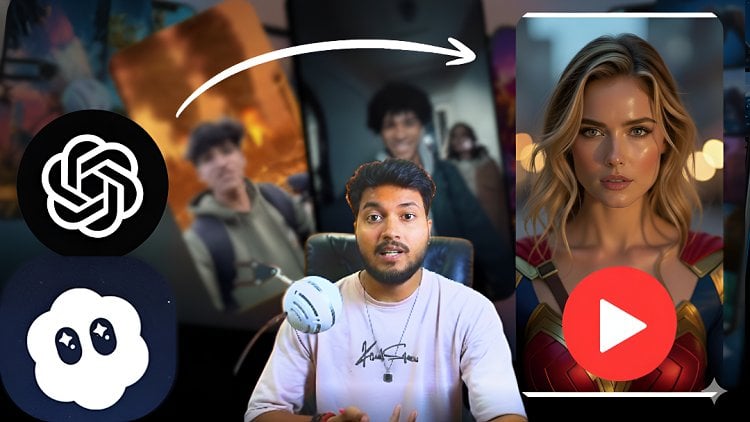
use your own face like this? It is looking more realistic
than previous one. So let's start our lecture. In order to create
this kind of image, you need face and reference
background image. Okay, so that it can
understand very easily. Okay, so now the thing
is we have to merge any two image and it will
create thumbnail for Okay, so let's open Chat GPT
and upload our file. So this is our file. So this is a background, and this is a target image. So let's select both the image. So image have been
uploaded successfully. Now here, you can paste your prompt if you
have created before, or you can type it manually. So let's look at
towards our prompt, create a high detailed and dynamic realistic
YouTube Thumbnail for professional
video editing course, a confident content
creator with roundface. Here I'm using Rundface
because my face is round. Okay, dens here is
seated at modern desk. This is a instruction
which GPT have to follow. Okay, here I have provided
extra information. It should not contain
any kind of text and it should have aspect
ratio of 16 ratio nine. Okay, and I have to
add one more thing. Make it realistic. Otherwise, maybe it can
create a cartoonist look. Let's hit the Enter button. So now, image have been
generated successfully. But if you will notice that
it is not looking like me. Okay, so that's why
here we have to replace this face with
our original one. Okay. So in this
particular video, we will create many
image like this, and in the next video, we will replace our face. Okay, now you will
think about that why we have attached our
reference image phase. We have attached
reference image phase because it has followed
our pace structure. Obviously, it is not
looking like me, okay? But it has followed
my face structure. So whenever I will
swap the face, it will fit on this structure. That's why here we have
used our reference. Using the same pace, I have
to create another thumbnail. Okay? And in the next lecture, I will show you how
to swap the face, which means how to
replace the face. Okay. So I have tached my face, and now let's upload
another image. So I have downloaded recently. So this is a reference image. This is a reference image. Basically, I have
to create thumbnail for fix my UIUX design course. Okay. Now I have done
one smart thing. Here I have created highly detailed prompt for wonder error film or
video editing course, but same effort I can't
do again and again. Now I have to create
thumbnail for UIX design, so I need a prompt, obviously, so I will not type it
from the beginning. Let's copy this prompt and here I have pasted in Cher JPT. This is a video editing prompt, but here you will notice that make this prompt
for UIUX design, which means it will
replace all the element of video editing with
the UIUX design. Okay, so I don't need to create my prompt
from the beginning. Okay. So it has generated highly detailed prompt
for UIUX design. Similarly, like
video editing code. So let's copy this prompt. Let's copy and paste it
here at the enter button. So it has generated highly detailed thumbnail
for UIUX design. And again, this pace is
not looking like me, so don't worry about that. I will replace this phase
in the next lecture. Okay. And here, if you
will notice that it has smartly added our
background reference image. Has smartly added. Okay, so this is a very, this
is a beauty of Chat GPT. Now let's generate
another prompt. Similarly, generate prompt
for YouTube automson. And now we will use this particular prompt to
create our new thumbnail. Okay, so let's copy this
and let's select our actor. This is a YouTube background, and now let's select our phase
now hit the Enter button. So image have been
generated successfully. Now I will save all the image, and in the next lecture, we will finally replace
phase with our original one. So thank you for
watching this lecture. And if you like my
lecture series, then don't forget to give me a good positive rating and
comment. Okay, bye bye.
6. How to Swap the face in Thumbnail : Hello, everyone. So welcome to all of you in a
full master series. In this particular lecture, I will teach you that how
can you swap the phase? Without wasting and
let's start our lecture. In order to swap the phase, you have to open your
Google and you have to typeface, swap AI. You have to typeface swap AI
and hit the Enter button. There are many website
which can swap the pace you can
use any of them. So here I will use first one. Okay, so this is
a basic website, and I'm repeating
again, same thing. You can use any website. This is not a sponsored one. That's why you can use any
website for Phase swap. Basically, concept
of phase swapping is same in all website. You have to click on
Start face swapping, and here you will see two things original
image and face image. So in original image tab, you have to upload those image in which you have to
replace your face. Okay, so let's click on Upload and let's select
YouTube AutomsonTum. Okay, and here we have
to replace our face. Now let's upload Face image. So face Image would be my
own image. This is my face. Now let's click on Start face swapping. Start
face swapping. Now, Image hag
generated successfully, and it is looking like me. It is actually looking like me. It is looking more realistic
than let's save this image. Okay. Similarly, now we have to upload
another background. Let's select video
editing thumbnail, and let's click on
Start face swapping. So our image have been
generated successfully, and it is looking awesome. Okay, so let's save this image. So this is how you
can swap the face. This is how you can swap
the face. It's download. Okay. This is how you can generate ultra
realistic thumbnail. So you can use any
website to face swap. Okay. So if you like
this lecture series, then don't forget to give me a good positive rating and
comment. Okay, bye bye.
7. How to add any art style in Thumbnail: Hello, everyone. So welcome to all of you
in my full master series. In this particular lecture, I will teach you
that how can you add different art style
in your thumbnail. So without wasting any time, let's start our lecture. If you will search
on her GPT that, how many different type of
art style exist in world, then it will show
you this result. Okay. So now what
we can do we can generate our thumbnail with
any of these art form. So let's try any of them. Okay. So first of all, let's select
vector art vector art. Now go on New Tab and here
you have to add your image, which you have to convert. Okay, so this is a image. Convert this image in
vector art. That's it. So this is a input image, and now let's see
what it will create. So our vector image have
been generated successfully, and it is looking awesome. Let's save this image. Now let's type here, S similarly, make its Jib art. Hit
the Enter button. So our Jubilee art
have been ready, and it is looking awesome. Similarly, you can generate
any kind of different style. So let's save this image. Let's save.
Similarly, similarly, make two D pixel art. And this is a result
of pixel art. It is also looking awesome. Make it like Simpson Art. Make it like Simpson art. So Simpson is a famous cartoon, which is commonly known
for its prediction. So let's create thumbnail, which will look
like Simpson art. So finally, our image have been converted into
this Simpson tile. Sorry, Simpson style. Okay. Let's save this image. And it is looking
really very awesome. Make it like illustration art. Make it like illustration art. It should be colorful. Okay, hit the unter button. So finally, our illustration
art have been ready. Okay. And this is how you
can generate any kind of thumbnail with any art form. Okay, so I hope you
enjoyed my lecture series. So today, we have created different images with the
help of single image. Okay, you can see on a screen. So, Okay, guys, if you
like this lecture, then don't forget to give me good positive rating and
comment. Okay, bye bye.
 Ankit Shrivastava