Transcripts
1. SketchUp Free - From Floorplan to 3D Model: Welcome to the course
SketchUp free from floor plan to 3D model
by Farber academy. In the next 90 min, we will draw a simple 2D
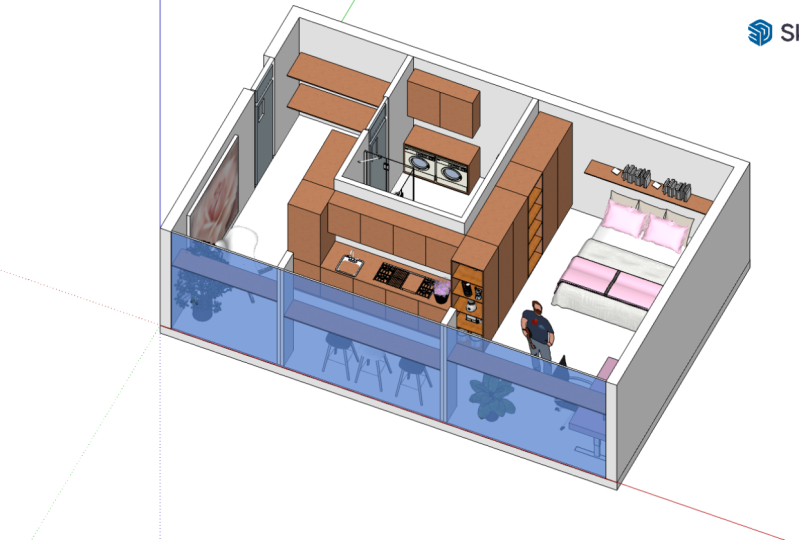
floor plan in SketchUp and develop it step-by-step into a finished 3D model
of an apartment, including fixtures,
furniture, and decoration. We will start with
the quick basics, how to get to the free and
web-based version of SketchUp, how the program is structured, and how to use the
basic features. Instead of a lot of
theory, however, we will get practical
right away and import an existing floor
plan as a template. On top of that, we
will build our 2D plan including furniture
dimensions labeled, and we will work with different constructive
layers, the tags. Then we start to build
our 3D model here we will mainly practiced
working quickly in SketchUp, how we can create waltz
and fixtures and minutes. How you can save yourself
a lot of work with the pre-built models and live components from
the 3D warehouse. Last but not least, we will make the
model look good. You learn how to use colors and textures and different
ways to present your model and the right style and then print or export it. So this course is
for you if you have little or no knowledge
of SketchUp and want to get a very
practical exercise in floor plan and modelling. You will learn
important tools, tips, and techniques to
get started with your own projects. If
you're interested. Well, let's go.
2. Introduction - How to get to SketchUp: Alright, so I'm in
my Firefox browser. I'm using Firefox. You can use whatever
browser you have, Safari or Chrome or Edge
or opera or whatever. And then we go to Sketch Up to come to create an account for SketchUp free for
the web-based version. If you have this already, you can skip ahead. You can check out all the
functions that SketchUp hairs or the different products
that they offer, the Trimble, the vendor
of SketchUp offers, like SketchUp free,
GoPro or studio. You can compare
all the features. If you go to Plans and Pricing, you can compare the different
versions offer and we will be working with the
free web-based version here, which is a very good start. And also, I think
quite a powerful tool for making your own
non-commercial projects. If you plan to use SketchUp
in a more commercial way, then you can check
up those versions, go pro and studio, which are really the
advanced versions of SketchUp with more
functionality as you see here, but we are using SketchUp free. And if you haven't
already go to sign up and sign up for a
free account on Trimble. I'm logging in now with my user account and I'm
seeing you on the other side.
3. Introduction - Set Up SketchUp: Okay, so here we are on the
front page, so to speak, on the homepage of
SketchUp you see on the left side here you have home and you have
Trimble connected. On the homepage you'll see all your recent files
if you have any, and you can create a new file. And then you have Trimble
connect here, which is, which gives you ten gigabyte of cloud storage
for your projects. And there you can
create folders. And here you can manage
all your projects or import models here from your
hard drive, e.g. as well. But let's go to the homepage. We want to start a new file, so we're going to create
new, as you see here. And very important
for us is to choose the right system that
we're drawing in. I'm using decimal
system in millimeters. So check this box if you are drawing in millimeters
and the metric system. And then we're going
to create a new file. And now here we are
in our user interface of SketchUp in our
drawing landscape. And now the first thing
that I'm going to do is I'm going fullscreen. I have this button here. You can also press F 11 to go
to full screen in Firefox. In other browsers, it
may, may be different. But with the full screen mode, we don't have any
distractions and we can focus on drawing in SketchUp. Now, I also activated my keystroke trackers so you can see every click left
or right that I'm doing, or the middle click
with the mouse. And you can see whenever I'm
zooming out and you can see the the numbers I'm typing
in the measurements, e.g. sometimes I'm working
with the shortcuts. You can always look at the
left, bottom side here. And whenever I hit, hit L e.g. I'm taking the line tool. Okay, now the next thing, we want to name our
document here, our file. So you click here where
it says Untitled, and you can save it
to a certain folder. I'm saving it here and I'm
calling it floor plan one. And now, once you have
named your document, it starts saving the document
already automatically. So this is what
SketchUp does for you. You have a little
menu here that you can open and you
have app settings. And in those settings you can
also adjust the interval. That's good SketchUp Users
for saving your files. I'm having it at 2 min. I think the standard
would be five-minutes. I'm going with 2 min, so I don't have to really
think about saving my model. And in case you want to draw
in a different language, you have a menu here, a drop-down menu
where you can choose your language for the program and you can change settings for accessibility and
navigation here as well. Alright, now, let's
look at some basics.
4. Introduction - First Steps in SketchUp: Now some basics for navigating, for using tools and
for using SketchUp. Well, if you are already
familiar with the program, I think you can
skip this lesson, but if not, let's look first at how we
navigate and SketchUp. So you see already I'm using
the middle click here. And I will, I strongly
advise you to use the mouse because it makes drawing so much
faster in SketchUp. And with the mouse, you of course have
the mouse wheel and you can click the
mouse wheel and you can rotate around your plane here. Then of course you can zoom in, zoom out to the guy with the dinosaurs shirt
here and the ukulele. And another very
important navigation tool is to use the mouse wheel, click it, and then
hit the Shift key. So you can pan around. You can move parallel to the
axis that you have here. And this is all that we need for navigating our way
around our models. Now on the left side you have your toolbar with all the tools. I'm not going into detail here, but it's important to know that you have all
the tools here and behind those tools sometimes there are other tools hidden. So you can click on the ark e.g. and you have different types of RX here that you can choose, or you have the rectangle
tool and then you have different types of rectangles or circles or the 3D text e.g. and that's important to know. So as I already mentioned, I'm working a lot with the shortcuts whenever I want to go back to
the Select tool, to this tool here, I'm, I'm, I'm hitting space. You see I'm back here with
the select tool now I can select my model, e.g. and you see it points
you to the shortcut. It says Select and then
in brackets space. The same goals for the
line to line is l. And so I'm using those shortcuts very often are for the
rectangle to a for the arc, C, for the circle, F
for the offset tool, T for the tape measure, m to move something, cue to rotate and
space when I want to go back to this normal
select tool again. And another thing that's very important with the
tools, so e.g. let's go to the
rectangle tool with R. And then you see in
the bottom here, click to set first. Corner. Control means toggle, select center arrow keys,
toggle lock drawing. So you have an explanation
of what the tool can do and the special functions
that a tool can do. So e.g. now, I haven't
activated anything. This is the normal
rectangle tool. I open up a rectangle here. I just click once. I don't hold the left mouse key, but I just click once
and then I click a second time to finish
this rectangle here. And now you see there is a rectangle lying on
the floor, so to speak. And now when I look down here, it says control,
toggle select centers. So there's another function of the tool that I can activate by just pressing Control Ones. And when I now open
the rectangle, you see that it
behaves differently. So I have a starting
point in the middle. And now I can draw my rectangle
around this middle point, which is different than
if I de-select control, because then I have
the rectangle on one corner and I open it up, which is the standard function. Just to let you know. I just want to make you aware
that down here you have explanations of how you can use your tool
in different ways. And sometimes this
is very helpful because we need
different functions. And almost all of the tools they have more than one function. And then very
important, of course, this box here where you have
the measurements. So e.g. if I go to the line tool with L, it says length now and that means I can define
a certain length. I can click once to
have a starting point. And then I go parallel
to this red Xs, e.g. this is where SketchUp
snaps onto automatically, which is good because we want to have straight lines which are not going all
over the place. And you see the length changes. And if I want to have
a line of exactly 1 m, it would be 1,000 mm. So I enter 1,000 and I hit the Enter key
and there is my line. And now from this line, I can continue drawing. I can continue drawing
another line with e.g. 2 m. I hit enter and so on. And if I want to go to another, if I wanted to start from
this point, once again, from the original starting
point, how can I get there? Well, I can either
hit space and then get the line tool with
L again and start here. Or I can do something like this. Now we have the same situation. I can just hit escape and
then I still have the tool, I still have the line tool, and I can continue here. I can set a new starting point. So there's a difference between hitting Escape and keeping the tool that you have or going back with space to
the select tool. And that means also like working with shortcuts and
with space and escape. I always have my left
hand on the keyboard. On the left side
of the keyboard, have my thumb on space so I can always go back to
the select tool. And then I have my fingers very close to the shortcuts
on the keyboard. Alright? Now, on the right
side here you have different panels
that you can select. E.g. you can change the
style of your drawing. If you go here you
have the styles. And now it says here the styles in model and browse style. So if you want to see all the styles that
SketchUp free offers, you then go to browse and then
you have assorted styles, color sets and so on. Our default style is this one. This is the default style
that we're in right now. I like to use this one shaded with textures because
then everything is white. It looks a little
bit more clean. And I personally think it looks better with the
white background, but you can choose a
style that you like. There are also different
styles that are maybe more suited for
presentations, e.g. like hand-drawn lines,
they might not work so well for really drawing and using them while
you are drawing. But if you want to
present something, those are great styles. But I'm going back
to my default style, this wide architectural
style Shaded with textures. We're going to use different
penalty in the course. But if you don't want to see the open panel because you
need the drawing space, then you can close
the panel here. Okay? Now our lines and our
rectangles are useless. We don't need them anymore. And I'm going to select them
all by opening up this box, by holding down the
left mouse key and then selecting all
the tools and I hit, I can either hit
Backspace or Delete. Now let's start with the floor
plan and build the house.
5. 2D Floorplan - Import and Scale Floor Plan: Okay, We start by importing a floor plan
with measurements. Now you can use your own
floor plan if you have one and draw your own
apartment or your own room, or your kitchen or whatever. You find. The floor
plan that I'm using in the materials and the
resources for download. And you can download
and import it. And the way we import such in a floor plan image
would be to go to the menu to import
and then my device. And then click on
my device here. I have it on my hard drive. I imported with a double-click. And then SketchUp asks you, how do you want to import the file as an image
or as a material? As a material, it would be like a texture that you
apply to a surface, like a color, like a tape, this tree, this is not
what we want to do. We want to really just
import the image as it is. Then you see you have the
image on the select tool. I will put this image
down here on the origin, and then you can open
up and scale it. But of course you don't know
what the right scale is, so we just click a second time. And well, my In part
is probably way bigger in SketchUp than
it would be in reality. So this little guy
here gives you, gives you some kind of scale. And you see also the measurements
they are given here. This line would be 8,000 mm, so 8 m. And we can
measure this with t, with a tape measure. And it probably is
way longer than this. So I'm going to
measure this from this point to the endpoint here. Well, it's 20 m long, so it's 2,000.20 thousand mm. This is way too
long and we have to scale this into the right scale. Because we want to use this, use this as a template for drawing and it
really helps when this is more or less
in the right scale. Sketchup has a
function for this, which is really simple. It's also hidden in
the tape measure. You can use t once again
to go to the tape measure. And then I would suggest you use the longest measurement that you have in your drawing
and your floor plan. In this case, we have
the 8,000 mm here. The longer the measurement, the more precise your
scaling process will be. And we start by really going
into the starting point here and trying to define exactly where this line
starts and click once, and then go to the end point. And try to find the end as exact as you can
and then click twice. And now before you
do anything else, before you do anything else, enter the measurement
that you want to have. So in this case, it says down here,
length 20,554. We want to enter 8,000. 8,008 m is the length that
this line should have. And then SketchUp asks you, do you want to
re-size the model? Yes. This is what we want to do. And now I have to zoom
out a little bit. But then I see there
is my, my image. It has a better size, a more realistic size. And I can, once again, I can use the tape measure to
measure how exactly we are. And I start here, and it's probably not down
to the last millimetre, but this is 8,000. 8,000, well, close
enough for us. Now the floor plan is as big in our drawing area here as
it would be in reality. And now this really helps
us with continuing to draw over this floor plan here. Okay, and the next thing
that I'm going to do is to attach a tag to
this floor plan here. So I'm going over
to the right side to this panel here tags. And then I'm going
to create a new tag. And I call this the floor plan image because this is
the image that we imported. And now you see I have this
tech here, floor plan image. And what I can do now is
I can select this one, so that's, it's blue here. And then I can apply this, this price tag, this tag
to the, to the image. You can hide the tag, you can unhide the tag here. And you can work with those
texts to really get a better, better structure of your model. So e.g. all the
walls that we have, they're going to be
in the wall tag, all the furniture that we have. It's going to be a
furniture tag and so on. And this helps us to bring
clarity into our model. And it also helps you to focus on certain areas and sometimes
you don't need everything. So it's really easy with
the text to hide and unhide certain
certain components. Okay, I'm going to close
this panel. Once again. I'm going back to
the Select tool.
6. 2D Floorplan - Drawing the Floor Plan: Okay, now we have the image
of this floppy and import it. We have it in the right scale. And now above this image here, we want to draw our real
floor plan with lines and rectangles and then make a
3D model out of it later on. So first of all,
you can always use different ways for achieving a certain outcome and SketchUp, I'm just going to
show you one way. There are other ways as well. But what I'm doing here now, I am using a
combination of lines, rectangles and the guidelines. The guidelines that we have
with tape measure here, with teeth to build
this floor plan. And I'm starting just by
opening up a big rectangle. I have the biggest measurements
here, 8,000 by 5,200. And I'm going to R for
the rectangle tool. And I'm starting in this corner where the
measurements also start. So this is the 0.0, so to speak. And I'm opening up this
rectangle, 8,000, 5,200 Enter. And you see now I have
this rectangle here. The rectangle consists
of five parts, so you have four lines, but you also have to
face inside of it. You can select everything but up by double-clicking on it. Or you can select just one part by clicking once on the part, and I'm clicking
once on the face. And I'm deleting it because we don't need
the face anymore. But what I still have is
the four surrounding lines. You can see it when I hide
the floor plan tag that I still have the
rectangle there. And I'm continuing now with guidelines because I find the guidelines
really helpful. There are infinite
and they create intersection points that I
can just connect with a line. I start by drawing
the outer walls here, I go to the edge, I go to this line here, and I click once. And I open up this line. And of course it
has to be 200 mm because up here we have
our measurement given. 200 mm is the
thickness of the wall. And just like that, I'll draw the whole outer shell also here, 200 mm outwards. And down here it's a
little bit different. But what I can do here, I can just double-click on
the line that we have here. And on top of this line, I have now an
infinite guideline. And so I have all the four
corners of the outer shell. And then I can continue e.g. with the door opening here, which is 1,000 mm
from the inner wall. And then the opening
itself is 800. The opening on the
other door is also 800. And I continue with this
inner cell here, 1,200 mm. Those walls, there are 2,000 mm inward from the outer walls and they have a
thickness of 100. And then there's this opening of 2,200.100 millimeter in
thickness once again, and down here, I have
this line already here, but what I need is I need a parallel line and eat
the inner line here, which is also 100
mm in thickness. Okay? Okay, and so I
continue down here, I have this window and I see that it's 30
mm in thickness, so I go 30 mm inwards. And I also have those
window elements here, but those construction
elements here. But I'm going to leave
them for now because otherwise it might
get too complicated. I can start connecting the
intersection points now. So I can start by
hiding the floor plan. Now I have only
the guidelines and my own lines that I've drawn. And I take the line
tool with L and I just do some drawing or
painting by numbers. I go from here, two here and two here. And then I have
this line already. And I go to escape. I continue here. And I don't need
this intersection, but I need the
corner point here. Then I go over here and so on. I think you get the,
you get the basic idea. I wanted to show you just
the combination of using rectangle and guidelines
and the lines. And the good thing about the
guidelines is that you can, you have the display
options here. Where the glasses are on this are those are
Display Options and then you can hide all the guidelines if
you don't need them, if you don't want to
see them anymore. And you can you can unhide them, but then you can also
delete all guides at once, which is helpful because once I have drawn all those
real lines here, I don't need the guides anymore and then I go to
delete all guides, but I'm continuing now here
by connecting those lines. Now I need to unhide the floor plan once again
because I think yes, I have the measurement
for the windows. So the first one is
thousand millimeters. Then I have one with 3,000 mm. And another one with
3,000 to the edge. Here. There's a line missing here because this needs
to be an opening. Okay. I don't need this line here. I deleted and I think I can delete all the
guidelines now. So I click on this face with the right mouse and
I hide it manually. And now what I'm
doing here is I'm creating a rectangle with
those measurements here, 120 by 400 mm groups. You see, it doesn't matter
which number you enter first. So 400 by 120 mm. And I'm selecting
this rectangle. And now with the
Move tool with m, I'm going to select
the midpoint here. So this is the mid point
of this horizontal line. And now I can move this
thing around and I move it exactly here to the
end point of the window. And I need the same
thing over here. And since I already
have this rectangle, I can use a copy
of the rectangles. So I go to the end
point once again, to the, to this mid point. Once again, I click here
and now I can move it. But you see down here you
have the explanation, you have, you have additional
functions of the two. Control means copy. So when I press Control ones, you see now there's a little
plus sign on the rectangle, and that means I can move
another copy of this rectangle. I can move it over here
and it automatically detects the end point that we
have here from the window, which is exactly 3,000 mm away, you see the distance down
here and see exactly Now it, it snaps onto this point
and I could click, I don't need to enter 3,000. And there we have our
window element, okay? And I think what is missing is to show that those are
separate window elements. And I take the line tool, I think I just have to make this little line
here and the same goes for the other
side so that you see a different
window panes. Okay. Now, I unhide my floor plan
and well, there we are. Okay. One little thing that is still missing, other doors. We haven't symbolized
the door, is it? We haven't drawn the doors. And I'm going to do
this with an arc, not the normal two-point
art that we have here. But this one, it says just arc. And now you have this tool and you go to the point
where the door is attached. So in this case it would
be this point here. Click once, and then you go to the other point where the door
ends and you click twice, you click a second time, and then you can open up the, you can symbolize the door. And now with L, with the line, we're going to make
one connection here. And now we have symbolized
the opening of the door. I'm going to select both of those lines with the
select tool and shift. Because you see with
shift you get the plus and minus symbol
next to the mouse and you can add a line to your selection or
you can deselect lines. So you see here, you can
select anything you want, but not only lines,
also, also faces. And now when I click, I
can de-select them and that's what I don't need. I just need those
two lines here. And now I want to
move a copy of them over to this side because we
have a door here as well. And I'm not going to
draw the same thing. I'm going to move and copy it. So I'm going with m to the move tool and
then to this point here, and I press Control ones. So you see we get
this plus symbol and now I can move a copy of the stores symbol and I am going to attach it
to this point here. And now we have the door
openings symbolized. Now, since we are finished
with this basic floor plan and we have so many different
lines and faces here. We want to group them
so we select everything and then we right-click
on it and make group. So this is now one big object. You see I cannot select
one single line here, but now everything is selected. I can go into the group editing mode by
double-clicking on the group. And you see now you
have those dotted lines around the floor plan. And now I can select a single
line and I could add e.g. a. Line to the group. And then by clicking here, by clicking somewhere
outside of the group. Once I go out of the
group editing mode. And now you see also this line is part of the
group, but actually, I don't need this
stupid line there, but just to lock
everything in place, I'm making a group. And now whenever we are drawing something else over this thing, it will be not
part of the group. So now, when I'm drawing a line, you see that this line here
is not part of this group. And this is what we want to have because
now we are drawing our furniture and our
interior here and it shouldn't be connected to this floor plan that's
lying on the on the ground. That's our first level here. So I'm deleting this line. And then also what we
want to do is to make another tag because we still have the floor
plan tag, which is fine. But we haven't created a
tag yet for our new object. And I'm going to just
name it floor plan. Because this is the floor plan that we will be working with. And now I have to click once and select the whole
group by clicking once. And now this thing, it is one single tag. Okay? Now let's continue.
7. 2D Floorplan - How to Import Symbols: We could of course, draw everything by hand, every single piece of furniture
we could draw by hand. But I think this would
take a lot of time. And sometimes you
don't need to draw everything you can import to the symbols from the 3D warehouse that you
have on the right side here. This is a huge library
of objects and you also have 2D objects, not only three-dimensional
objects, but also 2D symbols
for floor plans. And this is what we're
going to import. And we will also draw some
part of this apartment, like the kitchen
here or the closet, so that we have an exercise
in drawing things, but then also some things. They need to have
certain measurements, like the kitchen here that
he would have installed to fit exactly into this
apartment or the closet here. But for a lot of things, you just need symbols that
symbolize the furniture. And this makes
visualizing your ideas so much faster when you
work with the 3D warehouse. So let's start by going
to this 3D warehouse. And you see you have all
kinds of 3D models here. But now this is not
really important for us. We are going to come back to the 3D models later
on in the course. But now let's look
for 2D symbols. And then you have four
categories of results. Products, models,
collections and catalogs. Products are real life
products from real companies, but of course no company
is selling 2D symbols and digitalizing them
here in SketchUp. But we have a lot
of models where we have collections
of floor plans, symbols, and I'm just
going to go to this one. This looks like a
rather big collection of furniture and it's not a very big model that's
always important to look for. The model is just 3 mb, that's fine with me. And if I go to download, I can import this model
into my, into my drawing. And now I put this
collection here. You see that it is a group. So I cannot just take
one bed and put it there because everything
is grouped here. And to ungroup, I have to
right-click on the group, right-click on the
group, and then exploit. Now you see I can
select one bed and now let's furnish our apartment. You can import
whatever you like. I'm going e.g. with this bed, with M with move I'm taking the bed and I'm moving it
to where the bed should be. And then what else? I need a little workspace
maybe like this, a symbol of a workspace. And I'll take it again with M. And now I think
I'll put it here. And I'm going to add a
plant in this corner here, but this plant is a little
bit too big for my taste. So, so with S, with the scale tool, I can scale this thing. Now I can make it
bigger or smaller. I could also see here, down here it says scale and it, it gives you a certain
number, a ratio. It gives you a certain number. Now the original would be 1.0, I could say make it 0.0, 0.7. And then it's only 70 per
cent of the original. And I think this
looks way better. And then we have
a bathroom here. So I want to have symbols
for the bathroom. I don't want to draw everything. I'm going to look
for a shower cabin, which would be this symbol. And I take the shower
cabin, place it here. I'm looking for a toilet. And you see the toilet, it should be on this wall here. I need to turn it. And you'll see that you
have those red crosses on the object. And with the red crosses, you can turn things around. And now I'm going
to move it here. Lastly, I need a sink. I'm going to take this one and place it here. Okay, So much for that. This was just a quick
exercise how it can impart to the symbols
from the 3D warehouse. I'm finishing this right now. I don't need the rest of
those objects anymore. So I'm going to select them
and delete them with delete. But the thing is that
they're not really gone. Here. On the right side
you see components. You see a panel of components here where the house symbol is. It shows you all the
components that are currently in use, the model. And you still see this big collection of 2D
symbols that I've just deleted, but it's still in
the background here. And to get rid of those components that
are not used anymore, even though you
have deleted them. You have this recycling symbol here, purge unused components. And this is helpful. I'm going to do this now because the less things you have in
your model, in your drawing, the faster sketch up
we'll run because a cluttered workspace will slow down your experience
of SketchUp. So make sure you go to
the component window every once in a while and you go to purge unused components. And now once again, since we want to have some
clear structure in our model, we are going to
create another tag. You'll see that with
the tags here I have a tag that's
called furniture, which is not something
that we've created, but that we've imported
through the model. So the model that we have
imported with the symbols, it had a tag inside of it. And I'm going to delete it with the three dots here,
the overflow menu. You can delete things. You could assign the pieces to another tag or make
them untagged. I'm going to uncheck them now. I'm going to create a new
tag which is called to d to t furniture. And I'm going to put those
things onto this tag. And now you see I can quickly hide or unhide
my furniture here. Okay. Now let's continue with
the rest of the apartment.
8. 2D Floorplan - How to Create the 3D Text: Okay, Let's continue. Since we have
different areas with different functions in our
apartment, Let's name them. And we have a tool here
with the rectangle tool, which is called 3D text. And we are going to
use the 3D texts now to name the areas
that we have here, I'm going to use e.g. the bedroom. The text should not be filled and it should
not be extruded. It should just be
flat on the ground. And now I can place
this object here. And I'm going to do the
same with the kitchen. Because the kitchen
would be here. The same. The path. Okay, you could do more of this, of course, but I
think this is fine. And for me the symbols
are a little bit too big. I'm going to scale them. I have selected them all at once as you see with Shift
and select tool. And now I'm hitting the
S key and I can scale them down a little bit so that they don't
take too much space. And I'm going to move this
to the right position here.
9. 2D Floorplan - Drawing the Furniture: Alright, and now as a quick
exercise and drawing, Let's create the kitchen and the Wardrobe here that
we have, the closet. And for this, I'm
starting with the guides. So with the tape measure, I'm going to this wall here
and I'm creating a guide. And the line should be 600 mm
in distance from the wall. Then we create another line, 600 mm from this wall and
also 600 from this wall. And now I need
another line which continues this wall here. So I can just double-click
on this line of the wall and you see I have another infinite
guideline and the same. Let's do the same here and
create another guideline. And now I take the
rectangle tool. I go to this point
to start the war, this to start this cabinet here. And I'm going to the
intersection point here and the kitchen. I will open up the
kitchen here and go from intersection point to
this point here and then to this point. Okay. And this is the outline for
the kitchen and the wardrobe. I don't need the guides anymore. So I'm going here to the display options and
say Delete or guides. I don't need them anymore here. Now I'm adding a manually
adding certain lines. So this will be the fridge, e.g. there will be another
cup board here. And then here above
this kitchen counter, we have the wall cup boards. I'm going to make
a line with 350 mm from the wall and then
draw a line here. And the guideline, I can
delete the guideline also. And then everything
will be 600 mm, which is a standard system, at least in Europe. And I will symbolize those. I think you get the idea, you do not have to copy
everything that I'm doing. If you have a different idea of how this floor plan should look, then please go ahead. I'm going to also move a copy of this line, 600 mm upwards. So we have another
compartment here. Then of course, when we
are looking from the top, we symbolize that we are
looking on those pieces of furniture from the top by making those
diagonal lines here. Okay, So much for that. I think you get the idea. I will continue to furnish this apartment
and I will finish it. And then we're going to
look at how we can present this floor plan in a
nice way and export it.
10. 2D Floorplan - Adding Text and Dimensions: Okay, I have finished
this apartment now, at least in the 2D style. And I have created another
texts and another tag, which is called texts. So I have the text on a tag and then I've added
the other pieces to the 2D furniture
tag here so that I have a little bit more
structure in the, in the model. And now sometimes
you might want to explain more things
or you want to add something at a node and
you cannot really draw it, but you want to do
this by using text. You already know
this kind of texts, which you find
here, the 3D text. But this 3D text, you cannot really
manipulate afterwards. So e.g. I. Couldn't change the word here, but I can, I can, I can move the text around, but this is like an object. There is no difference between this text object
and the bed, e.g. but we have another
normal text option which is hidden here, whether we have to
tape measure as well. It's just called text. With this text you
can add nodes, e.g. you can say, okay,
this bed here, it should say bad, 200, 200 by 160, e.g. or you could add a node for
what the flooring should be. Hardwood flooring. Ok, e.g. this text you can
always manipulate with a double-click and then change
what you have written e.g. but so much for that very
important, our measurements. You also find the measurements where you find the normal texts. So you have the
dimension tool here. And you could now go
from point to point with this tool and highlight the
most important measurements. Just as an example, you just have to click
from point-to-point. And also this is very
similar to the 2D texts. So you could also, you could also add notes here. E.g. you could add the material, the surface, e.g. or whatever. And you have a panel
here on the right side where it says model info. And you could e.g. change the units that
you are drawing in, but this is not something
that we want to change, but e.g. the text. You could change the style
that you're using, the font. You could make the text
smaller or bigger in the, Regarding the dimensions, you could have different end points. You can choose the position of the measurements
and then you go to update all dimensions
and you'll see you have now a different style. But I'm going to undo this. And then also I like to create
another tag, dimensions. And this 2D texts should be part of
the text tag, okay.
11. 2D - Floorplan - Exporting the Plan: Okay, now let's say the
floor plan is finished. You want to export it. And for this you have
an option in the menu. You see you have the
download functions here. You can either download
it as a SketchUp file, as an STL file or as a PNG, which is an image of
what we see here. And you have this preview window where you can adjust your model. Now, what I don't like
to see are the x's here. I'm not a big fan to have the
green and red line in here. So I'm going to cancel
this operation and then I'm going to the display
options in here. I can hide or unhide the x's. Now I'm going to hide them. Okay, and now once more, don't load P and G. And now we can e.g. like this. And now we can
export this image as a PNG and save it
on our hard drive. So much for the 2D version
of the floor plan. And let's go to build
a 3D model from it.
12. 3D Model - Introduction to 3D: Alright, now let's go
to create a 3D model. First of all, I'm still
missing the x's here. I'm going to unhide the excess
by going to display and then hiding them,
showing them, okay. Now I can move them
around once again with the mouse wheel and rotate. And we are still in the
parallel projection mode. So I'm going to the scenes here and I'm going back to the
perspective because this looks more
realistic and this helps us with drawing now in 3D. Okay, the next thing I
want to have a copy, I'm going to select
everything here. And then I'm going
to move a copy. So m, and then control. Now I'm moving a copy
somewhere along this line here just to have a backup
of my 2D floor plan. So what we don't need
anymore is to 2D Text. I'm going to lead to delete the 2D text as well as
the measurements here. They're not important now. And then what we
also don't need is the 3D text that we have here. Okay, Now we want
to continue with the walls and just the
walls, so nothing else. And that's what
the tags are for. So let's hide the
2D furniture now so that we can
concentrate on the walls. Okay.
13. 3D Model - Creating the Walls: Okay, now let's finally
go from 2D to 3D. And the magic tool
for this is the push and pull tool here
on the left side. So you can also select
this by pressing P. And then you have this tool, but you see you cannot do anything with this
tool right now because we have grouped those
lines and faces together. So first of all, we
need to go back to the Select tool and
double-click on the group so that we are in the
group editing mode now and now you see you can select certain phases and lines. And with the push and pull tool, you can extrude phases. You can pull them up or
push them down or whatever. In this case, this wouldn't
make any sense here. But we want to start
with the waltz and pull up the walls with
the push and pull two. So let's go to p. And we also want to create
a new starting phase. So you see down here
the explanation for the two control means toggle
create new starting phase. So if I just pulled
up this face here, then I would move the
original face upwards. This is not what I want to do. I want to still have
the original face on the bottom so I
press Control ones. And now you see the original
stays down where it is. And I'm moving a copy, so to speak, of the
new phase around. And our wall is 2,500 mm higher. So enter 2,500, press
Enter, and there you go. There's the first wall and the same goes for the
other worlds, of course. So I take this wall, you could enter
2,500 once again, but you can also just use a
reference point like this, like the endpoint here, or just go to the edge or
to the mid point, whatever. But I think it's faster if you just take a reference point, click ones tend to enter
the length of 2,500 mm. So we continue the same way
with the other walls as well. And we have this
window element here. We also pull those two elements up and we have the window panes. So I'm zooming in a little
bit to see it better. And then I'm going
to the end point and pulling everything upwards. Bouquet now I'm still in
the group editing mode. We have our walls and we
want to make the windows transparent so that we can directly see what's going
on on the other side. And it really looks
like windows. And for this we need to apply
a transparent material. So go over to the right side
to the material panel here. And now you see you have different materials that
SketchUp free provides you with. Here, with this house symbol, you have all the materials
that are currently in use. So it's mostly colors that
come from the guy here, from his shirt or
from the ukulele, or from his clothes or whatever. Those are colors
that are in use. But if you go here to browse, you have all kinds of different materials
and what we're looking for as
glass and mirrors. And those materials here with a diagonal line, they
are transparent. So I'm going to go with the
translucent glass blue here. And I'm going to apply this
to the front of the window, but also to the back
of the window panes. And now you see we can
see through the windows. And one last thing that we're
going to do to make it look a little bit more realistic
is to create a base plate. So take the rectangle tool, go from corner to corner,
the outermost corners. And now you have
a rectangle here. And with the push and
pull tool with p, we can extrude this 200 mm in the same thickness
as the outer walls. And now we have this
base plate here. And of course it's always
better to have this as a group so that this element cannot be
manipulated easily. So triple-click on
this base plate and then right-click
on it and make group. And I think we can also
make a tag for this. So go back to the texts and
say that's the base plate. And I select this tag here. You see it's blue and now I
I can hide and unhide it. Okay. One more thing, since we
are working with the tags, I think that the floor
plan tag now needs to be updated because what we have here is not
the floor plan, it's the 3D model. So we create a new tag and
I call it the 3D walls. And now also I select
the new tech and I apply it to the wilds ones. And now you see
it's on this tag. It's not on the floor
plan tech anymore. The floor plan tag
is still here. Okay.
14. 3D Model - Building the Kitchen: Okay, now we have, our 3D walls are 3D apartment, but it's still empty
and let's furnish it. And of course, we have a rough idea of how
this is going to look. Because we have created the 2D furniture
floor plan earlier, and this is what we're going
to recreate now in 3D. And since this course is about quickly visualizing your ideas, we are not going to
build everything down to the last detail and
we're going to use a mix of importing models from the 3D library and buildings,
certain things ourselves. E.g. we are not going to build a house plant in 3D or
a shower, Kevin, e.g. those are things that you can import from the 3D
warehouse and you can even adjust them
to your own ideas. And the first thing that
we are going to build is this kitchen
bedroom area here, those cup boards, this
working area here, and the bedroom closets. And to draw those elements, I'm going to hide
the 3D waltz now so I can focus on
the 2D floor plan. And what we are going
to do now is to recreate those
rectangles here quickly. So take the rectangle
tool and then let's open up some rectangles
from corner to corner. And here I'm going to make a big rectangle
because first we are pulling up the working
area for the kitchen. And after that, we're going to create the hanging cupboards. And this cup board here, this bedroom closet here. Okay, Now we can pull up those rectangles to a
height of 2,200 mm. So let's do this. This element of course is
not going all the way up, but it's going to be 860 mm. And then we are creating
a new elements. So hit Control while you are
pulling up a new element. And this is going to be 40 mm. So we have our countertop here. And then I'm going to
pull up this element. Of course it's stopping here because it hits
this line here. It wants to connect
with this line, but I'm pulling it upwards
to this reference here. I'm not using any
any measurements. And then i'm, I'm continuing with
those elements here. And normally you have a bass
part here on the bottom, which is set back. For this. I'm going
to create with T, a line, that's a guide. So with a tape measure or
a guideline 100 mm high. And now I'm connecting
the intersection points. I'm pushing this
area inwards 50 mm. And I'm doing this. I'm doing this for the
whole length there. The guideline I
don't need anymore. Now I'm creating a line from
this point to the edge here. And I'm pushing also those
pieces inward, 50 mm. And last but not least for
this part as well. A line. Then pushing it inward. Okay. Then I'm just using a line to show that there's
a door here. So I'm just connecting the
midpoint and the midpoint. Normally, if this
was a real door, if this was a real cupboard, you would have to
draw every piece, but this line is just a
marker so that you see, okay, there are two
separate parts here, and those parts must be doors. And here we have our fridge. I'm just going to make
a line here so that you see that those are
two separate points. And here we are going to take the tape measure
and create lines of 600 mm in distance
from the first line. And those are doors. And now I'm connecting the
intersection points here to show the doors. And I can select the guides. I don't need them
anymore and delete them. This cuboid here is supposed to be open and to show the opening. Well, I could also work
with the tape measure and then then mark the
thickness of the material. So 20 mm inward and 20 mm
from this side inward. And then I can do this all around and connect the
intersection points. But let's work with a new
tool with the offset tool. The offset tool. You find the offset
tool where you have the push and
pull tool as well. It's down here, this is
the offset tool and you see the shortcut is
F. So let's take the offset tool and
then you see it snaps automatically
onto the edge. And when you click now, you see that you can open up
a rectangle which is either bigger than your original
rectangle or smaller. In this case, let's
go inside because we want to have it smaller
than the original. And it should be 20 mm
from the outer edge. And now we have the material thickness
here and this phase, well, we can push it inwards. Let's say, let's
say 580 mm inwards. And I see I have some
additional lines. I don't need those lines here. And then let's show that there's another door here,
another door here. And open part here also with
the offset tool, 20 mm. And then push this face inward, 580 mm and so on. Okay, So much for that, I think you get the idea. This is how you can quickly visualize furniture
in Sketch App. I'm not going to bore you
with finishing this thing. I'm going to finish
this quickly now. You can do this for
yourself if you want. And then we're going
to look at how we can import models from the 3D
library and adjust them, especially live components that are really easy to adjust.
15. 3D Model - Furniture and more with the 3D Warehouse: Okay. As you see, I continued with this kitchen bedroom block here, and I put some office
furniture in the apartment. I grouped this furniture so that it can't be
manipulated easily. And also, I put all the
new elements on a new tag, which is called 3D furnitures. So I can easily switch between hiding and showing those pieces. And now the apartment
isn't finished yet. You see, we don't
have any color. We still have furniture that
is missing like the bed, like the workspace,
the bathroom elements. But since this is
a quick course, we're not going to
draw them by hand. Those are elements that
are rather standard and we can import them from
the 3D warehouse. And that's what
we're going to do. So let's go into the 3D warehouse and
look for a bed, e.g. here, once again, you
have the four categories. You have products from
real companies here you can select any bad
you're like from that. Or you go to the models and you select models that
users have created. One thing that's important
with the 3D models, at least that's what I'm doing. I don't want models
that are huge in size, so I'm going to
reduce the file size. I'm going to filter the Model T. I don't want anything
that's bigger than, let's say five megabyte. Because the bigger the
objects are that you import, the slower your
SketchUp model will be. So, so go ahead, select a bad you
like and imported. I think I'm going with
a very simple one. I'm going to download this
model to 110 kilobyte. This is really a tiny model. And well, you see, I can't really place it
where it needs to be, but I place it somewhere
in my workspace. And I see that this is a group with some elements
that I don't need. I'm going to right-click
on the group and exploded. So we have now this element that we
can select on its own. And I'm going to
delete this element. The same goes for this line. I don't know why there's a line and there's another line here. And with the move tool with m, I'm going to put this bed where it needs
to be well, first of all, here and then I'm going to go to this little red cross on the
model are on the component. And then I'm going to
turn it 90 degrees. And also I'm going to put
it right right to the wall. Okay? Okay. And now you see
this is a standard component. We can move it around. We can also go into this group by double-clicking
and then we could e.g. choose a different color
for the bedsheets. E.g. I. Can select this color. I could put it here. And that's one thing
you can always do. You can always adjust your imported models
according to your tastes. But then also you
have models that are adjustable by themselves
so they are alive, they're called Live components and they are a little
bit different. So let's furnish the bathroom
here with life components. So once again, go to
the 3D warehouse. Those are curated
collections and they have those live
components in them. E.g. I think there
is one year there is a kitchen and bath collection
for a live component. So I think this is exactly
what we need. So e.g. let's go with this toilet
here because we're not going to build the
toilet all by ourselves, but we're going to
import a component. And you see this is a live
component because it has this blue thunderbolt here. And let's check
this component out. It's also not too big. It's 308 kb, that's
perfectly fine. Let's download and configure it. So first of all, I'm going to place it somewhere here and I'm going
to turn it around. But as soon as I place it, you see that this configuration
window starts to open. And this is the special
thing about life components. They can be configured
with this window here. So e.g. I. Could adjust the
rounding of the cistern. I can adjust the height. I could open the toilet lid
and I can open the seed, e.g. and that's the great thing
about live components. You can always adjust them very easily with this
configuration window here. And if I go back
to the 3D library, and here you have all
kinds of life components. I think you basically
you could build a whole house from
the live components. So go ahead, check
them out and use them.
16. 3D Model - Adding Colors and Textures: Okay, I hope you have done some shopping in the
3D warehouse as I did. You see I have got some
furniture from there. And even the doors, the doors are alive components. So when I double-click on them, I can configure them. I can adjust the width, the height, or
even the material. And also I imported things
like a coffee machine or, or some house plants, a bicycle just to
make this apartment look a little bit
more realistic. Every piece of declaration is on its own layer
and I'm going to hide it for now because
for now I don't need it. But lastly, what we're
going to do is we're going to apply
materials and textures. So you have this panel here on the right side,
the material panel. And here you see all the materials that
are already in use. And here you can browse
through all the materials that you have in your sketch
up material library. So e.g. I know that I
want to have a color on the kitchen here and
I'm going with a gray. And I'm and I am applying
this to the whole group here, just clicking once on it. But then some parts
are different. Some parts are made out of wood or just from a
different materials. So I'm going to go inside the group editing
mode by double-clicking, by double-clicking on the group. And now let's see what kind
of what materials we have. Well, I'm going with this wood material
here and I am applying it like this just on the top. Nothing else just to
make it look realistic. The same here. But you see that
the grain is not going into the right direction. So actually we have to turn it. How can we do this? We can right-click on
the texture and then you see that there's a texture menu and you can adjust the position. So now we have a big texture here that is in the background. And by right-clicking on it, you can rotate it by 90 degrees. And that's decimal. We have to do with all the
wood textures that are here. And in case you need different
textures because SketchUp is not offering too many
wood textures, e.g. you can always go to the
3D warehouse and look for textures because
people have uploaded realistic textures for
basically any kind of material. You can search for
wood textures, e.g. and then import them and
broaden your library. Well, once you have imported
them from the 3D warehouse, you will find them here
where it says in model. Because here it shows you
all the materials and textures that are currently
in use in your model. You have the imported
component and you go to B. So you have the bucket
here, the material tool. And with the bucket, you see it says down here
out sample material. You could take a sample of a material when you
hold down Alt and e.g. here, I click because I want to have this
wooden texture here. Now you see the material
says, OK number two. And now I could apply this
texture to the kitchen. And now the whole kitchen has
this nice OK texture here. But I want to have it in gray.
17. 3D Model - Creating a Technical Drawing: Okay, So this apartment
is furnished, it's decorated, and I think
it's finished for now. So let's look at how
we can present what we build in an appealing way. And SketchUp has certain
tools or methods for this. So first of all, let's do a technical drawing for this kitchen frontier
so that somebody else who is maybe a kitchen builder or
craftsmen would need. And for this, we are going
to the scenes panel here because we are going back
to the parallel projection, the display mode that we already had in the
2D floor plan. Now, let's look at
the front because we want to see the kitchen front
without any distractions, without any lines that go somewhere to a
vanishing points. So this is why we have the
parallel projection mode here. And then also we don't
want to see the windows or the wall elements and no declaration because
this is distracting. So this is why we have the tags. So first of all, let's hide all the decoration
and then also the 3D walls. I don't think we
need them anymore. And those elements, they are
not part of the, of any tag. But now, for now I'm
going to put them on the 3D wall tech so they
are hidden as well. Those two elements here, I'm going to just hide them
by right-clicking on them and hide them
because I don't want any distraction here
on the kitchen. I think to have the model here, this guy with dinosaur shirt. It's always good to have
a human reference there. And now, what I don't
like to see are the x's. I think they are distracting. So I'm going to the display mode and I'm going to
uncheck this box here. You can hide and unhide
the x's as well. Now just as an example, let's put some
measurements in there. This is a repetition, but you know where to
find the dimensions tool here on the left side. And just add some dimensions that we just have an example. Because this is going to be in the central part of
a technical drawing. Okay? And now for our
technical drawing, I think there is too
much texture and color. So this is why we are going to the styles here on
the right side. And so far we've been
drawing in this, or I have been drawing
in this diet because I like to have the
white background. It's called shaded
with textures. There's e.g. the default style where you have the
colored backgrounds. And what we need now
is a style that just shows us the outline
of what we build. So the hidden line
would be a good style. So you just have everything. This is just white and there are no distractions in color
or in terms of texture. And for a technical drawing, this is the style that
I'm going with now. And I see the included in
the style is the excess. So once again, I
have to go here and hide the x's now because I
don't like to see the x's. And this would be an image e.g. that we could download. Okay, So much for the
technical drawings. Of course, you can easily switch in the
scenes between e.g. the front view, the side view, or the view from the top. I'm using the mouse wheel once again to go back to the 3D view. And I'm going to change back
to my normal style here. I'm going back to the
normal perspective. I delete the measurements here. And let's show some
decoration and the 3D walls.
18. 3D Model - Working with the Section Plane: Okay, So much for
the front view, there is another
interesting tool and sketch up here
on the left side, it's called section
plane, this one here. And you can cut through your
objects well, and for this, I think it's better to go into the 3D mode with the
mouse wheel once again. And you see you have this tool here which switches between different orientations
depending on which point it attaches to. But let's say we want to create
a vertical cup like this, like parallel to the green axis, you can unlock, lock your plane just by
hitting the arrow keys. So e.g. by hitting
the left arrow key, now the plane is locked. You see it doesn't switch the colors anymore
and the orientations. If I go to the right
key, it's red. And if I go up, it's going to create
a horizontal cut. But let's say we want
to do a vertical cut. I'm going to the left arrow key and now I'm just
clicking once here. And you see that now it
cuts through your objects. I can see inside this empty
shell here of this cupboard. And you see that this is a rather big plane
that I can activate or deactivate by first clicking
on the tool or on the plane. And then I can double-click
to deactivate it, you'll see my objects
are not cut anymore. Or I double-click on it and I see that it cuts
into my furniture. And also this plane
behaves like an object, so I can move it with M, e.g. I. Could go here and
move this thing. So e.g. I. Could see the inside of
this life component here. Because all the furniture
that we've created are just empty shelves because
we want it to be fast. But this furniture here, you see that it has
drawers inside of it, e.g. and you could go to back
to the scenes and to the front view and really maybe also exclude
everything around it. And then with the
dimension tool, you could put some
measurements on it and so on. But just to let
you know there is this tool which
lets you cut into any object and it's
called the section plane and you find it here. Okay? If you don't need it anymore, just right-click
it and erase it. It's an object like
anything else.
19. 3D Model - Style, Presentation and Export: Okay, So much for the
technical drawing. Let's see how we can visualize this model in an
interesting way. First of all, I don't need
measurements anymore. Let's delete the
measurements here. And let's, let's
unhide all the other, all the other tags. And also I'm going back to
the normal perspective mode. And I change the style back to my shaded with texture style, which you find in
the default styles. Okay, and here we are back
with colors and textures. And let's look at the
display options once again, did we have here? Because also you have
the option for shadows, which I think is
great if you want to present something
because we can simulate where the sun is
at a certain point of day. And I think with the
shadows that you see here, the colors are a
little bit brighter. And you can see, you can
change the position of the sun with the date of the year
or the time of the day. And you can play around with
it and experiment with that. And also you have fog here. So if you want to hide certain things are really
highlight some things. You can adjust a distance
of the fog here. And also this fall can
have a background color. So you can say, Well, going to use some blue fog here. And now my model has a
very blue background. Just play around with
it and experiment with that and see what kind
of style you like. And of course always
you can go to the menu and download
a PNG file of this. And last but not least, the styles here on the
right side offer you a great way to change the
appearance of your models. So, so far we have worked
with the default styles, but there are also other styles. So e.g. assorted styles. They can look like a
hand drawing, e.g. you see that you have a
different background. You don't have straight lines, but you have
hand-drawn lines here. And if you are not
good at drawing, but you are good at
building with SketchUp. Just simulate the drawing with
choosing a certain style. The same goals for those diodes here from the style
builder competition. You have those hand-drawn black and white styles
which are quiet, which can be quite appealing. And you just choose a certain
position or you can e.g. go really go inside your
model as if you were standing inside the apartment and
show a certain view, e.g. and then you could export it by downloading an image of this. Okay, so check out those
different styles here and see what kind of style you like or what your presentation
should look like. I'm going back to the standard, to the default style, which is in my case
this one here. Okay, So much for that. I hope this course gave you a better understanding
of how SketchUp works. How you can quickly create 2D floor plans and then go from 2D to 3D models and
visualize your own ideas. I hope you continue
to work with SketchUp and all the best for
your future projects.
 WerkStrich, Zeichnen fürs Handwerk