Transcripts
1. Welcome to the class: Welcome to another gorgeous Procreate class
where you will learn how to make this wonderful
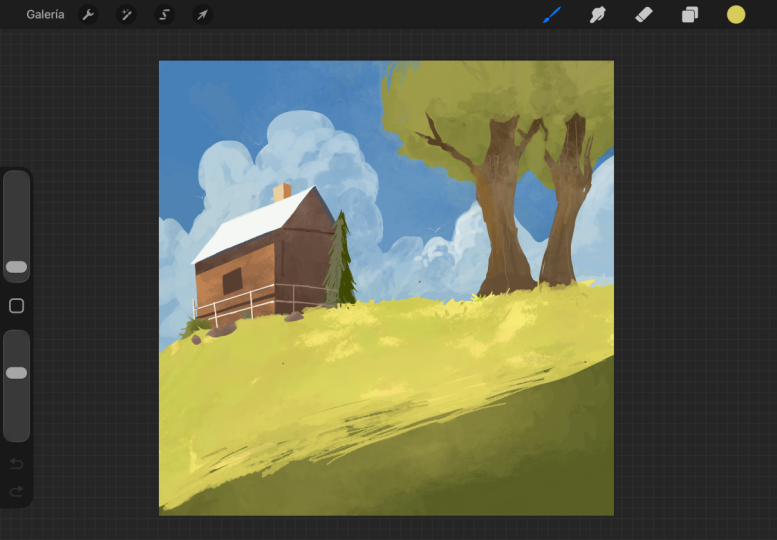
cabin on a beautiful field. This class is specifically
designed for beginners. It guides you step by step and encourages you to create
a beautiful project. Hi, my name is
George, and I've been a professional
artist for 11 years. Five years ago, I've
fallen in love with teaching both online
and in person classes. With over 20,000 wonderful
students all around the world, I've developed this
interesting way of teaching that focuses on the project and on having
fun while learning about art concepts in the process. If you are ready to unleash your new Illustration
superpowers, grab your Apple
Pencil, the iPad, and the Procreate app, and let's just jump
into the class.
2. Brush Canvas and Palette : Before you begin this
wonderful class, you will need to create
a Canvas by going here on the Plus and on this O plus going 6,000
by 4,000 pixels, a DPI of 250. This will give you
about 18 layers depending on what iPad you have. Let's create Canvas. Perfect. After you've created
this wonderful canvas, you will need to
import the brush. The silky brush, this will
be a very useful brush, and you will find it on the resources page of this course. You import it by downloading the brush from the resources
page on your iPad, then going on the
plus over here, going on Import,
navigating to wherever you decided to save that
beautiful brush, clicking on it. After you click on
it, you go done. I will go cancel because that will create another
beautiful brush, and you will also need
the color palette. The color palette
being this one, let's delete this swatch. This will be the color
palette that you will need. You will find it on the beautiful
resources page as well, and you will go on
colors over here, palettes and go on the
plus Import from file, and wherever you saved the
beautiful color palette, that's exactly where
you will find it, click on it, and
you will import it. Okay, this is the
beautiful color palette. And now let's go
into the course.
3. Grass hills: For this first step, you will need to select the wonderful green
from over here, this one over here, B
on the silky brush. Let's zoom out a bit, just so you can start to draw a wonderful line from
over here to over here. If you can't see
that, let's draw it again by increasing the size, a bit lower and
going over this way. You can then add the
color onto the shape by dragging it with the
pencil from here to here. Okay. Now, let's create this
wonderful yellow over here. Let's take this yellow over
here, this greenish yellow. And let's be a bit
more wavy with it, going a bit lower
onto the left side, onto the right side, I mean, and then dropping in the color. Perfect. And for the last thing that you are going to
do is draw a selection. Go on selection over here, automatic, select this top one. In case that happened to you, you can simply press, go to the left, so you can only select this
wonderful green on top. Go on the brush, go on artistic leather wood. And let's go with the lighter
version of this color. Notice the opacity is at about 15% and the
size at about 26. And you can start to draw
over this area over here. Let's draw a few passes
until it becomes much more interesting at the
top and textured as well. And that's all you need for the step to undo the selection, just go on the S over here. And now let's go
into the next step.
4. Clouds and Sky: For this next wonderful step, you will need to go
onto the layers, add another beautiful layer, click on it and put it
underneath the first layer. And let's go on the brush. Select the silky brush
that you've imported. Let's go on the color. Let's select this
wonderful color over here. And let's draw some clouds
starting from here. So bubbly. Notice how
it's going very round. This brush is very useful
for those kinds of shapes. Just imagine a cloud
and then draw it in. Let's go a bit like
this over here. And then over here, we can
go a bit more abstract. Perfect. Okay. Let's go over
what happened over here. So wavy lines, then a
bigger one, a corner. Maybe this one could have been smaller and this one
could have been bigger. So let's actually do that. So you notice what happens
if we do it like this. Okay, let's drop in the color. Notice how this is
small, this is big. This could have
been a bit smaller or yeah, it looks wonderful. And another beautiful trick that you can use is
click on the Let's first go pinch like this and then go on to
the selection tool. Well, the movement, the arrow, go on to warp, and let's lower it
down from here. We can lower it a
bit more, extend it. And just like that, beautiful. Now for the other
side of the Sky, you will need this
color over here. Let's drop it in beautifully. Perfect. Once you've done that, go on to the selection over
here, select the clouds. That's a bit too much. And I've noticed a bit of
interesting design over here, so we're going to need
to go onto the brush. Silky, let's go on
to the color of the wonderful clouds and
draw in this area over here. Let's cover it all. Zoom out once again, and let's select
going on the S two, select dragging the selection to the left until the blue
at the top is blue. And the thing on the
bottom is brown. Don't worry that everything
disappeared over here. Once you click on the brush, it disappears and it made a beautiful selection
of the clouds. If this is your first time
using the selection tool, the selection tool gets you this wonderful selection going on the artistic on
the letter wood. And with the color of the sky, the opacity lowered down
to about maybe 12% or 13%, the size at 16. You can start to
add some shadows, some beautiful shadows
onto the Clouds, adding a few passes. Don't worry if you
added too many passes. You can go back to the color of the clouds and start adding
some of that color back in, going back to the sky color
and adding some of that in. Perfect. Now, to make
it more interesting, you can also take
some of this white over here and add it at the top, just over some areas
of the clouds. Now, undoing the selection, notice how beautiful it looks. The clouds look so much better and so much
more interesting. Let's do the same for the sky. Let's select the sky. Oh no. Let's selected once again and going to the left until
just the sky is covered, and we need to go onto
the color of the clouds. Perfect. And just at the bottom, try to add just one pass. Don't lift the pencil. If you lift a pencil, this
will happen. It's good. We can do two passes. Looks a bit better with
two passes, actually. So a bit of texture just leaving the corners
a bit darker. This will integrate
the clouds a bit more and create some softer contrast. Okay, that's all you
need for this step.
5. What you’ve learned so far: Let's recap a bit of
what you've learned. You've learned how to create some wonderful lines and then drag the color over so
that you fill them in. You've learned about
the selection tool that gets you a selection, a beautiful selection
that you can then add texture on top. Perfect. You've
also learned how to separate layers and put them
at the top or at the bottom. Notice how the sky is
completely to the bottom, and this is on top because
it's the foreground. Now, in the next steps, you will learn how to add
more textures as well as detail to make these lines
a bit more interesting, just the way you did with
the wonderful clouds. Just make them a bit
more interesting.
6. Breaking up the shapes: This next step, you will need to be on the layer with the ground. Let's select this
wonderful color over here. And with the right brush, the inking silky brush. Silky over here. Let's create some
interesting lines going inside this shape. Okay, this will create a bit more separation and
sort of like a blend. Once you've done a few lines, notice that the brush
is at about 20% size. Once you've done a few lines, you can go to the
green and do the same, but the opposite way
going towards the yellow, creating some
wonderful lines can also be a bit more thick. So you can create some shapes. Notice how if you go a bit more playful and then going
back to the yellow, you can go back and creating
these pockets of light. These are shapes that are a bit more interesting for
illustration, okay? And if you see that they are too exact and too rigorous or
however you want to call it, just go with some lines
from left to right over them so that they look
a bit more interesting. Perfect. Let's erase some
of this over here as well. Let's go back to the green and go over with some lines again, just so we make them
a bit more uniform. Over here, it's a
bit too straight. Perfect. Now, let's do a selection of this
wonderful green, trying to select it all. Just going and adding just a few layers,
selecting them. Okay. Once you've done that,
you can go on the brush. We should have done this
earlier, but it's fine. Going on the color over here on the beautiful
artistic leather wood, it's at about 10% opacity, size, it's at about 10%. And let's add a bit of this color at the top
where the two colors meet. Perfect. Now, let's undo the selection and look
how beautiful that looks. Perfect. Let's go
into the next step.
7. Texture on the horizon : Now you are going to learn
another beautiful trick to better accentuate
these lines at the top. So still on the layer
with the ground. Now you're going to go to
the eraser with the silky, and let's create a
beautiful jagged edge, just going and creating a beautiful jagged
edge, going in. Don't worry too much. Just go a bit nuts with the jaggedness. And notice how it's creating
a wonderful effect. Don't worry that there are
some little speckles of ground just in the sky
that is to be expected. Let's lower it down a
bit more over here. Perfect. And now let's
zoom in and clean everything slowly and
also edit the line. This is there is no method
to the madness over here. You are just creating a
bit more abstraction. So you are creating
beautiful, like, zig zag or whatever
kind of line. Notice how much more
interesting it looks. Now over here, you can also
calm it down if you want, in some areas and leave it
unrefined in some areas. Let's erase some more
of these shapes. You can calm it down also by increasing the
size of the eraser and notice how it creates calmer, more interesting shapes. Perfect. Now, let's
decrease the size so we can work on
these small edges. This is only creating a wonderful effect so that
it looks much more complex. Also a lot more painterly
or illustrative. Notice how it's much
more interesting. This side is going
to be super nice. Perfect. And I kind of like the fact that it's a
bit more squarish. So we're going to
repeat those squares. Let's select this
color over here. Go on the appropriate layer. You probably don't have
this mistake, but I do. So let's go on the
proper silky brush and go over this again. Perfect. Now, let's repeat that wonderful squarish
shape around here. Notice how it's a
bit more squarish, not properly. I'm going
to do it like this. So it's even more of a
square over here as well. Kind of beautiful
squarish shape. Perfect. Look at how
nice those squares look. Whoops. Perfect. Now, let's go and add a bit more over
here, calming it down. Let's go outside,
calm it down a bit. Perfect. And that's all you
need for this wonderful step.
8. Simple trees: This wonderful step, you will need to
create another layer on top of this ground
layer, Let's create it. And going onto the inking brush, the silky one, let's go and
add this color over here. And let's start drawing
in some beautiful, big lines just
going up and away. And then trees usually have a thicker bottom
just like this. And then they go
thinner and thinner. And going up, perfect. Now, let's close this shape, a bit crooked, and
let's fill it in. Perfect. I know it looks
like a not like a tree, but once you add a bit more, just going out from here, just going in and out. And now let's add that
thickness a bit at the bottom. Perfect. Much better. Now let's do a thicker
tree going from here, connecting it to this one. And going over and
overlapping like this. Now, going from here, that's the thick and
going up and up. Now going from this side
and going up, and up. Perfect. Now, we need
to close this shape. So let's go and add a bit
of thickness and then go up and do the same
for this branch as well. Closing in this shape over here with a bit of jaggedness,
dropping in the color. And now notice how
thin this branch is. It needs a bit of thickness. Okay, let's divide it. And let's add a
bit more to width. Okay, maybe make the size
of the brush a bit smaller. Perfect. Now, let's divide the top over here
and maybe over here. One more over here. Perfect. And on this side, let's do another one
that goes from here. Let's connect it a bit
better, go like this, and maybe another one like this. Beautiful tree. Now, a trick that you
can do is go onto the arrow and warp it a bit
to your heart's content. We'll actually warp it to
make it a bit more skinny onto the middle and a bit
more thick at the top. Perfect. Speaking of that, let's actually add
the endings as well. To some of them,
not to all of them, you can also go and
erase some of this. And let's go over here. Let's add another
beautiful branch over on this side. Connect this one. Perfect. That's all you
need for this step.
9. Shadows on the trees: For this next wonderful step, you will need to add the beautiful alpha
lock on this layer. Let's go on the layer, add alpha lock, go on to the brushes, artistic
leather wood. We have it at 11%
with opacity at 10%. And let's go a bit lighter, like, right over here. Let's add some lightness to these branches as
well as the tree. Perfect. Let's also add some
color by going over here on this orange just a
few times and some darkness by going over on this color and just
at the bottom, just adding a few dabs. Maybe add a bit more
light at the top. Notice how much more
interesting this tree looks. Let's see how it does, how it looks by the end. Notice how flat it was and now it's much more
nice and beautiful. It's the same trick you used for the clouds
and everything else. Now, another cool
trick is that you can select multiple layers,
like, for instance, the tree and the
beautiful ground. You can go on the arrow
tool and you can distort it a bit and make it a
bit more interesting. Can also zoom it in by going on distort. Zoom it in a bit. So you can make it bigger, smaller, however you want. I just wanted to add a
bit more angle to it. Perfect. Now, that's awesome. And now let's go to the next step where you will
add another wonderful layer.
10. Simple Foliage: Is going to be a very interesting
and simple little step. All you need to do is go
here and go onto the ground. Click plus so that the
layer is below the trees. Go onto the brush. The
brush needs to be silky. Perfect. Go onto the color of
the ground. Well, this one. And let's create some wavy
lines for the tree over here. You can make it as
complex as you want, and then drop in
the color perfect. Notice how it's a
bit too complex. So I'm going to increase
the size of the brush and start erasing
some of these edges. Perfect. Now, that's wonderful. You can also go onto the
eraser and go and add some more enclaves or little
bits of shapes like that. You can also add
some little holes, if you want, for the birdies. Perfect. One over here, maybe one over here. Okay. And maybe one over here. Maybe a smaller one over here. That looks wonderful. Now, let's go ahead and alpha
lock this layer. Perfect. Remember, alpha lock is just a selection of everything that you've drawn on that layer. Now, let's go and add this beautiful green color with the artistic rush
called leather wood. It's at 12% with 10% opacity. And let's add it at the top. Can also zoom out a bit. So you can add it
nicely at the top. Okay. Once you've done that, you can go ahead and add
this yellow over here, add some of it on top and the most the biggest amount at the bottom, just a few times. Perfect. Okay. Now we can also go on to the
arrow tool and the warp, our favorite warp tool, and create a more
interesting shape. I think that is wonderful. Perfect. Notice how much
more interesting it looks. It's not so round,
it's more organic. And that's all you
need for this step.
11. Background tree: This point, the illustration
looks quite good. You've learned how to
make this wonderful tree, the background, the sky,
and the foreground. But you can make this
illustration so much more interesting by adding
a few more elements. Let's start to add
another wonderful tree. This tree needs to be behind
the layer of the ground. So let's click on the
sky and then click on the plus so that you have a layer that's in between
the ground and the sky. Go on the brush, go
on the inking brush, silky and then go and add
this beautiful color. And let's go add right
over here, a triangle. I know what you
might be thinking. What's this triangle? Let's lower the size of
the brush to about 6%. And now let's do something very, very interesting, which is
going on to the darker color. And on the right side, let's alpha lock
this layer first. Alpha lock, and let's start drawing like a little bit of a beautiful shadow
just going down. Until you fill in the color. You can go a bit thicker, and then you can go back to the color that you've
started the tree with and start carving in some of these beautiful lines
inside the shape. Let's remove the alpha lock. Perfect. Going to
the darker color and onto the right side, at the top, you can
start to layer in some of these beautiful
lines just going up. Notice how the brush
keeps on creating these wonderful outside shapes. Perfect. Notice how it
starts to become a tree. You can also go like
this and up as well. Okay, perfect. Once
you've done that, you can go onto the other
color and on the left side. Do the same. You can be
a bit more abstract. Perfect. And let's go
a bit thicker and add a few more branches onto the right side and
into the middle of the shape with the
darker color. Okay. Perfect. Now let's go back and
erase some of these lines. Maybe go with a line like this. Perfect. If you're unhappy with some of the things
that are going on, like, for instance, over here, you have two options. Either you go with
more color like this, or you can go with the
eraser or you can do both. So the eraser gives you a bit of control over the outside
depending on what you like. Now, let's go onto the
selection tool, the arrow. Let's go on distort, making this a bit more
thin and a bit smaller. Let's move it right over here. Perfect. And we've created
another wonderful tree. In the next step, you will do the beautiful ground
and also some stones.
12. Duplicating Rocks in the distance: This layer needs to sit on top of the ground and also
on top of everything, actually, just because
we are going to draw some stones over the ground
and also over the tree. These stones will be with these beautiful colors as well as some of
the darker shades. Let's make some stones. Starting right over here, these stones will
be quite round. Let's drop in the color. I'm going to teach you
a beautiful trick. Notice how you've
created 2 stones. Now, duplicate the layer, go on to the movement over here. You can warp it quite
a bit. Perfect. Now go on uniform, rotate the beautiful stones, make them smaller or
bigger, however you want. And you can place
them right over here at the bottom of the trees. Perfect. Once you've done that, you can go ahead and
merge the two layers. Perfect. Now you have 4 stones and you didn't
have to draw all of them. Now you can do the same by
duplicating the layer again. Now let's move it down a bit. Okay, and go on to the eraser just so we
can change the shapes of these stones. Quite a bit. Perfect. Let's go on to the
selection tool over here, but this time go on free hand, select these ones over
here by drawing a circle, move them right over here. Okay? You can also add them
right on top like this. And start erasing some of these shapes can also increase
the size of the brush, so it becomes a bit easier. Now on to the arrow, we can position these
a bit over here. Okay, we can do a
beautiful trick, which is to change the color. I think it's the same color. Let's go a bit darker. Okay. Perfect. We need to
erase some more of this. Wonderful. Now, let's merge
the two layers together. Now, another way you
can do this is by selecting the area that you want with the
stones that you have, and then copy and paste. Did it copy and paste? Yes, it's called from selection, and now you have it over here. You can make it smaller, if you want, you
can add it on top. You can also warp
it so that we can change the angles
of these stones, and we can also
change the colors. Let's add this
color into the mix. Perfect. Can also erase some of the shapes
maybe over here. Perfect. Now, you have a few stones and you didn't
work as much for them. So let's duplicate
this layer once again. Let's go on uniform, and let's add some
more stones over here. Maybe color this
one a bit darker. Mmm. No, let's make
it lighter, actually. Let's make this one lighter. No, darker is better. Perfect. Now, let's do
the warp once again. So we position them better. You can also do uniform, rotate, also distort,
if you want. Just right over here. Perfect. Let's erase this
big rock over on this side. Okay. Perfect. Notice how many rocks there are. You can also do the
pinch onto the layers. You can also do another
beautiful trick by zooming in after you merge the layers and start just
taking the rocks that you want. Like, for instance, these ones
over here, copy and paste. Okay. Notice how it's
another selection over here, and we can move them right here, maybe make them a bit
bigger by distorting them. Perfect. Now, we have some
stones over here as well. Okay. And that's all you need
for this beautiful step.
13. Rocks to bushes: Okay, let's merge.
For this step, let's merge because we are
not finished with the stones. We need to add this
wonderful color. And let's remember to
alpha lock the layer. Okay. And going into the artistic brush
onto leather wood, making it smaller
and smaller means at about 6% size, 18% opacity, and we can add just a
few dabs of this paint, can also change the whole color of a stone by going
a few times on it, and to add this wonderful color. Notice how they look much
more interesting right now. Just with one color. Doesn't need to be all of these. Just go a bit more abstract, and it looks much,
much, much nicer. Okay. And of course, after you've done that, you can add another beautiful layer, and let's do something very, very well, let's
delete this layer, actually, because we are going
to duplicate this layer, put it a bit lower. Increase the size by
going on uniform. Let's rotate it so it
looks much more different. Okay. We've rotated it, and you might be thinking, Oh, that's a lot of rocks. Yes, but we can go to the right. So all of these
stones are deleted once we go on the
arrow and once again, going on the arrow, deleting on this
side, the stones. Perfect. Now going and adding this color
over a few stones. That's only working because
we have Oh, now, come on. You can do it one by
one, if you want. But it's a cool way to
just let's go over here. Perfect. It's a cool way to just add some bushes because
they are the same shape. Let's add some bushes over here. Let's actually put them
behind these stones. Perfect. Now, let's warp them. So what you've did over
there is basically just a added created some stones and then added some colors
on top of it on top of them. And then you've added them
behind and distorted them, warped them so that
they look a bit better. Notice how much nicer they look. I want to select this
and distort it a bit. So it's more round. And now you have
some bushes behind. You can also go with the eraser and create some more
variety of edges. Maybe they are a bit more. They have some more crooked
edges than the stones. Oh so this is a way to just
make things way faster in illustration without
really creating a lot of drawings and
doing a lot of things. You can duplicate and merge and change the shapes and the
colors super, super fast. That's why digital
illustration is so nice. Let's erase some of this. So let's create you're just creating like you
did with the ground, you're just creating some
more interesting edges on these more organic
edges on these bushes. So that they don't look too
perfect like the stones. Okay? They have some
texture to them. Okay? I will select
this over here, copy and paste, and let's go
and ed it over on this side. And just put it over here. We need to erase some of
these bottom edges just to make them a bit more
flat at the bottom, and also some of the corners. Don't worry about the runaways. Things like that happen
in bushes all the time. Like, for instance,
there are leaves either on the ground or
just floating about. They can happen in nature, so you don't have to be super, super exact, except for these
ones which are too far. Okay? Let's merge the layers,
all of them together, the stones and the bushes, so that we can erase a
bit more of this bush. Perfect. And that's all
you need for this step.
14. First walls of the Cabin: This next wonderful step, you will need to merge some of the layers,
like, for instance, the ground and the trees, just like this, just so you have a bit more to play around with. Just leave three
layers, the sky, the ground and the trees, and then the stones
that should be on top. Perfect. Now let's go create
another beautiful layer. This time, it's
going to be above the sky, below the ground. This is just so you can
simplify everything. Now going on to this color over here, let's go on this one. Perfect. Let's go ahead and
create a few lines. Okay. Notice how. Oh, no, let's add the correct brush. Notice how if you hold down, you're going to create
a straight line. Okay. Going straight down
just about over here, and now from this
corner going this way. Okay. And going straight
down over here. You can also go on the
line and edit it a bit. That's exactly what
I'm going to do. Once you've done that, you need to realize that this
is not a square yet. Notice how if I undo the ground, it doesn't have the
line over here. So let's actually draw
a line like this. It doesn't really matter. We can draw it like that, and then we can
drop in the color. Perfect. Let's put
in the ground once again in the trees.
That's perfect. I think it's way too light. So let's add this
color on top of it from over here. Perfect. Okay. So you've now inadvertently learned
about perspective. Notice how this is sloping down. Now, to be more interesting, we can add a few more tricks. Like, notice how from here, you can go like this
with a beautiful line. Nope. That's not a
line. This is a line. Perfect. You can
edit the line by going over here
and a bit higher. Perfect. And now going down. And let's make it a
bit longer, maybe. Perfect. Now, let's add
the color over top. You can do a cool trick by going on the eraser and going with a line
with the eraser, maybe making the
eraser a bit bigger. Perfect. You can even notice
how if I go like this, it will snap at some point, and then you can also edit
it so you can cut down on the edge of this building, it will be a house.
Okay. Perfect. And once you've done that,
you can go back on the brush, go over here with a
straight line so we can continue the building. It was way too small. Let's close that shape. Whoop. Okay, let's close that shape and
drop in the color. Notice how if we
undo the ground, you're gonna see a
closed shape over here. Perfect. If yours
doesn't look this way, you can always distort it a bit. That's exactly what
I'm going to do. I'm going to distort it and also move it behind this tree. Perfect. Now, a beautiful
thing that you can do next is go back to the
color that was lighter. Okay. Let's do a selection this time on the outside with
the automatic tool. Outside. Notice how it's going all around the outside.
Let's go on the brush. This is just so you don't
draw inside of this shape. Perfect. Now, for the
perspective to work, this went that way, this is going to go this way. Okay, be careful not
to be very tangential, so it doesn't create a tangent. So notice how it's broken a bit. It's like this, and
then it goes like that. I'm going to actually exaggerate
it so you understand. So now, notice how this
line is going this way, and now this line is going
a bit more this way. It's important to do that, just because you will also draw a roof that is going
to be like this. But first, let's draw a line
over here, a straight line. Let's edit it a bit. Perfect, so that it's a
bit more straight. Okay. Et's Edit. No. Edit it. Perfect. Let's go on to brush. Close that shape,
drop in the color. Perfect. Okay. And that's
all you need for this step.
15. Rooftop and shadow : For the roof, you're
going to need to do the selection once again on
the outside of the shape. Notice how it's creating
this wonderful effect. And let's go on the brush. And let's go on the
lightest color over here. Okay. All you have to do right now is create a
parallel line over here. Okay. Create it like that, edit it, and then move
it over on this side. That ensures 100% that
it's parallel. Perfect. Once you've done that, you
can go ahead and do the same over on this side, edit the line, make it parallel, and then go click over
here and move it to the top Okay, perfect. Even though it gets
outside a bit over here, that's absolutely
normal and perfect. Once you've done that, make sure that the lines are closed. Over here, it's closed,
here it's closed. You can drop in the
color. It's not closed. So over here, it wasn't closed. We actually needed it
a bit longer anyway. Perfect. Let's
drop in the color. And right now we need to
increase the size of the brush, go onto this
wonderful dark color. Let's create this
edge over here. Okay. Notice how it's
going behind the building. That's because the building
is still selected. Well, the sky is selected. Okay, the brush is a bit bigger, a bit too big for
this next line. So the line that you've
created goes right over here, parallel creating an edge. Now, this next line will go
from here to here, Okay. Notice how it's not
selected anymore, so let's undo that and select until the selection
is still there again. Perfect. Now we can go
and undo the big brush, and let's do it again. This time, not messing around with the
beautiful selection. Go on the brush. Notice how they meet almost
perfectly over here. Now we need to create another
line over on this side. And edit the line so we
can make it a bit thicker, needs to be a bit
smaller than this one. Perfect. Now, let's undo the selection just because
this one needs to be on top of this
building over here. So let's do a line. Perfect. Now, at the end, it needs to be erased like this. That looks wonderful. We can also because we don't
have the selection anymore, we can also distort it a bit. Notice how we can just
distort it a bit, make the perspective
a bit better or play around with things. Another fun thing you can do in this step is go onto
the selection tool, select this face of the house, go onto the brush onto artistic. Well, not yet.
Let's go on inking. And silky. Zoom in quite a bit. Draw a parallel line. Forgot to select
the right color. The right color is over here, and it's actually
this brown over here. Let's draw in a line that is straight and try to make it
as parallel as you want. You can also check it if
it's parallel, it's not. So let's put it over here. Once you've done that,
you can go ahead and pick this color up, nope, pick this color up, go to the left until you build
this wonderful shadow. And that's all you need
for this wonderful step.
16. Textures and window: Same way you worked on
the tree, on the ground, on the beautiful
sky and the clouds, you're going to work now on
some textures onto the house. Let's go on to the
selection tool. Over here, select the
brown, the darkest brown. And let's go on to this color, which is the lighter
version of the brown. The one that is right over here, go on to the brush, so
the selection is created. The brush needs to
be leatherwood. Make it a bit
smaller, 5% or six. Opacity to about 13%, and let's see how this works. It works perfectly. Perfect. Okay. Let's do another
beautiful layer. And I think that's quite enough. Okay. The same can be done
with the light version. Well, right over here, the light version of this color. But instead of going very, very dark, we can go lighter. So let's select the sandy color. Go with the brush again. And let's add some
textures on top. We can also go darker
at the bottom. You're going to understand why, but that's not the proper
dark. This one is. Doesn't really matter.
Okay? So the dark. And let's add some more
of this red brown on top. Perfect. Now, with
the selection tool, let's select this over here, maybe not that much
because it also selected this side over here. So we need to go to the left. Okay. Perfect. I think
that's more than enough. It got a bit from over here, but it doesn't really matter. Let's go onto the brush, select the inking brush, go to this red, beautiful color,
this dark red brown. Let's add a line over here. You didn't want to do a line. Let's go a bit thinner. Okay. I think we've
lost a line over here. Notice how this line
is almost lost. We need to change it
and add it again. So let's add it
over on this side, maybe select the right color. Okay. What happened is when
I did the Brown selection, it selected the roof shadow
as well, but that's okay. We can add some more
lines like this to create a more
interesting roof shadow. Let's go over here and
erase some of this. Perfect. Now we need another beautiful
line going this way. So with the same color
that's over here, going with a straight line. Oh, no. Just like this. Let's edit. The line. Perfect. Okay. Once
you've done that, you can go ahead and select it. Once again, let's select it. Perfect. And we can
go with this color. First of all, let's select it, and then we can go with
this color and with the leatherwood artistic brush and integrate it a bit more. It's not really visible, so let's increase the opacity. Okay, perfect. Just a few passes. And once that is done, notice how it's a
bit more integrated. Okay. Let's go on this
color over here once again, and let's create
a beautiful door. The door is going to
be right over here. Let's go on inking. Needs to be parallel over here. Okay? A bit smaller. So parallel and then going down. Do not connect it too much. Let's be a bit more thin. Thinner, door. Perfect. Now let's connect
it with a parallel line. Drop in the color and
drop in the color again at the top. Okay. And with this wonderful color, we can erase some of this. Doesn't need to be perfect. Okay? Notice how it's
wonderful and nice. Let's erase over here and
maybe over here as well. You might be noticing
that this door doesn't actually
look like a door, but it doesn't matter
because we're going to do some beautiful platform in
front of it in the next step. But before we do that,
we need to play around with the top of
the house as well.
17. Chimney of the cabin: Okay, let's go on to
our favorite tool, the selection tool, select
the beautiful roof. Just the roof. Okay. Going on the brush
artistic leatherwood and select this lighter
version of the roof color. Let's go on top,
maybe making it a bit smaller and the
opacity to about 8%. Maybe a bit more small. I know it's not really visible, but once you add a few layers, you can go back to the
lighter version of this color, increase
the opacity. Perfect. Notice how it was very, very flat, very flat. And now notice how it's
a bit more interesting. Not a lot, but it's
perfect enough. Okay. And let's do
another beautiful layer. This is going to be a
very, very simple trick. We're just going to
add the beautiful I don't know how it's called the smoke thing behind the house. Go on the correct
brush, the silky one. Not with this color, with this color, go
with a straight line. Don't worry if it's
on top of the house. Let's go with another
straight line over here, make it smaller.
Another one over here. The bottom doesn't
really matter. And going lighter
with this color, going to the right to the left, actually, and down connected. Drop in the color. Let's
drop in this color as well. And now let's put the
layer behind the house. Perfect. It's the same trick you used for the house when
it comes to the ground. Notice how the house at the
bottom is very, very jagged. And to make things
more interesting, let's select this well, let's be on the first layer. On the correct layer first. Let's select this over
here, go onto the brush. Artistic leather wood, select
the color that is lighter. Okay. Lower the opacity, add just a few lines, maybe make the size a
bit bigger. Perfect. That is super, super nice, and it looks wonderful. In the next step, you will learn how to make that platform. Notice how you've played around with perspective,
with things like that, with buildings and houses
and beautiful horns. I think that's how it's
called and the roof. And you didn't really need to understand
all the concepts. All you needed was just
a few examples and also a few pointers to get the right shape
and the right colors, as well as textures. That's how easy it can be to illustrate
something beautiful.
18. Deck and Platform: For this next step being on
the layer with the horn. Well, not actually. We
need another layer on top. Let's merge the horn
and the house and add another layer on top of
the beautiful house. With the correct brush, the silky brush selected, let's go on to this
beautiful color over here and let's
draw a platform. Platform will go from here to
here with a straight line. Okay. And now this way, notice how it's not
really parallel to this. It needs to be a
bit more parallel. So let's parallelize this line. Perfect. Now, this one, you can also draw it over here, so you know it's parallel. Perspective kind
of forces you to be parallel in order
to be believable. Now notice how it's going
behind this area over here. Okay. Those are the
first two lines. Now let's go a bit darker
with this color over here. And this time, you
can just go with a straight line and over
here, another straight line. Perfect. You can go a bit darker as well this
time this way. And also this way, in between, you can edit the shape, the line, and going
this way as well. These lines don't really
need to be that straight, once you have the
first ones that indicate the correct line, that's going to be
super, super easy. Let's go back to
the first color, this one over here and draw a post from here down to here. Okay? All the posts that
are going to go like this, they are going to be straight. So let's go like
this and straight. And let's go over on this side, from here to here and edit
the line so it connects. Maybe it goes a bit outside
and a bit outside over here. Perfect. Now, let's add a
few more posts going down. Okay, they don't always
need to connect. They can be a bit
smaller, a bit bigger. Notice how just a bit of that
ruggedness makes it very, very nice and interesting. Okay, let's change the
color to a darker tone, so we have another. Now let's go with a diagonal. Okay. And the line over here. And a post it doesn't need
to connect and another post. These are middle tones. Now you can go to
the highlights. This is the highlight color. And let's lower the
size to about 4%, go on top and create a highlight
for this beautiful line. Now for this post as
well, straight line, you can edit the shape, connect it right over here, and just over here. Over on this side, can also do some other lines like this. They don't always need to
be like the perfect color. Okay. Let's add another
post over here. Let's make it a bit bigger. And this one. Oh, no. Okay. This one over here. Perfect. Now, it needs a bit more jaggedness.
It's too perfect. So let's go back to this color. Let's draw a bit over and create some lines
that are not so perfect. Okay? Maybe some
posts going down. We can also go to
the darker color. Okay, and create
some lines over top. Looks so much better once
it's a bit more rugged. Okay. Highlight is way
too dark, way too light. So let's add a bit of
this dark over top. Let's add some lines
going like this. Maybe another one
just going over here. Perfect. Just play around until you feel comfortable
with the drawing. Notice here, we can add on top. One trick that you
can do is alpha lock, just because everything
is very contrasting and you maybe don't want to attract so much
attention to that. Just alpha lock the layer, go to the lighter version
of this color over here, go on to the artistic,
the leather wood, opacity at about maybe 19%, size at about seven. And let's add a bit
of this color on top. You can also add some
of this dark just so it cuts some of that
perfect colors. Notice how now it looks
much, much, much better. Also needs a bit light, bit of light, maybe on
top right over here. Okay. Perfect. It's
a bit more uniform, and it also has the details
that you've created. Perfect. Now, you can play around with the size with
the positioning. Notice how if I position
it right over here, it looks so much better. Perfect. Okay, let's zoom out a bit and see if we
can create something else. Yes, we can. We can add
some of this color. But in the next step,
19. Finishing contrast Thank you: Last finishing details, let's
add some of this color. Okay. With the leather wood, we are on the leatherwood, but we are not on
the correct layer. Let's alpha lock the
layer of the ground, and let's draw in some
shadows behind these rocks. And over here and also some
lines with the inking brush, the silky inking brush. Maybe a bit thicker, behind the wonderful stones, maybe that's a beautiful
shadow or something like that. Can go a bit in front, but not too much, not as I did. Okay. Notice how it integrates
everything together. Okay. Oh, no. Can always undo
the things and redo them. Some of the stones might
need to be darker. So let's select let's
go on to the layer of the stones and
select some of them. Maybe this one over here. No. Maybe this one.
Yeah, this one. This one and this one. And maybe half of this one. Nope, we can't. But it's fine. Let's go
on to the darker color, and we have the silky, so we should actually go on
to artistic and let's go and add some darkness
on these stones. This one needs to be darker. Okay, let's see how it looks. Notice how over here, it's a bit jagged, so we need to select it
like right over here, go onto the leather
wood and go with the brown over top
and a bit more. Perfect. Okay. That's wonderful. Let's see how it looked
before the darker stones. Notice how it's very, very flat. After you've added
some contrast, looks much nicer and much more refined. Thank you for watching. I hope you had a great time and you did a wonderful
illustration. And if you are gracious enough, please leave a review. It will really help others know that this course
is for them as well.
 George-Daniel Tudorache, Together we will create amazing things.