Transcripts
1. Class Introduction: A
2. How to Make a Simple Grid Repeat Pattern: Let's create a new Canvas first. So press plus, and then Canvas, I'll do 4,000 pixels by
3,000 pixels and 300 DPI. Before I draw anything, I like to turn on the
drawing guide when I create a pattern
because this helps me to have a good idea about
the position of my motifs, and you can also edit
your drawing guide, and the grids can change in opacity, thickness, grid size. And you can also
change the grid color by dragging this little
dot at the very top. And once you're happy,
you can hit done. And let's get started. For this pattern, I like
to use a marker brush. This is from one
of my brush sets. The reason I really
like it is because we're going to see a lot
of overlapping strokes, and having some variation
of transparency and texture can really add the
organic feel to the canvas. So I'm going to start with that. I will start by tilting
my canvas upward because I tend to draw upward when
I draw a straight line. And this nice grade gives
me a good visual reference. So I will just follow this line. And you notice that I did not color all the way in
to touch the edge. That is because if we do that, we'll end up with
a truncated edge that looks super obvious that that's the border
of our pattern. And we don't want to have that. And I'm going to choose
a nice yellow sky. And I want to roughly keep
everything along the grid. So these two are
on the same layer, and I'm going to
draw another one. Green one. Instead of
drawing a thick one, maybe I just want to do back and forth for a thinner line. Okay. So now I want to create a vertical line with
a darker color. For this one, I'm
going to tilt this way and then just draw a
straight line like that. This pattern will
not be symmetrical, so I'm not worried about the mathematical space
in between these. Now we have some basic
motif that we can work on connecting from left to
right from top to down. That's the logic of
a repeating pattern, that is the left side will match to the right and the top side
will match to the bottom. And now I'm ready to merge. I'm going to merge
these two And then I want to create a new
layer and then just fill it with whatever color
that is active over there, and then decrease the opacity. The reason is because I want to use this filled layer
as a guide to help me shift the motif to the left to the exact pixel as the
width of my canvas. I want to create
another duplicate for both the motif and the solids. If you look at our layers panel, we have a solid layer motif and exact solid layer
and exact motif. We're just going to shift
their position a little bit horizontally.
Use your finger. Well, forgot to explain. So tap on this arrow icon and then use your finger to
shift it to the left. You don't have to stop
right in the middle. As long as the other pair, when you shift them,
you feel the snap. See, there's still, like, overlapped area right here. Keep moving until You don't
see the overlap anymore. And you can delete
the solid layer. And now you can use
the same brush. Actually, before that, you
want to merge it down. And now you can
use the same brush and same color to
connect the gaps. So I'm going to go
to the history. And I know I haven't
changed my brush yet, so I can just connect like that. Same thing for the yellow. And moving down to green. And we're going to do
the exact same thing for the top and down. So create a new duplicate and a new layer to fill
it, lower the opacity. And then create
another duplicate. We have two pairs. Select a first pair, move it up or down, and then move the other
pair to match the position. Stop where the snap happens. Now, we don't need the
guide layers anymore. We can delete the two solids. We can and then we can merge these two layers
to work on the gaps. So I'm going to find
the colors that I used and just connect these two. Same here. Go to the bottom. Whenever you draw something
that touches the edges, you want to make sure
the other side match. But if you draw something
right in the middle, you don't have that worry. For example, if I were to create some
squiggly lines here, I don't have to
do the same thing we just did to make sure
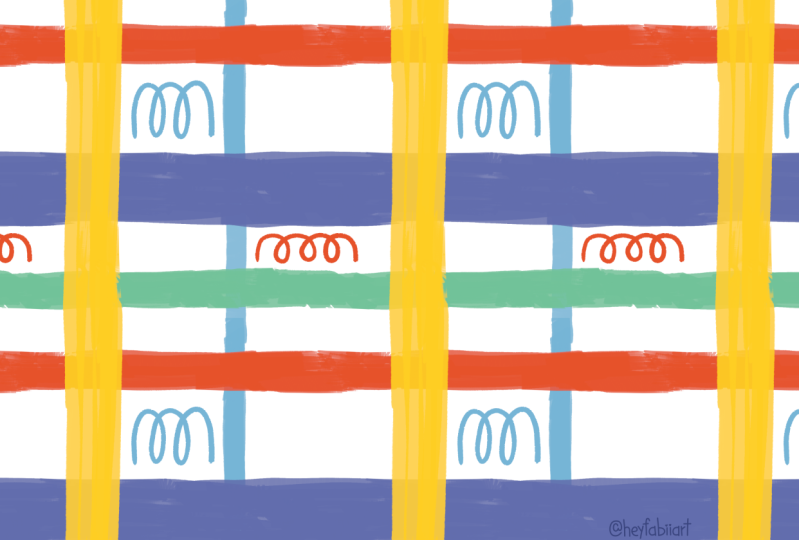
all the edges match. Let's do this. This will appear on the pattern without disrupting the flow. This is my pattern. If you like, you can
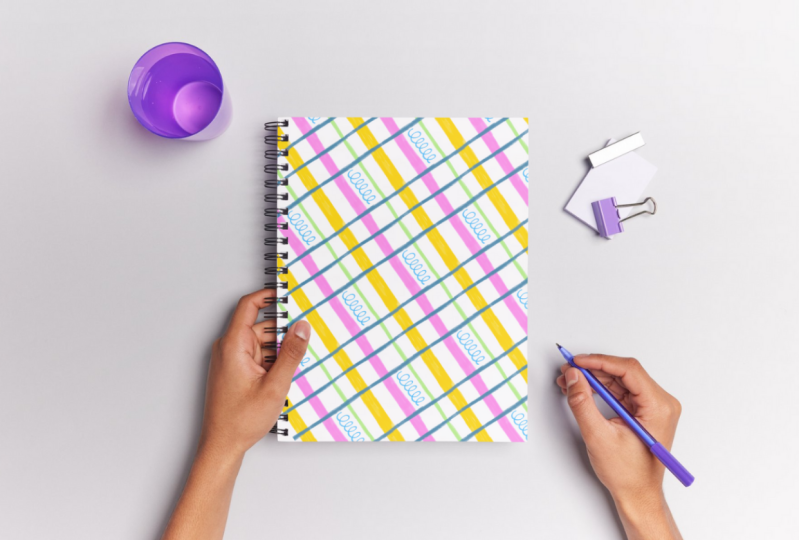
export your into a PNG or JPEG and you can apply them to all kinds of mockups to see
how they look like products. I hope you enjoy this.
3. Test Your Patterns: In this video, I want to
show you how to quickly test your pattern tiles and save the preview
right on your iPad. First, you want to take
a screenshot of this, and then go to your photos app, either Lum press the URL
or Lum press this QR code, which will take you to
the default browser. If you have the P created open, you want to put it right
next to your browser. I have all my motifs
compressed into one layer, and I'm just going to
drag and drop here, right on the browser, and you
can adjust the scale here. If you like what you're seeing, you can also download your
preview right on your iPad. Just tap on this button, and you should be able
to either download or print by hitting
this share button. Don't forget to
bookmark this page, so you can come back to it whenever you're ready
to test a new pattern.
 Esther Nariyoshi, Teaching Illustrator based in the US