Transcripts
1. Intro: Hello, World. I'm Evgeny Maximov, independent filmmaker, YouTube blogger, video editor, and this class will be about Adobe Premiere Prop, but it will be not usual, as any other courses, about video editing program. This course is fully about different tricks, different hints, different hidden features in Adobe Premiere Pro that could boost your workflow. Any professional video editing program has really big and unknown depths, a lot of different hidden features that no one knows, really no one knows, and no one implement these things. After watching this course and learning new stuff, you will edit much faster than it was before. I will speak about different customizations like your workspace, color labels, about different presets for your sequence, for your effects. I will show you hidden features. For example, editing Master clip, additional and unspoken expert settings and feature, for example, called "Production". I think this course is good for everyone because for example, me, I have eight years of experience using Adobe Premiere Pro, but I still learn something new. I find new features, really good and timesaving features, so I want to share this knowledge with you. So let's watch this course and learn some good, interesting stuff. Let's go.
2. Welcome To The Class: Welcome to the course, I hope you will like this course and find something new, something interesting that you don't know, using Adobe Premiere Pro. This course is divided into three parts. First one is about optimizing your sequence. Second one about optimizing your workspace. And third one, the biggest, about different features inside Adobe Premiere Pro. And you also need to know that this class, this is kind of a compilation of different small independent tutorials. You can start learning from any tutorial. This class don't have like a guideline, trackline. So we have this video and we need to edit it from. Start to end, no, this is a bunch of different videos, a bunch of different footage, and I work with it in a random way. Speaking about test footage, you can download it somewhere below. And this is a simple link to Google Drive and you just download a zip file from Google Drive and use it in Adobe Premiere Pro or any different editing program, if you want to. This test footage will help you to develop your skills. If you, for example, right now don't have your footage on your PC. Sometimes it happens. So use link down below, Google Drive, simple zip file. Download it and import in Adobe Premiere Pro. So let's learn something new, something interesting. And moving to our first section about optimizing your sequence. Let's go.
3. Automatic Scale, Set to Frame Size : Let's start our class, but firstly, we need to... "Hey Siri, turn on shooting scene". -All set. -Look at this beauty Right now we are ready to learn something new in Adobe Premiere Pro. First one is about scaling your video, photos and different video materials in your sequence. We have our sequence in Full HD and I have some photos and some 4K video and nice 4K video. Really nice. You can see resolution of this photo. So if you just drag and drop in our sequence, you can see that it's cropped. And cropped not very nice because really of scale of these particular photos doesn't comply with our sequence and we can change it. Open our "Effect control" window. If this window closed, You can just press "window" and find "effect controls" and click on it. And we can just adjust our scale, something like this. But again, it's not accurate. It's very long. And we can use only two buttons. And also I'll show you how to set it automatically. We have two functions called "scale to frame size" and "set to frame size". Right-click on our photo and you can see "scale to frame size" and "set to frame size". Click on it and you can see our job is done. If we press set to frame size. It do the same job, but you need to see that skill value changed. So this is the only difference. We can do the same for our 4K clip and you can see that it's much bigger. We again open Effect controls, press fifty and it's right now set to our frame size. Scale and set to frame size also applicable. But we will automize this feature, open our preferences, open our settings and moving to a Media. And you can see the media scaling and we will set the frame size. OK, drag and drop our footage, drag and drop our photos and you can see that it's already set to frame size. Highly recommend you to set to frame size and save a lot of times, throwing out this routine operation. Moving to the next tutorial.
4. Show Duplicate Clips in Sequence: Sometimes if you're editing big videos, you can make a mistake, just use already used clip. Using one tool in Premiere Pro you can detect this and for example, delete already used clip. In this sequence I add duplicate video and photo shots. And we can easily track it down because it's not so much clips in this sequence. But if you have bigger sequence, it will be a really big and time-consuming pain. So to prevent this, you can just click on this wrench. "Гаечный ключ" in Russian. Click on "Show duplicate frame markers". And you can see that right now our duplicate frames shows in the sequence with these different color lines. And you can see this clip, this clip is duplicate and so on. I don't know how it works, but it doesn't show to us different photos. So we have the same photos and it doesn't show as duplicates. I don't know how this works, but still for video, it works perfectly. Moving to our tutorial when we have a lot of different gaps between our clips and we need to just combine, move together all these clips. So let's go.
5. Ripple Delete, Close Gap: This tutorial is must-have for everyone using Adobe Premiere Pro because after editing your rough cut, just selecting your best shots, you have picture, something like this, a lot of different gaps. And you need to move these frames, move these clips together. We can use old fashioned way. Just click on this gap, delete, delete. And so it's to long. We have new and really good, Absolutely incredible feature called "Close Gap". So we have our sequence, a lot of different gaps. We open sequence and moving to a "Close gap". Click on it and that's all this is freaking magic. If you have a situation looking like this, you can use a simple "Ripple delete". For example, on my second video track is the best selected clips on the second one of these clips I want to delete. So we just select all of these clips. Right-Click on it and "Ripple Delete" and that's all. We have the same result. Our gaps deleted and we are ready to make some really good and fancy edit without any garbage in it. And yeah, that's all. Moving to a next video
6. Customise Color Labels: Tutorial is about color labels. Colors are really important in Adobe Premiere Pro because these colors identify different types of media in our project. So, for example, sequence - green, our video without audio is purple, our video with audio - blue photo pink and folder - yellow. And we can change this colors according to our tasks. And it's really handy when you have, again, a lot of footage, different structures, for example, A-Roll, B-Roll, different sounds, voiceovers, and you want to divide and understand using only a color So green, for example, this is VoiceOver. Pink - This is our sound effects. You can do this in our project window and also in our sequence. Main difference If we edit our color in sequence, for example, I want to make this second track line is best shot. Good shots, I choose rose color. Only change color for these clips if we will change our colors in Project Window for example, I just label teal for example. We can see that our colors changed. And plus if we import this footage in our sequence, you can see that also this color change. But again, if we just change for this clip, Caribbean, for example, it doesn't change in our project window. So keep this difference in mind. One small but useful feature is select label group. So Open label, click on Select Label Group and all our clips with same color selected. And we can do whatever we want. This select label group is really powerful. When you don't have this look, when you have just one line with one color, when you have something like this. Right now, it's really hard to select only pink ones and again. Right-Click -> Label Select labor group, that's all we can copy and paste in our another sequence, really powerful. And by the way, you can change these labels and change the color of this labels open again, preferences, moving to our labels. And you can see you have a lot of different colors. And you can, again, change the name. Change your color. You can build structure, for example, using three colors. First one is best colors, something like green, second one, yellow color, 50 50 shots. And the third one is red one. Bad footage, something like this. And use this structure really handy. I don't know how much times I say it really handy, really powerful, really timesaving and so on. So labels really good tools. Take it into account. Moving to a next tutorial.
7. Remove Unused Footage: This video, again, about optimizing everything in Adobe Premiere Pro, and right now it's time to clear our footage, unused footage, and we have a special feature called "Delete Unused". Something like this. So we have our sequence. This is a clean footage that I will use, completely, 100 percent. And I don't need to use other footage. It just slow down my machine. We can see this little blue icon of videotape, old fashioned video tape. It says that this video located in our sequence and we need to use it because we edit our sequence. So this is really important footage right now. And the other clips don't have this icon. So this is unused footage. We can delete this footage manually. But again, it takes a lot of time. Why we need to spend this time if we have one simple button, one simple feature? Moving to edit and you can see "Remove unused". So click on it and you can see that we have only footage that we are using in our sequence. Recommend to you to use. Because if you have, for example, a lot of different footage and you have a slow machine, you can unload it using this method. Moving to a next tutorial.
8. Customise and Save Workspace: This tutorial is about organising your workspace. I think that this is a really important thing to do because proper workspace can save a lot of your time and money and efforts and clicks moving this mouse, a lot of different things you can save using proper workspace. You can see that Premiere Pro has different installed workspace: learning, assembly, editing color and so on. And you can build your own layout, your own workspace. For example, I use editing as a sample because it contains all needed windows, but we need to just modify it a little bit. Firstly, I delete garbage windows, for example, media browser - close. Libraries - close. Info, Don't know who use it. Markers. History, 50/50, also delete audio clip mixer and metadata, if you, for example, close the needed window, Effects control, you open a window and looking for your needed window. Effect controls and that's all. Also, I like to add audio mixer. It has more power and more depth in compared to audio mixer clip, audio clip mixer. Because it's. Terrible. So audio track mixer, yes, we added. I don't want to lose this workspace, so I need to save it. So moving again to window - workspace and "save as a new workspace", and I call it "my work". OK, we can manage this workspaces - hide, for example, unneeded one. So I don't use graphics libraries. You can see this free blue lines - edit workspace. I want to set it at first place. Learning I want to hide. Graphics I want to hide. Libraries, YouTube editing. Assembly OK, effects and audio. So I want only this four workspaces. Clean, useful, powerful And other good stuff, so that's all for workspace. Highly recommend to you to make a proper workspace again. Don't forget about your time. It's really important.
9. Making Preset for Sequence: This tutorial is really simple about creating some presets for our purpose, because if you create a new sequence, you can see it Premiere Pro has a lot of different already installed presets, but we don't need to use it. We know that we shoot 1080p, 25 frames per second or we make an Instagram video. So we need the square format. We will create custom sequences for our purpose, for example. First one is 1080p, 25 frames per second. I will use a simple digital SLR 1080p twenty five frames per second. Go to settings and check that these settings comply with our purpose. So 25, 1080p, 16 by 9. Everything perfect. So we click on Save Preset and call it 1080p. 25FPS. Twenty five fps. Okay. And you can see that in sequence presets you have these custom preset. Click Okay. And we have our preset that complies with this footage. Let's make another preset for our one by one insta square format of video. Again, we will use as a sample 1080p 25fps , go to settings. I need to set frame size one hundred by one hundred and for example, thirty frames per second because. So if you're shooting using mobile phones, it shoots as always, 30 or 60 frames per second. So again, save preset and call it "insta 1x1". Click OK. That's all we have to custom sequence that works especially for us. Only for us. And it's really handy if you have a lot of different routine editing operations, you always edit insta stories insta posts or a different YouTube videos or using the same camera all over the time. So really handy. Again, I highly recommend you. And moving to the next tutorial. How many times I said this? I don't remember. But I repeat this all the time. Random Russian words... Next.
10. Making Preset for Effects: This tutorial is about making your own effect preset. For your video, for your purpose. Simple example is this class. 20+ videos shooting in one location using one like using one camera with one specific settings, one screen, everything is the same. It's much easier and time saving for you if you're using one preset for mic, in this location, something like noise reduction, Audio Gain and so on. Color correction for this video, positioning of. screen. You can combine all these routine operations in one, two, three effects preset. So, for example, we have our shot of America, shot from a big tanker moving to unloading. It is another story. For example, I want to add warp stabilizer for this video. Also, I want to add a little color correction. So open a Lumetri making something like this really rough, really bad color correction, bad everything. But we need to show this result. And I want to add Solarize, really strange effect that no one uses. But this is for education purposes, something like this. I want to create a mask. So it's a really complicated work for making over and over on every clip. Something like this, and we have a combination of these 3 effects, if you're using the same sequence, it's really easy, just selected copy and paste. Really easy, but what if we created a new project and we don't have this footage, we deleted the previous project with this effect and we just lose it. That's why we need to create our preset. So select every effect. Right Click and save preset. And you can say this Creative look, OK. If you open your presets folder, you can see this creative look that I created right now and you can just drag and drop. And this combination of these three effects will apply on a new video and this creative preset will stay inside Premiere Pro even if you delete this project. You also can just import or export any kind of presets. For example, I want to export this, OK, and send it to my friend. And I just sent it on the desktop. I set "best preset of the world." And click save. We have our file. To install presets, right click - import presets and choose the best present of the world. That's all.
11. Customise Hotkeys, Shortcuts: So this video about hotkeys and I don't know why I'm speaking like this. Hotkeys is really important. Again, as always in all this class is really important. I can guarantee you that using your keyboard instead of using your trackpad or mouse will save a lot of your time. I hate Razor tool. I think this is really bad and not comfortable tool for making your edits because you need for example, you are looking through all of your footage. You need to stop this clip. You like this place, make an edit. My next stop it. Something like this because you can't make an accurate cut fast and at this moment. So I use instead of Razor just the hotkey called "add edit". I set it on my C and it's much easier to use. You just looking through all of your footage and don't use your mouse for making your cut. So how to install, how to set these hotkeys. Open Premiere Pro browser and moving to keyboard shortcuts. You can see a lot of different shortcuts and you don't need to use every shortcut, but you need to use the most important features that you can move to a keyboard. Speaking about replacement of Razor Tool, I just looking for "Add Edit" and you can see. Add Edit - C Add Edit to All tracks - Shift+C. To set a new shortcut you press on your needed command and around this empty place below Shortcut name and click on it and you have this window and for example, command option B This is my new command, my new shortcut for add edit and that's all click OK. And you save this shortcut. So to delete. That's all. I set additional hotkeys for nesting a clip (N), audio gain (G) speed of the clip (S) and yeah, that's all. I recommend to you to just spend, I don't know, half an hour, analyze your actions, analyze your most uses command that you're using with your hands and find alternative on your keyboard or set a new one that works for you. Right now. I am ready for next tutorial and I hope you too.
12. Hide Warp Stabilizer Banner from Video: This is a mind blowing feature, really cool. You can hide this warning banner in warp stabilizer. because, for example, you export your video and this effect didn't apply and you can see it in your final exported video, this nice banner that ruins all your work. And you need to again apply this effect again and export again. A lot of time, a lot of effort you just wasted because this is Premiere Pro. We have our clip to stabilize looking for warp stabilizer and apply this effect. And you can see this really nice banner "Analizing in the background", open effects control window moving to our effects warp stabilizer and moving to submenu called Advanced. Open it and moving to the end. And you can see Hide Warning Banner. Tick it on so you can see our analysts in progress. And we didn't see this banner. You can move further and, for example, make a preset with this hiding warning banner. You can use this as the default effect for your warp stabilisation. Right-Click on our effect and safe preset and you can call it, for example, "warp without banner", something like this. Click OK, and you can see in Presets folder our preset. And for example, we have our second clip without stabilization. Using this effect. One thing to note, I don't know how this Adobe Premiere Pro works using preset warp stabilizer. It doesn't start to analyze this clip after applying this effect. I don't know how this works, but you need to click on Analise button manually every time using preset. I don't know. But the approach has really strange logic, logic, logic, logic, sometimes. Analyzation in progress. And we didn't see our really nice looking banner. You need to know that this hiding doesn't work for really critical errors. For example, if you change the speed of your clip, you can see that you have this banner. You can't hide every warnings in warp stabiliser. But it's a really nice tool and no one knows about it. Moving to the next one. Next Tutorial.
13. Adjustment Layer for Color Correction: In this tutorial, I will show you how to apply your color corrections for all of your clips in your sequence. You have a lot of cool, nice looking shots and you want to color correct? This clips. You have long way color correct? Every clip individually using, for example, the same lots, same effects. And you can, for example, aided or your one clip and copy this effect, do another one. It's not so fast. You can use adjustment layer. It's really easy to use. And firstly, we need to create it. You have different ways to create it fill first one is click on new item and click Adjustment Layer or right-click in your project window in the empty space. New item, Adjustment Layer. And third way, click on File New and adjustment layer. But I think this way is very complicated. Adjustment layer, we will use resolution of our sequence and click, Okay, and you have this new item and you just drag and drop above our clips that we want to color, correct? Extended like this to cover all of your clips. And moving to our limit, recover, open our color workspace and click Adjustment Layer and to make your new car corrections, for example, I want to make staffing click sees Fe, that film sharpen vibrance. So really strange calculations. But again, this is just an example. And you can see is that all our glyphs has these effects, have this color correction. And this is really handy to use and you can apply different visual effects that will apply on every clip that below this adjustment layer, really handy to use, really like to use. By the way, you can apply additional color correction for each clip if you need to do this, for example, I don't like houses, so image looks I want to change my exposure contrast. You can see that our adjustment layer Haskalah correction, our Lumetri Color and these individual clip also have this Lumetri color. But others doesn't have. Dogs have, dogs have, but this is one way to apply different visual effects to your clips. We have another one, and I will speak about it in the next tutorial.
14. Editing Master Clip: We have our standard A-roll - talking head. You can see almost eight minutes of duration and you can again apply this adjustment layer, extend it to all of this duration. But you can save a lot of space, for example, for additional video clips, additional text layers to not creating a mess in your sequence. You can edit your master clip. This is really hidden masterpiece, hidden diamond. All of these small pieces is part of the original file. Our master clip called MVI_9515.mp4 To change this Master clip, we click on a random piece, for example. I want to change this because I like my skin. I like how my face looks. And you can color correct this part. Moving to our color correction again, apply everything that we want to. Something like this. Really, really strange one. We have our color correction in this specific clip. You can see this copy this effect and you can see Master, and this file click on it and you can see that nothing in it. And past this clip and you can see that our color corrections applies on every clip from this master file. But don't forget the turn of your first color corrections in your small piece, because you can see how strange it looks. You can see this small red line. It says to us that our master clip has some effects, some changes, and you can apply a different visual effects, only visual effects. This is again Adobe Premiere Pro works strange. For example, I want to add Mosaic, click on this clip. Open, This is important. Open master file and add some Mosaic. And again, you can see that our image changed in all of the clips. This is really handy, really useful for this big talking heads. For example, you're shooting 3 camera interview and you have a problem. One camera has different look. Some issues with color balance, color temperature. If you're using Premiere Pro, you'll probably use multi camera editing using nest clip, nest sequence. And if you will apply adjustment layer or copy your color corrections for every your video from this angle, I don't know, you will spend a lot of time just copy paste, copy paste, copy paste, so much time. So you can just adjust your master clip in this bad looking camera and that's all. You can save a lot of time. Moving to the next one, next tutorial. Woh-oh!
15. Global Effect Muting: Moving to next two tutorials. They are about quality of playback, render quality of playback and optimizing this process. First one, first tutorial is about global turning off, global muting your visual effects. We still have this really nice and not working picture. We have a really bad playback. Don't know. One, two frames per second. We have two solutions. First one is a changing playback resolution. From Full we set like one fourth and it's help, but on my machine. But if your PC's much slower and this solution didn't help, you can use global effects mute. We need to wait. I don't know, maybe one to three minutes because. It's really hard to. Educate someone. With this at background, no, foreground, It's not. (in Russian) What do you want?
Continue our education, looking on our program window and click on this big plus called "button editor" and you can see this, a lot of different actions, but we need global FX mute. We drag and drop on our... we can say this is our hotkeys, quick actions and we click, OK, and if you click on this effect, our effects gone, we just turned it off. So if we open our effect's again, this is my Master clip. We can see that our effecs turn on, but not for our playback, and you can see in full quality. Works really nice. When I had my old PC I always use this button is really helpful, really handy and moving to the next solution. Next tutorial about pre render your video clip in your sequence. (In Russian) Are you tired? Are you tired from sleeping?
16. Render Video Clips in Sequence: Maybe you have a question, I want to see my final result, final look of the video, but it's lagging without exporting it and we have solutions. For example, again, we have our B-rool sequence. It's like we have a feature called Render. It's not export render. It's render our sequence, part of our sequence. If we just press Enter, we have this small window, rendering window. This feature renders all your clips marked with this red line. For example, your video really easy to handle, really easy to encoder. You can see this yellow line if you're using a lot of different effects or really high quality and hard to handle footage. For example, drone footage from DJI, it uses really strange and bad codec that works really strange. And you still have lags, even if you are using really powerful PC. This render feature creates temporary files for this specific effects. So if you are rendering your video, something change in your effects, you need to render it again. It's temporary cache files and you need to check your freespace on your disk because if you render a lot of footage, you probably need more disk space for this renders. And you can see Premiere Pro spent almost five minutes, render 50 percent of the sequence. Forty five seconds. In some cases, it's much easier and faster to export your final video in low quality, in low resolution and see your final result. But sometimes it's more useful just render in Premiere Pro without exporting your final video. And you can see the difference. This Green Line says that this clip fully rendered. It's ready to looking through over and over without any lagging. So I don't want to spend another five minutes to render other parts. So we can see, if we hit cancel you can see that we still have our results and you can see. Playback doesn't work, fast playbook doesn't work, but in this rendered clips it works really nice and if we open in full mode. You can see what's really nice, even at higher speed of playback three times works. Cool, really nice clips. I like how this look, this is bad footage.
(In Russian) -What are you doing!?
Our green clips works perfect, even at high playback speed. But if we... Hit play on our red clips, it doesn't work at all. I recommend you to use this feature for small parts of your video, 10, 20, 30 seconds. One minute. You can just make in and out points. For example, something like this. Hit I - mark in and O -mark out and you open your sequence and render effects in to out. That's it all. And you can see it renders these small parts that you selected. Render finished. And you can see inside this red clip, you can just render this small part of your video, but it sometimes works strange. You can do this using mark in, marked out and render in and out point. That's all. Moving to next tutorial.
17. Best Way to Insert Clips in Final Sequence: This is a quick video about how to import your footage inside your sequence in the middle of your already made and already edited clips, for example, I have this really nice looking clip and I want to insert it in my edit in the middle of my sequence because it's look really nice and I want to show it. I forget about it. You have infinite amount of ways to solve this problem. Some of them are really boring or stupid. Don't need to use it at all. For example, for example, stupid example, you want to place this specific clip in the middle of your already made sequence. One way you can cut your second part, move it something like this, move your new video and move this back. Four, five actions, a lot of actions. Second way is selecting these clips, cut paste, moving something like this. Ripple delete one, two, OK, five actions. We can use track select forward tool. Press A, moving all these clips, moving this clip, something like this. Again, Ripple delete. Four actions, a lot of actions, but we will use really simple solution. Drag our new file, hold Command. And you can see these arrows, white arrows looking forward in your sequence and you just. That's all. You move your part that you want to move. You don't want to delete and insert your file inside these clips and it's really easy to use. My idea is about these arrows. If you see these arrows. So you have this really nice moving, you combine four, five actions in one holding button. It's really easy to use. You have this adjustment layer. You don't want to move this adjustment layer. You just lock this layer and making the same action. And that's OK, and you can see is that locked track don't move. Moving to next tutorial Wooow!
18. Export Frame: Sometimes you need to capture a frame from your video, just a simple photo, for example, to make a teaser. Drop it in social media. So look at this really nice, inspiring video that I am making right now. So here are only one frame you can use really strange and stupid methods. For example, capturing your screen, just something like this and OK, but if you just missed you have another interface parts of interface that you don't need. You need a clear frame from your video. You need to use a feature called Export Frame. It's again located in your Button Editor. If you don't have this camera icon. Moving this icon on your button layout, click on this icon and you have a small window. You can name your frame like America and choose a format: jpeg, png, Tiff, what you need to use. I would like to use PNG. You can select the path of your frame. I want to just drop it on my desktop. And also you can import this frame into your project if you need this. I don't need this. Click OK. you can see we have our screenshot, our frame, nice looking frame and you need to know that you will export the frame according to your sequence. So my sequence in full HD. Get info, again, full HD. So if you need 4K clip, screenshot use 4K sequence and you can use this screenshot dropping in your Adobe Photoshop and making thumbnail for your YouTube videos if you need to. So use it. And next tutorial, watch it.
19. Extended Markers: If you edit the video, for example, the documentary using different chapters, for example, chapter one - duration around five minutes. Chapter two, chapter three and so on, you have a mess in your sequence because you can imagine. You need to identify This is Chapter one. This is Chapter two, this chapter three. And you can use, for example, label colors, for example. This is Chapter one. I will paint it in the forest color. Yes. And you can see this is chapter one. This is Chapter two. Easy to go. But but we have a problem. If we already use these color labels, it's just busy, for example, showing different cameras, different angles. Drone shot from land shot, B roll from A roll. So you have, you already have the system already installed and you can't change your color labels and you have marker feature. To add simple marker You can press M or you can add marker on your button layout. Then click again and we call it, for example, chapter one and choosing red color. I like red color. We have a problem. This marker just showing to us only one frame. What to do? Hold option, I don't know, on windows because I didn't use it on Windows. This feature. And you just drag and drop, extend it on the duration that we need to show. You can see this marker and its description. So Chapter one. Understood. Again. Something like this. Call it chapter two. Like this color, and it's all. It's really easy to navigate using these extended I don't know how to say extended markers, so use it to divide your work, divided your chapters, blocks, parts of your video. Really easy to handle if your color labels already busy... is already... are. No matter! Moving to the next video. Next tutorial.
20. Loop Playback: This tutorial is about loop playback, what if you need to just looking through over and over, repeating one part of your sequence you can use loop playback. So we have, for example, this b-roll sequence. Again, we need to mark in and out. You already knew this tool I showed in previous lessons. For example, I want to loop this part of my sequence. We just hit in, out and open, again our button editor and find an action called loop playback. Again, moving on our button layout, button layout. Good place for good tools. Click on this loop playback hit play and you can see that our playback repeats and repeats around these selected area, selected clip, really easy, maybe handy. I don't use it, so maybe it will be useful for you.
Moving to a next tutorial.
21. Audio Gain and Why It's Better Than Volume: This tutorial is about adjusting your volume of your audio clip. In previous version of Premiere Pro you have this volume effect, and if you want to adjust your level, you just can adjust it around 6 decibel. It was a high limit. In the next version and they made 15 decibels, but you can't move further. The main disadvantage of this approach is that you can't see any difference in your waveform, in your sequence. Made any adjustment of your volume in this clip or not. You just need to, again, looking in effect control window. It's not useful. I recommend to you to use audio gain instead of this level adjustment. So we right click on our needed footage and finding audio gain and you can see adjust gain by. So for example, I want to adjust it by 15 decibels and you can see changes in your waveform and it's much easier to control if your waveform is peaking or how it's combined with other audio tracks. So is it louder or quieter? So I highly recommend to use audio gain. It's much easier to use. I set audio gain on my hotkey, so just click on my video "G" - Gain Ready to go. Easy to use. Highly recommend to you.
22. Dive Deeper into Export Settings: Tutorial is about advanced export settings, because if you watch videos about how to manage your export settings in Adobe Premiere Pro, you will almost see and hear almost the same information about video, audio, about presets, about exporting in maximum render quality. And that's all. But I want to speak about Effect's, because you have a lot of small but powerful tools, features that can help you with your export. And you don't need to do the same work inside your sequence. You can do the same while you're exporting. First effect is Lumetri Looks. You can apply your LUT. One problem, that you can't manage the intensity of this LUT. So if you have really, really strong LUTs, you can't change it at all. It's much faster to apply this LUT, but you can't manage intensity. This is a really big downside. Next one is SDR Conform. For example, if you are shooting on your iPhone using featured HDR turned on, you have a problem because your video doesn't comply with standard SDR. SDR video, SDR monitors. Using HDR You have a wider range of colors and whites and blacks, for example, in SDR, it will be from zero to 100 levels. Using HDR, you will have minus 10, plus 120, for example. You have much more whites and much more blacks. You need to use this high. dynamic information and compress it in SDR video so you can use it for this. Next one is image overlay I think is really important when you have commercial work, commercial client and you can, for example, add your logo, for example, something like this. This is my logo, really nice logo, adjusting size, adjusting capacity, something like this. You can apply watermarks or for example, instead of this logo. Text something like "didn't paid". This is a guarantee that your client couldn't steal your video from you because you didn't have any protective measures. So I have the situation when I just drop it, trust the guy and he stole my video and just done. You can make something like this. Like this is a logo from TV Show. So really nice, really handy and really useful and much easier to apply instead of making the same actions in your sequence. And the same one is about name overlay. So you can, for example, write it down like this is a version one and send it to a client. And he can see that this video is version one because I don't know how this works, but sometimes client can't read the name of the video, proper name of the video so they can see on the first two words, but nothing at the end. And again, you have flexibility to change this name and make something like this version one man. This is version one, not version two. Please stop it. Next one also is really useful when you have commercial work. Just placing time code overlay. Client can write down the list with needed edit. For example, five seconds. Have a problem with sound. Nine seconds need to add text, logo, banner, anything. Image name and time code overlays is really helpful in commercial work. So I recommend to you. Next one is time tuner and I don't know how this works because it's really strange. You have your current duration, for example. Twenty nine seconds and you can change this duration of your final video from minus 10 percent to plus 10 percent. You don't have this flexibility when you have, for example, five minutes presentation and you need to extend it to a six minute presentation. Instead of adding some footage, speed ramping and adjusting speed of your video, you can do nothing using this Time Tuner. I can't see scenarios of using time tuner because it's completely useless. Next one is video limiter and I think this is more television like story when you need to adjust your video to a specific color balance of, for example, streaming line. Maybe you have special, for example, stadium light panels with some screens and you need to adjust the clip level. I don't know, really don't know and don't know how to use it. You don't need to use it if you are just uploading your videos on YouTube or other social network. And the last one is loudness normalization. I think this is the most important tool for your final export video. And I highly recommend to you to just open Google Loudness Normalisation. Click OK, search and read more about it, because if you have complex scene with different noises, different audio, sound effects, music, voice overs, you need to have a proper audio picture. I can say that. You can see that you have a lot of different loudness standards, tolerance, true peak levels, a lot of stuff. I highly recommend to you to dive deeper in this parameter, these settings, because I said before in my YouTube videos, in other classes, that camera matters for your video. But firstly, you need to have decent audio quality if you have bad audio with different sounds, different noises, a lot of different stuff, bad stuff, your video will suck. So I hope you learn something new in these export settings. Really simple, boring and not Interesting window.
23. How to Freeze Frame - Frame Hold: This video about freezing one single frame. You can see this right now why you need to use this. For example, when I am shooting tutorials, I can just quickly show something. My voice is much slower and I have two seconds of screen recording and five seconds of my voiceover. So we need to just slow this frame, freeze frame to show something specific to our viewer. We have our video footage and I want to freeze something like this. So. Right-click on our video and find "add frame hold", click on it and you can see that Premiere Pro add edit and that's all our video is still. This is still a video, but you can manage it like a simple photo, simple image. For example, you can extend duration of your clip when you see that this is the end of your video, but you can use it. Really easy. If you want to delete frame hold from this part of video, you just find this border between your videos and click delete and that's all. Your video is still a video. Recommend to use if you are, for example, teaching some stuff and you have a lot of different actions, but you need to just still image with specific actions on the screen. So moving to the next tutorial. it's really interesting and almost no one knows about this feature called Productions. Let's go!
24. Production Feature: This is really interesting tutorial because we'll speak about productions, this is new feature in Adobe Premiere Pro, but it's not new in the whole editing industry because Final Cut Pro has the same feature. I don't know, maybe last 10 years. And this is the one of the main features for organizing your projects, your files inside your program. Adobe Premiere Pro - innovations beyond any limits! I don't know.
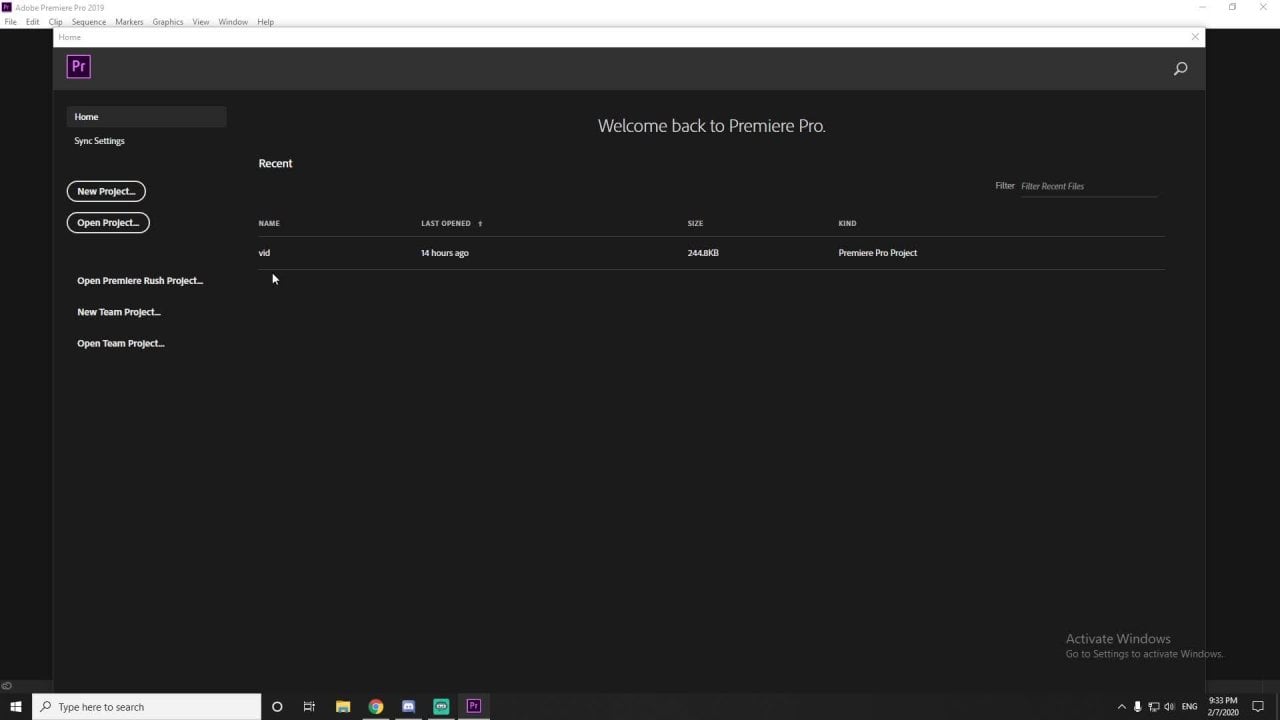
What is productions? Productions you can use for consolidating your different projects in one place. So, for example, you're working in one project and you need a file or different text layers from other previous projects that are located somewhere. And you need to find this, open this project, second project and move anything to your first project and successfully close second one. Productions make this works much easier. And I think it's really powerful when you have a lot of similar videos that you need to edit. For example, this class, you have 20 plus videos in one look, the same look, same location, same settings. And to unload your system, to not load all 20 videos, you just load one with the second video, third video and working independently using all power for this. specific video. So let's create a new production! Homescreen of Premiere Pro. Open file and open production and choose browse, because we don't have a production yet. Moving to projects where my all projects located. So new folder. I called it course production, and I recommend to you to create a new folder inside this production called production, because I don't know how this works in Adobe Premiere Pro. This subfolder for your production file and the different projects that you will generate inside this production. On your previous layer of folder Premiere Pro will generate a lot of different subfolder: cache folders, autosave folders, and I don't know how this works, why it separates from different folders. So when you can just collect it in one place, don't know how this works, but you need to create additional sublevel for these productions. And we choose and we can see that this is not a production. We need to convert this folder into production, click convert and we have our window and that's all. We created our production. Right now you can create new project inside this production or import project to this production, for example, that you already made. Let's make a new project called it. Test one. And we have our standard, premiere window. And you can see this production window. I will hided something around here. I imported my test media in this project and I can work as usual. In our production window you can see that around our test one we have this symbol - white page with green pencil. Green pen. It says that this project opened. We can close this project as usual or close it using production again. Right. Click - Close Project - Save. You can see only as this white border it says it project close. Let's open additional project outside of this production. If we just double click on our project file, you can see this warning and we open our project and you can see in production it doesn't involve this project because it's outside of this production. It's a little complicated. I know all this production is a little complicated, but we right now closing this project, I want to import my outside project in this production. So we just dragging and drop in our production. We have our warning that we need to copy our project, click on it. If you open our production folder, you can see again our auto-saves, preview files. And in our production folder you can see our project files. So our test and our Premiere Pro tutorials Open Premiere Pro tutorials. Just double click on it. We are ready to go, and for example, I want to bring footage from my test one project. Again, double click and you can see different folders and I just copy paste and it's all. I don't need right now Test one anymore. I just Right Click and close this project. I recommend to you to spend a little time figuring out how this production works because it's simple, but at the same time it's complicated. In the Final Cut is much more easier and much more understandable. Understandable, maybe. That's all about Production from you for now and if you have problems, just re-watch this tutorial because yes, production is really strange and... Adobe premiere Pro - Logic works not for you!
25. Conclusions: You completed this course, and I hope you learn something new. I kindly ask you to leave a review, leave a comment or say anything about this course, is it bad? Is it good? Is it perfect? Did you learn something new? Anything Right now, this is version one of this course. So I think probably I will make more videos, more tutorials for this specific course. So I need your feedback. If you have an idea or a question or a problem which you want to solve. Leave a comment. I will reply on it and maybe make more videos, more tutorials in this course. But right now I am speaking. Thank you. Thank you for watching. Don't forget that I have a YouTube channel "Evgeny Maximov". That me if you still don't know about it and see you in the next video. Thank you for watching. Again, Thanks!
Edit your videos fast and efficient and stay creative. So see you.
 Evgeny Maximov, YouTuber + Filmmaker