Transcripts
1. Introduction: You ever opened Procreate, looked at all those brushes, and thought, Which 1:00 A.M. I actually supposed to use? Maybe you've downloaded tons
of brushes over the years, but you keep reaching for
the same two or three. Or maybe you try a new brush, make a little
scribble, decide you don't like it, and
never see it again. Hi, I'm Lisa Bardot. I'm an Illustrator,
digital art educator, and the brush maker
behind Bardot Brush. I've been using Procreate for over a decade and making
brushes for about as long. Made hundreds if not thousands
of brushes over the years, and I've spent a lot of time testing them and figuring out what makes one brush better suited for a
job than another. And one thing I've learned
over the years is that there really isn't one perfect
procreate brush. The perfect brush
really depends on what you need it to do and how you want your artwork
to look and feel. In this class, we'll explore different types of
procreate brushes, and more importantly, what makes them useful
for different jobs. We'll look at things
like texture, pressure response, opacity. Edge quality, blending,
tilt, size, and more. So you can start making
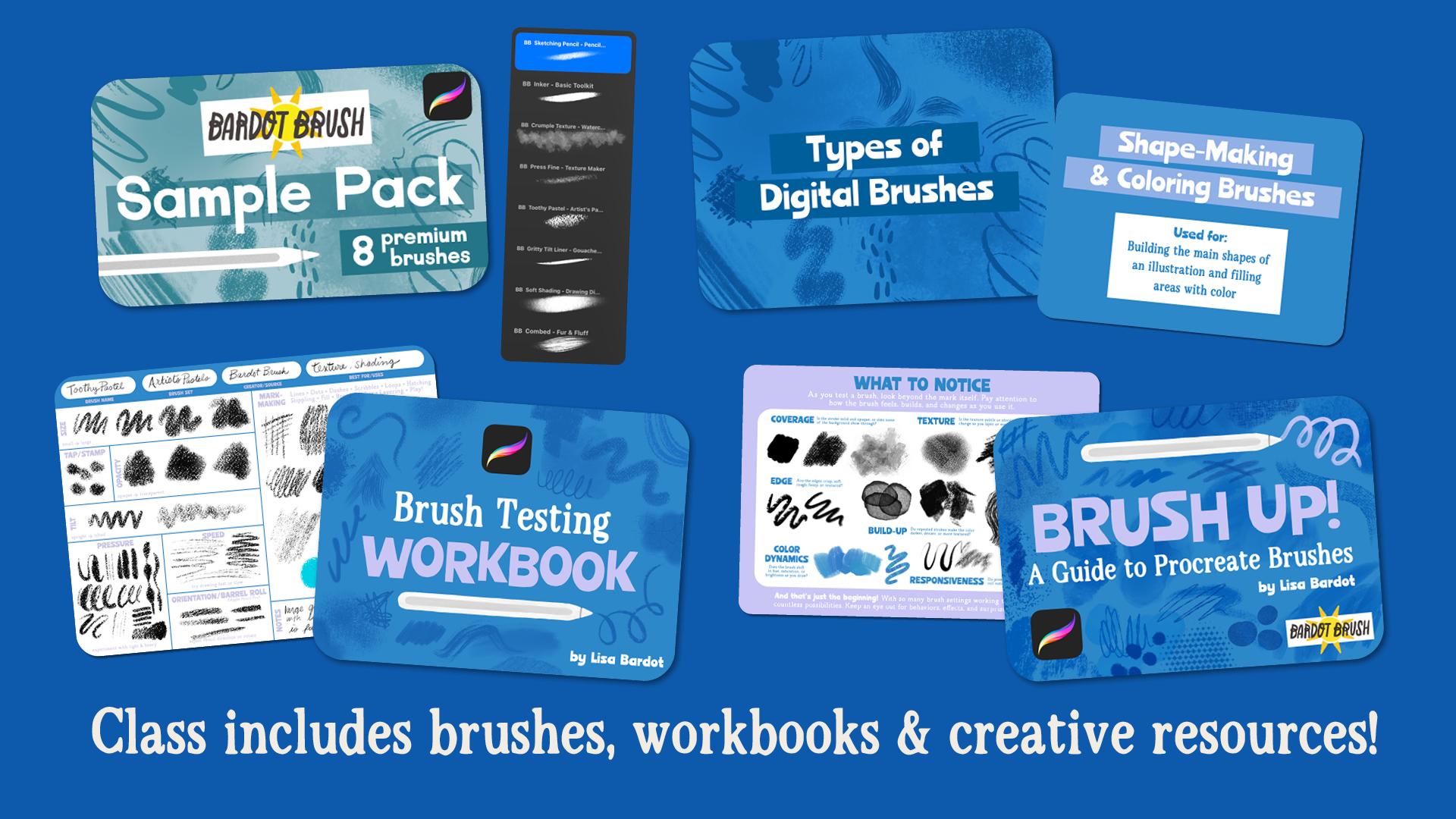
more intentional choices about the brushes you choose. I've also put together
some resources so that you can follow
right along with me, including a Vardo sample pack of some of my favorite
brushes I made, a procreate file for
experimenting with different brush types,
a brush testing work. And my eBook, Brush up a
guide to Procreate brushes. Then we'll take everything we've learned and put it into practice by drawing a whimsical snail
illustration together. We'll start with the sketch,
build our shapes and colors, add texture and shading, and finish everything off with linework and
little details. As we draw together,
I'll talk you through not just which
brush I'm choosing, but why, why one brush
works better for shapes, another for texture, and
another for fine details. You're welcome to follow
my choices exactly, but I also hope
you'll experiment. Try a different brush, play with color,
make it your own. The end of this class, I
don't want you to walk away with a list of
my favorite brushes. I want you to feel
more confident opening up your brush library, trying something unfamiliar,
noticing how it behaves, and deciding whether it's the right tool for the
art you want to make. So grab your iPad,
your Apple Pencil, and let's get brushy.
I'll see you in class.
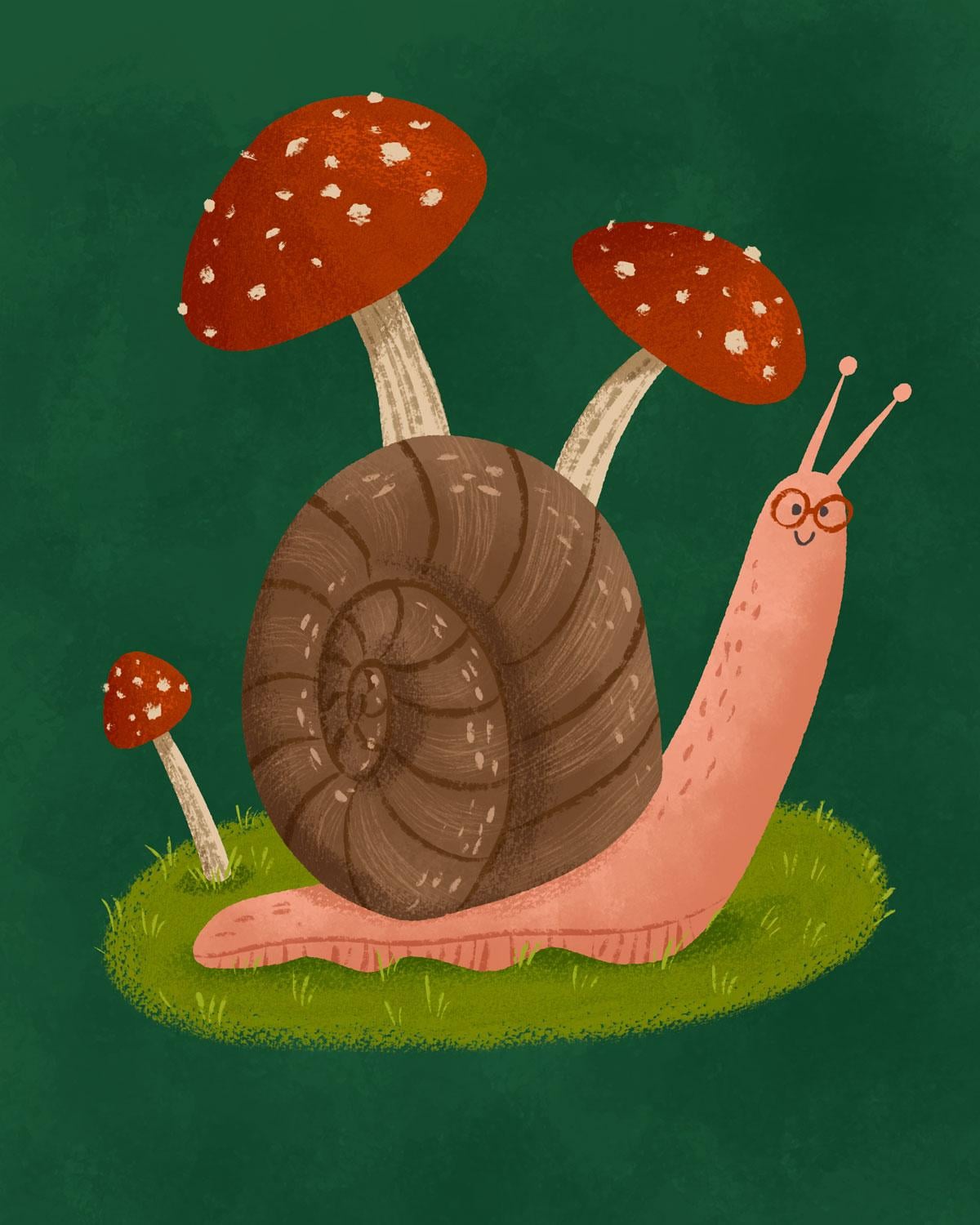
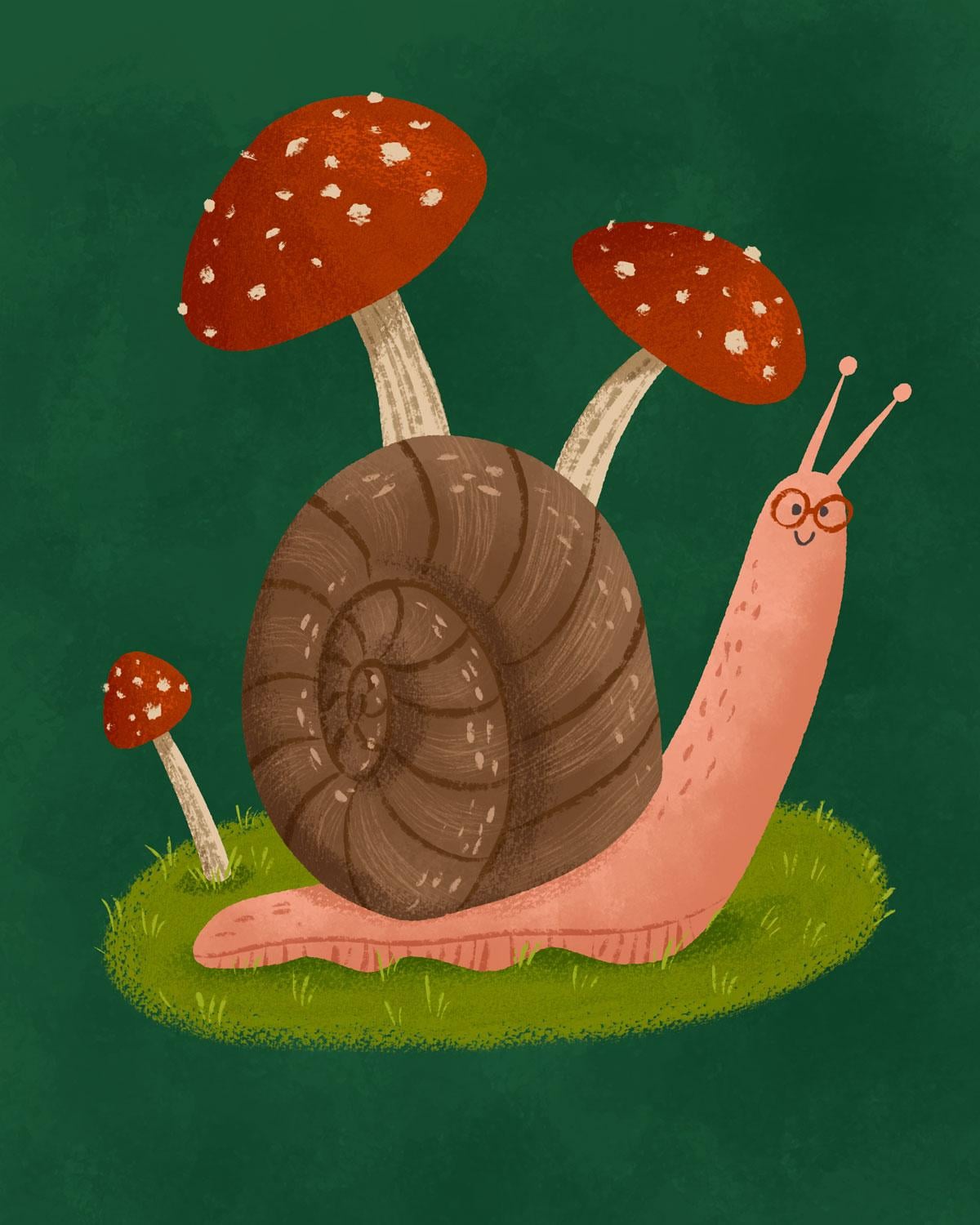
2. Class Project: For our class project,
we're going to create this whimsical little snail and mushroom
illustration together. We'll work through
the illustration in stages, starting with a sketch, then building our main
shapes and colors, adding texture and shading, and finishing everything off with linework and
little details. This project is really
a chance to put everything we're learning
about brushes into practice. As we draw, I'll talk you
through why I'm choosing a particular brush
for each part of the illustration and what
qualities I'm looking for. You can follow along using the included Bardot
Brush sample pack, but I also welcome you to experiment with brushes
from your own library. In fact, I encourage it. Try different texture,
swap out a brush, change the colors, and add
your own little details. Your goal isn't to make a snail that looks exactly like mine. It's to practice thinking
about what you want a brush should do and choosing one that
helps you get there. When you're finished, be
sure to share your project. On the Project and
resources tab of the Skillshare class page,
click Create Project. There, you can upload your
finished illustration and write about any brush
discoveries that you made, tips you found interesting, or anything else you
learned along the way. I would love to see
your snail illustration and all the brush choices
you made while creating it. In the next video, we'll
talk about the tools you'll need and the
class resources I've created for you to help
you learn more about Procreate brushes. See
you in the next video.
3. Tools & Class Resources: Before we begin our class, let's get you set up with all the tools and class resources that
you're going to need. So first of all,
you're going to need an iPad with
Procreate installed. I recommend Procreate
version 5.4 or later, so you have all the same brushes and features that I have. Just so you know, at
the time of filming, I am running version 5.4 0.14. So if you are watching in the future and things look a little bit different,
that's why. I also highly recommend
having an Apple Pencil. This is going to be
the best possible tool to draw with on your iPad. So I highly recommend
an Apple Pencil, make sure it's one
that's compatible with your particular iPad model. And then I have some
downloadable resources for you. On the projects and resource tab of the Skillshare class page, you'll find a link to download the resources for this
class as a ZIP file. Once you download the ZIP file, you'll find it in your files
app in the Downloads folder. And here's the zip, so I'm
going to tap it to open it up. And then let's open up the
folder and take a peek. Let's start by opening the
Bardot Brush sample pack. Inside here, you're going
to find the brush set, and we're going to be using
these brushes in the class, especially to do
our illustration, so make sure these
are installed. All you should have
to do to install them is to just tap on the file, and it will import
into Procreate into whatever brush library
you're currently in. There's the sample
pack right there, and it has all the
different brushes. We'll talk a little bit
more about the brushes in the sample pack as we
get into the lesson, but I've included various
brushes from some of my favorite Bardot Brush
sets for you to try out, and we'll be using them in the illustration that we're
going to do in the class. And I've tried to include
at least one from most of the different categories
that we're going to be covering so you can get a
chance to get what they feel. There's also a little user
guide to go with the brushes, which goes into detail
about what they do, what brush sets they come from, and you can definitely take
a peek through that as well. Over here, we have
a Procreate file called Types of
Procreate brushes. We'll tap that, and
it should open into Procreate, and here
it is right here. We'll be using this during
our lesson to kind of swatch out some
different brushes of the different
types of brushes. I'm giving you a copy
of my brush up eBook, a guide to Procreate brushes, and in it, we talk about
all kinds of things, just really deep
diving into brushes, including how brushes work. How they respond to your input, ways to test to
procreate brushes, different categories of
brushes and types of brushes, which we'll be talking a
lot about in this class, and library organization
and so much more. So definitely give
that a look through if you want to deep dive and
learn more about brushes. And then finally, is the
brush testing workbook. This is another Procreate file. We're going to talk
a little bit about testing out brushes and
trying to figure out, you know, what uses
they might be good for, what categories they
might fall into. So we'll talk about this a little bit later
on in the course. So once you have your brushes downloaded and installed and you have your Procreate files in Procreate, you'll
be ready to go.
4. What Makes a Brush "Perfect"?: So let's just start
off by saying, I know the name of this class is picking the perfect
Procreate brush. But really, there is
no one perfect brush. A brush can be perfect
for a particular job, a style, or just
perfect for the moment. So there's always some
questions I ask myself when I'm trying to decide
what brush to use. First, what am I trying to do? Am I sketching? Am I trying
to draw a solid shape? Am I coloring in by hand? Am I trying to shade or add
texture or blend color? Am I trying to draw tiny
details or add special effects? All those questions matter when you're trying
to select a brush. Next, I ask myself,
What do I want my art to look and feel like? So do I want artwork that feels clean or rough and textured? Is it trying to be
soft or painterly? Is it graphic, gritty, handmade, smooth or expressive? So I'm trying to think
about the aesthetic of what I want my art to look like because
that will deeply influence my brush choices. And finally, what behaviors
do I need from the brush? As a brushmr, there's always
moments when I'm creating art and I just need a brush
to do a particular thing. And because of my
experience doing brushes, I can go into Brush studio
and make it do exactly that, and it's really gratifying. So it's important to understand the types of behaviors
that brushes can have, so you know what to look for when you're choosing a brush. This can be things
like the brushes, opacity or translucency. It's how it responds
to pressure. You can program a lot of
things into a brush to respond to how heavy you
press with the Apple Pencil. You know, the edge quality
of the brush strokes. Are they textured?
Are they smooth? How does it respond to tilt? Does it have the
barrel roll feature if you have an Apple Pencil P, which is a really
awesome feature. How does it work at big
sizes or at small sizes? Does it blend and
move colors around? Are there color dynamics in the brush where it changes
color as you work with it? Or does it have any
fun special effects? Well, talk about a
lot of these things in the next lessons. There's one important thing
I wanted to point out, and that's you don't
want to choose a brush because of what
you're trying to make. Like, for example, if you're
trying to draw trees, and you might want to know, is there a good brush
for drawing trees? It's not as simple as that. It's more about, like, what
style of trees am I drawing? Am I trying to draw, like, bold and graphic stylized trees or something more realistic
with lots of detail. Or just like really
textured trees. Like, all of those questions would lead to a different brush. So keep in mind
the aesthetic and the style of what you're trying to go for in your art versus, like, is this a good brush to
draw this particular thing? As we go into the next lessons, we're going to be talking
about brush categories. Now, I wanted to say that these
categories are not rules, they're not hard and fast. Some brushes can exist
within multiple categories. Like, a single brush can
be great for texture. It can also be good for shading
or maybe at a small size, it's good for linework, like
all within the same brush. So things can exist
in multiple places. And then also these
categories are more based on the stages in a
drawing workflow from sketching to
building your shapes to adding shading and texture
to adding the final details. All these categories are kind of based around those
different phases. So with that in mind, let's
look at some broad categories for brushes and what qualities tend to be useful for each. I'll see you in the next video.
5. Sketching Brushes: Let's start by opening our types of Procreate
brushes workbook. This file is set up
using page assist. That's why we have
this toolbar at the bottom with
different thumbnails of all the pages in a book, and you can go between the pages just by tapping them like this. We're going to go through
this together and talk about the different
types of Procreate brushes. So let's tap over to
the first page pencils and sketching brushes. So these are going
to be brushes you're going to use for sketching, construction and planning
out your artwork. So those preliminary phases
of creating your artwork. And let's tap over to the next page where we
have a blank page. We're ready to test out some
brushes to really get a feel for what you want to look for in a pencil or sketching brush. So let's go up to our brushes, and I'm going to open up the
Bardot Brush sample pack. And choose the sketching pencil. This is a brush that's from
my pencil box brush set, and I created it specifically for sketching. So
let's give it a try. First, we're going
to select a color, so I'm just going to
choose black as my color. And my brush size will
just start I'm at, like, 35%, but you can always change the brush size
as you're testing. So some things to look for
in a good pencil brush. So you want it to have
pressure sensitivity, meaning when you draw
lightly with it, you get these
really light marks, which are good for sketching out shapes like this,
really lightly. And then when you press
heavier with your brush, you get these darker marks. So you can go over and
refine your sketching with a more confident
darker line once you kind of set those
guidelines in lightly. A good pencil brush is
usually responsive to tilt. So when you hold it upright, you get marks like this, but when you hold
it more kind of sideways down towards the Apple or down towards the screen, you get these, like,
shading marks, and you can, you
know, go straight from up to down like that. So that's good for, you know, adding shading into
your sketches. And you wanted to have
that pencil like texture. So let's look at some
other brushes that will do well as a sketching brush. I'm going to go into
the Procreate Library. If you missed what I just did. I happen to have a library
for all my Bardot Brush sets. And so I'm going to pinch my two fingers together to get to all the libraries and open
up the Procreate Library. We'll play around with some of these Procreate Library brushes that were introduced
in Procreate 5.4. So let's start by going
into the Pencil set, and a brush I really
like is Pelon. So go ahead and choose that, and we'll test it out. So this one has a little
bit different texture. My brush size is all the way up, so I'm just going
to bring that down. And we'll try kind of light marks and heavier marks.
You see it can do that. We can also try tilt, and that definitely has
some tilt response, so we can add some shading
and things like that. And so I try to just look for a brush that has these
qualities, and then, like, a nice texture that I enjoy working with
when I'm sketching. Swansea is another one that
I like from the pencil set. That one's a little bit bigger. It has a really nice
texture to it, as well. You know, you can get heavier
marks if you press harder. There's also some brushes
in the classic library, which are the brushes
that are from Procreate prior to
the 5.4 update. So one of the ones I
really like from that set is I I I the six B pencil. That one also has a
really nice texture to it and all the same
kind of response. So some questions to think aloud as you're testing
out brushes is, can I sketch, very
lightly with this? Can I make a stronger line without having to
change brushes? So I want to use the same
brush to do those two things? Does it respond nicely to tilt? Do I enjoy the texture? Does it feel like this brush, I can control it really well? Like, does it feel
controllable to me? Your favorite sketching brush might be different from mine because the feel and the
control really matter here. So just think about a brush
that feels good to you. Alright, let's go on to shape making and
coloring brushes.
6. Shape Making & Coloring Brushes: Next, we're going to look at shape making and
coloring brushes. So when I say shape
making and coloring, what I mean is building
the main shapes of an illustration and being able
to fill areas with color. And let's go over to our blank
page and test out a brush. I'm going to go back
to the sample pack. And for the shape
making brushes, I put in the ink, and this is from
my basic tool kit. So let's give that a try. As you can see, it's
a very solid brush, completely opaque. You know, try layering
your strokes so you can really see exactly
how opaque it is. Like, it's not see
through at all. You can also draw a
fully closed shape and fill it with
color drop like this. And then you have a shape
that you can add texture and, you know, other details
onto, which is really great. Let's look at some other
brushes that would be good shape makers and
coloring brushes. In the Procreate Library,
in the basic set, we have this Yager brush, which is a monowidth brush, meaning it's always
one thickness. It doesn't respond to pressure, and it's super smooth. So if you want to draw
some shapes that have a really smooth edge to them
versus this one that has, like, a little bit
of texture edge, you could find a brush
that has a smooth edge. And then, of course,
there's everything in between and beyond, you can choose a brush that has more of a textured
edge to color with. So let's take a look
at the ink set, and let's try this
whopping brush. This one's a pretty cool brush. It has a really textured edge, and it has a little
bit of texture inside the brush strokes,
which can be interesting. It doesn't have to be a
fully solid opaque brush. Like, if we go into the charcoal set and we choose pipeline, this is also really
nice opaque brush, but it has a really
nice edge texture. So you can color in a shape by coloring it by hand like this to get
that kind of handmade feel, and that also can be
a shape making brush. But you get that nice texture
because you're coloring in. Over in the classic library, a brush I really like
is in the drawing set, and it's called Blackburn. And this brush has a really great edge texture
to it, as well. It's got this nice
dry brush effect, so that can be really nice for
creating your shapes, too. Now, keep in mind, if you
are using a brush that has texture inside the strokes
like this brush Oberon, also from the drawing set, I'll draw a little shape here. See all that texture.
You don't want to fill those with color
drop because if you do that, you'll kind of have a
mismatch of texture. Like, you'll have some solid
fill and then kind of, like, texture around the edges. So if you're doing
a brush like this, I just recommend kind
of coloring it in by hand so that you
can match the texture. So when you're
thinking about shape making and coloring brushes, choose based on how solid
you need the shape, whether you want it
completely filled in and opaque with no texture, and how clean or texture,
do you want the edge? Do you want something
that's super smooth or do you want edge that has a little bit more texture to it? And whether you care if you can or can't use
color drop with it, and you need to color in
manually, which is just fine. Either way is great. Okay, let's head over to texturizing
and shading brushes.
7. Texture & Shading Brushes: Let's go to our next category, texturizing and shading brushes. This one's pretty
self explanatory. These are being used
to add texture, shading or highlights
to flat areas of color. You're looking for brushes, of course, with a lot of texture. And then when it
comes to shading, brushes that can transition from a sparse texture to a
more dense texture. Let's tap over to
our testing page. And I'm going to head back
into the sample pack, and I've got a couple of brushes here that work
well for texture. The first one is this
crumpled texture brush. This comes from my
watercolor wonder brush set, and it's kind of meant
to emulate, like, crumpled paper, like,
being pressed into paint. And it has this really beautiful texture, especially how it, like, layers when you kind of add multiple strokes on top. And then we have press fine. This is from my
texture maker set. And so this one is
pressure sensitive. So if I were to go
really lightly, I kind of get a mark like that. If I go really heavy, I get more dense texture,
and then, of course, I can smoothly transition from kind of sparse to a
dense texture like that, which is great for shading. There's lots and
lots of brushes in procreate that work well
for these purposes, and I'm already out of room. So if this is happening to you, just go ahead and tap new page, and you'll have a blank
page to work with. Let's go into our
Procreate library and take a peek at some brushes
that have great texture. So I'm in the charcoals
set right now, and let's try out
this underwood brush. So this one has this kind
of grainy, charcly texture. Try different pressures, so
light pressure to, like, heavy pressure and then kind of transition
between the two. You also want to see
if you can build, so you kind of do a
mark and then layer on top and keep layering and see if you can get
darker and darker. Let's see if we can find a different one
that can do that. Let's go to the pastel set, and we'll choose the
Patamelon brush. And we'll try light pressure
and heavy pressure. There's definitely
a difference there. I can go even lighter. I'm going really
light and now I'm going heavier and heavier and
I can use that for shading. In the basic set, we can use the forest
or brush for shading. Now, this one doesn't
really have any texture, but it is good for shading
because you can go from light to dark like that. And then if you're just
looking for pure texture, go in the creative set, and there's some fun
brushes in there. This one's called Potina. I'm going to create a new page. Lake Echo is a
really cool brush. And this one actually has
some color variations. So I've just chosen
a blue color there. And you can see there's lots of different variations
in the color. This brush has some
color dynamics built into the settings. So that's kind of what
you're seeing there. We can go into the comic set and try kind of like a
half tone texture. So it all just
kind of depends on the texture that you
want for your art, you know, and what brushes
that you'll choose. There's a few different kind
of half tone ones there. So, this one's a fun one to
keep exploring on your own. Just kind of go through
and get some ideas of, Oh, this might be good for, you know, adding
texture to trees or grass or rocks or
whatever it might be. Something important
to note is that a texture brush isn't
automatically a shading brush. So when you're thinking
about shading, you want to think, can I
build the value gradually? Can I control the density
of the texture and does pressure help me
transition from light to dark? Texture is going to be
like visual character. Shading is going to give value
and form to your artwork. And sometimes the same brush
can do both beautifully. Let's go to our next page, which is painting and
blending brushes.
8. Painting & Blending Brushes: So painting and blending brushes are used for creating
painterly marks, blending colors, and mimicking the look and feel of wet paint. You'll go for one of
these brushes when you want kind of a
painterly aesthetic. You want colors to interact. You want, you know, smeared or blended
edges or, like, a wet media feeling and kind of softer transitions
between your colors. Let's tap over to our
mark making page. And I'm going to go back
to the sample pack. And I have a brush in the sample pack
called soft shading. And this brush I
actually made specially for readers of my
book Drawing Digital. I have a copy right here. Here's my book, and it's all about learning to draw
and paint on your iPad. So it takes you
through all the basics of learning how to draw
but doing it digitally. So it's a lot of, like, drawing fundamentals and then also, like, digital art
skills as well. And so I want to show
you these pages right here where we talk all
about Procreate brushes. Different types which
we are going into now, things to look for, brushes
to try and things like that. So I made the brush for
readers of this book, and we use it in
this fun project. Where we draw a
stylised self portrait and use it to do some
shading on the face. Let's go ahead and
test that one out. Let's first start by trying it with heavy pressure and you can already see some of the
pulling that's happening. You'll notice this best, especially with the painting
and blending brushes when you try it with
multiple colors. For this one, we're not
going to stick with black. We're going to choose
some other colors. So I'm going to
choose a blue and you see how these
colors pull around. I can pull some of the
black and get a different, maybe more of a purple. And kind of blend and
soften the transition. And let me just
show you an example of how this brush could work. We could have kind of some
hard edges, you know, some colors where there's a sharp transition
from color to color, and then we can use
the soft shading brush to kind of smooth
that out like that. So that's how we can do a little bit of blending
with that particular brush. And then let's go into the
Procreate library because there's a lot of
really great brushes for doing this style. So let's go into the oil set, and let's try the
brush called platypus. So for this one, make a few marks like
this and then, like, pull pull another color out. And try it with light pressure, and you'll see how
the colors kind of mix and blend and pull around. We can try a lot of the ones in this set are going to
do something like that. So lovely is a really fun
brush. I like that one. You can see how if I do heavy pressure,
it's pretty solid, but then I'm kind of lightening up my pressure as I go down, and it's kind of smoothing out those transitions and blending. I'll try different
color and kind of use light pressure and
watch that blend like that. Let's go ahead and
add a new page. Let's check out the paint set. And try this Lena brush.
Hopefully, I'm saying it right. And this one's very solid
with light pressure, it's a little bit more diluted, it looks like, or definitely
a little more translucent. We can try and
layer some strokes, and if I make the brush size a little bit bigger, it's
probably easier to see. But see how it pulls
the color around. This one is actually
really nice. I'm going to grab my other
blue color and just kind of pull that around
and blend it. And, of course, heavy pressure, it's going to deposit
a lot of color. And with light pressure,
it's going to be more diluted and
pull color around. And that's all based on
the settings of the brush. So what to look for when you're looking
at these, you know, painty blendy brushes is how much new color
does it deposit? Is it purely kind of a blendy brush or does it
add color like these two? How much existing color
does it move around? Some pull color
more than others. So just kind of layer strokes
and don't do any pull. Does it feel wet? Does
it feel dry and streaky? Let's see, we've
got this peacock brush from the paint set, which is really dry. That could almost be a
great texture brush, too. Again, brushes can be in more than one category,
and that's totally fine. I don't think this
one's going to have as much kind of
pulling color around. I'm trying to go light pressure, but it doesn't seem to
be having an effect. So that's, like, a
cool, streaky effect. If we go into the
watercolor set, let me make a new page and try out this bridge water brush. So this one almost feels kind of wet as
you're drawing with it, but it doesn't look like
it's going to, you know, blend strokes together
or pull color around. Let me try the purple color. Yeah, not really. Let me
try Philosopher falls. Now, this one's interesting. If you do that again, go kind of heavy pressure. It's going to be more solid. And then if you kind
of let up on pressure, as I go around the edges, it kind of ends kind of soft. So that's kind of
interesting for, like, a kind of good kind
of transition, but it's not like, go
to pull color around. It's going to layer,
kind of like that. Some other brushes I
wanted to show you were from my playful
painters brush set. This is the brush
set that I designed, and it's honestly
one of my favorites. All the brushes are really
designed to be very streaky and lots of paint
pull and lots of texture. So dotty roll is one of my
favorites from that set, and I'll go a
little smaller with the brush size so
you can see it. But already you
can see just how, like, blendy and pulling it is. This one's also quite streaky. It has this great texture. Let me grab the blue color, and we can kind of lend the
colors around, which is fun. Well, let's try goopy paint. That's another really fun
brush. Grab that color. Yeah, and lots of pulling and blendy and kind of just
like textured marks. So for the painterly brushes, you want to think a lot
about the interaction between the brush
and existing color, which might matter just as
much as the brush mark itself. So learning how it behaves
in relation to what's already on the canvas and then of course, the
texture as well. Let's tap over to
our next category, which is linework
and detail brushes.
9. Linework & Detail Brushes: So linework and detail brushes. These are going to be brushes that you're
going to use for those fine details and final
touches of your artwork. So you want to look for
brushes that are ideal for precise linework or
small scale textures. So let's tap over to
our testing page. I'm going to go into
my sample pack, and I have a really
fun liner kind of detailed linework brush. This is called
Gritty Tilt Liner, and it comes from
my Guash paint box. Guash paint box is
actually one of the first brush sets
I ever released. Ten years ago, there's been a lot of updates
to it since then. Guash paint box and basic
tool kits were the first two. But this brush is really fun. I'm going to switch back
to black as my color. And you can just
kind of do a stroke and see the fun texture. This brush, if you hold your
pencil upright like this, it's kind of more
of a solid mark, but if you go kind of more
tilted, it gets more textured. So that's where the gritty
tilt of the name comes from. Um, and another fun thing is you can kind of
do these, like, flicking motions where you're
doing like light pressure, heavy pressure,
light pressure to get these beautiful
tapered ends. So pressure sensitivity is going to be really key
for these kind of, like, linework detail
brushes as well. And you also want to pay
attention to brush size. So really large sizes might not be ideal
for doing this kind of linework but at
a smaller size, they can look really,
really great. So kind of pay
attention to that. Let's take a look at
some other brushes that will be good
for doing linework. I'm going to go back to
the Procreate library, and let's go to the ink set. Actually, let's go
to the pen set. There's a brush called
Minki that's really great. This brush is very fun. It has a really
great texture to it, kind of like bleeding pen, good pressure
sensitivity, so I can get marks that have these kind
of tapered ends to them. And I can also vary the
weight of it as I draw, which is really key
for kind of line work. So that one's really fun. I'll make a new page.
And there's a brush in the ink set that I really
like called nowhere else. And this one feels just
like a marker to me. I love the texture inside of it. It does have a bit of
pressure sensitivity and kind of tapers at the
end on the strokes. So that's going
to be really good for doing kind of this linework, but I really love this brush. So, you know, as you
can see, the texture inside the stroat can be solid, like some of those others,
but it can also be kind of, like, papery or
watery or gritty. Like, the texture of these
brushes is really fun. This one's whopping,
which I think I pulled up during
our shape making. But at light pressure, it's a really thin, dainty line. But when you go
heavier, you get this, like, splochy bleeding look. So you can kind of see me
going in between here. And that could be a
really fun effect. You know, certain pencil
brushes, I think, also make good linework if you wanted to
have kind of that, especially at small sizes, but to have that kind of pencly texture for your linework, I think that could
be really good, too. So this one Swansea, which I believe we looked at
as a pencil brush earlier. Over in the comic set, let's try this
Billy button brush, which is another really
kind of fun textured brush. Not so much the tapered ends. It's kind of has a blunt end. So if that's something that
you want in your line work, you can definitely choose
a brush like that. Another brush from
my gouache paint box would be something like
this detail liner, which is a pretty
kind of simple brush. But the ends have this nice
kind of texture to them. So when you experiment
with pressure, you kind of can see that. So again, when you're looking at a good linework brush
or detail brush, you want to think
about, you know, how does it look if I kind
of draw straight line? Does it handle
curves really well? I'm going to have
to make a new page. So straight line,
curves, doing curves. I always like to
do these kind of loops when I test a brush, and that helps me test out the pressure so I can see
how it responds to pressure, kind of like light pressure
up, heavy pressure down. Does it have that kind of tapered look when you kind
of do the light heavy light, kind of that little flicking
motion for your line work? You know, and you can also
see how it responds to tilt. Not all of them have
a response to tilt, but some of them do. And then, of course, play
around with size, too. You know, at a certain size a brush could be really
great for doing line works, but if it's really
large, it might not. Here's another one
from Guash paint box, fine green liner. So this one has a little
bit more texture to it, so if you want, like,
textured line work. There's so many possibilities
when it comes to this. All right, let's move on to
pattern and stamp brushes.
10. Pattern & Stamp Brushes: Pattern and stamp brushes. These are brushes that
could be used for doing repeating shapes, motifs. They can also be used for
textures or really just applying decorative elements
quickly and consistently. So let's take a peek at some different pattern
and stamp brushes. I don't have one in
our sample pack, so I wanted to show you a couple that are in the
Procreate library. So there's not a lot
of pattern brushes in the default
Procreate brushes. If you go to the design set, there's a couple down here, like Iron Stone,
Homestead, and snow Daisy. And they all actually layer together to
create this kind of, like, graph paper effect. So if you wanted to
create a digital, you know, graph
paper, you could do that, which is pretty cool. In the classic library, like the older Procreate
brushes, there's a few. I think there's under
the vintage brush. There's like Myrtle, which is kind of a fun kind of
sprinkle looking brush. This is fever,
which has a pattern built into it, newsprint. Again, these are textures, but they're also patterns, too. And then I have a
really fun brush set called Imperfect Patterns. It's one of my favorite brush. I say that about them
all, but I love this set, and I have some really fun
kind of patterns in it. So this one's wavy wood grain. I have kind of, like, some
waves, little leaves. Well, let's go do a new page. You can see some scales. So you can see, like, that could easily be like the
texture of a dragon or, you know, a scallop roof
tile kind of thing. If you need, like, quick rocks or cobblestones or
something like that. These kind of specialty
pattern brushes can do this really quickly and add this decorative element to your work without you having to draw everything
1 million times. So that's kind of the
idea behind them. And then of course, there
are shape brushes as well. And these are going to be
stamp brushes, usually. There's not really a lot in the default brushes
when it comes to that. So I'm going to show
you my misshape and shape set, especially, I have a version
that responds to the Apple Pencil Pros
barrel roll feature, which are pretty fun. So these are basically
shape stamps. I can twist it and turn
it, and then just stamp, and I can have that
little design element, you know, in my work, and I can layer fun little shapes and colors
and things like that, and just kind of have
fun playing with shapes. And this is really quick
and easy because one, you get to, like,
be playful with it. But then you're also
not having to draw these things every time
you want to do it. There's even, like,
a brush where you can make your own shape. You can make your own shape
stamp, which is pretty fun. So those are very, very fun. You know, and talking
about brushes, every brush is made
up of a shape. That's actually how
procreate brushes work. So I'm going to show you
a page from my eBook. I'll go back to the
beginning here. Okay. So every Procreate
brush is made up of a shape. The shape determines the
form of the brush stroke. And then there's also a grain, and this determines the
texture within those strokes. So you can combine
those two things with a whole bunch of
different settings that define the
behavior of the brush, and that's what makes
a procreate brush. So how these stamp brushes work where it's just like
a single shape is, you know, we start with a
shape just like we would. And we have this kind
of spacing property. When these shapes are spaced
really close together, they create like a
solid brush stroke, but when you space them apart, as you can see, especially
down here in the bottom one, you start to see the
individual stamps, which would be this
one in this case. And so that's kind of what's happening with these
stamp brushes. This is just the
individual stamp. So, yeah, they're a lot of fun. And I have another set as well, which you can get as a part
of my imaginative maps class, which you can take right
here on Skillshare. And so these are all fun
little stamp brushes where you can kind of draw with
them. These are boulders. Like, we have little
mountains, cacti. So, again, that just makes really short work of adding these decorative
elements to your artwork. All right. Let's tap over to lettering and
calligraphy brushes.
11. Lettering & Calligraphy Brushes: Ettering and
calligraphy brushes. So this one's kind
of self explanatory, but these are brushes that you would use for doing
hand lettering, calligraphy, decorative writing, and expressive letter forms. So some things to
look for here are brushes that have a
high smoothing feature. So there's a feature in
Procreate called streamline, which smooth out
your brush strokes, and it really makes it great for doing things
like calligraphy. You might also look
for a brush that has a pressure sensitivity, so you can get those
thicks and thins. There might even be an
angled shape to it. I'll show you some examples. I don't have a specific
lettering brush in the sample pack, so let's go into the
Procreate library and we'll visit
this lettering set. Let's try out this brush called Providence and we'll
just try making some marks with it
and you'll probably see that it's really smoothing
out your brush strokes. I I try to draw fast, it's not really capturing
that expression, it's smoothing it out instead. This is going to make
it really lovely for doing letter forms. You can see it's great
and it smooths it out. It's also an angled shape. So if you can kind
of see on my screen, I'm using the hover feature
that shows the brush cursor. And you can see how
if I go this way, it's kind of a thin
line because of the angle of the
actual shape stamp. And of course, if I go this way, it's going to be thicker. So just like a calligraphy pen would that's exactly how
this is going to work. And then pressure sensitivity. So as I was going down, I was pressing harder and
getting those thicker strokes. So let's take a look at some of these other
brushes in here. There's a brush
called Nightingale, and this brush is kind of cool. It does definitely have
the smoothing capability, but it also has it has kind of a shadow built into it, which
is kind of neat. So let's try I don't know, do the smoothing on
that's really nice. And it has that
cool shadow effect. Let's try wide awake. And this is, like,
really smooth. It's a really angled, kind
of a shape like that. This one actually has a
response to barrel roll. So as you can see, when I twist my Apple Pencil, which is the Apple Pencil Pro. This is just a feature
for Apple Pencil Pro. It changes the angle
of the brush stroke. So if I go this way and
get these thin strokes, if I turn it this way,
I get thicker strokes. And I can kind of use that to do my lettering,
too, which is nice. So, maybe have a thick down
stroke there, and then, like, go to do some
little letters like that. Change angle. No,
it's not the best, but you get the idea. So what you're looking for
here is especially a brush that has that stream
line where it's kind of smoothing everything
out for you a bit. That's kind of fun
or might have, like, a fun special effect that
would be good for lettering. So let me This brush has
it's called Ruby Rose, and it has a dual color feature. So you can set one color as your primary
and one as your secondary, and then it will do both
colors, which is pretty cool. So again, I set one color pink, and I set the other
color as black. You just kind of tap
between the two. And anywhere where you
overlap the stroke, it kind of combines,
which is kind of neat. You can do some fun stuff
with that brush, too. Alright, let's look
at our last category, which is specialty brushes.
12. Specialty Brushes: Our last category we're going to explore together is
specialty brushes. So these are brushes that
are used for creating a specific effect like fur, foliage, splatter, glow, smoke or other things that
might be hard to draw. This is one thing I love, love, love about being able to create procrete brushes is usually there might be something
that I want to achieve. And so I have the
brush knowledge and know how to be like, Okay, if I just change these
settings, da da da da, I can get it to do
that specific thing, and I don't have to,
like, sit there and, like, draw and render every part of the illustration,
if that makes sense. Let's kind of dig in and look
at some specialty brushes. In the sample pack,
I do have one. It's called combed,
and this comes from my fur and fluff brush set. And you can actually get
this as a part of the How to draw fur class that you can take right
here in Skillshare. And I designed it
to help draw fur. So you don't have to draw
every single little strand. Let me go a little
smaller with this brush. But I like to you can
kind of use it and see how it looks like
lots of strands of hair. And I like to do it with, like, kind of like a little
flicking motion like that kind of curving out, and you can get
this sort of like furry texture, which
is really great. So this is a specialty brush
that helps you draw fur. Maybe you could find
some other uses for it. I don't know, waves or water
or something like that. I have a brush called
ceramic glaze, and these are brushes that were designed to emulate ceramics. So actually, glaze, ceramics. And so they have the
texture as if you're using, like, streaky under glaze. And I have a brush called
the darkening crackle glaze, which adds a crackle effect, so that's definitely a
specialty brush as well. Also, like, a texture brush. Let's take a look at
the classic library, because there's some really good specialty
brushes in there. So let's go into
the luminant set and check out Light pen. Again, this is the
classic library. And I'm going to pick
a color as well just because it definitely works better if you're using a color. And I'm going to draw over this dark area because it looks better when
it's over dark. But you can see
it's kind of like this glowing light effect. And you could achieve
something similar with, like, blur and using blend
modes and things like that. But having a
specialty brush kind of make short work of that. This one's called glimmer and it's a bunch of little
stars and things like that. In the organic set, which again, is in the classic library, there's some foliage brushes, so there's sword grass. So why don't we pick a green
for that and try it out. So this one looks
just like grass, which is pretty cool,
like, bushy grass. Snow gum is another kind
of foliage leafy brush. So these are all
just meant to do, like, a very specific purpose. There's paper daisy, lots
of fun brushes in there. And in the appropriate library, I'm sure there's lots
in there as well. Over in the street art set, you can choose Elizabeth Street, and this is meant to
be like spray paint. It's pretty cool. Kind of
running out of room here. But yeah, these are some
of the specialty brushes, and there's definitely a lot. So specialty brushes can be
a great way to save time, but they can also
spark ideas as well. I'm sure there was an
intended purpose that the brush maker had in mind
when they created the brush. But as an artist, you might have your own ideas about
how to use them, which is really fun. So now that we've taken
a look at some of the different categories
of Procreate brushes, we are now going to get
into our Illustration.
13. Further Brush Testing: So we've just spent
some time going through the different
categories and exploring brushes
and picking out what qualities make a brush good
for a specific purpose. But if you wanted
to dig a little bit deeper and really
test your brushes, I'm going to tell you about
my brush testing workbook, which is included with
the class resources. So it's basically
a little workbook that you can open up
here and Procreate. There's some information about, you know, kind of how to use it, and then a video companion, which helps you learn all about how to test brushes and
really goes deep into it. So basically, you pick a brush and then use these
testing pages. You write the name of the brush, the brush set, the creator, whether it's like a Procreate
brush or, you know, if it's a Bardot Brush brush or, you know, another
person that made it. And then we have
the best four uses. And this is kind of like your categories that we've
just gone over. So you save that for the end, and then you go through and
you test a brush's size. You test the stamp. You test the opacity,
the tilt, the pressure, speed, orientation, and then you just make a bunch of marks
kind of like we did. And as you're doing that, you're coming up with
ideas of like, Oh, I really when the
brush did this, and I could use the brush for that and you can write notes. And then when you're done,
you can write down, like, Oh, this would be a
great linework brush or good for shape making, or you can kind of
add that in there. So it builds upon what
we're learning today. So if you want to learn
more about this and be guided through
testing brushes, check out my YouTube video, how to test a Procreate brush. I will put a link down below, so you can check that out and you can test out
some more brushes. But we are going to head into the next part
of this class, which is putting all of the
knowledge that we have to work as we create a fun
little snail illustration. If you're ready to VM, let's
head into the next video.
14. Illustration Project Intro: Now that we've looked
at a wide range of different brush
types or categories, we're going to put everything
that we learn into practice into an
actual illustration. So we're going to
be drawing this fun little whimsical
snail illustration. And you'll notice that
a lot of the stages of our drawing workflow reflect the different categories
like sketching, shape making, coloring, adding texture shading,
that sort of thing. So as we go through this, just know that you
do not have to follow along and do
exactly what I'm doing. In fact, I encourage
you to kind of branch off on your own and
try different brushes. So if I'm saying,
Okay, we're going to do a sketching brush now. You can pick your favorite
brush for sketching or a different texture than I'm doing, you know,
that sort of thing. So please do kind of check out some of
your own brushes and, you know, add them into the mix. All right, if you are ready
to draw, let's get started.
15. Project: Sketching the Snail: Welcome to the next
part of this class. We are going to be diving into our illustration where
we're going to put all of our brush category knowledge
into use and identifying the different parts of this illustration workflow and brushes that would be
appropriate for each stage. So let's head into
our gallery view and we will create a new
Canvas and get started. So you're going to
start by tapping the plus sign in
the upper right. And for the size we're
going to be doing today, we're going to be
doing a canvas that is 2,800 by 3,500 pixels. If you don't have a
template for that size, you can top this little
rectangle with a plus sign. Make sure you're down here
in pixels and type in 2,800 and then tap over to height and
choose 3,500 pixels. Give your Canvas template a name and then
hit the checkmark. But I already do have a template for that, so I'm
going to open that. Before we get started,
I want to say that I really encourage you to add some personalization
to this. So feel free to draw it in your own way,
change the colors up. You can use different brushes if something else
feels better to you. You can add decoration
and pattern, your own final details, you know, really make it
your own if you want, or feel free to just follow along with me, learn
what we're doing, and then maybe try it
again on your own and add some more customization,
try different brushes. We are going to begin our
illustration with a sketch. So let's head into our brushes. And I'm going to go back to
the Bardot Brush sample pack. These are the brushes
we're going to be using for today's illustration. And, of course, we're going
to start with a sketch. So we need a pencil brush. We're going to use
the sketching pencil. And for the color, we're
going to just choose black. And we're going to do a really simple
sketch for this one. We're doing a snail
illustration, and so we're going to start by creating a base for
our snail to sit on. It's going to kind of be
a round shape like this. So I'm using light pressure and doing kind of sketchy
lines for that. And then we're going to
have our snail shell. So let's kind of draw that
right here in the middle. Again, I'm just going
really lightly to start. And then the snail body. So we're going to
draw kind of curve up like that, and
then come back down. And kind of flatten out, and then we have, you know, the snail's tail like that. And then we're gonna have a
couple of mushrooms here. So we're going to just draw kind of these mushroom shapes here, one there, one a little bit
smaller, kind of over there. Again, we're keeping
it pretty loose. And then there's this mushroom
stem and we're going to even have one little mushroom kind of coming out
of the side here. So our sketch is quite loose. I'm going to go
ahead and just use the transform tool and
kind of scoot it over. So we've got a really
loose basic sketch, and now we're going to use a
little bit heavier pressure to kind of define the
details a little bit more. So let's start with the shell. So I'm going to kind
of draw the shell, and it's going to curve around. So we're going to the whole, spiral bit of it's kind of going to happen
towards the back half. You can see, like, the
lines are thicker there, and then they're a
little bit thinner over there, if that makes sense. We'll just draw that line there, and then we're going to
draw the snail body. You can still use sketchy lines. That's fine. Just do a
little bit heavier pressure. At the bottom of the
snail, we're going to add these fun little
wavy curves in, then draw the back. Like that. Then you can draw your mushrooms
just a little bit more. Finneas, like that. A curve the corners
a little bit, kind of make it
rounder at the bottom. And then we'll draw
the little stems going with a bit
heavier pressure than I was to kind of
darken everything up. And our little mushroom here. And then we've got our
kind of base shape here. Okay. Our snail is also going
to have a little antenna, so kind of draw those on. And then there will
be a face, as well, so feel free to draw
that on. I'll smile. We're going to add
a pair of glasses so you can sketch those in. And that's pretty much all we
need to do for our sketch. Now let's prep the sketch for moving on to
the coloring phase. So we're going to go
up to our layers. We're going to tap the plus
sign to create a new layer, and we're going to drag this new layer underneath our sketch, and then we're going to reduce
the opacity of the sketch. So it's just barely visible and we're just using
it as a guide. So we're going to
tap the little N here on the sketch layer, the one with the sketch,
and then just go down. I like to P at about 15% for the opacity just so it's visible enough that we can
see it as we're working. And we will start coloring
this in the next video.
16. Project: Building Shapes + Color: The next phase of our
illustration is going to be building shapes
and coloring in. This is where we're
going to employ those shape making and coloring
brushes that we explored. In our layers, you want to
make sure that you're on a new layer underneath
your sketch layer, and we're going to start by
setting our background color. Tap here in the layer panel where it says background color. And I'm just going
to choose like a nice, deep, forest screen. Want to make sure you can
still see the sketch. Siting the background
color first is going to help you pick
appropriate colors for, you know, everything else that also work with
the background. So it's good to start
with that color. And now we'll start drawing
the different shapes of this piece on
different layers. So let's start by drawing
the shapes of our snail. So let's go to our brushes, and we're going to
choose the inker brush. This is our shape
making brush when we want kind of a
smooth ish edge. So go ahead and choose incor
and then for the color, I'm going to choose kind of
like a light brown color. And now we'll draw the shell. So we're going to a little smaller with my
brush mat, like 35%. So we're going to draw the
outer shape of this shell. Kind of make sure
it's a completely closed shape like this. And then you can fill
that in with color drop. Now, this brush does have
a slightly textured edge. So if you have a
problem where when you drop in your color drop, I'll just do it really
quick to show you. You have a little bit of the background
color peeking out. You just need to adjust
your color drop threshold. So to do that, you
would drag and drop, but then hold your pencil
on the screen and don't let go and move as far as you can towards the right until that line goes away
to increase the threshold. If it doesn't all work
in one way across, you can always do
it one more time and keep moving
the threshold up, but it's this little
blue bar across the top. Okay. So something to keep
in mind if you have, like, a kind of textured brush that you're trying
to use color drop with a little bit darker with this color now
that I'm looking at it, because I know the
snail color or, you know, the body is going
to be similar to that color. So I'm just going with a
little bit kind of darker, grayish brown, and then I can actually drop that right
on top, like that. So now I'm going to do the body, and this is going to
be on its own layer. So I'm going to tap
the plus sign in the layers panel and move
this underneath the shell. And the reason why we put it on separate layers is
because it makes it a lot easier to add texture and details later on,
which you'll see. So I'm going to choose
kind of a peachy, light, peachy pink color and
kind of do a little test. It feels a little bit bright, so I'm going to come
in just a little bit. Okay, so I've got a good
color for my snail body. So now I'm just going to
trace the outline of that. That's a little wavy line there. And then you can't
really see it, but you do need
to make sure that you have a fully closed shape. Like, if I were to
look behind there, I do not have a closed shape. So just make sure
you actually close the shape if you want to
use color drop to fill it, and then you can fill it
with color drop like that. And this brush has
pressure sensitivity, so the harder I press,
the bigger it gets. And so that's
actually going to be perfect for drawing
these little antenna. I'm going to actually start
light pressure and get a little heavier pressure
to create this sort of, like, tapered shape
for the antenna. My take a couple practice tries. But brushes like this
where you can, like, draw a whole shape in a single stroke versus
having to draw, like, a little triangle
and then color it in. Like, if you could just
draw it all in one stroke because of the brushes
settings, like, that's awesome. So there's my little antenna,
and then, of course, we'll add little dots on top. So we've got two of
our main shapes done. Let's actually switch over to
doing this ground surface. Now, let's switch our color. I'm going to do kind
of a yellowish green, kind of a light color,
and you can test it. That's a little bit bright,
make it a little darker. That's a little
bit better. Now, I could use this same
brush to do that, but I want to create
something that's a little bit more
textured for this shape. So I'm going to switch over to this toothy pastel and use that to draw this kind
of grass texture because I want it to
feel kind of earthy. So I'm going to just go
do the outline like this. As you can see, the shape
has a nice textured edge. Whoops. I did not
create a new layer. Don't forget to create a
new layer when you do this. Go up to your layers,
tap the plus side, and then we're going to
drag this underneath the two stale layers. And let's try that again. So I'm going to kind of
just draw the outside. And then I'm going to
color this in by hand. I don't want to use color drop because I still
want to gather or, you know, utilize some of
the texture of the brush. But I do want it to be
pretty solid in the middle. So I'm going to go over it with a few different brush strokes, kind of lifting my
pencil each time. And the cool thing about
this particular brush, and you might start to
see this is it actually adds more texture as you
layer on more strokes. So it's not just, like, a flat color like this is. I have all this texture
within, which is pretty great. So I can add some
texture inside, and I have this nice, you know, texture on the edge as well. Now let's draw the
rest of our shapes. We have some mushrooms to do. So we are going to
create a new layer, and we'll put this behind or
underneath our grass layer. And let's switch back
to the inker brush. And we're going to choose a nice almost
reddish orange kind of color for these mushrooms. It's not like, super bright. It's a little bit
of orange to it. And then we're going to
draw the mushroom shapes. So just kind of trace
over those like that. And fill them in. Move that one out a little bit. And then we'll do
the other one as well, and fill that in. And then we have this
little guy here, and, you can do that
on that same layer. Oops do it one more time. I feel like the color that I chose is still pretty bright. So if you need to adjust
your colors, you can. You can always go up to
the adjustments layer, go to Hue Saturation Brightness, sorry, the adjustments panel. And ops and turn the saturation down a
little bit or brightness, kind of get it to the color
that you want it to be. It was just looking like a
little bit too intense for me. Here we go. Okay, so we
got our mushroom tops. Now we need our mushroom stems. So we're going to
create one more layer. It's going to go
underneath the mushroom, so go ahead and drag
it to the bottom. And then we're going to choose
kind of a creamy color. So I'm over here in the,
like, orangy yellow colors. And then kind of, I don't
know, grayish cream. I don't want
anything that's too, like, super bright for this. So I'm going to use that
to do my mushroom stems. Okay. And then we have
this little guy here. So we're going to
do much thinner. This is why I was gonna put
it on a different layer. So I actually need this stem
to be above the grass layer, so it looks like it's
sitting on the grass. So we're going to have to move some things around,
but that's okay. I'm going to undo
that one. And all we need to do is actually move the grass underneath the two mushroom layers, and
I think we should be good. So we have the mushroom caps, the stems, and the grass
underneath all that. And now let's draw. Yay, okay. Just kind of had that in the wrong
order, but we're good now. And then just kind
of draw the bottom, like a little rounded
edge like that, and we're going to
make it look like it's sitting in the grass
in just a little bit. So these are all the base
shapes for this illustration. Now we get to focus on adding texture and details
and things like that. So we will do that
in the next video.
17. Project: Adding Texture + Shading: All right, so we've got
all our bay shapes done. Now we're going to add
texture and shading. So we're looking at that
category of brushes and thinking about what brushes would
be appropriate for the types of textures that
we want to add to this. So let's start by adding just a little bit of
base texture to this, kind of like we
did on the grass. We already have a little
bit of base texture on it, but let's add some base
texture to the snail. So let's choose our
crumple texture brush just to add some subtle
texture all over. Now, I mentioned that we put everything
on separate layers, so it would be easier to add all the texture and
details later on, and the later on is right now. So we're going to use a feature
called Alpha lock to lock these shapes so that we can just add texture
within the shapes. So to turn on Alpha lock,
you tap on a layer. So I've got the snail shell, tap on it and choose
Alpha lock from the menu. And we're going to do the
same thing to the snail body, but there's another
way you can do it. You can take two fingers
and swipe to the right, but you're going to be looking for this checkerboard pattern. So now we can actually
go ahead and lock all of the shapes because we're
done creating the shapes. Now we're just onto the texture
and shading part of it. So we're not going to be changing how these
shapes look at all. Okay, so let's start
with our snail shell. And I'm going to again, we're using the crumple texture, and I'm going to sample the
color that I already have for the snail shell and just
go a little bit darker, a little bit more saturated. So I'm kind of going
this direction. You can kind of test it out and see If you don't see anything, you might need a different, maybe a little bit darker. Okay, so now I'm starting
to see some texture, and I'm going to go to
maybe 30% with my brush, and I'm just going to do
a few marks just to add some base texture to it so
it's not just, like, flat. And I'll do the same
thing for the snail body. So I'm going to sample
the snail body color. I'm going to go a
little bit darker, and then I'm going
to make sure I'm on the layer with the snail body. And then we can add some
of this darker color, you know, to the
snail body, as well. So we have this really
nice subtle texture. If we wanted to add
some base texture to the mushroom caps, we can go to that layer
with the mushrooms. We can select the color we
already have of the mushrooms. And let's do a different
texture this time. We'll use that toothy pastel. And we should just be able to without even
changing the color, just based on the
settings of this brush, just kind of go over it, and we have some base texture on the mushrooms,
which is really nice. Here. So now we've got some
texture on those, and we can actually keep
going right now with the mushrooms and add a
little bit of shading, too. So let's do shading
with the same brush, and we'll just go a little
bit darker with the color. So I'm going to go a
little bit darker. Again, I'm going this direction,
maybe a little redder. And just on one side, I'm deciding right now that my light's coming
from this direction. So all my shadows are going
to be on the opposite side. So I'm just going to
shade one side of this mushroom here,
this darker color. And what I'm doing here is I'm doing heavier
pressure towards the edge and then
kind of lighting it up so that it kind
of, like, fades off. So that's the shading
part of this. So heavier over here and
then kind of lightening up. So it'll transition smoothly since it's kind of
like a rounded shape. And then I'll also do
this little one here, adding a little bit of shading. And then I could go even
a little bit darker, a little bit redder,
and just add a little bit more shading
to one side, like that. Just kind of make it a
little bit more dramatic. Give it a little bit more form. If you turn off your sketch, you can kind of start to see how the form is happening there. We could even I just turned the sketch back on, go
a little bit lighter. So if I sample the
color I already have got little oranger,
a little lighter. Well, maybe I don't
like that color. I'll do it one more
time. Sample the color. Maybe just go a little
lighter, not go to orange. We can add kind of a highlight on this side by doing, like,
really light pressure. Just like a little bit. Nice. Okay. Now, we'll come back to the mushroom caps
in a little bit. But since we're using this
is toothy pastel brush, let's also take a peek
at the floor, the grass. So go to the layer
with the grass. Again, we have
alpha oc turned on. And we're going to
select the color. Just use the eyedropper
to sample that color. And let's go a little bit
darker, more saturated, maybe even a little
cooler towards the blues. Whoops. We do that
one more time. A little darker, more saturated. And we're just going
to add a little bit of shading underneath the snail, so it looks like he's actually, sitting on the grass, not
like, floating on it. So I'm just going to add
kind of an oblong shape underneath the snail and
maybe go a little bit darker, a little bit smaller
with my brush and get it just a
bit darker in there. So now it looks like he's actually sitting
on the surface. We can add a little
bit of shading under our mushroom, too. Like that. And now let's add a bit of
shading to our snail body. I'll go to the layer
with the snail body, and we're going to
select the color we already have and then
just go a bit darker because we're going to
add just a bit of shading under the shell like this. So we want to add a little
bit of shadow kind of wherever something sits on top of something else,
so that's what this is. So there's a bit
of shading there. And then let's take a
peek at our snail shell. So we're going to do something a little bit
different for the shell. We're going to use
a clipping mask to do a lot of our details. So what you want to do is select this snail shell
layer, the shell, tap the plus sign to
create a new layer, tap this layer, and we're going to choose clipping
mask from the menu. And the great thing
about this is when I use a clipping mask, whatever I draw on
this layer will only appear within the shape
of the layer below it. But it's still its own layer. You can move it
around and change your blend mode and do
all kinds of things, so you have a little
bit more flexibility. So let's start by we'll start to add some details using
our linework brush, and then we'll kind of come
back to shading in a bit. So let's switch over to
the gritty tilt liner. This is the brush we're
going to use for all of our linework and details. And then we're going to choose
the color we already have, but go a little bit darker, and you can kind of test it
out and see how it's looking. I think it looks pretty good. And then we're going to
use this brush to draw all of our lines on the snail shell. So
we're going to use it. I'm going to kind of keep it tilted a little bit because I want to get that texture to draw this spiral that. I'm gonna do that one more
time. That's looking good. And then we're also going
to draw these lines, and you can see you can draw
right off the edge of it. And because the clipping mask
will only show, you know, within the shape of the shell, I'm going to do these
little curvier. Since the shell is
kind of a curve shape, we would want these lines
to kind of curve around. Then here, you want to
be a little careful to stop the line when you
reach this other edge. Another thing to be
careful is you don't want the lines to kind of
touch at the same place. That creates a bit of a tangent. So kind of just
watch out for that. All right. We're almost there. Lena swirl it around
another time. There we go. Okay, so that's looking
pretty good for the snail shell details. Um Okay. Now we're going to add a
little bit of shading to this. So we're going to
create another layer. We're going to tap it and
choose clipping mask. And this time,
we're going to use a blend mode to add our shadows. And the reason why we do this, I'll show you if
we were to shade, I'll grab the toothy pastels and shade with the same color, we kind of lose those lines. But if we were to shade
with a blend mode, and I'll walk you through
this, so don't worry, um it's going to darken both
the line and the shell, so you can actually see
that looks like a shadow. So let's do that. So
on this new layer, we're going to undo
that real quick. Going to tap this little N, and we're going to
choose multiply from the list of blend modes. It's the one right at the top. And then we need a
kind of lighter color to do the shading so it's not so intense,
like you can see, even with this kind
of gray color, it's really dark,
so I'm going to go a little bit lighter,
kind of test that out. That looks pretty
good. So this is the color I'm using if you
want to use that color too. And then we are going to add a little bit of go
big with my brush, a little bit of shading inside, kind of the spiral
shape like this. And then along
this edge as well. I would also be a
little bit of shadow right where the shell
meets the bottom. I'm doing pretty lightly here, especially as I bring
the shadow out, I can go even more lighter with my pressure, it softly fades. If you just did
the same pressure, it would look like
this and you'd have a really harsh edge
to your shading. I think that looks pretty good. And you could go a
little smaller with your brush size for these
kind of smaller areas. That's looking pretty good. Up next, we're going to add some linework and final details.
18. Project: Linework + Final Details: Yeah. And now we can
add some other details. So I'm going to add a layer in between these
two clipping masks. So tap on the one that has these stripes and then
tap the plus sign, and that will automatically be a clipping mask since it's between two other
clipping masks. And we can add some light
colored details now. So I'm going to sample the base color and just
go a little bit lighter. Kind of test that out. That
could be a good color. And then let's try
the Combed brush, the fur and fluff brush. And let's go pretty big. Oh, yeah, I think
that'll work good. So I'm at, like, 80% big
for the size of the brush, and I'm just going
to use that to add some curved
marks in between. Just to kind of add a
little bit more texture and also a little contouring because we're doing
these curved lines, it looks kind of contoured, and it feels like the shell
is curving, which is nice. Again, I'm doing
really light pressure. If I was going to
go heavy pressure, it'd be pretty intense. It'd be like that.
So I'm doing like super light pressure,
just kind of in there. So we have this nice subtle kind of contouring and texture. And then we can
even come back in with our gritty tilt liner, maybe go a little bit lighter and add some fun
little kind of dots. This will kind of be like
a design element that will add to the
snail and a shell, adding some little fun
dots to kind of give it a little style and kind
of a fun texture as well. So we'll kind of keep all the
dots on the highlight edge, so they'll be on the kind of outside opposite to
where the shadows are. Just doing real
quick little marks. There's our fun little shell. I'm still feeling like these
lines are a little bit dark, so I'm just going to go
to my hue saturation and I think they need a
little more saturation, maybe a little lighter. You can always adjust.
That's why it's good to put things on their own layers. That's looking pretty good.
Let's work on our snail body. We're going to use
the same method where we're going to
use a clipping mask. We're going to tap
the plus sign. Tap sorry, we'll let
me do that again. We'll tap the body, tap the plus sign to
create a new layer, tap the new layer, and
choose clipping mask. Then we'll sample the
color of the body. And then we're going to
go a little bit darker, more saturated and
kind of try that out. Go a little bit darker.
Looks pretty good. Okay, so the details on the
snail body are pretty simple. I'm just going to draw
kind of a line across the bottom and then
like little marks. This is kind of meant to in a stylistic way,
show the bottom, you know, that kind of wavy edge of a snail's body where
it touches the ground. So that's kind of what this is. And then we'll also
add little dots, you know, just so
we kind of have that consistency in the piece. Again, this is just,
like, a stylistic choice. Adding these little
marks. Very cute. Maybe some on the
tail. Okay. All right, so that's all the
details for the body. Let's now focus in on the face. So we're going to do the face. Let's create a new layer above the body and the
body details layer, and we'll start to
work on the face. So I'm going to choose
not quite black, maybe like almost blackish brown for the color of the eyes. And I'm going to zoom in and maybe go a little smaller
with my brush size. I'm at 13%. And I'm going to draw the eyes. With the gritty tilt liner, I'm still using
Gritty Tilt liner. And then I'm also going to
do the mouth like that. And then I'm going to do
the glasses, as well. For that, I can actually just sample the red color that I've already used
for the mushrooms, and that'll bring in some
consistency into the piece. So when you can, you know, reuse
colors in your piece, and that'll help it
feel more cohesive. So let's go ahead and
draw the glasses. So cute. Maybe I'll draw
them a little farther apart so I can draw the little
line in between here. I'll scoot this one over. And then this one can
be a little farther apart and then a little
line in between. It's very little. That's okay. Okay, so there's my little
I'ma do it one more time. There we go. Okay, so he's
got his cute little glasses. There's just a few more details that we're going to add to this. We're going to now zoom in and pay attention
to our grass. I'm feeling like the
grass is a little bright, so I'm going to actually use
my adjustments to change it. I'm going to slick
the grass layer, go up to my adjustments and choose hue saturation
brightness. G to darken it a little bit. Maybe a little less saturated. There we go. I don't know. You can always
adjust if you want. But now let's make a new
layer above the grass. And this is going to be for
all of our grass details. So we're going to
sample our grass color, just like the main color, and then go quite a bit
lighter and see if you can, maybe that's a little too light, but you want a
color that's going to stand out against
the grass color, and this is going to
be kind of like to draw our individual
blades of grass. And so for this, I like to
just draw like little kind of roopings all over
kind of randomly. You don't want them to,
like, evenly space, but little kind of blades
of either, you know, two, three, or four,
little bits of grass. And I'm doing little fast
strokes so they kind of taper at the end, like that. And then also add some actually, this is where we're
going to move the layer because I actually need this layer to be above the body because I
want some blades of grass to be over
the top of the snail, so it looks like he's like,
sitting in the grass. So I'm going to move this layer with all the little lines, the blades of grass
up to the top. And this might happen to you. Sometimes if you move a layer
above other clipping mask, it thinks it wants to
be a clipping mask, but I don't, so I'm going
to go in and uncheck that. Okay, let's try this again. Now that that layers
up at the top, we can add some little
blades of grass. Kind of that helps it
feel like, you know, it's sitting inside, you know, in the grass and there's
blades kind of popping up. We're going to do
the same thing on this little mushroom that's
popping out of the grass, just kind of add some little
blades and definitely add some that kind of peek
out over the edge of the, you know, grass shape. And that just gives, you know, the whole thing a little
bit more interest, breaks up that solid
kind of grass shape. So go ahead and add a
bunch of blades of grass. And then we are going to add
some stuff to our mushrooms. Here's just a few more
things left to do. So let's start with
our mushroom tops. We can actually
use the same layer to do the mushroom tops, and all we're going to do is
add some white little spots. So let's use the same kind of creamy white color that
we use for the stems. And let's go pretty
big with the brush. And you're just going to
draw some little marks like this that kind of look like little white spots
on a mushroom. Some can be, you know, bigger, some can be tiny. You can group them
together randomly, you know, kind of however
you want to do it. It's nice if some of the
spots kind of stick off the edge like this because
then it looks like, you know, they
actually are sticking up texture wise on top. So go ahead and add however
many little little spots you want to add to your
mushroom. That looks good. And then do this
little guy down here. Okay. So that looks pretty
good for our mushroom tops. Now we just need to
add a little bit of detail and shading
to our mushroom stems. So let's find the layer
with the mushroom stems. And again, we have Alpha
lock on it already. So we already have
this color selected. We just need, like, a
darker version of it. So let's go into our color picker and get,
like, a darker version. Kind of test that out. I might go even a little bit
darker than that. And we're just going to use the s gritty tilt liner to just draw some lines
up and down it just to add a little bit of
texture and contour to it. Just add a few lines like that. It looks like the texture is
kind of going up and down. And then we are going to add a shadow cast by the mushroom. So there would be
a bit of shadow on the stem cast
by the mushroom. And we're going to
use a clipping mask to do that with a blend
mode, because, again, if we just kind of shaded it in, we would lose the
texture of the line. So that's why we
use a blend mode. So I'm going to
tap the plus sign. We're going to do a clipping
mask and a blend mode. So we're going to
tap this new layer and choose clipping mask. And then tap little N
and choose multiply. That's our darkening blend mode. And we can try this
color we already have. I feel like it might be
a little bit too dark. I'm going to go a
little lighter, a little more gray,
kind of test it out. That looks pretty good.
But I'm going to use the toothy pastel to do these because that's what we've been using for
all our shading. So you want it to be
pretty solid, like, right under where
the mushroom cap is, and it kind of comes down
at a diagonal because, again, the light is
coming this way. And we'll do this
little guy over here. I'll shrink my brush
eyes a little bit. You could add a little shading
to the side if you want, but not super necessary. And we are just about done. Let's turn off our sketch. So go into your layers and find the layer with the
sketch and just uncheck this. And we can kind of take a peek at how it's looking so far. I feel like this body might need a little
bit more shading, so I'm going to go to
that layer with the body. And I don't really want to use the toothy pastel to shade it. I get darker cook. I think that might be a
little too intense. So I'm going to use
the crumple texture. So let's go to the
crumple texture. I'm going to select that color, go a little darker. Ooh, go a little smaller, too, and just kind of add
shadow on one side. And then kind of underneath too. So it's like one side is
kind of light like that. Just gives a little
bit more form. And then starting to lose some of these
details I've drawn. So I'm going to actually
turn this layer with these line details into I'm going to turn
on a blend mode. So I'm going to tap little
N and choose multiply, and that's going to
be really intense. So one easy fix for that is if you go to this
opacity slider, you can kind of drag
it back and forth until you get it like the
darkness that you want. And then if there's
any other, like, shading you wanted to adjust, you can do that, like
maybe on the shell. I might come in
with that crumple the crumple texture and
just add a little bit more. You know, just kind of add those little finishing touches, tweaking it, if you
want. Looks pretty good. And then there's one more
step that we're going to do, which is to add some
texture to the background because everything has all this great realistic
looking texture, stylized texture,
but the background is like computer flat. So I'm going to actually go to my background color and
make it a little darker. And then I'm going to
create one more new layer. I'm going to drag this new layer all the way down to the bottom. And this is where
I'm going to put some texture for the background. So I'm going to select
the background color and then just go a bit darker and we'll use the
crumple texture. And we'll go pretty big. And then I'm just
going to, like, tap and kind of just add
some texture all over. Again, just to add a
little bit of base. Texture, so it doesn't look
so like computer flat. So that is the full
Illustration workflow where we hit a lot of
those brush categories. So we did sketching. We did shape making
and coloring. We did texture,
shading and linework. So as far as, like, a normal illustration
workflow for me, those are the main kind
of steps that I usually hit when I'm creating an
illustration and Procreate. But then, of course, if
you're wanting to add, you know, specialty brushes
or add a glow effect or, like, fun little
patterns, you know, with pattern brush or
something like that, those could be additional
steps into your workflow. But I think this one
turned out so cute. And I can't wait to see
what you all have created. So up next, I'm going
to tell you how you can share your project and some
final thoughts as well. So to share your
work from Procreate, you're going to go up
to the Actions menu, share, and then you can
share it as a JPEG. You can save it to
your camera roll or your files app or wherever
it makes sense for you. Then I want you to go into
the Skillshare class page. Then I want you to go
into the projects and resources tab of the
Skillshare class page and create a project. You can share your finished
snail illustration, as well as any thoughts you had about going through
this process, understanding the
categories of brushes, any brush epiphanies that
you had along the way. Or other things that you learn. If you came across a
brush you're really excited about and you want to share it with everybody else, please put that
in there as well. I would love to hear
about everything that you explored
during this class. In the next video, I'm going to tell you how you can
share your work.
19. Share your Artwork: I hope you had fun doing the Illustration
part of this class. I am so excited to see
what you've created. Please do share your
work in a project. So to share your
work from Procreate, you're going to go up
to the Actions menu, share, and then you can
share it as a JPEG. You can save it to
your camera roll or your Fils app or wherever
makes sense for you. Head over to the Projects
and Resources tab of the Skillshare class page
and click Create a project. There you can upload your finished artwork and
you can share anything else you want to about your explorations of brushes if you chose different brushes, notate which ones you
chose and maybe why. And then any other brush
discoveries or things that you've learned
along the way would be really great
to read in there. I can't wait to see
what you've made. Up next, I'm going to share some final thoughts as
we conclude this class.
20. Conclusion: Congratulations on
completing the class. We explored a whole bunch
of Procreate brushes, looked at what makes each one
useful for different jobs, and then put that all
into practice for our adorable little
snail illustration. The biggest thing
I want you to take away from this class
is you don't have to memorize which brush is
best for every situation. Start by thinking about
what you want the brush to do and how you want your
artwork to look and feel. Then pay attention
to the qualities of the brush that can
help you get there. And remember, you can
always change your mind. Sometimes it means
making a few marks, trying out a brush in context, and experimenting a little before you can decide
if it's the right fit. I hope this class inspires
you to explore some of the brushes that are already sitting in your
appropriate library, especially the ones
you scroll right past. Use the class resources
whenever you want to dig a little deeper and
get to know a brush better. Thank you so much for
taking this class. Until next time,
Happy Art Making.
 Lisa Bardot, Happy Art-Making!