Transcripts
1. Introduction: Hi, everyone, and
welcome to the class. I'm Priscilla, an Illustrator, graphic designer, and
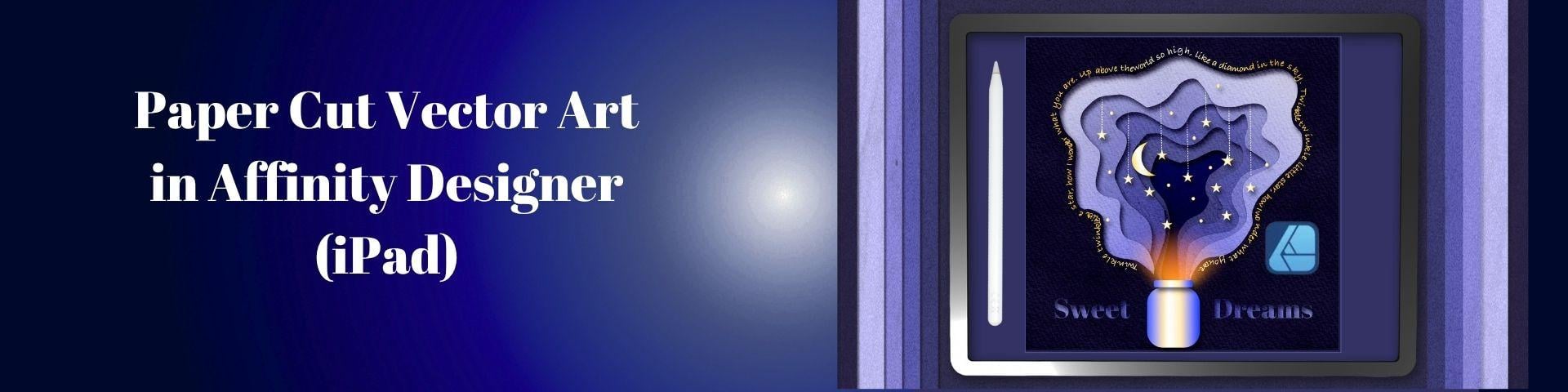
Skillshare top teacher. In this class, we're
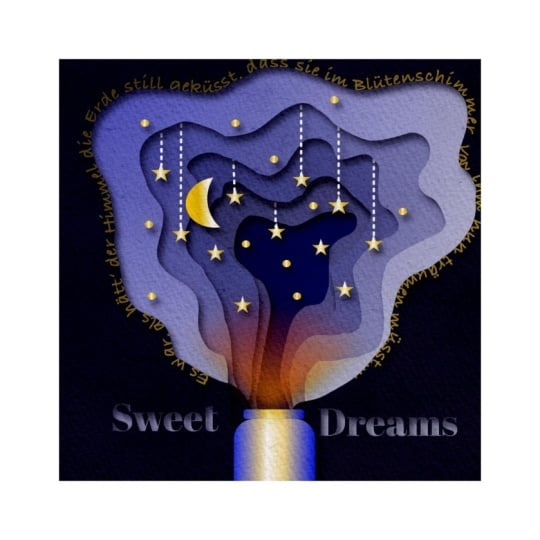
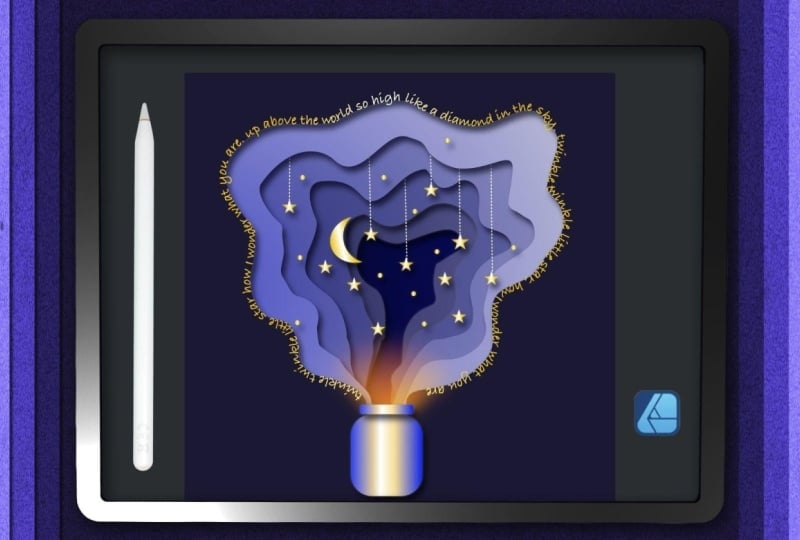
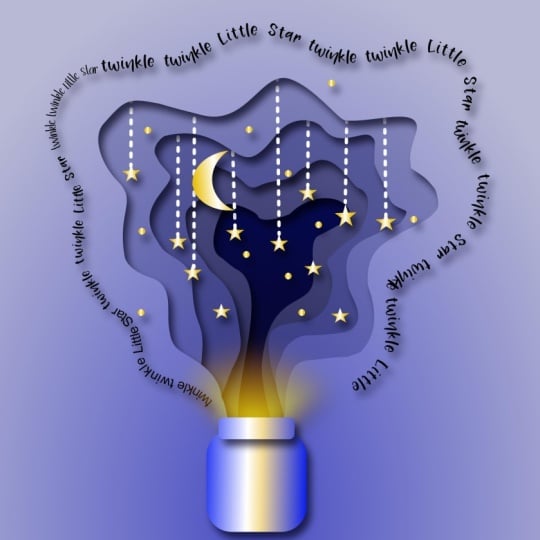
going to design a modern papercut style poster, inspired by traditional
papercut designs. We will do this while
learning all of the essential tools in
Affinity Designer on the iPad. Now, if you are new to Affinity, this is a perfect beginner
friendly project. One of the exciting things about Affinity Designer is that it is now completely free on the iPad with version
three coming soon, making it an ideal
software to learn to use. As we create this project, you're going to learn
a whole lot of skills. You'll learn how to set up your documents and navigate
the tools on the interface. How to use the Shape Tool to
create different elements, how to use the pen
and pencil tool to create custom shapes. How to create metallic
looking effects using the gradient tool, how to add glow and lighting
effects to vector objects. How to use the FX
Panel and shadows to create the depth and dimension
of the papercut layers, how to import and
add typography and fonts and place text
along an object. How to add texture to your vector layers to mimic
that traditional paper look. Finally, I'll show
you how to change colour profiles and export your document in
different formats. So, to help you get started, I've included a sketch
of our project, a custom colour palette,
watercolour paper texture, and a link to a free
font that we'll be using so that you can follow along with me every
step of the way. By the end of this class, you will have created a
polished papercut vector poster while developing
the skills that you can apply to many
other projects, including prints, illustrations,
and greeting cards. All you will need
to take this class is an iPad and a stylus. I will be using
the Apple Pencil, the free Affinity
Designer Version two app, although you can follow along with other versions or
the desktop version. And the class resources
linked below this video. Okay, enough talking. Join me in the next lesson
to find out how to download the class resources so that we can start
creating together.
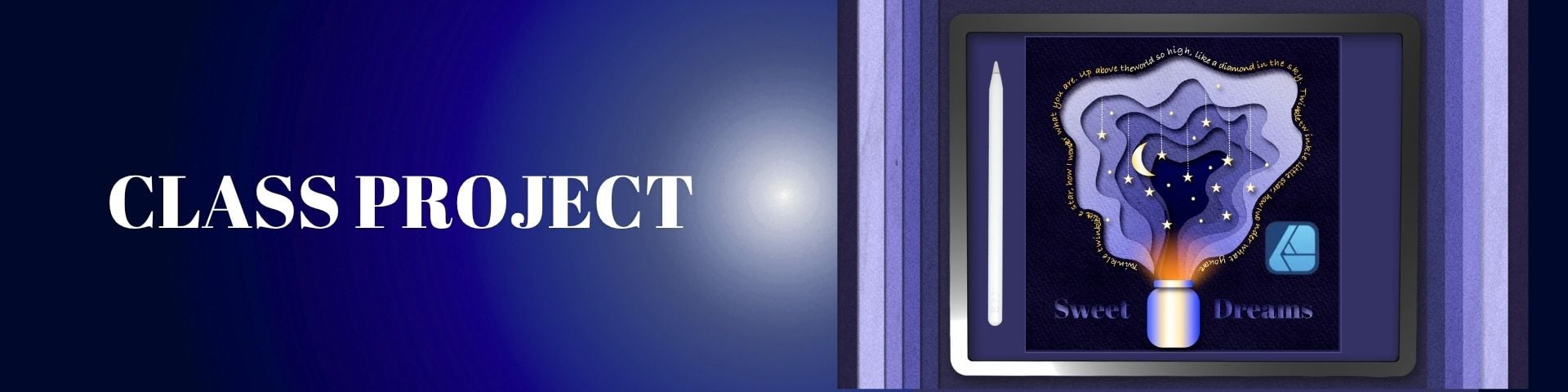
2. Class Project and Resources: For your class project, you'll be creating your
own paper cut illustration in Affinity Designer. To help you do
this, you can find your class resources linked
just below this video. I've created a sketch to use as a guide or
tracing reference, a custom colour palette, a free font linked
that we will be using and a watercolor
paper texture. Once you finish your design, take a screenshot or
export your artwork as a JPEG and then save
it to your camaro. Then you can upload it to the class project section
just below this video. You can create the same
illustration or you can create your own
variation of the style. It's easiest to access your resources in the web
version of Skillshare. Simply tap each file to download and then save
them to your file storage. From there, I'll walk you
through the process of importing them into the
app in the next lesson. Okay, enough talking. Let's get started on the next lesson with
setting up our document.
3. Document Setup: In this lesson, we
are going to create a new document in Affinity
Designer for our illustration. When you open your
Affinity Designer app, it will open to
your Gallery view. On the left hand toolbar, select new and
then New Document. A new menu will appear offering options for
premade templates on the left hand side that use common dimensions
for print and media. On the right hand
side, you can set your own custom dimensions
for the document. And for Rs, I'm first going to make my document unit in pixels. And then I'm going to set the size by tapping the
number to activate the grid, and I'm going to set
the dimensions to 2000 by 2000 pixels. And the DPI at 300 DPI, which is the default for
print ready applications. Finally, I'm going to toggle on the transparent
background and select Okay at the bottom to
create a new document. When it opens at the top
toolbar on the left, you'll see an arrow
that will take you back to your gallery view. When you tap it,
you'll notice that your document is
called untitled. We're going to tap the
three lines at the top, select Save As, and then label
our document as paper cut. Once you're done, save
it to your files, which is a really
important step because Affinity does not automatically
save your documents. While we're here, I'm
going to activate another important setting
that will keep us organized. At the bottom left of the
page, select settings, and then in the user
interface section, scroll down and toggle on. Ask for name when creating
layers or groups. Then at the bottom,
we can tap done, and now we can go back and
select our save document. Once it's open, head up to the top menu with
the three lines, tap it and select place
to import our sketch. In the pop up menu, select files if you've saved
it at a file location. And once you've selected
your file, choose open. Then you can use your finger or stylus and drag the
image onto your artboard, releasing it when
it's full size. At the top right, make sure your snapping magnet
is activated, and then this will help you align your sketch in the center. Next, we can head to
our layer studio on the right tool bar with the
layed icon and tap to open. Tap on the sketch layer and
swipe to the left and select Lock to make sure our sketch won't move as we
create our vector. At the top of the layer panel, tap on the text that
says normal to open the Blend Mode menu and select multiply so that we'll be able to see our sketch
through the other layers. Next, we need to
create a vector layer to build our illustration. So head to the top
of the layers panel, tap the plus icon and select
vector layer from the menu. Because we've enabled
this in the settings, a pop up box will appear, allowing you to name the layer, and I'm going to name
it papercut and tapo. On the right in
the Layer studio, we're going to tap
this new layer and hold and drag it with our stylus just below
our sketch layer. Finally, we're going to import our colour palette
for the illustration. On the toolbar on the right, tap on the color circle
to open the color studio. At the bottom, tap
on the text watches, and then in this menu, tap on the three lines at the top and select Import palette. And then the option as application palette
which means you can access this palette in any document on
Affinity Designer. Finally, select your
papercut palette from where it's saved
in your file storage, and it will import
into the program. And that's it for this lesson. Join me in the next
lesson to begin to start creating our shapes
for the night scene.
4. Creating Shapes with the Shape Tool : In this lesson, we are going to create our elements
for our night scene. And although these
shapes may look complex, they're created really easily
using the premade shapes that can be found in the shape
menu in Affinity Designer. First head to the
right tool bar and tap the circle to activate
the color studio, and then select a color
that allows you to see your shapes easily
against the white background. Tap again on the circle to
close the color studio. And then head to the left tool bar and scroll
down to the Shape Tool. Tap twice to open to see all the premade
shapes available to you. We're going to begin with
creating the jar in the sketch. So head up to the
rounded rectangle and tap to activate this shape. Then place your stylus on
your screen and then drag to draw out the shape to an
approximate size of the jar. While we're here, we're going to repeat this again and draw out another rounded rectangle
for the lid of the jar. Now, these shapes may not be
exactly the size you want, so we are going to correct that. At the top tool bar, make
sure the magnetic tool, which looks like a
magnet is activated. Then on the left tool bar, we're going to
select the no tool. We're going to tap on
the larger rectangle first and drag it into
position on our sketch layer. The red node at the top
allows us to adjust the size of the corners
until we're happy with them, and then we can move it into position and adjust the
size with the other nodes. Then for the lead, we can tap on that and
move it into position. Now for our colors of the jar, we're going ahead to the
tool bar on the right, tap on the circle to open the color studio, at the bottom, select swatches, and then
access our paper cut. We're going to select
the gradient that I've made that has
blue on the sides and yellow and white in the middle and repeat this for
all of our jar shapes. Now, these are
premade gradients, but if you'd like to
know how to make them, head to the gradient tool
and tap to activate. You'll notice now
across the shape, we're working with a gradient of different colored
nodes that show up, and you can do this easily
by just drawing your stylus across to create a gradient
when your shape is activated. At the top tool bar, as for every tool in Affinity, there is a contextual menu. In the gradient menu
in the gradient menu, you'll see the gradient
is a linear gradient, but there are other options here as well if you tap the text. As you tap on each of the
nodes on the gradient, it will enlarge to show you the color that has
been placed there, and those colors can be adjusted with any color in
your color studio. You can also tap on the lines to add more color nodes
or activate one. And then if you
want to remove it, tap on the trash can at the
bottom left to delete it. You can also save the gradients
to the colour palette by heading to the color
studio in your swatches, tapping the three
lines at the top and selecting add current
fill to palette. Okay, that's the backstory. I'll close the color studio, and we're going to head
back to our Shape Tool on the left tool bar
and tap to open. This time, we're going
to create our stars, circle and moon shapes. So first, our star tool, and we're going to
use this to draw out a star on our screen and then place one
finger on the screen to maintain the proportions
as we adjust the size. I'm going to select
the move tool from the left toolbar and then place the star approximately on top of
the shape in the sketch. If you find magnetics
are getting in the way, just head up to the
top toolbar and untick the snapping magnet
and just place your star approximately on
top of the star shapes. It doesn't have to
be a perfect fit. Next, we want to duplicate these stars around
the nightscape. So we're going to activate the move tool on
the left toolbar. And then with the star selected, I want you to put two
fingers on the screen, which is the shortcut
to duplicate. And then with your
stylus, move the star. This makes a perfect
copy of the shape, and now we can move it
into its new position. We're then going to repeat this duplication
for the next star. And continue doing this until we have all the stars
in our nightscape. So what initially looked like a complex arrangement is
actually quite simple to do. Now, I don't want to use the same gradient I've
used for the jar, but Affinity remembers the
last color you've used, and it applies it to any
new shape you create. So we are going to group
all our stars together, and then we are going to change the gradients
all at once. On the right tool bar, we can head to the Layers
panel and tap to open. Inside, you'll see the
stars you've just created. I want you to tap on
the top star with one finger to
activate it in blue, and then with two
fingers simultaneously, tap on the bottom star, and Affinity will select all of the stars in between as well. Next on the toolbar, head to the color studio
at the top right, and we're going to
select the bright yellow gradient for our stars. This will change them all and set this gradient as
our new shaped color. Now we can head back
to the Layers panel, and we're going to group all of these stars together so we
can keep track of them. At the top of the toolbar, select the folder icon
and then select group, and a little dialog box will come up for you to
be able to write the names of the group because we activated this at the
beginning of the lesson. I'll name it stars
and then tapo. Now in our Layers panel, all of our stars will
be grouped together. And this just makes our
layers a little neater. Alright. Next, we're going to
create our little circles. So head back to our left toolbar and select the Shape Tool. Tap twice to open and
select the ellipse tool. And we're going to draw out a little ellipse with
our stylus and keep one finger on the screen to
constrain its proportions. And then we can
select our move tool on the left toolbar and just place that ellipse approximately on top of one of the circle
shapes in our sketch. And now we're going to
duplicate with two fingers on the screen and then drag a new copy out
to the next circle. We're going to do
this all around the nightscape where we
see our little circles. And now all these
shapes will have the gradient that
we want because it is the same sort of luminous gradient
that our stars have. Okay, so now we're going
to create our little moon. So head to the left
toolbar to our shape tool, tap to open, and we're going
to select the crescent tool. Drag our stylus on
our screen to create the crescent shape and then
activate the move tool, so we can move the shape
approximately into place. On the left toolbar just
below the move tool, we have the node tool,
tap to activate it, and then on our crescent, we can tap those red nodes
to adjust the crescent and then move it into
the position we want and manipulate the shape. I'm going to head to
the left tool bar to the gradient tool and adjust the gradient a bit
so that we can see the luminosity on
the crescent a bit more. Alright, let's head over to the right tool bar to our
layers panel and tap to open. This time, we're going to create a group for our circles by tapping on the first one with one finger to activate in blue, and two fingers on the bottom
to select all the circles. At the top, we're
going to select the folder icon and group, and we're going to name
this group circles. Now in our layer panel, we have our stars
grouped together, our circles, and our crescent. Finally, we're going
to create the lines that we see attached
to our stars. Head to the left toolbar
and select the Pentl. In the contextual menu, we're going to tap on
the text that says Pen to open up more options. Scroll down until we see
the line and select it. This means every time
we put down two points, it creates a line and ends it. I'm just going to
plot two points to create our first line to a star, and then we're going to adjust the line properties
before we duplicate it. On the right tool bar, head to the Stroke Studio underneath
the color studio, and tap to open it. And we're going to
set the line to a dash pattern instead
of a single line. Next, the one pixel number
will open up the menu and pop in 0.8 pixels for our
width and ok to set it. Next, scroll down to our dash pattern and
leave the dash at one, but set the gap at two by tapping on it and
entering two and Okay. Alright, so now that we
have our line properties, we're going to
duplicate the line. So select your move tool and
then place two fingers on the screen and move the
line to the next position. This will create a copy, and then we can adjust the nodes to the
size that we want. Continue to use the two finger shortcut to duplicate
and adjust the lines anywhere that you see them on the sketch until all the shapes that have lines are attached. If you have a hard time
seeing the attachment point, head to the right toolbar to the layers panel and
remove the sketch layer by tapping the dot on the
right of the layer to make sure those lines
are centered on the shapes. Then you can reactivate the sketch layer in
your layers panel. While we're here, we're going to select our lines by tapping on the top layer with one finger and the bottom layer with two, selecting the folder at the
top, and then grouping them. I'm going to call
this group lines and tap ok. And finally, in our layers panel,
I'm just going to drag this group below
the stars for now. We'll position them in the
papercut layers a bit later. And that's it for this lesson. Join me in the next
lesson to create the shapes for the light
coming out of the jar.
5. Creating the Lights: In this lesson, we are going
to use simple shapes and effects to create the light
diffusing out of our jar. We're going to create these
shapes using the pentol. So head to the left toolbar
and activate the pentol. And in the contextual
menu at the top, we're going to select
polygon from our options, and we're going
to use our pentol to tap out the
nodes of our shape. Double tap until the red square goes white to ensure that
the shape is closed. Now in the left tool bar, we can select our node tool. Tap the pointy node at
the top of the shape, and in the menu at the top, select the smooth node option, which is going to round it out. Then with your stylus, I'm just going to
tap on the sides of the line to move and
align it with our sketch. You can tap to add
any other nodes accordingly and bend the shape into the sketch a bit better. Once that is done on
our right toolbar, we're going to head
to the color studio, and at the bottom,
tap on swatches. In our papercut palette, select the orange gradient. This is not quite aligned
where we want it, so head to the left toolbar
to our gradient tool, tap to activate, and on
the linear gradient, adjust it by the end nodes. So the yellow is at the bottom, and the orange is at the top. Next, head back to
the gradient tool and tap to activate it
again and this time, select the transparency tool. With your stylus, draw out a gradient from the
bottom to the top, and you'll see that
what it's doing is making the top of the
gradient transparent. So it looks like light diffusing
gently out of the jar. Once that's done in
the contextual menu, tap on the text
that says none and scroll down until you get
the elliptical option. Then I want you to grab one of the nodes and just rotate
that elliptical gradient, and we're going to place
it just at the top of the jar and bring it in a bit so that it looks like
the light is coming out and then going transparent in the gradient out of the jar. Now that we've placed where
our light is meant to be, I want to adjust a
few more settings. On the right toolbar,
head to our Layers panel. And at the top of
the Layers panel, I'm going to tap the opacity and use the menu to set it
at 74 and select Okay. Then with the blend mode, tap on the text and scroll
down until you find screen. This will make the light a bit brighter against the colors. We'll be placing it behind, and that's it for
the layer settings. Next, on the right toolbar, select the FX Panel
and tap to open. At the bottom of the list,
select Gaussian blur. And you can turn on the gaussian blur by sliding
the toggle to the right. Make sure you've tapped
on it to activate it. On the left hand side,
you'll see a slider. The numbers at the top,
you can tap and then type in 37.2 and okay. You'll get a bit of
a halo effect to the light source that
appears on your shape. And then on the left toolbar, head back to the move tool
just to set this effect. And that is our first
light source done. Now on the right toolbar
in our layers menu, you'll notice that this
shape is activated in blue. I want to duplicate the shape to make the effect
a bit brighter. So with it activated, if you head to the top menu to the three dots and
tap duplicate, we now have a brighter light
shining out of the jar. Now, in the layer settings, we're going to adjust
the opacity of this new shape by
setting the opacity at 84 and then tapping ok.
And then in the blend mode, we're going to scroll down
and set it to pin light. We're going to group these
two lights together in the layers by swiping on the
bottom one to activate it, and hitting the folder icon
at the top and tapping group. And then we're going to name
this group lights and tapo. Finally, in the layers menu, we're just going to drag this
layer underneath our jar. Just to make sure just make sure the layer stays still left so it doesn't become
a clipping mask, but it's just below the jar. And that is our
basic shapes done. Now we can group all of
our shapes by swiping on the groups to the right until
they are activated in blue. And then at the top,
select the folder and then group and name
this group nightscape. Okay, meet me in the
next lesson to create our background cutouts
for our scene.
6. Creating the Background: In this lesson, we
are going to create the background for our
paper cut illustration. First, we're going to zoom
out and just tap with our stylus outside of the artboard to
deselect everything. Then on the right toolbar, head to the layers
menu and tap to open. Tap on the circles on the
right of the layers to hide the nightscape elements and our lights so that we can
see our sketch clearly. We're here, I'm going to tap on our sketch layer until
it's active in blue. And then at the top tool bar, we can tap the three circles
and select duplicate to make a copy of this layer so that the lines
are a bit easier to see. Then in the layer studio, swipe on the bottom
layer to activate it, and then tap the second icon at the top and tap merge selected. This will make it
all into one layer, and now we can swipe
to the left and lock this layer again and
close our layer studio. Now we're going to
create six rectangles to completely cover the canvas
for each paper layer. On the left toolbar, scroll
down to the shape tool, tap to open, and
then at the top, select the rectangle tool. Place your stylus
on the corner of the artboard and draw
out a rectangle. Then on the right toolbar, we're going to head down to the Transform studio
and tap to open. Here we can check that
our dimensions are exactly 2000 by 2000 pixels, and we can adjust
them if they're not so it fits the artboard. Then head up to the color
studio and tap to open it. At the top of the
menu, we're going to remove the stroke
by swiping up on the circle outline and then tap on the field circle
to activate the fill. Now to duplicate until
we have six rectangles. Head back to the left
toolbar and select the move tool to activate the selection on our
first rectangle. Then at the top toolbar, tap the three dot menu
and select duplicate. We're going to do this four
more times so that in total, we now have six rectangles. Head to the right tool
bar to the Layers studio, and you can see our six
rectangles listed there. Next, we want to create
the shapes that we're going to cut out of each
of these rectangles. Make sure the top rectangle
is highlighted in blue, and then on the left tool bar, select the Pencil tool. In the contextual
menu at the top, check that the option
is set to close always. Then at the bottom of
the left tool bar, we're going to tap the X to
deselect the rectangle shape. The right tool bar, we can open the color studio and select any bright color fill so that we can see our shapes clearly. Now we can zoom in and start to trace the smallest inner
shape with our pencil tool. We just need to follow
the sketch loosely. It does not have to be exact. Take your time and just follow the line
all the way around. If at any point you want
to adjust any nodes, you can head to the left toolbar and select the node tool. You can tap to convert any pointing nodes to smooth
nodes at the top tool bar, and you can also select the smoothing icon to
smooth out your lines. Once you're finished,
head back up to the pencil tool and
outline the second shape, loosely following the sketch
lines all the way around. Once that is done,
we're going to continue to the third shape. Now, the only thing
I want to remind you is to ensure that at the
bottom of each shape, they are dipping into the jar
and not outside of the rim. We can continue with the fourth
shape all the way around. And then finally, we can
complete the largest shape. At any point, you can always
adjust with the no tool until you are happy with
the position of each shape. H Alright, so once we're done, on the left toolbar,
select the move tool. Then on the right toolbar, open our lay studio, and you'll see the five shapes sitting above our rectangles. We're going to select
the smaller shape until it's active in blue, and then hold and
drag it down so it's just above the second rectangle. Ensure that you're
keeping the blue line to the left so it doesn't
form a clipping mask. If it does, just do a two finger tap to
undo and try again. The second shape, we're
going to hold and drag just above the
third rectangle, the third shape above
the fourth rectangle. The fourth shape above
the fifth rectangle, and then we're going to leave the fifth shape at
the top of the stack. Now we're going to start
cutting out the shapes. Select the top shape layer
until it's active in blue, and then swipe to the right on the rectangle below to
activate it, as well. On the left tool bar, we've already activated the move tool. So in the contextual menu above, we're going to select
the geometry icon. Tap to open and select, subtract, and this is going to cut the shape out of
that top rectangle. On the right tool bar
in the layer's panel, you can see that this shape
has now been cut out. Going to do the same
for our next shape, tap to select the next shape, the rectangle below, and
then in the top menu, select geometry and
subtract again. I'm going to continue
this process with our next three shapes, and you can follow
along with yours. Okay, so on the right
in the layer studio, we should now have cutouts on all of our layers except
for that bottom layer, and now we can color our layers. We're going to select
the bottom rectangle, and then on the right tool bar, select the color studio. And in our swatches, we have five gradients to fill
the five bottom layers. So select the darkest gradient
color of blue to color it. And then we're going to
go back and forth between the layers panel and
the color studio, selecting the next rectangle and then the next
slightest gradient. The next rectangle, the
next lightest gradient, the next rectangle, the
next lightest gradient until we get to our
fifth gradient. For the top layer,
we're just going to select the block
navy color from our palette and that is all for our colors on
the different layers. Finally, in the layers studio, activate our nightscape elements and the lights and
place them at the top of our cutouts to see
what our elements look like against our background with all of our
lighting effects. I'm really happy with that, and that's it for this lesson. Meet me in the next lesson, and we'll add some
effects to give our elements that
traditional three D look.
7. Creating the 3D Effects: In this lesson, we
are going to create the three D layer
effects to make our papercut layers and
elements look more realistic. On the left toolbar, make
sure the move tool is active, and then head to
the right toolbar and open the layer studio. We can tap the circle to hide our sketch layer so that we can see all of our elements clearly. Then tap on our top
background layer to activate it in blue. Scroll down the toolbar to the
FX studio and tap to open. First, we're going
to set our shadow. So scroll down to the
outer shadow and tap on it till it's active and light gray and turn on the toggle. On the left hand side, you
will see three sliders appear. Tap the numbers on the
top opacity slider and set the numbers
to 76 and tap o. Then on the next
slider for the radius, we're going to set the
numbers at 41 and tapo k. Tap the icon at the bottom of this slider again to
activate the angle, and we're going to
set the angle at 56 degrees and tapo k. Finally, at the bottom, select the
offset slider and set it at 30. In the contextual
menu at the top, set the blend mode
to multiply and select the navy color from the swatches option
in this menu. This will give the shadow effect of paper on top
of another layer. Now we want to apply this
effect to all our other layers. So head to the top tool
bar with the three dots, tap to open, and
select the text copy. Next, head to the right tool bar and tap our layers panel, and we're going to select
all the other cutouts below this first layer by tapping with one finger on the top layer and two
fingers on the bottom layer. Then head back to
the top menu to the three dots and select the text that says,
paste effects. And this will now apply that
effect to all of our layers. And immediately, you'll see that three D look come into effect. Now on the left tool bar, we're going to select the move
tool to set these effects. Now we want to do the same
to our nightscape elements. So head back to the
layers panel and select our nightscape
elements group, tap to open, and then we're
going to highlight the groups within it by swiping to the right to highlight
them in blue. And then we'll head back up to the three dot menu and open. And this time we're going
to select Paste effects. And this will give all of our other elements
that three D look. Now on the left toolbar, again, select the move tool
to set these effects. Finally, we're going to make a few last adjustments
to our lines. In the layers panel
on the right toolbar, select the lines group, and then in the top menu, we're going to set the
blend mode to normal. Just below in the Stroke Studio, I'm going to set the
width of my stroke to five and in the
color studio above, I'm going to select the stroke
color and make it white. Now we can head back
to the layers panel. With these lines
already selected, head to the folder
icon at the top, and we're going to tap to open and select the text ungroup. This will set all
of our lines as individual shapes that
we can move around. Now we can start to place our lines within our
background layers. So I'm going to
select them all by tapping one finger on the top and two fingers on
the bottom layer, and then I'm going
to drag all of these lines below the
second background layer. This will make them
seem like they are hanging from
the paper layers. Now we can go
through the list in the Layers panel and
start to rearrange our layers so that the lines are coming from
not only the second, but maybe the third and the fourth for some visual interest. Okay. So once you're done, I'm going to select the no
tool on the left toolbar. And in our layers panel, I'm just going to go
through each of my layers one by one and tidy
up their nodes at the bottom near the lid of
the jar to make sure they can be seen clearly and
are inside the jar neatly. I'll also smooth out a
few nodes while I'm here. But that's it for this lesson. Join me in the
next lesson to add some text effects to
our illustration.
8. Text effects and Texture: In this lesson, we
are going to create the text effects for our poster. Going to be using an
imported font called Abril Fatface that is
not built into Affinity. So I thought I'd start
this lesson by showing you how to import fonts
into Affinity Designer. I've provided a link
to this font in the class resources
just below this video. And when you follow
the link, it will take you to a free font page. You need to find
the download button and download it to your iPad. And when it has downloaded, you need to select it
and save to files. Next, head to your
Fils app on your iPad, locate the zip file and
double tap to open it. Then head to your Affinity app, and in the Gallery view
on the left tool bar, select settings and then fonts, and then select the plus
icon at the bottom. Navigate to your
file and select it, and it will import as
an installed font. Now we can head back to our Gallery view and
open our illustration. Okay, so once we're in, activate the move tool, and we're going to
tap just outside of our artboard to deselect all
the elements on our screen. On the right toolbar,
we're going to tap the top background layer
to activate it in blue. Then in the top contextual menu, we're going to tap
the three dots, and when the menu open, select duplicate to make a
copy of this layer. We're going to incorporate two different text
effects with each layer. So when the layers
panel, I'm first going to hide the top layer by tapping the circle and activate
the second layer in blue. On the left toolbar, we're going to scroll down
to the text icon and select the frame text tool from the options available. We're going to draw out
a frame on the artboard. And at the top in
the contextual menu, set the font as a
brill fat face, and the text as regular and
the font at 42 in size, and our color as white. We're going to tap
in the frame and then use your keyboard
to tap the word sweet. Next, we can head to the left toolbar,
select the move tool, and in the top menu, tap the three dots and
select duplicate. And we're going to move
this copy of the text to the right of the jar and line
it up with the first text. Your snapping tool
will help you do this. And then we can
double tap to select the text and type
in the word dreams. Next, on the right tool bar, we're going to open the
layers menu and select these two text layers by swiping to the right until
they're active in blue. We're then going to
use our stylus to drag these layers down and
place them on top and to the right of the
background layer over the text to create a clipping
mask within this layer. Then at the top of
the layers menu, we're going to select the blend
mode and set these layers to the erase blend
mode from the list. And this will make it look like our text is cut out
of the paper layer, but it will still maintain
the shadow effects because we have them on
this background layer. Now, we're going to
place a bit of text on the outside border of this layer as well that will follow the
outline of the papercut. So first head to the right
toolbar to the layers menu. Unhide the next background layer and tap until it's
active and blue. So on the left toolbar,
head down to the text tool, and this time, select
artistic text. Ho stylus just on the outside
of the border and tap until you see a little green triangle that shows that this
tool is active. Once it's visible, drag on the flag and move it to the
bottom left of the jar, where we want the text to start. I'm going to select the text
Bradley hand from the list. Have it in bold and
about 16 in size. And I'm going to set
the text color as the same gradient that
we use for our stars. Now we can add our text. I'm going to use the
lyrics of Twinkle, Twinkle Little star,
and I'm just going to speed up the time
laps as I do this. But you can select any
text that you want. As we type, it's going to place the text all around
your illustration. Once you're done, I'm going to lift the text just a bit
above the borderline. So double tap on the
text to select it all, and then head to
the right tool bar to the text studio
and tap to open. Here is where you will find
all of our text adjustments. Where you see the bold
and underlined options, there's a little
arrow on the right that will open up a
new character menu. Scroll down until you see the
text that says positioning, and you can increase the
baseline as you choose. And that is our
text effects done. To finish up, we can import a watercolor or paper texture over our background layers
that you'll find in the class resources by heading
up to the top toolbar and selecting place and then using your stylus to
draw out that texture. On the right in
the layers panel, we're going to make sure
that it's placed over our background layers
but below the jar. And at the top of
the layers panel, we can set our blend
mode either to linear burn or multiply to get
that texture on our layers. Before you export, I
wanted to show you a few options for
colour profiles. At the moment, our
illustration is in CMYK. But if you wanted it in RGB for a more vibrant
colour palette, head up to the top menu to the three lines and tap to open. Select Convert document,
and Affinity will give you options of different
colour profiles that you can select from
the drop down menu. Pick whichever one you want and tap the tick to set
the color profile, and Affinity will automatically
convert your documents. Okay. So that's it
for this lesson. Join me in the next
lesson to export our documents and for
some final thoughts.
9. Exporting and Final Thoughts: In this lesson, we are going
to export our document. On the right toolbar,
in the Layers panel, select your artboard layer, and then at the top toolbar, select the three line menu. Tap to open and select
the text Export. This will bring up
a new menu for you. At the top, you can select the format that you
want to save your file. I'm going to select JPEG, but you have a whole
range of file types like PSD for a layered Pixel file or SVG and EPS for vector files that can be read
by other vector software. Once you've selected
your format, you can see the dimensions
the image will be in, and at the bottom, you can
see your file export size. On the right, you
can tap the text if you would like to
rename the Export file. And below this, you
have the option of the section of the file
that you want to export, whether as the whole document
or the selection area. At the bottom right, you
have a wonderful option to see a preview of what you are
exporting before you do it. Once you're happy with
what it looks like, you can select clothes to
return to the previous window. Then on the bottom left, you can select the share
tab to export it to your file storage or to save
your image to your camera. You have the option to tap
off this window to close it, and cancel to return to
your original document. And that is it for this lesson. Thank you so much for
joining me in this class. I've really enjoyed
walking you through the process of creating a papercut style
vector illustration. And I hope you've come away with skills that you can
apply to other projects. Now, I would love to see
what you have created, whether it's the
illustration we did together or your own
original design. You can upload your
work by taking a screenshot and sharing it
to the class project section. Feel free to experiment
with different shapes, text, gradients, or even a
whole new colour palette. The more personal you make it, the more unique your
design will be. Seeing your projects
really inspires me and also encourages other students to try it out for themselves. If you're on social media, you can tag me at
Cardwell and Inc, and I can share your
work in my stories. If you enjoyed the class, I'd really appreciate it
if you left a review. This helps other
students find the course and gives me great insights
for future classes. If you've got more ideas for vector based lessons
or questions, drop your comments in
the class discussion, and don't forget to
follow my profile to stay updated on
my latest classes. Again, thanks for joining
me and happy creating.
 CardwellandInk Design, B.Sc, B.A, M.Teach