Transcripts
1. Introduction: Have you ever felt overwhelmed while creating your
restaurant menu? And you didn't know where to
start and what to look for. Just looking at these
blank pages and thinking how to create
the perfect menu, that it's attractive
for your customers. Well, you don't need to look for anymore because I will
show you how to create and easy and attractive menu
or your restaurant or bar. I'm going to show you how to create this quiet simple menu. And from the start to the end. And also, and also these
other menu variations. So stay with me till the end and you will find out easy
and fast way to do that
2. 1 lesson: Choose menu size & prepare text: Hello and welcome to
our first class of the signing and easy menu. So if you're new to Canva, It's quite easy to look in. Just need to go on canva.com and create your account and
shared a lot of features, even if your own free as a free account user and
all other features, it's unlocked when
you are in Rome. So since we're here, I have all the information that should be
provided in the menu. So basically, the buyer needs menu that drinks menu and all
these drinks inside there. And the she is providing
the information that it's Flower Show and the color
is supposed to be yellow, that white and orange. Also providing site
where I can get some more ideas about
this design styles. So this side should be
matching with the drinks menu. Since there was not provide
the size of the menu, I will just create
it as the document. And worst-case, you
can edit later on. And who doesn't. But this feature is available only with Canva pro if you don't have a
kind of a problem. So this is the size. You can select any other size or insert your own
and resize it, or copy the same one, which just say to
the existing one or copy and keep the
file that it is. And another copy will be with the different
sizes that goes. But there is a tip that you can do in a different way and you
don't need kind of a broad. So if you have
your own creation, your menu, you can
just open a new file. And when you go down
and on the right side, you will find your designs. And basically, by
pressing on the design, the certain design doesn't
matter what size it was. It will appear on
your new size design and you just need to fix it. So this is not the worst case if you
don't have candelabra. But we will do as always. So as always, as I said, we're going to insert all the information that
should be on the menu. So when you copy, I'm always asking to provide adjustable file will be
faster to create it. So this is just
simply copy paste it and all our drinks over here. And should be matching with our site. And even, I think
it would be nice. So what we can do
with this one, right? So this one is this if
we can try and cope. So we can pull in
nice and buyer. And you want to insert
text much faster, just type the letter on your keyboard and textbooks
will appear straight away. So here we have
pulling his empire and this one menu. We have a word, drinks menu That's looking like this. We can go to some mistakes. Change the fonts a bit. But with the font. So I'm usually keeping
them till the end to see which font matching this with
design and color itself. In this case, I need to check which the which ones are matching the best
with the page itself. Since there was not provided
any other guidelines, brand guidelines that we need to follow so we can
match that part. This is our small template. You can start looking
for something falling. That would be matching
our elements. Already searching
here Polynesian, so you have no idea
how it looks like. It's for dinners washing
something darker. Ones. Tropical colors of course, didn't designs palm leaves, flowers, and so on, so on. So according to
our provided file, should be black, white, and it should be site. I imagined something
with a sunset, yellowish and all
these elements, all the elements
that are matching, but it should be a. So maybe we can use the
same dark background, which I had read
elements and yellow. So yellow color letters. For inspiration, what
I'm doing usually before starting naming my
file as always. So it will be zeros, find it. Then I'm going to on to the templates and
searching, for example, to get some ideas,
some dark menu. So already here, I'm
not copying for sure. Boring to copy. So I'm adding one more page. Here. You have some ideas
that look like, for example, let's
add this one. Then. I'm like menu. For example. You can find these,
all these options. So what again, this design, I like actually, this one, Nice job, but it's
purple more or model. So we can go with this one. And the palm leaves. And these white is
white background. I'll go here and then this score would adjust
it to that color back. And this one, we can have it. We can just copy
paste, then flip it. And we will have
another one down here. Now our letters to visible things around and make them white color. So this is basically just a bit bigger for fall. So let's just think the wine. So since I made this
one a bit wider, then we can just copy, paste it vertical. And they can. Then back. Here is new items. And this part, I would
go for a dark color, color background, elements
because more ideas. Tropical. And here you have all the options. Or national or easy way is choose from it
are all the options. If we look at this, you can see that the clouds then only do something
into this thing. We have our palm leaves
background and my chest. It goes from one
side to another. This color same thing
would look much better. The minimalistic we need some more and a little bit too bright to sit. Bring it up between this side. And I'm not sure. I'm not Fellow this little, maybe this one just looks too. That depends on ni show view. One looks nice. Even this left, we can replace into
the white color. And then you see how
it would look like. Can make it a bit transparent. But then we put
these, look nice. Let's check some more venues. And one more thing that
would help to match it could include in it would be a logo that it must provide. Reach one according to. According to that logo, we can design menu and adjust to this is logo. This logo. I would leave it. We don't need this
bonding easier because then we can go with it. It's only where the
****** menu, this one. The corner here. Now just get in the
middle and we will see, Let's go to next class
where I will show you more items that I
will be using kinda menu. So much waste your time. I will just collect them. You second page and show you what I found
and we will go wrong
3. 2 lesson: Element Adjustments & placing: So here it is written before and here is some elements
that I have found it. And what we're going to do, this one I think a
little more than what we going coin on the elements and hearing that is
optional, lines and shapes. Then you press it all. You can find all these
shapes and I can use them as background or letters. So this one it to the
vocoder group that we need. Let's do it in black. Then. We can drag it any
size you breed. So this one, we just
send it back Totally. So our world thinks that
it's not visible now, would become visible.
Make it white. So all of them are
wide, this one. And you can see all of them are just drag it in
bits to make use. Only suitable. So now we need to do just play
a bit with the decks. For example, snake
main, item, name, bold, and it's listed on something. So what I'm looking for, I'm looking for something that you would exhibit animated, so it looks quite nice. And the other one's a bit different. This looks too big to find new. So this one will be
decimate important. Human, this nice, too. Childish, not double thick. This one. Nice, but
at the same time. And let's see how it looks on menu items and you cannot
fit them all together. Let's check or something. This one quiet. I like it, it's matching a wave. So now what we're
going to do before, which has been finished, these name of deal names, we make it fall in uppercase. And they're all in one text. In order to adjust And in one text box, this rule, if it's somewhere on the
continent and tanks menu. We will. Finches. Though, these we cannot use here. So what we're going to
just reduce a bit size between and keep
it all the same. Let's see here. Keep it here. And inside each mind. When you're working
separately with each bond, then it will be easier to
track them all together. But since I've already
pasted like that, it would take too much time. Just again, place them
into separate text boxes. So here we're complete with uppercase for each name. And that is one thing
that you cannot make. Different. On the same line. If it's in the same textbooks, you cannot adjust
it all at one time. You can actually have
uppercase and lowercase. So you should need, in this case to go
separate text boxes. And this one is a
bit of headache. While combining it
with these items now they look like darker. Make it a bit smaller. Drop the call and
use the same items. The same elements. And the while using
the same elements, you can play with them. Shifting two different sizes. Different cranial
nerves. This one. Now what I'm doing,
I'm just looking for a different fund. Different fonts for
cocktail description itself because it
looks to be good. Venue itself looks
a bit too heavy. It will be more visible
in the background. So these ones, I
just wanted to make it simple and easy to read at the same time. Not to squeeze. Something like that. Decide. This one looks quite nice. Is they do it with all loved than negative one lane and change it. One or two small bit. 15, 14. Let's go now. Waive all other 11 by one. Go. Look much better. Okay, So I will
continue with this and I will see you
in the next class.
4. 3 lesson: Final menu design adjustments: So he sends previous
lesson what I did, I removed all green leaves around because they
were not matching. Because there was specifically
requested to yours. Could even not, not mentioned
green but to use red, yellow, white, and
black, and some orange. Even though this flower
is not matching, which since it's cleaner
and it's evening, Let's keep it like this. It's not much, It's my branch. So when HE empire logo, I put some elements
and Medicare. And they think that you had
mentioned quite nicely. Here we have more
fired elements. That one's singleton. Insert somewhere here. It looks like now it looks like beach on fire. That it's a bit too
much. I'm thinking. One that it looks like
it blame yourself or use this leave. I would like to bring it in, maybe reduce it or things we need to bring it in. And there's grease. Fire elements looks nice. What we can do a width, it can also reduce and spending just a little bit so it
wouldn't be that much visible. Keep it simple. Keep it similar. Pinkish, yellow and bedroom scene. Very miserable. More and it used. But they can really, they want to cover
our menu items. This one to match size. All these things. Yeah. Please. One. So it took me a bit longer
than it's supposed to. And usually changing my mind. So here it's our menu. Always check for proper
positions if it's in the center. All the items you inserted, mismatching. So this is our final menu. And what? I'm always providing
additional menu. I'm additional design that it's different
from existing one. And can choose. Your manager also put into
it which was in here. So in the next lesson, we'll be doing will be just showing how to
adjust the existing menu slightly chest and feel less than 1 min with a
few different options. And how to make it work much more faster and
more efficient. This way. So let's click the menu. We can have, we will
have it over here. One more that we are
not touching anymore. And another one that you have some items
that have been used. So another one that we
will be adjusting in our next mission to all our
other lesson. See you there
5. 4 lesson: Easy & fast menu variations: So we have two same pages
of the same design. And let's assume that
buyer or manager, for example, they didn't provide proper
information what they want in a design, colors. Or they just said they want
something black and red, but not too dark. So this menu, for example, eat or to be quiet. So simply what we will do. And we should keep that fires where he
would just sit them on background and go on photos and something,
let's say tropical. Tropical and let you see
all these examples so far. Worse. What we can do. For example, these products, it looks quite nice. You can change the background. This, not to make it too dark. Give bedroom debit brightness. And instead of adjusting the brightness and the
contrast or from here, you can simply go filters and you will
find some other options. For example, here, you have some
options and can be bluish, greenish, and other colors. Let's assume we don't
need a red color. So we're changing
that light color. To move these ones too. There will be no logo. And the same age
color that we have, we can give a bit
more brightness. Also. Then this these letters, our font, we're just going to look cooler than our background. We're changing into white color. So here you see
much lighter menu. And always check with the position. So you can see much lighter
menu and to also adjust the epoch and make them
match the other ones. Also. This can be slightly
more transparent. Here we have another
tropical menu. Now, the fester width, and that is just
to duplicate page, which is to move our background. And tropical ground. It's Christmas time so
you can see Christmas. So since our menu, to make it even faster, our menu, it's spectacle
and horizontal. And you just go on top of
here and look for vertical. And the light filters. Picture. I said this background. We have Quiet, nice ground. Just to give a bit of a niche, you can add some your palm leaves. Copy paste. Song change is not
matching anymore again, so we can just adjusted
into local load. It will be more poppy. So these leaps that
we have one leaf, we can decorate all our menu. You see just by changing it. Slightly different and
playing with Qishan of beach. And you're going to have 11 menu and
nice background. So we copy this one and we'll go back and
get onto our photos. We can look for
something different. Again. It's better to go. And tropical. This one looks nice. Background. And you see you can keep a chunk of our
background like that. And even without changing it, all these leaves, we
can still keep IT band. The print one. Like that by changing
just the background, you can have totally
different venues and just simply adjusting few elements from dark,
totally different. One summer. These signs, and it's quite easy
and let's see. This one. Quite fast. From coconuts. Since there is
already the leaves. It looks funny to
have it too much. So this would be how to make
quite easy and fast menu. Looks very cute. And you properly as you
see a bit too colorful. So you can just
increase the size here. And wonder. Kept one mode menu. The P1 to make it more nice, day. Bergen stylish example, you use leaves, then you more leaves. Just their colors. And became the matching. Your design looks similar. So you can have it
create some little ones. These background, I
think I would change it into clean, different one. This one looks much better and make it darker. Again, our leaves
Jewish chain from the core notice
leasing them around. And just playing with this. By placing elements symptom
one on top of each other, you will create the feeling. More 3D theory
hanging in the air. So it will look more
professional than 11 More menu. So this is how easy. The best way with the kind
of law you can create menu and adjust it to a different
colors just in your minutes.
6. #1 Tip: video background remove: In this following lessons, I'm going to show you
the latest updates and tips and tricks that will meet your
designing much easier. So the first one
that I'm showing you it as you move video background. So basically it's
working the same as as they remove
photo background. So what we can do, just need to upload your video or you can find it from here. Just from the videos. And select any kind of video. It shouldn't be
longer than 1 min. And just go on the top. Edit video. And you will find this
option background remover. So he pressed on it and sometimes it's
working quite fast. It takes a bit of time. And you can't be able to deal with the
removed background. And you just need
to send the videos. The background is white and there is no
other elements in front to make it work better. For example, it's
really nice when you're creating your course or doing some different works. So now you can see that, that is maybe this
background over here also as the video moving. And you can play
with the background. Like different photos, even
different backgrounds. Quiet, nice, even the placing, some elements that are moving like this one. And you just need to know that
since it's that the stage, it be that perfect. But it's still working
quite nicely with the sum, the sum, better quality videos
and with the bedrooms that are not so messy. So we, just to show you, I select my old video. I just selected
one of my videos. And this is just example
with looks like. And as you can see, you can remove the background. Other elements and some other backgrounds
and other moving, moving elements around and they leave with it. And then just to
double-check old video, the corner and look just to
check how it looks like. And you can see that background removed quite nicely and all
other elements is moving. These ones. You can
make also movable. And to create basically totally new video chest with
your face or any video. So let's jump to other updates.
7. #2 Tip: pdf updates: So another exciting update
that kinda made PDF updates. And basically before they
had also the same option, but now they made
it more accurate. So what you should do, you just go on the
main page and on the right side here you can see the Cloud and you
press the Cloud upload. And you can select
certain PDF file. For example. This one. And it will be generated
as a new file. Has anyone design over here? Takes a bit of time until it's
uploading in the reading. So it takes a little bit
of time until Canva magic. So here we have our PDF. When you press on the file. All these for text and pictures. We will be generated in the
way that it will be movable. So basically, still not all of them
properly working, but you can see that you
can adjust main items, backgrounds, and other elements that it's in your
designer, just the text. Again and make it
on your own way. They used to have before
beta version of PDF files. Files, they were not
so accurate sometimes, and this one looks
much, much better. They improved a lot with it. So here you can, you can do, you can
move each element, as I said, the word, the, change the font. And again, I'll saving or here, we can download it
as PNG, as PDF, again, as video,
any, any you prefer. And even the elements which
are generated by uploading a PDF always can waste giving option to change the option to change the colors
of each element. But with this PDF,
now, easy peasy, change the color of elements
which are in your PDF. And one more thing, and that it was not provided
but by gamma before. From one certain design, you can just simply
go on the grid. Select for example, this
design from other file. I'm just select under certain
design that you prefer, copied and simply paste it into other into
your PDF design. Simply pressing, copy paste. This improved quite a lot. And it makes me a little life and video because I'm
much, much easier. So let's jump now to listen
8. #3 Tip: website builder: So the other new features
that I'm going to discuss, this Canvas site, and you
can create your own website. You just simply
losing you to Canada. And with the official launch of the pool kind of
episodes, episodes feature. We can now turn our
PDF documents and our, our presentations into
simple responsive websites. And responsiveness,
it looks like it's, seems that theory has
been improved recently. And we're getting
device previews now. So we previously had no
options with our own domains. But now, as you can see here, when you press,
publish a website, you can find you can chase Fourier domain, publish to convert domain
purchased new domain, or use your existing domain. That's put an example. Like this. You can
publish your site. Although the simple
Canva websites, they cannot represent
your brand well online, but I think it's updated. The Destic board of an aid
of simple applications. And the biggest. And the best point
is that you don't need any coding skills. This and you can preview
here your design, how it will look on the phone, how it will be presented
itself on the bed. One. Here you can adjust the
pages as you just add. Also, there is a lot of templates
and that's when you can use and customize according
to your desired colors. Layouts. Simply work it
out as best for you. And of course, no
website would give you a good overview of
your visitors if didn't provide you
with an analytics. So convert took
care of that too. So we're getting access
to website insights, which can help you
track views, clicks, and engagements on your new page
9. #4 Tip: text to image feature: Also the new features that kinda just recently implemented. It sticks to image
and text to image. And it's not text-to-speech
or any simpler combination. We already know and use before. But with this new future, with the Canva editor, you can generate new ideas
just from your head, simply from your descriptions. So you just need to go on
the left side and find EPS. Over here. You can find option text to
image and press over here. And for example, just type
anything that you can imagine. Let's say red rose in Gideon. And over here, down, you can choose your style. So it can be a lot of photo
or a drawing or 3D Painting, pattern or concept art. So let's try concept. And let's see what it
will generate for us. And it takes a bit of time. Because it's basically AI generating from different
information from the Internet. But they have what they
can find and combining different pictures into one. It looks quite nice. As you can see. Can start again. You still have your
selection and more example. Let's do better. And to generate image again. And it really helps
with all your designs. Within few seconds. Sounds pretty cool. This week we need sound. Great. If you can have it like this, you can play with
the different ones. Let's try this one to see
what they will provide. So since this feature is
it's brand new and still, still very much in
a bit the stage. But just like the PDF, I do expect that
it will get much better where the
time and improve it. Basically, these pictures
be totally unique. And you can create with your
wordings totally unique images that may surpass the need for a stock
image in the future. And also, it's also a great way to start
your own imagination and help you come up with new
ideas for your own designs. And I'm really curious where Canva will bring
this in the future. Now let's make
something new. Again. I'm, for example, they're
giving you inspiration. So also like that I didn't go into buy through a city
with a depth of field. So longer the description, the better you can. They can create certain image. Let's see what it will
generate with the riding a bike Louis city
would the depth of field. You can see it's quiet, nice. One finds anyone. This picture is
because here generated by AI and not taking by any, any creators. Let's try with the Panda and photo what it will look like. Because I'm just curious to see. As you can see, it
looks really think. And even getting these ideas. Different panda, panda. Even with these words. By describing here part of the magical forest
city in the future. Generate a photo. Id schools. Besides kind of way, there is a lot of new features that we're working with, the
artificial intelligence. They can generate simple
pictures similar to these, but many of them not so clear. Like feature. It looks really good
quality and amazing. You know that it's not
doesn't belong to anyone. Use it as your own
design. This is amazing. Feature. Quality's
pretty amazing. I love to see where can
we will go with this. Okay, so let's go with more updates into
our next lessons.
10. #5 Tip: quick create: So one more great feature
that I implemented recently, it Quick Create. So if you are on
multiple platforms, you'll note that his card to create boards for each other. And again, each of them, you need to adjust it. Size. Same why? Because each element that should be placed
in the proper place. And I'm sure you can
design also each one, design one-by-one, and then
use the resize button, but it's only for pro users. Also, the downside is that you have to do a lot of each time and adjust your
design accordingly. So it will look like this. The symbol letter looks
and it will look good. And your elements
will be placed in the right places also. So if you are creating posts
that you have for Instagram, for before the Pinterest
for Twitter and Facebook. At the same time. We'll spend a lot of
time for each of it. So what can we
implemented recently? A bit the hidden and the moment? Just need to go on the homepage. You'll see where I am now. Then go on social media. When you press social media. For here, you can see the option of Quick
Create collection. So you just press on it and it will open the
window where you can select for which social media you will be
creating designs. So let's say Instagram, basic ones, Facebook,
LinkedIn, and Twitter. And just an option. Then let's continue. Just place your text. Something. Additional texts. Correct the mistakes because
I'm always making them. Let's see, image, logo. We'll get into a
little help you. It will give you the
option to choose from your latest uploads. And the what you have
created recently. Just choose any water and
the woman just show you. Then you can choose
the templates. The downside of this
is that you are providing templates that are already there and you cannot
customize them a lot. So with the time, I hope this will put all,
because it still is. And you see, you can see
even more certain elements. You can upload the pictures. It's automatically
adjusting the fonts to use different image
pellets, different colors. Then press finishing,
finding the right folder. While thinking. And hear your the basic ones. And then one by one. You can digest them
on your own way. It makes for much faster and don't need to go
and adjust it manually. And then on top of each one you can create more easy peasy
11. #6 Tip: draw with Canva: So the other trick that I'm going to share with you today, it's allowing to draw
freely on Canvas. So for example, just a new page. Having new page, then you
need to go over here. The corner select More option. Option. You can
select from below. Then for marker, glowing
pen highlighter. And you can adjust the size and transparency and the color
of what you're drawing. So let's, for example, select pinkish transparency
and go with the glow pen. You can draw it really. You just need to press Done. And you have your
transparent file that you can use on your designs
anywhere, do you like? Then after you can
edit your image, the different adjustments and
the shadows increase more glowing and just play with it. And since it's a newer feature, it's still not available
on the phone's app. Only when you're using
on the computer.
12. #7 Tip: new shapes features: So the next step that
I'm going to show you, it's about the rounded corners. Let's delete this sample. And it's called two elements. Select Shape. And it's totally new
feature of Carnarvon. Hello, I created recently. So you just need to go on top border and select
coordinate, rounding. When you move this to the right, you can still get your
coronaries are going founder and can see the
difference how it looks. Also you can wait
for any other shape. This star, something like that. We're back again here. A corner rounding can
see how it's changing. All the sharp corners. Changing into rounder ones. Can play it like this. At the same time, you can change your
shape over here. For example, if you
have existing shaping your porter, just raise it. Shapes from here will
change right away on your, in your selected one. You're working with
the rounded corners. The other feature we can change that can lead it also
can change borders. So for example, you will
choose the border of thoughts. Can choose the border. Color. Changes into white. You can see it better. And you can see this
border is dots. And with the Border weight, you can make it bigger. Most completely from
entering the design or small and quiet, fun to play with it. And one more feature. Galois established recently, that you place two
times on the shapes. You can add. Text inside your shape
was not available before. So now you have something new. And just play with your text. You prefer. Change
the font size. Everything like
putting them all texts
13. #8 Tip: copy & paste style: So the other feature
that I'm going to show you, copy paste styles. So for example, you
have this design. And then you press
Select the design. On the toolbar tab, there is a little roller style. You press paste style and you
select where to paste it. And the same style will be
applied to that option. Or if you have a photo, texts even can do this. So you just select the photo, then copy style and select
where to place it here. And that filter which is
applied to this water, will be appeared here
on this photo too. Even you can do
it with the same. And even you can use the
shortcut to do the same thing. So Netskope back from
applying this style sheet, the photo, It's totally
like it was before. So we just need to
press on this design. On this photo. Then select a. So sorry, we need to
select the photo. Then throw out C and go on other design that we want to
place it and to throw out. And it will be applied in the same style as
using the roller
14. #9 Tip: connecting lines: So another cool trick
that I want to show you also recently was
greater than Canada. So it's connecting lines, connecting two shapes
to photographs or any kind of elements. So just press on your keyboard, L and line will appear. You will have your line. So when you select the line corner and move
it closer to the shape, you see this dots
that are appearing. So it means that
you can connect to that certain drugs
than from other line. You can do the same and connect
the dots to other object. And when you move them, the line will be
moving together. Rahm Emanuel, where
you drag your object. The same you can do
with photographs. Purchase, L key,
and mindful appear. When you move to line. The same dots are
appearing. Again. Can connect with the one
photograph and with another one. Also the same when
you are moving, It's moving to get there. And dragging. The same feature is
applied or elements. So the graphics, for example, let's choose something from the same style. You have two elements. Delete this one. So probability
here for you to see. Again, we select our sine L and the line feature
will appear. And when you drag the
line closer, He's dots. Bit of weird. You can
connect the same with one. When you connect, your
just move it out. It's comfortable for you too. I just did. And if you want to have
more features, for example, you can choose elements. Can to certain area. It's very comfortable drawing
Smith chart, explanation, job again plus L. And you can drag and connect
with your designs. Now your line will appear. Just connect the dots. Everything that you
are moving together. You can adjust your line. Two different styles
we can adjust and make it rounded points. Line with different colors. Of course, it's
quite comfortable. Let's go to the lessons
15. #10 Tip: create tables : So the other feature that also was created
recently gone along while I'm speaking on delete this one's E tables and
everyone was drawing them. They know that it was
so uncomfortable. Place all deadlines
to create the table. To do it. Just go, go on the search. When you press search, all these features appear. And here it is, feature tables to press
on the tables and all kinds of tables at the
end over here to suppress it. Simply dragging from the corner, you can see that it's moving
according, just one window. Totally all applicable more. And you can squeeze as you like. If you go over here. To select weird right click. You can see all these features, my size column to
connect more row, column Brian had a row after. You can add as much as you
want and add to row before. So it will be added over on
the top where you select it. Then you can add
the column before. You can see that
increasing for the line. So it's less, it's already
here. The plus here. You will add one more that
side or on this side. And these dots also you
can select where to place. Then you can merge the
cells also on one line. And go back and
select these two. And merge cells because
it's quite good feature. And this makes your life much
easier than it was before. The eNBs lines you
can drag it for. So here you have
different options to. Here you can select
the color changing. Then over here you can
select the borders. For example, leave
it without corners. Over here you can able spacings, dividing the cell,
spacing small, small, and so on. So it makes your
life much easier. Unmatched cells. And again, we've seen
Go back at this. You can change the
colors of each window. As you prepare one-by-one. Apply different effects. Even type inside each amazing
teacher. I love it so much
16. #11 Tip: photo adjustment tricks: So the last step that
I'm going to share, or even few of them, actually, it's related
with the photos. So Conoco has a lot of new features that
related photo editing. And if you're working your product sample
on the thumbnails for some basic photo adjustments that you need in your design. It, it became quite great. One that I can show you. Excuse me, to go on
image, that image. And the adjustments that
you have over here. It's already going on. If you hadn't been working with Canada, was here a long time. Just for you who doesn't know, you can adjust the
colors from here. And when you're
opening a new image, that is pretty basic adjustments and two filters over here. But if you need a wider
selection of adjustments, you can go on to adjust
and it's already here. You can select the tint of
the I'm portal saturation. Basically create
your own filter. So the next thing that
I wanted to show you, it's called face it, it just needs to
go on the back of editing Mitch Page or
just simply be to here. And you will find
it to use it and it will be automatically
applied to your fourth term. So the other thing
that you can do, also, what is quite
new with the carnival? It's paint effects.
It's already here. So you can select any
different kinds of paint effect and apply to your portal that will
look like a painting. So this is how it looks like. Just went up examples. You can press it on and then adjust the sensitivity between
the photo and the filter. And you can just play around
with the different ones. So you can try any other one. We can just cancel this. And again, you can find
which one you prefer most. Like for example, this one. Again, you can go here and
uncheck it then intensity. And to make your
photos more playful. This middle to cancel. Now, the other option that
I wanted to show you, if you're working with
thumbnails and similar designs, you can go on
background remover. It takes a bit of time. So you have your photo
without the background. And as I mentioned before, with some elements, we can raise it or restore
it some certain areas. With this looks great,
okay, I will apply it. And next what you can do, group can apply shadows
to make it more dramatic. This one can apply
for any element. Also. So since the shadows
usually it's black, can go to here and
adjust the colors. And you will be able
to see the shadows. You can play with the offsets. Here you can choose from which side the shadow
should go on in this case. Well, we can go back leg. And again, there is any
many different options. The best that I prefer. I'm usually using for my own thumbnails is
the global option. Which allows you to make actually very nice outline around your photo and
make it more dramatic. So as you see there
is a white glow and the moment will choose
some different colors, so look more playful. And you can digest these colors according to your
designs, of course. So we have a glow. And to create an outline. I'm old waste increasing
the same size. Then the reducing transparency
and reducing the blood. And here you have your outline. This, it's not so clear. You going totally, totally back with transparency. It won't be visible at all. So the best is to you to
live transparency grid. If you go with the blur, you will get still
thinking, give it. You will get very clear
line around your design. So you will get very clear line. And you can see this outline. Look great on your thumbnails. And you can apply it
for any other elements. Also
17. Conclusion & Thank you : So thank you so much
for joining my course, and I hope you enjoyed it. And you've got some
useful information. And don't forget to. Hello Me and you will get noticed when I will
upload new courses. And I'm going to speak more about these
thumbnails creations, also about each of
these design creations. And I will show you how to
create them from scratch. Any of these ones. Also, somewhat, this also be showing you in my lessons how to create engaging Menu designs for your
business or your clients. And using just the
only kind of ball. I will be showing you how to create discourage
the brand book. How to create different
fonts on Frank, like these that you see
here to leave for once. And how to arrange them, how to find them, and to use on your on your business pages
like print on demand when your t-shirts,
and so on, so on. Also, I will include the
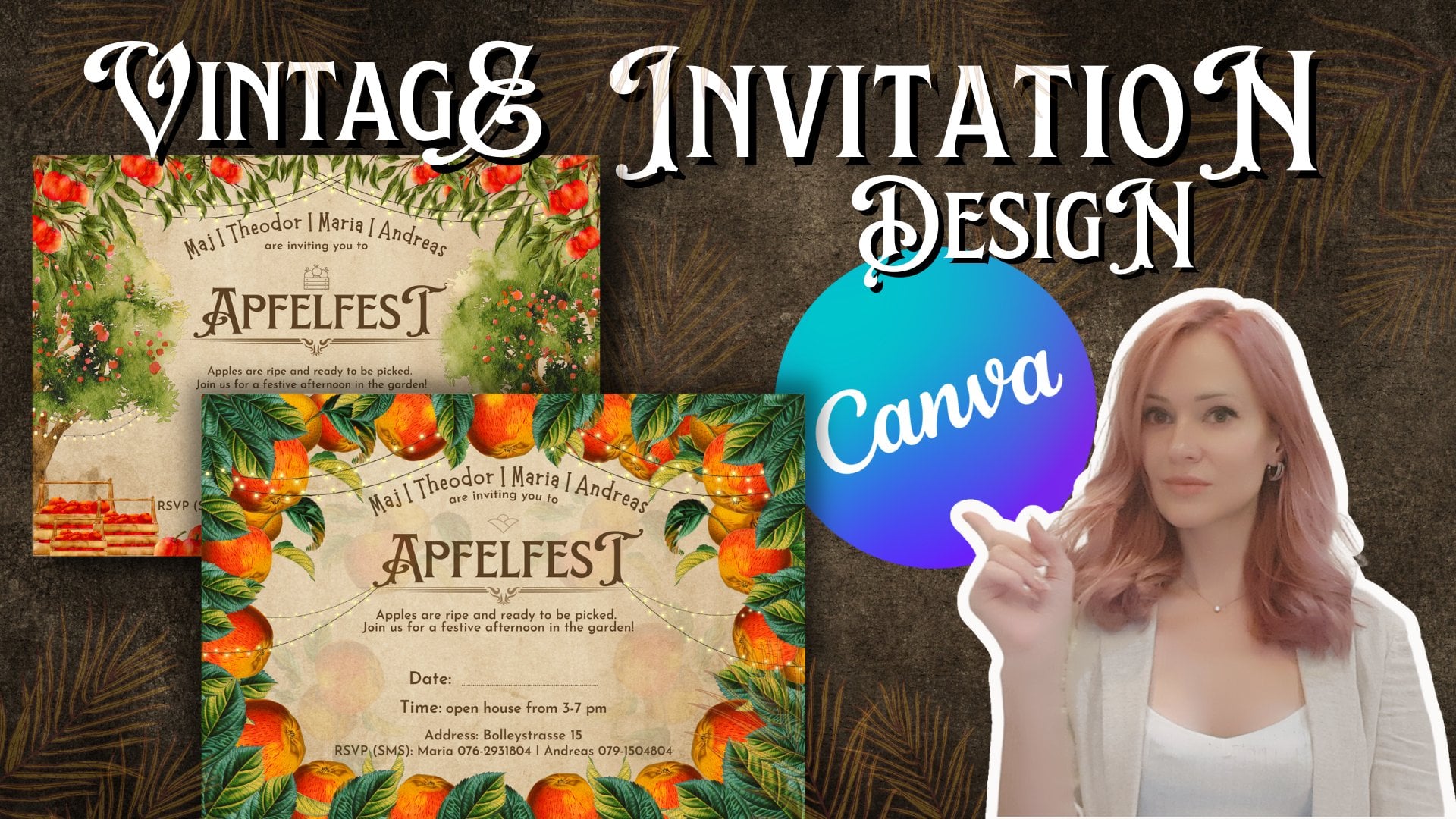
classes in my account where you can create wedding invitations, birthday invitations, and you kind of invitations like these ones that
we see already here. That will guide your course from the beginning till the end. How to create a certain design. And if you have any
questions or desires, designs that you would
like to know about, that you would like to learn. Just let me know in
the comments below. And I will be happy to
create them for you. Thank you, and I hope I see
you in the next courses.
 Diemante, Hospitality Expert, Digital Designer