Transcripts
1. Pen Tool Introduction: Hello, my name is Fania. I'm a French illustrator
based in Montreal in Canada. I have a graphic
design background. I've made quite a few logos,
illustration in Illustrator. Actually, it's the app
I've been using forever, I guess, to create vector
based illustration. The pen tool is probably the
most important tool that you want to get to know if you want to get
skilled illustrator. Mastering this tool is crucial if you want to draw
a nice and smooth vector. Today we are going to
dive into that tool. Specifically, I'll give you all my tips and tricks to
use it with confidence. We are going to start with the very basics of the pen tool and the other tools
that you need to know to work and combine
with the pentol, such as the anchor point tool, and how to switch quickly from this tool to the
direct selection tool. Then we'll do some
simple exercises to understand the gesture. And we'll finish with a doodle. In my case, it's
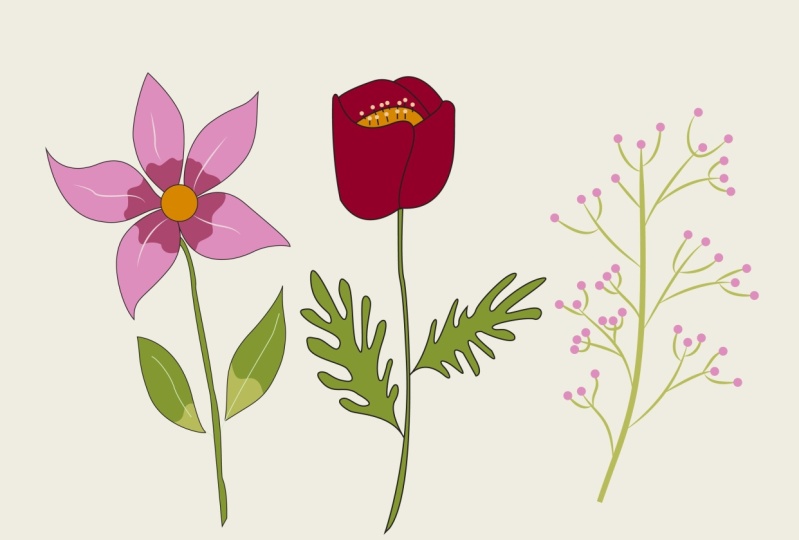
going to be a flower, but any of your
doodle will be fine. As a bonus, I'll show you a magical tool to
colorize your doodle. You don't need to be
experienced illustrator. Just basic knowledge is okay, and you're good to go without further ado. Let's get started.
2. Pen Tool basics: Okay, once you start
your Illustrator app, you land on that page. Let's start by
opening a new file. You might have pre
selected files here, but let's create a
10 " by 10 " file. It doesn't really matter
in terms of resolution, but we want to have enough
space in our board. Let's click on Create. Before we start
tracing our doodle, let's focus on the
two different types of selection tools. The black arrow is the main selection tool which
select the entire object. The white arrow is the direct selection tool which will select
part of the object. It allows to move anchor
point individually, like so. Okay, let me just explain
quickly how the pento works. Let's select our pental, which is the nee right here. Or you can just press P for pen. Set your field color to none. The white square with a
red line in the middle. At this point, we just need
a stroke. Let's do it. Let's get rid of this one. Click to start a
line and then click, click again to drop
another point, which is called anchor point. Then push escape on your
keyboard to let go of the line. Here you are with your first object that
you can move with your main selection tool
with a shortcut there. Okay, let's do that again, go back to our pen
tool or again, press click where you
want to begin your line. Click again and then
click once more. You have now a line with
three anchor points. Let's push escape
on the keyboard. There you are. You
can move your points any point right now. Let's do it again. Let's
get back to our pen hole. Click to start a line, click again, and then escape. Now let's say that you want
to start where you were. You are going to position your pen hole on the last point. And you can see there's
a line beside the nib. It means you can click and it's going to restart your
shape where you left it. Now go to the first point, and this time there's a circle
popping up by your nib. This means you are
closing the shape. Now you have an object made
of three vector points. You can move your object with
your main selection tool. All right, that's cool.
Now let's draw curves. Let's remove these three shapes. All you have to do is
the exact same thing, but this time instead
of just click, you're going to click and drag. Before you let go, you will
see handles appearing. These handles are going to define the curvature
of your shape. These curved lines are
called bezier curves. You can go on with another
point and another one. Just click and drag every time, and then go back to
the first point. When you see the circle
beside your knee, you can click and drag to close, but you have to click and drag in the direction
of your drawing. Otherwise, you see this is what's going to happen
and you don't want that. You're going to click and
drag in the same direction. Now you have a shape
that you can alter, fill with color, and so on. Always remember to always drag in the direction
of your drawing. This is important when you have a more complex shape to trace, and we'll see that
in a short moment. Okay, now that I've shown you how to make hard angles curves, in the next video I'll show
you how to combine them with the Anchor Point tool and a few shortcuts that will
help you create end shake.
3. The Anchor Point Tool: All right, before
we go any further, we need to save our file. Of course you go to file save, or you can just click command
S or Control on a PC. Then you're going to choose
where you want to save it. I'd like to save
it on my computer. I'm going to give it a name
of choose my location, which is going to be my desktop. Click Save. I had one before, so I'm going to replace
it and click Okay. And you're good
to go. All right, so one of the very
important tool that goes with the Penthol is
the Anchor point tool. Which is right under the Penthol and you
can access it with a shortcut shift C. But let me
give you my little secret. When you are using the penthol, just press and hold
the option key. Have the anchor point
tool when you need it. And do the same
with a command key or control on a PC to get
the direct selection tool. This way you can go
back and forth from the Anchor Point tool to the Direct Selection
tool to the Pen tool. Anchor point tool, direct
selection tool, pen tool. You'll see after a while it's going to be like
a second nature, you won't even think about it. So what do we do with
that Anchor point tool? Well, its primary purpose is to convert corner anchor points
to smooth anchor points. I'm going to draw a few
corner anchor points. Then if I use my
anchor point tool, which is remember
the option key, I just drag it and then I have a smooth anchor
point, vice versa. If you get the
anchor point tool, again, just press and
hold the option key. And when you click on a point, it will remove the handles and transform my curve
line into a corner. If I go back to that point with my anchor point tool, like so, I click and drag and
I will add handles again that I can spin around
to whatever shape I want to. If I hold the shift key, I will increment
the direction of my handles by 45
degrees like so. But that's not all.
If I have a shape with straight lines like
this one, for example, if I go between the point and drag the line with my
anchor point tool, I will create handles to make round shapes that goes
in both directions. Last tip that you
will need to know to get your shape drawn faster. If you want to add a
point to your line, just hover your pen on the line and click when
you see a plus sign. This will add an anchor
point with two handles. On the contrary, if you
want to remove a point, hover your pen tool on a
point and click when you see the minus sign beside your knee and you
just removed a point. I can add one. I can remove one. Just as simple as that, now that you know everything
about the Penthol. In the next video, we
are going to apply this principle with a
few simple exercises.
4. Pen Tool Simple shapes: All right, now that you know every little secret
about the Pen tool, let's do some exercises to
help you improve your skills. I've added a file in the chat
under the message section, and it's called Basic Exercises. Once you have
downloaded the file, just go to the file
menu. Go to place. Now grab the file, Double click or just before
you click on your board, you're going to go to the upper left corner and
drag your file to the bottom, your art board, so
it is placed at the exact same size
of your artboard. That's really important. Then we are going to go to the layers, which is that icon here. If you don't have
it, you can go to windows and layers and
it's going to appear, we are going to lock that layer. We could also click shift
two to lock the object, and we are going to make our drawings on a
layer on top of it. In that way, that drawing
is not going to move and we're going to be able to draw
very easily on top of it. Grab your pentel, make sure
your color fill is to none. Then we are going to
start our drawing. We start at the very beginning. We click and drag in the
direction where we want to go. We are going to keep
a short handles. The shorter they are, the
less curved it's going to be. If you want to have a big curve, you make a big handles, a small curve, it's going
to be smaller handles. Then I'm going to
click on top of my wave with my shift key. I click first, I
push the shift key, sorry, and it's going to
be 90 degrees handles. Same here, they are going
to be strictly parallel. If I click the shift key, it's going to help you making a very similar
curve, I would say. Hopefully I'm clear
when I say that, okay, click and drag
with the shift key. If it's not perfect,
it's not a problem. We're going to adjust it
after click and drag, Click first, then D, and then click the
shift key, that order, click shift key, click,
drag shift here. We want to change direction. We want our draw
to go down here. But if we click just here, we're going to have a curve. Of course, what
we're going to do is we're going to
grab our handle with our Anchor point tool and we're going to pull it in the direction
where we want to go. And then we'll be able to
click and we'll have a corner. And then we're going
back and we're going to do the same in
the other direction. At the end of the drawing, you see my circle here. And then I'm going to click. And I'm not going to drag
because if I do that, you see I'm going to
create another handle here which is going
to create a curve. And I don't want that.
So what I'm going to do is I'm just going to click. So I'm not creating a handle, but I still have the handle I've created at the very
beginning of my drawing. So it's going to give me that corner here and
the curve on that side. Now I'm going to
adjust all my curves with my command key, which gives me the white arrow to the direct selection tool. I'm just pulling my
handles everywhere. I want to adjust my drawing, I can pull the
handles or I can move my point depending on what
exactly I need to adjust. If I need to adjust the
position of my point, I'm going to grab the point. If I need to adjust
the curvature, I'm going to use the handles. This is how you're going to use your penol to create
your bezier curves. Next we're going to work with
corners and straight lines. I'm going to let you
play with those shapes. Very simple straight lines. You can just exercise
yourself to just drop the points from one
angle to another. Then use your option
key and command key. Just with your points. You can add points, create handles if you
want to just play with the shapes however
you want just to get used to the pen tool. Now what we're going to
do together before we go to the next step is just
playing with those waves here. I've created them again, so you will have plenty of
time to do it by yourself. Then all we are going to do
is create shark fin or waves, whatever you want to call it. We're going to grab a
point and then we're going to grab our handle here with our anchor point tool and just pull it down so we
have this curve now. We can also grab the curve
itself to make it even bigger. Then we're going to get back to the direct selection tool and then grab the anchor point
tool and create the wave. Let's do that. Again,
it's just to get used to go from one
tool to another, Grab your anchor point tool
and pull your handle down. And again, do that
with this one. Then you can play
with the curves if you want to make them even bigger or you
can grab your point, you can play with your handles. Just make yourself more
comfortable with the tool. And the more you're
going to do that and the more you're going to
be skilled. And that's it. In the next video, we're going to draw a flower.
5. Pen Tool Flower doodle: Okay. Now that you are more
familiar with the Pentel, we're going to try something
a bit more complicated. Not too much, it's
just a flower doodle. You can of course, use the file I've provided in the same place
as the other one, or you can use your
own doodle that you will previously scan
and place on your file. I've created here a file which is ten by ten,
like the other one. I'm going to save it right now. I'm going to press Command and it on my computer and
call it flower doodle. Okay, I'm going to place it
here as we did previously. Let's place our doodle, which is shift command
or shift control. I'm going to get my flower
doodle here. As I did before. I'm going to start
from the very top of my file and d drop my flower. Once you have placed your image, we're going to transform
it as a template. It's going to be locked
and transparent, so that will help you
drawing on top of it. For that, you're going
to double click here. Under the layer options here you can see you can click
as template and you can dim it even more to 30% and now it's
locked and transparent. Okay, now we are ready
to trace our flower. The first thing I'm going to do, of course, is to
select my pentel. Then I'm going to make sure
my fill color is to numb. And I'm going to zoom in
it's command space bar. Just drag your mouse
control space bar for a PC. I'm going to click
on top of my pedal then I'm just going
right here to the side, to the very bottom. Of course I'm dragging
and dropping. Then I'm going to
change the direction with the anchor point tool like So I'm going back to the side of the pedal then I'm
going to click here. As you can see, I have
a point like I want, but I don't have any option to move here and make
that nice curve. What I'm going to do is I'm
going to drag and drop. If I drag and drop here, that handle is not in
the right position. I'm going to click on the option key to grab
my Anchor Point tool and just bring it down until I'm happy where the line is going. I'm going to do the
same thing here. Just grabbing the handle here. I'm going to grab the handle to make sure the
line is going to follow my drawing here with
my direct selection tool, I'm going to select the point. Then with the handles, just move them until they
follow the exact drawing. Here I have a nice curve
with only two points. Let's do the second one. I'm going to start
from the bottom. This time I'm going
to click and drag. Click and drag. Here I
have the same curve. I'm going to check
if I'm able to do it with just one
point, which is the case. I'm going to take my
direct selection tool and I'm going to
move both handles, the curve stay smooth. I'm going back here, I'm
going to click on the point. I'm going to go back here
and finish my drawing. You see I have plenty
of handles that are not well positioned. I'm going to just grab
the anchor point tool, bring it back here. I'm going to use my direct selection tool
to make it smoother. But right here you see I cannot follow that path because
I don't have a handle. I have to go back with
my anchor point tool and redo two handles. Then again, I'm going
to grab my handles. Going from the direct
selection tool to the anchor point tool to
manipulate my points. So I'm going to
finish the petals, but I'm going to spit
it up a little bit and I'm coming back
for the rest of it. Okay, now that the
petals are finished, I'm going to draw the pistols. Of course, I could draw
it with the pentol, but I have a much simpler
tool which is the shape tool. And it's under that square here. I'm going to go and take
the ellipse tool and click shift to make sure it's constrained to
a perfect circle. And I'm going to trace
it just like that. I can make it a bit bigger
if I want. That's it.
6. Pen Tool Colorise Flower: All right, I'm back
with my flower. As you can see, I've almost
finished the drawing. I've cleaned the
center and I've left two leaves to show
you how I did it. Also, I've added thin line
here to create shadows, and I'll explain why those
lines are a bit thinner. Also, you can see my swatches here that
I've created For that, I've created a swatch
file that you will find with the other file that
I make available for you. Let me show you how I cleaned
the center of my flower. I want to remove
these two lines, but I still want to
have closed shapes. What I'm going to do is
I'm going to my pen tool, then I'm going to select with
the direct selection tool, I'm going to select that, drawing that line, if you
see the plus sign here. I'm going to add a point
here and add a point here. I'm going to select
this one and I'm going to just press Return
to remove those lines. Now what's really important
is to select the point and it touch the line here to make sure that the shape
is closed here. I'm going to do
the same exactly. I'm going to add a point here. Remember if I just over
my pen tool on the line, I'm going to see a plus
sign here. Another one. Oops, Just make sure
you're on the line. I'm going to select this point with the direct selection tool. If I add Shift, I can
select a second one and then press Return to
remove them again. I'm going to grab this one and just bring it here
to the center. And that's it, that's
how I clean my shape. All right, so now we
are ready to colorize our flower and we're going to
use the live paint bucket. So first we're going to move
our swatches over there. We're going to
select the flower. We're going to define
the live paint areas. We're going to make
live paint, which is, as you can see, option
command X for the shortcuts. Then to select the paint bucket, you are going to use the
letter K. All right, and we're going to use
our colors that are here. First you diselect
and then you're going to use the Eye Dropper
tool, which is letter. I'm going to select
my first color. And then I'm going back
to the live paint bucket, which is K. You see it's
selecting the areas that I need. I just have to click inside. This is the reason
why I was saying that you need to
have closed shape. Now I'm going back to my eye dropper tool
with the letter. I going to get my other color. Going back to the
live pain bucket and click here to have my color. As I said, it's just
like paint by numbers. Now I'm going to get the
lighter green color, my leaves, back to the eye dropper, back to the live paint bucket, and you just go from I
to K to get your colors. Okay, let's remove the
outlines that we don't need. But first, the very
important thing that we need to do is select our flower, because right now it's grouped inside the
live paint bucket. We're going back to
object to life paint and we're going to
expand this way. We're going to be able to group our objects and treat
them individually. For that we're going to object ungroup or shift command G. Now you might have to do that several times because
you have several groups. We're going to select
those lines here. We want to, let's get a very
pale pink as you can see. If I do select them, they're all colorized,
but you have to, of course, make
sure that you have selected the outline and
not the field color. Let's do the same
thing for the leaves. So we're going to select them, to select several objects
at the same time you just shift and click
on the object. We're going to choose
a lighter color, very light green, Let's say it's more like a yellow green here. And click there. We have our stems. All right, now we
want to get rid of these outlines rather than just select them one at a time. We're going to select
same stroke weight. This is the reason why I changed the weight
of the stroke. To make sure if I select them, I don't select the
whole outlines and I'm just going
to press Return. As you can see, we don't have
any more outline here now. You can do the same with the
others or you can keep them. You just do whatever you want. So I'm going to show you, I'm going to pick up the flower, go to same stroke weight. So all those stroke
weights are selected. But as you can see, they
selected also the centers. And I don't want that,
I'm going to keep them. I don't want to get rid of them, so I'm going to keep
them just like that. And this is how you colorize your flour with the
life paint bucket.
7. Pen Tool Conclusion and project: Congratulations, you made it. So now that you've learned
to master the pentel, you'll be able to trace
any of your drawing. Now, I'd like you to trace
either my flower or any of your drawing and share in the chat so we can all see
what you've been doing. Seeing my student work is
the best reward possible. I wish you enjoyed
the course and if so, please let me know your
impressions in the chat. So feel free to ask
any question and I'll be happy to
help any further. Of course, if there's anything specific
that you would like to see as a course here by
any means, let me know. Don't forget to follow
me on the platform. So you'll be notified
on my next course. Finally, be proud to
share your work on social media and don't forget to tag me so I can
see what you share. Thanks a lot for watching
and I'll see you next time.
 Fanny Achache, Illustrator/Designer - Studio FannyHH