Transcripts
1. MASTERING GRADIENT INTRO IN PHOTOSHOP: Hi students, Welcome to this master gradient class. I'm so excited to have you in this class. And I know that by the time you finish this class, whether you are a beginner or an intermediate, or an advanced Photoshop user, you will be blown away by the skills that you take from this class. Now, in this class, we are going to do project-based lessons. We are going to start with something basic, intense of how to create a very simple gradient background using just your paints branch. And the next thing we are going to do is to take it a step further. And we are going to try our hand at the angle gradient. Now the angle gradient can look like you are sort of limited in what you can do with it. But you will be amazed at the cool effects that you can create with the angle gradient. Then we are going to go ahead and use the Curvature Pen tool in addition to the gradient tool to create something very unique and also introduce some online forums. And then we are going to take it a notch up. I'm going to show you how to create a brush gradient effect. That will be a custom brush. And then with that, we are going to create a fluid form that we will use to create another abstract gradient background. So I have a whole lot of things lined up in the class that by the time you finish, you would have become a master at using the gradient tool. I'm going to have some bonus lessons at the end of this class. You can try your hand at those, and if you want, you can recreate those as well. I would like you to post anything you do on the discussion board so we can all take a look at it and appreciate your work. I want you to grab your coffee or a soft drink, alcohol, and get into the class with me, k. So I will see you in the class.
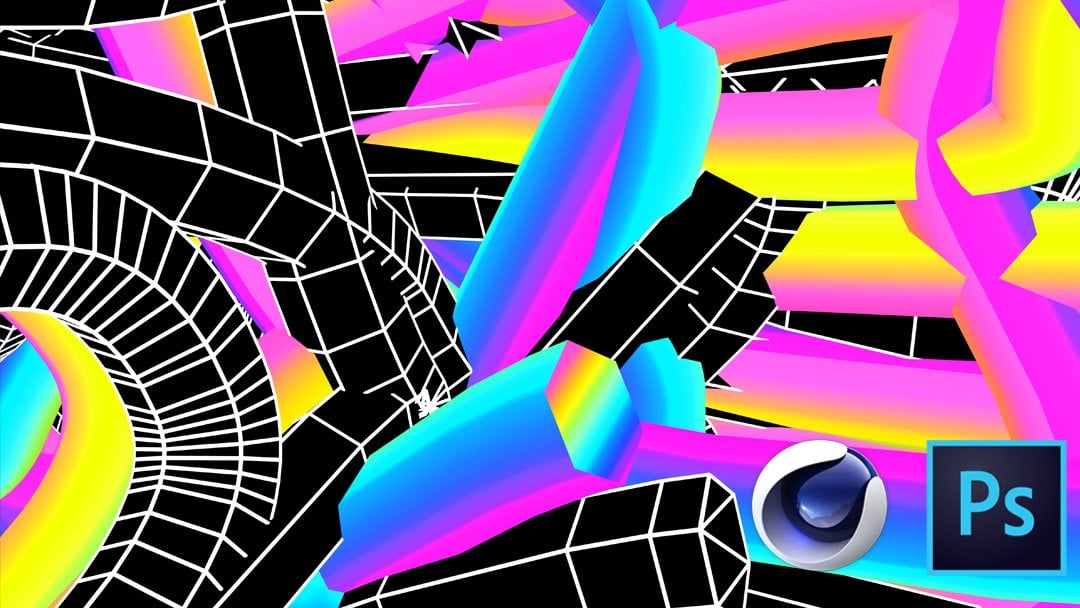
2. Abstract Gradient Layering in Photoshop Final: Hi students, Welcome to this class. I want to show you how you can create a way the gradient background using different layers. So while we're going to do is we're going to start off by setting up background. So I'm going to go back just like we did in the previous. Click on your gradient. And we are going to go ahead and find something once again in the purple. And it looks like we have a purple theme that is going on. And I'm going to go ahead and maybe click on the blue and make it a little bit more intense like that. Click Okay, and come out of this. So now what we're going to do is we're going to pick up our Curvature Pen tool. I'm going to just go ahead and click on that. Pick the Curvature Pen tool. And we are going to go ahead and to create some swells like that. And I'm going to go ahead to basically close that off. And we are going to make sure that we are on a shape and not on a path. Now click on the fail and we are going to go and blue, we're going to click on the gradient and we are going to go and the blue. So I'm just going to stretch that. Go under your blues. And we are going to choose something very basic like this to begin with. Now, if you want something in the cyan, we can also choose that. So with this set, we can go ahead and actually change the opacity, reduced our opacity. So it's not too much. And I'm going to make a copy of this Command J to make a copy. And I'm just going to move this and set the some way here and basically scale it and do something like this. So using the same shape, we are just basically create different swells. Now I'm going to go ahead and make another common J. And I'm going to zoom out a little and I'm going to move. I'm going to make a copy. So click on your image Command J, make a copy. Now move this to the back. And basically we are going to do something more like so we're going to set it in like that. So with this set, we want to go and basically cut off a bit of the second layer. So you want to go ahead and click on your command, make a selection of the thumbnail of the top one. Click on the second shape, which we want to basically chop off that end. So go to Select Inverse it. So our selection is outside where we initially started. Now go ahead and add a shape. Now, once we have that, I want to go ahead and click on that hold down Option. Hold down your Command, make a selection. And we are also going to add a layer mask. So basically it gets rid of that. So we have something more like this. We can even open it up so we can see a bit of the purple also in the background. So we have something like this in the corner. Now, we're going to go ahead and repeat a similar effect on the other side. So we are going to go ahead and pick up our eclipse. And I'm just going to make a circle holding down my Shift. So it's even now we can go up to our fill color. And I'm going to click on my gradient and choose a two tone gradient like that. And I'm going to make sure that my stroke is empty. So I don't have any line like I see on these ones. So I need to click on my part to activate my shape. And basically ten of the line for each one of them. So I'm going to do the same thing here. And I'm going to click on the top shape and basically on check my stroke. So it's just very wavy, watery. So I'm going to pick up my pen curvature and I'm just going to make another swell like that. Now I'm just going to close that off. Go to my fail. And we can choose either a purple or we can even click on that color. And then choose maybe a lighter purple click. Okay, I'm going to take the opacity down like that. And I'm going to move the shape and set that on the bottom. So we have something like this. Now, even if you want a gradient effect, you can click on our fail. Click on your gradient. We can look for a gradient fill that has already been applied. And basically use that to start off. So we can do something like this and maybe change the color to maybe white. And play with a different scale to see what we want. So I'm reducing the scale does time. And I can even change the angle if I don't want it the way it was before. So we can have something like this. I'm going to come out of it. Now. I can even click back on my shape and put it right at the top and maybe reduce my opacity. So we have something like this. Now, I want to go ahead and do more on the bottom. So pick up your Curvature Pen tool. And we're going to go ahead, keep making some swells. And I'm just going to do that and close it off. And I'm going to go ahead to my Fill, click on my gradient. We are going to choose this gradient color. Now, I'm going to move my yellow to the side so I get more of the lighter color. I'm gonna go ahead, come out of this. So we are going to click on our shape and we're going to make a copy command J to make a copy, move that up. And we are going to click on Move tool. And we are basically going to rotate this and said that somewhere here like that. And we are going to go ahead and reduce the opacity and basically keep plane with all of these shapes. So we get the desired effect. Now, I'm going to go ahead and make another copy command J. And we are going to move that and basically set that here and rotate. So we have something like this. And I'm going to do that. So with all of these three set, I'm going to go ahead and add a bit more of the blue effect on the side. So first of all, I'm going to click on my purple Command J. Make a copy, move that and set that some way here, and just rotate that. So we have the same effect that we have on the other side. So you're basically creating different swells. And we can reduce our opacity for each of the different shapes that we create. So I'm gonna go ahead and pick up my other shapes that I have here. Or I'll pick up both of these of three. And I'm going to make a copy command J. I'm going to move those three. And I'm just going to go ahead and rotate and create something like that here. And I'm going to move this down so we have something like this. So with all of this set, we can go ahead and add in a little bit more shapes. So pick up your Rectangular Marquee Tool, hold down, shift, make a circle like that. Now, go, click on your fail your gradient and we can set it like this. And if we want, we can go ahead and create another circle and maybe change this one to purple like that. And we want to make sure we move this to the very top. And I'm going to go ahead to pick up. I'm going to draw a circle right there, hold down my Shift. Now, instead of creating it as a solid, we are going to click on our fail and take that out and just increase our stroke effect. So we just have that and I'm going to go ahead and create maybe another one on this side and one on this side as well. And then just have fun with the shapes. So with this set, Let's say we want to change up our shape. We'll pick up the triangle. And we can create something like this. And then maybe fill this one in. And then create another one, maybe here. And we can go ahead and create a rectangle on this side. And then I'm going to go ahead and click on this rectangle. Make a copy command J. I'm going to go ahead and zoom in and pick up the copying and maybe make that bigger, like that, little bit smaller. And I'm going to go ahead and click on my part select tool, click on the shape, and maybe click on my gradient and choose something like this. We want to make sure that we check our stroke. We have these two shapes. I'm going to select both. We're going to go ahead and select both shapes. And I'm going to go ahead right-click and I'm going to go ahead and create a smart object. I'm going to also rotate it like this and set it right there. I'm going to make a copy command J. And I'm going to move that and set that somewhere here. Make this smaller and double-click to accept. So I'm gonna go ahead and zoom out. So we basically have something like this. Now, this shape, I can basically cut it off from here. And with my eraser, I can basically deletes the section of the shape. So we have something very fun and fluid. Now, I can go ahead and also add in some lines. So just like the lines we had in the previous, I can pick up my line tool. And I'm just going to go ahead and draw in some diagonal and increase the stroke thickness. And I'm going to click on it. Going to zoom in Command J, make a copy. I'm going to set that right there. Make it maybe smaller, set that right there. Command J, make another copy. Another copy moves that. And basically increase this one and make another copy of another copy command J and maybe set that right there. Now I'm going to go ahead to pick up my rectangle. And I'm just going to go ahead and draw hi rectangle in the middle of our design. And I'm going to increase my stroke thickness to about a 15. Now I'm going to scale this down like that. Click Enter to accept it. Now, pick up your type tool and we can go ahead and type in abstract background. I'm going to click on it, move it in the middle, Double-click, just change the color to white. I'm going to highlight just that. Change the style to bold and change this to. So I'm going to go ahead and zoom in and I'm going to go back to my shape, pick-up my rectangle, and I'm just going to make this little dots to make sure that I have this failed M. And this is what we have. I'm going to zoom in and I'm going to make a copy command J. And I'm just going to move that command J to make a copy. And move that out. And I'm going to select all three triangles. Holding down Shift, right-click, Convert to Smart Object command J, make a copy. I'm going to move that out like that. And I'm going to match both layers. Right-click convert smart object, and make another copy command J. Fill that in. And I'm going to zoom out to see how much we have. And I'm going to do one more. So I'm going to select both layers. Right-click convert. And I'm going to make a copy command J. And I'm going to set that right there, like that. Now, imagine both layers and I'm going to make a copy. This time. I'm going to move that up and make a selection of both Command J to make a copy and move both up. Now I'm just making another selection of all four right-click Convert to Smart Object. So we have something like this. Now, we can move this one command J to make a copy. And I'm going to set that right there. And I'm going to make another copy command J to make a copy. Set that right there. Command J, make another copy and set that right there. Can make a selection of these two command J make a copy. Now I can move that and said that somewhere here and make it bigger. And I'm going to move that and take it all the way to the top. Click on both layers. We're going to move those two and we're going to set them. So I can even do an offset or I can just line it up like that. I'm going to zoom out. So you basically get the point. Now I can make another copy and I can go ahead and make a selection of all three. And I'm going to go ahead and group it. And I'm going to make a copy command J. I'm going to move that, said that somewhere here. And with my Eclipse, with my rectangle, I can basically chopped off this right-click, make a copy, and 10 of the other one. So I have just this piece. I can make a copy of this. And said that some way here, I can make a copy of this Command J. And then I can set that right there and maybe increase this one. So I have something like this. So you can see that you can create all kinds of shapes. I'm going to go ahead and increase it. So if you want, you can even click on and make this one a little bit bigger, offset it, that and maybe even take the opacity down. So if I zoom out, you basically have a very nice background effect that you can use. Now, you can even go a step further to add m a little bit more depth. So I'm going to click on my lasso lasso tool. And I'm going to go ahead to just create a shape like this. And I'm going to go ahead and I'm gonna go ahead and create a new layer for this. So I'm going to click on my adjustment, add a solid color. Now, I can choose the same purple like that. And I can click Okay, and I'm just going to go and zoom out. Now, you can see that this is giving me a very nice effect. Now, even if I want, I can add a gradient so I can hold down my command. Click a selection of my thumbnail, go to Gradient, go to my adjustment, and click on gradient. And I can either leave it like this or I can go to my purple and then choose something like that or like this, or like that. And go ahead and click Okay, and Okay. So now you can see that I have a totally different background from where I began. So students, once again, I hope you enjoyed this tutorial. Please recreate your version of this, share with us and the class so we can see your progress by.
3. Abstrat Gradient Design in Photoshop Final: Hi students. So the first thing we're going to do is we want to set our background. So you wanna make sure that you go to your adjustment and you want to click on your adjustment and choose Gradient. Now, we want to go ahead and set up a very basic gradient. So click on your gradient fill. And we want to go ahead and look in the presets. We want to go and a purple and choose something between purple and pink. So what we have, which is the closest is something like this. So what I'm going to do is that I'm going to choose this one. And we are going to change the deep purple. I'm going to click on that. And we are going to change that to a deeper blue. So we have something more like this. And I'm going to go ahead to click Okay. And click Okay. Now we want to change the direction of this angle. So just move it to the opposite side. So you get something in a diagonal phone. And now we want to go ahead and create some circles. So you need to go and your shape. Now, when you go under your shape, we are going to pick the eclipse. Now, notice what happens if you just draw a line. You notice that it's not. If you just draw a circle is not even. So to get your circle to be even, hold down your shift and basically create your circle. And notice that is an even circle. So we're going to release, and we want to go ahead and scale this down by holding one end of our shape. And if your transform is not activated, click on Command T or Control T if you're on Windows. Now, we want to go and our properties and we want to fill in this shape. So go ahead and click on fail, and we are going to choose black. Now, we want to make sure our stroke is also empty. So click on your stroke and click on your rectangle with red line across. And basically, if you come out of this, you notice that you have a circle without any outline. Now, we want to go ahead and create a few circles around this particular shape. So we want to make a copy. So you want to hold down Command and J, or Command J if you're on a Mac and Control J if you're on the windows. So we're going to go ahead and change this. We're going to click on the fail, make it empty. And with a stroke, we're going to add a white. And we're going to change the pixel to about eight. Click Enter. Now we want to scale it. So hold down Shift and we're going to scale it on the n side. So this is good enough. And we're just going to set it right in the middle like that. And I'm just going to go ahead and zoom in so we can all see it. So with this set, we want to also go ahead and create an outline outside the circle. So select your shape, Command J, make a copy. We're going to hold down shift. And we are going to go ahead and scale this out. So we have something more like this. And I'm going to go ahead and set that. Now. Notice that my shape is snap into the middle because if you go, if you go under View, I have my ruler and snaps on. So it does not to the middle. Now, with this set, we want to go and increase our stroke. You need to double-click to accept. Now, we want to increase our stroke thickness for the outline circle. So we're going to take it to about a 20 and click Enter. Now, if we wanted a little bit more, we're going to highlight and make this body. So we want to go ahead and add two more circles outside this. So Command J make a copy. And we are going to hold down Shift. And we're going to just scale this out. And we are going to center this like that. And I'm going to set this in the middle. Now, we want to reduce, you need to double-click to accept. You want to reduce the thickness to about a 10. We're going to make another copy. So click on your image Command J. Make a copy. And with our Move Tool, and we're going to set that right there. We're gonna go ahead and scale it down a little and just center it. Now, I'm going to go ahead and add a layer mass to this image, this layer and layer masks to that layer. Now we want to pick up our rectangular marquee tool, make a rectangle halfway, and we're going to click on the eclipse for the second outline circle. Pick up your brush with your foreground as black. You know that black hide, white reveals when working with layer masks. So we want to hide the bottom portion of the circle. And we're going to click on the other layer, click on the thumbnail, and we are going to paint that in as well. Command D to D select. So with this all set, we want to make a copy of this of these two. So hold down Shift, select the two images and Command J. We're going to make a copy. Now, we want to scale this down a little. So I'm just going to do that and we want to rotate it. So we're going to do something like this. And I'm going to go ahead and move this and set that in place. So a subtle offset. And I'm going to rescale rotate. So we have something like this. So we're going to go ahead and add in at texts, which basically says abstract background. So pick up your type tool with your foreground as whites. We are just going to go ahead and type in abstract. And I'm just going to increase it. So we have abstract background. So with this in place, we want to go ahead and basically add the gradient. So you want to click on your top image below the text. And we are going to add a new layer. So click on the plus icon and we are going to go ahead and pick up our brush tool. You want to make sure your catalog cyst off so you can see your brush head. Now, click on your foreground color. We are just going to make some color selection. So I'm going to click on this. And I'm just going to do something like that swell. I'm going to go back onto my foreground and choose like a honey must add. And I'm just going to splash that somewhere here. And I'm going to go back and choose the purple, pink. Sorry. And I'm just going to splash that here. And we are going to choose a cyan. And we're going to splash that somewhere here. So with this offset, so with this all set, we are going to go ahead and add a blur effect. So make sure your layer is selected. Go under filter. We are going to choose black caution lab. Now, you want to make sure that you take the blade effect as much to the right as you can just to create the effect that you want. Now if it's too much, you can minimize it. So something like this. I'm gonna go ahead to click. Okay. So I'm going to go ahead and reduce the opacity. And I'm going to go and click on my black eclipse. And I'm going to move that to the very top. And I'm also going to go ahead and move the other Eclipse and set that above my black. Now what I want to do is that with this new layer that I already have, which is off, I'm going to move that to the top of the eclipse. And I'm going to basically clip that on so we get a little bit of that color. So hold down your options and just click that. I'm going to turn it on and I'm just going to clip that. So you notice that the color is infused onto our, onto the circle. So now we have a two tone. Now, if this is too much in terms of the background, I can add a new layer to my background. Layer max, with my foreground as black. I'm going to go ahead and I'm going to go back to my image. And I'm just going to go ahead and add a little bit more like that. And I'm going to go back to my black ash and Blair. And it's just going to give me this effect. So with this done, and I'm going to make a copy. So I'm going to click on it and type, hold down my command. And j make a copy. Now we want to go ahead and rotate this. So we have a along this angle. So I'm going to click on the Copy that we made. So with a copy that we've made, I'm going to go ahead and 10 of the original background. And we are going to go ahead and make a copy command J to make a copy. Now I'm going to zoom out and we are going to scale this on both sides. So we have something like this. Now, this is too bright, so I'm going to take down the opacity. So we begin to have this gradient effect. I'm going to make a copy of this command J. Make another copy. And we are going to also move that out, zoom out and do the same thing on this side as well. So to make sure that I don't take too much of the color, you want to go ahead and draw your menu, reduce your flow so that even when you paint, you basically don't lose everything that you have. And I'm just going to drag in a simple image like this. And I'm going to move that to the very top of my Eclipse. So it shows at the top. So with my image, I'm going to go ahead and scale it like that. Double-click. Now I'm going to move this layer and set it right above my Eclipse shape. And I need to clip it. So hold down Option and then just clip it so that it only applies to your circle. Now we want to change the blend mode of this. So we're gonna go ahead and choose a hard light. Now, if this is too much, we can take down the opacity. So it's not too much. So the last thing we're going to do is to change up our background a little, so we have a darker background. So double-click on your gradient, click on your gradient fill. Click on the stop for the pink. And we are going to choose something a little bit more darker. And I'm going to go ahead to basically click Okay and come out of this. Now you can even change the angle if you want. So you have the opposite, the color on the opposite side. Go ahead and click Okay, so guys, this basically brings us to the end. Now, we can reduce the opacity even for this if we want. So it's not true for all students. This brings us to the end of this lesson. I wanted to keep it very simple so that we build on the gradient tool effect. Now, I want to take you to the next lesson where I teach you something a little bit more complex using the gradient angle technique. So come along with me, I will see you in class. Bye.
4. Abstract Angle Gradient in Photoshop : Hi students, welcome back. So in this lesson, I want to show you how to use that angle gradient effect. So what we're going to do is with your blank canvas, you want to go to your shape. And we are going to click on the Eclipse. And we are going to draw a circle, hold down your shift so you get an even circle. And we are going to go and property. And with the fill color, you want to click on your gradient. And we want to go and our gradient option choose angle gradient. Now, we want to make sure that we choose something with a two tone color. So I'm gonna go ahead and choose this true tone. Now, I'm going to click on my move tool, set that in the middle. And with my stroke effect, I'm going to click on that and uncheck it so that is empty. Now, obviously, we can see our image as well. So I'm going to go ahead to add a background. So go under your adjustment. And we are going to click on Solid Color and we are going to choose something in the purple, a deeper purple. And I'm going to click, Okay, now move this layer to the layer beneath. So you have something like this. Now we want to go ahead and make a copy. So click on your shape Command J to make a copy. And we are going to move that and said that in at the top, just like this. So we want to click on our Layer, click on your gradient. Now, we want to go ahead and play with the angle, so we get it. So I'm going to set this at a negative one or a 0. So we have it that even. Now what I'm going to do is I'm going to go ahead and click back on my gradient. And we want to flip the colors. So just swapped. Your stock color stops, so you have the other image on the other side. Now what we're going to do is we're going to go ahead and add one more in the middle. And I'm going to click on the last one. And we are going to choose something in the purple. So we have something like this. And I'm going to go ahead and click, Okay, now we want to go ahead and move us slider. So we have the purple blending in like that. So we have something like this. Now go ahead and move your angle that, that right in the middle. So you have something like that. Now click on the bottom, click on the fill. We're going to do the same thing. So we want to flip this line to the opposite. So just negative 180, I'm going to double-click on my color. And we are going to go ahead and change this to a cyan. We're going to double-click and change it to a cyan. So we have something more like this. I'm going to click Okay. And I'm going to go ahead and hold down my options. Click on my stop there, we'll make one copy. Now we can move that in the middle. And I'm going to double-click on that color. Now we are going to choose something around the purple edge. So we have something like this. And I'm going to go ahead and click Okay. Now click on the yellow portion and we are going to choose the purple. Like that. I'm going to go ahead and click Okay, and maybe make this a bit lighter. So we have something like this. Now we're going to go ahead and move this closer to the cyan. So we have something like this. So with this choose set, we want to go ahead and we are going to chop off some areas. So to do that, we are going to, I'm going to pick my lasso tool and I'm going to go ahead and draw a rectangle like that. And straight down, holding down my shift. And I'm just going to close this off and move this up at the top. So we get an even cut like that. Now, I'm going to go ahead and add a layer max to my layer. But before I do that, I'm going to go to Filter. I'm going to go to Select and click Inverse. Now, the selection is only outside that little area of selection we just made. Now click on the Layer Mask icon. Now basically we hide that portion. Now we are going to do the same thing for this other piece. So when I turn this off, you see that it's cut off. Now this is looking good. Now I can go ahead and move this down just so we have this S going to zoom out. Now I'm going to do the same thing. I'm going to go ahead and cut this area. So with my lasso tool, I'm going to make a straight line. And I'm just going to cut it like that and close it off. Now go to your select inverse, your selection, click on that layer, add a layer marks, and that also basically is heading. So now we just have this shape and we want to make sure that the transition is very nicely done. We are going to go ahead and click on this layer with the thumbnail, make sure you pick up your brush. And we are basically going to blend in this area by painting in this section. Now, let's say that we want to go ahead and add a shadow effect to the shape. So we are going to click on both layers. And I'm going to right-click to convert this into a smart object. Now, this way I have one image. Now, I can double-click on the right, add a drop shadow, click on it. And you can basically see that drop shadow. If you want to increase it, you can go ahead and increase it like that or reduce the opacity. So it's not too much and we can increase the spread as well. And I'm gonna go ahead and click okay, this brings us to the end.
5. Abstract Background Gradient Effect in Photoshop : Hi students, welcome back students. So in this lesson, I'm going to show you how you are going to create an abstract background using your pen curvature tool as well as your shapes. So the first thing we need to establish as our background. So you want to go ahead and go under your adjustment. And we are going to click on our gradient. You want to go ahead and click on Gradient, go into your purple. And we are going to stick with something like this. But we want to click on the stock color stop and change this purple to a more of a bluish color like that, a deeper blue. And I'm going to go ahead to basically click Okay, now we want to take our blue and hold down option. Click on it once it creates another copy. And we are going to set it some way here. And I'm going to go ahead and click Okay, now we want to change the angle of this. We want to go ahead and increase scale. So we basically end up with something like this. So I'm gonna go ahead and click Okay. Now, the first thing that we want to do is to create one single shape that we are going to duplicate and just play with it. So I'm going to go ahead and click on my pen. And I'm going to choose that Curvature Pen tool, which is the third one. And I'm going to make up a shape. So you can make up the same shape if you want. Or you can create your own unique shape. And I'm going to go ahead to basically move this out. So we have something like that. So with us shape all set up, you want to make sure that you go to your menu above. Make sure that you don't have Pat but you have shaped turned on. Now we want to go ahead and add a gradient effect to this shape. So click on your fail, choose that gradient. Now, we can go ahead and choose something like a two tone in the purple and the blue. And notice that I'm using that a lot. So let's say we have these two tones. We can click even on the color and maybe choose something more deeper or more brighter we want. And I'm going to go ahead hold down option, both down Option and I'm going to create another one which was set in the middle, like that. Double-click on it. And we are going to choose more of a blue like that. And then click Okay, the one on the end. We're going to choose more of a cyan. So we have something like this. We're going to go ahead and click Okay. Now I'm going to move this a little bit closer and the purple should come more like that. Now, you notice that we can basically change up the angle to which ever way we want. I'm going to go ahead and basically come out of this. Notice that I had a white outline. We don't want that. So go back, click on your path selection tool, it will activate your menu. Click on the stroke. We want to make sure you check the rectangle with the line to basically take off that outline. I'm going to go ahead and set this somewhere here. And I'm going to go ahead and scale it. So we have something like this. I'm going to make a copy command J to make a copy. Now I'm going to set that some way here like that. I'm going to scale it bigger. Double-click, then even set it somewhere here. I'm going to make another copy command J, move that and set that some way here. And make another copy command J. And I'm going to set that here. And this time we are going to reduce the opacity. So we have something like this. And I'm going to go ahead and just change the direction. Double-click to accept. Now, if you don't want this on top, you can put it on the bottom. So click on this MHz. Now move this MH to the bottom so that it is not on top of the other shapes, but actually beneath the other shapes. So I'm going to make another copy command J. And I'm going to set another one here. And this one, I'm just going to reduce it and make it very small like that and double-click to accept. So these are the shapes that we have so far. I want to go ahead and create linear lines of this shape that we are going to use. So the easiest way to do this is to first of all, start by creating your lines. So go under your shape. And pick the line tool. And we are just going to hold down our shift so we can draw a straight line. And we are going to make sure that we change the stroke thickness to, let's say about it three. So if we select, we can see that it's there, but it's not too much. Now in our layers panel, we're going to move this layer to the very top. And now we want to make a duplicate of this layer. So Command J to make a copy. I'm going to go ahead and do in. I'm going to select and set that right there. And I'm going to hold down Shift select both layers. Command J to make a copy, and we are going to move both layers out. I'm going to select all three of four Command J to make a copy. And with my move tool, we are going to move all of the three out. Go ahead and match all of these layers or click on the top line, hold down shift. Click on the last line, right-click. And we are going to convert this into an object. Now, we are going to make duplicates of this command J. And we are basically going to move these. So we just create a multiples of these that we are going to use. I'm going to go ahead right-click and merge these two. And I'm going to go ahead and move that, said that from the bottom. We're going to move this up so that the lines zoom out. And lastly, select both right-click and basically convert it into a shape. So now that we have this line design, we are going to use it to create our shape. So I'm going to make a copy command J. I'm gonna 10 one of this off. Now I'm going to grab the shape. I'm going to make a copy command J, and I'm going to set that here and rotate and scale it down so it fits inside my shape, inside the line. So I have something like this and I'm going to do it like that. Okay? So with this in place, what I'm going to do is that I'm going to go ahead and make a selection of the shape. So you want to hold down your options. Click on the thumbnail to make the selection. Now go to the layer and add a layer marks. So when you add a layer max, basically the chops off everything around it and basically highlighted. So if you right-click, notice you cannot apply the layer mask. So we are going to right-click on our layer and convert it one more time to a smart object that we have. We can set it any way we want. I'm going to go ahead and delete this, and I'm going to go ahead and move the other shape and set it some way here. I'm going to go ahead and rotate it like that, make it smaller and set that somewhere here. Now I'm going to go ahead and make a copy. So click on this Command J, make a copy. Now we need to 10 of the bottom. We need to lock it. And I need to click on this and Command T to activate it. And I'm going to move it and said that somewhere here. So we have something like this, so it's just overlapping items. Now, we can even reduce the opacity of this one. So it's not too much. So we have it, but it's still very minimal. And I'm going to go ahead and click on this one. We're gonna make one more copy command J and Control T to activate the move. If you haven't difficulties in moving your image or your lines, that's what you have to do. You have to activate your transform, which allows it to move easily. I'm going to set this right there. So with all of this in place, we want to go ahead and also add something else that will make our background talk. So I'm going to add a shadow, so I'm going to click on my image. I'm going to go ahead and unlock all of my images. Click on this shape, double-click on it, brings up the layer style. We're going to add a drop shadow, click on the drop shadow, and then basically reduce it. So it's not too much. And I'm going to take the opacity back a little. So it's a lighter shadow. Now, we want to go ahead and also add an inner glow. So click on Your Inner Glow. If it's not quite set that to white. And you can basically increase your, you can basically go ahead and increase your opacity. So you can see the glow effect. If it's too much, you can basically take it back. And we are going to go ahead and click, Okay. So now you see that is beginning to create almost like a firm with debt. So we want to apply the same effect to the other shapes. So we are going to click on the Shape and we'll copy, will basically copy the effect on that too, the other shapes. So right-click Copy Layer Style. Now we can go and click on any of the shapes that we want to paste it on. And basically it will apply to it. Now, we don't have to do it for all of the shape. I can click on the shape, Right-click and basically pays this same effect. So we have something like this, but you don't always have to, so I'm going to just go back. So we have something very basic over there. So with this set, now, we want to go ahead and add in a little bit more shapes to basically create a nice effect. Pick up my shape. I'm going to pick the rectangle, and I'm going to go ahead and draw just a line, a rectangle like this. And I'm going to go under my property and we'll change the pixel to 10. So it's a little bit thicker, will make it 15. And I'm going to click Okay, and we are going to scale it. And basically scale it a little bit more and set that right there. So with this in place, we can even go ahead and move this so is centered in the middle. Now, we want to go ahead and add in some shapes. So I'm going to go back to my shape and I'm going to choose the rectangle. Now I'm just going to go ahead holding down my Shift. I'm going to draw it that going to zoom in so we can see, and I'm going to come out of it so you can see how it looks like. Now we're going to make a copy command J. And I'm just going to move that down. Now sometimes it won't be easy to move it because you have so many different layers. Command J, so you might have to use your down arrow. I'm going to go ahead to the top, select all of the rectangle, and I'm going to go ahead to link everything. So click on the link layer. We're going to make a copy command J. And I'm going to go ahead to basically, and it's locked as fast. So luck. Some of your background so your shapes don't move with that. So I'm gonna go ahead and I'm gonna go ahead and move this status somewhere here, that there's somewhere here like that. I can select all of my shape, Right-click and maybe just convert this one into smart objects. So we have one file command J, make a copy and we are going to move that, maybe make that smaller, enter like that. And we are going to go back and click on this, make a copy command J. And we are going to go ahead and set that somewhere in here. We have something like this. Now, we can even go a step further and add in some other eclipsed shape. So click on your eclipse and hold down Shift. Make a circle, make sure your stroke effect may be, is that a five? Now we can make a smaller circle here. Now this one, we can fill this in with a solid color and maybe come back here, create a circle. Make sure we take out the end and just have the outside. And maybe another one here, and maybe another one here. So you can basically create some random shapes. And it will make your design very pleasing and nice. So with all of this in place, we can basically go ahead and add in the word abstract background. So let's click on our type tool. And I'm going to go ahead and type in abstract. So with this all set, I'm going to move this in the middle. Double-click on this, change the style to bold and go in your property and basically increase the font. Now, we want to highlight the bottom, and we want to decrease the font like that. Now, we want to select both. Go under your a over a so we can close the gaps and little. Now pick your move tool. And we can basically scale this up a little. Abstract, reduce it, center it like that. Now we can go ahead and even add another shape if we want. So I'm going to go back to my shapes. I'm going to pick a line and I'm just going to do this line like that. Go under my stroke. And we are going to increase our stroke to about a five. Click. Okay? And I'm going to zoom into that. We are going to click on that shape. Layer max. Now with my brush, I'm going to flip my foreground to black. And I'm going to go ahead and basically creates this sort of line effect. Now I'm gonna go ahead and pick this line, make a copy command J. And I'm going to move that, set that some way here. I'm going to zoom out, make another copy command J. I'm going to move that and said that somewhere here. Command J make another one, set that right there. Command J make another one, and maybe set that right there. So we have something like this so that creativity is endless. You can do anything that you want. I'm gonna go ahead and add just a little shape. So still ends. This brings us to the end of this fun abstract background. I hope you enjoyed this. So I would like you to recreate your version of this. It doesn't have to be the exact same one. But whatever you are able to come up with, you can share with us in the discussion board, just post your assignment. And I can take a look at it and also give you some feedback. So with this set, we are going to move on to the next lesson. So come along with me.
6. BONUS SIMPLE CUSTOM GRADIENT BACKGROUND IN PHOTOSHOP: The first thing you want to do is establish your background color. Now, you want to go ahead and add a new layer. So just click on the plus icon. Now, go up to your tools and choose your brush. And you want to make sure that your brush hardness is 0. And you can make your brush a little bit bigger or smaller. I'm going to take it up. Now. You want to go ahead and choose whatever color you want. So I'm gonna go for like a cyan and I'm going to click that color. Click. Okay. Now I'm going to increase my brush head by pressing on my right bracket. And I'm just going to do a big sweeping in here, something like this. And I'm going to create another layer and we're going to change our foreground color. We're going to choose something almost in honey must that yellowish gold. And I'm going to paint on this layer. I'm going to do something like this. Now we want to go ahead and add another layer. And I'm going to change my foreground color to this deep blue. And I'm going to paint some way here. So I have something like this. Now, you can add more if you want to, your color and paint over. If you want, click on each of the layers and add a Gaussian blur effect. So we're going to click on our cyan, go to Filter Blur, Gaussian Blur. Now, you want to basically create this effect so you can take it to whatever level you want. But I'm just going to basically ticket to a 1000 radius and I'm going to click Okay, now I'm going to repeat that also for the blue. And I'm going to go to black caution Blair. And I'm going to do the same thing. So we have this effect. I like the way it looks. I'm going to click Okay, and we're going to apply the same effect on the yellow. So I'm gonna go to Blair. Now, you can choose to go to black caution play or if you want the same settings you use before, you can just go ahead and click on Kushan Blair and that. So this is how you can easily create your own custom gradient background in any color of your choice. Welcome back students.
7. BONUS 2 TONE GRADIENT BACKGROUND PHOTOSHOP: Welcome back students. So what we're going to do is that we're going to start it off very simple and make it a little bit more complex. So I'm going to start out by creating a gradient background of a two tone. So we are going to click on our adjustment and we are going to go ahead and choose Gradient. Now with the gradient dialogue box, we want to change the color. So go into your gradient editor and we want to choose something in the purple. So we'll just choose any two tone purple that you like. And we want to go ahead. And basically, I'm a little bit more of a blue tint to the darker color. So click on your color, stop, click on the gradient. And we want to basically choose something in the Mall of the bluish tone like that. And I'm going to go ahead and click, Okay. Now, go ahead and click OK here. And this time we want to basically reverse our gradient and also keep it on the diagonal. So we have something more like this effect going on. Now, I'm gonna go ahead and click Okay.
8. BONUS CUSTOM GRADIENT BACKGROUND 2: Welcome back students. So with our background all set, we are going to go ahead to create swirly shapes using the pen tool. So click on the curvature tool, the Pen tool, and we're just going to go ahead to draw in some shape. So we're just going to do some curves rallies at the end. And I'm just going to join everything. Now, you want to go ahead and add a new layer and choose any gradient that you want. And you notice that it just quickly applies it for you. So to unselect, click inside and it would be selected for you. I can go ahead and duplicate this layer. So Command J, duplicate this layer with my move tool. I can move it and said that some way here. And I can actually move that on the bottom. And I can go ahead and change the gradient by going under my preset. And I can choose a blue, choose any color in the blue. So we have something like this, and this is a very easy way to create your own custom gradient. Now, if we want to have some on the bottom, we can do the same by picking up our Curvature Pen tool and we can basically create our own little swell. So I'm just going to do something like this and come out and do something more like this. And we are going to add a new layer doped. We are going to go under our presets and then choose any color that we want. So as you can see, I just chose the color. And you can also choose a to a 12 tone or a two tone. You can double-click on this little icon next to your thumbnail. It will bring up the gradient fill. And we can basically change the angle if we don't want this angle. And we can even go ahead and change the color completely. So if I want or purple or pink, I can just go ahead and choose maybe or pink. And I just get a 12 tone color, just like this. So to unselect, click inside and it will de-select it for you. Or if we want to add some swell effect or we need to do is pick up our Curvature Pen tool. Your Pen tool will basically be defaulted to path. You want to change the patch to shape. And you have to go under your Phil. Take out the fill color and stroke. We are going to keep it on white, but we're going to go ahead and increase our pixel. Now, we can add a bit more. I'm going to increase it a little, so it shows up more. Now, we can do the same thing for the bottom. Pick your Curvature Pen tool. And you can go ahead and basically draw. And we can go ahead and basically increase of thickness or reduce it to the level that we want. The next step is to go in and add in some shapes. So I will see you in the next class.
9. BONUS CUSTOM GRADIENT IN PHOTOSHOP 3: I'm going to go back to my shape. I'm going to click on my Eclipse and I'm going to create a round circle holding down my shift so is an even circle and I'm going to go and up my stroke color. I'm going to choose like this blue. So I'm going to click on my color picker, and I'm going to choose this color. I'm going to click Okay. And I'm going to increase the pixels on that. So it's a little bit thicker and I'm going to come out of it. So I have this. Now. I can make a copy of this Command J to make a copy. And I can basically move this from where it is and set that some way here like that, or even reduce it. So it's a little bit different. I'm going to make a copy, again, selected Command J to make a copy, come out of it and set it somewhere here. Like that. We can even make it much smaller and hit Enter. And I'm going to make a copy of this Command J. To make a copy, I have that selected and I'm going to set it somewhere here. And I'm going to change the color of this. Click on the color picker, choose somewhere in the other color options that we have. Make a copy of this command J. And I'm going to set that some where I'm going to leave that right where it is, this looks good. I'm going to make a copy again, command J to make a copy, move that and said that some way here, make it smaller. And like that I'm going to zoom out so we can see now this is looking really good. If you want, you can even add a plus design. So I'm going to go ahead to maybe choose a star. So go under your shapes and your polygon. We are going to go under the sentence and click on star ratio. We want to make sure our star ratio says 50. And we are going to go ahead and choose a thickness. And my sizes. I'm going to choose four sides for my shape. And I'm going to also go ahead and just draw this and draw another one here. And draw another one here and one more here. So with this offset, I can go ahead and click on each of my spots that I just created. And I can go to the next shape and I can increase, and I can go back soon, that dark shape and I can increase it like a little bit like that. But this is basically how you create your own custom gradient. So guys, this brings us to the end of the class. I have enjoyed walking you through how to create different gradient effect. And I can't wait to see what you are able to come up with. Look at the assignment, create your own custom background, and posted in the discussion boards so we can all enjoy it.
 Patricia Quist-Therson, Quistt Photoshop