Transcripts
1. Welcome to the Class: Welcome to this
class on creating extraordinary images
in Lightroom. Lightroom is so, so important. I see it as 50% of the photography processes going
out and taking that photo. Then 50% of the
photography process is actually getting that raw file and editing it in
Lightroom or Photoshop. This course is dedicated
to Light room. So all you need is Lightroom. I'm going to go through
the tools that I use. More importantly than anything, is going to show you
lots of examples. So we'll be going through
the basic tools and my workflow and how
I use those tools. But more important,
anything else? The examples at the end or where the whole thing comes
together and it is a very creative process. Using Lightroom is almost
for me like taking something that's in its raw state and then just trying to put my
creative torch onto it. If multiple people
edit the same image, then you'll get
different results. So I don't think you have
to edit exactly like me. What I'm trying
to do is give you the ways and the
techniques that I use that then you can
interpret in your own way. Let's get into the
Lightroom masterclass.
2. Why I Edit: In this video, I want to
talk about why I edit. You may think that you add it just to
increase the brightness, the shadows, tonal
values look correct, the colors, and that's true. Obviously, that's one of the main reasons
that you add it. But for me, the thing
for most photographers, the reason you edit
is you want to try and portray a scene like it was when you were that when you say portray a C and then that sort of
makes you think, well what just portraying
the same mean. And I think you're trying
to sort of recreate the emotions that you
felt because usually when you wouldn't one of
these amazing locations, you have an emotional
connection to it. You think, wow, or do you think that's just an
amine or of that? So what I tried to do when I'm editing is try
and be true to that. I'm not trying to invoke an
emotion and somebody else, but I'm trying to ensure
that the feelings that I had when I was in that location or recreated when I
look at that photo. So let's just have a look at a few photos quickly
just to show this. This is a good example. This was a photo in
the Faroe Islands. I've talked about this
nutrient videos before. It is all about the
color a bit for me, it was very blue
on that day and I remember it was overcast and there was no
sunrise or sunset. It was just a blue color
reflected off the water and down from the sky, the Fed. So when I got back, look
like this, it was very grey. Silver, little bit disappointed, and it was just a
color balance and just a bit of Tintin The
allow me to re-create there. So that was just the basic
edit plus a constant to it. Again, this scene here,
it was like this. It was solve this warm, a very calm feeling to it. But the edit before when
I got it was like this. It needed those warmer
tones bringing out in it. You've got to remember
this is the raw file. You're going to pull out
those things by pulling out those warm tones and managed to re-create that sort of calm
feeling to this image. Again, on this shot here, this is such a good example. This was this really
nice warm light coming from the side. You can see my friend
Marcy and I talked about this in the videos below
in a bit more detail. But you can see that before. Again, it was quite flat. The light on here was nowhere near as strong
as I remember there. It didn't create that. I didn't feel like the
roar image credit, that's a wild feeling. But this has got more
than wow feeling, that amazing light
coming through. Sometimes you'd have
to run it very much. So for instance, this one, this is the before. This is the after you
can say that I've hardly changed it and it was just
pulling out the clouds there. Because again, this was
a very warm feeling. I wanted to recreate
this warm light coming through the warm light in the sky when I was at
vegetal horn here. Sometimes it's a
little bit more moody, or you try to use the edit to improve the
composition within the image, which is quite often
the case as well. This is a good example. This is the before,
it's not very balanced. This is quite light in the sky. This is very heavy. But by editing it, I've created this really
moody image and I've used the sky to balance
the edit as well. There's a few things,
a few reasons why I added mostly to
recreate that feeling. I think that's really
important when you're looking at your photos. Try and think what
you're trying, what you're trying to
re-create when you edit that photo is a
warm or cool tone, is it a drama, is a calmness. All those things will massively help you when
you come to editing.
3. Overview of the Tools I use in Lightroom: Okay, So welcome to the
first video in this class. And this is all about just the tools that are
used within Lightroom. And that might seem
fairly obvious because they're just listed
on the right-hand side. But some tools I use a lot
and some not so much I thought before I started going through them in
a bit more detail. Be good for me to just go
through these tools one-by-one. I'm going to start
right at the top on the right-hand side here. Obviously I've got some images, some sample images in here that we're going to talk about, this being one of
them from Glencoe. What I do is the first
thing I'll do is look at the histogram and see
if everything's a. And I'm going to go
through my workflow in a lot more detail
in the next video. But the histogram is always
really important to me. Then we get to these tools here, crop obviously I
use all the time. Healing brush, I
use all the time, unless there's something
really complicated. And then it'll import the
image into Photoshop and use the tools that I obviously
never used red eye correction. I don't have people in my
photos or use flashes. And then the masking I use
on every single image. So that is the most used tool
in the whole of Lightroom. And that will become clear
as I go through this. Then we've got the color
and black and white. Obviously, I'm developing
everything in color. I very rarely do black and
white, but color profile, profile is basically
what Lightroom can apply to your raw image before it brings it into
Lightroom effectively. It's taken the coef, the base color of that raw image and applying some settings too. And it can do things not just restricted to
the settings on here. When you apply that profile, it can change the
look of your image. So for instance, if
I go to here and change it to Adobe portrait, it might look slightly
different than standard or light landscape
look a lot different, brings out some of
the vivid colors. You can if you want to just
go through these and choose one that you think's going to work for your image as a base, this is your base. I just leave it in Adobe Color. I never mess about with that, but I have a lot of photographers that
change that quite a lot. Then we've got the
picker here where if you want to change
the white balance, I say for instance, you
want the sky to be gray, you can go and pick that and
that will set that gray. The sky, temperature and tint to something that
I change all the time. Then we get to exposure. Obvious. You can just change
our time contrast, really important contrast
because it actually, as you'll see in
this image here, if I reduce the contrast, it
reduces saturation as well. If I increase the contrast, you can see that the
colors get more saturated. So often I use contrast
to change saturation. Then we've got
highlights, shadows, whites and blacks are
users all the time. We're going to come into
Moodle bit more detail. So presence, I never changed
texture, never, ever, ever. But I do change
clarity and dehaze. I use those quite a
lot, quite often. I'll use negative
clarity as well as positive clarity
because you can see if I do negative
clarity on is water, it's doing something
a bit different. So clarity and dehaze,
use all the time. Vibrance and saturation. Not that often do I use those sometimes when I do a
final tweak to an image, I might just tweak
them a little bit, but mostly as we get onto, I used the HSL to change my
vibrance and saturation. The ten curve. Yeah, I use this
all the time to do some more complex
contrast adjustments. If you just want to
change the contrast in the shadows or the highlights, then the tone curve
becomes really, really useful for that. Then also if you just want to change the input and output. So if I wanted to make things
less black or less white, and then I can do it with this. Again, we're gonna come to these tools and a lot more detail. Then we've got the HSL tool. I use this all the time. So the HSL and the
masking a probability to tools that are used more than any of the tools in Lightroom. And we're gonna go into those in so much detail
throughout this class. Color grading, I use
probably 50% of the time, mostly on my woodland images. Find it's a really good way
of toning your shadows and highlights to cry something that just looks a little
bit more powerful, a little bit more
extraordinary, I suppose. Then we've got detail don't really change
very much at all. I find that the default level
of sharpness is enough. This is something that
people for servers so much. But if I just show you print
this image when it's edited, if I just went close
into this now, you can see that the detail in the same edge is incredible. I mean, it really is incredible. You don't want to
over sharpen because then it creates something that
just doesn't look natural. It doesn't have that sort of
Wow about it. Quite often. The best images, the ones
that aren't over sharpened, talks that very carefully. Noise reduction, sometimes I do tend to do it through
the masking tool. And then we've got
lens correction here. Remove Chromatic Aberration
upon everything. Enabled Profile Corrections. My thing does it
within the lens. But sometimes I might want to change the barrel
distortion a little bit. So sometimes I'll just mess
with this a little bit. But I don't use
that huge amount. And then D fringe,
if I've got fringes, sometimes you get purple
fringes on branches when this highlights
behind it depended on the lens and the
quality of your lens. You can get rid of them
with that vignette and that don't really
change that much. I do it in other ways
which I'll explain about. And then we've got the
transform tools, which again, I don't really tend to use those very much
because I'm doing any transformation where
I want to accentuate the distant mountains for any reason that I'll
do that in Photoshop, but I did that very rarely. And then we've got the
vignetting here at the bottom. And again, uh, tend to use that very much because I'll
use the masking tools. The masking tools
in Lightroom are so powerful, so amazing. You can create extraordinary
images using those. And hopefully this class
is going to explain that. And then calibration,
I tend to do as well right at the very
beginning and I'll explain that in the next video when I go through my initial workflow
on an image and wider, why do for that
initial workflow? That's it really. There isn't a huge amount
of other things in terms of the editing part of it. Obviously there's other
things in terms of printing, export and stuff like that. We'll get into
exporting further down. I've got a video on that. But printings a whole, a whole new thing
which will probably at some point to
Skillshare course on. That's it really, that
the tools that are used, There's nothing super
complicated about it, but it's about how
I use those tools. And that's what we're
now going to get into.
4. Controlling Tones - The Basics: In this video, I want to go
over the basic tools that I use for controlling
tones in images. Let's have a look
at a few images. So basically, if I
go to this image, this is the raw image actually looks pretty
good as a road image. This one, it was a
pretty amazing location and the Faroe Islands, this is my friend
must be to reverse and stood on the headland here. The first thing I do
when I'm controlling tones and looking at change
within the image is, well, the first thing is
to set the white balance. I'm going to talk about color
a little bit further below. But the white balance, those influence the tones
of the image as well. So if I just look at
this white balance here, and if you say as I move it, you can see that the
sum of the tones, like the shadow area here is
increasing the brightness as I increase the warmth and goes darker as I make it cooler. You can say that the
histogram appears changing the tonal ranges as
well as the colors. A change in, I liked before
mess with the tones at all. I like to set what I think the temperature is going to
be roughly within this image. Attempt to start with
something a little bit cooler, so set it about there. The first thing that I do, this is really important
is I go to the tone here and I will mess
about with the exposure. So I'm going to go on this image and I'm going to go
all the way down. And I want to say in
these bright areas, I want to say how
much detail I've got. I can see that there is
a lot of detail there. In this warning image. Sometimes I'll do a HDR
or combined a few images. But in this one image, I've got all the
highlight detail that I'm gonna need that. Then I want to see the shadows. I'm going to go all the way up. I want to have a look
at the shadow details. I want to say, is there any
noise in the shallow detail, if I start to bring that out a little bit more and
more contrast to it, how's that going to
impact the image? Because as I start
to apply masks and other things and need to understand the total
ranges within this image. I need to understand the
capabilities of the image. That's really, really important. And also, you can
start to say as you change in things
like the exposure, how things change,
I can see that there's a brightness level here that will look pretty good. And I can start to pull out. Then I'll just basically set an exposure that I
think it's about right? Wishes about probably
about they're not worried about blowing
this out because I know that wherever I do I can pull
that back with a mask. I'm going to set it about there. And then I'm gonna
get to contrast. And then going again, I'm just going to
say what happens when I start to
change this contrast. You can see that I'm pulling out some details in the clouds. Definitely wanted to increase the contrast probability
the whole image, I think everything gets better. I want to increase the contrast. But then that creates
some interesting problems in the image as well. The dots get darker, the lights get lighter, so I've got to deal with those later. But I'm definitely going
to increase the contrast. I usually do that
with most images. Then I'm going to pull back
those highlights a little bit and then I'm going to start
to increase the shadows. What I'm doing here
tends to be the same for most images,
to be honest. And this is this
basic tonal edit. This is not the final edit. This is just setting
the things that right to when I start
to edit with masks. I'm just, I'm going to
pull the shadows right? Or per think. Again, it might drop them
down a little bit later, but I just wanted to say
what I've got to work with. This is looking better. And then the whites,
I'm going to pull up a bit more and I'm
gonna draw this highlights a bit what I'm doing by reducing the
highlights and increasing the whites and increasing
the shadows is affecting the contrast in
different areas on the curve. Now you could do this
on the tone curve, but to be honest,
it's quite tricky. And it's easier to do with these slides as I find some people just use
the total curve. I don't use the tone
curve very much and I'll explain when
I use tone curve, but most of the time I'm just
using these tools appear. We're not, we're not worried
about clarity and dehaze at the moment because
that's just going to set the feel of it. And I probably did that
more than a local level. But again, it's
worth messing with these tools just to
see what happens. So you can see that a
little bit of dehaze in the sky is probably
going to help with that contrast as well. When I'm doing a mask on the sky and know
what to look for. So just playing with the
tools is really useful so that when you get onto those local adjustments
with the masks, you've got a better idea of
what's capable of the image. I'm just going to mess with
the clarity a little bit. On this case, I probably
will just increase the clarity a tiny
bit of the image. But again, our property local
adjustments will change that, not gonna change
vibrance and saturation. Very rarely do I do that. The HSL level and we'll talk about that in the
color video below. Then I just need to go down
to the curve, the curve. Now, what you're gonna remember with the tone curve
will just put it on this one here is all
the tone curve is, is it's saying all the tones
here at the input tones, and this is what they're
going to look like. So for instance, here it's saying that white goes to white, black goes to black
and gray goes to gray. It's very linear. If I change that,
if I say, okay, I want all the white tones be the same, I
could just do that. And that says that
all these terms here are all gonna be white. That goes white. If I go to here and I say all these black tones
are gonna be black, then all the shadows
get blocked out. Sometimes with the tone curve, what I'll do is I'll say
I don't want the blacks to be actual black. And a lot of people will edit that they never
have a true black, especially when I'm
printing because tree Blackstone print
particularly well, so to do that I said that the true black here,
this is the import. I actually want it to
be just off black. And that's basically reducing the country contrasted
my image as well. The more I go like that, the more I have less
contrast in my image. I might just note
that up a little bit, and that's just bringing out
the shadows a little bit. But there's no true
black in the image. Now, there's nothing in this
image that is true black. And you can see that by
looking at the curve, There's nothing black layer. And then further up ago, the more that curve
will go there, that's similar to
move in this black, left and right like this,
not quite the same. The black slider do something a little bit different,
but it's similar. For now. I'm just going to just move those up a little bit. You can do some more contrast
in this if you want, you could just do
more contrast by just doing this and this
gives you a little bit more control over it. So if you feel like the contrast slider isn't doing
exactly what you want, then you can not do it
with the contrast slider, but do it with the tone curve. And that just gives
you a little bit more fine control over the amount of contrast in the shadow and the amount of
contrast in the highlights. By moving a couple of
spots on here or put down. I'll go through that on an, on an image in the
example below. Then. That is pretty much it for
the tonal basic corrections. There's nothing else
to do that's not related to color from
a tonal perspective. This is just the basic
corrections we will. What we've done is
we've gone from that to that we've just done a
basic correction on it. Now, we've got to go in and look at the
masks on it as well. I'm going to go in and
look at some mask, so I'm going to stick
with this image. Hopefully we will have finished
this image by the time we've gone through
these next few videos, I'm gonna do some
fairly sophisticated mask edits on this. And you'll see just
how beneficial that will be and that's
where the real magic comes. These masks are really, really, really good. On to
the next video.
5. HDR and Multiple Exposures: In this video, I just
want to talk about HDR images or high
dynamic range images. And that is purely when you've
got so much dynamic range. You can't take it with one
shot within your camera. You take two or three shots, you combine them together and
you get more dynamic range, hence the name high
dynamic range. It isn't an image,
it looks awful, which often is associated
with HDR images. High dynamic range is so important and it allows
you by taking 23 or maybe four images to create a histogram with
so much more data. This is a really good example. This was a Madeira. These are the raw images that I took of this particular scene. I took one for the sky. You can see here. If I bring up the exposure, unless you can see that the
shadows are really not great. They're quite noisy. You can see the shadows here
are really, really noisy. You really don't
want to do that. You need to then take
another exposure for the mid tones or
newborn for the shadow. So I took this one here for the mid tones or
the sky up here in a little bit of the mid
tones within the image here. And then this one was the main exposure for
the foreground here. And then, so easy, if nothing's moving
in your scene, as long as you do not move
your camera that much needed. If you move the
camera a little bit, you can do this
handheld actually. Then Lightroom will do a really good job of
combining those three images. So you just select
the three images, you right-click on them
and then you just click Photo Merge HDR that we'll
look at those three images, emerge the data together. So the tonal range will be much broader once I've done this and it's merged together now
it does to auto settings and auto settings does a
reasonably good job of it. In this case,
sometimes it doesn't. But even if I didn't do auto settings and
just click merge, then that will now go emerge
those images together and create a DNG RAW image
of those three images. So I've got this image here, which is that raw image. Now this D and J has got a lot more
data in the highlight. So if I go down, you
can see I've got all the data back here
in the highlights. I can see I think it's
probably Venus, the sky. And then if I go up here
and look at the shadows, and you can see that
the shadow detail is so much cleaner. I've now got an image that I
can go and start to apply. My head is to, perhaps I might just wanted to
increase the shadows, do basic edit to it
as I've done before. Increase the exposure, reduce the highlights
a little bit. Basic edit, and then go and do some more
masking and edit. So I might want to go
and do a linear gradient unless I'm doing this
really quick and fast. But you can see that by doing that on this
particular image allows me to get really nice
clean data to work with. And I can then, by going in and spending quite a
lot of time editing it, produce something like this. Try that whenever you're out shooting you a
little bit sure. If you're not being able to get everything in one
shot or even if it's quite tight and your highlights or your shadows
are really close to the edge. It just take a few shots, maybe one stop underexposed, one-stop overexposed, and then we can combine
them in Lightroom. And you get that data and you can just
worry about it later.
6. Introduction to Masking: In this video, I'm
going to give you the basics of
masking in library. Congruent masking can make such a big difference
to your images. It's something that I use
on every single image. And it's the thing that I think really as creativity
into the images. In this video, I'm
just going to go over the basics and then below, I'm going to go over it in a little bit more
detail of how you can use masks together, which is when it really
becomes very powerful. Okay, so we've got
this interface here. You click this button which
allows you to select a mask. And all our mask is, is it's a way of
selecting the parts of the image to apply
some edits to. You get a restricted number of edits to apply on that
particular thing. So for instance, if
I just went and did a simple one like Slack
sky for instance, then that will select the sky and it tries to
find the sky in the image. And I want to talk a little bit more
about this in a minute. We'll try and select
some of the skies. But it does a reasonably
good job of it. Once you've got that the sky, you've got these tools to be
able to change that Edit. As soon as I start editing, red mask will disappear
and you can get it back at anytime by just
clicking Show Overlay. I can change the exposure, the contrast, the
highlights, shadows, whites, texture,
clarity, dehaze, which I think is actually something that I
use quite often. One way we'll their mask and you can actually change
the hue of it as well, which not great, but potentially
interested in saturation, which has gained potential
useful to do so, localized saturation
changes and then sharpness. Just changing noise
in an image as well. Which again is quite
interested in quite useful, especially on the sky. Because often you might
want to just get rid of the noise in the sky because
there's no fine details. You're not bothered
about losing details, but you don't want
that noisy sky. There's lots of
things you can do these selections of tools here. You can also apply a
color to it as well so I can make it a different
color if I wanted to. Again, that's really useful. I'll come on to why
that's useful later on. Okay, so we'll just delete
that master, master pair here. I'm just going to
delete that mask. And I'm going to go
through and show you all of these one-by-one
select subject is not great. So this might find a subject. So in this case it
has found this, but it hasn't really
found a person is just, it's not great. It's good if you've
got a person closer up and you're doing portraits
or something like that. But for landscape photography, I would never use
Select Subject. Select sky is useful, but it's not always brilliant. So for instance, if
I go to this one here and click Select Sky, you'll see that it's also selecting most of this
mountain as well. You're going to be a little
bit careful with this. It's really good. If you've got a
mountain range like this where you've got a
defined mountain range. And in that case, if
I click Select Sky, gonna do a really
good job of it. And it's selected the sky. And you can check how
well of a job of deserts don't because you can
just change the exposure. And you can see that
it's done a very, very good job of
selecting this guy here, but sometimes it doesn't, so you just got to be
a bit careful with it. Back onto this image here. And we'll go back to this
mask and then got brush. And that allows you
to brush on a change. So for instance,
say I wanted just to brush an increase
in exposure. I can click the Brush, click, increase
the exposure here. And then you've got a
selection of things here. I've got size, I've got feather, and you can see that
the size of it, if I make it bigger, it
makes it bigger or smaller. You can also use the square brackets to make
it bigger and smaller. I can change the federal
debt service will make how much it's feathered, attend to have it
around about 85% feathered and then flow
is how much you apply. So for instance, if
I have a flow of 25 per cent and I went over this bit of sky
here the first time I did it, it would do twenty-five percent. The second time I did it and do another twenty-five percent, then another
twenty-five percent, and then the other
twenty-five percent. It's now applied a 100% of the edit to that bit
I've gone over it. Flows really useful because
if you have a low flow, you can just brush it and be really careful
with your edits. Definitely think about
the flow being quite low and then density is what the ultimate amount
of the edit can be applied no matter how many
times do you go over it, I always leave that hundreds to be honest, but if
you want to be really, really careful and
you want to make sure that it never goes past 50% density and
you can change that. Then what I'm doing is I'm using the brushes to
do small changes. I usually just
apply an exposure, maybe some shadows and
weiss to this brush. And then I'll just
change the size and just brush where I want this change. For instance, here. Um, I want to just Dogen this
white on here, down here. And then you can
change the Corvette. I can make it a
little bit warmer for wanted to make it a bit greener. If I wanted to, then I can
change the edit or you can just hover over it and you can see where you've changed it
because that will turn red. Brushes something I'll
use all the time you see it when I added
them effectors. Further through this,
It's a super useful mask. You can also with a brush, which is something
that I should mention. You can do auto mask. And what that means is if I'm
brushing on an edge here, it means it will just make sure it doesn't automatic mask. So if I just show the overlay, I'm just going to change
the feather and list 200% when I'm doing it on here, can you see that it's just automatically mask
into the edge? Now you've got to be careful
because if you do go over, but I can be as long as that cross doesn't
go over the edge, then it's going to mask
to the edge pretty well. So if you're just trying to do some fine changes to a mask, that automatic if you've got a hard edge is really,
really useful. There's a lot to take in
there with the brush tool. We'll get on to the next tools, but we'll come back
to all these tools as we're editing photos. I didn't worry
about it too much. I'm just going to
delete that one for now onto the next one, which is the linear gradient. So this is something that I
use on every single image. Linear gradients just simply
just drag it down like that. And it's like a graduated filter that you're putting in
front of your lens. Although it's miles better
than that because you can not just have it like that. But then I could rush out a bit where the mountains
are or you can control it in terms
of is slumped. You can just do so
many things with this. And when we add to the power of the mask where you start to
blend two masses together, then you just say
how powerful it is. But again, it's the same as all the other masks
wherever is mass, you can then change
the foreigners made the sky darker
in this case, which will be a
really good idea. I can do that. I might want to add
some dehaze to add. You can see I can start
to build up the sky. And using a linear
gradient I find it's really good for when
you are editing skies. It's the thing that I
would always do on skies. There's a top tip that
I'll get to later, which is put in linear gradients on top of linear gradients, which is super powerful. So that's going to be one
of the examples below. That's linear gradient
is fairly simple. Nothing, nothing much there. I will just delete that and
delete all the masters ago. The radial gradient is
bit like linear gradient, but in a regular way, you can change where
it's affecting. You can invert it as
well if you want to. But here I could say, I want to just warm
up the sun hair. So I might just want
to warm this up. I might want to reduce the
highlights a bit as well. Just increase the
whites a little bit. So this is really, really
useful for any votes sudden you just want
to sort of blend out that color or
you just want to change things like the
texture of the clarity. So here I might
just want to make this a little bit softer, just to make it feel a little
bit more of the world. Again, I'm gonna
get onto that in a little bit more detail
when an edit a photo, but I just want to go
through, That's how it is. The other way of using
a radial gradient is I can just go in the middle here and then I can
actually inverse it. And you can do this
with all the filters. You can invert it. So I'm going to invert
this and this is a really good way if
you just want to create a vignette on your images. So here you can see I can just create a vignette on this and just change the outsides of it and you've got a
lot more control over it. I can control where it starts. I can control the tilted and all sorts
of things like that. So it's super useful
to be able to do really complex vignettes
because you can also change the color of
the vignette and make it cool at the edges are
warmer at the edges. The radio filters
just so powerful. All these masks are so powerful. So the next one is color range. If I just go and create
a color range mask, here, I can just click. And this will select the
color that I click on, and then I can change that. So for instance, in this, I'm not sure I would
want to increase the y sub s just to make
this pop a little bit more. You've got to be careful
with this because it's selecting a color range. It's also going to change
things up here that might be the same color range as
where you've clicked. It, does it to the whole image wherever that
particular colorless. But when we get down to
the more powerful use of masks together, you can see that we can subtract this part from this part
and we can start to create really complex masks which are more powerful elements of the photos and make
it more creative. But it's super useful when he
bought something like this where you just want to
a particular color. So for instance, maybe I want to pick the blue
tones within the sky. Just make them a
little bit bluer. I can just get this blue tones
and just make them bluer. Or I can reduce
the saturation of the blue tones
just to get rid of the blue work and make
it more prominent, is so, so powerful that
really is just like that. There is a luminance
one as well. So you can pick tonal values. So I can say, okay, I just want to pick the dark
tones within the image. Now this is something
that again is so, so important. Luminosity
mask effectively. You've probably heard
of those in Photoshop, they're really, really useful. You've got to be careful
with them though, because if you
overdo the changes, you can start to get really
sort of flat, muddy areas. So when I go into using
these in the examples below, I'll explain a little
bit more detail about how you do that. But you've got a lot of
control over that luminosity. Luminosity. You pick by choosing that quite carefully and
how you feather off that luminosity in a
particular area can control just how
you might change the contrast references
in this area here, we might want to change the
contrast of dark tones. I might just want to be just
increasing the contrast. Maybe they're making the blacks a little bit blacker here. And just feathering
that offer little bit. Luminosity is really important, but you've just got to be
careful when you're doing that. As you're building these
mass, you can see, you've probably
seen here I've got this thing where all
these masks together. I can also name these masks. I can go back to these mass. I can switch them on and off if I don't like them anymore. Super good, it's really,
really powerful. It means that you don't
really have to use Photoshop like you
did in the past. That's masking. That's just a basic
introduction to masking. There's a lot to take in there. I realized that, but
it will all become clear as we start going
through those examples.
7. The Power of Multiple Masks: Right, this is where
it gets formed. In this video, we're
going to combine masks, and this will allow
us to do some really clever edit a more
creative ideas or images. I'm going to go through
your few combinations, but the solvent
limited combinations, I'll explain how you
might want to use them. So let's get into
this image again. We've applied a few masks
here in the previous videos. So what we'll do, we'll start with just
combining two masks together. So I'm gonna create a new
mask here and I'm going to just say select the sky. So I'm gonna select the sky. This will then go
and select the sky. Now, obviously if I do this
and I'll just say I wanted to change the exposure
sky reduced exposure, where you can say that I
probably don't want to reduce the exposure of
this part of the sky here. But I do want to
reduce this exposure of this part of the sky. Now, I could do that by
doing a linear gradient. But if I did a linear gradient, then it would go over
these mountains. Whereas the sky is
done a good job of excluding these mountains. But if we combine the linear
gradient with a slit sky, then that's where it
gets really good. So what we're gonna do is
I'll just leave that for now. We are going to go and
go to this mask here, hover over, I'm going
to click Option. On a Mac. It says intersect. I'm going to intersect with this sky mask, linear
gradient mask. And basically what that does
is it's only wear the masks intersect that it
uses that that mask. So if I do a linear
gradient, for instance, in this way like that, you'll say that it's not doing using any of
that because it's only this bit that's
intersecting. But obviously in this case
I don't want to do that. I want to do it this way. This means that I can make sure that the mask is
only applied to the top, but the clouds down here, but not going over
these mountains here. And also weren't applied
just on this bit here, which is where I wanted
to keep it light. So now if I darken the sky, you can see that
it's darkening this, but keeping this light. I conditionally things here. I might want to add some
dehaze to the right, a bit more texture into. Just brighten the shallows
little bit wise, little bit. The half is really, really good. I've, I've created a mask
that if a switch on and off, you can see as darken the sky, not dark and the top
of these mountains here and not dark and this
bit on the horizon here. Super powerful debits. Do I use this all the time? It just makes a really big
difference if we get to this image and do
the same thing. Again, I'm going
to select the sky. What I've selected the sky, and we'll click the option intersect with a
linear gradient. I'm just going to do that here. And then I'm going to add
some changes to this guy. Maybe darken my warm it up
a little bit at the top. We'll maybe just add a
little bit of dehaze to it. Now if you compare this, which looks really
good, I think with, if I just get rid of
the linear gradient, you can say that it's
dark and the sky at the bottom too much,
it doesn't look real. We don't want to darken the
sky right at the bottom here. We just want to have
that graduation on. So that's combining a linear
gradient with the sky mask, which is really, really good. But we can also do
all the things. So for instance, say I have got a mask here that
I wanted to do, a radial mask here. So I'm gonna go and I'm going to add a new
mask and I'm going to click radial gradient and
I'm going to add one here. Just, just gonna make
this pop a little bit. So I'm going to
increase the exposure. Just reduce it,
highlights a little bit. I don't want to lose
all that detail. I'm going to make
it a bit warmer. Maybe a little bit
clarity as well, just a little bit. Maybe just increase
the saturation. Now on this, it
looks good as it is. To be fair. You don't really need to
do much more than that, but I don't really want the sun coming
all the way over here. I'd like to just control that. You can do that by intersecting
with illuminance mask. So if I intersect it
with illuminance mass cannot I just choose
a luminance here? You will see now, if I just switch
this on and off, it's just affecting this area, the sky area, but it's not affecting the actual
mountain itself. But I wanted to just go on to
that mountain a little bit. And you can control I really
easily by just controlling the tonal ranges that this
radial gradient is affecting. I'm just going to pull this down here, this luminance range. And as I do that, what
should go over the mountain? Can you see it's just just getting over the
mountain there and I can say, okay, I want it to
go all the way. And if I wanted If I could drag this and
do all the way over, and it's going to affect
all tonal ranges. Or I could say,
actually, I just like, I don't really want it to
affect the dark tones on this front mountain because it's never going to get in
front of that mountain. And it's a good way
of just getting a bit more depth in your images. Fine controls or just,
just so amazing. Another way, there's
another thing you can do, and this is so many things
you can do with this. It's so clever. Say, before we were doing something where
we have this mask here, which was, if you remember, it was a Color Range
Mask and it affects, you can see its
effects in some of the cooler here is affecting all this area and affecting
all this bit down here. Say, I only want to just, I almost want to paint
this on this effect. What I can do, and
you can do this with any mask that you've
already created. Again, I can just do intersect. So I just click the option
key, click intersect. And then this time
do it with brush. Then it's not gonna
do it to any, unless I brush at the moment. It's not going to do it
to any until I've rachet. So now I can basically
just brush on this effect. It will only if I
go and do it here. It's just not going
to brush any of us because it's gonna be where that intersects that
color range with the brush. It's so, so powerful
to be able to do that. It just gives you so
much more control. That's the intercept. That's where you're intersecting two mass together and
it's where they overlap, that's where it's going
to affect the image. The other thing you can do is
that you can add to mosques together or you can subtract
things from a mask. For instance, say, I was here on this mass that we created
this radial mask here, anna thought, okay,
well that's good. It's affecting everything
as, as I wanted to, but I'm just not sure
about it or pair. I want it to be darker here, but I don't want it to
be quite as dark there. Well, there's a number
of things you can do. It could do another
intersect if you wanted, but I could just
click subtract here. Then I could subtract
with a brush. And again, if I make a really big brush is the
best way of doing this, have it on quite a low flow. I can just paint on it or
just subtract that mask here. Now obviously I've done
that a bit too much. But you can control and almost paint on where
that effect is happening, knowing that you're not going to interfere with the
parts of the image as I'm painting that I'm
not going to change anything here because
the mask isn't applying to that
because it's got a sky mask and it's
got a radial mask. So by controlling those mass and working out how you
can intersect them, subtract them, even
add them together. You can do so many
powerful things with masks and as you say, you want to start to
edit the photos below, they just become
super, super amazing. So that's the masks, that's the creative control and the more powerful
nature of masks when you combine them together,
have fun with that. You've got to keep trying
things, try different things. There's so many different
things that I keep on uncovering as I'm going to an image thinking all that
work and just have fun really.
8. Creative Colour: Okay, color theory
is so important. Understanding colors and
how they match together is so important in
landscape photography, would tend to be using most of the greens and the
yellows and the oranges, these colors tends to come up a lot and they weren't
really well together because they're altogether
here on the color wheel. What I'd suggest is go and
tapping color theory and you can get color wheels that you can actually
buy as well, that you can spin
around and work out what complimentary colors was split complimentary,
which are analogous. But there's closer go
together in this course, it didn't get together
and tweaking colors within Lightroom so they
match a little bit better. It works really well. And so obviously oranges and blues worked
really well together. Greens and sort of mode
colors work well together. There's a good set of colors
that worked well together. And then landscape colors around here obviously worked
well together. But think about color, we'll think about that when you're editing your
photo because it's slight tweak in the hue can make a big difference to
whether something works or it doesn't work. Or you might want to desaturate something that's just
clashing a little bit. Let's have a look at some
editing in Lightroom and how we use the tools within
librarian to edit color before we finally go on
to edit some photos, you know all the
techniques that we've used and add them all together. The first one we
call it, I've talked about this before
in the tonal one is white balance and as
long as you've shot in RAW, then you have control
over white balance. And the reason it's
important to enroll for white balance is that you're not bacon in that color data into how it perceives
white balance. And so when you change this, you are changing the white
balance of the whole image. Whereas if you change
this with a JPEG image, then you're just
changing the color of every pixel the same
in an image like this. And you might think, okay,
he's gonna warm or cool. So you start off from
previous thing, okay, well this is probably more
of a cool looking image. And then it's protocol
a better green in it. So I'll pull it
towards the green. But then I think
it looks to green. So the first thing
I do on any image, once I've set the
white balance is scroll all the way
down to the bottom. And I just look at
the shadows here and sometimes just
changing the shadows and how the shadows are
processed within your image to make a
big difference how it looks for in this case, I liked the highlights
look in green, but the shadow is looking green. Don't look good to me. So
I'm just going to pull this towards a purpley shadows isn't making a huge
difference this, but I don't want a green. I didn't want it
full on purpose. I just wanted more
towards purple. Once I've done those two things, the white balance in that
I might come back to them, but that tend to be sort
of set in stone them. Then in terms of color, the first one is contrast. So if I add contrast this image, I'm adding saturation as well. So I'll probably do
want to add a bit of contrast to this
image because I want to saturate this color
down here on the course within the fellows
in the background. The next thing I do in terms
of colors is all to do with the HSL slider in HSL stands for hue,
saturation and luminance. You can do that. Each of these colors,
the red, the orange, yellow degree in the aqua blue, the purple, and the magenta. You can change the hue, the saturation luminance
role as colors. You can do it two ways. I can just drag the slider. So in this case I
could say, okay, I want to change the aqua or
I want to change the green. Or you can use this
little picker here. And I can say, okay, I'm gonna pick this
color and I want to change the hue of the water. I want to make this water bluer. I can then push it up or
down depending on what I want to do that at the
moment I'm changing the illuminance because can you see that it says luminance. I wanted to go to hue. Click that again and I'm going to just make that a bit bluer. That's gonna make that green
just slightly Bulawayo. I want to agree in
x, it looks moody. I'm just going to make it
look a little bit cleaner. Then I can also, if I want to add a bit of saturation to make
it more saturated, then what I'll do is I'll go
through an image like this and I'll probably go and pick maybe something on the mountain. This here. And I'll think, okay, that's the oranges, but that's also affecting
down here as well as how how is it affecting down
there and do it like that? Well, I do. I think
it looks good. I want a little bit more
saturation in the oranges. I actually want to
just tweak the hue. You probably do want to
make it a bit more orange. Once I've done that
and I've gone through all the coerce and
I've changed the hue. Saturation luminance is
good because it brings out, you can see that fell
in the background, that's making it stand out more. You got to be careful is you
don't want to overdo it. But once I've done that and
gone through all the colors, and I'm happy with that
then I'll probably go back to the white balance and just tweak it again
and just see, I need to make that just
maybe a bit cooler or warmer. A little bit of an
iterative process here. Eventually, I've gone
from that to that. But eventually I'll get
to a point that I like. Now. At some point I
might just want to change certain areas so
I can always go. And do it using a mask
so I could always go and select a color
range and think, okay, I just wanted to change
this corner down here. I feel like maybe that
wants to be a little bit bluer or a little
bit less saturated. To do that, if you remember, we can intersect
that with a brush. Now I can brush this on. And I can maybe say
I want to make it more orange and maybe brighter. And then I'm just going
to brush that on now. I can just brush
that on down here. And it'll brush on
that color change, but it will only affect
these orange colors. That's such a powerful way
of using so of masked color. Select color,
tweaked that color, intersects it with a brush, and then paint on that
change wherever you want. And it will only affect the color that you
originally selected. Really, really useful
that you can also change the hue of it as well. You got to be careful with
that. As you can see, it's gonna do really
weird things. I didn't tend to do that. The better way of doing it
is just changing it here. If you just want to give it
a slightly different view. And this is a good
way of doing it intentionally a little
bit differently. You're not going to
go over the top, but maybe I just
want it to be a bit more interesting,
I just click that. So I've gone from this to this, pulled out the oranges, they're pulled out these greens there. I might want to click
a color wheel and just check that they're gonna
match well together. Yeah, that's, that's
that image from a cost perspective starting
to work quite well. If I just go to another
image and just show you, if I get to this one here. This is a good example
of where I might want to change the
greens down here. I might want to make those
greens just a little bit greener or I might want to
make them a little bit orange. So in this case I can just
go to the HSL slider. I'm going to select this color. And then I can just change
the luminance of it. Or what I wanted to do is go
and change the hue of it. I don't want a green
that looks horrible, but I actually want it to
look a little bit warmer, so I'm just gonna
move it slightly more to the orange side. Not much, just a little bit. Got to be careful there
because that also affects that and it's not
what you can do about that. The HSL slider affects all
the colors in the image. You can't control water effects and what
it doesn't effect. There's no masking on
the HSL part of it. The next thing to go onto
is the split toning. Split toning. Good example of split toning is if I go
to something like this where I might want to oranges
and the highlights and some blues and the
shadows just to create a little bit more emphasis
of the coldness of this, of this wind today. The midterms might want
to pull out some already, some blues as well. And basically that tones, those tonal values, a certain color and a good
way of looking at this, if I convert this to
black and white now, you'll see that it's not quite black and white
because basically this is toning those tones. It's not, it's not changing. Just the colors themselves. It's changing the tonal values. So this is changing all the
highlights to tone them orange is a change in all the
shadows to turn them blue. Went up here, you see
that this goes even more orange and this is
called split toning. And in this case I
can split tone in three different tonal ranges, the shadows, the mid
tones, and highlights. And that allows me to do really quite creative things
with an image. And this is usually
the final option, as you'll see in one
of the images below, I do a woodland image and quite often with my woodland images, I'll split toning them
because I feel like that gives a very nice feel. It's a very creative, ethereal look to Woodlands and a lot of the Woodlands I did in my woodland and
photography book. We split toning. Split toning. We talked
about the HSL slider. There's not a lot
else that I will change from a code perspective. All the saturation is done
within the HSL slider. So for instance in here, this one here I
forgot to develop. Then if I wanted to change the saturation of
everything here, I would do that within here. So if I thought okay,
that's sunsets a little bit over saturated, which you probably don't
want to be like that. Then I go into this and change
the saturation based on a regular basis rather than changing it or pair
on the whole image. I don't think that's a
good way of doing it. I feel like it's much better. Changing luminance, saturation and the hue
using the HSL slider. I hope that's helped. Next, we're gonna go in and edit some images using all
these techniques. And we're going to go
through from start to finish my whole process from
three different images.
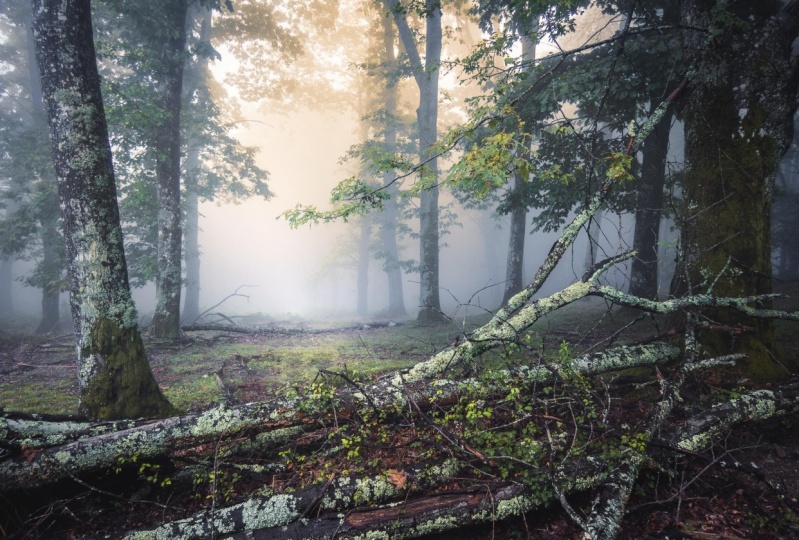
9. Broken - Example Edit 1: In this video, I'm
going to be editing this image here,
this woodland scene. And this is one of
my favorite images. I'm actually going to edit
it from scratch against I'm not going to copy the
edits I did last time. And I find that it says they always end up
just slightly different, but I'll obviously go
through the same process. What I want to get through
my thought process. So you can see how I
think when I edit, which means that
if I do it again, then I actually caught with
a slightly different edit. But that's a good thing, I think, because it shows that your style evolves over time. So this is one sharp, there's no HDR in there, so it's just one shot that I
took of this amazing scene. I really, really like this. There's a little bit of fog. I want to bring that
out a little bit. There was a little bit of
an issue with the light at the top right
where it's bright. And obviously I've exposed. So don't blow that out. You can see the histogram Neo is got a long tail all the
way to the highlights. Ideally I would have exposed, it's just a stop brighter, but I don't have
to stop brighter. So this is the best of God. First thing I would need
to do going through my workflow is just play
around with the temperature. I'm just going to
have a look at it and think about the right
temperature for this. And I think it's probably
going to be quite cool because I feel like I'm going to bring
some of the warm tones out, but I won't list cool tones
to stay in the image as well. So let's write about 6
thousand Kelvin. I think. I'm going to obviously
most probably exposure and check everything. So I'm going to
increase the exposure. I'm going to have a look
at the shadow detail. This looks really good. The shadow detail in this
trunk is really nice. There's no noise or artifact. Summer I took it, I
save 64.52 second exposure to let a
lot of Lighten. Now it's got a long
exposure in the stream at the background so there's
no noise to worry about. I've got lots shadow detail. I can pull it out and
not worry about it. And then if we go
all the way down, and now I've got
highlight detail, the thing I've got to try and do here is I'm going to try and blend in that
highlight with this. I think we're going to start by just increase the
exposure a little bit. I'm just going to go about that. With all my images, I always increase the contrast. Or say all most of my images, I increase the contrast because
I just want to pull out some extra vibrance and saturation in this color center is going to increase
the contrast. And I'm going to
counteract that with an increase in shadows as well. So I'm going to increase the
shadows quite significantly. Then may be, might mess around
with the highlights later, but we'll just leave
those for now. I think I'm going to increase the whites and then maybe just
drop shadows a little bit. I'm not too bothered about
burning this out of here. The key thing to this
will be toning it. It will be actually
toning this color. When I get around to it using
the color grading tools. I'm not gonna mess
around with texture clarity at the moment. D. Hayes, I just wanted to see, I think probably a little
bit negative dehaze on this just to bring those
blacks a little bit, just a tiny bit and
negative dehaze. And then on the curve I
think I'm also just going to soften those blacks. I'm just going to lift
it a little bit and put a slight bit more
contrast on as well. That's my basic edits
I've gone from before, which is that after
which is this. Now I need to start messing a little bit with
some local adjustments. I think the first thing
that I want to do is I want to sort a much warmer
color coming through here. I think what I'm gonna
do is I'm going to try and select the luminance. So the luminance of this, this is going to select the
lighter tones in the image. Perhaps what I'm gonna do is just tweak that a little bit. I don't want the tones
down at the bottom here. So all these leaves, I don't want to change
those too much. I think I'm just
going to on that. I am going to subtract with
a brush just on a low flow. I'm just going to
take away some of the changes I'm going to make
on this bottom area here. But we'll do that. First. I'm gonna do it
and then we'll come in and work out exactly what
I'm going to take away. So basically what I'm gonna
do is I'm just going to warm up those lighter tones. Can you see how it's making
quite a nice warm glow coming through from the top. Then I'm going to tone
this as well, just like. Maybe just like want to overdo. It may be about about that. I'm gonna make this
a bit brighter, increase the shadows
a little bit. Then I'm going to go back
to this luminance range and just tweak it a little bit. Can you see as I'm
moving down its cone into the darker tones, I don't want to get too far, but a thing that looked good, but don't want that on this
trunk of the moment thing. What I'm gonna do, this, I'm just going to brush
it away from this trunk. I'm going to have a better pick a flow and I'm just going
to get it off electrons. They're probably add that in later because I want to add
some glow on that trunk, but I wanted to do that, just have more control
over basically. That's okay. Again, we'll
just do a before and after. This is the after. That's before. What I've just added that mask just added in some warmth there. Now, it may be that I just go in and tweak this a little
bit from time to time. So before I add another mask, I think what I'm going
to do is just get to the HSL sliders and I'm going
to start tweaking the hue, saturation and luminance
of the coolest hair. Because I feel like
my yellow needs to be a little bit more
orange and green needs to be a little bit more yellow. There we go. So I'm just going to pull
those down a little bit. That's better. Then I'm just going to
just mess about it. If I can sort this
with aluminum, see if I can just see the leaves are changed
a little bit there. It's just pulling out
some of the Luminance. That's looking better. I feel like I'm starting to get a little bit more
of a mood there, but it's still, it's
still not quite right. I feel like the shadow tones, the darker tones probably just
need lifting a little bit. I'm gonna do another
Luminance Mask. I'm going to create a new
mask luminance range. And I'm just gonna do
this on the mid tones. And I'm going to just not much, but I'm just going to
increase the exposure. You can't overdo
it. That's probably just do it with a shadow
pause of those mid tones. Just want to lift
them a little bit. I just want to give those a little bit more clarity as well. That's good. So the next thing to do a thing is brighten up this
tree trunk here. What I'm gonna do is I'm
going to get a brush. I'm just going to put
something down here. I'm going to do auto mask. And if you just click that
and then click Shift, you can do a straight line. That'll do a straight
line on that. What I wanted to do with
that is I just want now under control this
a little bit better. I wanted to just control the exposure and bringing
out some of the exposure of this and some of the clarity of this edge of this
tree trunk care. Probably similar wise as well. A little bit warmer. There we go. That
looks pretty good. This is getting
better. Okay. So I feel like I could
probably go back and just lift the shadows
a little bit more. Good. Now, I feel like I just
need to tone the colors. Maybe I'm just going to just
add some more saturation as well in the oranges, the greens and the yellows, just to give it a
little bit more pop. That's good. I can probably just do another
linear gradient here just to bring up the
exposure of this side just a little bit fast, nice. I'm just going to measure the temperature of
thinking is just a little bit cool. Getting good outcome from that. That is definitely
improving now if definitely started to get more of the
atmosphere, feel like low. I could maybe on that mask
I did this one I should, I should name these
masks to be honest. But I'm lazy and I don't, but I would recommend in this tutorial that you
do name your masks, but I can use a towel. They often looking at,
let's say this one here. I'm feeling like I
can maybe just add a little bit more dehaze or reduce the clarity
a little bit, just to give it a little
bit more atmosphere, there's maybe a bit of both. Cannot just warm
it up even more. I think that looks really nice. I really like that. Now I'm starting to just
blend this bit in here. It's looking a little
bit better up there, it's a little bit
better blended. This is starting to
look really nice. Okay, So let's go to the luminance and
just see if we can. What happens when we
pull out some more of these tones here? That's pretty good. That's really nice. I really like that. Okay, so the next thing to do is just do some
color grading on it. So I always thought in
this that I probably tone the highlights again
a little bit warmer. I mean, I definitely
wanted to be cool. I'm just going to tone the
highlights warmer than tone the shadows a little bit cooler. Around about that, maybe
the midterms as well. If I just switch
this on and off, you can see it's just making
the cool tones cooler. In the warm tones warmer, I'm just increasing the contrast between the cool a
bit in the middle of the image and the warmer
bit at the top of the image just to create a little
bit more emphasis on that. And that's good. I feel like again, I just need to these
branches here probably just need picking out
a little bit more. So I could just try during a color range on these
and see how that works. Yeah, that's too unreasonable
job of it, hasn't it? Just let's just see if I just
increase the shadows now. It's not going to work. I just want to pull out just a little bit more
shadow detail here. I don't want to overdo it
because we've got to have that contrast between the
lights and the darks. But just by pulling out a
bit of that shadow detail, I think, I think it
helps quite a lot. I think we're getting
there, to be honest, I don't think there's a huge
amount more that we can do. What I would say though, is when I'm doing
something like this, I walk away and
then come back to it probably three or four times. And I'll probably do a few
other tweaks as I do that. But I think that's probably it. I'm not going to change
the sharpness because I know that default
sharpness is fine. The one thing that I
always do actually is just have a tweet with this just to see if that helps at all? Actually, I think
he probably does if it just got just the shadows, just give me a
little bit more of a purple tint thing
that works well. The only thing I could try and this may or may not work is if I just do a radial gradient
and just put it up here, have quite a big
radial gradient, but just STI of feather it and just add a little bit more warmth
across the whole thing. I think that's probably okay.
I don't want to overdo it. It's just going to be quite
a big raise your gradient, but not much on it rarely. Just to reduce the
clarity a little bit. I think that was good. So we've gone from this to this. I think that's pretty good. I'm still not a 100% sure
about the coolest ofs and let me just tweak that
temperature again. Maybe just a little
bit warmer color. That's pretty good. Yeah, I
think that's pretty good. You can tweet this forever, but I think I've got something
that's pretty good there. Like I said, I'd come
back to it a lot. It'd be really
interesting, wouldn't it? To see what it's
like before, after. And my previous edit as well
shall show you the before, the after in the previous edit. Now, I'll leave you with
those three photos.
10. A Passage of Time - Example Edit 2: In this video, I'm going to edit this HDR image from Madeira of this amazing
mountain scene in this tree. First of all, if you
haven't done already, go back and watch
the HDR video above, it's just a short video, explains just how I've
combined these images. And basically I had
these three images, different exposures, and
I created this HDR image. And you can say that I've
done some basic edit to it. So basically I've just reduced the highlights and
increase the shadows. We're just going to have
a look at it again. I'm just going to go back and have a look at the
exposure again. So we've got a lot of
detail in the sky here. I just chose guys level. Pretty much is, well, Nigel, after I get it level. And then in the shadows
there is a lot of detail all in the rocks
and little bit of noise, but not a huge amount. And we probably don't need to
worry about that too much. I've reduced the
highlights a little bit. We don't want to
reduce them too much. We'll go down to about there on the basic edit and
increase the shadows. Again, I don't want
to increase those too much because
we're going to change that in a different way,
which I'll explain. Probably don't want
to do much with the y's and the moment
all the black. So we'll just leave those two. Okay, so the first thing we're gonna do is I'm going to
crop this a thing because I don't really want I want
the tree to be in the middle. I think. I'm not sure about whether a microplate as well because I'm not sure about this bit here. I might change my mind on
that, but we'll leave it. Tell you off. We'll do about that. Felt like it needs a
little bit more room from this side comment. Okay, so it's gonna
be a little bit tricky this because
you can overdo this. So if I just drop
the highlights, we want this to be
a bit of a glow. We otherwise it will
look like HDR image. So that's where I'm
just starting about that. What I'm going to do. In fact now what I'm
gonna do is gonna drop the highlights
too about that. Just, just just want
a little bit cooler. So maybe I'll just
push the whites. Just wanted to be a little
bit of color there, but I want it to be almost
blowing out and I'll probably alter that a
little bit in a minute. The thing to do now is I'm
just gonna do a very simple. This is like just as
dawns coming, coming up. I want to the linear gradient on the sky to make
it a lot darker. Because it was dark. It was just clean up the main, you can see Venus there. I'm just going to
increase the warmth that then I'm going to add
a little bit contrasts. Probably just reduce it. I'm ducking, that's probably
good for the top of the sky. This bit is gonna be tricky. We've got to decide
how we're going to deal with this path thing. What we're going to have to
do is a radial gradient. I'm just going to do
a radial gradient. I'm going to drop the
highlights a little bit. That's not gonna work. You say, because it's got to be brighter here than it is here, because the sound is
coming from over here. What I need to do
is I need to drop the exposure a little bit more
so I can do that on this. If I bring this
down a little bit, can you see how it's
dropping the explosion of the problem is that I'm darkening and all this and
I don't want to do that. What I can do is I can
do it intersect of that, of that term mask. Just go in here. They can do an intersect
with select sky. And that should hopefully, it does a reasonably good
job of selecting the sky. Think it has done. Then that means that
as I'm changing this, it's not changing these
mountains in the background, but it is changing the sky. Just want the sky to get
a little bit darker here. Now I'm spending a lot
of time doing this. As you can see, I'm gonna go
a little bit further down because I'm obviously not
affecting any of this now because I've done
that intersects between, between the gradient
and the sky. What is the next thing to do? I think now I can do radial gradient on
this and I'm just going to see what I wanna do is I just want to create a bit more warmth
coming from here. There we go. A
little bit of white. Not too much. That's starting to look better. I think that sounds
a little better. I don't want it to look to HDRI. I want, I want it
to look like it is. The sunlight is
coming from here. That's often quite tricky.
I think that's not far off. I might have to come
back to where I feel like it might just not, could be the quiet,
the right hue. Just do a final adjustment
on this and just I think that's probably better. So hard that what we're gonna do now is
we're gonna try and select this green down here. But I feel like when
I do a cooler range, mask is going to
select a lot of areas. So let's just try it. We'll do a Color Range. We pick that green there. Now we can try and refine it. But you can see that if I try and then change
the exposure is changing the exposure of
all sorts of random things. So I'm gonna have to gain, do an intersect
here with a brush. I can just brush on this effect. I'm going to increase exposure so we can see
what I'm doing here. I'm basically going to
go to this color range. Click option, click intersect. When we brush, then I'm going
to do the brush with just about a flow of 79,
something like that. I'm just going to brush
on where I want this. And you can see as I do this, that all I'm doing is
brushing on the areas that I think this color range
mask needs to apply. I can dilate down or change
the hue, etc, afterwards. But basically what
I wanted to do, we just brush this on wherever
I think it might work. Simply as the hat
is really clever, then I can think, okay, do
I want to make it greener? Or do I want to make it a
little bit more warmer? We should probably do probably a little bit more
clarity to it just to make it pop a little bit because it's just a little bit of
sunlight coming on it. I really want this
green to stand out, but I'm going to dial back the corners around here as well. I want the emphasis to be on this sort of central tree
and the green around it. I think the next thing to do is just die or I can just see
what I'm playing with. I'm just going to do
a linear gradient bit rough and ready to S, but it might work a
linear gradient there. And I'm going to just
dial back the exposure. I'm going to just D Hayes and soften it a
little bit as well. Dial back the shadows, highlights the
whites a little bit. I just want to make
this darker here so your eye goes to the tree, then this might be where I start to just crop it a little bit. Maybe crop up from the bottom. Crop introducing our tree
central works quite well. But a problem is I've
got this bit down here. What is really bad? I didn't really like it. I think I'm just going
to spot that out. Now this might work. I might have to do
this in Photoshop. I'm just gonna do something I gained valuable from ready here. I think I'll do because I
don't think anybody will ever notice that because it's dark, but I just didn't
want that highlight, that specular highlight
just to catch your eye. Again in better
now I think I need to brighten up the
cloud here. Here. I said probably
select that orange that and then Brian or
some of the tree here. I'm going to work
on the tree first. I'm just gonna do
this with a brush. I'm gonna get to a brush. I'm going to make it warmer. And then I'm going to
just add some whites, a little bit of shadow and
a little bit of exposure. All I'm gonna do is
just paint this on. I just wanted to just ever so slightly pull out this tray. I don't want to
overdo it though. Looking pretty good. I think that's looking good, maybe a little bit there. Then you can make it as
warm as you want really? I think that's, I think
that's pretty good. And then I'll probably just
add clarity on that as well. I just want to make this tree
really pop if I can. Good. I think that's pretty good. Yeah, that looks really
good. That's a lot better. The clouds behind the tree would be good to
change a little bit. I think that'll be very
difficult to do exhibit thing. I could try and select the
color range of that and then intersect it with the
luminance range of that. That's still a reasonable job, but it's also selected the tree. I think any change
that they will now, now we're going to be
reflected in the tree as well. So I probably won't
change that thing. Probably do a little
bit, just a tiny, tiny increasing wise
on it. That's good. So we're getting there,
We're getting there. I need to pull out
some detail here. I need to sort these Clown Town solid Claros out
first, That's fairly easy. I can just do color
range on the clouds. Then intersect that with a
gradient going that direction. I just got the clouds. Then I suspect if I do this, it's going to affect the clouds
and not so much the sky. I want to warm us
up a little back, a little bit more saturation, a little bit more clarity, just going to pull
up my them pop. That's all I need to do. That's pretty good. The final thing and then
I'd have to walk away and come back and look at
it again and again. But the final thing I think
he's just this bit over here. So again, I think this is
best done with a brush. So I'm just going to dodge this. I'm going to get a brush
increase the warmth, the exposure, the
y's, and the clarity. And I'm just going to brush that arm here just to pull
out some of the detail. I want to overdo
that. I don't want it to pull the eye too much. I think that is not far off. I mean, I was pretty good.
Let's have a look at it. Full screen highlight
that there's obviously a little bit
of tidying up to do, but at spotting, maybe I need to make that
a little bit darker. I think on the whole, that's a good edit
of that image, one of my favorite images that
I took last year, really, really enjoy taking
that and it's great to see it like this.
11. Glencoe Waterfall - Example Edit 3: Okay, For the last image, I'm going to be editing this one here from Glencoe and Scotland. And it's an interesting
one actually because it seems on the face of it, quite simple edit, but there's
a lot of this edit that helps to improve the composition
of the shot as well. First of all, I just want to
talk about the composition. We're gonna get rid of that spot of that I'm going on my sensor. But first of all, I want to
talk about the composition. Use this tree here. Position myself in a place where if you draw a line
down the center here, this tree is a certain
distance away from that center line, has a
certain weight to it. And these are closer
to the center Y line. If this tree wasn't here, it would be very unbalanced. And if these weren't here, it'd be value in balance. These two being closer to the center line and this
one being a little bit further away helps to balance it left and
right. That's good. But top and bottom is just not balanced because
this is real. This is really heavy and dark. Your age goes up to the top. By editing and darkening
that top-down, we can create more mood, which is good because
that's what I want to do in terms of creating the feeling I had
when I was there. And then also, I also want
to imbalanced the shelf. First of all, we're gonna
get rid of that spot. I'm going to tell you a
little trick as well. So obviously, when you getting rid of spots,
we'll just zoom in on it. Then you use the healing tool, which is really complicated. You might go into
Photoshop and do it, but usually you use the
healing tool and you go onto something like this
and we just go over, it's a pretty big
spot, isn't it? And it would just get then choose a bit sky that
similar and get rid of it. There's also
something called when you are in the healing tool
called visualized spots, which you may or may not
know about, which is good. You can go and have a look at all the spots and find them. You can see here I've got
a lot of sense as false. I like to do it a different way. I like to just watch
the Dehaze up to a 100. And I find that then I
can distinguish between some things sometimes not obvious at the spots and
some things aren't spots. And also you can
see I've not done a particularly
great job of that. Then you can just go around
and get rid of all the spots. I can just go and do
this on all these. For some reason. This takes a lot of
computing power. Always a slowest
thing I find to do. I'm gonna do this just
quite rough and ready. Now, you can say that I definitely need
to clean my sensor. This is the problem. We've taken lenses on and off all the time. That's a pretty good job. One more lab top tip. Just do just move the
Dehaze up to a 100, then we can move it back down. Okay, So that's it cleaned up. I've got a fairly clean sky now I can obviously fine
tune that at the end. What I want to do now is I want to go and do the first
basic edit on there. So if you remember what we do, we go and look at the
exposure I want to see in here, I've got detail. There's no problem
in the shadow area, can pull out shadows
wherever I want. And then in terms of There's no blown out highlights,
which is important. So down here there is
detail in the waterfall. I've got detail within
the image, which is good. So I didn't have to be careful
about particular areas. I'm not sure this bit here, but I will live with
that for the time being. As ln thing I can
crop opening hire. The first thing to do is we're just gonna do a
basic idea on it. So I'm going to just increase
the exposure a little bit. Increase the contrast
a little bit, reduce the highlights
quite a lot, and increase the
shadows because I want to pull out
the detail here. That's probably appropriate. Just going to, again,
just do tweaks. I'll make the blacks
not quite true black. That's probably it
for the tonal values. I'm going to just check
the white balance. Do I want every
cooler or warmer? Probably about there. I think. That's fine. Just as it was. That's pretty good. I just want to look at the shadow tint. I think I'll probably
make it a little bit more on the purple side. That's the basic edit. Now what I need to do is I need to go in and edit the sky. So first thing we're gonna
do is I'm just gonna try selecting the sky and
see what happens. Um, I think it'll do a
reasonable job of it. Yeah. I mean, it's just some
weird things around here, so I've got to be a little
bit careful about that, but I think I can just do just a very small
editor on the sky. I'm just going to dehaze
it a little bit because. I just want to bring out
some of the texture. Obviously don't want to do that, but I want to bring out some of that texture without
overdoing it. And then I'm going to warm
it up slightly as well. When I start doing this, got to be very careful,
don't overdo it. Now, what I'm probably going to do is probably
just going to add, as I'm doing this, this linear gradient intersect, and I'm going to make it
good quite a long way down. I just want to be careful
these bits at the bottom here. I don't want to make
those too bright. So I'm just going to do that. That's bringing up some
of the detail in the sky. I think that's
starting to look bad, but obviously we got
this on balance. I need to darken down this top bit and make it
look as natural as possible. I don't want to darken down
this cloud here though. And in fact, I might
want to Brian that I'm going to create another
linear gradient mask and I'm just going
to do it here. I'm not going to
worry about selecting the sky again on this one. I'm just going to
darken it down as much. And I'm going to also reduce the saturation a little bit just to get rid of
some of that blue, I'm going to add some
more dehaze on it. I'm going to darken the blanks, darken the shadows, and then
reduce the highlights a bit. Okay, I've got a long
way to go on this slide. I'm going to increase
the warmth of that. Now, this bit here
is a bit bright. I need to do
something with that. So I might just do that
with a brush for now. I'm just going to brush
would use the highlights, maybe reduce the
exposure and just painting some areas that I think might work better
if they're just darker. Still don't like that. It's just not working quite
right as tone this bit here. I'm going to go back to
the original mask and see if I can just reduce
the exposure bit more. Yeah, that's probably
looking better. You just need to tweak a thing. I think that's okay. I
might cheat a little bit and I might just clone that out. So I'm just going to heal that. You're just going to choose
this a bit carefully. There we go. That's where it's pretty well. This is a bit sort of brown. I didn't really like
that very much. So I'm going to add another
linear gradient on this, this time a little
bit further down. And I'm just going to reduce
the saturation of this. You just, that's better. Then I'm going to make it black. So black. You can see now I'm
starting to get darker. Top part to this. I think I just need to warm up the image a little bit too blue. I'm going to warm it up a
little bit just to try and then a thing still
a bit too much sky. So I'm going to pull
down the sky now to try and get that balance between that dark
a bit at the top, that's started to work. So I've got this
dark a bit here. I've got this dark a bit there. I've got this and this, which are either side
of a horizontal line. So I feel like the
starting to be a little bit more balanced
there from my ad, I think I'll come
back to the sky. Maybe. I want to just look
at the Weinstein here, except I'd like to make
those a little bit whiter. So I think the best way
to do that is just, I think I'd just a simple
a linear gradient on the bottom bed and then
just walk up those whites. And just make sure I didn't
blow the highlights. You can always switch
on the highlight thing. Yeah, I just want to reduce
the blacks a bit as well. I just want to, I just want
to give you a bit more punch. I think that's looking
pretty good Really. Yeah, I think that's
looking pretty good. Now you might want to just pull out some more
of this detail. Can you see I've lost
the detail now in there. You may just want to get a brush and just reduce the
highlights on it. And then just again, a low flow. Just go over this. You're gonna do this
really carefully. You just want to pull back the detail in this
watercolor is really nice. I don't want to lose that
detail or print really well. Thing that's okay. We could think about
bringing breakfast, brought bushes
well, a little bit. So again, I'm gonna do that with a brush and just taught yet, I'm just going to
increase the exposure and the shadows there. And just again very carefully just pull out some
of that bush there. I don't want to overdo that. I don't want it to pop. It's just gonna be subtle. I think. Lots of reasonably good at it. I'm not happy about
the blues all that. So I'm going to go and edit this Main Mask and just
make it even warmer. Reduces saturation a
little bit more better. I think that's better.
Okay, we're getting there. The next thing to do is just concentrate on the
colors a little bit. I'm just going to go through and mess about with the hues. This hue at the background,
background here. I don't want it to be green. I don't want it to be red, but I'd like it to
be probably just a little bit towards the red. The thing with that. That's not really altering much. Any blues that we have in there. I don't want them to be
towards the cyan aqua color. I want it to be
multiples of blue color, so I'm just going to push
them that way a little bit. And then I'm also
going to just reduce the saturation again, a little bit of those blues
increase the saturation of the yellows and oranges because I want those
to pop a little bit. And then I'm also just
going to pull out some of the got to be careful. Can you see that salter
in this as well? I've just got a because that's
got some yellows in it. I'm just going to be
super careful about that. So nice if the HSL
slider with a mask. So good to be so useful. I think we're getting there. I think probably going
back to this and just maybe just pushing
the y's a tiny bit. We've gone from that to that, that I think that isn't far off. May just do a vignette
on the whole thing. So to do that, you should
use a radial gradient. And I'm just going to just
invert that radial gradient. Then I'm probably just
going to just delete, just delete the
exposure a little bit shadows and probably
just reduce some of the clarity just
around the edges as well, just so that the main clarity
is within the main image. Looked at that before and after. I think that's probably good. Maybe just go in a
little bit tighter. The only other thing I'm
thinking is whether we can pull out some more
detail in here. But I didn't think we need to. I think that's good. I really like that. I think that's a good edit. Again, as with all the others, I go away, have a cup of tea, come back and probably
make some other changes. But yeah, it's about
creating a mood, getting the cooler, getting
that balance right. I think we've used a lot
of the techniques that we learned in the other classes. So I hope that's been enjoyable and I hope
you've enjoyed the whole class. If you've gone
through it in order, then this is probably
the last video. Thanks ever so
much for watching. And probably depending on what you say below in
terms of review to do, give me a review below, then I'll probably do some more. Okay, thanks ever so much for watching the whole
class and I'll see you in the next
Skillshare class.
 Nigel Danson