Transcripts
1. Class Introduction: In affinity designer,
there's a great feature where you can create designs
using an isometric grid. This special grid allows you to easily make beautiful
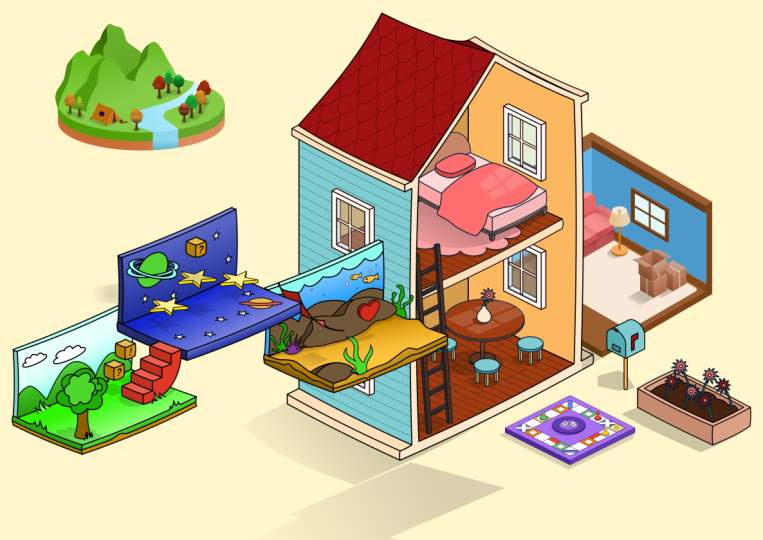
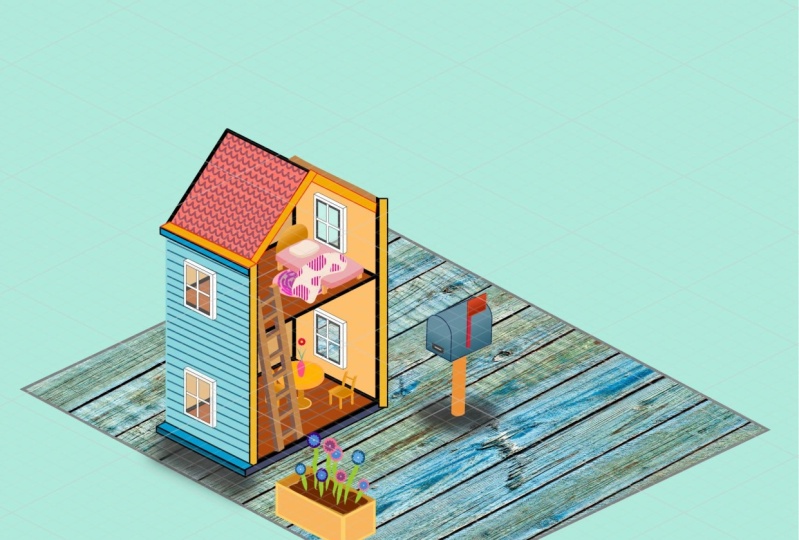
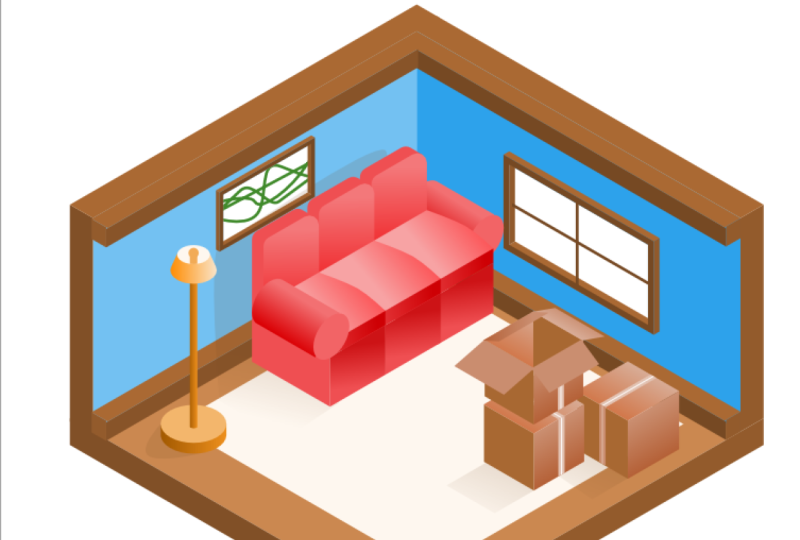
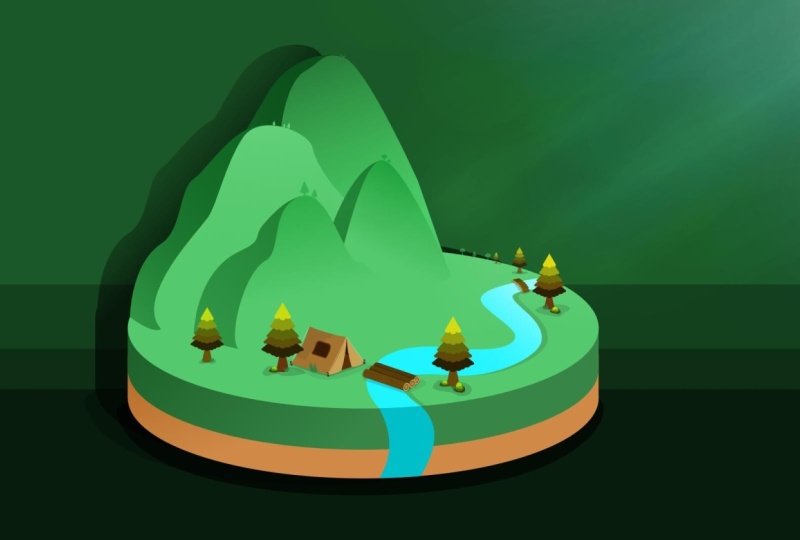
three D objects like this. I love using the isometric grid, but it can be a little
tricky at first. Today, I'm excited to tell you all about my
brand new course, where we'll learn how to make isometric drawings in
affinity designer. Like all of my courses, we're going to start
from the very beginning. I'll teach you all
about setting up the grid and my best tips and
tricks for working with it. Once we have all
that figured out, we'll start to create
simple isometric objects. Then we'll jump into creating an entire scene using
the grid as our guide. I love to keep my courses
as practical as possible. Once we understand how
to make simple objects, we'll build on those skills by creating a series of
projects together. As we create these projects, I'll show you how to plan out your ideas and choose the
right colors for your design. Of course, I'll give
you lots of tips for working with the isometric
grid all along the way. Working with the isometric grid is a really fun way to design. If you've never worked
like this before, I think you'll really enjoy it. But before we dive
into affinity, I want to mention that
this course comes with a few example files that we'll be using
throughout the course. I encourage you to download and use them because practicing what you learn is
the best way to retain all of the new skills
that you'll be learning. You can download those
files in the next lesson, and then you're ready to begin
your journey to becoming an isometric drawing
master. Let's get started.
2. Download the Class Files: Before you begin this class, I recommend you download
the exercise files. These files will be necessary for you to follow along with the tutorials to
download the files, come to the Project
and Resources tab. Then click on the download link. The files will
then be downloaded to your computer and you'll be totally prepared to follow along with the
rest of the class.
3. Isometric Fundamentals: For the first chapter
of the course, we're going to learn
the fundamentals of isometric design. We'll do this by
learning how to set up our document and we'll learn a few shortcuts to make this process easier.
Let's get started.
4. Document Setup: In this video, I'll
show you how to set up your document for
isometric designs. To start, we first need
a blank new document. I'll go to the top to file, and then I'll press new. This document can
be whatever size you'd like for your project. But for this, I'm going
to go with 1920 by 1920 pixels. I'll press Create. Next, we'll need to
add a new panel. I'll go up to the top to window, and then I'll go
down to isometric. This isometric panel is very
important for this course. We'll be using it in
every single video. I want this to be very
easily accessible. I'm going to click
and drag on the word isometric to move this panel. Then I'm going to
drag it over here to the left until it
overlaps with the tools. You can see this
blue box appear. When you see that,
you can release and now that grid is docked
over on the left side. Now, this takes up quite
a bit of our screen. If you don't like that,
you can actually click and drag to dock it over here
next to the color panel. I think that's another
great place for it. But for this course, since
we'll be using it so much, I'm going to leave
mine right over here. The next step is to
modify the grid settings. Click right here on Modify grid. Now, I've been using
an isometric grid in preparation for the course. My settings might look a
little different from yours. Let me just reset here. You're probably an
automatic mode. Make sure to turn on show grid. You can see by default that our automatic grid is pretty
straight up and down. But if you'd like to
get an isometric grid, you can go over two advanced and then change the
grid type to isometric. This isometric preset is great. It gives us a really
good starting point. You can see that there are a lot of different settings that you can change to adjust
the angles of the grid. But these are a little
complicated to use. The only thing that
I'll change for right now is I'll go to where
it says divisions, and I'm going to press eight and then enter
on my keyboard. What I just did is I added some division lines to the grid. These subdivision lines are a helpful guide as we
zoom into our document. You can see they multiply
the more we zoom in. One last thing that I want to show you is that you can change the way your grid looks by changing the colors
right down here. If you click right
where this color is, you can see that
you can change it to any color of the color wheel, which could be
important depending on your colors that you're
using in your design. If you're going with a
black and white theme, then these gray lines might blend in and not work for you. I think this is nice to
know that it's here, and you can also change the
opacities of these lines. You can make the lines a
lot softer or way darker. I like to leave my
main grid lines as the darker lines because these lines don't move no
matter how much you zoom in, and the subdivision lines are just a helpful little guide. I don't want it
getting in the way, I like to keep those
a lighter color. Now that we're done,
I'll just press close. You can go back to
adjust this grid at any time by clicking
on grid settings. Our document is all
ready to go now. In the next video, we'll start making some shapes
while using this grid.
5. Isometric Panel: Let's use the isometric panel
to make a perfect cube. The isometric panel
allows us to quickly modify our shapes to fit the
perspective that we want. To start using the
isometric panel, first, I'm going to click right
here on the rectangle tool, and then I'll click and drag out a rectangle while holding shift. I'll just change the color here. Then I'll grab the move tool. I'm going to
duplicate this twice. My favorite shortcut
for duplicating is just to hold down command or
control on your keyboard, and then you can click and
drag to duplicate your shape. I'll just do that
twice. I'm just going to make these
a different color. Now that we have our squares, we can use the panel to turn these shapes into
a perfect cube. First, I'm just going to have
one of my squares selected. Then if your panel
looks like this, just click on enable planes, and it should look like this. Once you have that set, make sure your current
plane is set to top and then go down to
where it says fits a plane. You can see that this
has automatically changed our straight up and down square into
the top of a cube. We can do this with the
rest of the squares. I'll just select one. I'll
change the current plane. I'll just change
this one to front, and then I'll click
on Fit to plane. Now this looks like
the front of the cube. I can line it up
right over here. And we can do this with
our last piece as well. I'll go to the side
plane, fit to plane. Then I'll click right here
to add it to our cube. To make this easier
to fit together, make sure you have
snapping turned on. If it's still not snapping
perfectly in the corners, that happens sometimes,
don't worry. We have a whole
video dedicated to snapping later on
in this chapter. We have our first cube. Let me just move
this to the side. Another way that we can use the isometric panel is
actually to use Edit in Plan. You can activate Edit in
plain by clicking right here. Then you can grab a shape tool and you can see that as I
drag out while holding shift, We're automatically editing in whichever plane
we have selected. I can do this with
the rest of them. We could do it with
the front plane. I'm just going to press Escape. That way that layer isn't
selected as I'm dragging, and then I'll hold shift
and drag outward like that. I'll just change the color. Last one, let's go to the top. We're editing and plane. Then I can go ahead and press shift and click and
drag to finish our cube. That was pretty easy, wasn't it? I love editing and playing. I also love using fit to play. They both have different
reasons why you would want to use either
one of those methods. Now, the last thing I
want to show you in this video are these
other options. We only used the first two. I'm going to go to our shapes, and I'm going to select
the call out ellipse. I'm just going to
change the plane to front and edit in plane, and then I'll click and drag out a little ellipse like that. These last ones are all about changing the orientation
of your shapes. You can flip horizontal
in the plane like this. You can flip vertical. You can also rotate counter
clockwiys, and clockwise. Now, as I'm clicking
through these, you might be wondering, don't we already have those
options up here? We have a flip horizontal and
a flip vertical right here, and we even have
these rotation ones. Why would we have them here too? Well, I was wondering
the same thing, so I experimented a little and I noticed that there's
actually a difference. If you flip horizontal in plane, you can see that our shape
stays in this orientation. But if I click the option
up here in the menu, you can see it actually
switches planes. There are different
reasons why you would want to use each one
of these options. It's nice to have all
of them available to you. All right. Now you know what
every single button in the isometric panel does. In the next video, we're
going to do a quick review of some useful shortcuts that we'll use throughout
this course.
6. Shortcuts: This video, we'll do a
review of shortcuts. I have an exercise
file for this video. Go ahead and pull
it up so that you can practice these
shortcuts along with me. Before we practice, let's just make sure we have the
same grid settings. I'm not sure how affinity will open this file
on your computer. Just go to grid settings, and then make sure
you're in advanced mode. Isometric with eight divisions, and make sure show
grid is checked on. The first shortcut that I
want to show you is one that we already did, and
that's duplication. If you hold down command or control and then click
and drag on an object, you'll be able to duplicate it. Just make sure that you keep
holding down command or control and then release your
mouse to place the object. If you lift up on command
or Control first, you'll just move the object, which is not what we want to do. It's a mistake that
I make all the time. I just wanted to
mention this to you, hold down Command or Control, click and drag, then lift
up on your mouse cursor, and then you can lift up
on command or Control. Hopefully, that makes sense. Go ahead and practice
it to see what I mean. Another shortcut that
we'll use quite a bit is moving objects in
line with the grid. To do this, you'll
just hold shift while clicking and dragging
to move the object. You can see we're moving
the object that way. You could also do it this way, in line with the grid,
all while holding shift. Now, you can actually
combine these shortcuts to duplicate an object and
move it in line with the grid. To do that, just
hold down command or control and shift
at the same time, and then you'll duplicate the object while moving
it in line with the grid. We'll use this one quite a
bit throughout the course. It's a good one to
have memorized. I'll just delete this square
to show you the next one. Command or control and shift are very useful for moving
objects and duplicating them, but these shortcuts
are also really helpful for resizing objects. We already know that if
you hold down shift, you'll be able to resize your object and keep it
perfectly proportional. But if you combine that
with command or and shift, you'll be able to
resize the object, keep it proportional, and it resizes from
its center point. This is very useful if you like the placement
of your object, but you just want it to be a little bit bigger or smaller. Just to show you a
use case for this. You might want the center of this flower to be a
little bit bigger. I'll double click to select
that center of the flower. Then I'll hold command
or control and shift, and we can resize it
from the center point. While we're working
with this flower, notice that these two layers
are in a group together. If you select the
group and resize them, you actually don't
need to hold shift. It'll already resize
perfectly proportionally. But if you're working
on a single layer like the center of the flower, you do need to hold shift. This can take a little
getting used to, I just wanted to mention that. These next two shortcuts are
shortcuts that we'll use quite a bit to adjust the
view of our workspace. First, if you want to
resize your Canvas, so it fills the screen again, you just need to press
command or control zero. That one's pretty easy. The other one is
command or Control, and then you need to hit
the quotation marks. Command or Control
quotation mark. This will hide the grid. This is really nice so that
you can accurately see your design and even more
accurately see your colors. I've noticed that my colors
tend to look a little bit more dull and gray
under the gray lines. But as soon as I remove them, you can see just how
bright they are. I really like doing
this throughout my work so that I
can see this better. The last shortcut that
I want to review is pressing command or Control
S to save your document. We'll work with some
very large documents with a lot of layers. It's really important to
save your work as you go just so the program doesn't crash or make
you lose your work. Now, as I worked on this course, the program never crashed on me, which was really good,
but it can happen. Please save as you go. Those are the main shortcuts that we'll use
throughout this course. I may sprinkle in a few more
shortcuts here and there, but those are the most
common and important ones. In the next video, we're going
to take a closer look at how we can make snapping work better for us
in this course.
7. Snapping: This video, I'll show you the snapping settings that
we'll use for this course. Snapping is Affinity's way
of helping us to line up objects in relation to other objects or
to the grid lines, or to the document itself. For this course, I'll show you my preferred settings
and we'll turn it into a preset so that you
can quickly turn those settings on anytime you
want to work isometrically. First, make sure you
have snapping turned on. Then you can click
on this little arrow right here to open
up its settings. The first setting we can
change is screen tolerance, which will adjust how weak
or strong the snapping is. I really like the
default of eight. It helps us to freely move our objects while
still snapping nicely. Next, we can change
the candidates. Snapping candidates
are the other layers. The way this works is that
our current object will snap to the last six objects
that we had selected. To see this better, I'm going to check on show
snapping candidates. You can see the
snapping candidates are the shapes that are highlighted
in magenta like this. If I move one of these shapes, you can see that we're
able to snap to the center of this highlighted
object very easily. But you can't do that with the tree because it's not
a snapping candidate. If you want to add an object
as a snapping candidate, you can select it, or you
can just hover over it. If it helps you, you can leave show snapping candidates checked on to have this magenta outline. But I'm going to turn
mine off because I find those magenta lines
a little distracting. Even though I've
turned that off, if you hover over an object to turn it into a
snapping candidate, it will still momentarily
light up in magenta, which is still a nice feature. The next thing we can change is only snap to visible objects, which I like to have checked on. This means that if we ever
turn off one of our layers, our object won't be able
to snap to it anymore. Next, we have force
pixel alignment, which is fine to
have checked on. This will just help things to align better on your screen. Next down here, we have
this grouping of options. We definitely want snap
to grid checked on. We went to all the trouble
of making the grid, so it would be a shame if our object couldn't
snap to those lines. Next we have Snap
to baseline grid. The baseline grid is actually more useful
in affinity publisher, and we won't be using
it in this course, so I'll turn that off. Next we have Snap to guides. This also is not necessary because we will not be
making any manual guides. I'll turn that off. Snap to spread is basically just
snapping to the document itself. If you ever want an object
to hit the very edge, you can see that
yellow line going up and down is showing
us that's lined up. Then you'll definitely want
to have that checked on. And if you ever want
to center your design, make sure you have
include spread midpoints. Last, Snap to margin
is not necessary for this course because we will
not be working with margins. Let's jump down to
the last section. These options can be a
little confusing at first, so I definitely want to
explain what's going on. First, we have snap to
object bounding boxes, which means that you'll snap to the blue bounding box that
surrounds your object. You can see we have this blue bounding box
highlighted right here, and with the star, you can see the bounding box actually goes outside of the
shape a little bit. Even though it's going
outside of the shape, if we line up these objects, you can see that it snaps, it's snapping right now to the outside edge
of this shape. I like to have this
option checked on. Next, we have snap
to shape key points, which is useful
because it helps us to snap to the
corners of objects. If I grab the pen tool, you can see that
we're able to snap to the outside corners
of this star. That can be very
useful if you're going to draw a shape that's
connected to the star. We'll keep snap to shape
keypoints turned on. Snap to object geometry
is also really helpful. Again, when working
with the pen tool, we'll be able to line up to
the very edge of the shape, not just the corners. So you can see on this
rounded curve here, we have a yellow line
being highlighted, which allows us to begin drawing our curve directly on
the edge of the shape. I really like this feature
so I'll leave it turned on. Last, we have Snap to
Pixel selection bounds. This isn't necessary for this
course because we won't be making any selections,
I'll turn that off. Now that you have a
basic understanding of these settings and you change
them, so they match mine. We can go ahead and turn
this into a preset. Go up to where it
says preset and then click on the
Hamburger menu right here. Then you can click
Create Preset. I'm going to name this
isometric course. Then I'll press k. Now if I
go back into these settings, you can see the preset we have selected is isometric course. This preset will
automatically be here whenever you
open a new document. You don't need to worry
about these settings for the rest of the
course. It's all set. I know that this first
chapter was a lot of setup, and now you're totally
ready to get creative. In the next chapter, we'll start getting creative by building some objects and eventually
building an entire room.
8. Isometric Skills You Need: That we learned how to
set up our document. In this chapter, we're
going to take all of those skills and
create a room scene. This is going to
be a lot of fun, so let's get started.
9. Understanding Lighting - Part 1: This video, we'll take a
closer look at lighting. Times adding shadows
and highlights to our work can be a
frustrating process. But in isometric artwork, it's actually very
easy because we have three planes that are very
distinct from each other. We have our top plane,
the side plane, and the front plane,
and each one of these planes actually gets
a separate level of light. Let's take a closer look
at this exercise file. In each one of these squares, we have a cube and
a light source. Our job is to decide how to adjust these colors
lighter or darker, depending on where the
lighting is coming from. Let's start with this sion cube. The light source is
over on the left, and it streams down
in this direction. Because of that, I think that this side should be
the lightest side. I'll double click
on it to select it. We need to double click
because these are in groups. Then I'm just going to
make this a lighter color. Then we can decide which side
should be the darkest side, which I think is this one. This is the farthest
away from the light, and I think this side would be blocking this side from
getting any light. I'll click on this one and
I'll make this one darker. And for the top side, I think
we'll leave that alone. It should be getting
a mid level of light since some of the light will
be spilling over onto it. But it's not as direct
of light as the side. That's the exercise. Look at the light source, then make the closest side lighter and the
farthest side darker. You can go ahead and
pause the video now so that you can try these
other two by yourself. Let's see how you did
for the orange cube. This is actually just the
opposite of the cyan cube. The light is coming
from the top right, so this side should
be the lightest. And this side should
be the darkest. For the pink cube, you can see that the light is shining
right on this side. This is a little tricky, but it is over on this
side a little bit. I think this would
be the darkest side. Some light would probably
spill over here. No worries if you
got that one wrong. I don't know if I
placed this very well. But now that we're
done with that, you can see all
of our cubes have very distinct lighting
on each of their planes. That was the first exercise and I have one more
for this video. We're going to add gradients to these cubes to make them
look more realistic. Let's start with the cyan cube, and I'm just going to select the top rectangle so that we
can apply a gradient to it. Then I'll select the gradient
tool and I'll make sure we're working in the top
plane edit and plane. I'm just going to click starting closest to our lightest side, and I'm going to
move back like that. We get light to dark. You can see that this gradient actually looks a
little different from normal because it
has four color stops. This is because I edited in plane when I placed
this gradient, which means that it's set up at the exact angle of our grid. I'll press command or
control quotation marks so that you can see the grid, and you can see how well
this lines up with our grid. If you want to
adjust the gradient, you can use the color
stops that are on the more solid line and
you can move those around. But if you want to
adjust the angle, you can use these dotted ones to really change the angle here. But because I edited in plane, we don't need to
worry about that. I'll press command or
control quotation marks one more time to get
rid of the grid. Then we can go
ahead and continue this for the other sides. Let's go to this side here, I'll change it to
the side plane. Since this is the darkest side, I think I'll start my
gradient over here and get darker as we
go in that direction. I'm stretching it
just a little more to spread out the gradient
and make it more subtle. Feel free to place these
however you'd like. Now we can go ahead and
move on to the last side. Since this is the lighter side, I think I'll start my gradient here and go darker that way. But this time, I actually forgot to change the plane
to the front side. But that's okay. I can quickly
just adjust these nodes, and now it's in the
proper orientation there. I'll just get the move tool out so we can see what
this looks like. You can see that with
those added gradients, we just have a little bit
more realism to our cube. These look a bit more flat now. With that done, we can go
ahead and add gradients to these other cubes to make them look more realistic as well. Starting with this one, I'll
select the front plane, I'll get the gradient to out. Then I'll click and
drag like that. I'll do the back one next. I'll change it to
the side plane. I'll click and drag like that. Then I'll do the top piece. I'll change it to the top plane. I'll click and drag
out like that. Last one. L et's start with the top plane because we
already have that selected. I'll click and drag
outward like this. Sometimes this happens where this color stop becomes
very saturated. I think I'll tone that
down just a little bit. I'll do the darkest
side next. Here we go. The last side. All right, and we're done with
the gradients. Great job. In the next video, we'll do a challenge where we test the lighting skills
that we just learned.
10. Understanding Lighting - Part 2: Let's do a lighting challenge. I have one final lighting
challenge for you, and this is really going to push our lighting and our
isometric skills. Here I have a simple grid setup with three color swatches. Our grid is just the same
as we've been working with. Advanced, isometric,
eight divisions. These three colors are what
we're going to use as we design a green three
D chair together. This will really help
us to practice working with shapes and choosing
the lighting as we go. To start, I'm going to
grab the rectangle tool, and then I'll make sure we're in edit and plane for
the top plane. Let's start by making
the seat of the chair. I'm going to line up my cursor here with
one of the corners. Then I'll hold shift and
I'll drag out like that. Now we have the seat of our chair all lined
up with the grid. This looks great
to make this three D. I'm going to add a side
here and a side here. We need to change our
plane to do that. I'll change to the
side plane to start. Press Escape. Then I can line it
right up perfectly. I think I'll bring it down
just one square like that, one big square, and I'll do
the same for the other side. I'll press escape. I'll line it up and then I can drag it so that it matches
up on every corner. Now, we need to decide how we're going to light this chair. Usually, lighting
comes from above. To keep things simple, I'm going to make this seat, this top part, the
lightest color. I'll sample that and
then I'll apply it. Then we can go ahead and choose which side should be
the medium color. I think I'll go with this side. I'll choose this middle
color and apply it. Then this last side can
be the darkest color. I think that's already applied. Yeah. Next, we can go ahead and make the
legs of our chair. Since I'm already
in the front plane, we can go ahead and start there. I'll start down here and
bring it up like this. We have one big square of width, and then it goes down
one, two, three, four. You can make yours a
different size if you want. I just wanted to point
out what I was doing. Now let's make this
side of the chair leg. I'll go to the side plane. I'll press escape. I'll line it up on the corner, and then I'll drag
it up like that. Now we're working in
a different plane. We're working in this plane. It needs to be the same color
as this part of the chair. All right. I'm going to press shift and select both
of these layers. Then using the move tool, I'm going to hold
down command or control and shift to duplicate this chair leg over I'll do
the same thing one more time, holding shift to select
both of these layers, then command or control and shift to move the
chair leg over. Even though this duplicated
the chair leg pretty nice, you can see that
we have some areas that are overlapping
where they shouldn't be. I'm going to select this layer
and bring it to the top. Then I'll select this layer
and bring it to the top. We can move the chair seat up just to keep
everything together. Okay, look at that. We
have a cute little stool. To finish the chair, we just
need to add a back to it. To start, I'm going to
go to the front plane, and I'm just going to build this leg up to create that back. I'll grab the rectangle
tool, I'll press escape. Then I'll line it
up with this corner here and drag it upward. I want this to be the
same width as the leg. That looks good,
and the same color. Everything in that front plane should all be the same color. This looks really
good. Let's make the back of the chair next. It looks like we'll have to use the side plane to do that. I'll press escape, and I'll start right in this
corner right here. I'll line it up with
this other edge. Then I'll line it up
with the other corner. You can see this
is meeting here. Here, and here, that's what
I was really looking for. We need to match the
color to the plane, so it needs to be this
front color right here. Last, we just have this
top piece right here. I'll go to the top plane, and I'll click and
drag like that, and I'll change it to the
lightest color to match. We've made our
cute little chair. I'm going to press command
or control quotation mark to get rid of our grid. But you can see what
that looks like. I think that's so cute. You can see how simple
that process was since we already had the
three colors picked out. Every plane got its own color. You can see the top plane, both got the lightest
color, the side plane, got the middle color, and the front plane
got the darkest color. That was consistent
throughout the entire design, making it very simple to
know which color goes where. In the last video, we practiced adding gradients, and I think this would be a good time to continue
that practice. How do we add gradients when
we have so many pieces? Well, one strategy I
like to do is actually to add pieces together to
make them all one big piece. That way we just need to apply a gradient to one big side. I'm going to grab the move tool. Then I'm going to select all of the dark pieces that are
connected over here. I'll do that by holding shift
and clicking on each piece. The layers weren't
next to each other, so it would have been hard
to pick them all out. But by holding shift and
clicking right in the document, we got those all selected. Now I'll use the ad operation
to add them together. This is all one piece now
and I'm going to move it to the top so that it doesn't overlap strangely with
the other pieces. Then I'm just going
to do the same with these pieces since
they're not connected, I'll hold shift to
select all of them. Then I'll add them together. Everything else is separated from other pieces
of the same color. I'll just leave that alone. Now we can go ahead and add gradients to all
of these pieces. I'll get the gradient tool. We'll edit in plane
for the top plane, and we'll start with the top
of the chair right here. I'll select its layer, and then I'll click and
drag back like this. For this outer color stop. It looks a little too
saturated for me, so I'm just going
to mute this down a little bit. There we go. The reason I decided to make it go darker toward the back of the seat rest is because I thought that
the light would be shining down and this seat rest might cast a little
bit of a shadow. That's why I decided
to do it that way. Let's add a gradient to
this other top piece. This would probably be
fully exposed to the light. But just to keep it consistent, I'll add a gradient
that gradually gets darker toward the back. I think that looks pretty good. I'm stretching it a little more so the gradient
becomes more subtle. We can continue this. Let's do the back of the
seat in the side plane. I'll start from the top and drag it down to make it darker. Then I'll do this
connected piece that we created earlier. I'll start up here
and drag it down. We can't forget about
this piece back here. I'll do a similar gradient
starting high and ending low. And one last one. We have this big piece here. I'm going to change the
plane to the front plane. Then I'll start
high and end low. I'll do the same for this
little piece over here. Start high end low. I'll press V for the move
tool and then escape. Now we can see the whole chair with its beautiful gradients. Can you believe that you
just made that? Great job. In the next video, we'll use the node tool to adjust shapes.
11. The Node Tool: Use the no tool to
customize our shapes. We have a couple of shapes here and I'm going to start
with this triangle. I want to customize
this triangle to turn it into a snowy
mountain range. To start, I'll just
select the triangle. Then up in the context toolbar, I'm going to convert
it to curves. Now we can work with each of its individual nodes to adjust them and turn them
into a mountain range. To start, I'm just going to select the sharp
node right up here, in the context toolbar, I'll change this to a smooth node. This is a good start. But I want to have
three peaks to this mountain using
only the shape. To do that, I'm first
going to add a node to either side of this
first point up here. These points will anchor that first peak so
that it doesn't move. Then I'm going to
click in between right here in between
these two nodes, and then I'll raise it up
to create another peak. I'll do the same
on the other side. Now that we have all
of the nodes we need. We just need to adjust
them to adjust nodes. I actually like to
have a few settings in the context
toolbar turned on. Let's go up and make sure that we have the
same settings up here. Under the snapping settings, I like to have a line two nodes of selected
curves turned on. I also like to have a Snap to geometry of selected curves. Last, I like to have perform
construction snapping. Once you turn all of
those settings on, Affinity will always remember those settings whenever
you open the program. You don't need to worry
about them anymore. I just wanted to
make sure we have the same settings so that this goes nice and smoothly for you. With that set, we can go
ahead and adjust these nodes, and I'll use a few
shortcuts for this. First, I'm going to
select this node, and I want to make sure that we're working in
the front plane. That way, we can
follow this line while holding shift to
stretch this out. I don't know if I've
mentioned this before, but you can see as you switch planes that the lines change. Right now, this mountain lines up perfectly
with the bottom. But if I change it
to the side plane, you can see that this is
more of the base line here. We don't have a line
going this way anymore. When you go to the top
plane, it changes again. Now this time, this line
right here matches up nicely, and we have that side line. I just quickly wanted to mention that so that this
makes more sense. The lines do change
as you change planes, and that's why your shapes appear a little
different on each plane. I think I'm going to stick
to the top plane for this since we have this
nice line right here, I'm just going to continue
to move these nodes. Now, if you want to change
multiple nodes at once, you can click and drag to
select all of the nodes, and then you can move them. But if you want to select multiple nodes that aren't right next to each
other like that, you can hold shift, and then you can select
multiple nodes like that. Then you can just
move those nodes. I think I'm just going to adjust this node and I'm going to
move its handles a little bit, just to smooth out that peak. I I like that shape. To finish off this mountain, I want to make it
three D. To do this, I'm going to show you
a super easy technique that you can use to turn any flat object into a
simplified three D shape. To do this technique, first,
I'm going to grab the move. I'll select our mountain. Then I'm going to hold
down command or control, and I'm going to click and
drag to move this forward. But I'll also hold shift so it stays and in line with
the isometric plane. The next step is selecting
this lower duplicate copy, I'm going to make
this a darker color. Our last step is to connect these two pieces so that they look like
they're one shape. These areas where there's a
gap between the two pieces. Make this look like they're
two distinct shapes. I'm going to use the pen tool and I'm going to
connect the two shapes. I'm going to place
my pen tool so that it aligns with the outside
edge of the shape. You can see this
yellow line are. I'll click to lay down a point. I'll do the same for this side. Looking for that yellow line. Then I'll click
to add that line. I don't want to connect
it straight over here or we'll accidentally
connect this whole area. I'm actually going to
dip down like that. Then I'll just connect
these two peaks. Then I'll bring it
around like this, and I'm going to connect
these two corners together. Finally, we can
close out our shape. I know this shape looks a
little strange right now, but we're going to fix that. Our next step is to
select this darker color, and then we'll apply
it to that pen path. I'm going to move this layer so that it's beneath our top layer. Now you can see that this looks
like one connected piece. These lines are a little
bit bumpy though. I'm going to select
this pen path, and then I'll press A to
get out the node tool. I'll just zoom in here. I want to make sure
that these points align nicely with the shape, but that there's no bumps. I needed to move
that one forward a little bit because
when it was back, you can see this
bump right here, making this look a
little bit strange. I want this to look as
flat and nice as possible. I think that looks pretty good, and I'll do the same over here, maybe bringing it
out a little bit. That looks very
smooth and connected. I'll just do the same over here. You can see this big bump right here looks
a little strange. I'm going to select
this node and move it over, maybe even more. Then I'll select this node. I actually think
that one looks good. Our last one was just
a nice straight line. I think that I spoke too soon. I thought it was fine,
but it's not actually connected. There we go. Now that all of those
points are aligned, I'm going to hold
shift to select this odd shape and
our back piece. Then I'll use the add operation to combine them into one piece. I like to do that just
so we have less layers. It just simplifies things. Now you can see we have our
simplified three D shape. You can do this with any object, and I know it's not a perfect rendition of a mountain range. It looks a little bit more like a theater backdrop,
A flat like this. But I think this is
an interesting style that you can use for your
designs if you'd like. To finish off this
snowy mountain peak, I need to add some snow. I'll press P to get
out the pen tool. Then I'm just going to trace
starting on the outside of the shape and going inward
like this, I'll bring it up. I'm going to make this a child
layer to the front piece. It's okay if it's going outside
of the shape like this. Then I'll just go around
the outside to connect it. I know this looks
a little strange, but I'm just focusing
on the areas where it's overlapping with
this front piece here. I'll just make this
a nice light color, and then I'll make it a child
layer to the front piece. Now you can see our
beautiful snowy mountains. I might want to actually
adjust the nodes. I'll press A for the node tool. We can always move
this around a little. There we go. I think
that looks better. Great job with this
first example. As you can see, the node tool can completely
transform a shape. Can you believe that this
started as a triangle? I'm going to do a
similar effect to these three triangles to turn them into a three D pine tree. As you can see over
here in the layers. These are three separate
triangles that I just put together, one
on top of the other. I made this one a little
bit bigger at the bottom, this one's a little
smaller at the top. I'm going to select all of these layers and add them together with
the add operation. Then I'll press V for
the tool and I'll hold command or control and
shift to move it forward. I'll take the back piece and I'll make that
a darker color. Then I'll connect the two
pieces using the Pen tool. I'll press P for the Pen tool, and I'll start right
at the top here. I'll click, and then I'll
click on the other side. I'm just going to bring
it down and click on the very bottom and
bring it around. I'm going to sample this
dark tree right here. I'll apply that. Now you can see that we've connected
only the top points. Let me just adjust this here. Make sure that lines up nicely with that corner of the shape. O The reason why I only connected the top and
bottom is because I wanted to give us a little extra
practice with adding and adjusting nodes
on existing shapes. Let's go ahead and add a
node by clicking right here. I'm going to drag this down so it connects with this
shape right here. I'll add another node here and I'll connect
it to this point. It's super easy to add
nodes to alter your shape. Just click and move, and I'll move this
point as well. Make sure this is
nice and lined up here. That looks pretty good. Now you can see those two pieces look like they're
perfectly connected. I'm just going to
select our pen path and the back piece
by holding shift. Then I'll click on the Ad
operation to add them together. I'm just going to hold shift and select both
of these layers, and then I'll press command or Control G to group
them together. Now that we're done
with those two shapes, I'm just going to
duplicate the tree and adjust the sizes to finish
this mountain seam. First, I'm going to group the
mountains together though. We just have two groups now and now I'll quickly
adjust their sizes. With that, I'll just press command or control quotation
marks to remove the grid. And now we can see
the whole scene. And we're done this mini
project was really fun. Now that you know all about the, the next video will be ai as we learn how to create that don't perfectly
align with the grid.
12. Off Angles: In this video, we'll learn
how to create off angles. There are times when you
create an object and it might not look quite right if you follow the isometric grid lines. We're going to create
an open cardboard box in this video to
see this inaction. Now, you probably noticed that this exercise file has a
bunch of colors up here, and that's because
from this video until the end of the chapter, we're going to build a
scene in this document. This first color
is for this video, for the cardboard box, and later we'll create objects
with the other colors. Also, double check
your grid settings for this exercise file. It should be the same as
we've been working with set to advanced isometric
and eight divisions. First, let's make
a cardboard box, complete with tape
as an added detail. Like we've already done, let's make a simple cube. I'll select the
rectangle tool and we'll edit in plane
for the top plane. I'm going to start at one of the cross sections and
I'll hold shift to make a perfect square that
goes six large squares, one, two, three,
four, five, six. Once you have that down, I'm just going to make this
a slightly lighter color. Then I'm going to change
to the front plane. I'll press escape so that this layer is no
longer selected, then I'll hold shift
and I'll drag out. I'm going to make this side the medium brown color that
we have in our swatch. Let's switch to the side plane, line it up. Hold shift. There we go, and I'll make
this one the darkest side. For the tape details
that I'd like to add. I'm going to add them on the right side and then they'll go over the
top of the box. I'm going to switch my plane to the front plane because that's the one we'll
work in first. Then I'll go to the
center of this box, and I'll go over one
square to start our tape, and I'll bring it
over one more square. This should be nice and centered
on this face of the box. Then I'll just make this a
lighter color for the tape. Very nice. Then I'm going to add one more
little detail here. First press Escape, then go to the very center again and
go over a half square. It's not going to snap
to the half square, just give it your best guess, and then go to the
other side like that. You should have a half
square on each side of the center line and you can go ahead and drag this all the
way to the bottom here. Make this an even lighter color. There we go. Then I just want to make sure this
is nice and centered. I'll press V for the move
tool. I'll hold shift. Then I'm just going to click and drag until you see
that blue line and that red line indicating that this is lined up and centered. Now that we have that
nice tape detail done. I'm going to select
both of its layers, and I'll press command or
Control G to group it. Then I'll duplicate this group by holding command or control, and I'll just click
and drag over here. I want this to go across
the top of our box. I'll go to the top plane, and then I'm going to
press fit to plane. We haven't used that feature
much in this course. It's nice to see it in action. I'm going to line up
this tape so that it lines up right on the corner, this corner of this piece
of tape and this corner. Then I'll drag it out like that. I wanted to line up
on this edge as well. I'll go to this node and
just drag it out like that. You can see that
this is expanding past the edges of
the top of the box. I'm going to make this a child layer to the top of the box. I'm also going to turn
off our grid with command or control
quotation marks, so I can see our colors better. I think since the top of
the box is a lighter color, I should make the tape a
lighter color as well. For the skinnier rectangle, I'm going to make
this pure white. For the outer rectangle, I'll just make this
a little lighter. There we go. That
looks pretty good for our taped up closed box. I'm just going to take
this piece of tape and I'll make it a child layer
to the side it belongs on. Before we finish with this box, I actually want to
add some gradients to make it look nicer. I'm just going to do it
to the sides of the box, not the actual tape. To start, I'll go to
the darkest side. I'll grab the gradient tool. Then I'll click and drag
from the top to the bottom. I forgot to switch
to the proper plane, so I'm going to need
to adjust these nodes here. There we go. Nice and subtle.
I dragged it more outward so that it's more
subtle with the colors, and I think that looks nice. I'll do the same for this one. I'll click from the
top to the bottom. I forgot to change the plane. Again, I need to practice that. That looks pretty good.
It's a little saturated, so I'm going to change the color of this
node to tone it down. Last, we can do the
top of the box. Since this is the
darkest side over here, I think the light is
shining in that direction. I think I'll go ahead
and drag from here over. I'm editing in top, edit in plan. There we go. Now it's perfectly
aligned with the grid. I'm just going to
change this node so it's not quite so saturated. There we go. Drag
it out. All right. Now you can see we have
the beautiful gradients and our box is complete. I'll hold shift to select
all of those layers, and I'll press command or control G to group
them together. With this box done, I'm going to grab the move tool and I'll just move
it over to the side. Then I'm going to duplicate it. I'll hold command or control,
and I'll move it over. For this duplicate copy, I want to move the tape
to the other side. Just to add some variety to our boxes because
for this scene, I'm picturing having a few
closed boxes and an open box. To move the tape over, I'll
double click. There we go. With that layer selected, I'm just going to hold down shift to move it
over to this side. I can't see it because it's a child layer to
the other layer, so I'll move it up and make it a child layer to
the darkest side. Then you can see that it's
at an angle right now. To make this line up
perfectly with this plane, I'm going to flip it horizontal using this operation
right up here. Perfect. Then I'll just
hold shift and move it up. I'm trying to make it nice
and centered with this side. Once you see the lines
looking like this with the yellow line going vertically and the green line at the top, we're good to release, and now that's
perfectly centered. For this top tape,
I'll just select it. I'm going to flip this
one horizontally as well. You can see this isn't
perfectly aligned. I'm just going to hold shift and I'll move it up until
those sides match up, and that looks pretty good. Now, because this tape has
been moved to the darker side, I think it makes sense for
the tape to also be darker. Starting with the
skinnier rectangle, I'll just make this a little
bit darker of a color, and then the outer rectangle
will make even darker. Now you can see
those boxes side by side with their different
tape alignments. I think this looks really nice. Now that we have our
two basic boxes, I'm going to make
another box that's open. I'm going to duplicate
the first box again by holding command or Control
and clicking and dragging. I'm going to turn the
grid back on with command or Control
quotation marks. I'm just going to make sure this is lined up with the grid. You can see every
corner is on one of the perfect corners of the grid. This looks perfect. As promised, let's begin working
on our open box. First, I'm going to
delete this tape layer. Then I'm going to
select this left side, I'm going to hold command
or control and shift, and I'm going to move it so that it aligns
with this other side. I'm going to move
its layer so that it is beneath this side layer. It's beneath this side, but above this top
piece right here. You can see this looks
like it's an open box now, this top layer is acting like the duplicate
copy of this side. I'm actually going to make it the same color as that side. To make the two flaps
that open the box. I'm going to make them
in the top plane first. Top plane, edit in plane, and I'll select the
rectangle tool. I'll press escape,
so nothing selected. Then I'm going to
start in one corner, I'm going to bring
it over so that it's half the size of
the top of the box. It's like we're
making a closed box again just with two flaps. With that first one done, I'm going to do the
same over here. Connecting it at the middle. Now that we have that
and we know that these flaps are
the perfect size. I'll press v for the move tool, and I'll hold shift to move
it to the outside edge. Shift outside edge. We're all set up now. To make this flap
open at an angle, we need to convert both
of these flaps to curves. I'll select them both,
convert to curves. The reason I'm doing
this is because we need to move
these outside nodes, but keep these nodes
connected to the box. I'll select both of these
nodes by holding shift. Then I can move them to
open and close the box. You can see as I
bring it around. The box looks open and closed. But notice that the radius of the edge is a little
hard to control. I want this square to
stay three units long. But as I move it, it's hard to tell if it's still that size. We need a guide to help us with this and a circle will
be just what we need. I'm going to grab
the ellipse tool, and then I'm going to change planes to the
perpendicular plane. That means I'm going to change
planes to the front plane. Then I'll press escape,
so nothing selected. As I'm lined up to
this corner perfectly, I'm going to hold down
command or control and shift to make
a perfect circle, that's the exact
radius of this flap. Let me just change
colors really quick, so you can see this better,
and I'll lower the opacity. You can see that I
clicked and dragged until our circle had a radius that lines up with this outside
edge of this flap. Now that we have
this circle done, we can use this as a guide as we adjust these
two outer nodes. As I click and drag, I'm going to try to
line up right there. Perfect. I'm going
to try to line it up so that the circle gets
highlighted in yellow. That's how we'll know that
this is the perfect radius. If I stop right there, that flap is now
the perfect size. That's a good position for it. I could also bring it in more
so it's partially closed. Or I can bring it down here. At all of these points, we know that the radius
is three squares, so it's the perfect
fit for this flap. If your yellow line
isn't showing up, it's because you
need to have snap to selected geometry of
the curve turned on. Double check that you have that. We can repeat the same
process for the other flap. I'm just going to
select the circle, I'll press V for the move tool, and while holding shift, I'll move it over so that
it lines up with that edge. Then we can do the
same thing again. I'll press A for the node tool. I'll hold shift to select
both of these points. Now we can go ahead
and move this along, looking for that
yellow highlight to make sure that these
are aligned perfectly. I'm going to select
both of these flaps, and I'm going to
make them a lighter color so we can see
them a little better. But you can see now
these flaps look great. Now that I think about it, cardboard boxes usually
have four flaps. Let's make those too. I'm going to go back to the top plane. I'll select the rectangle tool and make sure we're
an edit in plane. I'll press Escape. Since I know that the flaps are
three squares in width, I'm just going to make them
outside of the box this time. Perfect. Now we're working
on a different plane. Since these are going
in this direction, our circle guide needs
to be on this plane, on the side plane. I'm going to change
to the side plane. I'm going to grab
the ellipse tool. Then lining up with that corner, I'll hold command
and shift to make a perfect circle that lines up with three squares
for the radius. I'll make this that same bright color and I'll
lower the opacity. Now we can use this circle as our guide for
the other flaps. I'll select both of the
rectangles and I'll convert them to curves so that we
have access to those nodes. Then I'll hold shift to
select both of those nodes, and we can go ahead and adjust how this
one is positioned. I think I want this
one to be a little bit more like that, so it looks more closed. Then I'll grab this guide. I'll switch to the move tool. I'll hold shift and move
it over. There we go. I'll press A for the node tool. I'll hold shift to
select both of those, and then I'll move this. Make sure that you have the node that's next to
the circle selected, or you won't be able to
get those yellow lines. I need to make sure I'm dragging
this line so that I can see where that's
connecting. There it is. I'm going to turn
off the circles now, but you can keep these
layers here so that you can move these flaps any other
way you want at any time. They're just useful guides. With that done, I'll press command or control quotation
marks to turn off the grid. Now I can just adjust the
colors of these flaps. I want to keep all of the
flaps this lighter color. But using the gradient will help to distinguish
them from each other. You see how these two are
blending into each other. I'll select that flap. Since these are all
on an off angle, it's a little tricky
to light them. But I think what I'm going
to do is I'm going to darken each of them toward
the bottom of the box. For this one, I'll start in the center and drag it outward. I'll just make this a
slightly darker color. Go in this direction. It's a little tricky to do
this with the weird angles, but I think that
looks pretty good. There we go. That
makes more sense. I aligned this line, so it lined up perfectly
with the edge, and I think that
looks pretty good. I did a little more adjusting, but I think that looks good. I'll just go around to each of the flaps and
do the same thing, starting from the top and making it darker
toward the bottom. Because I want these two flaps to look more different
from each other, I'm going to select this
top node and make it a or maybe a little lighter. I just want them to
be different colors so that they don't look too similar. That looks pretty good. Maybe I'll select this node and change this one to be
a little bit darker. Now they're pretty
distinct from each other. I think that color is a
little too light on that one. There we go. For the last flap, start from the center
and go dark, like that. With that, I'll
finish, now we can go ahead and organize the layers. To do that, I'm just going to stack the boxes on
top of each other. Oops, I forgot to group
these layers together. First, this group can go on top. Then I'm going to take all of these and add
them to this group. Now this box is all one group. I'm going to set it on top
of this box. There we go. Then this one can go
back here like that. Now you can see we have this
nice grouping of boxes. I'll select all of their groups, I'll group them together. Then I'm going to
rename this boxes. All right with
that, you finished the very first set of objects for the scene that
we're going to create. Great job. Go ahead
and keep this file open or save it because we'll continue to work on this document in the next video.
13. Rounded Objects: Let's make a rounded
object in this video. Start, I'm just going to
turn off the boxes group. We'll use them later as we
put together the whole scene. Something that's a
little confusing about the isometric grid is
what you should do when something is rounded like a lamp or a tire or even a tree. These are not boxy shapes that easily fit into the planes. With objects like
this, we really only need to focus on one plane, which is the way the object interacts with the
surface of the scene. I'll show you this as we make a standing floor
lamp in this video. I'm going to keep
the grid off for this video just so we can
work a little more freely. Then I'm just going to grab the ellipse tool and I'll make sure we're editing and
playing for the top plane. You can see in this
visual right here that the top plane is meant
to be the top of a box, but it can also act as
the floor of a scene. Using the top plane, this is what our object will
interact with and sit on. I'm going to hold shift
and then I'll click and drag and this will be
the base of our lamp. I'm going to center
this in the document, and then I'll sample
the color yellow from our color spotches,
and I'll apply that. To make this base three D, I'll press V for the move tool. Then I'm going to duplicate
this circle by holding down command or control and
shift. I'll drag it upward. Now we can see we have a little
bit of a cylinder shape. I'm going to make the top
piece a lighter color. Then I need to connect
these two pieces, so they look like one object. This is the exact same
strategy we used with the mountain and the tree
in that node tool video. I'll press P for the Pen tool. I'll line it up with the sides, and I'll click to add points. Click, click, connect. I'm going to make this that
same dark yellow color. I'll move it beneath
our top layer. Then I'm just going
to check in with our nodes. They look good. I'll hold shift to select our pen tool path and
our bottom layer. Then I'll use the ad
operation to make them one layer. Very nice. Now that we have the
base of the lamp, the next thing I want to make
is the stem of the lamp. The long pole that goes up and connects with
the lamp shade. To do this one, I'm going
to use the rectangle tool. Then I'm going to stop
editing in plane. This is sticking straight
up from the surface, so we do not need to edit
with any plane for this part. I'm going to find the
center of our circle, and then I'll hold down
command or control, and I'll click and drag outward to create the
beginning of our base. That way, I know it's
perfectly centered, and then I can just
drag it up like that. Now we have our lamp pole to make the base of
the pole more rounded. I'm going to convert this
rectangle to curves. Then I'll go to the center of these two points
and I'll just click and drag downward to
create that rounded edge. Very nice. This
looks really good. Next, we're going to
make the lamp shade. I'm going to select
the ellipse tool, and then we'll be editing in play once again as we make this. I'll find the center
of this lamp pole. Then I'll hold down
command or control and shift as I click and drag
out a perfect circle. I'll make this a lighter
color closer to Beige. Then I'll press V
for the move tool, and I'll hold command
or Control and shift to duplicate
and raise the shape. We could leave it
at this shape if we want more of a drum lampshade. But I'd like this to be a
more traditional lampshade, and I'm going to hold command or control and shift to
shrink this down. That way it has
that classic shape. Now I'm just going to make this top circle a little bit lighter. Then we can connect
these two shapes. I'll press P for the Pen tool. Then I'll go to the
very edge and I'll click click to combine these. I'll sample the darker
bottom color and apply that. Then I'll lower this
beneath the lighter circle. I'll press A for the node tool because we need to check
in with these points. You can see that bump that we talked about earlier as we
were making the mountains. I'll just line it up like
that, and I'll drag this up. I think this one needs
adjusting as well. I'll pull this up
more and same on this side. Check that out. We have our lamp shade done
to finish off this lamp. I think it would look
nice if we could see the top of the lamp
stem right in here. To do that, I'll select
the lamp stem layer. Then I'll duplicate it, and I'll just press command
or Control J to do that. That way, it stays in place. Then I'm going to drag
this layer and make it a layer to the lamp opening. We can see it right
there. Last, I think I want to make a little final at the top of the lamp, which is just the end cap piece. I'm going to grab the
ellipse tool to do this. I'm going to turn off edit and plan to make a perfect
circle right here. Once you're at the center point, just hold command or control and shift to make a perfect circle. I'll make this the same
color as this lamp stem. I think I want to move
it up just a little bit. I'm going to select both
of the layers that are child layers to this
lighter circle, and I'm going to
make them both a slightly lighter
color to make it look like there's light within this lampshade that's
reflecting on those surfaces. You might be wondering
why I turned off, edit and plane to make
this circle shape up here. Here's how I see it. If an object is supposed
to be perfectly spherical like a beach
ball or a grape fruit, then I need to make them perfect circles that don't
go with the plane. In this case, this
top final detail of the lamp is a perfect sphere. It would look deflated and strange if it went
with the plane. You can break the
rules of the grid. When you're working
with objects like that, We'll see plenty of
more examples of these types of objects
later on as we make trees. We'll get plenty of practice
with breaking the rules. Let's finish this lamp by
adding some gradients. Because we're not working
with the planes very much, I like to add realism by taking the colors from light to
dark around the curve. To start, I'm going to
select the lamp shade. It looks like I forgot to
combine these two shapes. I'll hold shift to select them and then I'll
add them together. Now we can treat
this as one shape. I'll get the gradient tool, and I'm just going to click
and drag across like that. I'm not editing and plan, so our gradient should be nice and simple, just
a straight line. I'll take this node and make
it a darker color like that. I'll do the same
thing with the stem. Clicking and dragging from
one side to the other. You can hold shift if
you want this to be a perfectly straight
line, which I do. I'll hold shift as I'm
clicking and dragging. Last, let's do this
base right here. Start from one edge, hold shift, click and drag. Very nice. Now you can see
that added realism, just around those curved edges, I'm going to leave this top alone and the inside
of the lamp alone. I think those should
be pretty evenly. Now that we're done with
that, I'm just going to select all of our
layers by holding shift and I'll press command
or Control G to group them. Great job creating this
rounded object in this video. Go ahead and keep this
file open or save it because we'll continue working on this document
in the next video. Where we'll learn more about irregular objects
with rounded edges.
14. Rounded Edges: This video we'll
learn more about rounded edges as we do our most ambitious
project of the chapter. We're going to make a couch. This couch will have
three seat cushions and two rolled arm
details at the sides. We'll break this down
by first creating a single seat that will
duplicate a few times. Then we'll do the same
with the rolled arms. Let's start with the seat. First, I'm going to press command or Control
quotation marks so that we can bring
our grid back up. Then I'll grab the
rectangle tool and I'll start by making
the back of the seat. I'll go to the front
plane edit and plane, and then I'll line up my cursor with the edge of a square. Then I can just click
and drag to bring a rectangle out,
something like that. Then I'm just going to get my color picker and I'll sample this pink color
from our swatches. I want the back of the couch to be curved just to
make it look softer. I'm going to grab
the corner tool. Then we can go ahead and curve
these top corners inward. Now, as I do this, you
might notice that one of the corners seems to be curving in a lot more
than the other one. I think this has something to do with working at an angle. Just to alter this
a little bit more, I'm going to curve this
one in a little bit more. I'll grab the corner
tool once again, and I'm just going
to drag this node in a little bit more
so they match better. Then I'm going to make
the top of the seat. I'll go to the top
plane and grab the rectangle tool and
I'll press escape, and then I'll start it
somewhere around here. I'll drag it so it
lines up on both edges, and then I'll pull it out. For this bottom cushion, I want this to look
a little rounder. I'm going to convert
this to curves. Then with the node tool out, I'm just going to
go to the middle of each of these lines and I'll pull it out to create
a plush look for this seat. Very nice. We have the
base of our couch seat. Now we just need
to make it three D. I'll press V to get
out the move tool. Then I'm going to
duplicate this seat. I'll press command or control and shift to drag it downward. I'm going to make this a darker color and I'll bring it
underneath the top of the seat. Now we just need to
connect the two. I'll press P for the Pen tool. Then I can go ahead and
begin connecting these. I'll connect it at the corners here, and the
corners in the back. I'll sample that darker
color. Very nice. Let's double check on the nodes. They look good. I'm going to select both of
those lower layers and I'll add them together. Now you can see our
seat is finished. Now, they're blending together right now, these two planes. I think I'll take
this top one right here and I'm going to make
this a lighter color. Next, we're going
to make this part of the seat look three D. I'll press V for the move tool so that we can duplicate this. Then I'll press command
or control and shift, and I'll just move it backward. I'll make this one
a little bit of a darker color and I'll
bring it underneath. Then I'll press P
for the Pen tool so that we can connect
these two pieces. I'll make that the same color as the dark part of the seat, checking in with the nodes. I don't think I made them
the exact same color. I'll just select them both and I'll apply the color of
the color picker to those, and then I'll add them together. We're almost done with the
basic shape of the seat. The last thing I want to do to finish off the seat shape is to make it look like the seat is sitting on a solid
base down here. To do this, first,
I'm just going to adjust the shapes
that I already have. Starting with the shape I
actually have selected, I'll press A for the node. Then I'm going to drag this node out so that it's in line
with the rest of these, and I'm going to drag it until it lines up with that
corner right there. You can see that yellow
line guiding me. That means it's
lined up with that. Then I'll just take this node and drag it so that this one
lines up with that corner. You can see this
pink rectangle right here is connected to
the back of the seat. I'll select that shape. I'll add a node there and there, and then I'll just
delete this node. Now we have the side
of the seat done. Let's do the front next. I'll just grab the
rectangle tool for this. Starting at this corner,
I'll click and drag out. Whoops. I need to make sure I'm working
in the proper plane. I'll go to the front plane, and then I'll click and
drag to add this piece. We have the basic seat, but these shapes honestly
look a little confusing to me right now because they're
all such similar colors. I want to add some
gradients to fix this. First, I'm going to start
with the top of the seat. I'll get the gradient tool. Then I'm going to click and
drag in this direction. I'm actually going to
undo that with command or Control Z because I don't want to edit
in plain this time. This time, I'm just
going to click and drag I'll make this
a more subtle color, but I want it to go
from subtly dark on this edge to lighter
toward the center. This is because all of
the seats we're going to duplicate are going to be on
this side of the cushion. I want this to look
like the cushions are casting shadows
on each other. Next, we'll move on
to this lower part. For this one, I want it darker over here and lighter over here. I'll click and
drag and then I'll make this one a lighter color, similar to the
back of the chair. That's much better. While we're at the
front of the chair, I'll do this piece next. I want it to be the
same color as this, but go a little bit
darker toward the top, so it looks like a shadow. To do this, I'm going to
select this bottom node. I'll use that
sampled color again. Then this one can be a darker
color, but maybe not that. Something like that to create a little bit of shadow under the cushion. Very nice. Last, we just have to do
these pieces over here. Since this is all one piece, the way I'm going to do
this is I'll click and drag upward and the top of the
chair should be a light color. I'll sample this light color
from the top of our cushion. And I'll bring it like
this because this is where the plane switches from
the top to the dark side. I think I'll change this color just to be a little bit lighter. There we go. Last, we have
the back of the seat. I almost forgot. I'm
going to click and drag just to create a little
bit of a shadow there. I'll press V for the move tool because I want to check in
with our points over here. There seems to be a
gap. Yes, there is. I'll press A for the node tool, and I'll just drag this in. Here we go. Just double
checking my points there. With that, our seat is finished. I'm going to select
all of these layers by holding shift and clicking, and then I'll press command
or Control G to group them. I'm just going to double click
to rename this seat one. Perfect. Now, all I need to
do is duplicate this twice. I'll grab the tool. Maybe I'll start it up here. Then I'll hold command or Control and Shift as
I drag this over to duplicate That
looks pretty good. Let's do that one
more time. Now I can go ahead and rename
these other seats. That can be sat one,
Cat two, Sat three. We're almost done to
finish off this couch, we're just going to make some
rolled arms for the sides. First, I'm going to edit in
plane in the front plane, and I'm just going to grab
the ellipse tool to do that. Then I'm just going to click
and drag while holding shift to create this circle
right here on the edge. I'm going to make this circle the same color as the
back of the seat, since they're both
in the front plane. I'll just apply
that and bring this to the top so we can
see it. There it is. Then to create a cylinder shape, I'm just going to duplicate
this and move it back. I'll get the move tool out, and then we'll hold
down command or control and shift
and move it on back. Last, we just need to
connect these two. I'll press P for the Pen tool, and I'll just connect these. I'll make it this
darker side color, and I'll move it
underneath the top one. Let's make this
back the same color and move it back as well. Now, I'm just going to click
on this rectangle I made, and I'm going to double check on the points here
using the node tool, I can go ahead and adjust this. It's a little hard
to see it over here since I made
it the same color. Let's alter that by adding
some gradients next. First, I'll hold
shift and connect these two pieces with
the add operation. Then I'll grab the gradient tool and I'll drag from here to here. For the top, I'll make
this the lightest color. Then for the bottom, I'll
make it a nice dark color, similar to this one, but I think that blends in a
little bit too much. Let me experiment here. We could make it even
darker like that. Yeah, I think that looks good. I'm going to press command
or control quotation marks to see our colors better because it looks like the top of this rolled arm is really
blending in with the seat. I think I need to make
this color just a little darker to contrast it. There we go. We're almost done. I'm just going to group this
rolled command or control G. Then I'll press V for the tool so that
I can duplicate this. I'll hold down command or control and shift
to move it over. Then I'm going to
place this rolled arm behind all of the seats. There we go. With that, we finished our couch. I'm going to select
all of these layers, and I'll group
them all together, and I'll just double click
to rename that couch. All right, we did it. Our
couch is finished. Great job. Keep this file open or
save it because we'll continue working on it in the next video as
we finish the room.
15. Create a Room Scene: Going to finish our room
scene in this video. You might be
thinking, what room? We've only made objects so far, and that's very true. Let's start off this
video by building the room structure with the
walls and the flooring. I'll press command or
control quotation marks to bring up our grid, and then we can begin
building the room. Now, setting up walls like this is very similar to
building a cube. Let's go ahead and get started
with the top plane first. I'll grab the rectangle
tool and edit in plane. For the top plane, we're going to create the flooring
with this one. I'll start down here at this cross section and while holding shift, I'll
bring it across. Then I'm going to change
the color of this to the brown color that we
have in our swatches. Next, we can go ahead
and build the walls. I'll start with the front plane. I'll press escape, and then I'll line it up on
this corner right here. Instead of holding shift, I'm just going to
click and drag this time to make a flatter wall. Perfect. I like how that looks. I'm going to change my color to this blue color
for the walls. Next, we're going to
build the other wall, but I need to change planes. I'll change to the side plane. Then I'll line it up right
here and bring it over. For this wall, I'm going to make it a slightly darker blue. With that, I think all of our
walls are lined up nicely. We can begin to make them three D. Starting with the side
plane since I'm already here, I'm going to click and drag a rectangle starting
from the center point, and I'll bring it
over like this. I'll just make it one
square thick like that. Then I'm going to bring it out. It's the same thickness
going out one unit. I'll sample the brown color. And I'm going to make
this a nice dark brown. Then I'm going to come up
here and I'm going to bring a piece down like this
for the side of the wall, and we'll leave those
both that brown color. I'll switch to the
front plane and we'll repeat this process
on this other side, lining it up and
bringing it over, stretching it one
extra unit over here. Then I'll bring a
piece down like this. For these two that I just made, I'm going to make them both a slightly lighter brown color. While holding shift, I'll
select both of their layers. I think that color
looks pretty nice. To finish making
the walls three D, I just need the top pieces. I'll switch to the top plane. I'll line it up, and I'll bring it across
plus one unit over here. I'm going to make this the
same color as the flooring, and I'll repeat that
for this last side. This is a really good start. But to make this look
even more realistic, I'd like to add some trim to the bottoms of the walls and
to the tops of the walls. It's little details like this that's really going to
help sell the design. We're going to go ahead
and do that next. I'm going to start
in the front plane, and I'm just going to build out a little rectangle like this. This is the same thickness
as the outer wall. I'm just going to make this the same color as the outer wall. We're going to use this piece to build out a piece of
trim going across. Now that I have that done,
I'm going to switch to the side plane,
I'll press escape. I'll line it up on this corner and I'll drag it
across like this. Then I'll switch
this to the darkest color that we have over here. Then we just need
the top of the trim, I'll switch to the top plane. I'll press escape just so we don't accidentally
move that one. I'll bring it across. I'll make that the same color
as the top piece. Then I'll press escape. So you can see what we
have going on here. I'll press V for
the move tool so I can just make sure
this lines up nicely. But now you can see we have this little piece of
trim going across here. I think this looks so nice. I'd like to repeat this
for the other side. I'm going to with the move tool, hold shift to select
all of those layers. Then while holding
command or control, I'll just click and
drag to duplicate it. Then I'm going to flip it horizontally using this
operation up here. Now, I can just
move this in place, knowing it's the perfect size, and all we need to do
is adjust the colors. Since this is on
a new plane now. I know that this needs to
match the surrounding areas, so I'll switch it to
the darkest brown. I know this piece
needs to be the same as this side over here,
this medium brown. I'll sample and apply that. It looks good, but I do
need to bring one of these over just to finish the
connection point right there. Now you can see what
that looks like. This looks so good. Now all I need to do is select these layers and bring them up to duplicate
them for the top. I'll hold shift to select
all of those layers. It looks like they've
all been selected. I'll just hold
command or control and shift, and I'll raise it up. This is such a good
base for our room. I'm going to press command
or control quotation marks just so I can show
you one thing. You might notice that there's little white lines in between
our different shapes. That's because they're
separate shapes right now. But if I add them all together
using the add operation, those lines will disappear. Using the tool, I'm going
to select those layers that are next to each other by holding shift and
clicking on them. Once I have them all selected, I can just use the
add operation. Now you can see
they're all one piece. I'm going to repeat
this on all of the different planes where
the pieces are touching. Then I'm just going to select all of the layers that we just made for the walls and
the trim and everything, and I'll press command or Control G to group
them together, and I'll just rename them walls. Before we begin to add
in all of our furniture, I want to add a window
to one of the walls, just to let in some
light into the room, I'm going to do it on this wall. This is the darkest wall because the light should be shining in from this direction, making the floor nice and bright and this wall
nice and bright, but this wall should be left in shadow if that makes sense. I'll turn the grid back on. Then going to the side plane, I'm going to trace out
a window on this wall. I'll grab the rectangle tool. And starting one, two, three, four, big squares over. I'll just click and drag, and I need to have
four squares on this other side to make
sure this is centered. I think that looks pretty good. I'm just going to
make this white. Then I'm going to start adding some trim details
to this window. Saying in the side plane. I'm just going to trace out
a piece for the top and I'm going to make all of this window trim the same colors
as our wood trim. I can just sample from the colors that are surrounding it. Starting with that
one. I'm trying to make it the same
thickness as well. When you zoom out,
you can see it's one square just like these were. With all those pieces
done for the outside, I'll select them all
while holding shift, and then I'll use
the add operation to add them into one frame. Then to make this three
D, I'm just going to add some pieces to the
sides and the top. Let's start with the
top. I'll press Escape. I'll line it up and then
I'll drag it across. This piece needs to be
this lighter brown color. I'll do that. Then I'm also going to add a piece to the
inside of the window here. And I'll move that
underneath the window frame. Then I'll switch to
the front plane. I'll add a side
piece right here. I'll sample this
medium brown color. And then I'll add a
piece to the inside of the window like that. To make this look
more like a window, I'm just going to add a
couple more pieces to the side plane, the
front of the window. I'm just going to add
a little cross pieces right here to make it
look more like a window. I'll select both of
those, and I'll make them the same color
as the window frame. I just stretched out the pieces so those white lines
would disappear, and now you can see it all looks like one connected piece. Now that the window
is done, I'll just select all
of its layers and I'll group them and I'll
rename this window. Now that the room is set up, we can add in all of the
furniture that we made earlier. This furniture may look a
little random put together. But my concept for this room was to make it look like
a moving day scene. All of the boxes are all packed, and this person
is either packing or packing for a big move. Now, there is one problem with resizing and that's
with the couch. If you resize the couch, how it is now, you'll notice that some
things get misaligned. You can see that our pen
path right here sticks out and the back cushion looks more rounded
than it should be. I'll press command or
control Z to undo that. Let me show you how we can
get around this problem. The reason that this resizes so strangely is because we use the corner tool to curve
in this piece right here. If I select the corner
tool right now, you can see those
corners are still active and can still be altered. But if we go up to
the context toolbar and bake the appearance, that will lock in those nodes. When we resize it, it
should be okay now. This took me quite a
while to figure out. I'm happy to share this tip with you if you run
into this problem. With all of the back cushions
now baked in appearance, we can go ahead and
select the whole couch. And we can resize it
with the move tool. Now you can see
those back cushions stay nice and proportional. Now we just need to add
some finishing touches to tie the whole room together. First, I'm going to add a
simple rug to the floor. I'll use the rectangle tool and I'll do this
in the top flame. I'll press Escape. Then I'll just click and
drag to add this rectangle. I'll put it underneath
all of our objects. Then I'm going to make
it the same light color that we have for
our lamp right here. I think that looks pretty good. One last object
that I want to add is a piece of framed
artwork behind the couch. I think I'll actually make
the couch slightly smaller. Just so we have space
on this wall here. For this framed piece of art, I'm actually going to
duplicate the window, so I'll hold command or control
and I'll click and drag. Then I'll flip it horizontally, so it's on the correct plane, and I'll just shrink this
down so it fits in place. To turn this into
framed artwork, I'm first going to select these cross pieces
and I'll delete them. Then I'm going to add some squiggles to this
white piece of the window, and I'll make them child layers, so we can be a little
messy with this part. I'm just going to
click on the outside. Then I'll click and click and drag to make
a few squiggles. I'm going to make
these squiggles, the last green color
that we have right here. So I'll sample that and
apply it as the fill color. And I'll just do
this one last time. I'll select both of
those layers and I'll make them child layers
to the white piece. Then I'll just take my node tool and we can adjust
the nodes a little. We're on to our very last step. I want to quickly add some
nice shadows to this scene. I'm going to use the
pen tool to trace around the objects to
add those shadows. I'll start with the
lamp, and I'm just going to hover over it to make
it a snapping candidate. I'm also just going to
go in my layers really quick and I'll select
the top layer for this. Then I'll just trace
over the area like that. I'm going to apply a dark
brown color for the shadow. I'll make this even darker. Then I'm going to
make it 20% opacity. You can see it's
overlapping with our lamp, so I'll just place
this underneath it. That's our first shadow done. Next, I'll do it for the boxes. I'll line up on the
very edge here. I'll hold shift, so this stays in a nice proportional
line here. I'll make it that same
dark brown color. It's been stored over here. And then instead of
switching the opacity, I'll just push two
on my keyboard, and you can see that
automatically changes to 20%. I'm just going to repeat
this process now to add shadows to the other
objects in our seam. With all of those shadows done, I want to add a
transparent gradient to them to make them
look even softer. Starting with the last
shadow I just drew, I'll go over to where
the gradient tool is. I'll click on the
little triangle. Then I'll select the
transparency and I can click and to make
this gradient tent. This will gradually
fade out the shadow. I think this just
softens it nicely. I'll go to the next shadow, and I'm going to
turn off Edit in plain just so we have
a little more control. I'll continue this for
the rest of the shadows. All right, with that
final step done, we're finished
with this project. That turned out to be
a really big project, and I'm so proud of
you for finishing it. Great, great job. Now that
you're done with this chapter, in the next one, I'm
going to show you my process for planning
a project like this one.
16. Isometric Workflow: Last project was really fun, and I like doing it
step by step with you. But you might be wondering
how you can plan a project like that
so that you can make isometric
drawings on your own. Well, in this chapter,
I'll show you my process for planning a scene, choosing colors, and a lot
more. Let's get started.
17. Sketching: This video, I'll show you my process for
sketching out a plan. It's so tempting
to jump right into affinity designer and
start creating a scene. But building objects and
designer can take a long time, and if you end up not liking it, that can be really frustrating. I actually made that mistake
while planning this course. Look at this scene I tried
making from scratch. It's not terrible,
but the scale and placement of the objects is strange with all
the blank space, and the colors are really off. I could tell it wasn't going
in the right direction. Look at all the
detail I put into the window and the desk
drawers and the chair. This took me so much longer to create than the
moving day scene, and I think the moving day scene turned out so much better. That was really frustrating. The big secret to creating a beautiful scene is to
sketch it out, make a plan. Personally, I'm a big fan
of sketching with paper and pencil for the
moving Day project. I first sketched out a
room box for the walls. Then I actually
started sketching the furniture pieces
outside of the room. I wasn't sure what furniture
I would end up using. I did a few different items, and I sketched a few
different couches. I actually searched the Internet for references of
different types of couches because I was having trouble drawing a
couch from memory. Because I was planning
this project for a course, I wanted these objects to be easy to create with
the shape tools. Some of these curvy
couches were a little too complicated and
I scrapped them. Once I had the objects I liked, I went ahead and added
them to the room. Now, one thing to keep in
mind is that I'm sketching on a super small
scale, super small. This is called a thumbnail and I don't remember
where I learned it. I think I was watching
a drawing tutorial, and the teacher said that this is a good way to quickly see the whole scene without getting distracted by
the little details, and I totally agree with that. Small and messy. That's how I came
up with the design for the moving day scene. But we already made that. I want to show you how to
sketch a new project idea. My idea is to create an
isometric board game. I love board games, and I think this will be
pretty simple to create. To start sketching, I first drew a shape to
represent the board. This doesn't need walls, but I did lift it onto a
platform so that it looks three D. Since I already had this
game board direction in mind, I also drew a grade of game
spaces onto the board. With the base of
the design setup. Here's where I would do some sketching outside of the board. For this design,
I wanted to plan a few simple designs
for the game spaces. I drew these spaces flat and off to the side to
make it easier. To add some little
details to the game. I wanted to add some dice
and some play pieces. For the dice, it's
just a simple cube. But I wanted to make sure that
the dots on the dice make sense because there's actually a specific arrangement
for these numbers. I went ahead and grabbed
a few dice that I have, and I rolled them and these
are the numbers I saw. And just a fun fact. You can always know what number is on the opposite side of the dice because the
front and back side will always equal seven. That's a good party
trick you can show off. Last, I wanted to
make the game pieces. I'm taking a little inspiration
from affinity designer beyond the basics where we
made these game pieces. I drew a few versions of those. Now that I had all
those objects set, I could add them to
the board sketch. As I placed all those objects. I realized I'd like to have a little more detail in
the center of the board. I added a circular platform
for the dice to sit on. All right. We're done. This board game project
is all planned out. Sketching your ideas first
will save you so much time, so I highly recommend it. In the next video, I'll show you my next step for
creating projects, which is choosing colors.
18. Choosing Colors: Let's choose the colors
for our board game design. If you've taken any of my
previous designer courses, then you already know
that I love to use the website color hunt.com for finding beautiful
color palettes. In this video, I
want to give you a few other ideas of
resources you can use. I'll also show you a new way to set up your document
with your chosen colors. The Color hunt website
is wonderful for finding coordinating
palettes of four colors. That was really nice when doing simple designs in
the other courses. But we're creating entire
worlds in this course, and we need more colors to fill in all of the objects
in these scenes. Strategy one for choosing
colors is to use the color hunt
palettes as a base and then customize your
own colors to go with it. To start on the
Color Hunt website. I'm just going to
select a few colors that I want to use in
the board game design. I have in mind to go for a cool toned look
using soft colors like purple Teal and blue. Now I can just scroll until
I find one that I like. Once you find one,
you can click on it and save it as an image. I'll put this watch of colors in the exercise files so that
you can have it as well. Now that I have
those colors saved, I'm just going to
open a new document in affinity designer. Then I can add that image
into this document. I'll just click and
drag to place that. Then we can use this to
create our color swatches. You might have already
noticed that I like to do this because of our
first few projects. But I like to make a few
squares at the top of our document that we can
sample our colors from. I'll grab the rectangle tool. I'll hold shift and I'll click and drag to make
our first square. Then using the tool, I'll just hold down command
or control and shift, and I'll drag these
across to duplicate them. I'll duplicate until
I have seven squares. You might have just noticed
that I've simplified the way I'm presenting the shortcuts to you at the bottom
of the screen. Now instead of a large sentence
telling you what to do, it's just the
keystrokes down there. That way, it just
simplifies things. I think you already should
know the shortcuts by now, but I'll leave them
there as a reminder. Once I have those squares, I'm just going to sample
the colors here using the color picker and I'll apply those
colors to our squares. Now that we have those, we can
delete this color palette. Then the last thing
we can do for this strategy is
we can free hand, choose the last colors
that we'll use. Now, this project is very free hand because
we can choose anything. We don't have skin
tones or trees or anything that has a universally
accepted color to it. We can do anything we
want for this board game. I'm going to choose
a few other colors for contrast like red. Maybe I'll also choose an
orange color. And yellow. We're finished
with Strategy one. As you can see, using the
color hunt as a base really helps us so that we're on the right track when we
choose our other colors. That's a good setup,
but I want to give you a few other ideas in case
these interest you too. Another way to choose
good colors is to actually physically
color your sketch. Pull out some crayons or colored pencils and see what colors speak to
you for your design. This will help you to know
how many colors you need. You will also be constrained to the crayola color palette
or whatever tools you have. I actually did this with
the moving day room design. I pulled out all of the colors that I liked from
my colored pencils, and then I went
into designer and I found similar colors
for the palette. My last idea is to
look for inspiration on websites like
Pinterest or dribble, or deviant arts, or Behans,
wherever you like to go. I'll leave links to all of those websites below this video. Sometimes these designs won't necessarily look like anything
that you're creating. But you might see some
unique color combinations that could work for your design. Or if you know you
have some constraints like your design is an
outdoor forrest landscape, then you can go to
the top of any of these websites and search
for the terms that you need. For example, I'll just type
in forrest flat design. Then you can go
ahead and see what other people have done
with similar designs. You'll be surprised at how many color variations you'll find. Your forest doesn't necessarily
have to be only green, or it doesn't even have
to be green at all. One thing I did
as I searched for these images is I
typed the word flat. Flat will give you flatter colors that you can sample from. For the board game project, I already mentioned that
I wanted joe tones. As I was searching
around on Pinterest, I found this beautiful
flat design. This one was designed by an
artist named Angela Chan, and it's so beautiful. I love that the colors are
soft, but still bright. I went ahead and saved that
image onto my computer, and I included it in
the Exercise files too. To sample a few of the
colors from that image, I'll just add it to my document. Then I can use the color picker to replace a few
of my colors here. Now, I don't need to replace
every color that I see, but if I see a color
that I like better, that's an improvement, then we can go ahead and
adjust our colors. For example, I think
I want to change this teal color to this
green. I'll sample that. I think I also want to replace the red with this
brighter red here, and I'll replace the yellow. I think I like those
colors and we'll go ahead and use them
for this project. I'm not 100% sure
how many colors I'll end up using or
how I'll use them. But I do know that I have a
beautiful palette to choose from so that I don't end up
choosing dull colors as I go. Now that we have our palette and our sketch in the next video, I'll show you a
few variations of grid settings that you can
use for your projects.
19. Other Grid Settings: Let's learn about other ways to set up the isometric grid. So far, we've just used the
default isometric setting, and it's been great. For comparison's sake, I just want to quickly
set up that grid. Advanced isometric
with eight divisions, and I'll make sure show
grid is checked on. Then I'm going to go
to the top plane, edit in plane, and using
the rectangle tool. I'll just start on one of
the cross sections and I'll hold shift to drag
out a perfect square. We're going to compare a few
other settings to this grid. I wanted to draw
this out as a guide. Now let's take a look
at another default setting that we can use
for isometric grids, where it says grid type, instead of isometric, I'll
go to two by one isometric. This will slightly shift the grid and create
a flatter look. While holding shift, I'll click and drag another perfect square, and you can see that
these are pretty similar, but this square is
just slightly flatter. But maybe you want your
grid to be even flatter. In this case, there
are some special settings you can change. I'll go to the grid settings. Then I'm going to go to cube. Then we can adjust the E and the O to change
up the angles. Now, there's a lot
of settings in here that are a
little confusing, just to simplify it. I'm going to suggest you
always change the O to 45. This will line
things up straight across at a 45 degree angle. Then you can change the E
to change the elevation, which means that you're
changing the angle and making the grid
look even flatter. In this case, I'm
going to type in 20, and you can see our grid
got a lot more flat. I'll close out of this and
still in the top plane. I'll just click and drag by holding shift to make
a perfect square. Sometimes it's fun to change
up the perspective this way. But I do want to show
you one issue if you're customizing the grid
using these cube settings. That issue is that the grid doesn't line up perfectly
in every plane. You can see that we're set up at the perfect cross section
between these squares here. But if I change the
plane to the side plane, you can see that while
we're still on this line, we're no longer at the
corner cross section point. This happens on the
front plane as well. In fact, it's worse on this one because it looks like
it's almost intersecting, but we can see that's not true. This is just
something to keep in mind with using
the cube settings. Things don't line up perfectly. You might want to
choose a design that's a little more free form. We're actually going
to do this for the very last project
of the course. Stay tuned for that and you'll see exactly what I mean
by free form design. To keep things simple
for this project, I'm going to change the
grid settings back to our advanced and then I'll change the grid type to
isometric two by one. I'll close out of
that. Things got a little shifted around because I messed with the cube settings. I'm just going to
use the move tool to move our second
rectangle back into place. Making sure this is all set up. I'll go to the top plane
and while holding shift, I'll drag it out so that it lines up perfectly
with all of the sides. You can see that all of these are lined up to the
cross sections, and I just wanted to
show you that this two by one isometric setting, we'll keep things lined up
nicely with the corners, no matter what plane it's in. Because I like the simplicity of this with everything
lining up perfectly, we're going to keep
the grid set to these settings for our
board game project. With the grid all set
up and good to go, we're going to begin creating our board game in
the next video.
20. Editing Flat vs. Editing in Plane: This video we'll begin
the board game project, and we'll explore editing flat versus editing
with the plane. We briefly touched on this
in the first chapter, editing in plane or
fitting to plane. We're going to do both
strategies in this video just so I can remind you of how
useful fit to plane can be. First, we're going to edit in plane to create our game board. Edit in plane in the top plane, then grab the rectangle tool
and while holding shift, click and drag out a square. Make sure that this square
is 14 squares across. Go ahead and count
that to double check. Then we can go ahead and choose the lighter purple color swatch and we can apply
it to this square. Next, I want to raise this
base to make it look three D, and I'm going to do
that with the Pen tool. I'll press P for the Pen tool. Then I'll line it
up with this corner and I'll bring it
straight down one square. I'll bring it down
right over here. Again, we're one square
beneath this corner. I'll click. I'll click and
then I'll click again, and now we have this
side right here. I'm going to choose this
dark purple color for this side Let me just
double check that I lined everything up.
That looks good. Let's do that again
for this side. Again, I'll make this
the dark purple. But this time I'm going to
lighten it just a little bit. Last for this setup, I'm going to make a square right on the inside here of our board. This is going to be one square. Then I'll fill this with white, and I'll just double check that my points were good there. Now that we have this
basic board setup, I'm going to hold shift to
select all of our layers. Then I'm going to change
the stroke to black, going into the stroke panel. I'm going to raise the width
until it's set to five. I just want to go for a
different look for this project. I think using the stroke
outline will really help to emphasize all of the different shapes
we'll be using. That's enough with
editing in flame. Next, we're going to edit flat, and we're going to do that
by making these game spaces. We drew them flat, so why
not create them flat? I'll grab the rectangle tool
and turn off edit in plane. Then I'll hold shift to click
and drag a perfect square. I'll press V for the move tool. Then we can go
ahead and duplicate this so that we have six spaces. I'll hold command or
control. There we go. We have our six spaces. Next, I'm going to
recreate these shapes. Let's start with this first one and make the doughnut shape. There's actually a doughnut tool for this, which is perfect. Go ahead and select
that and hold shift to click and drag
out this doughnut shape, and then make sure it's nice
and centered in the square. I'm going to make this a
child layer to that square. We can move on to
the next one now. For this one, I'll make this
square inside of a square. I'll grab the rectangle tool, and I'll just hold shift
to click and drag, and I'll make sure
this one centered. The next one we're going
to make is pretty similar. It's just reversed colors. Using the move tool,
I'll just hold command or control and
duplicate it across. I'll make sure this is centered, and I'll set it
as a child layer. Very nice. Let's
do this one next. It looks pretty simple. I'll grab the rectangle tool, and I'll click and drag across. Then I'll grab its layer and
I'll make it a child layer. We're almost done. Our next
two are a little trickier. Let's start with
this diagonal line. I'll use this square to do it. I'll press Escape
and then I'll click and drag out like that. Then I'll hold shift to
rotate this 45 degrees. Once you see that
it's 45 degrees, you can release and use the move tool to make sure
that this is placed nicely. I want it to line
up with the edges. That looks pretty good.
Then I'll drag it down. Because this is going
to be a child layer, we can actually stretch it
extra like this and then place it as a child layer and it'll fill the
space perfectly. The next one we're going
to create is an x, and I'm actually going to use
this diagonal line for it. I'll hold command or control and I'll just
duplicate it across, and I'll make it a child layer to the last rectangle here. I'm going to line
this up nicely. Then I'll duplicate it
with command or control J. Then I'll hold shift to
rotate it 45 degrees. With that nicely lined up. We can select both of
these child layers and add them together. With that finished, we
can go ahead and change up these colors using
the color swatches, and you can go ahead and use any colors you want for these. Once you have the colors,
how you want them, we can go ahead and select
all of these layers. Then press fit to plane. Now we can go ahead and place
these into our gameboard. I'll start with this
one. I'll place it, so it's lined up
perfectly right here. Then while holding shift, I'm just going to
make sure that this fits two spaces perfectly. Then we can go ahead and
place the other spaces. We don't have enough spaces to fill the whole perimeter
of this board. I'm going to grab
the rectangle tool, I press escape, so
nothing selected. Then I'm going to edit
and plain and I'll click and drag out while holding shift to fill the
squares like that. I'll make this white, and this can be another free
space that we can use. Now I'm just going to
duplicate the spaces around the gameboard to fill
up the whole perimeter. I just finished with all
of those game spaces. Over here in the layers, just to keep things organized. I'm going to select all of those spaces by holding
shift and clicking, and then I'll group them
with Command or Control G. I think I accidentally included the
main big square here. I'll just drag that
out. I'm going to make this the same purple
color that we have out here. As you can see, it's pretty
easy to edit a shape flat and then fit it to play afterward to
fit your design. Feel free to use
this technique if it makes more sense for the
object that you're working on. In the next video, I'll show you a very useful trick for
editing colors quickly.
21. Select Same: In this video, I'll show you a wonderful feature
called Select Same. A lot of the time, you'll like the original
colors that you chose. But once you see all of
those colors in the scene, you might want to adjust
them a little bit. Personally, for this design. I think all of
these colors look a little saturated put together, and it might be nice to have more muted colors mixed in
to contrast that saturation. For example, the
only muted color I really see is this blue color, and I think it looks really nice against the brighter
colors surrounding it. But here's the problem. We have multiple layers going on where all
of these colors are. For example, if I want
to alter the blue, I'll need to select all
of the blue layers and child layers and
then change them all at the same time so we
can get an accurate view. But actually, that's
not a problem because there's a great feature that'll do all of
that work for us. To use that feature.
All you need to do is select a layer that has the color that
you want to change. I'll select one of
these blue layers. Then you can go up to the
top of your screen to select select same fill color. Now all of the blue
layers are selected. I can go over to the color
panel and adjust this. The really nice thing is, even the color swatch
become selected, so everything can stay
nice and consistent. I think I'll make the blue color a little lighter and softer. I think another color that needs some work is the purple color. I just think this
color is so bright, and I think it's distracting from the real star
of the design, which are the game spaces. I'll select the purple right
up here from the watch. Then I'll go to select
select fill color. Now I can make this color a little bit more muted and light, and you can see how that looks. I think that's already
a big improvement. Now another thing I
want to show you is that you can actually
change the stroke color. I'll select a layer
that has a stroke. Then I'll go back up to
select, select same. Then this time, we can
go to stroke color. This pretty much
selects everything in our design because we
gave everything a stroke, and now I can go to that stroke color
and I can adjust it. For example, maybe we want
a n dark blue stroke. And I think that
looks pretty good. Now, one tip I have for you when using this feature is
that you need to use the select same before you add any gradients
to your design. Once you have gradients and your colors are no longer flat, it's harder to use this feature because the colors just
have a lot of variation. It's hard to select multiple
layers. I love this feature. It can absolutely save the
colors in your design. Now that we have all of this
finished in the next video, we're going to finish this design by adding
in the last details.
22. Finishing the Board Game: Let's finish off this
board game project. Here's our plan for this video. We need to add the
platform for the dice, the actual dice, and
the game pieces. Once we have all of those
design elements finished, we can look into
adding some gradients and shadows to finish
off the design. Let's start by adding the platform to the
middle of the board. I'm going to grab
the ellipse tool and we'll edit in plan
in the top plane. Then we can find the
center of the board. While holding command
or control and shift, we can click and drag
to add in this circle. This circle shape has the dark blue stroke
and a purple fill. That dark blue stroke is perfect because I want all
of our shapes to match. But I'm going to take that
fill and I'm going to sample the darkest purple color,
and I'll fill it with that. Next, we're going
to duplicate and raise this up to
create a platform. I'll press V for the move tool. Then I'm just going to raise this up by holding command or control and shift and
raising it like that. I'll press P for the Pen tool so that we can
connect these sides. It can be a little tricky
to line this up because of the strokes that are
sticking out of these shapes. Just be careful to
double check that everything looks really
nice and lined up. I'll press A for the node
tool to adjust this one. Here we go. Now I'm going
to make this shape, the dark purple color, and I'll add it together
with the bottom shape. I'll use the add operation. Then I'm going to
take this top circle, and I'm actually going to sample this color that we
had over on the side. Still dark purple, just
a little bit lighter. To finish this platform, I'll grab the ellipse tool, and starting in the center, I'll hold command or
control and shift. Add another circle detail. This one, I'm going to make the light purple color
of the gameboard. And with that, we're
finished with the platform, so I'll select all
of those layers and I'll group them with
command or Control G. That was the first
thing we needed to finish. Let's move on to
making the dice next. I'm going to use Edit in
plane to make the dice, and I'll start by grabbing
the rectangle tool, Edit in plane, top plane. Then I'm just going
to hold shift to drag out a small square. I'll make this top color white. Then we'll move on
to the side plane, I'll press escape, I'll line it up and while holding
shift, I'll drag it out. This one, I'll make a
slightly purple color. Then I'll go to the front plane, line it up, hold shift. I'll make this one
slightly lighter purple. The reason why I'm
adding purple to this white shape is that these dice are going to sit
on the purple gameboard, and I think that
it makes sense for the purple to reflect
onto the white. Now that we have those shapes
done, we can add the dots. I'll grab the ellipse tool and starting in the front plane. Let's add these
two right up here. I'll just zoom in a little bit. And we're holding shift to make a perfect circle. I'll
just drag that out. Over in the color panel, I'm going to switch
these two colors. We have dark blue as the fill. Then I'll go to the
stroke and remove it. We should just have dark blue as a fill applied
to this circle. I'll hold shift to make
it a little bit bigger. There we go. Then using the
move tool, I'll just press V. I'm going to line this
up and then duplicate it with command or
control and shift. I'll just drag it
down like that. I'll select both
of these shapes, and I'll just make sure
that this is nice and centered. That looks good. I'm going to make these a child layer to the proper side here. Then we can move on to
adding the other dots. We had two. Let's
do this four next. To make the four, I'm going
to select the dots here. Then while holding
command or control, I'm going to move them over here and take them out of this group. I'm going to go to the side
plane and fit to plane. Then I'm just going to make sure they're nice and centered here. The reason I duplicated them
is I wanted the dots to be the same size and I wanted them to be in
a similar position. Now that we have those dots, I can just select
one of them and hold command or control and
shift to move it over. I'll line it up, so it's
perfectly in between those two, and I'll do the same
for this bottom one. Perfect. I'll take all of those dots and make them a
child layer to its side. Now we can finish
with the top one. For the top, we
just have one dot. I can just select one of these
and I'll hold command or control to duplicate it and I'll move it
out of its group. Then I'll go to the top
plane and fit to plane. I'll make sure this
is nice and centered here and it is perfect. I'll make it a child
layer to its side. Then we can group all
of these dice pieces together with command or Control G. Now that we have this
first one finished, it's going to make the next one easier because we're just
going to duplicate it. I'll press V for the move tool, and then I'll hold command
or control to duplicate it. Let's start by
doing the top five. I'll leave this.in place, but I'm going to take
these four right here and I'm going to
duplicate them to the top. While holding shift, I'll
select all of those, and I'll hold command or
control to duplicate them up. I'm going to raise
them out of the group. Then I'm going to fit
them to the top plane. I'll make sure these are
nice and centered here. Beautiful. We have the
five for the top all done. I'll put these dots into the
group for the top piece. Now you can see all of
those are together, and we can continue
with the other ones. Next, why don't we do
the three on the side? I'll just double click
to select one of these. Then I'll hold command
or Control and shift to duplicate
it to the center. These are a little closer
together than I'd like. I'm just going to select one of these and while holding shift. I'll just drag it
up a little bit. And I'll do the
same for this one. Very nice. For the last side, we just need one dot. I'll just double click
to select that one. I'll delete all of those and
bring this to the center. With that, we have
both of our dice done. I'll select them both, and using the move tool. I'm just going to bring
them down and in place. I think I'm going to increase
their size a little bit. I'll hold shift to do that. Then we can place them nicely. Now we're on to the last
object that we need to add, which are the game pieces. I'm just going to
zoom into one of the spaces and we'll make
the game piece right here. First, let's make the
base of the piece. I'll grab the ellipse tool and we'll edit in the top plane. I'll just line it up
right here and I'll hold command or
control and shift, and then I'll click and drag. Now, right now, we have this
dark blue color as a fill. I'll switch that so that
it becomes a stroke. Then I'm going to take the fill color and I'll
sample this red color. This will be a red piece. Then let's raise this
to become a platform. I'll press V to
get the move tool. Then I'll hold
command or control and shift, and
I'll move this up. Now, as I'm working with this, I'm realizing that the stroke looks a little thick for
these smaller pieces. I think I actually want to
select all of these layers, and I'll go to the stroke panel, and I'll just bring the
stroke down to three. So that stroke doesn't look
so chunky on these shapes. With that fixed, we
can continue here. I'll press P for the Pen tool
and I'll connect the sides. Again, I'll just double
check the placement here. There we go. Oh, I
didn't finish my shape. With that node
selected, I'll press P, and I'll close it like that. Back to the color panel. I'll apply the red color. I'll bring this down
and I'll select that layer and the bottom
to add them together. Now, this shape, I think I'll
make a slightly darker red Perfect. Now, we're just going to continue by
building this up and giving it a little top right here. Let's start with the top. I'll grab the ellipse tool and
I'll stop editing in play. Then I'm going to
line this up so I see this yellow line
indicating I'm centered, and I'll just hold command
or control and shift, and I'll drag out a
little circle like that. I'll make this the
lighter red color. Using the move tool, I'll just raise this up a little bit. Now to finish this piece, I can just connect it like that to create that
game piece shape. To do that, I'll press
P for the Pen tool. I'll line it up on this side. Then I'll connect with
one of these sides here and I'll click and drag
like that to make a curve. Then I'm going to
go to the center. When you see this yellow
line, go ahead and click. I'll click in the center here, and then I'll bring
it back around. I'm only creating half
of this scoop shape. I'll add the red
color as a fill. Then I'm going to
duplicate this half on the other side to make sure
it's perfectly symmetrical. I'll press V for the move tool, I'll press command or Control J. Then I'm going to flip
this shape horizontally. I'll hold shift to move it
over, nice and straight. There we go. At this time, if your tops are jutting out, just press A for the node tool and bring those in a little bit. Then we can take
those two shapes and use the add operation. In fact, I think I want this added to this shape right here. You can drag this down, select them both, and then
use the ad operation. Now we have our perfect
game piece shape. Now I'm just going to move
this around the board. I think I'll select all of
these layers and group them. Then I'll just move this
a little off to the side. I'll duplicate it by holding
down command or control. I'll just move one piece over here and one piece over here. I'm not placing them
perfectly in the center of the spaces because
I want this to look like there's a
real game going on and people are just placing
the pieces halfhazardly. To finish these pieces, they need to be
different colors. Starting with this
first one, I'll select the top two layers, and I'll make them
this yellow color. For the bottom part, I'll
make it yellow but darker. Let's do the same for
this piece over here. I'll select the top two layers, and I'll make them green. Then I'll take the
bottom platform area. I'll make that green but darker. Now that we have those
final pieces done, we can go ahead and add
some shadows to the board. First, I think this platform would cast a shadow right here. To do that shadow, I'll
select the top circle. I'll duplicate it by holding command or control and I'll
just drag it over here. Then I'm going to
bring it outside of the group and underneath that
platform group like this. Then I'll go to the colors, I'll remove the fill color
and then swap the colors. Now the dark blue
color is the fill. I'm going to make it 20% opacity by pressing
two on my keyboard. Now we have this lovely shadow going off to the side here. I'm going to repeat this process to add shadows to
the other shapes. Okay, these shadows
look pretty good. We can always adjust
how they're placed. Okay. And now to finish
off the shadows, I'm just going to add a
transparent gradient to them. One final detail
that I want to add to this design is I want to add some dots to the edges
to create a pop art effect. To start this, I'll
just zoom in here. I'll grab the ellipse tool, and then I'm going to
edit in the front plane. I'm just going to
add three dots. I'll hold command or
control and shift. I'll add three dots
that are evenly spaced like that.
I'll select them all. I'll press V for the move tool. I'll make sure this
is nice and centered. Then to repeat these
dots across the side. I'm just going to hold down
command or control and shift, and I'll move them over. Then I'll press command or
Control J to power duplicate. I'll just do that
all the way across. We're going to have
a lot of layers. Once you have that all
the way duplicated, you're going to select
all of these dot layers. Make sure you have
the top one selected. Then scroll all the way down. There we go. Hold
shift to select them all and then command or
Control G to group them. Make sure they're nice and
centered on this side here. Perfect. Then we're
going to take this group and duplicate it
with command or Control J. Then I'm just going to flip
this horizontally using this top operation and I'll
center it on this side. To make this side a
little less harsh. I'm going to select the group, and I'm just going to lower
the opacity a little bit. But now you can see we have our pop artifact on the sides. With that, we're done. We can go ahead and turn off
the sketch and the swatches. We can select all of our
layers and group them. I'll press command or control
marks to turn off the grid. Now we can center up our design. If we want, we can even add a background color
at this point. I think I'll add a rectangle, I'll turn off edit in plane. I'll bring this
under our design. I think I'll make this a
nice light purple color. All right. Great job on
this board game project. I hope you had fun with it. Now that you have all of
these great strategies, for the rest of the course, we'll focus on completing three start to finish
projects together.
23. Dollhouse Project: This chapter we'll build
a doll house together. To keep the videos a
reasonable length, we'll break this
up into a lot of small little pieces
and by the end, we'll have an absolutely
adorable final result. Let's get started.
24. House Framing: Let's start off this project by framing out our doll house. Before we start, I'll show
you the sketch I made, just so you know the
direction we're going in. It's a cute, simple
doll house with two floors and little details throughout to make
it interesting. I made an exercise file to make choosing the colors nice
and easy for this project, but I didn't set up the grid
settings. Let's do that now. For this one, I'm going to go
with isometric two by one. With eight divisions and
I'll turn on show grid. To start, we're going to build the outside frame
of the doll house. Let's grab the rectangle tool and we'll edit in the top flame. I'm going to come
down here nice and low to make the ground floor. This will be six large squares
by nine large squares. So go ahead and count to double check that you have the
right amount of squares. If these cross sections are
a little bit distracting, just zoom out a little and you should see the main
big squares here. I'm going to make
this the brown color. And I'll give it a black stroke. Let's change the
stroke width two, three, and we'll use that same stroke width on all of our objects
throughout this project. Now that we have the floor, I'm going to make the
outer wall on this side. I'll press escape. I'll line it up with the corner. Before I click and drag, I need to make sure that we're
working in the side plane. There we go. Lining it up again. I'll click and drag
to extend this. I want this to be 14 squares tall and I'll make this
shape blue for the fill. I'll press V for the move tool. Then I'm going to duplicate this across for this
side of the wall. I'll hold command or control and shift and all line it
up on the other side. Now, this is going to
be inside of the house, I'll change the color to yellow. Next, let's make the roof. I'm going to go to the top plane and using the rectangle tool. I'm just going to line
it up with the edge of the house and I'll drag it out, and I want this to be in the
exact center of this space. It should be 4.5 squares wide. Now, the roof of
this project will be made a little differently
than we're used to. If you remember with
opening the cardboard box, we made a circle guide so that the radius would stay
exactly the same. But if we did that
with the roof, then the top of the
roof won't meet. There would be an opening. I don't want there
to be an opening. Instead of using
a guiding circle, we're just going to
move those nodes straight up without a circle. I'll convert this to curves. I'll select those two
nodes that I want to move. Then I'm going to change the
plane to this side plane, I'm going to follow
this line straight up. I'll hold shift
and drag this up. I'm going to drag it until it meets the other
line of the roof. Then I'll just change
the color to red. To finish off these main areas. I just want to make a back wall. I'll grab the rectangle tool and change to the front plane. Then I'll click and drag. To add that, I'm going to
make this the yellow color. But slightly darker. Then I'll move this
underneath our layers there. Now you can see what
we're looking like. We have the outer box
of our doll house. Now we can start adding
a few little details. The first detail is, I want to add a second floor. I'll press V for the move tool and I'll select this floor. Then while holding command
or control and shift, I'm just going to drag this up. I want to be able to see this, so I'll bring it above that back wall and
above that side wall. I think we need to rearrange
our layers a little bit. This should be behind
the blue wall, but in front of the other walls. Ater on so that we can get from the bottom
floor to the top. We're going to add a
tilted ladder right here. I'm actually going
to bring this in just a little bit so that
we can make space for that. With that done,
the next detail I want to add is I
want to make all of these elements look more three D. I'm going to
add an outer trim. That's a large square
wide and white, and it'll be white
for every area here, so that'll make it pretty easy. To start, I'll grab
the rectangle tool and working in the front plane. I'm just going to start
a little bit outside, and then I'll bring it over. This is half of a large
square. There we go. Half of a large square
sticking out on either side. I'll make this a white fill, and this will be our base starting point for all
of the other ones. Next, I'm going to make a side piece going off
in this direction. I'll press escape, I'll
line it up and drag it out. Then I need a top
piece right here. I'll switch to the top plane. I'll line it up and
then click and drag. I need the other side to match, but we really just
need a top piece. I'll click and drag to add that. I need this to be placed
behind the walls. I'll just drag this down so it's underneath
all of our layers. Next, let's add some trim
to this side right here. I'll go to the front plane. I'll line it up on this corner, and then I'll drag it up so
it's half a square wide. Right now it's placed under everything like our last layer. I'll just bring this to
the top of everything. I'll just lower it down so
it meets at that corner. Then I'll press V for
the move tool and we can duplicate this across
for the other side. I'll hold command or control
and shift and bring it over. Before I finish this top area, that's going to be
a little trickier. I'm going to add some
trim to the side of the roof right here
that mimics this. I'm actually going to hold shift and select these two layers. Then I'll hold command or
control and drag it up. Just like that. I'll hold command or control and bring
this to the other side. P We don't need this side piece anymore,
so I'll just delete that. But we do need at
square right here. We also need a little
square right here. I'm going to grab the pen
tool and we're going to connect this to here. Then we're going to
bring it up so it's one half square down
from this top area. I'll bring it down here.
Over and up like that. I'll connect to the
very top point here. And I'll bring it down. In the end, you should have a
piece that looks like this. But you can see that this angle looks a little
strange right here. It looks thinner at the top
and thicker at the bottom. So I'll press A for the node tool so that
I can adjust this. I think that looks pretty good, but it's a little strange
that it's at a diagonal. But if it works, it works. I'm not going to
argue with that. Let's go ahead and
leave that as is. Then I'm going to connect
the piece I just traced to the side pieces and this bottom piece so that we no longer have
division lines. I'll grab the move tool
and I'll hold shift to select these pieces of trim
and this bottom piece. Then I'll use the add operation
to add them together. I'll place it on
top of everything. Now you can see
our trim is done. That was a tricky
for this top area, but hopefully, you got a piece of trim that looks
similar to this. Now that we have all
those pieces done, we can do some slight
color alterations. I'm going to leave the
top plane as pure white. Then I'm going to take
this front plane piece, and I'm going to make
this slightly yellow. Then I'm going to take
this piece and this piece, the two pieces that we
have on the side plane, and I'm going to make
them even darker yellow. I accidentally had the
wrong one selected here. I'll just make that white. I'll make sure I have the
right piece selected, and I'll sample
this yellow color. I'll turn off the
grid with command or control quotation marks just so you can see
those colors better. It looks like I
missed one piece of trim right at the
bottom of this floor. Let me just turn the grid back on and I'll trace
out that piece. This one should match the
other ones in the front plane. As one last step to this video, I want to stylize these lines. What I mean by that
is I want to take the node tool and curve out these different shapes to
give them a little bit of pz. To do that, I'll turn
off the grid once again. Then I'll press V for the. I'll just select all of the
layers that we've made, and I'm going to convert
them all to curves. Then I'll just click
off and we can select one layer at a time to
bend all of these lines. To start, let's start with
this roof line right here. I'm going to go to the center of this line and curve it inward. Then I'll go to the back here
and I'll curve this inward, and I'll curve this line out. Right now, it's overlapping
with this trim piece. I'll need to do that separately, and I'll bring this one out. Again, it's overlapping
with the trim. Why don't we do the trim next? I'll select this front piece,
and I'll bend this one. Make sure not to bend it too far where you can see the gap. Just bending it a little bit, and I'll bend this
piece outward. Now we have the roof piece done, just a little bit stylized. Since we already bend
this one a little bit, I'll bend this one as well. Then I'll go to this bottom
piece and bend this one. I'll do the same on the other
side just to keep it even. I'll bend this one
inward a little bit. Then so we don't see this gap. I'm just going to move
this node inward. It looks like this isn't
lining up very well. It seems that this piece
is overlapping a little. I'll just add a
node to this point and drag it up to
meet that corner. We have this line bending in. I do the same for this line. And this one and this one. Then I need to take this
piece and bend it in. Now you can see we have
this stylized roof that's curving inward.
It looks pretty fun. Next, I'm going to come to this floor and I'll
take its trim, and I'm just going to curve it and I'll take the main
piece and curve this. For the rest of these pieces, I want them to balloon outward. I'll just take all of these
lines and curve them out. If you run into any
issues like this, just select those nodes and
drag them so they meet. I might have gone a little bit overboard, but as you can see, our house has a lot
more style now, a little bit more cartooning, and I think that's pretty fun. Now that we're done
with that, we can see we have quite a
few layers over here, and these layers will
be a little hard to organize because the
different furniture items and pieces that will
add to this scene will overlap with the layers
in some strange ways. I think I'll leave them
as is without grouping. But I'll just take a
moment to rename thee. All right, remember
to press Command or Control S to save your work because that
was a lot of work. And in the next video, we're going to move
on to decorating the outside of the house
with pretty details.
25. Outer House Details: In this video, we'll decorate
the outside of the house. Now, there are two things I
want to add to the outside. First, I want to add
some lines going across this blue wall to
represent the wood siding. Then I want to add some
scallop details to this roof to act as
the roof shingles. Let's start with the blue part. To add lines going across, I'm going to use the pen tool. I'm going to start
my line outside. I'll hold shift to
follow this line, and I am working
in the side plane so that I can see that line. Then I'll lay down
my other point. Then we have a decision to make. Before we duplicate this line
all the way up the wall, we need to decide if we'd
rather it be straight like this or curved like
the rest of the house. I personally think it's fun
to exaggerate these curves. I'll press A for the node tool, and then I'll drag this down. We have that nice curve now. I'll grab the move tool. Then I'll duplicate this
by pressing command or control and shift,
and I'll drag it up. Now that we've done
it once, we can power duplicate with command or Control J until we have
lines all the way up the wall. With those finished,
I'm just going to hold shift to click
the last line. I'll make sure these are
nice and centered here. Then I'm going to
make these lines a child layer to the blue wall. I think it would also
look nice to make all of these lines more of a
blue color like the wall. I'm going to sample
the walls color and then make it
slightly darker. Very nice. We have
the wood siding done. Now we get to move on
to the roof scallops. To make the roof scallops, I'm going to grab the pen tool. I'll click once right here. We're just on this last
square of the roof. Go to the outside and click. Then go to the center of this square at the bottom
and click and drag. Don't drag your
handles too far out. Drag them so they stay
inside the square. Then click on the top. We should have a nice
U shape like this. I'm going to grab the node tool. I'll select these two top nodes, and then I'm going to make them lay down flat against the roof. I'm keeping it lined up
with this top line here. Just making sure it's
nice and lined up here. With that one finished,
we can duplicate this across to
repeat the pattern. I'll press V for the move tool, and then to duplicate it, I'll hold command or control and shift and I duplicate it across. I want this to
line up like that. That looks really
good. Now I can power duplicate with
command or Control J. These all look so nice and lined up until we get to
the very edge here. Here's how to fix that.
First, grab the node tool. Then while holding shift, select all of the
scallop layers. Then click and drag
to select all of the nodes except
for the first one. We want that to be a
grounding anchor point. Then I'll take all
of the rest of these and bring them in. Once that snaps to that line, you can see that all of these
are still nice and even, and they fit perfectly
in this roof. Now that we have this line, I'm going to group it. I'll press command or Control G. I want to continue this pattern going
all the way up the roof. I'll press V for the move tool. Then I'm going to duplicate this upward by holding command
or control and shift. I'm going to move it
off to the side like this to create a brick pattern. It's a little bit offset. But we are missing
one over here. I'm just going to double
click on one and while holding command or Control
and shift, I'll move it over. Making sure this lines up nice. Now we have these two
groups here in our layers, and I can select both of them, and we can duplicate this set over and over all
the way up our roof. Holding command or control, I'll move this one up,
and while holding shift, I'll move it over,
so it fits nicely. Very good. Then
I'll press command or Control J to repeat. As I did that, it
looks pretty good, but there are a
few mistakes here. We have a gap here
and a gap here. All we need to do to fix that is double click
to select one, and then we can
duplicate it with command or Control and Shift. Now that area will be
nice and filled in, and I'll repeat that
bringing one down here. With all of that finished, we can close up that group. I'll select all of these groups. I'm going to change the color to red for the stroke, but darker. Then I'm going to make this
whole group of scallops, a child layer to our roof. You can see that snaps
perfectly in place. Now that we have those
two details done, I do want to add one more
detail to the house. It's not technically on
the outside of the house, but I just quickly
want to add some lines onto the flooring to look
like wooden floorboards. This is the exact same thing as we did on the
side of the house. I'm just going to
take the pen tool. I'll start a little bit
outside of the floor. Then I'm going to switch to the front plane so I
can follow this line, and I'll hold shift
and click over here. Then I'm going to
grab the node tool, and I'm just going to bend this so that it follows the
bend of the flooring. Then I'm going to
grab the move tool and we can duplicate
this across the floor. Command or Control and shift. I think I'll make
this a little bit wider than I made the siding. I'll just press command or Control J to repeat
these across. I'll select all of those lines, and then I'll make sure
they're nice and centered. We have about the same size
floor boards on each side. That looks pretty good. I'm just going to sample the brown color, and I'll make it
a little darker. Then I'm going to take
all of these layers, and I'm going to
bring them down to make them a child layer
to the top floor. That looks really good. I actually want to duplicate
this for the bottom floor. I'll hold command or
control and shift, and I'll drag this down. Then I'm going to
take these layers, remove them from that
top floor group, and I'm going to make them a child layer to the bottom floor. I only have three lines here. I'm not sure where
my other one went. There it is. Now we
have four lines here. I just need to duplicate
it one more time. I'll select one
and duplicate it. Then I'm going to select
all of these lines for the bottom floor and move
them all down a bit. I'll turn off the grids. You can see all
of our hard work. And with that, we're
done with adding these details. Great job. I think all those details really took the doll house
to the next level. In the next video, we're
going to some light into the doll house by
adding cute little windows.
26. Windows: Let's add some windows
to our doll house. I want to add a couple windows
to each side of our house. We'll just make one
window to start and then we can duplicate
it for the other areas. I'll just zoom in here
and turn on the grid, and we can start by cutting a hole in the wall
for our window. I'll grab the rectangle tool, and working in the side
plane, I'll edit and plan. Then I'll click and
drag out a window that's two squares
by three squares. Then to cut this out. I'm just going to place
this layer right on top of our blue wall layer and
I'll select them both. Then we can use the subtract
operation to remove this. Now we can see inside of
the house, which is fun. With that done, we can begin to build out the
frame of the window. Let's start by
adding a top piece. I'll just line it up with one of the corners and click and drag to make a piece
that looks like this. Before I continue, I'll
just adjust the colors. I'll make the fill white
and the stroke black. All right next, let's
go to the front plane. I'll press escape, line it up and click
and drag downward. Next, we can go ahead and
make the front of the window. I'll switch to the side plane. I'll select all of those
front pieces we just made, and I'll add them with
the add operation. Then we can make the little
cross pieces of the window. I'll make these a
little bit skinnier. I think I need to
move the to center. I'll do the same for this piece. Make sure that's centered. For those two pieces, I'll select them and
add them together. All right. This
looks really good. I'm just going to
find all my layers in the layers panel and make sure they're all
next to each other. Then to finish off the window, I'm going to add
a piece of glass. I'll grab the rectangle
tool and in the side plame. I'll just click and drag
to add a rectangle here. I'll put it behind
the cross pieces, and I'll lower the
opacity of this. I think to around
percent that way, it's still transparent, but it looks like there's a
sheet of glass over this. With all that done, we can
select all of these layers, group them together, and
we can rename this window. Now we can duplicate this to the other areas of the house. I'll grab the move tool, with command or control and shift, I'll just raise this up. Then I'm going to switch to the front plane so we can
follow this line across, and I'll hold command
or control and shift to duplicate
it onto this wall. I'll do the same
for the bottom one. Making sure those are nice and lined up right under each other. This window needs to be
below this floor layer. I'm just going to
move this one down. To really make these
look like windows, we also need to cut more
holes into the walls. First, we'll start
with the blue wall. I'll grab the rectangle tool, and I'll click and drag
a rectangle whoops in the side flame to
cover that space. Then I'll select that layer in the wall and use the
subtract operation. Before you start cutting
holes in the walls, make sure that you like where
your windows are placed. Next, we'll do the yellow wall. I'll just hold shift to
click both of those and use the subtract operation. Okay. Then I'll do this one. We
cut holes for these windows, but it looks a little
strange because we just have a plain
white background. To fix this. I'm going to
turn off edit en plane, and I'm going to click and drag to add a background color. I'll bring this underneath
everything, even our swatches. Then I'm going to switch the
fill color of this to pink. Now you can see
that we're looking right through the windows
at the background. But I think I'll make
this a lighter color. Something like that. With that, we're done with the windows. Very nice. In the next video, we're going to start
adding objects to the inside of the house, starting with the ladder.
27. Ladder: Video, we'll add a
ladder to the scene. Before we start
making the ladder, I just want to select
our background color layer and I'll lock it in place just so we
don't accidentally move it as we're working
on this project. For our ladder, we're going to place it on
the ground floor, and then it's going
to come up at an angle to get to
the second floor. To start, we're going to make two poles of the ladder that are going
straight up and down, and then we'll tilt them
after we make them. Let's start in the front plane, I'll edit in plane. Then I'll click and drag
to make our first pole. I'll drag this to the
very top of our layers. Then I'm going to make
this a brown color. But I do want this to
contrast with the flooring, so I'll make it a darker brown. Then I'll make this
side of the pole. I'll make this side
a little bit darker. Then we can make the top
piece on the top plane. I'll make this the
lightest brown. With that finished,
I'll just select all of those layers and with
the, I'll duplicate this. Then we can put this
at the off angle. I'll select all of these layers and I'll convert
them all to curves. Then I'll highlight
all of the top nodes, and we can lean this over. I'll hold shift and
lean it like that. Maybe a little less.
With that placed, let's make the rungs
of the ladder. Using the top plane, I'll grab the rectangle tool and I'll click and drag out one rng. This rung needs to be placed
in front of this pole, but behind this one. Using the move tool, I'm just going to select all
of those layers. I'll group them together. Then I'll place
this group on top. Go back to the g. I'll
just make sure this is placed within the bounds
of this. That looks good. Now we can begin
to duplicate this. With one done, I'll just power duplicate this
all the way down. And we can double check
that they're all lined up. I think that looks
nice. To finish this, I'm going to make
the front piece. But I can't just use
the front plane like we normally would because it
would go straight up and down, and this is at an angle. Instead, we'll use the pen tool. I'll just trace this
piece manually. I'll hold shift to make
sure that lines up there. Then I'm going to sample the front color
and I'll apply it. With that finished,
I'm just going to make sure all of the nodes
line up nicely. Then we can duplicate this
piece all the way down. With the move tool, I'll go ahead and start duplicating
this down first. I'll make sure it's
nice and lined up. Then we can power duplicate. To finish, I'm just going to group all of our later layers. Then I'm going to place them so that they're beneath
the blue wall. I wanted this to be tucked behind the blue
wall a little bit, but it looks like this piece needs to come behind
the blue wall as well. I'll just select that piece,
and I'll bring it down. There we go. And
now we can adjust the ladder to place
it however we'd like. I think that looks pretty good. All right, and with
that, we're done. I think this ladder
looks so nice. In the next video, we're
going to make all of the furniture for the top
floor of the doll house.
28. Upstairs Furniture: In this video, we'll make all
of the upstairs furniture. That might sound a
little intimidating, but this doll house is
very simply furnished. We're just going to make a bed and a rug for the top floor. Let's start with the
bed. I'll zoom in here, and I'll grab the rectangle
tool to make the bed, we'll go into the top
plane, edit and plane, and I'll click and drag
out a shape like this. This is going to be
for our mattress. For the fill, I'll
actually select the light pink color from
the outside of the house. Then we can make this three
D. I'll go to the side plane. I'll press escape, line
it up and drag it over. Then I'll go to the front plane and do the same for
the other side. To make this look more
like a soft mattress, I'm going to bend the edges, so I'll select all of our layers and I'll convert them to curves. Then I'll pull all
of the edges out. Bending the edges can make a design look stylized
and like a cartoon. But it's also really useful
to make things look softer, like a nice soft bed, and by bending all
of these edges, it looks like it's overstuffed. With that done,
I'm just going to quickly change the colors. For this piece, I'll
just make it slightly darker and I'll make the
side piece the darkest. To raise this off the ground, let's make a few
legs for the s bed. I'll grab the rectangle tool. Then I'll press escape. And starting right
here on this corner, I'll just click and drag
downward to make one leg. I'll switch to the side
plane and press escape. I'll line it up and
make the other leg. For these legs, I'm actually going to make them
the yellow color. I'll make them both yellow, but I'll make the left
side a little bit darker. Then I'll select
both of these legs, I'll group them, and I'll move them
underneath the mattress. Then using the move tool. I can duplicate these
across to the other areas. Another thing I want to add
is a little round headboard. I'll grab the ellipse tool. I'll start on one of the edges. But I need to make sure I'm
working in the proper plane, so I'll switch to
the front plane. Then while holding shift, I'll click and drag until we hit the other side like this. Then using the, I'll
hold shift and drag this down so that this lines
up perfectly with each edge. I'm going to convert
this shape to curves. Then I'll grab this top
node and holding shift. I'll drag it up just to make this headboard
a little bit taller. I'll make it the same color
as this plane of the legs. To finish off the
bed, we'll just give it a pillow and a blanket. Starting with the pillow,
I'll grab the rectangle tool, and we'll edit in the
top plane to start. I'll just click and drag
a rectangle like this, and I'll raise this
above everything. Now, this one, I'm going to make the dark pink color that
we have in our swatches. Then I'm going to convert
this shape to curves, and we're going to make
this pillow a bit rounder. I'll just select
all of the nodes, and then I'm going
to convert them up here into smooth nodes. With that looking smoother now, we can duplicate this shape and move it to
make it look three D. Using the move f, I'll just click and drag. Then I'll press P for the Pen tool so that we
can connect the sides. That all looks good. I'll make
this that same pink color. I'll bring it down, and then I'll combine it
with a lower layer. I'll make this lower
layer a bit darker. Now you can see what
that looks like. This pillow looks a little
bit too large, I think, so I'll just select both of those layers and decrease
the size with the move. That's better. Last, we're going to add a blanket to
the bed using the Pen tool. I'm going to line
it up on the edge. I'll line it up with this edge again and I'll click and drag. Then I'll hold Alt
or Option so that I can bring this down
sharply toward the bottom. Then I think I'll bring it off of the bed a little bit like this. I'll bring it around. I'll line it up with the edge. Then I'll hold Alt or
Option to break the curve. I'll line it up with this edge. I'll click and drag. Then Alt or option to break the curve
again, and I'll finish this. This, I'm also going to
make that pink color. Now we can go ahead and adjust these nodes using the node tool. We're done with the bed now. I'll just select all of the
bed layers and group them. Then we can go ahead
and finish off this video by adding a
comfy rug under the bed. To do this, I'll go
to our shape tools, and I'm going to
use the Cloud tool. Let's work in the top plane. I'm just going to
click and drag while holding command or
control and shift. I'll move this under the bed, and I'll make this
a lighter pink. We need to rearrange
the layers a little bit so they don't
overlap with the roof, and we might also make
them a little bit smaller. We're done. Just like that, the top floor is
fully furnished. We just have a few more videos, and this project
will be complete. In the next one, we're
going to add furniture to the downstairs. Oh.
29. Downstairs Furniture: Let's furnish the downstairs
floor of the doll house. This will be pretty simple. We're just going
to make a table, a couple of stools, and a vase with a flower in it. Let's start with the table. I'll grab the ellipse tool and we'll edit in the top plane. Then I'll hold shift
to click and drag. I'm going to make this
tabletop match the floor. Then I'm going to make
this tabletop three D, so I'll grab the move tool and then I'll duplicate
it downwards. I'll just lower this layer so that it's underneath
the top one. Then using the pen tool, I'll just connect the sides. I'll make it that
same brown color. Then I'll add the
two bottom pieces together into one piece. Then I'll make this
a darker color. I think I made the table
a little too thick. I'm going to grab
the node tool and I'll select all of
these bottom nodes. Then using the arrow
keys on my keyboard, I'll just move it upward. Okay Let's place
this tabletop onto a pole and then a little base. First, the pole, I'll grab the rectangle tool and I'll
turn off tit in plane. Then going into the very center, I'll hold command or
control and shift. I'll just make a little
square like that. Then I'll drag it down and I'll place it
under the layers. I want this to be on the bottom. I'll convert this to curves. Then I'll go to
the center bottom and I'll just pull downward
to make it curved. Now we can make a circular base, which is the exact same process
as the top of the table. I'll des grabe the ellipse
tool and edit in plan, and then I can go
ahead and start this. I just repeated
the process and I made the bottom a
slightly darker color. Now we can select
all of these layers and group them together
with command or Control G. I'll just
rename this group table. Let's just adjust the
placement of this table. It needs to be behind the. I'll bring this down and
place it right there. Now that we have our
table all finished, Let's make the stools. In my mind, I'm picturing little round stools
that match the table. Let's do that. I'll select the table layer so that these
stools go above that layer. Then I'll grab the ellipse
tool and I'll edit in the top plane to make
the seats of the stools. I'll just hold shift
to click and drag. Then I'm going to make the top
of the stool a blue color. Then we can go ahead
and make this three D. I'll duplicate the top and then using the pen tool,
I'll connect the sides. I'll adjust the nodes. And I'll add those two
bottom areas together, and I'll make the color
slightly darker. The s is done. Now it's time to make the legs. I'm going to make this
stool sit on four legs. I'll grab the rectangle tool and I'll edit in the
front plane first. Then I'll click and
drag to add one leg. To make sure that
the other part of the leg is the exact same width. I'm actually going to duplicate this with command or Control J. Then I'll flip it horizontal
using this operation. Then using the move tool,
I can line them up. I could have used this
strategy up here with these legs because I think this side is bigger
than the other one. This is just a way
to fix that problem. The bed legs aren't bothering
me too much though, so I'll leave them as is. With these two legs done, I'll select them both
and make them yellow. But I'll make the left one
a slightly darker yellow. And I'll place both of these underneath the
cushion of the top. Now we can go ahead and adjust the placement of the
legs and duplicate them. I'll hold command or control and shift to bring it to this side. I'll make sure it's
nice and lined up here. And I'll duplicate it
again for this side. The fourth leg would be
covered by this front leg, so I'll leave that alone. Now I'll just group all of
these stool layers together, and I'll rename this stool. Now I can duplicate this
stool around the table. One last detail for
this bottom floor. I'm going to make a vase
with a flower in it. Let's start with the vase. I'm actually going to
turn the grid back on, and I'll work in the top plane. I'm going to find
a cross section, and we're going to
work on the grid with that cross section just to keep this shape lined
up as we work on it. First, I'm going to
grab the ellipse tool. Then I'm going to
turn off it and plane and I'll line this up with the very
center of the grid. I'll hold command or control and shift to make a perfect circle. I'll make the shape white. Then I'm going to make
some adjustments to make this look like
the bottom of a vase. First, I'm going to
convert this to curves. Then I'm going to add a node on either side of this
bottom node right here. Then I'll select
this bottom node, and using the arrow keys, I'm just going to
move it up one. That way, this looks a
little bit more flat. Then I'll select all of these nodes and I'll
bring them all up. Then I'll make the neck of the vase and I'll use a
rectangle to do that. I'll hold command or control. That weight stays
nice and centered. Then I'll bring this up here. To make this slightly wider, I'll use the move tool, and then I'll hold command or control and I'll just
make that wider. I'll add these two together. Now we have this
nice vase shape, but I'd like to make an opening
up here for the flower. I'm going to grab
the ellipse tool, and I'll just press escape, and then I'll click and drag to make a flat circle like that. I'll make this flat circle
a slightly darker color. Just add a little contrast. Then to prep adding
our flower into this, I need to arrange the
layers a little bit. First, I need to place this with the e wherever that vase
layer went. There it is. Here's the problem. If I place the stem of my flower so that
it's going into the vase, I would like the vase to be on top and the stem to be going
into the round section. But you can see that
if the round section is underneath the
vase, we can't see it. To get around this little issue, I'm going to duplicate
this top circle. Then I'll take the
duplicated top circle, I'll select the vase, and then I'll use the
subtract operation. Now you can see
we've transformed the vase to have this opening, which means that if I
arrange these layers, now the stem can look
natural in this vase. Just like that. We need to place a flower in
between these two layers. To start, I'll just delete this rectangle placeholder
and we'll make a nice stem. I'll grab the pen tool, I'll click, and then I'll click
and drag inside the vase. I'll hold Alt or
Option while I'm still clicking and dragging
to break the curve. Then I'll click and
I'll click up here. Like that. I'll hold
Alt or Option while I'm still clicking and dragging,
and I'll finish that. We do have a green
color up here in our swatches that all
apply to the stem. Now for the fun part, we're
going to make the flower, and I'm going to go
to our shape tools and use the double
star tool for this. I'll click and drag
while holding shift. Then we're going to
make some adjustments to make this look
more like a flower. First, I'm going to arrange
the orange handles. I'll pull this one out so that it matches the other
flower petals. Then I'll move this one
in just a little bit. Then to make these
look more like petals, I'm going to convert
this shape to curves. Then I'm going to hold shift to select all of these outer nodes, and I'm going to make
them smooth nodes, so they look more rounded. Then with those nodes
still selected, I can pull on them to adjust
the angle of our flower. I'll adjust it a little
bit to the side like this. And a couple of last
steps for the flower. I'm going to make it pink. Then using the ellipse tool, I'll add a little
center to the flower. I'll hold command or control and shift to make a
perfect little circle. Then I'll make the center
of the flower yellow. With that done, we
can go ahead and group the flower and
the vase altogether. To make this flower
look a little more natural just
before I finish, I'll select all of the
layers and I'll go to the stroke panel to
decrease the stroke. I'll make it to
pixels like this. I think that just makes
more sense and you can see more of the
detail of the flower now. Okay, Beau. The house is now
furnished and mo finished. In the next video,
we're going to add a little more detail to the
front yard of the house.
30. Outdoor Objects: This video will add a few objects to the
outside of the doll house. I want to keep things
nice and simple. We're just going to make
a little flower box and a mailbox in this video. Let's start with the mailbox. I'm going to begin in the
side plane, edit and plane. Then I'm going to
make a rectangle. Then I want to make
this a mailbox shape, which usually has curved
corners at the top. To do this, I'm going to
try a different technique. I'll grab the ellipse
tool. I'll press escape. Then I'm going to
click and drag while holding shift until I
get to the other side. This should line up
with both sides. I'll drag this to the top
of our rectangle here. Then I'm going to select
both of these layers, and I'm going to use
the divide operation. That's the last one right here. Wherever our shapes intersect, now they all become
individual pieces. Now I can select the
two corners that I don't want and
I'll delete them. Then I'll take these two shapes, and I'll add them together. Now we have that
classic mailbox shape. I'm going to make
our mailbox blue. Then we can work on
making this three D. Using the move tool. I'm going to duplicate
this piece back. Then I'll connect the two
pieces using the Pen tool. This is such an odd
shape that I had a little trouble
knowing where to place the node right up here. But I think this will
connect it nicely. I'll just arrange
my layers and I'll select the bottom two
and add them together. Before we move on, I want
to adjust the stroke width. We lowered the stroke width for the flower in
the last video. I'm just going to select
both of these layers, and I'll go to the stroke panel, and I'll raise
this back to three so that this matches
the rest of our design. Now we can go ahead and add some details to make this
look like a mailbox. I'll select the and I'll
make this a darker blue. Then I'll select
the rectangle tool. I'm just going to add a little rectangle to the front here. I'll make this even darker. I'll add a small little
rectangle to the top here. This is the latch that's
holding it closed. I'm going to make this red. Then I'll make the
arm of the mailbox. But I need to change planes, so I'll undo that and
switch to the front plane. Now I can make the
arm of the mailbox. I'll add these two
shapes together. Last for the mailbox, I'm going to put it on a
little pole to hold it up. Using the rectangle tool, I'll turn off edit in plane, and I'll just click and
drag a rectangle like this. I'll make this yellow. And then I'll convert this to curves and I'll drag down
the bottom to make it look like a rounded
pole. All right. And with that, we're
done with a mailbox. Go ahead and adjust the sizes and placements
however you like. I'll just group all
of these layers together and I'll rename this. Let's make a flower box next. I'll start in the top plane. I'll use the rectangle
tool and edit in plane, and then we can drag out a shape for the bottom of the box. I'm going to make this brown, but I'm going to
lighten it quite a bit. Now that we have the
base of our box, we can build up
all of the sides. I'll just quickly do that. With that done, I'll
just select both of the side plane pieces, and I'll make them
the darkest brown. Then I'll do the two
front plane pieces, and I'll make them
slightly darker somewhere in between the
lightest color and the darkest. With those done,
I'm going to make the top frame to make all of
these shapes look three D. I'll select all of those
pieces and add them together, and I'll make them
the lightest color. For our next step, I'm going
to fill the flower box with dirt and to make this look
very organic and bumpy. I'm just going to
use the pen tool. I'll line it up with
one side to start. Then I'll come over
here and click. I'll click over here. We have this edge
all nicely placed. Then I can click and drag to make some lumps and
bumps of the dirt pile. Using the node tool, I'm just
going to make sure all of these line up nicely. Perfect. Now I'm just going to fill this with a nice dark brown color. To make this flower
box look even cuter. I'm going to curve the sides of all of the brown
outer box shapes. I'm going to select
all of those. I'll grab the move tool and
convert them all to curves. Then I'm just going to
bend all of the sides to mimic the cartoony
style of the house. I'm pulling them mainly to make them look like
they're ballooning. To finish this flower box, we're going to add
some flowers to it and to cheat a little bit, we're actually just going
to use the flower that we already made and duplicate
it a bunch of times. I'll click on this to find its
layer and the layer stack. Then I'll select all of
those flower layers, which is pretty much everything
except for the vase. Then using the move tool. I'm just going to duplicate this by holding command or control, and I'll click and
drag to bring it over. I'll select all of those
layers and bring them to the very top and I'll also group them together just so we can
keep things straight here. Now we can go ahead
and duplicate this over and over again by holding down command or control and clicking
and dragging. Now that we have those flowers, I'm going to make some of them have red petals instead of pink. Just to add some variety here. I'll just open up their group. I'll select the pink part. Then I'll make it red. I'm also going to flip some of
these horizontally, just to add some variety. Once you like how all
of these are placed, the last thing we need
to do is we need to trim the stems of these ones that are overlapping with
the edge of our box. An easy way to do this is to select the layer we
need to trim and then grab the knife tool Then you can just click and
drag to cut that piece. Now over here in the layers, you can see we
have two pieces of our stem and we can
delete the bottom one. If you wanted to,
you could also use the node tool to
add two nodes to the stem where you want to break it and then delete the
very bottom nodes. That's just another strategy, but I wanted to show you that the knife tool is
pretty easy to use. With all of that finished, I'm
just going to group all of our garden box layers
and I'll rename them. All right, great work. We just have one
more quick video, and then we're finished
with the doll house. We'll take some time in
the next video to add some shadows and do
any finishing touches.
31. Shadows: Add some shadows to
finish off this project. This is just a quick finishing
touches type of video. We honestly could be
done at this point, but I think it's always
nice to add a little bit of shading to help
round out the design. To start, we're going to add a few shadows to the inside of the house using the pen tool. I'll click on the bed layer, and then I'll click on
the layer beneath it. That way, the shadow is placed right underneath the bed layer. I'll press P for the Pen tool, and then I'll trace
out a rough circle going off to the
left of the bed. I'm going to switch
these two colors, so we have a black
fill and no stroke. Then I'll press one on my keyboard to give
it 10% opacity. You can see because we
selected the ladder layer. This has been placed
perfectly under the bed. But if your shadow is
overlapping with the ladder, it's not going to
look very good. You could also place
this under the ladder. To create a shadow
under the rug, I'm going to select
the rug layer. And Then I'll hold
command or control and shift to duplicate it and
move it over to the side. This duplicate copy should
be placed underneath. It should have a black fill and no stroke and 10% opacity. Then we can go ahead and
adjust the placement. I'll use the arrow keys
to move it slightly diagonally, something like that. Now you can see we
have a nice shadow going under the rug as well. I'm going to continue
this process, adding some shadows under
the stools and the table. But this time, I'll just use the ellipse tool since
these are a round shapes. To add a shadow
under the ladder, I'll use the pen tool again. I'll line it up on one corner. Then while holding shift, I'll click to add a
diagonal line like this. I'll bring this down
and click click, click. We have this diagonal shadow. I'll make this have a black
fill and 10% opacity. We can also add some
shadows outside. I'll do a rough trace going
around this flower box. And under the mailbox, I'll use the ellipse tool. Last, I'll add one shadow
to this side of the house. With that done, we can
select all of the layers and move them so that our
design is more centered, and we can also turn
off the Swatches group. Great work. You finished
the Dollhouse project. I know that was a
really big one, and I hope you learned some great techniques that you can use on your own projects. In the next chapter, we'll
do our next project as we create a scene that was
inspired by video games.
32. Game Platforms Project: This chapter we'll create a fun video game
inspired design. We'll create a scene with
game platforms and a lot of other fun little details that
will make you want to jump in and play in the scene.
Let's get started.
33. Platform Framing: Let's begin our platform project by making the basic frames. Before we start, I'll
show you the sketch that I made just so you know the
direction we're going in. There are three platforms
with different themes. The first is a grassy
blue sky area, and then we go up the stairs
into an outer space area, and then we slide down the
slide to the underwater area. In this video, we'll build the basic platforms since they're all the same
shape and size. Back in designer, I
have an exercise file for you with all of the
colors that we'll use. Next, we can go ahead
and set up our grid. This time, I want the grid
to be a little more flat. We're actually going to use
the cube settings this time. I'll turn on show grid. Then I'll change these settings. I'll change it so
that the O is set to 45 and the E is set to 25. Then I'll go up here and type
eight for the divisions, and we can see them as we zoom in. I'll just close out of this. Now because we altered
the settings of the cube. The grid lines won't
line up perfectly, but that's okay because
this design doesn't need to be perfectly
straight and lined up. It's a little more free form and we'll use the
grid as a guide. With that, let's
make the platforms. I'll grab the rectangle tool, and then I'll edit
in the top plane to make our first platform. I'll line it up on one of the corners and I'll
begin to drag outward. I'm going to make this 14
squares by six squares. I'm going to select the
green color and apply it. Then I'm going to
have every shape have a black stroke that has a width of three pixels. Now that we have that
first piece done. We can go ahead and
make our back piece. This time we'll edit
in the front plane. You can see how
this doesn't line up perfectly with the grid. I just need to make
sure that my back piece lines up perfectly
with this corner. I'll press escape. I'll make sure I'm nice and
lined up there. Then I'll click and drag until I'm lined up
with this other side. Just double checking
that. That looks good. Now we can drag this upward. I'm going to change
the fill color of this one to the blue color. Then we can go ahead and start
making these shapes three D. Still working in
the front plane, I'll just line it up right here and I'll click and drag
to add a piece here. Just making sure all
of these line up perfectly with the
corners of our shape, not necessarily the grid. Then I'm going to make
this the same green color. I'll switch to the side plane and do this other side here. This time, I'm going to stretch this past just a little bit. Then I'm going to make a
piece going this direction. I'll press escape, I'll
line it up and drag upward. This piece will be
the blue color. Then we can make a top piece
to finish off this top part. We made all of the colors the same just to keep
things straight. But now we can go ahead
and decide which colors we want to be lighter or
darker depending on the light. Now, to keep things simple, I think we're just going to keep the lighting the same
as we've done with the top being the brightest and the left side
being the dest. With a top pie selected, I'll just make this lighter, and I'll do the same
for this top piece. Then I'll select
the left pieces, so this one right here, I'll make this darker, and I'll make this side
piece right here darker. Now we can go ahead
and finish off the platform by stylizing it. I'm going to hold
shift to select all of our layers and all
convert them to curves. Now we can bend all of these
pieces to add some style. This time as I'm
bending the pieces, I'm paying attention
to the line that's directly across from
the piece I'm bending, and I'm bending both of those pieces in the same direction. You can see that for
the top of the grass, we bent the top part down, and then we bent the
bottom part down so that they're looking like they're flowing together,
bending downwards. Now that we're done
with that, I'm just going to group all
of these layers. Then we can duplicate these
for the other platforms. I'm going to arrange
them something like this with a little bit of
overlap here for the slide, I want this one to be low enough that it makes sense
to add some stairs. I'm going to turn off the grid. Then as one last step
for this prep video, I'm going to recolor these other two platforms just so that we can
keep them straight. For the space platform, I'm using this
bluey purple color and we're going to make the
whole thing that color. Then I'm just going to change
the shades to match so we have a darker left side
and a brighter top plane. Then for the underwater layer, I'm going to make it so that the back piece is
blue like water, and the bottom piece
is yellow like sand. Then I'll just rearrange
those colors to make them darker on the left
and brighter on the top. All right. And with
all of that done, I'll just rename these layers. All right, we're
finished setting up the base of the
design. Great job. In the next video. We're
going to focus on the design for the first platform,
the grassy platform.
34. Grassy Platform: Let's design the grassy
platform in this video. To start. Let's work
on this grass here. I want to add a layer of
dirt underneath the grass. To do that, I'm going
to grab the pen tool, I'm just going to
start on the outside here to click a point. I'll bring it over here
and click another point. Then I'll click and drag to
make a curved line like this. Then I'll just bring it around. I'm going to make this
yellowish orangish color right here. I'll apply that. Then I'm going to make
it a child layer to this piece. All right. And now using the node tool, I can adjust these points. Now we can repeat
the same process on the other side to
continue the dirt around. Just remember to make
that piece a slightly darker shade of this
orangish yellow color. The left side should
always be darker. The next refinement
I want to make to this grass is I want to add some grassy tufts to make this look more
like there's grass, not just a flat green
piece of ground. To do that, I'm going
to grab the node, and I'm going to select
this piece right here. Then I'm going to use
the node tool to add nodes to create little
spikes on the edge here. I'll click and this will be our grounding node so that this line can stay nice
and flat as it is. I'll add another grounding
node right over here. This will stay nice and flat. Now this middle area, we can use to click and add little tufts
of grass like this. Now, to make this look
like spiky grass, I'm going to move the handles like this,
so they're facing up. Then I'll hold Alt or Option, and I'll click and
drag to turn this into a sharp node. I'm
going to repeat this. I'll add another grounding
node to complete this tuft. Then I'll click again to add a node and bring another one up. I'll bend the handles, I'll hold Alt or option, and then I'll bend this
down to make it spiky. I'll add another grounding node. And then one last time, I'll add a node to the center here, and I'll drag this up. I'll bend the handles. There we go, and then
I'll hold alt or option to break this
and make it sharp. Now you can see we have
this cute little tuft of grass to emphasize that this
is supposed to be grass, and we can adjust these
nodes however we'd like. I'm going to repeat
these same steps over here on this side. I like how these
tufts of grass look, but it's a little annoying
to add nodes like this. To add a few more tufts of
grass to this back area. I'm actually just going
to use the Pen tool to manually draw
that squiggle in. I'll press P for the Pen tool. Then I'll click once to start. I'll click and drag to
make a slight curve. Then while I'm still
clicking and dragging, I'll hold Alt or Option
to make a sharp node. Then I'll bring
it down like this and we can begin that again, click and drag, Alt
or Option, and click. I'm not going to
close the curve. Instead, I'll leave it nice and open like this and
I'll press escape. Then I'm going to
change the fill of this curve to this
light green color. Then using the node tool, we can make any adjustments
we'd like to this. Now that we've added those
details to the grass. Next, let's add some detail to the background
of this platform. This background
will be in two D as if all of these details are
painted on the surface. This should be pretty simple. We'll start with the pen tool, and I'm just going to add a
few little hills back here. I'll press Escape to make sure no nodes are selected.
Then I can begin. I'll click and drag, and then I'll click once
to make a sharp node. I'll click and drag again. Click once, and we'll
do that one last time. I'll bring it around.
We're going to make this the medium green
color of right here. Then I'm going to make this
a child layer to the sky. These grass tubs should
also be in the group, so I'll just move those down. Then we can select
these hills and we can move them and adjust
them however we'd like. As one last detail to this sky, I'm going to draw a few clouds. I'll press P for the Pen tool. Then I'm just going to click and drag to draw a
little cloud shape. I'll fill this with white. Then I'll do this one more time. Remember, you can always use the no tool to
adjust your shapes. It can be hard to get it right the first time
with the Pen tool. I'll just use the tool to
adjust how these are placed. The next thing I want
to add is a tree. I'm going to add a tree to
this corner right here. To start, we'll make the trunk. To make the trunk look circular. I'm going to grab
the ellipse tool and work with the top plane, edit in plane, and I'll hold shift to drag out
a perfect circle. I'll place this, so it's on top, but still in the group. This base represents how thick the bottom of
our trunk will be. Feel free to make this
a little bit larger. Then we're going to duplicate
this and move it upward. I'll just make this a little bit smaller by holding command or control and shift to
click and drag like this. This circle will
be our guide as we create the cylinder trunk shape. With that setup, I'll
press P for the Pen tool. Then I'm going to start by
lining this up in the center. I'll line it up in the
center of this top one. Then I'll bring it
out to the side, and I'll bring this one to
the side and I'll click and drag to make this
a nice trunk shape. I'll hold alt or option as
I'm clicking and dragging, and then I'll connect the piece. Just to keep the
colors consistent, I'll switch this to white, even though we'll change
all the colors later. I'm going to
duplicate this shape with command or control J. Then I'll press V
for the move tool. I'll flip this horizontal
and while holding shift, I'll move it over and
line it up like this. I'll select all of these
white shapes we just made, and I'm going to add them together with the add operation. Then I'm going to make
this a brown color. I'll actually sample this
brownish color right here, and then I'll make it
darker. We have our trunk. Next, we're going to make the fluffy leaves and to do this, we're going to use
the Cloud tool. I'm going to turn off it in
plane so that I can just click and drag while holding shift to make a perfect cloud. I want this cloud to
only have six bubbles. I'll edit that up here. Just to make it a
more simple shape. I'll also flatten it
just a little bit. Then I'm going to
make this green. But because I don't want it to blend in with the background, I'm going to make
it a darker green. To add just a little more
detail to these leaves, I'm actually going to duplicate this shape with
command or Control J. Then using the move tool, I'm going to make this
a bit smaller while holding shift and
command or control. Then I'll just move it upward, and I'll make this
one slightly lighter. Now we have our beautiful tree, and just to finish this off, I'm going to add a little
tuft of grass right here. I think I'll just
duplicate one of the tufts of grass that
we've already made. I'll hold command or control, and I'll drag that over, and then I'll place this
above the tree. I think the tree looks
a little too large. I'm just going to select
all of the tree layers. Then I'll grab the
move tool and I'll adjust them while holding shift. We're almost done. I just have a couple of more objects
that I want to add here, and they are mystery blocks. In video games, mystery blocks are little blocks that
your character can jump up and hit and sometimes a prize or an
object will come out of them. It's all a mystery. To make these mystery blocks, I'll just make sure we're
working in our group here. Then I'm going to grab
the rectangle tool and edit in plan to
make a few blocks. I'll hold shift
to click and drag to make our first
top of our cube. I'm going to make this this
yellow color right down here. Then I'll finish
making the cube by using the side plane
and the front plane. Once we have our cube drawn out, we can adjust the colors. Then I'll select all of these layers and
I'll convert them to curves just so we can make this cube look a
little bit puffy. I'm going to drag every edge. And to finish this design off. I'm just going to add a little question mark to this cube. I'll use the artistic text tool and I'm going to edit
in the front plane, and I'll click and drag to
drag out a letter like this. Then I'll just type
in the question mark. I'll drag this above
everything, so we can see that. Then I'll highlight it
and I'll change the font. I like this aerial
rounded font for this to make it look
soft and playful. All right with that good. We'll grab the move tool
and adjust its position. Now we have our first
mystery block done, so I'll just group
all of those layers. I'll also group all
of the tree layers to keep those straight
in the group. Now we have our
first mystery block, we can place this
wherever we'd like. I'll place it right here. Then I'll duplicate
this while holding command or control, and
I'll bring this up. For this other block, I'm
going to double click. Then I'm going to change
this to an exclamation mark. Then using the move tool, I'll just make sure this
is nice and centered. With that, all of
the objects for our grassy platform are finished so we can go ahead and adjust the placement to make sure
everything fits nicely. Great job. We're done
with this video. That was like a mini
project all on its own. In the next video, we're going
to connect this platform with the next one by building
a simple set of stairs.
35. Stairs: This video we'll make a set of stairs to connect two
of the platforms. To make the stairs, we'll start by making
one step and then we'll duplicate it over and
over to make a set of stairs. Let's start editing
in the top plane. I'll grab the rectangle tool, and I'm going to click and
drag a rectangle that has the same width as half of
one of these big squares. Then for the length,
I'm just going to drag it out a little bit
more than one square. This doesn't have to be exact, but I just wanted to
share my measurements. Once you have that, you
can go ahead and line it up to the edge of
this top platform here. I'm going to make this red, so I'll need to sample
that color swatch. Since this is the top plane, I'll just make this
a lighter color. With that done, we can make
the front of the step here. I'll switch to the side
plane and press escape. Before I connect it up here, I'm going to make
this so that it's half the width of one big
square plus a little bit more, and then I'll line it
up with this step. Once you have that aligned,
we can go ahead and make it the red color
but darker this time. Then I'll hold shift
to select both of these layers and
using the move tool. I'll just duplicate
this over and over. I'll hold command or
control and shift, and I'll drag it straight downward until those
two lines line up. We have the bottom
of the step and the top of the step
perfectly aligned. Then I'll hold shift
and I'll drag it over. Until it aligns on the corners. I'll just repeat this
all the way down. We have the top steps. Now we'll just make the
side of this staircase, and I'll use the pen
tool to do that. I'll line it up on this
corner right here. I'll click. Then I'll line it up on this corner and I'll click and drag like this. Then while I'm clicking
and dragging still, I'll hold Alt or Option just to bring it up like this so that I can bring it around. I'll make this the red color. Then I'll place this
underneath all of our stairs. With that, we have the
basic shapes of our stairs. I'm going to group
all of these layers. I'll grab the move tool. While holding shift, I'm
just going to push it over just a little bit so that it's not overlapping with
the grass right here. Now that we have
the stairs done, I just want to stylize them to match the
surroundings better. I'm going to select all of our rectangles and I'll
convert them all to curves. Then I'm just going
to bend them all so they match the curve of
the purple platform. It's bending downward. I'm just going to do that
with each of these steps. I think that looks
a little cuter. Now to finish off the stairs, I'm going to add a tuft
of grass on the side, just to help it to blend in
with the grassy platform. I'll press P for the Pen tool. Then I'm just going to add a little tuft of
grass right here. I'll click, click and drag, hold Alt or Option. Then I'll add another point. I'll repeat that and
repeat that one last time. I'm going to fill this with
the light grass color. And I'm going to make sure that this is in the stairs group. Perfect. I like this tuft
of grass where it is, but I think this one being right next to it
looks a little funny. I'm going to grab the node tool and I'm going to
select these nodes. I'll just move them all over. Okay, that looks better to me. And with that, now we
have a way to climb up from the grassy platform
up to the outer space one. So with that finished, in the next video, we'll work on the outer
space platform.
36. Outer Space Platform: Let's add details to the
outer space platform. This platform will actually
be our easiest platform. This should be pretty
quick to put together. Let's start by adding
some flat decorations to the back and to the top. I'm going to start in
the top plane to start, I'm going to make
a little planet, so I'll grab the ellipse tool, and then I'll click
and drag while holding shift to make a planet. I'm going to make this
this color down here. Then I'm going to turn
this into Saturn. We'll give it some
rings going around it. I'll click and drag to
add an oval like this. Then using the move
tool, I'll just make sure this is
nice and centered. Then I'm going to
cut out a piece of this flat oval to
create that ring shape. Again, I'll take
the ellipse tool. Then I'll press escape and I'll line it
up with this side, and I'll click and drag
till we hit the other side. I'll just line this up, so
it's a right on that edge. With that looking
good, I'm going to cut this out from
the bottom oval. I'll use the subtract operation, and now we have that beautiful
Saturn's ring shape, and I'm going to make these red. With that done, I'll
just group these layers. I'll add them to the
outer space group, and then I'll
rotate them around. Another detail I want to add throughout this top piece and this side piece is I want to have little stars
going throughout it. I'm going to grab
this star tool. Then I'll hold shift to
make a perfect little star. I'm going to make this star, this new yellow
color right here. Then I can grab the move tool
and just duplicate this by holding command or control to
add these little stars in. I think the stroke
looks a little too big, so I'll select all of them. I'm just going to
decrease the stroke size so that we can see that
these are stars better. I think two looks pretty good. I also want some
stars on this plane, so I'll switch to
the front plane. I'll select the star tool. Then I'll click and drag while holding shift to
make a perfect star. Then using the move tool, I
can duplicate this around. That's looking good. Now I want to add a planet
to this part. I'll grab the ellipse
tool and I'll hold shift to click
and drag a planet. Then I'm going to go to the
stroke panel and put it back to three just so this matches
the rest of our design. I'm going to make this
planet the green color here. Then I'm going to add
some stripes to it. I'll press P for the Pen tool, and then I'll click and click. I'll hold Alt or Option. I'll click again, and
I'll click and drag here. We have a nice big
stripe like that. It's going across the outside, and I'm going to make
this this blue color. I'll make this a child
layer to the planet. Then I think I'm going to use the node tool to make
this a skinnier stripe. I'll select the two bottom
nodes and just bring them up with the arrow
keys on my keyboard. And now, I'll select the move tool and I'll
duplicate this down. Now the backgrounds
are all finished. The next thing I
want to add is I want to make a few
star platforms. The idea behind these star
platforms is that they're like floating stepping stones
that you can hop across. We'll make one star platform right here and then we'll
duplicate it across. I'm going to use the star tool and I'll go to the top plane. I'll hold shift to
drag out a star. I'll make this the same yellow
color as the other stars. I'll get the move tool out so
that we can duplicate this. Then I'm going to raise this up. Now to make this three D, I'll get the Pen tool out so that we can
connect these points. Once you have all of
the corners connected, we can change the
color to yellow. I'll drag this underneath, and I'll combine it
with a lower shape. I think this looks pretty
good as a three D star, but I do think it's a
little strange that there's no line right here
or on these corners. Using the pen tool,
I'm actually going to add a brand new
line right there, then I'll press escape.
I'll do that for here. I'll press escape, and
I'll do that for here, and I'll press Escape. I'm going to group all of these star platform layers together. Now we can go ahead and
duplicate these across. But before I do, I'm going to make the top of the star
a slightly lighter color. Okay. Now it's ready
to be duplicated. I'll grab the move tool. Then I'll duplicate
these across. As one last detail, I think it'd be fun to have another mystery block
on this platform. Maybe up here so that you have to hop on these
platforms to get to it. I'm going to select this mystery block by double clicking, I'll hold command or
control to duplicate it. Then I'm going to
drag this so that it becomes a part of the
outer space group. Now I'll just make a
few final adjustments to the placement of
all of these stars. Now that I'm looking
at this design, I think there's just too much of this yellow color because
we have so many stars. I'm going to take all
of these small stars, and I'm actually going
to fill them with white. I like that better, just a
little bit of color contrast. With that, we're done. In the next video,
we're going to add a super simple object as we make a slide that connects the outer space platform with
the underwater platform.
37. Slide: Let's make a slide
so that we can go from outer space
to under the sea. This is going to be a
very short, simple video. To make the slide. I'm just going to
use the Pen tool, and I'm going to start by making a squared off shape right
up here at the top. I'll click and drag
and then hold Alt or option to make that
squared off shape. Then I'll come down here where I'll click and drag
outward to make a curve. I'll hold Alt or option again. I'll change directions, and then I'll connect
it back up here. We can use the node tool
to adjust these points. I think this is a
pretty good start. I'm going to place this
underneath the outer space layer. Then I'm going to
fill this with red. This is the back of the slide. But I'd like to make
a little portion that sticks out right here to show that the slide is three D. I'll use the Pen tool again. I'll just add a point right
here. I'll bring it around. This can go underneath
our slide layer, and since it's facing
the top plane, we'll make this the
lighter red color. In fact, we should probably make the whole slide a
darker shade of red, since it's facing the
darkest plane direction. I'm going to sample
this darker red that we had created, and
I'll apply that. Okay, I'll just
group these layers. I'll rename them.
And we're done. Very simple video. Great job. Now that we finish the slide
in the next video, we can go ahead
and get started on our last platform, the
Underwater platform.
38. Underwater Platform: In this video, we'll add all of the beautiful details to
the underwater platform. To start, I want to
add some detail to the sand to make it look
more like mounds of sand. To do that, I'm going
to grab the node tool. Then I'm going to select these layers and add
little bumps to them. Starting right here,
I'll add a node, and then I'll
adjust the handles. Now you can see we have this
nice subtle bump over here. I'm going to do this for
the other sides as well. With that added
wavings to the lines. I just think this looks
a lot more like sand. Another thing we can
do to add detail to this area is we can create a layered look with this sand on top and then a darker
layer of sand underneath, similar to how we did
the grassy platform. I'm going to do the
exact same technique. I'll grab the pen tool, and I'll just trace a nice
little curved line right here. I'll bring it around. Then I'm going to fill it with a color
that's a little bit darker. And I'll make this a child
layer to that layer. Now you can see what
that looks like. I'll press escape,
and then we can go ahead and start
again on this side. I'm going to sample the color
that we did for this side, but I'll make it a
little bit darker. I'll make this a child layer to the proper side.
That looks so good. I can really see the sand now. Next, let's fix up
this background area. To start, I'm going to add a water line at the
very top of it. I'll grab the pen tool. Then I'll line it up
with the edge and click. Then I'll click and
drag over here. I'll hold Alt or
Option to adjust the angle. And then
I'll repeat that. I'll click up to
create a little wave, Alt or Option to bring
it down and I'll repeat. You can't really
see it behind here, so I'll just stop it there. I'm going to bring
this up and around. I'm going to fill this
with this blue sky color. Then I'm going to make it a
child layer to the back wall. Now you can see the vision. We have the blue water and
this lighter blue sky. Because we've
changed this color, I'm also going to
make this top piece the same color as the
sky piece over here. I'll just sample that color. To continue adding detail
to this background. I'm just going to go over here. I'll select this child layer, and I'll continue to add
more child layers onto this. Using the pen tool, I'm going to make some rocks for
the background here. And I'll bring that around. This one, I'm going to make this dark brown color that
we have in our swatches. This grayish brown is
what we're going to use for all of the rocks throughout this
part of the design. I'll grab the no tool to
adjust how these look. I just want them
low enough because next we're going to add
some little fish up here. I want to make sure
they have room to swim. That looks good. Next, we're
going to make some fish. Still working in
those child layers, I'll press P for the Pen tool, and we can begin to make
a simple fish shape. For the back fin,
I'm just going to click once to make
sharp nodes for this. Then we can connect it.
There's our fish shape. I'm going to fill this
with this orangey color of the sand. That
looks pretty good. Let's just add some more
detail to the fish. I'll give it a little smile. Then I'll press escape
to end that line. Then I'll give it a little
I using the ellipse tool. I'll just switch these colors and change the fill,
so there's no fill. Now we can adjust this
a little bit better. I like how this fish turned out, but I do think the lines
look a little thick for it. I'll select the two
layers that have strokes. I'll go to the stroke panel, and I'll lower this to two, just like we did for the stars for the outer space platform. With that done, I'm going to group all of these fish layers. Then I'm going to
duplicate this fish. I'll grab the move tool and I'll hold command or
control to duplicate. Then I'm just going to shrink
one of these fish down. Next, I'm going to grab
the ellipse tool again, and I'm just going to add a few bubbles
surrounding the fish. So I'll hold shift to click
and drag a little bubble. I'll go to the color panel, and I'll fill this with white. It has a nice thin black
stroke and a white fill. I'm going to repeat
this over and over just to create
a few bubbles. As one last detail
for this back wall, I'd like to add a little
piece of seaweed over here. I'll press P for the Pen tool. Then I'm going to do
three little pieces of seaweed that are all
connected together. I'll click and drag to
make a curved line. Then I'll hold Alt or
Option to adjust that, and I'll bring it back
around like that. Then I'll repeat this
again, curved line. Alt or Option to
bring it around, and I'll finish
it, and I'll just do that one last time. H. For this seaweed, I'm just
going to change the color. I think the medium green
color is a little bit bright. I'm just going to change it
to the color of the tree. Just to tone it
down a little bit. Then I'm going to change
the stroke back to three. Just so it matches the
rest of the design. Now that the background
is finished, let's add some
objects to the sand. First, let's add some rocks. I'll change this rock
shape to this color. Then because this is actually on the sand and not just
part of this backdrop, I'd like to make this
look more three D. To do that, I'm going to
start tracing another shape. I'll just connect it like that. Then I'll make it this
brown color but darker, and I'll place this behind the rocks. You can
see what I did. Basically, I just
offset this shape to the side to create a
rough three D effect. I really like how these
rocks are looking, so I just want to
add one more rock to this front corner right here. I'll bring it
around the outside. I'll make it the
same brown color. Then I'm going to
make it a child layer to the sand layer. Last, I'm going to
add a little three D element off to the side here. I'll just click and drag and bring it a. I'll make this the same darker
color as this rock, and I'll place this underneath. You can use the no tool to
adjust any of these lines. Then we're done adding
those rock lines. I really like how the
seaweed looks back here. I'd like to add a few
more pieces of seaweed to the sand and I'll use
the pen tool to do that. I'll just do the
exact same technique, creating lines and
holding alt or option to change directions
and bring it back around. This space underneath the slide
looks a little bit empty. I'd like to add another plant. I'll click and drag, click and drag to
create a U shape. Then I'm going to create
a spiky looking plant. Clicking and drag and
holding Alt or Option. It got messed up over here, but we'll fix that in a minute. I'm just going to change this to this last purple
color we have here. With that, we've used
all of our colors. Very nice. I'm just going to bring this so
it's above the rock. Then using the node tool, I'll just adjust how this looks. I'll use the move tool
to make this overall a bit smaller. Very nice. The last object I want to add has something to do
with video games. This time, instead
of a mystery box, I think it'd be fun to
have a recovery heart. That'll just make this last platform a little more special. I'll go to our shape tools
and select the Hart tool. I'll work in the front
plane, edit and play, and I'll click and drag while holding shift to make a heart. I'm going to make the
front of this heart, the same red color
we have for here, since they're both
in the front plane. Then using the move tool, I'm just going to duplicate
and move this forward. Command or control and shift. Then I'll connect the two
pieces using the Pen tool. I'll fill this with red. I'll bring it underneath and I'll connect the
two back pieces. For this back part, I'll just make it the
darker red color. Now our very last
finishing touch for this video is I'd like to add a little bit of
texture to the sand, and I'll just do that
using the ellipse tool. I'll work in the top plane. I'm just going to
hold shift to make tiny little circles with no stroke and a
dark yellow fill. Using the tool, I'll just hold command or control
and I'll duplicate these across to make patches like this to represent
the little grains of sand. While I'm doing this,
I'm just keeping my hand hovering over
command or control, and then I'll click down
whenever I need it. Okay, this turned out so good. I know it's tricky to get all of these different objects
to line up nicely. Feel free to make any adjustments
you'd like right now. In the next video,
we're going to finish this project with some
shadow and gradient details.
39. Shadows and Gradients: Let's finish our game platforms project with some
shadows and gradients. Once you've decided you for
sure like all of your colors, you can go ahead
and start adding gradients to different areas. If you don't like your colors, make sure to use select same before you do
this gradient step. I'm just going to go
one platform at a time, and I'm going to add gradients, wherever I think looks good, you can add gradients just to the ground
and the backdrop, if you'd like, or you could incorporate gradients
into all of the objects. It really depends on what
look you're going for. Just pay attention to the
direction of the lighting. If you're going to create a gradient going
from light to dark, it should follow the
direction of the light. To speed up this process, as you select the layers, you can press V to select
them with a move tool, and then you can press G to
switch to the gradient tool. You can do that back and forth
just to pick up the pace. For this design,
I'm mainly adding gradients to the ground
and the backdrops. But there is one
object that I think it's very important that
you add a gradient to it. That's the recovery heart. This is the one object that has both the top and the side
planes exposed on the side. It really needs a gradient
that goes from light on top to dark on the side. As long as you do that,
you should be good to go. Once you're all finished
with adding your gradients, we can go ahead and
add some shadows. Let's go back to the grassy
platform and start here. For the shadows,
I'm mainly going to focus on these three D
objects that we've created. Let's start with
the tree. I'm going to select the Cloud tool. Then I'm going to edit
in the top plane, and I'm going to click and drag while holding command
or control and shift to drag out
a cloud like this. Now, this cloud needs to have six bubbles just like the tree. That way, it looks like it's
a reflection of the tree. Then I'm just going to place this shadow underneath the tree. I'm going to change
its color to black. Then I'll press one on my keyboard to change
the opacity to ten. You can see that looks
like a pretty nice shadow, but this tuft of grass isn't recoloring because it's
in the layer above. Just as a quick easy fix, I'm going to select
that grass tuft, and I'm just going to sample the shadow color and
apply that as the fill. That way we don't need to
rearrange all of our layers. Let's add some shadows
under the mystery blocks. This will make them
look like they're floating because the
shadow will be much lower, and it won't be
making contact like it is with objects that
are on the ground. For the mystery blocks, I'm going to grab
the rectangle tool, and I'm still going to
edit in the top plane. Then I'll hold shift to
make a perfect square. I'll just keep that place right underneath this mystery block. I'm going to convert
this to curves because these mystery
blocks have rounded edges. Their shadow shod as well. I'll just pull out all of
the sides to make this rounded. There we go. That looks pretty
good. This rectangle has actually been turned into the color that we
made the grass tuft. Just to keep things consistent, I'm going to make it black and then set it to 10% opacity. It looks exactly the same, but I just want to make sure all of our shadows are black. I'll press V for the move
tool and then I'll hold command or control to duplicate this back for the other block. Next, I want to add a
shadow to the stairs, and I'm going to need to
use the pen tool for that. I'll press P for the
Pen tool and I'll begin tracing along the stairs. I'm going to make sure I
include all of the grass tuft in this shadow.
I'll end it there. I'll hold shift to bring
it straight across, and then I can
connect it like that. I'll make this
black, 10% opacity, and that looks pretty good. I'm going to do the same
thing with this grass tuft. With the move tool,
I'll just select it. Then I'm going to sample
the color and apply it. Now you can see the
grassy platform has all of its shadows. It looks so good. Let's do
the star platform next. For this one, we
mainly just have the stars and the mystery
block to add shadows to. Let's start with the stars. I'll grab the star tool. We'll edit in the top plane, and I'll just hold
command or control and shift to drag this out. Try to get it so
it's a similar size. It doesn't have to be
perfect for the shadow. I'm going to place this in the outer space category
just to keep it straight. Then I'll make it
black and 10% opacity. I'll grab the move
tool and we can go ahead and duplicate
this across. I'll hold command or
control. Move it over here. Command or Control,
move it over here. The mystery block is a
little bit of a tricky one. Is it casting the shadow on
the ground or on the star? That's up to us. I
think I want it to appear that the shadow
is cast on the star. That's what I'll do. Now, we already made a perfectly
rounded shadow down here. I'll just double click a few
times until I get to that. I hold command or control
to duplicate it up. Then I'm going to
take that layer, and place it into the
outer space layers. It's hard to see this, but you see how
it's overlapping. I just think that looks a little bit strange for this shadow. I'm going to place
it as a child layer to the top of this
star platform. First, I need to find that
star platform. There it is. Here's the top piece, and then I need to find
that shadow again. Then I'll make it a child layer. Now it's only on the star. It's very subtle. But I
think that looks nice. We're done with that. Let's move on to the underwater layers. Let's start with the slide
just so we don't forget. This slide is a little
bit of a tricky one, but I'm going to
place the shadow right underneath
at a square shape, similar to this, and then
I'll fade it out as it goes backward because the slide is going farther and farther
away from the ground. I'll press p for the penol. Then I'm just going to
trace out a shadow. Old ult or option
to bring it around. We have a nice little square
shape that mimics the slide. I'll fill this with black
and set it to 10% opacity. Then you can see it's
overlapping with the rock. I'm going
to place this. It's underneath that rock layer. The rock has been placed as
a child layer to the ground. I just need to make sure this is the very last child layer, and now you can see it's
not overlapping anymore. O. To finish this off,
I'm just going to grab the transparency tool. Then I'll click and drag
to fade the shadow out. That was a little
tricky, but now we get to do all
the other shadows. I'm going to press
P for the Pen tool, I'm going to trace a shadow around these background
elements here. I'll just click right back here, and then I'll trace around here. I'll bring it around like that. I'll hold Alt or Option, and then I'll trace
it around the inside. Okay, I'll make this
black and 10% opacity. I don't love how it's overlapping with the
shadow right here. I'm going to press A
for the node tool, and I'll just bring this
in so they don't overlap. The last thing I want to add
a shadow to is this heart, and this is a little
bit of a tricky shape. The heart isn't
facing the ground, so it's not going to be
a heart shape shadow. Instead, it'll probably
be an oval shape. But what makes this
tricky is the sand has a hill right
underneath the heart. I think I'm just going to trace an abstract shape using the pen. I'll click and
drag to make a bit of a strange looking
oval like that. Then I'll make this
black, 10% opacity. Using the move tool,
I'll just move this so it looks like it's right
underneath the heart. I think that looks pretty
good for the shadow. With that, you are done
with this lengthy project. We can go ahead and turn
off the swatch colors, and if we want, we can
add a background color. Black is very interesting. That does look cool. Great job. I hope you had fun
with this project, and maybe you even had some memories of playing
your first video game. In the next chapter, we're going to complete the
final project of the course.
40. Mountain Campout Project: You made it. We're about to start the final
chapter of the course. I've saved my favorite
project for last. We're going to create a
beautiful mountain side with a little tent camping out. It's going to be a really
fun way to wrap things up, so let's get started.
41. Base Framing: This video, we'll set up the base that our
design will sit on. Before we start, I'll show
you the sketch that I made, just so you know the
direction we're going in. You can see we have a beautiful mountain area on the left, and then we have trees, a little tent, and a winding river that
flows off the edge. All of this is sitting
on a circular base. In this video, we're
going to build that circular base and
we'll set up the grid. It'll all be pretty simple. First, let's set up the grid. For this design, I'm going
to use the cube settings. I'll turn on show grid, and I'm going to change the
O to 45 and the E to 20. You can see how flat
that's made these squares, and I think that'll look
really nice for this design. I'll close out of this. Now we can build the circular base. I'm going to grab
the ellipse tool and edit in the top plane. I'll hold shift and I'll
drag out a perfect circle. Then using the move tool. I'm just going to place this in the middle of the document, but I'll move it slightly down. Most of our design will
sit on top of this circle, so we want to leave
enough space up here. I'm going to make
this circle green, and I'll make sure it has
no color for the stroke. For the past few videos, we've designed our objects
with a nice thick stroke. But for this design, I wanted to look more soft and blended, and a good way to do that
is to remove the stroke. With all that set up, now
we can make our base three D. I'm just going to
duplicate and move this down. I'll bring this layer down, and then I'll connect
it with the pen tool. I'll make this color green. Then I'll check on these points to make sure they look good. And I think they do. I'm
going to select both of these layers and I'll add
them with the add operation. Then I'll make this a
slightly darker color. I'm going to layer this up. I'm actually going to
duplicate this bottom part. I'll grab the move tool and
then I'll duplicate this do. I'll move this
underneath everything, and I'm going to make
this brown color. New thing we're going
to try in this project is we're going to add gradients
and shadows as we go. You might prefer
to save that for the end of your project
so that you can more easily change the colors with the select same option. But I know all of these
colors will look nice. Just to make things a
little quicker this time, I'm going to go ahead
and add some gradients. For this project,
I'm going to assume the light source is coming from the top right
and shining down. First, for this space, I'm going to grab the gradient tool. And I'll turn off edit in plain. Then I'm going to click
and drag to make it lighter on this side and
darker around this curve. I'll do the same for this
green part right here, clicking and dragging to make
this part slightly darker, and I'll leave the top alone. With all of that done,
I'm just going to group all of these
layers we just made, and I'm going to name them base. All right, with that, we're all set to build on top of this, which we'll start
in the next video.
42. Mountains and River: Let's make the mountain range and the river in this video. Let's start by adding the
mountains to the left side. These mountains will be
relatively free form. But I do want to keep
things somewhat aligned with the grid. What should I do? Well, first, I need to know which planes I'll be working in. We're going to make
a quick mock up of a mountain using rectangles. I'll grab the rectangle tool
and turn on edit and plane. Then I'm going to start
with the front plane, and I'll just click and drag. To add a shape like this. You can see that this angle would be the
front face of our mountains. Of course, our mountain will
be a lot lumpier up here, but we could use this line as a guiding line for the
bottom of our mountain. If I switch to the
side play next, I'll just press escape
and line it up here. You can see that this could
be the side of our mountain. We can mainly have
this big front piece at this angle for the bottom. Then we could add a piece to this side to
make it look three D. I think this is
a really good plan. I'm going to delete
these bottom pieces. Then I'll grab the pen
tool and I'll begin to trace out the front
face of our mountain. To start, I'm just
going to click and drag just a little bit to
make a gentle curve. I'll just follow this line. You can see we're
following this as a guide, and now I can go ahead and
make our lumpy mountain. I'll grab the node
tool and we can go ahead and adjust
this however we'd like. I'll just hold shift and pull
this out just a little bit. I think this shape
looks pretty nice. I'm going to make
this the light green color that we have
on our top plane. That way this blends
into the ground. Then using the pen tool, I can go ahead and add the
other part of our mountain. I'll need to switch the
plane to the side plane, I'll connect it on this side. Then I'll hold shift
to follow this line. I'll click and drag. Now I can go ahead
and connect this following the line
of the mountain and connecting it at the top. I'll just bring it around. We can make this a
darker green color. I'll bring this behind our
front face of our mountain. Now you can see what
that looks like. I'm following the lines with a slight curve to
make things soft, but we have our
first mountain done. I think this looks great. I'll just repeat this process to make the other mountains. I'll start in the front plane to make the front
face of our mountain. Then I'll switch to
the side plane to make a little piece that will make
the mountain look three D. I. I just finished and I made four different
mountain peaks. But because they're
all the same colors, it looks a little
confusing and repetitive. To change things up,
let's add some gradients. I'm just going to
turn off the grid, so that's not distracting
for our colors. Then I'm going to use
the gradient tool to adjust these colors. Starting with this
front piece right here, I'm going to click from
the bottom to the top, making it so this bottom part blends in with this top flame. But then we can slightly alter the color as
we get to the top. I'll repeat this for all
of the other pieces, making them slightly
different colors of green. Now that we can see all
of our mountains better, I'm just going to
use the node tool to adjust some of these points. Once you have your mountains
where you like them, we can go ahead and group all
of the mountains together, and I'll just name
this group mountains. Now that I'm looking at it, I don't really like
that this part of the base and this part of the mountain are
blending together. I'm actually going to
adjust this one's gradient. That's better. Now to finish off the video,
let's add in the river. I'll grab the pen tool, and we can go ahead
and trace out a winding river on
the top of this base. We're going to make
this a child layer. Feel free to trace a little
bit outside of this circle. I'm going to make this river blue and a child layer
to the top of the base. I'll use the node tool to
adjust this a little bit. I think that looks pretty good. To finish this off,
I'm just going to add a piece that spills over
on the edge right here. I'll press P for the Pen tool, and I'm going to line it up with the edge and with
this river pen path. I'll click to add a point. I'll do the same over here. Then I'll hold shift
to go straight down and I'll line
it up like that. I'll line it up with this
point and the bottom edge. I'll click and click. I've made a perfect
rectangle here that lines up perfectly
on all of these corners. I'll make this the blue color, but slightly darker, and I'll drag this so that
it's above the base. Now you can see what
this is looking like, and we have a
straight edge here. I'll press A for the node tool, and I'll just drag this down, so it matches the
curve of our base, and I'll do that
up here as well. It's not perfectly precise, but it looks pretty good. As long as you
can't see the brown or the green underneath, I think you're good
to go for this part. A great work. I think
this looks really nice. In the next video,
we're going to make some trees to fill
in the space. T.
43. Trees: In this video, we'll learn
how to make two types of trees that will look
really nice in this scene. One of the trees will
be fluffy and rounded. The other one will be more
spiky like a Christmas tree. Let's start by making
the fluffy round tree. We already made a simple version of this tree in the
platforms project. But I want to show you
a way that you can customize this tree and
make it look more organic. To start, I'm just going to make the tree over here
off to the side, we can go ahead and
make the trunk. We'll use the exact same
technique as we did before. I'll grab the ellipse tool, I'll edit in the top plane, and then I'll click and drag to make the bottom of the trunk. I'll make this circle brown. Then using the Move tool, I'm going to go ahead and
duplicate and move this up. I'll hold command or control and shift to shrink this down. Then I'll connect these two
shapes using the Pen tool. Starting in the very
center, I'll click. I'll click in the
center of this one. Then we can go
ahead and click on the very edges, and curve them. Hold alt or option. Change directions and then
you can close the curve. I'll make this the brown color. Then I'll duplicate this
with command or control J. Then with the move
tool selected. We can go ahead and flip this horizontal and move it over. I'll select all of these and I'll add them with
the add operation. Now we have our trunk. We'll use this trunk for
both of the trees. Make sure you like
the proportions here. Now we can go ahead and make the leaves of our fluffy tree. To do this, I'm going to grab the ellipse tool and I'm
going to turn off it plane. Then I'm going to make a flattened ellipse
that looks like this. I'm going to make this green. I'll choose this
color right here. Then using the move tool, I'm going to duplicate this
to create a bushy shape. I hold command or control, and I'll just duplicate
over and over again. That looks pretty good to me. Once you have a nice little
bushy shape like this, go ahead and select all of those layers and group
them in the layers. Now we can go ahead
and duplicate this around to build a tree. I'll hold command or
control and move this. I'll make this a
little bit of a darker green and I'll move
it underneath. We're just going to layer
this over and over like that. Duplication, make it, adjust where it is in the
layers and do it again. Right now, it might look pretty obvious that we've
duplicated this over and over because all of these
groupings are tilting downward. They'll have this
diagonal shape to them. To add some variety, I'm going to flip a few
of these horizontally. Now that we have that done, we can go ahead and
select all of these and place them where we'd
like them on the tree. Just like that, we
have a much more natural organic looking tree. I'm just going to group all
of these layers together, and we can name
this fluffy tree. I don't think this
layer should be on. There we go. All of the higher layers are on top of the ones beneath them.
That looks better. Now that we have our
fuffy tree done, we're going to go ahead and
make our spiky tree next. Just to save some
time, I'll select the trunk and duplicate it to
use it for the spiky tree. I'll drag it outside of
the fluffy tree group. Now we can just focus
on making the greenery. We're going to use a similar
technique to the last tree. But to start, I'm going to add a triangle to the top
to create a cone shape. I'll go to the shape tools
and select the triangle tool. Then I'll click and
drag out a triangle. I'll place this so that it's
centered with the tree. Then I'll hold shift
to raise it up, and we can begin to
round this out nicely. To make this look more rounded, we're going to add circles
to the bottom of the cone. I'll grab the ellipse tool. I'm going to click and drag
out a circle like that. It doesn't have to
be a perfect circle. Then using the, I'll hold
command or control to duplicate this and move it so that it lines
up with the edge. Now, this doesn't have to
be perfectly lined up. If yours bumps out a little bit, I think that's just fine. I'm going to make sure that the center circle is
pulled down just a little bit to create a cone shape that's
surrounded on the bottom. With that, we're done with
the first cone shape. I'm going to group
these layers and I'm going to make them the lightest color that we have over here. It's just easier to keep
the colors consistent. I'm going to make this
group a little bit smaller, but still centered
with the trunk. I'm going to duplicate this
shape and move it down now with command or
control and shift. I'll lower this
beneath the top layer, and I'll make this one
the next darkest color. As this tree grows bigger and
bigger toward the bottom, we're going to
need to extend how this next shape looks,
and to do that, I'm actually going to
hold command or control and just make this triangle a little bit wider every time. Then I can go ahead and add circles with command or control. I'll make sure that's lined up nicely and I'll do the
same for this side. Then I can take the
existing circles. I'll hold shift to
select them all. And I'll move them down. That way, we still
have this nice curved shape at the bottom. But now we have a gap. I'll take one of the circles and I'll just duplicate it up. Now we have this
nice shape for our next one and it
should be all grouped together nicely like this.
Let's repeat this again. I'll hold command or Control
and Shift to duplicate. I'll double click in
and then I'll select the triangle and hold command or Control
to stretch it out. Then I'm just going
to select all of the circles and I'll
bring them down a little bit so that I can make
some room for this new one. I'll line it up nicely there. That looks pretty good.
Now I can select all of the other circles
and bring them down. We can fill in these gaps by duplicating the
other circles. I'll select the whole group
and make it a darker color. And I'll bring it down. We can repeat this as many times as we want to make the tree
look how tall we want it. I'm going to do this one more
time with adding circles. I'll hold command or control
and shift to duplicate it. I'll come in here and
select the triangle. I'll make it larger while
holding command or control. I'll add some circles
to the sides. Then I'll select all of
these other circles. And I'll move them down.
With that all filled in, I'll just make this the
next darkest color. There we go. Now to
finish off this tree, I'm just going to do
this the lazy way. I'll select this layer, I'll duplicate it down. Then I'll just make
the whole thing wider with command or control. I'll make the whole
group darker. With all of those done,
we can go ahead and resize them and place them on the tree
where we want them. I'll group all of these layers. I'll just rename
this spikey tree. To add variety to our design, I'm going to duplicate each of these trees to make different
color versions of them. For both of the trees, we already have the
green color swatch. But I also want to use the red color and the
orange color variety. I'll select each tree
and duplicate it twice. Then I'll start by
just changing all of the colors of the
fluffy tree here. Once you have those colors
looking how you want them, we can use those colors
for the spiky tree. I'll just sample those colors and apply them to each layer. I realize that evergreen trees don't really look
like this red co, but this is just for the design, and I think this is going to
look really nice in the end. Let's do this last
one. We're going to do the orange colors next. And I'll repeat
this with sampling the colors for the spiky tree. Now that we have all
of these lovely trees, we can move them and duplicate
them around our design. I'm going to turn off
snapping as I do this. So I have more control over the placement of
all of these trees. I've used up all of our trees, but I'd like to add a few
more trees over here. I'm going to duplicate
this red tree and I'll duplicate
the green tree. Because I'm duplicating
this red tree and it's right next to
our other red tree. It might look a little obvious that these are the same tree. I'm going to flip
this one horizontally just so they look a
little different. As I was placing these trees, I wanted to keep them
bunched together like this because I like
how that looks. But also, this will
make it easier to add one big shadow
around the whole bunch. Let's add a few loose
shadows using the pen tool. I'll make each of these shadows
black and then I'll press one on my keyboard to
give it 10% opacity. Then I'll drag it, so
it's under all the trees. And I'll repeat this for
all of the other trees. As you're doing this, make sure you avoid
touching the edge. If you don't see a way
around touching the edge, maybe it's a good idea to move your tree inward just a little bit. That's all finished. Let's make sure to save our
work with command or Control S. We're done with the trees, and we might move
them around a little bit more as we add more
objects to the scene. But for now, I think
this looks really good. In the next video, we're
going to add in a tent. A
44. Tent: Let's add a cute little
tent to the scene. To start, we'll do
the basic shape of the tent using
the triangle tool. I'm going to place it right here and I'd like to work
with the grid again, I'll turn the grid back on and I'll change to
the front plane. I'll turn snapping back on. Then we can go ahead and
grab the triangle tool, make sure we're editing in
plane and we can get started. I'm going to make
this. The triangle starts at one of
these cross sections, and we spread it across, so it hits three
of these squares. Then I'll raise this up,
so it's two squares tall. I'm going to make this
the orange color. Now we have the
front of our tent. I'll just hold shift to move
this forward a little bit. So we have room. Then I'm going to duplicate and
move this backwards. This is the back of the
tent, and now we can connect these two pieces
using the Pen tool. I'll fill this with
that same orange color. Then we can just make sure
that all of these points line up nicely and they do. I'll select both
of those layers. I'll add them together. Then I'll make them a little
bit of a deeper color. Next, I want to make a
few openings in the tent. First, I want to make
the front have a bit of a triangle shaped
opening right here. I'll grab the triangle and I'll just click and
drag out a triangle. I want this to line up at the very top point
and reach the bottom. To turn this into an opening, I'm going to duplicate this triangle with
command or Control J. I'll turn off this top one and we'll
come back to that later. But the next step I want
to do is I'll take this duplicate and the
front of the tent. Then I'll use the
subtract operation to cut a hole in
our tent like this. Now that we've cut that
out, this shape is a curve and we can use the
node tool to adjust it. I'll press A for the node tool, and then I'm just going to bend some of these a little bit. I'll bend this opening inward. I'll bend this side of the
tent in and this side. Then I'm going to
go to the back of the tent and do
something similar here. I'll bend this part
in and this part in. I think I'll also bend this
part down a little bit. Just so it looks like
the tent is draping out. Now we can go ahead and
turn this triangle back on. I'll move this underneath. You can see that beautiful
curving right there. I'm going to make this
the dark brown color. I'll just sample
this from the tree. To add even more detail
to this opening, I'm actually going to create a new shape using the Pen tool. I'll start in this corner, I'm going to draw a line that mimics this
line right here. I'll switch to the side
plane and I'll hold shift. Then I'll just bring
this up and around. I'm going to make this
an even darker brown. And I'll make this a child
layer to this triangle. You can see this has just
added a little bit of depth to the tent like you're
really seeing inside of it. I really like how this
is looking so far. Next, let's make
another opening to the tent by adding a
little window over here, working in the side plane. I'm going to grab the
rectangle tool and I'll click and drag to add a
little rectangle right here. I'm going to bring
this so it's above everything. There we go. Then I'm going to
use the corner tool to curve in these
corners up at the top. Then I'll select both
of these top nodes. With the node tool, I'm just going to pull
these back so that it matches this right
here, this diagonal line. I'll also curve in these
sides just a little bit, and I'll pull this in just a little bit more so
this match is better. But you can see now we have a tilted little window
on the wall of the tent. I like the fill
being dark brown, but I want to add a stroke. I'll bring this up to
one for the stroke, and I'll change the color of the stroke to this
medium brown color. Maybe I'll make the stroke
a little bit larger, just so you can see it
better. There we go. We're done with the
main part of the tent. But I do want to add
a few other details. First, I want to add
some tent stakes so that our tent
doesn't blow away. I'm going to grab
the rectangle tool and I'll turn off edit in plame. I'm going to click and drag to draw a little tent stake
right in this corner, and I'm going to
remove the stroke, but I'll keep the fill
this dark brown color. Then I'm going to
grab the corner tool, I'll select all of the corners
and bend them all in ward. We have this pill shape. With that done, I'm going
to grab the move tool, and I'll just move and duplicate this around
the corners of our tent. I'll set them off
at an angle to. Now to tie the tent
down to the stakes, I'm going to press
P for the Pen tool, and I'm going to use perfectly
straight lines to connect the very top of the tent
to the edge of the stake. Then I'm going to do a
zig zag shape like this. I'll change it, so the
stroke color is white, and I'll change the stroke to make it a little
bit skinnier, so it looks like a string. That looks good. I'm going to repeat this for the other ones. I'll press Escape. I'll click. I'll connect it and do a zigzag. I'll do that for the
last one as well. To finish. I'm just going to use the pen tool to draw a rough
shadow around our tent. I'll remove the stroke
and add a black fill. I'll press one to
make it 10% opacity, and then I'll lower it, so
it's under our tent layers. Now I'll just select all of those layers and
group them together, and we can rename this tent. To finish, we can go ahead and resize this and position
it however we'd like. This looks so nice. We're almost done. In the next video,
we're going to add some finishing
touches to this project.
45. Grass and Logs: This video we'll
finish the project by adding some grass and
logs to the scene. Let's start with grass. I'm going to create
a tuft of grass, and then I'm going to
duplicate it around the scene and flip it around just
to make things easier. I'll grab the pen tool, and I'll start by clicking and dragging just a little bit. Then I'll click
and drag outward. I'll hold Alt or Option as I'm clicking and dragging
to change directions. Then I'll click
again and repeat. All right, I'll just use the node tool to
adjust this point. I want this bottom part
to look a little bit rounded and soft. Okay. I'm going to make this this
green color of the tree. And I think that
looks pretty nice. Using the move tool,
I'm just going to duplicate this
around the scene. I'll hold command or control
and I'll place it over here. I'll flip this one since
they're next to each other. I'll also turn off snapping for now just so I can
place these better. I'm going to select
a few of these. So I'll hold shift
to select them both. And then I'm going to
change their color. Just add even more variety. We're done with the
grass. I'm just going to group all of
these grass layers, and I'll rename it grass. Let's add our last object now. I'm going to add a
log to this area. I'm going to edit
in the front plane. I'll grab the ellipse
tool and edit in plane, and then I'll hold shift to drag out a perfect
circle like this. Then I'm going to
turn snapping back on and using the move tool. I'm just going to
duplicate this back. And then using the pen tool, I'll connect these two pieces. I'll double check these points. I think that looks pretty good. I will add these two layers
together for the back. Now we can go ahead and
recolor these shapes. We have one more color
swatch left up here. I'm going to apply this color
to both of these shapes. Then I'll take this
front piece right here and I'll make this
an even lighter color. T Now that we have
the log shape, we can go ahead and add
some details to it. First, I'm going to add some rings to this
part of the log. To do that, I'm
going to duplicate this ellipse with
command or Control J. Then while holding command
or control and shift. I'm just going to
decrease it size. Then I'm going to make
it the sampled color. I'll do this again,
Command or Control J. It should automatically resize, and I'll make this the
lighter color that we had created. Let's do this again. Making this the darker color. Let's do it one more time,
making this the lighter color. Now we should have rings
that look like this. I think it looks really nice. Let's move on to the side. To make this look
like bark of a tree. I'm going to use the pen
tool to just add some lines. I'll hold shift to keep these
lines perfectly straight. Then I'm going to change
the stroke color. I'm going to use the
dark brown color of the tree that's
right next to it. I think that looks pretty nice. I'll press escape
to end my line, and then I can continue to
add more lines like this. I like the detail
that these lines add, but I do think they're a little bit dark against this log. I'll select them all and make
them a little bit lighter. I'm just going to select all of those layers that we
just made for the log. I'll group them
and rename it log. Now I'll just grab the move and we can go ahead
and position this log. I'm going to place it here, and I'll move this grass tuft, so it's in front of
the log. There we go. Then I'm going to take
the log and I'm actually going to duplicate it
and move it over here. I'm going to flip this
one horizontally. That'll be a nice log for
our camper to sit on. Now that we've placed all of these grass tufts and the logs, we may need to adjust our
shadows a little bit. I'm going to grab the node tool and I'm just going to
drag the nodes out to make sure that all of
these areas are in shadow. All right, and with that, we're done with this project. I'll just select
all of our layers. Using the move tool, I'll make sure this is
nice and centered. And there we are. I think
this looks so good. Great job. I hope you enjoyed this final
project of the course.
46. Class Conclusion: Congratulations. You
finished the course. I'm so proud of you. I know
that was a lot to learn. I hope you enjoyed the lessons, and I'm so excited for you to go out and create your
own isometric art. Thanks so much for watching, and I'll see you in the next Affinity
Revolution Tutorial.
 Affinity Revolution, Affinity Instructor