Transcripts
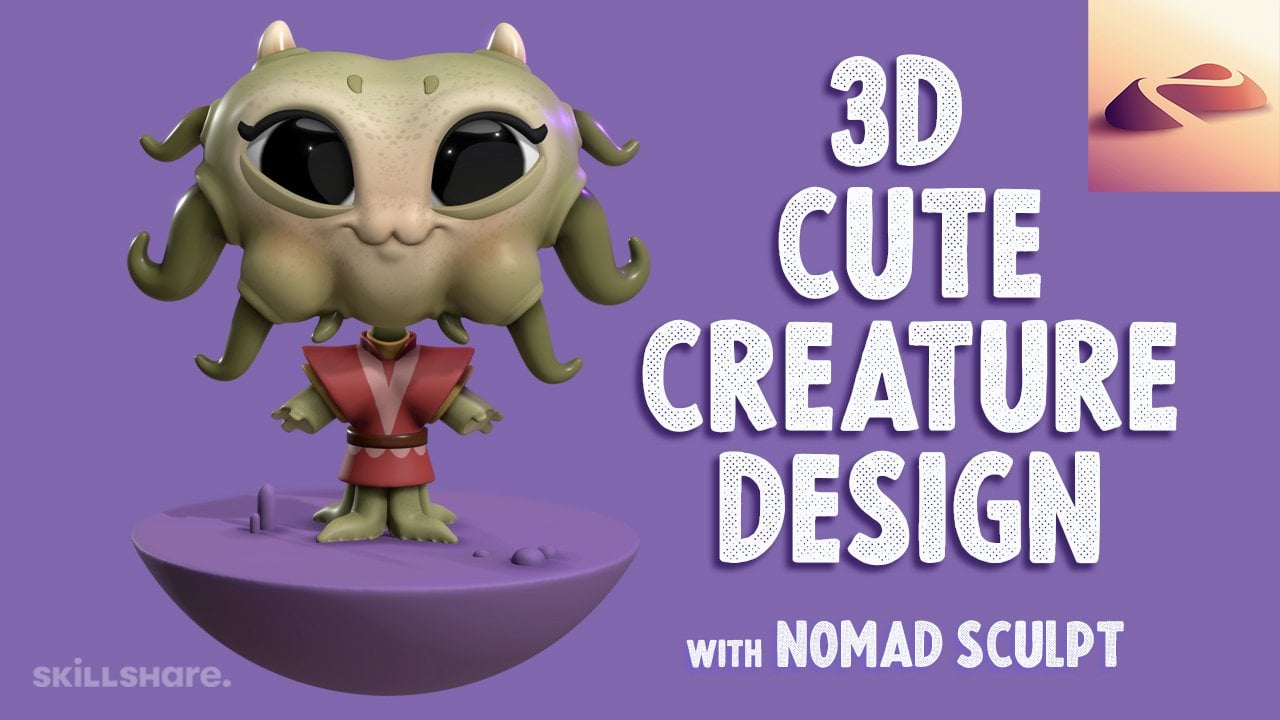
1. INTRO to 3D with Nomad Sculpt: Are you an artist
that wants to expand from two D to three D art? If you have an ipad
or an Android tablet, this is the class for you. Welcome to Introduction to
Three D with No man Sculpt. I'm drug creative and I'm completely obsessed with
creating three D art. I say three D art because there are so many
different ways you can be creative with three D. You can render
your art as images. Dive into three D printing. You can even create
a model in Nomad and further develop it in programs
like Blender for rigging, animation, or game assets. I've been an artist
for over 30 years. I graduated from the School of Visual Arts in New York City, where I learn the value of
things like life, drawing, color theory, and the
benefits of being in an atmosphere that
encourage creativity. I've created artwork and done visual art collaborations
with clients like the American Museum
of Natural History, Adorama, and Wacom. I've also illustrated over
six children's books. I know it looks complicated
and intimidating, but I really try to
take my time giving direction and create
an environment that's easy to learn in, at a pace that's follow. Here's what we'll
go over in class. Getting familiar
with nomad scope, I, the user interface, and just getting more
familiar with the program, adding primitives to our scene. Primitive is just a fancy
word for simple shape. The idea of using primitives to block out a simple character. Locking is like sketching, but with shapes vaxal remeshing the process of combining shapes together to form
one solid piece. When to use it,
when to not use it. Simple scene lighting,
general overview of tools and other functions
we'll use to help form our character post process. Post processing is adding the final touches
to our character, making everything
ready to render. A render is just your final
image that you can share. Wait, what did he just say? Don't worry, these
terms will make a lot more sense as we
work our way through this. Three D art is a lot of fun and now with ipads and tablets, you can create great art anytime we're truly
living in the future. Once again, my
name is drug free. Dave, and I look forward
to seeing you in class.
2. Class Project: All right, welcome to
the class project. I have my notes here. I have
my class project notes here. The class project will be the little character
that we create in class that you can then
upload to the project gallery. We will make a simple, cute
character with round arms, legs, big eyes and an adorable smile to boot
all my characters. I really like making cute
things and cute characters. That's what I want to
teach, and I think it's a really good simple
character to build on, especially if you haven't
done this before. As we move along in class, you'll see that it's really
easy to adjust things. Make arms bigger, make
eyes bigger, smaller. It's important to listen
to your creative side. If you want to do something, then that's perfectly okay. This is your character,
this is your art. Make it the way you
want it to look. So once you finish the class, please upload to the Project
and Resources tab where there's going to be a
gallery of everyone's work. I personally can't
wait to see your work. I'm looking forward to
seeing what people do, especially if they
change things around. I really love to see that. I love to see your own
personal creativity. Before we get to the next class, there's a few things that I
want to prep for the class. One is adding the environment. So I'm going to show you
how to do that right now. You can download
the environment, the environment
image and I'll just, we'll put it into nomad that way you don't have to
worry about it later. So let's do that first, then
we'll get to the fun stuff. Once you're on the class page, just go to projects
and resources. Then scroll down, you'll see resources and download the main featured
circle environment. It'll go somewhere on your ipad. Sometimes it's a little
difficult to find opens. Okay. And then I'll open it, then I'm going to hit this
little send thing or shared thing and then just save image should be saved
somewhere in the ipad. The ipad is a little
weird like that, but I think it
will be mine wound up in Chrome
downloads on my ipad. Let's see if it's in recent,
it's also in recent. That can be tricky sometimes
once you've downloaded your environment,
can open nomad. It should look
generally like this. You just want to
go here and then come down here to where it
says environment tap on that. There's some default
images here, it might be on one of these, you just come down here and just tap on the image and then tap Import and then tap photos. Then it should show up here, Tad, and then it'll
show up here.
3. Getting Started: Okay, let's get started.
First, we're open. Nomad sculpted. This
is a new scene. You see the default sphere. There might be times where I refer to this sphere as a shape, as a sphere, as a three D
sculpt, my three D mesh. There's lots of different terms, but essentially this
is a three D sphere. This is a primitive, it's
just a sphere shape. A lot of times I use this
sphere shape to make other things or to make my characters or make
eyes, things like that. This is just a default set up. One of the first
things I want to show you is this
little cube up here. You can move this around. See right here says front. When you tap on that, that's how you know that you're looking directly at the front
of the project. Right now it's a sphere, so
it's the same on all sides. But this will be really good
just to give you a reset, so you know you're
looking directly at the front of your project. The next thing that I do
is when I'm sculpting, I like to change from
Lit PBR to Matt Cap. Now I know those things
are going to be completely confusing but just going
to show you what to do. I'll explain a little bit
about what it is right now. You'll see the sphere is white. Go up here to the
little sun tap that. We have this little
window that pops up right here is lit
PBR, that's the default. This is just a default later
on when we want to paint it. When we want to light
it, we'll go back here. But for now I'd like
to use a matt cap. If you see here, you
can tap this one. And I like to use HG clay. It's just the
regular default one, just to make a long story short, this just disregards lighting, any ambient lighting, it just
makes it look like clay. For me, it's just
easier to sculpt with. I like to to set it to a mat cap because it's
just easier to sculpt with. And I think it's
easier to see as well in the tutorial
that is. All right. There's a few other
things that I do to really set up my scene. Before I get started, I'll go
here to this little camera. Just tap that and just
make sure that you're on orthographic,
essentially perspective. Once I get finished sculpting, I'll change it to perspective. It'll change the look a
little bit orthographic. What that does is it disregards
all the perspective. For example, if
we're making things, if I make another sphere
and I move it back, if we're in perspective, that sphere is going
to look small. I just keep it at orthographic. That way nothing will look weird because of
their perspective, because it's easier to
su sculpt without it. When you start a
new scene in nomad, there's a few
things that happen. We have this default sphere, but I've already been
working in Nomad. You can see all my tools here. But I'm going to delete this.
So let's just delete this. I'm going to go
through all of this. Don't worry that I'm clicking
around fast right now, I'm going to go back over it. But for now, I just want
to save this project. That's just the auto auto save. Yours probably looks
more like this. You have this little
window appear. It says validate.
This is how we start. Anytime we add a shape, which we'll get to
adding the shapes later. Right now, you don't see all of the tools and you see
this as primitive. That's because this
is a primitive shape. When you first add
a shape or when you open a fresh project, it's
going to look like this. Going to see this window.
Just hit Validate. Once you hit validate, that's when all your
tools show up over here. Now the sphere is
part of the project. This is our three D space. You notice I just press this to give myself a little
more screen space. There's a red line
going down the middle. That's our horizon line. Sometimes when I make a floor
or something like that, I just line it up
with that line. This is essentially just the
center line of our project. This green line is
also the center line going down the middle
of the project. Down here, obviously
you have undo and redo. You have all these options
here, these shortcuts. I think we'll get
into some of these, we'll get into
Vauxhall remishing, if you don't see
any of these here, you can go up here
and you can add the shortcuts if you want to make yours look like
mine or things like that. But again, I'm not going to use too much of these
shortcuts in this video, but I just want to show
you what everything is over here on the left. These will always
correspond with your tools, all of your tools
as I move along. They're all going to
change over on this side, this is usually going to
be the size of the tool, the radius, and this
will be the intensity. But again, we'll
go over this when we go through the
specific tools. Then you have some options here, sub whatever tool you're using. Then this will just do the opposite. We'll
go over that as well. Then when we get into coloring, there's a little sphere here. We'll use this later on when we get into coloring
and things like that. Over here you have all of this is the Ram from the
ipad or your tablet. The scene vertices.
It's very important. We're not going to worry
about it too much in this video because we're not going to do anything too crazy. This number won't get too high. But scene vertices, that's what everyone
always talks about when they're talking
about polycount. And vertices and some
people get all the way up into the millions sometimes, but we're not going
to go too high. That's very taxing on
the tablet as well. Here you have the
sphere. This is just the size of the sphere. It's 6,146 vertices. All of that can be
really confusing. Essentially, the sphere
is made up of parts. Down here, if I turn
on the wire frame, you can see all these spots
and all these little squares. These are all the shapes that
make up our three D shape. We can add more, we
can take some away. 6,000 is not very high. It's enough where
the sphere looks smooth just to show you
don't have to do this, but I just want to show
you what it looks like. A lower resolution, I make
it a real low resolution. It's still a sphere, but
the shapes are much bigger. You can see these triangles and also you can see
them on the edge. That's just. So you can see
the difference in topology. Topology is the surface level
of whatever the shape is. That's topology, okay? Up here we have some options. This has to do with
like the camera. This is like the
background color. This color right
here, If you wanted a different background color, you can adjust that
reference image is when we add our character. We'll add a reference
image here. I'll go more into that
later post process, We'll do that later. Here's shading, this
will also be lights. Later on, we have
all our materials. These are different materials that you can make the surface. And there's a lot of other
fancy options down there. We will work with
these a little bit. Mostly this Foal remesh. Essentially what we'll use
this is say we had two spheres and we want to merge them
together to one shape. We'll use voxal remesh
and then you smooth out where they're connected and
it just looks like one shape. We'll do that later as well. This is our scene,
This is where we will add shapes and things like that and then they
will all show here. Here's our project little
tab here you can save, that will save your progress. Of course you can do save
As and then hit New. If you want to make
like a second one, let's say I change this to
two or something like that. Then you have a second one there which I'm going to delete. Maybe I'll delete it later. Here's the auto save options. If you don't want that
or if you wanted to come up every 5 minutes,
you can change that. There's some export
settings for three D stuff. And here's the render settings
that we'll get to later. Then of course all
of these tools, this will always
change because these will be like some
options for the tools, this is more options
for the tools. And then you have some more
settings here that we'll get into. These are your tools. If you get far out
and you want to just get back to home base,
you can press that. You can press home. That
goes to the front as well. That's where those two
little things are. We're using version
number 1.82 actually, the guy who makes the program, it does get updated quite
a bit and things change. Just keep in mind that
some things might be a little bit different if it's not 1.82 because there are
a decent amount of updates, things could change
a little bit. Okay, That's pretty much a rundown of just
what the screen is. Whatever you do, don't
get intimidated. You're seeing all of
this for the first time. It looks like a lot. But it's the thing where each one of these little
things, you might need it. And you'll just need
one thing at a time. Or like you press brush And
then one thing over here, it may look intimidating, but as we move along, you'll see that it's really
not intimidating. We're going to use the same
things over and over again. You'll get used to
it pretty quickly. There's a few other things that I wanted to go over as well. There's also two finger
tap that's undo. Three fingers is red. Let's just say if I
wanted to go like this, we have some color on it. If I want to undo you, just take two fingers and
you tap and that's undo. Three finger tap and that's redo Also just in case you're not really that
familiar with tablets. If you want to move around, you just pull like this. You can tap on it. If you want to get it
back into the middle, you can just take two
fingers and just drag it to the middle and you
can spin it here. Sometimes it gets wonky,
but you'll get used to it. The more you work
in the program, you'll just get used to it. Again. Remember find front on this little cube
and then just take two fingers and you can just drag it to the middle like this. That may take some getting used to as well if
you're not too familiar with with tablets or at
least the ipad. Okay. All right. So I think that's
pretty good for the UY. Again, you don't
have to remember everything that I'm telling you. When I do tell you
about these things. Again, I'm going to be
showing you and I'll probably show you more in depth. So I'm going to walk
you through every step. So don't get intimidated. I know it's a lot
and I know it looks, it looks like crazy with like all this stuff and all these men and sub menus and
things like that. But one step at a time, baby steps, and we'll
get through it. Next up will be the primitives. We're going to add some shapes and I'll add a little floor
or something like that. We'll just get started with
the basics and we'll bring in some primitive shapes
after each lesson. Make sure you save your project. Just go here, and
then just hit Save.
4. Primitives: Okay. All right. So in this video, we're going to go
over primitives and bringing primitives
into the scene. I accidentally
turned my grid off. We have our sphere here, and bringing primitives in is just like bringing shapes in, bringing three D objects onto the scene or
into the scene. To do this, first, we'll go to this option here.
This is our scene menu. So here we have the sphere, and then we're going to go to add and then we're going
to add a cylinder. Now you see you have a
cylinder and orange here. Remember, when you validate it, that's when all
your tools come up. But we're not going to do
that right this moment. I just want to show
you a little bit of the cylinder
before we validate, and there's some options here. You see these little nodes.
These you can move around. These will just stretch
and they will just change how your cylinders. This will make it just bigger or wider without making it
bigger, things like that. You have these options here. Also, you can
actually tap radius if you wanted to make Okay. If you wanted to do
something like this and make let me just hide
this fear really quick. See this radius thing here. This is so you can
make all different shapes with the cylinder. I'll just put it back to normal. We can go ahead and
validate our cylinder. Now our cylinder is validated and you can use all
the tools here. Let's go back to our scene menu. We have the cylinder. Let's change this two, we
tap these three little dots, it name, and let's
just put LR for floor. Let's tap front we have
this red line here. So make sure you tap on
the cylinder because anytime you tap on a mesh, you see that this will change. Whichever one you tap on, that's the one that's active. So we want to activate
our cylinder, which is now our floor. Let's tap the GSM. The gzmo's going to
be the tool that you probably use the most even though we'll get to
more of the tools later, the Gizmo we'll have
to use right now, so I just want to show
you all about what it is. The gizmo essentially
is like a controller. The gizmo, you can move the
object around in space. If I zoom out, you have
these arrows here, green, red and blue. Those correspond to the
different axis of the project. But essentially, it's
just a controller. If you want to move the
cylinder up above the sphere, you can just use the
green arrow like that. I'm going to hit undo. If you want to move
it left and right, use the red arrow and the blue arrow for
forward and back. You also have these rings. There's an orange
ring going around. That just makes things
bigger and smaller. That's all that does.
That's the orange ring. Then you have these
little spheres. See the blue little sphere,
green little sphere. All these do is stretch. They will stretch and
squash, whatever it is. It's the same thing
for the sphere. You can stretch the sphere like that to make
different shapes. That's essentially
what the Gizmo does. It's just your controller. I'll take some getting used to. There are some other
little things on here, but we don't have to worry
about those right now. Tap front, and let's take this little green sphere and
just go like this with it. To write about here and
let's actually make it bigger than our sphere
with this orange ring. Then let's shrink it again
to something about there. Let's use the green arrow and
just move it down so that the top edge lines up with
that red horizon line. That's going to be our base. Let's go ahead and
take this fear, let's tap on this fear and just move that up a little bit. But we're going to bring
in more primitives. But I want to show you why I'm bringing in
certain primitives. This was a run through when
I was trying to figure out what I wanted
you guys to make. What we just did, we brought
in a cylinder down here. We're going to bring
in another cylinder for a platform, a torus. You can see this is a sphere, the arms are spheres
that are stretched. This is why I'm going to
bring certain things in. Let's go ahead and
add another cylinder. We add another
cylinder. I'm just going to tap gizmo.
It's a bit hidden. I'm going to tap gizmo here, and then I'm going to use the
green sphere to shrink it. I'll make it a
little bit bigger, and then I'm just going
to shrink it again. I'm going to use
this green arrow. We just want it right on the
top, something like that. Now let's bring in a truus. A Truus is like a ring. We're going to go back
to our scene menu add see these are
our primitives. We're going to add a
turus which is like a ring we haven't
validated most of these. You can see most of these are orange, including the torus. So when we validate, these options are
going to go away. Once you validate,
see these options go away and it's just
a regular tools. I'm going to undo back to the validated version so that I can use this
node, this orange node. I'm just going to make
it a little bit bigger. Then you have this node here, which makes it a little thinner. I'm going to hit solo just so you can see what's happening. This one makes it
bigger or thinner. This one is if you
wanted to open it up, maybe you want to make a
half ring or something. This makes it wider without really making
a bigger in size. I'm going to hit solo,
bring back everything. I think this is pretty good. Something like
this. Basically, we just have a ring around
that cylinder we just made. We can go ahead
and validate that. I'm going to tap on
that cylinder we made. I'm tapping on this
middle cylinder here, and I'm just going to
validate that as well. Now we have the torus, the cylinder, the
floor and the sphere. Okay. Okay. We need to bring in
something for the legs. I'm going to tap on this sphere and just move it
up a little bit. Our character is going
to have two legs. We'll go to the scene menu, add, and we're going
to add a sphere. Let's just tap Gizmo and we'll take this green
arrow, we'll move it up. We'll take the red arrow and
move it over to the left. Let's use this orange
ring to make it small. Maybe something like
that. Now just use your arrows and you can just maneuver where legs would be. Maybe around there. Let's take this sphere.
We can rename it. Let's tap three dots, name, and we'll call it leg. We have our leg. Let's tap these three dots and hit Clone. Now we have leg one. Let's
tap the three dots again. Name and we'll call
this arm. Okay. So now we have an arm there. So both the arm and the
leg are in the same spot. But since the arm is
highlighted orange, this is what the
Gizmo has selected. So I'm going to use the
green arrow and move it up and over around here. Okay, so we have the
leg, we have the arm. Now, let's make a head. I'm going to add sphere, and I'm just going
to rename it now. Head. Now I'm going to tap Gizmo. Anyway, we're going to use the gizmo and we're
going to move this up around here. Maybe we'll make it a
little bit smaller. That's going to be
the head. Let's tap on the body and make that
a little bit smaller. Okay. Oh, something like this. We can move the arm over to
ply using the red arrow. We can pull that over. Let's go ahead and
Let's take the arm. Let's tap here and clone it, and let's name this ears. We have ears. Let's move those up to right
around this area. All right. Let's add a new sphere, and let's rename this snout. Or snout, if you want to
be technical about it. Okay. So this shape, let's tap our gizmo so
we can move it around. I'm going to move it
with the blue arrow. What is this floating here? Okay. I'm going to move with
the blue arrow forward. Again, just be careful you
don't hit anything else. Sometimes it's easy
to go like this or just you might do like this. It's important that the gizmo
stay the way that it is. Just be careful that you're not hitting something else
because if this tilts, it can make things a
little bit her later on. You just want to make sure
that you are just touching the parts that you
want like this arrow, and sometimes it gets
a little tricky. Let's make this very small. Let's bring it up, don't
worry about the sizes, trying to match the sizes. Again, we're just bringing
in the primitives. We're going to polish everything up a
little bit later on. We'll put that right
in the middle of this. Let's take this snot. We'll tap here, clots these three little
dots and rename it I. Okay. So now we'll take the red arrow and green and just move it a little
bit over like that. We have all of our primitives. We have the head, the eyes, the snot snout, the body, and these are going
to be the legs, the arms, and the ears. I know they really
don't look like it now, but I guarantee
that's what it'll be. We also need a
cylinder for the nose. So we'll go back to scene. Add cylinder. Notice I'm turning it to I'm turning it so the
left cube is showing. And the reason I'm
doing that is when I tap Gizmo and I bring it up, and then I bring it forward
this way with the blue arrow. I want to rotate it. I can take this black ring and
rotate it like this. But here's another
cool little trick. See the snap here. Now,
there's two of them. It's not the one with the arrow, it's the one right above it. This snap. If you touch
that, it says 90. You can change this value, but 90 is great because
now when I rotate it, it's just going to
snap 90 degrees. It's very useful in
a lot of situations. You can change it to 45
degrees and things like that. It's very useful. Let's tap it again so it so
it's not selected. Hoops. There we go. Now we'll take this orange ring and just make our
cylinder smaller. And we'll do
something like that. Maybe we'll move it up a little bit to the top of
that round thing. That's pretty good. Maybe
I'll make it a touch smaller. Let's go ahead and touch
this little picture, and let's tap reference image. Now, the image that
you downloaded, if you haven't downloaded,
it's in projects and resources and you can
download the image. Tap on the image here or if
there's something there, just tap the import photos. And then you can import
this little image. So tap on it and then hit add. Then let's see where it is. I don't see it. So
if Iran there it is. What I needed to do is just hit transform and then you
can move it around. I want to put it down here
a little bit like that. Although it's a bit annoying that this thing
isn't going away. Oh, I think I had it pinned. I think I accidentally
had it pinned. But there we go. There's
our little character. In the next video,
we're going to take all of these primitives and we're going to start really blocking out this
little character. Oh, and make sure to save Save. Okay. Okay.
5. Blocking: Okay, so now that we
have all of our shapes, all of our primitives, we can start to really just
block out our character. All that really means is we're going to take these shapes
and really put them in these positions and make up how our character
is going to look. Let's tap on this leg here. Let's just stretch it. Let's use this little
green sphere here. And let's just stretch like you can move it to
the side as well. I think that's pretty good. Maybe we'll stretch
it a little bit more. That's going to be his leg, the bottom part of the sphere. His body is closer
down to the ground. What we can do is just take this sphere and bring it down. You also see it's like
a tear drop shapes. Let's go back to the front. Let's go ahead and stretch
this a little bit. Let's stretch it
out a little bit. Let's bring it up
a little bit more just so there's a little
bit of space here. Remember when I'm moving it
up, I'm using the arrow. When I'm stretching it, I'm
using this green sphere. I'll hit front. I'm going to go ahead and use
some of these tools. I'm going to go over
them a little bit more in a later video. Let's take the move tool. You'll see over here you have the radius and you
have the intensity. My intensity is about 50%
and the radius is 242. And you'll notice I
have the symmetry on. If you have the symmetry on any shape or any mesh
that you tap on, that's the active mesh. And you'll see this line as
this is the symmetry tool, let's just tap here
and then go down. As long as you have show line, it's going to show
the symmetry line, which is this red
line down the middle. Okay, make sure you're
tapped on the body. And we're just going to pull
this side up a little bit. Make a little bit of
this teardrop shape. Now we can bring the legs in. I'll take the gizmo. Bring
this leg in a little bit. I think I might just shrink
it a little bit this way. Maybe something like that. Then I'll tap on the body. I'll tap on the move tool again, and I'm just going to
stretch the body out. See how I'm just dragging down that's going to
make this shape here. I'll drag it down a little bit, maybe something like that. I'm going to turn
it to the side. I'm notice how I just
move the model around. I just want to stretch out this body until
it's over the leg. You might want to look at it
from a few different angles. We're just stretching that body out until it's over the leg. Something like
this. Now remember, you can make these legs bigger. You can make the body bigger. You can make it skinnier. Feel free to be creative if
you are comfortable doing so. Now let's take this sphere, let's go to our gizmo. Let's use this little green
sphere and stretch it. I think that looks pretty good. Let's bring it down
and over a little bit. All of these things
are very high up. Let's take the
head. Now if you go into the scene menu,
see the head here. You can actually, let's see, did I label This is the body. This is actually a
good thing to mention. See the sphere here?
This is the body. Let's tap on these
three little dots. Name body. We want to make sure that
we label everything. This cylinder, let's
just call this Si one. Let's call this one Si two. I just name these so
we know what they are. This cylinder is the nose. Let's name that nose. I think everything else is
good. I'm going to save. It's always good to save
as you're going along. Okay, now what I
was saying before, we can take the head and we
can go to the scene menu. We have the head here, we
can ears, we can take, then we can take
the eyes and these all of that together and use this green arrow to just
bring everything down. I'm going to look at it
from the front view again. Now what I want to
do is take the head, and I think I want the
head to be a bit bigger. Let's tap gizmo. So
we're on the head again. And let's just validate it. Now you'll see that
the head is white. The text is white. Let's go to move again. We're going to do the same thing that we did for the body. You want to make sure
that you're on your head. You see the red line
going down the middle. You can turn the radius up a
little bit and hit symmetry. Hitting symmetry. If that's off, it's only going to go one side. We want to make sure
symmetry is on now. Just stretch out the
side of the head a little bit so that it's
a little more square. You can make the move tool
a little smaller to get a, a bit more control over it. I'm just going to make
it square like this. You can turn to the side, and then if you want you can maybe add a little
bit more on the back. You can add a little bit of shape to the head if you want. You can make it
flatter and wider, but I think this is pretty good. I think I like that.
Okay. The next thing that we'll do is we'll
stretch the ears out. Let's tap on this ear. We can use the gizmo
for now and we'll take this little green node and we'll just
stretch the ear out. Okay, let's validate this. We validated the, as you
can see the ear now, white. Don't worry about the other ear. Later on, we'll put all
of these in mirrors, so we'll mirror the other side. Let's go ahead and use
the move tool again. Let's radius a little bit smaller because
the ear is small. And just make sure
that you hit symmetry. Now we're just
going to round out the top of this by pulling. Maybe might have to make move a little bit smaller.
We just want to pull. You can see on the character, it's a little smaller at the bottom and a little
wider at the top. You just can make a
little shape like that. You can turn it to the
side and make sure that this also
looks fairly round. I think I'm just going to
do something like this. Okay, so now it looks
pretty straight. Pretty round from the side and pretty round from the front. Let me bring this in a little
bit, something like that. Okay, now let's take our gizmo and we'll move
it in a little bit. Whoops, that's a good
thing to show you as well. What happened was I wanted to drag it from this red arrow, but I think I accidentally
hit this and it turned. Anytime you do that, you want
to make sure that you undo and just move in a little bit closer so you can actually
do what you want to do. I'm going to move it in, I'm
going to turn to the side, and then I'm going to move
it back to the back of the head, something like that. Move it down a little bit. Then maybe I'll take this
red ring and then move it back like this, then the blue. And just move it back
a little bit more. You can play around
with this and position it wherever wherever you'd like. I think I like something
like that. Okay, great. Now, this is looking
pretty good. The only thing that I'm seeing, for the bottom of the chin, I've tapped on the head
again, I'm tapping on move. I just want to bring this part down a little bit on his head. I'm just going to maybe I'll make the move tool
a little bit bigger. You'll notice sometimes you have to go back and forth with the sizes. There you go. I just want to make it so it's straight, maybe,
something like that. Okay, Now let's deal
with this little snout. We'll take this little snout
and we can validate it. Then we'll use our gizmo
and let's make it smaller. I'm going to make this, I'm
going to turn to its side. I'm going to move it into
the face a little bit more. This is going to be
the eye for now. Let's see what's the
best thing to do. Let's validate it. Let's
move it in to the face. It front again? Let's move it. So right next to the snout.
Maybe something like this. Maybe something like that.
Let's take the nose, we can go ahead and validate it. Let's move this arrow.
Let's move it back. Let's make it a
little bit smaller. I think that's
looking pretty good. Okay. Okay, so I think this
is looking pretty good. Let's take this arm again
and let's validate it now. We'll actually, let's
use the gizmo first. We'll use the gizmo and we'll make it a
little bit smaller. It's big. Let's move it in. And let's turn it
with this blue ring. We'll turn it,
we'll move it down. Here's another little trick. Let's say I just want to
move it straight down. You can actually go over
here and tap a line. When you tap a line,
our gizmo will line up with the project and
not the individual shape. That's why this will
always be pointing up, this will always be pointing
left and right and so on. If you don't have a line, it's going to align up
with the shape. The orientation of the shape. But if you put on a line, it's just going to align
with the project. You can move it straight down. Sometimes that will make
dealing with the gizmo a lot easier Now that
we've done that. Remember our arm is validated, so we can use the move tool. We don't want symmetry
when we move the arm, because what we're going to do is just take the move tool, we'll make it a
little bit smaller, and we're just going to bring
it into the body a little bit that way it's like it curves and then
the arm curves out. You can even press
the bottom part and just smush it
up a little bit. Maybe just like smush up
the bottom a little bit. Give the arm a
little more shape. Something like that. Okay, I think these are looking
really, really good. I do want to add
one last sphere. Let's actually take the, just
tap on the I go here clone. Let's name this 1 Ft. Now we have feet
and I'm going to long press this and
put it by the leg, it's right under the leg. I'll take the leg and I'll
validate that as well. I'll take the feet. I'd like to call them fees and see how I just bring
it down with the arrow. I'm going to take this
little green node and just squash it. So this is what it looks like. Now, we're just going to
move it into the platform. And into the leg. I've just brought it down and I moved
it over into the leg. Now I'm going to
go like this here. Maybe you want it this long. See it's just a sphere. But it shapes the foot. If you want a little bit
rounder at the edge, you can press it down, you can squash your sphere
a little bit more. You can experiment with that. You can move it in more
and make it a little bit wider on how far you
want the toes out. You can also move it if
you wanted his feet to be facing outward a
little bit or facing in. Okay, now everything is
pretty much blocked. It looks way more
like a character. Now, in the next video,
we'll just go over, we'll just use a few tools, put the finishing touches on our character and
continue moving forward. But great job so far making the primitives and just
blocking super simple stuff. Once you just have a formula of how to do
it, don't forget to save.
6. Sculpting Tools: Okay, let's go over
some of the tools. I'm not going to go over all of the tools because there's a lot. I'm just going to go over
some of the tools that I use a lot and some of the tools that we use to get our character from this
to something like this. Remember, there's a
few things that you just need to keep in mind
when you're using the tools. First, when you're on a mesh, see how I click around to
these different meshes. All my tools are visible and that's because all of our
shapes are validated. For example, the floor, this cylinder on the floor. You can't use the tools here
because it's not validated. Before we validate the floor, let's just do something
really quick. Press these three little dots. Post subdivision, let's
just turn that up to three to two, we'll
put that to two. And then let's
just hit validate. Now we just have
a round cylinder for the floor. I
think it looks nice. Okay, let's start with
the clay tool again. We have symmetry here. This is the intensity minus, usually hovers around 50. Then we have the size,
we tap on the head, Symmetry pops up and
you see just adds clay. That's the clay
tool. It adds clay. Of course, you can change the
sizes of most of the tools. You can change the
sizes and things like that just to get it
to where you want it. But what I use it for
and what we'll use it for is actually we're going
to use this sub button. The sub just does the opposite. Whatever the tool is, the sub
will just do the opposite. If I use the sub, then
it's going to subtract, whereas before it will add, we use the clay tool. With sub and symmetry, we just want to
make the eye socket which is going to be
like an impression here. We might be able to make
this a little bit bigger, maybe around 100 or so. Just make an eye socket. You notice I just, I
move in circular motion. I'm going to make it a
little bit flat here, but you can make it
any way that you want. I'm going to make
it round like this. Then just make it flat
here, something like this. I'm going to bring
down the radius. I'm going to just dig out
the middle little bit more, something like this. Essentially, you
just want to make two craters and that's where
the eyes are going to go. Now that we have that, we
can take the smooth tool. I normally use these
altogether, I'll use clay. And then immediately I'll
grab the smooth tool, symmetry, and make
it a bit bigger. I'll just smooth it out. I might want to give him a
little bit more of a forehead. You could always go to
regular clay and then you could add some clay here. Again, I'm using the symmetry. So you could add
some clay this way. This will add some mass
to the front part, depending on how much you want. You could just add a bunch here, then you could take smooth and then you could
smooth it out. That would give him a little
bit more of a forehead. You could move and you
can A lift up the head. A B here, that looks nice. You could always
lift this forward a bit just to give them a little forehead action
if you wanted to. You could also
take the move tool if you wanted to give
him a little bit more of a wide, like a wide face. You can do that.
Don't be afraid to play with it and make
it your own character. I want to bring the
snout in a little bit. Let's just use the gizmo. We'll hit left here. Let's just move it
in a little bit. Maybe we'll even make it
a little bit smaller. Let's just squeeze it, smush it with this little green. We'll just do this down a little bit, something like that. That looks great. We'll take the nose and we'll just move it in a little bit.
We'll move it down. The move tool and the drag
tool are very similar. This is the way that I think
about it with the move tool. Let's say I'm moving the head and I want it to be like
a graceful movement. I want it to really look smooth. I don't want to look
like I just pulled something like a part
out of the face. I would use move and I
would make it pretty big because this is
more tap on the head. This is more of a
gradual movement. Drag. On the other hand, let's say I wanted to make
these little hairs on top, which I actually don't
know if I'm going to keep, but I'll show you
how to do them. Drag is more if I just
want to drag a piece up. Well, let's take off symmetry. So we'll turn symmetry off. Now when I drag it up, I can continue to drag it, and then I can move it
over this way, like this. If I wanted to make it smaller, I could drag over
another little spy here. It gives us like a little
bit of hair type thing. I might make this
one a little bit thinner by pushing it,
something like that. Brush is similar to clay. You can add different textures
and things with brushes. I'm not really going
to get into it, but brush is very
similar to clay. I don't, I don't
use it that much. If I just want to add mask, then I just use clay usually instead, mask is really great. Let's say we want to do, which we're not going to do
on this character, but let's say we wanted to
do the inside, like a mouth. Like an open mouth. Maybe
I'll make it small. Maybe around 50 symmetries on. Let's say I wanted
the mouth to be here or something like that. It's pixelated again because
this size is quite small. This part of the
head is now masked, meaning that whatever I do, like if I'm trying
to move something, if I use the move
tool or whatever, it's not going to
move what's masked. You can also go to
the mask setting. If I go to mask and then I tap here and then I tap invert. Now everything except
the mask is protected. You can do a lot of interesting things like use the gizmo. And then only the part that
isn't masked will move. And you can see how
that would easily make the inside of a mouth. Let's say you want to
protect something. You could always
use the mask tool. Let's clear it. This
is how you clear it. We go here to clear. Let's say you were working
and you didn't want part of the face to get
damaged or moved or changed. You can take select mask. Well firstly, you could take
mask and then you could just color the part that
you want to protect. Or you can take select mask, which just gives you
these selection options. That's all it is, you might
want to use lasso and then you just make a lasso
around like this, then all that's protected. Then of course you could
use like a rectangle. You can use different shapes for the mask tool paint, obviously. We'll use that to
paint our character. We'll do that a
little bit later. Smudge when you add paint, then it's just going
to smudge that paint. That's what that is, Flatten, let's tap on the head, we'll make flatten
about 90 tensity. Still around 50 flatten will just flatten out.
We have symmetry. If you go around here, you'll see that it will just flatten out these
surfaces a bit. These surfaces are a little
bit more flattened gizmo, We know the gizmo, that's just our controller crease is great. If we tap on the snoot snout, we look at our little character. He has his little mouth here. Actually, let's move. While we're here, we'll
turn on symmetry. We can make the radius
a little bit bigger. Remember we're on this little
snout part, as you can see. Let's make it a smidge bigger. Let's just pull this out so
it's a little more square. Let's pull this
down a little bit. Okay, we just pulled that
down just a little bit. I actually want to make it
a little bit more square. Okay, now let's take the crease, we're going to use that to
make like his little mouth. We'll just start here
and let's go off to the left and see how that
makes like a little mouth. Of course, we're using symmetry, so it's just mirrored
on the other side. Let's to another level again. Good. You see how
easy that comes together and it really
looks like a little mouth. What would happen is the mouth would come down and
then it would go up. Then it would create, that's what creates that
arch in the cheek. We're going to use
clay and we can make that shape. That's
one way to do it. But since we haven't
used inflate, which is one of my
favorite tools, they might not be in this order, you might have to find it. Inflate is really great tool. I'm going to bring the radius
up a bit and inflates. Another tool that I
might use for this, see how I just
walked it back and forth and it makes
it pretty big. That's actually adding
a lot to there, but I think that might be okay. Let's go back to the nose and let's use D. Let's hit front. I want you to make
like a heart shape in the front of the nose. Remember we're
using, you probably could use to move as well. I'm going to make the tool a little bit bigger,
maybe like 85. Symmetry is on. I just want to make a little, you see what it's
actually doing. Let's see what happens
if I use the move tool. If I use the move
tool and I bring down the middle, does the same. But this is a little
easier to work with because it's
still a little bit more trying to take the
whole nose into account. I'm just bending
the sides to try to make a heart type shape,
something like that. It's pretty good. I'm going to make the
move tool a little bit bigger and I'm actually
going to push the nose. I think that looks pretty good. Let's take the smooth tool and let's just so really gently, we'll just smooth that nose. I'm going to use move
tool again and I want to just pull the nose
out a little bit. I want to take the
little snout part, I just want to
pull it forward at the top because I don't like how there's
like all this nose here. I think that this little part needs to be just pulled out. I'm going to make it
a little bit bigger. Pull that out a little bit. Yeah, I think
that's much better. That's much better angle. I'm also going to take
the bottom part of the mouth where
the chin would be, and I'm just going to just
gently pull that down a bit just to give them
like a little bit of a chin, something like this. I think that looks pretty good. We need to do some
more with the tools. We will continue this
in the next video.
7. Sculpting Tools 2: I was going to try to only use the tools that
we needed for this. But if you're like me then you want to see most of the tools. I'm just going to go
through and just show you what they do case. I'm actually going to go ahead
and vax remash this head. It'll just make it easier
to show you the tools once it's remised.
High number here. More more detail,
lower number detail. I turned on the wire
frame down here. This just shows what
everything is made up of. See how this is
very stretched out. That's why it looks so bad. Let's go here, val
val remeshing. Let's bring this up to 200
and see those little squares. See if we go down, they get bigger and we go up,
they get smaller. Let's go up to 200 and
remesh multi, that's okay. There we go. Now it's
remeshed but you see like it made some
really bad squares. If it ever does this,
you want to do the multi then remsh, so let's hit undo. The head is back to 61, 46. What we're going to do is
we're going to multiply this, we're going to multiply
all the shapes and then vox remesh, tap here, multi rese, subdivide. You can even see a little
bit of a difference. See how spread spread out. This is when I subdivide, all it did was
multiply the polygons, it makes the size bigger. Now the size is 24.5 I still want to vox
remesh everything. Basically what that does is it recalculates all of the shapes. You can do that at a higher
rese or a lower rese. Again, high res, more
detail lowers less detail. We're still on the head,
we'll go back here, Vauxhall. Let's do it at 200 remesh, okay? Now it's remeshed,
these aren't too bad, but we can smooth those out. Let's take smooth and we'll
just smooth this out. Okay, Again, you can use sub. And then it brings
out a crease that's like some weird is
tattoo or something. Take sub off and then it's
just a regular grease. But you notice now
that we're 148 K, Much more detail. Just
keep that in mind. Trim really easy.
When I use trim, I usually use this
rectangle here, the whatever's in the white box that's going to get trimmed. If I wanted to trim
right below the head, then now it's trimmed and now it looks really creepy the leg. If I hit Solo, we're just looking at it and
it's still a sphere. We would need to trim
the bottom of this. How I would do that is I
would just hit left. You see? Make sure you're on the
leg trim tool rectangle. And I would just make a box
and I would do it right underneath where I want it to actually trim
something like this. Let go. And now this
leg is trimmed. Now when I hit Solo, see
it's trimmed at the bottom. I'd have to do the same thing
with this foot as well. See I just hit left to
make sure it's straight. Then I can trim the bottom. Then I can hit Solo and
see that now it's trimmed. That's a trim tool. Of course, you can use different
shapes to trim. You can use flit
if you wanted to, it would just trim the opposite part that you had selected. Split is very similar to trim. The only difference
with split is if I use the rectangle and
I split the body, it's just going to make
two separate shapes. We'll probably use
split later on. Layer is very interesting
and sometimes I'll use that for eye sockets or
something like that. I'll use it really small. Sometimes I'm on the head for like veins or
something like that. I'll do the veins and
then I'll use smooth, they work for veins. When you're using layer, this is the size
of it, like this, really big, you can bring the intensity down
and it will just be lower, closer, it won't be as raised. If you bring it up, then
it'll be very high. It just creates like a
layer of clay essentially. But don't forget,
obviously you can use sub then it will the reverse. One thing to note, when
you're using layer like, let's say we wanted to
do like an eye socket. You want to get the whole shape in one because once
you lift it up. Go back and makes a new layer. Inflate is great for, let's say I wanted to do like a little row of just like
skin here or something. Inflate is really
great for that. If you want to show some
skin or something like if there's like horns
or something like that, then I would use inflate
pinch is really cool, let's say if I wanted to make these sharper from what
it's like make an edge, then I can use it will
try to pinch together the clay as best it can. It'll try to p, it'll try to find two sides to bring
together, so it will pinch. You can see I have symmetry on, which is, I don't really need symmetry because
it's not symmetrical. But see, it's trying to, it's trying to pinch
that together. That's pretty much pinch. Let's say I wanted to make
this a nice edge here. I'll just use pinch and
it makes that nice edge. See how the light
hits it, nudge. I rarely use stamp. This would be great
if you wanted to make like a logo or something
or put like an image. You'd have to go
here and there's all these different settings. The alpha, this is where
you'd add your shape, like a little squiggle
or something. Then you would add your
shape here on the head. Then you could do something
like that with the stamp. View is great, obviously it just takes away anything else
that might be on the screen. So you can see your
character tube is really great for making tubes or
wires or things like that. Curve is pretty simple. You can make a curve,
you can use radius. See these two little nodes. If you want to make
this end bigger, this end smaller, you
can tap radius again. And you can adjust any one of these nodes or you can tap
it and just use one radius. And this will just be
the whole tube size. Again, these you can
move around as you need. If you want it to be
less curvy or more just following the nodes, you can take it off the
spline and then it's like a little more ugly so to speak. Path can be a little
confusing at first. When you use path, you want
to just start on the canvas, lift up, and then just
move somewhere else. Lift, drag, lift up, drag, lift up like that. That's pretty much
how you use it. Again, it's very curvy
because we have spline. If you take this little
spline thing off, then it'll just move. However it's situated. You hit this little
green button that will bring upon your, your tube. Lathe is really cool. You use lathe to make like bowls or cups, things like that. Let's take curve. This orange line down the middle is going
to be the center. That's going to be the center
of whatever you're making. Let's say I wanted
to make a bowl. You want to do the bottom of the bowl, then you
want to come up. It doesn't really look
like a bowl right now because we're only
doing half of it. We don't want to bring it across like this because that's
not going to work. Even though it looks
like a half of a bowl, that's not
going to work. What we have to do is bring
the bowl out, bring it up. Then you have to make the
inside wall of the bowl. Like maybe you want a little
lip on the end of the bowl, This is the inside
wall of the bowl. You want to make something like this because this will be the
whole outside of the bowl. What the program will do, what the lay tool does, is it wraps whatever
you make around itself. Once I let go, I made
like a little bowl. If I want to edit
it a little bit, you can edit the bowl. You can make it bigger,
you can edit the inside. This will be how thick
the bowl is inside, things like that, so you
have a lot of freedom. Let's say you want to
make like a bucket. Instead, you can tap on these. Let's say we tap on
these like this. So you can make something
completely different. I'd have to bring this down. See if I bring this down, then the inside is
really deep as well, but really fun to
play around with. Just remember that
you want to make the outside rim and the inside when you're
using the lathe tool, just play around
with it in practice. I guarantee that you'll get it and you'll start
to have fun with it. Okay, let's untap also, you can drag these towards
each other to get rid of them. If I just want to
easily make like a regular bowl again,
I would just tap this. I'm going to undo because we had a really nice mug
in the beginning. Maybe we can keep that. Yeah, I would say make a little mug. Make some mug and then
just validate it. Let's go ahead and move it. You notice sometimes this happens where the gizmo
is like somewhere else. If this ever happens, if your shape is up here
and the gizmos down there go to pivot center pivot. Let's move this off to the side. I'm going to make it smaller
with the big orange ring. Now that he has a little cup, maybe we'll keep it, maybe we won't for now. We can also hide it. We'll just rename it cup. You can just hide it by tapping the little delete layer.
I don't use insert. These are custom tools that we probably won't use
in this tutorial. The ones that I didn't show you, either I don't fully
understand how they work or why I would use them or I
just don't use them at all. That's why I didn't
include some of them. Just a few other little things. Adding a little fingers
and things like that and will be good. But so far so good. Make sure to save and I'll
see you in the next video.
8. Voxel Remeshing: Okay, remeshing,
essentially what that is. We went over it a little
bit with the remeshed, which is here and here, and we brought it up to 200, which made our head,
as you can see, 148 K, which is a lot. Essentially, we can resh
these shapes together, but you want to make sure that you're happy with it first. There's something
called joining. If you go to the scene and I take the body head, if we check all of
these, the snoot, if you select all these
and you join them, they're going to
be all together, but they're not going to be
physically joined together. What that means is you
can always go back in here and see this is all
the things that we joined. You can go back in here and separate and you'll have all
the separate shapes again. Now I'm going to do because I want the proper
names back, so I do. There we go. That's
joining the eyeball. I would never box
remesh that with the body because we want to
paint it a different color. Things like the nose or
something like that. But the ears and
the legs and stuff, those can be vauxal remeshed. Again, vauxal remeshing is permanently putting things together,
making them one piece. Joining is just like
grouping them together. Before we do that, I want to give his cheeks
a little bit more. I'm going to tap on the head, I'm going to tap on symmetry. And then I want to take move. And doesn't really
need to be that big. Maybe around 80 or 90 or so, maybe a smidge bigger. I want to bring these
cheeks up a bit. You see? I'm just
pulling out on this. I want to bring these
cheeks up a little bit. See how flat they are? They need a little more.
Umph. I'm going to take clay. I'm going to make
sure symmetry is on, and I'm going to
turn the radius up. I'm just going to add a little
bit more to these cheeks. See how I'm making
it round right here, which is where the
cheek is going to go. I just want to give
him some round cheeks. You can see what I'm doing, you can see the shape and
how it's shaping out. That looks way cuter. The reason why I keep
going like this so much is because I want to make sure
I look from this angle. If you look from this angle, you can see that there's
like the big divot there. Just try to make it as
smooth as possible. Just using the clay tool,
I think that might work. You can take smooth and then
you can smooth this out. It's okay if it
doesn't get really, really smooth because we're
going to box remesh it, that'll give us another
chance to smooth it out. I think that's a lot cutter. Give them a nice little fat
face also, while we're here. Let's tap on the eye, let's tap on our gizmo. Let's move it back or
left a little bit. And then maybe in towards the head a little
bit because that'll be closer to where the
eye is actually going to be, something like that. Now you want to make sure
you have your ears in the right position and you can change them, you
can make them longer. You just want your ears to be in the right position so that when we box will remesh they're
how you like them. As you can see, it's
really hard for me sometimes to make up my mind but that's
the fun in it for me, that's what makes
this stuff really fun is you can do
whatever you want. You have to remember that
before we box will remesh. Let's add some mirrors. Mirrors are repeaters. I know that gets confusing, but we're going to add a
mirror to the ear, the arm, and the leg, and the
little foot thing, essentially, that's
just going to mirror from this
side to this side. Let's go to our scene. Okay,
here's the ears or the ear. What we want to do is go to Add, then go down here
to the repeaters. Then we're just
going to hit mirror. What it's doing is it's
taking the very middle of our project and it's just mirroring from this
side to this side. If you go back here, you
see the mirror with ears. There's some little
options up here, but we're going to make
sure you tap on the ear, like the red part
that says mirror. Let's just validate that. We validate it. Join children. Join children. Just
means that now both of these are going
to become one. So now we just have to
rename this mirror. Back to ears, Arm, add mirror, validate. Let's not do the arm yet. You know what? Let's do
the arm. Let's do it. Validate, Rename the legs. Add. M, validate, Join. Children, rename. It would be nice if I
didn't have to rename these all the time feeds. Rename. Let's go ahead and save. Now let's use our tool. Let's use inflate
for the fingers. Let's go to this arm. Let's hit so low,
we'll take inflate. Let's see how it looks. If we see how I did three circles in the same spot to make that little
shape right there, that's going to be the thumb. You don't have to hit solo. It might be easier for you to not hit solo and see
where it's going, but it's going to be the thumb
and then just two fingers, or maybe three fingers,
whatever you want. But see how I do it. I take the Stylus off. When I'm making a new layer, like a inflate, I go around
and I pull that out. Then I might pull that
out a little bit more. And then we're just going
to do that a couple more times that will make the
fingers I'm going to hit solo so it's not
in the way you can slightly just move it off to move it off a little
bit off the center line. If you want to have the
fingers look like they're going in like that, we'll hit solo again, then
we have something like that. Now, I made a big mistake, but this is actually
something that will be helpful if you made
the same mistake. I should have had symmetry on. Because if I had symmetry on, then it would have went
to this arm as well. But here's a little trick. If you also didn't
have symmetry on, you can take, you
can go to trim. That's why it's good that we
learn these tools rectangle. We're just using the
trim tool right now. The arms is made up of
this piece and this piece, we're just going to trim
that part of the arm. Then we can do the same thing. We have this arm
here, add mirror, then we can validate, and then we have our arms. Now remember, anytime you see something like this where
it's really blocky, that means we have to
subdivide and then vox remish so we can
make this smooth. Because right now if you try to smooth it, it's going
to go like that. Really lose its shape again. Let's subdivide,
multi subdivide, subdivide, then this is a
short cut to vox Remish, but I'll just do
the one up here, x, let's remish at 200. A lot of times before I remish, I'll save just in
case and then go back to the box Will Remish
then just hit Remishkay. Now we can use our smooth
tool. We'll hit Symmetry. Then we'll smooth
these fingers out. Then he has nice
little plump fingers. There's a few other fun things
you can do if you want to, you can use the move tool, make sure symmetry is on. If you want to give them like
a little bend in the front, or maybe even in the back, you can give them a little bend. You can do something like
take flatten and then flatten out the bottom
side a little bit. That's where your creativity
will also come into it, doing little details like that. But I'm really happy with these
little pudgy little arms. Let's Vox will remesh
the ears, the head, the arms, the body, and the legs, and the feet. Make sure you go to
scene, body, head. Legs feeds, arms are
already selected. And ears and snout also. That's just this mouth
part. That's it. We don't want to do
the eyes or the nose, once we have those
will vox remesh. We'll remesh the whole
thing, around 250. Okay, now it's ox remshed
together and you can see that it's all
fused together. The only thing that
I might want to change, I'm going to hit undo. I think I'm going to not include the arms and Vox will remesh. The only reason
I'm doing that is because I do like
the separation. I'm just going to
remash it all again. I like this separation
with the body in the arms. That's why I made that decision. Now I'm just going to
take smooth and you want to just smooth
out your model, make sure you have symmetry
on. Go in close here. You can smooth out this snout, so you can smooth
out the chin part. It's okay that this is
getting a little fuzzy. We'll go back over it now. Those cheeks look a lot better. All of this looks a lot better. Smooth out under the chin. Smooth out around the ears. It actually starts to feel
like one cohesive piece. It's just one character. But making an ad of shapes will just keep your character
nice and clean. Okay, I'm going to be a
little gentle when we get to the bottom of the feet because I can see it's moving a lot. I'll be a little gentle. Okay. I think that's great. Okay. I want to take the arms, just smooth them a
little bit more. And I might take
the move tool and sometimes if they look
a little bit too close, you might have to just give them a nice little push
to try to push them. It's not going so
much into the body, but again, this is
something that you can play around with. I'm moving a little fat. This is mostly just my OCD wanting everything to be absolutely perfect when it really
doesn't need to be, but it kind of needs to be okay. So that's good. So I think this is
really working out, but I don't want to have this little video
go on too long. So I think we'll jump
to the next video, and we'll just do some more
final touches with the face. All right, don't forget to save.
9. Last Looks: First off, I think we want to work on this
crease for the mouth. Let's take our crease tool, let's just trace where
these lines are. Then we're going to
add a little bit of the corner of the
mouth up on the top. Just watch how I
do this. So we're just going to make a line here, go up and then make that
little diff like that. It looks good. This creates this cheek. It makes sense
that this cheek is pushed up because he's smiling. Here's a little something extra, you can use the drag tool. I have my radius
around 90 or so, maybe a little bit bigger. I'm going to use the drag
tool and I'm going to push right in the middle
of this little piece here. I'm going to push that in. That's going to
enhance the smile. I'm going to push it on the
edge a little bit too now. I'm going to take smooth and I just don't like the way that this has a little bit
of roundness down here. I'm just going to smooth it out. Now I'm really into like
little details like that. I'm always looking, I
just want this to look nice and natural, and smooth. I think that looks a lot better. Now, let's deal with the eye. Eyes can be a little
tricky because there's a few layers
that go into it. First, when we tap on the
eye and use our gizmo here. Let's bring the eye a
little bit further back. This is going to be
obviously one of two eyes. Let's hit front. I
want to clone this. This one I want to rename one. For some reason. I
use one for a pupil. That's going to be our pupil. Let's hide it for now. Let's take eyes again. Let's go to these three
little dots and clone it. Now we have eyes one, but we want to
rename that to lids. Okay, let's hide lids. Now I want to flatten, do I want to flatten the eye? I want to flatten the
eye out a little bit. Let's go back to the scene. And we have lids selected. Let's take eyes too. Even though lids is hidden, we can still manipulate
it so that it still matches the eye. Right now, you can see here,
eyes and lids is selected. Let's just use this blue sphere and just squish it together. What I want to do
is just turn it, see how the eye is
straight this way. I just want to use this
green ring and just rotate a little bit just to make it more snug with
the angle of the head. Maybe move it up a little bit. Then also maybe take this red ring and just
rotate it back a little bit. All I'm doing is trying to make it aerodynamic along
with the head. I don't know if that's the
right word, but that's okay. Let's just go to, let's
go ahead and unhide it. Now, we're only on lids here. Let's take this blue arrow. We just want to bring
this forward a little bit. Just a little bit. And then use this orange ring on the outside to make it
a little bit bigger. Maybe just something like that. Very subtle. Let's hit
front. Let's hit trim. We're going to use trim,
and we're going to use the rectangle again. Let's make the box underneath.
It's something like this. Now, it's just going to
trim the bottom part of that sphere for the lids. Let's go to Vauxhall and let's just remesh
it around like 150. Okay, let's use our gizmo now. Then let's use the red ring and just tilt this eye lid back. You can see it's
going behind the eye. You may just have to
move it up a little bit. Then you can use some of
these rings to angle it. Now it's all just
about positioning it like where you like
it, where you want it. I'm thinking maybe
something like this. You can move it out a
little bit more if you want the lid to stick out more. Lastly, I'm just going to move. I don't need symmetry because I don't want to
move it symmetrically. I just want to make it a
little bit higher the lid. I'm just using move and
I'm just pulling up on it and I might
even push up here. I'm just freestyle, just
maneuvering the eyelid. You can maneuver it or not maneuver it as much as you like. You can put it back a little
bit further in the head. A lot of this is
just what you feel comfortable with
and how you want to shape your character. Maybe I'll just make it
come out a little bit more. I think that's pretty good. Now let's go back to the
scene and unhide P one, and just make sure
you tap on P one. Now we want to use our gizmo. I'm going to bring it out just so you can see what I'm doing. I'm going to shrink it a bit. Then I'm going to
flatten it like this. That's going to be our pupil. And then I'm going to use
the blue arrow to just bring it right back on the
surface of that eye. Now it's all about positioning. I'm going to move it up.
I'm going to move it over. It's straight up now,
but the eye is rounded, so I'm going to have to tilt it back just until it looks round. There you go. That looks
pretty round to me. I'm happy with that.
Let's go ahead and hit a quick save Now we can take lids, add mirror. We can go ahead and tap
mirror and then validate. Then we have our lids. Just be sure to rename it. Then we have one,
we'll do the same, we'll add a mirror. We'll do the same thing with the eyes mirror, validate eyes. It's easier to just one
and move these around. Like this experiment with
different sizes for the eyes. You might want your eyes to
be a little bit smaller, that might look
better to you also. Here's another little
trick take case. Tap on the nose, make
sure symmetry is on. You can just crease like this, maybe go over it again. You just make your
nose a little bit cu, by giving it some, a
little bit of detail. Another thing you can
do if you really want to give him a little
bit more personality, let's take move instead. You can raise this
up a little bit, it'll make your character
a little more happy. Let's say we just want to put our whole
character together. Actually. Do I want to vox remsh the eye lids in the
body? Let's try it. We have the lids, because the lids are going to be
the same color as the skin. Then I think the
snoot is the body. I forgot to rename that. Sometimes when you merge it, it takes whatever the last meshes that becomes the
name, this will become arms. If we go ahead and vox remh, this at 200, Okay,
it looks okay. Let's see if I smooth
out underneath the arms. That's all right. Smooth out here. Smooth out these eyelids. The eyelids are a bit soft. This might be an
opportunity for me. I can either flatten sometimes I'll take the
flattened tool and I'll flatten. And then I'll use pinch. Remember, pinch, pinch, give
me back that nice eye lid. If ox or re machine
does damage to it, I think that looks a bit better. Also, sometimes you
might want to do a crease and just add
some extra detail here. You can add a little crease here like that and then
you can smooth it over. It just gives you that
extra detail as though that's a natural thing there. Another trick, I know I'm
always giving you like tricks. It's like so much for
a beginner tutorial, but I can't help it. You can take the
eye, you can clone. You can make that lids as well. Oops, just make sure
you're on the right thing. Then you can take your gizmo that go down here,
pivot center, pivot. That happens a lot.
Basically, you're bringing out those eyes again. Oops, let's go back
to the front then. You're trimming the top. If you trim the top, then
you only have the bottom. It gives you those bottom
lids super easily. Al Vox will remash
these at like 150. I'll remash those, I'll take my gizmo and you can see they're not really
at the right spot. I'll just manipulate
them a little bit. Here's one of the problems, because this is not a mirror, that can be an issue. The other way I was doing it, I was trimming one
and then adding a mirror. You can also do this. You can go to this little
vertex thing here, make sure that it's in
vertex and then hit symmetry that will essentially
do the same thing. But that's a little
advanced, you know, understandable if that's a little difficult to understand, but I just want to
show you everything. I can't help it bring the
eyes down a little bit. Also, the pupils are kind of popping out a little bit far, so you might have to flatten them a little bit more so they don't
look too crazy. Since we use the tube tool, we went over the tube tool, let's use it to make
some eye lashes. I really love making
these for my characters. Let's use path. We want to keep snap on. What snap does is it makes
it snap to these surfaces. Again, we're using
tube and we're using path and we have snap on. It's okay to have
spline on as well. Let's start here. We
drag and then lift off, lift off, lift off,
drag, lift off. Maybe one more here. I like to do a little tip
at the end like that. Now, once you have your lines going along the top of the eye, I'm going to hit this
little green node. And then it makes our tube. When you only see
one orange tube, again, that means the whole thing is going
to change size. But we want to hit radius, oops, We want to hit radius once, so that there's two
little black dots. I want to make this side bigger. Maybe I'll stretch
it out a little bit. I'll make this side smaller. Now, I'm just going to
use these white nodes to move it a little bit. I'll make this side
a little bit bigger. I think that's pretty good. The only thing I want to do is let's take snap and
turn snap off here. We don't need it anymore. I want to take this white node here and I want
to bring it down. I'm going to add a new
one just by tapping on the white line. I want to add a new one. I want this to go like
in the crevice there. I'm just have it in the crevice. Push this back a little bit too. The reason I do
that is just so it naturally has a fall
off into the skin. That's the only reason
I'm doing that. Then this comes over these, I might lift up a little bit. I just want it to be along
the outer rim of the I. Now I'm actually going
to hit radius again. Now I can maneuver
any of these I want, I just want to make this
one a little bit smaller, but I might add one
here and then make this small just so I can
make this little tip. And I do that with all
my little characters. You don't really have to do
it, but I always do that. Once you're happy,
just hit validate. I like to take smooth and
I like to just smooth this out here, All right? I think that looks good. Okay, so the next video we're just going to do some
simple scene lighting. Then we'll color our character. And then after that, all
we have is post process. So we are a really
close, great job. Don't forget to save.
10. Simple Scene Lighting: Let's go to this
little sun icon. And from Metcap we
want to hit lit PBR. We don't really need this.
I'm just going to go to the scene and just delete it because it's just
taking up space. I don't like to
light with white. I'm going to select everything. See this little
sphere down here. We want to tap that. This
is our color window. I like to make it
like a terra color. I'm going to go down to this brownish color,
reddish orangish color. I'm going to take the roughness
and I'm going to turn the roughness up and see how those glare
the glare goes away. If you turn roughness
down, it's glossy. If you turn it up, it's matt. I like to put it around maybe
five or six or 0.5 or six. You have to hit paint all and it will just
paint everything. Let's go to this shading, this little lighting window. Before we add lights, let's just turn all
the ambient light off by unchecking it. It
should be all black. We can actually turn this
off too while we're at it. Let's go to this
little picture window and turn off the
reference image. We'll go back to
this little sun. Now we can add our first light. Essentially it's a sun light. If you go here, you'll see
this light is right here. If you press these
little three dots, this is the same information
that you have over here. If you press this little icon, it's like the same information. Let's tap the little
pencil and rename it Key. This would be our key light. This is our main light. This is the temperature
of the light right here. Right now, it's like
a whitish color. This is the intensity. You
can slide this up and down. Let's slide it up to
probably around two. Essentially, what a
sunlight means is see this white arrow, that's the direction of it. If you turn it, it's
going to be like the sun going across the sky.
That's our key light. Let's go back to the lights and let's just clone this one. Now let's go to
this little pencil, and let's rename
this edge or rim. This is an edge light, even
though this is a sunlight. And it doesn't
really matter where you position it because all that matters is how you rotate it. I like to put this
light over here because then the lights
are in different areas. Now what I want to do is take this green ring and we're just going to change
the direction of this light. Just like that. See, all
we did was spin it around. Just slowly spin it until you see this rim of
light, this edge. I'm going to take this red ring and just put it
down a little bit. Here we go. See that
that's what we want. We want that really
nice edge lighting. Okay, let's add a different
light just for fun, let's clone this edge light. And let's call this
TD for a top down. Let's actually change
it to a spot light. You just press this
little spot right here. Now you have TD. It has a little different icon.
That's a spot light. Now what we'll do
is move this up. We'll move it up. You
can see the cone. Now see this cone right here. Now you can maneuver this cone. I'll turn the intensity
up so it's easier to see. Wherever this cone is
is where the light is. Let's say we put
it over his head, maybe up a little higher, so it gets a little softer. Maybe we'll change
the temperature. Let's go to something
cool maybe. But this little orange node, this will just make the
beam bigger and smaller. It's the same. If you go to the options you have softness and then
you have cone angle. It does the same thing. Lighting will be really
fun to play around with, but this is just like
my sure fire way to light a scene and
make it look good. Also, let's get
rid of this grid. Don't like that grid. Let's save, here's an
extra credit light. Let's take the key
light and clone it. Let's rename it Phil with an F. I'm going to move
it over here now. I'm just going to turn it
until it really lights up, that shadow side like this. See how it's all lit up. But I'm going to turn
the intensity down. See, this would be off, but I'm going to put it up just it slightly lightens
up those shadows. That's what we
call a fill light. It's filling in that
shadow so that you still see a shadow but it's not black. Maybe we'll warm it
up a little bit. We'll warm up the fill
light. I don't know why. Now we can just figure out what we want to color
him for the body. Actually, let's rename it. Let's go here, name it and
let's just call this body. Okay, here's another thing. We have one and
we have the tube. We accidentally put the
tube into the same mirror. Let's just long press
and drag it out. This tube is the eyelash, but I usually call them lashes. The eye lashes, we just
want to see it disappeared. So we're just going to
add our own little mirror like this. Perfect. We can validate it then. We just have to name it
again. It is annoying. I just can't get my
spelling right again. These are the pupils. I'm just going to
rename the mirror. Okay, we also have the cup too. I forgot to tell you to do this. Put it so it's right
in the middle. Make sure you hit front. And let's go to this camera. Let's put it on perspective. It looks nice. At orthographic, though it looks nice. Well, we can leave
it in orthographic, actually, What do you
think looks better? But let's hit Add View. Let's just name this one. What this does is
like if you move it around, you want to go back, then you just click
here and then you just go back to
your camera view. Let's put a cup,
let's use the gizmo. And just put a little
cup over here. I feel like it
should go somewhere on this little pedestal
thing he's got, he's got a little cup
that you made him. Okay, good. So we'll save
looking great. Okay, coloring.
11. Coloring: Okay, coloring. You can
keep it brown if you want, but all you have to do is
tap this little sphere here. Then you can go through
all these colors. You just move this around. So we want him like
a lighter color. You can change the color by
moving this up and down. So you really have any
color that you want, you have lots of leeway. Maybe I'll make him
like a yellows. Remember, you can
change the roughness and metalness if for
some reason you want him really metal, metal looking. It's actually not too bad. Hit pain lids, let's just make them the same
color so we can just hit pain all the eyes. So you want to tap
on the eyeballs, tap on the eyeballs, tap here. We're bringing this to white. Let's make them nice and glossy. Now the eyeballs are glossy. Pain all the pupils can just make them
black, nice and shiny. Now what's really important
is these eye lashes. Make them black, but also
bring up the roughness. You don't want them
glossy at all. You want them to
be nice and rough. Nose, tap on the nose and then you can make
the nose whatever color you I think I want
like a grayish nose. But you can make
any color you want. You can make your
little character any color that you want. Maybe that's a nice color. It's nice. It's close to
the terra cotta color, but I like it. Maybe the nose, we do
like darker color. Like a black. Maybe we add a
little bit of gloss to it. Not too much, but a little
bit. I think I like that. Let's go to this
lighting window. Let's go back to
our environment and turn that on now.
It's very bright. Let's scale it down. Maybe like just one or so, these little pops of light
that's from this environment. That's why I like using
this environment because I like those pops of light
That was pretty easy. All we did was tap on
this and hit paint. And it paints whatever color. Now it's like super chocolate.
There's two things. First, let's say we
want to use the crease and we want to
enhance this mouth. What I would do is
take this sphere here, the little coloring sphere. Tap this little eye dropper. Then you can touch
whatever color you want. All you want to do is take
the color of the skin, tap back on the color,
and make it darker. I'm going to make it
really dark like that. Remember I'm using crease. This is called stroke
painting. As you see up here. The fact that I chose
that dark color, now I can use the crease and it will paint that color as
I'm doing using the tool. The result of that
is it will make, it'll give the appearance of more depth because
it's painted black. The only thing that I
want to do when I look close is I can see these
little imperfections. I'm going to undo that and I'm going to Vox will
remesh the body again. I might even add
the lids this time. Let's just do a quick save then. We'll go to our scene. And
we want the body, the lids. I think that's it. Just the body and the lids. Let's Vauxhall remesh. I'm using the shortcut again. We'll go here, remesh, I'm vox remesh it at like 400, then we'll re okay. Now it looks good. I'm
going to take smooth, make sure asymmetry is on. And I'm just going to smooth out this little bit of area
where the bottom lid is. Now I'm going to take crease and we still have this
stroke painting on. This should be a little
bit clearer now. Okay, nice. That looks great. Let's say you wanted
to add some more, little details to the face.
Here's another option. Make sure you're on the body
and tap this icon here. These are layers.
If you add a layer, let's call it, we tap
on the little pencil. Let's call it lighter. Now we have a new
layer called lighter. Let's take our color eye drop and get the color of the skin. Let's just make it lighter. Okay. We don't want to hit
paint all or anything. We're just going to make
it a little bit lighter. Now we can go to paint. This is just your
regular paint tool, we have symmetry on. As you can see, it's just
your regular paint tool. Now our body is
really high number, it's at 465 actually, let's rename it body. Now if you wanted to add color, maybe you wanted some color for the high sockets,
you could do that. Sure that's all colored in. You could do that
for the eye sockets. You could even do something like this little belly, you could do
something like that. The only problem with
this is unfortunately, see if I press this button, we did the dark
crease underneath. So I would just have
to do that over top, like make a new layer and
then go back to the case. I have to do that whole thing again where I take
the eye dropper, make that darker, and
then just darken this. But I think that's worth it
because it looks really good. Another cool, fun thing. Let's go back to
paint. Let's press the little paint,
sphere eye dropper. Let's get this light
paint color Again, I like to color the
inside of the palms. See, I'm just using
the paint and just coloring the inside of
the palms a little bit. The fingers, if you really
want to get in there, you can make the brush
really small and you can clean it up a little bit, make it a little more neat if you want more extra credit. Let's add a new layer, we'll call it reddish. Basically, you want to
add like a light blush to the cheeks and the nose and things like that and
maybe the fingertips. And it really brings
your character to life. It makes it feel like
it's warm and cozy and cuddling. We'll take paint. We'll go to our
little sphere here. We'll bring this
over to the end, and then we'll just
bring the color to red. It doesn't matter
if it's the top or the bottom. We'll
bring it to red. We want to take the
intensity down. We want to make,
put the radius up, so the radius is quite big. Now I just want to really softly put some redness
here on the cheeks. Then on the little nose area. Maybe on the fingertips as well. Now go to smooth and just turn the intensity
all the way down. You can make the size
a little bit bigger. Then just go and just smooth
this out a little bit. We're just smoothing this
red color out a bit. Go back to your layers
where you see reddish. Bring this little dial down
until it's fairly visible. Maybe around there.
Really subtle. You want to subtle.
You know what? I should have added some
on the ears as well. If you want, you can
color the glass. You can go ahead and do
this on your own if you feel like coloring it. I would just make it glossy. Wanted a lighter color. We'll
do something like that. Okay, the next video, we will just go over
post process and then exploiting because
we've pretty much done, I might do a few
other little things if we have some extra time,
but great job so far. Don't forget to save.
12. Post Processing: All right. Well, great job. We're so close. Great job with your
little character. There's a few things that
I just want to adjust before we jump into
post processing. Post processing is
just all the bells and whistles that make your
render look perfect. So a render is just
like an exported image. It's just like the finishing
touches on your character, bringing everything up
to the best quality. First, I was looking at
this thing that we made. And I just want to bring
it up a little bit because I think when
we smoothed it, somehow made the feet
shrink a little bit. I don't know, he lost
a little bit of size. What we'll do is just, I think
this is the two cylinders, these two in the scene menu. Let's just move those
up a little bit. We'll just move it up
until it's right there. Now it looks like the feet are making contact
with the floor. Likewise, we'll
have to just tap on the cup and bring that
up as well or whatever you have just
coming into contact with the ground or the floor or the little
whatever this thing is. Speaking of, whatever
this thing is, let's go ahead and
grab that again. Just these two cylinders. Make sure you don't
still have whatever the last thing
you're working on. Because if you just select them, it'll be 123 instead of just 12. Let's just make
those a little bit bigger then let's
flatten it a little bit. I'm going to flatten it.
Might bring it up a little bit just there we
go. Just like that. Okay, good. You can always move things
around if you want, Make them a little bit bigger, things like that
now that we have a little more space.
Okay, look good. The last thing that
I do is I always change the material of the skin. I make it if you go here, here's the material we're
on the body right now. Opaque is just the default. But you can change
it to subsurface. Subsurface is like our
skin where it's solid. But if you shine a bright
enough light on it, it will look red. If you shine a light behind someone's ears
or behind your hand, that redness that you're seeing, that's the light being
scattered in my hand. That's subsurface scatter. That's what our skin is like
and that's what I like to use most often because it just feels the most
natural to me. Opaque subsurface, we're just
going to tap on subsurface. You see it's like a
little bit different. Everything's a
little bit softer. You can also go back
into that little menu. I usually turn the depth down. This depth just controls
like how translucent it is, how much you can see through it. I turn it down to 0.0 498. That's usually a good spot. I think. It looks nice.
Everything is looking good. Let's go ahead and
turn on post process. This is this little
shutter right here. We turn on post
process and you can see makes a big difference. Now this is my saved settings. Once you're in post process, I'm just going to
bring this up to two, that's the highest level. Max samples, full
resolution, 500. This is usually what I keep it on once I go into
post processing. This is like your scene. You have different scenes
here which you can use. These are with the new update. These are just ones that
I use more frequently. All those are, is just like these settings, but
saved reflection, I usually keep on
global illumination, I usually keep on
ambient occlusion. That has to do
with like shadows. Right now we're at 0.3
If I go up and down, you should be able to see
the shadows changing. That deals with what was 0.0 I don't even
remember where I was. I think it was 0.0 0.3 or so. I think that looks pretty good. This has to do with how the light hits these crevises
and things like that, So there's a lot to go through. You can go through the
size and things like that. Each of these will make a difference in how
your shadows fall. Depth of field, of
course. Depth of field. If you turn far blur
all the way up, it's a shallow depth of field. And what that means is like
depth of field is one thing will be in focus and
maybe things behind it are out of focus or things in front of
it are out of focus. If I tap on the nose, the nose is in focus
but the ears aren't. That's a very shallow
depth of field. That's what that's
called in photography. If you just take a camera
and everything is focus, then there's no depth of field. It's just everything is in focus. That's just
the difference there. I'm going to turn
that off. It's fun to play around with if you have different
objects in the scenes or for different shots. Fun to play around with.
I'm going to turn that off. Bloom has to do with
how the light hits. Obviously, you can adjust this, make it so it's not so bright. But if you have
different elements that are brighter or lights
that you want to hit, maybe a different
material, you would, you could play around with Bloom and make it really bright
and things like that. It looks really foggy. Now, we'll turn Bloom
of tone mapping. If you want to look
a certain way, you can adjust all these things with tone mapping,
we'll turn that off. Color grading. Same thing. The rest of these you can
just play around with. Some of them are
self explanatory, like vignette and just makes a black halo around the edges. But yeah, you can
play around with all these and figure out
something that you like. I usually keep these on
by default at the bottom. But a lot of this you're
just going to have to take time and play with and just
see what you like more. Eventually, you'll just
hone in whatever you like. When you have something
you like, you just click here and
then you can hit Clone and it will clone all of the
settings that you made. Then you can rename
it and then keep it. Then any time you
come back here, you can just tap and those
settings are already saved. One other thing you can do, if you can change this background. I think I might go with
a blue or a yellow For him, I would tap here, this picture and then
you tap the color and you can just the
background color. I'm not sure what color I want to he feels like
something like this. I'm not sure what
color. I want for him what the best color is. Maybe a yellow. Maybe
like a warm yellow. But then again, he's warm tones, I might not want to match that. But I like a nice warm yellow.
I think that looks nice. Remember the camera angle? If you go to this
little film thing, you might want to, you can figure out how you
want to render this. You might think that
this looks like a better shot of him. You can go here and
then you can just do Add view and you can name
it whatever you want. I like to just to go
in numerical order, you might want to
change perspective and see how that looks. Also you can change perspective, so it gets really nutty this. Now it's like a go
pro, which is funny. Any time, any time
you save the view, it's going to, it's going
to save their perspective. It is going to save
all this stuff. It's real crazy. We'll add a third one here, then you can easily just go back to whatever shots
you want to render. Okay, once you have all
of this chatter. So cute. Once you have some settings
and things that you like, you have everything rendered
and the way that you like. Let's go ahead and export. In order to export
your render which is just exported image,
want to go here? Let's go ahead and save first. Can't hurt. Then we're going to go,
this is for three D files. This is a little bit different
than exporting render. If I was going to
send it to Blender, I would send the
whole thing as a LTF. But there are some other
things I'd have to do. First, you can save it as a nomad file if you're switching ipads
or something like that. If I wanted to send
this file to you, I would just save it as a nomad file and then I would send it, then you would just be
able to open it in, it would look exactly like this. This is really exporting for a separate three D based
software and things like that. Okay, now we have the render,
this is what we want. This will export the image. If you do transparent
background, the background is just this, yellow background
will be transparent. All that we'll export
is our image here. If you do show interface, it's going to show all of
these settings and everything. Right now we have
screen, we have four K. You can pick whatever
one works for you. I'm just going to do screen, I always go back and check, so I'm going to go back
and check my post process. Just make sure all these bells and whistles are
up nice and high. Then I go back
screen and then you can export PNG, whatever
that setting was. I have 500 frames. Whatever that setting
was in post process, that's how many frames
this is going to render. The more frames, obviously
like, the more information. The higher quality 500 is
usually pretty good for nomad. I think it looks pretty decent. That's it. We're just going
to go ahead and share this. I'm going to share my computer. We'll share it to the computer. Then I'll also just
save this image. And then you can hit Done.
That's pretty much it. And then you can go to
your files and you have your saved image that we made. Congratulations,
hopefully you found this easier to digest. I know it's hard with
beginner tutorials, but I really try to teach
in a way that I think that I would want to be taught when I'm
learning this stuff. Because I'm pretty new
to three D as well. It's just important to me
that you feel comfortable. Sometimes these things
can get very complicated, but I really enjoy to try to deliver in a way
that makes sense. Hopefully, that came through. Hopefully you like
your projects. My suggestions would
be to doll this up. Make some props form. You can make like
some little fruit. You can make something solid in there, it
looks like coffee. Or make a spoon. You can give them a hat or
something like that. Just think about
little things you can do using shapes that
are really simple. Maybe you can color
them. Like for example, an apple is pretty simple. You can manipulate a sphere
and you can make an apple. Those are really
great things that will propel your
sculpting forward and just your thinking of using simple shapes to make something
really cool in the end, I hope you guys are
really happy with your character with that, I will see you in the next
video and we'll go back to my face and I'll give you an official goodbye and we'll
just talk about some more fun, three stuff, don't
forget to save.
13. Thank You!: Let me tell you, it
is so hot in here. All right, welcome back. I really hope that you
guys had a good time. I hope that you learned a lot, and I hope you're excited to continue making three D sculpts and making
three D models. And just moving forward
in your journey, getting started is
the hardest part. So you've already done that. So now you can move on and this character
is a little bit, it's not that simple. I mean, it's pretty simple, but it's not that simple, especially if you're
starting out. So I just wanted to make sure
that you could see how to make something look
good, you know. And because it's not that
complicated once you just know the steps
and can think about the steps and how
to get from A to B, it's really not
that complicated. So the more you work on it,
the more time you put in, the more obsessed you are, the faster you'll
just get better. It won't take long before you just get used to the tools
because really that's all it is is getting used
to the tools and figuring out how to use them as
efficiently as possible. Then Sky is the limit. So once again, I'm
really glad that you guys invited me
on your journey, on your three D journey and
make sure to rate and review, that really helps me out. I'd really appreciate it. And also upload to
projects and resources. I can't wait to see your work. Of course, I'm on Instagram. You can tag me if you
upload it on Instagram. I love sharing my students
work to my story. I'm on Tiktok is drug
free, Dave, and Youtube. So I'm going to bring
this guy into Blender. So if you're interested
in that kind of thing, if you want to see me work
further on this character, I might do like a little
background things like that. I always continue to work on my skillshare
classes on Youtube, so you can watch those
for free over on Youtube. Youtube.com slash
slash drug free. Dave, I think that's about it. I don't want to take up
too much of your time. I already took up a
lot of your time. Yeah. Once again,
I appreciate each and every one of
you Keep drawing, keep sculpting, and I'll
see you all in the next.