Digitizing Your Art in Canva | Matt Reno | Skillshare

Playback Speed


1.0x


  • 0.5x
  • 0.75x
  • 1x (Normal)
  • 1.25x
  • 1.5x
  • 1.75x
  • 2x

Digitizing Your Art in Canva

teacher avatar Matt Reno, Linocut printmaker

Watch this class and thousands more

Get unlimited access to every class
Taught by industry leaders & working professionals
Topics include illustration, design, photography, and more

Watch this class and thousands more

Get unlimited access to every class
Taught by industry leaders & working professionals
Topics include illustration, design, photography, and more

Lessons in This Class

    • 1.

      Uploading Your Art to Canva

      0:50

    • 2.

      Removing the Background

      1:07

    • 3.

      Adjusting Brightness & Contrast

      0:36

    • 4.

      Recoloring Your Art

      0:43

    • 5.

      Creating Mockups

      1:40

    • 6.

      Exporting Your Final Image

      1:09

  • --
  • Beginner level
  • Intermediate level
  • Advanced level
  • All levels

Community Generated

The level is determined by a majority opinion of students who have reviewed this class. The teacher's recommendation is shown until at least 5 student responses are collected.

15

Students

1

Project

About This Class

Canva is an easy-to-use tool for creating digital versions of your artwork. You can use Canva to edit images of your physical art and create mockups. In this class, we'll cover the basics of importing your images, removing the background, quickly creating mockups, and exporting your new designs.  

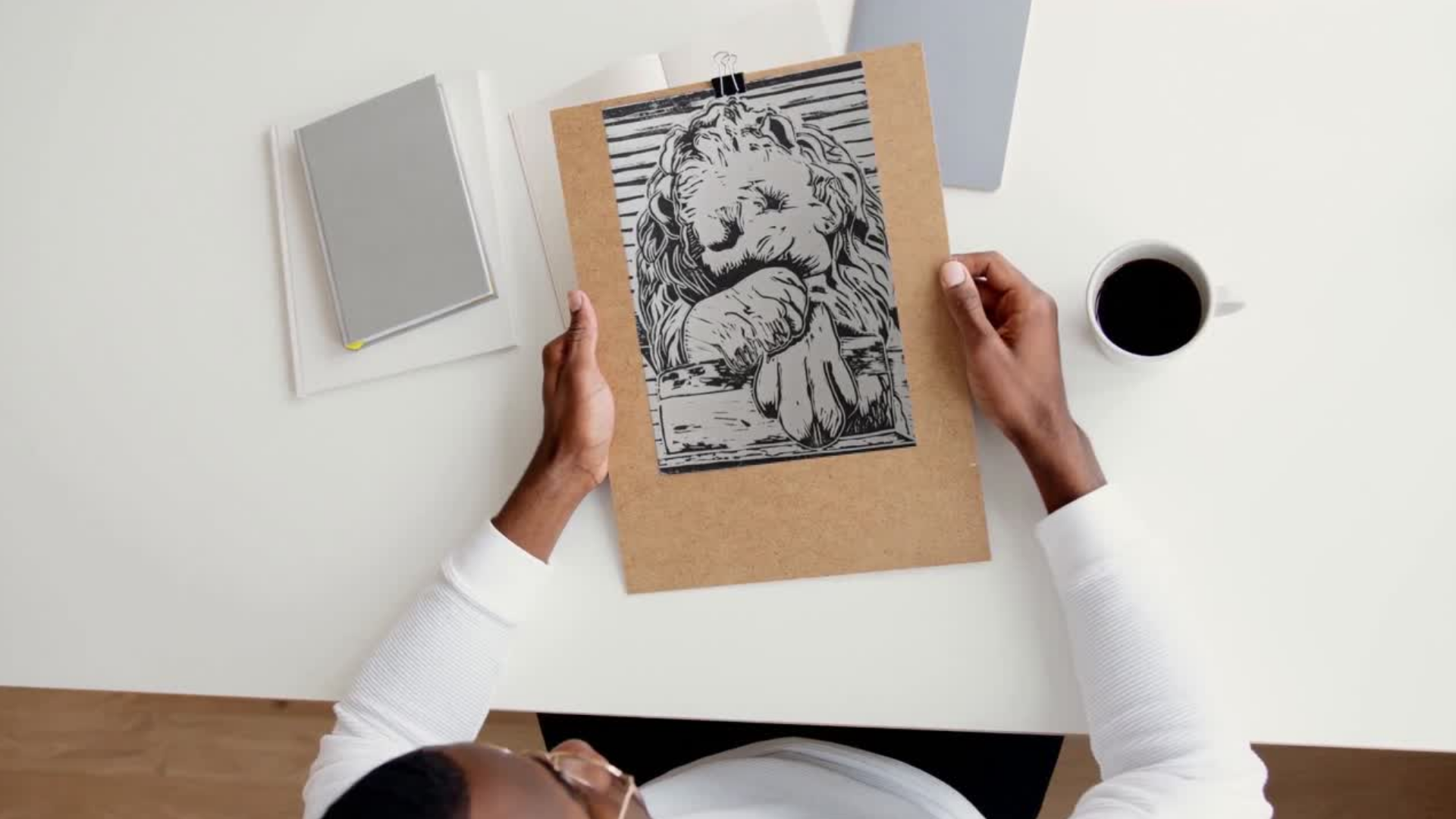
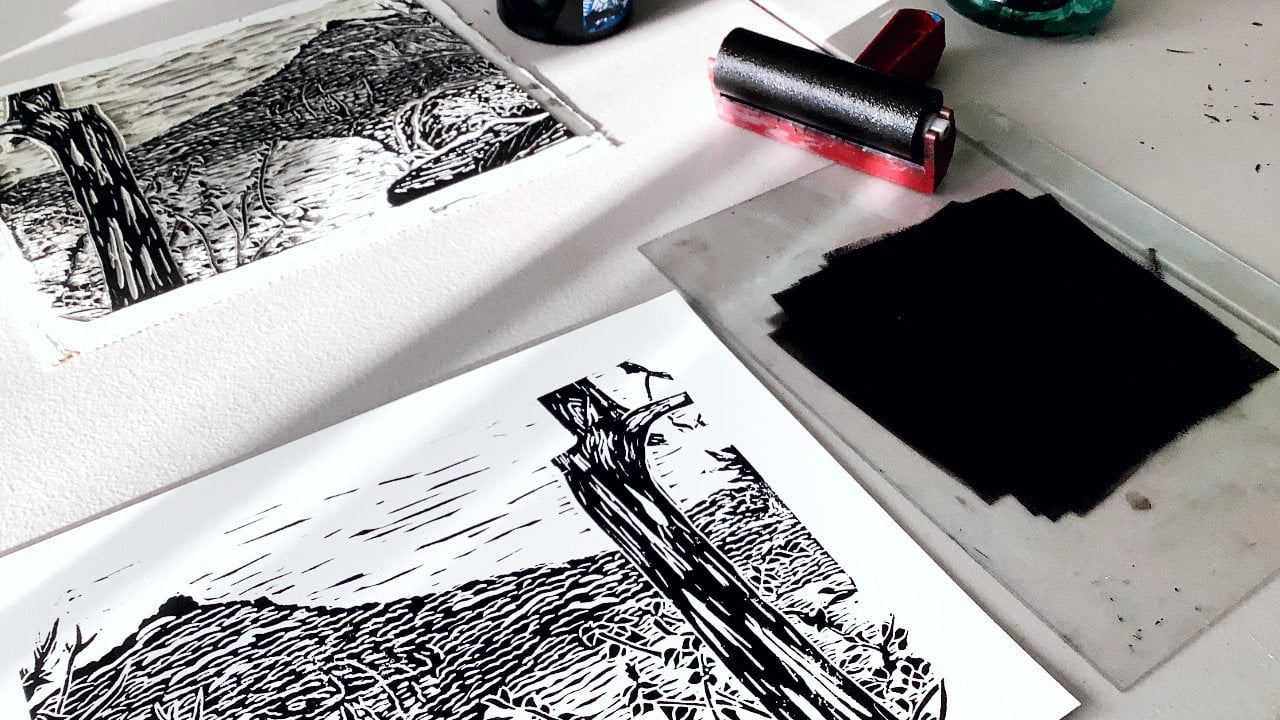
The art used for demonstration is a black and white linocut print. However, you can apply these basic tips to digitizing many forms of physical art.
Meet Your Teacher

Teacher Profile Image

Matt Reno

Linocut printmaker

Teacher

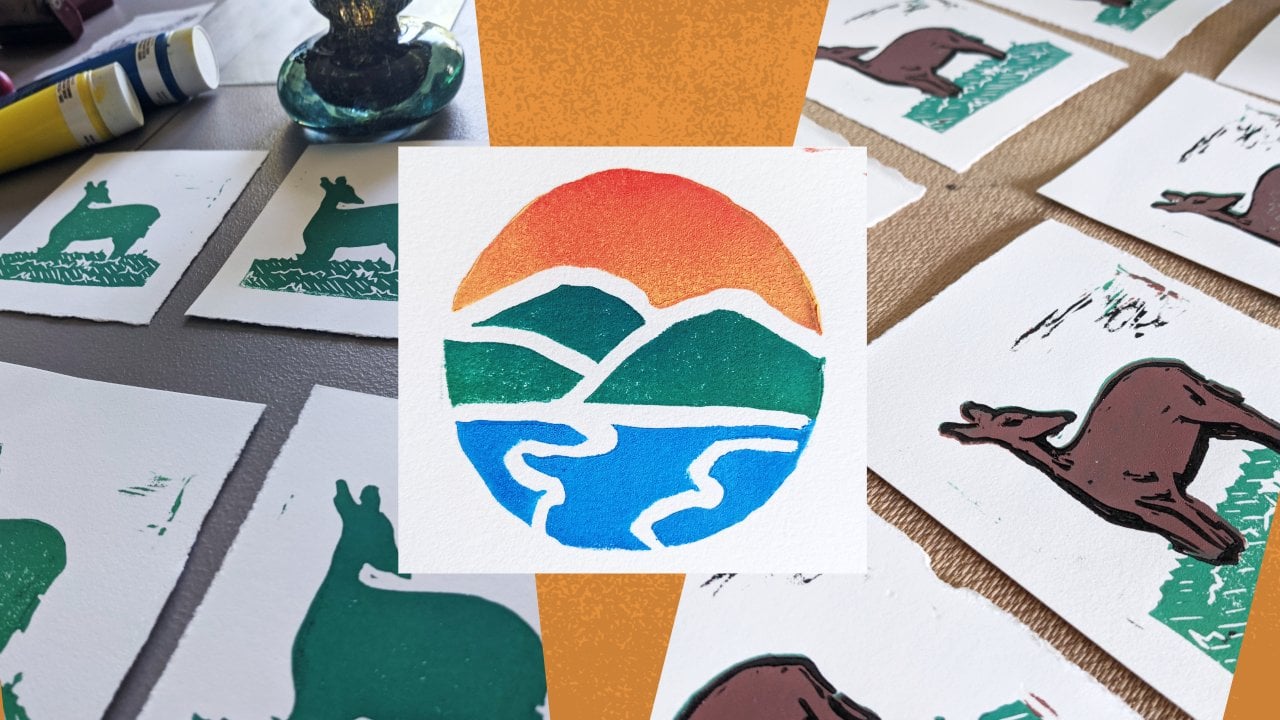
I love traveling to new places and capturing those memories through art. That's why most of my prints are of scenic landscapes.

I also love teaching linocut to others. It's a fun art form that anyone can learn. Check out my classes, and let's see what you create!

See full profile

Level: Beginner

Class Ratings

Expectations Met?
    Exceeded!
  • 0%
  • Yes
  • 0%
  • Somewhat
  • 0%
  • Not really
  • 0%

Why Join Skillshare?

Take award-winning Skillshare Original Classes

Each class has short lessons, hands-on projects

Your membership supports Skillshare teachers

Learn From Anywhere

Take classes on the go with the Skillshare app. Stream or download to watch on the plane, the subway, or wherever you learn best.

Transcripts

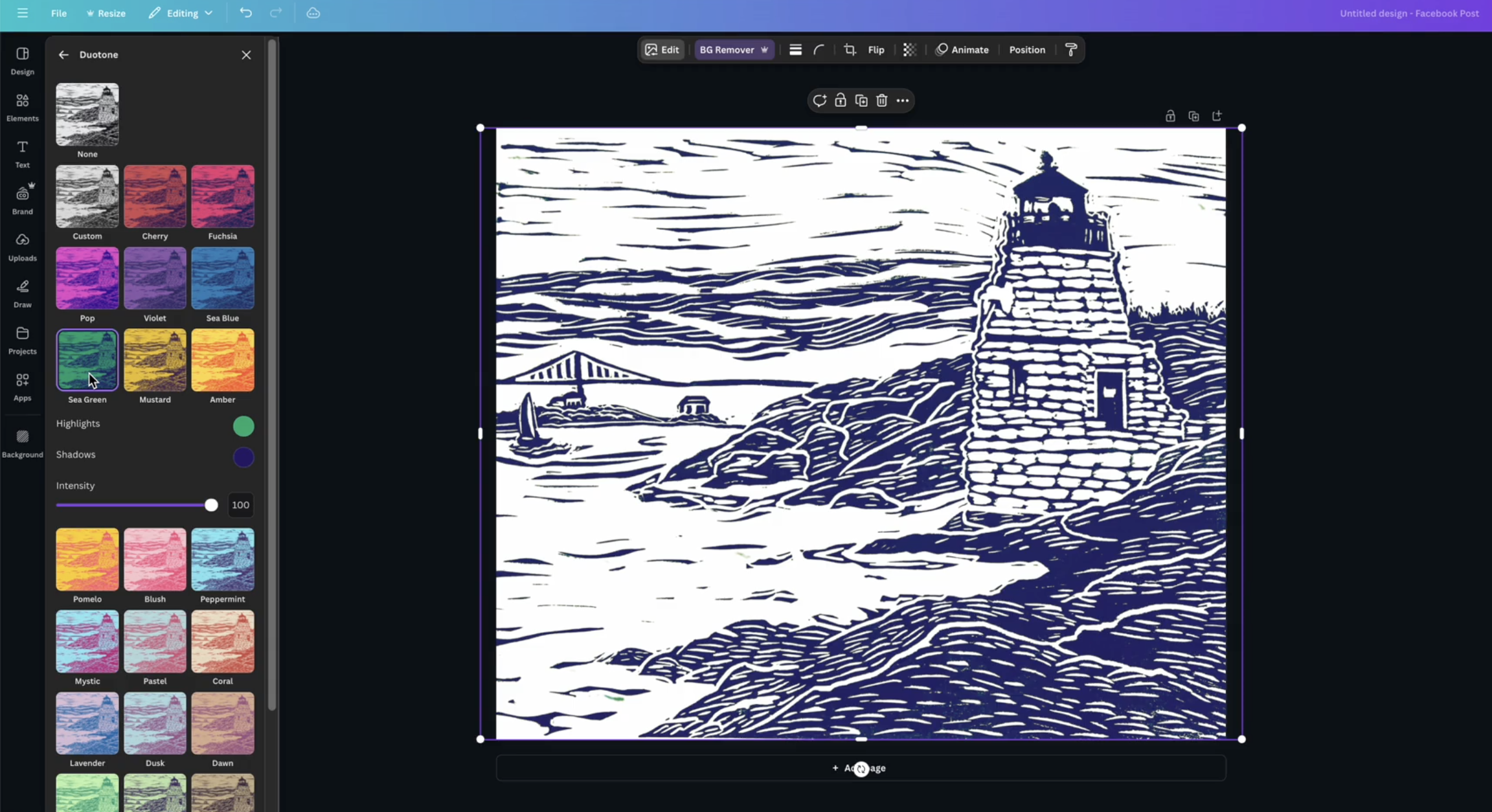
1. Uploading Your Art to Canva: Start by scanning or photographing your artwork. Then go to canva.com and login, or if you don't have an account, sign up. If you need the background removal tool for your project, you will need to sign up for a paid plan. On the homepage, click on Create a Design and enter the dimensions you need or choose from their templates. In the left toolbar, select uploads. Click Upload Files and find your scanned image or photo. Once uploaded, drag it onto the blank Canva Canvas. 2. Removing the Background: If you need to remove the background from your image, start by selecting your image on the Canvas. Select Background remover. Canvas tool will automatically remove the background around your artwork. If any unwanted parts remain or parts of the artwork are removed and you don't want them to be removed, you can click erase or restore in the background remover panel to adjust areas manually. To make sure the background remover didn't miss anything, temporarily change the background color of your image. Make it something bright that contrasts with the color of your art. 3. Adjusting Brightness & Contrast: To adjust contrast and brightness, start by selecting the image and going to edit image again and scroll to the adjust section. Adjust brightness, contrast and saturation sliders to enhance the colors and shadows of your artwork. Since this is a black and white image, the effects will be subtle. But even with black and white, ensuring high contrast will help your final image look sharper. Finally, check the result. View the adjustments at full size to make sure the colors and lines are clear and not overly bright or dark. 4. Recoloring Your Art: Say your art is black and white like this one, and you want to add color to your digital version. Canva offers some tools for that. Let's start with an easy way to change the color of your entire image. Select your artwork and click Edit. Go to the duotone effect. Choose one of the pre made duotone effects. If you want to make adjustments to the colors, simply click the colored circle next to highlights or shadows and move the color picker until you get it where you want. You can also adjust the intensity slider to bring out more or less of the color from your original artwork. If you want just one color, you can always remove the background. 5. Creating Mockups: If you're looking to create mock ups of your art, Canva makes that process very easy. You can make your art stand out online by showcasing it in a way that helps people visualize the art on real world products or displayed in their homes. Once you've edited your image, search for a background to place behind it. If you haven't already installed a background app, go to Apps and search Background. Click on the small square in the upper left of the search results. This will add the background tool to your app sidebar. From there, you can browse a wide range of background styles such as photos, patterns and abstract designs. Once you've selected a background, you're free to make changes using the Edit tool. Next, click on your art and then Edit. Go to effects and select Shadow. From there, you can choose a shadow style that gives your art a subtle three D effect. Use the sliders to adjust the shadow's distance, blur, intensity, and other features. You may also want to grab the rotate tool below the image and adjust its rotation. If you want to show how your art would look on physical products, Canva offers easy to use mockup tools. Start by going to the apps button in the sidebar. Search for mockup and select one of the available apps. Choose a mockup that works for you. The Hills and Cloud image is a frame into which you can insert your own image. Go to uploads and choose your image. Drag it into the mockups frame. And now you have a realistic image of your art on a tangible product. 6. Exporting Your Final Image: When you're satisfied with your artwork, click on share in the top right corner, then select Download. Next, choose a file format. For images with transparent backgrounds, choose PNG and click Transparent Background. This is another feature available only with Canva Pro. For standard images without transparency, select JPEG for compressed file with decent quality. Sethize to at least two X to ensure a high resolution export. If you're creating a file for printing, select PDF. You'll notice there are two PDF options. Choose PDF print. You may want to flatten the image as well. This ensures that the documents intended layout and appearance are preserved when it's printed or shared. Finally, change the color profile to CMYK, as this is best for print. Digital files should use the RGB color mode. Click Download to save the file to your computer.