Transcripts
1. Introduction: Hello and welcome to this course. My name is Genevieve Wilson and I am a graphic designer and have been now for over 10 years. I find that a lot of my graphic design work can be really pretty, but it's not really based in anything that is meaningful to me. So I had designed and planned this course for you. Somebody who is looking for a more meaningful way of designing some products. And we're going to be doing this through stationery design, through some mockups. Now, when we think about creating or designing something, I want to make sure that it's grounded in an idea that really resonates with us. I've set out to show you some steps to find a cause that's meaning for you, find a question or a prompt that really resonates inside of you. And then take that and design some work that really hits home and is meaningful and grounded. I want to inspire you to think about something that's bigger than yourself and creates them work that will not only be meaningful for you, but for a bigger cause in the world as well. So join me in the next class where we can go over the project we're going to be doing together. And we can start creating some very meaningful, grounded and inspiring graphic design work.
2. Your Project!: Okay, so let's talk about the project that we're going to be completing together and why I want to do this project with you specifically. So we are going to be designing our very own stationary set. We're going to be doing this through the use of some mockups that I have for you in the project resources. So feel free to download those now and you can choose which layout is going to best suit your work. And secondly, I want to talk about why we're making this stationary set in the first place. So for me, when I think about making a design, I really want to have it grounded in something that is important to me. Now, I want you to think about something in the world currently that is meaningful for you. So for me, I'm designing a stationary set that's going to keep me inspired to keep doing some work in wildlife conservation, specifically the grizzly bear Foundation, which has a special place in my hot, so all of my design work is going to be inspired by nature conservation, sustainable things, and anything that helps the grizzly bears. Specifically. By the end of this, your project is going to keep you inspired. You're going to have a mock-up of a stationary set that is grounded in something that's meaningful to you specifically. And we're going to do that by choosing a cause. We're going to create a mood board to keep us inspired. We're gonna get to designing using our very own color palette. I'll show you how to make a patent and mock it up using our stationary designs. So join me in the next class where we can really start thinking about something that is meaningful to us and give ourselves a starting point to create a design that we love and are proud of.
3. Finding a Meaningful Cause: So I wanted to talk a little bit about finding your cause. When I say finding a causal, finding something that's meaningful to you, I don't mean something that is absolutely enormous and super altruistic. I find that I lean towards something being exciting when my huts really in it. So I stop and I think to myself, what is it that I love? What's important to me? And I use little prompts to help me figure out what it is that I'm going to kind of step toward. And that's what I'd really love for you to think about as well. But you can think about things that maybe the world needs. So you could do an entire line on kindness or community, or love, or strength or empowerment or those kind of things. We can look at young leaders and a new generation of things, anything that sounds exciting to you, you can definitely do a line on that because that might drive you. Don't overthink what you'll cause is you don't have to create something that's going to change the world. All you're doing is keeping yourself motivated and so that your design work is able to grow from some meaning. You're free to use any of these prompts at anytime if they are super helpful for you, if they are not, definitely come up with your own. I'd love to hear what it is that you're going to design your stationary on. So please share it with me, please post below and I will see you in the next lesson where we can start putting together a mood board on our call is to get them.
4. Creating a Mood Board: Okay, so now that you have found your cause or your meaning, or the thing that it is that's driving you to create some inspiring stationary. I want to show you how I go about creating a mood board to keep myself inspired while I'm creating the process. So I'm going to jump in today and show you a few resources that I love to use as a mood board. But remember, this isn't the only way to do this. And you can go about this however you want. So come on into the computer with me. You'll see that I have split my screen up into two separate sections. On the right-hand side, I have a blank Photoshop document open, which is where I'm going to go ahead and drag in some images that I find really inspiring. And on the left-hand side, I have a few tabs open that are appropriate to the cause that I have chosen, which is the rain forest and the grizzly bears and all that kinda stuff. So again, this isn't the only way to do this, but it's a great place to start. I feel Pinterest is always the best place to start. My Pinterest homepage looks a little tailored to our needs already because I have already being in here and done this a few times. So Pinterest know sort of what I'm after. But I want to show you a couple of other websites as well. This website right here is the World Wildlife Fund, the WWF, and something that I'd like to pull from this onto my moodboards straight away is the logo. I love the panda. I love the outline. I love how simple it is and if it will allow me, it probably root. So instead I'm going to take a screenshot and go ahead and place that on my mood board. I don't have to be anywhere in particular. I'll just throw it up at the top there because I like the style and like the minimalist lightness of it. And I think that it obviously represents this whole place. If you haven't seen the World Wildlife Fund page come in, see what kind of amazing work that they do in terms of climate change, work, in terms of wildlife conservation, in terms of sustainable oceans and all that kind of stuff. So go and do that. The next one along is the grizzly bear Foundation, which is a personal soft spot of mind. So again, it might not super close that you're doing or the reason that you're making the stationary. I'm just showing you the things that fit with my theme. So I really do love these two beds here. I like the relationship between them. I like that they're really close. And it's of course a beautiful reminder of how beautiful these animals can be. So I'm going to further onto my mood board. Now, if you don't have Photoshop and you don't want to put your Moodboard together this way, you can just have a folder of images on your desktop if you want, if you want to work in that way, you can pop them into a Microsoft Word document. You can do this work straight into your iPad if you would like as well. So there's no right way to do this. I just feel like Photoshop, if you have it, is the cleanest way to sort of go about this. So I'm going to scroll back up to the top because the other thing I love is these minimal outlines. It's got the baby bears behind a mama bear as well. It's going to take a screenshot of that. And pop that into my mood board as well. So now that we have a couple of things from some actual foundations, I'm going to hop over to Pinterest and show you how I search for some things that are inspiring. So initially I'm just going to type in the world's wildlife. But if you are doing the bees typing and save bees, if you are doing more like a world cause and you've given yourself a prompt. Like what does the world need more of? You can type in kindness, you can type in heartfelt messages and really get inspired. This is not showing you what you're going to be making. This is just giving us some things that are going to keep us on track for things that we want to be designing. So this doesn't have to be, we don't have to put these two beautiful drops on the front of our stationary. But something about this might inspire us. Maybe the patent on their necks might inspire us with the color of the sky, with the color of the bushes, etc. So come on in here and when you find things that fit, that go ahead and save them to a board that you can set up here that is easier for you. I have a wildlife conservation board or any set up. And you can scroll through here and find some things that jump out at you. Maybe this bed payload has nothing to do with our cores, but you like the colors. And that is important here too, because we're going to be making a color palette from our mood board. I love this one here. I'm going to pin it to the right. Good. Now, once you find you've got quite a few things, you can start typing in other things. So you can type in bears, can type in rainforest, anything like that. And you might start to get not just images that inspire you, but you might start to get certain styles of drawing that you really like the look of and you think up, I'd like to have that kind of design or my stationary. So if we like this, if we open this pin up here, you can see that these are very simple drawings. I certainly cannot draw like this. This is a fantastic style of drawing, but maybe that inspires you. So maybe you want to pin that to you. Well, once you feel like you have enough things in here, I'm going to jump ahead a little bit because I've done this in advance. I'm going to show you all the things that I have here on my board and I'm going to show you how to put them together on your mood board. So here's a couple of things that we pinned together sitting up the top here. But as I scroll down, you'll start to see other things that I found as well. I love these, you can make a difference. Banner. I've seen it twice now in terms of taking action on a problem rather than just supporting it. And I really like it. So in terms of putting some on the front of one of my stationery books, really loved the quote, you can make a difference. So let's open this one up here. Most things on Pinterest will allow you to just drag the image over onto your Photoshop like that, or onto your desktop or into a photo, depending on how you're putting your Moodboard together. Once it's over here, I'm going to make it quite a bit bigger. It takes up that sent a space here because I think that that's going to be the basis of a lot of my, one of my other work. I loved this style of drawing. I don't know if I can draw this well, but I like the idea of it. I certainly love that green color. So I'm going to bring. Here and put him down the bottom that again, there is no right or wrong way to go about this this mood board is for you only so you don't have to copy me. Don't have to have anything to do with color or style if you don't want you, I find them exceptionally helpful. So I'm going to take these huge flooding beds over onto my board and make them quite a bit bigger like that. Now I don't like that they have that gray background. So I'm just going to get rid of that. Our board on the left-hand side. Now, I panned this color here because I love these pesto grains. I think that they can really speak to the idea of forestry and natural habitat and green. I think Green really is going to be the underlying color palette of my particular stationary palette. So I'm going to bring that over here so that I can drop color, drop from that a little bit lighter. Reorder your layers however you like so that it fits, it fits your your vision. You can always come in here a little later too and reorganize if it isn't, right. The two bands climbing a tree, I think it's so beautiful. It's also got some striking colors in here and there's some nice brown that I think we might be able to use a little bit down the line. So let's pop that over there. So I sold these sort of style of drawings quite early on, and I really liked the idea of them because it showed me that you didn't have to be the best story in the world which I am not to have something that you're super proud of at the end. So I am going to put that here on my board as more of a style design. Put him down a little bit. You can see more of those receptors. They're made just rearranging as you go. There's no right or wrong answer. It is whatever inspires you at the end of the day. This is a moodboard and it's supposed to keep you on track and it's supposed to keep you inspired and remember why you made the stationary in the first place. Now I pin this particular lion picture because I loved the preprints that I can see. And then the second I saw it, I thought I have to add pull prints in my drawing are very easy to draw and I think they would look cute, especially when we move into our lesson on making a pattern. I think that our paw prints are going to be fundamental in that pocket. So let me do the rest of this in fastforward. All I am doing is taking things from my mood board that I have pinned that inspire me, throwing them over onto Photoshop. And then we can talk a little bit about putting them together. Okay, so this looks quite, quite striking when you look at it, but it is showing me all of the reasons why I like this. Cause it's showing me the kind of style I'd like to have my stationary in. It's giving me a full color palette here I'm seeing definitely worlds within. Light browns, dark greens, lighter grains, and then maybe an accent color with this beautiful yellow. I really like that a lot. So join me in the next lesson where we can go into the iPad, create a color palette from our beautiful inspiring moodboard, and keep going down this design pattern.
5. Color Palette and 1st Drawing: Okay, so now I have pulled out awesome looking creative mood bullet into my iPad and I opened it up into Procreate. If you don't know how to do that, simply AirDrop or e-mail it to yourself. And then once you're in Procreate, you go into this little span option right here and you say, Insert a photo and you just bring it in from your photo library. So let's have a little look here. We can zoom to that ride up to it fills up page. This looks very familiar. We just built it together. And the first thing we wanna do is create a palette, because when we're designing something, some stationary, we want it to have a cohesive plan. And when we take our drawings and later pop it into a patent, we want to make sure these things sort of overlap when we're thinking about them from our creative point of view. So here's one way that you can build a color palette. And in my opinion, it's very easy. You can go into your call option here. If you're looking at the disk, you can just go ahead and press palettes down the back. And you can go ahead and press a new palette and you can insert the photo in and it will give you a palette from scratch. So it's called bamboo body and it's going to just get, get some colors from that. But to me, this is too messy and I want it to be more simple. So I'm going to delete that one and do it even more simple way. What I'm going to do is kinda scan my image for colors that really jumped out to me. Now I definitely wanted to use a lot of greens and a lot of light grays and things. So I'm going to just with my finger and only pin, hold down on an image or down on the image. And you can see as I move through, it's going to use it almost like an eyedropper tool for me. So I like the color of this green tree right here. So I'm just going to do that. I'm just going to draw a big circle over here. Quite messy. It doesn't have to be too neat. Already pulled one color out of my file. So I'm going to keep looking for other colors. Maybe the screen might be a bit similar. So why don't we go to this lighter green here. Give ourselves a little bit of contrast. There we go. So we already have two colors out of our thing. What's sort of scan our finger over some of these and look for sort of a DACA accent color quite like that. Blue. This blue here might be a little too blue for me. I like that, that's sort of more gray. So go ahead and draw that one over here. Now, we don't have to use all of these colors if we pull them out and later realize we don't really want them totally fine. That got a lot of like oranges and things over here. Don't love how bright they are definitely going for more of a pastel E loops. So we can kind of go for one of those wraparound stand here that's taken straight from that middle tree there, which I really like. There are I like the yellow here, they sort of gray color over here. So let's use that. That's a very pale color, which I like because I, I, I'm a sucker for pastels and things. So I'm going to pull that one out. And I probably need sort of a middle ground between these two. So let's look over here. Something like that. Or actually think of it. And use this love heart right here. That's a bit column. So just making a nice color palette along the side. If you pick a color and realize doesn't quite suit what you're doing. Not a problem. I don't really like that pink even though I've pulled it out. So you can always just two-finger tap to undo, or you can just use the eraser tool and get rid of it that way. I do think that we are in need of an accent color. And I think that I'm going to go either this orangey color might be a little bright, maybe a little too close to that Brown I was trying to avoid. There's this incidentally drawing. He's Bow Ties more of a yellow, which I really quite like. I think I like that better than the orange. So I'm going to get rid of the orange here. Now, totally up to you. You might like this to be super bright, super bold. I'm definitely going for a more pastel, more toned down look, but totally up to you. And then we brought this color in her reason, but that actually might be quite similar to that, that beautiful, I think we've already got that color, which is nice. And for good measure, let's grab maybe one more of these graze too similar to them. That's a little bit too similar. So fiddle around until you find all the colors you want to pull this blue app. I can do that as well if we want. Again, we don't have to use it, but I do think that's within the same world. Cool. So now we have pulled out all of these colors that we like. It's time to turn them into a pellet so that we can easily access them when we're drawing. To do that, go back into your palettes and just type in new palette. You can give it a name if you want. You can see I've already done this in advance here. It's called bears. But let's get this one, a name one up. Let's call it lovely. Beautiful. And now the easiest way to get colors into your palette. And with that last slide, you hold down your finger, select that. And you can just go ahead and tack holding down the blue in. Let's get this. And you can see that we're building ourselves a really nice pellet. Ready to use all of that drawing. I think we already have that one in beautiful. So now that we have our color palette to use, we can get rid of our mood board. You can just hide that layer just by switching it straight off. And now is the Superfund pot. I'm going to speed this up because it's just going to be a lot of me drawing and figuring out what I want. Some rough ideas that I want to include are some trees. I want to include maybe two or three different kinds of trees. I want at least two bears here to bears. And then I want some footprints. And I want some text. So this is going to be the full basic things that I want in mine. And yeah, I'm going to speed this up so that you don't have to watch me draw this that go ahead and draw what it is that speaking to you and what you would like to have on your front cover of your one of your stationary files. So whichever one of the mockups you have chosen, you might have one or two or three notebooks to fill out. You might just have some just one plane notebook. So whichever one you have chosen for yourself, that's how many images we're going to draw. I'm going to draw just two and then fill out the inside of a book with P1 Photoshop a little bit later. So I'm gonna go get to sketching and you can watch it in fastforward mode while you are during your own cover for your stationary. Hello, We're back. Okay, so I have made myself something that I think is super cute, is super stationary themed, but it's also using the color palette that we got from our own moodboard, which is especially important to me. And I like that this would be the front of a journal. I'd love to put some text on here. I loved the texts that we got, which says that you can make difference. So I've got this blank space here, ready to, to sort of line that up once we get onto Photoshop. Not too fast about adding any sort of text or anything right now. So here is my first one completely done. And I'm going to in the next lesson, show you how to make a pattern using some of the same elements that we've used within our first drawing of out there and how trees. So join me in the next lesson where I can show you how to make these elements into a pattern depending on if you chose the wrapping paper layout or if you chose a different notebook. I'm going to be putting mine on sort of like a 2021 and gender book. So join me in the next class and I'll show you exactly how to make a pattern out of your own elements.
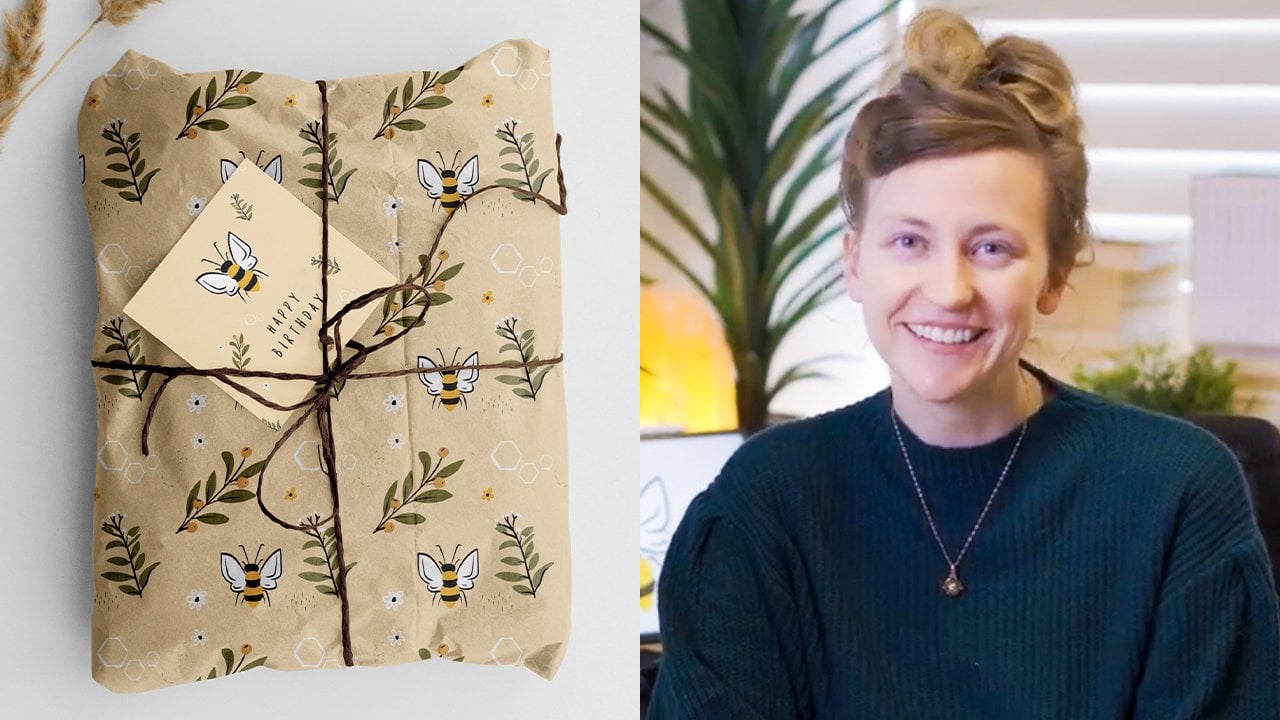
6. Designing a Pattern: Okay, So I'm so excited to show you how to create a patent from your own drawing. So this is very simple. There are a few steps involved. So I want to give you this strategy so that you can put your own drawing in here and create any sort of pattern that you would like to go with the theme of our stationary. So jump into my iPad with me and I'm going to show you exactly how to do that. So the first thing you're going to want to do is open up a square document now, you can do that just from your gallery in Procreate, you just tap squared. And the second step that we need to do is turn on our drawing guides. Now, with a patent, it's very important that everything stay within a certain area so we wanna make sure that our guides are on so that it gives us that kind of help. We're going to go into Canvas and we're going to tap on Drawing Guide. Now you can see there are a ton of squares on here, but I only want four squares. So we're going to take our grid size and make it enormous until there are only four squares, they're so pull it all the way up. I'm also going to make sure our assisted drawing is off. I don't want that because I want to be able to free hand my guide there and click Done. So I'm going to draw a couple of things on, like our first one, how I had a few trees, so I'd like to draw a few more trees. Let's open up our color palette and select a nice green color. And I'm just going to quickly draw a few things on here. Now, I'm staying away from the edges. If I draw something and it goes off the edge, that's not going to work for our patterns. So everything that you draw are at this stage has to stay within the bounds of our force four grids. So don't go too close to the end basically. Now you can draw whatever you like in here. I'm going to draw just a few trees because I really like, I would really like for this to be more rain forest STI and more kind of bear. They're situated. So it's good to go on a little one up here. A little guy up here. Now I'm not a very good Zuora, but I kinda like that. These are sort of scrappy and just sort of finding their way around. So again, I'm staying right away from my edges here. I'm not drawing anything that's going to overlap with the edges of the canvas here. All of my drawings staying within the world. This, this grid that I have setup. So that's really important. And let's draw some of those footprints that I super love from how many board? So as long as I don't touch the outside, this is going to work just fine. So that is all I'm going to do for this one. I'm just going to move it down just a little bit so that it's centered on our board. Perfect. Now here is how you make the pattern follow along. It might seem a little complex, but it's really not. So just follow each step specifically with your drawing and it's going to be super helpful. Okay, so first important step, we're going to need to create ourselves a solid color behind it. And I'm just going to take this background color that we're using and drop that into that layer so you can't see what I've just done. Because I've just basically duplicated our background color. And then I'm going to merge those two layers together. So now if we switch off that background color, we still have everything all on one page. So I'm going to make a copy of this and switch that lay off as well because I like to keep something there in case something goes wrong. I'm going to copy this twice. So I've got 12 of those layers there. This one here we can, let's rename it. So we can rename and we can just say space. So layer 2 and then the copy of layer two is where we're going to start. Now, this first layer, this is where our grid is going to come in handy. We're going to take this and zoom out a little bit so we can see what we're doing. And we're going to move it down so that it snaps straight in the middle there. Now, you're hardly going to see what we have done at all because it's behind the layer that's in front. But as soon as we grab the second layer, we're going to do the same thing, but we're going to push it up instead of down. You're going to see that first layer underneath show up, snap that to the middle day. And that is all we do at this step. It's always. So we're going to merge those two layers together. And then we're going to duplicate this and do the exact same thing. So duplicate it twice. Turn off our spin case, we've made a mistake. And this time instead of going down, we're going to go to the left. So you can see how the grid is helping everything snap exactly to the minimum. Actually that's in the right place they would get. And then Layer 2 here, this other span one, grab your move tool. We're going to move it all the way to the right. Now, sounds complicated, but just follow the steps. First, we need to make two copies. One down, one up. The second time we make two copies and we go one left and one right. Now, might look like you have random spots here and there, but look, just leave everything in place. We're going to merge those two things together. Okay, so here is the opportunity for us to fill in these blanks a little bit. Again, we're not going to touch anything on the side, but I am going to draw a couple of extra things in these gaps. So I'm going to take our nice brown color and I'm going to draw us at their head in the middle key to match our style, to match that original page. I'm going to get m little moose. So there we go. This is completely your project. You add what you'd like, fill the gaps with whatever sort of patents you think speak to you and your cause is no right or wrong answer here. Okay. So now I'm going to take this and we're going to name this edge. So we're going to have three different sizes about patents. We're going to call this one. Let me finish that. So we're going to call this one Lodge. Then I'm going to duplicate it. And we can call this one medium. And here's what we're going to do. You're going to take it, put it into that lower quarter, duplicate it. We're still in the medium. Move it across and you'll see how everything starts to snap together, like a patent duplicating again. And then moving it up to the top and you can see how everything's lining up. And this is where I super get excited because you can start to say, oh, your work paying off. And now we're getting this lovely wrapping paper style sort of cover that we have drawn its patent and we can use it as many times as we want. So here's our medium one. I'm going to merge all those layers together. And then we're going to do it one more time. And we're going to rename this as small. Because you're going to have one more small patent. And we're going to keep going, make it even smaller. Duplicate, hurrying carryover. And when it snaps into place, zoom out a little bit. Just really take the time and see that these are all lined up properly. You're snapping should help. But mistakes do happen and you wanna make sure that your patent is actually on the line. Probably lucky lost, duplicate. Snap that into place. Great. So now we have all of the smalls. We have the medium size me that I'm here for you. And we have the large patents size, so we have three different sizes of our very repeatable pattern going on each page, each page. So now go ahead and export these by going the action Tool, photoshop, AirDrop it to your computer. And I'll see you in the next lesson where we can stop our mockups.
7. Mocking It Up: Okay, so now that we have pulled our files off of the iPad and sent it to ourselves on our laptop, but we have to do is drop the Photoshop file from inside Procreate. I'm going to show you how we can use the mock-ups that I've given to you on that list. So it doesn't really matter which mock-up you've chosen. I'll be working with just one of them in particular. And you can choose the one I have, or you can choose whichever one you want as well. So they all work in the same kind of fashion. It's just about lining things up and I'm going to show you exactly how to do that. So jumping to the computer or with me. And you'll often see this first layer when you are using a mock-up, it just saves the size of the file much smaller when there's this secret page. So all you have to do is just remove this way. You can just hit Delete right there or you can hide it by turning the eye drop on and off whatever you feel. So I'm just gonna get rid of it because we don't need it at all. So let's have a quick look at what we're provided in this particular mockups. So we've got one notebook on the right-hand side here with a border on it. We've got a little kind of one that's clipped up in the middle and an open book at the top here, and a pen and a background. So the very first thing that I would really like to do is get my main image in. So I've got over here on my desktop, you'll see both these artworks. This first one here that we drew together, and the second one here, which is the patent that we used. So let's use this one. Let's just double-click to open that into Photoshop. And you'll see that Procreate actually keeps all of your layers there. So if you had different layers for different, because you have them available here, something that's really handy to do is to name these. So just switch it off and on and see which one responds and then you can give it a name. They can be whatever you want. It doesn't mean you have to make much sense just so that you know exactly what, what is y. So I've got my trees, they're on the same layer. Here's that smaller bay. That must be L grid. Excellent. So we've got some hidden things here, which was our list that we don't need anymore. And this one here, which is our mood board and color palette, which we also donate so we can get rid of that. Okay, so the first thing that we are going to do is go back into our mockup. And let's select the first notebook here on the right-hand side. So we've got the overlays. We don't need that at the moment. I'm going to turn those off because they are a little distracting me, sort of mock everything up. When you click around, it's going to open up an overlay. So I switch off the overlay and then I find where this smart object is here, this notebook cover. And if I stretch this out just a little bit, it should say what your design here. So often it guides you in these mock-ups. It's very handy if you are looking at where, where do I put my design? Now this is a smart object and it's been linked. So what that means is when I double-click here on this smart layer, it takes me into its own particular mockup zone. So this is still part of this picture here, but it's going to offer it. You see this is actually a PSB. That means that we're inside that smart layer and anything we mockup in here is going to go back into this main image. I'll show you exactly what I mean. So you don't actually need any of this. We can get rid of that if we want. It looks like I don't have the right font packs for that anyway, so I'm going to delete that. Let's come over to our own artwork and we can copy all of these. Let's pop them into a folder because I often feel like that works a little bit easier. Duplicate group. And this little sign here pops up. And it's going to ask us where we would like to open a scene and we're going to open this into our PSB file, which is our cover press. Okay, and then let's pop over here and have a look at what it looks like so big, so Command T. And let's you resize that. And we're going to approximately put that where we would like I quite like that person move into place. Now this background color, I'm just going to stretch that so that it goes past our own border. And this grid here, I'm going to move up just slightly so that it is more on the taller side trees. I can make it smaller if I feel the base, I can arrange however I want. We good. Now something I really wanted to do with add V, you can make a difference text for ROM, the mood board that we originally had together because I love that sentiment. So let's grab our eye dropper tool. And I might start with it being the same color here as their noses, just so it's all within the one theme. Grab the text tool and type that in. Now I'm going to write this out and then I will resize it. Great, so that is quite a way back in. It's very hard for you to sink so it can move it to the front. You can make a difference here. And I'd like to pick a different font. I don't think this fits our vibe too well. I really like this handwritten style and I don't think I want it to decide, I want it centered. And a little bit smallest there Command T to resize. Hoping that up here. I like the asymmetrical look. But this just keeps me focused on why I'm making a stationary in the first place. It goes on the front of this mock-up of the journal. And it makes me really excited to want to use this as a notebook so you can make a difference. Bang, it's colored like that. Now the best part about using a PSP, we've got this in place here. All you have to do is close it and save it. And now you'll see that it shows up here on our mockup. If we ever want to go back into that, you just double-click on the smart object and you can move stuff around so that it suits. And it's in the right spot compared to what we're, what we're going for in France. So I noticed that has a little borders. I'm going to move everything over. Make sure you save. And you'll see it sitting right there on our page, which is really exciting. Now, I'd like this background color to be more on themes. I'm double-clicking on that. This yellow does not suit our lovely theme. Let's change it to that nice pastel, a green that we have. Angle a little bit lighter than that pit. Through your overlay on to see what it looks like. It's looking really good to me. I like her a lot. I think we probably can go a little bit brighter to be honest. Lovely. Now let's get rid of this red. So we see here spine column, just double-click that. I'm going to make that same color as our grass, same color as our background. You can fiddle around there. You can see it changing in real time. So whenever you find a color that you like, just look at it. And I'm gonna do the same fold of the clock. So there's our first piece here. We have that all mocked up there. I know that we can change the color of this pen. It is a silver pen currently. Well, let me switch off those overlays. It looks like a silver pen. Let's make it let's just make that white so there's no color in that. So that went out. Overlays are on, it looks nice and gray. Perfect. Alright, keeping my overlay off, let's put our patent on this second object here. So open up our pattern. Beautiful. Now we've got our awesome wrapping paper patent here. We've got small, we have medium and we have large. We have three different ways of using this. I think for this one I might use the median. So go ahead and open up this smart object for this notebook. Double-click. And up the top here you will see it has cover PSP, which means we're inside of a smart object. Going back to Add design, I'm going to duplicate this layer, pull it across to add the PSP berries. Let's get rid of all of this stuff we don't need and move our layer around. So the best thing about this is that when we copy it, I'm going to just duplicate this and keep it in the place. We know that didn't work. Let me zoom in a little bit. We know that by copying this and keeping it in line, it's going to snap exactly lined up because that is how we designed our patents. So that is what's so exciting about this. I'm going to highlight both of those. Make them slightly smaller. I want to get all those poor prince in there. Perfect love that put it into place. Now, when you go back to this, I do like that. There's a little bit of text on here and I'd like to link it into how you can make a difference. So why don't we add something in the middle here? Let's look at ourselves a little agenda box. So I've drawn myself a square. Let's get rid of the stroke. I do not want to strike you. Pop that right in the middle there, and let's pop some text on top. And you use that gray color. You can see what I've written here because it's the same color. But when I move it down, you can see that I've got my agenda book here. I'm going to add some space between those letters. Now these are your stationary mock-ups and you might not have an agenda book that you're making. You might have happiness journal or a kindness tracker or something depending on what your particular theme was. So make sure that this fits your particular cause. So now that I'm happy with this, close and save, we go back to our page and there it is, right there in place. The last thing to do is to tie these two things together and work inside this folder. So I've clicked on that left page. Go ahead and open. I like how this has been laid out, but I want to borrow from our design moles, so I like this grid. Let's copy the grid, Duplicate Layer. Bring it across. Let's make that quite a bit smaller. Now I'd like this background color to be the same color as our green that we've been using. So we can use the eyedropper tool. We pick the right space. I'm just going to get shaped. Get rid of that text. Let's add our own text in here. If you need a color at any point, just go back to your original artwork and use the eyedropper tool. You can see that this is starting to take shape, which is so cool. Now I'm going to make sure that these are all within our color scheme. So you can choose different colors, like the purple. Let's make that dark green lovely. Now let's fix up this final page on the right-hand side here, and then we're ready to throw an error overlays back on. Let's get rid of those. Now I'd like to bring in some more of alphabets. Let's bring in this smaller bay or here, because I think they're so cute and we took the time to drill them. So let's use them to figure out where he's gone. So these pages can have anything on them that you think is going to be helpful for you. This is your notebook and you are mocking this up for you and you'll cause so if you need a little boxes down the bottom for notes or for tracking anything that you need. That's what you need to put in your own diary at the end of the day, this is your notebook and it needs to be something that resonates with you. So let's see what that looks like. Back to our MOOC that I love. I'm loving this. So let's put out overlays back on and see what stands out to us now, I don't love this yellow. So I'm going to change that. Just double-click on that smart object. And let's make this more of a muted tone. I think that's better. Collect that a lot. So when you are completely happy with your mockup and you have used this template to put your own patent on it. If we zoom in on this, it's looking so good. We've got our repeated wrapping paper pap patent down here on an agenda book. We have our real mission behind this, how you can make a different page with our own drawings inspired by our mood board. And we get a sneak peek and the inside of one of these agenda books, leaving us lots of room to take notes and really kind of lead into why we've made this stationary in the first place. So all you have to do is save this as an image. You can save it as a Photoshop file, but that is how you mock up. Using the mockups I've given you with your stationary. I would love to see what it is you have made. So please post shores in the projects below so that I can see exactly what it is that you have made. I would just love to see it, so please share that and I'll see you in the next for some final thoughts.
8. Final Thoughts: Congratulations for completing this project with me. Thank you so much for being here. I hope that you had as much fun as I did. I would love it if you posted your personalized stationery or a picture of your mockup, whatever you chose in the projects below. I'd love to see what it is that you have created. I hope that this course inspired you to continue following things that are important to you and keep something as a daily reminder of something that is meaningful for you. If you'd like to this course, please check out my other Skillshare courses where I teach all the basics of graphic design and we can do some other cool creative projects together.
 Genevieve Wilson