Design a Gingham Pattern in Procreate + Add a Textured Overlay | Michelle Marks | Skillshare

Playback Speed


1.0x


  • 0.5x
  • 0.75x
  • 1x (Normal)
  • 1.25x
  • 1.5x
  • 1.75x
  • 2x

Design a Gingham Pattern in Procreate + Add a Textured Overlay

teacher avatar Michelle Marks, Surface Pattern Designer

Watch this class and thousands more

Get unlimited access to every class
Taught by industry leaders & working professionals
Topics include illustration, design, photography, and more

Watch this class and thousands more

Get unlimited access to every class
Taught by industry leaders & working professionals
Topics include illustration, design, photography, and more

Lessons in This Class

    • 1.

      Introduction to Create a Gingham Pattern

      1:12

    • 2.

      Lesson 1 - What You Need for this Class

      0:12

    • 3.

      Lesson 2 - Set Up Your Artboard

      0:24

    • 4.

      Lesson 3 - Create Your Gingham Grid

      3:15

    • 5.

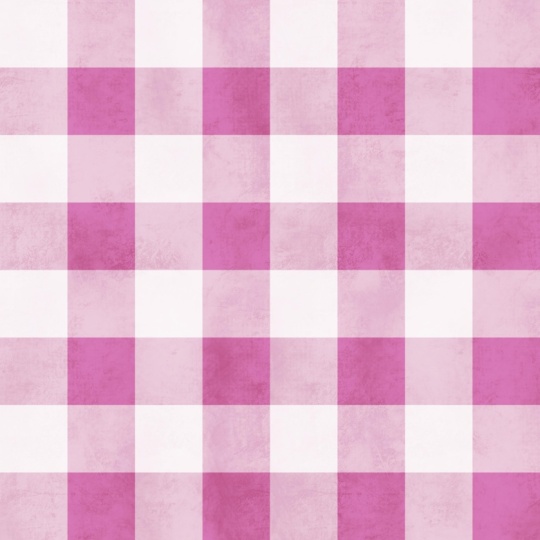
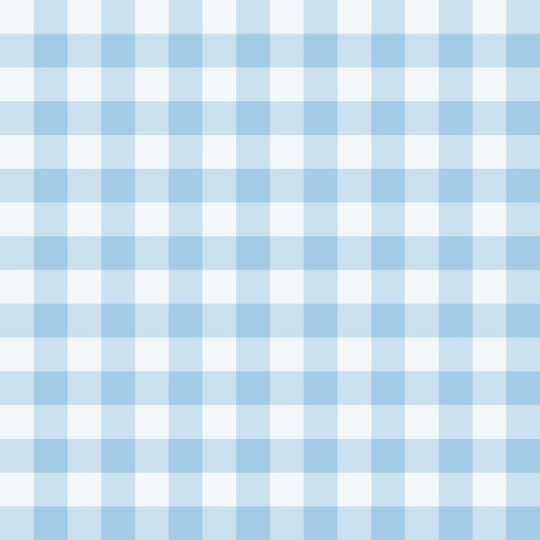
      Lesson 4 - Recolor Your Gingham Pattern

      0:47

    • 6.

      Lesson 5 - Create a Seamless Texture Overlay

      5:43

    • 7.

      Lesson 6 - Export Your Gingham Pattern Tile

      0:40

    • 8.

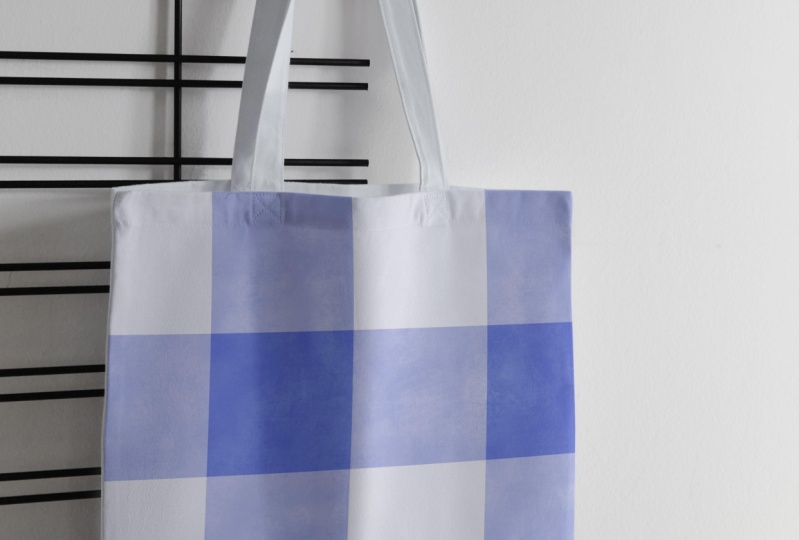
      Lesson 7 - Share Your Class Project

      0:33

  • --
  • Beginner level
  • Intermediate level
  • Advanced level
  • All levels

Community Generated

The level is determined by a majority opinion of students who have reviewed this class. The teacher's recommendation is shown until at least 5 student responses are collected.

59

Students

8

Projects

About This Class

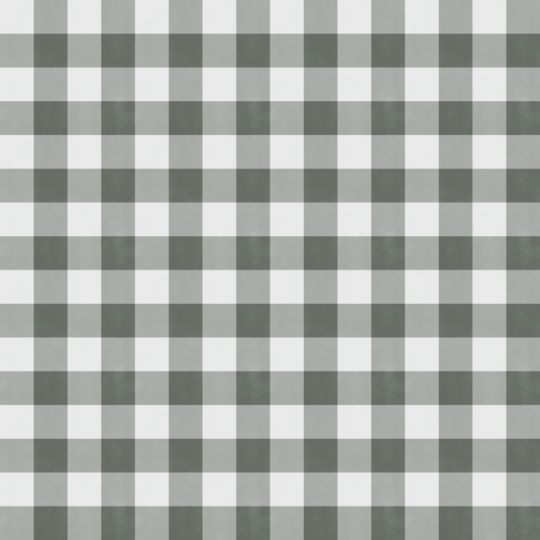
Would you like to learn how to create a seamless repeating Gingham check pattern in Procreate? This beginner-friendly class will show you the process step-by-step.

As a fun extra, I'll show you how to create a seamless repeating textured overlay for your pattern—one you can save and use for your other patterns and illustrations too.

By the end of the class you will understand how to create a Gingham pattern ready for craft and sewing projects, to compliment other pattern collections, or for art licensing.

You will learn how to:

  1. Prepare your artboard as a pattern tile
  2. Work with layers and transparency in Procreate
  3. Create a Gingham pattern grid
  4. Quickly recolor your Gingham
  5. Design a seamless textured overlay
  6. Export your pattern tile

Class suitability:

This class is best suited for those wanting to get started in surface pattern design especially if you:

  • Are just starting out in pattern design
  • Want to learn how to use Procreate
  • Experienced designers learning how seamless patterns work
  • Want a new skill under your creative belt

What you'll need:

For this class you'll need:

  • iPad
  • Apple Pencil
  • Procreate (or you can achieve similar results in Adobe Fresco)

About the teacher:

Hey, I'm Michelle, surface pattern designer and educator here to help you enjoy creative projects. As a former graphic and brand designer, I'm now on a mission to bring more creative joy into your life by teaching you how to illustrate your own patterns, and what you can do with your patterns afterwards (hello stationery!)

If you have any questions about this class, or would like feedback on your designs, feel free to reach out on the Discussion section of this class.

Happy illustrating!

Meet Your Teacher

Teacher Profile Image

Michelle Marks

Surface Pattern Designer

Teacher

I'm a surface pattern designer and creative educator with a love for teaching others how to bring beautiful, practical designs to life using tools like Procreate and Adobe Fresco. I'm here to help you confidently create your own repeat patterns and turning them into digital products or patterns for your own crafts.

My classes are relaxed, beginner-friendly, and focused on helping you actually use your artwork--whether for profit or fun!

See full profile

Level: Beginner

Class Ratings

Expectations Met?
    Exceeded!
  • 0%
  • Yes
  • 0%
  • Somewhat
  • 0%
  • Not really
  • 0%

Why Join Skillshare?

Take award-winning Skillshare Original Classes

Each class has short lessons, hands-on projects

Your membership supports Skillshare teachers

Learn From Anywhere

Take classes on the go with the Skillshare app. Stream or download to watch on the plane, the subway, or wherever you learn best.

Transcripts

1. Introduction to Create a Gingham Pattern: Hello there. Welcome to this back to basics pattern design class. I'm Michelle service pattern designer from Queensland, Australia. In this class, we're creating one of the most timeless and stile patterns out there. Gingam. It's a classic pattern that every pattern designer should know. It's simple, stylish. If you take notice, you'll see it everywhere. It shows up a lot in fashion as well as Manchester, home decor and stationery. But this class isn't just about making a pretty checkered pattern. Learning how to create a gingham pattern is such a great way to solidify your understanding of how repeating patterns work. So in this class, you'll learn how to create elements, use brushes, work with layers, transparency, and how to set up a clean, seamless repeat. I'll walk you step by step through creating your gingham pattern in Procreate, how to change the colors for multiple colorways. Then to add a little something extra, we'll create a subtle, seamless texture overlay to give it more depth and interest. These are skills that'll help you in any pattern project going forward. Grab your iPad, open up Procreate, and let's create a seamless repeating gingham pattern. 2. Lesson 1 - What You Need for this Class: To follow along with this class, you'll need your Apple iPad compatible with an Apple Pencil, as well as the Procreate app. However, you can also follow along with Adobe Fresco if you prefer. 3. Lesson 2 - Set Up Your Artboard: Start in Procreate. Let's create a new artboard. We can either choose from an existing patent tile or we can go ahead and create a new one, which is 3,000 pixels by 3,000 pixels. DPI can be 150 to 300 and just leave maximum layers as they are then click Create. 4. Lesson 3 - Create Your Gingham Grid: Okay. Now we're going to create your pattern tile. Start by choosing a color. A nice deep color, don't make it too light. I'm going to choose just a nice blue for now. That's going to be my base color. Then what we're going to do is we want to create four layers. We have four layers here now and we're going to turn that into the layer grid. Let's start with layer one and we'll recolor that blue. We're going to color all of them. All layers the same color. Now we're going to change the opacity. Layer one, we're going to either leave that at maximum or turn it down a little down to 90. Layer two is going to be approximately 50%. Layer three is going to be the same. We want that to be approximately 50%. Please make layer two and three the same opacity. Layer four is going to be very low, it's going to be around 10%. Now what we're going to do is resize our layers to create our grid. Let's start with layer one. We're going to put that at the bottom right hand corner. We're going to resize. Now for this part, please make sure that snapping is on. If it's not on, please switch it on because it makes it much easier. Let's move layer two to the bottom left. Layer three, it's going to the top right. And Layer four is top left. What we have now is our basic gingham grid. When this repeats side by side top to bottom, this is what's going to create our repeating gingham pattern. Let's reduce this down so that we can see Aging and Pattern come together. Now instead I've duplicated them four times, I've got four exact copies and what I'm going to do is reduce them down just like I did with my grid. This is also a good way to test your pattern to ensure that it is perfectly seamless and that we haven't made any mistakes along the way. But you can see that gingham pattern coming together. If I continue to reduce these down and repeat this process, this is what helps you generate the size whether you want a large gingham grid or a small gingham grid. You can continue reducing that down as much as you like. 5. Lesson 4 - Recolor Your Gingham Pattern: Okay. In this part of the class, I'd like to show you how you can recolor your Gingam pattern if you'd like to create multiple colorways, or if you're just not happy with the original color that you had. All you need to do is go through and just select a different color and then apply it to your pattern. And you can keep going as many times as you like, creating different colorways. You might want to pink. My. Maybe even a yo. So there we have it. We've got multiple colorways for your ging and pattern. 6. Lesson 5 - Create a Seamless Texture Overlay: Now I'd like to show you how to add a texture layer to add a little bit more depth to your gingham pattern. What I'm going to do is I'm just going to hide these ones for now. Above my layer, I want to create two new layers. Let's hide the gingham layer for now, and I just want to apply a fairly dark pattern to midline color or dark pattern to my layer that's going to be the background. This is a temporary layer. It's just helping us with our texture. But now we're going to move on. I want to have Layer seven selected. In your brush library, I want you to come down to textures and select grunge. This is the one we're going to be using for this example. If you have a different one you want to use, you can select white for your color and ensure that your brush size is at its maximum for this size. All we're going to do is we're just going to lightly draw a texture, make sure you avoid the seams. Just until you're happy with it, if you come too close to the edge, you're going to see an obvious line. Now what we're going to do is we're going to group them and turn them into I want to keep that one. This one here, I'm going to group that with my layer seven, but I want to turn it down to zero opacity, no opacity. I'm going to group them together. The reason I do that is because in this group, when I do this next step, if I attempt to move just this layer, it's not adding the whole tile, it's just the artwork, so it's not going to create that perfect scene. So what I'm going to do is duplicate this layer so that I've got four copies, and then instead of resizing, I'm just going to move. I'm going to move each one so that what was previously the outside is now the inside. All right. Now we can join these together. Repeat that to add your grunge layer into the sections that we missed, being careful not to go near the edges. We're going to repeat that step again, but instead of duplicating at once, you're only so that we've got four. We're going to duplicate it so that we've only got two. So that we can work on this middle part here, join them together, fill in your texture, and then we're going to repeat that initial process with four duplicate layers. You need to ensure that you're snapping correctly. Otherwise, it won't be perfectly seamless and we'll have to redo it all again. Join them together and just fill in this last part here. Now what you've got is a seamless overlay that you can apply to your texture layer. What we're going to do now is we're going to delete our temporary layer and we're going to rename this because we don't want that called temporary. We're going to call it something like overlay. Let's switch our gingham layer back on. Now you can see the texture layer over the Gingam and it adds that beautiful depth to it. You can also play with the opacity to give different results. You can also change your layer two, overlay is a nice one. You can just go through different ones to see what effect works well for the brush you're using or the texture that you're using. I typically find that overlay or soft light is quite lovely. I'll typically use overlay, but reduce the opacity a little bit. There you have. Aging. 7. Lesson 6 - Export Your Gingham Pattern Tile: Okay. Now you're happy with your patent tile. We can go ahead and export. Just make sure that you've only got the layers that you want to export selected. Come across to your tool kit. We want to share share image. We don't want to share layers, we want to share the image. Either a JPEG or a PNG is usually sufficient. I like to go PNG, and then we hit Save Image, Export successful, and you're done. Do that for every layer. If you would like a different color saved, you can just go through and repeat the process. 8. Lesson 7 - Share Your Class Project: Now that you finish the class, I would love to see what you create. Go to the projects and resources section of this class, click on Create Project and upload an image of your beautiful pattern. You can either share an image of your Ging and pattern or turn it into a mock image showing what your pattern would look like on say fabric or as a tablecloth, bedding, clothing, whatever you like. You can either share the pattern or you can share the mockup. I cannot wait to see your beautiful Ging and patterns.