Transcripts
1. Mandala intro: Hi, my name is Aaron. I'm a graphic artist,
and I also teach as an adjunct instructor at a
pair of junior colleges. I teach art and design, and one of the assignments
that I have in my class is creating a mandala effect
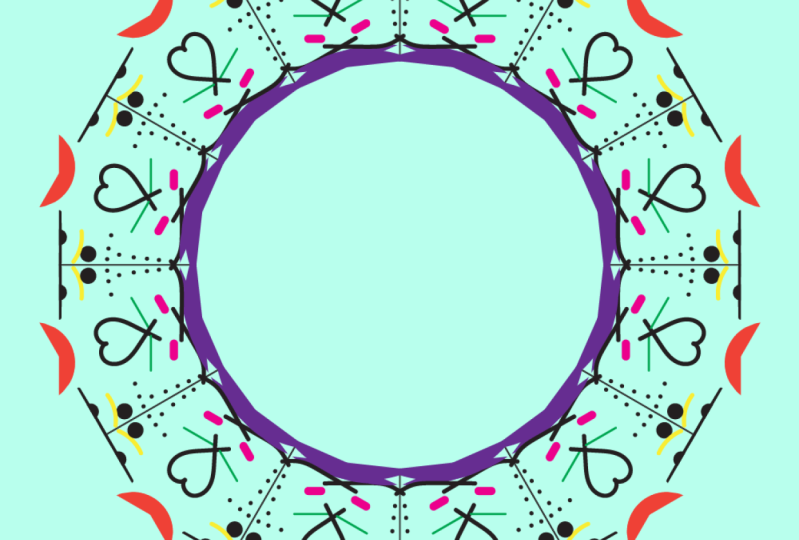
in Adobe Illustrator. And what is a mandala? Mandalas are geometric
patterns that have been used in various
cultures for centuries, often symbolizing the universe
wholeness and balance. The word mandala comes from the ancient Indian
language of Sanskrit, meaning circle, which
represents harmony. What comes to mind
when I think of mandalas are images
of these monks. They create these elaborate
images out of sand. And then when they're done, they just wipe them
away to, you know, demonstrate the fleetingness of life or the change of life. But that's not why I like them. I like them because I
think they look beautiful. And you can also see these in lace patterns
and kaleidoscopes. And I even have my own little kaleidoscope
right here where, you know, you spin the dial and you begin to see some very
interesting images. What these images
are are reflections. So basically, what we're
going to do is we're going to draw in a
little bitty V shape, and it will be reflected
in a pattern going around that circular shape just like you would see
in a kaleidoscope. We'll be leveraging
Adobe Illustrator's powerful tools to create a symmetrical mandola
design that's both beautiful and
easy to reproduce. By using the transform effect and the power of
vector graphics, you can create a mandala
that's uniquely yours. So let's get started.
2. The Project: Alright, so the project
is going to be to create a Mandela style effect
in Adobe Illustrator. And you can do it
one of two ways. One, you can just skip to the art creation part and
download the file here. You know, just come to the
projects and resources area, and you can click right here
and download that file. And you can see it says
mandallaace pattern dot a IT. And the dot AIT stands for
Adobe Illustrator template. That just means when
you open the file up, it'll open up directly
in Adobe Illustrator, but it'll create
a separate file, so you don't have to worry
about destroying the original. I'll show you how to
create that, as well. But my recommendation
is to go through the entire class and save
your own new template. So after you finished
creating your template, you can leave the
technical stuff behind and get into the more
creative side of this
3. How Effects and Instances Work (Optional) : If you want to just
get this project done as quickly as possible,
you can skip this video. What I'm going to do is explain how the
transform effect works. It's not necessary, but I think it's helpful to know how things are working and why they're
behaving the way they do. So here I want to
show you how to use the transform effects. And you can see if I click
on the Effects menu and I come down here to the
Distort and Transform, you can see transform
right here. But before I get into that, I'm going to draw a square here. I'm going to come over
here to my toolbar, and I want to show you what the normal transform tools do. So normally a transform is doing something like
scaling something. And I can come here to the transform here
or I can shear it. And I'm going to try
shearing it right now. So I'm going to click here.
I'm going to double click, and you can see what I
can do here is change the angle of that shear and you can see
there's the preview, and preview is checked here
if you're not seeing that if you're trying this
out, and then I'm done. Now, what I've done
here is an actual edit. I change the file. The effects transform
behaves differently. It makes an instance
of something. And what an instance is, if I make a little square here
and I duplicate this Okay. I've made five different
little squares here. Now, if I take this same square and I come up here and I
go to the Effects menu, and I choose distort and
transform and then transform, I get this menu item here. Now, so now what I want to do here is you can
see it says move, but I'm going to
choose a copy here, and I'm going to add one copy. Now I can move
this horizontally. You can say I can move it over
this way, and there we go. So that actually is a copy, and I can add four copies to make this identical to the
other one, okay? So now what I have here
is four copies here, and I have four copies, so
they're both totaling five. But the thing here is, if I change this one,
these are instances. What these basically
are are copies of this. These are like clones, they're not actual
individual copies. They're all connected
to this file. So if I click on this one
and I change the color, the color should change
throughout all of these. So I'm going to make that red. Boom. You see the
color changed here, whereas the copies that I made the normal way
are individual. So if I click on this
one, that one's red. Now I can change these all
different colors as that goes. Okay. But the one, this is an effect, and these are instances when I click on this one and
I change the color, it changes throughout, okay? So hopefully this isn't necessary in order
to do this project, but it's helpful to understand
what's actually happening. Alright, so now if I come over here to the
appearance panel, that's this little
thing right here. I'll click on that.
And you'll see it says transform effect, okay? That's It says effet
right here and transform. If I turn that eye off, it turns everything off. Okay? Now, I can
come back over here. I'll go back to the effect. So I'm just going to
double click on that, and it opens this
transform effect panel, and I can rotate these, okay? So this is live, and this is going to be
the basis of our mandala. Alright, so now I'm going
to do another one here. I'm going to cancel out of that. I'm going to get
rid of these guys. I'm going to make
another square. Now, I'm going to
fill this with none, and I am going to create
that effect again. So distort and
transform, transform. Now, this time, I'm going
to make five copies. Now I'm going to rotate
them a little bit. Now I'm going to scale them. You see, I can do scale. I can move it, but I'm going to scale this down
equally on both sides. Both horizontal and vertical, and I'm just going to go ahead
and type that in there 70. And I'm going to hit the
tab key to accept it. I don't want to
hit the enter key because it'll close
out of this menu, so I'm just going to
touch the tab key, and you see it accepts it. And you can see how it just rotated this inside
of each other. Now, I'm going to make that ten, see if we can make this a
little more interesting, hit the tab key, and you
can see it's going further. Maybe I'll reduce this. Maybe I'll make this 80. 80. Step further, again, to show you how this
effect can work. So I'm going to hit Okay
to close out of this. And I'm going to
edit. So let me see. I'm going to go to my direct
selection tool and I'm going to try to click on
one of these instances. And you can see I cannot
select these because these are basically projections of
this original image here. So I can't click these, okay? But I can click on this one. Now, what I'm going
to do here is click on this little
dot right here. These are the corner,
these round the corners, and I'm just going
to click on that. You can see I can easily
round those corners, and now we have this effect. Now I'm going to go
over to my W tool. That's this tool right here, and I'm just going
to fatten this up in this corner just to add
a little variation. And now you can see that's another effect
that I can apply. Although technically,
that's not an effect. I'm manipulating this
outside this outside border, this outside square,
and it is being reflected or projected on
these instances on the inside. So you can see here you can do some interesting things
using the transform effect. So now we're going to
get into the mandala.
4. Getting Started: So the first thing
that we're going to do is open up a new document. I'm gonna go file new. And I'm in the US, so I am going to come
here and go print. And I'm going to start off
with a letter size document, but it we're going to make a
square document in the end, so it really doesn't matter. Right here, this says
it's 612 points. That's going to be my square. This one is 595 points
on a four document. So what I'm going
to do is just make this a 600 point
document square. But I'm going to click Letter to get all the print settings, and now I'm going to
change that to 600 for the width and 600
for the height. And I'm going to leave all
the rest of the settings. And this one I'm just
going to call Mandala. Or we can call it a lace
pattern, if you like. Now I'm going to hit Create. Alright, so now we
have our document. It's square. And I want to
make sure that we are all working on the same in
the same workspace. So I'm going to come up here
and choose Window workspace. These up here are a couple that I've created
for other reasons, but these are the standards, and I usually work with Essentials Classic the
default is essentials, but I like having
the main difference I see is this
options bar up here, which is fairly redundant to what you see in
the Properties panel. So if I mention something and you have
a different workspace, just look in the
Properties panel, almost everything you'll
be able to find there. But I'm going to reset
my workspace because you can see I have this
layers panel moved out, so I'm going to go once again
after I set the workspace. Now I'm going to
come down here and hit Reset Essentials Classic, and it resets it to the default. So we're all starting with
the same from the same spot. We will at least all be starting
from the same workspace. Alright, here we go. Oh, and another big difference with the Essentials Classic. And I just want to show you
this in case you decide you want to work with essentials
versus Essentials Classic. If I change this essentials, you notice the tools. A lot of the tools are hidden and you can
find those here. If you click that those
three dots right here, it opens up and you can see
all those missing tools. So if I'm working
with a tool and you don't see it over here,
that could be the reason. You can either change
your workspace or click on those
three dots to find it. Alright, so I'm going to put it back to Essentials Classic. Alright. And it has been reset. So here we go. Okay,
so here we go. So the first thing
we're going to do is I'm going to open up
my layers panel here, and actually, I'm
going to tear this off just like it was before
because I want to see it. And if you're afraid that
you tore the workspace off and you don't
want it floating there forever and you don't
know how to put it back, you can always just
go Window workspace and reset whatever
workspace you're on, and it will reset it
back to the default and you don't have to
worry about trying to, you know, put it right
back where it came from. Alright, so that being
said, let's get started. This first layer, I am going
to call this the base layer. It's not necessary, but it helps keep things a
little bit organized, and we're only going to
have two layers in this. In case you're new to
Adobe Illustrator, I want to make sure
you can see this, so I'm going to
show you my hand. So I'm going to click on
the Line Segment tool. I'm going to move my cursor to the edge
of the artboard here, and I'm off center
intentionally. Eventually, we're going
to center. All right? So I'm going to
click right here, right just at the
edge of the artboard, and I'm going to drag down. But you can see if
I'm not careful, it won't line up
particularly straight. So what I need to do is
hold the shift key down. I'm going to just click on that. And you see how it snaps. So even if I move my cursor out here, it remains straight. It eventually will snap to
the right if I go too far. But for the most part, it's going to be straight. And then when I get to the end, I'm going to release
the mouse button first, you see here, and then I'm going to release the shift key because the
reason I'm explaining this is sometimes I'll see a lot
of students that are new to Illustrator trying to
let go at the same time, and those lines don't come
out straight, you know, rather than they don't know
which one to let go first, so they go, try to let
go at the same time. And if this finger comes
up ever so slightly, you know, faster, the line
will shift out of whack. So first first the
right hand, sorry, no, first the mouse hand
and then the keyboard hand. Alright? And I'll do that again. I'm going to go ahead
and delete that. And I apologize for
those of you who are more advanced and this
is pretty elementary. You know, but I have
to go over this for those who are new to it. This might be a problem. So
I'm going to click drag down. Then you can see it's off. You know, it's not
straight. Then when I get to the Excuse me. And when I get to the end,
I'll add the shift key, and you see it
straightens it out, and then I can release
the mouse button, and then I can release
the shift key. But yeah, once you
get used to it, you'll move very
quickly. Alright. So now what I want to do is I want to center
this to my canvas. So you see up here
in the Options bar, there's these align tools. They're also here in
the Properties panel. But if you don't see them
in the Properties panel, that's because maybe you're
on a different tool. I'm still on the line tool, but I'm going to switch
over to the move tool. But you also see that
that is selected. If I click away, you see it disappears from
the property panel, and it also disappears
from the options bar. But once I select that
line, there we go. They appear again.
Alright, so I'm going to align center horizontal. And then I'm going to align
center vertical, okay? Now, it is perfectly aligned. If I had something
else selected, I might have to make sure it
was aligned to the artboard, but this will align it to the artboard since
nothing else is selected. Alright, so now I want to
rotate this and duplicate it. I mean, I can just
copy it and rotate it or redraw the
line and align it, but just to show you another way to do
this is right here, there's the rotate tool. I can click on that. Well,
double click on that. And I get the rotate
panel right here. Now, you can see it's
already rotating. If I put that to
zero, well, actually, if I uncheck preview, you see it goes back to normal. Now, if I check this, I can the preview, it's showing me what
it's going to do. But what I wanted to do is
to make a copy of this. And I don't want it to
rotate what I already have. I want it to duplicate
it and make a copy. So I'm going to come
here and click on Copy. Now you see it copied it, but it also rotated it, okay? Now, the nice thing
about this is I don't have to go through
here and align this to the, you know, vertical and center. But if you feel
more comfortable, you can try that
again, you know, do that again, align, line. Alright? So that
is the first part.
5. Building The Effect: Okay, so what we're
going to do now here is we're going to
duplicate this layer. I'm going to click away
so nothing's selected, and I'm going to click on
this layer right here. And then I'm going to click in this flyout or Hamburger menu, as some call it, right there, and I'm going to
choose duplicate base. That's the name of the layer. Duplicate. Alright?
And I'm going to call this draw 'cause this is where we are going to be drawing. And I'm going to hit
the enter key on that. So we have two layers,
draw and base. Now, I'm going to turn
that drawing layer off. I'm going to click on that I. I'm going to turn
off the visibility. I mean, it doesn't
look like anything's happening because
they're identical. Now I'm going to select
the base layer again. And now we're going to do we're
going to start working on that magic that this kaleidoscope effect is
going to have here. Alright, so now I want you
to select that top line, and there's nothing else here, so I can just click and
drag across to select it. And now I'm going to
we're going to make several instances of this line and make it go around this area. Okay? So we're not going
to actually copy it. We're going to make an
instance that, you know, it's sort of a
projection of this line. Alright, so I'm going
to go to effect. And again, make sure
that line is selected. Now I'm going to go to effect. Distort and transform
and choose transform. I'm going to release on there, and we got the transform
effect window. Now, what we want is we
want 24 pies here, okay? 24 slices. Now, in order to do that, we need actually half of that. Alright? So if this line
is coming from here, it's going all the way down. The reason we need
11 is we want 24. So half of 24 is 12, but we already have one line, and it's going, you know,
one half, two halves, okay? So I'm going to make 11 copies. Now for the angle, we want this to be 15 degrees
to go along with this. So what I'm going to
do is divide this. I'm going to go 360. I can just type the
number straight in, but I want to show
you I think this is a really cool cool
way to do this. Actually, first,
I'll type in 15, hit the tab key, and
you see there it goes. Okay? I just want to show you this in case you want to try to make more more
slices or less slices. So if I go 360
degrees divided by, and again, the number
of slices that I want is 12. I mean, it's 24. So I'm going to type in 24, and that's going to get
me the right angle. And I'm going to
hit the tab key, and there we go 15. Alright? The reason I hit the tab key is if I
hit the enter key, it's just going to
close this out. But I hit the tab
key and accepts it, and I get my preview right
here, so everything is good. Alright, so now let's hit the Okay button and move
on to the next step.
6. Creating The Reflections: Okay, so now we're going to select that drawing layer and, you know, move away from that
base or that guide layer. Alright, so I'm
going to click here on the drawing layer and I'm going to come
over here to my paint brush tool, right? So I'm going to click
right here, okay? The blob brush
will work as well, but it behaves a little
differently. So be aware of that. I mean, if you
want to experiment or play around
with a blob brush, that's perfectly fine,
but I'm going to go with the Pin tool for
this one right now. Now, when you go to
paint your brush, hang on to me the visibility
on this layers off. So make sure you
turn that eye on, just click right there, okay? So if I have my pin
tool and you can see I can do something like this,
I can just make some line. So I'm going to hit
Undo a couple of times. Now, if yours is different, I want you to make
sure right here up in the options bar that
this says uniform, okay? If I click right here, uniform just means you're going
to have a flat line. You can change the width
profile of these lines, and you get lots more
interesting effects. But for now, let's just
go with the uniform line. Alright? Now, what I
want you to do this is going I want you
to we're going to draw a line right here, okay? So you see this area right here. This is let me highlight that. Okay, so this area right
here is going to be the area that we will
be drawing in, okay? So you don't need to do this. I just drew that in here
so I can show you this. So I'm going to get
rid of that right now, but this is the area that we will focus on, okay? All right. So now what I want you
to do is go back to the so what I want you to do now is to make sure you select
the paintbrush tool. And right here, I'm going to make sure that this
stroke is black, and I'm going to
click on the fill and make sure that's
filled with none, okay? So the stroke is black,
and the fill is none. Actually, the stroke can
be any color you want, but make sure that
that fill is none. Alright. So now we
are going to make sure that you have the
drawing layer selected, okay? And we're going to go
to the paintbrush tool. And we're going to draw
a line like that, okay? You can draw any kind of line that you want, make it squiggle. But what's gonna happen? Is anything in this
area outside of this triangular shape here is
going to be cut off, okay? And all you'll see is these, and these will connect
like a kaleidoscope, okay? Now, what we're
going to do here, we want to select
everything on this layer. I could come over here with the move tool and select this, hold the shift key, and
select that, and select that. But what we're going to do is move over here to
the layers panel. And you'll see this
little button right here. It says, click to target
drag to move appearance. Now, all I have to do
is click one time. You see it's
selected everything. You can see it's
selected this line here and you can see it
selected that line there, and it's selected this one. Okay. If for some reason, this one is not selected, check to make sure that you didn't draw that on
the wrong layer, okay? So if everything is selected, if it doesn't work, again, check to make sure everything is on the same layer. All right. Now, what we're going to do
here is go over to effect. We're going to
choose Distort and Transform and move over
to transform. Alright. Now, here, this time, we're going to click
this button down here in this options area
and choose reflect, okay? So it reflected it. But we wanted to reflect it with a copy because you see we only
have it on the left side. So we need to add one copy. So I'm going to write here,
and I'm just going to tap on the up arrow one time and
it will copy it, okay? Or I can type in one. Now
we're going to hit Okay. Alright, now we're
going to do this again. Alright? So we're
going to go effect. We're going to go distort and transform and choose
transform again. Now, we're going to get this
dialogue box, and it says, This will apply another
instance of this effect. And, you know, so
we want to say, Yeah, we want to do this, okay? It's just warning
us because a lot of times this would
be a mistake, but we're going to
put apply new effect. Alright? So this time, what we're going to
do is we want to make 30 where it says the angle, because, again,
we're covering two of these things instead of one. So instead of 15, we're going to double
that and make that 30. The angle is 30 degrees, and we want to make copies. And that would be
11 copies, okay? So the first time we
did 15, in this time, since we're covering
two of these, we're going with 30
and now 11 copies. Now, I'm happy with this, so I'm going to hit Okay. It will look slightly different
depending on, you know, the shape that you drew, but this is where you should you should have
something that looks like this. Now we're gonna come down. I'm going to turn
off this top layer just so we only see
this bottom layer. I'm going to select
that bottom layer. Now, what we're going
to do is click on this little target area
here in the Layers panel, click, and we'll select
everything on this layer. And now we're going
to come over to object expand appearance. Okay? Remember that all
of these things are, you know, it's an effect. And when we expand
that appearance, it is no longer effect. That means each of
these instances is now an object in and
of itself, okay? Alright, now we're
going to come back up to the draw first,
I'm going to click away. I'm going to go to the
move tool and then just click in the background to
deselect all that stuff. I'm going to turn the
top layer back on, and I am going to select
that layer, okay? So you can see it's
highlighted in blue. Alright, now, what
we're going to do here is we're going to define
this drawing area. Right now the drawing
area is not defined. If I come here and
please don't do this, if I draw here, you
see it's just doing all kinds of craziness, okay? Because it's
repeating everything across the whole thing, okay? So the effect is working. It's just not contained, okay? So now, what we're
going to do is I'm going to do this start
with a rectangle. And the reason
we're going to use a rectangle is because
that will help us control this because
you're going to have this kaleidoscope
mirroring effect happening, and it's going to be hard to
see what's going to happen. So what we're going to do is you see this line right here. We're going to click on
this line right here. And we're going to drag down to this line right here, okay? So once that happens, once I start clicking
and dragging, that effect is going to go nuts. Alright, before I
do that, I want to turn on my Smart Guides, though. I'm going to go to View and
make sure Smart Guides is on. That way, when we draw this box, it will snap to that line. So again, view and make
sure Smart Guides is on, and make sure all
these snapping and things are off because that
can sometimes get in the way. So I've have all the snapping off and smart guides are on. Alright, so I'm going
to click right here. Okay? Now, soon as
I start dragging, we're going to get that
kaleidoscope effect, but we're going to drag from that vertical line to
the horizontal line. So watch my cursor. Ignore all the
rest of the stuff. Just see my cursor. You see where my
cursor is going. Now it's coming down, down, down, and it hits that
line right there. Okay? Now, what I'm going
to do is let me see. I'm going to turn
this effect off. Okay, so now you can
see what's happened. Is all I've done is drawn
this little box right here. I've drawn from
here to here, okay? What we're going to
do after that is remove this point right here, and then we're going to
move that point here, okay? So I'm going to turn
these effects back on. Now it's all crazy. I don't
want you to do this just because it would make things
a little more confusing. All right. Here we go.
So I'm going to go to the direct selection tool,
that's the white arrow. And you can see the line. I'm going to zoom in a little here just so you can
see a little better. Here is the line. Okay? If you're having
trouble seeing it, I can change the color
of this real quick. Let me see. If I come over
here to my Layers panel, you see that little
blue bar right. Alright, so what I'm
going to do here on this drawing layer in
this empty blue area, I'm just going to double click. And you can see it says that it's telling me that
this line is light blue, and I can change
the color of that. So if I click here on
that little carat, I can make that red, and
then I'm going to hit Okay. And now you can
see that red line. It stands out just a little
bit better than the blue did. Okay, so now what
I'm going to do here is we're going to
remove this point, this anchor point here, so
I'm going to select it. Okay, it's selected. Now, hopefully your
options bar is open, but you can still see it's also over here in the
Properties panel. You see that little it
says anchor point minus. And you also see that here in the Properties panel,
Anchor point minus. And I've selected that one
point. You see that one solid. That one's hollow,
hollow, hollow, okay? And that one's solid. I just
click on that one time. And it changed it. Now,
look very carefully. You see here is
the red triangle. This is without all of the
kaleidoscope effect, okay? Now I'm going to
click on that line, and I'm going to drag that
over to my, you know, right here on top of that area, that's going to be
my contained area. And then I'm going to click
on this anchor point and move that up to the top, okay? And then I can click away. So now this is our
drawing area defined. Now, don't do this. I'm going to click on it and delete it just so you'll
see what happens. I delete it. So I'm going
to hit Undo and, you know, see it's lined up with
the guides, okay? Alright. Now we can move
on to the next step. Let me just hit
Command Control Zero, Command zero to
fit to the space. Okay, so from here, we have one last thing
that we need to do. And if we come over here
to the drawing la area, we're going to click on
that carat right there and toggle this layer open so we
can see all the sub layers. And you see on this
one sub layer, it has that little triangle that triangular shape
that we just made. Okay? Now, we're going to come down from here
straight down. And choose this little
area right here. And it says, Make
Release Clipping mask. And we're going to make
a clipping mask, okay? So when I click on that, watch the area and watch these lines here.
Watch what happens. You'll see this area outside of each of these triangles
is going to disappear, and it will be contained,
and it will make a nice clean looking line. Here we go. One, two, three, and everything fits inside. So that was the magic, right? So I'm going to toggle
this closed again. Now I'm going to click away. Now, anything you draw in this area will be
reflected outside. So if I go to my brush
tool and I draw a line, you see, it goes just like that. And even if I do
these other shapes, you'll see I'm overlapping. But now it makes it right there. So it
made it a little hard. Now, here I can draw a
little half circle kind of shape, and we get
something there. I can make a dot here. I can apply a dot here. And you see everything
is repeated as long as I'm inside of
that little circle, okay? Now, if I come over
here and I draw, none of this it
does nothing, okay? Only what is happening inside of this little circle or this little triangle
here will work. And again, if I go
over, whoa, okay, I don't know what I just
What I just did there. Okay, I guess I went outside
and it did some weirdness. Alright, so you see, as long as I go inside of this, it makes really
interesting shapes, okay? Oh, you've done it. Now, what I'm going to
do here is I'm going to undo all of these things
that I just did, okay? Until we get back to here. Now I'm going to click
on the Black Arrow. I'm going to click on this path right here and I'm
going to delete that. Alright? I'm going to
lock my base layer. That's just sort of the guide. I can turn that off and on. And what I'm going to do here. So let me just do a quick test. I can draw, and you
see it still works. So what I'm going
to do here is I'm going to go file and
I'm going to save this, make sure everything
is locked into place. I'm going to save
this on my computer. And hit Save. Okay. Now, what I'm going to do this time is I'm
going to go file, save a copy. All right. And instead of just
saving this as a regular a regular file, I'm going to click on
that and choose template. And you see it says Illustrator
template a dot T. Okay? That means that's going
to be a template. So whenever I use this, Let
me get rid of that word. Copy. And I hit Save. So now when I go to open it up, I don't have to rebuild this thing every time
I want to use it. I just go in here and I double click to open
up that template. My template will open up and
I can just start drawing. Okay? Now, in the next video, I'm going to show you how you can some techniques you can use to make this
really interesting, and I'll show you how to
add some color as well.
7. How To Remove/Hide Lines Separating Slices: Alright, so in this video, I want to show you
how you can turn these lines off, right? So you can see the base layer
is right, is the guides. So I don't even need that. I can just turn that
off right there. But on this drawing layer, I need to turn these off, okay? Again, you don't have to. If you like the
way it looks, just leave it as is and
continue working. But personally, I like to
turn them off after I've completed the design because
I like to have the guides. But I'll show you how
to do that in a second. So what I'm going to do is go to my Black arrow, the
selection tool. And if I click right here, you see this triangle
gets in the way. If yours isn't showing you
this little pink triangle, that just means that you don't have the guides on.
Let me go to View. I mean, your Smart Guides, okay? That's why I'm getting that. So if you want to see that, turn on your Smart Guides, and it will give you
some sort of snapping, as well. But that's
what that is. Okay? So if I come here and try to select
these lines individually, I can't because remember, there are instances of this one vertical
line in the middle, okay? And I can't
select it here. So all I have to do is come
down here to the bottom. I can click on that line there. Once I have that selected, I can come over here to
my Properties panel and you see where it has the
point size of the line. I can just toggle that
down to I hit zero or I can go with a number,
a different number here. I can change the color
of it if I like. But I'm going to just nudge
it all the way down to zero. So it will still as long as I have this top layer selected, the drawing layer, I
can come over here, click my brush, and I can draw. And you can see it
will still draw. Okay? The only problem is, it's kind of difficult
to seize, okay? Now, I can turn this
base layer back on. Those are my guides. And now
if I go to my brush tool, I'm going to click away,
click on my brush tool. And right now,
there's nothing here. So I'm going to fill
that with black, and I can just Oops, I
drew in the wrong area. It's this area. So
if I draw here, you can see it still works.
8. How To Add Color To Your Design: Okay, so in this video, I want to show you
how to add color. Obviously, at least,
I think it's obvious. If you change your stroke
color, if I click here, you can see I can just turn
that to a different color, and then I can just
add a color here. Alright? Now, if I want to
add a background color, that's where things get a
little more complicated. So if I come here
with my pin tool, it's kind of difficult
to kind of go over this. So I'm going to go
outside the line and then you see how it just
gets a little confusing, and then I can click there. Now I'm going to flip
that color here. I'm just going to click right
there and that'll flip it. But now you can see it's
covering everything else up. So I'm going to go object
arrange, send to back. And you see now it's
behind the colors. Another way that
I can do this is by if I try to select
inside of here, very specifically, it's
going to kind it's going to connect to these paths that are already there, okay? So you have to be
careful of that. So what I'm going
to do is remember this triangular shaped area
is where I'm going to draw. So I'm going to click
outside of that area, and I'm just going to go ahead
and fill that in that way. Now I'm going to send that
to the back object arrange, send to back, I think, object. Arrange There we go. Arrange. I usually
use the key commands. You can see the key
commands are here. And so object arrange, send to back, and that will put it behind all
of the lines there. Now, if I want to tidy
this up a little bit, I'll click on the white arrow, and then I can click on that
and I can bring this in, but you can see it really
isn't showing outside because, you know, it's inside
of the triangle. But if I just want it
tidy, I can do that. But I usually don't worry about keeping these
lines very tidy. But again, the big
problem you'll have is if you start coloring
things in after the fact, you may have a problem
selecting the lines, like if I want something
that's going to go here, it may pick up on the line
that's already there. So just click outwards and then bring those points in. I'm going to
change the color. And then I can come to the
white arrow and I can bring those points in and reposition them exactly where I want to go. And then object arrange, send to back or on my
keyboard, I'm on a Mac. I will go command left bracket key, and
it will send Well, I'll send it backwards, and it's Command Shift left bracket key to send it all the
way to the back. Alright? And on a PC, there will be control and
then control and shift, okay?
9. Drawing Tips: So here, I'm going to show you a few techniques just to
make this a little more interesting to kind of jump start your creativity when
you're working on these. And one of the things
that I like to do is, so if I click here, you know, it just
reproduces that circle. If I click right here, if I split that, you see, it makes another circle here. If I want to make
the brush larger, I tap on the right bracket key. You can see it gets larger, and if I hold it,
it will get larger. And if I want to
make it smaller, I tap on the left side, and it will get smaller, or I can hold it and
it will get smaller. Alright? And again, up here, you can see where the size is at it has different sizes here. I can also increase the size of my brush by increasing
the stroke. You see, Wow. There we go. It just
grew exponentially, and I can reduce the
size by clicking here. And again, that's also here
in the Properties panel. But you can see when I reduce the stroke width,
it becomes smaller. So now what I want to show
you is this thing right here. You see how big this brush is. If I click here, it just fills the whole thing
in like that, okay? And if I move it
over to the line, I'm going to get sort
of this oblong shape. I'll click, and you see I get that really cool
shape right there. And I just love these shapes. I can even take that
same thing using that reflective pattern
and make a heart, but I'm only painting the
right side of the heart, okay? So I'm going to release the mouse button and you'll
see what it creates. There you go. And you
can exaggerate these. And I suggest just playing
around with these. And you can really
come up with a lot of interesting shapes using the areas where
these criss cross. Alright, now I want
to show you here, I'm just going to play
around a little bit. I'm going to get rid
of some of these, and I'm just going to
reduce my brush size, okay? And I'm just going to
make a few shapes. Hang on, let me hit undo a
few times, a few more times. Okay. Alright, so
reduce my brush size, and you can see I
can come across here and we'll get a shape
that looks like that. I can make that smaller. And if you don't get it, and I'm just overshooting. You see, I can go all
the way over here, and it won't make a
difference as long it only matters what's inside
of that triangle, okay? And you can really make
some interesting shapes. And you see, that one
actually came out. I was going to say, one of the things I recommend if you get a shape, it
doesn't come out right, just hit undo Command
Z or Control Z on a PC and fix it till you get it to
do what you want it to do, like that overshot there. So I'm going to undo
that and just redraw it. You can go in here and
fix them manually, but I find it often a
lot faster to just, you know, redraw,
hit undo and redraw. And if you do, if you do
some really, you know, these odd shapes, you get some
really interesting shapes. So play around with these and see what you
can come up with. You can do so much while
working on these mandelas.
10. Mandala WidthTool WidthProfiles: So another way and I'm on
a blank document here, I just want to show
you that you can make your images look
more interesting is by making variations
in your brush strokes. And if I do this with
the paintbrush tool, there's this tool here
called the W Tool. If I click on that, you see
it won't allow me to do that. But if I do this with the pencil tool,
let's find that here. I can click on that,
make that same shape. But then I come in
here with a W tool, and then I can just move it along that line anywhere I want, and I can click and drag and
it'll thicken that lineup. I can come here to the end, click and drag, you know,
thicken that line up. And then I can come here, click and I'm going
to go the other way, and you see it, it
thins that line, or I can grab it again. Oh I missed it. But you can just adjust it
however you like. And there are these presets. So if I come up here,
there's with profiles, and there's some that
are preset here. I can do it that way, but you can still do this
on the brush tools as well. But the problem that
you may run into is you can't do this on a
clographic brush, okay? So if I click on
the brushes here, I'm going to tear this
open and open that up. So you see, these are
Clographic brushes, okay? So if I click on this
one is selected here, let me click on the Move tool. This was made with the brush, and you see I can't change
that with the W tool. But if I come here and
I click on Basic Bush, you see it changed it. Now I can come in here and
change that and add a width. This was something
that at some point was quite frustrating to me because I
couldn't understand why the brushes weren't working. When I know in the past, I'd gotten them to work
before using the brush tool, but as long as you change it off of the kilographic brush,
you should be good. And the way to get to that is
going to the brushes panel. You can find that
here. Let's see. I can't remember what show you I want to show you
what it looks like. It looks like that, or I
can go here window brushes, and it will open that up. Now, I'm going to go
back to my lace pattern here and show you
how you can do this. So say I have this
line right here. Again, I did all of these with the brush tool, so I'm
going to get rid of that. And now I can come in
here with the with tool, and I can flatten this
line up right here. And now you can see
how it's adding a bit more of a you know, even more dramatic effect
to it by adding with, you know, line with variations. And let me try that here. I'm going to use a preset. I'm going to select it. Hang on. It's not letting me select it. Let me go to my MVTol
and try that again. There we go. I've selected it. I'm going to go to
Basic to change it. And now I'm going to go
with one of these presets, and let's see what
this looks like. Right, it's kind of, you know, it's thin here and gets wide, but you see I did the overshoot, so it's shooting that thin
point is going there, so I'm just going to
fatten this lineup so you can see what's happening. So you can see that
is what's happening. And I can use any of these
other funky brushes. Now, another thing,
one last thing is, if I come down
here to you see in the brushes panel down here there's little
these little books, and that's the
brushes library menu. There are lots of other brushes
in here that I can use. So I'm going to go here two let's see,
decorative brushes. Let's just see
what's there. I have no clue what to expect here. And I'm just going
to change it Okay, these are little banners. No, no, no, we're not going to decorative banners
and Zeals, okay? I didn't read that
all the way through. Let me just pick
something borders. Okay, dashes. Alright, I'm just
going to click this. I don't recommend these,
but I'm going to select it here just so you can
see what it can do. So now we have
little dash lines. Here we have of this thing here. So, you know, and if I reduce
the width of that brush, you can see now they'll fit in. So you can really have
a lot of fun with these and do a lot of different kind of
things with these. So I do hope you have fun
with these and explore these. I didn't get much into this, but there's a lot you can do exploring these
brush presets. And yeah, have fun.
11. Mandala Background Color: I want to add one
more thing here. I just want to fill
these colors in. So I'm going to add
a new blank layer, and this is just going
to be an overall thing. And this is just going to be an overall color to fill
in the background. And I'm doing this. I'm just going to call this background. And the reason I do
that is if I come here on the drawing layer
and I create this box, you can see it just kind
of does some wacky things. So I'm going to click
here on this layer. I'm going to lock
my drawing layer, and then I'm going to
draw this box here. And I think that
looks much better. Okay, now we're ready
to save this file out.
12. Mandala How Save and Upload: So if I just save this file and I try to
upload this to Brightspace, it won't work because
it's a web page, and webpages can't read
Adobe Illustrator files. So we need to export this
out as a JPEG or a PNG. And typically with web, you want to go with a PNG. Well, first, make
sure you save it. I'm going to go
commands to save. I'm going to save this
to my computer and on Dalla final Okay, so I'm going to go
File export export as, and then here I'm going
to give it a name. Actually, it has the
same name as I gave it before because it's
naming it as a PNG, a different file type, I don't have to worry
about changing the name so it won't conflict with
my original AI file. All right. So now I'm
going to click right here. Use Artboards. Be say, if I don't click on this artboard
thing right here, if I have something out here, it's going to include
that in my export, okay? So I want to make sure and
check that box file export. So if you have that problem, make sure you check that. So again, file
export, export as, and I'm going to
check use Artboards, and that means it's going to
crop right along this line. This excess here is going
to get trimmed off, okay? So from here, I'm
going to hit Export, and then I can choose
the resolution. And that just means how big
this file is going to be. Typically, when you're
working in on the web, you want those files to be
on the smaller size, okay? Medium is okay, 150 PPI is okay, but I'm going to go with 72. And if you find that resolution just doesn't suit you feel like it's losing too much of
that quality that you like, just save another version
and make it 150 PPI. I'm not sure if you're
in another country, this is pixels per inch. So I'm not sure what
you would choose, but it should tell you screen, which is what we're going to go, which is a low res
or medium or high. And this number may or may not be different depending on where, you know, you're
viewing this file. So I'm going to go with screen, which is a low resolution image, and the background
doesn't matter right here because I
filled everything, but you can choose a
transparent background. Or a black background. So say if I created this and I don't like
the way it looks, I can just add a
black background to maybe give it a little punch rather than actually
going into the file. But either way is fine. I'm
just going to leave it white, and I'm going to hit Okay. And that's it. Now, from here, I should be able to upload
this to Skill Share. So what I'm going to do here now is come over to
the project area, and I'm going to choose
submit project, alright? Now I'm going to give it a name and I'm going to call
this instructor demo. Since it's already typed,
I'll just include that. And if there's anything
you want to say here, you know, for everyone to say, Hey, this is I did
this, I had fun, or say you had trouble or
something, or even a question. Whatever you want to put
here you can put here. And I'm going to say,
this is the mandala that I made when
I made the video. Okay. Not very interesting,
but it'll work. Alright, so now hit I
need to upload the image. So from here, you'll navigate to where you uploaded the file, and then you can select
it and hit Open. Now, the thing is this first image that it's
gonna show up is a title page. So I can't really control the, you know, the crop of this. It's going to get chopped off. So you may want to
upload it twice. I can scale it up
or scale it down. So I'm going to scale I'm just going to scale this up so it looks a little
better right here, and then I'm going
to hit Submit. Now I'm going to upload it again because this is cropping my
image, and I don't like that. So I'm going to click
here, add more content. I'm going to click Image, find that same image, and
upload it again. Now, the second image, you can see shows
the entire image. I don't know why it does that. I wish there was an override, but that's just the way it is. So from here, I can change. This project will be
associated with this class, make this a private project. I'm going to leave
that unchecked. I mean, if you check, make
this a private project, that means no one can see it. Private projects can only
be viewed by you, okay? So if you want to upload
a piece and not share, that's fine, but I highly recommend you upload
it and share. It just helps the community, and it's nice for me to
see what you are creating. And it helps me to
produce better videos, knowing that I'm communicating the way I'm trying
to communicate. Alright, so from here, I'm just going to hit
that publish button, and we are good to go.
13. Mandala Thank you: Thank you so much for
taking the class. I hope you had fun and created something
really interesting. And I hope you took
the time to upload your project and share it with
the Skill Share community. I look forward to
seeing the work you do, and hopefully I will see
you in another class.
 Aaron Porter, Illustrator