Transcripts
1. Introduction: Have you thought
about creating your own motion poster
by simple four steps? What is a motion poster? It's nothing but giving a movement
to a static poster. Hey, welcome to my class. How to design a motion
poster in Touch Designer. Hi, my name is Li Zhang. I'm an illustrator, designer
and visual artist in New York. I used it to be an engineer, and switched my career into
art industry since 2016. I love to create stylish art and designs and always love to explore the possibilities for combination of new
technology and art. In this class, I'm
going to share with you how to create motion post
in Touch Designer. I'll show you
everything you need to know to get started
in Touch Designer, even if it is your first
time opening the program. What is Touch Designer? It's a node based programming software. Unlike After Effects
Touch Designer will save your time by
simply connecting each operator and generate
diverse motion effects. In this course, we'll be working on the simple motion
poster together, we're going to cover a basic introduction of
Touch Designer interface. And you'll learn the complete, full professional
workflow from knowing first how to source inspiration and create the mood
board for design, how to install the software
and import a file, how to generate diverse motion, effect by noise and
display function. And finally, export your work. Other than that, we will
be also covering tones of keyboard shortcuts, tips for improving
design process. In this class project, you'll be applying the skills learned here to create
your own motion poster. You can either
take my illustration and customize it
with your own design, make something that
you feel proud of. To help you get started. I will provide the project template for reference
and my illustration poster. This class is for anyone who is interested in new media
and interactive art, or for someone who wants to make a motion poster in an easy
way by Touch Designer. For this class, you don't need any prior knowledge
about programming. I'm so excited to see
your masterpiece and hope you have a lot of fun
learning and creating. I'll see you in the next lesson.
2. Project: Hi, welcome to the class. Before we begin, I'd love to talk about the class project. For this project,
you will create your own 10-second
motion poster based on the static
poster provided. And don't worry, I'll take
you through the whole process from how to source
00:00:18.015 --> 00:00:20.775
inspiration to finally
export your work. First of all, I would
like you to read through the project
description that I've listed in the class
resource section. And then you will find
that the steps you need to take to complete
this project. Getting familiar with
what we are doing, and I'll take you on the journey of creating a motion poster. First of all, since it's a Touch Designer introduction
class for beginners, I want you to download the Touch Designer
first and getting familiar with the interface. And to
help you get started. I've provided some useful
resources for your reference, such as mood board demo, static poster file that I created by myself and
the project file, you can use it customized
to fit your needs. In this class, I'm
not going to give you a lot of direction on how to
design your static poster. You can use my poster demo
or any pictures you like. The key part of the class
is the process of how to use Touch Designer to make the poster becomes dynamic. So just follow the
steps in the class, I'm here to help you
get the most out of the course and answer any
questions you may have. Once you follow me and
complete the project, you will get an idea of what the full process is to create a emotion poster
by Touch Designer. Even if you are new
to Touch Designer, you will find these simple
and effective techniques easy to use. I'd love to see what
you come up with. Don't be shy to show it off, as well as the process
in the group discussion. That's it. I'll see you in the next lesson.
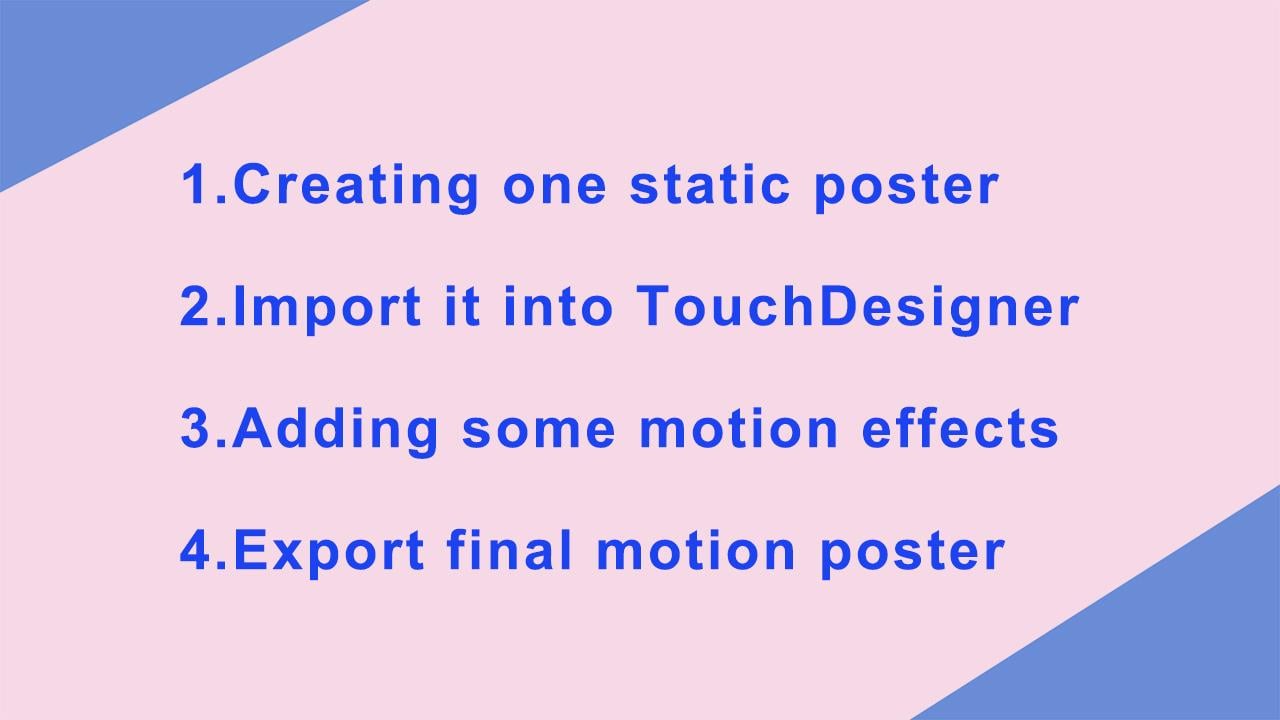
3. Creating your moodboard and static poster: The overall process is like this. We'll create one static poster
and the import it into Touch Designer, after adding some motion effects
and export it. So before we open
the Touch Designer, I'm going to source
some inspiration for the static poster and create a simple moodboard for poster design. So what is a moodboard? It is a
collection of images, fonts, colors, art styles,
patterns, textures, and any other design
elements that helps define the
the direction of the design. In this class, we
make it simple by just collecting
some motion posters. So this is the mood board
I created it for this class. You can tell the first
three images, the colors are just black and white
and others are more colorful. Since the theme of the poster is named "hope". I prefer to use vivid colors that brighten people's mind. That is
to show more positive vibes. As I said before in this class, I'm not going to give
you a lot of direction on how to
design the static poster. Just show the
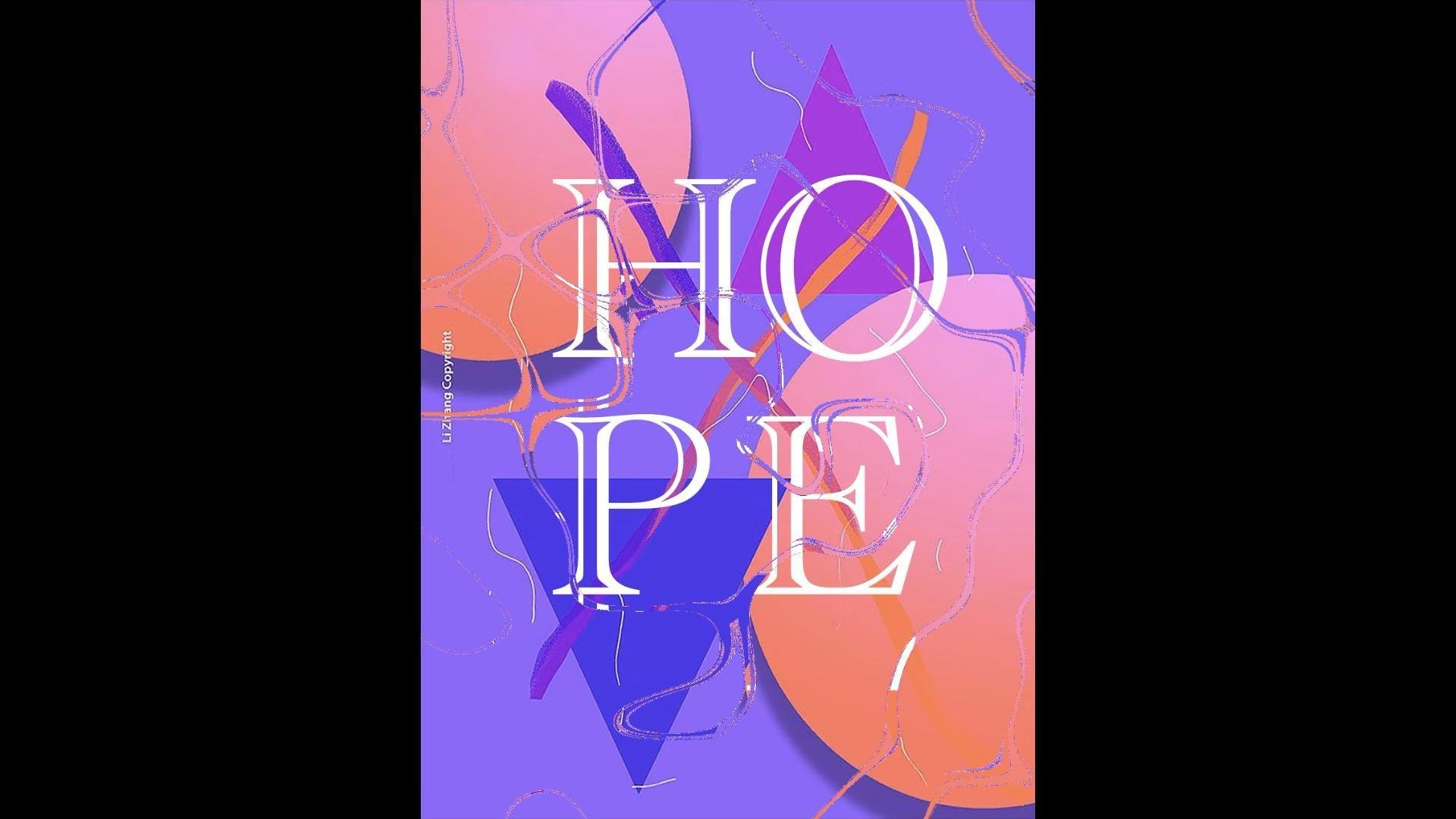
process of design. Here we are. This is the final poster "Hope". The background is very colorful
and dreaming, The word "Hope" I choose to use the font. Academy Engraved LET. So you can change another one if you'd
like to try another font. There are a lot of our choices. I've attached the PSD as a project resource so
you can use it as a demo. And if you don't want it, you can create your
own static poster. And otherwise you
can just download your own images you like online and import
into Touch Designer. Save the image as the PNG and now the
the file is ready to use. Next lesson, we will
introduce the interface of Touch Designer and
know how to import the file into it. And that's it. I'll see
you in the next lesson.
4. Getting started in Touch Designer: In this lesson, we're going
to introduce the interface of Touch Designer and
then know how to import the static
poster into it. Since our post
file is ready to use. Now we get started
with Touch Designer and talk about the
introduction of interface. If you haven't downloaded
the Touch Designer, please go to the office
website and download it. Once you're on this page. Click on get it now and download the version fit for your
computer system. It's available for Windows
and Mac, and I'll do Mac. After you finish
the installation, click the launchpad and double click the
Icon. And here we go. So if you launched the TouchDesigner for the first time, you can see there is a
simple work example in the middle of the interface. You can see we
have the Canvas, timeline and there's some initial
palette in the categories. The operator connects
with each other. And here is the
parameter window. If you don't want to say
the parameter window, you can press P and
it will disappear. And every time you
click the operator, the related parameter
window will turn out. As you can see, it's
very easy to understand how this is node
based programming software you have all
these operators, which are these
rectangles right here. And they transform the information
they have inside, and it then transferred information
to another of these operators. And in the
bottom left is a timeline. You will pause or
play the project by press Spacebar. In Touch Designer interface. The information flows
from left to right. A network is created
by connecting the output of the operator to the input of
the next operator. Usually, you import inputs
on the left right here. Then you will have
the transpiration on the right to the next one. Some of them won't have
the inputs like this. This is basically because they have very important
from somewhere else. For example, That's movie
file into this operator. Basically, they let you import the file from outside. So this is basically
how the software works. And if you don't
want this template, you can right-click the mouse. And it will select all
the operators and click, Delete. Then they disapear. After we are familiar
with the interface and we already have
our static poster. We can import it
into Touch Designer. So now you can create
your operators. You can double-click the
Canvas somewhere and you will see all the operators
tab which contains. There are different
types of operators. In this class, we
focus on the Top. First, we need to input to the static posts
are appropriate. In last lesson. Here we use Movie Fighting, click and drag it
into the interface, the pickup, the banana. And this is a system default. Pick the parameter window in the right corner and
click the plus sign. Then we search for
the static poster, we have design and import it. Then when we set the parameter, don't forget to set the output image size
and same as the poster, that is 170 to 86 plus 960. So if you want to see
the image larger. Lastly, you can click the
Play button and operator. Then image would appear in
the middle of the canvas. So that's in next lesson. We will talk about is the noise and it displays operators. By adding them, the poster would have some motion effects. See you in the next lesson.
5. Generating motion effect by Noise and displace: Yes, we have come to the most important
step in next class, generating motion effects by nice and that displays operator. So first, let's add noise
operator, same as before. Let's double-click the Kayla's to open the operator
create dialogue. Funds is a label, top and type nice jacket
age into the canvas. And then we set some parameters. For now, click the
noise parameter window and the period as one and funded the
harmonics as 0. And the ponens here as 0.5. Okay? So now the nodes
become like this. They have the more
clear boundary. But how to make the noise move, check the trends
from the second one, and then fund the translated
a third option and input eight times seconds. Click the entering button. So nice movie. You can see the
noise these movie. And don't forget to
change the resolution. Here is trained to custom model. Those are the 296 day. Saw them AT okay. Mackay, the same as the poster. Next, we will make the motion effect more
fun and complicated. We're going to add
displays function. The displays will cause white images to be a web
to buy another image. So let's double-click
the interface and the place function
into the working area. Next, we will connect to the noise operator and
the displays operator. Click the output
part of the noise on the right side and
then drag the line to the displays input port and connect the line to another
input part out displays. You can see the viewers become interesting,
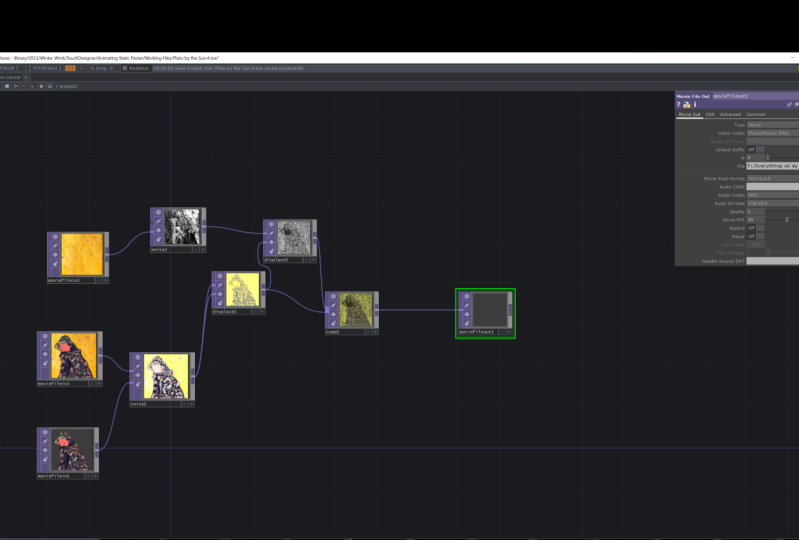
fluid filling. This beautiful. And then we add another
displays operator, connect as a movie file in
operator with the first. And then we add another
displays operator connected the movie phi operator with
the first in part, pot. And the first displays output. To the second though, displays input emotion effects. And can say, let's
click the displays. We can say that the movie
effects already at, into the static poster. But the effect of
Simpson not what I want and it's not moving. So let's modify the parameters. So click the first two displays. Operator, set sauce made
it potent and it's 11, set of set as 00. And input the code
abs Tom dot seconds divided by two In
the offset wet, click the second displays
operator and the set, the sauce meet Poland as 11. Set to the displays
weight as 0.5 and abs Tom dot two
seconds, divide two. And finally set to the
offset as 00. No big change. So let's change the extent
type from code to repeat. Wow, I like it. So that's effect. I want look at the motion
effects. That's amazing. And if you don't like, it is moving too fast or you
can change the time period here by dividing by five. So that's it. The next lesson, we're
going to talk about how to export as
a motion poster. See you in the next lesson.
6. Exporting: Finally, we come to the
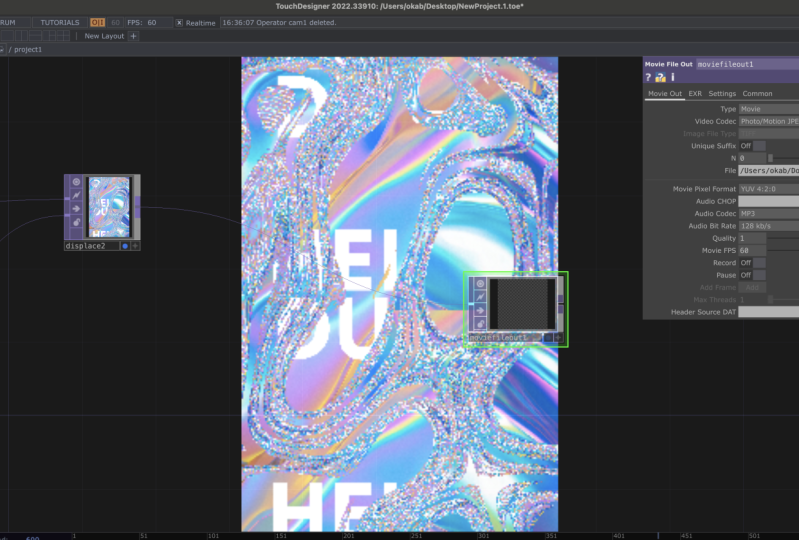
last step in the class, exporting the emotion poster. We're going to use the
operator moving buyout. So double-click the interface
and choose the operator. And a connected
with the displays. There is nothing changing y. Let's check the
parameter window. First. We set the type as movie format, and then click the plus
y in the file and save the file name as these
motion poster dot MOV. You can set your own name. Don't forget to add
the five-step IRS. You cannot
successfully exported. The king step is the
recoded pattern. Clicked it and does it
off, change to arm? It means now it's starting
to recall this animation. And the way you
want to just stop the record, click it again. It become off. So it means it's the
ending of the animation. Now we click the button,
stay for awhile. And click data again. It's over. Now the video will be saved into this specify photo. Hello, it is, We did it. Finally. I will. Motion poster
is finished. Well down. Now we only use four steps to design a motion poster
in touch designer. You could try to modify the parameter in noise and
the displays operator. And we'll generate
amazing various effects. That's the magic
of Touch Designer. You can always explore new
stuff with the parameter. And that if you wanted
to go deeper about the prison pole
behind the screen, you can click the
question mark here. And it explains a lot of
details about each operator. Last, let's enjoy
every emotion poster together by reviewing it. And you can add some background
music to make it pop.
7. Conclusion: Congratulations, you've
finished the course. I hope you enjoyed this class and I hope
that you had fun. If you did, please let me know because this is my
first day of class. I will be more than happy to receive your precious feedback. If that is your first
dive into Touch Designer, I hope it gives you
some confidence to show you that just a few simple
effects in touch designer, you can really bring something
more to your design. Touch. The center is amazing software. I hope it's a good start
for you to explore. Also, don't feel shy to share
your work in the project. And I can't wait to see
what you've created. If you have any
questions along the way, please leave them in the discussion panel and I'll
make sure to answer them. Okay, Thank you so much
for taking my class. I'm really proud of
all the hard work you put into the class. And I look forward to create another class with
you some great work. And I see you in the
project section.