Transcripts
1. Intro: Hello, and welcome to class. In this class, we
are going to use Procreate and Photoshop with Print on Demand in
order to create our very own custom
wrapping paper. What better way
to make your gift giving even more heartfelt
for any occasion? I'll show you my
technique for creating a celebratory pattern
all the way from ideation to a finished
repeating pattern. Then I'll show you how to
find the right print on demand partner for
you and how to upload and order your design
so you can start wrapping presents with
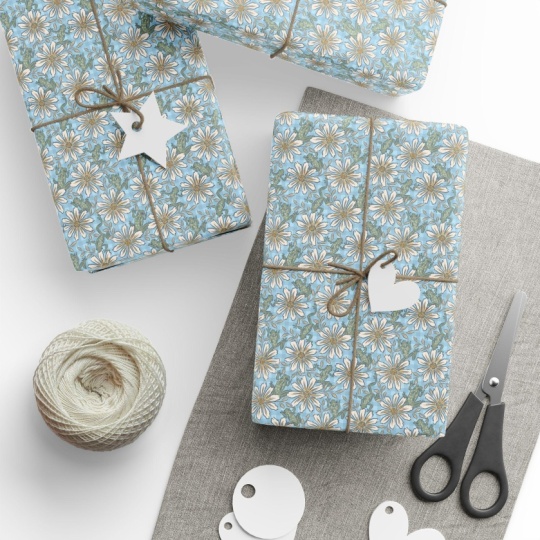
your own custom art. Hi. I'm Jenni Macklin, an illustrator and
surface pattern designer. I love making fun
and joyful patterns. I wanted to teach
this class so that you can share your work
with your loved ones in a fun and special
way and demystify the process a little bit so that it's not so intimidating. I'll show you step by step how
to transform your art into a beautiful repeating pattern and get it printed on gift wrap. From coming up with
an idea to drawing your motifs and turning them
into a repeating pattern. All the way through finding
a print on demand provider and placing an order for
your custom gift wrap. I'll walk you through each step of the process while keeping things as simple as possible
to avoid overwhelm. This class is for people who
are already comfortable with Procreate or another
method of drawing motifs. You should be comfortable
getting around the app and drawing things
in Procreate already. You do not need to know how to make a repeating
pattern already. I'm going to show you
a super simple way to do that in Photoshop. And for my Procreate, only users also
have a bonus lesson showing you how you can do
it in Procreate, as well. So I do want to
note that this is not a beginner drawing class, so you should be able to
make your motifs already, but it is okay if you are
a beginner pattern maker. You can absolutely make some special wrapping paper as a beginner drawer and
using simple motifs. I just won't be
covering the basics of Procreate or drawing
in this class. Print on Demand can be a little bit overwhelming,
but in this class, I'll show you each
step that you need to take and we'll skip
all the stuff that you don't need to know so that
you can get right to ordering your wrapping paper and placing your beautiful work on gifts. In this class, since it's
at the time of filming, Christmas is the
upcoming season, so I will be using
a Christmas motif and pattern in my example. But you can use this class to create wrapping paper
for any occasion. It doesn't have to be Christmas. It birthdays or anniversaries
or Valentine's Day. So if you'd like to create an extra special gift giving
experience for any occasion, join me in class and
learn how to make your very own custom wrapping
paper. See you there.
2. What You'll Need For Class: This lesson, we'll talk about
what you need for class. Now, if you already know
how to make patterns, another way other than
what I'm teaching, you can absolutely use that
method and follow along with the rest of class to make your own custom wrapping paper. There are many ways to work, and none is better than another. So whatever workflow and method works for you and
your creativity, that's the best one for you. Being said, I will be showing
you my personal workflow in this class and what I
use for that workflow. So first things first, I do use the Procreate
app on the iPad, which means that what you'll need for class if you
want to follow along is an iPad and Procreate as
well as an Apple pencil. The iPad that I use
is an iPad Pro. You do not need an iPad
Pro to work and Procreate. Any iPad that is compatible with the app
will work just fine. Like I mentioned, I
use the Procreate app, but I also use Photoshop on my computer for
this workflow. So if you want to follow
along exactly with me, you will need Photoshop
and a computer to work on. If you don't have Photoshop, check out the bonus lessons where I'll show
you how to create a simple repeating pattern in Procreate without
using any other app. However, this isn't an in depth making patterns
in Procreate class. So if that's something
that you'd like to learn, I'll leave a link to some resources from other
teachers that you can find in the downloads and resources
section in the class below. I will be using an iPad Pro and an Apple Pencil Pro for the
demonstrations in this class, and I will be using
Procreate version 5.4 and Photoshop CC 2026. Other than that, I've also provided a couple of
worksheets that you can use. So if you'd like to
follow along with that, you can download the provided
worksheets either as a PDF or a Procreate
file and use those. But you are also welcome
to sketch on a piece of paper or in a notebook
for those sections, as well. So that is everything
that you need for class. Just to cover it
again really quickly. That is an iPad,
an Apple Pencil, the Procreate app, a computer, and the Photoshop app. Okay, with that, let's
jump right into class. I'll see you in the next lesson.
3. Print on Demand Options: All right. Let's talk about the different print
on demand options that you have for getting your own custom
wrapping paper printed. These are some of the options that I found that
are available to me. You should do a Internet search just to see if you have any other options that
are available to you, maybe a printer
that is closer to you or a small business. Some of these will ship to
different parts of the world. And then, of course, the
shipping expense is going to vary based on where
you're located, as well. The one that I'm on right now is Printifi you can see they
have global delivery. Not all Print on
Demand services like Printify are going to have
wrapping paper as an option. So it's important
that we look for one specifically that will
print wrapping paper. You can just type into
Google wrapping paper POD or Print on Demand wrapping
paper and see what comes up. Printify is the first option
that I want to show you. We also have Print FL
as another option. Here, they've got two different
versions Glossy and Matt. And then Vista
Print actually will also do wrapping paper
either rolls or a sheet. Now, for this class, I
will be using Printify. That's the one that I've tested, and that's the one
that I'm going to use for the
demonstration, as well. So you are, of course, welcome to use any print on demand provider
that you want. I'm going to be
showing the process of ordering through Printifi, but it should be a
very similar process for each of the
different providers. And as we go through
the process, I will show you
the areas that you need to look out for
just to make sure that you are working with your correct dimensions and specs for the printer
that you choose. For PrintiPi, let's go ahead and let me show you what
that looks like here. So you will need to create an account so if you're
going to use PrintiFy, go ahead and click
Get Started for free. And then it will just have this little screen
right here where you type in your email
and your password, and then you can create
an account super easily. Or you can login with
Google or Apple, whatever you prefer.
Let's go back. And so, as you can
see on Printfy, we have a catalog option here at the top and a
search bar here. We're just going to
type in wrapping paper. And you can see
we've got a couple of different options here. And each different option, if we look at them, you'll see this one says that only
ships from the UK. So if you are in the UK, this might be a
great option for you because shipping
will probably be less than the companies that
are coming from the US. But, vice versa, if
you are not in the UK, you want to probably
choose one that ships from closer to you so that you
have a lower shipping cost. So these are rolls. These ones are sheets. Depending on your preference,
you'd pick one of those. I'm going to go
with this generic brand wrapping paper here that's from $8. I'll
click into that. Now, this is the one
that I have tested. So this is the one
that I'm going to be using for our final
project, as well. I tested the mat and
the glossy finish, and I found that I liked the glossy finish a
little bit better. As you can see, we've got
another couple of images here. You'll be able to
see your work on. And if you scroll down, you can see some
more information about the fastest delivery, shipping options, lowest price, dimensions, where it's
coming from, all of that. And if you go to
choose manually here, you can see a little
bit more detail. You can choose where you're
getting your printer from. For example, here's the
one that's outside the US. This is in the UK, so
it's going to have much more expensive shipping
than the ones in the US. So once we go back up here, we can see all the details, the different sizes
that they offer. It's a one sided print. Like I mentioned, it
is matte or Glossy. And then you can see
we have this button here that is start design. And we're going to go
ahead and click on that now because
it's going to have some information that we want before we get
started designing. In particular, we want to take note of this design template, and depending on your
print on demand provider, this might be in a
different location, but they should all have
something similar to this. And this is going to
be very important for our design because that's what we're going to
upload in the end. In order to get our
product printed. So I have already
downloaded this, and I can show you
what that looks like. Inside the Zip file, it has illustrator file
and then also a folder of PNGs and the three
different print sizes. So if we open one of
those up, as you can see, it's just a document with
some print guidelines on it. And this is what we'll use in Photoshop or Procreate
in order to make our final image that
we will then upload to this site at
the end of class. So go ahead and
do some research, find the print on
demand provider that you would like to use. Get your design template downloaded so you can
see what it looks like. In the case of this one, it's just a big paper that we're going to fill
in with our pattern. But it is possible
that you might have a print on
demand provider that wants you to upload a repeating tile instead of
the actual whole print area. So make sure that you find
that information out. Since I'm doing
PrintifiF this example. I can see that I
just need to have the whole print area
filled with the pattern, and I can design the
pattern however I like. So that is it for this
part of the process, and we are ready to get
started with creating our art. I'll see you in the next lesson.
4. Inspiration: This lesson, we're going to take a look at different sources for inspiration and how to get ideas for our
wrapping paper design. So one of the main things that I just want to make note of
is that with inspiration, we really are looking
for inspiration. We're looking to inspire and start ideas forming,
but not copy. And one of the good
ways to do this is by gathering your inspiration from a wide variety of sources. So first, we're going
to start with PintrSt, which is a really good place
to look for inspiration. It can be hard to verify
the source of images. So it's not something
that we want to use for our reference photos, but it is a really good
place to gather some of that initial inspiration and
brainstoring possibilities. So the first thing I
want you to do is go ahead and go over to Pintst and we're going to start with your chosen occasion and see what is broadly
available for that topic. We're going to
refine that occasion into a specific theme
in the next lesson. But for now, we're going
to head over to Pinterest, and we're going to
start by searching for whatever that
chosen occasion is. In my case, it
will be Christmas, but it could be Valentine's Day, and anniversary, birthday, or any holiday that you might be making your
wrapping paper for. Alright, let's jump
over to Pinterest. Okay, so now we're just
looking for Christmas, and we're just trying to get a general idea of
what's out there. Got a lot of Christmas trees, bus, very interesting color
palettes I'm seeing on here. I like a lot of
these mint greens. I think that might be
something I want to include in my color palettes. I'll make a note of that now. And then while
you're doing search, you can type any variety
of things related to your occasion and start building up your inspiration board. So let's see Christmas
pattern gives us anything. You've got some
very cute reindeer, holly, candy canes,
lots of ornaments. This is great. Look at this really cool
Christmas lights one. So as you can see, there's a huge variety in
what's available out. Alright, so let's find one
of these pins that we like. Let's say, this
wrapping paper one. We're going to save
that for a new board, and I'm just going to name
this one Christmas 2025. You can name your board whatever is more relevant
to your occasion. I'm going to go ahead
and hit Create there. Now we have a little spot where we can start saving
things that we like and just creating that
inspiration source for us. And I really like the
shape of these ornaments. I like the color
palette on this. Both of these are Krissy masks. She is such a phenomenal artist. I love her style. Let's see
what else we have here. These are really cute,
too. I'm going to add that in to our inspiration. And so right now we're just looking at Christmas patterns, but let's go ahead and look. Whoops. I would help if I could spell Christmas aesthetic. Let's see what that gives us. We don't just want to
have or we don't need to just have art in our
inspiration folder. We might want to have photos. And color palettes and all
kinds of stuff like that. And remember, we really want
to make sure we're getting a wide variety of things
in here. So, let's see. I really like this Christmas
tree. Let's add that. And let's look for Christmas
color palettes. Really nice. I like this with the
chartreuse here. Save that. Let's see. Really like this one, too. I really like I'm liking
pink and mint green. I think that's a really
nice color combo. Let's see what else we
have here. That's pretty. Alright, so let's check
out our board so far. So I've just opened the board, and it's popped up
with us more ideas, and I really like this
feature because it's easy to add things quickly to the board. For example, I really like
this pin, and this is a photo. Obviously, it's not going to
be exactly what we're doing. But it just something
about it is striking me as, oh, I like that. And that's the kind of
thing I want you to save. I want you to look
through and find anything that just
catches your eye. I really like this
one. That's very cute. And save it to your board. There are no wrong answers. Here, just go with your instincts
and fill up your board. And let's see what else. Oh, that's a great one. Okay, I don't want to show
you the whole thing. I'll continue doing
this on my own, and I can show you the
board that I create. I will link to that in
the class so that you can peruse that at
your own leisure. But before we move on, I do want to show you those two other sites that we can use to look
for reference photos. So this is Pexels, which is a free stock photo
and royalty free image site, and I really like to use this
for my inspiration and also reference photos because I know that I'm allowed
to use these photos, and I don't have to
worry about infringing on anybody's rights, any photographer or
artist's rights here, which sometimes is the
case with Pinterest. So I'm just going to
do a broad search for Christmas and see
what we have here. So you've got this
cute little car with the Christmas
tree, some presents. All these are background images. So we might need to
get a little bit more specific with this one. But once we do the
next step where you're brainstorming your
theme and motifs, you'll have a better idea of what you need to find
reference photos for. So it might be that you want
to come back to this site. In that step for now, let's go ahead and check
out Unsplash, as well. And this is very similar. It's just a different source, but it's very similar to pixels in which you can find
royalty free images that you are free to use for your inspiration
and reference. So these are nice,
like, the vibe images here. Nice wreath. But again, you can come
back to this once you have a particular motif in mind. So go ahead and gather
your inspiration. You can do a Pinterest board. You can gather images from various sites
or your own photos, save them all to one location, whether that's a folder on your computer, a
Pinterest board, or, you know, something like freeform app or another
whiteboarding app. You could even do
this, actually. You could even do
this in Procreate. Just import all of your
images and arrange them into a little collage or
inspiration board. So go ahead and gather your inspiration for
your chosen occasion. And bring that into
the next lesson, where we're going to start
a brainstorming exercise to really refine our theme for our chosen occasion and
then also come up with different motif ideas
so that we're ready to get started sketching.
I'll see you there.
5. Brainstorming Ideas: In this lesson, we're
going to be brainstorming our specific motifs and theme for our wrapping
paper pattern. So you've already
chosen your occasion. In my case, it's Christmas. But now I want to come up
with something a little more special and
specific for my theme. And I've created a
worksheet for you that you can download to go through
this process with me. That's what I'll be using
in the demonstration. But you can also do this
in a notebook or on a loose sheet of paper or even in the Notes
app on your phone. It's very low pressure. We're just trying to
get a couple of ideas out so that before we
sit down to sketch, we'll already have
done a little bit of the legwork of thinking of different fun options that we could use to make
our special pattern. So first things first, if you
want to use the worksheet, go ahead and download it from the Projects and Resources
tab on Skillshare. It will be a PDF or
a Procreate file. So if you are using
Procreate with me, go ahead and send that file to your iPad and open
it up in Procreate. So first thing we're
going to do is fill in our holiday or occasion that we're using for
our wrapping paper. In my case, that's Christmas. Next, I want to brainstorm three potential themes that narrows the scope of that
occasion a little bit. And this is going to help us not only have a fun theme
for our pattern, but it's also going to
help us with brainstorming the different motifs
that we want to include in our pattern. And a motif is just an element that is
a part of your pattern. So the different images that make up your
pattern together. Alright, so for my theme, I really like drawing pets. So I'm going to do
a pet themed one. I'm going to do cats and
dogs for my two ideas. And then I'm going to try
to come up with something else that goes with that thing. It's not just cats for the
theme or dogs for the theme. I'm going to do cats plus
presents and dogs plus snowday. That narrows down and
you can start to see a mental picture of what this might look like when
you have your theme in. For our last theme,
let's do cozy Cocoa. Okay. So now that we
have our three themes, what we want to do is brainstorm
different motif ideas. I would say try to come up with around five to ten
for each theme idea. And then when we're done, we're going to look at
everything we've written, and we're going to
pick our favorite. But first, let's go
ahead and fill these in. Obviously for the first one,
cats, presents, ribbons, bows, wrapping paper rolls, the Christmas tree,
ornaments, maybe. And see, stockings and maybe stars like the
Christmas tree star. I'm going to go
ahead and speed this up since you're gonna be doing
a different theme anyway, so you don't need to see my thought process
for all of these. But I want you to go ahead and work on your
brainstorm ideas as well, and then I'll see
you in a second, where we're going
to narrow it down and pick out the motifs
that we want to use. Alright, so I filled
out my sheet, and I've got my three
different themes along with the motif
ideas within them. So once you're done with that, I want you to go ahead and read through what you've written and try to determine which one sparks the most joy and
inspiration for you. Which theme seems
like it's gonna be the most fun to draw
for your pattern. Or if you're creating your wrapping paper
for someone special, which theme is the most them? Which one's going to
resonate with them the most? So go ahead and pick your theme. In my case, I'm going to go
with the cats and presents. And then what I want you
to do we can do this in another color is I want you to circle three to five of those motifs that you think
will work the best together. So in my case, we're
going to go with cats. Sorry, guys, I have
to tilt the iPad. I don't know how to draw
with it straight on. I'm gonna go with
cats, presents, and I think stars. So I want my pattern to
be a little less full. I would like to have a little bit of white
space in there. So I'm just going to stick
to three simple motifs. Now that we've done
our brainstorming, we've gathered our inspiration, the very next step is
to do some sketching. So in the next lesson, we're going to sketch our
motifs that we've just chosen, and I will see you there.
6. Sketching Our Ideas and Motifs: In this lesson,
we're going to start the sketching process
with our motifs. We won't be getting into too
much detail in this process. It's more about getting
ideas down visually. So this is all still
part of the prep stage, similar to the
inspiration lesson where we came up with
different motif ideas. Now we want to sketch those out, and we want to get a couple of ideas out of our heads
instead of just going with the first one that we come up
with because this can lead to art block and
frustration when we get to the actual
Motif creation stage. For this lesson, I will be using the worksheet page.
Sketch my motifs. You can do that, as
well. You can also sketch in your sketchbook
or on loose paper. Right now, this is
all about ideation. It's not necessarily
about creating something that we use
for the final project. Now that you know what motifs
you're going to be drawing, I'd like you to set a timer and sketch down your
ideas for your motifs. There are no bad drawings or ideas at this
stage in the process, so leave your internal editor behind and just sketch freely. Try sketching different
variations of your motifs. Often, our first idea
isn't our best idea, so it's good to try a
few different things. And if you want to keep sketching past the
timer, please do so. The timer is just
the minimum amount I'd like you to
spend on this step. Make sure to sketch
each of the motifs that you'd like to
include in your pattern. Alright. Go ahead
and set the timer. I'll show you a time lapse of my sketches that I created at
this point in the process. So you have a general idea
of what that looks like. But your sketches will all be uniquely yours based
on your art style, your occasion, and
your theme and motifs. Are you ready to get
sketching? Let's go. Now we have a full
page of sketches, and we are ready to move on to the next step.
I'll see you there.
7. Creating Our Motifs in Procreate: It's time to start creating the motifs for our final design. So let's head over to Procreate. I'm going to hit the Plus button here to create a new Canvas. And I'm going to do 10
" by 10 " at 300 DPI. And I'll be using the
SRGB color profile. That's the first one
under display P three. Go ahead and hit the
check button and then I'll open up our new Canvas. We have all of our
different sketches here. Let's choose which
one of these we're going to do for our main motif. I think I'm going to
go with this guy here. So I'm going to make sure I have that sketch layer selected, go back over to our select tool and cut that out with the
cut and paste option. I'm going to turn that
layer off, and for now, I'm going to make this
this is a good size. I'm going to put that
right in the center. So we have our sketch layer. I'm going to turn the
opacity down a little bit. Now we're going to create on
the layer just below that. So now the next step is on this layer that I just created
underneath our sketch, I'm going to fill in
our background color, which is going to
be this mint green. And we're not using
this background color. We're using a layer
with the color fill, and that'll make more
sense once we get to the pattern tile lesson. For now, let's just
go ahead and create a new layer on top and I'm going to draw in that shape. Now, the last thing we
want to do before we move on is do a value check. So I'm going to
create a new layer at the top of our canvas, and I'm going to select a gray or black color
and fill the canvas. Then I'm going to tap this in on that layer to open
our blend modes menu. And I'm going to go all the
way down to saturation. And this is just going to show
us our entire illustration in gray scale so we
can make sure that we have enough contrast
between our elements. And I think this
looks pretty good. Okay, let's turn that off. Now, that's our main motif. So we're going to go ahead and pause here so that you can
prepare your motifs as well. And in the next lesson, I'll show you how to turn this
into a repeating pattern. Alright. I'll see you there.
8. Exporting to Photoshop: So we finished drawing
our motifs in Procreate. As you can see, I finished
the one I drew in class, and then I did a couple of extra as well so
that I would have some options in the next step, which is to create our
pattern in Photoshop. Before we move
over to Photoshop, I just wanted to show you
how to actually export this full file with layers
intact and everything. Into Photoshop. So we're going
to hit that wrench icon. We're going to hit
the Share icon. And then here you can
see it has Share Image, Procreate and PSD as
the top two options. I'm going to hit PSD,
which is a Photoshop file. I'm going to wait
for that to export. And then under Share, we've got a couple of
different options here. However you plan to get it to your computer with Photoshop on it is how you should do it. I'm going to airdrop
it to my computer, and it's as easy as that. Now I have the Photoshop file on my computer ready
to be opened in Photoshop to create our pattern. If you don't have
two Apple devices, you could also save this to your Dropbox or
Google Drive or use a USB storage device in order to save the file and
move it onto your computer. However you usually
transfer files. I'm going to head over
to a Photoshop now, and I will show you the
super duper easy way to create a pattern.
9. Creating Our Pattern in Photoshop: Are ready to create our pattern in Photoshop
now that we have drawn all the motifs that we wanted in the previous
lesson in Procreate. As you recall, we exported a Photoshop file from Procreate and sent
it to our computer. We're going to go ahead and
open up Photoshop and then select Open and choose
that PSD from Procreate. We're going to open
that up in Photoshop, and here you can see we have the exact same file with all of our
different layers intact. And as you can see,
we've got these. We can turn them on, turn
them off, and see them. I'm going to delete this value check layer since we
don't need it anymore, and we are ready to begin
creating our pattern. It is extremely easy to create
a pattern in Photoshop. And I'm going to show
you how we can do it in just basically one step. First thing you're
going to do is go up to the View menu here and you're going to
select Pattern Preview. Go ahead and click on that.
This little notification says that it works best
with Smart Objects. Transforming pixel layers
may show unexpected results. We're just going to click
Okay and move on with that. The next thing
that we want to do is just zoom out a little bit. You can see we already
have somewhat of a pattern going on just with our motifs
arranged how they were. But of course, these
motifs were just put on the page in order to
showcase all of them. They weren't arranged
for any kind of pattern. So let's go ahead and
start doing that. The first thing that
I want to do is make a copy of all my motifs, just so that if something funky
happens as we're working, I'll have a backup copy. So I'm going to select
all of those and press the folder icon down here. I'm going
to rename that. Motifs. And then to make a copy, I'm going to drag that
folder we just created down to this plus icon here, and that will make us a copy. So I'm going to turn
the original group off, and we're going to work
within this copy layer. So what I'm going to do
is just start selecting our motifs and
moving them around the page until we have
a pattern that we like. So we have all of
these motifs arranged, and I like the way
that they're looking. Next, I'll show you how to
save your work as a pattern, and we'll get it ready
for print on demand. I will see you there. But
10. Saving Our Work as a Photoshop Pattern: In this lesson,
I'm going to show you how to take the
pattern that we just created with Pattern
Preview and actually define a pattern in Photoshop
for use within Photoshop. So here's how that's
going to work. First, we're going to
select the edit menu. I'm running all the way down to this option, Define Pattern. Going to click on that, and we're going to
give it a name, we'll just call this Christmas
Cats and click Okay, and that's it. It's super easy. It's saved as a pattern. But what does that mean, really? Well, if you open up
your pattern window, if you don't already
have it open, you can go up to the
Window menu icon and down to Patterns to
see if it has a checkmark. Let me go ahead and drag
this out so we can see this a little bit easier. So patterns are a type of fill that you can
use in Photoshop, similar to the bucket tool where you can fill an
entire layer with a color. We can also use
patterns as a fill. So you can see that
there are some defaults that Photoshop comes with, and then I have some
of my own here. And right here, you can see we have our very own pattern
that we just created. Ictly applied that, so
I'm going to undo that. And then you'll see how to
use this in just a second. Remember to get that window, you go to Window. And then patterns if you
don't already have it. Now that we have this pattern
defined in the next lesson, we're going to apply it to our template for Printipi.
I'll see you there.
11. How to Use the POD Template File: Alright. So what we need to do in order to apply
that to our template, if you haven't already
on Printifi go to the catalog search for wrapping paper, find
the one you want. If you recall, this is
the wrapping paper that we selected in our
previous lesson. I'm going to go ahead and
click Start Designing and download design template. Just in case you haven't
downloaded that already, it's going to
download a zip file. We'll open that up, and
it's got an AI file, but it also has these PNGs. So what I'm going to do is
take the PNG that I want, and I'm going to open
it in Photoshop. Now we have this 30 by
36 template file from Pintefi and this is going to be your whole entire print area. For our Procreate users, I will be showing you
in a bonus lesson how to fill this template
using Procreate only. But my preferred method
is to use Photoshop, so that's how I'll
be teaching it here. All right. So once you
have your file open, what you want to do is
create a layer fill. And we're going to do that by
going up to the layer menu. Clicked layer new fill
layer and choose pattern. Okay. And as you can see, that filled it with one of the default patterns
from Photoshop. Now, we obviously
don't want that. We want our pattern. So we're going to
click that drop down menu and choose the pattern
that we just created. And now we can see that
applied to the template. But you'll notice
this is a little bit large for wrapping
paper, right? So if we drag a guide in, let's go ahead and cancel that. We'll do that again in a second. So if we drag a guide in from the side to the halfway point, that's 15 " right there
because it's 30 by 36. So let's do that one more time. Let's go to layer, new
fill layer, pattern. Okay. And we're going
to select our pattern. And now we can see our pattern in context with this guide line. This is 15 ". So half that's probably 7 " for one of these
presents or thereabouts. That's a little bit large
for the wrapping paper. So one really easy way
that we can adjust the scale is by using this slider right here
in the pattern fill. We can go up to make
our scale bigger, or we can go down
to make it smaller. And we obviously don't
want to go bigger because we're going
to lose resolution, but we do want to go
smaller so we can get a scale that we
think is going to look more appropriate
on wrapping paper size. So I do like that. Okay. And
then let's actually drag in another guide to say
the 2 " mark here. Maybe four. We'll do four. So just to see visually, you can imagine what that would look like when
you're wrapping it. About the length
of thumb, right? And I think that is a pretty
good size for these motifs. You can always look at your
rulers up here on the top. So this motif stretches 1-2 ". I'm okay with that. I think
it looks good at this scale. So I'm going to
go ahead and just delete these guides away so we can look at our
whole wrapping paper. Now, one of the other
things we can do is move our pattern around in the bounding box
of the template, so we can line it up how we
want it to print like so. That way, you can
just, you know, pick what you want the
edges to look like, and it's going to
repeat no matter what, because we've used
the pattern preview, and we've defined a pattern
and a pattern fill. So this is a perfect
repeat applied to our template with very
little work on our part. It took, let's see, 12, three, four, five clicks. And then, of course,
we adjusted. So in five clicks, we got our pattern fully
filled into our template, which is really, really great. Now, we want to export this so that we can upload it
to the Printipi site. We're going to do that in the next lesson.
I'll see you there.
12. Exporting Our Template File for Uploading: Alright, it is time to export
our image for our template. So if we go back over, we're going to just check
really quickly the product and
design guidelines here for our Print
on Demand provider. So if you can see, we already downloaded
the design template. We have some of these design
guidelines right here. Then if we go over to upload, we can see some print
file requirements. So these are going
to be the type of files that are supported, the maximum file size, the print area size, and the maximum resolution. So as you can see,
JPEGs are perfectly acceptable for
uploading to Printif now we're going to export this file as a JPEG
because we know that that is one of the
accepted file types from our Print on
Demand provider. In order to do
that, in Photoshop, we're going to go up to File, Export and Export As. Then we're going to select JPEG or PNG from the drop down. I'm going to bump the
quality up to high, and I'm going to hit Export. Then we'll want to save it. So I'm just going to
leave the file name as is so that I know it's the template for Printifi and I'll save that to my
desktop by hitting Export. So if we go over to our desktop, we can see we now have that file with our pattern saved
to the template. The next step is going
to upload this into the design editor on Printifi and get our wrapping paper
ordered. I'll see you there.
13. Uploading Our Pattern to Print on Demand and Ordering Our Wrapping Paper: In the last lesson, we created our pattern and put it inside
our Printify template. Now we are ready to
upload that template to the Printify site and
get our product ordered. If you don't are ready, please go ahead and create a Printifi account and
log in to that account. Once you're there, you can go to the catalog catalog home, and that'll bring
you to this view. We're going to search
for our wrapping paper. So if you recall, this is the one that I chose
at the beginning of class. So we're going to
select that one and go ahead and click Start Designing. Once we're here,
you'll see we have a preview and edit area
in this design studio. We've got important
product information, which you saw at
the earlier lesson. And just go ahead and review
all of that information, make sure everything's
looking good, and then you can close that out because we are ready to upload. So in the left hand side bar, you can see we have a
tab that says Upload. We're going to select
that. And as you recall, we saved our file as a
JPEG in the last lesson. So I'm going to go ahead
and click my device. If you saved yours to
Dropbox or Google Drive, you have options
for that as well. I'm going to select my device, and I saved it to my desktop, and I'm just going
to select that spoke wrapping paper
template and hit Open. Now it is uploading our image, and we should be able
to see it shortly. Alright, everything
is already set up, imported at the correct size. Everything's align. That's
looking really good. So if we go over here, we can see all the information. We don't need to make
any of those changes. We don't need to select
a background color because we have our
own background color. So now I'm going to go ahead
and select Save product. And you can see here we have some mockups that show us how
our pattern on a product. This is the mockup library. We don't really need these
right now because we're not creating a product
to put in a store, but they're kind
of fun to look at. So feel free to look
through those if you want. Then we're going to
hit Save Selection and move on to the next step. Now we have our product page, and there's a lot
of information on here that you would
use if you were setting this up as a print on demand for your online store, either via your own
website or Etsy. But since we're just purchasing
this product for ourself, we don't really need to worry about any of this
stuff too much. What we can do is take a look through those mockups
that we saw in the last step and see how
our images are looking. With our pattern on it. So you've got some rolled, some with the presents. Using mockups like this
is a great way to see if you like the scale
that your product is at. I find it especially helpful to view the ones
with the wrapped presents. See, that is quite a
large scale for me, looking at these
different, mockups here. So if we wanted to, we
could adjust the scale. I showed you how to do that
in the Photoshop lesson. So that's very easy to adjust. I think these are
a little large, but I like it because it lets
us see all of the detail. So I'm going to leave it as is. And then after that, I'm going to select Save As draft because we aren't
making this live, and then you can see it. Now we're on the My
products page here, which you can also
find on the sidebar. Here you can see the wrapping
papers that I did a test of for the beginning of class before I chose which
one I was going to use. So the next thing that I
want you to do is select, create order, manual we're
going to select our product, which is the wrapping
paper that we just chose. Now you can choose
either glossy or matte. I'm going to go with glossy, and now you can see
we have an order that just has the single roll
of wrapping paper in it. You can choose your finish here. If you wanted to create
different sizes, you can do that in the previous step where
we created the product. And then you can also add
other products to the order. So if you have another
pattern you want to apply it to or if you want to
try Glossy and matt, you would do that at this stage. But since we just want the singular wrapping paper
roll for this order, we're going to move on to the next step which is shipping. So at this point, you would fill in all of your information for
shipping your name, phone number, email address,
and shipping address. And then you would move
on to the next step, which is calculate shipping, and that is going to give you the express or
standard options for shipping depending
on how much you want to spend on shipping
and how quickly you want it. So after this step, it's very standard, just
the regular checkout flow. So I'm not going to do
an order right now, but you would fill in
all of your information and then go through
the checkout flow, just like any other purchase
you would make online. And then after that, once your order is submitted, it would be printed
and shipped to you. And then you'll have your very own custom
wrapping paper that you can wrap your
gifts in. All right. That is how to upload and order on Printify to get your very own
custom wrapping paper. I'll see you in the
next lesson where we're going to talk about
your final project, which is creating this
wrapping paper. See you there.
14. Your Final Project: In this lesson, we're going to cover what you need to do for your final project
and how you can submit that project
here on Skillshare. So of course, the final
project for this class is creating your own custom
wrapping paper like this, and you followed along with me in the process
through inspiration, ideation, sketching, creating our motifs,
creating our patterns, uploading our design
to print on demand, and finally ordering
that wrapping paper so we could have
it in our hands. Now, there's a lot
of different parts along the way that you could share for
your final project. So first, let me
show you how you can share your project
here on Skillshare. You just need to go to the project and resources
tab here on Skillshare. Under the section that
says, My project, click Submit Project, and there you can give
it a project name. You can add some text, images of your product
images of your project, videos or links to
showcase your work. For this particular project, you might want to
share your final work, which is the wrapping
paper once it has arrived, but maybe you don't want to wait that long for
it to get here. So you are welcome to share
your project in any form. You can show us your
sketches, your motifs. You can show us your
final pattern as an image or even on
mockups like this. And then, of course,
you could share your actual wrapping
paper once it gets there. We would love to see
you with a gift that you've wrapped in your
custom wrapping paper. So, feel free to share as much or as little as you'd like. We'd love to see your
project in any form. And I, in particular, would really like to see what
you made in this class. It is one of my favorite
parts of teaching, and I view and respond to every single project that
I get in my classes. I love getting new projects from students and seeing the work
that they created in class. So please do submit your project here on
Skillshare. Alright. That is it. It's time for you to go ahead and do
your final project. I cannot wait to see it. I will see you in
the next lesson where we'll wrap up
class. See you there.
15. Congrats and Finishing Up Class! : Congratulations on
completing class. You've done it from inspiration to ideation to creating
your motifs and your very own repeat pattern
and then ordering it and seeing it on physical wrapping
paper, you did it all. Thank you so much for
taking this class. I hope you had fun creating
a unique pattern that you can now use on a wide
variety of products, including custom wrapping paper. If you enjoyed this class and would like to
take more from me, please see my full list of classes available
here on Skillshare. I am always working on
creating new classes. So if you'd like to be
notified when one is released, go ahead and follow me here
on Skillshare as well so that you can get the latest
updates when they happen. I would absolutely love to see the wrapping
paper that you created. I mentioned a few ways of how to share your work in the
final project lesson. But also, please feel free to share your work on Instagram. You can tag me at
Tiny Leaf Press. I would love to see it. I was so happy to create this class and share with
you how wonderful and special it can be to put
your very own art on the wrapping paper that you wrap your gifts in for any occasion. Just adds that little extra
special touch and also allows you to share your
work with your loved ones. That's all for now. Thank you
so much for taking class. Enjoy your beautiful
new wrapping paper, and I'll see you next
time. Bye for now.
16. Bonus: Making a Simple Pattern in Procreate: Alright. Now that we've
finished creating our motif, I'm going to show you how
to turn the single motif into a simple repeating
pattern in Procreate. There are a lot
of different ways to create patterns in Procreate. The way I'm going to show you here is just the fastest way. But it's a really, really good subject to learn about if you're just
using Procreate, but it's unfortunately outside the scope of this class
to dig too deep into it. If it's something that
you're interested in, I highly recommend that you check out some of the
resources online. There are some really
great teachers and great classes
out there that go really in depth on the topic of creating repeating patterns
solely in Procreate. And they have some really cool methods that
you can follow. Well. So if you're interested, definitely go check that out. Of course, my preferred
method, as I mentioned, is to create the motifs
in Procreate and then move into Photoshop
to make the patterns. But I just wanted to include this lesson as a bonus
in case you don't have access to Photoshop or you're completely new
to making patterns, and you want to
stick in Procreate. So I'm going to show you how to make a simple dot pattern with a single motif that
we are going to use for our wrapping
paper example. The first thing I want you to
do is make sure your motif and your background layer
are grouped together. Actually, let's go ahead
and make a duplicate of our motif so that we
have a backup copy. Okay, so now you
have one copy of your motif outside
of the group and one copy of the motif inside a group with your colored
background layer. And I just want to point out that this background layer is just a new layer filled
with your background color. It is separate from the default Procreate
background here. So the first thing I want you to do is select your
group that you just created and duplicate that so
that you have four copies. We're going to move
these four copies around the canvas in order to create
our repeating pattern. So let's go ahead and
select the move tool. And under snapping, let's make sure that we have magnetics and snapping turned on
and distance set to Max. Then we're going to drag
this motif or sorry, this group up until we want
to get these dots lined up. Here and here and make sure that we are in the center by
showing the golden lines. We're going to take
our second group and do the same thing again, but to the top right
corner this time. Again using those
dots as a guideline. Look here. We can see that
we were off before because this one is on the golden
line here and there. So let's go ahead and
undo that because this is a key area for
making mistakes with this simple pattern method is misaligning your corners so that you end up with
gaps in your pattern. What we can actually
do to make sure that we are lining it up correctly. Let's select a very bright color and put it right
under our layer. Now, let's put it under
all four of our layers. So we'll be able to
see gaps at the end. Okay, so we have this
background layer here. Once we've moved all
four of our groups, we'll be able to see if
there's any gaps by if any of that bright
pink shows through. So let's select our first group, and we're going to drag it
into the upper left corner. We're going to make sure that
our two dots are aligning. See you can see we have the golden line
here in the middle, but this dot is not
touching the side. So that means it's not in the center exactly
where we need it. Now we've got the dot
on the side here, the dot on the side there,
and both golden lines. We're going to let go. We're
going to repeat the process for the top right corner
and the next group now. Get those dots aligned, and you can lift your pencil, but just make sure
you don't do anything else because otherwise it
will lock that in place. You've got this one
line. Let's see if we can get that other line. There we go. Both
lines and the dots. It is very finicky, which is why it is not my preferred method
of making patterns. There are much better ways
of doing it in Procreate, but it involves a
little bit more setup, and it's outside the
scope of this class. But I do encourage
you to go check out some classes by
teachers who do teach the other methods
because they're definitely going to help you out if you want
to do this long term. This bonus lesson,
I just wanted to give you a quick fast way to do it so you could get to
your wrapping paper as quickly as possible. Alright, so we have
here the top two. We're going to select the
third group and go down to the bottom left corner and
repeat that same process, line up the dots and
the golden lines. And the last corner, now you can see that
purple peeking through. Now here we got all the golden lines and
the dots. All right. So if we zoom in to
the middle parts, we don't see any of that
purple peeking through. So we should have a
nice, seamless repeat. We will, of course, test it. But just to clean
things up a little bit, let's open all of our groups, select all of our motifs. And group them together, and then select all of our
background layer squares, group them together, and
then we're actually going to tap that and flatten it. So now we just have a
single square again, but we still have all of
the layers for our motifs, even though it's broken up
into these four pieces now, so it's not all
together anymore. They've been separated. But if we need to change the
color or adjust something, we'll be able to
do that with each of those individual layers. If you're running out of space, you can, of course,
flatten your layers, but you just won't have
as much ability to change things as if you
leave your layers like this. Okay, let's delete these
extra groups to clean it up. And now we have this
leftover motif. We're going to bring
that up to the top, and now it completes
our pattern. So we could leave it like
this where the cat is facing the same direction or we could flip our
motif horizontally, and then we'll have the cat alternating direction
in each line. So personal preference. I'm going to keep it
facing the same direction just so we can see
how that looks. Now we have our pattern tile. It's time to test it
and see if it repeats. So what I'm going to do
is three finger swipe, hit copy all, then paste. And what this has done has pasted our pattern
tile onto a new layer, so I'm going to go
ahead and rename that. As pattern tile. And I'm going to group
these two together. Well, actually, what
I can do is just drag this motif into
the motifs group. So now we have all of
our motifs together. We'll label that motifs, and this one we'll
label background, and then we'll call the whole
group Pattern Tile working, which is just a name that
lets us know that all of the layers are still intact
and can be changed as needed. But what we really need right
now is this pattern tile, and that's our flattened tile. We're going to duplicate that, and then I'm actually
going to duplicate it four more times that we
have five total. We're going to leave this one alone because this is going to be our saved pattern tile, and then we're going
to use these four to test that our
pattern is working. So we're going to do
a similar thing where we move it into each corner, but we're also
going to shrink it. So in order to do that, it's
a little bit easier than the moving into the last step where we moved everything
into the corners. You're going to
tap the move tool, and then you're going to tap the corner that you want
to put the tile into, and you're going to type in half the amount
of pixels here, which is going to shrink
the tile by half. So we'll do 1,800, and it shrinks it and moves
it perfectly into position, so you don't have to worry
about any of that snapping. Is very convenient and
makes this a lot simpler. So we're going to
go ahead and repeat that process for
each of the corners, and you can start to see our
pattern is coming together. Remember, tap the move tool, tap the corner you
want to go into, and put in half the
amount of pixels. And then the last tile
we're going to do this on. And there we go. Now we're going to
take these four, and we're going to
pinch them together so that we have a full pattern, a full tile where we're
showing off our pattern and the actual pattern tile that will be used to
create the repeat. So we have this, and
it looks really nice. I'm not seeing any missed
pixels or white lines. That's looking
really, really good. Okay, so before we move on to filling out our template
in the next bonus lesson, I just wanted to show you
a really quick way that we can test our pattern even more. So I'm going to turn that off
and have our pattern tile. And we're going to go to every Tuesday's Pattern
playground. Tester website. So this is a resource on every
Tuesday's website that you can test out your patterns and see how they're looking
at different scales. And it's really helpful, especially when
working on Procreate, just to make sure you
don't have any of those white lines or
gaps in your pattern. So what I'm going to do is make this half screen if I can
remember how to do that. And I'm going to open
Procreate as well. Half screen. So now we
have them side by side, and I'm going to drag and drop this pattern tile layout from
Procreate over to Safari. And we can go ahead
and full screen Procreate and full screen. Safari is one. As you can see, this is obviously
a broken pattern. That's because we have the
setting for half drop on. Once we tap full drop, you can see our pattern
is now working again. With this little slider, we can adjust the scale and see what our pattern looks
like at different scales, which is really
cool and helpful. So far, everything
looks good here, too, so I think we're ready to
move on to the next step. There are a lot of different
sites like this out there. This is just the one that I use, but I highly recommend doing
a Google search for them. I'll link this one in the class in case you want to
try this one out. They are really, really
useful for quickly testing your patterns because you can see if you're not doing a
simple dot pattern like this, you can see where maybe your
pattern isn't flowing very well or where things are standing out a
little bit too much. So it's good to just
get a big picture view of your pattern like this. All right, I'll meet you in the next lesson where
we'll get our template ready for Printipi using
Procreate. See you there?
17. Bonus: How to Use the POD Template File in Procreate: Bonus lesson, I'm going to
show you how to fill out your design template
for your Print of Hi wrapping paper using
only Procreate. So first, we're going
to go ahead to the site and tap on the
download template, and then we will open
that up and unzip it, and we're going to
choose the PNG. And you can see that there
are different versions here. This is going to be for the different sizes
that you want. I'm just going to go
with the smallest one, which is 30 by 36, and I'm going to open Procreate, and then I'm going to go out
into the Procreate library. I'm going to drag and drop the size PNG that I
want into Procreate. And now I have a new
document that is the PNG from our design
template from Printifi. So I'll go ahead and close
that and full screen this. And I'm going to go back to our pattern
tile really quickly. Make sure I have a copy of
that pattern tile selected. And then inside our
pattern template, I'm going to three finger
swipe. And hit paste. So we don't want
to do any resizing here because we want to keep our resolution and dimensions the same
as we have it. So I'm going to just carefully move this into the
top right corner, sorry, top left corner and
make sure it lines up there. Snapping should still be turned on like it was in
the last lesson. Then I'm going to duplicate
that layer and drag it over. And I'm going to make sure I'm going to zoom in
a little so I can see. Let's redo that. I want to
make sure it's lined up at the top and along
this edge. Okay. Then I'm going to duplicate one more time and drag it again. So here you can see, we have the full width of the
template being covered. We're going to pinch those
together to make one layer. And as you can probably guess, we're going to duplicate
it and drag it. This time, we're going
to drag it down, making sure that it
stays on those sides and aligns with the bottom edge of our first image. Let's zoom in. And you're going to
want to check to see if you've got anything
like this white line here, which means that it is
not perfectly lined up. See if we can figure out
where that's coming from. It does look like we
have a little bit of a gap here on this last
one, which is a good. This is very hard to spot if you don't know
what you're looking for, but you can see right here
this gap between the pixels. So let's go ahead and undo that last duplicate because that's where
the problem came from. So, now that we've
moved it, we Sorry. We undid the last
movement of this tile, so we're going to
drag this tile over, and we want to make sure that
it's aligned at the top. We've got that golden
bar and let go. Now let's check again. And I don't see that extra pixel shifted down anymore.
So I think we're good. Let's pinch that
to combine them, duplicate it, and drag it down. And let's quickly see. Okay, here's another example. White Line came in
again because we went too far that time. So
let's try that again. And as you can see, this is
a pretty tedious process, but it is a way to do it
entirely in Procreate. You could do
something similar in Canva using their free editor, if you uploaded the Printfi
template to there as well. I'm going to pinch to Zoom
those to combine them, and we're going to
duplicate and drag one more time just to
cover the entire document. Alright, let's check
this last one. Alright. This is looking
really good to me here. This is what's going to
be printed from Printifi. If you wanted, you could add some more detail
into these gaps. For example, if you wanted, let me pinch to Zoom
to create those. If you wanted to on a new
layer, create some snowflakes. These gaps here. You could
do that at this stage because you're no longer
working in a repeating tile. This is exactly what's
going to be printed. So you can fill in whatever little details that you
want and know that you're going to get exactly
that printed without having to worry about
messing up any repeats. I'm going to leave it as is, and I'm going to show you how to export this image now that you've created it
for use on Printify. So let's quickly go back to the Printfy website,
and let's see. We're going to go to the upload. Tab over here, and we're going to check this Print
file requirements. This is really
important because we need to make sure
that we're meeting these requirements so that our print job goes
as well as it can. So here you can
see that the print file requirements are JPEG, PNG or SVG file type. It has a maximum size, and then it has the
print area plus DPI. So we're going to go
ahead and just save it as a JPEG because that's one
of the accepted types. I'm going to go to
the wrench icon in Procreate then the share icon, and then I'm going to
hit JPEG right here. That's going to Export, and it's going to give
you this little pop up. I'm going to save the image
to my photos. That's it. So after this point
in the process, you would follow the
same upload steps as we did with the
Photoshop file. I hope that you enjoyed these
bonus lessons and were able to make the pattern in Procreate and enjoy
your wrapping paper. Bye for now.
 Jenni Macklin, Illustrator & Surface Pattern Designer