Transcripts
1. Intro: Video Class animation offers limitless creative opportunities
to evoke emotions. Simplify concepts, and
cultivate your audience. Hi, I'm gear Mortega, co founder of Operati
animation studio where I work as the
creative director. Over the past ten years, we have produced beautiful
animated explainer videos for hundreds of
companies worldwide, such as Intel, Deloit Beyer, Poors, and many more. In this course, I will
teach you how to create standing Class
animations quickly and easily with after effects. My favorite animation software. You'll start by learning
different techniques for carrying out images
in a Rob photoshop. After that, we'll see how
to organize our designs in a b illustrator to work
efficiently in Afterfx. Then we'll live into the Aftereffects interface and explore its most
important tools. One starts on the most
exciting part begins, bringing our designs to life. You will learn how to create te frames at
expressions, effects, and everything you
need to start creating fun and professional
collage animations. You'll be able to download the vtor files we use
during the course, so you can follow the
instructions in real time, making it much easier to
apply what you're learning. This course is ideal for illustrators and graphic
designers who want to learn how to make amazing
coloss animations easily and in the
shortest time possible. Unlock your potential. Join now.
2. Project: Hi there, for the final project, you will create a Class
animation from scratch, applying everything you have learned
throughout the course. This is an easy
to follow course. To complete this course, you will only need to
have AOV After ef, AOB Photosop, and AV
Illustrator install on your PC. At the end of each lesson, I will provide some guidelines. I recommend following them to achieve the results
from this course. I look forward to
seeing your progress. Don't hesitate to upload your work to the course
project gallery. If you have any questions, I'm here to help.
I hope you enjoy.
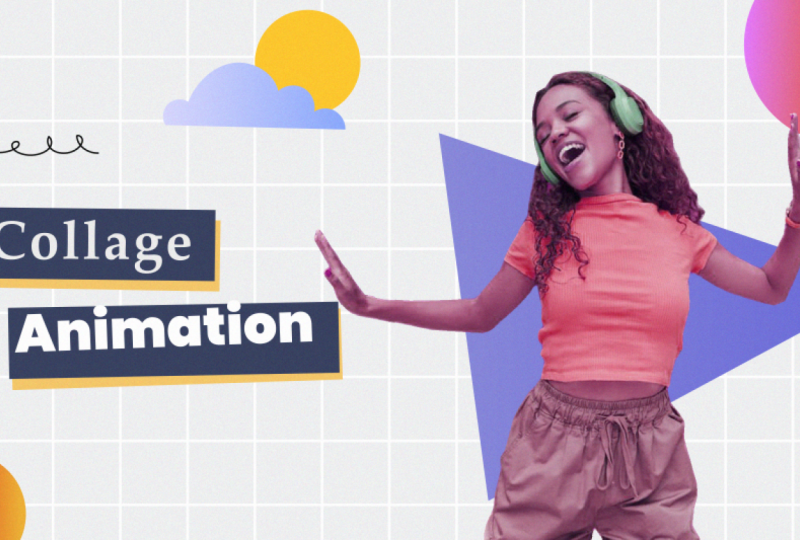
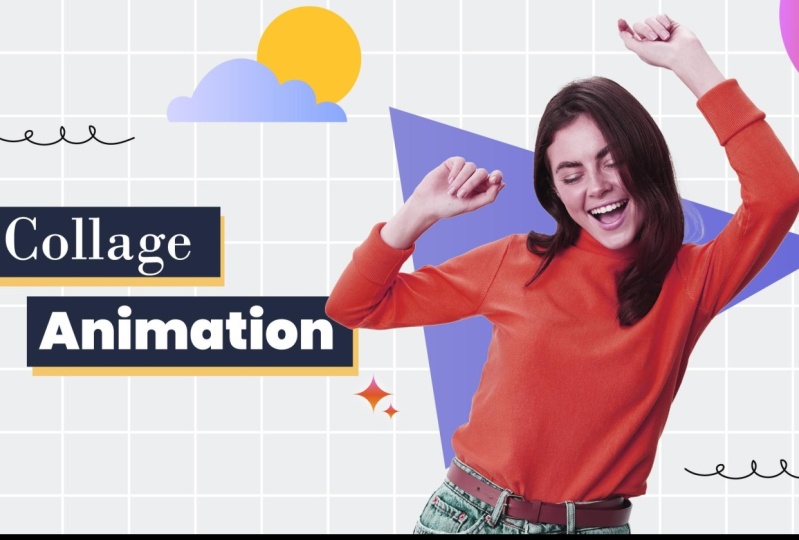
3. Cutting Out Images: Hand-Made Look: If you take a look at
the course project, you'll see that it includes both real images
and vector designs. The reason is simple. I wanted to create a
fun and modern design by mixing different
types of content. In this lesson, we
will learn how to crop images easily and quickly. First, we need to download
the image we want to crop. You can download it from
websites like Free Pick, Pixabay or Pexels for free. You can also create
an image with artificial intelligence
if you prefer. After downloading the image, we open it using
Adobe Photoshop. There are several ways
to crop the image. This method is ideal for those who want an imperfect
handmade look. We start by unlocking the layer by clicking
on the lock symbol. With the layer selected, we choose the
polygonal lasso tool. Then by clicking around the
image, we start cropping it. We are not aiming
for a precise crop since we create an
animated collage. The goal is to create
a visual effect as though it had been
hand cut with scissors. Double click to
close the selection. If we want to remove
parts of the selection, we go to selection options and choose subtract from selection. Then we select the part
we want to remove. Once the selection is finished, we use the keyboard
shortcut or command J on Mac to create a new
layer with the cropped part. If we deactivate
the layer below, we can see our selection. It's that easy.
4. Cutting Out Images: Faster & More Accurately : All right. Now let's move
on to method number two. This method is much
faster and more precise, but remember, we
don't always need to be precise when
making a collage. It's important to know
the first method. First, delete the top layer and reactivate the
original image. We can apply the crop
in two different ways. In the latest versions
of Photoshop, when you select the layer, a menu appears, allowing you to automatically
select the subject. You can achieve a precise
crop in just a few seconds. Okay, I'm going to
deselect the image. The other option is to use
the object selection tool. With this tool, you can draw a rectangle around the object, achieving the same level
of precision as before. It works well even with images that have
complex backgrounds. Once you apply the selection, you'll see the select and mask. Option at the top right. From here, you can access many options to refine
your selection. I'm getting a notification
about a new photoshop version. I'll update it later so
it doesn't bother us. From here, you can
adjust the opacity of the selection
against the background, which is very useful when working with complex
backgrounds. You can also change
the view mode. I usually use the
overlay option, but feel free to try others. On the left, there are
various tools to add or remove elements or pixels
from the selection. For example, you can zoom
in on the design and use the polygonal lasso tool to
add parts to the selection. You can also remove parts just like we did in
the previous lesson. Let's zoom out a bit
to see how it looks. On the right, you can adjust different settings to
improve the final result. However, in this case,
it's not necessary, since we don't need
a perfect crop for creating an
animated collage. So we leave it as
it is and click. Okay, as in the previous lesson, we use the keyboard shortcut Control J or Command J on MAC, to create a new layer
with our selection. If we deactivate
the layer below, we can see the crop image
without a background. Now, let's create
a new document the same size as the animation
will make later. Create a document
of 1920 by 1080 pixels with a resolution
of 72 pixels per inch. Name the document
and click Create. I forgot. Very important. In background content, you
have to select transparent. Next, go back to the
previous document and drag the cropped image
into the new document using the selection tool. With the keyboard shortcut
Control T. You can resize the image by
dragging from the corners. But there's a faster way. From the top menu, you
can scale down the image. For example, I will resize it to 30% and position it as desired. Now it's your turn. I encourage you to download any image, whether it's a
person, an animal, a building, or anything
else you like, and try cropping
it using either of the two methods we've
covered in the course.
5. Vector Files: Hello, in this lesson. We will prepare our
vector designs to animate them efficiently
in after effects. I used Adobe Illustrator
to create the design. You can download the
illustrator file from projects and resources. The organization is
fundamental in animation. This will make our
work in after effects more efficient and
help us work faster. If we open the Layers panel, we can see how we have
separated our design. The idea is to separate all the elements we're going
to animate into layers. Even though the
circles will be placed in the corners in
our final animation, we introduce them
within the canvas to prevent them from being
cut off when animating. We will position them correctly
in after effects later. It's also important that the
doodles are created with a basic stroke to work on the animation will create later. When we start animating, you'll better
understand why we need to separate all the
elements by layers.
6. Adobe After Effects: Before we start
animating the projects, let's get in touch with the
after effects interface. The first step is to
create a new composition. So go to composition,
new composition. Open a new 1920 by 1080, composition at 24 frames, give it 10 seconds, and name it. As a second step, we will import our A illustrated design
to import a file, go to file, import, file. When we import a layered file
in the import as option, we must select composition
retain layer sizes. As you can see, a
composition and a folder with layers
have been created. We are going to work
on the composition. First, drag the
imported composition into the main composition. Let's take a quick look at
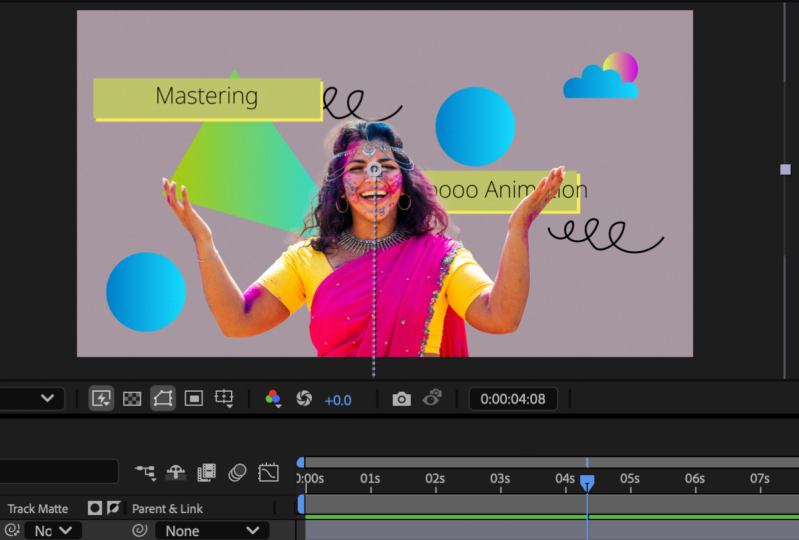
the after effects interface. The panel, where you see
the design is the viewport. This panel shows the results of our designs and animations. At the bottom, we can
see the timeline panel. This panel is where
we will spend more time creating
our animations. From here, we can easily modify the transformation
properties of the layer. With the new after
effects updates, when selecting a layer, a new panel called Properties
automatically appears. I'm going to enlarge it a bit
so you can see it better. This panel allows us access the different configurations of the layer from a single panel. If you have the latest
updates installed, and you can't see this panel, you can open it from windows
properties. But don't worry. You don't need to have this
panel to follow the course. If we look to the left, we
can see the project panel, where all the
compositions we create and all the files we
import will appear. And at the top, we can
find the essential tools.
7. Essential Tools: In this lesson, we'll look at the most important tools
we'll use during the course. Let's double click to enter the collage Animation
composition, and I'll show you how the
different tools work. The selection tool allows us to select and move elements
and resize them. If we hold down the shift key
while adjusting the size, it will maintain the
proportions intact. The hand tool allows us to navigate within the
composition panel. With the Zoom tool, we can
zoom in or out of the image. Clicking will zoom
in and holding down the outt key while
clicking will zoom out. The rotation tool
allows us to rotate the selected objects
around their anchor point. We can change the anchor points location using the
pan behind tool. Notice that the
rotation will behave differently depending on where the anchor point is located. Now let's see how to access the main tools with
a touch of a key. Press V for the selection tool, hold space for the hand tool, z for the Zoom tool, for the rotation tool, and y for the pan behind tool. Before we continue,
let's save our project. Go to file, save, and simply save your project
in the desired location.
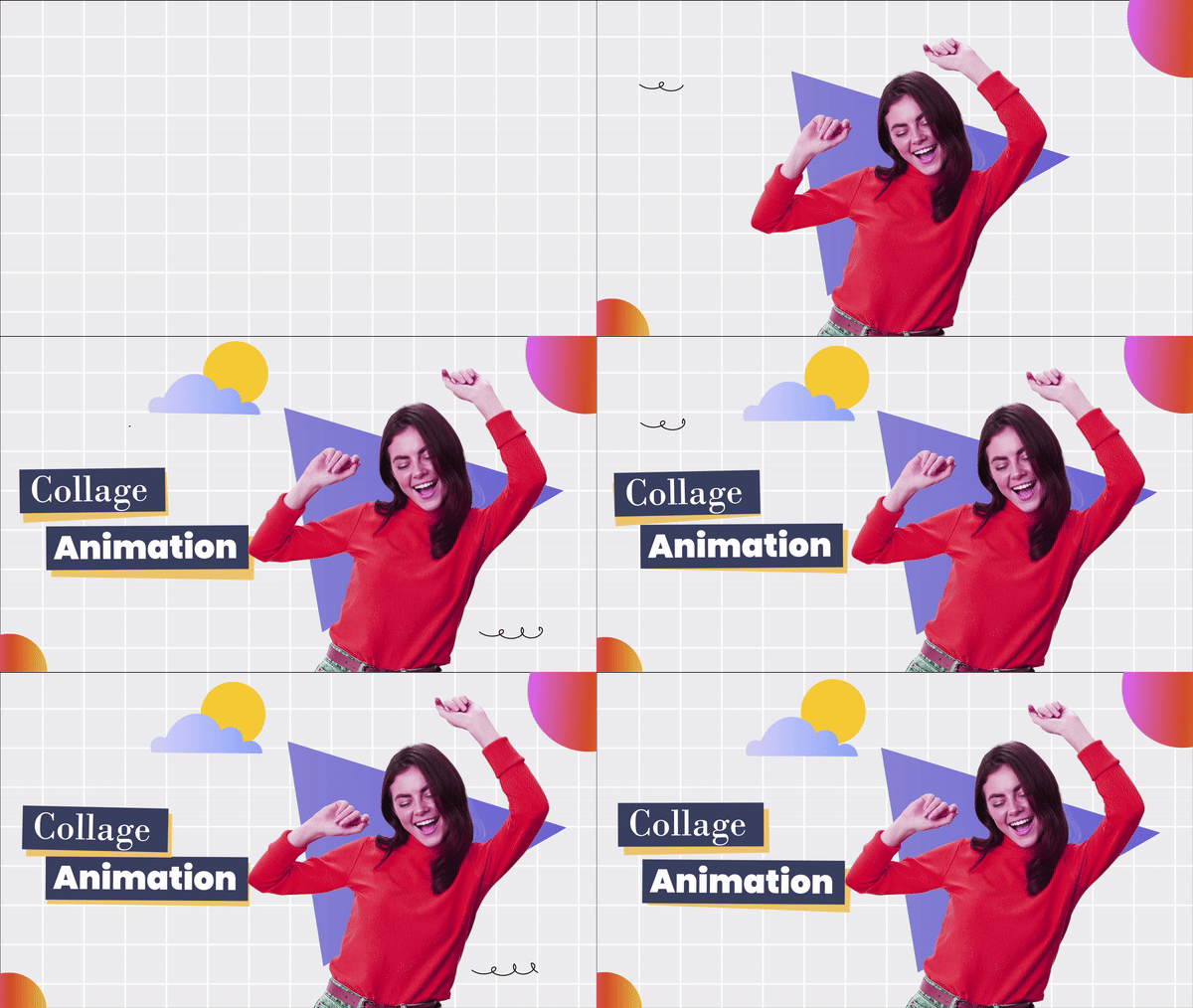
8. Adding Motion to Graphics: L et's begin with the
most exciting part. Bringing our
illustration to life, we are going to import
the photoshop file and drag it above
the other designs. In this case, it's a design with a single layer so we can
import it as footage. In the pop up window, click and drag it above
the rest of the layers. I've decided to use
a different image than the one we
previously selected. Although it's similar,
I prefer the pose of the arms in this one because they are separated
from the body. To work more comfortably, I'm going to drag
the circles just below the dancing girl
and the triangle. If you want to select
multiple consecutive layers, select the first one,
hold down the shift key, and then select the last one. If you want to select
multiple layers that are not consecutive, hold down the control key. Click on the solo option for these four layers so that the rest of the layers
disappear for now. Now, as we've seen, we
select the happy girl, the triangle, and
the two circles. Press the key to open
the position property, move to around the second
one on the timeline. You can see the time counter here and click on the stopwatch symbol
to create a key frame. Key frames are markers in
time that allow you to tell after effects where you want to change the value for a layer. Position the girl
and the triangle in the center of the screen and place the circles
in the corners. Then go back to the beginning of the timeline and
move all the layers. Move the girl down off the
screen, the triangle up, off the screen, and the
circles out to the corners. By moving these elements, a keyframe is automatically created at the start
of the timeline. If you preview with the
ero key on the numpad, you've created your
first animation, you just have to tell after effects where the
animation starts, where it ends, and
at what moment. But the movement is
too abrupt right now. To fix this, select
all the keyframes, right click, and choose
keyframe assistant. Easy Ease. If you
preview it again, it looks much smoother now. Next, move to the
second three and create another keyframe for
the girl and the triangle. To create a new keyframe without modifying the layer
values, click here. Move forward 1 second, select both layers, and
move them to the right. Now we can turn off the solo option to see the other layers. At the second four, which aligns with the last key
frames we created, select the cloud and the sun. Press P to open the
position property and click the stopwatch
to create a keyframe. Move back 1 second and
move them off the screen. Please do the same
with the signs. But this time, we
need an extra step. Notice that each sign
have two layers. The sign with the deck and
the yellow background layer. We want the yellow
background layer to follow the
movement of the sign. So from the parent
and link option, link the collage background
layer to the collage layer and the animation
background layer to the animation layer. Now, if we move the signs, the background
layers will follow. Select the two signs and
open the position property. At the second four,
aligning with the other animations,
create a key frame. Move back 1 second, move the collage
sign off the screen, and place the animation
sign behind the triangle. Select the key frames and apply easy ease with F nine
to smooth the movement. Let's take a look at
how it's coming along. Perfect. I don't want the animation sign to be
visible from the start. To fix this, drag
the left edge of its layers to the point
where the animation starts, which is at the second three. And we preview again. In the next lesson, we will continue bringing
our project to life.
9. Animating the Doodles: Let's continue
animating the scribble. To create the animation, we need to convert the Doodle one layer into a shape layer. To do this, right
click on the layer, create, create shapes
from vector layer. Next, go into the
shape layer options. Click add and apply trim paths. Create a keyframe
for end and start, setting their values to zero. Move forward about 1.5 seconds and increase
the value to 100%. Then move the keyframes applied in start to achieve
the desired effect. Select all the key
frames, right click, and apply easy Es to
smooth the movement. If you preview, you'll
see our animated doodle. We want the animation
to play two times so duplicate the
layer with Control D, and move it in the timeline. Then select both layers
and duplicate them with Control D or
command D on Mac. Drag them above the
other shape layers and move them to the
bottom right corner. Also offset their
timing to avoid overlapping with the animations
of the other two doodles. To finish, we are
going to deactivate the doodle two layer that
we had as a reference. Let's preview again. Great.
10. Character Animation: In this lesson, we will learn a simple way to animate the
image of a dancing girl. To animate our character
quickly and easily, we'll use the puppet pin tool. With the layer selected, click on the puppet pin
tool and place pins at different strategic points. Try not to create too many pins to keep the animation
more natural. In this case, we've placed
a pin on the pelvis, at the joints of the arms, and at the top of the head. When you create
these puppet pins, a keyframe is
automatically generated. If you select the layer
and press the key, you can see these keyframes. I'll enlarge this window a bit and now select and
delete the keyframes. Great. Now our character
is ready to be animated. From the deform option, we can select the puppet
pins we've created. When you select the
pin, it turns yellow. We want to animate all the
points except these two. To animate them quickly, we'll apply a simple expression. Hold down the old key and
click on the stopwatch. Then type the code you
see on the screen. With this code, we tell after effects to create
random movements. In this case, we've set it
to move with a frequency of two and an amplitude
of 15 pixels. Let's preview it. You can adjust these values as you like. Once applied, copy the
expression with a right click. Then paste it with Control
V or command V on Mac into all the puppet pins
where you want to create an animation. It's that easy. Remember, at this point, we don't want to
create an animation, so continue with the
next puppet pin. Simply select and
paste the expression. Now, if we preview oi for the
puppet pins on the wrists, we can increase the amplitude of the movements to make them
a bit more exaggerated. Let's increase the amplitude
to 30, for example. And do the same with
the other wrist. Let's take another look.
In the next lesson, we'll continue improving
our animation.
11. Wiggle Animation: In this lesson, we are going to continue improving the
look of our animation. Open the position of
the triangle and enter the same expression as
in the previous lesson. Remember, to create
an expression, click on the Stopwatch
while holding down the old key and
type the expression. Now, to speed things up, right click to copy
the expression. Select the rest of the layers, except for the background
layer and paste the expression with Control V. Remember, to select multiple
layers at the same time, hold down the Shift key. Let's see how it looks. Now, we just need to
animate the rotation. Go to the triangle layer and create an expression
for its rotation. But this time, reduce
the amplitude to two, so the movement isn't
too exaggerated. Again, right click to
copy the expression. Select the rest of the layers, except the background layer and paste the expression
with control V. If we preview,
there we have it. The project is looking great. We just need to add
the final touches to achieve the stop motion
effect we're aiming for.
12. Stop Motion Effect: In this lesson, we will add the final touches
to our animation. Let's start by
adding some noise to our animation to give
it a more vintage look. First, let's create
an adjustment layer. Go to layer, new
adjustment layer and make sure to place it
above the other layers. Adjustment layers are used when you want to
apply effects to multiple layers without adding the effect to each
clip individually. With the adjustment
layer selected, go to effects noise and
grain and select noise. We can apply an amount
of noise around 7%. D. Next, to achieve the
stop motion effect. With the layer selected, go to effects, T,
posterize time. Set the frame rate to six. This means the
animation will move six times per second instead
of the initial 24. Let's preview to
see how it looks. Great. By reducing
the frame rate, we give it a more fun, stop,
motion like appearance. To finish, let's adjust
the colors of our dancer. With the layer selected, go to effects, color correction, and select the hue
saturation effect. You can change the master
hue value to your liking and reduce the saturation value to give it a more vintage look. And if we preview Voila. Our wonderful animation is now ready to export and
share with everyone.
13. Render: Now that we have our projects
ready, we can export them. For this, we go to
composition and select add to Adobe
Media Encoda. Media encode helps us export
projects more efficiently. First, we choose the codec. In this case, we will use h264. It exports the video in MP four, the most used
format for the web. Regarding the output resolution, we can choose the match source, High or medium bit
rate option to avoid mistakes and export it in the same size we have
worked on the project. Finally, we choose the
location where we will export the video and
give the file a name. To finish, click on
the play button here. And with this, everything
would be ready. Once the process has finished, you can open your
video and start sharing it on your
social networks.
14. Final Thoughts: I want to congratulate you
for completing this course. Throughout these lessons, you have learned
a lot of things. Cut out images in
a obi photoshop. Prepare your designs
in a Roby illustrator. He the after effects, interface works, the
most important tools, create animations, apply
expressions and effects, and some tips to speed
up your work process. And all this in just over
3 minutes of the course. Now is the perfect time to apply everything
you have learned during the course by creating a Class animation from scratch. You can use the course files
or animate your designs. Go ahead and upload
your projects to the course project gallery and tag me in your Instagram post. I value your opinion very much. If you like the course, please leave me a review. I'll be very grateful.
Happy learning.
 Guillermo Ortega, Creative Director