Transcripts
1. Course Intro & Welcome: Hey, guys, I'm Blade Calhoun, and I'm glad you decided
to take the course, and I hope you find
it very helpful. This training cover is everything you need
to know about using the Black Magic
camerap and how to shoot professional
quality video with it. I've been working with mobile
video tech since 2010, and I've run a YouTube channel
on that topic since 2012. So I have lots of experience with a wide variety
of camera aps, now, including Black Magic. I also use traditional
Black Magic cameras and, so I am very familiar
with their ecosystem, and I really do like it. So there are a few things I want to mention before
we get started. First, beyond going
over the controls of the app and how to
shoot video with it, I will also be
giving my opinion. So that means some of the things I'll talk about are subjective. I would suggest
having your phone with you and the app
open as you watch. That way you can
pause and replay the different sections to try
out the different features. The best way to learn is
by actually doing it. In this course, I use
an iPhone 15 Pro Max, but you definitely don't need this exact phone to use
the Black Magic Hamer. Use whatever iPhone you have. Although some features I
go over are exclusive to the iPhone 15 or later depending on when
you're watching this course. Please make sure you've
installed and are running the latest version of
the Black Magic camera app. Remember, two, it's a free app. Right. Now with that out of
the way? Let's get into it.
2. App General Overview: Blackmagic recently updated
their UI, very subtly, moved a few things around, but I just wanted to let
you know that some of the videos you'll watch will have a slightly different UI. But overall, it's basically the same look and functionality. Just some things have
been moved around, and a few new features
have been added, which I will detail
throughout the course. This per section, I am
shooting in front of a basic background just so
you can see what I'm doing. And later when we get
to the H two section, I'll have some sample objects
in front of the camera. But initially, I'm
just going to do a general overview of the
app interface and controls. The first thing you'll see
is the app is fairly clean. The interface is fairly clean. When I say clean, I
don't mean there's information on the screen.
That's good, though. You want that information,
but everything is kind of laid out in a very
clean way, I think. And I like that. In particular, compared to other apps. And the nice thing is not only is it laid
out in a nice way, everything is actually
right here at your fingertips really
on the main screen. So you don't have to go into other men to do
most of the stuff. And the main menus are over here on the right. We'll get
to that in a minute. But just looking
at the interface, we'll start from left to right. You've got your lens.
The information below that is showing a ut, which I'm using right now. Luts are used when you're using a log profile to
show as a preview. And again, I'll talk about
that more in a minute. You got your frames per second. I'm shooting 24
frames per second. You've got your shutter.
I've got it set to angle. You can use angle or shutter speed, which
would be a fraction. Next, you've got your iris or your aperture. That is fixed. And this particular
iPhone is F 1.8, but you can't change that like you can on a
traditional camera. And that's an important
point to remember. Then you've got
timecode and ISO. ISO and shutter is how
you control the exposure. You've got white
balance across the top. Ten is related to white balance. You've got your resolution, which is four K, and then you
got your battery indicator. And then at the bottom
left, you've got a histogram and then your storage indicator
showing how much is left on the phone or if
you're using external drive. And then this is audiometer. On the right, you've got your record button
in the middle, and then you've got some
other controls that, again, are right at your
fingertips that are ones you will
use quite a bit. And then on the
far right, you've got access to your camera, which is what we're
on right now. Your media, which is your
library, and then chat, which is if you're
using Blackmagic Cloud, which we'll talk about later, you could chat with people editing your footage in DaVinci
Resolve or what have you. And then you've got your main
settings menu down here. And so, again,
everything is laid out. You can just quickly look at the screen and know what's up, which again, for a lot
of apps is not the case. If you've ever used a Blackmagic Camera,
traditional camera, like the cinema camera,
the pocket cinema camera, this has a very similar
layout to that.
3. Screen Controls Pt 1: So now that I've gone over
what each of these things is, we'll see how you
can control some of these from the screen and then which ones
you can't control. And then what they actually do. So I'll start with
the lens picker. Right now, I'm on
a 24 millimeter. You can actually click that. A menu pops up over
here and you can choose the actual camera
slash lens you want to use. So I'm on the y, which is a 13 millimeter,
24 millimeter. And then on this
particular phone, I've got a five times
a 120 millimeter, and then you have the front
camera, the selfie camera. And now, if you have
a 14 pro or later, Blackmagic has added
the two times lens, the 48 millimeter virtual camera into the app, which is great. I use that all the time,
the native camera app. This way, you can push in
two times on the sensor, and you don't lose image quality like you do with a digital zoom. It's also nice if you're using a third party lens like
an anamorphic lens, you can push in and get a tighter shot with the same lens. And again, you're not
losing image quality. You've got your lens picker and Zoom in one button now.
This is all the same. You got the same lens
picker, which is nice. But then the Zoom now
is integrated in there. And so that is different. And then another
thing they added is down here at the bottom, they have what's
called Doli Zoom, but you can hit presets and
it zooms in automatically. Now, keep in mind, this
is a digital zoom, so you lose quality
when it's doing. But I guess they're calling it a dolly zoom because
it's automated, then it moves like that
instead of being a Snap Zoom. So, the other thing that
you can do as part of that, I had it set up previously. You click on the clock
here, the timer, and I had it on
2.5 seconds so you can make that go faster, go to 0.5 seconds. So now when you hit it,
it kind of looks like a snap zoom so that is nice. Or you can do the
opposite way and go into, I'm not sure how far,
I guess, 10 seconds. That would be a long Zoom. So we'll come out from that, and now I'll hit two times and you can see how
slow it's going. Or eight times, you can see
how slow it's going in. So yeah, that could come in pretty handy, depending
on what you're doing. I don't zoom a lot, but
if you need to do Zooms, you're doing sports
or documentary or maybe news and you need to zoom in on someone and have
complete control. I think that's what
it's for. I would call that more of an automatic Zoom, more than a dolly zoom. So neither here nor there, that's a pretty cool new
feature they've added. And then to close that menu, you hit that again.
Same with frame rate. You can choose 24, 25, you can go up to 60 frames per second shooting four K. If
you're in a pal country, you could shoot 50 or 25 or 30. You could shoot 48
per slow motion. Anything over 24
frames per second, if that's your base frame rate, would be considered slow motion. But for most things, I
shoot 24 frames per second. Now, if you're in the
US, you might shoot 30 or if you're in a Po country, you might shoot 25.
That can be subjective. If you're making a movie or a short film or
anything narrative, you pretty much want to
shoot 24 frames per second. Now the shutter
works the same way. I've got it set on
shutter angle right now, and in a minute,
I'll show how you can switch that
to shutter speed, and that would be a
fractional number, which if you're used to using mirrorless cameras
or smartphones is probably what you're used to. But shooting on shutter angle is nice because whenever
you leave it on 180, it will always stay at that particular shutter
speed if it's locked, meaning it will keep the
180 degree shutter rule. And if you don't know
what that is, basically, if you're shooting 24
frames per second, you would want to double that, which would be 148. And one 48th is 180
degrees shutter. If you're shooting 30
frames per second, your shutter speed
would be one 60th. But again, the nice thing
is, leaving it on 180, you can always know
your shutter speed is correct for
proper motion blur, and you don't have
to do any math. And to lock that, you've
got a padlock icon, and so you just hit that
and it'll stay locked. And I'll get into more details
about that in a minute. And then to close that menu,
you hit shutter again. Related to shutter, especially
on a phone is your ISO. And your ISO is basically digital gain that helps control the exposure
because again, the Iris is locked, and so to control exposure, you shutter and ISO. And here, you've got ISO values
going all the way up to, I think, 3,000, I don't
know, 5,252 80 here. You would never want to do that. Regardless of the camera, you want to keep
your ISO pretty low. And on a phone, that's
even more important. Because of the small sensor, you want to make sure that your ISO is as low as it can be. And these ISO
numbers don't relate the exact same as they do
to a traditional camera. Like in a traditional camera, you might have a
base ISO of 800. On a phone, the base ISO is usually 55 on this
particular model, it is. On some previous
generation phones, it goes down to 22. And so in the past, I
always recommended keeping your ISO at 100 or low. And
that's still good advice. But with the newer generation
phones in the last, oh, really since the 13, the 12 or the 13, you
have more room there. You can go up to ISO
400 or even more, depending on the shot, and
your noise is pretty good. But you still want to
be cognizant of that. And again, we'll get
into more of that later. And then white balance, you
can lock the white balance, which is what I have right
now. Same little padlock. You can control the kelvin manually depending on the scene, or what I tend to do
more is choose a preset. That's tungsten, fluorescent, shade, cloudy, and daylight. 5,600 K is what I tend to shoot at most, even
when I'm inside. Again, it depends
on the scenario, but most lights you buy will
be balanced to daylight. Although again, Tungsten
can be used a lot as well, but for the most part,
5,600 is a good one to use. And the one thing I would note is I would rarely ever use Auto. You can use Auto
but then lock it. That way, it's set to what
the camera thinks is correct, but then when you're moving
the camera, it won't change. White balance shifts
are notoriously bad and make your footage
look unprofessional. Tint, the default is ten,
and I leave it there. I've really never
messed with that, because if we're
gonna mess with tint, which is the magenta
or green cast, I usually do that
in post production. So leaving it on ten as a default seems to work
pretty well for me. Now the time code,
you don't have any touch control
or for the storage, but you do have for audio. So you click on that and you can see your
meter full screen. However, when I'm just using
the iPhone microphone, you can't control the game. I wish you could.
And other apps you can even with the
iPhone microphone. But here, it's automatic,
no matter what. The way you would
get manual gain is to plug in a third party mic, and that way you would
have full control. And we'll talk more about
audio a little bit later. But it is nice to be able
to see that full screen. One thing you can
now do, though, with the histogram
is you can now click on the histogram and
it goes full screen. Before you could only see it down in the very
corner of the screen. And if you use histogram much,
that really wasn't ideal. It's really pretty small,
but now it's nice. You can make it full screen, and then you can
control the opacity. I think leaving it 100 makes the most sense
to me, though. The other thing
on the screen now is you have three
dots over here, and you've got presets
right here on the screen. I don't have any setup right
now, but if I had them, you could do that, instantly set them or you can create
one right here as well. The slate, they've
moved here now, too, and it's really metadata. So you can come
in here and enter this stuff depending
on what you're doing. If you're shooting a
movie, for example, or a commercial
or a music video, this would probably be
something you might want to do. But you can do the production
name, the director, camera operator, and
that kind of thing. And then this metadata
goes into the clip. So to me, this is a
little bit cumbersome, and even on my traditional
Blackmagic Camera, I rarely use this, but it's really nice to have if you're shooting a movie or a
music video or a short film, I would typically just slate every shot with an actual slate, and then you'll have your
clip sorted by time code, which can be time of day or it can just be sorted
by the date you shot it. Slate used to be in
the controls here. Now it's over here by itself. And then the bottom
button, which is great out is the remote control icon. If you're using this
in a camera control or a recording situation where you're using multiple devices, multiple iPhones or an iPad. And then to get rid of
those, you swipe them away. Staying here on the main screen, they now have function buttons that will come up here
on the right hand side. By default, they're not on. You have to go into settings, and there's a new menu setting. Called function buttons. You come in here and
you turn those on, and then you can select a preset or you can choose
whatever you really want. But when you come
out here, you'll see them right here
on the screen. Three dots. Click on it. You've got three
function buttons. Again, I haven't
programmed those yet, but then you can program
with whatever you want to have quick access to
that particular feature. Swipe to make that go away.
4. Screen Controls Pt 2: And now we'll talk
about these items along the right
side of the screen. The one in the middle obviously
is your record button. You hit that, and now
you're recording a clip, and you can see that
the numbers turn red, and then you also get a red
indicator on your storage, and your storage shows how much footage you can shoot
on this particular phone. And if you had an
external storage, which we'll talk about later, it would show that there as well. But along here is a
lot of great controls. And at the top here are your monitor controls
or your overlays. The first one is zebras. I have my zebras
on, but right now, you're not seeing them because I have nothing overexposed. What zebras do is show the areas of the
frame that are too hot, depending on how
you have it set, I leave it out 100 often, but sometimes I'll
bring it down to 95. And you can go lower
because that way you know that that
particular IRE level, meaning that level white, you'll get zebras there, and you typically want
to have the zebras there and then just dial
them back ever so slightly. That way you're protecting
your highlights. But you can turn those
on and off right here. I tend to lead those on.
Next is the focus peaking. And focus peaking does
exactly what you would think. It shows the stuff that's in focus and it outlines it in red. And you have control over that, too, in the settings menu. Now, peeking on a
phone doesn't work exactly the same as on
higher end cameras. It's contrast based, and, like, right now, you really can't
even see it on the wall. Later, when we get into
more of the how to stuff, I'll have some objects here, and I'll be able to
show that to you. Just know that focus peaking
is a great tool to use, but on a phone, it
isn't 100% accurate, but it's still a nice option. After that, you've got guides. And right now I'm using a crosshair in the
middle, which I like. Helps you line up the shot. Center stuff up easier, especially because
you've got stuff on the side of the frame
when you're shooting. And so sometimes without that, you don't really know
where the center of the frame is quickly. But on top of that, you've
got an overlay for a grid, if you want to use
the rule of Thirds. A lot of beginners use that. Of course, some people that
are experienced use that. I don't like it, but you can definitely
use that if you want. And then you've also got a
center dot, if you want. You could use that
instead of that, have the dot, or you
could have them both on. And then you've got this unique
feature that's a leveler. And so right now, it's
showing that I'm tilted down because if both lines were blue, you would
be leveled up. But right now I am
centered up vertically, but on the horizontal horizon, I'm not exactly level.
So those are the guides. And then one thing I
do use quite a bit, depending on what I'm doing, are these aspect ratio overlays. So here you can turn these
on and you can see on the screen now that I have
a scope aspect ratio there. So basically, when you're
shooting 16 by nine, but if you're going
to reframe in post production to
a wide screen look, this comes in really handy. And no, what I just did there on the screen is a good tip. You can swipe down and you pulls the data
away and swipe up, and the information comes back. But the guides, you've got all kinds of settings throughout. You've even got four by three, the old TV style, and you've even got
vertical video, nine by 16 if you wanted it. And then you also have a
way to turn on Action Safe. So this really comes from
the broadcast world. I don't use this much in the
mobile filmmaking world, but it's nice to have
that if you need it. And it's got different
settings here. I'm at 85% right now, but you can push it
out or bring it in. And it just gives you a guide when you're
framing a shot to make sure stuff
doesn't go outside that depending on how you're
delivering your project. Again, for most things, especially YouTube, you don't really need to worry
about that anymore. But if you're doing
anything for broadcast, then you do need to
worry about that. And so Actionsafe is a
nice feature to have. And then this feature
is called false color. False color is a way
to check exposure. On the side here, there is a chart showing you what
the colors represent. Basically, the middle,
which is pink, gray, and green is good. If you're too overexposed, it'll be red, and if
you're underexposed, it'll be blue or purple. Very nice to have. You're
setting up a shot. You're lighting a
scene, flip this on, gauge what you think
the best exposure is, and then turn it off. Another new feature
they've added, and they've included it in
this menu on the screen is you now have a torch,
and that's pretty cool. So you can turn it on, and now you have a light's
using the iPhone flashlight, and you can control
the intensity. Other apps have had
this for a long time. For whatever reason,
Blackmagic didn't add it to their app,
but they've got it now. I like seeing that.
I don't think I would use that a lot,
but it is nice to have. Blackmagic has
moved the ut button and added some
functionality to it. I'm talking about here
on the main screen but also in the settings. Overall, it works the same. It's just been
refined a little bit. And again, they've added
a few things to it. So now with the ut, they've changed the location of the button and also
the functionality. You can turn an on
or off right there. I am shooting Apple
Log, so now it's on. And now, this is
actually pretty cool. I'm using my ut right now tonight phonographers
Dog Natural ut, but then you can scroll through other Luts that
are on your phone. And several of these, I
think there's actually 12, if I'm not mistaken, are new
Luts provided by Blackmagic. Now, I've got them
turned on by default, but you can turn those off. I'll show that in just a second. The other thing you
can do now from the screen is just
touch this button, and now you can see how that
outlined in red over there. Now, that means you are baking
that lut into the image, which you would almost
never want to do. The only time I do that
is if I'm shooting Apple Log in Hot 265, and I want to quickly bake in a ut and shoot footage
and just upload it. I'm controlling the footage, I'll color grade in
post production, so I would never
have that turned on. But it is nice it's
on the main page. And so then I'll show you in the menu,
you go to the Lutz. Now, here's the ut manager, and here are the Blackmagic luts that they installed
on the phone. You can either turn them all off or you can individually
turn them off. You can, of course,
still import Lutz. That's what I've done here
and use any let you want. But then Blackmagic
has added their own. And again, they've
just simplified the menu and made it all right at your fingertips,
which I do like.
5. Screen Controls Pt 3: Now we'll look at
the next one down, and that is focus. So focus on this app works a little bit differently than
it does on other apps, in particular, if
you're coming from FilmicPro or Beast
Cam, et cetera. So when you're in Auto, let me go back to
shutter and unlock that. And you tap on the screen, you get one radical, kind of like you do with
the native camera app. So you've got auto exposure and auto focus in
the same radical. It's just a little
different way of working compared
to, again, FilmicP. Film a Pro, you
have two radicals. You have one for focus
and one for exposure, which I personally like better. And I hope Blackmagic will implement that in the future
or make it an option. But so if you're
shooting at Auto, then you do that and
your shutter changes, obviously, because you've
switched the settings. However, if I want
to have that locked, which I do more times than not, I'll put it back in
180 and I'll lock it. Now when I go back to focus, I can either use Auto. And so right now Auto is on. But if I touch the screen, then I can also focus, and it will pinpoint
focus, which works well. But the one thing you
can't do very easily, if you had something close
to the frame, for example, and I wanted to hold
it down and lock it, it then affects your
shutter if you're not careful because now
the AEAF lock is on. I guess my point is, while manual control is
very important, I know I really
haven't talked about manual control as much, but that's what
you're getting when you're getting a
third party app. And that's what helps you create professional looking video
is using manual control. But like a lot of people do
with their Mirrors camera, running auto focus is great. Auto exposure and
auto white balance, not so great. Never do that. However, you want to
lock it on an image. It's just a little bit
of a different way to do it here than other
apps that I'm used to, and that I think a lot of
other people are used to. I'm used to the two radicals, and here you don't have that. But in this situation, if you're running and
gunning, so to speak, just moving around and you've
got your exposure locked, then you would want
to go to Auto, and now you're
shooting with Auto. And that can come
in pretty handy, depending, again,
what you're doing. Blackmagic now also
includes the ability to do automated focus
pulls or rack focus, which means you're
changing the focus from something close to the camera
to something far away. And it's hard to
do with a phone. And so having an automated
way to do it is great. Other apps like
FilmiPro have this, so it's great to see
Blackmagic implement it, too. And I go over how this works in the advanced section
later in the course. Alright, now, moving
down below that, we have the exposure control, and the exposure control has caused some confusion out
there, myself included. Basically, it is an overall master control
for the exposure. Some people have thought this was an exposure
compensation, and it works like that
in some instances, but more times than not, it is just a master control for
your overall exposure, or it's how you get your
phone into full auto. Let me show that first.
You click Auto obviously, and now you've got Auto
ISO and Auto shutter. So anything you do
with the phone now, you can see, as I
put my hand there, the exposure is changing. And so that's an
automatic setting. I would rarely use that, but it is good to have
just in case you need it. If you turn Auto off, you still have these
exposure controls, and these control up
to three stops below, three stops under or
three stops over. And again, this is
like a master control because as you see
when I'm moving this, it's changing the
ISO and the shutter, which for some stuff works fine. For other stuff, it doesn't. And I'll get to that
in just a second. But let's say you are in
Auto, and if you click Auto, then you can set the exposure and have an
exposure compensation in quotes. So now, whenever it's in Auto, it will auto adjust
the exposure. However, it will still lower it by negative 0.7
as I have set right there. Which in my experience
is a good thing because the iPhone when you're using auto settings tends
to overexpose. The native camera app
does the same thing, and the native camera
app actually has an exposure compensation
tool similar to this. But of course, the native
camera app is a full auto app. You can manually
lock the settings, but you can't manually set the settings like
you can in here. And so if you take
it out of auto, then it's just a master control for your overall exposure. Hoping this makes sense, because here's what I'm
mainly getting at. Let's say you want
to lock the shutter, which you do more
times than not. So I've got the shutter
locked at 180 now. So now when I click on
the exposure control, now it's turned into
an ISO control only. You don't have the same type of exposure compensation
looking dial. And this is the
way I would shoot more times than not
because you want to lock that shutter for
audio motion blur and then because you
have a fixediris, this particular camera is a 1.8, you would adjust your
exposure via ISO. Now, the only thing
this doesn't have, like a traditional camera would, is it doesn't have an auto ISO when you have the
exposure locked. You have to go into full auto. And so that is a drawback, and I really think
that's a limitation of the phone more than the app. Maybe they'll figure out
how to do that one day. So right now, if you
want to ride the ISO, you have to do it manually. You can't do it automatically once you have the
shutter locked. Again, hopefully,
that makes sense. The last thing to note,
and this is nice, when the shutter is locked, the ISO is also locked, too. So I said there's no auto, but it also doesn't change. And so there's no need to lock both the shutter and the ISO. The ISO is just
automatically locked. But if I take that out of
lock the shutter and go back, now you can see I've
got what I would again call an exposure
compensation looking dial. But in reality, it is a master control for
your entire exposure. In a recent app update,
they've slightly changed the UI here,
too, but again, it still has the
same functionality, although the Zoom feature is now integrated with
the lens picker. It's a different icon,
and you also have some more control for what
they call the dolly Zoom. It's really just more
of an automatic Zoom. And then they moved the
stabilization down on the screen. Standard, cinematic,
and extreme. And in my estimation, this is similar to using
the native camera app, although it's interesting
when you turn it off, you definitely get a wider shot because it's not pushed in. The software is not pushed in. And again, this is hard to tell right now in this
particular setting. Standard goes in, but then
standard and cinematic and extreme are all pretty much the same as it relates to
pushing in on the frame. I think they're
exactly the same, but I tend to leave
it on standard. Now, if I'm shooting on a tripod and I want the most
crisp, clean image, and I don't want to
worry about any type of stabilization issues because
sometimes when you pan, especially if you're
using a third party lens, you'll get a little bit of lag. And so in those cases, I'll
turn the stabilization off. However, if you do that, you
definitely want to remember to turn it back on for
next time you use it, because I've done that
where I forget I go out and shoot some stuff handheld and it
looks really bad. It's nice, though, it's right
here on the main screen. You click it, and
you're good to go. But that's a general overview of the user interface and the basic functionality
of the app, which again, I really like. I really like the clean layout, and pretty much everything
I just showed you are the main things you'll use on a daily basis shooting
with this app. But of course,
there's a lot more as we jump into the main menus, and that's what
we'll look at next.
6. Media Tab: Alright, I've changed
the setup here. I've got a couple subjects in front from the DC
comic Universe, Batman and Wonder Woman. They will be my helpers for
this section of the course. And what we're moving on to now are the icons on
the right over here. I call them menus,
and they are menus, especially this one down here. These are all your
main settings, which we'll get to
in just a minute, but we'll start with media. And media is really
just your library. That is where whenever you shoot a clip, your clip is stored. Very similar to other apps in the way that they
show the clips. However, I will say that
I like in Black magic. I feel like the layout
in the design again, is very clean and
very easy to use. And so you can click on a
clip and scroll through it. Bud a place you want to stop, and then you can play
right there. Pause again. And if you want to
go to another clip, you just simply
swipe, which is nice. Now, one thing
that's interesting is when you swipe in here, if you look closely,
I've got a lut on there, and so when you first swipe, I shot Apple log. It actually shows the log image briefly and then goes to the ut. And now, just to be clear, the ut is not baked in. It's just a preview ut. When I go into color grading, I'll have the Apple log, which I then do color correction and grading and post production. Again, it's just nice
to preview it here. So now looking at the
desaturated milky image. Now, the other features in here are IPO. And so this is nice. It shows all the
metadata what this is, and it shows the proxy image, and we'll talk about
proxies in a minute. Whenever you record a clip, it actually records
a proxy as well. But then it shows the main
video, the original video, and it shows the specs, Per Rs 422, 24
frames per second. This is four K, shows the date. And then it shows information. You even have a spot
here if you want to add a note to give yourself
a note for later. And then it also says the location of where it was
shot if you set that up. That's an option that you can choose in the actual settings. It's nice to have that info. And you can also favorite
that too that way, when you're going
through your clips here, you know which ones
are your favorite, and you might only transfer certain ones
to your computer. Although, for me, I just
transfer everything. Some of this metadata stuff is great just to reference it, but I don't necessarily use, like the notes or
the favorite stuff very often or if at all. Of course, you can hit that, and you can air drop
it or you can save the video to your
phone if you want. I don't suggest doing
that because then it clogs up your Cloud backup. So for me, I do
everything in the app, and that is a
setting, which again, we'll get to in a minute about where to save the clips
when you're shooting. But again, you could air drop
it or with a newer phones, this is a 15 Pro Max. The best way now is to use USBC and then connect
that way to a computer. But if you don't have USBC, if you just got
one or two clips, I still use air drop.
It's just as easy. Zaps over to your computer. One thing you can do if you have a Black Magic Cloud account
is you can log in there. And then when I mentioned
the proxy files, those proxy files, as you're shooting or later
after you've shot, can be uploaded to the Cloud, and then back in your
studio or if you have an editor working in
another part of the world, they can start doing your edit. Now, again, I don't
use that a lot, but it is a pretty
cool feature for people that want to have
a more advanced setup. And truth be told, That is one reason this
app even exists is because Black Magic is trying
to sell people on Black Magic Cloud,
because that's not free. You can get a free account
that's a very small, I think it's two gigabyte, but then to do a paid account, it's like 15 or $20 a month, which if you're using that
feature a lot, is worth it. That way, the clips in
the cloud automatically, you don't have to worry about
transferring files either. And so really, kind of
like Da Vinci Resolve, their very nice color
correction and editing app. You can get a free
version of that. They also have a paid version that has more effects
and such in it. But the free version does a lot, and the whole point is they
are trying to get you into their ecosystem and you become a customer and start spending money, which is fine. That's absolutely fine because they'll give us a lot
of nice free tools. The other thing I
should point out, you can sort the clips in here. I do it by date and time. That makes it the most
recent clip it's at the top. You can do it by some other
metadata in here too. Time code might be a good one, but more times than not,
I use date and time. And then if you needed
to, you could log in to your Black
Magic Cloud account. And then if you're going to send multiple clips I was
showing earlier, you can download
or air drop clips. If you go into this
mode, you can select multiple clips and
then do your air drop, and it'll send multiple clips at a time. You can
close out of that. And then the last
thing here at the top, that actually opens up
other places on your phone, and this is my photos app to where you can see the
things on your phone, and you can actually import
those into the media panel, and then you can upload
that to Black Magic Cloud. And so that's an overview
of the media panel.
7. Chat & Settings Tabs: Now, below, the media is Chat, and Chat is again, part of Black Magic Cloud. And what that does is
it lets you chat with other people that
you're collaborating with on your project, your Cloud project,
that would be someone editing and
Davici Resolve. And so, again, I don't
personally use this feature, but for those that do, it's nice to have that
right here on the app. And by the way, I have
a section dedicated to Black Magic Cloud later in the course that you can
learn more about it. But below that is the
main settings menu. And this is really
the place you'll spend most of your time
when you're setting up. Although once you get
most things set up, you don't have to
go in here much. Again, as I went over
in the beginning, all your primary controls and functions are right here on the main screen, which is great. But your settings you'll need to access in particular at the
beginning of a project, and potentially during a shoot, but more times just
to set stuff up.
8. Record Menu: And so the first menu we'll
go over is the record menu. You've got your Codec, your
resolution, color space, time code display, whether you want to record a time lapse, then your controls for that and then if media drops frames. So we'll start at the bottom.
I leave that on alert. You can do stop recording, but I don't want to
stop the recording. More times than not, you're not going to have a drop frame. That really, to me, anyway, comes from their traditional
cameras that can happen. It might happen if
you're going out to external media via USBC, but in the camera, that's really not
going to happen. If you want to do a time
lapse, you would select that. Then you set up your interval. You can capture one
frame every two frames, three, four, ten, 1 second. Typically speaking, for me, I would do 2 seconds
to 10 seconds. If you're familiar with
the time lapse of clouds, that's usually about a two
to ten second time lapse. If you're doing something that's going to
take a long time, like maybe a time lapse
of a construction site, you might do every minute,
maybe even 10 minutes. That way you get one
frame every 10 minutes. And so if you're filming something over
a long period of time, that could work.
But play with it. Experiment. It's great that they have time laps
in the app, though. Timecode display, record run
is what it's defaulted to. And like that, it just records new time
code in each clip. So if you're doing
everyday stuff, I think that's more than fine. If you're doing
something long format and you want to
have a time of day, which is also known as
free run, pick that, and then your time code is going to be running
up here constantly. Like, right now, it's 321 in the afternoon
where I'm filming this. But that shows up
in military time, so it's 15 21. Again, that's great for more advanced projects
probably where you don't want to have an
overlap of the time code. Of course, if you're shooting
something the next day, you'll have the exact
same time code embedded, but then your clip name
would be different. And so that's a subjective call. The default, again,
is record run. Now, I'm going to jump
back up here to Codek because in the
Blackmagic Camera app, you've got ProRes, and then
you've got h264 and HEVC. So you've got a lot of
Codecs to choose from. For more professional work, I almost always use ProRes, ProRes HQ is probably the one you use the most if you're doing more color grading
or visual effects. For everyday stuff, 422 is fine. And then, of course,
for social media, et cetera, HEVC is great. That's what the default
native camera shoots. And with all these, you
can shoot Apple Log. And that's one of the
bigger selling points of the 15 Pro and the
Blackmagic App is shooting an Apple Log. And so to set that up, you go to color space, and right now you
have Apple Log. But again, note, this is
for the iPhone 15 or later. IPhone 14 or 13, they'll shoot ProRes, but
not ProRes Log and Apple. If you're using a different
app like Fil Mac Pro or cinema P three,
you can shoot Log. And then if you want to
shoot just regular video, you'd shoot Rec 709. If you want to shoot HDR, as it's indicated here,
you would shoot Rec 2020. And then p3d 65 is
another version of HDR. But for me and the
Blackmagic App, more times than not, I'm
shooting an Apple Log. And my default Kodak is usually
ProRes 422 unless, again, I'm doing something
more involved from a color correction perspective
or visual effects. And then, lastly, resolution
99 times out of 100. Actually, 100 times
out of 100 these days, I'm shooting four K. I almost
never shoot HD or 720 P, in particular, 720 P.
Almost never shoot that. You do shoot HD if you want
to shoot higher frame rate. And we'll talk about
that in a little bit. But on this version
of the iPhone, you can shoot up to 60
frames per second in four K and up to 240
frames per second in HD. So that's really the only time
I shoot HD if I'm going to shoot with the higher frame
rates of 120 up to 240. And another feature that has
been widely talked about, and I'm glad to see
Blackmagic at it, and that is Open gate. Oh, I'm not seeing Open gate. I wonder what the deal is. Well, you evidently can't
shoot Open gate Apple Log, which is a real bummer, I know other third party
apps allow Open gate with Log, but evidently, Blackmagic doesn't yet,
because if I go to Rec 709, now I go to Resolution,
I've got Open gate. And so now I can
shoot Open gate, which is basically a three by
two read out of the sensor. And so that way, when
you're in post production, you can be framing for vertical
and horizontal images. Or you can just frame
for horizontal, but then you've got the
top and the bottom. You've got more information
there so you can actually deliver nine by 16 for social
media and then widescreen, like if you're doing
interviews or what have you.
9. Camera Menu: R All right, now we'll go to the next menu
and that's the camera menu. And this menu has some things that I would say are subjective, and then some things just depending on what
you're using in relation to your particular
shoot, lenses, et cetera. And the first thing is to
enable vertical video. So when you do that,
what it does is it enables you to flip the phone and actually
shoot vertical video. So you go to camera
and you flip it, and now I'm shooting
vertical video. Because if you don't
have that engaged, when you flip the camera, It goes into a vertical
shooting mode, but it allows you to
shoot horizontal, which is cool because
that way you could be in a crowd
shooting vertically. People think you're
shooting vertically, but you're actually shooting landscape traditional
horizontal video. So I really like that.
The video is degraded. It's not full four K. It's using when
part of the sensor, but it's still a very
cool option to have. So that's the default way. And to enable vertical
video, you would do that. I tend to leave
that off, though, because I don't shoot
much vertical video. But if you're doing
social media, Tik Tok, et cetera,
good thing to have. Trigger record indicator.
You can turn that on, and then when you
record, it'll beep. Or flash. That's a subjective
call. I leave that on none. Below that is used volume
button to trigger record. That can come in really handy, especially if you're using a rig and you can't reach the screen, or if you don't want
to touch the screen, that way you can just reach over and click the
volume button, and it starts recording for you. It's a hardware button,
which is great. And you click it
again to turn off. I don't tend to use
it a lot though, because if you're
holding the phone, you can accidentally record. Now, lock white balance on
record is a great feature. I mentioned earlier when we were going over
the white balance, how you can set the white
balance to be on auto, and you can, that way, when you have that
other selected, you can be running auto, but when you hit record, it will stay with that
actual white balance. It won't switch to a different white balance,
even if you pan around. Because normally
if you're in auto, that white balance
is going to change. So I leave that on all the time. The Shutter measurement, this
is what I talked about in the beginning shutter angle
versus shutter speed. You get the same thing. It's just a different
way to read it. I like angle, but a lot of people are more than
likely used to speed. And so now right here, We're using one 30th shutter versus 180 degree shutter or whatever the degree would be, if the fractional part of that. And so now when you
adjust it here, you're getting fractions
instead of the angle. And if I'm shooting
24 frames per second, what you would typically want
to get best results is 148. And so you would do that
and you would lock it. And now that image looks a
little bit underexposed. And so I'd want to bring
up the ISO a little bit. Somewhere in that range. But
that's a subjective call. I think angle for filmmakers
probably is more natural, but if you're not used to
it, you can stay with speed. Flicker free shutter based
on the country you live in. So in the US, we are 60 hertz. If you're in Europe and most of the rest of
the world, you're 50. The US would also include
Canada and most of Japan, although Japan uses Pal and TSC. And what that is for is oftentimes when you're shooting video and you're around
fluorescent type lights, especially, you
can get a flicker. And the human eye may
not actually see it, but the camera will,
the shutter will. So in the US, typically
you would stick with 60, and then overseas, you
would stick with 50. But have found that sometimes
depending on where you are, depending on the light, too, try the different shutters
and see which one works best. But I would pick one and typically stick with it
depending on where you live. Lens correction helps take
out any kind of distortion. I just leave that on by default, and so it's a subjective
call experiment and see which one
you light best. They have anorphic D squeeze, and right now I don't have
an anamorphic lens on, but if I did, I would choose
whether it's 1.33 or 1.55. More times than not,
I would schoe 1.33. When you come out to the camera, you can see that it's stretched. If there was an
anamorphic lens on my phone right now, that
wouldn't look stretched. It would look normal.
And so what it's doing is previewing the
anamorphic for you, so you don't have to look
at a stretched image when the actual
lens is on there, but then it also captures
the footage that way. And so then you don't have to de squeeze it in post production. Some other apps actually let you capture it
without the squeeze, and so that way, you can
choose which to do in post, but in the Black Magic
app, it does it for you. Now, if you're using
a DOF adapter, like the B script DOF
MK three or MK two, you need to use flip
image for SLR lens, because what that adapter does is actually flip the
image upside down. And so, again, I don't have a DOF adapter
on here right now, but you can see it's
flipped upside down, which wouldn't be a great idea for a shooting normal video, but shooting on that, it
makes it look correct. And so that's kind
of a niche control because a lot of people
don't use DOF adapters, but if you have one
and you're using one, you'll need to use that feature. Lock current orientation. I like that a lot. I
usually leave that on. I turned it off
earlier to demonstrate the vertical video stuff but that way when
you're shooting, let's say you're
shooting horizontal, which is the way we
do most of the time, and you take the phone off
the tripod and you twist it, it's not going to go to
vertical. The controls that is. And so I typically
leave that on, just makes it easier to shoot. And then the last setting
in the camera menu is mirror front facing camera, and I leave that on because that way when you're shooting with the front facing camera, it just mirrors it
back to the image. Mm.
10. Audio Menu: All right. Now we're
looking at the audio menu. And I've got a microphone on here that I'll
demo just a second. But if you weren't using a mic, your audio source is obviously the iPhone microphone
or you can do none, if you don't want
to record audio. Then you can choose
which mic it uses. I've been leaving it on auto, and it seems to do
a pretty good job. But if you want to make sure it's on the mic that you want, you can choose back,
which is the way you normally shoot on the
back side of the phone. You can choose bottom,
which is down here, where your mouth is when
you're making a phone call, or you can do front, which is using the front facing camera if you're doing a selfie shot. Auto seems to work good, but again, pick the
one you want to use. Audio format, I leave
this on linear PCM. That's really when
I'm shooting Pres, and that actually works fine. If I'm shooting HEVC, I probably would go to AAC because you'll have
smaller files. But linear PCM is
typically what I use, and in my opinion, you get the highest
quality that way. Now, recording audio as mono
Dual motto or four channel, mono is what I would do default. And that's really
best for voice. If you're recording
natural sound or like you're out
in the country, you record some water
or some ambience. And again, this is using
the built in iPhone Might, then stereo is good. Dual mono and Four channel, I haven't had a need for yet, because if I'm recording audio, I typically am going out to an audio recorder,
a field recorder. I'm not even really
using my phone. And that is, if I'm making a movie or a commercial
or something, if I'm doing a YouTube video, et cetera, then I am definitely
recording to my phone, But I have found that mono
or stereo works fine. But dual mono is
basically split track, and four channel is obviously four channels of
audio coming in. And that's more specialty stuff using third party hardware. But for voice, I
typically dis do mono. Then sample rate, you've got a lot of selections
here for video stuff. 48 K is the way to go. If you're recording podcast or anything that's more
just audio centric, than 96 or even 192 is fine. 441 was always considered
CD quality back in the day. That's again, Roy
More for audio. But if you leave it on 48 K, more times than not, you'll be fine. But that's subjective. Pick which everyone works
best for your project. The audio metering, I
leave it on the default, which is the VU meter
that's negative 18. You could do negative 20,
and then the other PPM, the default one works fine. And in particular,
I think, right now, the audio controls in the Black Magic app,
this current version, are really its weakest
point in my opinion, especially compared
to other apps. And so you don't have as much granular control
as I would like. But the default stuff
is more than fine, and my experience
works very well. Now, let me plug in
this mic real quick. This is a road video micro. And now you instantly see that that popped up was
the audio source, USBC to 3.5 millimeter headphone jack adapter.
And that's what I'm using. I'm using an adapter
to get the audio in. Now, the nice thing is
with this now is you can actually come down
here and you have control over the input gain. And it'll just depend on your scene, what
you're shooting, how loud it is, the type
of mic you're using, as to what level you set it at. But again, it is
nice to be able to set your game with
that particular mic. Now, this looks pretty hot to me because I've got
the game way down, and I'm still getting
a balance there. So it really just
depends on the mic. The main thing you don't
want to do is you don't want to You don't want
to go into the red. That can overmodulate
and ruin your sound. So just be aware of that, otherwise, and the green
and yellow is great. If you're just shooting
B roll or basic stuff, you don't need a
third party mic, but if you're doing
anything more professional, don't skimp on the sound. And using a mic like this or a wireless mic is a
great way to go. And to make sure you're
recording good sound, black magic has added an
audio monitoring feature. Now you can use headphones to monitor the audio
within the app. Now, truth be told, this
doesn't do a whole lot for me, because if I'm recording audio, I'm using an external mic, and if you're plugging
an external mic in, then you can't monitor the audio without some
sort of an adapter anyway. My adapter of choice
is the road AI micro. Using the road AI micro, you don't need
this feature built into the app. That
don't get me wrong. It's a nice feature to have, and it works great for recording audio directly
into the camera. But if you want to use a Mc in headphones and you
don't have an AI micro, you could use a
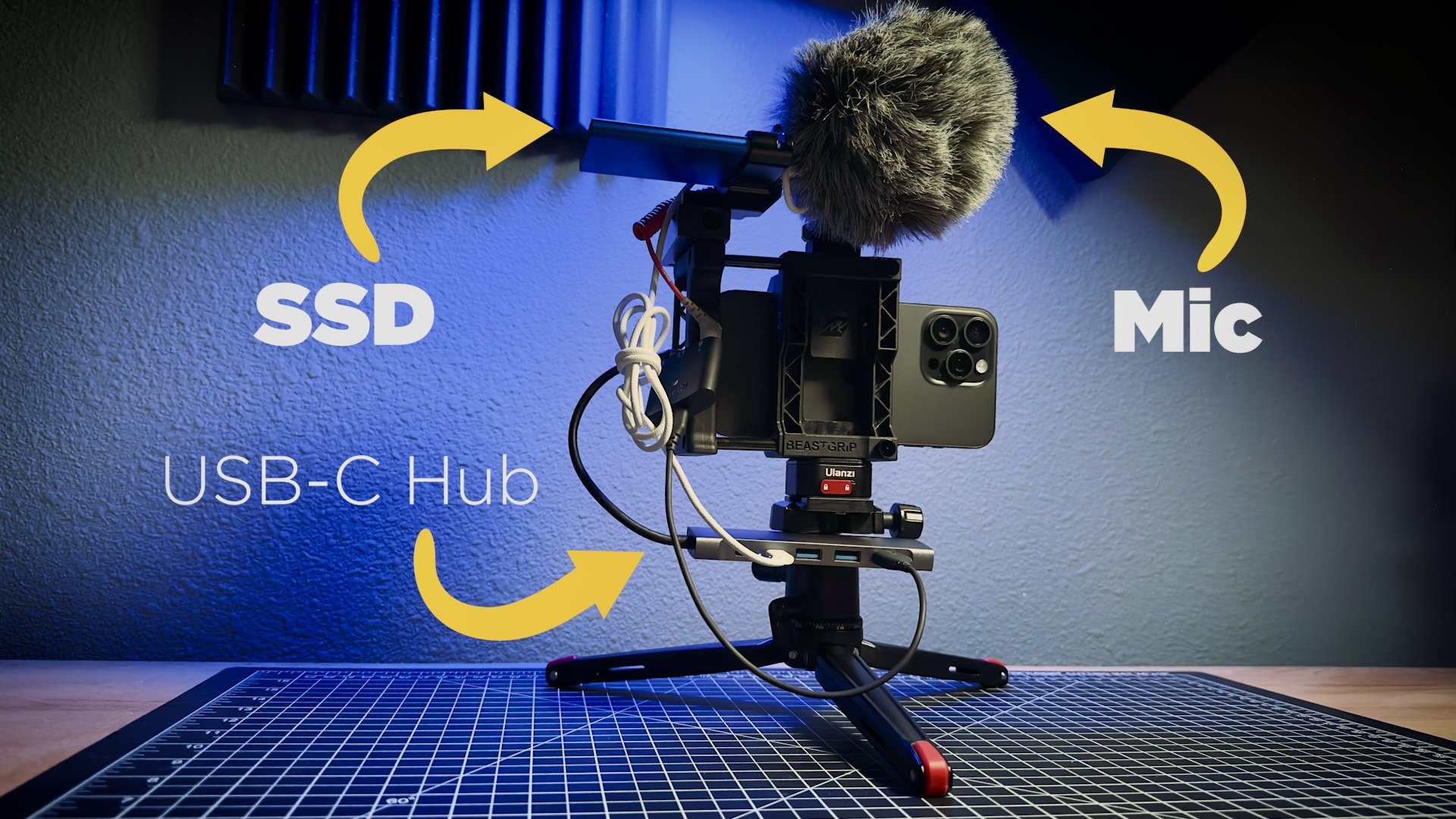
simple splitter or a USBC hub that I show in the advanced section
later in the course. And I've also played with
Bluetooth headphones. And while you can monitor the iPhone audio with
Bluetooth headphones. And also, if your Bluetooth
headphones have a mic, you can use that as a mic and
monitor at the same time. But I couldn't get it to
work with an external mic. Now, I am using an analog
mic in the adapter, and that could be
causing an issue. And so your results
here may vary. So having the Bluetooth be one source and the
external Mc be the other, I couldn't get it to
work with my setup. If you have a USBC mic
versus an analog mic, and you can plug it directly in, then that should work with
Bluetooth headphones. But in my experience
in the past, using other apps, sometimes
this can be hit or miss. And in professional situations, I don't love using
wireless headphones. I would much rather
have wired headphones. But I am glad to see that
Black Magic is improving the audio features because that's really the
weakest part of the app.
11. Monitor Menu: Alright, now we're
into the monitor menu, and this menu associates with everything that I showed earlier that appears
on the monitor. And so this is a
pretty important one to get set up the
way you want it, but it is, again, subjective. When we're talking
about focus assist, you can pick colored
lines or peaking. I personally like colored lines. It's just much easier to see. Even though I do also find, as I mentioned
earlier, the peaking can sometimes be hard to see. Go to overlays, and
we'll turn peaking on. And now in this particular
shot, it's easy to see. So the peaking is the red lines that helps you judge focus. Now, let me show you
what it looks like. What they actually just
call peaking and so, again, it's kind of subjective. To me, that's a little
bit overwhelming. It's a little bit hard to see, especially if those
were live action. So I personally like the lines. And with the colored lines, you can actually
choose the color. Red is something I
like that doesn't usually appear
normally in nature. Green is another one I'll pick sometimes because that's
kind of a vibrant green, almost a lime green, so that
wouldn't really appear. Although if you're
shooting trees or anything that's green
grass or whatever, that isn't a great choice. I'd probably go with
red. But of course, if you like, you can do blue. Or you can do Black. Black is not probably the
best choice. And white. White is similar to the peaking. The peaking just sharpens
the image, I think, and adds digital noise, but it's just there
to help judge focus. It's not actually
recorded that way. So, again, I tend to
go with red or green. And one thing to
note as I just said, this stuff is not recorded. It's only previewing on your monitor, so don't
worry about that. One thing I wish they would
add and maybe they will in the future update is that
this isn't on all the time. I wish you could
adjust the focus, and it would only come on when you're adjusting
that focus. Other ads are like that,
but with Blackmagic, it's either on or off.
And so we'll turn that. The guide's opacity,
25% is what I like. You can go to 100, and that correlates again to the
guides I showed earlier. So that's 25% opacity. If I did 100, you're going
to have full black bars. And again, this is also
just for preview only. It doesn't record that way. Sometimes shooting like this with the full bars
would be the way to go that way you
don't accidentally think something's in the shot
when in reality, it's not. Because, again, you use
this if you're going to be cropping later
in post production, if you're intercutting
16 by nine footage into a widescreen 23.9 or
2.4 to one project, which is typically called
scope or sometimes anamorphic, depending on the
way it was shot. So that's very subjective. 25%, though, for most
things is what I do, but you choose
whatever you prefer. Guides color. Same thing. White, I think is
really the way to go. If you do a color, I think it can get distracting. You see the red
going across there. And it also affects the grid,
if you want to do a grid. So I would personally
stick with white. It's less distracting.
But whatever you're shooting or however you want to shoot, you've got a choice. I'll come back to HDMI out. The next one is
display audiometers. If you turn that off, then
obviously your audiometers. Let me get rid of
that real quick. Now the audiometers are gone. And so, personally, I like to leave my audio meters
on at all times. And so I would leave
that turned on. Same with the histogram, you
can turn that on or off. Because remember,
if you want to get stuff off the screen,
you can just do that, touch it, and then flip
back up and it comes back if it's bugging you
while you're shooting. So I would personally
leave this stuff on. Storage, same story. Storage isn't there anymore. Storage isn't quite
as important. So if that bothers you,
then you can turn that off. I tend to leave it on and then same with the
battery indicator. It's up in the
upper right corner. It's not there anymore, but I like to know where
my battery is. So I usually leave that
on, and it's right there. I'm at 65%. And the
one other setting is the display upload status. That relates to using
Blackmagic Cloud. So you don't do that if you're uploading in the
background as you're shooting or later so you know
the status of your uploads. But again, since I'm not using Blackmagic Cloud,
I turn that off. Blackmagic added
a stream status, which relates to the
Blackmagic Cloud. You can come down here to now display stream
status. You go there. And now on the screen here, it shows you whether you're uploading to Blackmagic Cloud. And unless you're using it,
I would leave that off, but it is nice that they have
that on screen so you know what the status is without having to go into
the deeper menu. But it is now an option, but you can go into the monitor controls and turn that off. Then I would just
have what I would say is my normal setup here.
12. Media & LUTs Menu: Alright, now we're
going to look at the media menu and
the Luts menu. In the media menu, just as I mentioned in the previous
menu with Monitor, where it talked about
display upload status, that's what this refers to. If you're using Blackmagic Cloud and you want to
upload your clips, you can do proxies only, which is probably what you would do because the
originals will be huge, especially if you're
shooting ProRes, and that's one of the benefits. You can start editing smaller files that
will then reconnect. You'll relink those
in post production. And then same thing with
these next two settings, Auto upload to select Project, you would do that if you again, had this setup and
you could select the project in your
Blackmagic Cloud settings. Able upload only over Wi Fi. Pretty obvious. You would
only upload over Wi Fi. That way you would save on your data plan if you don't
have an unlimited plan, or if you're out in the
country and you're shooting and you have a sketchy four
G or five G connection, then you may want to wait till you get back to your house. And so you would
turn that on, so you're not clogging up
the data connection, every phone or overusing it. And now, this is a
really important one. Save clips to I do IAP only. If you do NAP and photo library, then it obviously saves into
the photo library as well. And if you like most iPhone
users use iCloud backup. And so what happens then is these huge ProRes files get
put into that iCloud backup, eat up all that media, and then also clog up that
backup, or it takes forever. Do NAP 95% of the time. The other 5%, I'm
going to the files. What that does is
let you connect the app to an SSD drive. Now, I'll demo that
in another section, but that's how you
would set that up. So, again, if you're
just using the phone, choose NAP only
most of the time, or if you're going to an SSD, you would set that up
through the files menu. Now, if you want to choose to save the location
data to a clip, you hit that and it
takes a GPS reading. And then where I showed
you in the metadata here, you can scroll down. You can see where
it was taken later. That's totally subjective. Sometimes you may
want to do that, sometimes you might not want to. So it just depends. I've been
leaving that off recently, but whichever way
you want to do it. And then filename convention, I like Blackmagic
Camera because that way the file names have
an original name. It's also very
similar to the way their traditional cameras
create file names. If you do IOS, it'll be
just like the camera app, which is fine, but
that's more sequential, and this is more specific. So again, subjective,
but I would personally leave that
on Blackmagic Camera. Under Media now, you've got a couple of
different options, and they've just kind of
rearranged some stuff. But if you're recording proxies, so when you enable Auto
Upload to select project, I've got a project set up in
Blackmagic Cloud right here. So I go back to Media. And what I can do if you want, this is pretty interesting,
you turn on Live sync, and that instantly,
as you're recording, starts sending that file
up to Blackmagic Cloud. It's a very low Rz proxy file, but it'll sync instantly
with DaVinci Resolve. So that person, the editor, whoever can start
editing or looking at that footage
literally right then. Now, you got to have an
Internet connection, of course, but that's a pretty
cool feature that they've added for those
type of situations. Now we'll look at the t menu. Let menu is very simple, and this would only apply
when you're shooting Log, and you can import export a let. They actually now
have a let built in. I find it's too contrasty
and a little too colorful. So I use my let, but you
choose the let you want, and then you choose
to display the ut. If you don't hit that and
you go to the camera, now the let's no longer there. So you can set it up
here and you go back. Now it's there, or
you can do it out here in the relay with the let there and
turn that on or off. There's a couple of
different ways to do that. But in the main menu is where
you need to select the lut. Now, this is really important. Record let to clip. I would almost never do that. That's called baking in the ut. So that way, you would actually record this image with
the ut into the image. So then you wouldn't have
Apple Log in post production. You're still recording Apolog, but you're basically
color correcting it in camera. When
would you do that? Well, for me, the only
time I would ever do that if you had a really
quick turnaround, or if you're doing something
for social media and you're basically just shooting
it and uploading it or maybe even editing
it on your phone, and you don't want to mess
with color correction, but you still want to use
Apple Log because Apple Log, you get much higher end results because the sharpenings turned
off or turned way down. You don't have
dynamic tone mapping, and you get more dynamic range. It's just a much more filmic
and better looking image. And so that is an option. But if you're going to do anything in post, do
not turn that on.
13. Presets Menu: All right, now, presets. This is a great feature
that a lot of apps have, but I really like the way
Black Badji has implemented. So you go to preset selection. I already have one
set up here, four K, 24 frames per second,
Appalog, daylight. So you click on that, and
you get a check mark, and now you go out
to the camera, and it is set up for that. So the settings are a
little wonky because I've got it set to manual
Shutter, which is nice. It remembers that
108 degree shutter, but it doesn't match the
lighting I didn't hear. So what I want to do just for
this demonstration purpose, I'll turn that off in
that way, it's there. But you look here, the
white balance is 5,600. I did have the shutter on 180, 24 frats per second, and four K. So if I want to do a new preset, what you do is go back here and set it to whatever you want. And so let's say I want
to do a tungsten look, which obviously, this is
not tungsten lighting, but just doing this for
demonstration purposes. And then let's say
I wanted to do HD, and 30 frames per second. And so that's the new setting. Go back here, go to preset, save new preset, and
I'll just call it test. And let me go back to
this one I had earlier, four K 24 Daylight,
Boom. That's correct. 5,604 K, 24 frames per second. Go back to presets,
I'll do test. And now that should be 3,200, 30 francs per second, and HD. Yes, sir. So that's a great way to be able to do custom setups, custom presets and quickly
go to a certain setting. Because one thing you
can't do in here is do custom white balances like you can on some other
apps and save them. So like if I went in
here and I start dialing this around and set it to
a funky white balance, let's say you're
shooting in an office, and it's kind of green, and the fluorescent setting
doesn't really work for you, and you're dialing it in, and you change the
tent and all that. Well, then you can go
in and create a preset, and whenever you close the app and come
back, it'll be there. And so the Black Magic
presets are really good. Some other apps don't
remember everything as well. And Black Magic app even
remembers the shutter, which is pretty darn cool. In Fil Mac Pro and some other
apps I've used in the past, it wouldn't remember
the shutter setting. So now, technically, you
could always leave it on 180 degree shutter and then come back and restart
the phone and you're shooting with the
exact same shutter, because that's what we do
on traditional cameras. We leave our Sony or
our red cameras or whatever set to 180 degree
shutter all the time, and we don't even mess
with the shutter. Of course, on those cameras,
you can adjust the exposure with your Iris and your ISO. Here, you're using
Shutter and ISO only, and that's kind of the catch. That's presets, and presets in the Black Magic app are
really pretty good.
14. Accessories, BMD Cloud, Reset & About Menu: All right, now, the accessory
menu, pretty simple, and it doesn't have a lot here, but use Bluetooth,
pretty self explanatory. But that way, you could use Bluetooth microphones or any Bluetooth accessory
that works with this. Although I've heard some stuff
is a little bit finicky, I haven't used much of that yet, but there's different
kinds of shutter buttons. There's different audio devices. There's a tentacle that you
can get time code into this. There again, are bluetooth microphones and
that kind of thing. So just experiment and use
whatever you need to use. But in my work, I don't
use Bluetooth very often. And then this is
really interesting. They have wireless lens control, which is pretty niche, and you'd have to actually
buy the pollo focus, but that way, you
can use a nucleus, and what it does is it'll control the focus just like
on a high end cinema camera, and so you can actually have a focus puller doing that for
you while you're shooting. Now, since the phone
doesn't have a lot of shallow depth of field,
has a small sensor. I'm not sure how
practical that is, but it's a very
interesting option, and my guess is that's
really looking at the future proof in the app to be able to
have that functionality. One thing that this
doesn't have that you may have noticed that
I wish they would add, and hopefully they will, is it doesn't have gimble
connectivity, like a lot of apps do,
especially Film Pro. And so you can't control a gimble with this
particular app. And you got Black
Magic Cloud again. You're probably seeing
a recurring theme here. As I mentioned, they really want you to sit up and use
Black Magic Cloud. And really, truth be told, this is a loss leader. This app is a loss
leader for Black Magic, because it's free to get you to site up for
their other stuff. And I love Black Magic. I have three or four
Black Magic cameras. I use Davici Rizal
for Color Correction, and they're a great company, but at this point in time, I
don't use Black Magic Cloud. And then you come down here
and you've got your reset, which I haven't had to
use yet, thankfully, but you can go in and
reset the camera settings, reset the camera
in cloud settings, reset all settings
and ers all content. That would be kind of
the self destruct. You wouldn't really
do that unless maybe you're selling your phone. But I would just delete
the app at that point. And so, but it is nice
to have those features, but hopefully you don't
have to use them. At shows the App version, and then you can click on that and go to Black Magic Design. And then the last thing is, this open Black Magic camera
settings, when you go there, it actually takes
you to the iPhone, and so you're inside the
settings menu of the phone. And just the permissions
really for the microphone, photo access, location,
all that kind of thing. So you do that though, usually when you set up the app. And so that's an
overview at a how two on using all
the menu settings. But speaking of How two, now we'll go into
how to actually use some of these features
in more detail.
15. Frame Rate, Resolution & Slowmo: So now that you're familiar
with the user interface, we're going to take a
deeper dive into what the controls actually
do and how to use them, how to use them in a
real world situation. Note, there will
be some overlap of topics discussed from
the previous sections. But here, I'll go
into more detail and show examples to reinforce how
the various features work. Right, I just want to quickly
talk about frame rate, and frame rate can
be very subjective. It actually is very subjective. However, depending where you live might dictate what
frame rate you use. In the US, we primarily use 24 frames per second or
30 frames per second. In Europe and a lot of
the rest of the world, you primarily use 25 frames per second or 50 frames per second. Now in the US, we also use 60, but that's really for broadcast or if you're
shooting slow motion. And the same goes in Europe. If you're shooting slow motion, you might shoot 50 if your
base frame rate is 25. But in the Blackmagic app, you have those same selections. But again, it'll
depend on where you live and what kind of
project you're shooting. For me, I almost shoot everything at 24
frames per second, no matter what I'm shooting, whether that's a YouTube video, a corporate video, a
commercial or a movie. Now, in the IP, you
can, of course, shoot 2398, which
getting technical, that is NTSC in the US. We have 2398, and
then instead of 30, we also have 2997. That's really more
for broadcast, but it is a good option to
have in the Blackmagic app, but you can also shoot
complete 30 frames per second. Not going to go into
the weeds on the other. Just know if you're
doing something for broadcast, you might
consider doing that. Otherwise, 30 and
straight up 24 are fine. And then, of course, you've
got 25 frames per second, which is considered Pow. That's Europe and the
rest of the world, besides Canada, and then
Japan also uses NTSE. And I referred to that when we talked about the
shutter frequency, shutter frequency and
lights flickering. That is also based
on where you live. From a stylistic point of view, whenever I shoot anything above 24 or if you're in Europe, 25, that would be slow motion. So you got 30, 48, and then 5994, similar to the other fractional
numbers I said earlier, and 60 frames per second. So 60 frames per second would be a 40% slow mo if your base frame
rate is 24 frames per second, which is what I use. A Now, that's in four k. And if you want to shoot
higher frame rate, which means slower motion, then you would need to go to HD. So you go to HD, and now
you can shoot I'm at 60, you can go up to 120
frames per second. No It's interesting because in the native camera app and HD, you can go up to 240
frames per second. Same with other apps like
FilmiPro, et cetera. I'm not sure why Blackmagic
limited the app to 120. Maybe it was for accuracy or not dropping
frames. I'm not sure. But you can get to 120,
which is pretty good. That's a 20% slo mo look. And so I rarely ever shoot more than 120 unless I'm
doing a stylized shot. And typically, if
I'm doing that, I'm doing that on a higher
end camera shooting like 300 or 500
frames per second. But it's still nice you can
do that kind of slom on the a couple important notes
here regarding slow motion. I did do a test shooting 48 frames per second,
which is a great option. It's a 50% slow mo look
when playing back at 24. However, the app seems a little bit buggy
choosing that frame right. The footage plays back in a little bit of a
stuttery manner, but just something
to keep in mind. Hopefully, it'll be fixed
in a future app update. Secondly, when shooting
in 120 frames per second, you can only do that in
HEVC and Rec seven oh nine. You can't do that in
Apple Lie or ProRes. Although now if you have
an iPhone 16 Pro or later, you can shoot four k 120
in hot 265 or in ProRes. Now, that's more of a function
of the phone than the app, but the app has been
updated to support both. Again, that's with
the iPhone 16 Pro, Pro Max or later. Blackmagic has now
added the ability to do what they call
off speed recording, which in my world would
be under cranking and over cranking in slow
motion or fast motion. And so all you need to do
is go to the frame rate, and at the top here,
you've got an OS mode. And so that's off speed. And now you see over here where you have your
frames per second, let me turn that off. It was 24. Now it's 60/24. And so what that
does is it now will allow you to do slow motion
and conform it in camera. Before you could shoot
slow motion, for example, 60 frames per second, and you could get a
40% slow mo look, and you can still do that. But now, if you choose
this off speed mode, it will actually do
the slow motion in camera versus having to
do it in post production. And so it's nice
to have options. If you drop it down to
48 frames per second, you'll see now it's 48 and 24. So that's 50% slow mo. Now, if you go below
24 frames per second. That's my base timeline. I'm at 19 frames, or you could even go down
here to 15, 12, whatever. Now, that would be fast motion. You might be wondering, why not just do that in post production? Well, you can, for sure, but just like with slow motion, often, it just looks better
when you do it in camera. And back in the old
days on film cameras, the main way to do fast or slow motion was under
cranking or over cranking. And so those same ideas
still apply here, whether you're shooting
on a traditional camera or a phone. And now with Blackmagic, you can conform
it in the camera. So more times than not,
that's what I would do, because that just saves
you one less thing to do in post production, and you can also
preview it in the app. One thing to note is before
you go into off speed mode, you want to choose
your base frame rate. So I normally work in 24. So when you hit off speed, now you have 52 frames
per second over 24. Well, let's say I was recording
in 30 frames per second. So you set it to 30,
then hit off speed. Now you've got 52
frames over 30. And actually, a more
normal slow motion would be 60. But that
is the nice thing. You have control over
those frames per second, so you can really dial
in a look you want. The only other app
I've seen that did this was Film
it Pro in the past. Now Blackmagic does it. So again, just remember to
set your base frame rate. And for most people,
that would be 24, 25 or 30, depending on what you're doing or
where you are in the world. Now, when you go to frame rate, now you have the off speed
in here and time lapse. And so we've had off
speed for a while. I used to say OS up there. Now when you come over
here, it shows 60/24, so it's 24 frames per second base and 60 frames per second is what
you're recording, so you're getting a
40% slow mo look. So we've had that for a
while, but now it's just built in with that
and time lapse. And so the information looks
a little bit different, too. It's a little easier to read, and it's a little more clear on exactly what you're shooting.
Same with time laps. If you flip to time laps, now you can set the duration of the time lapse right here in this on screen setting.
So that is nice. It's just kind of consolidating some features all on the main screen and
at your fingertips. But for most everyday stuff, I'm shooting four K, and again, I'm shooting
more times than not, 24 frames per second. And my shutter would
want to be at 180. That's one thing about phones, when you switch frame rates, if you don't have it locked, even when you do have it locked, sometimes it's still adjust. And so it's something you
need to pay attention to on a traditional camera, when you lock in a
180, it just stays. And again, that's the
beauty of a 180 shutter. Whenever you switch
these frame rates, The shutter stays at 180. Because when you're doing the shutter speed
and the fractional, it'll actually change the
shutter number up there, and sometimes it
won't be right on. And the main reason
you want to have the correct shutter
is from motion blur. So I typically leave my
camera on four K 24. So wherever you
are in the world, you decide that subjective, four K 30, four K 25. But the Blackmagic app does
have, for the most part, good control, not as
good as some other apps, but definitely enough
to get the job done.
16. Setting Proper Exposure: Alright, when you're
talking about exposure in a smartphone, it can be easy to a
degree and also tricky, depending on what you're doing. So the first and easiest way would be to use auto exposure. And the Black Magic camera, you would actually just push on the screen
wherever you want. And that would auto expose. If you're in auto mode. So let me raise the exposure. I'll just use ISO in this case. And so now the image
is very over exposed. You can tell by the zebras, the zebras are a tool
that's good to use, or you can use histogram, and the histogram is overexposed, it's either red there, or
you could use false color. And we'll get to that
in just a second. So if you opened up your phone and it was
set to the setting, the easiest way, again, is
just to use auto exposure. And so in the Black Magic app, you just touch in
the brightest spot, and it brings the exposure down. I always try to expose
for the highlights, and so if the sky was brighter, I would probably touch there. In this case, the basketball goal was probably pretty bright, but the pool water
did a good job. Now that image is
properly exposed. Again, you can look up
here at your histogram. The histogram is small. I wish it would go full
screen, so it's hard to tell. But in a very layman's
term general sense, you want the hump, so to
speak, to be in the middle. If it's too far to the left, that is under exposed, and if it's too far to the
right, it's over exposed. On the right hand
side over here, you've got a warning
that'll turn red. It's almost like
a traffic signal. Let me show you that real quick. I'll go back to
being overexposed. Now, if you look here
at the histogram, you can see there's red, green, and blue, red is
what you don't want. You would want to
dial that back. I'm slowly lowering
the exposure. There you go. Now the
histogram looks okay. Although the
histogram looks okay, but if you look closely, again, I have zebras on, I talked about zebras in the opening
during the menu settings. I have my Zebra set to 95. Let me go back to Zebras. Zebras are set at 95%. Technically, that's
probably okay because 100% would be
completely clipping, you're going to
lose information. The number one thing
you don't want to do on a smartphone is over
expose an image. What I would do in that case
is I leave zebras at 95%, and then again,
they're probably okay, but I would still
dial that back. Let me show while we're here before I dial the exposure back, I'll go to false color. And false color is another way. It's really the best way on this particular app to read
your exposure values because, as I think you can see now, using this chart,
red is overexposed. Yellow is okay, but it's
kind of a beginning to clip. You probably want to have
a little bit of yellow, but not too much yellow, but then pink, green,
and gray best. Well, right now in this image,
we have a bunch of red. And so again, kind of
like I was talking about with the zebras, you
want to dial that back. So I put the screen
information back on. I'll go back to ISO, and now I'll slowly
dial that back down. Now it's looking
better. I'm at 160. You can see the colors there. It's a mix of green, and there's some
yellow there because it still look bright,
but that's okay. And now, interestingly, and this is just the nature
of a smartphone, you've got some purple there and purple is actually underexposed. This is a high contrast scene. And I should note, I'm
shooting in rec 709. I'm shooting in standard video. Now, I'm shooting PRs
and so you would have more room in editing to
bring these images back up. In color grading and
color correction, but Apple Log would be a much better codec to
use in this situation. But with Apple Log,
there's a problem, and especially with the zebras. It doesn't read the same
as it does with Rec 709, meaning the exposure values look different when
shooting Apple Log. Let me go to Apleog real quick. Apple Log does have
more dynamic range. You can see when I
switched over to that, now in Apple log, nothing is over exposed, which is great. However, if you're using
Zebras in particular, let me go back to Zebras. I'll turn the false color off. Now, my Zebras have set on 95%. Again, 100 IRE is overexposed, so you want to be below 100. So 95 is a good place to have
them there as a warning. But how I showed earlier
that we were overexposed, I'll dial up the ISO here. Now that image is over exposed. Now, I had to get all with to 1,600 ISO to get
Zebras to show up, and now your histogram
is looking bad, too. But in my experience
with the app, I am of the opinion that I can't trust Zebras when I'm
shooting app a log. I would use the histogram
or I would use false color. Or, again, like
at the beginning, I showed I would auto expose. Now, if you use auto exposure, you never want to actually
shoot with auto exposure. You would auto
expose, then lock it. But at any rate, let me
dial this back down. So now I'm at 12:50. I'm not getting any zebras, and that image is
way over exposed. If I switch now to Rec 709, just to continue this example, which is standard video with
the exact same settings, look at all the zebras
everywhere now. The zebras are everywhere. And so it's just interesting. Again, Apple Log you just
need to be careful with. It does have more dynamic range, and it's encoding
it differently. This is really
technical, but the way the iPhone and Black Magic app are mapping it is
Apple Log is HDR. However, it doesn't act like HDR when you're
editing, it's SDR. That's a whole another topic, but that's just something that I think is causing this
weird discrepancy between RX seven oh nine and Apple log because
With Apple log, we're still using a Rec
seven oh nine display lot. Hopefully you're following
what I'm saying here. Long story short, I would trust the histogram and the false
color when using Apple log. If you're shooting
anything else, Rec seven oh nine,
whether that's Perrez, or HEVC or H SO 264, I'm finding the zebras
are trustworthy. Again, here, what
I would probably do is just hit the screen, auto expose, you're good. But using the histogram
and false color. And then of course,
the Zebra are a great way when you're
manually exposing an image, but using auto will be a
sure fire way to expose. But even for using auto, I would tend to always
expose for your highlights, and if they are clipping at all, bring them back
just a little bit. And if you do that, you'll
have good results in the end.
17. Best Shutter & ISO Settings: All right, now I'm
talking about ISO and shutter speed as they are very interconnected
using a phone. They're part of the exposure triangle on a
traditional camera, your ISO, shutter
and aperture iris. But again, on a phone, your iris is fixed. Right now I'm on the ultra
wide, and it's a 2.2. And so you can't change that. But what you can change is
your ISO and your shutter. And as I've mentioned
throughout this course, you want to have more times
than not 180 degree shutter. And so what I tend to
do is set it to that. Or if you're using fractions, you'd want to be at 1:48. I'm shooting 24
frames per second. Remember the 180
degree shutter rule. And what that is for is
to get ideal motion blur. If you're not shooting with ideomotion blur to big
giveaway on a phone. And the way you get
that when you're outside is to use an ND filter. ND filters are like
sunglasses for your camera. So you put an ND filter on if
you're out in bright light, and that way you get
the proper exposure with the right motion
blur and the shutter, using, again, the hundred
and 80 degree shutter rule. If you're inside
like I am right now, you don't have to worry about ID because the light
levels are fine. So again, I'm on 108 degree
shutter, so I'll lock that, and then to get the proper
exposure, you have to use ISO. And on this particular lens, the lowest ISO I can do is 32. On my main camera, it's 55, each one's different again. And as a general rule,
you want to keep your ISO as low as possible. The more ISO, the brighter
the image will be, but you're also
adding digital noise. And so do your best to keep
the ISO as low as possible. Again, in here, with the
studio lights and stuff, I'm having no problem
because a low ISO like that, 32 with the good shutter is an ideal setting.
That would look great. But just remember to lock your shutter in particular
when you're shooting motion. Like, right now, it
wouldn't really matter, but anything that has
movement in You want that motion blur that gives it a more filmic, more cinematic. It's not just for film,
it's for any kind of video. It gives it a more
traditional look, and that's what you want. The one thing, whenever
you lock the shutter, you don't have auto
ISO over here. And so if you wanted to
lock the shutter and then ride the exposure
like you're doing a running gunshot,
you can't do it. Unless the way you do
that is you the shutter, and now you go back to exposure, then you can hit auto. And that's like full auto. So now you've got the A next to ISO and the A
next to Shutter. That is something
that I would only do if I'm doing maybe a
documentary shoot, and I'm going to be
going in and out of different settings
because the camera will auto expose. Let
me cover the lens. You can see see how it moved. Not something that I would
do very often at all, but if you do want to use
auto, that's how you do it. But if I turn that off, and then I end up locking
my shutter on 180, which is what I want to
do more times than not, Now when I go back to exposure, it is adjusting the ISO. That actually confused me
when I first got the app. So hopefully that makes sense. And then hopefully
it also makes sense that you lock your shutter
to get ideal motion blur, whether you're
inside or outside, because you want
180 degree shutter. Or, again, if
you're shooting 24, it'd be one 48th,
you're shooting 25, it'd be one 50th, shooting 30, it'd be one 60th, and so on. And that also applies to those slow motion
shots I did earlier. If you're shooting 120
frames per second, you'd want your
shutter to be 240th. Again, that's a fractional. But if you leave it on
180, you're good to go. But getting the proper shtter
and the proper ISO not only makes the image
look better from a motion blur perspective
with shutter, but then it allows
you to also get the best exposure and overall
look of your footage. R
18. Choosing the Best Codec: Alright, now we're going
to talk about Codex. I went over the Codex
in the menu settings, but we want to talk a little more detail
about them right now. Really when to use them. And truthfully, it's
a subjective call. But for me and my workflow, I'm using PRs now for
probably 90% of what I do. And that's because I use my
phone as a B roll camera or as a B camera routinely
with my higher end cameras, my stony, my red, et cetera. So I'm intercutting that stuff
with a higher end camera. But I also do a lot
of YouTube stuff, again, shoot B roll. And I'm finding Pro
Rs is the best Kodak. And in particular, shooting
PRs with Apple Log. Apple Log was introduced
with the iPhone 15, and it gives you a lot
more dynamic range. But importantly, what it does is it also turns
off the sharpening, and it turns off
dynamic tone mapping. If you don't know what that is. In basic terms,
dynamic toe mapping, it adjusts the exposure
for you dynamically, and even when you have
the settings locked. And dynamic toe
mapping can be great, especially for still photos, but implemented in
video, it's not great. You still get it
when you shoot in any of these other color spaces, Rec 709, HDR, or P three, which is also HDR. And so it's not good when you're trying
to do professional work. But shooting Apple log
takes care of that. It turns that all
off or turns it way down to where it's
not even recognizable. And so you can shoot apog into any of these codec,
though, which is nice. I rarely do it in ATVC, or 264. I've really only tested it. PRS is definitely the way to go. If you're shooting
every day stuff, just normal B roll
normal footage where you're going to be doing
normal color correction, just basic kind of stuff, no heavy color correction or heavy grading or visual effects. Then PS 422 is what
I would recommend. If you're doing maybe B roll, you're going to be
intercutting with HEVC, just regular iPhone video, then PRs LT is actually fine, similar to PRS 422, and the file sizes
are much smaller. And that's the overall point. The different levels of PRs create bigger files because
the data rate is different. And so PRs Q is the highest
codec right now in this app. So for your highest
and work, choose HQ, and that is what
the native camera shoots whenever it shoots PRs, and you can't choose
the codec there. So that's one thing
nice also about using a third party app because
those files really are big. Now, if you're
doing social media and you're doing just
maybe family videos, and you don't want to
deal with the file size, then HEVC is a great
codec to choose. That's what the default
native camera shoots. And then you go back
to color space, and you can choose to
shoot an Apple Log. But one thing about
choosing Apple log for that is because you're
getting a compressed format, it doesn't perform
quite as well in the color correction
and grading I found. But typically, if I'm
going to be doing HEVC, I will shoot in
Rec seven oh nine, which is SDR, or Rec
2020, which is HDR. That really just depends
on what you're doing in post production and
how you're delivering it. Most stuff today is
still Rec 709 SDR. Even on YouTube, Video, and other places, you can
definitely display HDR. The problem you run into is whoever's watching the video
may not have an HDR display, and some services do better than others in converting
that to SDR. Sometimes it just doesn't
look right at all. So again, that just really
depends on your project. More times than not,
I'm shooting rec 709 though when I'm doing HEVC, a compress format or HS 264. But now that I have a 15, and if you have a 15
series phone or later, depending on when
you're watching this, I would shoot Apple Log and PRs 422 or PRs HQ for anything you're doing that
you really care about or that it's
more professional, because that way, you'll
just get the best results.
19. Apple Log for Social Media: If you're doing something
for social media, Pres is not the way to go, and it would deter
you from using appog. The Black Magic
camera allows you to shoot Apple log in HEVC, which is h265, or an HO 264, which is the standard peg four we've been
shooting for years. Now, the benefit to that is
that you can shoot, again, Apple log in a
much smaller file, and that allows you to do it
for social media, et cetera. But the question
is, does it work the same shooting on
these compressed formats like it does with Pro RS? Because with PRS, you get
the sharpening turned off, and you get dynamic
tone mapping. Very importantly, you
get dynamic tone mapping turned off or all the way down to where you
don't even notice it. You know anything about
dynamic tone mapping, you don't want it when
you're shooting video. First up, I'm shooting standard HEVC with
a baked in rec 709. This is more or less
exactly what you would shoot with in
the native camera. And this is what most
people have shot with for years before
Apple Log came along. So I'll do a sample
clip of this. And the one thing you'll notice, let me lock that real
quick, actually. And so now I've got the exposure and focus locked on Batman. But when I put my hand in here, you'll notice real subtly
the exposure shifts. It's very subtle,
but it does shift, and you can see it
across the whole image. That is dynamic tone mapping, and that is what you don't want when shooting
professional video. So now let me jump
over to Apple Log. And so now I'll shoot
an Apple log clip. And when I do that, you don't get any dynamic tone mapping. Or if dynamic tome
mapping is there, because we don't know, for sure, Apple's pretty secretive
on that kind of stuff. It looks like it's totally gone, but it might be just
slightly there, but it's not shifting
the exposure anymore. And then the other thing is, sharpness is turned off
or turned way way down. And so now you get a
much cleaner image. And again, I'm shooting
an HEVC, not PRs. And then here is the trick to use if you're
shooting anything like social media or family
videos or something, and you don't want
to have to deal with dynamic tome mapping
and over sharpening. Go into the t menu, display the Lut, but then go ahead and select
record Lut to clip. Now, just to emphasize, if you're shooting PRs, or if you want to color grade this stuff in post production, do not, I repeat,
do not bake it in. However, in this situation, the idea here being that you're doing this for
every day videos, and you don't want
to have to deal with color grading and stuff
in post production, then go ahead and bake it in. But you're getting the
benefits of Apple log. And so you're getting
no dynamic tone mapping and no sharpening. See the lut is baked in, and I'm getting a nice image. And so I'll go ahead
and record that. And you can see the
lut image is now red. That tells you that you're
baking that lut in. And so while you're
shooting apple Log, you don't have the same
flexibility in post production, but you're getting the benefits
of apple log in camera. And that is a huge thing
if you're shooting stuff, again, everyday videos
and social media videos. So now we'll compare
these side by side. And so here is the
baked in look. And again, it doesn't look bad. It just looks like
iPhone footage. It's crunch here, doesn't have near as much dynamic
range, of course. And again, it has the
dynamic toe mapping issues, and it has the sharpening. Now, here is Apple log. And then, of course,
in post production, you'd have to color
correct this, color grade this, and I'm
using one of my luts here. And now that looks great. But you do have to color correct
that in post production. And now here is
shooting apple log, but with a baked in ut. And this looks great, too. The main thing you've got to do is pick the lut you
want in camera, because, again, you have limited control in post production. Of course, you can
adjust the white balance and exposure and
stuff a little bit, just like we do
with any footage, but you really want to get
to look right in camera. And now here are a few more examples to
show the comparison. So the main negative I found
with this method is that you can't control the bit rate currently in the
Black Magic camerap. And so it looks like it's about 35 megabits per
second. Which isn't bad. I mean, it's okay. It's about equivalent to the native camera, but it's definitely
not high end. So if we're going to shoot
out the log at HEVC, I would probably
do it baked in and not in post because the footage doesn't perform nearly as well as PRs would for
obvious reasons. It just isn't as high
quality of footage.
20. Stabilization Overview: Okay, now we're going to
look at stabilization. I talked about stabilization
in the menu overview, but I want to demo it
here just to show you the difference
between the three and then also not using it. So to use stabilization, you go to the stabilization menu, and I usually leave it on
standard for most stuff, but let me turn it off. And you can see when I turn it off and go back to standard, it is pushing in So you're
losing I don't know, what is that 5% or
so of the frame. If you're on sticks, I
often will just turn stabilization off
because that way you're getting the sharpest
and cleanest image. However, more times than
not when you're shooting, leaving standard on is
probably a best practice, but now we'll look at cinematic and extreme. This
is interesting. When you hit cinematic, it doesn't zoom in
like other apps do. Extreme is the same way. Now obviously, you
would assume that those two different settings would give more stabilization. When you're on off, you have the widest image, and standard cinematic
and extreme, you have the same size shot, although each will look
different once you look at the video in the
library or in post production. So now I'll show that. Okay, this first shot
is no stabilization. I have stabilization turned off. I'm just walking normally. Okay, now, this time I have
standard stabilization on. Just walking normally? And now, this time I have
cinematic stabilization on, and when I hit record, it actually pushed
in on the image, and I can tell as I'm walking
here that it is, steadier. It's almost like
I'm using a gimble. So it does it as it's recording, not when you're previewing it. Okay, ex stabilization, same
scenario as with cinematic. It in a little bit. And as I'm watching the screen, it feels like there's a lag. There's a delay in
what I'm seeing. So other apps do the same thing. It doesn't do it when
it's previewing though, only when you're
actually shooting, but it does seem
to be very steady. There's a huge delay though. A So my recommendation would be to use standard stabilization
for pretty much every, every day type of stuff. Again, if you're
shooting on a tripod, then you could turn that off. That way, you get a little
bit of a wider shot and you get the most
crisp clean video. But if you're doing
anything more involved, like maybe you're someone, you're doing an action shot,
you're driving in a car. You're doing anything that you want to look more like a gimble, then cinematic would be my first choice because
there's really no lag. But extreme would be good if you're really in an
extreme situation. But the extreme mode is hard to judge when you're
shooting because there's about a 1 second or so lag. And so when you pan to the left, you're looking at the pan, but it doesn't pan the
same time as in reality. It's about a 1 second delay because of the way the
software is working. So cinematic, I would use that probably
more than extreme, but standard is
what I would use, probably 95% of the time.
21. Zoom & Switching Cameras: Let's talk about
Zoom or not to Zoom or changing lenses and
just changing shot size. If you take on my other courses, you know that I am
not a Zoom guy. We're actually in
a no Zoom zone. That's what I like to call it. You zoom with your feet or you change the lenses
itself and then go in. Now, zooming is okay
if you're doing a stylized Zoom,
like a snap Zoom. Think of a Quentin
Tarantino movie Something like that is okay. And then if you're doing sports, of course, live sports, there's all kinds of zooms, but you don't shoot live
sports with an iPhone. You're shooting behind the
scenes or coverage or Broll. And you can zoom
in sports or news. But even then, I would
prefer not to zoom. But using the
Blackmagic Camera app, they have a built in Zoom.
It's a digital zoom. And so when you zoom
in using this Zoom, you lose image quality. And so you want to
really not do it a lot. I have found in my
testing that going in on two times is okay. You don't lose that
much doing two times. But if you do four
times to eight times, you really start
degrading the image. And actually, with this, you can push in with a
dial and I think go, yeah, I'm up to 15
times. Let me tilt down. We'll see Grogu here. That
is a pretty nice zoom range, but again, it's a digital zoom. And so you don't really want to do it unless you have
to. It's nice to have. It's one of those
things if you're doing a documentary or again, covering a news event or sports, to be able to zoom in and
grab that image is fine. But just understand your
image is being degraded. You're still shooting four K or HD, whichever
you're set up to. It's just the camera
is zooming in. It'd be like doing
a Zoom in post production. Zooming
in on the image. It's not an optical zoom. And so what I recommend is
if you want to zoom in, right now, I'm on
the 24 millimeter. You actually go and you
switch it right here because this way you know
it's an optical zoom. And on this particular phone, I've got a five time zoom, which is equivalent
to 120 millimeter, and you can see
that's a nice shot. That is the way to do it. And then you would just edit those shots
in post production. You wouldn't actually see
what I just did in Post. Although as a side note, you can do that while the cameras rolling
when we come back out. So now I'm on the
24. And just for demonstration purposes,
that's the ultra wide. So you can go from
the ultra wide. You can be that wide,
and then you can pop in with the five times ti. But if you were rolling,
how would you do that? Well, one thing about the
Blackmagic Camera app that not all apps allow you to
do is while you're rolling, you can actually switch cameras. So I'm on the Telly right now, the hundred and 20 millimeter. Can go out to the 24, or I can even go out
to the ultra wide, and then I can go back in. Now, obviously, the
cameras are switching, and so you have a little bit of flicker and stuff there in
between the camera switches. So that's not really usable. That would have to be edited
out in post production, but it is nice if
you're trying to reframe a shot, you
don't want to hit Stop. You know, on a traditional
camera using prime lenses, you would stop recording,
and you would switch lenses, and then you would
do the new shot. So really, in my estimation, if you're running and gunning, like you're at an event,
maybe shooting a wedding, maybe shooting again, a
news event or sports, having the ability to pop in and out while you're
recording could come in useful. Now, for the stuff that I do
more times than not, again, especially since you have
to edit that anyway, I just cut and change the camera and then
pick it back up again. But I'm talking more
about narrative stuff or scripted content where you have a plan in mind, you're
not just winging it. If you're shooting B roll and stuff, that could come in handy. And then, again, if you want to zoom in, that
could come in handy, too. You could do, like a snap Zoom, kind of a stylized
zoom like that. Let me roll on that just
to kind of show that, too. So while you're rolling,
you can snap in. Let me go ahead and
lock the exposure, press on the screen,
and hold. Yep. So now, when I zoom back out, that exposure and
focus should hold. So, you know, imagine a
quitting Tarantino film. Nope, the exposure shifts. I'm actually shooting at TBC, so that might be tone
mapping right there. I've talked about tone mapping, and if you're
shooting Apple Log, you don't get tone mapping, but you do when you're
shooting with TBC in Rec 709, and that's what I'm doing
here for these demo purposes. But nonetheless,
zooming in like that, if you want to do an
effect, that's okay. But otherwise, don't do it
because that's a digital zoom. And one addition to switching cameras and lenses is that now Blackmagic has added the 48
millimeter virtual camera. This camera is
available to you if you have a 14 Pro or later device. So now you can get
a two time Zoom within the app without
degrading the footage. Now with the 48 millimeter, you can push in on the sensor, and so you're not
losing image quality. This is especially great if you're using a third party lens, an anamorphic or what have you. That way you get
two shots in one without having to change the
lens to the other camera. Additionally, you can switch the cameras, as I
demoed earlier, and now with this newer
update in the app, the camera switches seem to
be a little bit cleaner. They don't glitch or
flicker quite as much. They're not 100% usable,
but they're much better. And in some cases, I
find they are usable. As noted, Blackmagic
has updated the UI. Now the Zoom button is
part of the lens picker, and so they're integrated, and you have a little
more control because now you can do what
they call Dolly Zoom, which for me is basically
an automated Zoom, so you can set the time
to really go in slow, creeping in, or you can do fast, almost like a snap Zoom. The Blackmagic app
because of being able to change lenses while
you're recording, has a digital zoom and then all the different
lens choices, which are your best options
because those are optical. But it is nice
because there's a lot of options on how
to change the shot. Just be sure to choose the
right one for your project.
22. Advanced • Using HDMI Output: Well, hopefully by now,
you know how to use the Black Magic camera and
shoot some nice looking video. But for those who want to take their projects to
the next level, there's even more advanced
features to check out. All right, I would consider this more of an advanced setup. This isn't something
you'd use every day. But if you're doing
an interview like in a documentary or you're
shooting a corporate video, anytime you want to see
the monitor more clearly, using an external
monitor is a great idea, or if you have a client,
if you're doing, again, a corporate shoot, and you're shooting something and you need the client
to see the monitor, or sometimes it might be
the director's monitor. Sometimes it's just you,
because the iPhone, even if you're using a Pro Max, It's a fairly small screen, and so this is a
seven inch monitor. Using a bigger
monitor, you can just see it better and see
what you're shooting, set up the lighting,
make sure you're going to focus, all
that kind of stuff. External monitors are great. And this is an Andy Sinne four K. Doesn't matter which
kind of monitor you have. That's a subjective
cog. There are a lot of good ones
on the market. This one's nice because it's
an outdoor bright monitor. So if I'm in the sun,
I can still see it. So it just depends on
what you want to do. And ultimately, you just set this up using the Black Magic. But before you do that, you
need a couple of accessories. And the first one is, and this is really the most
important one, this is a USBC two HDMI. And so this is a 15 Pax. If you're using an earlier
phone, this will still work. You just seem to have
a lightning to HDMI. And I'll put links in
the additional resources for various accessories. So depending what phone you
have, just get the right one. And then you also
need an HDMI cable. And this is a full size HDMI. You don't have to mess
with micro or mini HDMI. And this is a pro cable
because it's coiled. I just like them better because they're easier to work with, but you could use a traditional home type HDMI cable as well. But then all you do is you
plug this in to the phone. And then you plug the
HDMI cable into this. And then you take your HDI cable and plug it into the monitor. And every monitor is going to
be a little bit different. This one that actually
connects on the bottom. Turn the model around. And
eventually got a signal. And the way you do
that is you have to set that up in the
Black Magic app itself. Go to settings, go to monitor, then HDMI, and I have
that to clean feed. And what clean feed does
is just what it says. It sends out a clean feed with no text or
anything over it. But if you wanted to
do mirror display, you could do that. And go back to the camera. Now you're seeing the
exact display down there. It's srt back on the screen
because you're seeing all the controls of the camera exactly as it appears
on the phone. This is a setting that I
personally wouldn't use. If you want to see the text, I would choose status
text in the menu. And then when you go
back at the camera, basically have the
same full clean image, but then with the edges of the monitor having
the various controls seen, which is nice. You can have the audio meters and the histogram and
that kind of thing. And you can also see
when you're rolling, let me roll a sample clip. So when I hit record here, you can see over
here on the monitor that that is actually
rolling, and it shows red. So that's a good way
if someone else is watching the monitor to double
check that you're rolling. And then another option is
status text surrounds image. So this looks again more
like the first one, but the text is spread
out from the screen versus the way it was on the first one where you're
just mirroring the screen. So you can see the status
text a little bit easier. But again, to me,
when I'm using this, the two I'm using the
most are clean feed, which is what I
started with that way you just get a nice clean
image to the monitor, or and especially if you have
crew and stuff watching, I might use status
text, and that way, you can see when
you're shooting, but you can also see a
nice full screen image. And just one side note, at the time of this video, this HDMI does not send out an uncompressed
four case signal. Maybe one day it will, but it's my understanding
that right now, this is an HD signal that's
great for monitoring. It's not great for recording because there are
monitors like from Atomos that will record an HDMI video signal,
which is great. But if you want to do
that on the phone, you would actually just
record to an SSD drive, which I talk about
in another section. But having an HDMI
monitor setup like this really opens your phone up to much more professional
environments, and lets you do other
things where you could connect your
phone to the computer, to a video card,
that kind of thing. But for these
purposes, I'm really focusing on video
and filmmaking, and adding an HDMI monitor to your kit can really
work out great.
23. Advanced • Rack Focus Controls: Next up, we'll look at
the RAC focus controls. And really, it's a lot
more than just rack focus. To me, what I would call it
is automated focus pulls, or in other apps, they call
it pull to point focus. Now, you can definitely
do rack focus, but the idea here
is it's automated. You more or less set key frames, and then the app
will automatically rack the focus for you because racking focus on a screen can be tricky and
doesn't always work that well, and it's not precise for sure. Now you can do repeatable moves. So you'll rack to something, and then it'll rack right back. And you've got a way to set the duration or the speed
of the rack as well. Okay, I've got Batman and
Wonder woman here again, and we're going to talk
about how to actually set these focus points and
do automatic rack focus, again, or focus poles. You go to the focus Down here, you'll see what looks
like little keyframes. You click on that,
and then you've got your screen and you've got the controls here to the right. You can't do anything though until you set your
first key frame. And the way you do that is you touch on the screen
where you want to focus, and then you choose
the key frame. That's going to be my focus pull spot number one.
Then I would go. I'm going to rack the
focus to Wonder Woman. Then I would click on her face. And now I'll pick number two. Now, sometimes as
you saw right there, it does actually fade away
quicker than I would like. And when you come over here
to the right and you try to click the screen, it
doesn't do anything. So you actually have
to pick the key frame from the screen when you hit it. And so I pick number two. And so now I'm focused
on Wonder woman, and I can rack the Batman, and there's two ways to do it. You can either hit the
keyframe over here, the little triangles
on the right. Now I'm racking the Batman. There's one, and I can
go back to her two, or down here at the bottom of the screen, there's a play icon. You can hit that and it
does the exact same thing. And so that's really it. It's pretty straightforward. The other thing
you can do though just to fine tune it is you can choose how long the
actual focus rack takes. And this would be similar to other apps where you're
setting up the speed. 0.5 seconds, half a
second is the default. And it really seems to
be pretty good to me. If you're doing
something needs to be a little more of a slow reveal, then you can drop it down. We'll try this 1.7 seconds. Go back out, and that we'll
rack from her to him, and you can see who is much
slower. I'll go back to her. And so that's extremely subjective and totally
depends on what you're doing. Again, for most stuff, I think faster racks are
probably better because you're trying to shift the
audience's attention from one thing to another. In a movie, for example, if we were on Wonder Woman, And he was talking to her, like, let's say Batman was
spun around to her, and maybe he twisted
really quickly and set a line of dialogue
right on that head turn, obviously, I can't
do it right now with these action figures. But on that head turn,
you could time it out and go boom right to Batman, and you could get some
pretty cool stuff. Other times Rack focus
as good as just to add production value when you're
shooting B roll, et cetera. There's 1,000 different
ways to use it. And so doing it in the app
though is pretty cool. Now the last thing I'll show is you'll notice
there's a number three. And so if I wanted to
have a third spot, which I really don't
need in the screen, but let's just say I
wanted to do the wall. If I can get it the
focus back there. So now I've got three
different focus marks. I've got Batman, one woman, and the wall, sort of.
It's really not the wall. It's in between them. Let's just say that's what I wanted to do. And so there is my
number one position. And if I hit play, it goes
to number two and stops. And you got to hit play
again to go to number three. But if I choose these controls
here, that have arrows, that way you have
continuous control, and it keeps it in
order going one, two, three, and then three, 21. And I go back to one,
goes one, two, three. Then it goes backwards and
basically starts over. If I have that on just
the single arrow, then it'll actually
do them in order. So one, two, three, I
got the single arrow, but now when I hit play
again, It goes back to one. Then two, then three. If you hit it again,
then it goes to one. Just to recap these arrows
so you really understand. If you use the single arrow, it always goes forward. So it's always one, two, three, and then it starts over
again, one, two, three. This is the one that I
would probably use most. If you use the double arrow, then it actually loops, it goes forward
and then backward. Again, typically, when
you're shooting something, you want to do the
same shot again, and so it's best just to
go back to the beginning, like in a movie when you
hear people say back to one when you're doing a
Dolly shot or what have you. But as is often the case, it's a subjective call, so it's nice to have options. In my work, I'd probably
rarely have three endpoints, but if there's
multiple characters, it could come in handy. More times than not,
I'll just have two. And if you want to delete
one of those key frames, I've got it on the
three right now, you get the trash can, and
it deletes that keyframe. Now you just got
the original two. I have to say, with
all the apsidews that have this kind of control, I think the Black
Magic app is the best. And so this is actually pretty
intuitive, which is great. And a lot of people have been
asking for this feature, and so it appears Black
Magic is listening, which again, is
very cool to see.
24. Advanced • USB-C Recording: All right, I've been talking
about the iPhone 15 Pro Max and shooting PRs log. But one thing I haven't covered is recording out the USP port, using various accessories
to do external recording. This is a 1 terabyte, 15 Pro Max, and so really, I don't need to go out to an external drive because I have quite a bit of
storage in my phone. But the reason you would
need to is if you want to shoot four K 60 PRs, because you can't do that internally in the Native camera. Now, you can in some
third party apps, but we'll talk about the
Native camera first. So I'm using just a little
B script tripod here in the moment tripod mount that has MagSafe
in it. All right. I'm in native camera now, I'm shooting Apple Pro Rz log, and you can see that
I've got 124 minutes. So just over 2 hours, and this isn't 1 terabyte
phone that I think I have maybe 75% free. So
that's pretty good. So I really don't need
to go to an external. However, if I try
to go to four K, I get 150 minutes,
it works fine. Four K PRs not supported. So you can only do that on
external storage device. And so I just so happen to have a T five Samsung drive here. I don't think they
make these anymore. If they do, they're old. They now have the T seven,
which I have one of those two, but I want to show the
older ones work just fine. Now, one thing you'll notice,
I just plug the drive in, and usually you get a little
icon that says, USBC. It's not showing up, and that's
because you cannot record out externally except
using the PRs Codec. And because I tried four K 60 a second ago,
it turned it off. Now I'll re engage it, and now you see USBC down here, and I can get 76
minutes this drive. Now, this is a 512 drive, and it's mostly empty. You can see that you
don't get a lot of media going out to an external. You got to have a lot of space. Again, my phone is 1 terabyte, and I got 124 minutes, and so if this was a 1 terabyte, I'd probably get about
the same or a little bit more because it's
a little emptier. So if I go to four K 30 though, it drops down to 61 minutes. And if I go to four K 60, which you can record, I only
get 30 minutes of footage. And so you can see going out, you got to have a lot of
storage to make it work. But the nice thing
is, it does work with these relatively
inexpensive SSDs. I think a T 7512 gigabyte
is about 80 bucks. So SSDs are a nice solution. They're a little
bit bulky, though. So you would be
hard just to hang this off your phone and
walk around and shoot. But if you wanted
to velcro it to your tripod or to a
case or something, which I would recommend using a case probably
from using an SSD, it becomes a good option. But it doesn't have
to just be an SSD. Can also go out to cards, such as a C fast card. Now, this is an angel bird. It's a 512 gigabyte. It's 560 megabytes/second,
so it's really fast. And by the way, these drives get up to 1,000 megabytes/second. So these are really fast. So are these. I use this
actually with my red commodo. But now, this card
is like 300 bucks. And so you can get 1 terabyte
versions of these cards, and they're like 500. So they get really pricey. However, they're really fast, and they have a lot
of space on them. And so we'll try this. And this is actually a red card reader, red digital cinema. Now, this is a little bit bulky. But again, it's a
pretty cool solution. If you want to shoot PRs
to an external drive. So now USBC lit up, and this drive is
pretty much empty and I can get 73 minutes
at four K 30. Most of the time I
shoot four K 24. But four K 60, I
can get 36 minutes, four K 24, 92 minutes. So that's quite a bit.
That's a good amount. And as a side note, the
only time I would really ever shoot four K 60
is so I'm doing Slomo. 60 frames per second
in my world in the film world is
designed for slow motion. You get a 40% slow mo look. And so, yeah, this
is a good solution, but again, see how big
the card reader is. You could potentially
mount this with some bell crow to a
cage or whatever, but it's a little bit unwieldy. And so I have a
smaller USBC drive, and this actually
is one that has USB three that has a USB C adapter. And this one was
like $20 or under, maybe 15 bucks on Amazon. This is like $100 from Red. Now, just for fun, I have
a 64 gigabyte card here. It's a really fast card though, 550 megabytes a second. It's C fast two. However, pop that in and see how
much time I get. I got 124 minutes right
now on my one byte phone. So you get 11 minutes. You get 11 minutes on
a 64 gigabyte card. Now, that's not bad if you just want to grab
a couple of shots, but, you know, you
couldn't go out and shoot an entire
afternoon with that. But as a matter of fact,
you really couldn't shoot an entire afternoon with any of these solutions externally. And even internally,
it gets sketchy. The best thing to do is record internally if you have
a bigger foam and then just transfer using USBC
for portability reasons. If you have time and
can rig one of these, then getting a bigger
card or, you know, get a two terabyte SSD, and you'll have plenty of
storage, plenty of time. But the main thing I want
to show here is you can use a cheap USBC reader and any kind of CFS two card or any kind of card for that matter,
and it works fine. And speaking of that,
the cheapest solution and the easiest solution might just be to use an SD card.
And that's what this is. Now, I use these on
my Sony Mills camera, and most of the ones I
have are 128 gigabyte. I don't like buying
the 256 cards because on a Sony Murals camera, you'll get hours of
footage on this, and I don't like to
have to transfer that. And on top of that, if you lose a card or a
card gets corrupted, I don't want to
lose as much media. So 128 gigabyte is fine. But if I start doing
this with the iPhone, I would probably buy
256 gigabyte cards. And this is the official
Apple reader USBC to SD. This is a really great
solution, though. You pop it in as super light weight,
and boom, there it is. Now, again, 128 gigabyte, four K 24, I get 23
minutes footage. So if it was double
that, you'd get about 45 minutes or
so, which isn't bad. And the nice thing
of course about SD cards is you just
have several with you. When you're dumping your
files to your computer, then you can pop SD card
in and keep rolling. This card, though,
just to show is a 250 megabytes/second card. I've heard rumors that Apple recommends 200 megabyte or more, but then I've seen guys online use cards that are much
slower like 90 megabytes, and they seem to work fine. But I would probably stick
to the faster cards. It's all I own anyway,
just to be safe. So, again, 23 minutes
in that card. But it's an awesome thing
to be able to record out within the
native camera app. But what about other apps? Okay, now I'm in the
Black Magic camera app. And at the time of this
video, to my knowledge, this is the only third party app that lets you record externally. There are other apps now like Fil McPro that
support Apple log, but they don't go out
the USBC at this point. But at any rate, the one thing
with the Black Magic app, and it took me a little
while to figure this out, when you plug in something
to the USB port, it doesn't automatically
show right down here. W the Black Magic camera, you click this and you
can look at the drive. Doesn't work the exact
same in the phone app. So right now I'm recording
directly to the phone. But what you need to do
then is go to settings. You can see here I'm
recording Pro Rs 422, Apple log, but you go
down here to Media, and then it saved clips to. Right now, it's N App only. And here, you have
to go to files, and then you need
to find the drive. And if you go to browse, you look over here,
it's untitled. Untitled is empty,
but I'll hit open. Now it's saving it to the files, which is going out
to the SD card. Go to camera, and
now it's switched. And you can see now I've got 35 minutes and 32 seconds
of room to record. I'm recording an
Apple log, PRS 422. And as a side note, that's
one thing really great about recording in third party apps is because in the
native camera app, you can only record PRsHQ. In here, you can record
a variety of codex, even HEVC and h264
with Apple Log. Pro res HQ is huge. The files are huge. I
mean, all of them are big. For every day kind of stuff, pr422 or LT is fine. Even proxy can be good. I've done that quite a bit. It just depends on what you're doing and how much
media you have. And in this situation, again, I've got 35 minutes going
out to 128 gigabyte card. And you had no
other indication on the screen like you
do on the Native app, but once you do get
to the SD card, you can see down here
that it changes. And if you want to go back
to recording to your camera, you have to manually do
it. Let me pull that out. Go back to camera,
and it's flickering, it's kind of buggy,
and it's like, Oh, it doesn't know where
to go, actually, put that back to save
clips to N app only. And I do N app only, by the way, because I don't want my big PRs files to clog up
my Cloud backup, going into the photos app. But now you can see,
I've got 3 hours and 39 minutes recording
to the internal drive. So again, great,
you can record out the USBC using the
Black Magic camera app, but you have to
manually set it up. It doesn't automatically sensor or automatically
know what's there.
25. Advanced • Blackmagic Cloud: So I've talked about
Black Magic Cloud, and I mentioned that I
don't personally use it, and that is the case. I have used similar
services like Frame IO with Fil McPro. But since I don't use Davinci
Resolve as my main editor, I don't have a whole lot of
need for Black Magic Cloud. However, I have figured
out a way that you could use it even if you
don't edit in Divici Resolve. And so I've created an
account, and I've logged in, and I have two
different options here, Blake Storage and BMD App. And I'll talk about
that in just a second. But before I get into
too much detail, I'm going to show you a how to on joining and then logging
in to Black Magic Cloud. And I'm using the official Black Magic Tutorial
to show you this. Black Magic Cloud allows you
to host your projects in Black Magic Project Library
Server on the Internet. This allows users to
be able to access and collaborate on the same projects from anywhere in the world. Now, let's see how
we can set this up. With the Venture
resolve 18 open, you'll be able to see
a Cloud tab over here. Now, once you sign in, you'll be able to
see the project libraries that are stored
in Black Magic Cloud. Now, to sign up for an account, you can go to our website
at t blamgsig do. Click on the Login button. And head to the sign up portion. Now, registration is free, and it will only cost
you $5 a month to be able to host a
Cloud Project library. As I've already created an account with Cloud
Project library, I'm just going to log in
within DaVinci Resolve. Click Sign in once you have
entered your credentials. Now, you'll be able
to see a list of all the project libraries
that you have created. If you don't see a list of
your project libraries, you can click on the show
and Hight Project libraries icon to show or hide
the project libraries. If you want to create
a new project library, you can click on the
Ad Project library. This will take you
to the website and enter in the
details accordingly. So once you logged in,
you created your account, then you come back
to the app and you can see the different
projects you've created. Now, I have two here, Blake Storage and BMD App. Now, originally, I
had a free account. But to get the projects, which was mentioned in the
video you just watched, you have to pay $5 a month. And so I did add that to my subscription
for demo purposes, and we'll see I may keep it
because of what I mentioned, you can just upload
files to storage, not into Divinci Resolve. And that way you could download those proxies and then
use them in another app. But that's not really what
this is designed to do, but it is a option if
you want to do that. But then when you go into media, you've got different
sections here now. You have all your clips,
and then you've got the Black Magic Cloud
project folders. And then you can also see
here the clips that I have uploaded have a little
uploaded check mark by them, and they have a Px Y, meaning the proxy was uploaded
to Black Magic Cloud. The original is
still on my phone. And I'm not going to go
into re linking and such. That's more of a
divini resolve thing. However, that works the same
in editing editing software. You upload and edit the proxies. They have the exact same
time code and file name. And so then when
you're done editing, you can re link to
the Hi Rez files. That way you don't
have to upload the Hi Rez Per Rz
files or the Internet, you can just do the proxies. But before you can do all this, you have to set up your project properly online and
also in Divini resolve. So I've got another video I'm going to show
you right now from Black Magic Design that
shows how to set this up. You can set up your
Cloud project using either your computer
or your iPad. I'll be using my iPad, so let's set it up right now. I'm currently running
DaVinci Resolve 18.6, and in the Cloud tab
is where you can sign in to your Black
Magic Cloud account. I already have a project library created in my Black
Magic Cloud account. So let's start by
creating a new project. A window will pop up with
a few entries to fill in. Firstly, let's give my project the name, my Awesome project. This determines
the location where media from the Cloud
storage will be synced to. In order to allow multiple users to access this project
and collaborate, let's click on Allow
multiple simultaneous users. This lets you enable or disable
automatic media syncing. For this project, I'm going
to select sync proxies only. This option allows
compatible devices such as the iPhone
that is running the new Black Magic
camera app to have access and load media
into this project. Let's allow remote camera access so I can demonstrate this later. After the project
has been created, head over to the
project settings, and under Black
Magic Cloud section, here you can select the Codec
and format of your proxies. If you're done, click Save
to apply your changes. Let's try uploading a file
from an iPhone directly into the Cloud project using
the Black Magic camera app. Open the Black Magic
camera app and sign in to your Black
Magic Cloud account. Ensure that the account is a member of the project library. Click on the side bar to
review the available projects. As I have previously enabled
allow remote camera access. I now see my Awesome project as one of the available
projects to upload to. I could either head into the camera tab and record a clip straight from the device, or I can press the
gallery button to choose a clip in my gallery
to upload to the project. Let's try uploading a
clip from the gallery. You can see that it is
uploading the proxy right now. Once the proxies are uploaded, your editors back in the studio
could access the project, download proxies and start working while collaborators
are still on set. My computer is also running
DaVinci Resolve 18.6, and I have signed in as a member of the project library
in a Cloud tab. Clicking into my
Awesome project, a window pops up the first
time you open this project. Firstly, I'll
choose the location that I want my
media to be stored. Secondly, I'm going to select Sync proxies only. Click open. In the media pool here, I can see that the proxies
are beginning to download, and I can check the
progress of that in a cloud icon over here at the bottom right hand
corner of the interface. In the media pole,
there is also a new bin that is automatically
created called camera loads. This contains the
files that have been uploaded through the camera app. I could then begin my job
as an editor to create a timeline and start
working with the proxies. So I went through
and did exactly as this tutorial demonstrated. I can now record directly to DaVinci Resolve
from my phone, or I can just record up
into the Cloud storage. And that's what I want
to show you first. I was able to just upload files from my phone directly
to the Cloud storage. And so what I did there
is I just dragged files from my all clips into the
Blake storage project. And that way, I was able
to actually upload those, and then go online. Now I'm on my computer here. And then I could see those files online in the Black Magic Cloud. Then I could download those from the Cloud onto my computer, and then technically,
I could use them in whatever app I wanted. So going this route, you wouldn't have to
use D Venti resolve. The other way to do it,
it's really the way it's designed is you can record footage and go directly
into one of your projects. But you have to make sure you have that setting turned on. And so you go in
under the Media tab, where it says to
selected project. That way, when you're
actually recording, see here at the
top of the frame, I'm actually recording
to my BMD app project. And so then when you click over and see after you recorded, you can see that it's actually uploading and going
directly in that project, no manual dragging or
dropping required. I So again, for me, this is a feature I probably
wouldn't use a whole lot, because majority of
what I do is solo work, solo shooting, especially
with my phone, for YouTube, et cetera. However, as these
phones get better, and of course, now we
have Appleg, et cetera, and we are able to shoot
more professional projects, you definitely could end up
using more shared workflows. And in particular, if you're working with an editor
that's out of town, another part of the
world, that way you upload the proxies. They can get editing,
and then you can upload the originals later
when you have more time. Think of event coverage, like maybe shooting video at
NAB or something like that, where you're trying to
turn stuff around quickly. That's where this
comes in really handy. So that's Black Magic Cloud. It's a great option
in the phone, and it's especially incredible
that it's in a free app. So definitely check
it out and see if it's something you want
to add to your workflow.
26. Advanced • Wireless Remote Control: So this is an iPad Pro, but the image you're seeing
on the screen is not actually coming from the iPad Pro.
Where is it coming from? It's coming from this camera, which is about 25 feet away. And the way I was able to do
that remote control is that the Blackmagic Camera app
has now had a nice update. And so Blackmagic now works on an iPad and also works
as a remote control. And that's the big feature now. It more or less acts
like FilmiRmote. If you've ever used that app. I was a big FilmiPuser, and so this is one feature from Blackmagic that I've really
been looking forward to. I don't use the
remote app a lot, but it's sure nice to
have when you need it. And so now you can do that and more with the
Blackmagic Camera app. So I've got an iPhone 15 Pro Max here, and this is an iPad Pro. It's actually a
several year old one, but it seems to work fine. So in this situation,
I will use my iPad as the controller and my
phone as the camera. And if you had more phones, you could use more
cameras and vice versa, I could use the iPad, 'cause now Blackmagic does support
shooting video on the iPad. It's more limited
than the phone, especially the later
generation phones, but it's a nice option to. And so all we do
is we go in here to settings, and normally, if I was up here at record,
you would scroll down and I would find
remote camera control. And you got a bunch
of settings here, and use this iPad as initially, I'm going to choose
remote Camera control. And so now I can
choose whether to make this the controller
or the remote camera. I want it to be the controller. And then down here
you have other items. Sync record across cameras. That means if you have
multiple cameras, you could when you hit
record on the remote, it will record on all cameras,
which is really nice. Hide remote camera feed.
Wouldn't want to do that. And then dim screen, you can dim the screen to
save on your battery life. But for right now,
I don't need to do any of that. So I'll
go back to camera. And then up on the
left hand screen here, you have a remote button. And when you go
there, then you have another screen that gives
you the available cameras. And right now, I do have
my 15 Pro Max right here, and so I will select it
and now it will connect. I had previously
set up a password. It's real simple. You can
name it anything you want. It can be as little as one
number or one letter, as well. And then from there, you can either select this
other stuff down here, synchronize record,
match controller, or hide video feed. But again, for this purpose, all I need to do is just touch the screen and we'll go back. And now what we're
seeing here is the actual feed from
my iPhone 15 Pro. You can see the latency is
not great, but it's okay. I'm sitting side by
side here to the iPad. For me, more times than not when I'm using the remote control, especially for YouTube, it's when you're filming yourself. And so when you're
filming yourself, latency makes no difference because it'll be
a lock off shot. One thing to note,
though, is being this far from the remote, it does not pick up accurately the pans
and tilts, that is, if you're static
from this distance, it looks fine, but the images look like they cut
on the screen. So this system is not designed for long distances like this, but it is great that you
can at least see an image. Now, right now, I am actually shooting Apple Log over
here on this phone. So what you're seeing
over here is Apple Log. And I have not loaded
a let over here. I've got the let
on my 15 Pro Max, but it doesn't go
across into the iPad. So again, I have all
the control here, which is great to control the
iPhone. I can do shutter. You can see as I adjust that, it's just on my phone. I can do white balance. I can do the lens,
which is really nice. And the latency is pretty good. Pop in there, go to the 24. Got the two times, go back
out to the ultra wide. But one thing I need to note here is you want
to go to settings when you want to control
the actual camera settings, meaning the record settings, you need to go to
Camera selection. Right now it's on this iPad, not on A, which is my 15 Pmax. And so if you go to record
and you go to, like, ColorSpace, you'll see it has Rec seven oh nine and p3d 65. It doesn't actually
have Apple Log. This version of the iPad
doesn't support Apple Log. Again, this is a
several year old iPad. And so I go by the
camera selection. I hit A, iPhone 15 Pro, then I go to record
now when I look over here at color space,
I'm seeing the phone. So now I've got the
Apologe setting. That's just an important
reminder when you want to actually select the record
settings on this device. You don't have to
do that, obviously, when you want to just do the general setting because
the general settings, as I showed earlier, that controls everything from
here to your phone. And, of course, you can
roll. So you roll here, and now my phone is rolling, and it records into the phone. Doesn't record to the iPad, and then I can hit
Stop, and there you go. Now I have a clip on the iPhone. One thing though, that's
interesting when it's connected is all my other buttons over
here are grayed out, so I don't have control when
I can't look at that clip. And then over here, they're
all great out down here, too. But when you're connected
remotely, to my knowledge, anyway, you can't do playback, which is a little
bit unfortunate. It seems like you
should be able to do playback and see the
file you just did. Ite to do playback,
I come back up here, I disconnect the connection, and I come over
here to my phone, and that's the clip
I just recorded. Another new thing they've added, if you go into settings and you have the remote camera control, if you engage that,
now they have a way you can sync clips to
control or after record. So if you turn that on, you'll now be able to whatever
you record on your phone, you would be able to sync
those to the controller. As it is right now, they only live on the iPhone
that recorded them. So synching those across automatically is a
pretty nice feature. But really it's that simple, and it works really well. But I knew Blackmagic
would create a remote control
because they have a remote control for their
other traditional cameras. And so, really, it's
pretty great how Blackmagic continues
to update this app. And for me, it's the best
app out there for shooting professional quality
video with your iPhone and now with your iPad
and remote control.
27. Best Practices & Thank you: Now, I'm sure
you're ready to get out there and shoot some video. But before you hit record, be sure to check out the best practices document
in this section. It's a great checklist
for what to do before, during, and after your shoot. Thank you again for
taking the course. I hope you learned a lot,
and I'll see you next time.
 Blake Calhoun, Filmmaker