Transcripts
1. Class Introduction: Hi, and welcome to
this class in adding stylistic and
emotional appeal to your photographs through
the use of color grading. Now, what exactly
is color grading? I know we've always had color-balanced photographs
where we've tried to recreate the original
tones of the scene. But color grading steps beyond that realistic color and
uses the emotional impact of color to enhance the
emotional impact of our photographs by applying color tones and shades onto the image
to create mood, style, and emotional appeal. Now we've been watching color
grading probably without realizing it every time we go to a movie or watch a film on TV. Because in that industry, cinematic colorists add
color grading to the, either an overall film or
to the individual scenes within the film to enhance
the sense of mood, or to give our sense of time, or period, or style. Now in this class, we're going to learn to use the color grading tools
in Lightroom and Adobe Camera Raw to create the same kind of impact
with your photographs. I think you're really
going to enjoy it. This class is perfectly
suited for anybody with even a basic
understanding of working with your photographs in Adobe Lightroom or Camera
Raw, whichever you prefer. Hi, in case we haven't met yet, I'm Rob Davidson and I'm both a teacher
and a photographer. I'm a commercial
photographer and I specialize in shooting
product and food. I love food and I love
taking photographs of food to enhance its appetite appeal and make it look really young. I'm also a really avid teacher. I love teaching and I love
sharing my knowledge of photography and my passion
for the Photographic Arts. I teach classes in the Continuing
Education Department at Ryerson University, which is located here
in downtown Toronto. I also have workshops that I run either in my
studio or lately, I've been doing a lot more teaching of workshops
through Zoom. I've also got other
classes on Skillshare, which I'm really
enjoying creating, and I would encourage
you to check out my profile and see what
other classes I have. Meanwhile, can't wait
to dive into this class and open up new horizons
of creativity for you. I'll see you in the next lesson. Bye. [MUSIC]
2. Your Class Project: [MUSIC] The project for this class involves taking the
techniques that we explore in each lesson in this class and applying them
to your own photographs. Then take it further by experimenting and seeing
what variations of color grading and settings
that you can apply to your photographs to increase
their emotional impact. That's really the goal
behind this class and behind creating the projects
for yourself to experiment and explore. I really encourage you to
take your explorations and post them to the
project's panel for this class so other
people can see them, can enjoy your results
and learn from them. You can also get feedback from me and from
other students taking the class and see what other possibilities
are available for you. It's a huge world of new
creative and emotional color that you can explore and share the results with us
in the project panel. Let's dive in and
see where we get.
3. Color Grading vs Color Correction: [MUSIC] Hi, welcome back. I'm sitting here. I can
almost hear you thinking, this guy is talking
about color grading, color this color that, but what's the
difference between color grading and what we've
always done in Lightroom. Well, traditionally what
we're doing in Lightroom with our photographs is actually officially called
color correction. It's getting our photographs
to a point where we have realistic, pleasing color. That's color correction,
and to do that, we usually work in the basic
panel using the color temp. To do that, we work in the
basic panel and we tend to use the color temperature and the tint sliders to correct
the color in our images. We can use the little
color picker to pick a gray area in our
photograph and get properly balanced color, and that's the limit of what
we've done in the past. What color grading is, is now taking some new tools plus some ones that had been
in Lightroom for a while to add a color look to our photographs to amp them up to increase their
emotional impact, as I was mentioning before. Let's look at the traditional
tools of color correction. Just a little review, and then we'll have
a look at what the color grading tools
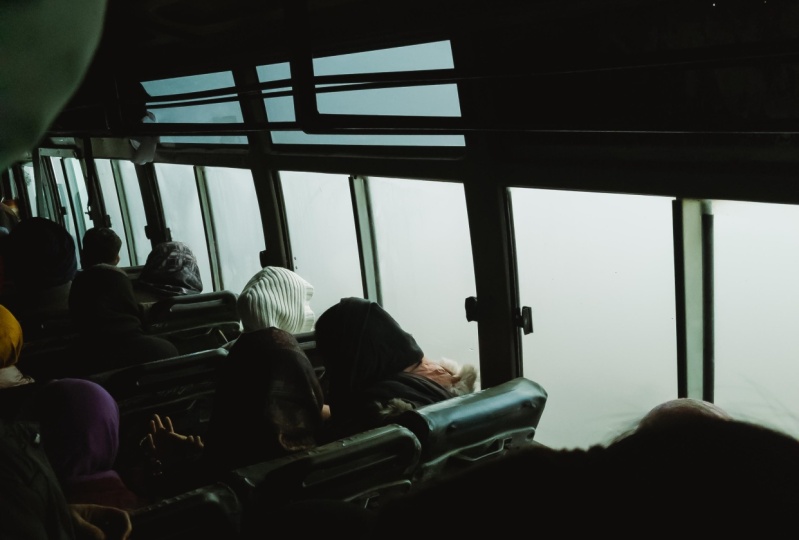
are and how we're going to use that. Here we go. If we look at this
photograph which I shot out in the East
Coast of Canada. I like this shot, it has a post-apocalyptic
feel that I think I can work with and increase its mood
through color grading, but before I go into
color grading it, I want to get it color corrected because I'm
looking at it right now. I'm seeing that we have light coming in
through the windows. We have sunlight coming in through some openings over here, but the overall look of the photograph is a little
bit on the cool gray side. There's a lot of
blues in the grays. I think I want to
neutralize those out before I start getting
into color grading. That's what I mean
by color correction, is basically fixing
the color balance of the shot to get it to a neutral starting
place and then we can branch off into more
interpretive or emotional color. That's really what we're
looking at doing in this class. Let's start with
the color picker. The way the color
picker has always worked is wherever you click, what you're looking
for is an area that should be a neutral gray, something that has
equal amounts of red, green, and blue in it, which is gray tones. If we click there, Lightroom will automatically
adjust the temperature and tint slider to give
us a neutral gray. I know this floor is
a concrete floor, it should be pretty much
a neutral gray area. I've picked up the color
picker from up here. There's the color picker. I'll just click on
it to pick it up and I'll drag it down
to a corner that feels, it should be neutral gray
and I'll just click on it. There we go. Lightroom
has now adjusted it so that this area that I clicked on is totally
neutral gray. If I don't like the results, I can always click
on another area. See what I get. There we go. That looks like
relatively neutral shot. However, I find it's a
little bit on the warm side, it feels a little bit too sunny, that's where I can
come in and play with these sliders to just
cool it off a little bit. There we go. Now it doesn't
feel quite so warm, and the tint slider
takes me from magenta tones like
that to green tones, and I think I can add
just a little bit of green in there. There we go. This shot now feels color corrected or
at least color balanced. But if we're going to do
some color grading to it, then we're going to move
beyond this neutral, pleasing color into something more interpretive,
and to do that, the tools that
we're going to use, are a combination of the
Color Grading panel. This is a new panel
in Lightroom, and what we've had before, which is the HSL, hue, saturation, and luminance panel. Now that's also known
as the color panel, but I prefer to work on
it in the HSL setting, I've clicked on all. I can see the hue sliders which change the actual
color of a particular area. If I want to change the color of this blue piece of equipment, I can make it more purple, or I can make it more cyan. That's the hue. The saturation is
the amount of color, I can increase that
same piece of equipment to really blue or take it
down to absolutely gray, no color at all. In the luminance, I can
control the brightness. I can make that blue piece
of equipment really bright, or I can darken it. We've had these tools in
Lightroom for a long time. I've used them to tweak colors within images quite a bit, but the color grading tools are relatively new to
Lightroom and they are carried over from the world of video editing programs
and using these to do color grading to apply a color look to our photographs. Before we get into adjusting and color
grading this photograph, what I'd like to do
is take a moment to show you exactly how to set up the color grading
panel itself so that it's easiest and
optimized to work with, and also show you
exactly what's going on as you adjust each individual
area of your image. In the next lesson, we're going to look at adjusting just a grayscale so you
can see really clearly what this new color
grading panel is doing to your image so that as you start experimenting
with your images, you'll have a clear idea
of what's going on. Let's jump into the next lesson. I'll see you in a
minute. [MUSIC]
4. The Color Grading Panel: [MUSIC] What I'd like to do now
is show you exactly how the new Color Grading
panel in Lightroom works, what it exactly does, and how to set it
up so that it's easy to use and
easy to understand. But rather than try and do
it to this whole image, I think it's going to be
simpler for you to see, if we work on just a
little simple grayscale, you can see exactly what is happening and then we can
apply it to your photographs. The Color Grading panel
lives down below HSL color. It's basically a more
modern replacement for a panel that used to be in Lightroom called
Split Toning, which allowed you to apply
one color to your shadows and one color to your highlights and play with them and frankly, not a lot of people used it because it wasn't
all that great. Now, the Color Grading
panel is brought over from the video and
film side of the industry, and these color circles are much more commonly seen
in video editing tools. We've not really seen them
a lot in tools for editing, are still images, but
they're incredibly handy. Let's look at what
this panel is doing. When you first open the
Color Grading panel, you'll see that we have a circle for mid tones, shadows,
and highlights. The way these work is you basically have a dot in the middle with
a circle around it, and then a little
circle on the outside. The way you work with it is to grab the circle
in the middle and move it towards a
particular color. As you see, I'm moving
it towards say, a yellow green in the mid tones, and it is applying that
yellow green color to the mid area of
this color scale. If I grab the outside spot, I can go and change the colors, so now I'm applying more of
a red magenta or blue blue, or cyan, and we're
back to green. The outer circle, we can change what's called
the angle of the color, the actual color we're applying, and the circle within here, as we slide it out, we apply a more saturated color, and as we slide it
towards the middle, we apply a less saturated color until we're right back in the
middle not doing anything. As we pull this out, you
can see a pale green being applied to the mid tones and as I slide further out, it's applying a more
and more intense or saturated green to the
mid tones of the image. That's generally how
these color wheels work. These ones are set up
so that we can apply a different tone to the shadows, to the mid tones, and to the highlights. However, I find that trying to deal with these
three little circles and move around them, it's very hard to get a precise, to get exactly the color
that you want to get and it's a little bit fiddly
trying to work with them. What I prefer to do
is rather than have all three circles showing, if we look up here at the
top next to the adjust, we have the view of
the three circles or we can view the individual
circles themselves. Then they come in larger and
they're easier to adjust, so there's the circle
for the shadows, the mid tones, and
the highlights. Now the mid tones, we've applied mid tones so it shows a little dot
underneath to tell you, yes, you've done something
to the mid tones. Now, I find it's much
easier to work in this larger circle to control exactly what
color I'm applying. The other thing that
we can do and I advise that you just click
this once and then leave it, is over here and a lot of
people never notice this, over here underneath
this little eye icon, there is a drop-down arrow. If you click on this
little drop-down arrow, it opens up some additional
sliders that you can use to precisely control the
color and the saturation, as well as the luminance
of what you're applying. Here on the hue, we can slide this slider around and very carefully choose the exact
color that we want. This is a bit more precise than grabbing that little
spot around the outside, I find at least, or I can actually specify
a particular hue. We can pick up some
of these hue colors from color pickers in various places and I'm going to show you where you can
find some of these things. But I could put in, say 180, which is a
cyan green color, it's a very specific color. I can be quite specific about the colors that I apply
using these sliders. The saturation
slider allows me to very easily control from
a 100 percent saturation, all the way back down
to zero saturation, which means I'm not
applying anything. This gives us very
precise control and as I bring up my saturation, I also have a slider
for luminance, which is the brightness
of the color. I'm applying a saturated
blue-greenish color, and if I increase
the brightness, it lightens the color, if I decrease the
luminance, it darkens it. I have with these three sliders, very precise control over exactly what color I am
applying to the mid tones, the shadows, and the highlights. Let's look at what happens
right across the range. I'm applying this, let's call it a cyan
color to my mid tones, and then let's go to
the shadows circle, and apply something fairly
opposite so we can see it. We'll go into a red color. There we go, and then to
the highlights slider. I just click on the
third little spot and will put a
different color in. Let's go like a purply
color. There we go. Now we can see that each color has been
applied to the area. This is sometimes
where I find that you can click back to the
three-wheel view, just to see what you've
done with all three wheels. We've got a red, a purple, and a green here. You can see them as a summary,
but when I'm working, I prefer to work on the individual wheels because I have better control over them, especially with this
drop-down arrow clicked. Now we have two
additional sliders which control the
blending of the color. Right now, we have a distinct area of this
red tone in the shadows, we have the blue in the mid tones and the reddish
pink in the highlights. Where they overlap or where
they meet, they sort, but the blending
slider allows us to control how much blending
is being applied. If we reduce the blending, they become more
separate, reds, pinks, and greens in the middle and
as we increase the blending, they start to blend, and
if we increase it enough, we pretty much take out the
center colors altogether because the pink and the red on the side blend altogether. But this controls the
set of subtlety of gradation between the
colors that we're applying. We can tweak that as we're
working on our image, but it's good to know
exactly what's happening. Then the balance
slider allows us to favor one end of the
colors over another. I'll set the blending
to the middle, and if we slide the balance
slider to the left, to the shadows, you see
that the shadow tone, the red tone, moves over into the mid tones and
almost into the highlights. If we put the balance
the other direction, now the red tones that we're using for the highlights moves over and takes over the middle and pushes right into
the shadow area. We can control which color
that we've applied dominate. These two bottom sliders
are ways for us to tweak how the colors are
distributed across our image. Note also, there's one more circle that is out here on
the right-hand side, and this is a global color. Let me just, for a second, if hold down the Option key, you'll notice the adjust
becomes a reset and I can reset all of these
sliders to zero. Now we're not applying anything. But if I take my global slider, you'll see I can apply a warm tone or a
red or a cool tone, and it's applying it equally
across all the tones. The color is being applied
from shadows to highlights. If I have things happening
for my mid tones, my highlights, everything, there we go, now if I want
to make a global shift, shift all the colors
one way or another, I can do that with the global slider and you
can see as I do that, we're blending the global colors with the local colors
that I have applied. It's just a way of shifting
the overall color balance. I can apply more and
more of that neutral, or the warm, yellow, brown color
being applied. And the more I increase
the saturation, the more it takes over
the other colors. You can see the blue
on the right is being taken over by this
warm sepia color, but as I reduce the saturation, then the other colors that I
have applied show through. That's the global slider, and we've now reduced
the saturation, so that's not about
not doing anything. That's a final tweak or
adjustment you can do to move all the applied colors
in one direction or another. That's how the Color
Grading panel itself works and and this is how
I recommend you set it up, use the individual wheels
and you can see shadows, mid tones and highlights, and then the global one, and with this little
drop-down arrow clicked down, you have these sliders
that you can get a more precise control on
exactly what you're doing, then blending and
balance control how they're spread
across the tonal range. Let's have a look at how
you're going to apply this to an actual photograph
in the next lesson.
5. Color Grading with Orange Teal: [MUSIC] Welcome back. Now we're going to take what we learned looking
at the gray scale and apply it to an actual
image and see how we can transform the image into a
different mood altogether. We're going to go
back to this shot of this industrial space that we color corrected to
get it to a neutral balance. It feels very sunny and neutral. There's sunlight streaming in, it's quite warm in its feeling, and really what I want to
get is a much more cold, post-industrial,
maybe alien feel to this shot because it
has that look to it, but the color tone
isn't going with it. It's all very warm
greens and yellows. What I want to do is apply
the color grading to move this towards more almost like a sci-fi kind of a feel,
if we can do that. Since I have it color
corrected and all set, before I go into
the color grading, what I like to do is make a
virtual copy so that I can compare the original to what I've done with
the color grading. In Lightroom, what I do is
I hit Command Apostrophe, which makes a virtual copy, which is just another version of the file that I can work on, and that way I can
compare the two versions. I like to do that whenever I'm heading off in a new
direction on an image. I make a virtual
copy so that I can compare what I've done
to where I started. Now let's go into the
Color Grading panel. We've done everything we need
to do in the basic panel, but we want to go
into color grading. What I'd like to do is
apply a look that in the film video world is
known as a teal orange look. It's a combination of
warm tones and cool tones that transforms images
in an interesting way. This is used in a lot of sci-fi and futuristic
types of films. Let's have a look at how
we can apply it here. I'd like to start with
our shadow values. Here's our three and I want
to go to our single circle, so I have a little bit
more control over them. I'm going to take the shadows
and drag them down towards a cool blue tone and you
can see as I do this. Now, I can change
the hue by grabbing the hue slider and
moving it around. I want to get into
that blue green, which is a teal color. I'm going to go a
little bit more towards blue and increase
the saturation. You'll notice I'm
using the sliders, but I can see the
results in the wheel and I can also see
the color that's being applied in the
little square to the left. As I dial up the saturation, I'm getting more blues into the shadows and it's starting to feel a
little bit cooler. Now in the mid tones, I also want to apply a cool, more of a blue green color. This is that teal
feel. Here we go. Increase, just change
the hue to a blue green, increase the saturation
a little bit. I'm just dialing the
brightness down a little bit just to add
a little more contrast, and then in the highlights, this is where I'm going to go the opposite direction and hit the highlights
with a warm tone. I'm going to increase the
saturation a little bit, bring up the brightness,
or the luminance. Now I'm applying a
warm sepia color or more an orange. I'm going to go more
towards the orange for this in the highlights. Now, these brighter
areas of the picture are going definitely warmer, but the cool areas
are going more teal. There we go. This is giving it a little bit more
of an other worldly appeal. If we look at our three tones, I've got a set of a blue-green, a blue being applied
to the shadows, blue-green in the mid tones, and warm in the highlights. I can just play with whatever
color I want to use there. If I want them to, I can
adjust the blending, so if the transitions are
a little bit smoother. I'm going to just slide the
balance a little bit towards the shadow side so that
I'm getting a little bit more of the cool tones. Here we go. Just by comparison, here's where we started and with just some adjustments
to the color grading, we've gotten to here. This is how we apply our color grading to transform
the mood of the image from a warm and sunny feel to a very cool other worldly feel. I'm pretty happy
with those results, but I think I can make a little bit more
refinement by going into the HSL color panels. I'd like to just intensify
the blues a little bit, so I'm going to grab the
saturation slider for the blues and dial it up a little bit just
to bring a little bit more of that other worldly feel. You can see the blue objects on the floor are getting a
little bit more color, and the overall feel is
just a little bit bluer. There we go. You can play with the same thing
with the aquas, which is the teals. There we go. Let's see what happens
if I play with the saturation on the oranges. Yes, that definitely
intensifies the look. You can see it in the windows and then that shaft of light on the floor. There we go. I've increased the saturation
on the colors that I'm applying with
the color grading. Again, just by way
of comparison, actually what I can
do to compare them, let's go to the library, and this is what I
really like about this. Look here, is in library, this is the advantage of
making virtual copies. I can now click on this
one and my original, and see them side by side. Now you can see how
I've completely transformed the
look of this image, to give it a very different
other worldly feel. [MUSIC] I'm pretty
pleased with that. If I go back to develop, there's an interesting
little twist we can play with. [MUSIC]
6. Apply Your Grading to a Different Photo: [MUSIC] Now that I have a
color grading look that creates an interesting
mood for this shot, I can take those same
settings and apply them to a completely different shot
and see if I can create the same mood in a different photograph,
different style altogether. The way that I can do that
is in the Develop window, on the left-hand column, I have a button that says Copy. What that allows me to do is copy certain settings
from this photograph, which I can then paste
onto another photograph. I can copy my color grading
and HSL settings and apply those to a
different photograph without having to carry
them over and adjust them. Then I can tweak the settings to suit that other photograph. Let's see how that works. I'm going to hit "Copy" and I'm going to
check none to start. See all these
different groupings of settings I can opt to copy over. But what I really want to
copy from this photograph is just the color
grading settings and the HSL settings
that I've adjusted to create this particular
look for this photograph. I will copy those. Then if I move over
to this photograph, now this was taken
in the same place, but it's obviously a very
different style of photograph. It's portrait, but I think
it could work rather well. Let's see what happens. You'll notice over here
in our color grading, there's no adjustments
that have been made, and the HSL panel also
has no adjustments. Now if I hit Paste, there we go, now you can see the color grading panel is exactly like the previous
shot we were looking at. There we go. Those settings
and the HSL settings, where we played
with a saturations, have been moved over
to this photograph. I can see how they look there. I'm pretty happy with that. It's interesting how our
very other worldly look can be applied to a portrait. But what I'm going to do is just play with the
colors a little bit. I think for this one, I'm going to change the balance
a little bit more towards the highlight because I
think I'd like to warm up this shot just a little bit. I'm going to move towards the highlight side and
the balance. There we go. We still have those
cool teal colors playing but I've just
got a little bit more. In the HSL, I can dial down the saturation on the blues
just a little bit and increase the oranges
just to keep her skin tones in the bounds. There we go. Now, I've applied this other worldly sci-fi feel which we've developed
for this space. Now I'm applying it to this portrait and I
quite like the look. There's an interesting way to create looks in one photograph
and apply them to another, then adjust a little bit to suit the individual photograph. Next we'll look at a completely different
photograph and create a different
look altogether. [MUSIC]
7. Create a Cold Winter Feel: [MUSIC] Here's a very different
style of photograph. It's an outdoor portrait which I shot on a really
cold winter day. But the sun was shining, so the photograph has
a warm feel to it. It's very warm tones. Everything is a little
bit creamy and warm. I really want to capture that
cool winter frosty feel. I want to create a look
for this shot that will convey cold winter and that's in the blues and teals area. That's what we
associate with cold. In the Basic panel, I've gotten this color correct. This is pretty much as it
looked when I shot it. I've made a few adjustments,
but nothing major. Now, I want to use
the color grading and the HSL panel to create a cool
winter look for this shot. As I always like to do. The first thing I'm
going to do is make a virtual copy of this so I can compare my color graded version to my original version
and see how I've done. Command apostrophe
makes a virtual copy, which is just another version of the photograph in Lightroom. I'll take that virtual copy. Now we'll switch over to
the Color Grading Panel. You can see now all three wheels are set to neutral so they're
not doing anything. We'll start with
our Shadows wheel. In the Shadows, I want to have a set
of that teal blue, green fill in the shadows. I'm just going to
start by dragging the circle out
towards that color. Here we go. You can see right away as I go out towards
the blue green color. We're already
starting to transform this shot into a cooler,
more wintery feel. So I'm pretty happy with
that for the shadows so far. I can play with
the actual color, make it a little bit bluer, little bit less green. There we are. My mid tones, there I definitely
want to go blue because that's going to
give it that frosty feel. I'm going to drag straight
down towards the blues. I don't want to go too saturated because that's going
to feel just too done. This is where after a while, you sort that sense of
balance between creating a look but not making
it feel overcooked. That's my term for
too much everywhere. I'm going to play with the
saturation there. There we go. So now it's really
getting a wintery feel because most of this shot of living in the mid
tones and highlights. We're really seeing
the effect now. If we go to the highlights, again, I want to
be in the blues, but I don't want to
necessarily choose exactly the same blue for the mid tones
as the highlights, because it's always nice to have a little bit of
variation in there. I'm going to drag a
little bit to the right. There we go. This is definitely
getting a wintery feel. I don't want to go too
far because again, if I go too far, it just looks over
corrected and overdone. I want to play with
my saturation until it feels wintery but
not manipulated. That's really the balance that I'm always looking to achieve. There we go. Now it
feels really frosty. If I just turn off this
panel for a second, you can see what we've done. We've gone from
almost a summer field to a real winter color cast. Now I'm pretty happy with that, but I think that I can
refine those colors a little bit in the HSL panel. What I can do here is I can
shift some of the colors a little bit like I
think if I change the hue of the aquas and blues, just shift them a little bit
towards the yellow green, and the yellow blue
or the blue green. That gives me a slightly
more interesting look. It's not quite as pure color. We're mixing the
colors a little bit. Now, my real concern
here is that it feels like her skin
is a little sickly, it feels like all the skin tone has been drained
out of her skin. What I can do is go into the oranges and increase the
saturation of the orange, which will bring back
the skin a little bit. I can drag the orange
saturation slider, move it over and now you can see she's coming back to life. There we go. Now we have a great contrast
between her skin. I don't want to go too
far because then again, we're going to get into
that warm, mushy zone. It's all about finding just
the right balance here. It's very subtle, but after a while you start to
get a feel for it. I'm just going to bring
this up to around there. That feels really good. Now the shot feels
cool and wintery. Notice that her blue
eyes are really blue now because we've
really accentuated that. It's giving that
really cold wintery feel to this portrait. If we go back to the
library again because we made a virtual copy and this
is what I love about this, is if I hold down the
Shift key and select both shots in the
multi image view. Now I can see what I've
really accomplished. And it's pretty
amazing how I can change the mood of
this shot by just applying some color grading and a little bit of final
adjustment in the HSL panel. That creates a whole different
mood for this photograph, gives it a cool, wintery feel. I'm really pleased with that, and I hope you like it. I'll see you in the next lesson. [MUSIC].
8. Create a Retro Vintage Look: [MUSIC] Now I'd like to share a little
trick or inspiration that I use when I'm going to play around
doing some color grading. There's a great website provided by Adobe called color.adobe.com. I'll include a link to
it in the class notes. This whole website is devoted to colors
and color palettes, and it's really wonderful. You can use it to create custom color palettes based on a whole bunch of
color harmonies. But what I really enjoy is
this tab called Explore. If you click there, it takes you to a page full of different color palettes on different themes or extracted from photographs
or illustrations. There's just an endless
resource of color inspiration. For this image that
I'm looking at now, which I shot in Newfoundland. It's a little fishing village. It has a really nice
quaint feel to it and I would love to take
it to a retro style. Give it the feel of an old
postcard that's maybe been stuck in the window for
a few years too many. I went to look for a
retro color palette, give it some vintage feel. What I can do on this website here is in the Explore
right up at the top. They have a search window, and I can type in retro. That is one of the terms
that they use for searching. If I click on that, I get all these color
palettes that are based on retro-themed images, illustrations, objects,
all kinds of stuff that all have a mid-century
retro feel to them. I'm just going to
scroll down here until something catches my eye. Let's just see. There we go. There's
our retro interior. That looks really fun. It's got some
orange, teal color. Orange and teal color
is this great green, all based on a retro-style
interior of the living room. I'm going to click on that. There's the photo it's based on, and here are the color swatches that are brought out
from this photograph. I can use these color patches to color grade my image
and give it a retro feel. All I have to do is
make this window smaller so I can access it. Get it nice and small. All I need is something that I can click on those patches. I'm going to move it over here and then make my
Lightroom window a little bit smaller
so I can see my color patches. There we go. This image is all ready to go. I've done some adjustments in the Basic panel and now I'm going to jump into
the color grading. Nothing has been applied yet. I can see that,
all three circles. To do this, what I need to do is go to each individual circle. I'm going to start
with the shadows. This is my shadow's
color circle or color. This is my shadow color wheel. Down here in the left corner of this little panel is a
little color swatch. It's showing gray
because right now the color on the wheel
is right in the middle, so it's just showing a gray. But if I click on this square, it opens up this little
window and most importantly, it has a color picker. If I pick up the color
eyedropper by clicking on it, then I can drag anywhere on
screen to pick up a color. If I come over to, I think, in the shadows, I'd like to do this deep brick, rust red. As you can see, as I move over the various
patches and I'm holding the mouse button down to keep the picker alive, the
little eyedropper. As I move, those colors
are being selected. I'm going to move over
this nice red color. That is now being applied to the shadows and then
I just close that. Then I'll take a different
color from the mid-tones. Click on this, pick
up the eyedropper, holding down the mouse. I liked the look of that
color for the mid-tones. Then I do have to
close this window once I've made my selection
and then go to the highlights and
open the little thing, pick up the clicker
for the highlights. I like the look of this. That's looking good. It's creating a nice
feel in the image. I really like that. There we go. Close
this little window. I can choose a grading
for the global setting. I think what I'm going to do, I'm just going to
see how this looks. I think this beige color
might work on a global basis. Just to give it a little
bit of a faded feel. I think this one should work. Now that I have
my colors chosen, I can go back to the wheels, and for this one, for the red in the shadows, I think what I'll do is
bring the luminance down, the brightness
down a little bit. It's a slightly darker
red that's being applied and that will
work well in the shadows. The mid-tone is teal green. I think I can bring
that up a little bit, so it brightens a little. With the highlight color, I can bring the luminance up a little bit more. There we go. Great. I think I can
bring the saturation down just a little bit
in the highlights so they don't get too overwhelmed. That's great. Then
look at my Global. I play with the saturation
on the Global one. This looks a little
bit too faded beige, but somewhere in here
works really nicely. Now, if we just turn
this off and turn it on, you can see how I've
now given this photo, a nice set of retro faded
postcard feel to it, all based on the colors
and this retro interior. This website is a source
of endless inspiration. You can search for all kinds
of different terms or themes and get inspiration
for colors that you can use to color
grade your images. Feel free to explore that
and have fun with it. It's really fun. Enjoy and I'll see you
in the next class. [MUSIC]
9. Using Camera Raw: [MUSIC] Hi. Now I realized that everything I've been
showing so far in this class, I've been doing in
Adobe Lightroom. I know that many
of you don't use Lightroom or prefer a
workflow in Photoshop, and that means using Camera Raw to open
up your raw files. That is exactly the
same as working in Lightroom because it's the
same processing engine. Let me show you.
Here's the image that we've just been working on. I will double-click it and it opens up in the
Camera Raw window. Camera Raw, this
is version 14.2. Here's our image. Our basic settings
are all here exactly like what we had in Lightroom. What they call the HSL
panel in Lightroom, is called the Color Mixer
panel in Camera Raw, but it's exactly the same. I can choose to show HSL as opposed to individual
colors, which I prefer. I can choose all
so I can see hue saturation and luminance
all open at the same time. This is exactly the way that
I set it up in Camera Raw. Then down here in the
color grading window, see I have exactly
the same controls. I have the three color wheels
for shadows, mid-tones, and highlights, and I have the option of looking at each
color wheel individually, and there's the same
little drop-down arrow which opens up the hue
and saturation sliders, so I have a little bit
more delicate control over each adjustment. There's my mid-tones, there is my highlights, and there is my global control. Basically, anything you can do in Lightroom and anything
that I've demonstrated, you can also accomplish
in Camera Raw. There's one small exemption and I'm sure it's going to
be coming up in an update. The little swatch window with the color picker
that we use to pick the color swatches isn't available in Camera
Raw for some reason, but I'm sure it will show
up in an update very soon. Meanwhile, if you like working
in Camera Raw, go to it. You can still do all your color grading right there and enjoy. [MUSIC]
10. Class Wrap Up: [MUSIC] Hi, and congratulations, you've completed this class on adding impact, emotional appeal, and style to your
photographs using the color grading tools in
Lightroom or Adobe Camera Raw. Just to review, we've gone through exactly how
to use the tools, the color wheels, and then make small adjustments to them
using the HSL panel. We've seen how that applies to a grayscale and then we've
played with different images. First off, we took an image of an abandoned manufacturing
space and used a traditional cinematic teal
and orange color grading to give it otherworldly
sci-fi feel to it. Then we took that
same color grading and applied it to a portrait, made a few adjustments
and gained a beautiful, interesting look to a portrait. Then we took a winter scene, an outdoor portrait, and gave it that frosty chilly feel that really sells the
idea behind the picture. Then finally, we took a really nice little landscape
shot and turned it into a retro postcard-style image that really has a fun appeal. I hope you've enjoyed and
learned lots in this class. I really encourage you to
experiment and play with different color combinations
and see what you can do with your images to enhance
them using color grading. Now remember in the
notes for the class, I've given you lots of inspirational examples and
some further information, so have a look there and then
play with your own images. I really encourage you
to post your images on the project's
panel for this class. Before and after images
are great to share, it's good to get some feedback. I'll always be willing to give my feedback or suggestions, and I'd love to see
what you create. So keep playing, have fun, and congratulations. Hope to see you in
other classes as well. [MUSIC]
 Rob Davidson, Food Photographer and Videographer