Transcripts
1. Welcome! Start here: Welcome to cinematic map
animations in After Effects, where you will learn
to create beautiful three D animated map scenes that look like they came
straight out of a movie. This class is for motion
designers, video editors, and creative pros who want
to add animated maps to their content without spending
hours figuring it out. If after effects has ever
fall too complicated, this class makes it simple. You learn how to source
and prep your map image, draw clean travel paths, build pulsing markers and pins, and animate a three
D camera to fly through your scene all
using after effects. The end, you'll have a
fully animated map scene ready to use in videos, social content or client work. I've also included
practice files in the downloadable resource to make the process even easier. I recommend watching
videos in order because every lesson builds
into the previous one. You can control the volume and the playback speed
of every video to learn at your own pace. If you gustck have
any questions, be sure to drop them in
the Q&A section below. Just make sure to
check the existing questions first because there's a good chance that the
question you want to ask has already been
answered in detail. At some point, you'll be
asked to leave review. Please wait until
you had a chance to really experience
the material. Honest feedback helps
me improve the course and better serve you
and future students. Thanks again for
joining this class. I'm genuinely excited
to help create studying cinematic
map animations and to give you the confidence
to use them in real projects whether
personal or clients based. Let's jump into
the first lesson.
2. Source the Perfect Map Image for 3D Animation: Well, the first thing
we need to do is to find a proper picture of a map. And by proper, I mean, we need to find a high
resolution, big picture. So for that, I would search
for, let's say map of Europe, map of Europe and
sometimes search before, map of Europe four
K. And I found that free Peek actually has
some really good results. So you can go ahead and
search free peek right away. They have high quality
maps with big resolution, and you can see
that some of them have grown that's premium, but something that's not premium is something
that doesn't have this crown and you
can just go ahead and download it for free. So for example, this map I definitely know for sure
that it's high quality. So if I go ahead and download
it and I preview it, we can see the dimensions
is 6,720 by 4,480. So really good. And if I preview it
and I really zoom in, we can see that the
quality stays relatively good compared to mean
everything else. And that's exactly the
reason why we need a high resolution is because
whenever we zoom in, we want to keep the same quality because we will
have to zoom in in order to work with the camera to create the three D effect
and things like that. Also in the past on Freepik, I found some SVJs which if you know how
to work with SVGs, you can put them
into Illustrator, and by using the
Illustrator file with SVGs, we can rasterize the layer so that it always keeps
the same quality. But it's not going to be
the picture of a map, it's going to be more
something like this. And we can actually go ahead and search for
that here as well. If we go for the file
type and we click on SVJ, there you go. So we have a map of you, for example, we can go
ahead and download it. Let's zip it. Actually, this
is illustrated map already. And if we zoom in, we can keep on
zooming in, and it's going to keep on having
the same quality. That's because it's rasterizing. I'll show you what it
means in after effects, but you can see that the
quality will always be like, super sharp and precise on all the edges and on all the countries and
boards, things like that. So we can use this
map, for example, because it's always going to
have this very high quality, or if we're going for
something more cinematic, then we can use
something like this. So, free pe, really recommend you go ahead
and search for your map. You can go ahead and
choose the same one as I have in the downloadable
resource section. If you have any
questions, let me know. And that, let's jump
into the next video.
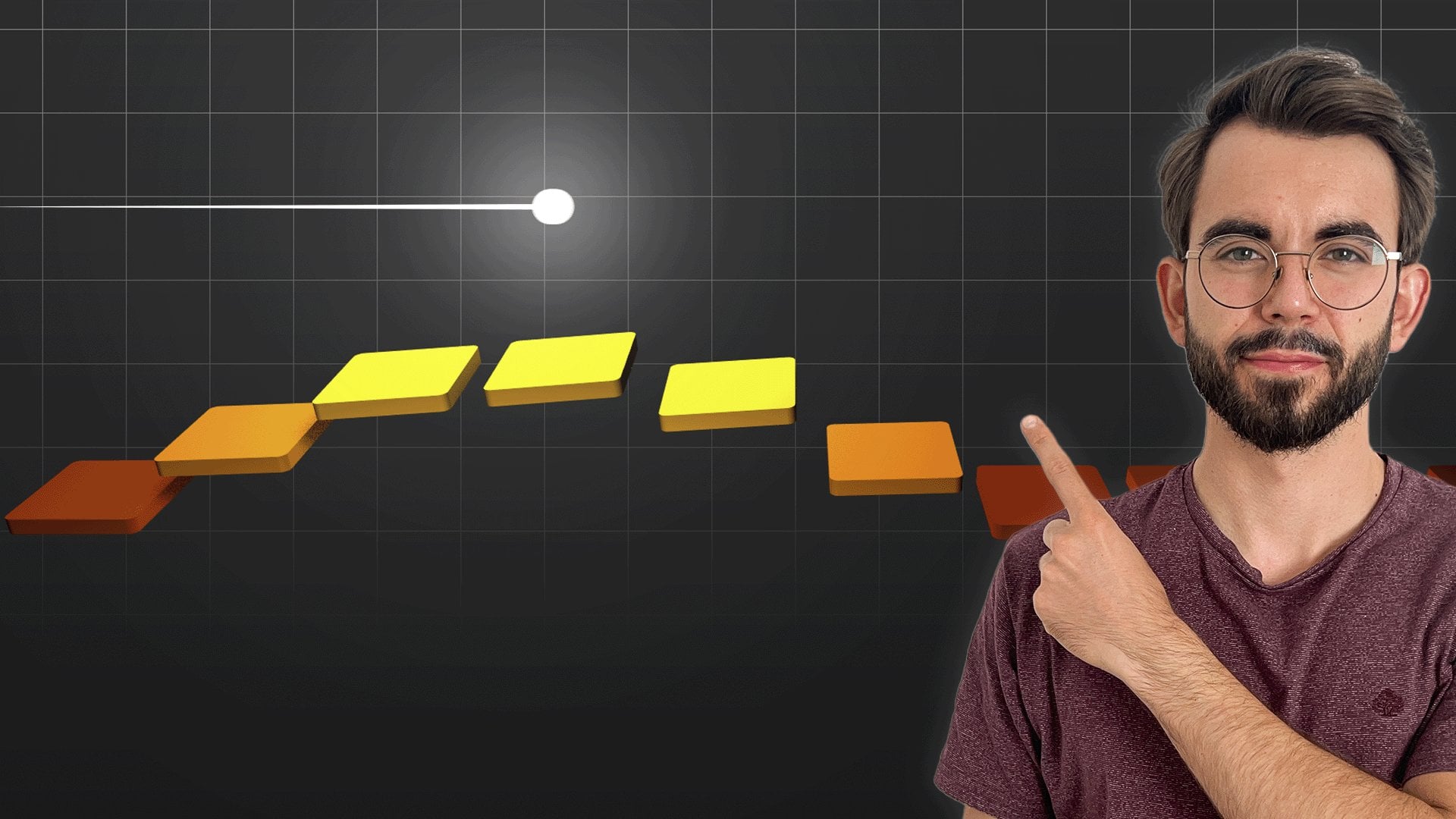
3. Draw a Clean Dashed Route Using Shape Layers in After Effects: Now the next step is to
create our line, our path, and specifically
would like to make it dashed so that there's a
little bit of separation. And for that, we are going
to come to after effects, create new composition
1920 by 108060 frame rate, and the duration is going to be 30 seconds and press
N. Then I'm just go ahead and quickly show you the difference between the maps. So if I dragon drop this map, you can see the
size of it is huge, so I can press on S. And
make it a little bit smaller or make it or really zoom in and the quality is relatively good
just because of its size. But if we import the
illustrator file to keep the high quality
at all the time. Okay? So AI is illustrator, and I'm going to drag
and drop it here. For that, we need
composition and layer size. Just keep the settings. If you're doing this, then
let's go ahead and click here. Let's see. Yeah, it has 500 by 500 pixels. So let's do like 2000 by 2000. Great. And what I'm
quickly going to do is create an null object by
pressing Shift Option Command Y. If you're on Windows, instead of command, you have
to press control. Instead of option, you
have to press Alt. So Shift Alt Control. Why? I'm just going to
parent all of this to our null present S. And if
we increase it in size, it's going to increase in size, but then we have to
click on this button, which is going to be storize and it's going to keep
insanely good quality. So we can zoom in forever or the placement
doesn't really matter. We can zoom in on
every single part, and whenever we have
the storize button is going to be the same quality. But anyway, we are going to use we're going
to delete this, and we are going to put
our color full map, and I'm going to rename it
to Map also going to press another shortcut Shift
Option Command and it's going to fit it to the
sides of the screen. So I can press Shift
Option command G, and it's going to fit it to the top and to the
bottom of the composition, and by pressing it's going
to do it horizontally. Now, we just need to select
the points of our path. So we need to the starting
point and the end point. And let's start in Madrid in Spain because we have a little bit of
space at the top, left, right, and bottom. And specifically,
we need that space for our three D camera later. So let's select the pentel and we are going to start here, and I'm going to start by dragging the handles
a little bit. I'm also going to
press Shift so that I know it's perfectly
horizontal. Search here, and
where should we fly? Well, let's fly to
Poland to Warsaw, and I'm going to
drag it here and I'm going to press on shift once again and drag it like so. Now, I can drag this handle and actually just put it maybe a little bit to the
top and customize our flying path can
be to your own taste. Perfect. And let's rename it to line Path or just
let's call it path. And now I need to go into the properties if you don't have the properties to go into Window and properties, select our path. And now we need to
disable the fill. I'm going to press none, and I'm going to enable the stroke. For the thickness of the stroke, we can keep it at six, but then we can change
it later at any point. So I'm going to close the
path and then open it again. And here we need to
search for dashes, and we need to click on Plus. And here we also can customize if we want the
dashes to be let me assume. If we want it to be like
at a 90 degree angle, so it's going to be
like little squares or rectangles or we can
for the line cap, we can actually put
here, for example, round cap, and it's going to
become a little bit round. So it depends on what
kind of style you like, what kind of style
you're going for. And then we can customize
the number of dashes here in the number of dashes.
I like the way it is. And now let's animate
our dash path. So for that, I'm going to
click on add and Trim Paths. And let me close the contents. Actually, we to
open the contents, but close the shape
so that it's a little bit better
for you to see. And now, all we have
to do is we need to animate the end of our path. So let's click on
this clock icon. It's going to create a shape, and I'm just going
to put it roughly a little bit further because that's going to be the endpoint. And in the very beginning,
I'm going to put it this to zero. So let's say it takes like exactly 6 seconds to get
from Madrid to Warsaw. And I'm going to get to exactly 6 seconds by
just pressing here and then putting
our keyframe there, but I'm also going
to hold shift so that it sticks exactly
to the playhead. Perfect. So now we
know that it takes 6 seconds to get from
Madrid to Warsaw. Slightly not perfect, we
can open the shape path. Select the path, specifically
this one, not this one. Select this path and then
select the selection tool, which is going to be V and just drag it so that it's right
there perfectly. For this one. Yeah, we can do it
so here as well. Perfect. And let's press on
you to reveal the keyframes. Can also click on this
button to disable the blue line that's
going to show the path. So let's disable it
so that we can see our line better. Perfect. We can enable it back again. And we can also select
these keyframes, press on Fn F nine, or if you're in Windows, you can just press F nine. And then when to open
the graph editor, and make sure that our graph starts slow and ends
slow as well, right? Because right now
when it starts, it starts and ends at the
same time at the same speed. Well, because we
pressed a fan of nine, it's a little bit smoother, but if we just reveal
these keyframes back to just the normal movement by pressing command or control
and click on the keyframe, then it's going to be
just the rigid movement, which is something
that can work, but we can make it a little bit better by pressing F nine, and then going to
the graph editor and customizing the
graph a little bit further by selecting
these keyframes. And let's put it to roughly
70 in terms of the influence. You can see the
number at the bottom. Right near the speed where we have the
yellow icon pop up. So we have the speed
and the influence. Let's put it roughly to like 70. And right now, it's going to start slow and then it's
going to accelerate, move fast, and stop here. Perfect. If you have any
questions, let me know. Add than that, let's
jump to the next video.
4. Add a Pulsing Location Marker That Pops: In this video, let's create a pulsing animation
that's going to show the final location where we are going to later
also have a pin. In order to do that, we need
to select our shape tool, click on the ipsol or
we can just click on the shortcut Q and we can switch between the
different shapes. So once we have the circle, we need to create a circle and put it right in the middle. And then we can go ahead and press in command and
double click on this button and it's going to center the anchor point of our circle because
if we don't have it, the anchor point is
somewhere to the side, but whenever we click and
then double click here, it's going to become
right in the middle here. You can see it here.
So if I disable it, yeah, there you go. It's
right in the middle. And in order to
create this sort of, like, pulsing shape, of course, we can animate
manually by creating keyframes of
increasing the scale and animating the opacity. But it's actually a lot
easier to just ask AI to create an expression for us and then use that
expression to do this. So for that, I'm
going to go to HGPT, explain exactly what I want
to HGPT and then we'll do it. Hey, GPT, I'm creating an
animation after effect where I need to show a pulsing
circle with a stroke, and it's going to show
specific position on the map. For that, I need you to create an expression for the scale and the opacity so that the
scale increases in size. Let's say it goes from zero to let's try 100 in
terms of the scale. And the opacity
also goes from zero to actually the opacity need to go the
opposite way 100-0. And then it needs to work
in sync with each other. So go ahead and create
two expressions. Let me know send me the expressions and I'll
put it into after effects. So as you can see,
you just need to kind of explain your situation and then it's going to just
go ahead and create it. Okay. Scale and opacity perfect. So I'm just going to copy it. Come to after effects. Let's call this pin. Actually, this is like
pulse, not a pin. I'm going to press on S, and
then I have to press Option. If you're in Windows,
you have to press. So let's click here and just
paste our expression in, and let's see what's
going to happen. Perfect. And now we
just need to animate the opacity. Let's go
ahead and copy it. Click on pulse. For this, I am going to press Shift T so that the scale doesn't
close as well. And then we need to do
the same for opacity. Click on option, paste
it in, and let's see. By the way, let's select it and increase the
stroke a little bit. Maybe this one is a
little bit too thick. Let's put it to like 25.
Let's see if it works. Perfect. Now, because
we animated the scale, we cannot change the scale. And in order to
change the scale, we need to search for an
effect called transform. You can either search here
just for a regular transform, but I recommend you
setting up an FX console. It's going to be
this console that you can search for
all sorts effects. So you can search for Transform, and then just click on Enter
and it's going to apply. I search it's called FX FX
Console by video copilot. Just search for it in Google. It's absolutely free
and it's really useful. And here, you'll see that I'm
able to control the scale. So there you go. And the reason why
I want to do this is because I want to actually duplicate these pulse so
that we have two pulses. And then I want to decrease
the size of one of them so that it will
go some like this. Just adds a little bit
of dynamic to the video. Now, let's enable the map and the path and see
exactly what we have. Perfect. Now, because we
have two different layers, and if I change the
position of one layer, it's going to change slightly differently compared
to the other one, as you can see here
on the screen, they change slightly differently
because of the size. And so it's actually
going to be a lot easier to just select these two by pressing Shift and then press Shift Command or Control C, and it's going to precompose. So let's just call it
pulse and press new game. And now I can press on P
and move both of these. So basically, I just created another composition that
just has these two. I can double click
on it, and it's going to be exactly the same. No, for this, let's just
find the starting point. Actually, it's here where we have the anchor
point and I can press on A or I can press on P can change the position to be where we flying to
believe it was Warsaw, just go ahead and put it there. You don't necessarily have
to use, drag it like so. You can just select it
and then move it on the map, whatever
works best for you. Yeah. So like so. Let's go ahead and
see what we have. Perfect. If you have any
questions, let me know. Other than that, let's
jump into the next video.
5. Create and Position a Custom Map Pin in 3D: In this video, we're
going to create a pin, and you can definitely find pins online on websites
like invito elements, art list, motion array. But why don't we create
from scratch here? Because you have to
have a subscription to get those. It's
super simple to do. I'm actually going to
go into the project, and I'm going to create a
new composition so that we don't have to
precompose later and we don't have to mess
around with these layers. Just going to call it, let's call it pin. And let's do 1,000 by 100. So I'm going to
select our ellipstol and I'm going to
double click on it. So it's just going to create an ellipse the
size of the composition. And I'm going to press on S to decrease the scale and then just make it a
little bit smaller. Okay. And for this,
we do need the field. So we need to enable the
fill and disable the stroke, and let's make it white. Change the color a
little bit later. And we're going to do
some wizard D here. Let's close and open
our shape layer, and let's click on lips, and let's actually
click on it and press Command D or Control
D to duplicate it. Now we're going to
have two ellipses. And we need to make one
a little bit smaller. So make lips two a
little bit smaller, increase the scale
to roughly like so. We need to select these two, right clip and group shapes. Perfect. Now, we need to
click on Add Merge Paths. And in the merge paths, we need to select
instead of Add, we need to select subtract. And now we just need to
change the position, and Ellipse one
should be on top, Lips two should
be on the bottom. They're under group one, and then merge paths
should be outside of it. Now, let's open the group.
Let's open ellipse one. Let's open ellipse path. Okay, so this is
exactly what we need, and we need to stretch
it up a little bit. But right now it is a shape, and we need to change it to a different kind of shape so
that we can customize it. Basically, we need to
make sort of, like, a line out of it so that we can customize
it with a pentl. So not to do that, I'm
going to select this path, and I'm going to convert
it to bezier path. And whenever I open this
path or just click on it, you'll see that we have
these sort of handles again. And I can actually select one of them and just drag and drop it a little bit lower by
pressing Shift at the same time. Now, let's select
one of these and press an option and drag it
right to the middle here. And let's do something
here as well. On this side, we don't have to press option, and there we go. There we have our pin. Now let's just put it right in
the middle. Perfect. And we don't necessarily
have to call the pin here because we're going to
use it as a composition. So we can close the spin and we can go to our
main composition. And let's drag and
drop our pin here. Let's press on P and S. So I'm going to
decrease the scale, press on P and shift to move
it a little bit faster. And let's just put it there. Let's double check
that it's perfect. There you go. And
you have it there. We don't necessarily
have to create an animation for it because we are going to start here on
the map near the Madrid, and then with our camera a little bit later and then
we're going to go there. But if we want to we can
still create animation. And one of the great ways that you can create an
animation, first of all, you can literally animate
the scale, for example, it's going to go from zero
to a little bit more. For that, we just need
to change the k point. So we need to select this tool here to
change the k point. So let's drop it there. And let's just
animate the scale. So it's going to be the scale at eight when it's
going to be at maxim, and then we're going
to start from zero, and this is the way
it's going to grow. Select the N nine
to make it smooth, can make it even smoother. Sound like so. Perfect. And let's see. When the camera gets to there, we can select the V, press V to select the selection
tool or just this tool, and let's try and drop it here. Just press and shift in it
for it in order to stick. And whenever we get to the end, maybe a little bit earlier. Perfect. If you have any
questions, let me know. And that then jump
into the next video.
6. Animate a 3D Camera to Fly Through Your Map Like a Drone: Now we get to the fun
stuff where we can animate the camera and
just make it next level. Okay, so for that, we
need to create a camera. Of course, we can go into
layer new and create a camera, but you can see
the shortcut here. So if you want to create
maps kind of in bulk, then you need to learn the
shortcut just going to make your life or you should learn the shortcuts going to make
your life a lot easier. So great camera. Make sure to enable the depth
of field here, press a. It's going to warn you that
only five to three D layers, it's okay because we don't
have the three D layers yet. Now, make sure that here you are in the classic
three D renderer. If you go into Advanced three D, we are not going
to have the blur. So it's not going to be blurry in the foreground
and the background, and it's going to be all
in focus at all times. But we want to add
a little bit of that motion not
motion, just blur. So let's go ahead and
click on Class three. Now. I'm also going to create, once again, layer
new and null object. This is the shortcut.
Learn the shortcuts going to make your life
a lot easier once again. And I'm going to connect the
camera to the null object. I'll explain why in a second. And let's turn everything
three D. Just turn blurry. That's okay. Okay, so
let me open the camera, the transform, and the
null and transform. So you will see that all
the settings are the same. So we have the same settings here and the same settings here. In terms of the position, we can change the position
of the camera there you go. And if we change the
position of the null, we can change the
position changes slightly differently
because for the camera, we have also the
point of interest, and that's why it changes
slightly different. But the specific reason why we're using nulls
is because if we want to create an unbelievably buttery smooth movement
of the camera, we need to use nulls
because in order to create the very smooth
movement of the camera, we need to overlap the keyframes sometimes of the position
or the rotation. But we would not
be able to overlap them if they're animated
on the same node. So let me give you
a quick example. I'm going to duplicate the null. So let's call this one null one and this one is
going to be null two. Okay. And now I'm
going to parent this null to null number two, and let's open it up. And you will see that now we can change
the position of it. We can change the
position here as well. And we can create
multiple keyframes on this one and this
one at the same time. So this is the reason
why we're doing it in order to create
super smooth movement. But for now, we're just
going to use one null. And let's click here
and select two viewers, and we will see that
where we have our map, we have it exactly here. And our focus point, which is going to
be camera options, our focus distance, is here. So if I change it, you'll
see that it changes. Now, what we need to do
is we need to press on P on the null and zoom in to the point where we want to zoom in roughly at where
do we want to start? And we need to
search for Madrid. Actually, for now, we can disable the depth
of field in order to just have everything super sharp and we
can select one view. So let's zoom in a
little bit more. L et's do 1,200 or 1,100. Yes, 1,100 is going to be great. And then I'm going
to also click on R to shift R to have all
the properties here. And we need to click to create the keyframes.
Let's do it for. And then if we want to change it later, we
can absolutely do it. And I'm just going to
change the position so that the center is going
to be in Warsaw. So let's do it like so. Perfect. So let's see what
we have. There you go. So we have this movement
that starts here, and then it ends there. But we can see that the movement
of our camera is linear, but the movement of our path
is actually not linear. And so, another thing we can do is we can select our path. Let's open the shape path. Let's select our path, click here and copy by
pressing Command C, and then we can delete
these keyframes and we can just press Command V
to put the position in. We'll see that the movement
now changes slightly, and now we actually move exactly from Madrid to Warsaw on
exactly the same path. So we just copied the path
from the path from our line, paste it into a null, and I'm just going to
put the keyframe like So all we have to do is we
have to zoom in a little bit. Actually, let's click on A to change the anchor
point and let's zoom in Lo and then press on to see the keyframe,
and there you go. Now, let's select
these keyframes. Go to the graph
editor, actually. Let's make it press F
nine to make it smooth. Graph Editor, select this, make it roughly to 70. If you want super precision and you want it
to be exactly 70, you can double click on the keyframe and
then put the values, the precise values here. So, for example, we can
see that we have 70 here, so if on precise 70, we can now it's going to
be roughly in the middle, roughly because we have slightly different
graph variations for the path and for the null, you can see changes slightly, but more or less it stays
roughly in the middle. So there you go. Now
we're following the path. Just to make sure
things are precise, I'm going to go into Path, going into graph editor, double click on the keyframe, make sure this one is 70 and make sure this
one is 70 as well, just to make sure that we are always going to
be in the middle. And let's change this keyframe. Okay, so now we have
perfect precision. Great. All we have to do is to change the rotation
slightly of the camera. As you can see, we can change
the rotation of our null, like so, or we can change
it directly on the camera, but we can do it on the null. So let's go ahead and do it. Let's begin by starting
like here in this position, and then by the time we
get to the very end, we can rotate
slightly differently. Maybe we can rotate a little
bit, like, a little bit, like so now we just have to play around and see what
exactly we like. So maybe we can do
it so. So let's see. We go from Madrid, let's zoom in, see what
we have with keyframe. We have double keyframe
somewhere probably here. Yes, we just want to
make sure it is perfect. Now, let's move these
here at the very start. So this is where we begin. Okay. Now I'm going to
select all of these, press FN F nine, and it's going to be smooth
in terms of the movement. We can start the movement
a little bit later. We just need to select the
keyframe move them further, so we can start at Madrid
and end it like so. Perfect. And now we
just need to select our pin and click
on R and change the rotation of it
to what would be 90 degrees and then change the rotation at
the end there as well, like so so that we get
something like this. Perfect. Okay, now let's enable the dept of field
it's going to be on. And let's we don't necessarily have to
click on two views, but let's click just
to double check. So you can see the
focus distance is here, but then we have our pin here. So we actually need to drag this part to here so
that we can focus here, and we need to decrease the blurry level a
lot. There you go. So now roughly our
focus is here, and all we have to do is we
need to go into, actually, let's just go to
the beginning to make sure it's always, perfect. So let's go into one view, and here we can customize
it to our liking. We can decrease the blurry
level to let's say 100. It's going to be a
little bit less, but then more things are
going to be in focus so that it's not over
stimulating, in a way. Great. Now, potentially we can just change the
color of the pin. That's select it,
select the fill, make it red, with the lips one. Let's just delete the fill on both of these and the stroke. Oh, there you go. This is
the field that we need. It was outside the contents,
outside the group. So now it's red,
and there you go. So let's take a look at
what we have. Start slow. Then go throughout Europe. Then we have our slight
movement at the very end. Beautiful. Let's
look at it again. We can do any sorts of
customization to whatever we like. But for me, this looks
absolutely beautiful. Okay, if you have any
questions, let me know, then jump in the next video
and learn how to export.
7. Export Your Final Map Animation in Cinematic Quality: Okay, the final stretch, let's export the video. For that, we need to go into
file export at Render Queue. This is the common
way to do this, but it's not the very best most convenient way to do this. And I'm going to show
you a couple of things. So I'm going to list this. And if we open shortcuts, by going into Edit
keyboard shortcuts, you can open it here and you can search for ad to render Q. So this is the shortcut, export at the Render Q.
Just put a shortcut. In my guess, it's option E.
So whenever I click option E, it's just going to add
it to the render Q. You will see that I have high quality with Alpha and actually recommend you the
setting because it is going to save
you a lot of time. But whenever you click
on add to Render Q, you are not going to
have this setting here, you're going to have something
else out of this line. So in order to have this
here at all the times, you need to go into Edit,
template, output module, and then just click here
on high quality with Alpha and click on K whenever
you add it to the RendoQ, you're going to have
this quality here. Specifically, the reason
why we're doing this is because if something
is transparent, it's going to be transparent, but if something is
not transparent, it's not going to
be transparent. But we are not going to have
a background if something is transparent and you don't have to mess around the settings. So I just always expert with the settings to make our
life a little bit easier. The output module, let's save it on desktop and call it map, animation, click on, and
let's click on Render. Let's click on
Stop. I completely forgot to it where
to stop the render. Let's stop it at 8
seconds exactly. So good press on N here
to put the outpoint. Now, let's click on option. Let's delete these
to click on Okay. Click here, Save, replace
render. Okay. There you go. Let's open the desktop and let's see the
animation in full. There you go. If you have
any questions, let me know. That, let's jump
into the next video.
8. Last Step!: Congratulations to you.
You're nearly 100% done with a three D animation mapping after effects course. There are just two small
steps you need to take. First, take action. As Kafuha said, a journey of 1,000 miles begins
with a single step. So if you haven't already, take your first step by creating
your first animation. All the best information
in the world means nothing if you
don't act on it, and even small steps lead to
massive outcomes. Lastly, you found value in this program, I'd really appreciate
it if you get 60 seconds to leave
you honest feedback. I will be immensely
grateful to you. A feedback will massively help future students in deciding
the best program for them. Although this
course is complete, your journey has just begun. I'm excited to see
you edit online to be sure to keep me and
fellow students posted. Remember, I'm here
for your success. So if there's anything
you need, don't hesitate to reach out in
the Q&A section below. Thank you again for
choosing me as instructor, wishing you all the
best and looking forward to seeing you
in future courses.
 Vladislav Sateev, Video Editor