Transcripts
1. Introduction: Hi, my name is Harry and I'm a professional 3d artist with over a decade
and experience. In this class, I'll
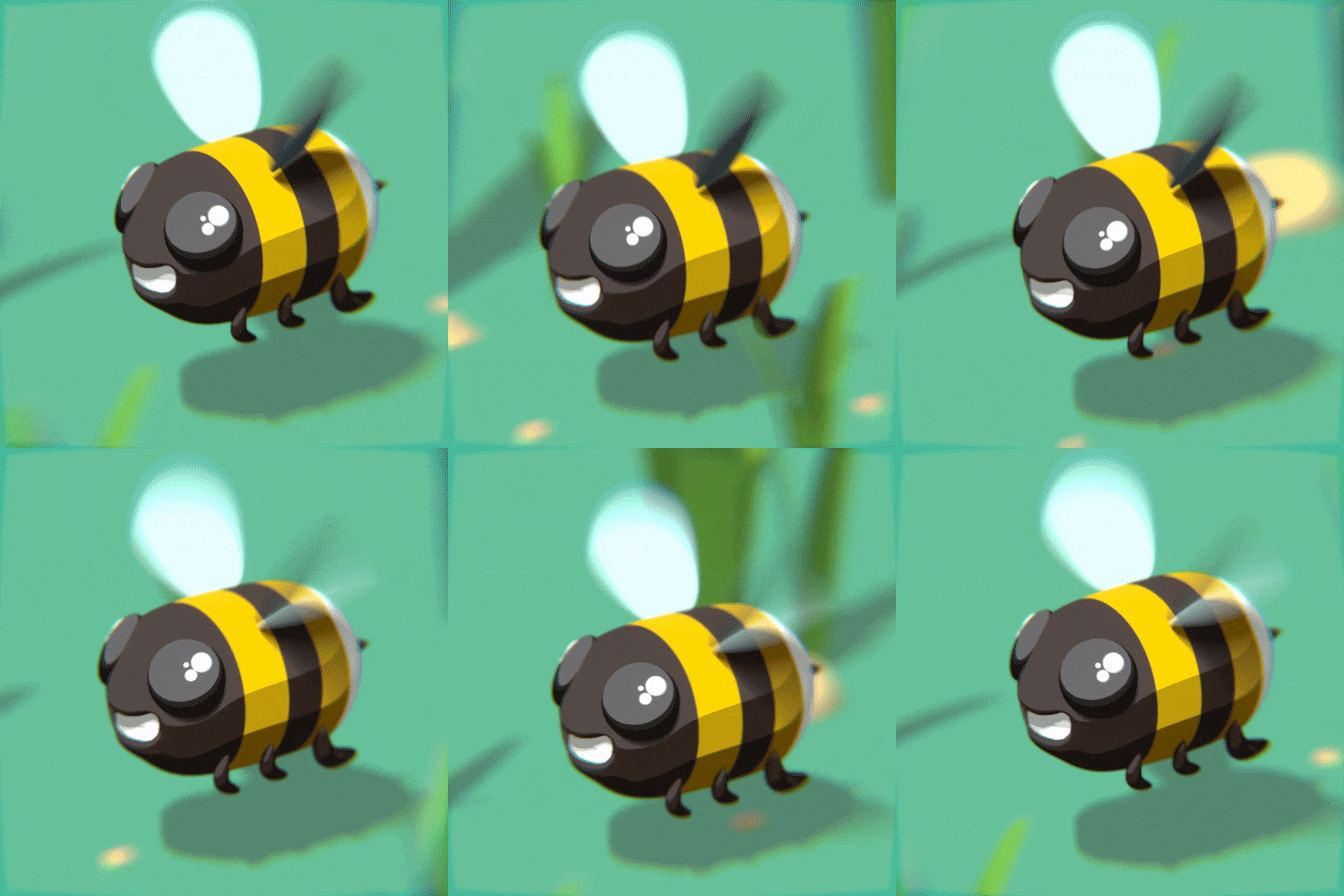
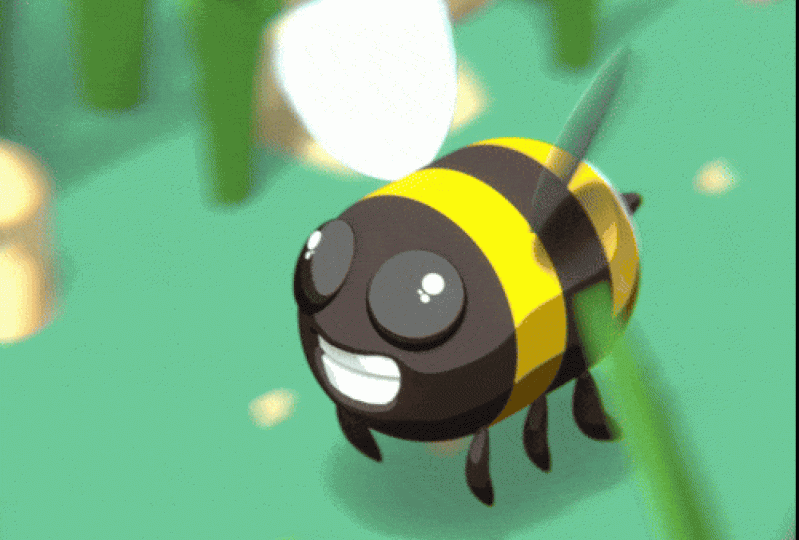
be showing you how to make this little fella. I'll walk you through
the simple and beginner friendly
process of creating a cartoon style
bumblebee animation in Blender will be going through the entire process of creating this bumblebee
animation from a beginner's perspective to avoid as much
confusion as possible. That means I won't be
skipping any steps or going too fast for you
to keep up with me. We're using Blender
for this tutorial, which is an amazing and
totally free 3d software, the only barrier to entry is having a computer to
run the software on. In this class, you can expect to learn the Blender
Interface and it's Tools. We'll learn about the
many basic tools and interface elements within
Blender while creating our cartoon bumblebee will learn modeling to create our
bumblebee and environment, We'll use basic
modeling tools and modifiers such as
mirroring and subdivision. Up next is Lighting. We'll set up a simple
sunlight lighting scheme to accentuate our
cartoon shaders. Then we'll move on to Shading. I'll show you how to
create a colorful and stylized cartoon materials for our bumblebee
and environment. Up next is Animation. I'll walk you through animating
your bumblebee by using simple keyframing and
modifiers like cycles. Lastly, rendering, We'll
render our final image in Blender so you
can share it with your friends and family
on social media. When we're done, you'll have all the skills you need to create a looping cartoon animation
of your very own. For our class project,
you'll be doing just that. I'd like you to create a new
looping cartoon animation with a unique design and
share it with the class. I'll personally review every
single project uploaded to the gallery and give you feedback on anything
you've done fantastic, as well as anything that could use a little bit of adjustment. I hope you'll join
me on this fund beginner's journey
through Blender by making your very own
cartoon bumblebee animation.
2. Setting Up Our File: This is your first time
taking a Blender class, I'd highly recommend
you start with my complete beginner's
guide to Blender first, this class was designed for the absolute beginner to
Blender and 3D Art in general, we cover every single necessary
topic in order to get you up to speed and running in Blender will accomplish this, but short and focused
lessons that cover each topic from a
beginner's perspective. Utilizing a well-organized
starter file, we end the class within
easy projects where you set up and customize your
very own cozy camp site. With that out of the way, let's continue with the lesson. This lesson, we'll be going over some settings to prepare a
file for future rendering. Let's begin. Let's start by choosing the general file type
here on our splash screen. Will choose general. Now we're going to go to the render properties tab
over here on the right side. This is the tab here
that looks like the backside of a
little DSLR camera. So it's the very top. We'll click this and then you should see a
similar screen to this. We'll be using the EV real-time render engine
for this tutorial. This will ensure that
we get the look that we want and keep our render
times really short. This is important because
we'll be creating an animation at the
end of this class. And we don't want to
be waiting around for hours for it to finish. Now let's go further
down this list. We're going to look
for motion blur. We can click motion
blur to turn this one. We're going to click this
little arrow here to twirl this open so we can see
more of the settings. The only two settings
we're going to change here are the shutter and the steps. So let's change
the shutter first. We can just click on this
number here and then type in 1.5 and then hit Enter. Then we'll go down
here to steps. And we're going to
change this from one. What do we up to 64. So essentially the two settings that we just changed here, the shutter speed is just how motion blurred will
our Animation be. So how much motion blur will be present within the motion? Then the steps is
just basically how high-quality is this
motion blur effect. The more steps you have, the more smooth at a look. Now let's scroll down in
this list even further. We're gonna go down to where
it says color management. Then we can open that up. So by default it
should be set to filmic for the view transform. We're actually going
to change this from filmic to standard instead. So filmic works really well for realistic
photorealistic renders. However, standard usually does a better job with
more stylized things. In our case, the
cartoon effects will be a little bit more saturated, so it's a little more
colorful and don't have a little bit better
contrast with the standard view transform
then it would with filmic. We're just going to leave
the look set to none. We won't need to change that.
That's the last setting. We need to change it in
the render properties tab. So now let's go to the
output properties, which is the tab
just below that. And it's the one that
kinda looks like a little printer
printing out a photo. We can click on this
and that'll switch us to the output properties. The first thing we're going
to change his Up here. It's the resolution
of our final product. It's right now it's set
to 1920 by ten at which is the standard HD size. We're actually going to
make this 1080 by ten at. So let's just click on the
top number here and just type in ten at it entered. And then we'll see
here 1080 by ten at, which gives us a nice
square image here we can see that the Camera
used to be a rectangle, and now it's showing as a square because that's the output
that we're creating. Then one last thing
here, and the output, we want to switch the
frame rate from 24 FPS. We're going to make this a
little bit higher and set it to 30 FPS with our resolution
changed from 1080 by 1080 and our frame
rate set to 30 FPS. Ready to save the file. It's important that we save
the file we're working on right now and changing
all these settings in, because the settings are
based on a per file basis, we're not changing the
settings for all of Blender. If you just open up
a brand new file, the settings we've
changed won't be present. So save our file. We're gonna go up here to
File and then choose Save As. You can also hit Shift Control and S at the same
time to do this. So we'll click this. Now when the say
Windows pops up, you'll be able to choose the location that
you save your file. You'll want to
navigate and using the folders here
on the left side, or typing in an address
bar here at the top. And navigate to a
place that you know, you'll be able to
find this file later. You don't really
want to be moving the file around too often. And you want to have it saved in a place that you're not going
to accidentally delete it. So I wouldn't suggest
saving it into your downloads
folder or something. I'd maybe save it on your
desktop or in your documents, or maybe make a new
folder and place it in there with your location chosen. Now we can go down here
and give it a name. We'll just going to
call this bumble bee all one word
underscore animation. Then I'm gonna do underscore
the 01 at the end of it. The reason I added
a underscore 01 at the end of this is in case
we need to branch this file. I'm afraid I'm about to
do something that might cause an issue in
the file later on, I can always save this
out as a version two, version three that we don't lose any of the
previous progress. I'm not constantly just
overwriting the same file. So if I mess up, I'll still have an older file to come back to. Again, bumblebee underscore
animation, underscore 01. We can just choose Save As with these settings
changed and the File Save, we're ready to proceed
with the product. And the next lesson, we'll start modeling the Body
of our bumblebee. I'll see you there.
3. Modeling the Bumblebee Body: In this lesson,
we'll be modeling the Body of our bumblebee. Let's begin. We'll start by enabling a simple built-in add one to make
our life a bit easier. We're gonna go up here
to Edit Preferences. And then we'll go
to the add-ons tab here on the left side. And then in the search bar, we're going to search had mesh. And then we'll see here
add mesh, extra objects. You want to make
sure that you have this checkbox turned on. So you wouldn't have turned
on Add mesh, extra objects. And then we can close this down. We won't need this anymore.
Now let's enabled this add-on simply adds extra
primitive objects that we can start
our model with. Let's select this cube here that started in the file by default, we're going to delete that. Now we can hit Shift a and the same time to bring
up the Add menu. We're gonna go to Mesh. Then we want to go down
here to round cube. Now this is one of those
things that was added in with that add one
we just enabled. By default, you wouldn't
have access to this. So we'll choose a round cube. Now I'm down here
at the bottom left. We can twirl this open to CV options for this round, cute. We'll start by going up here to the top where it says
Operator Presets. And we're going to choose
the quad sphere preset. We can click this and
now we can see that we have essentially a sphere, but it's made up as if it
was a rounded over cube. So it has all these
different square faces. It doesn't have the
normal triangular faces. You would see an,
a typical sphere. That'll make our life
a bit easier when we get into the modeling
for the Bumblebee. And then we just wanna
make sure that we have our Arc divisions
here set to eight. And that's essentially just
how many cuts this has. So if I turn it up,
it gets more cuts. I turn it down. It has less cuts. We want to have
our set to eight, which should be the default. But if it isn't, just
set yours to eight, with those settings changed, we can now go over
here to our list. We can double-click one
where it says round cube. And we're going
to name this Body BOD why? And then hit Enter. Now we, we know what
this object is later. Let's use our mouse wheel
to scroll in a little bit. Then we're going to
right-click and then choose Shade Smooth so that our
cube or rounded cube, which is basically a
sphere in our case, is nice and smooth looking. Now we'll switch
to our move tool. Over here on the left. We're just gonna move this up a little bit and then
we're going to type in a number so we
know the exact height. So just move it up
just a little bit on the z-axis, the blue axis. Then down here, when it
pops up this option box, we can actually just
manually type in 2 m. So meters is the default
in this case, so 2 m. And then we'll have it floating
2 m above the surface. This is essentially
just how high off the ground are Bumblebee
Body will end up being. We're giving it this much
space for us to fill in with the Legs and then any other environmental details,
it'll go below it. Now let's begin
shaping this sphere into the Body of our bumblebee. So start by hitting Tab on your keyboard here to
switch into edit mode. Make sure you have the
Body is still selected. So select it first
and then hit Tab. Now hit to, to enter
your Edge mode. And then hit Alt and Z at the same time to enter
your x-ray mode. And we can tell that
were in X-Ray mode now because we're
actually able to see through the model here, we can kinda see
through them or seeing all the lines of this
model through itself. Also just another
quick way to make sure you're an x-ray mode is
this little button here. This is essentially
the X-ray mode button. So if you would rather click the button on the
interface you can, it's this little
button here with the two overlapping squares. Although I think
it's a little bit better if you get
into the habit of holding down Alt
and then hitting Z, switch back and forth. It's a lot faster
and you don't have to find this button each time. Now let's go into the front
view for this viewport. So there's two ways
we can do this. We can either click on this
little negative. Why bumble? This negative Y side here, this is considered the front
side of your viewport. So this site here is
the front facing, this direction is front. Or I guess I can
just show you this, so we'll just click on this and that'll pop us
into the front view. We can see up here it tells
us front orthographic view. Alternatively, if I
rotate my camera here, we can hit the Tilde key, which is the key to
the left of the one, and above the Tab button. So it's the accent or the Tilda. So if you hit that, it'll
pop up a radial menu. Then we can just
choose the front view. I'd also has the other views here that are easily accessible. So we'll just choose Front. Again. You can
either hit the Tilda to bring up this radial
menu and then choose it. Or just click the little bubble based on the direction
that you'd like to face. And that works for any one
of these bubbles here. If I click this, you can
see that's the right view. The negative Y again
is the front view, Z is top, and so on. Okay, so now that we're
in our front view and we can actually begin editing
the shape of this. So we'll start by
just clicking off the model to make sure we
don't have anything selected And again, we're
in the edge mode, which is to on your keyboard. Then we're going
to hold down Alt and then click this
middle line here. So this middle edge, when we click this
molar holding Alt, it'll select that entire loop all the way around the model. So it's not, you're going to
just select a single edge. It'll select all the way around every contiguous
edge attached to it. Now we're going to hit Control
and be, at the same time. That will bring up
the bevel menu. So we, first all, we can start moving your mouse to just bevel it a little bit. So it's going to split
that edge into two edges, will split it out to about here. You don't want it to go so far that it starts overlapping. You can see the model starts acting a little funny
when you do that. Just go to about here. It doesn't need to be exact. Just a little bit before
it starts overlapping. With that done, we
can now switch to our vertex mode by hitting
one on our keyboard. And now we can drag select
over this entire left side. So what we're going
to be doing is making this sphere into more
of an oblong shape, more of a capsule or a pill or whatever you want
to refer to that shape is. But it is very important. They, we are in X-Ray
mode because we just drag select over top of this
and we're not an x-ray, it's only going to select
the visible vertex. So if you're not an X-ray, won't select through the model. So make sure this little button
here is, is highlighted. Or you can tell like
here, if I zoom in, I can actually see the grid
through my model here. And that's another indication
that this model is x-rayed. Let's zoom out. I have
my left side selected. So every vertex here
on the left side, I just clicked and dragged
and highlighted all of them. Now I'm going to switch
into my move tool. And I'm going to move these
in the negative x-direction. So this direction to the left, We'll just move them a
little bit at first. And then when we let go, We'll get this little option box here. Again, we can just type in
the exact number we want, which is negative 0.5
and then hit Enter. So negative 0.5 m. Then we're gonna do the
opposite on the other side. So we're just going to drag
select over the right side. Move it slightly to the right. Then here instead
of negative 0.5, we're just going to type
in 0.5 that hit Enter. Now we can see instead
of being a circle, we have this kind
of oblong shape. With our right-side moved. We can now hit Control and our, and we want to hover over
in the middle here of the model here where it's these long,
uninterrupted phases. We're going to hit
Control and are. And that'll bring up
a little yellow line. But before we do anything, we want to scroll up
on our mouse wheel. We're just going to
scroll up a few times. And then you can see down
here at the very bottom left. So when I move my mouse is going to go a little all
over the place here, but down here at the
very bottom left, it says number of cuts five, and it says smooth zero. But we're more interested
in the number of cuts. In this case, we
want to slide it up until it says six cuts. So number of cuts, six. And then we're going to click. And then without moving
your mouse at all, just click again one more time. Because if you move your mouse after clicking the first time, you'll actually be shifting
the lines left or right. It doesn't need to
be exactly perfect if you shift them a little bit to the left or a little
bit to the right? It's mine. You just don't want to
shift them all the way to the right are all the way
to the left by accident. Okay, So down here we get
this little option box. And this is another
situation where we can change the number of cuts. But we can tell down here at the bottom left
when we were adding them that we had six
cuts to begin with. Again, you use your
mouse wheel so you scroll up or down on your mouse wheel
to add or remove cuts while it's
still a yellow line. Okay, so we have all
of our cuts placed. Now we can hit a to
select all vertices. So just hit a and
that'll select all. And this works in face or
edge or vertices mode. Doesn't matter if
you had a, it's just going to select everything. Now we have everything selected. And then we're going
to right-click in the more gonna go down
here to smooth vertices. So we can see right
now our shape. It's relatively
round, but it has this kind of flat
spot and then it gets almost like a little bit of a corner here where
it starts to round. We're going to try
to smooth that out. So the whole thing is just
a little bit more organic. Then we're gonna do that is with this smooth vertices function. So this is just
going to average out all the distances the vertices
and tried to calculate the most relaxed position
of all of these vertices is going to smooth them
out and try to get rid of as many hard
edges as possible. In our settings down
here is how we're going to adjust the amount of
smoothing we're getting. So we can turn the
smoothing up from zero, which is so moving at all, all the way up to one, which is maximum smoothing, at least for this slider. We can see what it, when
it does as we slide this, it pulls some of
these edges apart. It moves things in, kind
of just softens the shape. But we can actually smooth
and even more than that. If we add more repeats, it'll just do this exact
same smoothing operation multiple times. So every time we add a repeat, it just gets smoother and
smoother and smoother. Now in our case, we don't need to smooth
that out entirely. Ruling gonna do two repeats. So set your smoothing to one and then set
your repeats to two. Again, as I said,
this just makes the shape a little
bit more organic, a little bit less hard-edged. So with that done,
we can now click off of the model to
confirm those changes. Then we're going to rotate our camera around just so we can just rotate our viewport
so we can see this side. And we're gonna be working on the negative X side of this. So if you look up here, you should be working
on the negative side. And we're gonna be
adding the mouth to the side of the model. First, let's turn
off this x-ray mode. That's actually making
it a little bit hard to see what
we're doing now. We won't need it. We're going to hold
down Alt and then hit Z to turn off X-Ray mode. Then we can hit three to
go into our face mode. So now with our body
shape completed, let's move on to adding the
mouth for our bumblebee. So a real bumblebee
wouldn't have a big toothy grin like
we're about to add. But I think for the
cartoon aesthetic that we're going for,
it'll look just fine. So again, rotate your viewport here to the left
side of the model. So the side here,
the negative X side, the side is going to
be the face of our B. We can zoom in here
and now we're going to start selecting some
of these faces. So again, make sure you're
in face mode with three. And then hold down
Shift as you click each of these faces to
add to your selection. We're going to start here
just below the halfway point. So we can tell that this
line here is perfectly flat, which means that's the
midpoint of the model. So this is the exact half point. We're going to click these two. We want to have for across
the width of the mouth. Then we're going to select
the ones just below it as well while holding Shift. So holding shift the whole
time selecting each of these. So that's essentially
the general shape and size of our mouth. Now with these faces selected, we can hit E on our keyboard to start
extruding these backwards. So we can see if we
extrude forward, it just adds faces on the
sides to make this come out. However, we went to go back into the model and it'll just
do the reverse of that. It's going to add
faces on the side to allow it to be pushed
further into the model. It doesn't have to
be an exact distance because we're going to be
covering this with teeth. But you wanted about that far? In my case, it was about 0.5
m. If we want to be exact, I can just type in negative actually negative 0.5
because they went backwards. If you'd like to match exactly
negative 0.5 for the Z. Now we need to pull
this down because right now it extruded it backwards at an angle we can see it's kind of going
up a little bit. We just want to pull this
down so it flattens it out. It doesn't need to be perfect. We just wanted to a little
bit flatter than it was something around there. Now let's add a modifier
to smooth out the Body in the mouth so we can begin
shaping it into a smile. To do this, we're gonna go
over here to the modifier tab, which is this
little blue wrench. Now we can click Add Modifier. Then we'll go down here
to subdivision surface. So it's in the second
column and it's near the bottom subdivision surface. And click that. We can see right away, the hard edges that
we had it along the corners of the
mouth are now rounded. It's also slightly smooths out the silhouette of our
model here as well. Let's go into the settings over here and we're going to turn up the levels in the
viewport up to two. So essentially the higher
these numbers are, the more smooth ER model is. We'll notice if I
click back to one, it's pretty smooth,
but there's still some kind of jagged edges. If I turn it up to two, it gets even smoother. And then if I if I wanted
to, you don't have to, I wouldn't suggest
this actually, so don't don't follow me here. But if I turn this up to three, it gets even smoother. And then for smoother still, eventually it gets
so smooth that you can't tell the difference
between the levels. In our case, we're just going
to set these both to two. We have both of these
set to two now. And now we can tell
that our model is much smoother than it was. Also notice on the corners
here of the mouth that it's actually cutting into the
model and smoothing it out. So rather than the model
coming all the way out to here and then going back, It's actually kind of
easing that corner, knocking the hard edges
off of it will actually, it's going to make our job a
little bit easier and making this more organic shape for
the smile of the Bumblebee, it's going to make
our life a little bit easier because
it's already doing a lot of this kind of
organic shaping for us. It's now we just
need to work with the low poly model underneath, which is this kind
of floating cage we're seeing right here, this kind of transparent model. That's the actual
polygons of the model. And then the really smooth
surface we're seeing is the result of this
modifier on top of it. So let's begin
shaping the mouth. Now. We're going to do that
in the edge mode. So we'll hit to just
switch into edge. And then we're going to select
the corners of the mouth. Now in this case, it's a
little bit hard to see what we can still
see the edge here. So you just click this
little line here, you know exactly
where it's added. It's only a single edge that
goes back to this face here. So we're gonna do that
on the other side too. So hold Shift down
when you do this, so that we select both of them. If you just clicked it, it would deselect the first one and only select the new one. Need to make sure you hold
down shift when you're selecting multiple
objects at the same time, multiple vertices,
edges, faces, and so on. Let's start by moving these up. So we're gonna give
it the corners of the mouth a little bit of
a lift here on the side. Lift these up to
somewhere around here. And again, this is This is all just kind
of eyeing it up. We're not gonna be using
exact measurements for this. Just try to visually
follow what I'm doing here is all pretty
small movements, so it shouldn't be too
hard to replicate. So we have it about here
and that looks good. Then we're going
to scale this up, but only in the y-direction. So right now our mouth is
a little bit too narrow. So at the top, at least it's
still has this square shape. I want to give it a little
bit of a wider shape at the top and then
narrower at the bottom. With these two edges
still select it. So I still have the
corner edges selected. I'm going to hit
S on my keyboard, and then I'm going to hit
Y on my keyboard next. So that's started
the scaling process. And then when I hit Y, it
binds it only to the y-axis. And that, you can
tell that because of the green line we're
seeing on the screen. So now if I move this,
it's only going to scale it just along
that green line. So let's scale this up
just a little bit here. It's kind of widen the top
of the mouth out a bit. We'll move it to around here. Again, it doesn't
need to be perfect. We're just trying to give this a little bit more
of a smile shape. The top of the mouth is done. Now, Let's get onto
the bottom corners. We're gonna do a similar
process down here. So first just click on this left one because
we don't want to, we don't want to hold
shift in this case because we actually want to
deselect the top. So just click on the bottom
left side and then hold Shift and click on
the bottom right side to add to this original
selection here. We're going to move this up to round off the bottom of
the mountain a little bit. Right about here. Then again, we'll
hit S. And then why? We're going to scale these
inward a little bit too round the bottom of its were doing the opposite
of what we did it. And we'll scale it
into about there. Now we can switch back
to our face mode. So we'll hit three on our keyboard to
switch back to face. Then we're going to select
just these two top faces here. Basically the top lip of
the mouth will hold Shift. So we have both of
these selected, just these top two center faces. And we're gonna go
to the side here. And then we're going
to pull them out using this red handle, moving them in the x-direction. Pull them out just a little
bit to kinda give the, the top of the mouth a
little bit of a protrusion almost mimics either a top lip or a bit of a nose or something. So we're just giving it a
little bit of a snout top lip. And notice, whenever
you want to think of it as for me know, in terms of a Cartoon Bumblebee. So we pulled that
out a little bit. Now we're gonna do a similar
thing here on the bottom. So we're just going to
start by just clicking this one here so that
it deselects the top. Then we can hold Shift
and select the other one. And we're going to
pull this out as well. We don't want to pull
this one not quite as far as the top one because the bottom lip in this case wouldn't
stick out quite as far. So we'll pull it up
just shy of that one. Now we have a protrusion for the bottom lip
and the top lip. And then one last change, we're going to switch
to the vertex mode. So we hit one on our keyboard, just switched the vertex. Well notice here that this
vertex here juts out, so the bottom lip comes out. And then this center line here, which should be the
corners at the mouth kinda poke out and then
it goes straight up. So I'm going to select
both of these here. So I'm going to first
just click this, just so it deselects the original and then
only selects that. Now I'm going to hold Shift
and select this corner. Now I have both sides
of the mouth selected. We're going to pull
these back so that it looks a little bit
more like a corner of amount that should have a
more of a round shape here rather than coming back and
then protruding out again. So we'll pull back
to about here. So we can see this is a little
bit more of a round shape. Okay? So I think that looks
pretty good enough shape. In the next lesson,
we'll be modeling the Teeth and Stinger
for our bumblebee. I'll see you there.
4. Modeling the Teeth and Stinger: In this lesson,
we'll be modeling the Teeth and Stinger
for our bumblebee. Let's begin with the mouth done. Let's add some
teeth inside of it. So it's not just this big hole in the front
of our mountain. Well, so first we'll hit tab to exit our edit mode
because we're done editing the actual body
shape at this point. Now we can hit shift and a, and then we're going
to go to Mesh. And we want to add a cylinder,
will choose cylinder. Then we can see down here this cylinder that have popped up. But we do actually
want to change some of these
settings potentially. I think by default the
vertices is probably fine and the radius is fine where we are going
to scale that down. But we know for a fact that our teeth do not need
to be this tall. So we're just going to set
this back down to 1 m as well. So that's a little
bit easier to scale. So we should have 32 vertices, one for the radius, which is essentially just how wide it is. And then the depth
is how tall it is. We just made it a
little bit shorter. So it's all set to 1 m. Now we can go up
here on our list. We're going to double-click
the word cylinder, and we're going to
call this T, T, E TH. And then hit Enter.
Now we can right-click on this model and then
choose Shade Smooth. Will notice the Shading here
goes a little bit wonky. But we'll be doing some things to the model that we'll get rid of this and we won't
notice it at once. It's actually inside the mouth. So let's start
positioning these Teeth inside this hole that
we made for the mouth. So we'll start by moving
it up in the z-direction, roughly about the height
that the Teeth would be. What I want to center this. So around there. Now we're
going to move it forward. Let's zoom in a little
bit so we can see. Now we're starting
to see the Teeth filled this mouth cavity. However, the Teeth are
way too large right now. So let's start scaling
this down by hitting S. We just hit S. Then we can move our mouse
and just scale them down. Scale them down to about here. In this case it's
about 0.7, 0.65. This little, this is
just eyeing it up. We won't really need to follow exact measurements for this. We're just going to
move this forward. So it's about the right width. It's still a little
bit too tall. So we can hit S and then Z to
bind it just to the z-axis, which is the blew
up and down axis. And we can scale this down a little bit so
they're not quite so tall because they were poking
through the chin here. Then we can move it up. We need to make
sure that it fills the entire mouth here so
you don't want to have like a flat spot here where there's no No Teeth and the
side of the mouth here. You will need to make
sure that it fills up this entire whole that
we made for the mouth. We can push it
forward a little bit. We want it to stop a little
bit before the end of the lip because we want to have
the lip protrude out a little bit further
than the Teeth do. Now if you're concerned
that your teeth might not be close to mine, are you having
trouble fitting them into the mouth as
well as I have here. I can show you the
side menu here. If you hit N on your keyboard, it'll bring up this
little side menu. We can go to item, which is the top tab
when the side menu. Then down here, you
can see the scale that I have. Right now. If you actually just hand
type these numbers in here, I'll make my numbers
a little bit nicer. So I'll do 0.67
for both of these. Then we'll just do 0.5 for this. If you type in these numbers
here for your scale, your cylinder will be the
exact same size as mine. Then for the location, we can actually
change this as well. We'll just do negative 0.67 and then zero point or 1.86
for the Z location. Now like I said, if you type in these exact numbers
for the X location, the Z location, and then
all three of the scales. Your teeth will be the exact same position and size as mine. So I'm going to hide
my side menu now. Now we can begin
editing these Teeth to make them look a little
bit more like Teeth. We'll start by hitting
Tab to go into Edit Mode. Then we'll hit three to
enter our face mode. Then we'll do Alt and Z to go into our x-ray mode
so we can actually see the model that we're working with because most of its hidden now inside the body
of the Bumblebee. The first thing we'll do is spin around to the top of the model. Then we want to select this
top face of our cylinder. So we're just going
to select near the middle when you're working in X-Ray mode and
specifically in face mode, you need to select
near these dots in the center of the each face. If you select, passed them CV select too far
away from this dot, you're actually going to select
the next face behind it. So you have to remember
it's a little bit finicky, it takes some time
to get used to. But anytime you're selecting
a face within X-Ray mode, just make sure you're
selecting near these tiny little black dots. Okay, so now we
have the top face selected and we want to
rotate our camera around. So we're looking at
the side of the model. If you really want to, you can
go into your front view by clicking in the negative
Y bumble up here, or again Tilda and then front. But we're only
gonna be doing this for a quick second here and
it might not be useful. So we'll just move this forward. We're going to move this forward towards the front of the head. We want to slant these teeth a little bit because right
now the Teeth were perfectly vertical and I made a really large top lip and
a really small bottom lip. Let's try to get
rid of some of that so they're a little
bit more even. And we're going to
move this forward so that the Teeth slant. The front of the mouth. Again, doesn't need
to be perfect. Just try to get a little bit of an angle here on the
front of your teeth. Now that they're angled,
we can rotate around. And with your top
face still selected, hold Shift, and then select near the little
dot here at the bottom. We have both the top end,
the bottom selected. The, we're actually going
to delete these so we can hit X or delete
on the keyboard. And then we went
to delete faces. So we've now deleted the top and the bottom
of this because our teeth don't really need
to be a completed cylinder. Now let's go back
into our front view. Again. The little
negative bubble, negative Y bubble, or Tilda. And then front. We can zoom in here. And then we're going
to select most of the backside of the cylinder. So we're going to
drag select over the backside here
and we're going to select pretty far up actually. So we're going to select
to about here basically where the backside
of your mouth stops. So select all of these, these faces back here. So basically the back
two-thirds of your cylinder. And then we're also going to
delete those so we can hit X or delete and then
choose delete faces. The reason we did
that is because we really don't need all
of those phases here. The faces we have are
already probably too much. We don't need to delete
any further than this, but we could actually delete
probably all the way, at least these last two on each side if you
really wanted to. But what we deleted now has
gotten rid of the bulk of the cylinder and basically just left behind the parts
that make the Teeth. So now rotate around
to the front so you can see the front
side of the mouth. Then we're going to
hit Control into our that'll bring up
our little yellow line, which is essentially
where we're going to be placing a cut in the model. We're just going to
click once right away. We're just going to
place a single cut. And again, this is where we can tell that we're sliding it. We want to place it right around the center of the mouth again. Okay, so now we
have a single cut placed along the
center of the Teeth. And this is gonna
be the break for the top and the
bottom of the Teeth. Now let's bevel this line
so we add a little bit of a separation here between
the top and the bottom. So we'll hit Control. And B. To begin beveling. We're just going
to move this out. And essentially, the size
that you make this bevel is the amount of gap between your top and
your bottom teeth. So I'm gonna make mine
Not really large, just a little bit of a gap. So there's there's
some separation between the top and the bottom. We'll set it to roughly here. It doesn't need to
be exactly that, but just a little
bit of a gap between them because we're
actually going to be deleting these faces here. So once you have your
line beveled and you've determined how far apart
you want your teeth. We can now hit X or delete
and then choose delete faces. Now hit to make sure
you're still in edge mode. So up here, you should
be in edge mode. And then we're going
to hold down Alt and click on this top edge
of the bottom teeth. So they essentially
the top of the bottom. And then we're going
to hold down Alt and Shift at the same time. We're going to select the
bottom of the top Teeth. So we're selecting
essentially these 22 lines here that make up the
gap between the Teeth. Now we have both
selected because we shifted to hold down
and select them. And now we can hit E and then X extrude them only
in the x-direction. So we're going to
extrude them all the way back to the back of the mouth. We can just go past just
make sure you go pass this this interior
cavity of the mouth. You're not to go
quite as far as that. We can pull it back to here. So you just need
to make sure you that you clear this line here. Now with those extruded back, we can hit Alt and Z to
exit our x-ray mode, then tab to temporarily
exited our edit mode. Now we have teeth, but
they look kind of weird. There's somewhat sharp edge
here and they're also, the shading is a little odd as well. We're gonna
be fixing that. But before we do, we
need to apply all of these changes that we made
to the scale of this object. Now that we're back
in object mode, we're no longer an edit. We can hit control and a, and that'll bring
up our apply menu. In this case, we want to
apply the scale of this because we change the scale
from the original object. So if I just hit N here
to bring up my side menu. So now I have my side menu up. You can see the actual
scale of this object. It's been scaled down. So it's set to 0.67, 0.5 for each of these
different values. If I do anything further that's going to take
into account that scale. It's actually going to scale
that operation down as well because it's using
these as the basis for that. So before we start
beveling the front of these Teeth and
making them round, we need to apply the scale
so that set all back to one. So to do this again, we're going to hit
Control a with the selected, the
Teeth selected. Then we're going to
apply the scale. And we'll see right away
soon as we apply the scale, it's all set to one now. So now if we switch back
into our edit mode, hitting Tab and then switch to our Edge
mode by hitting two. We can now start
beveling the front of these Teeth and making
them nice and round so that the shading everything looks more correct and it's
a little bit more appealing. Let's click off the model
to deselect anything. Then we can hold down Alt and click the bottom here
of the top Teeth, sort of like what we did before. We're essentially
selecting the edges that make up the gap. Then we're going
to hold down Shift and Alt at the same time, and then click the
bottom of the top Teeth. We've both of these
edges selected. Now we can hit control and
be, to start beveling. Then as we move this, well, notice that our
bevel here is nice and nice and even it looks like it's basically cutting
it off at a 45-degree angle. Had we not applied our scale, it actually would have
squished this down. So rather than being a nice, perfectly cut bevel on
the edges of these Teeth, it would have actually squished it down and it would've
been a little bit off-kilter and it would have changed the look of
what we're doing here. So it was important
that we applied our scale before we
started beveling. So that the bevel is
using the nice 11.1 for all the scale values
to create the bubble with. So as you're beveling, you
can actually scroll up on your mouse, mouse wheel rather. And it'll add more cuts
here to round these out. We're going to add a
little bit more cuts. In this case it looks
like about five segments. Then we can choose how round the front of these teeth are. We'll set it to around here. We're going for a
pretty cartoony look. So we'll give them pretty nice rounded teeth of the front. Again, my, my values
here about 0.035. And then five segments can now hit tab to
exit our edit mode. We have nice round Teeth. Adding the bevel to the edges of the Teeth also got rid of that dark shading we were
getting along the top as well. Now if we look at our
animation here, or Bumblebee, which will eventually be
in the animation from the, the general angle
that will be taking our animation from these
teeth look pretty convincing. Now that we're done
with the Teeth, the last part we're making for this lesson is the Stinger
for our bumblebee. Let's start by
hitting Shift and a. Let's bring up our Add menu. We're going to go to Mesh, and then we'll go
up here to cone. Let's choose our cone shape. And then we are going to change some of the
settings here. So the main one we're
going to switch is the radius to its right. Now it's set to
zero, which means the top of the cone
is a perfect point. It comes to a sharp
edge at the top. It'll actually make it a
little bit easier for us if this came to a flat
point at the end. So we're going to
set this to 0.2 m. Now we'll give it
the top of the cone, sort of a flattened shape, but that'll be a lot easier
for us to round this off and make it look a
little bit more cartoony. So just make sure
your values here are set to 3024 vertices, one for the radius, radius, one with 1 m, radius to 0.2 m. And then the depth, we can
just leave that at two. Let's go over here to our
list and rename this Stinger. So type one or double-click
on the word cone. And then we'll type in
Stinger that hit Enter. We can right-click and
then choose Shade smooth, smooth this out. Again. This looks kinda Andre now, but we'll be fixing that
once we edit the shape. Now the first thing
we wanna do is rotate this one its side
so that the point, the narrower end is
facing this direction. So we want to essentially
rotated over 90 degrees. And there's a quick
way to do this. So we can just hit our then why to bind it
to the y-direction. And then we can just
type in the number we want rather than trying to I it up or hold down
Control to snap it, we can just type in 90. And now we've rotated
it exactly 90 degrees. And that works with any
value type in here. So if I typed in one at, it would rotate it 180. In my case, I'm just
going to type in 90 and then hit Enter. Again. It's Our then why and
then typing the value 90, let's move this
up in the z-axis. So the blue Up arrow, we're just going to move it
up pretty much in the middle. And then when,
once we let it go, we can actually type in the
value we want to type in To meters because we know that's exactly in the middle
of where our body is. And we went this
Stinger to also be directly in the middle for the
back-end of the Bumblebee. Now we can slide it back. We're going to slide it
back to the back of the, the Bumblebee here,
roughly there. Then we can just start
scaling this down, hitting S on the keyboard, S. We're going to scale it down to approximately the
size that the Stinger would be on a Cartoon
Bumblebee of this, this size. This doesn't need to be exact. If you want gears a
little bit bigger, a little bit smaller,
that doesn't matter. The only important
thing here is that it is intersecting with this. We want it to make sure it
looks like it's popping out of this and not just
paste it on the edge. So just intersect it
just a little bit here, like we have it. Okay? Now let's hit tab
to enter edit mode. And then we're
going to hit one to go into our vertex mode, and then Alt and Z to go into our x-ray
mode so that we can just simply click and drag over the end here and select
everything through the model. Now we have all of these vertex here on the very end selected. We're just going to pull
this out a little bit to make the cone a little bit more, more sharp, a little
bit more pointy. We'll pull it out to about here. So if you want to see
roughly how big mine is from this distance, the Stinger is about that long. And again, this is purely
personal preference. If you'd rather have
a shorter Stinger or longer one, that's fine. Now we can hit three on our keyboard to go
into our face mode. We're going to turn around
here on the inside. We're going to
select this face on the very end of the Stinger, the one that's currently
hidden inside the body. And we're just going to
delete that so we can hit Delete or X and then
choose delete faces. Now let's switch back
to our Edge mode. We'll hit to, to switch to edge. Then we're going to
hit Alt and Z to exit our x-ray mode because
this actually makes this a little bit easier to see
if we're not an X-ray. Now, zoom in down here to
the point of your Stinger. Then we have it in view.
We can hold down Alt. And then we're going to
click this edge that goes around this flat
part of the Stinger. So we'll hold down Alt and then click right
on this edge here, and it'll select the entire
loop all the way around. Now we can hit Control and
B to begin beveling this. We're going to
start beveling this and we'll try to round it out so as you move the mouse further away from the Stinger. So wherever you started, you have to move
your mouse outward. We can start moving
it until this. We don't want to totally
overlap this because again, you get some weird Shading. I'll just stop just shy. It's okay that it
has a little bit of a flat point at the end. We can use our mouse
will hear and to determine how rounded
this point is. So as we scroll our
mouse wheel up, it'll add more cuts. We don't need a ton of
cuts here because this is a pretty small
detail on the back. But roughly five or so
cuts should be fine. I'm going to move mine to about here and then click to
confirm the change. Now if I zoom out, we can
see we have a Stinger here, but it has a cartoony
pointed end. We can now hit tab to
exit our edit mode. Let me zoom out. And now we have
our Stinger done. With the Stinger completed. The only thing left to do is
organize Our File quickly. We're going to start
by drag selecting over all three parts of
our Bumblebee Body. Right now, we can just click and drag over all three parts. You'll see that it
highlights all three. If, if by accident you select too large and
you get your light in here, you can see that I have
my light selected here. You can just hold Control down and then drag select over an object and it
will deselect it. Now it's no longer
part of the selection. I have just my Stinger, my Teeth, and my body selected. Now I'm going to hit M on my keyboard for
move to collection. And I want to choose
new collection. Then once I choose new
collection and asked me what name I would like
for this collection. I'm gonna type in bumble bee. Because all the pieces
that are going into this new collection,
our bumblebee parts. What that typed in,
I can hit Okay. Now I can see right away over
here that it's moved all three of these objects into
the Bumblebee collection, and it's moved them out of
the default collection. Now with them moved,
I want to click on this little tiny
white folder box next to the word bumblebee, and that'll place a little
tiny highlight around it. It's very subtle.
Hopefully you can see it on your screen a little
bit better than the video. And that just lets
you know that that is the default collection, which means any new object
that you create is going to by default go directly
into that collection. So it's just a way
to not have to create something and then
move it into that collection. You can just determine
which one is the default. Then any brand new
object will just be generated directly
into that collection. You might be thinking, what
exactly is a collection? A collection essentially
is just like a folder. So it's similar
to your computer. If you make a folder and
then you drag files into it, then that collection holds
all those files inside of it. And just as an easy way
to organize things, we can rename these collections. We can move them around. We can take objects in and
out of the collection. It's just a way to keep
your file a little bit more organized and not
quite so cluttered. We can also rename this
original collection. So if we just double-click on the word collection
here at the top, Let's rename this camera
lights and then hit Enter. So that just lets us
know that the only thing that's in
this collection or that should be in
that collection or the camera and the lights. And then anything that's
inside this collection should be related to the
Bumblebee in some way. Now after renaming a collection, it is going to make
that your default. So just make sure
you click back on the Bumblebee collection
again to give it that little tiny faint
highlight around it, to let you know that that is
now the default collection. With that done and all
of these models made, don't forget to save your file. So again, you can just go
up here and choose Save, or you can hit Control
S to save the file. So when we click this, it
will now save our file and it'll let us know at the
bottom that it's been saved. You'll want to get into
the habit of saving your file pretty frequently, just in case
something goes wrong, your computer turns
off, your cat, yanks the plug out of the
wall, the file crashes. Whatever happens as long as
you're saving frequently, you won't have to worry about having to redo a bunch of work. In the next lesson, we'll
be finishing modeling our bumblebee by
modeling the Eyes, the Legs, and the Wings.
I'll see you there.
5. Modeling the Eyes: In this lesson,
we'll be modeling the Eyes for our bumblebee. Let's begin. So we'll hit shift and
a and then go to Mesh. Then we want to
make a UV Sphere, which is up here at the top. So we'll click UV sphere. And we shouldn't really need to change any of these
settings here because we're just
going to scale it down and rotate it later. But by default it should
be set to 32 segments, 16 rings, and then
1 m for the radius. So I would switch yours to these settings here
if it's not already, but otherwise we can just
leave them as default. Now let's go over
here to our list. We're going to double-click
on the word that says sphere. And we're going to type in
Eyes and then hit Enter. In this case, we're not
actually going to set this to shade smooth right away. We're going to leave this
with the shade flat as it is. If you already did
do Shade Smooth, you can switch it
back to shade flat by just right-clicking and
then choosing shade flat. And that'll set it
back to the default. And I'll make it a
little bit easier for us to rotate and scale this by being able to see
the individual faces. We're essentially seeing
the wireframe this way. So let's start by rotating this. We're gonna do it the quick
way, like I mentioned before. We'll hit R and then
we're going to hit Y. Then we'll type in
90 and hit Enter. Now we've rotated at 90 degrees. We can tell it's
been rotated here because this sort
of an almost looks like essentially the pupil of this AI has been rotated
over on its side. Now. Now let's move this up to roughly where the eyes
would be on this head. That's a little bit hard to tell because it's scaled up so large. Now let's scale it down. So we're just going to
hit S, scale it down. We'll scale it roughly here. So if we look down
here at the sizes here, it's roughly 0.4. We can make yours is
exactly like mine. I'll I'll change mine to 0.4. So I'll just type in
zero point for that. Hit Enter. And just, and explain how
I was able to change all three of these values at once if you click and hold and they
have to do this quickly. So it's a little bit
hard to explain slowly. But if you click and hold
on the top value here and then quickly dragged down to the bottom and then let go. It'll highlight all three
of those values and then you can type in a number and
it will change all three. If I just click and hold, drag down, it'll highlight
all three of them. And then if I just type in
whatever number I want here, say 0.4, it'll switch
all of them to 0.4. So the I is the
right size, however, right now is a cyclops, which maybe is what you want. But in our case, we're going to move
this off to the side. We're going to move it
over here so that this, the front side here, essentially the
Camera front side of our B is what we're
We'll work on first. We'll place it roughly
where the I would be right about there. Now we need to scale
this and we're going to flatten this
out a little bit. We're going to scale it
just in the x-direction. So we're going to squish
it front-to-back here. I'm going to hit S
and then I'll hit X to make sure it's only
moving it in the x-direction, scaling it in the x-direction, I'm going to scale it
down roughly about 0.5, so about half the size. And then again, I could
just type it in here. Now in this case, I don't
want to adjust these values. I only want to scale
the, the X value. So I'm gonna tell you been 0.5. Okay? Now it's been squished
about half the width that it used to be just
in the x-direction. We have the I about the
size that needs to be. And that's roughly the
placement that it needs to be. But the rotation is off. It's poking outside the head. It's not really following
the curve of the Body. Now luckily, there's a
pretty easy way for us to get it to follow
this exact curve. We're going to use a
tool called snapping. So first we need to
turn snapping on. So we'll just click this little tiny U-shaped magnet here. Somewhere we clicking
on, we can see it kinda turns on the magnet essentially. Then we can click this
little drop here, drop-down here next to it, which will give us
the options for it. We want to choose our
switch it to face project. So it's essentially it's
going to be snapping to the faces of another object. So we'll choose face. Then we're going to choose
center because we want the object that is being
snapped to the model. It's a snap to its
center rather than the closest matching face. Essentially it's
going to snap our I like halfway into the body because the center of our I is in the middle of that volume. Will choose Center
for the snap width. Then we also, this is probably
the most important part. We want it to align the
rotation to the target. In this case, it's going
to align the rotation of the eyeball to the to the rotation of the face
that were snapping it to on the body will
check that box as well. So with all three of
these settings changed, we can now go back to our model. And with your eyeball selected,
now you need to hit G. In this case, we're just
gonna hit G for Grab, which is also the equivalent. It's like the quick key
buy-in for the move tool So a G. Then we can see now as we
move the eyeball around, it's actually snapping to
the surface of the body. So it follows that rotation or at least pretty
closely matches it a lot closer than we
would have been able to just kind of eyeing it up. So we're going to place it
roughly back where we had it about where the I
should be on this face. Somewhere around there. I'm not going to give you
the exact measurements here because this is really just really kind of
personal preference or just eyeing it up. No, no pun intended. Okay, so now we have the I. It seems to be roughly
rotated about, about matching the body. It doesn't need to be perfect. And I can tell it's not
quite perfect here. Because this line here, this dark line we're seeing is a little bit wider at the top. And then it thins
out and it kinda disappears because it's
rotated down into the body. That's really not a huge issue. I'm just going to
leave mine as is. Now that our eye is
rotated into place and we have it placed exactly
where we want, at least for, for
this eyeball here. We can go up here and
turn off our Snapping. We don't want it snapping
anymore now that we've done all this snapping
that we need to do, that we'll notice that
our eyes in place, but it's still bugging
out of the body here. So we want our eyeball
to basically be pushed in all the way
up to the midpoint. So it only rounds
out of the body, but there's no sort of inward
turn as it gets towards it. The easiest way
for us to do that is to just push
it into the body. But we'll notice right
now that our gizmo doesn't really make sense for just pushing it
directly into the Body. We can either push it back
and then over or down. But it doesn't really
line up at the way that the I is currently rotated. That's because of the transform orientation we're
currently using. Right now we have
it set to global, which means it's just looking at basically what this little
gizmo appears showing us. Z is up. Why is this way X is that way. Nothing that we do to the
model will change that. However, if we go up here, click this dropdown
and we choose local, We'll see right away
It's now rotated. Now it matches the actual
rotation of this high. And the easiest way for us to push this back into the body to make it round into the body
rather than jut out of it. This is just select this
little blue handle here. We're just going to push
it back into the Body. So just push it back until, like I said, it doesn't
have that kind of turn. We're turning back
into the body look where you have the little
caveat cavity underneath it. So now we have our
I pushed back in. It looks better. That's because we're using
this local movement. So it just looks at the
rotation on the object and then rotates the gizmo based on
the rotation of the object. Now we can switch
it back to global, because in most cases you
wanna be working in global. But there are some situations
where the local is very, very useful and it saves
you a lot of time. So we're gonna go back up
here where it says local. We're going to switch
it back to global. Now that the eyeball is placed and pushed back into the Body, we can right-click and
then choose Shade Smooth. Now let's add a couple of
little details to this eyeball, which we're going to add sort
of 3d highlights to this I, we're gonna give it little spots here on the surface
of the eye up in the corner that
kinda make it look a little bit more
buggy and also shiny. And just adds a
little bit of detail. So these aren't just like
big black eyes on this. It just makes them look a
little bit more cartoony. The easiest way to do this
is actually going back up to our snapping tool. We're going to turn
snapping back on. Now with our I selected, we can hit Shift and D to
start making a duplicate. And because we have snapping on, it's going to immediately
start making that duplicates snapped to whatever surface
we're hovering over. So let's start by
snapping it right up to the top corner of this I it's a little bit hard to tell
exactly where it's at. We'll just take your best guess and just place it right here. So once we click, then it will actually place that duplicate. Now let's scale this down so we can hit S to scale it down. I'm gonna make it a
bit smaller and more. Make it this first highlight, probably the largest one, so we'll put it around
somewhere around that size. Okay. Now let's hit Shift again with this
highlights selected shift D. I'm going to place another one a little bit smaller down here. So first we need to
choose the position. We're going to choose
right about here. Now we can hit S to
scale this one down. Then if it seems like there's a little
bit too much gap here, we can just hit G
to move this again, so it'll just keep snapping it and then move it
a little bit closer. Now let's hit Shift
D one more time. We're going to place a
duplicate right here. So in the top corner here. Then we're going to
scale this one down even smaller than the other ones. So right about that size. And then we can hit G and kinda nestled in here between
the gap of these two. So right about there. Again, we have a similar issue to what we did with the eyeball. They poke out and
then turn back in. So we want to fix that. In the way to fix that
again is to go up here, switch it to local number, just going to select
each one of these. We wanna do this individually because
each one is going to need a little bit of a
different movement backwards. So we're just going to move
this back so that it just barely kinda pokes out
the, the surface here. We'll select this one, push it back, then
select the larger one, and push that back. Okay? Now we can switch
back to global again. So go up here and
then choose global. Now we have the three
little island highlights. A place to sort of the affixed to the top
corner of this I here. And we can see how it gives
it a little bit more of a buggy kind of compound eye, but also, it's not, hopefully it's not too creepy. It's a cute version of that. And we're also going
to be later on making these look like
highlights on the Eyes. These will be a different
color than the item. Make it look like the
Eyes a little bit shiny. Now let's turn off
our snapping again. We won't need that. We just click this
little tiny magnet appear to turn off the snapping. It's now let's combine
all these little pieces of the eye that we made in one. Essentially I Mesh. Start by just clicking off of your model and make sure you don't have anything selected. Then hold down, Shift
on your keyboard. And we're going to click each
one of these highlights, which select all three of
these highlights first, and then select
the eyeball blast. We want to make sure we
select the eyeball last, because when we collapse these together into a single object, whatever the last object
is selected, it will. It's going to use
the pivot point of that object for the
combined object. So now we can hit Control
J to join them together. And we'll see here now that
it's just a single object. If we look at are
listed just says Eyes. And it has these
highlights here attached to the main eyeball object. And it's used the pivot point of the eyeball for this
connected group because we selected at last with our I collapsed down
into one object. Now let's mirror it over
to the other side of the body so that our
bumblebee has two eyes. We'll be doing that with
a modifier, CodeMirror. First switch to
your Modifier Tab, the little blue wrench icon, and make sure you have
your eyeball selected. Then go to Add Modifier. We're going to go
down here to mirror. And it kinda looks like a little butterfly
maybe next to it. So we'll choose mirror. Will see right away,
just mirrors it on top of itself, which
isn't when we want. We're going to first
need to switch it to the axis, which is why, because we want it
to mirror it on the y-axis, not the x-axis. Which is why we need to uncheck the x-axis because
you can actually have it Mirror on multiple axes. And now we want to
choose the object that it's mirroring across. In this case, we can go
to our mirror object. We're going to click this little eyedropper
here and which is allows us to pick an
object in the scene. We're going to choose our body. So it's going to use
the Body as the mirror. The mirror pivot or the
mirror origin for these eyes. So the center of the Body,
it'll mirror at all, cross directly to the
mirrored position on the other side of the body. So now we have two eyes. And then last thing we wanna
do, We can just check, uncheck this merge down here. This essentially would,
if these were touching, it would merge them together and you try to weld the vertices. They aren't touching, so
it really doesn't matter, but it won't hurt to uncheck that with our mirror
modifier set up. We now have two eyes
for our bumblebee. It's not just rocking
one it on one side. In the next lesson,
we'll be modeling the Legs and the Wings
for our bumblebee. I'll see you there.
6. Modeling the Legs and Wings: In this lesson,
we'll be modeling the Legs and the Wings
for our bumblebee. Let's begin. So now let's move on to making the Legs
for the Bumblebee. We'll start by
hitting Shift and a. Let's bring up the Add menu
and then we'll go to Mesh. We're going to choose
an ACO sphere, which is essentially
a sphere made up of a bunch of
little triangles. So we'll choose ACO sphere. Then we get our settings
here on the left. We can leave the
radius set to one. However, we do want to
increase the subdivisions, which just makes it
makes more triangles, thus making the, the sphere
a little bit smoother. So we're going to
set this to four. So we're going to relatively
smooth sphere and it's made up of a
bunch more triangles. So it'll be easier to shape. If it's set to 4.1
over here on the left, we can go to the right
in the list here, and we can double-click
on ecosphere. And we're going to
call this Legs. And then hit Enter. Now we can right-click and then
choose Shade Smooth. Let's make sure that
the Legs becoming much more smooth
once we shape them. So let's start by scaling this sphere down
so that it's more appropriate for the
size of the leg on a Bumblebee of this scale. We're going to hit S. And then we can
actually just type in 0.1 and then hit Enter. It's going to make
it down to a tenth of the size that it was before. So we can see over here, 0.1. Now let's begin editing
the shape of this. So we're going to hit Tab
sensor edit mode than one, tend to our vertex mode. Alt Z to enter our x-ray mode. And then now let's go
into our front view. So we can either click this little negative Y
bubble up here, or we can hit Tilda and
then choose our front view. Let's zoom in down
here on the leg. We're going to be
using something called proportional editing to make this the movements of these vertices a little
bit more organic. And we would have already
explained this in the Crash Course at the
beginning of this, this class. But essentially
it's just going to allow us to move
a single vertices and move every other vertices near it based on a
fall off a mountain. So just allows you to move something around as
if it's made of clay, rather than pulling a
single individual vertices. Let's start by enabling this. So we can click this little
tiny bulls-eye icon up here. We're going to turn
that blue so that we know proportional
editing is turned on. Now let's zoom in and
we're going to select the very top vertices
here of the sphere. So very top one there. And then we're
going to hold Shift and then select the
very bottom one here. So the very top and
the very bottom. Let's zoom out a little bit because we're
gonna be scaling this up and making
it more oblong. So first we'll start
by hitting S and then Z to make sure we're only
scaling it in the z-direction. Now it seems like it's
scaling correctly. However, that's because
our fall off is huge. So right now it's
kind of scaling the entire object rather
than just the ends of it. So we need to scroll up on our mouse wheel to make
this fall off much smaller. So as we make this
fall-off smaller, you can see that it's moving
less and less vertices. So you want to scale
it so that it's moving most of the leg. I would say, can actually see the proportional
size up the top there. We'll set it to 0.26, or around 0.26 over
the top left here. Now, disregard what
the sphere is doing. It's kind of, it's going to
go crazy as I move this. But up here at the top-left
where it says 0.26, you want yours
roughly that size. It might not be exactly 0.26, but just in that general area, It's now we're going
to scale this up. We're going to start scaling it. And then we can just scale it kind of an arbitrary amount. Then we're just going to click. Then down here might
actually turned inside out because my mouse moved off
the side of the screen. But we're going to type
in five for the Z. We want it to scale it up roughly five times
the height here. So we're making this
long teardrop shape. So once you have
your Z set to five, it's scaled up to
roughly this shape here. We should be good. We can now go up here and turn off
proportional editing. We won't need it right away. We have that turned off. Now we're going to just
select the bottom half of this kind of Legs shape. So we'll drag select over
the bottom half here, selecting all of these
vertices on the bottom. Then we're going to hit
R. To start rotating. We're going to hold
down control to start snapping that rotation to
five degree increments. We want to rotate this
about 30, maybe 35 degrees. So we'll start with 35 degrees. So for the top-left
corner you can see where it says
rotation negative 35, I'm going to rotate
mine this direction, so negative 35 degrees. Now we can slide this
over using the Move tool And make the leg look a
little bit more natural. So it's not quite such a harsh
break there in the middle. Now that we have the
bottom half placed, we're gonna do a
similar process to what we did on the Body earlier on. We're going to hit a to
select all these vertices. And then right-click. Then we're going to
choose smooth vertices. Will turn this smoothing
all the way up to one. And then we can adjust
the repeats to make the leg look as smooth
as we'd like it too. I'm just going to turn my
knob until it starts to look like a round pudgy be leg. If you can imagine
that in your mind. I think right here looks good. So if I set my smoothing to one, then my repeat to five, That looks pretty good
for the shape for me. Now that we're done
with that, we can hit tab to exit our edit mode, and then Alt Z to
exit our x-ray mode. Now let's move our leg up to roughly where it
should be on the body. So we're going to put our
first leg around here. So we're going eventually
going to have three going back and then there'll be another three on the other side, so it'll be a total of six. But our first leg will put about here in terms of the distance
from the front-to-back. Now let's rotate our view port. And we're going to
move this leg all the way over here to the sine. We want it to intersect
a little bit at the top. But before we do that, we also want to rotate it a little bit so we can kind of tuck the
leg up underneath the body. Right now, the leg just
kinda hanging straight down. I'm going to hit,
well first actually, we need to go into
our Rotate tool. This make this a
little bit easier. So I'm gonna switch
to my rotate tool. Then I'm gonna grab
just this red, this red loop here. And that'll move it just
on this X rotation. I'm going to rotate it
by holding Control down. So it continues to snap it. I'm going to rotate
mine about ten degrees. Ten degrees so that the
bottom of the leg is rotated a little bit further
underneath the Body. Now I can go back
to my move tool. I'm going to slide this
in the y-direction, sliding it into the body so that it intersects
just a little bit. We wanted to have
a little bit of connection here and then have a little bit of a round
kind of pop out at the top, the shoulder of the B, if you want to think
of it that way. Okay. That looks pretty good to me. Now I'm going to go back into my front view by either clicking negative Y bubble at
the top or tilda front. Then I'm gonna hit Shift and D may start making
another duplicate. And I'm going to hit
X to make sure it only moves it on
the x-direction. I'm gonna move that back to about somewhere around
the midpoint of the body. So we can use that
little blue line that's the middle of the world. We're going to set it
right around there. Okay? Then we're gonna do
that one more time. Shift in D to make a duplicate. Hit X to make sure it only
moves in the x-direction. We're going to try
to make it about the same distance between
each of these legs. But before we settle
on an exact position, we want to scale this leg up a little bit because
a lot of Bs, actual bees, their back
legs are a little bit longer and a little bit
larger than their front too. So we're just going to
scale this up slightly. I'm going to scale
this up around here. So about 30% larger,
it looks like. So I'm just going to
type in 1.3, hit Enter. So it's about 30% bigger
than the front to. Now that I've done that,
I can pull it down. It's about the same
height as the other Legs. Also going to pull it back a little bit more and
I think I'm going to rotate this leg so it
doesn't hang quite so far down. I can just hit are not hold down Control so
it snaps a little bit. So it's a little bit easier
to get an exact measurement. I'm going to rotate
it about negative 20. Then again, I'm just going
to pull this back so it's mounted about
the same spot. Now we have a slightly
larger leg and it's rotated a little bit more
of an extreme angle. Then I'm going to
rotate my viewport here so that I can see
a little bit better. And then just make sure
all of these legs are contacting the Body about as
much as the other ones were. Slight it in. So about
half of this point at the top is inside the body. Okay. So it looks pretty
good. All the Legs are intersecting the body. There are about evenly spaced and they're placed
where I'd like them. Okay. Now let's begin attaching
all of these legs together into one
leg object and then we're going to mirror
them just like we did the Eyes with our
back leg selected. We're going to click
this and then hold Shift and click the
other two legs. So now we have all
three legs selected. I can now hit Control and J
to combine them together. In this case, it
doesn't really matter that it shows the front leg. We're going to eventually
be attaching all these together into one leg. Object So this is fine for now. So all the Legs are attached. Now we can again add
another mirror modifier, modifier tab with
our legs selected. Go over here to add
modifier mirror. We're going to switch it to Y for the axis and
then uncheck X. And then we can choose the
mirror object as the Body. We could see right
away it pops it right over to the other
side of the body. Then we can uncheck Merge. Now we have Legs that are
perfectly intersecting on both sides and they're also
placed the exact same spot. Before we move on to the last
part of the be, the Wings. Let's clean up the Body pieces and get them all
attached together. So first with your
legs selected, we can go over to
the modifier panel. And we can click this
little drop-down here. And we can choose apply. When we choose Apply, we can see the
modifier disappears. However, the Legs
are still mirrored. That means we've collapsed
all these changes down directly into
the model itself. We can do that with each
of these pieces here. So we can collapse and
the mayor modifier for the Eyes and then the subdivision
surface for the body. However, there is a
slightly easier way to do this with
multiple objects. So if we just drag select over
all the pieces of our be, we have all of them selected. Make sure you don't have
anything else selected. So I don't have my
light or my cameras selected by accident. We can go up here to object. Let me go down to convert. We can convert them
all into mesh. So when we click this, the model here doesn't change. Nothing looks any different. But now if we select the Eyes, they no longer have
the mirror modifier. So by using the Convert method, we don't have to go through
each individual object and apply each of the
different modifiers. Now, in our case, that
wouldn't have been that much more tedious to do that. But if you had a lot of objects, so you had a lot of
different modifiers, then it can get pretty
tedious having to apply all of them one
in the right order, and to just having to apply
multiple modifiers per object just by
selecting everything and then going up to
Object convert mesh. We boil all that down into
one single button press and it'll just collapse everything for every model
we have selected. And the reason that
was important is because as we're
about to connect all of these together into
one solid object, just called bumblebee. We want to make sure that
it's not duplicating all of these different
mirror and modifiers and subdivisions and anything
else that we had applied if we didn't apply them first and then we
connected the models, each model would take on the different modifiers
that the other models have, which might potentially cause a crash if it's
too many of them. But at the end of the
day it's probably going to mess up
the model as well. So we want to make sure we apply all those different modifiers
to just kind of get it right back down to just regular models and
then we can attach them. Let's start by
de-selecting everything. Make sure we don't have
anything selected. Now we can just start selecting individual pieces of the model, but we want to select
the Body last. Maybe let's go with
the Stinger first. So we'll select Stinger and
we can hold down shift, will select the Legs. With holding down
shift we can select the Teeth and then the Eyes. And then lastly, we'll
select the body. Now we can hit Control and J to bind all that stuff
together into one single mesh. And now it's called
Body because I was what the original
object was called, the thing we selected last. We're just going to rename
it from body to bumblebee. Because in reality now it's
more than just the body. It's the entire bumblebee. Okay, so now we're ready to make the last piece
of the Bumblebee, which is the Wings. We're going to hit shift and a to create an IPO sphere again, shift a mesh and
then I ecosphere. Then we're going to set the
radius a little bit smaller this time we can leave
it at four subdivisions, but we're going to
set the radius to 0.65 and then hit Enter. So it's a little bit
more of the right size for the size of the wing. Then we're going to create, we can go up here to our list. We can rename it Wings. Then we can right-click and
then choose Shade Smooth. Now let's move this above B. We're just moving it
just in the z-direction. So just the blue handle here. Move it up above the B, doesn't need to
contact the right. Now we'll place it later. Then we're going to
start by scaling it just on the y-direction. And we're going to flatten
it out really thin, almost like it's like a disk
or a pancake or something. We'll start by hitting S. Then why? We're going to type in 0.08 and then hit Enter
again right down here. It'll pop up the option box regardless of what you type in. We want to set the Y scale
to 0.08 and then hit Enter Now let's begin in
shaping the actual wing. So start with, we're
going to hit Tab tensor, our edit mode than one to make sure that we're
in our vertex mode. Then Alt Z, to make sure that we
can select through the model with our X-ray mode. And then we're going to turn
on proportional editing up here at the top by clicking this little bullseye
and turning it blue. Now let's go into our side view here is we're not actually
going to the front. We're gonna go
into a view that's more like this direction. We can easily just
do that by choosing the negative X bubble up here, which is also equivalent
to the left view, Soviet Tilda, and then choose
left. That's the same view. Now let's zoom in down here to the very bottom, this wing. And we want to select this
very bottom vertices. So just this word
you see down here. What we're gonna be doing
is scaling this vertices. We're going to scale it
just in the y-direction with the proportional
editing turned on. And we want to thin out
the bottom of the wing. So we went the top of the wing, in the middle of the wing to
be fat and thick up here. We want it to really thin out as it gets down
to the bottom. We're going to hit S. And then why? To begin scaling it just in
the y-direction. And then we're going to turn up. So we're going to scroll
down on our mouse wheel to make this proportional
editing even bigger. Then we can go almost basically the entire length
of the wing here. So it's set to 1.33
up here at the top, right up there, 1.33. And we're just going
to scale this down and we want to thin this out. I'm going to scale it
down to about here, which ended up being
about, We'll say 0.35. If you type in for your Y 0.35 with your
proportional editing turned on roughly
as big as mine. It'll thin the bottom of
this wing out and then it tapers and turns into it a
teardrop shape at the top. Now let's go into our front view so we can see the wing
a little bit better. So we can just click
this little negative. Why bumble? And then we're going
to start shaping this. We're going to start by
selecting the top vertex here. We're just going to
select this one here. We're going to pull
it up a little bit. So we're gonna make it
a little bit longer. Want to scale this down
just a little bit. So I'm gonna scale down
my proportional editing. The falloff for that. We want to shape something
about around here. So it's again, another
teardrop shape, almost like an egg in this case. Now with just this vertex
still selected at the top, we're going to hit S and then X to make sure it's only
scaling in the x-direction. I'm going to scale
this up a little bit. The proportional editing
and making it a little bit larger. And want
to scale this out. So it's kind of almost
flat at the top, kind of giving it like
two distinct corners of the wing at the top. So it will scale it
up to about here. We've squared off the
top of that egg shape. Now we're gonna go down
here to the bottom. We're going to click
off the model to make sure we don't have
anything selected. And we're going to select just
the bottom-most vertices. Can zoom out. We're going to scale this
down a little bit by hitting S and then X to make sure it's only
going in the x-direction. We're going to taper this
down almost into like a, at this point it's an
upside down egg or maybe a like a guitar pick if you're familiar
with that shape. So about there. Now it's smaller at
the bottom and then wider in a little bit more
square here at the top. Let's turn off or
proportional editing. We won't need that anymore. Then we can hit tab to
exit our edit mode, and then Alt Z to
exit our x-ray mode. Rotate around here and our viewport so we can
see a little bit better. Now let's rotate this
wing perfectly flat. So we're going to
hit our than X. And then 9090 hit Enter. That'll rotate the
Wings nice and flat. Then we can move it down
here and we want to intersect it on the
body just a little bit. So I'm using this little, little red square here to
move it in both the Y and Z. So I was able to quickly
move it down there. Now I just want to
position it here. So just a little bit of
this wing is intersecting. The body. Can actually move it up a little bit
on the body as well. So here's doesn't need to be
exactly where mine is that. But it's roughly basically at the height of the
top of the Eyes. And then I just
moved it in until it started intersecting
with the body slightly. Now let's move this
pivot point which is currently in the
middle of the wing, all the way to where actually the wing would
hinge on the body. There's an easy way to do this. We're gonna go up here to
where it says Options. Twirl that down by
clicking on it. We're going to turn on origins, which means we can
now move the origins of objects and not the
objects themselves. With that checked one, we can use the little
green handle here. And we're going to move it
right to the edge of the wing. Basically right where
it starts intersecting. I'm going to move mine
right to about there, just a little bit
inside of that. So just on the inside
of this orange line. With that placed, make sure you're only
moving that on the, the y-direction as well. Because we just want to
slide it right along where it was, all
the way to the end. Little green handle. So once you have it placed, we can go up here to Options
and then uncheck origins. Now let's zoom out and make sure that it's still in
the right spot. So it's still right in
the middle of the wing, It's just at the end now. And just be doubly sure that you've turned off
the origins because you don't want to be moving
around the pivots of objects not actually
moving them. So just make sure
that turned off. Now we can apply
our mirror modifier to add the second wing
on the other side. With the Wings selected, we go to our Modifier Tab, the little blue wrench icon. Go over here to Add Modifier. Choose mirror. Set it to just the Y. So click why? Uncheck X? Click the little eyedropper. Click our bumblebee, so it mirrors it directly
across the Bumblebee, then we can uncheck
Merge as well. We'll be leaving
this mirror modifier applied to our
wings as it is now, we won't be collapsing it in using the apply setting here. We'll just be leaving it as is, because it'll allow us later
on to animate just one of the Wings and it will mirror those exact same motions
over here to the other side. So it's actually
going to be pretty useful to us later on. So just leave it as it is. With the Wings created. Our bumblebee model is complete. In the next lesson,
we'll be modeling the Environment for our
Animation. I'll see you there.
7. Modeling the Background and Grass: In this lesson, we'll be
starting our environment by modeling the Background
plane in the grass. Let's begin. We'll start by creating a simple curved backdrop
for our animation. So to start, we're
going to hit Shift a to bring up the
Add menu and go to Mesh and choose plane over
here and our option box, we want to change the
size of this plane. We're going to set
it to 40 m. So for 0 m and then hit Enter. We need to make the
plane 40 m wide. For this animation, we'll
see why in a later lesson. After you have your
plane made it set to 40 m, we can go over here. We're going to double-click
on the word plane and name this background back
ground and then hit Enter. With our plane selected, we can hit M on our keyboard. For a move to collection, will choose new collection. Then we're going to name
this background as well. So Background and
then hit, Okay, over here on our list,
we can see it's moved the Background plane to
the Background collection. And we also want to
click this little white folder here next to the Background
collection to make sure any new objects recreate,
go right into here. Now let's select
our plane again. And we can zoom out so we
can see the whole thing. Then we can hit
tab to enter edit mode and then two
tensor our edge mode. Now we're going to be
extruding up this back wall. The wall we want to
select, in this case, the edge we want to select is this side on the Y side here. So it's this edge
on the backside of the B are animation is going
to be taken from this view. So we need to extend this wall up so that it has
a full Background. So make sure you're selecting
the edge on the Y side. Then with that selected we
can hit E to start extruding. And then we went hit
Z to make sure it only extrudes it
upward in the z-axis. We can just extrude
this up pretty tall. It doesn't really matter as long as it's out of our camera view, eventually, it'll be fine. I'm going to extrude
mine up to here. If you want to follow along. It was roughly 20,
three-and-a-half meters, but basically anywhere
up in this direction, roughly this tall is fine. Now let's select this
little corner we made here at the bottom where the
wall was extruded up. So we're going to
select this edge, hit Control and B for bevel. Now let's begin
bubbling this out. I'm going to bevel
mine to about here. We want to make sure it
doesn't go so far that it starts going up
underneath the B. We need to make sure
we leave some room here for the grass blades that
we're going to be adding. In my case, once we've
picked a general sort of arbitrary measurement here
and we can go through here and start
changing them exactly. Let's make this a nice ten. So we're going to set
the width to ten. And then our segments,
we're going to turn this up and we'll set this
to ten as well. So ten for the width and
then ten for the segments. Okay, so now we can hit
tab to exit our edit mode. Then we're going to right-click
choose Shade Smooth. Now what we have a
nice smooth backdrop. Now let's move on to making
the Grass for our scene. Because of the focal
point of our animation is a bumblebee will be
making our Grass pretty large so that it gives context to the actual
size of our bumblebee. This will also further add to the cartoony look of our scene. Let's start by creating
another plane. We're going to hit Shift a, go to Mesh and
then choose plane. Now we won't need it to
be 40 m wide this time, we're going to make
it a lot smaller. We're going to set this
to 0.75, then hit Enter. So we have a 0.75
meter wide plane. Now go over to your
collection list. We're going to double-click
on the word plane and name this Grass and then hit Enter. Now we can zoom in
here on our plane. We're going to start by
rotating this on the x-axis. So first we'll hit R
to start rotating. Now X to bind it to the x-axis. And then we'll type in
9090, then hit Enter. Now let's move it
out in front of our be here on this side, the negative Y side, that we were not modeling
it directly inside the be. Right about here does good. We'll be moving it into
a better location later. We just need to
make sure it's not intersecting with the B for now. So let's zoom in. And then we're going to hit Tab, censor our edit mode. Then two tensor, our edge mode, which you may or may
not already be in. It might be your default from
the last selection we did. Then we can hit Alt Z to
enter our x-ray mode. Now we're going to hit a
to select all the edges. Sorry, I know this is a lot
of little steps in a row You've now selected all
edges by hitting a. And then we're
going to lift these up so that the bottom side here is basically just
below this orange dot. We're going to move
all these edges up, removing basically
all the geometry without moving the pivot point. And we want to just below
this little orange dot. That way when we start
scaling and rotating this, the dot is in the
correct position, which means it'll scale
and rotate from this dot, which is basically touching
the ground at this point, will move it about here. It's just below. It doesn't
need to be perfect. Just make sure that the edge here is a little bit
below the orange dot. Now let's select our top edge. We're going to zoom
out a little bit and then we're just
going to pull this up and make it about as
twice as tall as it was. Doesn't need to be perfect. Just roughly twice as
tall as it used to be. Maybe a little bit more
worried about there. Now we're going
to hit E and then Z to extrude it in the z-axis. We're going to make this roughly as tall as the bottom segment. Again, doesn't need
to be perfect. Just visually about as tall. Now we're gonna do
this one more time. So E to extrude and then
Z to move it in the, or the, sorry, the z-axis. And then we'll move
it up to about here. That's about three times
taller than it was before. Now let's hit one to go
into our vertex mode. And we want to select the
top two vertices here. They may or not
already be selected, but if they're not, just drag
select over the top two. And then we're going
to hit M for Merge. Then we're going to
choose at center. So it's going to take
both of those vertex and merge them at
one central point, turning it into
one single vertex. So it's just combining
these two into one, giving us a nice point
for the grass blade. Now that we have a really simple base for our grass blade, and let's start adding
some modifiers to make it look a little
bit more cartoony. So we're gonna start by
adding a solidify modifier. We're going to make
sure we're in our Modifier tab over here, the little blue wrench,
choose Add Modifier. Then we're going to
choose solidify. So down here, now
we have solidify. And essentially what
solidifies doing is it's going to add
thickness to a, an object that doesn't
currently have thickness. In this case, our single plane as we increase
the thickness here, we're essentially
giving this really thin one-sided polygon
thickness now, making it into almost as if
we had started with a box. The values we're
going to be using here for our thickness, our 0.2, it enter. Then we're going to leave
our offset at negative one. So the offset basically
is just determining which side the
thickness comes on to. We're just gonna leave
it at negative one. So it goes to, towards
the backside of it. With our solidify added, we can now add another modifier. We're going to be adding a
subdivision surface modifier. We can add this. This is going to
smooth out the model, but it's going to
take into account the thickness that we added. So now it's kinda made it
into this blobby shape. Let's increase the
levels here so it's a little bit
smoother than it is. We're going to set both
of these to three. So you can see it's
much smoother now it's not quite so fascinated. Now we can begin
the shaping process and making this look a
little bit more like a blade of grass and
a little less like a almost like a surf
board right now. So to start with, let's
make a cut down here at the bottom to make
sure that this doesn't get so round
at the bottom. Hover over the
bottom segment here. And then hit control and
are to begin placing a cut. So we'll see this yellow line and we can click to
start placing it. And now we can actually
slide this down. So this is a situation
where being able to slide this edge is
actually really useful. We can see as we slide it further down towards the bottom, it makes it more
and more square. And that's because
we're giving it more and more geometry down here to determine
the shape of it. We're not allowing it to crush
this model quite as much. We're giving it a little
bit more support down here. By giving it more cuts. We're going to slide it
down right near the bottom. We don't want to go all the
way to the bottom because then you can see the
model gets a little odd. We're going to stop right before the bottom, right about here. Just a little bit
off the bottom. So it's pretty square
but still a little bit rounded on the edges
of this cut placed, we're not going to select the bottom four
vertices down here. So select across
the entire bottom. Then we're going to
scale these in just when the x-direction will
hit S and then X. And we're just going to
scale these instill that we taper the bottom of this Grass, giving it a little bit
more of a cartoony shape. So we're going to scale
it into about here, in this case, a
little over half. So we'll say it's just
0.6 if you'd like an actual number for this
0.6 and the X scale. Now let's go to the top We're going to drag slipped over this singular point here. And we can see that while the point is all
the way up here, this smoothing is actually crushing it all the
way down to here. So a Grass has gotten a lot shorter than it started out as. So let's fix that by
just pulling this up. And we're just going
to look at where it's smoothing it down
to at this point, we don't really care
where the point is, only where the end
result is act. So let's pull this
up right about here. Now it's visually about the
same as these segments, maybe a little bit taller. Right about there.
Then if you think your grass blades still
seems a little bit short, we can just drag select
over top of a little bit more and maybe we stretch these out a little
bit further as well. Okay. I'm pretty happy
with that height for the grass blade at this point. Now let's curve
this grass blades. So it's not just
this straight stick. We're just gonna go roughly
to the side view here. Doesn't need to be actually
the side view. In this case. We're going to drag select
over this very top vertices. And then we're going to click on this little red square here. And that'll allow us
to move it at both in the Y as well as the Z. So our goal here is to bend
this Grass bleed and we can see it bends
pretty nicely because it's using this smoothing. It's kind of averaging all of
these, these vertices out. So it's going to be naturally
smooth. Either way. We're going to just kind of push and pull these
vertices here. Moving them over to make this grass blades
slightly curved. Maybe we'll push this one
over just a tiny bit as well. Okay. One you can pull this down
a little bit so it curves a little harsher at the top
than it does at the bottom. That's really up to you. Just add a little
bit of curve to it so it's not
perfectly straight. It's now if we spin around, I'd say this looks
pretty good for a singular cartoony grass
blade at this point. It's now let's hit tab
to exit our edit mode, and then Alt Z to
exit our x-ray mode. Then we can
right-click and choose Shade Smooth so that our
Grass is nice and smooth. Now let's form the
single Grass bleeding into a small grouping. So that's easy to
fill our scene with. We're going to start
by applying all of the modifiers we put
on the grass blade. So each of these modifiers here needs to be collapsed
into the model. And we'll remember, we
can either do it by clicking the little drop-down
and then choosing apply. And we wanna do them from the top to the bottom
if we do it that way. So you'd have to do
apply and then apply. If we don't do them
in that order, it will actually break the
rounding and smoothing that we have because it really matters in terms of the order
of the modifiers. So if you apply one
before the other one, then it's going to make the last modifier view
the model differently. So you want to apply
them from top down. We'll also remember from a previous lesson
that if I want to Control Z to undo
that, we can also, instead of just doing it apply and then going
from the top-down, which if we had 567
modifiers on here, that would be tedious. We can instead go up to Object, convert and then choose mesh. And that will also
just apply all of them top-down for us automatically. So at this point, everything is collapsed and now we can create a grouping with a
single bond grass blade here. Let's go into our top. You just start doing
that. We can either click the little Z button here, the little z-bar or a bubble, or we can hit Tilda and
then choose our top view. Now we're going to be
cloning this around into sort of a triangular shape here. So let's start with, we're
going to hit Shift and D. To make a duplicate.
We'll make one duplicate. And then we're just going
to hit shift in D right away to make another one. Now we have both a
duplicates that we need. And then we're going
to use our Move tool to just move this around. Now we can rotate it. We're going to form this into a star or maybe a
triangular shape. This over here. And then
also rotate this one. Don't need to be perfect
snapped rotations or anything. It's actually better if
they're not exactly perfect. It'll make it look a little
bit more organic if they're not mathematically perfect here. So give them a little bit
of variation if you want. Okay? Now they're roughly into
a triangular shape here, a little triangle here, or maybe a star shape. Now let's rotate
our viewport again. We're back into the
perspective view. Then we're going
to select two of these grass blades
and we're going to scale one of them up a little bit and then one of
them down a little bit. So we have a little bit
of a variation in height. Right now they're all
perfectly the same height. So let's scale this front one. We're going to select
this and then just hit S And start scaling it
down a little bit so it's a bit shorter
than the others. Then maybe we'll select
this left one here. We're going to scale this
one up just a little bit. Snobby. Can see here that
they're all three just slightly different,
different heights. It will give it a little
bit more variation. Now we can drag select
over these grass blades. So we want to select
all three of them. It doesn't matter which one we select first or
last in this case, because we're going
to have to center our, our origin anyway. So we're going to
select all three of them just by dragging, selecting and then hit
Control J to join them. Now there are a
singular mesh over here we can see Grass year 01. We're gonna go back
into our top view. Top view again. And
then we're gonna go up here to where it says Options. And then choose origins again. We're going to move this origin for the object right
towards the center. Again, this doesn't
need to be perfect. We just needed to be mostly
centered between these. That way when we rotate
this or scale this, it's scaling and rotating roughly from the sensor rather than all the way off
to the one side. I'm pretty happy with that. It looks relatively centered. We can go back up
here to Options and then uncheck opt or origins. Now I can rotate my
I perspective view. And everything looks
nice and centered. At this point, we're
ready to start duplicating this
Grass grouping around our scene to make a little path for our bumblebee
to fly through. So we're going to have
Grass on the left side and the right side. The Grass on this side
will be in front of the camera because
our camera angle is going to be roughly
from this direction. Eventually, any
Grass we put here, we want to make sure it's
a little bit thinner. There's not quite as
much Grass on this side. Then we can have a
little bit taller and a little bit
more dense grass behind it because it won't
be obscuring the Bumblebee. We'll be using
Shift and D to make duplicates of our Grass and
cloning it around the space. However, we are going to want
to do this in our top view. The reason we wanna
do that is if we just start hitting shift
in D from this view. So just some arbitrary angle here that we might
be looking at. If we hit Shift and D
will make a duplicate. But we'll notice as
we move it further and further to the
left or the right, it's actually going down
underneath the plane. So it's no longer at the exact height that
we wanted it at. We want these to be touching
the plane as they are now. The reason it's doing
that is when we just hit Shift and D from an
arbitrary view angle here, It's just moving it based
on the screen space. So you can see that
it stays roughly the same style size on the screen, even though it's moving it
up and down in actual space. So to avoid this, I'm going to delete these
copies that I just made. I'm going to select the
original one again. To avoid this, we can just go
into our top view up here. And now if I hit Shift and
D and make a duplicate, if I rotate my camera now, I can see that it stayed exactly where it was because
there was only looking in this
orthographic view is only cloning it
on the X and Y. And it was completely
disregarding the Z angle or the axis rather. So it stays nice and connected to the ground
as if the other one was. I'm gonna delete that original
or the deleted duplicate. Go back into my top view. And we're gonna be
using the top view, like I said, to make two
different pads here, we need to make
sure that we leave plenty of room for our bumblebee to fly from left to right
going this direction. So we don't want to
have any grass blades here because in this case, the Grass will run into, are the Bumblebee will
run into the grass. We need to make sure we
leave them plenty of room here. On the top. Top, on the bottom. So I wouldn't have at
any closer than maybe this that might even be
a little bit too close. We want to leave plenty of breathing room here because
we're going to have a little bit of side-to-side
motion for our bumblebee. And it's also going to
be bobbing up and down. Another important consideration is we're going to be making this a seamless looping
animation in this plane that we made is the bounds of this kind of looping environment that we're
going to create. So it's gonna be this
same environment looping over and over
again seamlessly. And to make sure that
the seamlessness is as seamless as possible, so the loop looks as
good as possible. We need to make
sure that we have our Grass go all the
way to the edge. We don't want it to go
over top of the edge, but we need to make
sure we fill it out the entire way
from edge to edge. So we need to go from
basically from here to here, and then again
from here to here. That way when these
edges meet up. So if we imagine this
environment here being duplicated and
sit next to each other. So we had an exact copy of
this sitting next to itself. We don't want to have
this weird gap right? Where they, they're
about to touch where there's just all of
a sudden no Grass. We did that and we
stopped our grass here. There'd be this tiny
little gap and then it would be another gap
here, essentially. Then we would start Grass again. So it'd be really obvious where the seam is in this animation. Make sure when we're
placing our Grass, we need to fill
this up entirely. I'll be speeding up this part of the video as I place my Grass, but feel free to watch what I do and try to match the
placements roughly. You don't need to
copy me exactly. Just try to match the width of the path that I make
for the Bumblebee, as well as the general amounts of kairos that I'm placing. You also want to scale the Grass up and down
as you're placing them. So it has a little
bit of randomness. You don't need to worry
about the rotation for now. We'll be using a
tool later to help randomize all the
rotation of the grass. So only worried about
the placement and the randomized scale that
you can do yourself. Okay, I'll see you in just a moment when I finished placing all my graphs using Shift
D to make the duplicates. Okay, So I've placed all my Grass roughly where
I want it and I've tried to vary the scale a little bit to make it a little
bit more interesting. I made sure I left a wide
enough path through the middle. So our bumblebee doesn't
have any Grass as it flies. And I also ran my
Grass from end-to-end, so there aren't
any obvious gaps. However, I still have an issue with the scale that's really only visible when we rotate
our view back to perspective. So let's rotate our view now. We'll see here that this
Grass on the front, while it is smaller, it does visually block this bumblebee by a
pretty large amount. So if we zoom in our Camera roughly to where the camera
angle is going to be, That's a pretty large overlap with our Grass on top
of our bumblebee. Luckily, this is
relatively easy to fix. Let's zoom out a little
bit and then we're gonna go into a side view here. I will notice our cameras
in the grass right now, so we need to be sure that
we don't select that. We're just going to
go to a side view here where we can drag select over top of just the grass that's in
front of the Bumblebee here. I'm pretty sure I
have it all selected. Spin around. It doesn't
look like I select my camera and I just
have the Grass selected. Now normally we would just hit S and start scaling this down. However, we will notice if
we just hit S and scale it, it all scales
towards the middle. It doesn't make
the Grass smaller, but I don't really like how it's moving the Grass
towards the center. So I'm gonna right-click
to undo that. We can go up here and change
that so that it's scaling from the center of each
grass blade individually. So we're gonna go
to the sensor here, click this little drop-down
and we're going to change the transform
pivot point, which currently it's
on median point, which means it's
scaling it all to the middle of the
selected objects. We're going to switch that
to individual origins. So we've changed it now. The symbol has changed up here. Now if we start scaling it, we'll see that it's scales, each Grass individually
down towards its own center rather than
the center of the selection. Let's scale these down a bit. We can rotate our camera
a little bit here. I think I need to go a
little bit smaller still. I want it to be basically about the same height
as the Bumblebee. In this case here I'm looking
where the Wings stop. So that looks okay to me. I will notice that as
we scaled this down, it actually made the
path wider on this side. We can move it a
little bit closer. We don't need to have
quite so much room. And then we'll see it's a
little bit more gappy here. So if you find any
areas that you have some really
large gaps and we can fix those just by cloning them in again from the top view. Before we fill in any
of these gaps though, let's make sure we go
back and switch this from individual origins
back to median point. So in most cases, median point
is what you want to use. So we're going to switch
this back just so it's defaulted back to this. But now you know that
individual origins can help with a situation
like we just had. Let's switch it back
to media and point. I'm gonna go back
into my top view. If there's any areas
here where there's just a really large area
with no Grass in it. I can just choose some of
these grasp leads here. And then just add
some more copies. So I'll just use Shift D to
help fill in some of this. Maybe I'll move some
of these around and just kinda race-based
them slightly. If there's any areas
that seem like they're kind of Samy were there. The Grass is just going
straight in a line. We can also fix that as well. Remember, we still need to fill these all the way
out to the edge. You don't really
want an overlapping, but you need it to
be pretty close. Okay. I'm pretty happy with this. For the Grass placement
on the bottom. The top, we didn't
really adjust. So whenever we had before
is probably fine stone. Now lastly, let's randomize all the rotations for
our grass blades. So first we're going to need
to select all of the Grass. And rather than do it in the viewport where it's
really hard to not select things that
aren't Grass like the Bumblebee or this late
that's here are the Camera. We're gonna do it from
the list instead. Go over to your list. We're going to use first
select the very top Grass. So the very first one
in the list here, scroll all the way down. Might be a pretty
long list depending on how much Grass you've added. Now we can hold Shift and
select the very last one. And it will select every object in between those two points. So in this case,
all of the Grass. Now we can go up here to
where it says objects. Then we'll go to Transform. And we're going to choose
randomize the transform. So the first thing
we'll want to change is the Randomize
rotation for the Z. So down here in the Z,
we're going to type in one at 10 or 180. We can see soon as
we hit that all of these grass blades now
have random rotations. We can change the amount
of randomness that it is. But if we set it to one
at that's the max value. So it's gonna give
us essentially the max amount of rotation. It's going to pick any
value in-between those. So that works well for that. We can also rotate
our view port here. So we're not need to be
in the top view for this. We can also randomize the scale. Now in this case,
I think I'm only going to randomize the Z scale, which is just the up and down. So some of these
will be stretched a little taller and thinner. And other ones will be a
little bit shorter and fatter. The Z in this case is actually this value
here in the middle. We're going to set this to
1.5 and then hit Enter. Then we can see here soon
as we did that are Grass. Some of it got taller and
some of it got shorter. But overall it's the same
width in the X and Y. Now we have a fair bit of randomization to our grass.
So it looks a lot better. With that done, let's attach
all of this Grass together into a single objects so it's
easier to animate later. With all of our Grass
still selected, we can just hit Control and J at the same time to join them
together into one object. Now we'll see that
our pivot point is all the way over
here in the corner. We have also done a fair
bit of scaling to this. We're actually
going to first by, we're going to center
everything out here and apply all the scales by
hitting Control into a. To bring up our apply menu, we're going to choose
Apply all transformations. And when we do this, it'll
apply both the scale as well as the rotation and
the location of it, which we'll center this origin out right below our bumblebee. So now it's all
centered out perfectly. So it's one object and it
centered around the origin. In the next lesson, we'll be
finishing our environment by placing small rocks along the
path. I'll see you there.
8. Modeling the Rocks: In this lesson,
we'll be finishing our environment by Modeling and Placing small rocks along
the path. Let's begin. We'll be using one of
the new objects added by the add-on we enabled
at the beginning of this class to make our
Rocks funnily enough, it's called Rock generator. Let's hit Shift
and a go-to mesh. Then choose rock generator. And again, this came from the extra mesh add-on that we added way at the
beginning of this class. So it added things
like the Round Cube. Some of these other ones
down here, the single vert. But we're gonna be
using rock generator. So essentially,
this is just using a bunch of random
parameters as well as modifiers to create a
number of random Rocks for us. And we can determine the
number of Rocks it's creating right here with
the number of Rocks. We're going to set ours here
to ten, that we will create. Ten random unique Rocks. Will notice here that it
stacks all of these Rocks directly on top of each
other, which is fine. It's just a little bit annoying. The last thing we
want to change is go down here to where
it says default. We can change the type of
rock that it's generating. So there's fake ocean rocks. We can make it, make ice,
sandstone asteroids. We're going to
choose a river rock. River rock is tends to be
a little bit smoother, a little bit more blobby. And I think that'll work
a little bit better for this cartoon
animation we're creating. So we'll choose river rock. And again, we still
have it set to ten. And we can see the shape of
the Rocks are a little bit smoother and they're a little
bit smaller down here. As we go through the process,
placing these Rocks, don't worry if you're Rocks
look different than mine, your ad one is likely
creating Rocks using a different seed
for randomization. Your Rocks might
look different than the ones I'm using either way, as long as you said at the
ten and you've set the preset to river rock,
there'll be very similar. So just do similar things with your Rocks even though they
look a little bit different. Now before we start
placing these rocks, well notice over here and as a whole bunch of different
modifiers on it, which essentially gives
it this rocky shape. Now we want to apply all these
modifiers so they're not working with ten
modifiers per ten Rocks. Again, we can go
up here to object, then go down to convert,
then choose mesh. Since we had all
ten Rocks selected, they all now have all of their modifiers
collapsed into them. Now let's begin the
process of placing each of these ten Rocks along
the sides of our path. You can keep these
Rocks somewhat large as they won't impede the
path of the Bumblebee. Really a good place
to put them is that the base of the grass clumps
and enlarge or open areas, feel free to adjust the scale of your Rocks to make them
larger if you'd like, just make sure that they
stay out of the path. I'm going to speed up this
part of the video as my place, my original ten Rocks
along the edges of the path. I'll see
you in just a moment. Okay, so now I have all of my larger rocks
placed wrong path. And you can see I kind
of tuck them in here in these natural gaps that were
formed between the Grass, such as here and here. Then I also stuck some behind the Grass and then some in
front of the Grass like these. So you might have noticed as
always placing these that I was using something
to rotate them. We'll use this object
as an example. So normally when you
just hit R to rotate it, it's going to rotate it
based on your screen space. So it just kinda
just rotates it in a circle based on
whichever direction you're currently facing. However, if you double-tap are, you can roll the object based on wherever
you move your mouse. So it's an easy way to flip over Iraq if you need to see
like maybe a better side, maybe one side smoother, one side's a little
bit more rough. You can hit R twice and then roll the rock over CEC,
the side that you'd like. A little bit easier
than getting the camera into the exact position you
want and then rotating it. Again. That's just a
little bit of a tip here. But otherwise, as
long as you have your Rocks placed
similarly to mine, you can see some of them are
a little bit bigger as well. I kept some small. You
should be fine for now. Now let's work on placing some small rocks actually
in the path itself. So we can consider these Rocks
essentially at this scale. So these are tiny boulders and comparison to the bumblebee. But now we want to
add some pebbles essentially along the path. We're gonna have a whole
bunch of rocks here along the path that are really tiny, so even smaller
than this one here. I would say probably half
the size of this rock would be the size of the
Rocky one on this path. Because again, we have to
remember that we don't want to impede the path of
this bumblebee. So you can see there's very
little space underneath this, this bumblebee
here is we need to make sure the Rocks
probably aren't even as, maybe half as tall
as this gap here. The first thing we wanna do is select all of our Rocks
again from the list. So we can select
the first one here. Hold Shift and then
select the last one. Now we can hit Shift and D to make duplicates
of all of these. We're just going to place them
here. I know that they're going underneath
the surface here, but and I'm going to have
to move them anyway. So I'm just gonna hit Shift
and D to make duplicates. I can click once to
confirm that duplicated. Now I'm going to hit S
to scale these down, and I'm going to
scale them down. It doesn't matter that
they're all scaling to the center because we're going
to replace these anyway. Let's Kelly's down really tiny. Probably about here. So in this case,
down to probably, we'll say 0.15 of its
scale, its original scale. So they're roughly
about that large. Now I can zoom in here, going to move them all
up so that they're poking back through
the surface again. Then before I start
placing these, I'm actually going
to flip all of these over on the other side. So right now they're
showing the exact same side that's visible for
other larger Rocks. Instead, I'd like
to flip these over. So I'm gonna hit
our than X and now type in one at one-eighth
zero and then hit Enter. Now I've essentially
taken all of these and you don't have to
do this is just a quick visualization here. I've essentially just flip
them from this side over. Woops, got a little
fast to the side. Now that I've done
that, we can go through here and just start
placing these Rocks. Now we don't need to make
any more duplicates. Ten Rocks are ten. We'll call these pebbles. Pebbles is plenty
for this path here. We don't need to have
a ton of rocks here. I'm gonna go up
into my top view. This will be a little bit
faster to place them that way. Now, my top view, we can
just start placing these around and I'm going to speed this portion up again as well. But just trying to follow
along with the rough placement and rotation in size that
I'm doing for my pebbles. I'll see you in a second. Okay, so I have all my pebbles
place now along my path. You'll notice that I kept
them pretty small and made sure to space them
out as randoms I could. You've probably
noticed me moving some around a little bit to the left, a little
bit to the right. I just wanted to make sure
that the spacing of them was as generally equal. So it filled up the entire
length of this path. But also not so obvious
that it was just up, down, up, down, up, down. You also want to make sure
that you don't forget to put some near the
Bumblebee itself. Because otherwise
there'll be a gap that's in the middle
of your path. If you don't put any kind of close to the Bumblebee
like this one is. Again, I made sure
that they ran from edge to edge as
close as I could. Now, these are
pretty spaced out, so I don't need to have them
touching at the edges here. I just need to make sure that
the gap between this edge, this edge is roughly the same. The last thing we need
to do is attach all of these rocks together
so that they're easier to animate later, we're gonna be doing pretty much the exact same process
as we did for the Grass. Will go over here, select
the very first rock, go down to the very bottom, and select the last. I have all of these selected. Now we can hit Control and J
to attach them all together. Then we're going
to hit Control and a at the same time
for the apply menu. And we'll choose all transforms. Now if we rotate, our view, can see they're all attached and our origin
is right in the center, just like the grass was. If we rotate down, we can just make sure that
the height of these Rocks, none of them more P, impede the movement here
of our bumblebee. At this point, we're
officially done with all of the Modeling We'll be
doing for this entire class. In the next lesson, we'll be placing Our sunlight
and are Camera. I'll see you there
9. Placing Our Sun and Camera: In this lesson, we'll be
placing Our sunlight and our camera in our
scene. Let's begin. Let's start by getting
our camera in place. You should still
have a camera in your scene from when we
first made the file. However, if you deleted
it, That's no problem. We can make another one. So again, if you still have your camera and you're
seeing from when we started, it should be roughly here. Then you won't need
to follow this step. But if you've accidentally
deleted your camera, we can hit shift and a and then go down here
to where it says Camera. And then it'll create a brand
new camera and it places it directly underneath
your, your bumblebee. Okay. So that's how you would make
a new one if you needed to. I'm gonna delete this camera since I already
have mine in here. Now let's select our camera. Then we can go down here to
the object data properties, which is this
little green button here that looks like
a little camera. Then we can see the settings. So by default there
are two types for our camera here
that we're going to have the option to use. So we can either
use a perspective or we could use an
orthographic camera. Now let's explain a
little bit of between the differences of
the perspective and the orthographic camera. For this class, we're
actually going to be using a perspective type
Camera for this render. However, we'll be giving
its settings to make it almost look like it's
an orthographic camera. The main difference
between a perspective and an orthographic camera is
how it handles focal length. The perspective camera, which is the most common type of camera, as well as the closest
thing to real life. As a typical focal length of
roughly 18 to maybe 150 mm. The lower the number,
the more obvious the distance between objects is. As the focal length gets higher, the image gets
flatter, so to speak. And it's harder to tell how far apart two objects
are in distance. In orthographic camera takes in all the visual
information from the Camera and displays it with an infinitely large
focal length, which essentially means that every single object you see in the camera appears as though it was the same distance
from the camera, making the visual very
flat and stylized. Now in our case,
I actually prefer the look of the orthographic
camera for our animation. However, there are
some things you can't do with an
orthographic camera, specifically depth of field, without a true focal length, you can't do that the field effectively with an
orthographic camera. So we'll be changing
settings within our perspective camera to almost mimic the look of an
orthographic camera while still keeping
it perspective type, allowing us to use
depth of field. Let's start by
creating a view port devoted to our camera view. So we're gonna go up here to the top left of our viewport. And just up in this top sort
of rounded corner area, we can see that if
we hover over it, our mouse changes into
a little plus sign. Once it's turned into
the little plus sign, we just click and hold. And then we can start dragging
it over to the right side. And you can see we can drag
out a brand new viewport. Now on this view port, we can devote this to seeing
what the camera sees. To do this, we can just click this little tiny
Camera icon that will pop this view directly into what this camera
is actually seeing. This now if I go over
here to the right side, I move this camera. You can see it actually
changes the view on the left. We're also able to
resize this window. We can make it a
little bit smaller. Then we can also on this side, we can pan around and
we can also zoom in. So let's zoom in so we can see a little bit more of our camera. So this orange line here is the bounding box of our cameras. So this is actually
what would be in-frame. Anything outside of
this and this sort of darker shaded area is
not actually in view. We're also going to
switch this left side, our camera view into the
render view-port mode. To do this, we're gonna go
up here to this top bar. Then we're going to click
in our middle mouse button, and that will allow
us to pan this bar. The reason we need to do
this as because this bar used to run from all the
way from the left side, all the way to the right side. But now that we have
two smaller viewports, we can't see the entire bar, so we have to pan across it. It's kind of scroll it across. So again, clicking your middle mouse button when this top bar. Then we can pan it over. Then here our
viewport and modes. And we're gonna be
switching to rendered, which is the furthest right one. Now that we've clicked this, it switched our viewport
here to the rendered mode, which is giving us
an approximation of what the actual final
render would look like. It's not quite the exact
same, but it's really close, so it helps us get
a better an idea of what are render we'll look like in the Lighting
we're seeing here being produced by
this light right here. So again, if I move this, we can see what it looks
like from our camera view. If for some reason you've
deleted your light by accident, much like the camera, we can hit shift and a then instead of going up to
mesh or anything like that, we're gonna go down to light. Then you can make a brand new point light and then move that. This point late here is just the same thing as what
was already in the scene, although it is a
little bit dimmer. If you have deleted
your light and you're noticing now that
your camera viewport, the left side is really
dim because either you didn't have a light or now you just added
a brand new one, but it's really dark You can just change
the power on this to 1,000 and then hit Enter. Now you'll have the
exact same brightness as the default light
that used to be there. Now, if you already
have your light, don't worry about
creating a second one. We won't need this.
This is just for people that might have
deleted. There's by accident. Okay. Now let's get into
the process of actually placing this Camera. Notice our camera doesn't
have a very good view of our bumblebee, but
that's not a problem. We can move it to get
a better camera angle. To make this process
a bit simpler, I'll be walking you through
the exact values you need to type in to get your
camera placed correctly. However, feel free to experiment after this lesson to find
a look you might prefer. We should have our
cameras selected. We should be in our Object
Data Properties tab here, which is this little
tiny green Camera. Now we're going to start adjusting some of
these settings. So first let's set the
focal length really high. This is how we're
going to make it look more like an
orthographic camera. First, type in 300 for the focal length
and then hit Enter. Now you'll notice here our
camera gets really long. Then it looks really
zoomed in essentially. And that's because of this type of focal length
that we're using. The higher the number, the
more zoomed in your image is going to be in the flatter
your image is going to look, which is actually
what we're going for. Now hit N on your side menu here to bring up the side menu. So we've had it on
the right viewport. Wherever you hit N, it'll
pop up the side menu there will be doing
it on the right side. Now we're going to type
in specific values for all of these settings here. And this will place your camera exactly where you needed to be. So starting from the top, we're gonna go from
the X location. We'll type in negative
24 and then hit Enter. Then for the Y, negative 31.5, hit Enter. For the Z. 16.5, then hit Enter. Now we can adjust the rotation so that it's actually
looking at the Bumblebee. For the X rotation,
we'll type in 70. We'll leave the Y at zero. Then we're going to
set our Z rotation to negative 37 and then hit Enter. We'll see that this was
actually the main one. That was the issue here
and that's because our camera was placed
in the correct spot, but it was actually facing
out in space over here. Now that we've rotated it
towards the Bumblebee, we can now see the Bumblebee is nicely centered in the frame. We can see a little bit of
grass and the Background and Iraq as well as some Grass peaking up
through the bottom as well. You might notice that parts of your SIM seemed to
be clipped off. And that's because of something
called viewport clipping. When our side menu here, we're gonna go to our View tab. And then we're going to
change these clip values. Your clip value here might be a little bit
larger than mine, and same thing with
the N value as well. So we're just for
the clip start, just going to set it to 0.01
m. Then for the clip end, which is most likely
causing your issues, you're probably not seeing the backside of
your render here. We're going to type in
1,000 and then hit Enter. But those changed. Now everything in your
viewport should look like mine with our camera in place. Let's start in
working on Our Sun. So we're going to select
the light that was either left in the scene or the one that you just
created if you had accidentally deleted
in the past. And we'll make sure
that we're still in the object data properties, which now it looks
like a little green light bulb because it's changed for the light settings rather than the Camera Settings. And we're going to switch
this to the PSTN type. Every single light
that you create can just be turned into
any of the other types. So by default it started
out as a point light. But if we click Sun,
now it's a sunlight, or we can change it into a
spotlight or an area light. For this time, we're
gonna be using Sun. Now we need to change our
strength because it's using the 1,000 that was
already typed in before. We're going to set this down
to six, then hit Enter. Now right now the camera
seems really blown out and really bright with
our sunset to six, but I wouldn't worry
about it once we get to the Texturing phase and further, further lessons, they won't
look so bright and we'll be setting the colors
and everything will look nice and balanced. Now that we're using
the Sun type light, there are few things I
want you to understand. A sunlight is directional, so all the light comes from a specific determine direction. And we can see that
direction here with this orange
line on our light. However, it isn't like a
typical spotlight because it doesn't matter how close
it is to your object. Will notice that if I move
this light closer to my B, are further away, it doesn't change the brightness
of the scene. This is meant to mimic the
real life distance of the sun. There's not really any
way for you in real life to move this on closer
or further away. It's essentially,
for our purposes, it's essentially infinitely
far away and it's just casting late at a
certain brightness value. So the only way for us to make
Our Sun brighter or dimmer Just be to change
the strength value, moving it closer or further from the
subject does nothing. It's now on our right
view port here. Let's just move Our Sun over here towards this front corner so it stays out of the way. Again, it doesn't
really matter how high or how close it is. Just move it up out
of the way that it's not interfering and
overlapping with our bumblebee. Now, again, when our side menu, which again is
brought up with N, we can go to item and then we're going to
adjust the rotation. Let's set the X
rotation to zero, the Y Rotation to negative 35. Then the Z rotation to 30. This will give us a
nice light direction where we still see some shadows. And it has a mid day, maybe two or 03:00
sunlight value. Now the last thing
we need to do is set up our depth of
field on our camera. Again, this is the
reason why we use a perspective camera rather
than an orthographic. We're kind of tricking the
viewer into thinking it's an orthographic camera while
using perspective settings. So I'll go back over to our
list and select our camera. Then make sure that
we're still in the object data properties, this little green Camera. And now we can check
on depth of field, will see right away
our Camera got really blurry because we haven't really changed any
of these settings. However, before we
change the settings, we do want to change
something over here. We're gonna go back to the
regular gray shaded view. So we're just going
to click this and we'll see all that
blurriness goes away. But we're gonna go up here
to this little drop-down and then go down to
the bottom and enable depth of field and turn that on. Working in this view is a lot easier to tell
when things are in or out-of-focus when we're working in this rendered view, it's all really
bright right now. It's gonna be hard to tell
when things are inner out-of-focus because
everything is kind of blown out at the moment. So we're going to be doing
this in the shaded view, just this nice gray view, which is really easy to see. But in order to see
the depth of field, you just have to make sure
that you open up this drop-down and then
enable depth of field. Now let's go over here
into our settings. We can twirl open the
depth of field settings. There's basically two things. We're going to be adjusting the focus distance as
well as the f-stop value. So f-stop basically just determines how blurry
Is this going to be. The lower this number, the blurrier it'll be. The higher the number,
the less blurry it'll be. The focus distance
determines what is blurry and what isn't blurry based
on this f-stop value, we'll have to find
an exact measurement for the focal point
of our objects. In our case, we're gonna
be using this front I. Let's start by adjusting
the f-stop value. We're going to set it
really low because we want to stylize looked
for this render. We'll set it to 0.20, 0.2 for our f-stop value, which right now it
looks insanely blurry. It's almost completely
invisible at this point. And that's because
we haven't adjusted the focal distance yet. We're going to start by
setting this focal distance to 40.85 and then hit Enter. It seems like a really
specific value and it is. And that's because we're using such a small focal distance, we need to have a
very particular area that we're focusing on. It's now on this left side here. If I zoom in, we'll notice that these little
tiny highlights on our eyes are nice and sharp. We can still see
sharp edges on them. And then as it gets
further and further away, leaving just parts
of this I like this I here is already
starting to get blurry. That's because we're using
such a shallow depth of field, won't use or really
small number. There's a very small sliver of area of your render That's
actually going to be in focus if this number was
bigger and we wouldn't have to be quite so prescribed
in the focal distance. But because we're using a
very small number to get this really dramatic
depth of field on the Background and
even the foreground. We need to be very
specific with this number. Now this number that
we typed in, again, 40.85 for the focal distance, that should be the
perfect number, assuming you're
using the exact same camera's position
and angle is me. If you decided to go with
a different camera angle, you'll need to adjust
the focal distance value until it looks correct for you. If yours is still a little
bit blurry here, again, use these little highlights on the I as your focal distance. If we zoom in here and we wanted to be pretty close
so we can tell whether it's in view or
not, whether it's in-focus. Rather, you can click and
hold on this number here. And again, this only matters if you've used a
different camera. If you're still looks
good like mine does. Don't change this number. But if it's out of
out-of-focus for you, click and hold on
this number down here and that'll let you use
it as if it was a spider. Now if you hold Shift while
you move that slider, it'll move it even slower
so you can really fine tune it and get it exactly
where you need it to be. If it's really out-of-focus, you'll have to move
it pretty fast first, then let go of the slider, then click on it again, and then hold shift to
really fine tune it. But I'm going to set mine
back to what it was because I think it looked
good before 40.85. With our depth of field setup, we can now zoom back out so
we can see the whole camera. Then we can set it back
to our rendered view. And now we can see
the render view. It has this nice depth
of field back here, and it's lit again. It's a little blown
out, but that won't be an issue for very long. In the next lesson, we'll
be texturing our scene with cartoon style materials to add a bit of color.
I'll see you there.
10. Texturing the Bumblebee's Body: In this lesson,
we'll be texturing our Bumblebee's Body with cartoon style materials to add a bit of color. Let's begin. Let's start by making sure that our left viewport is set to
the rendered mode like this. Up at the top bar, you can use your middle mouse button to pan this all the
way to the right. So you can see the
viewport modes. And then make sure you
have the rightmost view port mode selected, which is the rendered mode. Now we can begin adding
textures to our scene. Let's switch to the shading
workspace here at the top. We can do that by
just clicking on the word Shading here
at the top center. That'll switch us to
the shading workspace. Now let's remove the
leftmost viewports here. We won't need either these and they're just taking up space. Let's go up to the
top-left corner, right here of this larger
view port on the top, we're going to wait until
our mouse turns into a plus sign by hovering
over the corner. Once it's a plus sign, we can click and then drag
it to the left. It'll turn into an arrow. And then we can let it go and delete that view
port on the left. Let's do the same process
here down the bottom. Hover over this little corner here until it turns
into a plus sign. Click and hold, and then drag to the left until it
turns into an arrow. And then let go. Now backup on the top view port. You can go over
here and click on this little tiny Camera icon. And that'll switch us
into our camera view. Then we're going to switch back into our rendered view as well. Right now we're in the
material preview view, but we're gonna get
a better preview of what our actual
render looks like. If we use the full
rendered view, we're going to click
this little right button here so that we can see all
of our actual Lighting. And then let's zoom out a little bit when this using
our mouse wheel so we can see the full Camera with all of that set
up out of the way, we can move on to
our first texture. Let's start with the yellow
for our Bumblebee's Body. First, select the Bumblebee
in this viewport at the top, we want to select the body
that includes the Eyes, the Legs, the mouth,
everything like that. Now down here on
the bottom center, we're going to click
the New button. And that'll create
a new material where it says material O1. We're just going to
click on this and then rename this yellow. So we know what this
material is in the future. Over here on the right side, we're gonna go to the
material properties tab, which is this little red circle with the checker pattern on it. So you can click this. And this will just give
us a simplified view of all the textures that we have applied currently
to our bumblebee. Right now it's just this default
material renamed yellow. Down here in the
bottom viewport. We're gonna be using these nodes to create the look
for our texture. This is the very
first time you're seeing the node system
within Blender. Let me give you a
very brief rundown. First, I'm just going
to make this window a little bit larger so
that you can see it. You don't have to
make yours larger. This is just so
it's a little bit easier for you to see
during the explanation. Again, we can zoom in and out on this with
our mouse wheel. And then we can click in our middle mouse button,
clicking the mouse wheel. And then that'll allow us to pan around within the shader
editor down here. Each of these squares
is called a node. So right now we have two nodes. This one, in this one, nodes pass their attributes from the left side to the right side. Each node has colored dots
on it called sockets. You can pass the properties of a node on the left to a node on the right by connecting it's
sockets together with wires. This node right now
is passing all of its properties via this wire
to this node on the right. Tad more complex effects. You simply add the appropriate
node and then connect it together with the nodes in
the system using wires. We're going to keep
most of our textures very simple and stylized
for this project. So we won't be using
too many notes. We're going to be keeping
most of our textures and very simple and stylized
for this project, you won't be using
too many nodes. Now let's begin editing
our yellow material, as I'm sure you remember
from the thumbnail and then introduction
video for this class, we're going to be making cartoon style materials for this render. That means we'll be going
through a process that is pretty different
from typical renders. Rather than letting the
properties of material, such as reflectivity and glossiness dictate the
look of the material. We'll be using a node
that allows us to flatten all of the Shading and colors into simple blocks of color. This will help us mimic the
look and feel of the sharp Shading breaks you see
in some cartoon styles. I'm going to start by
resizing this window again. So it's a little bit
larger on the top. Now the first thing we're
going to do is change the base color on this
principled be SDF node. By clicking on this, we're going to click on this
little white square here at the very top
called base color. And then we're going to
change the value of this 2.5. So all we need to do is click on this and then type in 0.5, which essentially
means that it is currently half black
and half white. So it's a perfect 50% gray. You might have been
expecting us to make this a yellow color. But for this process, only the brightness of
this color matters to us. The color will come from a
different node later on. This 50% gray will provide a nice neutral base
for us to work from Now let's add our
first brand new node. To do this, Let's zoom
out a little bit. Then we're going to hit shift into a just like we were before. And this will bring
up an ad menu. We're going to type up
here in the search bar. So we first just click on this. Then we're going
to type in shader. This will show every option here that has the
word shader in it. In this case, we
want shader to RGB. So we will click this. It'll create a brand new node. Before we click to place this, we actually want to hover
over top of this wire. As we hover over top of it, you can see it
highlights it in white. So now when we click
to place this node, who actually automatically
link it for us. So it'll start out by linking up the correct wires
for the outputs. The shader to RGB node by
itself won't do too much, but it's actually the key to their cartoon look. Very simply. It takes all of the complex data the principled be SDF node is generating to the left and flattens it all down
into simple color data. This is how we'll
achieve that simple blocky Shading that
we're looking for. Now we need to add
another node right away to start
adjusting, the color. Will hit shift and a again
to bring up the Add menu. Then in the search bar, we're going to type in color. And then we'll see color ramp. So we'll choose color ramp. And then again, we're
going to highlight over top of one of these wires. In this case, we're going
to highlight to the right. So we'll drop this down between these two outputs that will
automatically link it for us. This color ramp
node is how we'll adjust the color
of raw material, as well as determine how much of the shadow is present
on the model. Before we begin Changing
the colors, however, we need to change what type
of gradient we're using. On this top rate dropped down. We can see right now
it's set to linear. We want to click this and
then switch it to constant. Soon as we search
at the constant, you'll see it turns all black. And that's because we haven't
moved these sliders yet. If we move this slider
further to the left, you'll notice on our model
now we're actually getting that cartoony comic book look. And the further to
the left we move it, the more and more white
is present on our model, we're actually
getting less and less of this black shadow color. This constant gradient mode is also how we're going to
get those nice hard, sharp differences between
the colors on our model. Now let's begin actually
Changing the colors here. So first, select this slider. And then down here
where it says POS, which stands for position. We're going to set this to 0.5. So essentially we're setting it exactly right in the middle. With that slider set, we can now change
the color down here. So we're going to click
on this little white box. And then we can type
in the exact values we want for the color. Before I tell you
the exact value is we're going to
use for this yellow. I want you to know
that you can just click and drag these
little dots on here. And then just kind of freeform, pick the color and those sliders at the bottom will update. If you didn't want
to follow along and make it exactly yellow. Or if you wanted
to use this trick in a different project
or a future class, know that you can just
click on these little dots up here and be a little less
rigid with your colors. You don't need to
know the exact number for every color you want. You can just click this
to change the hue, as well as the saturation, moving it closer to the center. And we can also change the
value over here by clicking and dragging this dot to make the color darker or brighter. In this case though, I'd like to just type in a specific color. For our hue. We can just click into this value
and we're going to type in 0.11. Hit enter. Then for all three
of these sliders, we're just going to turn
them all the way up to one. So 100% for all of these, we can see now that that gave us a nice warm yellow color
for our bumblebee. Now, down here on the color ramp with the sliders still selected. We can see here
it's highlighted. That little white triangle above the slider is highlighted, which means we have at
currently selected, we're going to click the
little plus sign here, and that'll add another slider here to the middle
between these two. So it's always going to add
your slider to the left. So we click the plus
sign, it'll just add one to the left
between the last two. Now with this new
slider selected, we're going to set
the position for this 12.12 and then hit Enter. Now we can begin changing
this color as well. So we're going to
click on this little black box down here. Now for the color, we're
gonna again type in 0.11 because we want
the same color, yellow. We're going to set the saturation
all the way up to 100%. Then for the value, we're going to set this to 0.5. So it's the exact same
color as the last yellow, but we can see it's
just a bit darker now. So that's a nice
transition between these colors without
making it too smooth. Now let's select the
last slider here, which is currently set to black. We can leave this
position at zero. And because we want it to
be the very last color, which is our shadow color. We can click on this
black box down here. Now for our hue,
we're not going to type in 0.11. This time. We're going to type in 0.85, which will give us a
slightly warmer color. We'll set our
saturation to 100%. Then our value, we're
going to make it pretty dark by setting it to point 115 and then hit Enter. We've made our shadows
a little bit more red. It's still just as saturated, but it's even darker
than the last color. Now we can see over here on our model that we have this nice bright
yellow color that's slowly transitions down into a slightly maybe more brown
color for the shadow. If that last color set, we've officially completed
our first cartoon material. Let's go through the
process now of applying a similar material to the rest of our
scene one at a time. The first thing we
need to do is with our be still selected, we're going to hit tab
to enter edit mode. Then we'll hit three
tensor, our face mode, then Alt and Z, denser our x-ray mode. Now we're going to be
determining the areas where we'd like the black
for the Bumblebee. So we're gonna be
making black stripes as well as a black head. Let's start by switching
into our front view. So we get a nice even
look at our model. We can do this just by clicking the little negative Y bubble or hitting Tilda and
then choosing front. Now let's zoom in on the B so we can see the
entirety of the body. We don't really care if the
Legs are cut off right now. Let's start by clicking
off of the model. We don't want to have anything
selected to begin with. Now hover over the middle
of the body and then hit L on your keyboard to
select all linked faces. So in this case it's selected
every piece of the body. But it didn't select things like the Teeth or the Stinger or the Eyes because they're actually separate
pieces of this model. It's only selected faces
that are actually attached. Now what we're going to do is deselect the areas we
want to stay yellow. In this case, we're
going to pick out the areas that we
want to keep yellow. And then anything that
remains selected, we're going to be applying
a black material too. Let's start by picking
out a stripe here that's basically about as wide as the distance between these legs. So we're going to
hold down Control. And then we're going to
drag select over the model, roughly the width
of the stripe that we want to remain yellow. Now we've done that. It's de-selected all of these, you can see that this has turned black and these remain orange, which means they're selected. I can zoom in here and see that it's selected all
the way through the model. And just make sure
when you drag select, you drag select from
the very top of the model all the way down to the very
bottom of the model. Now let's do a similar
process here on the back. So again, we want to zoom out just enough that we can see
the top and the bottom. Now hold down Control. And then we're going
to click and drag all the way out here because it doesn't really matter where
we start on the outside. Right-click and drag
all the way out here, move our mouse down. And now we're determining where the rest of the yellow
is going to be. In my case, I think right about right about here
a little bit ahead of this back leg is where the rest of the
yellow is going to be. In this case, these two
orange areas in our head. And then the single stripe here, we're going to be black. Now we can go over here to
the list of materials we have and we can add a brand
new material to this object. We're going to click this little plus button
here on the right. This will adding brand
new material slot. Now we can click
the New button to apply a new material
to that slot. Let's start by renaming this. I'm going to call this black. Then hit Enter. Then we're going to click the
assigned button, but make sure you have this
black material selected. I know right now it's white, but that's because we haven't
changed anything yet. But just make sure you
have the material named black selected and
then hit Assign. So what a sine is
doing is it's applying this specific material just
to the assigned faces. Now we can click off of the model over here
on the corner. Now we'll deselect
this model here. Then we can hit Alt Z to X at our x-ray mode so we can see the texture a little bit better. Rather than go through the
hassle of doing all of those same steps we did on the yellow of creating
the new nodes, Changing the positions on the slider and then
changing the color. We're actually going to copy some of that hard
work we've done already and just apply it directly into this new material. So first, let's click on the yellow material here
over on the right side. This will show us
the yellow material that we made previously. Now we can click and drag to highlight over
these three nodes. So everything but the
one called material output will highlight
over all three of these. Now we can hit Control
and C at the same time. So copy, we're going to copy
these with control and C. Then we can go back to
our black material. Click on this over here
on the right side. Then we can hit Control and
V to paste these new nodes. Now we'll notice
that I pasted them directly on top of
the other ones. That's okay because
they're still selected. So we can just
click on any one of them and move it over here. That will move that
out of the way. Now at this point we have
to principled be SDF nodes. But this one is set to the
50% gray that we wanted. So we're actually just
going to delete this one, select it, and then hit
Delete to remove it. Now all we need to do is
drag this color socket. So this little yellow dot here on the end of
the color ramp, we're going to click
and drag that over to the word surface on
this socket here. That will reconnect
the material for us. Now all we need to do is just change these colors to
the block that we want. And all the other work that
we needed to do is done. Let's zoom in down here on the color ramps so we can
start changing the color. We'll start by selecting
the very first node, which is the highlight color, the brightest part
of the material. We can tell we have it
selected because one, the color down here matches
the color we want to change, as well as this
little tiny triangle above this is
highlighted in white. We can click on this color and then we can
begin adjusting it. So let's change our hue to 0.05. It entered. We'll set
our saturation to 0.3. So we're leaving a little
bit of saturation here, but overall it's
mostly desaturated. Now set the value 2.1
and then it entered. So we can see right
away that this material is starting out much, much darker than the yellow was. Our highest value on
this is only 0.1. Now let's adjust
the middle color. We'll select the middle slider by clicking up near
the top of it. Click on this color down here. Will change the hue to 0.05. Again, We'll set the
saturation to 0.6. This time, we're actually making it slightly more saturated, but we're going to make
it over all a bit darker. So we'll type in 0.03 and then hit Enter to
set the new value. Now lastly, let's change
the last color here. Click on this slider
to highlight it and click on the color
bar at the bottom. We'll set it to
0.05 for the hue, 0.5 for the saturation. Then our value, we're
going to set really low 2.01 and then hit Enter. So at this point it's
almost entirely black, but it's still just a
little bit saturated. You can see rather than
a pure black color, we're really going
more with a dark, dark brown, almost like a
chocolate colored brown. Now let's apply
this black material to the Legs and
Stinger of our B. First we're gonna go up
here into our top viewport. We're just going to
hover over the Stinger, then hit L to select linked. Now remember we're
still in edit mode. If you hit ed are tab to exit your edit mode and make sure
you go back into edit mode. And then select faces, hitting three on your keyboard to go back into the face mode. Now, hovered over
top of our Stinger. We can go over to the black material and
make sure it's still selected on the right
side and then hit Assign. Now our Stinger is the
same exact black color. Now let's apply the same
material to our legs as well. Now to see your legs,
we are going to have to rotate our view
port at the top. So I'm just going to
rotate around my viewport to go back into our
perspective mode. I'm going to click off the
model to deselect the Stinger. Then I'm going to hover
over each one of these Legs and just hit L for linked. So I'll hover over
this one, hit ****. It L again. I'm just hovering over
each one of them. And then hitting L to select
all the linked faces. Now I have all six legs
highlighted in selected. Make sure I still have
the black material selected and then hit Assign. Now all of our legs
are black as well. With that material
assigned to the Legs, we can click off the
model to deselect them. Now let's go through a very
similar process of adding white on the rear end
of the Bumblebee. So we're just going to rotate around in our viewport here. We don't need to be in
our front view for this. We can zoom in a little
bit on the back-end. And then we're going to
choose the very first face here that we want to start for
the white on the back-end. So Bumblebee's
typically have black, white or black, yellow, black, a little bit more yellow, and then the rear-end of them
there but is a white color. It'll be white and
fuzzy on the backend. Let's mimic that on ours. So I'm going to start mine. If we zoom in on our model here, we actually can see
where this model used to be, a rounded cube. You'll see this face
right here where it has all three of these lines
kind of coming to a point. We're going to select a
little bit past that. It doesn't matter exactly
where you select. Just know that the first line that we select here is going to be the start of the white and then everything to
the right side. He's going to be white as well. Let's just try to make sure that this last yellow stripe isn't too much smaller
than the previous. We're going to start about here. In this case about
four or five rows in. I'm going to start
by holding down Alt. Then I'm going to
click on the line between these two phases, right on this black line here. I'm going to click We can see that that's selected all the way around the model. That's selected, that whole loop going all the way around. We're actually going
to do a trick to select the rest of
these faces over here, because it's not
particularly easy to select these two to the fact that
this is kind of curved here, we wouldn't be
able to just click and drag select through these. We would end up getting
little bits and parts of other rows, but not the entire row here. So to start, we're
actually going to hit H to hide this row of selected faces. So we'll hit H and
that will hide it. Now it looks like
it's deleted it, but they're just
hidden for right now. Now we can hover over
the back end here, the part on the right
side of this hidden face. We're going to hover over
that and hit L to select it. So that will select all
of these linked faces. But it will take into
account the little gap that we made won't select
the rest of the body. Now we can hit Alt and H at the same time to unhide that first selected
row of faces that we made. And now we've successfully
selected all of this backside here without
having to do a drag selection. Now we can go over here
to the right side. We're going to add a brand new material slot by clicking this little plus button here. We'll click the New button to add a material into that slot. The more name this white. Make sure I spell it correctly. There we go, it white, or hit Enter for white. And now we're going
to click Assign with this new white
material selected, that we'll assign it just to the selected faces
just like before. Now we can click off the model
to deselect these faces. Now let's begin editing
this white material. Down here on the
bottom. We're gonna do the exact same processes
we did for the black. Now we don't need to copy these yellow nodes again because they're still
in our clipboard. So we can just start
out by clicking on this principled be SDF node, that is NR white material and delete it because we
know we won't need it. Now we can hit Control and V to paste in these
yellow nodes. Then again, just reconnect
them by connecting the color socket to the
surface socket here. Now let's zoom in down
here on the color. Will select the first one. Click on the color bar. We'll set our hue all
the way down to zero. Our saturation also all
the way down to zero. Then leave our value and
our Alpha set to one. This will make our highlight
completely pure white. Now let's select
the middle slider. So we'll click on here. On the color bar. Set the hue down to zero, saturation down to zero. Then our value, we're
going to set to 0.65 and then hit Enter. Now the last color, look, click on the last slider.
Click on the color bar. Again, you to zero. Saturation is zero. And then set the value
2.32 and then hit Enter. Now that the colors are set up, let's apply this white material to a few more pieces
of the model. On our top view port here, we're going to rotate around, click off of our model to make sure we don't have
anything selected. Then we can hover over
the Teeth and then hit the L key to highlight the
top and then the bottom. Now we're going to go
over to the side with the white material selected
and then click Assign. Now again, click off your model to make sure you have
nothing selected. I'm gonna zoom in to the Eyes. And we're going to hover
over these three little highlights that we
added on both sides. Not the actual eyeball itself. Just a little
highlights on them. I'm going to hover over
each of these highlights and hit L to select them. Rotate around to the other side. Again. Just hit L.
Select each side. Now, assign this white material. Now let's apply a material
into the actual eyeball. So start by de-selecting
everything, by clicking off the model. Hover over the each eyeball, which are currently yellow. We're going to hit L
to select each one. Now we have just the I selected. We're going to go
to the right side, click the Plus button
to add a new slot, new data, new material. We'll rename it here. We're going to call this
eyes and then hit Enter. Now the same as before. We're going to again delete this node here and
we won't need it. We can hit Control
and V to paste this. Move it over here.
Then reconnect the colors socket to
the surface socket. Now we can begin
adjusting these colors. Let's zoom in here. We'll just the brightest
color here on the right side. Select the slider.
Click the color bar And then we're going to set
our hue all the way down to zero or saturation
also down to zero. And then our value 2.16,
and then hit Enter. Now let's change the middle. Select the middle slider,
click the color bar. Hue to zero. Saturation is zero. Then the value to 0.02,
and then hit Enter. Then one last time. We'll select the last slider. Select the color bar. Hue to zero. Saturation is zero. Then the value 0.05. Then the value we're going
to set really low, 2.005. So almost entirely black, just a shy, shy bit off of it. Now if you're more than I was, you might have realized that
I have forgotten to apply this material with
our I selected. We're just going to hit a sign, making sure that we still had
just the eyeball selected. Now we can click off the model to see what it
actually looks like. Good job if you've caught that and have already applied them. Now before we call
this material done, we're actually going
to adjust some of the slider positions
so that it looks a little bit more shiny as if it's actually
the eye material. So we're going to select
the rightmost slider. We're going to set the position
2.63 and then hit Enter. So we're making highlight
a little bit smaller. Then we're going to
select this middle one. It's in the middle slider. And we're going to set
this all the way up to 0.5 and then hit Enter. Now we're getting a lot more of the shadow color, present, a little bit of
the middle color, and then a bunch of the
highlight color as well. All we have left the texture now is just the Wings
of our bumblebee will need to hit
Tab to exit edit mode because the Wings are
actually a separate object. Now we can select on
the Wings themselves. We can click the
New button here, that a brand new material. And then again, we're
going to rename it. We can name, name it
here in the middle. We're just going to call this
Wings and then hit Enter. Now we can zoom out, click on this leftmost
node and delete it. Then hit Control
and V to paste in the yellow nodes and then reconnect them
colors socket to surface. Now let's begin
Changing the colors. Can select the rightmost slider, click the color bar,
set the hue to 0.5. The saturation to 0.3, then Leave the value set to
one as well as the Alpha. Now we can do the middle slider. Select the middle slider, click the color bar, hue to 0.5, saturation to 0.5, and then the value 2.35, and then hit Enter. Then lastly, the shadow color. Select the last slider. Click the color
bar, set the hue to 0.5, saturation to 0.5. And then the value pretty dark. We're going to set it to
0.05 and then hit Enter. We can click off and we can
see the color for our Wings. Now in our top view port here, we can click on this
little camera icon so that we can see our bumblebee from the actual camera view. And that's it. At this point, our bumblebee
is fully texturing. In the next lesson,
we'll be finishing up the Texturing of our
environment. I'll see you there.
11. Texturing the Environment: In this lesson,
we'll be finishing the Texturing of
our environment. Let's begin. To start with, make sure you're in
the shading workspace, just like last lesson. To do that, just click on the word Shading
here at the top. Make sure your top
view port is set to the rendered viewport mode using this little
far right dot here. Then also click the
little camera button here to make sure that you're
reviewing your camera view. Let's start with the
Background plane texture. So start with
selecting your Wings. Drag, selecting over
top of all three of these furthest left nodes. And then hitting Control
and C to copy them, just like we were doing
in the last lesson. Now select the
Background plane by basically just clicking
anywhere here on the floor. Now, we can click the New button to create a new material. We're going to select
the principled be SDF node and delete it
just like we were before. Now we can hit Control and V. And then link the colors socket to the surface socket here
on the material output. Then lastly, and
what's not forget to rename the material. We're going to call this
Background and then hit Enter. This material will be just a little bit different
than the rest, as we'll only need two colors, the lit areas and
the shadow areas. We're gonna go down
here to the color ramp. We're going to select the
furthest right slider. And we're going to
hit the little minus button here to delete it. Now select this
middle slider here, or at least the
old middle slider. And we're going to set
the position here, 2.18 and then hit Enter. Now we can change the colors. This is ultimately your choice, but I'll be using
a blue-green color for this demonstration. It matches the other
colors in our scene and gives the impression of maybe
a little bit more Grass. We can zoom in here. Select the furthest
right slider. Click on the color bar. And I'll set the
hue to zero point for the saturation to 0.75, the value 2.55, and
then hit Enter. Now this is the color
that the light in our scene is going to
create for the Background. Now we can change the
shadow color as well. I'm going to select
this slider here. Click on the color bar. Set the hue to 0.4, saturation to 0.65, and then our value 2.25,
and then hit Enter. Just two more materials left. Now, let's move on to the Grass. Select any one of
these grass blades. It doesn't matter which one. I'm just going to select here. Now I can click the New button
to make a new material. I'm going to start out
right away by renaming this Grass. It denser. Now we can zoom out,
delete the leftmost node, hit Control and V to paste in those old wing nodes
that we had before. Re-link the color
to the surface. Then we can change
the colors as well. This material will also be a little bit different
than the rest, will remain given colors
split a little bit more even for the
rest of the grass. Let's select the
rightmost slider. We're going to set the
position here, 2.6. Then we're going to
select the middle slider here and set this to 0.3. That way we have a
little bit more of an even distribution
of these colors. Now we can begin effecting the colors will select
the furthest right? The colorbar. Set the hue to 0.3, the saturation to 0.9, then the value 2.65,
and hit Enter. Now we'll go to
the middle slider. Select the color bar. Again, hue to 0.3, saturation to 0.9, and
then the value 2.25. So just a little bit darker. Now the last color will
select the last slider, select the color bar, 0.3 for the hue, 0.9 for the saturation, the value 0.15, and
then hit Enter. Now we can see you in the
Background are Grass has some nice Shading and a few different color
shades of green. Then lastly, we just have
the Rocks left in our scene. Let's select any
one of these Rocks. They're pretty easy to pick out now because they're pretty much the only white
thing left in the scene. We can click New, Rename the material
Rocks it entered. We'll zoom out. Delete this principle,
be SDF node Control V. Then relink the
color to the surface. For the Rocks, these sliders
are fine where they're at. So we're just going
to change the colors. Select the rightmost slider. Click the color bar, hue to
0.1 to saturation to 0.6, and then value to 0.9. Now we'll do the middle color. Click the color bar, 0.12 for
the hue, saturation, 0.6. And then the value, we're
going to sit down to 0.5, so it's a little bit darker. Now the last color, click on the last
slider colorbar, and then 0.12 for the hue, 0.6 for the saturation, then the value down to
0.25 and then hit Enter. Now we can click off
of this, zoom out. Now we can see over
here on our top view port that Iraq's have this kind of nice sandy color.
And that's it. Our entire scene
is fully textured. In the next lesson, we'll
begin the process of animating our little
bumblebee. I'll see you there.
12. Animating the Wings: In this lesson,
we'll be starting your animation by making
the Wings flap up and down. Let's begin. To start. Let's make
sure that we're in the layout workspace, the workspace that
you're seeing here. And this is where we did much of our camera placement as
well as our modeling. To get back to the
layout workspace, simply go up here
to the word layout and then click on this tab. We also need to determine
the length of our animation. In this case, we're
gonna be making a six second loop at 30 FPS. That means that we're going
to need 180 frames total. We can down here to
the bottom right where it says to 5,000 end. And we're going to
set this to 180. Now we are animation
starts at frame one and then ends at 180. The first thing that we
need to do is parent the Wings to the Body
of our bumblebee. This one sure that
when we eventually animate the body moving around, the Wings will remain
attached to the Bumblebee. To do this, we're going to
start by selecting the Wings. Then we're going to hold Shift and then select the
body of the Bumblebee. You want to make sure that
these select the Body last and the Wings first. Now hit Control and
P at the same time. To bring up the Parent menu, we want to choose
Object, keep transform. Now if we select
just the Body of our bumblebee and
we move it around, we can see that the Wings
are attached to it as well. So anything we do to
the Body and we'll bring the Wings along with it. I'm going to Control
Z, those movements. Now if we try the same
thing with the Wings by selecting them and
then moving those, will notice that the Wings move independently of the body. And that's because the Wings or the child object and the
Body is the parent object. Which means that wherever
the parent goes, the child will follow. However, you can move
just the child by itself. And that's important for
animating our Wings. We want to make sure
we can freely animate the Wings without actually
animating the Body with them. Now we can begin placing
keyframes for our Wings. The first thing we need
to do that we're gonna go down here to the bottom
are our timeline is we're just going to click and drag on
this border between these two viewports here and move it up so we can see a little bit more of the timeline. Now that we can see
more of the timeline, I'm going to hover over top of that and then hit the Home key. That will re-center
this timeline so that it centers it out. And I can see it
right in the middle. You can find the Home key
on your keyboard above the arrow keys towards
the right side. And it's near where Delete
and page up, page down. You'll see home there as well. So that's the key you can hit
to re-center this timeline. Now on our right viewport, we're going to hit the N key
to bring up our side menu. We're going to be
changing some of the rotation here
for these Wings. Now we won't be
keyframing this rotation. This is just getting
the Wings in a better starting place
than they are now. Wonder our rotation,
we're going to change our Y rotation to negative
nine and hit Enter. And then we're going to
change the Z rotation to 15. Then hit Enter. So notice now if we zoom in on a be our Wings or just kind
of tilted a little bit. It looks a little
bit more natural having the Wings kind of go back in space this way and not
having them perfectly flat. You can hit N again to
hide this side menu, we won't need it for right now. Not in town on the
bottom timeline, we're going to move our
play head here and this little blue line icon, we're going to move
it up to frame one. Now over on the right side, we're going to go to
the object properties. That's this little orange square here with the
brackets around it. Let's click this. The object properties
show similar information to what the side
menu was showing us. There are just a little bit
more options down here. But overall it's pretty
much the same thing. I'm going to hide
the side menu again, and now we can begin
actually Placing keyframes. So again, make sure
you're on frame one. And then we're gonna
go over here to where it says X rotation. Then this value, we're going
to type in 20 degrees. So just to zero, we can see it's
rotated our Wings up. And then we actually
need to place this keyframe because all
we've done at this point, it's just changed
the default position to place the keyframe. We can go over here to this
little tiny dot next to it. And we're going to click that. And we can see here it's
turned the number of yellow. It's changed this dot
into a diamond shape. If we look down
here at the bottom, we now see that there is a little yellow keyframe
placed on frame one. Now let's move this play head, this blue icon up to frame four. Then we're going to
change this number. Here. We can see that
the number is now green and it has a diamond here, but it's not filled in
like it was before. So green is just
letting you know that this value has been key
framed in the past. But currently it
is not key-frames. That's what this little open diamond is
telling you as well. So we're gonna do is
change this value. We're gonna set it
to 10100. It enter Now we can see again
a different color. So in this case instead
of yellow like it was before, it's orange. So it's letting you know that
you've changed the value, but you have yet to
place a keyframe. Just warning you that, hey, you've changed the number. I understand that you've
changed the number, but if you move the
playhead or you do anything else without
placing a keyframe, I'm going to forget
what this number was because I'd already has
a previous keyframe. So to fix that, we're
just going to click this little tiny diamond
icon next to it. Now we can see it's
back to being yellow. And if we look down
here on the timeline, there's now another
little yellow keyframe. So it's a really
quick explainer of what exactly a keyframe is. If you're unfamiliar. Keyframing is just a, essentially a value
noted on a timeline. Then you animate between them. If I go to frame one
over here it says 20. And that if my next
keyframe is set to 100, in this case on frame for
over those four frames. So this distance of
time between these, it's going to animate
between those two values. So you can see if
I move one frame, it's now at around 40. If I move up to frame
three, that's at 79. And then right by four are basically read as
it hits framed for, it's now at 100, which is
what we told it to be. This is really a really
simple basis of Animation. You're basically just
Placing keyframes at different values on the timeline and then giving them different, either rotations or placements are a myriad of other
different parameters. And it's just animating
between those values based on where you place those
keyframes on the timeline. Okay, we're almost done
Placing keyframes. Now let's move up
to frame seven. And over here and we can
see again, number is green, letting us know that it has been Creek keyframing in the past. Just not right now. We're going to type in 20 again, which was our first
value that we typed in. It turned just turns it orange, letting us know that
we've changed the number, but we haven't
placed to keyframe. And then we can click
this little diamond here to actually
place the keyframe. Now down here, if we drag back-and-forth across
these three keyframes, we can see that we have
a nice, really simple flap animation for our Wings. However, will also notice
that we only keyframe to really small portion of
time when this timeline. So basically the animation only happens where these three
little keyframe dots are. And as soon as we get past that, the Wings just
remains stationary, it would be pretty
tedious if we had to do this over and
over again along the timeline until we fill up the entire wing-flapping
Animation. Luckily, Blender has
already thought of that. It made a tool that
helps us easily repeat portions of our animation
across the entire timeline. To get to this tool, we're
going to need to switch to the animation workspace up
at the top of the interface. So if we go up here where it says animation
here at the top, when we click on that, I'll switch us to a
different workspace. Let's quickly make some
adjustments to this workspace. So first we're going to move
this over on the right side. Then we're going to click the
little camera button here. We can see our camera.
Now on the left. We're actually going
to change this so we don't have to have
two cameras here. We're going to switch
this to something called the Graph Editor, which is where we can
actually get to this tool that's going to allow us
to repeat this animation. To get to that, we're
gonna go up here to the top-left and we're
going to click on this little icon here with the grid and then the ball
sitting on top of it. Then we're gonna go over here underneath the animation column. And we're going to
choose Graph Editor. Now that we have our
graph editor up, we're getting going
to hit the Home key, which will remember is
above our arrow keys and near the delete and the page
up and page down button. This will hover over
this left side, hit home, and then
that'll re-center it. So we can actually
see the animation. This red line that
we're seeing represents the keyframes that we've
placed on our animation. The high point is our
keyframe at 100 degrees. We can see that
correlates here to 100. And then the low point is the keyframes we
placed at 20 degrees. Now that we can see our
keyframes over here, let's just click off
the line and then select a single keyframe
here at the top. You can do that just
by clicking on one of these little tiny
dots on this line. Now we're gonna go over here
to this little side window. And this is brought
up by hitting N, just like any other side window. So if I hit N again
to bring it back up, we're going to go over
here to the modifiers tab. And then we're going to
choose the cycles modifier. So be sure not to confuse this cycles modifier
that we just applied to the cycles render engine that you might
have heard about in Blender. It's unfortunate that they
have the exact same name. However, they are completely
different things. 90% of the time if you
hear somebody referred to cycles when talking
about Blender, they're actually talking
about the render engine, not this modifier we just
applied on the left side here. You'll notice after we
applied this cycles modifier, if we zoom out using
our mouse wheel, this red line now continues
over and over again, essentially for infinity
in both directions. So what this modifier
is done is it has cycled this animation
over and over again. So now if we go
down here and hit our play button at
the bottom sensor, we can see that our Wings just continuously flap
over and over again. All it's doing is repeating these first three keyframes
we placed and over and over. The cycles modifier is a great
way to repeat simple kind of mechanical animation such as wings flapping
on a bumblebee. In the next lesson,
we'll be animating the body movements for our
bumblebee. I'll see you there.
13. Animating the Body: In this lesson,
we'll be animating the body movements of our
bumblebee. Let's begin. First, make sure that you're in the animation workspace
that we used last lesson. So if you're not in there yet, you can go up to this top
tab where it says Animation. Just click that button. Now let's begin animating the
body movements up and down. We're gonna go down
here to the bottom where it says dope sheet. We're going to move this all
the way over to frame zero. In this case, the dope
sheet is essentially the same thing as the timeline
we animated the Wings on. It just has a little
bit more detail shown about our animation. Now over on the right side, make sure you select the
Body of your bumblebee. Then go to the object properties tab like
we were in before, this little orange square
with the brackets around it. Double-check that you're
still on frame zero. Now we can place
our first keyframe. We're going to be animating
the Z value at first. So let's place a keyframe
here at 2 m for the Z value. We can do that just by clicking this little tiny dot next to Z. And we're animating
the location as well. Now let's go down to
the dope sheet and we're going to move
this up to frame 30. 30. Now we can go
over to the Z value. We're going to type in 1.6. It enter. Then place another keyframe by clicking this little diamond. Then one last keyframe, we're gonna go up to frame 60. Then change the Z value to 2 m. It enter, and then click
this little keyframe value. Just like the Wings,
we're going to be adding the cycles modifier
to this movement. So we don't want to
repeat it by hand. Go over here to your
graph editor and then hit your home key so that it
reads centers your view. Now click off and then select just a single
keyframe here, we can just select
this bottom one. We can go over here
to our modifiers tab. And then click the drop-down for add modifier and
then choose cycles. Some will notice
just like last time, it's repeated this animation
over and over again, infinitely in both directions. Now if we hit the Play button, we can see that this wing
or this body movement we added now goes up
and down forever. Now let's add a little bit of a horizontal movement
side-to-side. We're gonna go back
to frame zero again. We'll go over to
our location again, and we're gonna be adjusting
the Y location this time. Let's set this to
begin with to negative 0.25 and hit Enter. And now let's place
our first keyframe. Now I can go down
to frame 30 again. We're gonna go back
to the Y location, and we're going to set
this to positive 0.25. Now place our keyframe. Then one last time. Go down here to frame 60. We're going to set it
back to negative 0.25. Hit Enter, and then
place our keyframe. Now again, let's apply
this cycles modifier. Let's go back over here
to our graph editor. Hit the Home key
to center it out. This time we're going
to be adjusting this little green
line at the bottom. Let's deselect. Select just a single
point on this line here. Make sure you're in
near modifiers tab, Add Modifier cycles. Again, just like last time, if we hit Play, we can see that that motion now repeats
over and over again. Now let's add a little bit more complexity to this
body movement. Instead of just moving it up
and down and left and right, we're actually going to be
changing the rotation now. Again, we're going to go
over here to frame zero. Now we're going to be
animating the Y rotation. Let's start by setting the
neck RY to negative two. It entered. And then place your keyframe by clicking this
little tiny dot down here. Now go to frame 30. We're going to set
this to positive two. So we just hit to hit Enter. Police are keyframe. And then one last
time, go to 60. Change the Y Rotation to
negative to hit Enter, and then place our keyframe. Just like the last few our
motions here we're going to be changing or adding
the cycles of modifier. So we can hit home to re-center this over
here on the left. Now this line we need
to select here is actually this really
steep one here. We'll select just one
point on this vertices On this line here. Good to them modifiers tab, and then choose Add
Modifier cycles. So we go down here in play. We can see now that it rotates back and forth as it's moving. So the motions getting a
little bit more complex. Now, let's add one last
set of keyframes here. I'm gonna go back to
zero on our Dope Sheet. Now we're going to be
animating the X rotation. So we'll go over here to
the right rotation X. We're going to start
this one out at two. So positive to hit Enter, place a keyframe by
clicking the little dot, turning it into a diamond. We'll go over to frame 30. We'll set this to negative two. So we basically just reversed to these, these values here. So whenever this one is two, this one will be set
to negative two. Don't forget to
place your keyframe by clicking this little diamond. Then go to frame 60. Make sure you're actually
on 60. There we go. Then set the X rotation back to positive to hit Enter and
then place your keyframe. Just like always we're
gonna go over here. I'm going to click
off to deselect. We will actually,
once you select this really steep red
line we're seeing here, select just any one
point on this red line. Go-to modifiers, add
modifier, and then cycles. Now let's hit our
play button here and see what our
animation looks like. We can see here the body
bobs around, moves, rotates left and right, Up and Down bobs around
moves left and right. However, will notice
that the animation looks a little bit
robotic right now. It's because all of these
keyframes we placed, while it was easy, we placed them all directly on
top of each other. So there's no offset at
all in this movement. Every movement happens at exact intervals
along this timeline, either at 00:30 or 60. It's actually relatively
easy to offset these and make this animation look a little bit more organic. I'm going to pause the
animation down here. We're going to
start by going down here to the dope sheet. We're going to twirl
open Object Transforms. So we twirl this open
now we can see all of the four different
types of movement. Both the rotations as well as both the location movements. We can see all of their
actual keyframes. Now, now that we can see all
the keyframes down here, Let's begin the process of
offsetting their movements. So let's start with
the Y location. We're going to horizontally drag over top of just this row here that has the Y
location keyframes and we'll drag it
over just these. You can see here just these
ones on the bottom or yellow. Don't worry about the ones
at the top being yellow. That's because this
set down here as part of every one of
these other sets. Now that we have our
Y location selected, we're going to move our play
head here to frame eight. Then we're going to
click and drag on one of these three yellow dots. We're just going
to drag this up to eight so that it lines
up with this blue line. Now let's do the same thing
here to the Y rotation. So we're going to
horizontally drag over top of the Y rotation. This time we're only
going to move them for, so I'm going to move my
playhead back to four. Going to drag this over, moving it over to frame four. And then lastly, we're going
to move the X rotation. So I might actually need
to make this a little bit taller here so that this little option box doesn't hide it. You might need to do the same. So to do that, you
can just click on this little border
between these, and we can move it up to
make it a bit taller. Now I'm going to select over
top of just the X rotations. I have all three of these. And when these we're
going to move up to frame eight as well. I'm gonna move my
playhead to eight. Then just drag this
over to frame eight. Now let's give our animation and play to see how it's improved. We can go down here and
hit the Play button. And we'll see that the animation now is very similar to
what it was before, but it's a lot less robotic. And that was just by the simple offsetting of these movements. That way everything
doesn't happen all the exact same time
along the timeline. So the movement now
is a lot more fluid, a little bit more organic,
little more floaty. I think overall it's
just an improvement. What you see on screen
now is an example between the original unshifted keyframes and then the after where we actually shifted the keyframes around and offset the animation. You can see how robotic
the original one was versus how relatively
smooth and floaty. The second one is. By this point, I'm sure
you've noticed that the Bumblebee is
flying in place. We'll be faking the
forward motion of our bumblebee by animating
the Background instead. In the next lesson, we'll be
animating the Background. So it looks like
our bumblebee is flying forward.
I'll see you there.
14. Animating the Background: In this lesson, we'll be
animating the Background so that our bumblebee looks
like it's flying forward. Let's begin. Start by making sure that you're in your animation workspace, just like the last two lessons. If you're not there, you
can go up here to the top, click on the word Animation, and then you'll be
in this workspace. Now on the left side where
our graph editor is, we can hit N to
hide the side menu. We will need the cycles
modifier for this. We can also drag this over to make our graph
editor a little bit smaller. And the side here a
little bit larger. We're actually going
have to do a little bit of work over here on the right. Now over on our right side, Let's select the Grass object. We can zoom out and then
we're also going to rotate. We can see our entire
viewport here. With our Grass selected. We can go over here
to our Modifier Tab, this little blue wrench icon. We're going to
click Add Modifier. We're going to choose
the array modifier. It's up here at the very
top of the second list. Essentially this array
modifier just duplicates an object a certain amount
of times based on the count, and then a certain amount
of distance between each of these objects based
on some of these values. Here, we're going to be using this array modifier
to make basically what I would consider to be a runway for our
bumblebee to fly through. So we need to make
sure that it's long enough that as it
goes to the end, the animation path can loop
back and then still be a seamless loop
between the ends of the beginning of the animation and the end of the animation. So let's start by adjusting some of these parameters over here. We can leave our
count set to, to mix. You have to set for
your account that'll make two different objects. Then we're going
to change the type of offset that it's using. I'm going to uncheck
relative offset. I can collapse that by clicking
this little tiny arrow. I'm going to turn
on constant offset. And then I can click
the little arrow to twirl that open so
I can see these. And then for our distance, we're gonna be typing
in negative 40. Negative 40, hit Enter. Now we can see here
that it's duplicated one copy directly in
front of our bumblebee. And that's because we
didn't negative 40. If we just did positive 40, it would go behind
our bumblebee, which is actually the opposite
direction of what we want. So make sure you have negative 40 typed in for the X distance. The reason that I knew 40 was
the measurement we needed, albeit negative 40 is
because we specifically made this plane
earlier on 40 wide. That's why we specifically
made that 40. That way this calculation
here would be very obvious and easy for us. Now let's select
one of our Rocks. Anyone, it doesn't matter within our scene because they're
already all attached. We're gonna do this
exact same process. So CO2, your Modifier Tab
with your rock selected. Good to add modifier array. Make sure your
account is set to, to uncheck relative
offset, collapse that, turn on constant offset, twirl that open and then
set your distance to negative 40. Then it entered. With these modifiers added, we now essentially have a
runway made for our bumblebee. However, instead of moving our bumblebee through
the Environment, we're going to trick
the viewer by moving the Environment
past the Bumblebee. This is an easy way to replicate the movement of the
Bumblebee without the hassle of actually
animating it through space and tracking a
camera to its movements. With these two
modifiers applied, we can now go back
to our camera view by clicking this little
camera icon right here. We can zoom in a
little bit so we can see the whole camera frame. Now let's start by
animating the grass. So we're just going
to select any one of these grass blades here. We'll go to the object
properties over here, this little orange box with
the brackets around it. Now let's place our
first keyframe. Make sure your play head
is set down to frame zero at the bottom when
you're dope sheet. Go over to our location
for the X value. Then we're just going to
click to place a keyframe. So we're going to keyframing
where it's at, at zero. Now take your play head and move it all the way to the very end. We're going to take
it right to one at the very end
of our animation. We're going to set this to frame our two 40 m for the
X value for zero. Hit Enter, and then don't
forget to place the keyframe. Now let's do the same exact
process here for the Rocks. We're going to select
any one of these Rocks. Go to frame zero. You might have gotten
a little bit of a preview and the animation there. Then for the x-value, we're going to set it to
zero, which is already was. I didn't need to type
that. We can click this little tiny dot here to place our first
keyframe on frame zero. Go to frame one at. And then we're going to
type in 40 m at Enter. And then click the
keyframe button Now let's hit our
play button here to preview our animation. So we'll click this Play button. I might get to see the
animation and motion. We can see here that are animation looks like
it's moving forward. However, it has this weird stop and start here at the end. The animation goes really fast, that it slows down almost like our bumblebee is pausing
and flying in place. And then it speeds
back up again really quickly and it slows down again. This kinda ruins the looping animation illusion
that we're going for. Luckily, this is really easy to fix within the graph editor. Let's start by pausing
the animation. We're gonna go over here
to our graph editor. Then we can hit the Home button to re-frame this so
that we can see it. Let's start by drag selecting over both of these
keyframes here. Right now we have
our rock selected. But this is going to look
pretty much the same for both. So start by having your
rock selected and then just drag select over both of
the keyframes on this line, the start and the end. We'll notice that this
line has an S shape to it. It starts out with
a shallow slope at the bottom and quickly gets a little bit
more steep here before flattening out
again at the top. This is due to the type of keyframing replaced by default. Blender places bezier
keyframes which have a nice ease in and
ease out to each motion. Normally this is a good thing when you're animating something and you wanted to
have a little bit of weight to it, bind the movement. Unfortunately, when you're
making a seamless loop, those slowdowns make
the beginning and they end of the animation
really noticeable. To fix this, we need to make these bezier keyframes
into linear keyframes. Linear keyframes have consistent acceleration between point a and point B with no slowdowns
to ease the animation. With both of your
keyframes selected. Hit V on your keyboard. And that'll bring up
your set keyframe handle type, the
one that we need. We don't see the word
vectors are linear here, but we do see vector. We can see here that it's
a nice straight line with no curvature to it. We're going to choose vector. Now when we choose vector, we can see that
these lines here, it's perfectly straight
from top to bottom. There's no more S curve to it. So that'll get rid
of the slowdown at the beginning and at the end. Now before we preview
the animation, Let's do this again to the grass because it's gonna
be disorienting having one object move linearly and then the other
one move with a Bezier. Now let's select our Grass. Makes sure we have both
keyframes selected. So we're just going to
drag select over both. Hit V to bring up the
handle type menu. We're going to again
choose vector. Now we can hit the Play
button here at the bottom. And we'll see that there
is no more slowdown in speedup at the beginning and
the end of their animation. It's a perfectly seamless
consistent movement. We can't even really tell
where the animation begins or ends unless you watch
this bar at the bottom. And that's the point. So we wanted to make an
animation that you can't tell when it begins or ends with
that last change made. We're finally finished
with the animation. In the next lesson,
we'll be rendering out Our Final Animation. I'll see you there.
15. Rendering Our Final Animation: In this lesson, we'll be
Rendering Our Final Animation. Let's begin. Let's start by switching to our rendering work-space
here at the top. We can do that just by
clicking on the word rendering here at
the top center. Now, down at the bottom,
when your timeline, make sure you're
set to frame zero. Then we're going to
render a test frame. So there's two ways
we can do this. We can either go up here and hit Render and then
choose render image, or you can just hit
F2 on your keyboard. So we're going to
choose render image. And then we'll see here
basically in a matter of 0.95 s, in my case, Here's might vary, but it should be very short. We have our render, our vendors looking pretty cool
at this point. We can even see the motion blur we enabled in the first lessons, the Wings or getting
an obvious motion blur because they are moving so fast. It can also see it here on the background for the Grass
and the Rocks as well. There are a couple of things
we can add to this render before we render out
the full animation. To make it a little
bit more interesting, Let's head over to
the compositing tab to start working on that. We're going to click compositing appear next to the
Rendering tab. I'll switch us to our
compositing workspace. First on our top viewport here we can hit N to
hide the side menu. And now we're going to drag
out a brand new viewport. We're gonna do that
by going up here to the very top left corner, waiting until our mouse
turns into a plus sign. We're just going to
click and drag over. We're going to drag it out
to roughly the middle. Now on this right side here, we're going to go up
to this drop-down. And then we're going to
choose Image Editor. After we've chosen
an image editor. Now we're gonna go
up here to this drop-down next to the word new. And then we're going
to choose viewer node. Now down here at the bottom, we can make this dope
sheet a good bit smaller and we won't need this one, just drag it down to it's
a small bar at the bottom. When our left viewport,
we're gonna go up here to where it says Use nodes. We're going to check that one. And now we can again see
a familiar node system. Now, this isn't the
Material Editor we were working in earlier. This is the compositor, but it's still using the
same exact node system with sockets, wires, and nodes. Now let's add our
first node over here. We're going to hit
shift and a search bar. We're going to type in view. And we're going to
make a viewer node. So we'll choose
viewer. Our screen is gonna go black
here for a second, but don't worry
about that for now. Now we can click and drag from the image socket on the
render layers node. When I click and drag
that over here to the image socket when
they viewer node. Now we can actually
see our render. We're actually seeing it twice. That's because by default, most people might work
with the backdrop setting, which allows us to see our
render underneath the nodes. And I find that
pretty distracting. So we're going to
turn off backdrop. And then that's why we made this additional
viewport over here. With the image editor
viewing the viewer node. It's showing the
exact same thing that the backdrop would have
been showing is just an, a different window
and it's a little bit easier to zoom in and out on. Now let's add our next new node. Over here on the left. We can hit shift and a. Go to our search bar. We're going to type
in glare, so G. Then we can see here glare. We have this made. Now
we're going to drop this in-between the viewer and
the image note over here. Just click that to place it. And then before we do
anything over here, just click and drag this socket to the composite node above it. That way we have the render
being routed through the glare then into both of
these sockets over here. Now let's adjust the
glare properties. We're going to
zoom in down here. There's a whole bunch of
different types of glare. But the one we're
going to use right now is probably the most simple and probably also at the
most common is fog glow. So we'll choose fog glow. We can leave this set to medium. We are going to
lower the threshold. The threshold is essentially the value at which the glare
will start being applied. So right now it's set to
one which is the default. But as you lower this value, more and more things
will start getting glow so we can start seeing
adhere on the Wings. We're going to lower this
all the way down to 0.6. Overall, the glow that we're applying to the render
is really subtle. But it is just a hint of glow around things
like the Wings. Maybe in the brightest
parts of the yellow, around the white,
wait for the Eyes. It's just a really
subtle effect. If you're not seeing enough
glow on your Rendering, feel free to lower the threshold down just by
one-click at a time. But I don't wanna go so far that the entire image starts
getting glow over top of it. In my case here,
maybe we'll stop at, say, 0.6 or 0.5. So I'll set mine to 0.5. We can also adjust the size of this glow down here
with the size slider. So by default, this
actually stops at six and it goes up to nine. So it's kinda weird slider I'm going to lower
mine down to seven. Now with a little
bit of glow added, let's add one more
effect to increase the distortion around
the edges of our frame. If you've taken any of
my classes previously, you might know what
I'm about to add. It's called the lens
distortion node. And it's going to add a sort of rounding distortion around
the edges of our frame, as well as this
rainbow E fringe. Now this is purely optional if you don't like
the look of it. I would first set it up and
then if you don't like it, we can just delete it and you can just use
just the glare node. I think it adds a little
bit of interests to these small one-off
projects that we create. On the left side here,
we're going to zoom out. I'm going to drag select over these two furthest
right nodes and move them over so that there's room for the lens
distortion node. Now I can hit shift
and a go-to search, then type in lens, so LEN S and then
lens distortion. Now again, just
dragging on top of either one of these lines,
it doesn't really matter. I'm going to drag it
on the bottom one. And then click and
drag from this side, this socket to the
socket as well. That way it's running
through both of them and outputting into both. Now we'll notice nothing
has changed and that's because we haven't adjusted
any of these settings. Let's zoom in down here. The only setting
we're going to adjust is this dispersion. So we're going to type in
0.2 and then hit Enter. And now we'll notice over
here on the right side, the render actually zoom in, zooms in just a
little bit and that's because it's distorting
it towards us. But we're also noticing
a little tiny bit of rain Boeing around the edges. So we can see here we're getting a little bit of a blue hue, very slim amount of
a pinky red color. We're seeing it a
little bit here. So it's a really, really
subtle effect overall. But it has just a
little bit of I, I keep saying interests, but I think it just makes the renders look
cool personally. Again, if you don't like this, bio means you can lower it. So you could set a to 0.1 and that'll make the effect
a little less strong. Or if you think it looks
really cool when you want to go a little
heavier on it, you can do like 0.3, 0.5. Just remember that as
you increase this one, the distortion is going up. It's also zooming in
further on your render. So it's giving this
almost like a sort of central motion blur,
rainbow distortion effect. It's a complicated effect. But overall, I think
it looks pretty nice for our animation. I'm just going to set
mine back down to point to and then we
can leave it there. If you decided you didn't
like the look of this, you can just delete this
and then run this image back into both of the top and the bottom nodes over
here on the right side. With these effects added, let's go back to
our Rendering tab. Appear at the top. Now let's just go to a different
part of the animation. In this case, let's go to, at one more test render to see what it looks like
at that point. So we'll go to render, then render image, or
you can just hit F 12. Okay, so now we can see it a different point in
our render here. It's actually right
where the Grass starts overlapping in my case. So that's good. We get to see roughly how much of the Grass is going to be overlapping the be I
think that looks fine. I think everything looks great. So now we can
actually move on to rendering the full animation. To do this, we're gonna go
over here to our Output tab. We'll go to this tab here. It looks like the little
printer printing out a photo. Now we can adjust
our output settings. Let's start by changing
the file format. Right now it's set
to an image format. So we're going to change
it to a video format. Instead. We're going to choose FFmpeg video. So
let's use this one. Now we can throw down in coding. We'll see more
settings down here. We're going to
switch the container from matryoshka to MPEG4, which is one that you've
probably heard of. We're going to leave the
video codec set to h.264. And then the output quality, we're going to switch
from medium quality to perceptually lossless, which is gonna give us
the highest quality without making the
file really large. We can leave the encoding
here set to good. Lastly, let's go up here to
this little folder icon. And this will be determining
where we actually save this animation
out once it's done. So go ahead and click
this little white folder and now choose the location. You'd like to save
out this video file. In my case, I'm just going
to save it where I saved the actual Blender file as well. We can go down here and
we can give it a name. I'm going to call
mine bumble bee, one word, underscore animation. Underscore 01. This is basically
the exact same name is what I named
the Blender file. And it's for the same reasons. I know what it is, what
kind of file it is. And also I'm giving
it a version number. If I wanted to say about
a second version of this, maybe from a different
camera angle or different Lighting or a
different object in it. I can just give it
a different number. The only difference
to this name, and as I'm going to add an additional underscore
at the end of this. The reason being is this
is going to give us the frame numbers here listed at the end
of our animation. So it'll tell us it
started at frame one and ended at frame one at if I don't add an underscore here to give
it a space between these. It's going to tack that number directly onto the O1
at the end of it. I don't really want that.
It looks a little messy. So I'm going to
add an additional underscore here at the bottom. With that setup. Now I can hit Accept. Now it's ready to render. Now when you're ready, we
can go up here to render, and then we're going to
choose render animation. This should be a
relatively fast process because we're using
the EB render engine. Hopefully no more than
a few minutes for you. If it seems like
blender isn't applying the compositing effects to each frame, you
don't have to worry. Your final render will
still look correct. So I'm going to hit the
Render Animation button here. And then I'll see
you in a few moments when my animation is finished. Okay, the render is done
and it looks great. This video file is
ready to be shared with all your friends and
family on social media. And the next lesson, I'll
show you how to easily convert this video file into an animated GIF by using a free online converter.
I'll see you there.
16. Creating an Animated GIF: In this lesson, I'll
show you how to create an animated GIF file using a free online
converter. Let's begin. The reason an
Animated GIF version of your video file is so useful is it's much easier to post your class project as a
GIF rather than a video. Skillshare doesn't
allow you to upload a video directly to
the platform yet. However, we can upload animated gifts with
no issue at all. The first thing we
need to do is go to the free video
converter website. We'll be using a
website called Easy gif.com slash maker to
make our gifts today. It's a really simple
and free way to convert our animation
into an animated GIF. We'll start by
clicking this Choose Files button here at the top. Now navigate to
wherever you saved out your animation from
the last lesson. In my case, it's right here. So I'm just going to
select my video file here. Then I can choose Open. Now we're ready to click
this little blue button down here that says Upload
and make a GIF. So we can click this. And now we're led here
to this option screen. This is where we can determine the options and the
output for the GIF file. We're going to change
our size from original. We down to 500 by auto, which means it's
going to choose 500 for the largest dimension. And then it'll set the other dimension
to whatever it would be scaled down proportionally. In our case, it's
just going to be 500 by 500 because
it's a square. So let's choose 500 by ado. We're going to set
our frame rate to 25, which means we'll have a
little bit less frame rate here, but that's okay. An Animated GIF is usually a little less quality
than a video would be. Then lastly, we're going
to choose convert to give. Now we can scroll down this page here and we'll see this
little cat here dancing. That's just, they're
kind of a loading bar, which is nice. Then we can wait for
our gift to pop-up. Okay, so here we go. We can see that we have
an Animated GIF playing. Now, we also see the
size of this GIF, which is really important. Right here we can see
it's about 14.5 mb. We need to make sure
that our GIF is under 8 mb so that we can actually
upload it to Skillshare. Skillshare won't allow you
to upload any image file, including gifts that
are larger than 8 mb. Luckily, this site also has a really easy optimized feature. We can use that now. Let's go down here. This little cogwheel with the broom next to it
that says optimize. We can click that. Not only does to
the optimized page. Now we can scroll down, then we can adjust the
compression level. So to start with, let's just use the original 35
compression level. We can see here
that it says 30 is a very light compression
and 200 is very heavy. So let's click optimize gift. And we'll see you
down here and same thing, little dancing cat. And then it'll pop out the
Optimized GIF once it's ready. Okay, Are Optimized
GIF is ready. And now we can scroll
down and see the size. In my case, 35 was
enough to take it from almost 15 mb
down below 8 mb. In this case, 7.93. That's pretty close to eight. So I'm just going to optimize
it just a little bit more. So I'm going to set
this up to 40 for my compression level and
then hit Optimized GIF. Now everyone's gift
might be a little bit different based on
the amount of colors. So if you added more Grass or if he chose a
different color, it's going to change
the file size. So you're gonna
have to play with your compression level here. I won't be able to give
you an exact number that works exactly for your GIF, especially if you're optimizing
an image that is, say, your class project that is completely different
than this bumblebee, your goal should be to use for the lowest compression
level possible. So I would just
slowly inch it up, maybe 1015 at a time. You've managed to get
your image file size down here below 8 mb. Now that our GIF is
successfully optimized, we can just right-click
on this image here and then choose Save Image As. Now you can navigate to wherever you'd like to save
this GIF file. In my case, the
same place I saved my animation as well
as my Blender file. And I'm going to rename this
bumble bee underscore GIF. Then I can do underscore 01 if I want at the end just
so it has a version number. And then I can hit
Save, and we're done. Now you can upload
this Animated GIF as though or irregular image
file and Skillshare. So when you go to upload
your class project, choose the image upload
rather than the video upload. And then you can
choose your GIF file as if it was a regular image. But it will still show
the Animated GIF instead. In the next and final lesson, we'll be discussing
our class project. I'll see you there.
17. Our Class Project!: You made it to the
end of the class. Congratulations. Now that you've learned
how to make a cartoon bumblebee animation with me, I'd like you to create
a new one of your very own and share
it with the class. To make your animation unique, you could try things
like changing the color of your bumblebee to make it look like a different insect. Changing the shape or adding new parts to make
your insect unique. Or Modeling new background
elements like flowers, Sticks or leaves, or Another
small bug like an ant. If you would rather not
create another insect, try your hand at creating another flying animal
like a bird or a bat. For my class project, I made this cartoon fly based on the Pixar movie, a Bug's Life. I created it utilizing many of the same techniques we
learned during this class. After you've finished your
unique cartoon animation, post the render to
the project gallery to share it with me and
all of the other students. I'll personally review
each project posted to the gallery and let you know what I love about your project, as well as anything that could use a little bit of adjustment. I can't wait to see what
you all come up with. Thank you all so much
for taking my class. I really appreciate it. If you enjoyed this class and want to know when I
release a new one, click the Follow button
here on Skillshare, please consider leaving an
honest review in the class so you can let other
students know if it's worth their valuable time. If you liked this class, check out my teacher profile. You might find another class
of mine that interests such as my low poly fantasy
sword Modeling tutorial. Thanks again, and I hope to see you in
another class soon.
 Harry Helps, Professional 3d Artist