Transcripts
1. Intro: Hey, my name is Malcolm and I'm going to
teach you how to use Blender and gimp to create
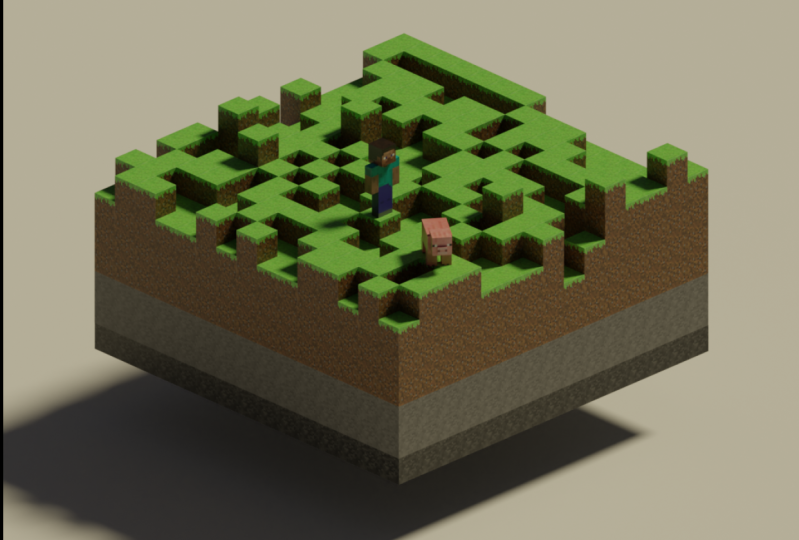
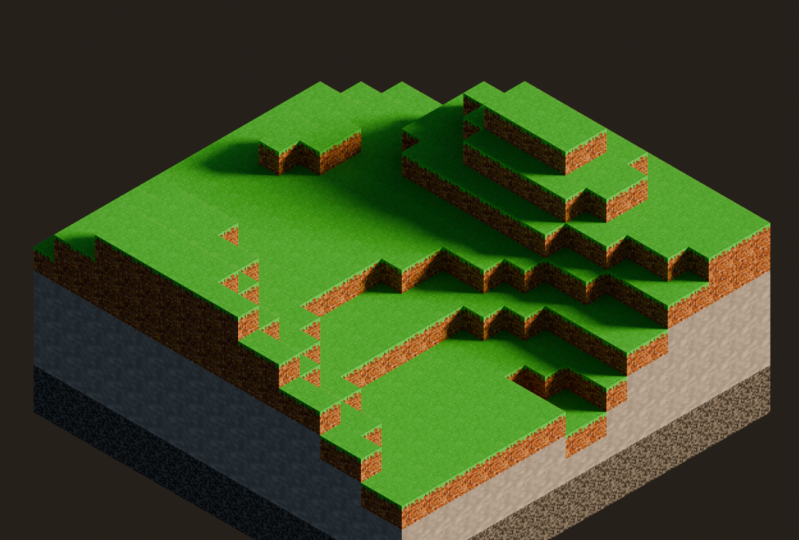
procedural Minecraft worlds. In less than an hour,
we're going to have a system that can create infinite variations of
little mini World's. Some basic blender experience is recommended but
definitely not required. Will be creating
everything from scratch. Starting with textures, will create multiple
block variations. And we're going to use blenders, Geometry notes system to
create our world generator. And to finish things
off, we're going to create a render of our project. We'll learn at telecoil
stuff along the way. I'm really excited
about this course. I'll see you in
the first lesson.
2. Video 1: Creating Textures: Hello and welcome to the
first video in this series. And this video we're
going to be making the textures that we're going to apply to the models in Blender. So in this video, we're
gonna be using GIMP, which is a free open source
software for photo editing. If you don't already have
it, you can download it. It's free. And this video is optional. So you can just download the textures and skip ahead to the blender stuff
if you'd prefer. But let's go ahead
and get started. We're going to make
a new file here. We're going to change
the image size to 16 by 16 because that's the size of the textures for the
blocks in Minecraft. So super simple, not a lot. We have to worry about
working with these, but we'll have to zoom in and we're gonna be
making four blocks. So by the end of this series, we're going to have
a nice generator that's going to let us
build procedural worlds. And it's going to have a couple of different layers in it. So we're going to want
a bedrock layer at the very bottom and then a
stone layer than a dirt layer. And on the very top we're
going to have a grass layer. So let's go ahead and
start out with the dirt. I have the color all
pre-selected here. You can use this HTML notation or you can just eyeball it. Either way works just fine. So we will go ahead and
use our bucket fill tool to color this in. And we could either do it
the hard way and paint this in ourselves and spend a lot of time
getting it to look right. Or we can do the lazy thing and make it look a lot better, a lot quicker, and
just use a filter. So we can use a
noise filter to get it to look pretty
much just the same. So you'll see
there's a couple of values here that we can adjust. The value slider here is going to let us get a look
that it's really similar. So we'll select that around. Point to. That already looks pretty good. So we'll apply that. And now we're going to add a
couple of speckles of stone. I'm just kinda like
gravelly bits, just like the actual textures. So we'll use a gray color, and then we'll use
our pencil tool. There's a couple of
different options here. Make sure you have
pencil selected, make sure your sides and
all the way down at one. And then we'll just put
six of these around here. And there's our dirt texture. So we've already got one down. Let's do the grass texture. So we'll make a new layer and we will get our
grass color right there. And then just like before, we'll use the bucket fill and then go back to
our filter. This time. Would the noise, HSV
noise, just like before. And we'll keep this value pretty low because the grass isn't
quite as pretty as the dirt. 0.05 work just fine. And let's change this
doling down to one. And there we have our grass. So to make the grass block, we have the bottom which is the dirt and the top
which is the grass, but all four sides have mostly dirt with a little
bit of grass at the top. So let's go ahead and duplicate
this layer, will hide it. And then we'll go back to this. It doesn't really matter
which one you hide and which one you don't. But you want to make sure that the one you had
selected is visible. And basically we're just
going to erase part of this. So we're going to count
down four pixels, so 1234, and then everything
below this has gotta go. So we'll just get
rid of this green. You can see this is
already looking more like the side of the
grass block in the game. So the only thing we'll have to add is we'll just do a
little bit of fringing. And I will just do this by hand. Keep it kind of organic
looking random. And you can do
whatever you want. Just make sure that you
leave it at least one pixel. And then out to the four. Just kinda do whatever
you want with that. And I think that
looks pretty good. So now we have our grasp block. And just a bit we're
going to put this into a single texture
with all the sides. But let's do the stone
in the bedrock first. So we'll add another layer. And you can reorder
layers if you need to. But let's go ahead
and gray fill. And we'll go back to
noise just like before. This time we'll change
it to about 0.06. And this time we're gonna
do an additional noise. So you notice this is, it looks a little bit more
like the gravel texture. So we want to scale
this out a little bit. So there's another
noise texture called slur that we can use to do that. And we'll change
this repeat value to us as we slide this up. It kind of gives it
as blocky effect. But we only need just
a subtle effect, so we'll just use two. And then we can go ahead
and rotate that 90 degrees. So let's take the candy. Perfect, cool. And to finish this off, let's go ahead and
add some blur so we can use Filter Blur. Make sure you have
Gaussian blur selected. And the default presets
a little too strong. So we can slide this down. You notice with
this lock enabled, these values move together. So we'll crank them
both down to zero, and then we'll unlock it. And then we'll move this
x value up to about 0.5. And that's looking pretty good. So now we have most
of our blocks. The only one we have
left is bedrock. So another new layer. And we use a darker
gray for this. Cool, cool. And then
we're going to crank our noise up quite a
bit. So let's take it. All right about there. And then just like with the
stone will use a slur filter. So go here, denoise, slider, and then we'll do
two for this on as well. Okay, recenter that
rotated 90 degrees. And we can adjust the colors after the fact here
with our color setting. So let's just move the
contrast down just slightly. Okay? And that looks pretty good. So now we have all the textures
that we're going to need. So we can go ahead
and save this. Let's just call this semester block textures. Alright, and then we're
going to individually export these as a PNG file or a JPEG, whichever one you prefer. But let's go here
to File Export As. And then you can select
the file type here. There's a whole lot of options. I'm just going to use
PNG in this case. So we'll name this bedrock
and then hit Export. And Export. Then we're gonna
hide this layer. And then export. Stone. Do the same for the grass. Let's call this
grass side and dirt. Alright, so now that we
have our base textures, we are going to go ahead and add these three
to a new texture. And I'll explain why
in just a second. But let's go ahead and
make a new image texture. And this time it's gonna be
the width of four of these. 64 is going to be
the height of three. So we'll make it 48 and
consume it on this one. We can import the
textures that we have. So we'll just select the grass, grass side and the dirt. Drag these in. And it will automatically
add them to new layers. So I find it easier to work
with a white background. You can adjust that
as you'd like. But yeah, so what we're gonna do here
is we're going to make this texture in a way that
we can unwrap a 3D object. So it sits flat on
top of this texture. So I have a little bit
of an illustration here. And we're going to have to
tell blender where to cut the the cube open to lay flat. So you can see
here the red lines represent where we're
going to make those cuts. And then you can see
it will lay flat. So we have to order
these in a certain way. So we'll take our top
and it's going to be all the way on the left. So we'll keep it in the
center here and just drag it over till it
touches the edge. And then for our sidewalk, let's go ahead and rotate that negative 90 degrees until this grass edge
is touching the grass. And then we'll move our dirt over until that's
touching as well. So we have most of
the puzzle here. The other thing we'll
need to do is we can just duplicate this. And then we'll rotate
this 190 degrees. Move it into place here. Duplicate that. Rotate it. Then move this one into place. Then one more time. Duplicate this. Rotate it 90 degrees, and move that in. And we're going
to want to export this as a image as well. So just export this,
make sure you save it. So we'll just save this
as xy F is camps format. So let's call this grass,
grass block texture. Cool. And then we'll export as, and this will export as a PNG. It automatically has
the same title suite. So that's it for the textures. Definitely play around with
this as much as you'd like. Make it your own. You can make any, any texture you want. Make it look like
a different block, whatever, go wild,
make it your own. I will see you in the next
video where we're gonna be putting these textures
on our blocks. And I'll see you there.
3. Video 2: Applying Textures: Okay, so now that we have
our beautiful textures, you can go ahead and play
them and open up Blender. But just a couple of notes
before we get started, I'm using Blender 3D 0.40, just came out at the
time of recording. But this generally applies to any version above,
like three out three. So just make sure you have the
newest version of Blender. And the other note is
that you'll notice when I click a button down
here in the left corner, it shows what button
presses I'm doing. So that'll help. If you get lost. If you just want to
follow along there, that'll help you
understand what's going on with that of the way. Let's go ahead and jump into it. So we don't have
to do any modeling because the cube
is already there. We do have to change the scale because the default
cube is 2 m cubed. And we want it to be 1 m because that'll make things a
lot more manageable. So simple, fixed for that, we just hit S to scale
0.5 and then apply it. And that will scale it to
1 m in all directions. And now with that other way, let's go to our shading tab. And this brings up a
different view of our cube. But let's go ahead and
put a texture on it. So wherever you
put your textures, go ahead and pull those up. We can just select the texture. And we'll use bedrock because
it's the lowest layer. We'll just work our way up. So I'll just drag
that in and drop it in this node editor. And we can just plug
our color value, just drag it into
our base color. And it will update here. And it looks a little weird. And that's because blender
by default is going to try to make our
texture look better. If it's low resolution
and pixelated, it'll try to smooth it out. In this case, we
want the pixelation. So we can change our
interpolation mode here from linear to closest. We get that pixelation back. So now we just have to
tell blender where we want our image to be
mapped onto the object. So let's go to UV Editing. And you'll notice
here by default you don't see the
texture anymore. We'll need to change
that back to material. So we can zoom in here, It's a pretty low
resolution file, so we have to zoom way. But let's go ahead and
select everything. And you'll notice by default, it's unwrapped the cube
into this T-shape, just like the one we made
for our grass texture. But for this case, let's just go ahead and
hit U and then reset. And that'll reset everything. So it's just a square
because in this case, all the faces have
the same image, but they are rotated 90 degrees. So let's just select
everything in here with a and then rotate 90 degrees. And here we have
our nice texture. So that's all good to go.
For organization purposes, we're going to do each cube individually and name
them as we go along. I'll name this bedrock
here to materials. And we'll rename this
material bedrock. Oops. There we go. Cool. Now that we have that are
the way we can go ahead. Let's go back to
our default layout. Change that to material preview. Then we'll just Shift
D to duplicate this. And then we'll hide
the original bedrock. And then we'll turn this
one into our stone. Will need a whole new
material for this. So we'll go to our
material properties and get rid of that bedrock because we've already
made the bedrock. We don't want to mess with
that material anymore. So we're going to add
another material. And this one we'll call stone. And we can rename our
cube here to stone. And then we'll just go
back to our shading. Same idea here. We'll just drag and
drop our stone, plug that color in, and change this to closest. Because we copied our bedrock. The mapping is the same so we don't have to
re-scale anything. So we're good to go there. So we'll just rinse and
repeat this process. So we'll just shift D, hide the original,
and then this one will be grass texture. So we'll rename this grass. Get rid of the stone
texture, add a new one. Rename this to oh, I'm sorry, Dirt
Texture, not grass. We will drag and
drop our grass here. Plug that in, change
it to closest. And there we have our dirt. I named this grass. There we go. Make sure you name it something that describes the object. You'll thank yourself later. Okay, So now our last cube is a little bit
more complicated, so we'll just
duplicate our dirt. And this one isn't grass. New material, grass. Okay, So this one is
not like the others. It's not a single face. So we have to tell
blender how to map this on to our cube. Change that to closest. Okay, so the way we're
gonna do this is we're going to add some seams
and that will cut it out. I have an animation
here that I made to help illustrate this. The red lines represent those scenes and that's
where it gets cut. And then it can
unfolded lay flat. So we're just going to replicate this by adding those seams, unwrapping it, then just
applying the texture. So just for ease of viewing, we'll go back to
our layout here, go into edit mode, and then go to edge select. This will make things
a lot easier too, because we want to select edges. So one thing that
helps me a lot when I visualize UV unwrapping is
let's open this image here. So we want all of the
outside edges to have seams. So these will have seams, but where are these faces touch? These won't have seams. So we'll just try to
visualize this as going. This will be the underside, and this right here
will be the top. These are shared edges. So these two are gonna be the same edge on
the actual mesh. So let's start with the bottom. So the bottom doesn't
have any seams. So none of these four edges right here will have
a CME attached to it. But all of these do have seams. So let's go ahead and
shift click these. And then we hit U, mark seam. You notice a red line of periods indicating
that there's a scene. So let's see what happens
if we unwrap this. So we can go ahead
and hit you, unwrap. Then if we go to
UV Editing here, we can see what that looks like. We haven't given blender
enough information to unwrap this in a
way that looks good. So it's just a straight
line you'll notice here. And that's definitely
not what we want. So we're going to have to tell it a little bit
more information. So you notice here these
edges will have seams, but this one does not. So let's add edges around here. Whoops, I didn't. Maxine. There we go. Okay, and
then we'll unwrap again. And it's definitely
a big improvement. It is actually the
shape we want, but it's not quite
in the right spot. You'll see it's backwards. Because the same
location does matter. So we have put this
in the wrong spot. So will clear that
out with you again. But instead of Mark seem clear seam and then we'll
put this on the other edge. So mark seam there,
unwrap again. And there we have it. It's applied just
the way we want it. Now in a real project, we would do the opposite. So we would take our mesh and then we'd mark seams and unwrap it in a way that has even faces. And then we'd export this and then put it into an image editor and then paint the texture on. But in this case, it's just a little
easier to do things backwards, but
that's just a note. If you get more into UV unwrapping, it looks
a little different. So it is partially preference depending on
how you want to do things. But for ease of use, it usually is a lot easier to create the unwrap and then
apply the texture around that. Rather than just trying to fit the unwrapped we've
done to the texture. But enough said
about that we have, are three or four blocks. We've got our bedrock,
grass and stone. Now we can get to the fun part. And we're going to create a procedural generation
tool that will help us get something
that's nice to look at, a nice scene that
we can render out. So the way we're gonna do that is we're gonna do
geometry nodes. And we'll go ahead and do
that in the next video. So I'll see you there.
4. Video 3: Procedural Generation: Okay, so now let's go ahead and make our procedural generator. This is a quick reminder. If you haven't saved yet, go
ahead and save your project, you so you don't
lose any progress. So let's go to our
geometry nodes. We can just hide this for now. So the way we're gonna do
this is we're going to create two different layers. And the first layer is going
to be our bottom layer. It's going to have
bedrock, stone in dirt. So let's select our
scene collection. We'll use this to create
a new collection. And then we'll rename
that to base layer. Select our Scene
Collection again, we're going to
create a top layer. And this will be our grass. It'll just sit on top
of our base layer. So we'll rename
this to top layer. And now we can sort
these into our layers. So we want to put our bedrock, stone and dirt into the base and the grass
into the top layer. And to make it easy, and just so these
don't get in the way, we'll uncheck these just
so it doesn't show any of that because those will block
our view of everything. So now that we have those
squared away into collections, Let's go ahead and
create our node system. So we're going to put
this on top of an object. So let's select a
collection here. And it'll just create a plane. And then we'll
rename this two node in your Node Editor here. Just hit New. And this will
create a new basic setup. So we can go ahead and delete
our group input for now. And then we're going
to add a grid. So Alice just search
for whatever I need. So we'll type grid into here, plug our mesh into geometry. And right off the bat, we've created a grid that
we can scale x and y. And what's happening
here is our x and y obviously
creates the sides. But then these vertices
or the number of points within our size. And in order to make
this easier to control, Let's go ahead and
add an integer. And we'll plug this in
to all of the grid. And then this lets us
easily change the scale. We want one point for each unit, so every meter we want a point. And then on those points we want to put one
of our blocks. So the way we can do that is with an instance on points node. Just a quick note here,
there is an instance, two points node as well. Don't get those confused. We want an instance on points. So basically we're telling
it we want to instance an object on each point or
on each of these vertices. But we haven't told
blender what point we want yet or what object we
want on those points. So we need to plug something
into our instance here. So Shift a will add a
collection info node, plug that geometry
into the instance, and then we will
select our base layer. And this has created a
grid with these points. And it looks pretty good, but there's a gap here. This gap is equal to one of
these is basically 1 m total. So as we scale it
up, it shrinks. But the easy fix for that is we just scale on our grid
down just a little bit. So we'll create a math node. We're basically just
going to shrink this whole setup by a meter. So unplugged these to
plug this in here, change this to Subtract,
change this to one. So we're subtracting a meter and plug this into
both x and the y. And you'll notice now it shrink, shrink to the shrunk, shrinked, shrunk via our grid. So now these are nice and
tight and close to each other. Alright, so now we have
a x and y-axis that we can scale and
we're getting closer. But it's not very interesting because there's not a z-axis. So let's make some space
for some new nodes here. The basic principle is
we're going to duplicate these up on the z-axis. So we'll need a couple
of notes for that. First, going to
duplicate elements. We'll plug that in here and we need to tell it where
we want our duplicates. So we'll use a set
position node. We'll plug that in between duplicate elements
and instance on points. Nothing has happened. Even if we scale up here. And we can duplicate by zero. But this doesn't really
do anything yet. So we need to tell it to
offset our duplicate index. But we only want
it on the z-axis. And there's this beautiful
node called combined XYZ. And this lets us basically
do something along one axis only will plug those
duplicate index into the Z and then plug this
vector into our offset. And you'll notice we can
scale this up and down. And it will create a nice, a nice z axis scale. To make this more interesting, we want some variety and
flavor into our z-axis. So the way we can do
that is with noise. And noise is one of
my favorite nodes. So we'll take a noise texture. And if we plug our
factor in here, yeah, that's, it just
clears everything out. The reason for that is
factor is a value 0-1. And we're essentially
just multiplying by zero because 0.5 isn't a whole layer. So nothing happens, but
it can add a math node. And this multiplies our output. So then we can scale it up. That's add, multiply. Yeah, make sure this
math note is multiply. And then let's change our scale. I'd like to scale down because it makes it look
a lot more like terrain. If we make our size bigger, we have some actual terrain
looking stuff going on here. So now we have a value here that slides up and down and lets
us control our z-axis. And then we can change
our x and y with this. So we're getting
pretty close. Now. We can make things
more interesting. So let's go ahead and make something that makes
it easy to control. These values will get
back a group input node. And this lets us plug values
in to any node we want. So we're going to hit M to
bring up our menu here. And then under group, this is going to
let us change the, the nodes that we have in here. So let's add a new node will
make this type integer. And we'll rename this to scale. Well, let's just call it size. Okay, now we can delete
our integer and then plug this size into where
the old integer was. Then you'll notice here
under the geometry nodes, we can now scale this. So it just makes it
easier to control. And this value is what
controls our height. So we'll add a,
another value here. This one will make a float because we don't
want it just an integer. And we'll rename this to height. And then we'll plug
this in to here. Then I can slide
this up and down. And we can make a seed, just like in Minecraft. So let's make another
one called this seed. Will make this a float as well. And we'll change our noise
texture from 3D to 4D, and that gives us this w value. And this will just create
a variation of this noise. And we'll plug this in here. Alright, reminder to
save your project. And now we have a pretty
quick and easy way to scale. Change your height and
create a random seed. And I'd recommend keeping
this fairly small as much as I wish you could scale it up to the size
of a Minecraft world. You'll notice it. It really creates a lot of lag if you scale
it up too much. And that's because it's
creating an instance of a whole bunch of cubes
and it's just exponential. So, yeah, we'll just
leave this small for now. And now. We want to make sure that our cubes actually show bedrock at the bottom and
then stone and then dirt. Right now it's just stone. So we'll have to do a couple of things to make this happen. So we'll have to
separate children here. And this basically creates a, we're going to use an
index to manipulate the, the different objects inside
this collection info. So we can hit pick
instances here, and it will loop the three
objects in our collection. But we want a little
bit more control over this because this doesn't
really look like Minecraft. So we can do that with
our duplicate index here. But if we plug this in
to our instance index, does Hope things a little
bit and now they're in layers instead of just kind of randomly repeated all over. But we can use some math
to manipulate this index. So basically this index is
creating a is basically giving each object in
our collection a number. So like bedrock is zero, there is one, in stone is two. But first of all,
that's the wrong order. So let's go to our base layer
here named bedrock zero. 1. St to oops. Other way round stone is one because we want
bedrock been stone, dirt. And you want to make sure you click on this
and it will update. And now we have these
in the right order. So it's taking bedrock first. This is zero and then
stone one, Dirt too. But we solved the
problem of it repeating. So once it gets to one, or 012 is just assigning
this one as three. So we can use a clamp to
basically limit that repeating, um, by changing this one so
it prevents it from looping. And we can adjust the index
a little bit further. Let's use a math node. We'll change this one
to multiply, add. And we can play with this
value to adjust this. But let's just go
ahead and change it. That looks pretty good. You notice that as we
change our height, it will limit where these appear so
that they're only appears at the four level. Actually, let's make this 0.3. So now appears only
above a certain height. Again, just play with this. You can make it your own. So whatever you
think looks good, that's what you should do and just mess around with this as much as you want, really
make it your own. So we have most of
the puzzle here. We're just missing the graphs. So the way we can do our grass is we'll
create another layer. And then we'll just move it
along the z-axis and then tell it we want grass
instead of our base layer. So let's go ahead and
duplicate these three nodes. Shift D, move this up here. Then we're going to use
a join geometry node. So we can have both of these
meshes render at once. So we'll plug both of
these into this node. Then we'll plug this
into the output. And nothing's happened
yet because we haven't plugged anything in to here. So we want our grid to get
plugged into this geometry. And it's created another
I'm set of geometry here, but it's the wrong geometry. So let's change our
collection info to top layer. And now we need to offset it. So we can do this manually and we just move this
up to the z-axis. We can actually start to see it. But as we change the height,
whoops, wrong value. Slide this down a little bit. As we adjust the height. Our grass doesn't
adjust with it. So we can plug this
into our offset. And it's a little wonky, but it lets us, it's moving along
with the height. But we'll use our
combined XYZ node again, just duplicate this in here. Change this node from x to z. And then now as we
change our height, this is moving along with it. Now you'll notice that
these are hovering on top. And the reason for that
is because our noise, it's a factor of zero to one. And so it could be like 0.3
or 0.4 or any number 0-1. And it's different
for each block. So it's creating a
different level, different height
for each of these. So the way to fix
that is we want all of these to just round down. And we'll use a math node
here and plug this in. We're going to use a random
function called floor. And this basically
just rounds it down to the nearest integer
that is equal than, equal to or less than. So if it's 7.4, it
runs down to seven. If it's seven, it stays seven. And so this creates a nice, it just snaps as it
goes up and down. And this is exactly
what we want. And there we have it. That's pretty much
all there is to it. And again, you can just mess with this as
much as you want. You can make these
different textures. You can go crazy with it. The last step we're going
to set up a render scene, add some lighting,
and make it look nice and go ahead and render
that out into a nice image. I will see you in
the next video.
5. Video 4: Lighting and Rendering: Alright, so let's go
ahead and wrap things up and render a nice scene. So it will go to
layout and we'll find our camera staring
at the corner here. So not very exciting. The quickest way to position it nicely is to find a
view that we like. Just position our view camera. So it's nice and centered. Then go here to View
and then Align View, and then select Align
active camera to view. And that will snap the camera
to wherever you're looking. In this case, I'm
going to change the camera type from
perspective to orthographic. It gives it a nice even look. Orthographic just means
that the scale doesn't get smaller as an object gets
farther away from the camera. So everything is the same scale. And we'll change this
slider to zoom out. And then we can recenter. I'm actually going to render
square instead of this 16 by nine aspect ratio that
it comes with by default. So under Output Properties, I'm just going to
change this to 2048, 2048 or whatever
you want to render. And then we can check this. We have a nice isometric look, and that looks pretty good. So I'm actually going to change the rendering engine from EV. Two cycles. Cycles has light bounces and it's
a lot more realistic. So just for better results,
that's what I'm going to use. It is heavier on your computer
and it takes more time. So depending on what kind
of rig you're running, you might decide to use EV. But in this case, I'm just gonna use
cycles and I'm going to change device to GPU compute because
I have that option. I'm gonna go here to display render preview to see
what I'm looking at. The default white is, I believe, like stuck in the geometry. We're just going to delete that. Then we're going to
add a new light. We're going to add a sun here
and then just rotate it. Now the position of the
sun doesn't matter. I like to get it out of the way just so it's easier
to see the rotation. Just get a nice angle there. Maybe rotate it along the
Z-axis just a little bit. And I'm gonna change the
intensity of this as well. So with the light selected, I'm gonna go here to the object data properties and just crank that
strength up a little bit and then change this color to very
slightly yellowish. I'm going to change this angle, which will soften the shadows a little bit, make them nicer. Then I'm gonna go to the World properties here
and just bring this color up a little bit to make those
shadows a little bit lighter. And this is where you can
spend a whole lot of time. And it doesn't feel like
any time is passing it all, just endlessly adjusting
the little settings and making it look perfect. This is gonna be a
pretty quick render. But yeah, you're
definitely encouraged to spend a lot more time fine tuning and tweaking
it to get it just right. In this case, I'm
only going to use one real light source. But yeah, definitely
play around with it. Let's go ahead and adjust our, our node setup so it looks a
little bit more photogenic. So let's change the
height a little bit. Bringing that down. Mess with the size. You can change the seed. Just find something that
you think looks nice. It looks pretty decent. Going to select my camera. Center that again. And that's really
all there is to it. Let's adjust some
final settings. So an output properties the
default file formats PNG. You can change that
if you'd like. Under the Render properties. I'm going to go to
this render tab. And the default
samples is 40 96, which if you're looking for a really
high-quality renders, definitely a good setting, but in this case, I don't really need
that many samples. So I'm just going to change
the time limit to 60 s. So it'll render for a
minute and then stop. But yeah, just play
around with that. And whatever quality of
rendering you're looking for, you can adjust these settings. Then finally, I'm
going to go here to film and just check transparent, which makes the
background transparent. So once I render this, I can set it on top of any anything else and make
a background really easily. And with all that, they're going to hit Render, Render Image or 12th. And we'll let that do its thing. Okay, so now that
we have our image, we can go ahead and
save it under image. Just Save As here. And just save it wherever you'd like and there you have it. So thanks so much for watching
through to this point. I hope you learned a lot. And if you have any questions
or run into any issues, definitely leave a comment. And I'll do my best
to help you out. If you made it to this point, I'd love to see your projects so you can leave it
down there as well. If you have any feedback,
I'd love to hear that too. But yeah, thanks again
so much for watching. Have more content like
this coming along. So definitely make sure
you're here for that. I hope to see you there
and have a wonderful day.
 Malcolm Donaldson, Blender Artist