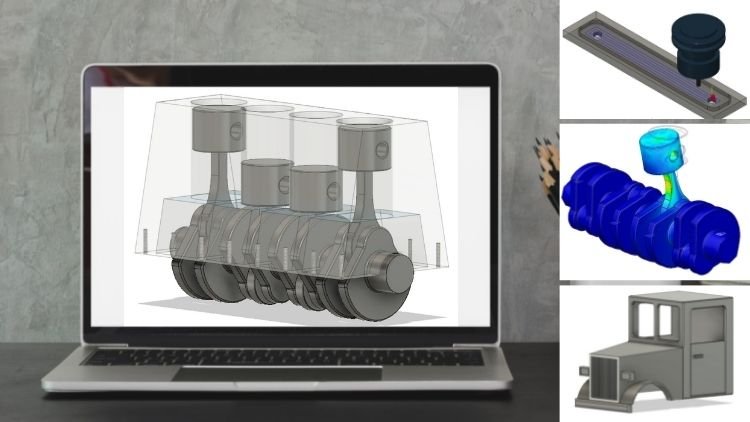
Transcripts
1. Introduction: Welcome to the inventor
course for beginners. Thank you for
choosing this course. In this course, you will find an introduction to the basics of the great cat program
inventor from Autodesk and learn in particular
the cat design in detail. As an engineer, I will show you step-by-step my knowledge
from my studies and professional practice
so that you can achieve optimal learning success with theoretical basics
on the one hand. But above all, with practical examples.
On the other hand. After a theoretical
introduction, this course includes many practical design
project to learn designing the program from scratch and with
inventory from Autodesk. As with other CAD programs, you can not only design, rather of this program
combines and links several engineering
disciplines such as cat, computer aided design,
and femme element method. In one platform. Within renter, you cannot only create
components or assemblies, but also perform
simulations and animations, as well as create renderings. The main focus of this course
is on design within renter. That means the cat
part of the program, but the other functions will not be neglected, don't worry. As already mentioned, the abbreviation cat stands
for computer aided design. What is cats software anyway? Cats software is
used to virtually create or edit
three-dimensional objects, starting with simple
individual parts through complex parts to an
entire assemblies that can be virtually assembled. This course, specially
designed for beginners, you will learn how the inventorial environment
is structured and how to make the most
of its features to create
three-dimensional objects. It's project of
the course can be followed step-by-step
in one-by-one in order to get an easy introduction
to the material and to become more familiar with the multiple functions
of the program. Each lesson. In a nutshell, this means that
you can learn the following in detail
in this course. Find your way around the inventor program
quickly and confidently. Master all the
important functions of inventory quickly
and confidently. To learn the basics
of cat design and the different ways
of working methods. Get to know 2D sketching
and 3D object creation. Create individual
parts and assemblies, render and animate in the
ritual parts and assemblies. Simulates in your ritual
parts and assemblies. That means apply loads and
display stresses and strains. Fem simulations, learn the environment of technical drawings and
create technical drawings. It is best to stay in the
order that the course provides as lessons
build on each other. If you do not understand any ritual functions or
commands right away, or miss the explanation for our function, just
stick with it. The course is structured
in such a way that all important and
basic functions are explained sufficiently
and in an intuitive way. Therefore, explanations in
the chapters may overlap or certain functions
may not be covered in detail until a later chapter.
2. The CAD software "Inventor": The professional cat
program in Venter from Autodesk offers a clear
and simple user interface, but it also has its price. A licensed currently costs about 350 euro per month
annually, about €2,900. If you buy a license
for a longer period, you can save a little. Pupils and students have
the possibility to get a license for the duration
of their studies. All others can test
the program at least for 30 days,
free of charge. In its full extent, it is no longer possible to
buy the software directly. There is only the
possibility to subscribe to the software for a
certain period of time. With a subscription,
inventor can then be installed on up to
three computers. However, it can only be
used on one computer at a time and only with the
purchases login data. The structure of
the design features is relatively identical for all common cat programs used by engineers or technicians
in their daily work. There is a basic selection of
professional cat programs. In addition to Inventor, the best-known, our
SolidWorks Catia, Solid Edge pro engineer, also known as Creo, and probably the best known
of them all out to get. There are basically no major
differences in the prices. So these programs are
usually only worthwhile for professional users
and self-employed people. And now we're ready
to get started. Before we get to the
basics of cat design, we will make general
program settings and familiarize ourselves with the program interface
and functions.
3. Preparation: First steps with the program and general settings: When we start the program
for the first time, we are initially presented with three windows and
three menu bars. In the menu bar, get started. We find standard options, such as creating a new file or opening an already created file. In addition, we can
work through tutorials, see what is new in an
updated version of inventor and request
or look up help. In the Tools menu bar, we can use the application
options button to make initial settings for the program or reactivate existing settings. With the help of B settings, the program can be
individualized to some extent. E.g. the background color can be set in the
colors section. I prefer the white
presentation layout or graphic settings, depending on the hardware can be made in the
hardware menu tap. Here we have to choose
between quality of display or performance depending on
the equipment of the PC. In the sketch menu, we activate two functions, namely grid lines
and snap to grid. That grid is
displayed to us when sketching in the 2D environment. And we can select
the grid points more easily with the cursor. However, this setting is
really just a matter of taste. At last, we want to make
setting for the units at file with a click on
configure default template, we can change this to millimeters and set
the drawing standard to all other settings are not
needed for the time being. They are much too
special for the start and can be left at
the default values. We are now still in
the start window of the program in which there
are still the three sections, new projects and
recent documents. These are relatively
self-explanatory. In a recent documents, you will see the most
recently used files after the creation
of the first fires. In the new section, we can choose between
the creation of a single-part part and assembly. Assembly, a technical
drawing drawing, as well as a presentation. If you have never worked
with a cat program. Before, you may wonder what
the difference is between a single part and an assembly and why a
distinction is made here. Think of it very simply, just like in the real world, in the virtual environment
of a cat program, every more complex part is assembled from several
individual parts. A car, e.g. has thousands of individual parts from
the steering wheel to the smallest bolts. Each of these parts is an independent individual part that when assembled as a whole, results in an assembly, the car. And the cat program
and assembly is therefore made up of all
the individual parts. Just as in real assembly. With drawing, a
technical drawing and in the ritual part with
views, dimensions, and all the necessary
information is described on a
sheet of paper in 2D in such a way that it can be manufactured in
accompanied by an employee. And assembly can also be described with a
technical drawing. Since we want to start designing our first still very simple
part as soon as possible. We therefore now first select the creation of a
new single part. By the way, single-part
assembly and technical drawing each have
different file extensions. In this case, the extension
IPT stands for pot. That means in the ritual parts, that extension I am for
assembly and the extension D, W, G for drawing. That means technical drawings. A look at these extensions
will help you to identify what you're
dealing with in a file. Then we get to the actual program environment of inventor, in this case, to the environment
for individual parts. By the way, we can return to the initial window by clicking on the small box
in the bottom bar. In the next chapter, we
will take a first look at the program environment and functions of AutoDesk Inventor.
4. First overview: Program environment and Functions: Let's first take a look at
the program environment in the menu boss located in
the upper inside areas. The menu bars in
the upper area are different for each of
the four environments, part assembly, drawing
and presentation. While there are always some taps that appear in several
or all environments, such as 3D model or sketch. There are generally
different types and functions depending
on each environment. We will learn what the differences
are during the course. So now we are in the
environment part. At the top-left file
allows you to open, save or export files and
other basic commands. The selection tabs
on the side of file can be used to switch between the individual sub menus for the features in their
respective environment. In this first section part, we will first deal with the design features
for a single part. There are ten
different tabs here. 3d model, sketch,
annotate, inspect tools, manage view environments,
get started and collaborate. The 3D model menu tab, you will find all the
functions that are necessary for creating or editing a
three-dimensional object. In the create section, you will find all the functions
for creating a 3D part. In the Modify section, you will find all the
functions for editing 3D part. What these functions can
do and how to use them. We will learn in detail and step-by-step during the course. In this chapter, we first
want to get an overview. The shape generator
can be used to create an optimized
components structure based on a load situation. In the work features, we find all the tools
for construction. That means x is Plains, points and coordinate systems. In the pattern area, a pattern command
can be used to save a lot of time and effort
during construction. The two areas create
free form and surface, are intended for the free form or surface modeling
mode of operation. However, we will not cover this advanced cat the way of working in this
beginner's course. It is also only necessary
for very complex parts. With the last two points,
simulation and convert. On the one hand, a femme load analysis can be started or a sheet metal
part can be designed. By the way, with the small
error on the far right. This bar can be customized
in each of the menu tabs. That means needed or not needed sections can be shown or hidden. For us, e.g. primitive is interesting
with which simple bodies, such as a cube can be created directly in the
function measure, with which you can
measure something in the 3D environment. In exchange, we hide, explore, and create free form. You are also welcome to take a look at the other
possible sections. In the next section, sketch, which is intended
for 2D sketches, we first find, create, modify, and pattern again. Here, lines, circles, or other 2D geometries can
be created or modified. If you do not have any
previous knowledge, you must mentally divide the cat program
and the design of an individual part into a two-dimensional and
three-dimensional area. You start with a 2D sketch and then create that
3D body from it. But more about that later. In the annotate menu tap
tolerances, dimensions, surface specifications,
remarks can be applied directly to the 3D
component as an annotation. However, this is
normally not absolutely necessary and is usually denoted on an
engineering drawing. However, applying
these annotations directly to the 3D part can have advantages on the 3D model is transferred to manufacturing
in addition to a drawing, a tolerance analysis can also
be started in this area. In the menu tabs, inspect and tools,
you will find again, the general measuring function, as well as the possibility
to start various analysis. The possibility to change the material or the
appearance of a part, as well as a few more
commands that are rather unimportant for
us for the time being, we will skip the Manage
menu tap since its content, it's also unimportant for
this beginner's course. Important however,
is to tap you with which the display of our
components can be controlled. Here, in addition to the
general component display, which will style the
focus or shadow, as well as a background
can be displayed. But more about this later. The last important areas
to tap environment. In this tab, you can switch to the other environments
of inventor. In addition to the cat design, inventor can also
be used to perform an FEM load simulation with stress analysis or to create an animation and rendering
with inventors to do. Tolerance analysis can
also be performed, and there is also a
specific environment for creating castings and more. For us, we already
mentioned possibility of sheet metal design with Convert to sheet metal
is still important. The last two menu tabs get
started and collaborate are very self-explanatory and contain rather general commands. Feel free to click
through here if needed. Don't be afraid of the multitude of
elements and features. The course of the course, we will get to know the
individual elements step-by-step and in detail
using practical examples. If we now look at the
drawing lay layer area, we find the part browser of the construction file
in the left area. If it is not displayed or if you have closed
it by mistake, click on the small plus symbol and select the model browser. This part, or modal browser,
contains all views, as well as the origin, the planes, and the
axis of a file. However, the main function of this part browser is to
list the created sketches, construction elements
in order to activate, deactivate, or edit them
with a right-click on them. We will see later
how this works. It is also very good
if you get into the habit of naming the
individual components and possibly sketches and layers
right from the start in order to find your way around the complex construction
more easily later, simply double-click on the
element and enter a new name. In the narrow bar above
this part browser, you will once again find general functions
such as open, safe, undo, or redo, and settings for selecting
elements or features, as well as settings for the
material and the appearance. It may be that this bar
is also displayed at the top with a click on the
small error on the far right. You can change the display
position if necessary. In the upper-right area
is the orbit cube. Here you can select views
of the current construction and rotate the drawing
environment encoding the object. Rotation of the drawing
environment is also possible with the shift pressed
while moving the mouse. Shifting is possible with a mouse wheel pressed
and the mouse movement. The zoom function is performed as usual by turning
the mouse wheel, by right-clicking on the
drawing environment, we can access the
Quick Selection Menu, which can be used to quickly execute a variety of commands. In the lower part of the
drawing environment, we can switch between
several open fires. The bar on the right side
below the orbit cube also gives us the option to move
or rotate the environment, as well as the look at command, which makes it very easy to look vertically at a selected
area of a component. In addition, and
navigation wheel can be activated in this bar, which is then
permanently displayed and serves as a kind of
quick selection menu. Here, you can also choose
between different designs. Very well. After this chapter, we
can find our way around the program
environment relatively easily and can start
with the next chapter. Has already mentioned common cat programs work in a
very identical way. We would now like to
look at this way of working in detail
in the following.
5. 2D sketching environment: Each 3D component must first
be started as a 2D sketch. This is where we define the floor plan of the
object, so to speak. You mentioned that you are
taking a look at the top of a simple three-dimensional
object, e.g. what do you see in
a cylinder when you look at it from above at a perfect right angle
to the axis, correct? Two-dimensional
circle, nothing else. It is exactly from this 2D
shape that the cylinder, analogous to all other elements, is also created in
the cat program. It is exactly this
circle geometry that we have to draw
for this object, e.g. first step, the
three-dimensional shape is then obtained by furlough
command steps for the 2D sketch, e.g. also the top surface of an
object or a side surface, or also a partial surface
comes into question. Here you need some
spatial imagination. For each 3D part. As we said, we must first make
a two-dimensional sketch. We will look at how to create a 2D sketch in detail
in this chapter. At the beginning of a sketch
in the 3D model area. Alternatively, also in sketch. Select the start to
the sketch command. Then we are shown the planes
of the coordinate system. And we have to decide
for a plane of the three-dimensional space on which we want to
draw our 2D sketch. In our example, we want
to look from above at the circular surface
or top surface. So we should choose
the x z plane. That is the plane that
the x and set X is form. Which plane you choose is only important for the
alignment of the views. The program then opens the selected sketching
plane for us. As you will notice, the sketch menu bar also
opens automatically in the upper area where you
can find all the commands. A verity of basic drawing
elements are now available for creating the geometry of a 2D sketch by
selecting a line, e.g. a. Geometry can be formed
from line shaped elements. Let's try this out. To do this, simply click
on any point, e.g. on the center of the
coordinate system and start drawing by clicking and
dragging with your mouse. With another click,
you create the line. If you then want to
continue drawing directly after this line, simply
continue drawing. If not, use the Escape key and start again at
a different position. The drawing should
correspond, e.g. to the cross-section of
the desired 3D object, or in the case of
simple objects, to the upper surface or cross-sectional
area of the object. Enter the desired dimensions
using the keyboard. You can switch between dimension and angle using the Tab key. You can also draw freely and use that this
plague values as a guide or add or change the
dimensions and angles later, the small symbols that are displayed for a rectangle, e.g. or the constraints or dependencies of the
respective lines. We will take a closer look
at these in a moment. Besides a line, you
can also create the circle and ellipse
a free form curve, an arc on oblong
hole or a rectangle. Let's just drive that out
one after the other as well. You will also find
in the Create menu a point where we use arcs
and several other elements. It is best to simply try out
all elements at least once. To do this, simply
pause briefly and start independently in the sketching environment
of the cat program, it is best to use this approach
throughout the course. This is the most
effective way to learn. Another tip about the
prefabricated geometry elements such as rectangle or so-called. When drawing, you will notice
that the rectangle, e.g. starts from a corner. However, if you want the rectangle to spend
from the center, you can also use the drop-down
menu at the rectangle to select a center rectangle or
also two-point rectangle. With the circle. You
can, if desired, also create a tangential circle instead of a center circle, e.g. in the Modify area, we can perform various
operations to modify a sketch. First, let's take a
look at the move, copy, scale and
stretch commands. These work in a
very similar way, but of course, each does
something different. Let's try the commands on
the example of a rectangle. The way it works is as follows. First, select the command e.g. move, then select the cursor, select in the window. And the next step, select the rectangle or
the new ritual lines, or another geometry
element with the mouse. Then select the base
point cursor in the command window
and deep define a reference point on
the drawing plane. Now, when we move our mouse, we can see how the, how to move the part based
on the reference point. You can then place
the rectangle in the desired position
with one-click. For copy, scale and stretch. This works as said, in an identical way. For rotate. We don't need a base point, but I have to enter an
angle for the rotation. Trim and extend can be used to shorten or lengthen
a line segment. Split can be used to split the line into two lines
at the closest point. And with offset, you can create an identical geometry element with a distance to
the original one. Here you can perform relatively
basic drawing operations. We will get to know the menu area pattern
later in the course. Before we conclude this
chapter as promised, let's get to know the
role of constraints. You can use these in the 2D
sketching environment and use them to create constraints between individual
geometric elements. This is sometimes but not
always, necessary or helpful. By the way, in this area, you will also find
that they mentioned function for
creating dimensions. We will now take
a closer look at the most important constraints. Let's start with the horizontal
and vertical constraints. Let's assume that we try to
draw a rectangle freehand. And we get a polygon whose lines unfortunately do not
represent a rectangle. By selecting the
horizontal condition, we can create two
perfectly horizontal lines by clicking the top
and bottom lines. In an identical way, we apply the vertical
condition to the lateral lines and
end up with a rectangle. As you can see,
these conditions are displayed to us as
small icons next to the respective line and are also already suggested
when creating a sketch. In the bar at the bottom, you can also hide the
display of these conditions. In addition, you can
use snap to grid to set whether the cursor should snap to the grid
points when drawing. That means whether it
should remain attached to the grid points for
easier sketching or not. Back to the constraints
with the relation concentric to circle structures can be said concentric
to each other. E.g. let's draw a large circle and a slightly smaller one. We want to get two
concentric circles. That means two circles are
the centers are congruent. We achieved this by selecting the appropriate dependency
and the two circles, the two constraints
perpendicular and parallel, are relatively
self-explanatory. Nevertheless, let's look at a small example with
two lines each. For the function perpendicular, we draw the following two lines. By selecting the condition and selecting the lines
we get as a result, two lines that are
perpendicular to each other. For parallel, we
draw two more lines. And by selecting the condition, we get to perfectly
parallel lines. We use the constraints
coincident, that means congruent and co-linear whenever we want
to connect two points or bring a line into linear dependency with another
line of another element. To illustrate, let's draw
a rectangle and two lines. We want to connect the
first line to a vertex of the rectangle and make the second line colinear
with the other line. The way you can also apply
multiple constraints, e.g. we could also still apply the
constraint horizontally to align that already has another constraint
except vertically. Let's take a look at
the tangent condition as the name and the small
picture already indicate. We can use this to set a line
tangent to a circle, e.g. let's try it out.
First, draw the circle, then align, and then
apply the condition. Just try the two constraints fixed and equal wants yourself. You can't go wrong and the name is relatively
self-explanatory. The fixed constraint
simply fixes an element in the place
in the drawing layer. And equal ensures that the same dimensioning
exists between elements. With symmetric, you can
set two elements, e.g. two lines symmetrically to a third line, the symmetry axis. Simply draw three lines. Select the first line, the second line, and
finally third line. And the two outer lines are aligned axes symmetrically
to the middle one. With the command image. We could insert an image into the drawing
environment, e.g. if we simply want to
trace a geometry. To conclude this first
2D sketching exercises, please draw another
circle in a new file, which you can then provide
with fishes dimensions using the dimension
function, e.g. select a diameter
of 50 millimeter. Simply draw the circle
and select that. The dimension tool. There are two ways
with dimensions, both of which lead,
lead to the goal. You can draw a circle with. The dimensions are
already correct by entering the values using
your keyboard while drawing. Use the Tab key
to switch between the individual fields
for entering dimensions. Alternatively, you can draw any circle and then
change the dimensions. You can also use this command to dimension the distance
between two lines. To do this, simply click
first on the first line and then on the second line whose distance you
want to dimension. You can exit the 2D
sketching mode with the green check mark
in the upper menu bar. The program then switches
back to the 3D environment and chose us our sketch as a profile on the
selected plane. To create a
three-dimensional object, it is important
that the 2D sketch is completely closed
and has no gaps. By the way, with a double-click
on your mouse wheel, you can fit an object
into the current view. This is very helpful if you
ever find yourself very far away in virtual space and can no longer see an object. In the next chapter, we will create a
three-dimensional object from the 2D sketch we made. Very good, you're
making good progress. Soon. We will already get to the first real design project.
6. 3D object environment: In this chapter, we
would now like to create a 3D object from the previously
sketched to the surface. To do this, we will use the functions from
the create section in the 3D model area to create a cylinder be used probably the most needed function
from this menu, we use the command extrude. This function represents a
so-called extrusion command and other CAD programs, you will therefore often find the term extrusion
or extrude linear. Now, simply select the
function and the profile is normally already
extruded automatically. If not, simply click
on the profile, drag the displayed orange arrow with your mouse in
the possible range of motion and change the dimensions of the
3D objects in this way. Alternatively, you
can also enter the desired dimension
right away and confirm with enter in the window that opens when you select the Extrude command. And it's called properties, you can select or
deselect the profile and also specify the direction
of the extrusion. That means to which
side it should be extruded or
whether it should be extruded symmetrically
in two directions from the sketch plane, e.g. under Advanced
Properties, you will find the option to make
the object conical. Before we deal with the other commands
from the Create menu, we will use the
constructed cylinder to first get to know the most important commands
from the Modify section. We use this section
whenever we want to modify and already
constructed object. E.g. we can use the filter function to
round one or more edges. Simply select the function
and select one or more edges. Appears again, which
we used as with the extrude command in
the Properties window. We can then change
further options. In an analogous way, we can create a
chamfer with chamfer. Another important
command is shell. With the help of this command, you can easily hollow
out an object. That means create a
thin-walled 3D object. Select the command
and the face of the cylinder and enter a wall
thickness or use the arrow. Pretty simple, isn't it? The other commands are
applied just as simply. Withhold. A whole can
be created with thread, a thread with combine, you can unite solids with split. You can split them again. We will look at these commands
in more detail later. With the draft command, you can quickly create
a slope or in-kind. Simply select two phases of a 3D object and
enter a slope angle. With thicken offset, you can strengthen a face with
additional material. And with delete face. You can delete the face. Now that we know the most important commands
from this section, Let's turn once again
to the Create menu. Besides extrude, we find here the important
commands revolve, sweep, loft, and more. The explanations and
sample images of the software are very
clear and helpful here. And already give us the first hint of what
these commands can do. We will look at how to use them in more detail in
the next chapter. As this is related to
how CAD design works. By the way, in, in renter
for some elements, it is also possible to
shorten the process from 2D sketch to 3D object
by combining both steps, which can definitely
save some time. E.g. in the Primitives
section of 3D model, we can immediately
construct a cube root, a cylinder or a sphere, and other elements with
the respective command. Simply select the command, sketch the footprint
onto a plane of the 3D space and
extrude the element. Now on to the next chapter.
7. CAD Design working methods: As already briefly mentioned
in the previous chapter, there are different
approaches to the design of 3D objects. One possible approach
to this sign is e.g. to design as the
actual machining, e.g. a. Milling or turning of
the starting material, the so-called semi-finished
part, would proceed. In the cat program, you first create
the raw material, in this case the
cube root material, and then work successively
further steps using cutouts, holds, floods, and other design
features were Chile, so that you get
the final element. That's why this method of
design is called subtractive. You reduce the initial
material through individual processing
steps until you get the desired object. But there are also
other approaches, such as the additive method. Here, the cat model, or even the real object, as is the case with 3D printing, is pulled up element by element. We will take a look at how this works in concrete
terms in a moment. We will first deal with the
classic subtractive approach. The next steps, we want
to make a hole and the cutout in rectangular
form in a simple cube. I have already
prepared the cube. The dimension is e.g. 50 millimeter in all directions. To create the whole, we can use the whole function
from the Modify section. Simply select the
command and the surface on which you would place
the drill in reality. Then select two edges
and n two-dimensions to determine the position
of the hole on the surface. In the Options
window that appears, you can then select
the type of hole, that dimension of the whole
end specific hold parameters. E.g. we select a simple
so-called through hole with a diameter
of ten millimeter. We can also create threads here, but more about that later. For the cut-out,
we first need to create a 2D sketch
of the geometry. Again. To do this, click on Start to D
sketch and select e.g. the upper surface of the cuboid. Since we want to bring
the section into the ID from top to bottom, place a rectangle on the surface
and the area of the cube with a click and enter dimension
of ten millimeter each. Confirm with Enter. Then we define the position
of the rectangle on the surface using the sketch dimension
or dimension function. Since we are in
two-dimensional space, that means sketching on a
parallel of the exit plane. We need an x and the set dimension to
finally define the sketch completely entered the
desired dimensions, e.g. five millimeter each from the left and upper
edge of the cubit. Now the rectangular is
completely dimensions. As you may have noticed, the profile has turned blue. This indicates that all degrees of freedom are fully constraint. That means position
of the profile and the plane is fully
defined by dimensions and constraints and cannot simply move by itself
in later editing steps. A complete dimensioning and a fully defined sketch are very important for good results. Always pay attention to them. After we have
finished the sketch, we can create the section using the extrude function, e.g. the cut-out should go
completely through the part. The extrude function
can now be used to both the remove and add material
from the created sketch. So you can use extrude and the design for a
subtractive approach, but also for the
additive way of working. To make the difference between the two working methods clear. We will now design our
first very simple pod, which could serve as an assembly component
for a machine, e.g. first with additive
working method and then with subtractive
working method. By the way, it doesn't matter
which method you choose. They both lead to the goal. The only difference
here is in terms of effort and time required. For the additive method, we simply draw the cross
section of the pod. In this case, we can
even do it in one step. Of course, we could also split apart into its
rectangular bodies. And london, London
map body by body, which would be more like
the actual additive way. But that would be
very cumbersome. So in 2D mode, we first draw the
cross section of the part on the plane of
the coordinate system. Start by selecting a new
sketch and the plane. By the way, you can also right-click on the
desired plane and the pod browser and then
select Create Sketch. We then draw the
first line is shown. Complete the profile with the following lines
and dimensions. Simply trace them. Then complete the
cross-section profile with additional
lines as follows. Then you can leave
the 2D sketching environment and thus
switch to 3D mode, select the extrude function and create a
three-dimensional body from the 2D cross-section using a dragging movement in the direction of the
displayed arrow, enter a dimension of ten millimeter with the
help of the keyboard. That's it. Finally, we create three
holds for mounting. For this, we use
the whole command. Now we would like to use the subtractive
design method for the same part for
illustration purposes. To do this, we draw a
rectangle with the dimensions 50 millimeter and 30
millimeter in 2D sketch mode. And create a cube root with 20 millimeter using
the extrude function. With us virtually first
create the starting material, the so-called
semi-finished product, from which the pod
will be punched out, cut out, or move out. In reality, e.g. then we draw the cutouts
in the solid material. To do this, we first create
a 2D sketch on the upper, alternatively, of course,
the lower surface. First sketch the upper
half of the cut-out for the geometry of
the part using lines. Make sure that
surfaces are created. That is, that you also connect
the profiles at the edges. And then the bottom half. We can also simply create
a rectangle for this. Instead of using Alliance, we draw the negative of the part into the solid, so to speak. We can also draw
the geometries for the holes in this sketch
at the same time to execute them as a
cutout instead of using the whole command and save
ourselves a step this way. Then you can again use the extrude function to cut out the drawn faces
from the solid. Two approaches for an
identical solution. One quite simple, the other
a bit more elaborate. Now let's look at a few more
possible ways of working. In addition to the
extrude function, there are a few
other functions in the create section
that we would like to take a brief look
at in this chapter. First, there is the
Revolve command. You can use this whenever
you want to construct a part with a
rotation axis, e.g. apart, that in reality would
be machined by turning. To do this, simply draw a cross-section on one
of the planes, e.g. on the exit plane or x y
plane. Why these planes? Because we want to use x
as our axis of rotation. But you could also use
the y set plane and then use y or set as your
axis of rotation. Let's take a closer look. Feel free to draw along with it. E.g. we will create the following basic profile of a bolt in the 2D environment, we need to draw one half of the cross-section
of the 3D body. After finishing the sketch and selecting the Revolve command, we must first define
our rotation axis, in our case, the x-axis. As you can see, the
software then creates the solid by entering a
number of degrees, you can define the
range of rotation. Of course, such a bulge
could also be treated using several sketches in
an additive manner using the extrude function. Just think for a moment how
that would work in this case. However, the way via
rotation is usually much faster and more elegant
for such turned pot. This is what I meant
when I mentioned that there are several
ways of working, even for one in the same pot, depending on the part. These are faster, slower or
her simple or cumbersome, but usually all
lead to the goal. The sweep command is always useful when
you want to create the part that follows a
slightly more complex path. Let's take a look at
how to understand this. For the sleep command, you always need a 2D sketch,
cross-section profile, and the path that
is simply a line or an arc or spline or
free form curve, e.g. let's create a spline by
selecting the command in a 2D sketch on the x, y plane and drawing
several points as you like. But make sure that
the end point or start point is the
coordinate center. The more points, the more
detailed the contour will be. For the cross-section profile, we now have to change the plane. To do this, we close the
sketch and start a new sketch. On the y set plane. We draw e.g. a. Circle or a rectangle
and select the endpoint of the previously drawn deposited
profile in the x y plane. Then when we finish
the sketch in 3D mode, we can run the sweep
command and would normally have to select profile
first and then the path. However, the program already creates the solid automatically. In the Properties window, we could still make
various settings, e.g. change the alignment. The last important command from this section and for
this chapter is loft. With loft, simply put, you can have two surfaces connected to each
other in 3D space. Let's try it out. We will draw a profile
in the x, y plane, e.g. a. Rectangle or any other shape. We first create a new
plane parallel to the x-y plane with
an offset to it. Right-clicking on the x
y plane and selecting offset plane makes
this very easy. We then drag the arrow or enter a dimension
with a keyboard. On this new plane, we draw the second surface for our project in the
next step, e.g. a, slightly larger rectangle. The centers should be congruent. Then we finish the
sketch and select the loft function and
the two sketch surfaces. The program then joins the two surfaces to
form a 3D solid. With the settings,
we could still control this process in detail. Where are we good? So much for the approach and working
methods in CAD design. We can successfully check off this chapter and move
on to the next one. And the following, we will
take a closer look at the difference between a
single part and an assembly.
8. Individual parts vs. assemblies (constraints & joints): As in the real-world, you can also will
actually assemble a component or assembly from several individual parts in the cat environment to design a complex machine or
other complex assembly. One first designs
the individual parts of this complex part and then virtually assembles these individual parts
in the software. To do this, you use mates,
connections, or relationships. In Inventor, there is also the possibility
to create joints. But more about that later. In Inventor, you
create the parts and the assembly in a
separate environment. When you have finished
creating the new ritual parts, you insert all the
individual parts of an assembly into the file of the Assembly and
then connect them in the assembly
environment, e.g. to a machine or simply
set to an assembly. Each individual part
has its own origin and its own folder in the pot
browser of the assembly. The assembly itself also
has its own origin. I'll look at programs are structured somewhat
differently here. And e.g. everything
can be created and joined together
in one environment. So how does this work
for an assembly, you must first create all the parts in the
part environment. When you have finished
designing the first part, e.g. such as simple turned part, which you can create yourself using the following dimensions. You simply create a
second new part in a new file. We could e.g. draw another such profile
for a second term part, which we then create again
using the revolve function. Then you create
an assembly file. The two individual
parts are then inserted into this assembly using Place. Click on the drawing
layer to insert the part. If you want to insert it again, simply click a second time. If not, end the process
with the escape key. Alternatively, you can create a new pod directly
in an assembly. To do this, use
the create command from the assembly
menu in an assembly. This is often very helpful since the first component remains as a reference and
thus the dimensions for the new part can
be very easily drawn, are determined to fit exactly. This would then work as follows For our
second single part. By the way, whether
you want to create the new single-part
directly in the assembly, or whether you created in
the single-part environment, is a matter of taste and varies depending on the user
and the way of working. Let's now take a look at the assembly of these
two individual parts. We can move the tube inserted in the ritual parts
freely in space. So we need to link the
two individual parts in the next step to define the positions
and the range of motion in
three-dimensional space. Here we need the assembly menu. In Inventor, you have two possibilities to link
parts with each other. On the one hand, you can
work with constraints, as in many other CAD programs. With these, the movement range of individual parts
is restricted. We already know this from
the 2D sketch environment. It works similarly
in 3D mode, e.g. you can create the
distance link, or e.g. a. Concentric constraint
between two parts to get an assembled and fixed
positioned assembly. On the other hand,
you can work with joints instead of restrictions, one creates a defined range
of motion through a joint. An example in a hinge joint
of a garden gate, e.g. only one rotation around
one axis is allowed. All other so-called degrees
of freedom are blocked. Thus, no other movement
can be executed. First, the method of
constraints or restrictions. This is also used by default and other CAD programs and is therefore generally
a bit more common. To link our two example parts, we choose a concentric
constraint, which in this case
is called insert. Simply select, then
select the axis of the two individual
parts to be linked. And the two parts are joined together and are now
firmly connected. The restriction is then
displayed to us in the pot browser in the
folder of the ritual part. We can also edit
this here with a right-click on edit, e.g. we can add an offset if
we want the distance between the two parts or
change the alignment. There are also other
constraints are soluble, namely made angle,
tangent and symmetry. With mate, you can make two surfaces congruent
with each other. Simply select one face of the first part and one
phase of the second part. These two surfaces will then be congruent
with each other. A movement in the plane
is still possible. With tangent, you can connect two elements tangentially
and with angle, you can create an
angular relationship between two elements. Based on the name you can already derived the
function very well. The goal is to link
the individual parts. Realistically, that means
to link a bolt, e.g. concentric Kelly and
the rigidly with a borehole of an
assembly pod or e.g. to link a piston of a lifting
cylinder so that it is guided linearly and
has to stop points. However, our two joint
individual parts can now still be moved
freely in the assembly, since the reference to the origin of the assembly
is still missing, the easiest way is to fix one of the two individual
parts at the origin. We do this with the ground
and root command from the Assemble menu section
in the productivity area, simply select the item and
command and then enable ground at origin and optionally create origin flush constraints. Then the part is moved to the origin of the
assembly and fixed there. If the option create origin flush constraints is activated. Three constraints are
created for the fixation. If not, the part is fixed
without constraints. The advantage of the constraints is you can edit them
later if you want to. Another advantage is that you
can animate constraints in the animation environment Inventor's Studio
with one-click. That means you can play
and record a movement. This is not possible
with joints. By the way, you can also drag a single part
into an assembly. Simply select the part and
drag it into the assembly. If it is the first
part of the assembly, it will be aligned and
fixed based on the origin. So you don't have to use the
ground at origin command. The next part that you drag into the assembly is then
initially free to move. Again. As already mentioned, inventor also offers the
possibility to use joints for these connections
are the assembly of single parts to an assembly
in the menu assemble. We first select
the command joint. Then we have to
perform two steps. On the one hand, define the positions of
the joint origins. E.g. select the points on the
surfaces we want to link. And on the other hand, define the range of
motion using the joint. Let's try a few possibilities. On the one hand, we could select these two joint origins on
these surfaces and create e.g. a. Rigid link with rigid. By the way, when selecting
the relationship, a short animation of the possible range
of motion is played, which I personally
find very helpful. A really great
feature which makes this program very descriptive. On the other hand, we could allow a rotation around the y-axis with rotational, with slider, we can allow a
movement along the x-axis. And with cylindrical,
both a movement along the y-axis and the
rotation around this axis. With Planner, the
component can move linearly in a plane and
rotate around an axis. Very interesting is
also the function ball, which creates a ball and socket joint in the
field gap, an offset. That means the distance
between the joint origins can be selected with the
buttons at align. The alignment of
the joint can be changed or murmured
at the surface. If we switch to
the limits, step, further settings can be made, such as determining a
start and end position. If we now select the motion
type cylindrical, e.g. we see that we can only move the component and the
defined degrees of freedom. The joint also appears
in the folder of the linked component in the part browser
and can be deleted, suppressed, or otherwise edited
by right-clicking on it. By the way, if no range
of motion is desired, the relationship Richard can
usually simply be selected. The advantage of joints is
that often the same can be achieved with a few clicks
as with the constraints. So they are two ways of working, both of which have advantages
and disadvantages. E.g. if you plan to create a dynamic simulation,
use joints. If you want to
create an animation, you should use constraints
because unlike joints, you can animate them
with a one-click. Perfect. In this lesson, we have learned how to create multiple parts and inventor and link them together or assemble
them virtually. In the next lesson,
we will take a look at different views
and representations. Then we have learned all
the important basics. And finally, get down to the Great and practical
design projects.
9. Views and representations: In this lesson, we
will briefly look at the possible views and
representations in Inventor. The basic views can be found on the left in the pot browser, in the folder view. In this folder, we
can choose between top, front, right, isometric. If you want to look at
the specific surface, we can select the surface and the small menu bar on the
right side with the function, look at a line to the surface will then be
displayed vertically from above. With the function
assumed window. Also from this bar, we can enlarge a defined area. To do this, we simply drag a small window around
the desired area. In the menu tab view. In the upper area, there is the selection
menu visual style, with which we can change the
display of our components. On the far left, at
object visibility, we can generally
define which elements, such as layers and access
should be displayed or not. Here we can also
create a section view. We do this with the
command section view from the section with
the polity at view. We can display a half, quarter or three-quarters of the part and thereby
look inside. Just think of it as cutting
a cake and looking inside. For a quarter view, we select the command and
the first plane, e.g. the y center plane. Then click on the small arrow and select the
second plane, e.g. the x, y plane. Now the section view
is created by the way, for our half cut, you only
need to select one layer. You can also set an
offset using the arrow or the keyboard with n section
view from the drop-down menu, you can end the section view. Finally, we will get to know a few useful displays
from the inspect menu. Using the section command, we can also display
and even analyze the cross-section of a
component or assembly. After selecting the function, we have to choose the plane in which we want
to cut the part. Alternatively, we can also
select the surface, e.g. we select the y set plane. The park will then be
cut. In this plane. We can now either
confirm or move the cut surface using the arrow or by
entering our dimension. After confirming the
section view appears in the Analysis menu folder on
the left of the pod browser, where we can edit or delete
it with the right-click. In the Inspect menu. You will also find, analyse this functions such as
the zebra analysis. With the help of this, you can check transitions
between surfaces by means of black and white stripes projected onto the
surface. And e.g. examine the surface of an aircraft wing for its surface continuity
or smoothness. This is so important for
the flow resistance, e.g. to conclude this chapter, Let's take a look at the
pop browser on the left. Here, the individual
design steps are shown in chronological order and refund
the generated features, such as Sketch,
extrusion and so on, one after the other, depending on the design. The great thing now is that
with this part browser, the design can be reproduced
relatively easily. You can also return to a specific point in
the design by simply placing the branch with the
red dot called end of part, in front of a specific
construction feature. The program then chose the part with all design steps
only up to this point. By right-clicking on the
individual design steps. You can also edit the
respective steps, e.g. a. 2d sketch or change the
properties of an extrusion. This bar is also very helpful in order not to lose
the overall view. Especially with more
complex designs. Especially if you're
used to assigning a name to each design step. This is done with a very slow
double-click on the element in the browser. Great. Now we have learned all the
relevant and important basics and the general handling of the cat section
of the program. So that we will deal
with the design of example projects
in the following. The first project, we will get right into the
swing of things. Learning the design procedure based on a very
simple carabiner. This is followed by our model
of an exhaust manifold, which has already a
bit more difficult to implement than simplified
model of attract front end. And finally, a
simplified model of a four cylinder car engine where things to get a
bit more complex. But don't worry, we will go
step-by-step, by the way. By working practically,
we will get to know even more new
functions and commands, as well as consolidate
the basics. So learning by doing, stay with me, it
will be exciting.
10. Design Project I: Simple snap hook: For the carabiner, we start
in a new single part, part with the button start to D, sketch and selection
of a plane, e.g. the except plane. Let's first consider
how the carabiner is constructed and how we
could best design it. If we look at the
carabiner a little closer, we noticed that you can put a circular shape in each of
the left and right areas. The strategy of the
carabiner represent the tangential connections
between these circles. Let's design the Caribbean
and in this way. So let's first draw
the first circle with a starting point on
the horizontal line, which in this case
is the set axis. E.g. we choose a diameter
of 50 millimeter. Then create another circle with a diameter of 20 millimeter, a little further to the right. We then dimension
the distance between the two circles as 70 mm. To completely define
the previous sketch, which you will see by
the blue coloring, we now need a reference
in the direction of the x-axis and the set
access to the origin. We define the position of our sketch and set
direction, e.g. by another dimension of 35-millimeter from the center of the circle to the origin. The x position simply with the dependency or
constraint vertical. You can either define a sketch
completely by dimensions only or choose a combination of dimensions and
conditions as here. For the condition we choose
the center of each of the two circles,
then the origin. Now the sketch is blue
and fully defined. That means it cannot longer be moved in the plane
without further ado. Then we draw a horizontal
and vertical guides through the centers of the two circles to
make it easier to apply the dimension
and tangential lines. Draw the lines and
right-click on them to select the
construction command. In the next step, we connect
the intersection points of the vertical guides with
the circles by two lines. To get a self-contained shape, we only need the outer contour, so we use the trim tool. Use the tool to remove all superfluids line
segments as follows. Now, we could already
extrude the surface, but then we would
have to make another cut out to get the
final carabiner. But we can also apply a
faster solution right away and draw the cross section of the carabiner in one step. To do this, at two
additional circles of 35.10 millimeter diameter in the inner area of the carabiner. And analogous to the
previous steps, again, draw two lines from
the intersections of the circles with the
auxiliary lines. Then remove all
superfluids line segments by using the trim feature again to create the cut-out for the opening
of the Caribbean. At the same time, we draw a line at 100
degree from the base of the inner tangential
connection line to the outer connecting
line of the Caribbean. And the dimension is automatically obtained
by specifying the ankle and the end points. You can switch between
dimension and angle a and angle input
with the Tab key. Then draw a second parallel line in dimension two
millimeter distance. If the parallelism is not
created automatically, pay attention to
the small signs. You will have to
create it yourself. With the trim function, we again remove the
superfluids line segments. As you can now see, we have saved ourselves
a few steps and can now extrude the finished basic shape of the carabiner right away. To turn to the surface
into a 3D body. Now, we switch to 3D mode with finished sketch and use
the extrude function. To do this, select only the outer surface
as the profile for extrusion in the options and enter a value of ten millimeter. You can either extrude
in one direction only or symmetrically or independently
in two directions. You select this direction. If you want to have
a conical shape, you could also specify
an angle at taper angle, but we do not need that here. Finally, we are on the few edges using the Philip command
from the Modify section. 20 millimeter for
the back top edge, and 1 mm for the
edges of the opening, as well as the sides. You can select several edges, one after the other. Flawless, before we move on
to the next design project, let's save the part. If you want a different
file format, e.g. for 3D printing or
another program, we can create this file using Export and selecting cat format, specifying the desired
file format and location. E.g. the Katia and the
pro engineer formats are available as well
as commonly known STL and step file formats.
11. Design project II: Exhaust manifold: Welcome back. In this chapter, we will implement the design of an exhaust manifold to increase the difficulty
level a bit. In this chapter,
we will work with the sweep function and
for the first time, we will make a 3D sketch in
addition to the 2D sketches. Before we get started, let's first consider again
how to design the manifold. When we first look at it, we see that in this single part, we have two basic
rectangular elements that are on two different and
non-parallel planes. Between these rectangular
bodies then sit the curved tubes for the ritual cylinder
parts of an engine. So we can design
the manifold and these three steps, Let's go. We start again in the
part environment with a new single part for the rectangular element that would lead to sit on the engine. We start a sketch on the exit
plane and draw a rectangle with the dimensions 100
millimeter and 400 millimeter. We select the coordinate
origin as the starting point. Then we add four circles
for the openings. The circle should all
be the same size. We achieve this with
the relationship equal and have a diameter
of 60 millimeter. The distance to each
other should be e.g. 90 millimeter. Now we need the dimensioning
in x and inset position on this plane so that our
sketch is fully defined. At the moment, the
circles are movable, which is not desired. For the set position, we dimension one
of the circles to the center with 45
millimeter distance. And for the X position, we use the relation horizontal, with which we link the circles horizontally
with the origin. Then we finish the sketch and extrude the area
of 15 millimeter. To do this, select the area between the circles
and the rectangle. Then next step, we create the rectangular element
that would be mounted on the center muffler or catalytic converter of
the exhaust system. To do this, we need a
sketch on a plane that in this case is parallel
to the x-y plane. So to do this, we create the parallel plane or offset plane using
the offset from plane command from
the work features and plane section in 3D model. Select the command and the x, y plane and enter a distance. In our case -250 millimeter. We need the minus for
the correct direction, which here is the
negative set direction. On this plane, we start a new
sketch and draw a rectangle with dimensions 110
millimeter and 80 millimeter. We get the fixed position in x-direction with the condition vertical between the center of the rectangle and
coordinate origin. A fixed position in y
direction using a dimension of 250 millimeter from the center of the circle to the origin. We also draw a circle with a
diameter of 60 millimeter. Then this sketch is
done and can be closed. We extrude the area between the rectangle and circle
again by 15 millimeter. Great. Now we have the two rectangular
geometries and then can turn to the exhaust pipes. We will use the
sweep function in this chapter because we can create the geometries quickly and easily with this function. As you may remember, this function always requires
profile and the path. As profile, we simply draw four congruent circles on
the first created element. Now, to create the
desired shape, we need to create the path, e.g. a. Line across the 3D space
from the respective circle of the first rectangle to the circle of the
second rectangle. This works easiest
with a 3D sketch. So far, we have always drawn a 2D sketch on a plane when
we created an element. But you can also
sketch in 3D space. This is actually
relatively easy. It just takes a little
more imagination. You will also get a
better idea if you just rotate the
drawing plane a lot, giving you multiple
perspectives. So we select the Start
3D sketch command and then we're taken to
the 3D sketching area. If we select the line
command, normally, we can build our path
from individual lines. We start by clicking on the
center of the first circle. Now we are shown a coordinate system with
the three colored axes, x, y, and set. The orientation matches the coordinate system
of the single-part, depending on which
axis direction you now move with the mouse. You can draw a line
on one of the x's. We first need to move
in the y direction. That means upwards. Move your mouse upwards and sideways so that the green line, the extension of
the y-axis appears. Then you can enter
a dimension e.g. 80 millimeter. Now we have a line
of 80 millimeter in y-direction as if we had
drawn on the x y plane. Next, we draw a line of 30 millimeter in
the set direction. That means the blue
line must appear. To do this, we start at the center of the
second element created. And lastly, we simply
connect the two endpoints of these two lines in 3D space so that we
get a diagonal line. With the band command, we can still round off the tooth sharp corner
points with e.g. 30 millimeter. The first path for the
sleep command is ready. As a profile, we simply draw a congruence circle in a new sketch on the
rectangular element. When starting the command, we must first activate the profile section in
the Properties window. Then we can select the
first circle profile. Then we have to change
the selection to path. And then we can select
the first path. The program will then create
our first pipe segment. In the output area, we can set join e.g. so that we joined the
created bodies together. Finally, confirmed with the k. The procedure for the remaining three pipe
segments is identical. The only difference is
in drawing the 3D path. That means we need different
length for the lines in the set direction for the
element in the upper area. We had at the first
path, 13 millimeter. For the second path, we need 60 millimeter
for the third, 120 millimeter, and
for the fourth, again, 30 millimeter dry. It. Very good. The exhaust
manifold is almost done. We now need to hollow out the created solids so that
we actually get pipes. We do this with
the shell command. Select the command, select the lower and upper
circular surfaces and enter a wall thickness
of e.g. two millimeter. Great. In this lesson, we learned quite a bit the
creation of a 3D sketch, an offset plane, and the practical use of the
sweep and shell commands. As the penultimate
design project, we will construct
the front end of a truck with a passenger
sell, or drivers cap. In the following chapter, this will be a bit
more challenging, but together it
is not a problem. We will go step-by-step again, stay with it and
please continue. It gets more and more exciting.
12. Design project III: Truck front part: For the front part of the track, we start a new single part. First. Let's think about how
best to build the model. We need a trapezoidal
section for the hood, cuboid for the actual cap, and add on parts like fenders, headlights clearly and bumper. This means we could start with the section for the
engine hood, e.g. to do this, we start
a sketch on the x, y plane and draw a
simple rectangle. The starting point
should be at the center, and the dimensions should be 140 millimeter and width and
90 millimeter in height. Then we create the
parallel plane to the x-y plane with 120
millimeter distance. On this plane, we
will now sketch another rectangle which
will be somewhat smaller, 75 millimeter wide and
80 millimeter high. To be more precise. The distance of the
center should be five millimeter to the
coordinate origin, so that the two lower edges of the rectangles are congruent. With the loft function. We can now have
the two rectangles connected in 3D mode
to form a solid. For the drivers cap, we then draw a new sketch with 140 millimeter wide and 170
millimeter high rectangle on the real plane of this solid. We then extrude this
rectangle 120 millimeter. Now, we already have the two
basic shapes for our object. For the two vendors, we draw a sketch on the y, z plane in the next step, since we want to extrude them symmetrically from the center. After starting a sketch, we first draw a three-point arc with 50 millimeter radius and 72 millimeter distance in horizontal direction
to the origin. We set the two remaining
points coincident. That means congruent
with the left corner and once with the bottom line
of the engine compartment. Then we need another
three-point arc, which we said concentric
to the first arc. And two horizontal lines, each 2.5 millimeter long, which connect the two
corner points of the arcs. Dimension them with
2.5 millimeter each. To select a specific element, stay a little longer with
your mouse at the position. Then a small dropdown menu
will appear with which you can choose which
congruent element you want to select. The second 2.5 millimeter dimension is no
longer necessary. This results from
the other dimensions and the concentric condition. This dimension would
over define the sketch. So we can only use a
control dimension here, which is then
placed in brackets. A control dimension
is not fixed, but changes when we
change another dimension. So it just chose a value. In order to be able to extrude
the profile in 3D mode, we must first select the
profile and then the function. Otherwise, we will
not be able to select the profile because
it is inside. We take a dimension of 140 millimeter with
symmetrical direction. If we want to create an independent body for
the volume element, we select New Solid for output. Otherwise, simply join. Then it will simply be merged
with the previous body. In this case, we
choose join because we still want these vendors to
be part of our basic body. In this chapter, we only want to create a new body for
each add-on part, such as the radiator, Crilly headlights and bumper. But not the separate in the ritual part as we would
do in a normal assembly. We have already
briefly touched on how to deal with
individual parts in an assembly and how
to link them to join in an assembly in
a previous chapter. We will learn about this in more detail in the next chapter. Note that in this context, buddy and component
are different terms confused by buddies,
parts and assemblies. Let's make a short digression about body versus single-part. The difference between body and single-part is
that each assembly consists of single parts and each single part in turn
consists of bodies. So it's a kind of
hierarchical detailing. E.g. in a car, the parts of the chassis, the doors, the wheels, and all other parts down
to the smallest bolts, are designed as
individual parts. Each of these individual parts
of a main assembly can in turn be divided into several
bodies or even solids. But you don't necessarily
have to do that. You can also build a single
part from just one body, especially if it is
very simple in design. In this case, we build our
model as a single part, but since the single-part
is somewhat more complex, we build it from
several parties. This offers the advantage, e.g. that we can clearly delimit the individual bodies and e.g. hide them or slightly changed the appearance
of these bodies. To summarize briefly,
in conclusion, a body is, so to speak, a more detailed democratization
within a single part, which in turn can
belong to an assembly. Our body is primarily a
component of a single part, whereas a single part can move freely within the
parent assembly and is linked by joints within
an assembly. Don't worry. If you don't understand
it right away. You will understand it
even better to ring the course based on
practical implementation. Back to our truck. In the next step, we want
to hollow out our solid. We do this with
the command shell. I click on the
lowest surface and the input of a five
millimeter wall thickness. We would also like to remove the surfaces inside
the wheelhouse things. On the one hand, we could start an extrusion as we know it. On the other hand, in this case, we can also simply
remove the face using the delete face command
from the Modify section. Please note that
you have to check the option heel remaining faces. Otherwise, it will
not work as desired. We will then take care of
the two-part windshield. We want to build this from
two simple rectangles. Take the dimensions from
the following profile. Then finish the sketch and
cut it out with extrusion. We'd round the edges of the
windows with five millimeter. We proceed similarly
for the side windows. For these, however, we draw only a rectangle on one side and then simply cut through the entire width since
the cabin is hollow. Anyway. The dimensions and position of the rectangle
should be as follows. To give our model also at least
the appearance of a door, we will get to know
a new function. The command emboss.
This command. We first need a sketch, so we draw a rectangle
for embossing the door on the side surface
of the drivers kept. The starting point should be in the lower left corner
of the window and the rectangle should
be 90 millimeter high and as wide as the window. Then we select the command, emboss the sketch profile and select as effect and grief from face because we do not
want an elevation but the depression and
specify 1 mm as depth. As you may have recognized, this step would also have
been possible with Extrude. For the door handle, we now draw a rectangle
on this surface, again, this time with the
following dimensions. Then we extrude the profile of five millimeter and select
New Solid in operation. Because we want to create
a new body for this. To make it easier for us, we simply mirror these two
features to the other side. To do this, we select the mirror command and then
the type options features. We now simply select
the embossing and the door handle
in the pot browser, and then switch to
mirror plane in the options and select the y set plane as the mirror plane. Just try it one
after the other in case mirroring both features
at once doesn't work. The mirror or function
usually creates significant time savings for symmetrical parts and features. Incidentally also in the
2D sketching environment. Therefore, try to use this
function as often as possible. We continue with two fillets, one-fortieth to door handles
with 1.5 millimeter each. And the two upper edges of the side windows with
five millimeter each. Now we draw the bumper. This should sit at the
front with the dimensions 140 millimeter and
15 millimeter. To do this, we again use
the dependency colinear for the upper horizontal
line that we linked to the truck
front end, e.g. the left vertical line
that will link to the side of the truck to
fully define the sketch. Then we can extrude the
profile eight millimeter. We again create a
new body for it and still around off
with four millimeter. For the headlights. We
first draw one of the two needed on the front surface
and then mirror it. E.g. the profile should have
the following dimensions. We then extrude it
with ten millimeter. In addition, we draw another
two millimeter cut out with two millimeter distance to the headlight body to
improve the design a bit. And the connecting strategy
for a little more stability. For this connecting stroke, we need a circular geometry on the front side surface
of the track with six millimeter diameter
and the distance of 83 millimeter and
horizontal to the origin. In addition, another
circular geometry on the back of the headlight, also six millimeter in diameter, which we simply dimension
from the top inside edges with eight
millimeter, 12 millimeter. Then we use the loft
command and connect to circular surfaces to form a three-dimensional
connecting stroke. Now we can mirror
of the headlight and the struct to
the other side. As less detail of
our truck front, we would like to draw
a radiator grill. For this. We first start a new sketch on
the front surface. Then we first draw a
rectangle with 75 millimeter, with an 80 millimeter height. The sideline and the
top line should each be co-linear with the
lines of the front face. In the next step, we draw
another rectangle with a four millimeter distance to the edge of the first rectangle, which borders our
radiator cutouts. Then we draw a vertical line congruent to the center line. Then we draw a line to the left and right of the center line. And the distance of 1 mm
from the center line. The start and end
points should be on the second rectangle drawn. Now, we would have to draw a lot of these lines
because we want to extrude every other space between them to get the
shape of the cruelty. To make life easier, we will use a new command called pattern or rectangular
pattern in this case. To do this, we select each of
the vertical line elements. First select the left
line, start the command, and then we have to specify a direction in which the
pattern should be created. To do this, we simply
select the upper or lower left line segment of the rectangle, and if necessary, turn the displayed
green arrow with flip in the options in
the desired direction, means to the left. Then we have to enter
a distance of 1 mm between the line elements
and increase the number 233. And wallah, the program
does the work for us. We then do the same for the
other side, but to the right. Now, to create the solid body
of the radiator cruelly, we extrude the area between the two large rectangles
and every second long, narrow rectangle two
millimeter outwards to create the following solid. Excellent. After we have rounded
a few more edges, according to our tastes, with two millimeter each, we take a quick look at the individual bodies and then
have this less than done. Great, if you stuck with it. As we can see, we
have now created several bodies and the bodies folder and
the part browser, more precisely, one each for
the door handles, the body, the headlights, the struts, the bumper, and the
radiator cruelly. We can now hide, show these bodies as we wish or change the appearance
pair body separately. If we want, we could print the model as it is
with a 3D printer. If you're interested
in 3D printing, feel free to take a look at my course, 3D
printing one-on-one. However, if you prefer
to design the bumper, they radiate to query
and the headlights as independent components and then assemble them in an assembly. Take a look at the next lesson. First. The next lesson, we'll take a step-by-step look at how
to work with components in an assembly will design a simplified model of a four cylinder internal
combustion engine. This is going to be pretty cool. Let's get right to it.
13. Design Project IV: 4-cylinder engine (Part 1: Crankcase): As announced, we want to design a simplified model of a
four-cylinder engine. In this chapter, we
want to initially built this model from several main
components as in reality, but will then neglect
some details so that the construction does
not become too complex. To start with. We
need to crank case. We will omit an oil pen and the cylinder head
with Ralph cover. So the first component we
design is the crank case, is it creates a central
starting point. Do this, we start on the
exit plane with a sketch. To create this shape for the crank case as
the basic body, we first spend a rectangle from the center point and
can immediately specify 500 millimeter is the width and 150 millimeter as the
height as dimensions. Then we finish the sketch and
create a parallel plane to the exit plane in 3D mode with a distance of -250 millimeter, as we have already learned in one of the previous lessons. On this plane, we then draw a rectangle with
identical width, that means 500 millimeter and the height of 250 millimeter. After closing the sketch, we use the loft command to
create a trapezoidal solid. Now we take care of the
host for the pistons, that means the cylinders. We can insert these in two ways, either with the
whole function or as a circular cutout with Extrude. Since the holes have to go
completely through the cuboid, we simply use the
cutout in this case. For this, we start a sketch
on the upper surface. We want to create cylinders with 90 millimeter diameter
and four-cylinder engine. Therefore, we need the following dimensions
and geometries. What is the easiest way
to draw these circles? First, we draw a circle with a diameter of 90 millimeter
and define its position in x-axis direction
with a dimension of 73.75 millimeter from
the center to the edge. Fully define the
position of the circle. We need not only
the diameter and that dimension to a fixed
point in the x-direction, but also a position
in the set direction. Since the center of the circle
should be on the x-axis, we use a condition
instead of a dimension. Select the center of the
circle and the origin, and select the
condition horizontally. For the second circuit, we use conditions again. First, simply draw a circle and then set the
condition equal. So the circle gets the same dimension without
further dimensioning. Then again, apply the condition horizontal for the set
position of the circle and the dimension in X for the X position in the
coordinate system. In this case, 191.25
millimeter to create an even distance of 117.5 millimeter
between the cylinders. Since our geometry of
the fourth circles is X is symmetric
around the set axis, we can now create the
two other circles very quickly and easily
with the mirror command. For the command,
we first have to create an axis around which we want to mirror because the
set axis is not selectable. In this case, we do this by
drawing a line congruent to the set X's and linking it
coincident on the origin. We then convert this line
into a construction or auxiliary line by right-clicking and
selecting construction. You can recognize this
by the dashed line type. We will not define
construction lines completely since they are not
necessarily relevant. We only need a
defined position and x-direction which
we already have. Then select the
mirror command in the pattern menu and select the two circles in the options. Switched the selection to
mineral line and then select the construction line you
just created. With apply. The other two circles are created and are
already fully defined. We close the 2D sketch and
create the sections with Extrude by selecting the
fourth circular areas. In the options, we can
select two for distance, and then select the surface up to which the cutouts
are to be made. In our case, we select
the ground surface. By the way, output
must be set to cut. By the way, we could have
integrated these circular areas into the first sketch right away and thus saved
ourselves a step. Then we mentioned the lower
part of the crank case, which will later How's
the crank shaft? To do this, we create a
trapezoidal cut out that spans symmetric Kelly from
the center of the housing. First, we draw a
baseline on the y set plane and said it colinear
with the crank case bottom. Then we draw the
trapezoid as shown. And dimension the height,
width 100 millimeter. Then dimension the
lower corner points with 25 mm to the wall. For the sidelines, we choose a parallel condition to the
sidelines of the cabinet. In 3D mode, we again use the extrude command and select
the trapezoidal surface. Then we select the
option symmetric for direction and the
option cut for output. We also enter a dimension
of 450 millimeter, since we have a length of
500 millimeter and want to leave 25 millimeter of
wall thickness for each. Confirm and done. We now need to add material again for the
crank shaft mounts. We draw the following
three rectangular profiles on the lower surface
of the housing. We then extrude these
in 3D mode with the selection of
two at distance, as well as join at operation
at the extrusion options. This allows us to select the bottom face and
extrude the 3 bar to it. In the next step, we create a circular cutout for the bearing surfaces
of the crank shaft. To do this, we
draw a circle with a diameter of 70 mm
and the distance of 125 millimeter from the corner point on the
sidewall of the housing. The center of the circle should be congruent with
the bottom line. We then extrude this
completely through the entire housing
using the Cut option. Of course, we could have drawn only a semi-circle or
use the trim function. Also. In the penultimate step, we would like to create the
threaded holes for mounting the cylinder head and oil pen on our very primitive
crank case. First, we create the holes
for the cylinder head. We use the whole function
in 3D mode for this. However, in order to
place the host correctly, we first start a 2D sketch on the upper surface
of the housing. We need ten holds for the cylinder head to create
them quickly and easily. We use the pattern command
from the create section. In this case, we again need
a rectangular pattern. We first create the point with 20 millimeter distance from each of the lateral lines of the cylinder head
support surface. Then we select the point
and the pattern command. We are shown to selection
fields for the directions, as well as input options for distance and number of the
arrangement or pattern. If we select direction one and select the top line
of the cylinder head, we will see a green arrow that
should point to the right. If not, flip it with the option flip in the
options of the pattern. Then we select direction to and select the left vertical
line of the cylinder head. Direction should point
down in this case, if not, flip it with flip. Now we can set the values for a number and distance
in the options. Think of it like a table
in a set direction. We need two lines, if we like, in x-direction, five rows, two times five equals ten
points for the holes. The corner points
should have a distance of 20 millimeter
each to the edge. That means we need a distance of 150 millimeter for the pattern in x direction and 110
millimeter in set a direction. We then confirm with OK and
get the desired pattern. Then we select the whole
command in 3D mode and create the host by entering the specification and
selecting the points. After selecting the points, we select the whole
type tapped hole. Because we want to
create a tapped hole. In the lowest selection fields, we can then choose
which dimension the tip toe should have. E.g. we want our host
beat 70 millimeter long and ten millimeter in diameter
for a metric M ten thread. Also a thread pitch of 1.5. Confirm and the tip toes
are created. One more hint. As already mentioned many times, there are several
construction methods, sometimes faster,
sometimes slower, but basically all of
them lead to the goal. So if possible, think
along so that you also recognize other ways
for the holes, e.g. it is also possible to first create a hole in 3D
mode and then use the pattern function
of 3D mode and police the holes in the same
way as the sketch points. Let's take a look at how to do this for the oil
pan mounting holes. We select. Hello and then
first the aboral surface, that means the underside
of the housing. Then we determined
the position of this hole and x
and set direction. Simply click on the top
edge first, enter a value, in this case 12.5 millimeter, and then click on
the side edge and enter 12.5 millimeter as well. It is important that you do
not press enter in-between, but simply select the
next edge immediately. Then select the
whole type as well as the specification as before. However, here we want e.g. only eight threaded holes and the dimension
of 40 millimeter. Now confirm with OK, and the hole will be created. Then we select the whole and
use the pattern command. The next step, we change two
directions in the Options and then click on the x axis to indicate the first direction. Possibly rotate the
direction of the arrow we flip and can proceed for
the second direction, analogously as with
the 2D sketch before. In the x-direction, we
want eight holes with a distance of 67.5 millimeter
between the holes. And then the set
direction two holds with a distance of 225 millimeter. In total, 16 holds. In the last step for the
crank case, and this lesson, we will use the filter
command to round corners so that
the command select the desired edges and enter a rounding radius of
e.g. ten millimeter. The crank case is done. The next lesson, we'll
continue with the pistons, connecting rods and piston pins.
14. Design project IV: 4-cylinder engine (Part 2: pistons & connecting rods): In this section, we are interested in the
connecting rods, piston and piston pins. We start with the
creation of the pistons. For this, we start with
a new file because the piston is an individual
single part of the assembly. We then start a sketch
on the exit plane and first draw a circle with
85 millimeter diameter. Then we finish the sketch. Now, we still have to extrude the circle area. We choose e.g. 70 mm. The next step, we hollow it out and give it a wall thickness of
five millimeter. Then we start a sketch
on the y set plane of the piston to make a cut
out for the piston pin, which later connects the
piston and connecting rod. E.g. we choose a diameter of
30 millimeter and dimension the circle with 35-millimeter to the lower edge so
that it is centered. We also draw the
circle so that it sits in extension
with that y-axis. Then we extrude the cutout in 3D mode, curating an opening. Finally, we round
off the top and bottom edges with
two millimeter each. We save piston rings and further detailing for reasons
of complexity and time. We then move on to the
connecting rod and piston pin first before mounting the
pistons in the crank case. For the connecting rod, we again create a
new single part, since this component is also an independent part
of the assembly. We sketch the following
cross-sectional profile of the connecting rod
on the y set plan. We will first start
with the two eyes. The upper connecting rod, I should have a diameter of 30 millimeter inside,
40 millimeter outside. The lower connecting rod I, 50 millimeter inside and
18 millimeter outside. Then we dimension
the distance between the circle centers with 165 millimeter and set the two centers
vertically to each other. We also set the center of the two lower
circles congruent to the origin to completely define and position
the previous sketch. Then we draw two vertical
lines 65 millimeter long, each of which should have
a horizontal distance of ten millimeter from the center of the upper
connecting rod iron. We complete the profile
with two tangential arcs, each of which should have a
radius of 115 millimeter. Finally, we use
the trim function and remove excess lines. When this is done, we can
finish the sketch and extrude the connecting
rod 20 millimeter, so that the transitions
are not too extreme. We can round off the transition
at the bottom and top with 20 millimeter in the
area of the connecting rod. Also round off the edges of the two surfaces with 1 mm each. The connecting rod,
in this case is also a highly simplified model. Normally, a connecting rod looks like the one
in this picture. In the lower area, it is divided into two parts. The geometry is more
functional and in addition, there are the so-called
bearing shelves that would sit in the lower ie. Let's then draw the
piston pin first before we start assembling
the components. To do this, we again create
a new part and draw a circle with diameter of 30 millimeter
on the y set plane, which we then extrude
76 millimeter symmetrically and hollow out to a wall thickness
of three millimeter. For the assembly, we create
a new assembly file. The crank case is to
be our base buddy. So we simply drag this
into the assembly first. To do this, first, open all the parts of the
engine and then click on the small window icon at the top right to display all the open windows
side-by-side. Now you can click in each
case in the desired window. And then in the pot Browser, drag the pod with pressed mouse button into the
correct window and drop it. The crank case is
then automatically aligned and fixed
based on the origin. We then drag all the other parts into the assembly as well. Once we have done that, the last thing we do
is copy the pistons, connecting rods and piston
pins four times each. Since we have four cylinders. Then we first mount the connecting rod to the
piston pin by selecting the following points as joint origins and selecting
the joint type rotational. Then we assemble the
package of pin and connecting rod into the
piston with the help of a lateral joint
origin on the pin and in the center of the
pin opening on the piston. The type of joint
is again rotation. Some patients is
required here until the two correct joint origins
are selected or found. Pay particular attention to the correct alignment of the
axis at the joint origins. Now we would have to link
all the other pistons, piston pins, and connecting
rods in exactly the same way. To make life a little
easier for us, we simply copy the already
linked group of pistons, connecting rods and piston
pins three more times. In the next step. To do this, we select the three components and
copy them using control C, control V. We paste them
into the design environment. The great thing
about this is that the links are also preserved. We noticed this when we
move the pasted parts, we have saved a lot of
time and can delete the previously inserted parts
that are no longer needed. We do this quickly and
easily by selecting them and pressing the
removed key on the keyboard. So much from copying
and deleting parts and linked parts
within an assembly. Now we have to link the
pistons with the cylinders. For this, we select
the join type, cylindrical and the
shoulder joint origins. Now we're almost done with our very simple
four-cylinder engine module. In the next lesson, we will draw the crank shaft. Let's go.
15. Design Project IV: 4-cylinder engine (Part 3: Crankshaft & Assembly): For the crank shaft, the
last part of our engine, we start again a
new single part. Ultimately, the
crank shaft should look something
like this picture. Of course, we will again proceed in a somewhat
simplified way. We start a new sketch on the y set plane
in the side view. Then we draw the
first main bearing of the crank shaft or it's shaft journal with
a simple circle, 65 millimeter diameter. The origin as starting point
in 3D mode weeks through this circular surface and
select the distance of 20 millimeter in one direction
and confirm with OK. Since our crank shaft
is to be symmetrical, we will draw only one half
of it for the time being, and we'll simply mirror it
later on the white set plane. We will now build up the crank shaft section by
section using extrusion. You are also welcome to
consider how you could construct the crank shaft
using the revolve function. That means as the
rotational part. And whether this is
possible at all. We start for the next section of the first crank shaft cheek as a sketch on the previously
created shaft journal. To do this, we
create two circles, one with a diameter of 70 mm and the other
with a diameter of 160 millimeter at a distance of 45 millimeter
from each other, including a vertical condition
between the two centers. The center of the upper circle should also be 40 millimeter vertically from the center of the shaft journal and
certain line with it. That means P
vertically connected. Then we draw two connecting
lines and dimension them vertically with
60 millimeter length. And by means of
parallel dimension with 30 millimeter to the
upper circle center. The last step, we use
the trim function to cut away all superfluids,
lines and sections. Then we extrude this
cheek 22 millimeter. In the next step, we
draw the shaft journal for the connecting
rod on this cheek. To do this, we draw a 50 millimeter circle
that should sit concentrically to
the upper curve of the crank shaft cheek. We need the dimension of 16
millimeter for the extrusion. Canvas, some way
would be to draw cheek by cheek and
shaft journal by shaft journal on top of each other as a 2D sketch
and extrude them. Just as we have done
up to this point. However, it is much easier
now to use only this half. Again. The first connecting rod. This body represents
more or less one-eighth of the entire crankshaft. In the following, we
will now skillfully use the mirror function
to save us some work. So for the second
crank shaft cheek and the object and Jeff
Jones sections, we simply mirror the first body. We do this by selecting the mirror command
and then switching to mirror solids in the small
Options window that opens. Since we only have one body, this will then be
selected automatically. In the next step, we switched to a mirror plane in the
Options window and select the side surface of half the Conrad's shaft
as the mirror plane. We can leave join in the
Options window for this step. Since we only want
to get one body and the cheek is already
correctly aligned. The second eighth of the
crank shaft is finished. For the next part, we mirrored the previously
created crank shaft part. In this step, select the body
and select mirror plane. In this case, the side of the shaft journal that will
rest on the crank case. Now, however, we need to
change our approach a bit since we want to create a new body for the time being. So we need to select
New Solid and the Options window of
the mirror command. Why a new body? Because as we can now see, this quarter of the
crank shaft still has to be rotated 180 degrees around. In this case, the x-axis. So that it is in opposition
to the other quarter. Otherwise, all pistons
would run in the same way, but only two of the four persons may always be in
the same position. For this reason, we have created the new buddy because
otherwise we would not be able to rotate
this quarter of the shaft independently
of the other quarter. To rotate, we simply use the Move buddies command
from the Modify menu. Then, first select the body in the Options window
in the left pane. Use the drop-down menu to
switch to rotate about line. Then select the rotation axis, in our case, the x-axis, and enter an angle. We need a half rotation
that is 180 degrees. Confirm with OK. We see that the shaft journals for the connecting rods are
now correctly positioned. Before we continue, let's extend the shaft journal
of the crank shaft, which is a bit too short
due to the mirroring. Simply select Extrude and define a surface
for the 2D sketch. Draw a concentric circle to the shaft journal and
extrude 30 millimeter. Now we want to link the
two existing parts of the now half crankshaft again
to reunite the two bodies. To do this, we use
the combined function from the Modify menu, select body and command
in the options at output, select, join and press. Okay. This approach has now already saved as
quite a bit of work. To continue at
exponential speed, we doubled our half-finished
crankshaft one last time. This time, we can again leave a join instead of new buddy
as the connection type, since the alignment is correct. With one click, the crank
shaft is finally almost done. What is still missing? Firstly, a few fillets, which we would like
to do as follows. Ten millimeter on the edges of the transitions in the lower
areas of the stringers. And five millimeter
on the edges of the transitions in
the upper areas. Incidentally, we
could have integrated these fillets into the sketch of the stringers right away. And then three millimeter
fluids for the edges on the side faces of the
stringers and Chef Charles. In addition, we now have two
ends and our crankshaft into our engine assembly and then create the joint to the
crank shaft housing. To do this, we simply select
the first joint origin, e.g. centered on the shaft
journal we started with. And select the
second joint origin centered on the main bearing
of the crank shaft housing. We select Rotational
as the join type. Perfect. Finally, all components for our highly simplified
engine model are done. At the end of the chapter. We would of course like to link the connecting rods to the crank shaft and
let our engine run. Originally. For the connecting rod
and crank shaft links. We had the crank case
for the time being. For better clarity, right-click on the case
and select Visibility. The linkage or joint creation is again relatively
unspectacular. Please, the first joint origin centrally in the lower i of the connecting rod and
place the second origin centrally on the shaft
journal of the crank shaft. The join type in this case
is again cylindrical. Proceed in the same way for
the other connecting rods. When everything is linked, we can first unhide
the crank case by right-clicking on its body
and selecting visibility. And at the same time make it transparent by
selecting transparent. At the end of the chapter, we now want to run
our engine which allele we have placed all
the joints correctly. This should be no problem. To do this, we search
for the joint of the crank shaft with the crank shaft housing
and right-click on it. We then select Drive and have to enter a
start and end point. In this case, two angles, e.g. we can enter zero decrease
as the start angle and a multiple of 360 degrees
as the end angle. Since we want to see
several revolutions, 360 degrees is logically
one whole rotation. So we enter e.g. 1080 degrees, which corresponds to
three times 360 degrees. Then just press the play icon
and the engine is running. By the way, with the
integrated recording function. You could now record
this animation. But we will see
another way to do that later in Inventor studio. Respect, if you've got this far, you can really be
proud of yourself. By the way, you can end
the animation of the joint simply by pressing
the escape key.
16. Sheet Metal: Welcome back. Let us now turn to sheet metal design
in this chapter, the dedicated sheet metal
section is of great importance. If you want to design
a sheet metal, the commands and functions in this tab are
well-designed for this. If you want to design
a sheet metal buddy, you especially need 0s in
dealing with Ben's taps, unwinds and other sheet metal specific elements and features. If you want to design a curved sheet
metal element such as this element in practice. That means in the workshop, you need a cut piece of
sheet metal and basic form, which you then bend or
machine into shape. This basic shape,
also unwinding, can be easily created in
Inventor in this section. To do this, you simply
need to construct the finished and already bent
sheet and apply command. This means that you designed the desired finished
sheet metal body and then simply have the program
generate the unwinding. That means the dimensions and geometries for the
protection documents. Let's look at this with
the example shown. The procedure for the
construction is now very similar, but still a bit
different as if you were constructing a solid. Let's go. We start a new part as usual
in the part environment. Before we start the design, we then select the
convert to sheet metal button in the
upper right area. The program now takes us into the field of sheet
metal construction. For the base element, we then create a sheet by starting a new
sketch on a plane. We then draw e.g. a. Rectangular profile
in a 2D sketch for our base element,
just as usual. Now, normally in 3D mode, we would use the
extrude command, but we won't do that here. This is one of the
biggest differences in the sheet metal
construction because we are now building our
sheet metal body with the two commands,
phase and flange. For the basic element, first select the face command
and the sketched profile. Only have to click on it. The thickness is
already selected. We will see in a moment why
this is so and how you can change the thickness with the button sheet metal defaults, which is located in the menu bar above at setup in
the tip sheet metal. The so-called sheet
metal rule can be selected and edited with a
click on the pencil symbol. Here, we can also
select the material. If we edit the sheet metal rule, we can set the thickness of
our sheet metal and change all important sheet metal
specific parameters for sheet metal constructions, like the key factor or bending properties,
the bend conditions. If necessary, you can change
to another material here. How do we continue now? To continue building
our sheet metal body, we now use the flange command. To do this. We always select edges or sketches
in the following. Since our sheet is kept
relatively simple, we simply select the lateral
edge of the basic element. As you can see, the program now immediately creates the
material with the correct bend. In the Options window, you can change all
important parameters, e.g. the bending angle or
the bending position. Let's also construct the
other missing elements of our example sheet. By the way, you can also use matching commands from
the other sections, such as the command
for creating a hole or chamfers or edge flits
from the 3D model tab. In the sheet metal area. There are two important
functions for beginners that we would
like to take a look at. One is the unfold
command and the other is create a flat
pattern to further processed a sheet
metal section in unbent form or to create
supports for manufacturing. On the one hand, we can use the unfold command from the Modify
section. To do this. First select the sheet section that should remain stationary. That means around which part of the sheet should be unfolded. E.g. this one in
the Options bar, select at all bands, e.g. to select all bands, or select only any ritual bands for the actual
production documents. However, it is better to use the Create flat pattern command from the flat pattern section. To do this, simply select
the command and you will then be transferred to the
flat pattern workspace. The sheet will be
unfolded automatically. If everything fits. You can leave this workspace again with go-to folded part and then see the generated unfold in the part browser on the left. You can then export the
generated development for manufacturing or create
technical drawing from it. So much for the design
section and the cat design. Well done so far. Be sure to continue in
order to get to know or use the full
potential of inventor. In the next section, we will first briefly
look at Render Animation before moving on to simulation and the
technical drawings.
17. Rendering and Animation: In this part of the course, we will deal with the two
functions, Render Animation. These two functions
can be found in the so-called Inventor's Studio. Under environments. You need it whenever you want
to present already designed in new ritual parts or
assemblies statically, that means in the
form of photos, or dynamically that
means in the form of a video for a product
presentation, for a website, for a meeting, or simply for your
circle of friends. It is, so-to-speak and
integrated photo and film studio for the
constructed objects. In this lesson, we will first start with the
render function. We will use as an object one of our
construction projects, namely the exhaust manifold. As you can see, the
program environment has hardly changed. On the left is the pop browser, and at the top is the Render tab with the individual
functions or commands. By the way, rendering here simply means
that the graphic or image is generated from the geometric information
of the cat pot. You could of course, just take a screenshot
if you're in a hurry. However, rendered
graphic will be significantly different in
resolution and realism. We'll also take more
time to create. Let's just try it
out step-by-step. First, of course, you can hide all the elements
you don't want in the browser by right-clicking on an object and
selecting visibility. But this is not necessary
in our case because we only have the exhaust
manifold as a single part. In the second step,
we can change the appearance of our object. We can use this to apply the
appearance and texture of certain materials to our
entire design object or just two individual surfaces. However, this function is
independent of the render tab. We have to switch to
the familiar tools tab. For this. E.g. we could simply have the exhaust manifold
displayed in copper. Wants to do this, first, select the interatrial
part with the mouse, press the appearance button, then search for the material in the material library
and added to the document by clicking on the small arrow in
the right-hand area. Perfect. By the way, the final result is only shown when
everything is rendered. In the scene area. We will then find a few
commands with which we can edit our stage
set, so to speak. That means the background
and the environment. Here, you can select
the preset setting with studio lighting
styles, e.g. warm light, with a
right-click and activate, it will be applied. Local lights can also
be used to place spots for more light
at specific locations. To do this, simply select
position and target and the spot that better eliminates this location
will be placed. The same procedure can be
used to place a camera, which can then be selected
during the rendering process. It is best to try out many different settings
so that you find something that suits you
best on an individual basis. The actual rendering is now started with the
Render Image command. Simply click on the teapot icon and then make the
desired settings. Here, you can set the desired size of the
rendering and select either the currently
displayed view or perspective on their camera, or as mentioned above,
a graded camera. The lighting style can
also be changed again. In the menu item. Output directory can be set so that the image is saved
immediately after rendering. And then the menu tap
renderer settings can be made for the
duration of the rendering. But you can also leave
the default values. The higher the resolution
and render quality, the longer it will take. Then just thought
the rendering and weight the file and the progress
will then be displayed. With a click on Save random
image on the top right. You can then save
the random graphic. That's it for rendering. There is not much more to talk
about in this environment. We will continue with the animation environment and then move on to more
exciting topics. For the animation function, which can also be found
in Inventor's Studio. We use the constructed model of our four-cylinder engine with a click on the button
animation timeline. We first showed the timeline that opens in the lower area. We would now like to create
the kind of video in which the pistons move up
and down and the cylinders, unfortunately, the
existing joint of the crank shaft cannot be
animated in this environment. Because joins are not
displayed in animation. Constraints, on the other hand, are displayed to us and
can also be animated. I had already mentioned
this at the beginning. Therefore, if you are
planning to animate, it makes sense to use
constraints in the design or at least apply them
specifically for animation. This is what we will
do in the following. The animation is
then very simple. To do this, we need
to replace the choice of the crank shaft
with two constraints. We close Inventor's Studio
for the time being and search for the joint of the crank shaft in the
assembly environment. Since we want to
replace this joint, we suppress it by right-clicking
and selecting suppress. Alternatively, you
could also delete it, but then it is permanently gone. Then we can move the
crank shaft freely again. Now we have to reconnect
the crank shaft to the crank case
with constraints. For this, we first use the
constraint insert to link the axis of the crank shaft and the susceptibles
and the housing. Then click on the left edge
of the middle phase of the crank shaft mount and select the counterpart
in the housing. In the options, we have
to correct the alignment. To do this, we
select aligned for solution and an offset of
minus five millimeter. The crank shaft is then
correctly centered. The crank shaft
is now rotatable, the mounted in the
crank shaft housing. To get a complete definition, we still create an
angle dependency with the constraint angle. We also need this
for the animation. For this, we link the exit plane of the
crank shaft with the X, Y plane of the crank
shaft housing. For solution, we select
directed angle and enter an angle of 90 degrees so that the pistons align as shown. Perfect. Now we have defined the crank shaft with
constraints instead of a joint and can switch back to
the Inventor's Studio area. One more tip for very simple
and quick animations. You can also simply do without the animation in
Inventor's Studio. Instead, animate the
crank shaft joint in the design environment
as we had already done and create a
screencast video, that means a screen recording. Before we start, we have to set the cursor in the timeline
to a duration, e.g. to 10 s, because that's how long our animation
should last. In the following, we
would like to animate a few revolutions of the
engine in these 10 s, as well as make the crank shaft housing transparent
in the course. For the first part,
the movement, we select the constraints
command in the animate area and then the angle relationship from the browser at
the crank shaft. We must now determine the
positions for start and end. The start position
is 90 degrees. We leave it like this. As n position. We select e.g. 1170 degrees. Why this number? Because we want e.g. three whole revolutions. One complete revolution
has 360 degrees. Three times 360 degrees for the three revolutions
gives 1080 degrees. Then we have to add
our starting point, which is 90 degrees, and we get the 1170 degrees. The start and end time is already entered
because we have set the timeline to 10 s for the second part
of the animation, that means to make the
crankshaft housing transparent, we select the fade
command as a component. We choose the crank
shaft housing and will lead to transparency. Start with 100%. That means no transparency
and increase to e.g. 50 per cent until the
end of the process. E.g. we want this process
to start at the first, second and to finish at 3 s. That means two Last
2 s. To do this, we select specify for time and enter the values
for start and end. Finally, confirm with OK. At
the end of the animation, we could reverse
the transparency. Again. We do this in exactly the opposite way
with the same command. First set the start time, e.g. to 7 s and the N time to 9 s. Then the program automatically adopts the value 50 per cent. For the start of
the transparency, we enter 100 per
cent as the n value. Where are we good? With a
click on play in the timeline, we can let the animation play. Cursor must be at the beginning. By the way, with
the button expand Action Editor on the upper
right side of the timeline, we can view all created animation commands
and edit them again. With a click on Render
Animation or on the small red button in
the animation timeline. We have to render
our animation with the desired settings to a
video and can then save it. Superbly done. That's it for the animation
and rendering section. And the Inventor's Studio. We will continue with a very
exciting area of inventory. In the following,
we will deal with FEM simulations in the
area of stress analysis. Be sure to continue.
18. Introduction to FEM simulation and simulation of a single part: In this last part of the course, things get really interesting because we deal with
the environment, stress analysis and the
creation of technical drawings. With the section
stress analysis, you can simulate loads
and material behavior. Possibly the term FEM, that means the finite
element method, already means something to you. Without going into detail about this complex
mathematical principle, you should at least have heard the name once and know that FEM software can be
used to simulate loads and material
behavior of a component. In this practical course, we will deal exclusively with the application of
the methodology. After that, we will
take a look at the creation of
technical drawings. You need these for the
transmission of information to the machine production and
for documentation purposes. We would like to
use the carabiner created in one of the
design projects as a sample to get acquainted with the stress analysis
environment of inventor. In this environment,
we can simulate loads and get as a result, e.g. the resulting stresses in the component or the
resulting displacements. So in simple terms, e.g. the bending of a component
under an applied load. First, we have to
create a load study. With create study, a window opens in which we can select which simulation
we want to run. In this beginner's course, we will deal exclusively with probably the most common
application, static loading. Therefore, we select this one. We can leave the set
values as they are. This load study is then
displayed to us with all relevant options and settings on the left
and the part browser. In the analysis section
in the upper menu bar, there are all the settings
we need for the simulation. If you want to have different load situations
calculated, e.g. simulate two different
force application points. We can also create
several studies. To do this, we would simply
click on Create study again. For the simulation of
a load on a component. We now proceed successively
in four steps. This procedure is relatively
identical for each study. Only the content differs. The first step is to check if the correct material is
assigned for our part. To do this, we use the materials menu with
the assigned command. Clicking on Assign opens
a window that shows us the respective materials
for all components. In this case, we have only one because it is a single pod, depending on what we selected as the material during
the design process. The material is displayed to
us under original material. In the override material field. We can now select the material of the part for this study. Currently, it is
set to S defined, so the actual material of the object will be used
for our load study. If you want to select the
different material for, say, different loadings, then we simply select it from
the drop-down menu. Alternatively, we can change the material in the
design environment, but this will be more laborers
for multiple studies. For the simple carabiner, e.g. we now select aluminum for
the calculation wants, since deal would have much too high Young's modulus for opening the carabiner here. That means it would provide to high resistance to deformation. For the calculation
of the safety factor, the yield strength of the
material should be used. That means the point
in time from which plastic deformation occurs in the material due to the load. However, if necessary,
we could also select the ultimate
tensile strength. That means the maximum stress that the material can withstand. The second step before we
can start the calculation of the simulation is to select
constraints and contacts. For the calculations. We only need contacts for an assembly with
several components. Because with contacts, we define the load transfer when the
individual components, that means the connection
points between the components. However, we will take a closer look at this
in the second example. Here, we only have to
define constraints. Constraints simply
represent constraints in the simulation area. That is, at which points
are surfaces are, component is fixed
in space or how, or where it is supported. Imagine it in a
very practical way. You would take the
carabiner in one hand and hold it with the palm of
your hand against the back, or press the back against
the palm of your hand. So we select the back surface of the carabiner as the bearing. For this, recreate
a constraint with the command fixed from the
menu section constraints. Here, we can choose between
fixed pin and frictionless. For the carabiner, we select fixed as the simplest constraint and assume as a simplification that this applies
in all directions. That means that the
carabiner does not move a bit in the
palm of the hand. Then in the third step, we still need a load. Of course, we consider how the carabiner is
actually loaded. In the present geometry, the front element of the
carabiner is loaded by pressing it so as to widen the opening of the carabiner in order
to thread a rope, e.g. e.g. one will press
with the index or middle finger against the
upper edge of the carabiner. That means just
before the opening. For the simulation of this load, we select the command
loads and S type of force. We could also apply
a pressure load, a moment or other load here, depending on the situation. Then we select the
front upper rounding of the carabiner just before the opening and
enter a value for the force of 100 Newton e.g. this corresponds to a load of
approximately ten kilogram. Incidentally, a man
can apply up to 500 Newton of gripping
force as standard. That means approximately
50 kilogram. If he exerts himself
more strongly, we assume perpendicular
direction of force on the surface here. However, we could also
change the direction of the force vector in the
fourth and last step. Before we can start
the calculation and get the results displayed, we have to generate a mesh. In the FEM method, the calculation is
performed using a mesh with nodes which is placed
over the solid body. We do this by simply clicking on mesh view in the upper
menu bar on the mesh. The generated mesh will
then be displayed. In fact, you could also
skip this step because the software
automatically creates the mesh during a calculation. Anyway. Afterwards, we let ourselves calculate
the results by pressing the simulate button at the top and starting the
simulation will run. After the calculation. The results are then displayed graphically using
a color gradient. The color gradient
in the component indicates which value is
present, in which area. At the moment the
font Mesos stress is selected in the pod browser. That means the equivalent stress according to the shape
change hypothesis. In the area of the lower
curvature of the component, it can be seen that a stress of probably about 180
megapascal freeways. To display the displacements
or the safety factor, we switched to the
respective result in the area of the part browser. When displaying
the displacement, we see that we could open
the cabinet by approximately 1.8 millimeter in the
negative x-direction with the applied force. On the one hand, this is
graphically exaggerated here, but on the other end, it is of course, too little
to open the cabinet. We will therefore have to apply more force and if necessary, reinforce our carbonyl
in the lower area if the safety factor we're no
longer sufficient. Perfect. That was the first part of
the simulation section. With this knowledge,
we can already simulate a simple component
to a load situation. In the second part, we will take another look
at our engine model. Stay tuned. It continues
in an exciting way.
19. FEM simulation of an assembly: In this chapter, we want
to deepen our knowledge and skills in simulation
by means of an assembly. Here, there are a few
small differences to individual parts to consider. We will choose our four-cylinder
engine as a model. For this, we start a new study in the
model of the engine. Before we begin, we will first simplify the model
for our purposes. We want to simulate the
forces acting on a piston. And for this, we will
only consider one piston with one piston pin connecting
rod and the crank shaft. Therefore, we remove
all other components. You can do this easily
by right-clicking on the unneeded components in the pot browser and selecting
Exclude from study. For a better view,
we additionally suppress the reusability
of these components. The simulation in an
assembly runs a relatively identically to the simulation
in an individual part, means we must first select
the correct material. In our case, we choose
steel for all components. In the next step, we need to define the
constraints and contexts, what constraints are,
and how we define them. We had already covered
in the previous chapter. In this chapter, however, we also need contacts because we need to
determine how the load that relate to or want to apply vertically from above. The piston surface is
transferred via the components. Contexts therefore
defines the load transfer between the individual
components. That means the connection
points between the components. There are two
possibilities here. We can let the
software to create automatic contacts or
use manual contexts. That means create all
contexts ourselves. In general, it has proven to use automatic contacts first and
then to check them manually, if necessary, to modify them according to
one's own wishes. If we have activated their
command automatic at contexts, we see the created
contexts in the browser, in the folder contacts. In our case, we need contacts between
piston and piston pin, between piston and
connecting rod, and between connecting
rod and crank shaft. With the right-click
on a contact and edit. We can edit it. We can then select the contact type as type. We have six basic
contexts types available. Automatic contacts has the type bonded selected by default, which corresponds to a fixed
or bonded connection state. In our case, we will leave all contacts types
set two bonded to perform a simplified calculation on our anyway,
simplify the model. However, we will briefly look
a bit more closely at how we would select the
correct contact type in a manual contact creation. To do this, it is important to know the individual
contact types. The most important ones are bonded, separation and sliding. There are also shrink fit and spring and combinations with and without
sliding or separation. Bonded, as mentioned earlier, gives a fixed connection
glued together, so to speak. Separation allows bodies to move away from each
other during loading. Sliding does not allow components to move
away from each other. The surfaces can move tangentially
to or from each other. That means slide on each other. However, in our
model, as mentioned, we only use automatic contacts
in this beginner's course. What are we still
missing for calculation? Exactly constraints. That means the fixation in space as well as a
load that is applied. As constraints, we
select all crank shaft surfaces with which the crank shaft is mounted
in the crank case. We fixed them in all directions
and select as type fixed. That means we simulate
in this case that the crank shaft does not move
normally, it would rotate. However, we only want to simulate static and
not a dynamic case. Finally, we define a load perpendicular to the
piston surface, e.g. 1,000 newton. Now, we could generate the mesh, but with a click on simulate, the software will do it
for us automatically. After the model has been
successfully calculated. We can again display
the desired results, such as stress, strain
or the safety factor. In our case, we can see how the connecting rod would
deform under the load. Of course, this is again very exaggerated here. Very good. That should be enough for
us as an introduction to the world of FEM
simulation with Inventor, you have learned how to
perform a load study on a single part
and on an assembly. More advanced case studies and other applications would go beyond the scope of
this beginners course. Look forward to a
continuation in the advanced course in Venter, like any other
professional cat program, also offers us the possibility of creating technical drawings. We can then pass on to a
manufacturing company. We will see how this works in
the next and last chapter. Now we're almost done. Let's move on to
the last chapter.
20. Create technical drawings with Inventor & Credits: Welcome back to the last
chapter of this course. As already mentioned in
the previous chapter, we can of course, use in Venter to create a technical drawing for
a manufacturing company. For this, we will create a very simple single part which would be manufactured e.g. by CNC machining. Please designed a very
simple example part on your own using the
following dimensions. Then we add 45 millimeter
holds to our simple model, which should go through the component and
have a distance of five millimeter to the
upper and lower edge and 15 millimeter to
each of the side edges. To create a technical
drawing from this cat model, we create drawing
with file and new. First, we decide on the
paper size or template. The program then takes us to the technical
drawing environment. In the first step, we have to place the base view of the component on the drawing. To do this, we select the base command and then the
component or its location. We can also make many
other settings here, but we don't need them
except for scaling for now. After we have scaled the
drawing view a little larger, we create the first
view width, okay. A technical drawing is created in the form of a
three panel view, depending on the
so-called folding. In simple terms, this means that the component is
shown from above, from the side and if necessary, from the front in order
to be able to place all the necessary dimensions
and other designations. In addition, an isometric
view is usually added to facilitate spatial imagination
to place a new view, in this case, a derived
view on the sheet. We use the projected
command and create a desired second
view by clicking on the component from which
we want to derive a view. Depending on where we
move our mouse cursor. The reference view
is derived, e.g. if we move up or down, the view from the front or back of the component
is displayed. And the same applies
to the sides. If we move diagonally, we are shown an isometric view. To place one or more views, we click on the drawing layer. When we have placed
all the views we want, we create them by right-clicking
and selecting Create. The isometric view
seems a bit too big. So we edited with a
right-click and edit. In the top-left menu. We could also create
a section view, a detail view, and the
Breakout view and more. The main dimension function and various annotations are located in the annotate menu section. With the help of dimension, we can create dimensions
for our component. This is almost the same
as creating a 2D sketch, except that in this case, we provide our finished part with dimensions that are already defined and serve as information
for manufacturing only. With the elements
in the Symbols area can also draw
geometric information, such as a center line
or in this case, symmetry lines and
circles centers. For the symmetry line, we simply select two parallel
lines of the component. And for the circle centers, we simply select the
desired holds or circles. By the way, with a click on
the dimension designations, we can also edit them or add further data such as a number. Perfect. Now, all the information
that a company needs for manufacturing would
already be on the drawing. All lengths and widths, as well as the positions of the holds and recessive
are dimensions. If special characters
are needed to indicate shape and
position tolerances, surface finishes, or
even other texts. They can also be found
in the Symbols area. The easiest way to
create another sheet is to right-click and
select new sheet. If we do not have enough
space on one page. After the title block
has been filled with designation, drawing
number, material, and other information,
the drawing can be saved and printed
with export, e.g. as an PDF. Great, you did
it with this chapter. We finished the beginner course for inventory from Autodesk. Now it is your turn to deepen, or do you have learned and
above all, to apply it? You should now know the most important functions of inventor. And you can tackle new
projects, cat designs, simulations, and everything that goes with it on your
own responsibility. Congratulations. You've learned all
relevant operations and features for
beginners in this course. This allows you to design,
simulate, render, animate, and fabricate your own cat
files in a quick and easy way. Together, we have accomplished quite a bit in this course. Be proud of yourself if you
have made it to this lesson. And as mentioned at the
beginning of the course, take a look at 3D
printing as well. It's tremendous fun and has great benefits when you can
materialize your own designs. This way, you can create parts out of air and have
a solution at hand for all kinds of unavailable but urgently needed spare
parts or anything else. The best way to
do this is to use my course, 3D
printing one-on-one. If you like the inventor course, I will be very
happy if you leave me a rating and the
short feedback, as well as recommend the course. Thank you very much for
that. See you soon.
 Johannes Wild, Engineer (M.Eng. & B.Sc.)