Transcripts
1. Trailer: Hello and welcome
to this course. Morphing is one of the most important techniques
in motion design, and many designers think it is really hard to morph
a shape to another. But in this course, we will see how easy it is
to morph a shape to another. At first, we will go through the basics and we'll learn
morphine techniques. And then we will create
this animation together. For your class projects, you will also recreate
this animation with me. At first, we'll
start with the basic g. Then we morph
our phone to a PC, and then alternatively, we will add secondary
actions to our character. By the end of this course, you will learn how to
morph complex shapes, how to use principles
of animation. This course is good for
designers who already have a basic knowledge of after
effects and character reading. So welcome. Let's start.
2. Morphing Basics: All right, this is a basic
section of this course, where we learn
basics of morphine. There are two ways in order to create a morphine
for your animation. You can do that by changing
the shapes properties, or you can do that simply
by using a match cot. Well, let's dive towards
the first method. Select the square and hit
the tiny triangle in here, and then go towards
the rectangle path. As you see. In here, we have size, position,
and roundness. As you see if I
increase the roundness, Mo square becomes a circle. And if I bring back the roundness all the
way down to zero, I have my original square back. Okay, so let's create a simple
animation for our layer. Press p to bring up position, and let's set a
key frame on zero. And now move it until 1 second in case we need
to offset the key frame. Now, ten frames forward,
let's bring it to the right. As you see, the
movement is really bad. And there is no sense of
realism in this animation. A good and realistic movement usually starts
vital anticipation. Let's go three frames backward and create a
key frame for a layer. Let's hold Shift
class to bring up rotation and let's
a key frame for it. On a second key frame, move the s a bit back. And also let's rotate
it by -11 degree. And now on the third key frame, let's rotate 90 degree. Now, the most important thing when it comes to morphine is graph editor or long
story short, it's easing. Morphine should happen when a layer is at its highest speed. So apply standard easing by pressing F n and go
towards graph editor. And we will change
our graphs like this. O and I will copy the position graph, and I will paste it for rotation graph by using
the east copy plug in. Now, as you see, the
animation is really fast. And now, if I go where my animation is at
its highest speed, and I can find that out by simply checking
the graph editor, and this is where you
can morph your shape. So let's go towards the red tangle path and
set a key frame for it. And I'm going to set
the key frames close together so the morph
becomes unnoticeable. Now also we can apply follow through and overlapping
expression. I'm using mute extension in
order to save my plug in. And this is just a basic
bounce expression. So right now, if I go
towards my preset file, and I select the bounce t.
And if I right click on it, and I select pre set. As you see, it is just a
basic expression file. And I will put the
expression file itself down to course
practice files, and you can download it there. And I will turn the
last keyframe into linear in order to make
this expression work. Okay. Now let's
test the match cut. Take the square
duplicated by pressing control plus b and
rename it to circle. Search for round in
search part in here, and then change the roundness
in order to make a circle. Parent the circle into a square, so we don't have to set individual key frames
for a circle as well. So just like last time, let's create a basic movement. We start with a little bit of anticipation and don't forget
to change the graph editor. Now again, at maximum
speed, this time, we will just trim our layer by pressing old plus open
or closed bracket. So I'm just going
to cut the end of my squa and also the
beginning of the circle. Also, we can add bounce
expression at the end. Keep in mind, you can use other properties for morphing
as well, such as the scale. Pay attention to this example. Select the circle and
press es bring up scale, and also search for the roundness and set
a key frame on it. Now press S to bring up scale, and set a key frame
on this as well. Now press U to reveal
all of the key frames. G two frames forward,
set another keyframe, and let's go tenth
frame forward, and let's put another
key frames on them. Now on the second key frame, let's add a bit anticipation
by increasing the size. And now let's make
it all the way up. And now we can
change the roundness in order to create a
morph for ourselves. All right. Now,
the ECE keyframes. Let's go towards
the graph editor and this adjust the graph. Okay. Now let's go
towards the east copy and Now let's pace set. Crest the bits. As you see, we changed our socle into a round
of the square again, and we can add a
simple loop expression to repeat this animation. So hold and click on the
Stopwatch and add a pain pop. Okay. But one important thing before we go into
our project file, and it's how we mop complex shapes without
using matchcuts. I'm sure most of you
know that we can simply copy the path from one shape
and paste it to another. So let's do it. So let's
turn this square into a. As you see, our shape becomes something really ugly
during the transition, and that is because
we are morphing a shape with four points into something that has more
points than our basic shape. Well, to fix that issue, change the star color
so we can see better. And then on rectangle path, use your pen tool to add
more points to your shape, and then animate it like so. Note that you can do it
in Illustrator two and then copy and paste path from the illustrator
to after effects. But right now, since this
shape is really easy to make, I'm just going to use
the after effects. Now, let's move
towards our project.
3. Let's Start With Our practice file : All right, so we are inside
of the after effects, and we are going to
start our practice fall. It is for the best if you
follow along with me. So I want you to
press Control plus I and open the practice
fall just like me. Make sure import kind
is on composition, and also fuller dimension
is on layer size, not the document size. And now, press okay. Now, double click on the
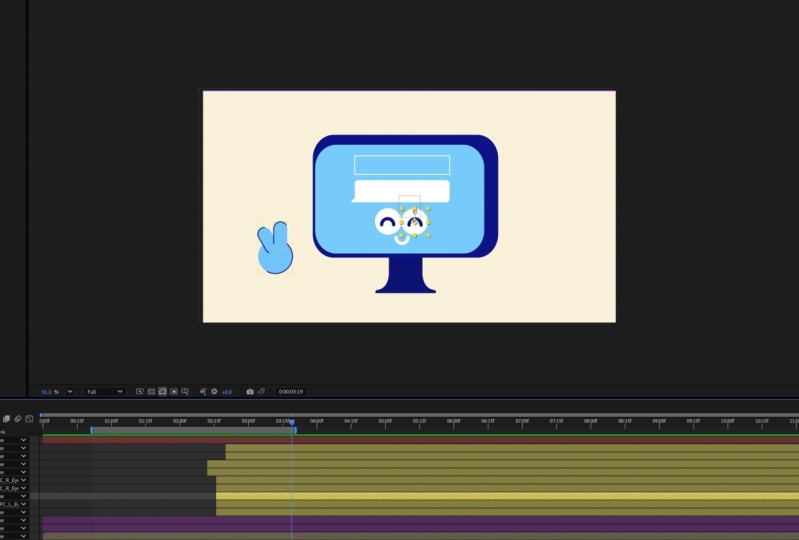
composition to open it. So here is our project file, and right now it's
a little bit messy. So let's organize our files. So I'm going to
select my PC layers and I'm going to give
them a yellow color. And let's give the
background another color. Now let's lock the layer. And I am going to active
the shy function in here. Right now, it is active for me. And then I'm going to click on this little ghost icon
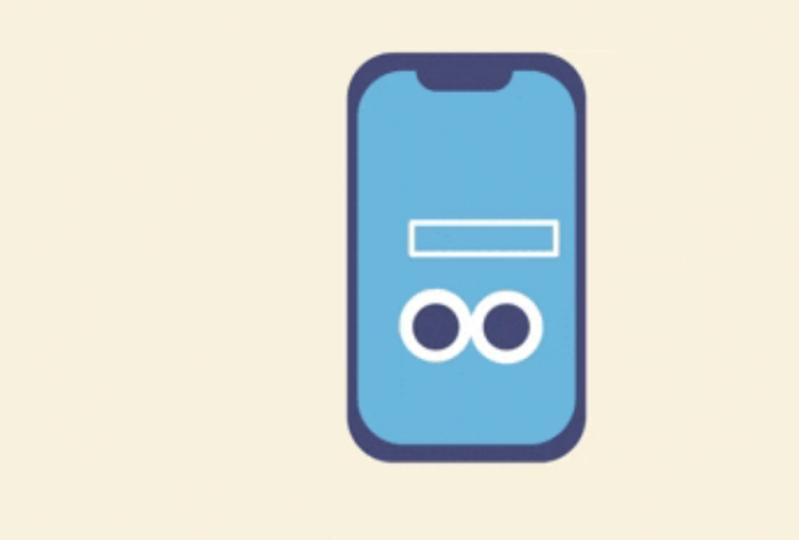
in here to hide it. So we need to turn this phone, but let me hide PC,
so we see it better. Okay, we want this phone to morph into a PC as we
talked about it before. Okay let's hide the PC. But first, as you see, we
need to just our phone a little bit to the left
in order to align. So let's select them and move them a bit
towards the left. So what I'm going to do
is that I'm going to use the PC body and screen
for my reference. So I'm going to give
them another color. And now I'm going to hide
the wrist of the PC layers, and then I'm going to lock them, and lastly, I'm
going to shy them. Now let's select
these two layers and set the opacity on 10%. And now let's just
lock these two layers. Okay. Before we start animating, we need a basic d. So Reclck on the empty space in
here and then go towards the new and
select an null object. So set the anchor point to the middle and move it
towards the middle as well. And I'm going to rename
it to control layer. So I'm going to select
my facial parts, and I'm going to parent
them into a controller. But before we do that, that is for the best if we
turn our layers into a shape, so we can have access to
shape modifiers later on. You can right click on them and then you can select create
shapes from vector layer. As you see now, we need to
delete our illustrator layers, but there is a better way which I'm going to
use for this class. If you have a motion version
two by motion design school, you can just simply hold out
and click on convert shape. As far as I know, this plag in was free when I download it, and I will give you the links in the
course practice file. So's expanding them
to the controller. And parent the speaker to the screen and the
screen to the body, and body to the controller. The reason I didn't
par and everything to the body was because
I wanted to have a freedom to work with body properties without
influencing the others. So let's create our
first animation. The way we're going
to animate it is that a message pops up and our character starts to look up and then it jumps and
it morphs to a PC. So let's go towards 1 second, and then we're going to
select the chat boxes. Press P to bring a position, select the second one, go
around ten frames forward. Set a key frame and
now on 1 second, let's bring our chat
boxes down to here. As you see the
movement is linear, so let's press F nine to
apply easings for the layer. And then press shift plus
F three to go towards the graph editor and give it
a 60% influence like this. Go towards the chat box one, press to bring up a scale. Make it zero. And fix the gravity like this. Now it's time to animate oris. To do so, slick the ys
and press control plus. And now rename it to the I M. And then set the track
mat channel to Alpha. Let's do the same
thing for the y. And if you have problems
with character animation, please check my De bass recurse. Anyway, let's set a key
frame for our eye bowels. And in frame. Let's move it up. O. Apply standard easing, and now round eight
frame forward, Copy the second key frames. And then on the two second, copy the first key frame. Okay, so this is our
basic animation. Take a quick break and
when you are comfortable, let's go for the next part. But first, let's save up project file by
pressing metro plus S, and I'm going to
rename it to morphine. Okay. Now let's go
towards the next video.
4. Morphing Phone Body To Pc: Okay. Now the important
part of the practice, let's move the foam
barry into PC. So let's go towards two second, and now let's hide the facial parts so
we can see it better. Okay, select the
controller node, H P to bring a position for it. Set a key frame and move three frames forward
and set another keyframe for anticipation and press shift plus down arrow key to move
it ten frames backward. And now Go around 11
frames forward and move it up until the node
reaches the PCA screen edge. Don't worry that
about half our foam went out of the canvas, because if we rotated, everything is going
to be perfect. Now, move five frames forward, copy the first key
frame and paste it. However, move it down a bit for a follow through
and overlapping action, and also we'll add
squareion stretch on this frame later on
and on three second, move it towards the
original position. Now press F nine to apply
easing and then press Shift plus F three to go towards the graph editor and adjust it. Now let's adjust the graph. All right. Now, few frames after
our anticipation, I'm going to add a
rotation to our phone. So rotated around -270. Okay, let's also apply easy. Now, let's press Control
plus S to save our project. Now, let's animate a speaker. Well, it's simple. When our phone starts to rotate, I'm just
going to trim it. So I'm just going to do that by pressing plus close bracket. Now, to make our
animation more realistic, I'm just going to add a squat and stretch using
path animation. So let's s for the path, and let's say a
keyframe on that. So let's reveal our
controller keyframes by pressing u and we can
use them as a reference. Now, when our character
is up and let's drag our keyframes towards the middle for a better timing. Now, select the path
and press control p t, and in that way, we can change our path animation altogether. So drag the rectangles and squash the character
a bit light so. A And also, let's extend the bottom part in a way that will create
a sense of gravity. Oh Now, let's apply
easing to them. Now, when our character
hits the ground, we're going to add
a stretch to it. So let's add a keyframe in here, so our anusion doesn't change. In here, let's add
a bit exaggeration before it hits the ground. Something like this. And now
let's add a stretch for it. Okay. Now on the last frame, we are just going to use our reference and turn
our phone into a PC. And now let's select our path
and press Control plus T, and let's slowly adjust it. Let's hide it so we
can see it better. Okay, good. But we need to add a follow through an
overlapping action at the end. So let's go three
frames forward, and let's paste
these key frames. Now on this frame, let's press and when
your mouse pointer changes to double
arrow like this, it means that they
can rotate it. And now on here, we just rotate it a bit forward. Okay, it seems decent and we're going to work on it
a bit more later on. But now let's s our animation and it's time to take a quick
break for the next part.
5. Let's Fix The Eyes: Okay, so far we have
this animation, let's first regal
our facial layers. But first, let's extend
the timing between our follow through
and overlapping action in order to
make it better. Good. Now, let's fix the yes. First, let's select them and press control plus shift
plus C to precompose them. Now we need to make a mask for our facials in order to stay
inside of the phone screen. We can simply do that by using our phone
screen as a mask. So duplicate it by
pressing control plus d and rename
it to facial mat. And set the track mat
channel to the Apha. Now, position for our facial, and now let's animate
it fra my frame. H. Oh. Until here where we
need to morph the eyes. Okay. So to make our eye
animation a bit more clean. What I'm going to do
is that I'm going to lock my composition layer, and then I'm going to
double click on the facial. Right now, if I lock
this composition, I can go towards my
facial composition and change the key frames when
I see my main composition. And now let's animate the chat box in order
to make it better. Now, let's unlock the comp, and let's go towards
our animation. Okay, this time, let's just cut it since we will
move them later on. And now when it hits the ground, let's bring up the PC layers. Now, let's do it, match cut. Okay? We need to find a
proper moment to do it. And now let's unlock
these two and unshy them. And now let's cut
the beginning of it. Now, let's set a key frame for
position and move it down. And now let's press
shift to bring up scale. And let's animate this scale. Okay. Now let's trim half
of it for better animation. But I feel like if we
go with a complete, we will have a better result. So let's cut it until here, and let's remove
keyframes for it. And now let's go in here where we chimed our phone chat boxes. And now this adds
question stretch for it. Let's take the positions
as we don't need them, and this are a bounds of
expression at the end. Alright, now this is good. No
6. Stand and Rolling Eyes Animation : Okay, so far we have
this animation. Now it's time to
animate our PC stand. Let's shade the layers
and let's find the stand. And when our character
stretches itself, let's animate this
stand frame by frame. First, let's move the
anchor point down. Oh. So let's put the last k frame in here. In that way, we know when our stand should be at
its original position. And now let's turn off the chain option
and set it to zero. Let's just it a bit in here. And we go a frame forward
by pressing page up, and we are going to start
animated frame by frame. O M And lastly, let's move it behind the body. Good. Now it's time
to animate the eyes and let's close all of our keyframes and let's
bring up the yes. So let's unlock them and let's give them
a different color. So let's do a mascot first. So when our character
stretches itself, let's first trim our old eyes. And now let's replace
our new eyes. Right now, we don't
need the smiley mouth so let's just hide it. Same as our happy eyeballs. O. Now let's create a
circle for our eyeball. I'm going to use mute in order
to be a little bit faster. Let's go towards the content, lips path and let's
decrease the size. Now let's remove the stroke
and let's match the colors. Now let's duplicate it. And let's rename it to the left eyeball and right
eyeball for this one, and let's move it in here. Now, let's give them a purple color and then let's
move them in right place. So right eye ball should be in here and the left
one should be there. Now, let's duplicate
the PC left eye, and let's rename it to
M and then s as before. Let's just set the trach
mat channel into Alpha. Now, same step for
the other eye. Now we need to create
a rolling eye. In order to create it,
we need a circular path. Let's create a circle and
let's give it to pixel stroke. Let's give it a black color
and let's draw a circle. Now let's rename
it to left path. Also, I'm going to
write click on it and make this layer
as a guide layer. Now we need to go
towards the lips path, and then we need to
right click on it, and then we sate
convert to baser path. Now that I have the path, I'm just going to
press Control plus C, and then I'm going to paste
it using control plus here. Let's find the i pall layer. Now, let's press to position. Let's move the key frames, and now I'm going
to press control plus V. Now we have a rolling I. So I want to start
my eye from here. So let's delete the
first key frame and let's move the
second one in here. And also, let's decrease the distance between
the key frames. Now let's copy the
first keyframe and paste it for a loop. And let's decrease
it a bit more. All right. Now, let's copy the pase key frames
one more time. Now, for the next side, you still need to
create a new shape. You cannot use your old shape. Let me show you. If I duplicate this shape and even
I move it in here, Now, if I copy the
path and paste it, as you see, my eye just
went towards the left side. So let's quickly
create the right eye. Let's create another
circle like so. Rename it, and let's also
make it as a guide layer. In lips path, let's
convert them into busier. There we go. Also
let's fix the eyes. And let's hide our guide layers. All right. We can exaggerate the movement a bit more by copy and paste the key
frames one more time. All right. We'll take a quick break before we
go to the last part.
7. Final Touches : All right, so far we
have this animation. Well, the eyes are
rolling too much, but I'm just going to
leave them as it is since I want to exaggerate my
animation as much as I can. Now, for our smiling eyeball, first we need to
bring our eyes back. Now, in order to morph our
eyes into a smiley one, first we need to bring
them back into the middle. So let's just quickly do that. Okay. But also we need
to create a mouth shape. So let's create a circle
and let's make it white, and now let's decrease its size. Let's rea to mouth and
adjust its position. And now, hide the pacey mouth and let's do the
simple trim in here. Okay, I feel a mouth delay. Yes, I was break because
the eyes were here. And when it's in the middle, I'm just going to add
a position key frame. And then we move it down. And then on the middle, we're
going to do a match cut. And we will replace it
with our happy mouth. All right. Now, let's
animate our hand. So let's find it first. So first, list the layer and also let's convert
it to a shape layer. Another thing that I love
about Motion tool is that you can extract the content
inside of a shape layer. So let's extract them. This one is hand. Let's call this one finger one, and let's fix its anchor point, and finger two for this one, and also fix the anchor point. Now, let's parent these two into hand and let's change
its color to green. Now, let's press to
bring a position. Cir k frame on opacity by pressing t and also
change opacity for these two when it's in here, let's make it 100. Now, let's work on timing a bit. Oh. And also let's move them behind the pace body and also added rotation. Oh. So let's rotate it like this. Let's add a follow through
an overlapping expression. Okay, now we need
to work on timing. Okay, good. And also, we need to add
anticipation for our body. So let's create
three key frames. Oh On the first one, let's rotate the back. Same for the body. Then let's rotate a bit forward. Same as this one. Also we
need to fix our stand. Let's do a quick
frame by frame right. All right. Now, last step, we need to change the yes. So the and simply
just do a match cut. All right. So let's
sam the entire calm. Okay. Let's hide the
reference layers since we don't
need them anymore. Okay, we just am too
much of our camp area, so we just need to
fix that quickly. Oh. Okay, I'm not happy with the anticipation
of the phone party, and I want to work
on it a little bit. So select facial and
press you on controller, use it as a reference. So in here, I'm just going to drive the keyframes in here. And now slightly our facial. K? L et's remove this key frame. And let's paste the
second keyframe instead. Now, let's apply
the normal easing for the first two key frames. All right. Now, this seems good. Okay. Here's the final result.
 Erfan Talebizadeh, Motion Designer