Transcripts
1. Introduction: Hi, I'm Jake. By the
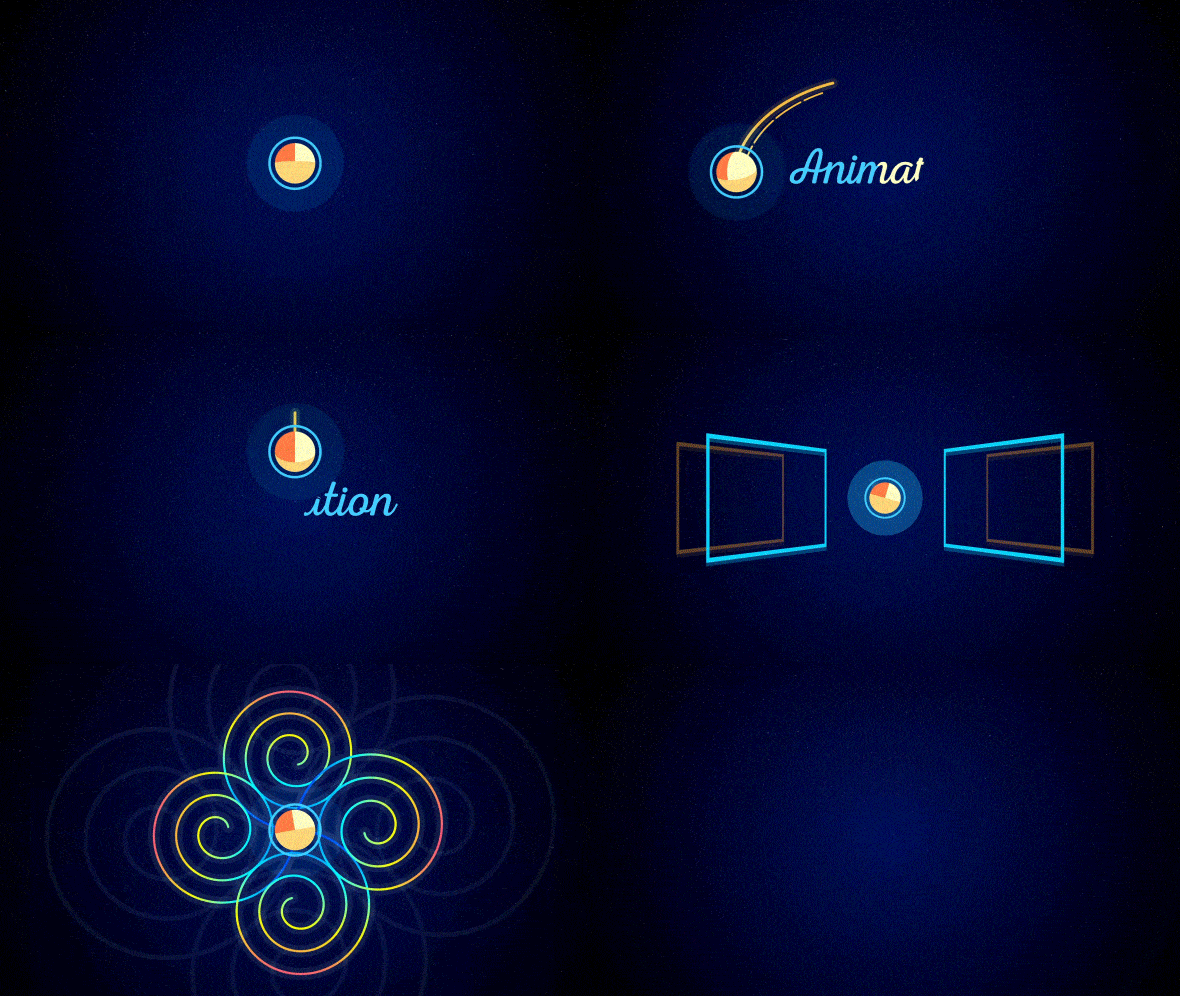
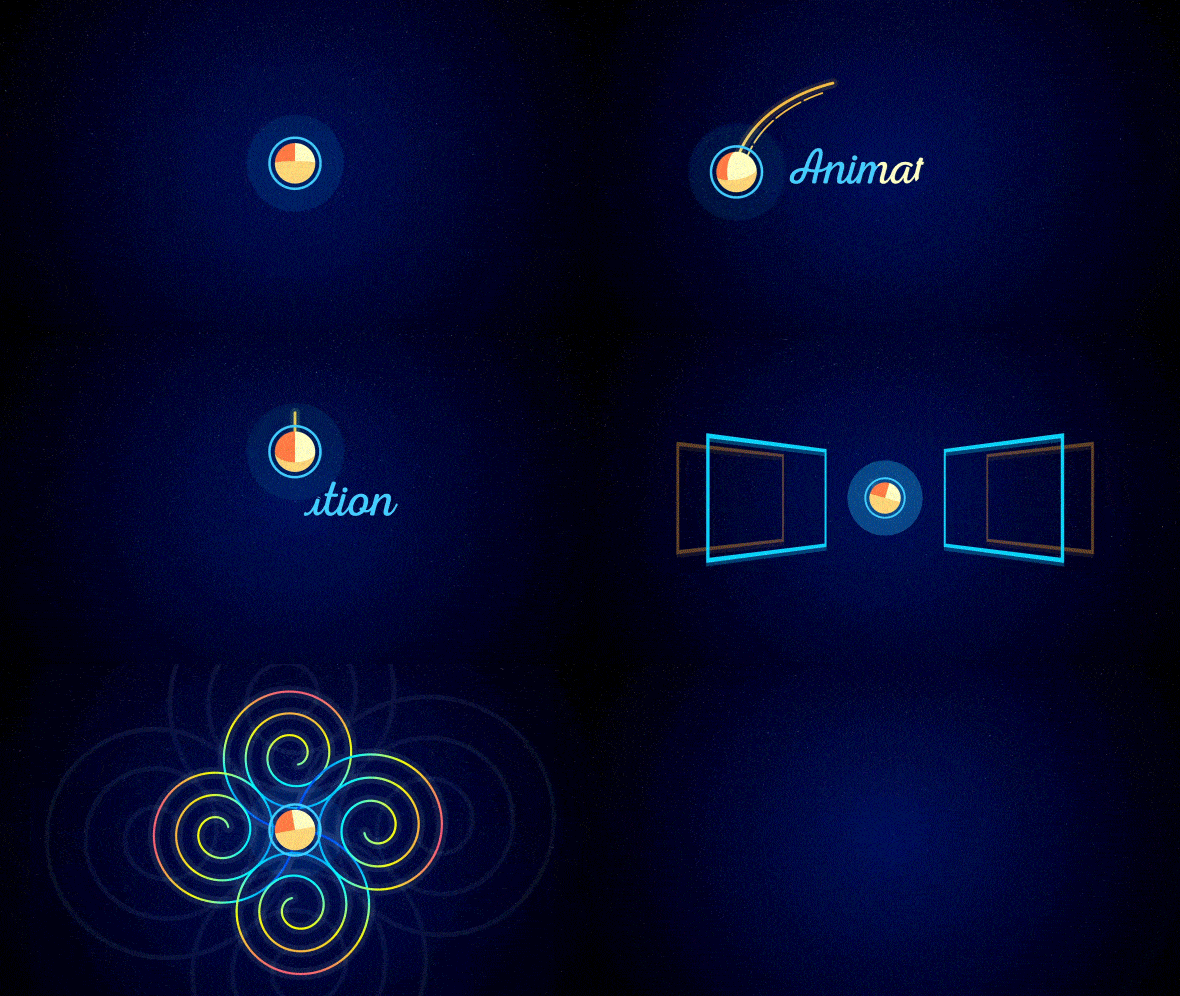
end of this class, you will create this animation
as your class project. This is the most comprehensive
course on animation. Starting from beginner
level to advanced. We will start easier
from creating background then as Sibyl
and stylized circle, next step is circle animation, simple animation and
advanced animation. We will have a light
introduction to 3D animation by creating a 3D bowl
and animate it is. We will add simple
and advanced path. Then we will create
text animation, creates light gambles with 3D rectangle, echo
lock-in effect. We will add powerful twist
and repeaters affects. And finally, we will add glow effects and
stylized noise textures, animation to add professional
finishing touches to finalize this project, all these steps
will help you learn a lot about shape animation. All you need to have is any version of Adobe
After Effects. You can download a free
trial version from Adobe website at it will be enough to learn all
of these techniques. We will dive into
Graph Editor to get full control
of our animations, feel free to ask any questions on any parts of this class. I'll answer each
of your questions. For the class project, you will be designing an animating this motion
graphics piece, which you can see on
your screen right now, we will use the most
popular techniques which are used in
motion design today. Feel free to follow me here
on Skillshare or hypos, Adobe After Effects
classes every week. And now, let's get started.
2. Shapes and Solids: So I'm using Adobe
After Effects, 2020 one, but you can use any
version of after effects. Even free trial
version works fine. First of all, let's
see what we have here. We can change our layout. So basically if I'm going
to press on standard, you can see that we have some
different kind of layout. I'm going to set
my two standard. And in case if you wouldn't
see some of these panels, you can always enable it
from here, from window. For example, character, as
you can see, checkbox it set. So we have Character panel. You can even close
some panels with the right-click and close
panel or add a new panel. For example, you can go to
Window and I will brushes, and you can see our brushes. Let's close it for now. So in this way, if
you cannot see some of the panels which you
can see on my screen, you can always go to
Window and enable it. From here, we can create
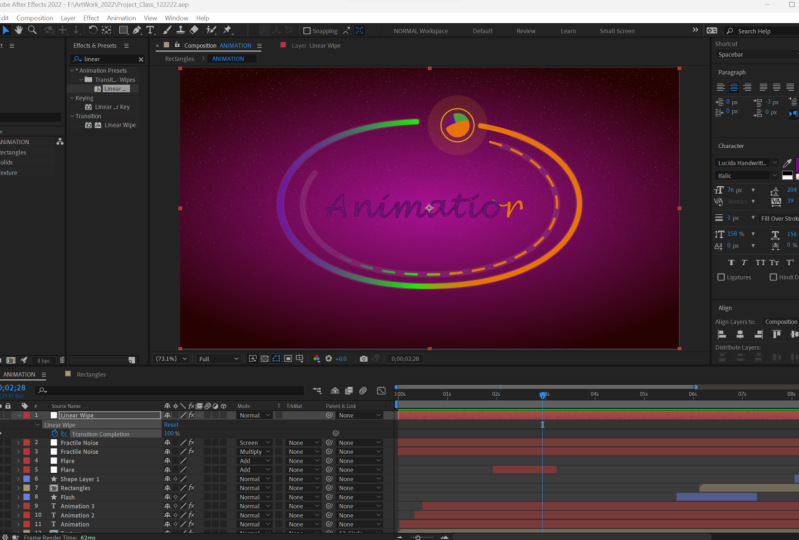
our first new composition. We can create by clicking here or by clicking on
this icon right here. Either way works fine. So let's click it here. I'll set my resolution to
full HD 1920 and height 1080. Here we can set our frame rate. We're going to use 30
frames per second. And here we can
change the duration. So basically how long this
composition we'll go, our animation will
be up to 15 seconds. So I'm going to set
here a few seconds. Here is milliseconds here, seconds, here's minutes
in hears hours. Here you can change
the background color. Default is black, so it's fine. And these advanced parts we are not going to cover
in this class. You can check my Skillshare page for more advanced
classes if you want. So let's click Okay here. By the way, we can
change the name. Let's call it
animation and click. Okay. So now you can see
that we've created our proposition,
which is animation. Here is our timeline. So you can see that it goes
from 0 seconds to 15 seconds. And by clicking on this time coarser and scrubbing
through tried timeline, we will be able to
check our composition. Also, we can press 0 numpad, which also will play
back our animation or go frame by frame by clicking on these buttons
in preview panel. Once again, if you
can have CPU panel, you can go to Window and
enable it from here, premium. So first thing
which I want to do is to create a background. So we want to create a
background because now if we click on this alpha
channel transparency grid, see that this grid
represents that here is nothing
is being created. So basically it's
transparent and we want to have some color or
solid for background. So to create a background, we can use a shape layer
or a simple solid. In our case, we only
will use Shape layers. So let me quickly show
you the difference between Shape layers and solids. So for example, we can
go to layer new solid. Let's click here
on may come size. So it will be same as the
size of our composition. And we can change the colors
to white, for example. And click. Okay. So I'm going to use
this pen tool to draw some shape like this. And if I'm going to
press S on keyboard, by the way, don't worry
if I'm going too fast. I'm just want to explain
what is different between solid and shape layers. I bring up the scale by pressing
S on keyboard and change it from 100% to,
for example, 600. And with this selection tool, I can move around and deselect. You can see that we don't
have this crispy edge. Because solid works like this. You cannot go past 100%
because it will lose quality. This is why we are going
to use Shape layers. So let's try to
create a shape layer. I'm going to delete
this solid and we will create a random shape
using pen tool. So to create a shape layer, you need to make
sure that you didn't select any of your layers. Because if you will
have some layers here and you will
select some of them, you will not create
a shape layer, you will create a
mask on that layer, which you have exactly as I did with this solid
wish I had here. So to recap this moment, if I'm going to
select the solid and create using this
Pentel a shape. It will create a mask
on top of this solid. Let me press Control
Z a bunch of times to undo this moment. And if I am going
to deselect any of these layers which
you might have here and start creating. You can see that we've
created our shape layer. So let's delete the solid and let's see what is
cool about shape layers. Select this shape layer, press S on keyboard
to see scale. And now if I'm going
to increase my scale, as you can see, I
went well above 100. And if I'm going to move it
with the selection tool, you can see that edge still
stays perfectly sharp. And this is what is cool
about shape layers. This is why in our animation we are going to
use Shape layers. So let me delete
this shape layer and solids because
we don't need them. In the next class, we
are going to create our background and the shape which we are going to animate. See you in the next video.
3. Gradient Background: Okay, Now we know
what is shape layer. So let's create a background. So for background, we can
use this rectangle tool. If you cannot see
a rectangle tool, just let mostly good hold. And you'll have this
drop-down menu. From here, you can choose
this rectangle tool. I'm still holding down
my left mouse click, and I'm going to select
this rectangle tool. And here a school trick. If you left mouse
double-click on this icon, you will create a
rectangle exact same size as your window here. So let's let double
mouse-click here. It created new rectangle. By the way, if for some
reason you cannot create a new rectangle with
leftover last week. You can just simply select it and draw a
rectangle like this. It also works in my case, I already created with
left mouse click. So now let's have
a little overview what settings we
have on our shape. First of all, we have these quick menus here
for fill and stroke. But also you can
just click here on this drop-down menu and go to rectangle
which we've created. And you see also this stroke and fill which we can see here. But also we will have transform options
exactly for this shape. And by the way,
these settings are just for this shape
which we've created. And what I mean by it's
saying this is that you can create another shape just by
selecting your shape layer, you can create another
shape like this. And as you can see, it's
created another rectangle. And you have the
same settings is here for this new shape. But this is more kind
of advanced technique, which we will come back
later in this class. So for now, let's
delete this rectangle. Just keep in mind that
we can create a bunch of shape layers inside
of one shape layer. But for start, we are
going to start easy. So our first step is to
create our background. We can click on the
Shape Layer, press, Enter on keyboard,
and rename it. I'll call it background or
just BG for background. So now as you know, we have this fill and stroke options you can get from here, which is much easier. Let's close it here for now
and select our shape layer. And now we can adjust
our fill and stroke. So as you can guess, stroke is this outline which
we don't want to have. We can click on this stroke, word stroke and change it
to none and click Okay. In this way we can completely
get rid of the stroke. And now we can
click on this word fill and change the field types. And my case, I want to
use this radial gradient. As you can see,
we have this nun, solid color, linear gradient
and radial gradient. So let's click on it. Make sure that the
opacity is set to 100. So it will be
visible and we would not have any transparency
and click Okey. So now as you can see, we've
created this gradient fill. We can change to this selection tool to be able to manipulate our gradient. For example, now
if we will select our shape layer and then
select gradient field, you'll see this line which allows us to
spread our gradient. So if I'm going to click here on this little handle and
drag it to the right. And now we can change the
colors of this gradient. We can click here to
change the color. And here on these points, we can change any
of these colors. We can even add a new
point by clicking here just below this line
and add a new color. And now as you can see, we
have this white color and this black color and this
blue color in between. In this way we can create any kind of patterns
of our gradient. But for now I want to create
a simple kind of gradient. So to remove some colors, you can just click and
drag it down to delete, or just click and click delete. And this way we will have
only two points of colors. And we can change
this brighter one, so this darkish blue. So here you're basically
changing the color. And here we can change
the brightness. And as you can see in
my original example, I've used this kind of gradient. So let's also set it to this
bluish and dark kind of color just by changing
this dot over here and brightness
set to about here. And this black bar 2, we are not going to change because we want to have this
kind of vignetting darkening on the edge. And let's click OK. Now we can close it here. And by the way, at
any point you can now select your background and change here from Phil to
any color which you want. And if you want to
change your gradient, you can just open here, go to gradient fill and
just spread it a bit more. If you want to have
your H naught so dark. And if you will scroll on
the mouse with the wheel, you can zoom in
and zoom out into your window and adjust
this gradient as you like. I think it looks great. And the next lesson
we are going to create our first circle. And two, we are
going to animate it. See you next video.
4. Creating Complex Circle: Okay, now we have
our background. We can click on
this lock button, which will allow us to lock this background and we
will not able to move it. The only way to change
now our background is to click on this lock
button to unlock it. And now we can move it around or selected and
change the color. But this fissure is really
handy in case, if you will, animate some other shapes and don't want to be able to
select the background. So I'm going to lock it. And it's a good idea to save your project
from time to time. So let's do exactly that. We can go to a file, Save As I'm going to name it my project plan and
safe wherever you like. And click Save. So from my original example, you can see that we've created
this kind of character, which just looks like
he's in 3D space, because we clearly can see where exactly this bowl is looking at. So let's try to create this
bowl with this animation. So first of all, to start easy, we will create just
a simple circle. To create a circle, we can click here and hold and select
this ellipse tool. And about from the center, you can let more sleek and
drag to the right like this. To create a circle. To create a circle from the
center where you clicked, you just need to
press control and hold or command if
you're on a Mac. And to have a perfect
circle shape, you want to hold shift as well. So as you can see now I'm
holding Control and Shift, and this allows me to create a perfect circle
from the center. And while you hold in it, you can just drag it and
make it larger or smaller. Just by dragging to the
right or to the left. Just pick a size, wish you like, I like
this kind of size. It doesn't really
matter because we can change it later on. So let's see how you can
change and adjust this circle. First of all, we can select this shape layer and go to
a line here on this panel. And if you can see
this Align panel, you can go to Window and
enable it from here, align. It will allow us to
set it to the middle. So with this aligned
horizontally, we will align horizontally,
align vertically. And we can also change
this anchor point. By the way, this anchor
point is the point from where our animation is. So for example, if I
would change the scale, it will animate from
this anchor point. Or if I'm going to
change the rotation, it also rotates from
this anchor point. So to set this anchor
point to the center, you can just select
this shape layer and press Control Alt Home. And as you can see, it said
it exactly to the center. Now we can change the
colors of the circle. So to change colors,
as you remember, we want to go to the fill. So let's look here and set
it to simple white color. Just drag it down and change to the white
color and click Okey. In our case, we don't
want to use a gradient. So we can just
click here on fill word and change to
the solid color. So it would be much simpler. And let's change
to a white color. Once again. Let's call it
this shape layer circle. So to rename it,
we want to press Enter on keyboard
and call it circle. And now we can stylize it
a bit more so it's time to create another shape
inside of this shape layer. As you remember from
our first video, I've said that we can have multiple shapes in
one shape layer. So to create another
shape, for example, we would want to
have this kind of REM and also this kind of glow. We would want to create another circle and
another bigger one. So for this you can use Ellipse tool and
create another one. But it's a bit hard to create a perfect one and then adjust the position so it
would match to the first one. So this is why we are not
going to do this in this way. We are going to delete this ellipse tool which
I've just created. And we can just select this
ellipse one duplicated. It's much easier. So let's select this ellipse
tool and press Control D to duplicate or go
to Edit, Duplicate. So now with this
second ellipse tool, we can scroll down here
and disable the field, and we can just change the
transform of this ellipse. So let's go to the
Transform options and change the scale. Let's make it a bit
bigger like this. And now we can just switch off the fill option and
enable the stroke option. If we will open this stroke, we can change the stroke width, which will allow us. To change the width
of this circle, something like six or
seven looks fine to me. And we can now close
this stroke one, as well as transform option. Also, we can close
this ellipse to which we can also rename
it just by pressing Enter. And we can just rename
it to ring this. We can name it as core. And now we can duplicate
core one more time. Just let Kore and
press Control D to duplicate it, set it above. And let's open core. And maybe let's rename it. Just press Enter on keyboard, and let's name it glow. Here in transform, we can change the scale to
make it even bigger. And as you can see
in transformer, we have a bunch of options. We can even change
the position of it. If you would want rotation,
capacity and more. In our case, we want
to change the opacity. So it would look
like simple glow. I'll set mine to 15 for now. And let's close it our glow. And now is again
see we have all of these shapes inside
of one circle, which is really handy
because we are going to animate this circle
around like this. And we will not have to animate each of these
shapes one by one. And in case if we would want
to animate these circles 11, we would create another shape
on different shape layers. But that would be a
more advanced technique which we will cover
later in this class. And now I just want to
change this color overall. If I'm going to
select this circle, and we'll try to change the fill color to
any other color. It will change the
color of some of these parts of these shapes, which is not what we want. We can press Control Z
to undo this moment. And we can go one by one and change the fill color
here like this. Then red color and
stroke because we used stroke and change to
another color for example. And also globally we used Phil. So we would go to fill. And by the way, to quickly
check what we've used, you can see on this eyeball. So if I'm going to click on it, we will disable it or enable it. So this is how I can quickly say what we are used and
change the color. So this is how you can separate the change the color
of your sheep. In my case, I don't want to use different
kinds of colors. I want to have one
color overall. And there is an easier
way to do this. You can just go to
effects and presets here. Wait for this to load up. Use effect called fill. Just type it here, fill
and go to Generate Fill. Or you can go to Effect, but make sure that you
selected your circle, then go to Effect,
Generate, Fill. But in future you will memorize all of these effects names. And you will be able to type
here and effects in presets, just like I did here. Just type the name of the
effect which you want to use. And then just leftmost lick and drag to the shape
which you want to use. So for example, a circle. And as you can see, I've
applied another fill effect. So let's delete
this one and change this one to lighter cyan
color and click Okay, so now as you can
see, we've changed overall color with
just one effect, which is much easier. Then go to each of these
shapes and change it manually. So in the next video we are
going to animate the shape. And later we are going to add this kind of 3D character
into our shape. And basically it looks
where it wants to go, which gives more life
to our animation. See you next video.
5. Fundamentals of Animation: Let's start our first animation. We will animate
position of the circle. So to see position, we can just select this circle
and press P on keyboard. It will open position. Also, if you will not
remember the shortcuts, you always can scroll
down and go to transform, just make sure that you
go into the contents, but in transform itself. And here we will animate
this position property. It will allow us to animate
whole shape is one. This is why it's really handy
to remember the shortcuts. Then you will be
able just to select your shape layer recipe for position and
animate position. And we will create
our first keyframe. So to create our first keyframe, we want to click here
on this stopwatch. So let's left mouse
click on this stopwatch. It will create this
diamond shape keyframe. And if we will select this time cursor and scroll
to the first second, and then select our circle. And just left mouse click
and move up like this. You'll see that it drawn this trajectory as well as
created a new keyframe. So what is key-frame? Key-frame is a
point in time which remembers value
certain property. In our case, this keyframe
remembered this point in time, which is first, second. It remembers this value, which we've said to
this position property. And here at the 0 second, you can see that it remembered
in this moment in time, this value of position property. And now just between these key frames with
different values, it goes from this value, which is 540 to this
value which is 238. But as you remember, we
didn't change any values, we just move it vertically. So basically, this
first value is x-axis and this second
value is y-axis. As you remember, we
just move it up. So basically all the y-axis, this is why this value changed. So basically if we will
change this value, you can see that we have
moving it in y axis. And if we will change
this first value, we will move it in x axis. So let's repeat one more time. We can just select these
keyframes and deleted. So now as you can see, we
don't have any animation. We will just set our shape into the middle by using
this aligned tool. And we can create
first keyframe, which will remember
this position. Then we will scroll to 1
second and just move it up. If you will hold Shift, it will allow us to
move all in one axis. And in this way we've
created a new keyframe. And now basically our
software, Adobe After Effects, is trying to connect
these two values. It remembers that
it states here. And in this point in time, it knows that it
needs to be here. If we will scroll
here to the third, second, we can move
it to the right. And now is against C
After Effects knows that it needs to be
here at the start. That at the first second
it needs to be here. And the third second
it needs to be here. This is basically how animation
in this software works. And by the way, now
you can see that we have a bit of problem. It doesn't really go in
the straight lines because by default After Effects is trying to make
this round motion. And if you don't like
this kind of motion, you can always select
all of the keyframes. Right mouse click on it, and go to Keyframe
Interpolation. And here you can disable
this default behavior, which is auto bezier. You can set to linear. And if we will click Okay, you can see that it said
to this linear motion. But keep in mind that this
keyframe interpolation is a really good only if you want to have these
straight lines. But in our case, you'll remember that we have
this kind of straight line. And then this circle movement, which is you can see is
not a straight line. This is where you don't want to use this keyframe interpolation. This kind of motion is more advanced and we will
check in the next video. But for now, let's complete this kind of square
kind of motion. So it goes 1 second here, then 1 second here, and a third second
week and move it down. And here we can go back
to the original point. And if we will
press 0 or numpad, we can see our first animation. So before we are going to go
to this more complex stuff, I need to explain your few
things which you need to know before going in more complex
and advanced kind of stuff. First of all, that
you can change the speed between
these movements. For example, I want this
motion up to go a lot faster and then this motion
to the right a lot slower. So this is how you can do it. You can just select all of these keyframes
which comes after this animation and
move it to the left. Which is basically makes
this first animation a lot faster because we only give
12 seconds for it to go. And then the second animation, we can make a lot
slower by selecting all of these keyframes and
moving it to the right. And in this way, we
are allowing for this animation to go
to complete seconds. So it would be a lot slower. And you might be wondering
why we are selecting all of these keyframes before changing the spacing between keyframes. Basically by selecting
all of the keyframes, we are making sure that we don't change spacing
between these keyframes. For example, we like the
speed of animation here. So it's a good idea not just to select one of
the key frame and move it to the right because we will mess up this
kind of animation, which will go faster here. So I'm going to press Control Z. If we want to change only
this first part of animation, we always want to select this first keyframe and all of keyframes which comes later. In order to not mess up other
animation which we have. For example, this movement down, we also will make slow. And this animation to the left, we will make best. So to make it fast, we will squish it the spacing between these two keyframes. And now if we will
press 0 a numpad, you'll see that it goes up past, then goes slower here
also slow, and here fast. So this is basically
how you can change the timing of your animation. And if we will space
these keyframes evenly, you'll see that this animation goes about at the same speed. Just keep in mind,
if you want to have the same speed
of animation. You also need to keep in mind
which distance is travels. So here is cool trick. If you want your animation
to be exactly the same, you can zoom in into
your picture and watch the distance between these
small kind of frames. If you will match this
distance like this. You can see here is smaller distance as here
is bigger distance. So we would need to change
this last motion a bit. So it will look the same. In this way, we are making this animation to
go the same speed. So what do you want to
take out from this class? Basically now we know that
we can move our shapes and change the speed and
distance we should travels. And by changing the spacing
between these keyframes, we can change the speed with which it travels,
which is really cool. And if you still have
a trouble with this, you would want to just
go to for skipping, delete all of these key frames by selecting them and press
Delete to delete them. Or just by clicking here. It also will delete all of
keyframes and start small. Just great for
skipping the goal of your frames and create
this kind of animation. And then play around
with this speed. You will see this by
pressing 0 on numpad. You have best moment. And if you will spread
out these keyframes more, you will get this
slower movement. And once you are comfortable
with this motion, you can just delete this
keyframe and for example, go up. And then we can create this square kind of
movement is really important for you to take time and play around with
this principle. So you would be comfortable with the change in the
speed and animation. You can re-watch this video
to understand it better, or try to animate a
different kind of motion. And try and your head to predict what kind of motion
you will get as a result. Okay, in the next video, we are going to make this
animation with our circle, goes around like this. See you in the next video.
6. Advanced Position Animation: Now hopefully you already know how to create
basic animation. To add a bit more complexity, we can adjust our
keyframe even more. So for example, we want to have this animation from start. And here for 1 second we
will go up like this. And if we will press 0 numbered, we can see that it's
pretty linear motion. And it doesn't really
look that much exciting. We can select any of our
keyframes and click on this graph editor and make
sure that you are going into this list and change
to Edit Speed Graph. Just click on it. In this way, we will be able to
change the speed between these keyframes and add a bit more character to it. If you cannot see
a keyframe here, you need to select
your position. You will see both
of your keyframes, just like this second one. And you will see this little
handle besides this square. So let's click on this
handle and drag to the left. Click and hold, and
drag to the left and drag it down
to this baseline. So we would have
this kind of shape. What this graph tells us. It tells us that we have
a really fast motion at the start with the spike and then it goes
slower at the end. So now if I'm going to
press 0 and amp it, you can see that we have exactly that really fast motion at the start and really
slow at the end, which looks a lot more
interesting than before. So if I'm going to press
Control Z to undo this motion, you can see that before
it was really boring. And if I'm going to press Control Shift Z to
redo this motion, it gives more interesting
kind of look. This is basically
the parsed movement which I've added
in this animation. So now let's try to
add another motion, wishes goes in a
circle like this. For this, I created another
keyframe here below. And as you remember
from previous videos, when you're creating new motion, it creates this kind of vizier. If you don't want
this kind of busy, you would want to go to Keyframe Interpolation
and change it to linear. But in our case, we want to have this
kind of ellipse motion, which is not linear. So this is where we can select our keyframe and we will
get this kind of shape. And this is how we can exactly manipulate to the way which
we want this motion to be. So for this ellipse motion, we are going to use this handle. And the easier way to create this ellipse motion is to
go just down like this. And then by clicking
on this handle, drag it to the left. And if we will zoom
in into our video, you'll see that this point
also have this kind of handle. And we can also drag it
to the left like this. And it's a good idea
to have these handles. Same kind of scale. Because if we will set
this to smaller scale, you'll get this kind of shape, which is not that symmetric. So let's go with
the same kind of distance and it may
be a bit lower. So we would have some space
here for our animation texts. And now you can see that we have this animation which goes up the round shape like this. And we will add this
closing shape a bit later. But first, I want to change
this kind of curved motion. And what we want to do
is to select all of these keyframes and then
select this handle. If you will hold Alt
key on keyboard, as you can see, I'm holding Alt. And by clicking on this handle, you'll be able to change all
that this part of this path. And if you will release Alt key, you'll see that we are changing
both of these handles. This is not what we want. So in case if you already
changed it like this, just release it and
press Control Z to undo. And then once again hold
Alt key and change it. So it would have this
kind of straight line up. So let's finish our
animation and move it this exactly this point here. And by the way, if you want to move it to exact
point as it was, you can not just
move it manually. You can just delete
this point and just select this keyframe, which is exactly this point
at the top I founded here. I can just copy this
key frame and then go here and press
Control V to paste. So in this case, I know for
sure that it will come to the same place because I've copied exactly the
same position. And now what we want
to do, once again, we can just select all
of these keyframes to see all of these handles. And adjust this
candle once again. Just drag it to the right. About the same kind
of amount is here. And also zoom in here. To be able to find this handle. We can just move this one
out of the way and then select this one and move
it to the right like this. And said this handle,
whether it was. Then zoom out by using
wheel on the mouse. And if you will hold
spacebar on keyboard, it will change to this coarser, which allows us to
move this around. So hold spacebar,
the leftmost leg. Tomorrow your image. And then just click on
this handle and move it to the right to about same
amount is here below. And finally, we
would want to change it this position to
the center as it was. So to set it to the center, we can just click on this
time cursor and scroll it to the beginning and
find this keyframe, which is exactly at the center. Selected and press
control C to copy it. And about here, we can just
press Control V to paste. So now if we are going
to press 0 numpad, we will see all the animation. As you can see, all animation is set except this final motion. We can select this
final keyframe and we need to adjust this
final kind of motion, which went a little bit crazy. And so I believe
this is this handle. We can just click on it
and adjust it like this. Just don't be afraid to select any of these
handles and change it. Because you can always press Control Z to undo some action. So this is a really handy and you don't have
to be afraid to do something wrong because
you can always go to Edit Undo, which
is Control Z. So let's try to change this handle and also
align with this path. In this way, this less motion
will be also straight down. So now as you remember,
this motion is correct, but the timing is a bit off. So let's press is your numpad to see better what is going on. So this first motion
looks really good, and this motion of the
going around is a bit trickier because
we want it to go slower at the start,
the hero fest. And here are slower at the end. So to see this
motion in the graph, we can select this position, go to graph editor and
see this kind of motion. As you can see, it's
a bit messed up. We want to see this spike
at the beginning because we have this really fast
motion at the start. Then this load down
motion is really good. But now we can see that we
have some constant movement. We want to have a slower start, like it's gaining speed. Then here, fast motion is
it already said it here, and slower movement at the end. So let's change this keyframe. We want to click on this
little handle right beside the square and drag it
to the right and down. So now as you can see, we
already have this slower start, which is exactly what we want. But we have here two
spikes which can mess up the animation and
slower movement at the end, which exactly what we want. So let's see how it looks. I want to see all it this part just before
this, Let's motion. So I can just click here on
a work area and cut it to this motion to be able to check all the this
part of animation. So let's press 0 to
see if all works fine. So as you can see, it
almost looks good. But with these two spikes, we can clearly feel that
it has maximum speed here. Then it stopped
for a moment here, then already gained some speed. And have this really
nice animation, the end. So let's press 0 NumPy
to see one more time. And now our goal is not to have this kind of hiccup
in this point. And to eliminate this problem, we want to change this handle. We can also click here to
the man to see it better. And we want to have this
as a one spike of speed. So just by clicking on this handle and drag
into the right. And here, by clicking on this handle and drag
it to the left, you can see that we kind
of blending this spike. So by changing
these two handles, we want to have this
seamless one spike. And in this way, if we
will spread 0 NOPAT, we will have this
really good motion without any stopping
motion here in the middle, which is exactly what we want. So now we fix this problem, and now you can see that even
our graph looks smoother. And also we want to repeat this with this final
movement at the end. So we have this slow movement. We want to start with the
bits slower movement. So we would have this
kind of nice waves, slower movement here
at the end also. So let's press your
own API to see it. So basically, if your
graph looks like this, you can already
tell that you have pretty smooth animation because your graph shouldn't really have coordinators for
smooth animation. You always need to check
your graph editor. And you should check if it
goes really smooth like this. And in this way, as you can see, we get this really nice motion. Okay, so we've created our
first smooth animation. And by the way, if your
timing has a bit of issues, just make sure that you have a right spacing between
these keyframes. And just exit your graph editor and make sure that you have
kind of similar timing. So in the next video,
we are going to add a bit of character
to this circle. So we would clearly see
where it's about Go. It will be light introduction to the 3D kind of animation. See you next video.
7. Introduction to 3D Animation: So let's add this character into RC and it's
really easy to do. We just need to create a map, which we are going to apply
on top of our circle. So to create a map, we can go to Project and create new composition is not exactly
map, more like a texture. So let's call it
texture and click. Okay. So now as you can see, we
created another composition. And we can also see it
here in our project panel. So we can always go back to
our animation which we had, and switch to our
texture which we created just by clicking here. And by the way, don't forget
to save your project. Just go to File, Save or Control S on
keyboard to save it. So let's create a texture
for our character. First of all, I want
to create a rectangle. It will be our bottom part and just left-click and
drag like this. By the way, we can click here and apply this
title action safe. In this way, we can see
the center of our screen. And I want to align with
the center like this. As you can see, I'm aligning
right here at the center. And I want to
change this fill to this kind of orangeish color. And let's click. Okay. We can also
create another shape. We can just select it and
call it bottom just by pressing Enter and keyboard to rename it and call it bottom. Then desolated by clicking here and click here to create
another rectangle. Let's create this
left side, like this. And as you can see, I am aligning with the
center of our screen. Let's call it left and change
the fill to this more kind of reddish tone and click
OK. And by the way, the hierarchy of
these layers matter. So basically what is on top? It will be on top here as well. So if I'm going to set this
layer below this bottom, you can see that this bottom
now on top of this layer. So it's good to keep in mind
that the order matters. So now let's create
our right part. We can once again deselect
any of these layers, select this rectangle tool and just left mouse click and drag
it to the left like this. And let's change this color. Lighter, yellow like this. And click Okay, and
let's set it below. So it will be below
these layers. And let's call it right. Okay, so now we
have our texture. We can select the Selection Tool and go back to Animation. Let's say that this time
cursor to the SART. Now let's drop this texture here into our
animation composition. Just left mouse click
and drag it here. And now we can add an
effect called CC Sphere. Just drag it on
this texture layer. And keep in mind that sometimes this effect can
crash your software. So it's a good idea to
save it from time to time. So you would not have
to reduce some steps. And as you can see, we have
this really cool sphere, which looks really cool
and even has some shading. And at our more like a
2D kind of animation, we don't want to
have some shading. So let's go to Shading and
said it this diffused to 0, as well as this specular
which we have here. Also, let's set it to 0, an ambient light we
want to set to 100%, which basically will
reveal our colors, but we will not
have any shading. And now it looks like 2D image. But what is cool about this? That we can close this shading. Once again, make sure that
you save your project. You go to rotation. And we can change the
rotation and x axis. Like this is you can
see you now it looks like looking down or up. Y-axis. Now it looks like from left to right and z-axis like
it's rotating like this. I'm going to press Control Z to reset all of these values to 0. So now as you can guess, we will animate
these properties. But before we want to align
this texture with our circle. So now it's at the center
and we can just press S on keyboard and
make it smaller. And we can use a wheel on
the mouse to zoom in and just change it to cover
our circle like this. And in my case it's 38. But in your case it could be a bit bigger orbit,
smaller value. And I was again, see
we are getting closer to this animation which
I created for preview. But if we will scroll
through this timeline, you can see that it doesn't repeat this motion
of our circle. And what we want
to do is to go to the very first frame where
we align it perfectly. Let's close it here. And we want to select
this texture and parent to this circle just by
clicking on this pick whip, click and drag to this
circle and release it. As you can see, it now
follows this second circle, which is here, second circle. And if we will scroll through, you can see that it exactly
follows the same position. Which looks great. And now we want to add animation
to the texture itself. So first movement
is pretty easy. We just want to change
this rotation x. So let's set it to 0. And
here at the beginning, we want just to click on this rotation x and
create a keyframe. To see this keyframe
which we just created, we want to press
you on keyboard. It will reveal all
the this keyframe. And now, skipping a
few frames like this, we want to change
this value like this. Circle looks up. And then later about here, we want to reset
this animation to 0. So now if we will
scroll through, we already have this first part. But as you remember, we always can go to Graph
Editor and check our animation. In our case, it's linear
motion and we have these bad rectangle
kind of movements. So to fix this, we want to
select this last keyframe and move it to the left
by this handle like this, and shake the animation. So now we have this smooth
animation at the end. But we need to make sure
that this keyframe, which represents looking up, stays a bit longer. So to do this, we
can just select this keyframe and
go to graph editor. And we can just a bit stretch
from here and two here. So as always, we want
to have this kind of smooth motion in our keyframes. And if we will zoom
in to see it better, I want to get rid of
this sharp spike. So basically I can
just spread out these handles to have
this spike a bit less. So by doing this, you can
see that we've created this more smoother motion. Okay, So now we want to
add this second movement, basically to create
this animation. I didn't really animate
how it looks down, then, up, then all
of these parts. Because it goes so fast that it doesn't matter where it
lives at this point. So this is why we want
to animate all it. This first part is
you can see like this where it should look, where it goes at this part, as you can see, it
doesn't matter what it looks because it's really fast. As you can see. I've
animated this less motion where it looks here
and then here, a down and this. So let's repeat this motion. This time we would want to animate all of these properties. This is why we want to create
a keyframe about here. At the end of this animation. We want to create a
keyframe here and here, which basically we tell
to this effect that these animations will not
change at the beginning. So if I'm going to
press a on keyboard, you can see that we've
created these keyframes, which doesn't change
at the beginning. But now we want to
change it here. So we want to change it
like it looks to the left and maybe add a
bit of this rotation. So it would be more interesting. And finally, we will
change this excitation. So it would look
down M by playing around with these three values. We can add this trajectory
of Bowl where it looks. So let's press 0 numpad
to see this animation. So I'm pretty happy
with this study motion. And by the way, the shortcut for making these keyframes go slower at the start is just to select these
keyframes and press F9. I don't want to press
F9 on this keyframe because it will mess up
this animation as well. So for this keyframe, I just want to select it and move it by this handled
manually like this. So now we have this really
cool animation at the start. We can ignore this part. And about here,
we want to change this rotation and this rotation
as well as excitation. And basically what we
want to do is to angle our bowl like it's looking where it should
be in this moment. And now, when I said it, these keyframes where
it should look, you can see that after
Effects is already trying to change
it this position, which is not exactly
what we want. We want this kind of
direction to keep up. So what we want to do is
to select these keyframes. Move it here. So they will happen later. And just copy these keyframes
which we already have. Just select them,
press Control C and Control V to paste it here. Which will basically freeze
this kind of moment. About from this moment, we want it to change it where
it looks up to this moment. And now we can just play
around with the timing. So after this really
fast movement, we will start into see this
animation of looking up. And finally here where it stops said these keyframes to 0. So this original position. And we can select all
of these keyframes. Press F9, which will make this animation
slower at the end. And let's press your numpad
to see this preview. And finally, let's add this motion which we've
added at the start, where it blows down like this and where it stops,
we will set to 0. We can just spread it a bit. And maybe this final motion, we want to add a bit
more interesting kind of look by dragging on this handle. And basically it's
always a good idea to add your animation
or less keyframe, which goes with
this kind of curve. It gives a nice finishing
touch to your animation. Okay, great. We have this animation which
really looks cool. In the next video, we
are going to learn how to create this
kind of paths, which will give this more professional look
to your animations. See you in the next video.
8. Simple Path Animation: Okay, now let's add this
motion path to our animation. And in this way we are
going to learn more about the shape layers and
what we can do with them. So to create a path, we are being passed on
different shape layers. Make sure that you didn't
select any of the layers. So you would not create
a mask on top of them and select this
pen tool enabled this title action safe to create our path from the
center by clicking here. You can also hold Shift, and it will create a
straight line without any kind of tilting and
click here on the center. So now we've created
this shape layer. We can press Enter
and keyboards, and let's call it path one. Let's select the selection tool. We can just click on Fill and disabled field by pressing
on none and click Okay. So let's change the
color of stroke. Maybe let's set it to the
same color and click. Okay, and let's change
the width or stroke. Let's say it's something
small like seven or eight. To add more complexity
to this path, you can also go
to the stroke and change it to linear gradient. And click Okey. And by this handle, we can set this
gradient to go from center up to center
of our circle. And now we can
change the color of this gradient to
whichever we like. For example, we can select
this color and go from this color to this
color and click Okay. So now as you can see, we
have variation of the color, which gives more
professional kind of look. Instead of having just
a simple one-color. Second thing which we can do, let's just disable this
title action safe. We can add a bit
more complexity. Let's open this path
contents and this shape. And hearing gradient stroke. We can change the line cap, which is a really cool effect. And if we will set to round cap, just take a look at this line is you can
see it has squares. If I'm going to zoom in closer, we have this kind of shape which doesn't
really look good. So let's change to round cap. And I was again see it much
more smoother and rounded. And to add more complexity, we can duplicate this
shape layer by pressing Control D and change
the shape one. And change this stroke. And now we can click
on this stroke and change it to a solid. And let's set the
solid to white color. As you can see,
it's changed from gradient to the simple stroke. And now if we will change the stroke width to make it thicker like this and
change the opacity. We can add this kind of glow, which would look a
bit more interesting. Let's maybe set it to nine. So we will have all the kind of hint of this glow
or maybe to 11. But don't overdo it. You will take a look. You'll see that if I'm going
to disable the stroke, it doesn't really made it so
much impact, but overall, it adds more complexity to your design and it feels
like it has more to it. So this is why you want to spend a little bit more time on these details which will
make your design more complex and stand out
from other projects. Okay, so now we want
to animate this path. Basically for animation,
we can select our path. And here in contents, we can click Add. And here you can see
a bunch of options. You can create another shapes. You can create a group and
group all of these properties into separate groups if
you will need in future, then you have this
feeling gradient stroke, which we already covered. And now we have a
complete new section. These things will
modify your shapes. For example, zigzag will add
exactly as it called zigzag. And if you will open it, you will be able to change any properties and add more
kind of interesting look. And all of these
properties are animatable. And if you want, you will able to change it. In my case, I want
to delete this. And you can basically
just go through all of them and
see what it does. In our case, we
will use only those which really makes
sense in our design. So we go path is
also not for us. Basically, today we are
going to use repeater, which really powerful and most
US effect and trim paths, which even a more used effect. Also we will use Twist
because it's really fun and basically it will cover most of your needs in the motion design. So let's use the trim
path for our animation. So I've selected trim path, and now we can just animate this end and start percentage. Here is the start. I want to set this end
to 0 and set a keyframe. Then when this motion ends, let's set it to 100%. And now as you can
see, it goes away, but this still stays up here. So we want to make sure
that this also goes away. We will use start option. And just about here, we can create a keyframe
for the start and end here, let's set it to 100%. So it will trim our path
from the start to the end. Let's set it to 100%. And basically with
this animation of the end is you can
see from 0 to 100%, we are drawing this line. And with this animation, with the start, we are
animating this kind of beam. And now what we're left to do is to change these keyframes. So this animation will look
more a pet of our circle. So first of all, let's concentrate
on this end animation. I'm going to select these
keyframes and move it over. And let's select
this last keyframe. Go to graph editor and
also copy this kind of motion which we've
created or our circle, which basically repeats this
first movement at the start. And you can already see
that it's drawing a line. And basically you
just want to copy this motion like this center of your square, drawing this path. So once you'll get this motion, you can now add this
motion of deleting itself. But now we want to
do exact opposite. We want to start it smooth and slow and then passed at the end. And for really good animation, you want to add
these two keyframes to overlap a bit like this. So in this way it will
look more organic. So as you can see, my
Adobe software crashed. Okay, So I remade all of this, what we did before. So this is a good idea to remember this shortcut
Control safe. Okay, now we have
this animation. And once again, you make sure that your keyframes,
these overlaps, and then just move this path below this
texture and circle. So it would be below
of our shapes. And maybe let's press F9
on this last keyframe. So it would be a bit
slower at the end. And by the way, we can always cut this path
to this moment. So we would know
that this path goes all the way from 0 seconds,
two seconds, seconds. It would be a much
easier visibly to see where your path
studying animation. So now I am pressing 0
numpad to see preview. And that looks pretty good. And this is our first path. So as you remember from PBO, the second path is much more interesting and we will
create it in the next video. See you next video.
9. Advanced Path Animation: Okay, now let's add
this more complex path. So first of all,
we want to create a new path in new shape layer may sure that
you didn't select anything. Go to Pen Tool and just
draw from this point. Click here. And then let's go to this
point below and click here. And if you will click and hold, you'll be able to create
this kind of motion. Now let's go back
to this first one. And we can also click and
drag to read the circle. As you remember
from motion path, we would want to have these
handles parallel to each other and also with the
same kind of width. So now we can just
scroll through this animation and make sure that this path is about on
the center of our circle. So let's move it to the
left a bit here as well. Scroll through and
just adjusted a bit to make sure
that it looks right. Okay, It looks pretty good. Now what we want to do is to
rename it to the path to, because it's our second path. We can change our stroke
to maybe 11. Here we are. We can introduce more
color to our gradient. We can go to stroke
and change it to this linear gradient.
And click Okay. Then select the
selection tool to be able to see this gradient. And we can change
these both points. For example, this
second we can set this below and this one on top. And now by clicking
on this stroke, we can introduce as many
colors as you want. For example, this one we
can set even to a bit more. Yeah, greenish color. They're here at the middle. We can introduce more of a
yellow color, bright yellow. And here in the
end, we can select this final color and maybe
change it to this as well. And click Okay. And now as you can see, we have a much more colorful path which will add more interested
in look to our animation. Also, you already know
this cool trick where you can just duplicate
your shape and change this gradient
stroke by selecting it and set the stroke
to solid color. We can make it a lot
of bigger, like to 22. And in stroke, we can change this capacity to
smaller value like 77. So it will also
have a bit of glow. And now as you know,
we can animate this path with trim paths. So let's click here on Add
and click on trim path. And if we will open
this trim path, we basically want to repeat this kind of animation
which we created earlier. Just make sure that your path starts about there where we
will start our animation. It will be visually easier to see where this animation starts. So it looks like it
will start about here. Let's animate our end position, set it to 0, create a keyframe. And here where it ends, let's set it to 100. And now we have this
kind of animation. We can also select this final keeping and edit
this kind of curved motion. And now what we want to have a slow movement at the start. So let's select this keyframe as well and also add this
kind of animation. And now basically by
changing this curve, we need to make sure that it
stays behind this circle. So now it looks like
it's going too fast. So we can just tweak this curve. Okay, Now it looks pretty good. But here we can see that it's
a bit doesn't keep up into, we don't really have to
change everything in curves. Once we have this
basic animation, we can just exit the graph
editor and then just tweak this animation speed by tweaking these keyframes m by simply spreading apart or
squeezing them together. You can get this animation which will repeat the
animation of the circle. By the way, you
can just deselect your layer to see it better. And now as you can see, we have this perfect animation,
which looks great. But what we can also see
that we have this rough cut. And to fix this, we want to go to the stroke of each shape. So here in stroke we want to change this butt
cap to round cap, which will fix this issue. And also here on shape 1, we want to change
this gradient stroke from batch cap to round cap. Now it looks much
more beautiful. And finally, we want to add
animation to our start. So it will start to
disappear in as well. So maybe about here, we want to create a keyframe. And a bit later, like here, we want to set to 100% Now we want to have also this slow movement at the start and slower
movement here at the end. And we can just make this kind of curve to get any
Luke which you like. And also by tweaking
these keyframes, you can change the
speed of animation. And finally, you can press is your numpad to see
the final result. Is again see we have really
smooth and nice animation. And if you want to have a bit more faster
kind of animation, you can also tweak these curves
to have a bit more spike. So with the spike of
the start animation, you can make sure that you have this kind of more dramatic Look. At this point. It really helps to change the path and sell it below
the circle and texture. So we would see
this final result. Okay, now we have this
kind of animation of this line with the
different kind of gradient, which looks even more interesting
than this first path. But to add even more complexity, we can just duplicate this path. Just select it and press
Control D to duplicate it. And simply just press
S on keyboard to change the scale and make
it a bit smaller like this. And now we can just
open this path 3, go to the contents. And here on this stroke, we can change this stroke
width to smaller value, which is our glow. And this shape 1, which is our core, we can change stroke as
well to maybe seven. So this one will be
a lot more thinner. And what is cool about
these shape layers that you can also add a little
dash between them. Go to this shape layer, which is our core. As you can see, it's
not a glow one. This is with the color. And if we will go to
gradients stroke, we can open it and we can
click on this plus sign. And as you can see,
we've added some dashes. And if we will
take another time, it will add gaps. So let's increase
amount of gaps. And let's make it these
dashes a bit longer. Something like this looks fine. And as you can see,
we already have this pretty cool animation. And one thing which you
can also change is go to taper and change
this start length. Basically it will
taper this and here. We should also
pretty cool effect. I didn't really do it in
preview for this class, but I thought it's
really cool effect, which you should know. And finally, to add a bit
more randomness to it, you can change the
color gradient. So 0 member this shape one
is with the color gradient. We can just select this shape 1. And we can just
tweak these colors. For example, we can add a bit different
color if you want. But for this example, I
feel like this works fine. And final thing which I want
to show you that you can select this path
which is smaller one, and press U on the keyboard
to see our animation. And you can just tweak
this start animation. Make sure to change only
the start animation because this animation
is really crucial. It's when it's draws this line. But if we will take
the Start Animation, you will add a bit
of randomness, which will add more
complexity to this effect. At exactly the same, I've dealt with this
less path here. This is why we are
not going to make this less path because it's exactly the same as
this first path. And I don't want to waste
any time of this class. So next video, I'm
going to show you how you can create this
animation word, which is really cool
part of this class. See you next video.
10. Text Animation: Now let's add this animation
word into this scene. Basically, we can just select this text tool and draw
a shape like this. With this shape,
we are showing to the Southwark where
we want to write. And let's type word animation. Let's select the Selection Tool. And here in character panel, if you can see this
character panel, you can go to Window and availability from
here character. Let's change this
to a bigger pond. And by the way, I've used
next rust script fund, which is free and you'll
be able to download it by the length which I've added to description
to this class. I feel like this is
pretty nice font, which goes nice
with this design. So let's select this
animation change to the next arrests scripts or
any font which you like. Let's set paragraph to center, and let's align it in the
center of our screen. Okay, now we have
our animation award. So how we can create the
right kind of effect. Basically, we will use
stroke effect for it. But before we want to show our software how to
write this word, this is Meno process, but it really gives you
full control on how you can write any text which you have on the screen,
which is really cool. So let's select our animation and then select this pen tool. Then with wheel on the mouse, you can scroll in
to see it better. And by pressing and
holding space bar, you can change your cursor
to this hand coarser, which allows you to move around on your image by leftmost
clicking and dragging. But don't forget
to hold spacebar. In this way you will be able
to navigate your window. Okay, so let's start
reading this, right, on effect, I'll gonna start
here by clicking here. Basically by clicking and dragging I in creating
this outline of the text. And your goal is to
create this line exactly in the center
of each letter. In this way, this
effect will look great. I'm going to press M
on the keyboard to change the mask to the color, which will be easier to see. So you will be able to
see how I am drawing this mask and try to repeat exactly the same on your award, which you are going to use. Make sure that my line covers
every part of this word, even this dot here, because this effect
will basically, will feel everything on which
I have drawn this line. So I'm going to speed up this process to not
waste any time. And by the way, in these
parts where you want to go back and just read
a data lake here, click and hold and drag. And you can also press space bar and move this
keyframe like this, which is really handy to be able to go back inside
of your letter. Okay, so I've traced my letters and now we can
apply affect, stroke. Let's go to effects
and presets here. And Alice type is stroke. Can I see this panel go to Window Effects and Presets
to enable this panel. Or go to generate stroke, which basically select
your animation and go to Effect Generate stroke. So now we can select
our stroke and we want to adjust brush size. Is you can see by
changing this brush size, we are covering our letters. And our goal is to cover
completely our letters. Because this brush stroke will reveal our letters and it will
not cover all the letters. It will cut out
some parts of it. So in my case I want to
use something like 12. And then if I'm going to change the Spain style to
reveal original image, you can see it looks
like nothing changes. But if I'm going to change this brush stroke
to smaller number, you can see that
this brush effect is covering our letters, which is exactly what you want. And in my case, 12 works fine. Basically, you want to
keep this value is small, so don't go overboard because it will not
help with an animation. Also, we want to set
brush hardness to 100%. And with this start and end is basically works like trim path, which we already used. So once again, we
want to animate our end as we did with
the shape layers. So let's create a keyframe. Then select your animation and press U to see this keyframe. Move it to this start. And if you hold Shift, it will snap to the start. And a lot later, just before this ball drop, set it to 100%, which basically will
write all the letters. And here's why you don't want to change it to a
really big values. So for example, if
I'm going to set two really big value like 100, you'll see that it basically
covers lay something. Brushes overlay this. And it doesn't look really
complex as you would want. This is why we
want to set to 12. Because in this way we
can see how it writes each line of the letters and it looks much
more professional. As always, we want
to select one of the keyframes and go to the graph editor and
create this kind of shape, which will represent
the slower movement at the start, then fest, write it on effect and a
slower movement at the end. So we would see like it's dry. The last letter, which
looks really cool. At this point, we can press 0
numpad to see how it looks. It looks pretty cool,
but now we want to add another
animation for a start. So let's click here on this stopwatch to
create a new keyframe. And about here where ball drops, we want to set to 100%. So this animation will disappear
before this ball drops. So now let's press U
on the keyboard to see this animation of start. And by changing this
keeping position, we need to make sure to see how it disappearing just
before this ball drops. And now we can just select these both key
frames and press F9. So it would also have
this kind of animation. So if I'm going to
press 0 numpad, we can see this cool effect. And now we can just simply
change the animation, color, the color
of our character. So let's go to characters. And first color which
you, I want to use. We can just click here. And this eyedropper, we can just select this color of Bowl, which is really bright
and it looks pretty cool. So let's click. Okay. And now what we can
do is press U on keyboard and cut to this moment. So it will be easier to see
where this animation ends. And we can just simply
duplicate this word. So let's press Control
D to duplicate it. And by moving this top layer, your frames like this, right? We can make it this
second one a bit later. And also we can change
the colors of it. So let's click here. And with this eyedropper, let's change it to this color
which we have on our ball. And click. Okay, so now as you can see, we already have two colors, which looks much more
professional and coal. And finally, we can do
this one more time. But before I want
to make sure that this animation at the end
also has a bit of colors. So to introduce more colors, I can select this second
one and press U on the keyboard and move this
last key frame to the left. In this way is you
can see we already introduced in more
colors at the end, also, which looks a
lot more interesting. And now we can select this animation tool
and press Control D and move it a bit later. Your brain, just
like we did before. And change the color maybe to this rink color and click Okay, or maybe let's make
this color more bluish. So now as you can see, this is how you basically can create this really cool and
professional looking animation. In the next video,
I'm going to show you how you can create this kind of 3D looking effect
of the squares. As a little introduction to the 3D world of
Adobe After Effects. And you'll be surprised how easy and how fast you can do it. See you in the next video.
11. Light Impulse: Okay, so now we are
going to add this kind of more 3D kind of look at
this pretty easy to do. And before we are going to
add those kind of frames, which you could see
in the preview. These ones, we want to add a bit of animation
to circle itself. It will kind of give a little spoiler that
something happened. Basically, we will add this
kind of pulse at the start. And then we will add
these kinds of frames. And this is really good
idea to have something that kinda teases us that
something about it happened. Because if we would not have this kind of animation
at the start, these frames will not have this same interesting
impact in animation. So let's create this kind
of impact at the start. So it's pretty easy to
do here where it stops. We want to slay the
circle because it controls the texture
itself also. And we want to press
S on keyboard. Because now we are going
to animate our scale. This is why it's
really important that we've used our anchor
point at the center. Because if this anchor
point with set here, this circle with not become
bigger from the center, but it will become
bigger from the side, which nuts what we want. So always make sure that your anchor point
is set right place. So now we can just create a
keyframe here where it stops. A bit later. We can make it bigger and here to
100% as it was. So now we already have
this kind of pulse. And if I'm going to cut this work area to this
moment and press 0 numbered. We can see this pulse. We want to add a bit more
character to our animation. And as you remember, it
always good idea to finish your animation with the less
keeping in graph editor, it always good idea to
end with this animation. It already, it will give
this kind of pulse. And to make sure
that we don't have any squares in our animations. We can just select this
animation and press F9. And now as you can
see, we already have these kind of nice shapes, which we always want to have if we want to have
smooth animation. Okay, great. Now we've added this
kind of scaling up. And to sell this
effect even more, we can make this glow part
to be a lot brighter. So let's open this circle. And here and contents, we can see our glow. Let's open glow. And let's go to the fill, and let's go to the transform. Because here we set
our opacity to 7%. And if you've said your
capacity infill to 7%, make sure that you set your fill to 100% adherent transform. Let's animate this property. You can animate either way or
in transform on the field, but in my case, I've
changed it and transform. So I'm going to animate
it in transform. So here I've created a keyframe. I'll move it over where its original size and here
where it's about to be bigger. I want to increase the
capacity to maybe 35 percent. You can set it even higher, but don't go overboard because
it would look too much. So maybe for the toe
is maximum for me. And when its goes smaller, I want to set it to original
value, which was seven. So about here, I'm going
to set it to seven. Once again, we can
select the skipper, him go to Graph Editor and
give this kind of animation. And now we just want to
move these keyframes a bit. So this law will happen at the point where it a
lot bigger like this. If I'm going to press 0 numpad, we can see this kind of poles, which looks really cool. And we can even add one more detail to make it
a bit more interesting. Because as you can see
here, in this pulse, I've added this circle, which gives even more complexity and looks even more interesting. So let's move our time cursor to the point where
it's a lot bigger. We can select this ellipse tool, just left-click and hold and
select this ellipse tool. Make sure that you didn't
select anything from center, click and drag hold control. So it will create from a
setter and hold shift. So it would be perfect
circle and make it a bit bigger than this original
circle and release it. So now as you can see,
it's not a center. This is why we can select this new shape layer
which will create it. And click here on a line
to center it as well. Now we can change this color
to any color which you want. In our case, we can even
click on the stroke and change it to solid
color and click Okay. And now we can change to a
one-color, which we like. In my case, I've used
the same color as this, but you can change to any
color we should like. Let's change the stroke to a
bit bigger value like this. And let's maybe call it flash, because it will be a
little flash of light. Then let's select the
selection tool and move it. So it will appear this moment
and here it will disappear. So to animate this, we can just press T on
keyboard to see our opacity. And here at the beginning,
we can set to 0, create a keyframe, then move it a few frames, set it to 100. In here. Later, Let's set it to 0. We can just select all of
these keyframes and press F9. By the way, a quick
tip on capacity. You don't really need to
go to the graph editor because it's not
that much visible as in different
kinds of properties. So here you can just select
your keyframes and press F9, which will give basic
smooth animation. And it still looks pretty cool. But let's maybe a spread this last keyframe
and this as well. And maybe that's
not set to 100%, but a bit smaller value like 69. And if you want, you can change this color to any
color which you want. Maybe this orange color
would work better. It's completely up to you. And let's maybe got this layer. So we would know where this layer finishes.
It's about here. We can hold alt key and press on square bracket to cut
this layer to this moment.
12. 3D Rectangles Animation: Okay, Now let's read our frame. We want to click here and
create this rectangle tool. And as always,
make sure that you didn't select any
of your layers. As you can see, I'm
not selected any one. And then click and drag
to create our rectangle. Something like this
should work fine. We just need to make this
stroke a bit less and we can change the stroke color to maybe this bluish one
which we have here. But let's make it a bit
more blue and click Okey. Also, we can press Enter on keyboard and let's
call it rectangle. And we can apply an effect
called drop shadow. Just click here on Effects
Presets and let's type it, drop shadow and drag
it on your rectangle. We can change the distance
to see it better. And we can even
change the color. So as you can see, we have our drop shadow effect
and we can angle it to this kind of angle and
maybe decrease the distance. So as you can see, it looks a
bit more like it 3D object. And to make it look
even more like a 3D object, we can click here. And this allows us to press R on keyboard and rotate it
in 3D space like this. We don't want to go
overboard because it still is not a
completely 3D object. It doesn't have any
thickness as you can see. So we would want to
have this rotated maximum like 72
degrees, but not more. And here at the moment of
the pulse, it will appear. So let's get into this moment. Now let's create a keyframe to y rotation by clicking
on this slab watch. And a bit later we
can set it to 68, which will rotate it a bit. Also, we want to press, Shift and hold and press P. It will allow us to add a
position to this layout. So now we can change
this position to whichever we want to have, like here and create a
keyframe here at the start. We could move it
closer to our circle. And in this way we will
have this little animation. And now let's select
this keyframe and go to graph editor. Drag by this handle to the
left and to the baseline, as well as this keyframe. Go to graph editor. Click and drag to the
left and to the baseline. So in this way we will have
this kind of animation. And let's also
animate the opacity. Just press T on keyboard. And we also will create a
keyframe here at the 100%. At the beginning
we will set to 0%. Here by the end,
we will set to 0%. So basically we would
add this kind of pulse is we will add
it to this flesh. So it will appear 0%, 1, 100%, as you can see here, a 0%. And by the way, we can change
this direction to 180. And this looks pretty cool, but I want to move it to
the right a bit more. And here is school trick. If we will press P on keyboards, and if we will try to
move it to the right, you can see that it creates new key-frame and it's
not what we want. So basically, whenever you have any animation
already applied, you can just set your time cursor on
one of the key frames. And to set your cursor
on one of the keyframes, you want to hold Shift, it will snap to each
of the key rain. So basically I want to set
it to this keyframe here. And now, if I'm going to select all keyframes which I
have of the position, and then click on the position. It will allow me to
change the position and not lose any animation
which I've already created. Basically now I can just press the arrow keys
on my keyboard. I'm going to press
the right arrow and move it to the right. To move it faster. I can hold Shift on keyboard
and move it to right. And it allows me to
move it a lot faster. So in this way, I can
change the position of my rectangle and not mess up this animation of position
which I already created. It's really cool technique. It really comes
handy in the future. Okay, now we have
this animation. And what do we
want to do is just to create a bunch
of these squares. So here's a cool trick. How you can create this a lot faster is just to
select this rectangle. Let's press U to see
all the animation. And let's get into this moment. So we would see where it ends. Let's close it here. And now we can just
press Control D to duplicate it and move
it to the right. So it will start a bit later. And let's use this trick
which we already know, that we can press B on keyboard. Hold Shift to snap to the keeper in which
we already have, select all the keyframes
which we have. Press position. And then, or by using
arrows on keyboard, or by changing this value, we can just move our
rectangle just like this. And finally, we can just
press S on keyboard. As you can see, we don't
have any animation, so we don't have
anything to worry about. We can just make it a bit
smaller night it looks good. And let's duplicate
it one more time. And move it a bit and let's
press B to C, our position. Hold Shift to snap to
one of the keyframes. Select the keyframes, select the position and move
it to the right. By the way, it's
a good idea to be on the last keyframe is AC, I've made this mistake
and it goes too far. So this is why I want to
be on the last keyframe. Once again, I hold
it shift and I am moving my cursor
on this keyframe. And to be certain that
you are on the keyframe, you can see by this
lights up animation. Basically, if I'm not
on top of the keyframe, like here, it doesn't let up. So this is how you
know that you're exactly on the
keyframe, lights up. Now I can select all of the keyframes and
move it because a1, this list position to be here. Also, let's press P here. Make sure that you're
on the keyframe. As you can see, it's LAITS
up, select these keyframes. So they position and move
it a bit to the right. And now it looks much better. And finally, we can just change this third square to be even smaller,
something like this. So this is how you can
change this animation. And finally, we can just
select this middle one. And let's just change
this color to maybe a more like a
orangeish like this. And also drop shadow effect. Let's copy this color. So in this way we
will have this kind of variety of colors. And here is cool trick
how you can repeat this animation to this side
and just in few clicks, basically what you can do is to select all of these rectangles. Just select one of
them, hold shift, and select this last one to select all of
these rectangles. And then go to
layer pre-compose. And let's call it
rectangles and click, Okay. Make sure that you clicked here. Adjust composition duration. It will cut new composition and the right way and click Okay. So basically, as
you can see now, all of these rectangles is precomposition into
this composition. Basically, we can just open this composition
in this animation. But now we have on one layer, which is really cool because now we can use an effect
called mirror. Just typed here NFS
and presets mirror, leftmost click and drag
on these rectangles. We've applied this
mirror effect, and now simply just by changing
this reflection angle, we can mirror this effect. So let's set it to 90 degrees. And let's change this
reflection sadder. And basically we want
to set the center to the center of our
screen, which is 960. And now as you can see, this reflection
angle is not right. So let's rotate
it one more time. And it looks like 180
degrees is right angle. Now as you can
see, we don't have to repeat this animation
of marble time. We can just use this mirror
effect and it's really saves us time on creating
these kinds of effects. One thing which we need
to worry about is to move this rectangle animation just
in sync with this false. So it would look
more interesting. So this is how you can easily create this part of animation. And finally, we will
add this really cool, swirly kind of effect, which will introduce
more techniques which you can use
with the shapes. See you next video.
13. Twist and Repeater: Now let's read that really
been WR kind of effect. So to create that effect, we want to create
new shape layer. Just make sure that you didn't
select any of the layers. Select your pen tool, and click here in the center. You can even zoom
in to know that you clicked in the
center hold shift. So it would be a straight line. And about this length. Now here in the stroke, we can set to the
color which you like. We can set the stroke to
solid color and color. I am going to use four now, this one and thickness, maybe nine will work fine. Let's call it twist. Let's add this twist effect. As you can see what
this twist effect, we can add this
really fun twist. This twist works from
the center of our line. But what would we even
cooler is to change the center to be
out of this line. So basically, as I've
changed the center, I move it from the center
here to this point. Then we want to add a bit more twist and maybe more with the
center, a bit more. So we would have this
really around look. And from this point
you can add as much of rotations as you like. In my case, I think
this looks fine. I just want to go
to shape and change the stroke from line cap
to round cap as always. And what we can do
is to press S to scale and make it smaller. And here at stroke size, I can make it a bit thicker. Maybe 15 for me works fine. Then I want to add
really cool effect. Here in contents, we can add repeater effect,
which is really cool. If we will open this repeater, we can change how many
copies we want to repeat, like four copies in
here and transition. We can change that
composition x, so it would copy it. By the way, you can change
from y position as well. But we can change here rotation, which is even more
fun as you can see. Let's set it to 90 degrees. So we would have this
kind of perfect look. And what's even cooler that
we can change the scale. But before, let's move this
shape layer so it will start exactly the same time
where we want it to start. So maybe about here,
it will appear. So let's animate it. We using Add Trim Paths. So let's animate
this trim paths. At the beginning, as always, we'll set and 200
about here to 100. And we will get this animation. And here before this keyframe, we will set a keyframe
to the start as always, and here to 100% at the end. So as always, this last
keyframe we want to set to this kind of
animation at the start. Also start slowly than
faster than slowly. And with this start animation, we want to go to graph editor. And let's say this kind
of animation as well. So it will start slower
and faster at the end. And it may be spread
it a bit like this. And now as you can
see, this color looks not that interesting. So let's move this
twist below the circle. And let's adjust the color. Let's go to Shape. And here and stroke we
can select the stroke, then go to stroke here and change to
this linear gradient. And click Okay. Now we can just select
this selection tool. Select this gradient
stroke, zoom-in, and spread this gradient to
the edge of this effect. So this gradient
will spread across all of these lines and
then go to this colors. Here it starts, we can
set it to bluish color, maybe this rich
kind of blue color. Then we can add a bit more variety like
this cyan kind of color. Here in the center. We can go even with
the greenish color. And maybe here, Let's
set it to orangeish. And here at the less color, Let's set it to more
like a pink color. So basically, if
you want to have this kind of color gradients, you can change to
the scholars which you can see on screen
and click Okay. So now what I want to do is
to select our shape layer and press S on keyboard to see our scale and make
it even smaller. Because I want to have
this kind of smaller one. And let's change this
thickness a bit. And then I will
have a bigger one. So to make this animation even more professional in
interesting looking, I want to animate our repeater. So let's go to
Contents repeater. Here I'm transform. Let's animate this scale. It will also add more
interested in look. So I've created this
keyframe for 100%. And here at the start, I want to set it to 0%. So basically now as you can see, it starts from one and ends
just in a circle, clockwise. And now I just can select these both keyframes
and press F9. And if I'm going to select this twist and press
U on the keyboard, I'm going to see
all my keyframes. And now I can just
spread it a bit so it would not go so fast. And what I can also add is
to select our twist and hold Shift and press R. And I am going to
add a bit of rotation. Let's click to create
a new keyframe. And here at the start, I want to rotate it to
maybe minus 70 degrees. And let's set it to beginning. And here. Let's set it to end
of animation here, go to graph editor. And as always, let's
create this kind of shape. So it will start best, slower at the end. Maybe less spread it a bit. So we will have more
of this rotation. And let's also add a bit
of low to these lines. So to add a bit of glow, I'm just going to duplicate
this shape layer. Once again, select
this gradient stroke, click on Stroke, set
it to solid color. Click Okay, and change it to white color,
increase the stroke. A bit of opacity is set
it to really small value. So we would have this
similar kind of light. I've set my capacity to 11. So we would add a bit
of complexity as well, and it will resemble
our overall design. So now what we can add
is basically we can just duplicate this twist just by pressing Control
D to duplicate. And then just press S on keyboard and make a
larger copy like this. And here we can just decrease the stroke overall like here. And change overall
stroke by clicking here to overall
color like white. We could also press T on
the keyboard and make it a lot more transparent. Something like nine
should work fine. You can play around with this
transparency, maybe seven. And in this way we will
add even more complexity. And it would look even
more interesting. And now let's press 0 map
at to see what we have. And as you can see that if
we will press U on keyboard, this end animation is
really starting to soon. So we can just
select the start and start of three impasse
and spread it a bit. So it will start a bit
not so fast and press F9. Now let's go to graph editor and play with this animation. We can just select both of
the keyframes like this. And let's make sure that
it looks pretty nice. This is why it's a
really good idea to work only on one with layer. So you would not have to change so many keyframes because it looks intimidating
for beginners. But if I'm going to
delete this one, is much easier to
work with and then duplicate and create
the second copy. Okay, it looks
pretty cool to me. Let's press 0 numpad to see
what we have as a result. The next video, we will
finish this animation as well as we will add
glow splashing looks, which adds a bit more details. And here at the end is also
this snowflake kind of Spark, which will finish all this look into really cool
animation like this. See you next video.
14. Repeater Path Animation: Okay, so let's
finalize our Luke. So to finalize this look, I want to add a final
animation here at the end, if I want to select this layer
and parent to this circle. So at the end, about here, I want to press S on
keyboard to see my scale. I want to save the scale at this moment by creating another
keyframe, clicking here. And here by the end, I wanted to disappear. 200 laid this. So I want to slay
the skipping and also make it starts slow
and then just disappear. So let me quickly
check this moment. I'm pressing 0 numpad to see it. Okay, it looks good. So finally I want to add these kind of alliance
which looks political. So it looks like I'm
having a 12345678. Okay, so to create these lines, I can just select this pen tool and make sure that I didn't
select any of these layers. Create a dot here in the center. Here. Let's open this line. Open Content, Shape,
Layer and stroke. Let's make it the stroke
width a lot smaller. Maybe like nine. I
want to add taper. So here, nth length, I want to set to 100. So it would look
like it's going in. And this time to animate it, I want to use path because
we use trim path a bunch. And I didn't show you another
way how you can animate it. So let's move this shape layer
to this moment about here, where it's about to appear. And let's create
a keyframe here. Let's move it over. So it will remember
this kind of shape. Basically the path is remembering the shape
which we have drawn. And I have saved here
in this keyframe, and now I can just change it. So here at the beginning, I want to slay the
selection tool and then double-click
on this point, which allows me to squish
it this moment, lay this. So basically now I created
this kind of line. We have this animation of it's
going and let's maybe make it go slower at the start
and fast at the end. And now I could use
some trim path. So to cut this and at the end. So I am going to create
this keyframe to the end and set it to 0, which basically will create
this kind of animation. We can even set
at the same time. And let's also copy
this kind of animation. I have this pretty cool effect. And if I'm going to
set it a bit later, this effect will stay longer. I want to change this color to maybe more like a bluish one. We can use some dashes and gaps. So dishes, I want to
be bigger and gaps, I will not change. And finally, the last
technique which we've used as always to
duplicate shape layer. By pressing Control
D, go to the Stroke, change it to the white, make it bigger, as well
as changed this capacity. So we would have this
outline, maybe 12. As always, we want to
change it to the round cap. In Shape Layer one
stroke line cap. We want to choose round cap. So it will be nicer. And we can apply this
ng-repeat effect, which we already used
ones at eight copies. Let's go to transform
and not in the position. We will copy in rotation. Let's set it to 45 degrees. And this is basically
how you can get this kind of cool
effect at the end. And to adjust this effect, we can press U on the keyboard. I think it looks fun. Maybe we can just
play with the shape, with the stroke and
with the dashes. I want to see more of them. And let's type it well. So basically we want to
have them a bit sooner. So it will synchronize
with our animation here. And the next video
we will add a bit more of stylized noise and flairs to make this animation really look more professional. See you next video.
15. Adding Glow and Cool Noise: Finally, let's add a little
flair here at the beginning. It's really easy
to do this time. Let's use the Layer New Solid. Let's call it flair. And with this pen tool, while selecting this
solid will create mask. For creating shapes. We didn't select anything. And to create mask, we
need to select something. In our case, if we
will select solid, we will create mask. So let's create
this kind of mask, which will represent this path. Once we've created a
mask, as you can see, we can manipulate
it as we want just by clicking on these dots. By the way, if you
will click on this one of these dots and hold
alt key on a keyboard. It will taper like this, which is really
handy for our needs. So something like this
shape works fine. And what we can do is to press, select the solid embrace F. We will see mask feather. And let's change it to federate, really big like this. And we can even
duplicate this mask and opened it to
replicate mask selected and press Control D and
shade this expansion to a lower number in
change this feather, which will allow us
to add these kind of highlights in the
core of our effect. And now we can change it to add. And by pressing T on
keyboard and change it to the smaller value like 58 or 16, we could animate it. So here we can cut
it to this moment, set it to 0, create a keyframe, skip you frames about here. It will be at 60. And by the way, we can
change the color of it. We can just go to effects and
presets, apply fill effect. And in this way we can change to any color which you want. For example, bluish
works fine as well. And about here, it
should disappear. So let's edit to 0. Now let's select all
of these keyframes. Press F9, and cut this
layer to this moment. So we will see you when
this animation appears. So as you can see, it's
pretty easy to do. But it gives you this
a little something. And without it, it's not
as exciting as it was. So as you can see, these little things which
you will add, it's really this professional
look to your animations. So props to you for sticking around and learning this
kind of techniques. But you can see that with
these kind of things, you added step up
to your animations. So same thing we want to do with the flair here at the end. Basically we can just
copy this flare, just select it and
press Control D to duplicate it and move it here. And we can just press
M to see our masks. We can just delete this
first mask and adjust. This mask. Doesn't have to be perfect. You can even delete
some of the points, which is by selecting
them and press Delete. Some shape like
this can work fine. And as you remember
with this expansion, we can expand it a bit more. We can duplicate it. And then this mask to, we can change this expansion
to less and feather it a bit less and have some
glow core in the middle. And now if we will,
time it well, we'll have this kinda cold
little flash at the end, which also with add a bit more
complexity to your video. And this one, we can even
make it stay longer. And finally, let's
add some noise, which will make this
animation more lifelike. So to add noise, we can go to Add New Solid. And let's call it ductile. Because this noise we will use. And here and effects
and presets. Let's type it fractal. We will use this fractal
noise and drag it on fractal. Here is a bunch of
different nice. And by trying all of these, you can select anything
which you like. And I like subscale for
this kind of effect, I want to say complexity to 0, which is one lowest
value which you can get. I want to add more
contrast, like 260. Lower the brightness
to maybe minus 115. So I would have these speckles. And in transition, I can change the scale to read a low value. For this video, I am
going to set maybe two. I'm going to set to four. So it will be easier
for you to see. Also add linear wipe effect,
transition linear wipe. And with this effect, I can
cut out a bit of this noise, maybe at the bottom, like here. So it wouldn't be
super uniformed. And now I can change
this fractal to screen. And as you can see, it's
applied on top of everything. And finally, I can just press
T on keyboard and decrease. So it will be so distracting. And as you can see,
it doesn't really move or do anything. If you want to have a
bit of animation to it, you can go to evolution options and hold alt key on keyboard, and then click on this
stopwatch while holding Alt. It will allow us to
write expression. In here is really cool. Expression which you can write. Just type it, time, multiply, and amount of frames which
you want it to change. So if you want to
have studied a look, you can set to four. It basically will have
this study kind of animation is you can see it
doesn't change too much. But if you will set to Lake 15, it will change a bit more. In my original example, I've used seven because I feel like it's a middle
between all of this. And it gives you
this cartoonish, interesting kind of look. If you want to add
even more complexity, you can just duplicate
this fractal noise. And this below set to multiply
and click here and go to effects and apply
an effect called inverted and drop it here on
fractal, which is multiply. And with this effect, you will add these kind
of darkish color. So we would have a bit more
texture to our animation. These little things which adds up into really complex and
interesting animation. So now you can save your project and share with
me as me in the comments. If you have any
questions on this class, I'll be happy to help you if
you're stuck on some parts. Follow me here on Skillshare. If you want to learn more
about After Effects, I think it's a really
fun way to learn after page while doing
something for fun. This is why I have
the whole section on VFX using Adobe
After Effects. I think it's really fun to create, mobilize visual effects. And at same time, learning
how to use this software, I upload glasses every week. So feel free to follow me here. And thank you for watching.
 M Jake, Lets Create VFX & Cool Stuff Together