AI Visual Revolution: Craft Cinematic Clips and Stunning Images with Dream Machine | Abner Cross | Skillshare

Playback Speed


1.0x


  • 0.5x
  • 0.75x
  • 1x (Normal)
  • 1.25x
  • 1.5x
  • 1.75x
  • 2x

AI Visual Revolution: Craft Cinematic Clips and Stunning Images with Dream Machine

teacher avatar Abner Cross, Filmmaker, Editor & Storyteller

Watch this class and thousands more

Get unlimited access to every class
Taught by industry leaders & working professionals
Topics include illustration, design, photography, and more

Watch this class and thousands more

Get unlimited access to every class
Taught by industry leaders & working professionals
Topics include illustration, design, photography, and more

Lessons in This Class

    • 1.

      Intro

      0:58

    • 2.

      Class Project

      0:42

    • 3.

      Tool Overview

      0:41

    • 4.

      Image Generation and Brainstorm

      2:57

    • 5.

      Video Generation

      1:30

    • 6.

      Character Reference

      1:46

    • 7.

      Conclusion & Wrap up

      0:21

  • --
  • Beginner level
  • Intermediate level
  • Advanced level
  • All levels

Community Generated

The level is determined by a majority opinion of students who have reviewed this class. The teacher's recommendation is shown until at least 5 student responses are collected.

180

Students

1

Projects

About This Class

In this short class, you’ll learn how to harness Dream Machine’s powerful features to create eye-catching images and videos. Whether you’re a social media content creator, a designer, or simply curious about AI, this course will help you unlock your creative potential—no technical skills or prompt engineering required.
Click here to access the tool: Dream Machine Website

What You’ll Learn:

  • Dream Machine Basics: Set up your account, navigate the interface, and start generating in no time.
  • Text-to-Image and Image Modification: Create unique images using simple text prompts and refine them with natural language commands.
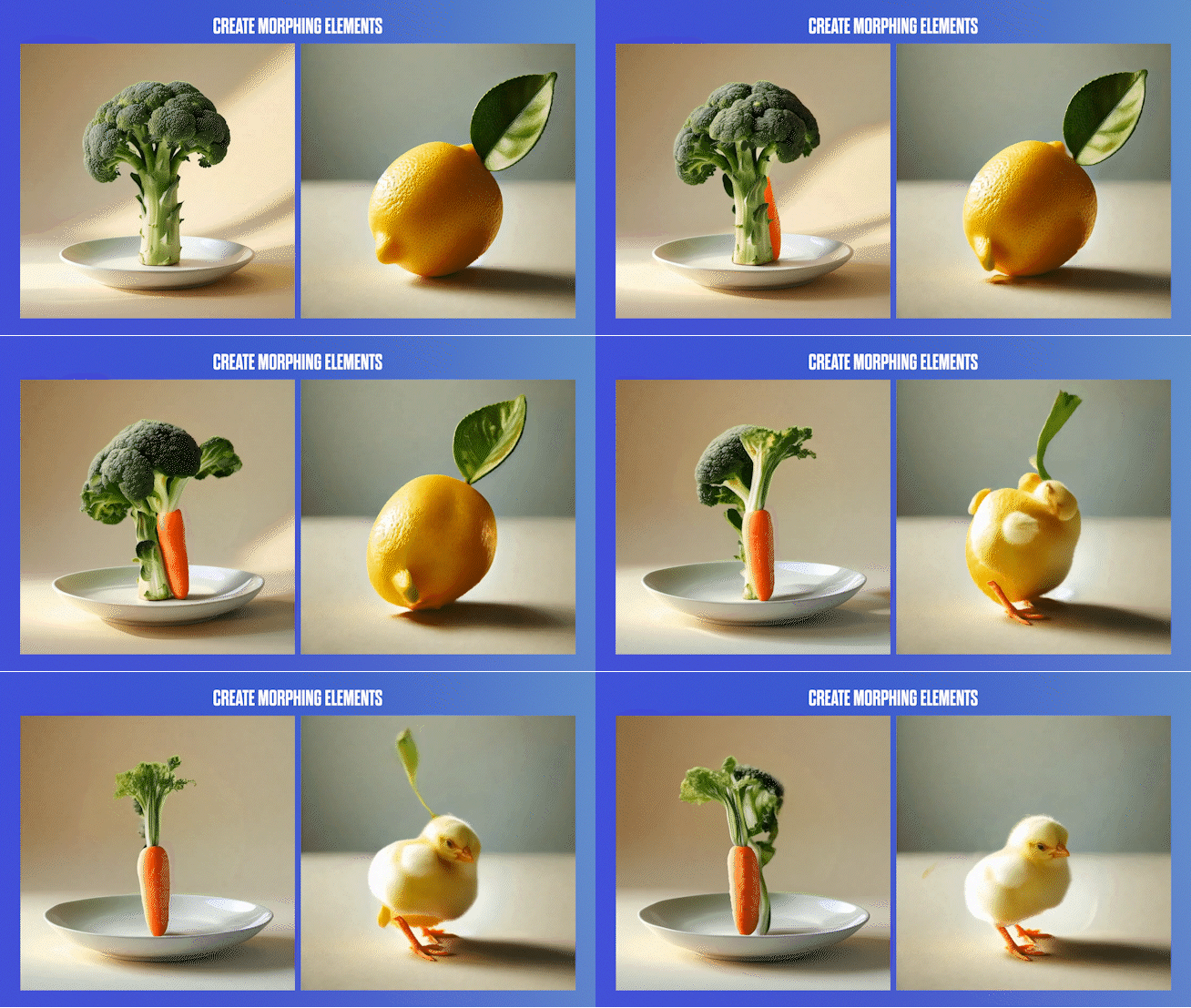
  • Text-to-Video Animation: Bring your creations to life by transforming stills into dynamic, cinematic videos.
  • Creative Exploration: Use brainstorming tools and visual concept generation to spark fresh ideas.

Why Take This Class?

This class is perfect for beginners and seasoned creators alike. By the end, you’ll have the confidence to use Dream Machine for a variety of creative projects—from social media content to artistic experiments.

Join me, as we dive into the exciting world of AI visual creation. Let’s turn your ideas into reality!

Meet Your Teacher

Teacher Profile Image

Abner Cross

Filmmaker, Editor & Storyteller

Teacher

Hi there, I'm Abner Cross, a Filmmaker, Storyteller and Professional Video Editor based in Sydney Australia. I've been working in the film Industry since 2010.

Storytelling was always something that fascinated me and that became the main reason for me to get into the Film Universe. I'm constantly learning new things and finding ways to integrate technology with my work, so expect my teaching style to be always fresh, intuitive and dynamic. 

Come with me on this learning journey and let's explore together all the different aspects of Storytelling through video editing.
  
Check my Instagram for new content, tips and tricks, ideas and more. ;)

See full profile

Level: All Levels

Class Ratings

Expectations Met?
    Exceeded!
  • 0%
  • Yes
  • 0%
  • Somewhat
  • 0%
  • Not really
  • 0%

Why Join Skillshare?

Take award-winning Skillshare Original Classes

Each class has short lessons, hands-on projects

Your membership supports Skillshare teachers

Learn From Anywhere

Take classes on the go with the Skillshare app. Stream or download to watch on the plane, the subway, or wherever you learn best.

Transcripts

1. Intro : What if I told you that with just a few words, you could create stunning and cinematic videos. Well, welcome to the feature of video creation with Dream Machine. Hi there. I'm Abner Cross, a professional video editor who is passionate about exploring AI tools that help creatives like us to work Smartt dream VGA, and bring ideas to life. And today, I'm thrilled to show you some cool features of dream Machine from Luma AI. This tool can create texture image, texture video, and even bring storm new ideas based on your prompt. It's like having a creative partner right by your side, and the cool thing is that you can use your computer or your phone. Whether you're crafting social media content, adding any unique touch to your projects or just having fun animating some means, this course will show you how to bring your ideas to life with ease. And you can do it all using natural language. Let's write. No need to learn pump to engineering. Excited to see your creativity in action, so let's dive in. Hi 2. Class Project: For this class, your task is to create a five, 10 seconds clip using Loma AIs Vim machine. It's a great way to explore it too and to share your creativity with others. For that have basically two options. One you write a crave text prompt for your image and create a video out of that, that could be a nice landscape or an abstract concept or product or even a fun experiment with visuals. Alternatively, you could just upload an image and use a reference to create a video out of that. I'll teach you how to do that and you'll see how easy the whole process is. So I hope you have fun with your prompt, remember, don't overthink it. They go to explore the possibilities of AI video creation and learn by doing. You ready? Alright. Let's get started. 3. Tool Overview: So as I said, this tool is available for both web and IOS, and here I'll be using my computer. So to get started, you just need to sign up using your Google account or Apple accounts and choose a plan. There's a free plan, but you can also pay for a different one if you want to get more credits and foster generations. So the interface is pretty simple. Here you have your board, and they are created every time you start a new idea. And here on ideas is where you find everything you've generated so far. To start a new idea, just hit this button here, and here's where the magic begins. You can create text your image, text your video, and bring storm your ideas just right here. I'll sing the next video to explore each one of it. 4. Image Generation and Brainstorm: Okay, so now that you're more familiar with the interface, let's have some fun. It always starts with a prompt, and this could be anything that comes to your mind, really. But just be aware that there is just one field for all the actions. So you need to specify what you want to create. If you want to create an image or a video or a brainstorm and so forth. I'll at you start with a still image, and then explore from there. Create a fashionista in Toki with vibrant Natoya. Let's see what comes up with. Okay, it always generates four images. And here on the side, you have the concept pills. They call it concept pills because it helps you to generate more ideas out of that. It gives you some suggestions. I can change the city here, for example. Let's see what happens. Okay, that's cool. And this button here is to create more like this, generate more ideas based on this one, and they come to the side, creating like kind of a timeline with your generations as well. Then you go like brainstorm that uses your initial prompt or images as input to suggest you new visuals concept. So you can try new options. The tool comes up with new paths and ideas for you to explore, and you can simply pick one of them and check your outcome. Yeah, not too bad. This one's kind of like this one. Anyway, let's move on. Setting settings is where you're just your aspect ratio for image and video, and you can choose any of these options here. Then you've got to modify, a very cool feature that allows you to change something, the image, and remember that you can use natural language. So if I type make RN and let it generate, and there we have it. Don't need to change anything. Just like based on my prompt, it just change the image there, and I kind of like this. I'm curious now to see, like, what happens if I go make it snow. Yeah, yeah, kind of cool as well. Kind of like that, too. Yeah, try different options here, see what you like. But let's sign your board for now and explore a few more things. A cute cat sitting on the floor in a pink kitchen. Okay, I don't really like, like, the kitchen this way, so I'm going to go modify here, put the catch in the middle of forest. That gives me some cool options as well. For like one of them, you can just click on more like this to create similar images based on this one. Now, this feature here called reply is a very interesting feature, too. It basically uses your whole set as inspiration for a new concept. So let's try it out and go make it a dog instead of a catch. Yeah, pretty cool. I like that, too. Well, once you're satisfied, you can just go here and make a video if that's what you want to do, and there you have it. But there are a few more things that you can do with videos. So let's talk about them in the next part. 5. Video Generation: The video featuring dream Machine offers several different co options. Here's a board that I created before with some nice photos of a desert, but now I want to animate it. I want to create some cool stock footage for a video that I'm editing. I'll click here, make a video, and I'm going to use the camera motion, which is a co option to give more control over my scene. Just type camera and you'll see this menu here. Just pick an option, and there you have it. Some co options there. If you really like the results, you can just click on Extended videos, generate more seconds for this clip in particular. Another cool thing that you can do with this is using an image that you already have and animated. And that could be an image that you have created using under AI two, for example, or a Mm even. Simply your photo here and notice this changes to keyframes, meaning that the first frame of your video is going to be the photo you just selected. But if you want the video to be generated first and finish with the image that you just selected, make sure you upload your image into the end frame. You can also type a prompt to guide dream machines the results that you want to achieve. Dream machine is awesome to try to put a smooth transition between your first and last frame. But not all the generations are going to look nice straight away. So just keep trying and adjusting your prompts until you get the idea and the results that you want to achieve. So have fun creating some videos and I see using. 6. Character Reference: Lastly, if you want to create any character based on a reference image, all you need to do is just ploading your image here and type Carca somewhere in your prompt. For example, I'm using here this Ginger girl that I found online, and I'll type a nice portrait of aca. She use that as reference. And it creates pre co generations based on this image. I'm gonna try animate it to see the results that I get. And cool. For this one, in particular, I used a camera motion called orbit to get the camera rotating around my subject, and I really like the results, actually. Here are some other generations that I created. You can even use your own images if you want to have fun with that. Yeah, I don't know about the generations here, but it might map something cool. Although you don't need to know prompt engineering for, you know, dream machine, try to be as specific as you can with your words to avoid having to run your prompt multiple times. Here's some tips for you. Use vive specific language in your prompts for richer visuals. Experiment with different styles and discover what works best for your vision. And don't be afraid to combine several prompts for more dynamic outputs. Just one a quick tip for you here. If you want to improve the quality and resolution of your videos, I totally recommend you to use third party tools like Topas AI Video, for example, that allows you to upscale, enhance and transform your footage into stunning cinematic querity. So keep that in mind. I have fun crediting some videos, and I see using. 7. Conclusion & Wrap up: There you have, everyone. Now you know how to use dream machine to create unique generations for your projects. Don't forget to upload your videos to cast gallery, and explore the work of other students, too. Keep experimenting and I can't wait to see your amazing creations. I'll see you soon.