Transcripts
1. Adobe Firefly in Adobe Express: There are so many AI tools
out there at the moment. I've been experimenting
with a bunch, and I love this easy app with
simple AI for image edit, graphic design, video animation
layout, all in one place. It's Adobe Express. The tool that combines a
little bit of Photoshop, a little bit of in
design, Illustrator, Premiere Pro, after effects, all in one app and
super easy to use. By the way, I'm Kate
Silver, a designer, content creator, and a top
teacher on Skillshare. In this clause, we'll cover the eight key AI tools in Adobe Express powered
by Adobe firefly. First, generate image. Remove objects, insert object, generate template,
generate text effects, generate video, generate
similar and clip makeer. Convert long videos into
short clips with AI captions. I'll walk you through
each tool and try them out to show you
exactly how they work, helping you decide which ones to use in your own projects. If you're ready to
explore the future of design and Adobe Express, then let's get started.
2. AI in Adobe Express: Okay, my friends,
today I want to talk about AI in Adobe Express. Yes, AI is all over the shop. All I hear about is AI, AI, AI. Well, I want to talk
about Adobe Express with AI because it's
very simple to use, and it's all in one place. Now, what is Adobe
Express, you ask, perhaps? Well, if you've heard of Canva, Adobe Express is Adobe's
take on Canva sort of. To Adobe standards,
the quality design of Adobe using AI and
all in one place. Now, if you've struggled with Adobe softwares
before and you found them complicated and you don't know where to start and
you're not really a designer, Adobe Express is actually
the solution to that. It's like a mini mash up of all the really famous
Adobe softwares like Adobe Photoshop in design, Premiere Pro after
effects all in one because in Adobe Express, you can work with images. You can work with animation. You can work with video,
and so much more.
3. Why Adobe Express?: So today, I'm going to talk
about the generative AI. But just so you know, one of the really cool things about Adobe Express is the plethora, my new favorite word, the
huge selection of templates. And there, again,
two Adobe standards, so really cool templates
to choose from. For instance, if I click here, you can see all the beautiful, colorful, fun templates
to work with, and it's very easy to use. Personally, my favorite part
about Adobe Express that I couldn't stop playing
with is animation. I just started
animating everything. I started animating text and images and even
thumbnails and I just had the best time so much so
that I actually created a whole class just on how to
animate in Adobe Express. It was a game changer and now I've been using these
animations everywhere. This is, for instance, my
Substack newsletter and yes, I use these text effects
animation everywhere, even to create
competition announcement. If you look at the text
itself, it's AI generated. It's text effects. Can choose from
diamonds and balloons. And what did I use here? Glitter and fur, which looks a bit creepy
and so much more. That's something we're
going to dive into as well, the AI text effects. The gifts. You can create
a gift from anything. And my famous word and Vo, I also created an
animation from that. If you want to take a deep
dive into all of that and creating animated gifts and
text effects and videos, then check out my course. It's in the description below. And if you don't
have Adobe Express, then you can also
check out the link in the description below
and play along with
4. Class Project : Welcome to the
class, my friends. While I take you through the eight key AI tools
in Adobe Express, I would love for you to
choose your favorite AI tool and experiment or play with
it and create a project. Then publish that project in the class project section for which you'll get
personal feedback from me. Now, a little heads up some of the AI tools are in Beta or under construction
or development, which means that some of
the results might look a bit AIE or unfinished. So I would love to hear
your take on these tools, if you have any hesitations, do they work for you and publish that along with the
Clause project? So voila let's do this.
5. Overview of 8 AI Tools in Adobe Express: So now back to
Adobe Express, AI. Generative AI is everywhere. These are just a few things you can do with Adobe Express. That's just really cool. And in my humble opinion, just a few of the key AI things you would ever need, really. So in terms of graphic design, you've got the famous
generate image, which means you can add a text prompt and it will
create a beautiful image. Again, up to adobe standard. You can remove objects
from images or people Xs. From images just like
Adobe Photoshop. You can insert objects, add objects, again,
Adobe Photoshop style, and you can generate
your very own AI template generative text effects is what I showed you
earlier with my newsletter. This is AI text effects,
generate text effects. This I'm super excited about. Generate video,
and it's in Beta. When something is in Beta, it means that it's
not fully developed yet and it's trial and error, and it's not perfected yet, but I cannot wait for
this personally because I personally struggle
the most with animation with Adobe
After effects. I find it never got my
head around it completely, even though I do make videos
with Adobe Premiere Pro, but to actually create
animated videos, that was a game changer for me. I'm super excited to
see what this brings. Generate similar, which is a
version of generate image, but you can generate
more of those images, more variations in a similar
style and clip makeer. The clip makeer is
super important today. Let's say you've got long form
horizontal content and you would like to change it in
a second in a vertical, for TikTok or Instagram
reels or YouTube shorts, then you can do
that in a second. And what it does is it
will even shorten that 24 minute video into
1 minute video. All right, so let's dive into all these AI tools
with Adobe Express.
6. AI Generate Images : I'll start with Generate Image. Over here, using the
famous firefly technology, over here, you can describe
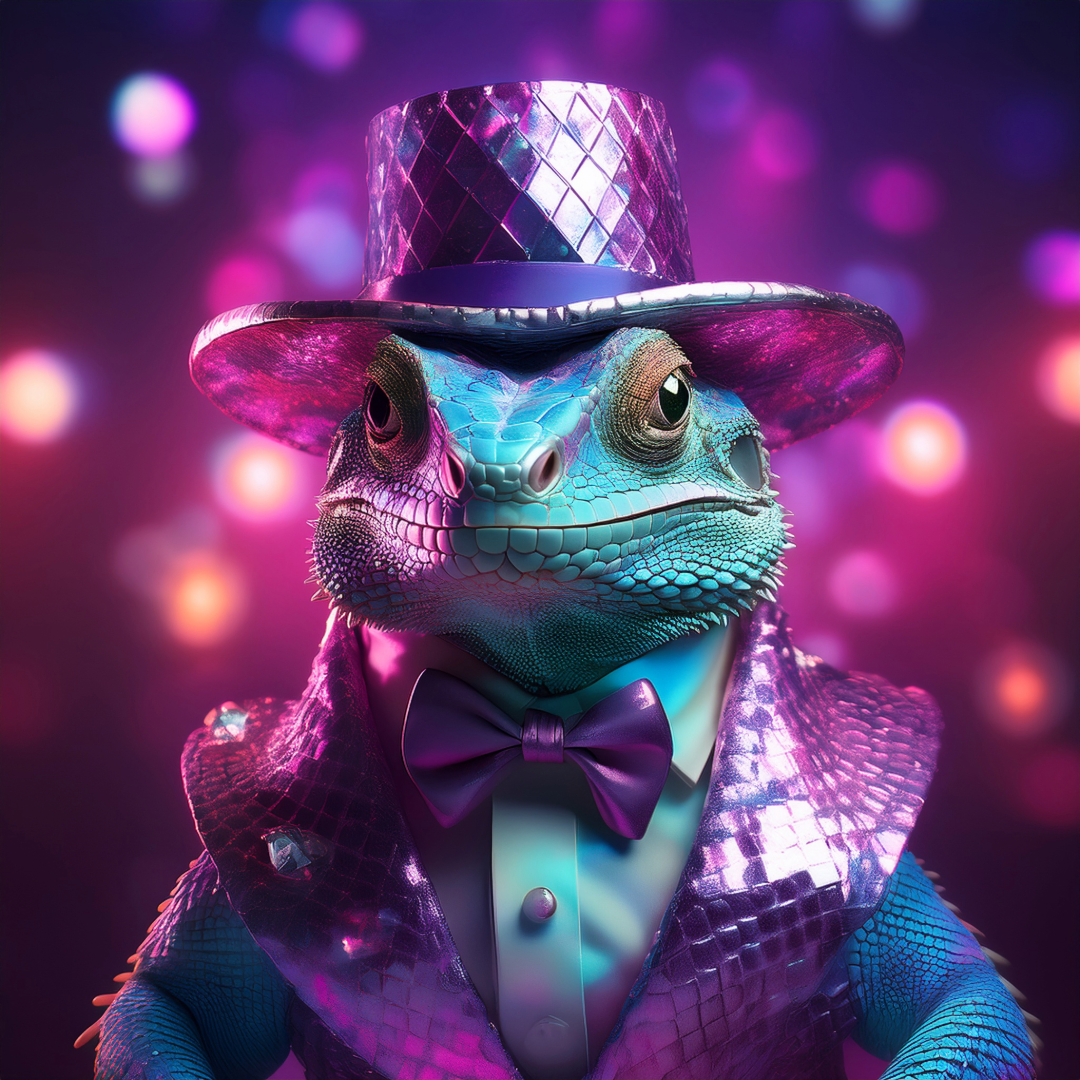
what you would like to see. I'm going to type lizard
with a hat with diamonds. Because why not?
Let's make it sassy. Now you can add some style
images or composition, which is a reference
inspiration, inspo, or you can also
choose from existing types. I'm going to choose Sint
wave because I find that cool and generate. Wow. Isn't that cool? Let's see this one.
Awesome. And this one. So sassy. Wow. I love this hat. So beautiful. This is
really, really cool. And it's up to Adobe standard. Awesome. So that's one of
the famous Adobe AI tools. Let's move on to the
next one, shall we?
7. AI Remove Object: I'll just go back
to generate with AI and I'll show you the
next one, remove objects. But for this, I would have
to add an image and perhaps I can add one of my thumbnails from one of my YouTube
videos. Let's see. There you go. I would like to remove so I can
adjust the brush size. You can adjust the
brush size over here. Or you can clear brush or add
and perhaps click here and perhaps draw on top of the
whole mockup that I created, even though I love it,
and then click on Remove. And let's see Adobe
Expresses magic with AI. Oh, that's cool. This is another option, and this went wrong, but I like this. It added a little plant. Now if you want it, you
could generate more until you're happy with it
and change it around. And actually, there we
go. This one is better, although it would
need to be refined. This is where Adobe
Photoshop would be awesome because
it's really easy to refine it using something like the spot healing brush
tool or the remove tool, or even generative fill. But if you did want to
fix it in Adobe Express, you could also make
some minor adjustments here in the same
tool, remove objects. Might take a little bit
more trial and error. Again, this is all in
the infancy stage, bear with AI and Adobe Express. For instance, you could
make the brush a bit bigger and then just
go over the bits that look odd and then click on remove and see if that
generates better results. And you can already see better
results in some of them. It blended it a bit more. You can click on Keep once
you're done and then do another little bit that could be better and perhaps
another part here, and then click on Remove and
again, hope for the best. Sometimes this can
be hit and miss. This is a bit hit and miss. I can either click
on Generate More or discard and I don't like
any of them, so discard. I just think this will be improved and
perfected over time. There we go. That's
already not so bad. And then decide whether
to keep or discard.
8. AI Insert Object: So anyway, back to
Adobe Express AI tools. We've covered generate
image, remove object. Let's look at insert object. So perhaps I'll use that
same image again, I guess. And describe what I'm inserting. Maybe I can insert a microphone. Pink microphone, a pink
glitter microphone, because I love microphones. I'll make the brush size a bit bigger and I'm going
to draw I want it to be here because I want it near me and then click
on Insert and let's see. Oh, that's cool. Love that. I probably should have
made it a bit smaller because I just realized
the microphone is as big as my head, but this is very cool. I'm very amazed by this. You can always create more because there you can see
something went wrong. It is AI after all, and it's always being improved
even now as we speak. Okay, so let's give it
another try just to see if it will provide
us with better results. So just click on
this card and let's go back to this window
of Insert Object and change a brush size
because we're going to add another microphone
and just make it smaller and see if
it will look better. So I'm just going to
draw shape over here. So that's a little bit
smaller, I believe, is it? I'm going to type a pink
glitter microphone. I'll write on a stand, a bit more detail and now click on Insert and let's
hope for the best. I quite like that and the stand works pretty well.
And the second one. The third one also
looks pretty cool. It went wrong here
the way AI does, but I'm sure over time it will get better like any AI tool. That's cool. I can either keep it or I can
click on this card, or I can even click on Generate More and
hope for the best. So like this one. Oh, this one. Or that one. I like this one. I think this one looks
really microphone y, although more like
a stage mic and this one looks more
like a recording mic. So I'm not sure. Let's go with this one
perhaps and click on keep and I'm going to
add perhaps a hat, like a pink glitter
hat or something. So I'm just going
to go like this and I'm going to go like this and draw over here
and I'm going to describe a pink
glitter snakeskin hat. To match the microphone and click on Insert and
again, hope for the best. And that is absolutely
hilarious. So funny. So earlier, I had
a little try and I created this, and I loved it. I think this looks super cool, so I decided to keep it. So anyway, you have
fun with this and decorate your images
with insert objects.
9. AI Generate Template: Now let's go back
to the next one. We've done already three.
Generate template. You can literally
say, for instance, a poster for a pottery
class with glitter. I just love glitter. Generate. Hmm. I think that's a bit disappointing
because it's not very glitter. Okay, so I wasn't too
happy with that template, so let's try it again.
Trial and error, right? So I'm going to type a modern and realistic poster for a paper glitter,
flower making class. And let's see what
this will give us. And let's hope for the best
and click on Generate. Oh, fun. Look at these beautiful flowers with the glitter in sign. Stunning. Look at this. Oh, and
this one. Just love it. I'm having a hard time
deciding between which I like most because I quite like this layout with
minimalistic text. But I also like this
picture and that one. So there's a few to choose from. If I want it, for instance, this picture, I can click on it. And then edit it further
in Adobe Express and do things like change the
background color and whatnot. Which is cool and change the font because it's
kind of a hideous font, isn't it? But you
get the picture. Now, if I want, I could also click on a
picture, for instance, and click on C variations, and Adobe Express will give
me a variety of options, a few options that are
similar to choose from. And hopefully it will
have even nicer pictures and layout, but
who knows, right? We never know. And
wow. Aren't these fun? They look so good all
next to each other. With the glitter stunning and the glitter flowers
over here. Love it. But it really gave me exactly the same layout for each dinted. Earlier, I tried
another variation, and it gave me
something like this, which is also beautiful. If I click on B to A results, I can, for instance,
change my mind and say, I want to see variations
from this one, click on C variations and is generating new slightly
different options. And there we go. So
more flower picks, although I did prefer all
the other ones, actually. They were prettier. So, yeah, that's pretty cool for
generate template. And then to edit the
template further, I do cover this in my other
Adobe Express classes, so feel free to dive into
that after this class. So let's move on to
the next AI tool.
10. AI Text Effects: Now this is my favorite tool though, generate text effects. Just click on any of these and it will just create
an amazing text effect, although it can take a
little while sometimes to make and here you
can see prompts. Now, if you want to learn how to animate these text effects, then check out my course on Skillshare and you'll
learn how to make the really cool text effects and animations that I
use all over the shop. And even for videos. All right. So that is AI text effects, and there's so many more. I just can't wait for you to explore them, so check it out.
11. AI Generate Video: One I'm super excited
about is Generate video. Each generated video is 5 seconds long and
uses 100 credits. So we all get a certain
number of credits from Adobe, and this will change
in the future. So at this time of recording, I can't tell you exactly how
many credits there will be. A depends where you
live in the world, but this is it for now. And you can write
whatever you would like. A cute illustration of a small plant blossoming
in a slow motion. An illustration of a lizard shedding its skin to
become pink glitter. Let's see. I can choose any
of these existing animations. But I just want to see
what, Adobe will offer. Let's see. And
remember it in Beta. Alright, let's press play. Oh, that's cool. I do wish
it had a bit more animation, but that is a great start. So yeah, feel free to try and do more different
variations of this. So that's what I'm going to do. I'm going to generate it again, and perhaps it will
have more animation. Which one of these shall I use? Perhaps move right. Perhaps
I can select medium shot. I can change a camera
angle, aerial, eye level, that's one
of the things I love about Adobe as opposed
to some other AI tools. Most of us don't know
what to look for. Most of us aren't
photographers or videographers and so we don't
know what eye level shot or aerial shot is by heart and having these options to
choose from is very useful. I'm just going to go for
eye level shot, I guess. Perhaps I'll add whilst dancing. Let's see if this will
add a bit more animation. I'm hoping for the best and click on Generate and let's see. No, I'm already liking
the look of this. So you know, it is small because previously we chose
a smaller option, so it doesn't use
as much credits because this already
uses 100 credits. Anyway, let's press
Play and see. Wow. Look at this progression. So first of all, first of all, now it's dancing and moving and the glitter skin is being shedded like in
the previous one, but there's a bit more movement. That's really cool and let's
be honest, a little creepy. I wish it added a
bit more right, a little bit of more
camera movement, which it doesn't
seem to have done, which I'm a little
bit disappointed in. But honestly, for
some quick video, you know, simulation,
it's not bad at all. So yeah, feel free to try another video and let me know what you decided
to come up with. I'm sure you have even better
ideas than I do for this. So that's a little demo of Generate video,
which is in Beta. Remember, it's in Beta, so it's in development
development, and it has quite a bit of way
to go and to be improved. So be patient, please.
12. AI Generate Similar: Moving on to the next
one generates similar. So I can add an image, for instance, and
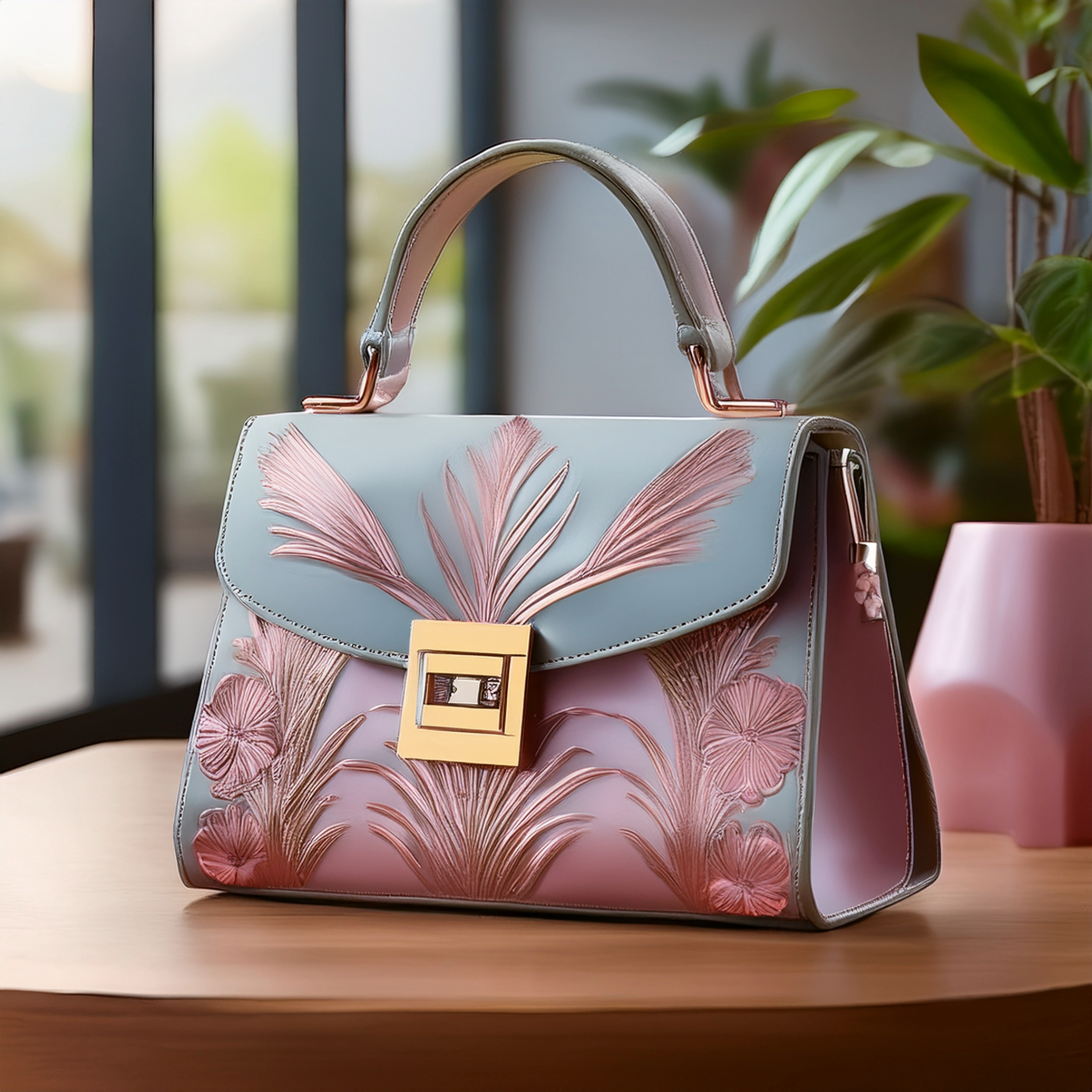
generate similar. I want this in a hat. So it created a similar image, although it read has instead of hat and it didn't
create it in the hat. I probably should have
prompted it better. I'm still working on my prompts. But if you look at
the image itself, it is the same style,
which is very cool. I actually love this image, except for the actual
object inside of it. So yeah, let's give it one more go and see if it will provide
us with different results. So if we can select
the image and go back to generate similar and resize this frame so it fills out the whole page and type perhaps something
more specific than bag, perhaps a fancy handbag, which is not the most
specific, but it's quite nice. It's slightly more specific. Click on Generate and
let's hope for the best. Ooh. Okay, so this is a lot
more what I had in mind, more of a handbag. But on some of them, you can
tell it's AI generated and bear with me and bear with AI because I do think it will
get better as it goes. But as you can see,
the background is very similar to the original. It's kind of the same bouquet effect or blurred background, the plants, the wooden table, and this quite nice bag. I like it. It's actually giving
me designer inspirations. Isn't that cool how I just created and designed a
handbag just like that? Okay, so that was a little
demo about Generate similar.
13. AI Clip Maker for Videos: Last but not least clip makeer. Now you can upload a clip
of yourself of anything. I may upload a clip,
but it's too large. It's 1 gigabyte, of course, perhaps I'm going to
upload something else. Perhaps of this, of me boxing and unboxing and
prepping my Dell ultra sharp. If I was talking, I could
add captions, but I'm not. Then I can click on
Generate clips and let's see what Adobe
Express will give us. I probably chose the
worst video for this. I should have probably chosen
a video where I'm doing a talking head and talking in the camera so that
it makes more sense. But let's see, we never know. You may now close a
clip makeer and will notify you in app when your
clips are ready for review. So it's now analyzing, and this sometimes can
take a little while. So, yeah, I personally think Adobe Express's AI
is just incredible, and it just has so many
tools that I would need, and I would use I
especially can't wait for generate video to get better and to create really cool videos kind of
like it's showing here. And I want to wait for my prompt and AI text skills to
get better so that I can create better graphics and illustrations and
animations and videos. So as suspected, there
weren't enough words spoken. So instead, I'm going to
choose another video. There we go. One of my popular
Adobe in design videos, which is five minute long, and I'm going to generate clips. It took me a while
to find a video because all my videos are
four K and huge and like, 20, 30 minutes long. So it wasn't allowing, but I finally found a video. So let's see what clips
it's going to generate. There we are. Let's have a
look at one of the clips. How cool it has automatically created captions, which is cool. I like that it goes from
vertical to horizontal. I can also choose from
many different options. It created one,
two, three, four, five, six clips,
which is really cool. All the automatic captions, I can also change the captions if I wanted, let's
say yellow bride. And voila, now the
text is in yellow, which is really cool, so it automatically created. I'll definitely be
posting this in my YouTube short, so check it out. So so far, I really like that. If I want, I can
open it in Editor, or I'll just download this
if I'm happy with it, and it's going to be
downloading a file ready for a YouTube short or Instagram
or real or Tik Tok. And if I want it, I can look at some of the other clips
that were created, which are slightly
different or this one. Each clip is slightly different. Which is really cool. So my friends, that was it
for AI in Adobe Express. And I realized that whilst
I was talking to you about everything that
Adobe Express can do, I kind of convinced
myself to just use Adobe Express a lot
more than I actually do. I forgot about some
of these functions, and I'm so excited to
start reusing them. My creative juices
are kind of flowing, and I can't wait to see how this will develop
with the new AI age. And I just love that it's
all in one platform. That is my take on it. And if you don't know me, I'm Kate Silver
and thanks so much for staying with me and
listening to this video. Again, if you want to learn
Adobe Express in detail, check out my Adobe
Express Clause or my Adobe Photoshop in Design
and Illustrator clauses.
 Kate Silver, Graphic Designer & Adobe Instructor