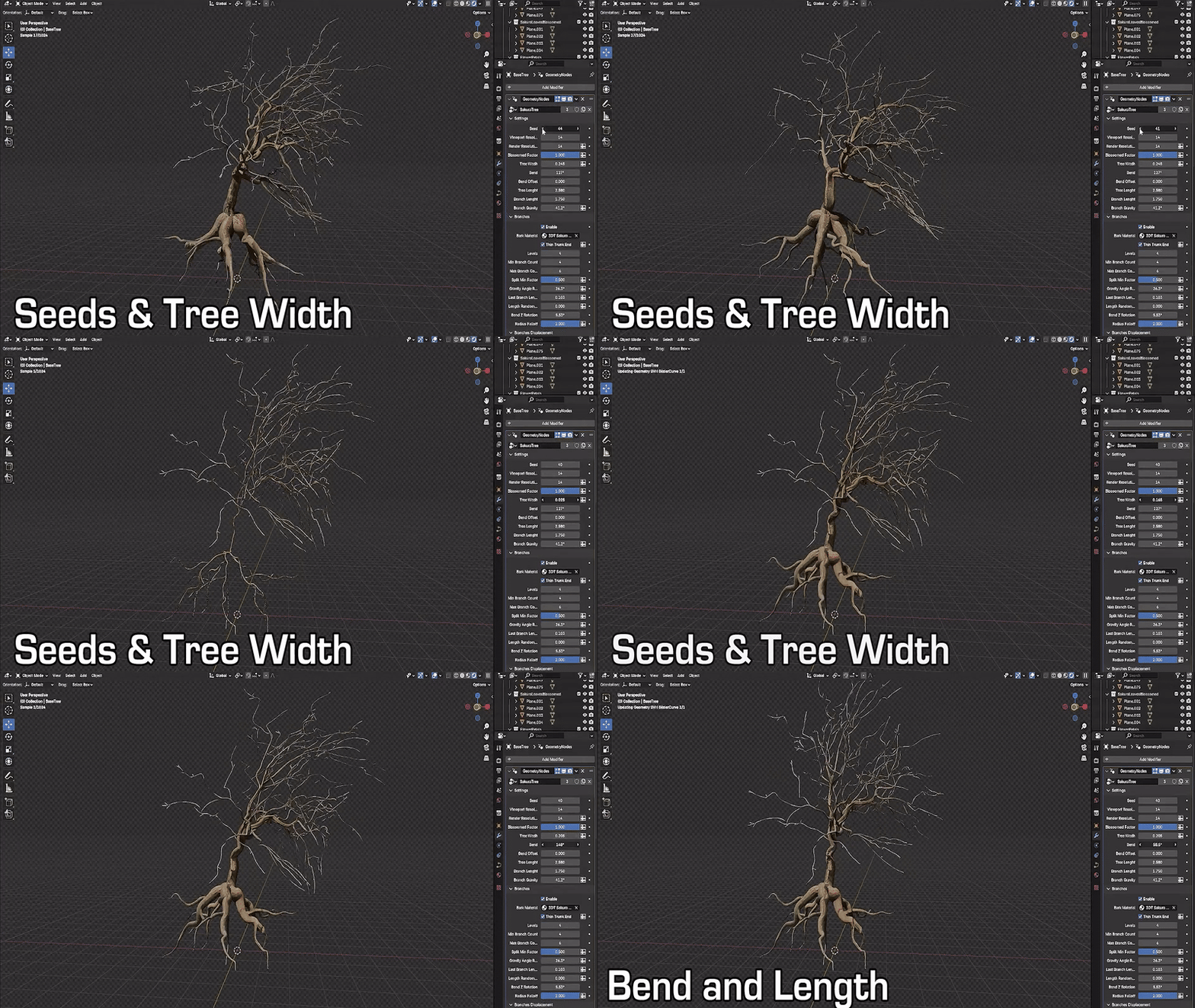
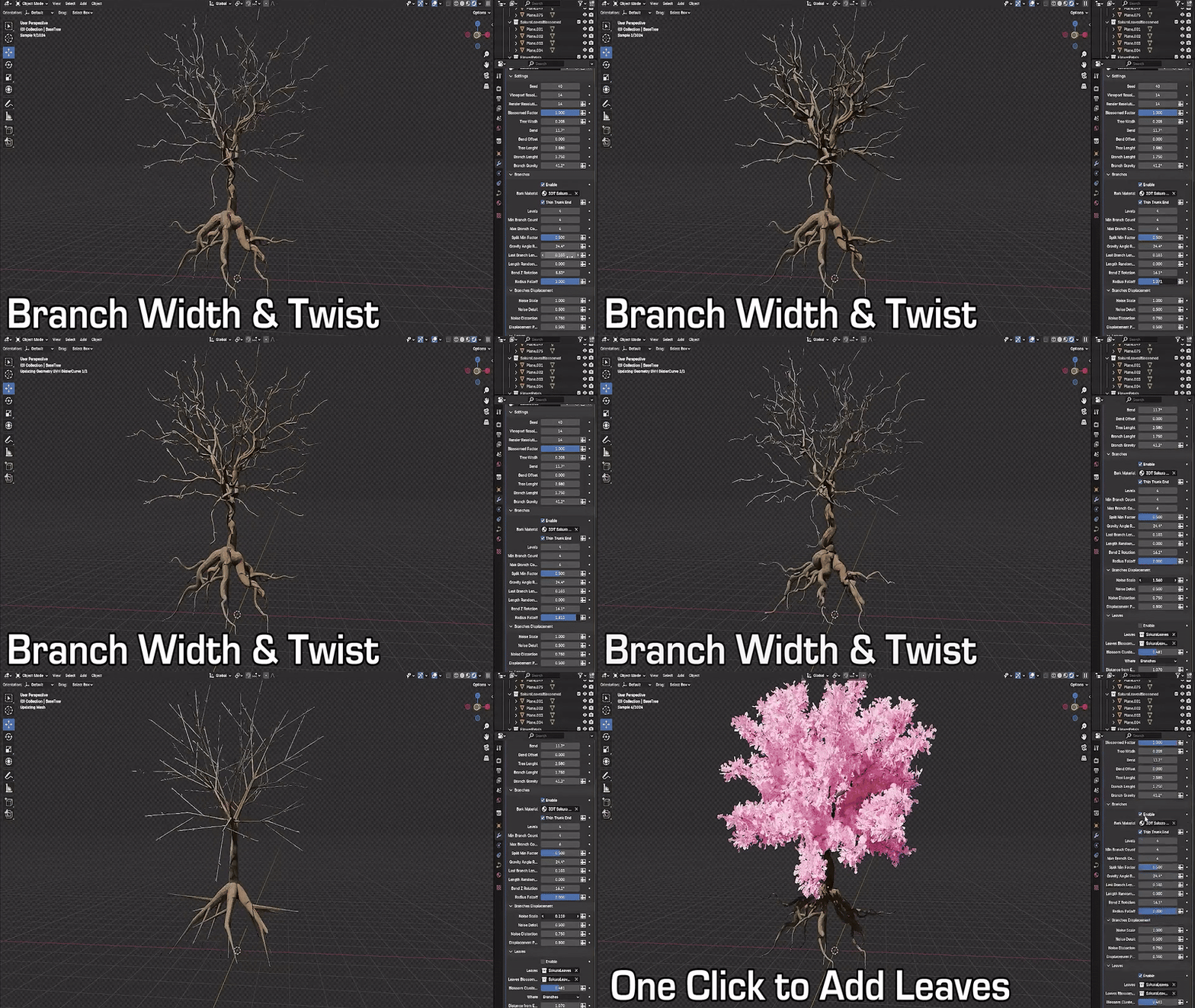
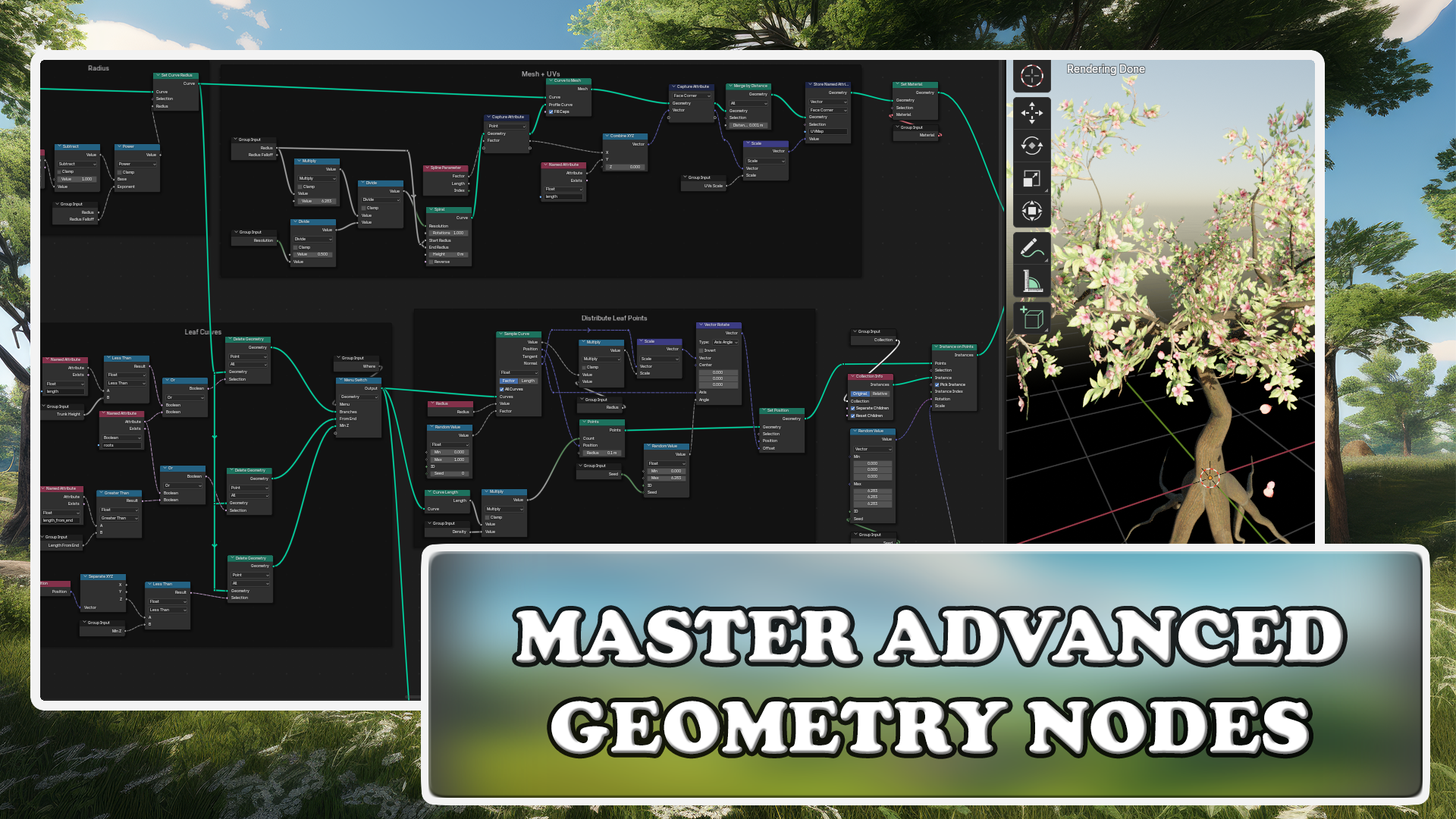
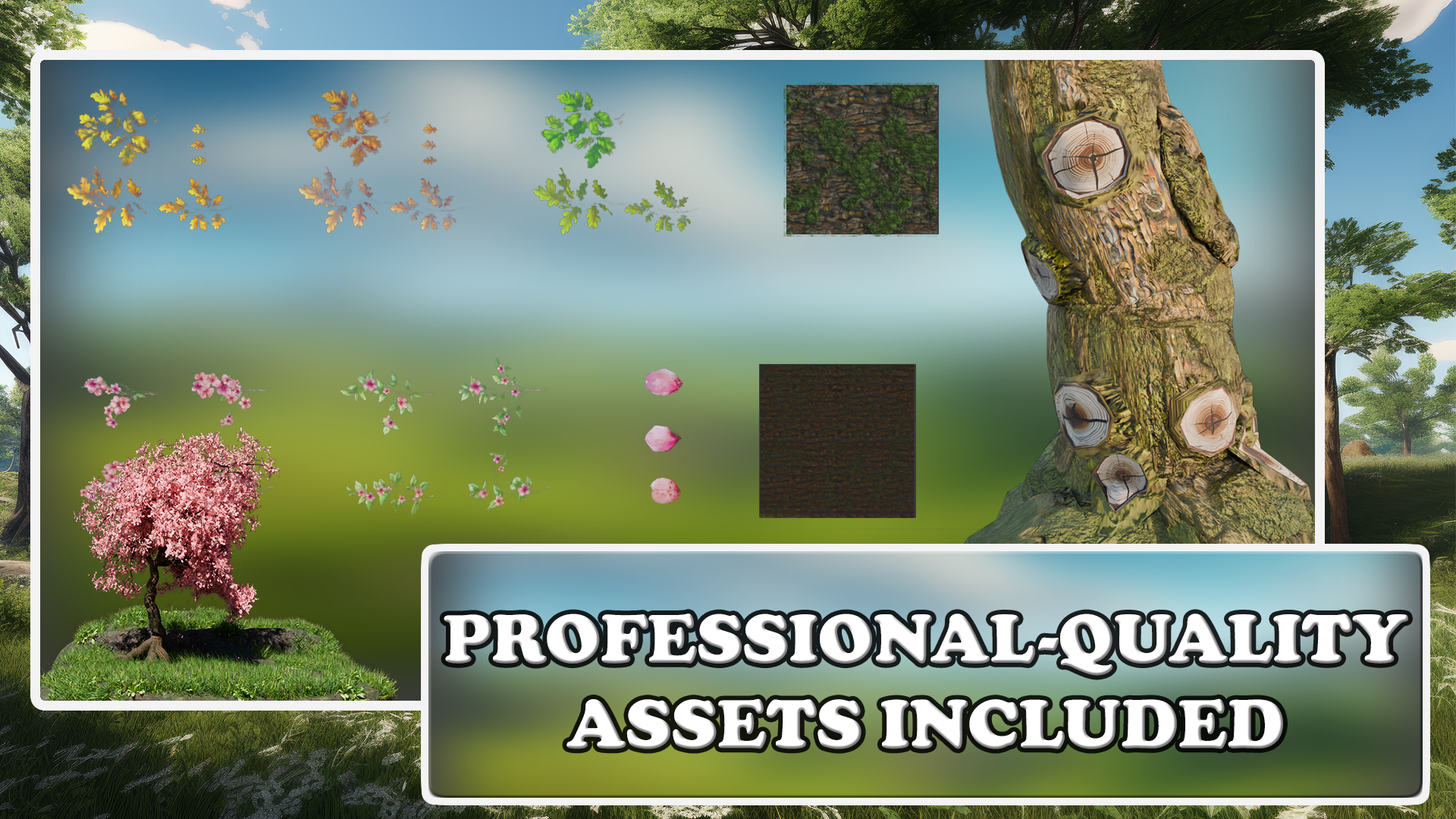
Transcripts
1. 3D Trees with Geometry Nodes Course Introduction: Welcome to three D trees
with Blender geometry nodes. In this course, we will explore the powerful
procedural workflow of blended geometry nodes to create fully customizable
and realistic trees. From generating organic
trunk structures to finally distributing leaves, you will learn how to craft natural looking trees with
procedural flexibility. By the end of this course, you will have the
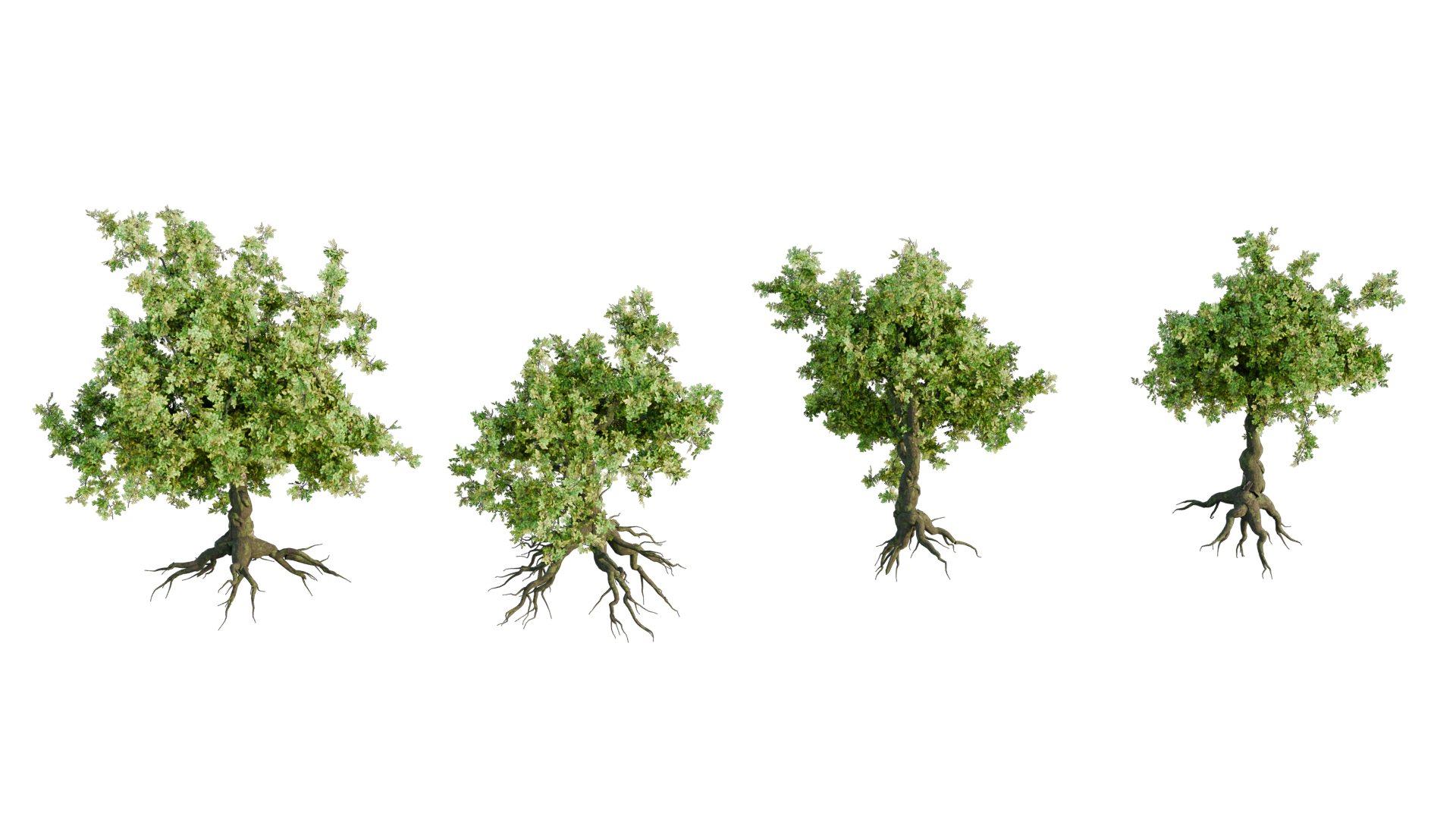
skills to create trees ranging from ancient
oaks to delicate bonsai, all controlled by easy
to use perimeters. If you are interested in pushing your gemenude skills
even further, don't miss our blender
geometernode for beginners, procedural bridge generator,
and foliage scatter courses. These will help you refine your procedural modeling
techniques and create stunning freedy
environments filled with foliage,
architecture, and more. To help you bring
your trees to life, this course includes a high
quality resource pack, featuring eight
stylized PBR materials crafted specifically for
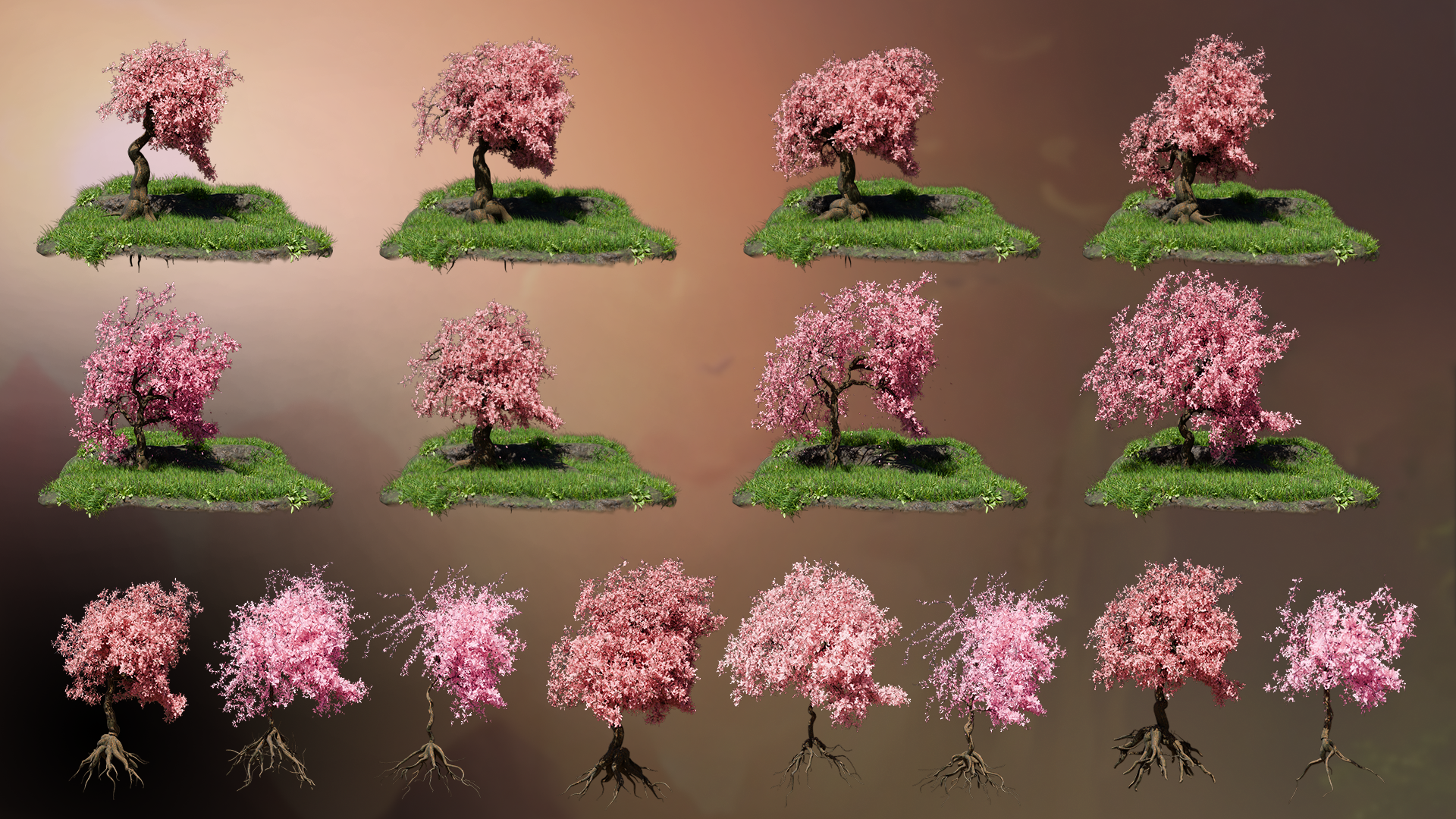
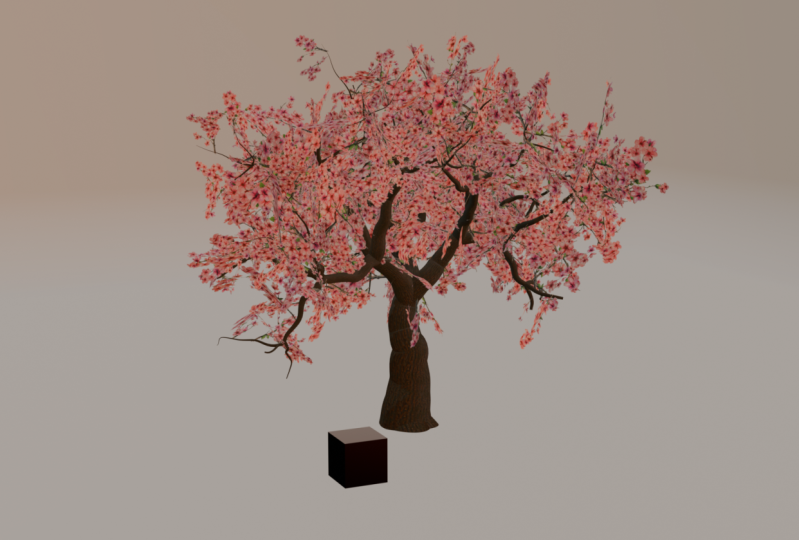
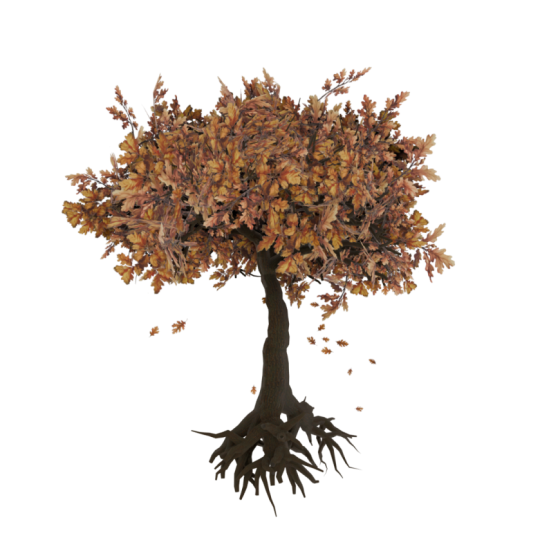
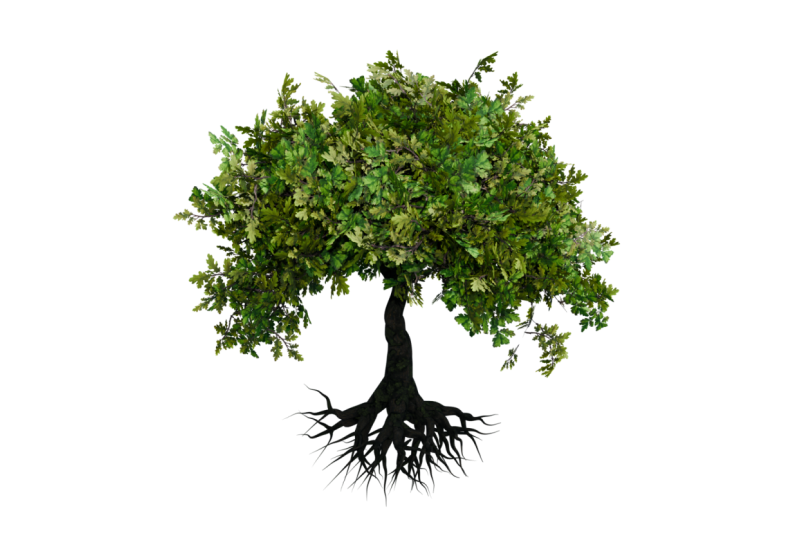
procedural recreation. You'll get cherry and oak bark, blossomed and non
blossom cherry branches, and seasonal oak leaves
for summer, autumn, and spring, plus cherry petals for stunning falling
leaf effect. We will begin by building a procedural tree system
from the ground up. You will start with the
foundational split end node, a custom node group that
generates branching structures by iterating
multiple curve splits. Using perimeters like branch
count, length, and angle, we will craft a
realistic growth system that mimics natural
tree formation. Additionally, we'll implement
a noise displacement to introduce subtle movement and realism to the
tree's overall form. Once the trunk and
branches are in place, we will shift our focus
to leaf placement. Using custom attributes such as lengths from start
and lengths from end, we will determine how leaves are distributed
along the branches, ensuring natural
growth patterns. Next, we'll extend our procedural system
to generate roots. By modifying the branch system
to reverse its direction, we'll create an
underground root structure that connects seamlessly
with the trunk. Finally, we'll explore
UV mapping techniques, ensuring that bark
and foliage materials are applied seamlessly. In the final section,
we will integrate a simple particle system to
simulate falling leaves. Using blenders simulation zone, we will generate and animate leaves that detach from
branches over time. This course is designed with modularity and
efficiency in mind. By using reusable node groups, you will be able to quickly adjust perimeters
like tree height, branch density, leaf
coverage, and more. Whether you need a
stylized tree for game or hyper realistic
op for an animation, our setup will allow for rapid iteration
and customization. By the end of this course, you will have a fully procedural tree system that's customizable, efficient, and visually stunning to bring your creative
vision to life. Join now and start growing your own credi trees with
Blenders omiton rods.
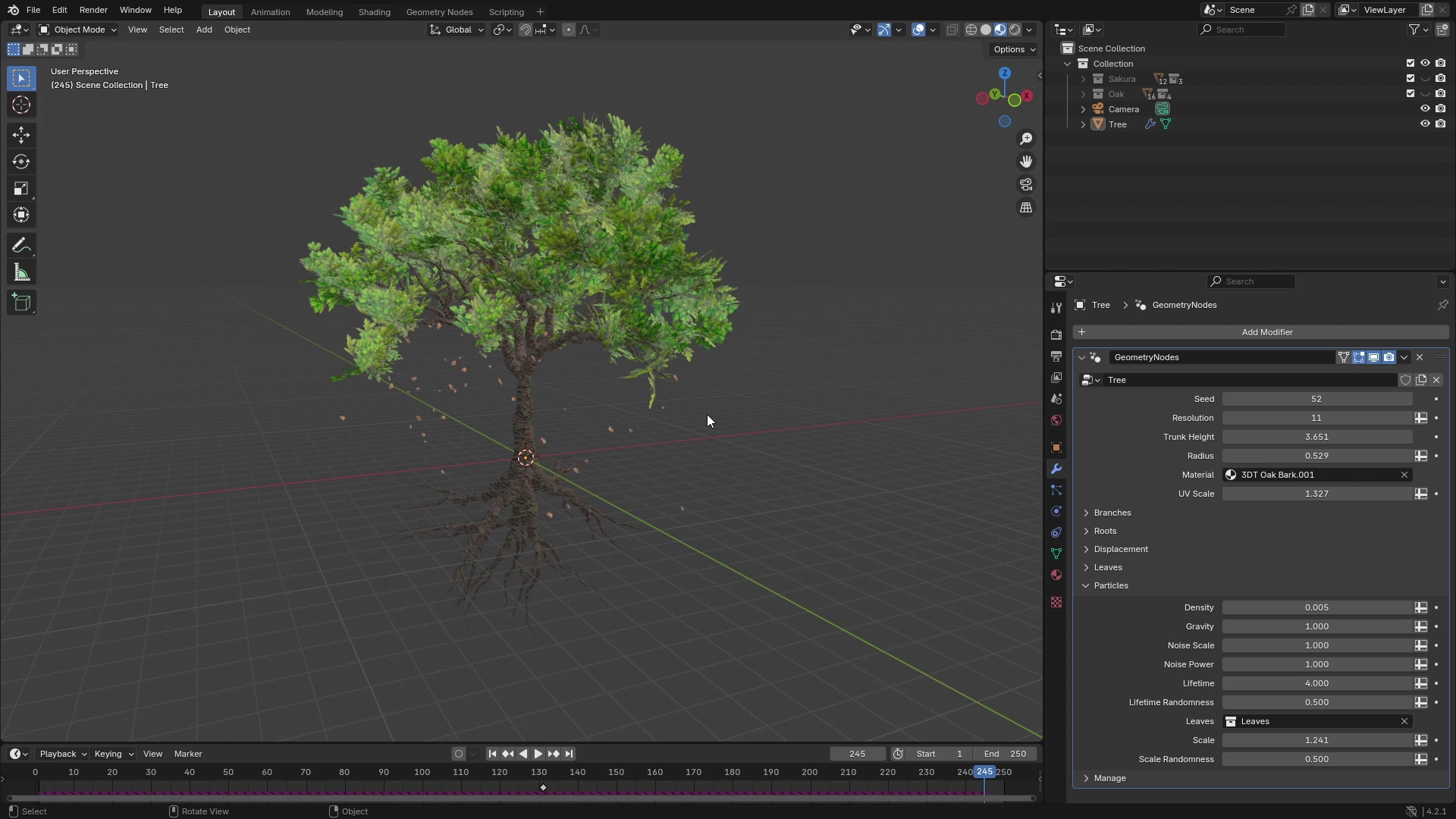
2. Tree Generator Overview: Hello, and welcome
to the introduction to free D trees with
blender geometry nodes. In this course, you will
learn how to create a fully procedural tree using
blenders geometry nodes. You will build a
realistic trunk and branching system,
control leaf placement, and add a simple
particle system for falling leaves to bring
natural movement to your tree. To help you along
the way, you will also receive a free
material pack with high quality oak and
sakura textures and materials perfect for this
course and future projects. Before we start building,
let's go over the inputs and perimeters that will control your tree shape and structure. By tweaking these settings, you'll be able to
create anything from small bone site
to massive oak. So this ometer node is
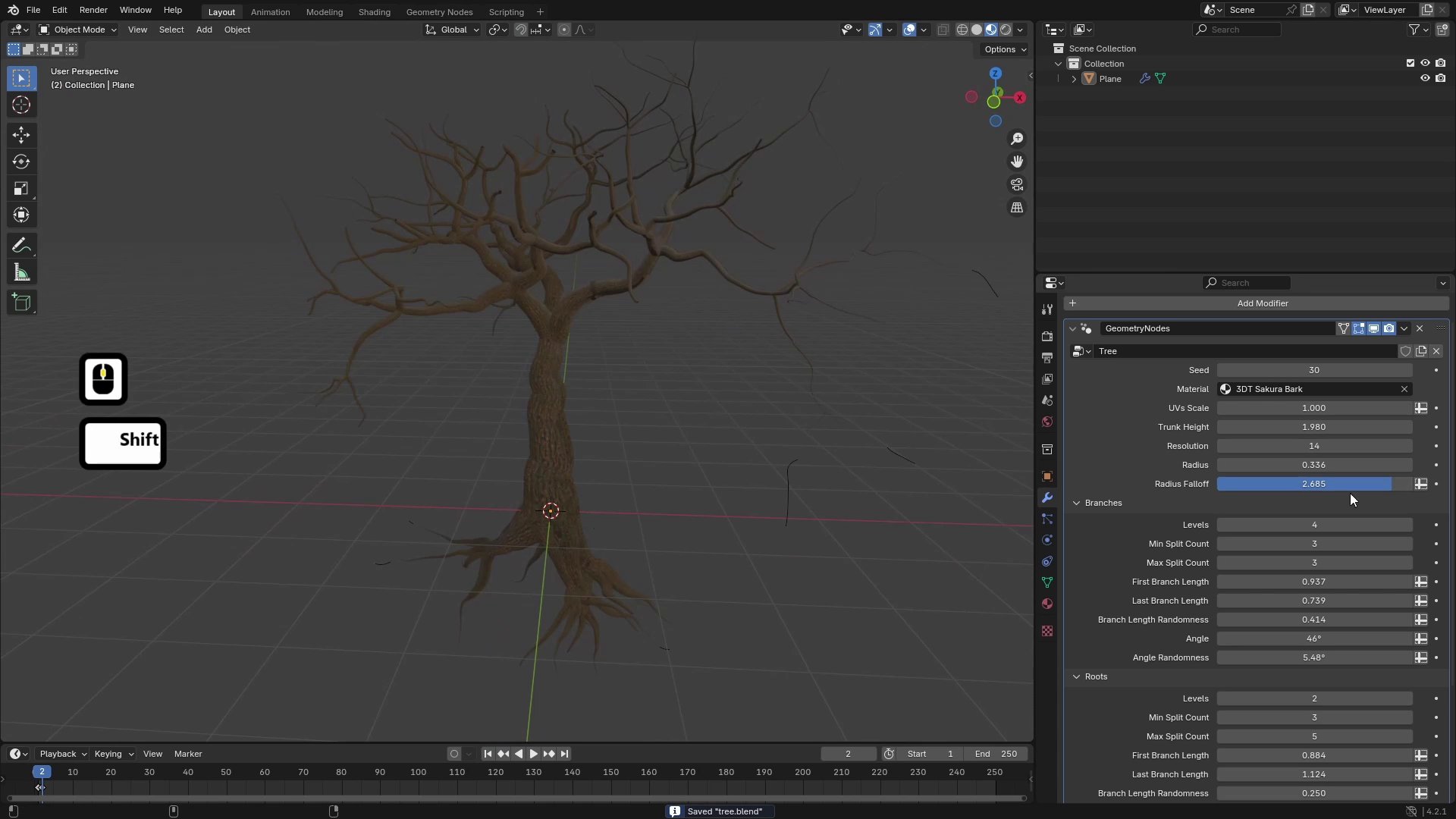
just a one modifier. So as you can see, I have here this tree modifier
applied to this object, and you can see that right here, we have few parameters. One of them is seed which
controls seed of all of the random values and
random generators. Then there is resolution which controls resolution of branches. You can set height of the
trunk and overall radius. And then there's also
material for roots and branches and also
controls for the UEs. Then in branches panel, you can see that first
input is called levels, and that controls
how many levels of branches your tree will have. So if we set this to just two, for example, so first, there is a trunk, which is a separate branch
or one main branch. From this branch, there are three more branches like this. And from these branches is
the second level of branches, so it looks something like this. The second two inputs are
min and max split count, which means you can control to how many branches each end
of the branch will split. So here we have 3-5. If we set it 2-5, you can see that now it just
splits to two branches. And if we play around with seed, we should get some
different results. Now you can see we have
four of them and so on. Then you can also control
lengths of branches. You can control first
and last separately. So if we set first branches to something long and last
to something short, you'll have different results. And there's also a
length randomness, which controls how randomized the lengths of the branches are. The next thing is angle, which controls the
angle of branches. So you can see if
we set it to zero, they are all pointing upwards, and as we increase
it, the tree gets much wider and the branches
are growing more to the side. You can also control the
randomness of this angle, and the last input
is radius fff, which basically controls the
thickness of the branches. So now you can see
it's set to two, and you can see that the
branches at the ends are thin. And if we decrease it, you can see that they get much thicker and you can control the gradient of the radius going from the trunk to
ends of the branches. The next panel we
have are the roots, and this panel has basically all of the controls as branches, and you can control
same parameters. So I will skip this one. The next one is
displacement with which you control the displacement
of the branches. So you can control
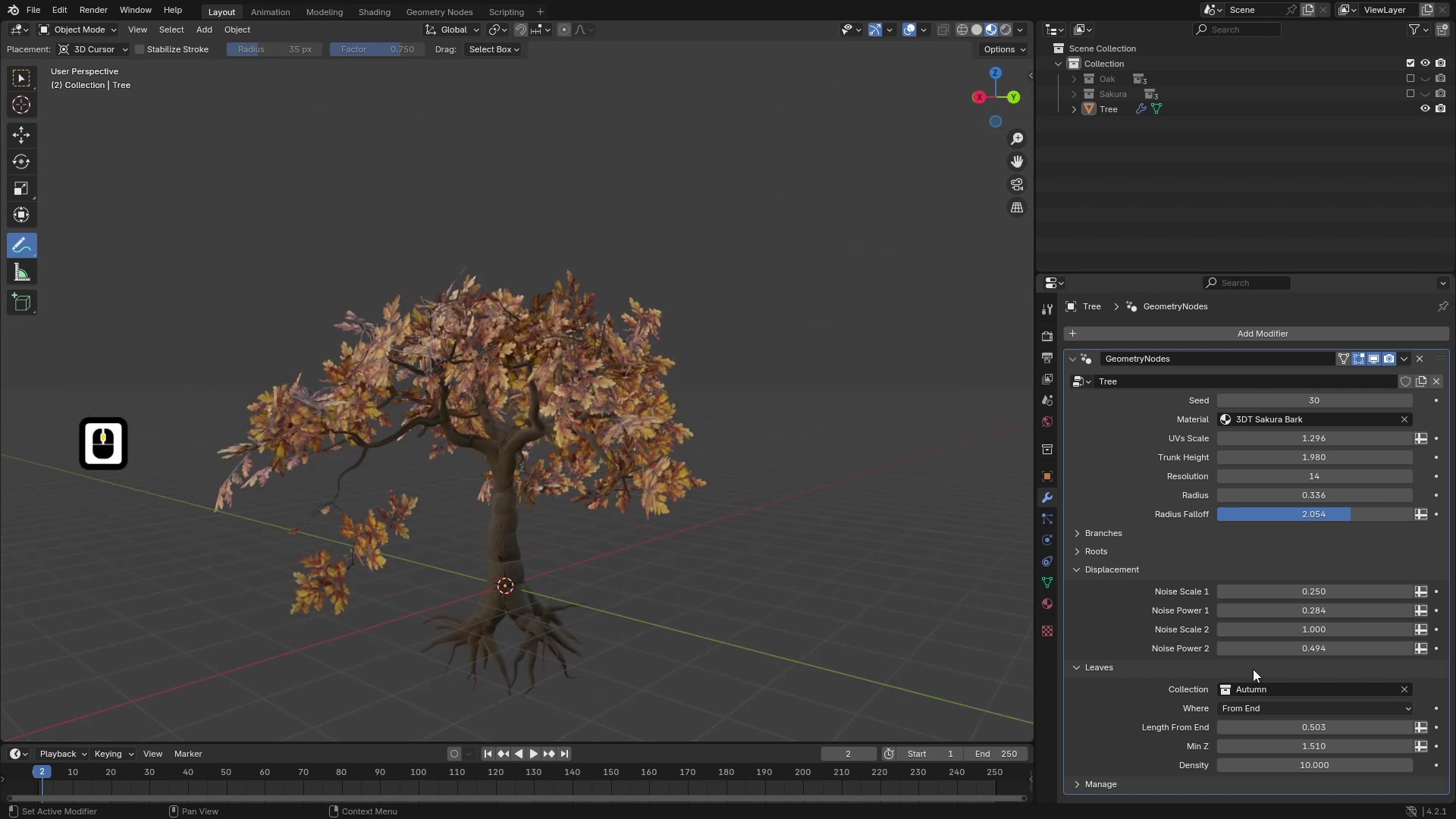
how straight or how quigly your tree is. The next one are trees. So here, we can control the trees. You can select collection
of the leaves. So we can easily
swap between those. We can also control density, and we can pick from three options where we
want the leaves to grow. So there are three options. One is branches. That means that leaves are all
over the branches. The second one is from end, which basically
distributes the leaves only at the ends
of the branches, and we can also control the length of the segments on
which they are distributed. And the last option is
minimal Z position, which basically
distributes leaves everywhere where the position
is higher than some value. So if we said this to three, you can see that here
we have level three and where the
position is greater, the leaves are distributed. The last two things are
scale and scale randomness, so you can also control how scaled the
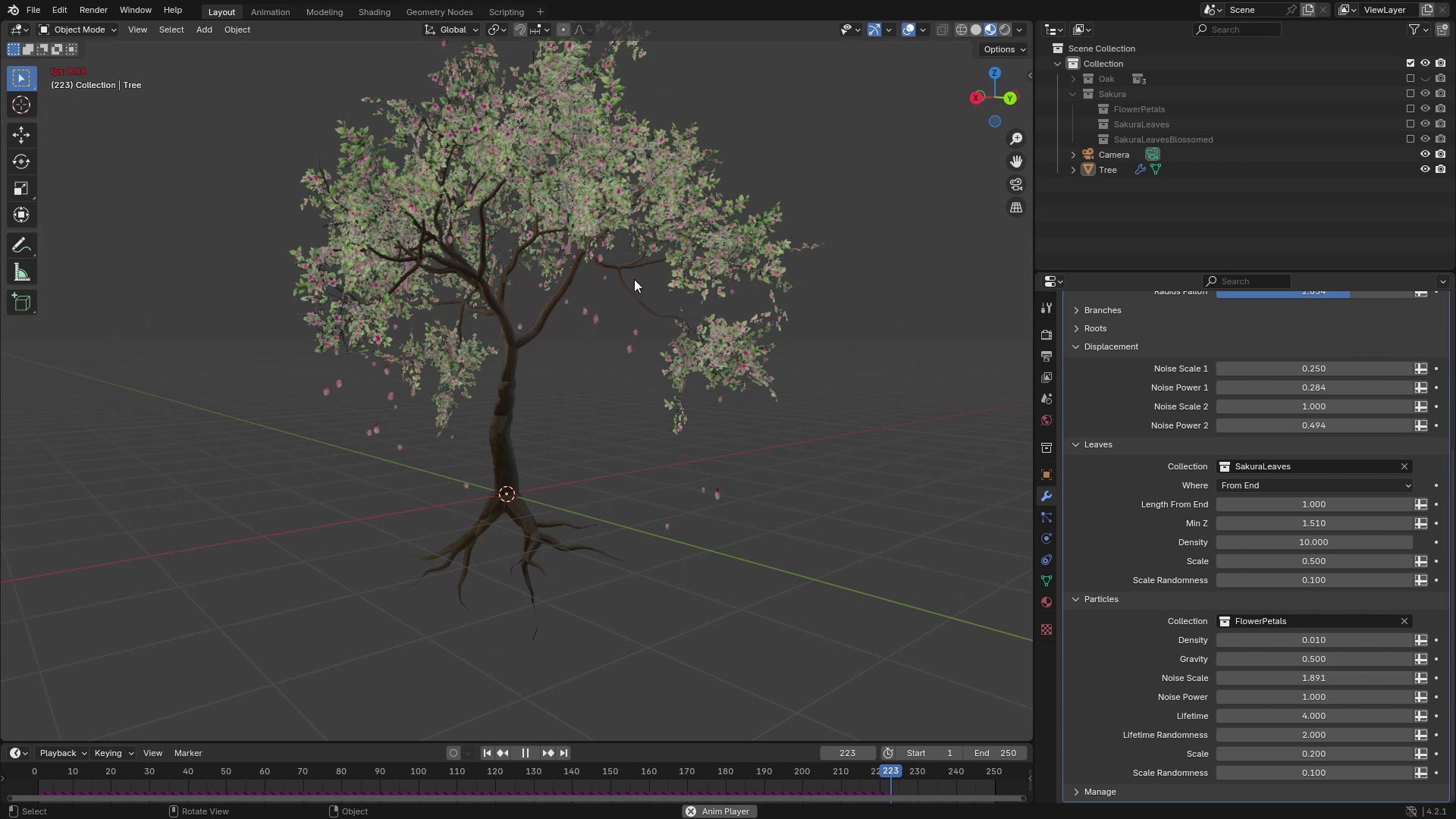
original objects are. And the last panel which we
have here are particles, and you can see it here. Those are the small
leaves which you can see, and you can control
their density, also physics, so we can control the gravity and some noise which is applied
to their movement, and also how long they live. And same as for the leaves, we have collection for input
objects and their scale. You can see that if we
play the simulation, you can see that the leaves start falling from the leaves, and it creates a
really nice effect.
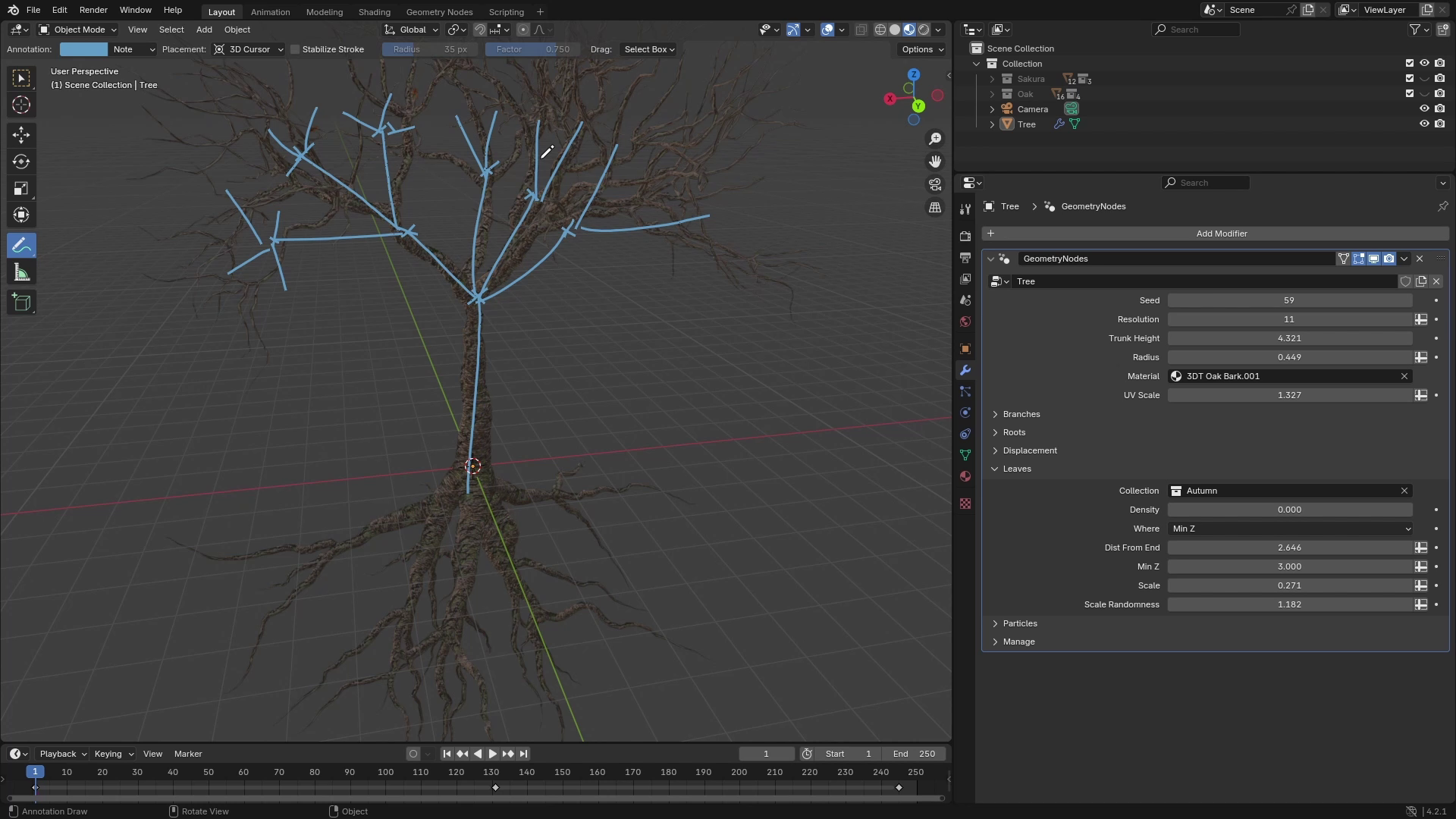
3. Branch Generator Intro: Welcome back to three D trees with blender geometry nodes. In this lesson, I'll explain the techniques which we'll
be using for generating the branch system and how we'll be able to control it with
different perimeters. First, I'll just set
density of leaves to zero so we can better
see the branch system. And as you can see, we can simplify the
structure to just lines. So for example, one
main line is the trunk, then there are for branches
to which it splits, and then it basically does the same thing at the
ends of these branches. So the setup which we will be making will have one
input for the geometry. So in this case,
when we have trunk, we will give this trunk
to this node group, and we will also
give it a selection from which we want
the branches to grow. So I'll selected
with this cross. And what the setup will do
is it will just generate branches like this
depending on the inputs. So we'll be able to control
to how many branches it splits and also how long and
angled these branches are. And the output of this node
group will be those branches. And also with selections, which will select
those endpoints. And then we will use
recursive approach or something very
similar to recursion, and that we will again use this setup after this
first iteration, and this set up will again create some more
branches like this. And if we iterate this, for example, three
or four times, we should get a
nice branch system, which we will use as a basic structure for our
geometry nodes modifier. Later in this course,
we will also need some attributes for information
about the branches. The two main attributes
which you'll need is length, and the length will
tell us how far each point of the branch
is from the roots. So here at the bottom, zero. Here in this section, it's,
let's say, for example, two, here it's free everywhere, and here at the ends,
it can be like 3.5. With this attribute,
we'll be able to control the radius of the branches and also get
nice UV maps for them. And the second perimeter
will be length from end. And this perimeter will be
almost the same as the length, but it will go in
different direction or in the opposite direction. So at the ends of the branches, it will be all zeros. And then as we go towards
the roots, it will increase. So 0.5 will be here, 1.5 here, 2.5 here, and 3.5 in the roots. With this second attribute, we'll be able to, for example, distribute leaves from ends as I showed in previous lesson, and we will just separate those branches where the length from end is less
than some value, and then we can distribute easily leaves on these branches.
4. Split Ends: Welcome back to three D trees with Blender Geometri nodes. In this lesson, we
will start working on the foundation of our
geometro nodes modifier, and we'll be working on
branch system node group, which will help us create
the basic branch structure. So here I have a
fresh blender scene, and I'll start by deleting
everything in the scene. And I'll add, for example, simple plane because we won't be using the
original geometry, so you can add
whatever you want. Then I'll go to modifiers
and add a new modifier, which will be geometry nodes. I'll hit new and call this geometry node setup,
for example, three. And now we can start
working on the setup. So let's go to Geomet
nodes workspace, and we can start by deleting the group input because we
won't need this object. The plan for the
branches is that first, we will create a basic tree
structure from curve lines, so it will look
something like this. And then we will convert these curves to mesh
using curve to mesh node. So the basic line or the basic curve line
will be the trunk. So let's add a curve line and this curve line
has two inputs. It has start and end. We can leave start as it is because we want it
to start at 00, and the end will control basically the
height of the trunk. So if we take a look
at the trunk now, you can see that its
length is controlled by this Z value of
the end vector. So we can separate those
values by using Combine XYZ, and now we can control
this Z value individually. For the tranghd, we can
add a new group input. So let's hit N to bring
up this site menu. And I'll click this plus
icon to add a new input, which I'll call Trangight we can set the default value to, for example, three
and minimum to zero. Now to connect this, we
can bring up group input, and we will connect this
trunk height to the Z value. You can see that it's zero, so I'll go back to group
input to modifier, and now you can see
that we can control the height of the curve
line with this input. There's also this
little warning, and that's because the input
geometry must be at the top, so I'll just move it at the top, and now we should be fine. So now we are basically
done with the trunk for now and we can just select
all of these nodes, hit Control J to
bring up the frame, and I'll call this
frame a trunk. Now let's start with
the node group, which will split a point
into more branches. So let's create a
new node group. I'll do it by creating a re
route to this connection, so I'll hold shift right click and drag
over this selection. By the way, if you are not
using a node wrangular add on, I really recommend it
because it will speed up your workflow in geometry nodes and also the shading nodes. So again, we can do Shift
right mouse button and drag, and we can get this readout. And now, if you have
this reroute selected, you can press Control G
to create a node group. Now if we hit tab, we are outside of
this node group, and you can see that it just has one input and one curve output. I will rename this to split ends because it will split end
points of the curves. And to go back to
this node group, we can again hit tab and
we are inside Node group. This node group will
have few inputs. First of them is the geometry, which we already have here, but I'll rename it to geometry. The second one
will be selection, which will select
the points on which we want new branches to grow. So I'll get a new input
and call it selection. Type of it will be bullying. And the last for
now will be count, which will be a number of branches which you
want to generate. So let's add a new input, which will be count, type can be integer, and we can set default to, for example, three
and minimum to zero. Now if we go out of this
node group by using tab, we will input some basic
data to this node group. So first, we will, for example, want to
create three branches. So let's add count to three. And for the selection,
we only want to grow these branches
from this endpoint. So usually the curve line has only two points where the start has index of zero and the
end has index of one. So we can just use the index
value and where it's equal, so we'll add equal to one. This should select
only this endpoint. We can check it with a viewer, so control shift and
leftmost button click. This will bring up the viewer, and now we can drag this
bullying value to it. And here you can see
that this bottom is black and the
top one is white. The second method is to check
it with attribute text. So here at the top, you
can select attribute text, and you can see that here
is one and here is zero. So now we have selection done, and let's go back
to the node group. We will start by generating
a basic branches. So let's add a curve line
which will create a branches. And this curve line can be, for example, just 1 meter long. We want to duplicate
this curve line depending on this count input, and we can do it, for
example, by creating points. So let's add points, and we will create as many
points as we want branches. So I'll plug this
count into this count. And now you can see that
we have three points here. Now to replace the
points with the curves, we can use instance on points. And the input points will be
the free points in our case, and the instance
which we want to replace points with
is the curve line. Now, if we view this
instances output, you can see that we
have three instances. But here in the viewport, you can see that there
is still only one line, and that's because they are
overlapping each other. So to differentiate
between them a little bit, I will first move them on the x axis so they are
angled a little bit. And I will also play
around with this rotation. So we will rotate it around Z axis depending on their index. So they will be nicely
distributed around the Z axis. To do this, I'll add
combine XYZ because we only want to control the Z
value of this rotation. I'll plug this
vector to rotation. Now if we play around
with the Z value, you can see that it's
rotating around the Z axis. We want different
value for each curve, and to differentiate
between the curves, we can use index input. So let's add index. And if we plug this index
right into the Z axis, you can see that
it does something, and that's because
for the first line, the input is zero,
for the second line, the input, sorry,
the index is one, and for the third line,
the index is two. We want to distribute
those lines evenly in circle, for
example, like this. So when we have three curves, we want them to be like this. So between them, it's
angle 120 degrees. And to calculate this angle, we can just take
a full rotation, which is 360 and divide it by number of branches.
So let's do that. I'll duplicate this group
input and add a meth node. And because we are
using radians here, we will need to use two Pi
instead of 360 degrees. So we will be dividing
two times Pi, which is 6.28 by the
number of branches. And this will give us the
angle between each branch. And to distribute them nicely, we can multiply the index
by this offset angle. So let's add a multiply and plug it into the Z coordinate. Now you can see that
the branches are nicely rotated along the Z axis, and they are nicely
distributed around the circle. If we go out of this node
group and increase discount, you can see that
it works nicely. Let's replace the old approach to rotation with something
a little bit better. So I'll set this
curve line 0.2 001. Now they are again overlapping. But now if we play around with the rotation on the Y axis, you can see that they are
rotating nicely and we can control the angle between
branches and the Z axis. So we are basically controlling this angle
with this value. We want to control this
value from outside. So to add a new input, we can take this empty socket
and plug it into Y axis, and I'll bring up the site
menu and rename it to angle. We can also set
sub type to angle, so the unit in the
modifier is in degrees, and the default value
can be something like 0.5 or something close to it. Now, if we go back
from the node group, you can see that we
can control the angle in degrees and also the count. So the next thing you
would probably want to control is the length
of these branches. But we'll actually do this later because now we should
actually distribute those branches on the source points to see how it
actually looks like. So let's use this
source geometry. And we will use those instances again and instance them
on the selected points. So we can actually duplicate
this instance on points, and we want to instance on source geometry only where
the selection is selected. So let's also plug the
selection into it. And as a instances, we want to use this structure which we built from
the curve lines. So I'll also plug the
instances into this one. And now if I zoom
out a little bit, you can see that we have
some branches here. And if I go to main
geometry node group, you can see that we have
the trunk and the sorry, and the first level of branches. And now what we also need is to output the endpoints of
these branches because we will want to use the
split ends again like this and just reuse this
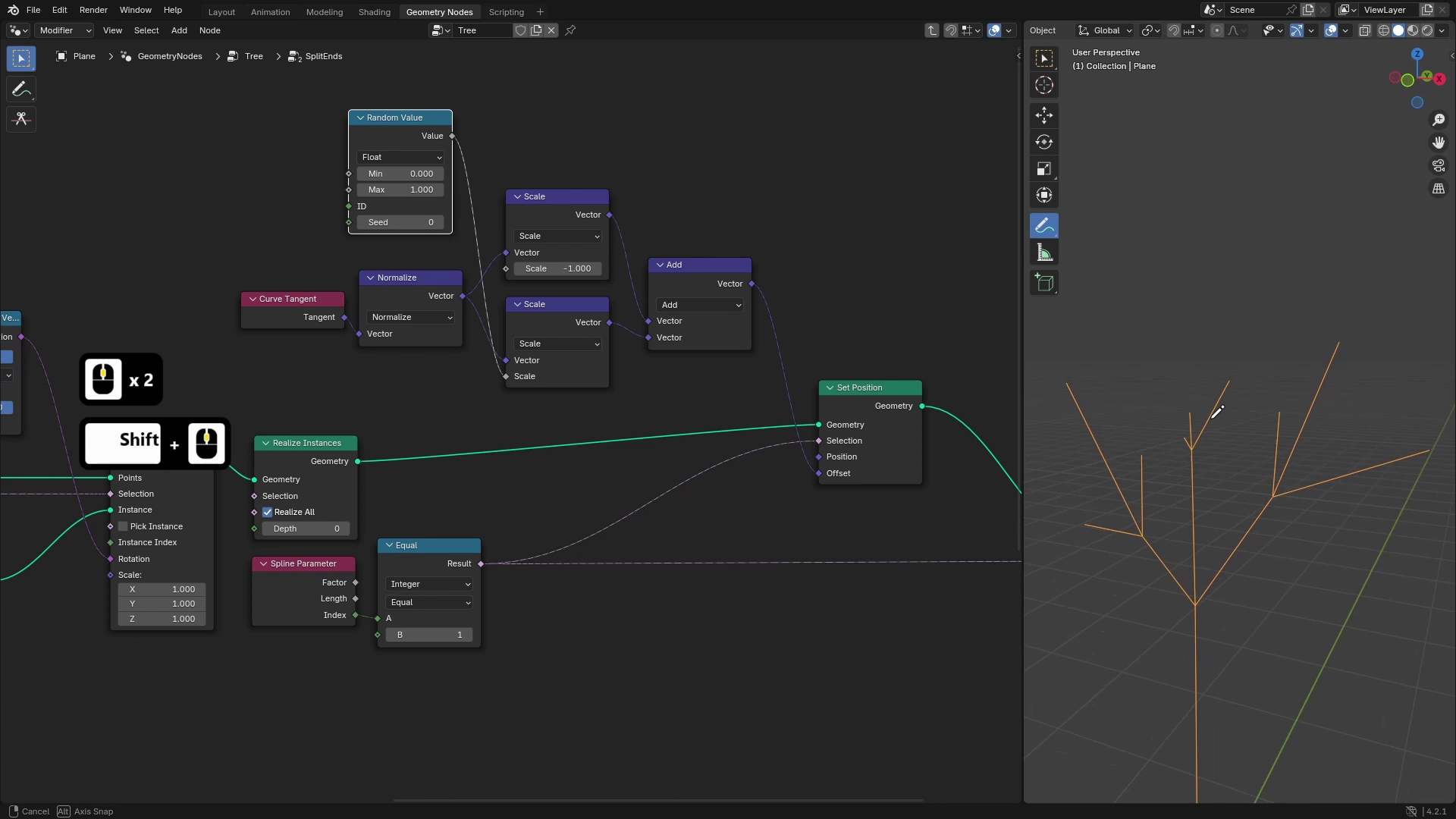
geometry as a new source points. So to get the selection, we can first just realize
all of those instances, and then those are
again, the curve lines, so we can just take
the points where index is one and use this
as a selection. To get the index of each
point inside the curve, we will want to use
a spline perimeter, which will give
us index in them. If we use the viewer, you can see that
all of the ends of the points have one and the
source points have zero. If we would use a index, we would get different
values because this index is across all of
those splines or curves, and that's not what we want. So we'll just use this
pline perimeter index. To make a selection,
we can just use a equal and where
it's equal to one, this will be our selection. We can plug this result
into the group output and rename it to selection.
5. Branch System Basics: Hi, and welcome back to three D trees with
Blender geometon rods. Now, if we go out
of this split ends, we can duplicate
this node group and connect these output
curves and selection. And now you can see that this created a second level
of the branches. If we use joint geometry and join all of these
parts together, you will see that we have a
very basic tree structure, which looks pretty cool, but there are still
many things which we need to add to the split ends. So first of it, you can see that those branches should be
aligned to this curve, so it should look
something like this, and they shouldn't be
straight towards the Z axis, but they should be aligned
to the source curve. So to do this, we can
go to split ends, and we'll be controlling the rotation of those
curve line chunks. And to get the right rotation, we basically want to align those to the tangent
of the source curves. If we look at this
from the side. So for example, this step, this is the source curve, and its tangent is vector
pointing in this direction. And we want to
align the Z axis of this group of curves
to this curve tangent, so it will look
something like this. For this alignment, we can
use align rotation to vector, which does exactly
what I drew here. And we want to align Z axis, so that's here selected
to this vector. This vector will be
the curve tangent, so let's bring up
the curve tangent. And this should give
us the right rotation. So let's plug this rotation
into this rotation. And now you can see that
the branches are correctly rotated along the tangents
of the source curves. Now when we have this done, we can actually add
a length input, which will control the
lengths of those branches. So let's bring up the site
menu and add a new input, which we will call length. And the default value can
be, for example, one. First location where you can control the
length of the curves is this one because here we
control the basic curve line, and we can just basically
control the length of these. The problem with
this one is that all of the curves would
have same length, and we want to have some variations and
randomness in our tree, and this wouldn't
look really natural, so we will avoid this one. The second place where we can control this is
basically the scale. So if I play around
with those values, we can also control length
of the curves here. And we can even input different values
for different lines, as you can see here
is rectangular input, which means there are fields, and we can input a different
value for each of them. But if I now at a random value
here, and something 1-2. I'm not sure if it will
be really visible, but if we maybe decrease
the count to three. Yeah, in this one, you
can see it nicely. You can see that it almost
looks like it works, but those parts here at the second level
are all the same, and they are just
differently rotated. Want to have as many
random things as we can. So to make this
even more random, we will use a
different approach. You can see that
those parts here, here and here, those
are the shortest parts, and they are all the same. So to make this
even more random, we will do it after
realizing the instances and we will move the endpoints
of the curves randomly. You can stick to
this solution here, but I'll show you even better solution which
will give us more randomness. So let's delete this one
at scale back to one. And now the thing we will do is we will take the endpoints of these curves and move them
randomly along their tangent. To do this, let's add
a set position note. And we will be only moving the endpoints so we can
actually use this selection. So let's plug this
into selection. And now if I move it, for example, on Xxs, you can see that it's
moving all of the branches, which means that we can control those endpoints separately. The way we will randomize
this is that we will get a tangent of each branch and then just randomize it in
some range to make it nicer. So first, now we know that those points are 1 meter
from their source. So this is one because this
end point is on Z axis one. So first, let's
reset those points back to those source points and then pick random value in the direction of curve tangent
to displace them back. So let's add a curve tangent. And first, we can
normalize this, even though this is probably normalized, we'll normalize it. And then if we scale this
and plug it into offset, you'll see that we can control
length of these curves. If we set it to zero, they have same length as before. If we set it to negative one, you can see that they all
collapse into one point. Now, if we add value
to this vector, we can control the length of
it using the same technique. So let's duplicate
the scale value and add it to this original. And we'll plug this
result into the offset. Now if we set it to zero, you can see that all of the
branches have length zero. And as I increase it,
for example, to one, they are back to the
original position, but now the controls
make actually sense. So when it's one,
their length is one, and when I set it to two,
their length is two. The nice thing is that there
is rectangular control. So there are fields and we can control each branch separately. So if I now plug a random
value into this one like this, you will see that those branches have different values
or different lengths. You can see that
there's this short one and you can't find this short
one in the different parts, so you can see that
it's truly random. So now to control this input, we can just use the
length input which we created and connect it to scale. By default, you can
see that it's zero, but now we can control
those lengths. And from here, we are
also able to plug a random value into it and you can see that it works
for all curves separately. The last thing which
you would like to add to this node group is to randomize a little bit this distribution in circle
because in some cases, this doesn't look real good. For example, if
there are only two, you can see that it's
straight like this, it's straight, and we want to randomize
this a little bit. So let's go to split
and node group, and we control this
rotation on Z axis here, this combine XYZ
in this Z socit. To randomize it a little bit, we will add a value to this. So let's add a add node, and we will be adding
to the original value. Now if I plug it into Z axis, you can see that
we can basically control the rotation here. We want the rotation to be
different for each curve. So we'll use a random value. And if I plug it here,
we want this to be, for example, between negative
one and positive one. And we also want different
seat for each of them. So as a seat, we
can, for example, use index of these,
and now you can see that they are different. In some cases, what
could happen is that all of the branches would
be at the same position. So let's say we have
three branches like this, and they can rotate like in
this direction and direction. So this could end up
something like this. So the way to remove
this one is that we will limit this
randomness in some parts. So basically, we will limit
this branch in this part, this branch in this part, and this brand is this third part. So the values we want to
input to the random value are basically the offset
angle divided by two. So this will give us this angle, and we will just multiply it by negative and positive one, and this will give us the range. So this division here
gives us this whole angle, and we will first divide it
by two to get half of it, and then we can multiply it
by positive and negative 0.5, which should give us
those limiting values. Now, if we plug
those values into minimum and maximum
of this randomness, you'll see that it works nicely. And we can also
increase the count. And if we look from
the top, you can see they are nicely randomized. To make this a little bit
more narrow, for example, we can even divide it by three
to get more narrow limits, and I think I'll leave it on freeze so they can be
touching each other. All right, the last part is that we'll be adding a seed
to this node group because we want to be able to control set of all of
these random values. So let's add a new input
and connect it to this ID. And I'll just add read out here, and we will rename
this ID to seat. Let's also not hide this value, so uncheck this height value because that's by
default for the ID. And now we can control
it from outside, so you can see that we can
control the randomness of the rotation on first level
and also the second level. To test this, let's also
at the third level. I'll again, use the previous
curves and selection, and I'll join it into the spin and we can make
this a little shorter. You can see that we have now a pretty interesting structure, which looks a little
bit like tree. But in the next lessons, we'll add more details, which will make
this even better.
6. Advanced Branch System: Welcome back to free D trees
with blender geometry nodes. In this lesson, we will
continue working on our branch system,
and specifically, we will create a new node
group which will combine those split ends and create
a complete branch system. So first, let's delete those nodes because we
won't need them anymore, and we will create
a new node group. So I'll just connect this
curve to output geometry at a rearut and with
selected rear out, I'll hit Control G to
create a new node group. I'll call this node
group a branch system. So how this branch
system node group will work is that it will
have a few inputs. One of them will be selection, which will be the point from which we want to
grow the branches. So let's say this is the trunk
and this is the selection, and then we will plug
it into Branch system. Input which will be in branch
system is number of levels. So that is number of
levels of branches. So for example, this is how two levels of
branches look like, and if we add one more, this is three levels. So we'll be able to control
how many levels there are. And later we will also add
some kind of randomization. So there will be length of first branches
and last branches, and it will interpate
between those values and also how much the
branches will split. So there will be minimal
and maximal number of branches which will be generated on each
so let's go into branch system node group
and add some of the inputs. First one will be selection. So I'll add a new bullying
input and call it selection. And the next important
one is number of levels. So let's add a new input. This one will be integer, and we can call it levels. I think this is
fine for now and we can start working
on overall setup. So let's add our split
ends node group, which will be the base
of this node group. And basically how
this will work is that we will use a repeat zone, which will have split
ends inside of it, and the repeat zone will iterate depending on number of levels which we input to
this node group. And after all of
those iterations, it will create a
final branch system. So let's add a repeat zone. And number of iterations
will be levels, so we can plug levels
into iterations, and output geometry
will come from the stripe zone so we can
plug this into output. The starting geometry will be the trunk which we input
to this node group, so we can also plug the
geometry into this geometry. And on each iteration, we will use this geometry, so we can plug this
into split ends. We've given selection and join it with the
previous geometry. So let's add chin geometry, and we will join it into the
source geometry, basically. And we also need to
store the selection. So let's plug this selection
into this empty socket, which will create a new
socket here with selection, and we will use this one as a selection for next iteration. So for the first iteration, this will be selection
from group input. But later in next iterations, we want to use selection
from those new branches. So we'll plug this
into the output. Now if we go outside of this node group and
increase number of levels, you can see that
it starts growing. I'll also play around
with the count, and you can see
that we can control how many levels of
branches there are. If we now check how many
curves there actually are, you can see there
are 16 splines, but that doesn't correspond with what we see because
if we count this, we have one trunk,
three branches, and each of them has three
second level branches, which should add up to
13, but we have 16. The problem here is
that this selection doesn't delete the
previous selection. So to actually fix
this selection, we will create a new
named attribute, and that will tell
us which points we want to expand in
next iteration. And for old geometry, we will set it to falls, and for new geometry, we will
set it to the selection. So let's add a store
named attribute. And we can call it
as for selection, the type will be Bolin, and for all of those branches from previous
levels, this will be false. So we'll leave this on falls. And if we duplicate this and plug it into those split ends, we'll plug selection
to the value. And now for the selection
in next iteration, we can use this named attribute called S and plug it
into the selection. Now if we increase
the levels to two, you can see that we only
have 13 splines down instead of 16. So
that's working nicely. And now we can start
working on connecting those inputs from split
ends to this group input. So the next input of the
split ends is count, and we actually
want to randomize this input because we don't
want it to be constant, but we want some
variations here. So, for example, the first level would
split into three branches, then four and then only two
or something like that. So to do that, we will add a random value The type of this random value will be integers because count
is also integer, and we'll plug those minimum and maximum values
into group inputs. So we can use this empty
gray circuit to connect it, and this output value will
be plugged into count. You can see that now
this connection is red, but we can fix this we can add a new variable
into this repeat zone, which will tell us in which
iteration we will be. And if we plug this
iteration into ID or C, this will converge to constant
and not a field value, and this shouldn't
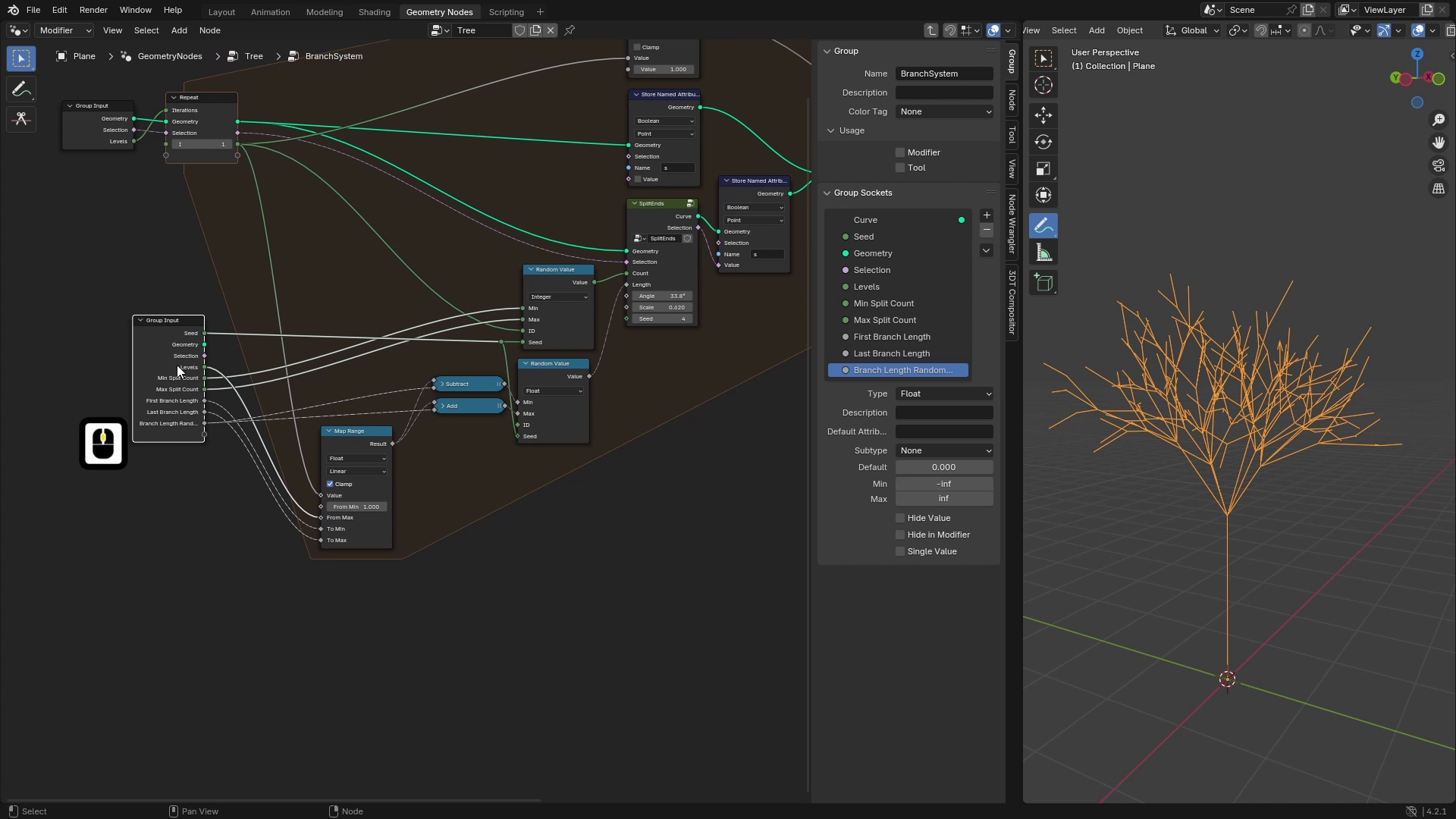
be read anymore. So we've selected repeat zone, hit N, and go to node, and we will add a new input, which I'll call I as iteration
and set type two integer. And at the start, we want
it to be, for example, zero, and then in
each iteration, we want to increase this by one. So let's add at math we will add one to it and store it
for the next iteration. Now this will be incrementing
every iteration. So that means it will
be different for each iteration,
and we can use it, for example, for ID, and now you can see that the value
isn't filled anymore. And that created
something strange, but that's because the minimum is zero and maximum is 100. If we change this to let's say, two to five, you can see
that on first iteration, this split it to five branches and on the next one only 23. We also want to be able
to control the seed. So let's also connect the
seed to the group input. And I'll just rename
those Min and max to Min split count and
max split count. And also move set to the top of the group input as always. So now the number of levels is randomized and the
next input is length. Further length, we will also
create some randomization, so we can duplicate
this random value and set it to float. And if we now plug this random
value into this length, you will see that each of the branches have
different length, and that's what we exactly want. For the sad, we can plug the
seat from group input to this seed and we can leave ID as it is
because by default, it picks index, which is
fine for this purpose. For the min and max values, there are few options
how we can control this. And one thing I would like
to do is I want to make this dependent on the current level of iteration on which we are. So we'll be able to
create, for example, long branches in first level and then shorter branches
on the last level. And we will also want to
randomize these a little bit, so we will add some
kind of randomness. So let's add a first input, which will be first
branch length, which will set a length of
branches on first level, and we can set default to
one and minimum to zero. And I'll duplicate
this and rename this to last branch length, which will control the length of last branches or
basically branches in last level and set it, for example, to 0.5. The last input for
the branches will be branch length randomness, so let's add that as well. And we can leave those
default values as they are. So now to calculate length
of branch on each level, we will use a map
wrench and also this I value which we used for
ID for the randomization. So let's add a map wrench. And we will be remapping
this I because it's going from zero to number
of levels minus one. Or in this case, we
can actually increase it to the starting value to one, and now this will go from
one to number of levels. And now we can just
remap this I value with map wrench from one
to number of levels. And the range to which we
want to remap this will be from first branch length
to last branch length. This means that
when the I is one, which means we are
on the first level, the output of this map branch will be first branch length. And if we are on the last level, which is where the I is levels, the length of branches will
be last branch length. We will use this value
for the randomization, and the way we will randomize
this is that we will add a random value to
this base length in range of minus randomness
and plus randomness. Basically, if I visualize this, let's say here is this map range value and we will randomize it in a range where
this is L minus randomness, and this is L plus randomness. So if the R is something small, it will be in a small
range between the L, and if it's larger, it
will have more variations. So that means that the minimum
of this random value will be this map ranch minus
branch line randomness. So let's subtract this
from the map ranch. And the maximum will be map
wrench plus randomness, so I can duplicate this with Control Shi D and just
change type to addition. Now, if we plug
those to minimum and maximum and go outside, you can see that we can control the levels depending
on their level. And if I increase the levels, you will see that if I
change first branch length, it's only changing
the first level and also the other ones, but the biggest change
is on the first level, and we can also control the last branch length as
well as branch randomness. Right, so now I think
the branch system is ready for the next usage. We can also play around
with the inputs, and you can see that
it's generating pretty nice three structures. And the last thing which we can do is we can connect
those inputs to the main group input
and also create a panel which will
control the branches. So let's add a new panel.
I'll collate branches. And now I will bring
up a group input, and as always, use this empty socket to
create those new inputs. And because if we connect
this to the socket, it will use the current
value as a default. So I'll just set some
nice default values here. So something like
this. And now I will create all of those inputs in the group input by just dragging this empty
circuit into all of them. When all of the
inputs are created, I'll just move them
into dright panel, which is the branches panel. And I'll also move
seed to the top of the inputs and hide those
on sockets with Control H, for example, now it's
looking pretty good. One more thing which we might do is clean up this
tree a little bit. So I'll just use
different group input. So this isn't that messy. And just reconnect those inputs to their own group inputs. Now, when everything
is finished, we can go to modifier step, and you can play around with this basic tree structure
with all of those inputs. One last thing which
I forgot to add is controlling the angle because
we forget to this one. And with this angle,
we want to control, actually, how spread the
overall branch system is. So let's also quickly add a new inputs for these for this, we will just pick a base angle
and then the randomness, and it will work the same
way as the branch length, but just with one basic angle. So let's add first
input to angle and second one to
angle randomness. I'll duplicate this group input, and we'll use the same
technique as here. So I'll just use
this random value, use this one, this sat, and we'll just add and
subtract the randomness from basic value like this and plug it into
minimum and maximum values. This will generate
the random angle, and we can plug it
into the angle. You can see that
now it's all flat, but that's because those
inputs are set to zero, so I'll just increase
it a little bit. And we can also set
the sub type of these two angle so
they are in degrees. The last thing
which we should do is connect this seed
to our global seed. So I'll just connect seed from
group input to split ends. And to finish it,
we will connect those two inputs to the
global group input, again, with this gray, sock it and move them
into branches panel.
7. Internal Data: Hello, and welcome back to free D trees with
blender geometon nodes. In this lesson,
we will implement internal data which we will
be using for distributing our leaves and also fingering out radius of each
branch for each point. I have already explained those data in
introduction to branches, but I'll shortly
go through them. Both of those will be attributes which will be stored
for each point, and first of them is length. Which at the start
of the root is zero, and then it increases depending on how far
from the root we are. So, for example, it can
look something like this. And then we will also implement the inversion of this
or opposite version, which will be called
length from end. And this one will be the same, but in the opposite direction. So at the ends of the
branches, this will be zero. And as we get
closer to the root, the value will be increasing. The length from end
will be used for distributing the leaves at
the ends of the branches. So for example, we can set the value to
zero point or 1.5, which can be somewhere
here, and the leaves will be only distributed
at these branches. And the basic length
will be used for calculating the radius
of the branch mesh. Alright, so let's get
into geometry nodes, and we'll be implementing both of those inside
branch system. So let's go to branch system. And the first one which
we want to use is the length because that one
will be a little bit simpler. So we'll be storing
those attributes. So first one, we can actually store some basic
length for the trunk. So I'll add Sterne attribute. It will be float for each point, so the default values are fine, and the name will be length. For this one, we will
use a spline perimeter, which will give us
length of each point. And if we visualize this, you can see that it's zero at the bottom
and two at the top. Now if we go to branch system, the way this will work is that, for example, in
this first level, I'll just decrease this. In this first level, this
source point has length of two. For all of those points, we will add a length
to this basic value, and this will give
us, for example, if this curve has length of one, it will create three
at this point. So the length will be
implemented inside the split ends because
we can do it here. So I'll go to split ends
and we will be storing here at the end after displacing the end points
depending on the length. So I'll add a store
named attribute, set name to length. And the length will be the current length of the curve plus the length
of the source point. So we'll add a
value to this one, and the value which we will use is the length of
the source point. So we will capture it before
instancing the curve on it. So let's add capture attribute. And we will be
capturing the length. So let's also add named
attribute, length. We will capture it like this, and then we will plug this
value into this addition, which means that, for example, if this point has two, this curve has length 0-1, those values will add together, and we will get two here at the bottom and three
here at the top. So if we store this
into named attribute, we can now visualize this at
the end of this repeat zone, so I'll bring up
named attribute. And now you can see that those points have a
little different values. Maybe I'll visualize this at the end of this branch system
that will be the best. And we can also
increase number of levels and make the
branches more visible. Now if we visualize this, you can see that
this source point has attribute length zero, then this value is
somewhere around three. And there's 3.7, 4.7. All right, I think I made a little mistake
inside the split ends. Here in the addition,
there must be this spline perimeter
and the spine length, which I used before because this spine length will give us only the length of the curve, but we want length
on each point. So we need to use
this spin perimeter. And now if we visualize
those values, with the greater
then, for example, so I'll at greater then and
disable this attribute text. You can see that as I
increase this value, all of the branches get black, and to make this
even more visible, we can resample those
curves to more points, and now you will see
this nice border between black and white, which is going
along the branches. So that's for the length. Now we want the
opposite attribute which is length from end. This one will be a
little bit trickier, and that's because
the way we build the branch system
is that we start from the trunk and
then continue to ends. But the best scenario
would be that we would start from the ends
and then go to start, but that's a little that
will be very complicated. So we need to
figure out a way to calculate the length
from the ends. The way we will calculate
this is that for the trunk, we will store the length
in opposite direction, so length from end. So at the top, it will be
zero, and at the bottom, it's two because this
one will be the end. And here at the bottom, the length from end is two. And then on each iteration, we will take the length
of the next branch. So let's say this one is one and add it to
all of those points. So this one will be zero
plus one and two plus one. And for this curve, we will again store the inverted
length from end. So here will be zero, and here will be one, which corresponds to this one. Now, if we do this for
each level, again, this one has one and we will edit at this length to all
of the previous points. So this one will be two. This one will be one, and this is two plus one plus
one, which is four. And you can see that
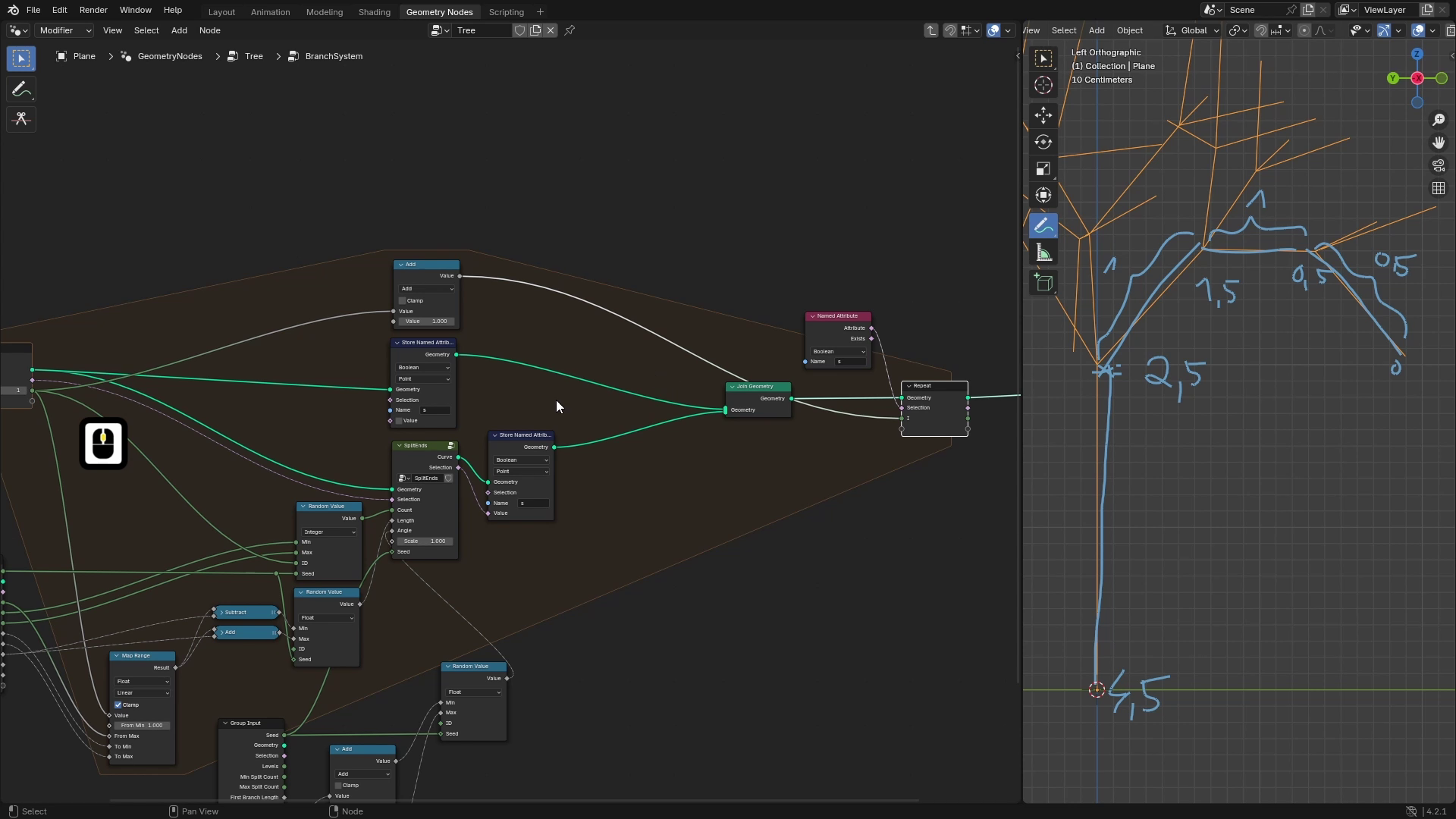
this in each level, it builds up the
distance from end. And let's say this is 0.5, it'll be zero, 0.5,
one plus five, 2.5 and 4.5 and you can
see that at the end, we should have this value which corresponds
to length from end. We will also implement
this inside branch system, but we won't go into split ends, but we also stay here
in the repeat zone. And as before, we
will first start by storing this attribute
for the main trunk. So let's use another
named attribute, but we'll call this
one length from end. And this one will
be inverted length. So to get the inverted length, we can take the
overall length of this curve and then subtract
this perimeter from it. So let's also at sorry, spine length, which will give
us the length of the curve. You will subtract this
length perimeter, which is going from
zero to length for each point and start for
the length from end. If we visualize this value, you can see that it's
zero here at the top and two here at the bottom. Now in branch system, we'll do exactly what I
explained here. So for those new curves, we will just store
the inverted length. So I'll again, use this
surnamed attribute, set it to length from end. The type will be flowed, and we will use the same
value as we used here. So we will take a spline length and subtract
the spline perimeter Like this. This will again give us the
inverted length factor, and we'll store in
length from end. And for all of the previous
levels which is this socket, we will add a maximum length of these nu curves to
their length from end. So I'll duplicate this one and we will take their
previous length from end, which we'll take with
named attribute and add a length of these
curves to this length. The problem here is that those new curves might
have different lengths, and there isn't really a way to get each different length
to the previous levels. Let's say we have
the strunk and then it generates two branches. One is shorter and
one is longer. So this previous level has, let's say, here is
one and here is zero, and we can't figure out the length in this point
because from this point, it's I don't know, let's say, 0.2, but from this end, it can be like one. So we don't know which
value we want here. And in my opinion, the best thing to do is we can add or we can add the maximum
length of these curves. So because this is 0.2
and this one is one, we'll use this curve which means that this point
will have distance one, and this will have one
plus one, which is two. So to get this maximum length, we can just take this geometry and use attribute statistics. And we will want the maximum
length of the curves. So the domain in which
we'll select will be spine, and the attribute
we want to use is this length from spine length. So I'll duplicate
it and plug it into attribute and make
some space here. And basically, we'll just take this maximum and add it
to the previous length from end like this and store
it into length from end. So to sum it up,
for the new curves, we will store the
inverted length factor, and for the old curves, we will just add
a maximum length of these new curves to their
previous length from end. Now, if we visualize this here, I'll again use named
attribute length from end. It's here. And we can again use the greater
then because with that, we can nicely visualize this. And as I increase this, you can see that this
value nicely goes from the ends of the
branches to the root. You can see that if it's zero, all of them are white,
and as I increase it, the ends are black, and it's going towards the root.
8. Roots: Welcome back to free D trees
with Blender geometry rods. In this lesson, we'll continue working on our tree structure. Specifically, we'll be
working on the roots. If you try drawing
roots to our tree, so something like this, notice that this shape down here is very similar
to this up here. And that's exactly what we
will use because we will reuse our branch system node group to create the roots
with same technique. So let's go to Geometri nodes, and here we can see
that in this part, we are creating
our branch system, and we will add the same
thing, but for the roots. So for that, we can duplicate this branch system node group. And if we take a
look at our trunk, we will be using
this one as well, but we don't want to grow branches from the top part
but from the bottom part. So let's plug our geometry
to geometry here. And if we now output this branch system,
we can see anything. But if we put our
original selection here, we have a very basic
tree, same as before. First thing we need to
fix is that we want the branches to grow
from the bottom. So instead of point
with index one, which is up here, we want to grow them from point
with index of zero. So we can duplicate
this equal with Control h D and just
change one to zero. And where this is equal to zero, it will create the branches. Now you can see that it
creates the branches, but there is a problem because they are growing in
the wrong direction. We want them to grow
in this direction instead of this direction. To fix that, the
easiest way to do this is to just take the
trunk curve and reverse it, which will reverse the
direction of this curve. So let's add reverse curve
and plug our trunk to it. And if we now plug this
curve into geometry and this selection to the
selection of branch system, you can see that
the branch system created exactly what
we are looking for, and those are the branches
which are growing from the bottom of our trunk. Now what we can
do, we can combine those generated curves
with the branch curves. So I'll just join these
geometries together. You can first just add a joint geometry and
connect them separately and connect them manually or
you can hold Control shift right click and drag over
those two nodes like this, and this will generate
the joint geometry and join both of these
branches together. Now if we output this, you can see that we have
a nice tree structure. The only problem now which
we have in the setup is that this branch system
contains the trunk curve, as well as the root system also contains this trunk curve. So that means that now
here in this section, there are two same curves
which are overlapping. We don't want
something like this, so we need to get rid
of one of those trunks. To get rid of one
of these trunks, we can, for example, store attribute before all
of those node groups for the trunk and then check where this attribute is assigned and we will remove this geometry. So for example, here, we will add a rear route, and we will add a store
named attribute. For example, we can add a Bolin, we can call it, for example, trunk and set it to true. This means that now
the trunk curve has this trunk
attribute assigned. And in the branch
system, we will add this attribute as well, but we will set it to falls. So let's go to branch system. And here where we are joining our new branches to
the whole setup, we will add a store
named attribute, and we will again store the
trunk, but set it to falls. Now if we go outside of this branch system and check
the named attribute trunk, you can see that
this curve is true, but those curves are all false. So we can use that. And for example, I'll delete
this trunk from the roots, but you can delete them
from branches as well, but only from one of these. So let's add delete geometry, and where the trunk is true,
you want to delete it. So I'll use it like this. Now if we view this, you can see that the roots
don't contain the trunk, but those branches contain it. So together, it will give us the whole tree
without any overlapping. Right. So now our curve
system has roots as well, and we want to be able to control all
of these parameters, which we can control
for branches. We want to control them
for roots as well. So for that, we will add
a bunch of group inputs, and we'll be adding them
with this empty sockit. So for the seat, we can use the one existing. So let's plug it into seat. But this will result that those both node groups will
use the same sad, and we might get same
results on them. So let's make it a
little different. For that, we can, for
example, use a MF node. I like to multiply at, and we will multiply
this seed by, for example, 15 and at some
random number, let's say 42. And now this will
probably give us always the different sad
than the original value. So now we have the seat, and
now we will just connect all of these group inputs or
sockets to the group input. So we will use this
empty socket and I'll plug them like this. And now when all of those
sockets are connected, we can hit to bring
up the site menu, and I'll add a new panel
which I'll call roots. To finish it, I'll move all of these attributes or inputs
to this roots panel. All right, so now when all
of the socits are connected, we can hide a new socuits with Control H and also clean
this note tree a little bit. I will just group those nodes
with Control J and call it remove duplicated trunk. And we can also rename this
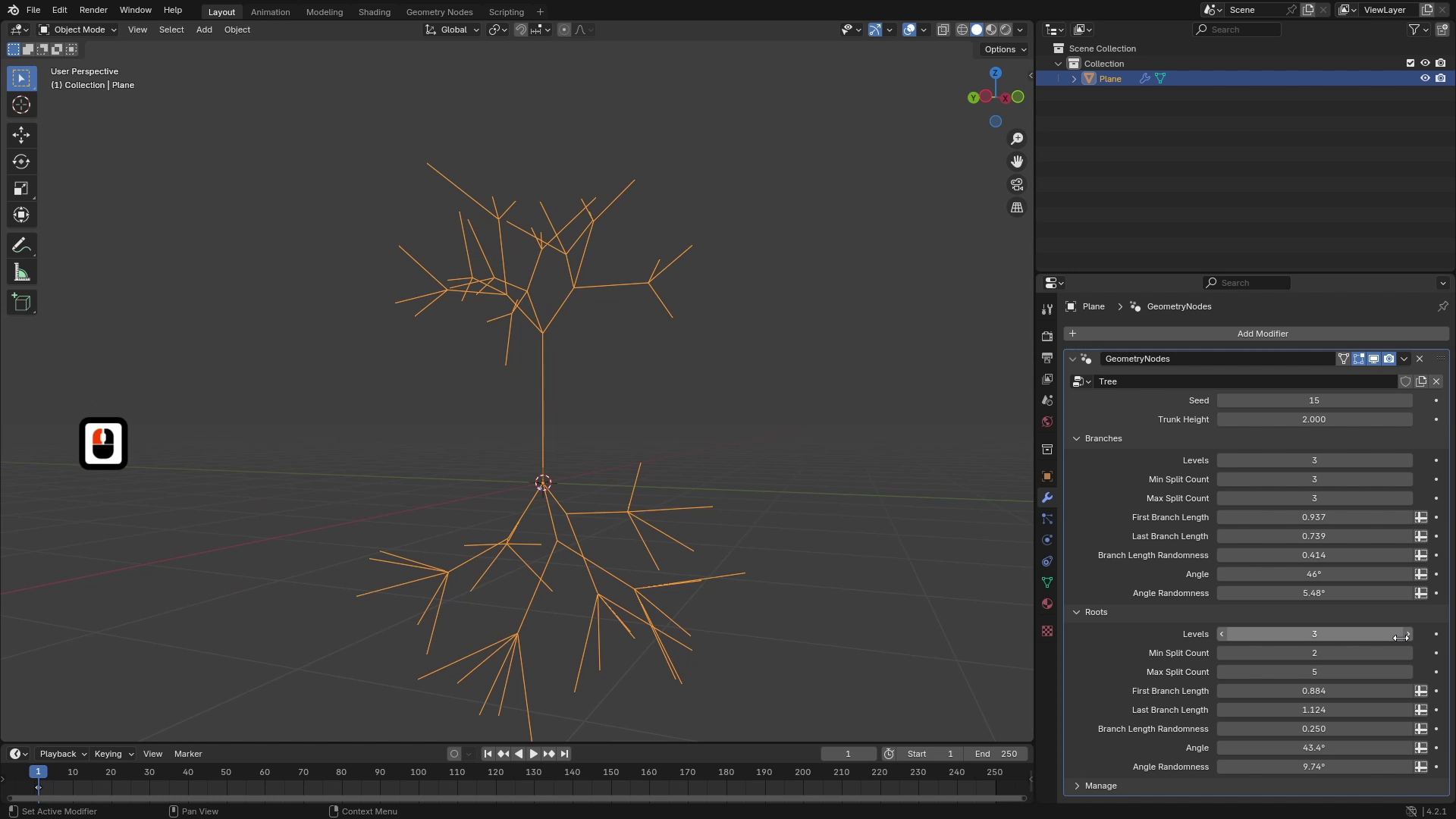
whole setup to branch system. Now we can go to Modifier and
play around with our roots. So I'll set levels to something smaller and make them a little longer and also play
around with the angles. We can also check if both of our attributes which
are length and length from end are working correctly. So I'll just add a named
attribute and length, and we will check where it's greater than some
threshold value, and I'll hide those
attribute texts. So as I increase it, you can see that it's going
nicely from this point here to the branches, as well as to the roots. And to check the
other parameter, which is length
from end, you can see that it's also
working really nicely.
9. Displacement: Welcome back to three D trees with blender geometry nodes. In this lesson, we'll be working on the displacement
of our curve setup, and we will give this tree a little bit more natural look. So how this will work
is that basically, we'll just take those curves and we will displace them
with some noise textures. But before that, we
need to be able to control how much geometry
this tree actually have. We'll be controlling it
with this resample curve, but we will give user option to control how much resolution
we actually have. To do this, it's
actually better to switch this type to
length because that means that it will sample those curves to evenly
distributed points, and it doesn't depend on
the length of the curve. And we can add one perimeter
to this node group, which will be the resolution. So let's add a new
integer input, which will be called resolution. And we can set the
default value to, for example, ten
and minimum to one. If we bring up the group input, we can't really plug this resolution straight
into this resample curve because those integer
values are really high, and you can see that it
doesn't really work. We want some smaller
values here. But for the user, it's better to work with those integer values. So to calculate this length, we can use MF node and we can just divide some
constant by this resolution, which means that if we
increase this resolution, it will make this division smaller or the result
will be smaller, and the geometry will
have more points. So if we use 0.5, for example, you can see that now when the
resolution is set to one, the steps between
the points is 0.5. But if we set it to,
for example, ten, the steps between the
points will be 0.05. So for now, I will
leave it like this, and we can work on the
displacement with noise textures. To do this, we will be using a simple set position
node. So let's add that. And we'll be using this
offset input with which you can offset the tree
in all directions. If we now add noise
texture, for example, this color outputs three dimensional
vector with values 0-1. If we plug this straight
into the offset, you can already see that it does some kind of displacement. And if we play around
with the scale, you can see that the
tree is much nicer now. The problem is that the root
of the tree isn't at 000, so that's the first problem, and the whole tree is kind
of moved in this direction. That's all because
of this color, which gives us only
positive vectors, and we also want some
negative vectors. To change that, we can
use a map range and we can remap this vector
because the color is vector from 000111 to
negative ones to ones. This will result
that this vector will also give us
some negative values. And if we plug this into offset, now you can see that the
tree is almost centered, and that fixes a little bit. But still, the center isn't
exactly at zero, zero, zero. To change that,
we can use one of the attributes which we are storing, and that's the length. If we view the length, you can see that
the length is zero here at the center
or at the root, and it's increasing
towards the branches. We can use this value to
multiply this vector, which will result into that this point will stay
at zero, zero, zero, because if we multiply the vector here by
zero, it will be zero. And as we go towards
the branches, it will be multiplied by one. So if we take this length and
multiply this vector by it, so we can use a scale for that. This will result in
something like this. You can see that the branches at the ends are really distorted, but this vector or rose the starting point is
still at zero, zero, zero. The branches here
are very displaced because the length
is much higher. And we want this multipler
be one at the maximum. So for that, we can use a clamp which will clamp
the value in some range. So if it's higher
than the maximum, it will go back to the maximum. So if we clamp this 0-1, you can see that now
this looks much better. We can also visualize this, and you can see that
this clamp value multiplies those
vectors by zero. But when it's somewhere here, they are already the original and they are
multiplied by one. So now this looks
relatively nice, and we want to be
able to control how much those points are distorted. To do this, we can multiply this clamped value
by some constant. So let's at multiply. And plug it into scale. Now if I play around
with this value, you can see that I
can change how much the noise impacts the
displacement of the points. The second perimeter,
which we can also control is very important
is scale of the noise. So if you play around with the
noise and make it smaller, you can see that the tree has
much smoother distortion. And if we set it to
something higher, you can see that it's very
harsh and it's very detailed. To get the best results, it's really good to combine few of these noise
textures together. So we will combine two of them, and we will want to use
them in that way that the first one will
have a very low scale, and it will create a
displacement like this, so the branches will
be very smooth, and then we will apply another noise texture which will have much higher scale and
add those harsh details. So we can reuse the
setup once more, and we'll just add
those values together. The values which we
want to control is this multiplication
value and this scale. So let's add some group inputs. I'll hit N, and I'll add a new panel which I'll
call displacement. And I'll add inputs for
this first noise texture. So the first input will be noise scale one and
noise power one. And I'll set default
to something like 0.25 and power also 0.25, we can try it here how it
looks. Maybe that's too small. I'll set power to one. And now for the second texture
which you'll be using, we can just duplicate those
and I rename them to twos. For this one, I'll use a
scale of let's say one, and the noise power two
will have a default value. But 0.25, for example. Now let's go to
modifier and also reset these to their
default values. And we can connect those
inputs to this first setup. So I'll bring up group input
and connect this noise scale one to scale and noise power
one to this multiplication. I want to duplicate the setup, so I'll just select those
nodes and hit Control G, and I'll just rename
those inputs. This scale is great, and the
second one will be Power. And we can call this node
group branch displacement. And because we want to add
one more displacement, I'll duplicate this and use different scale
and different power. To combine these together, we can just add those vectors. So let's add addition and plug this resulting
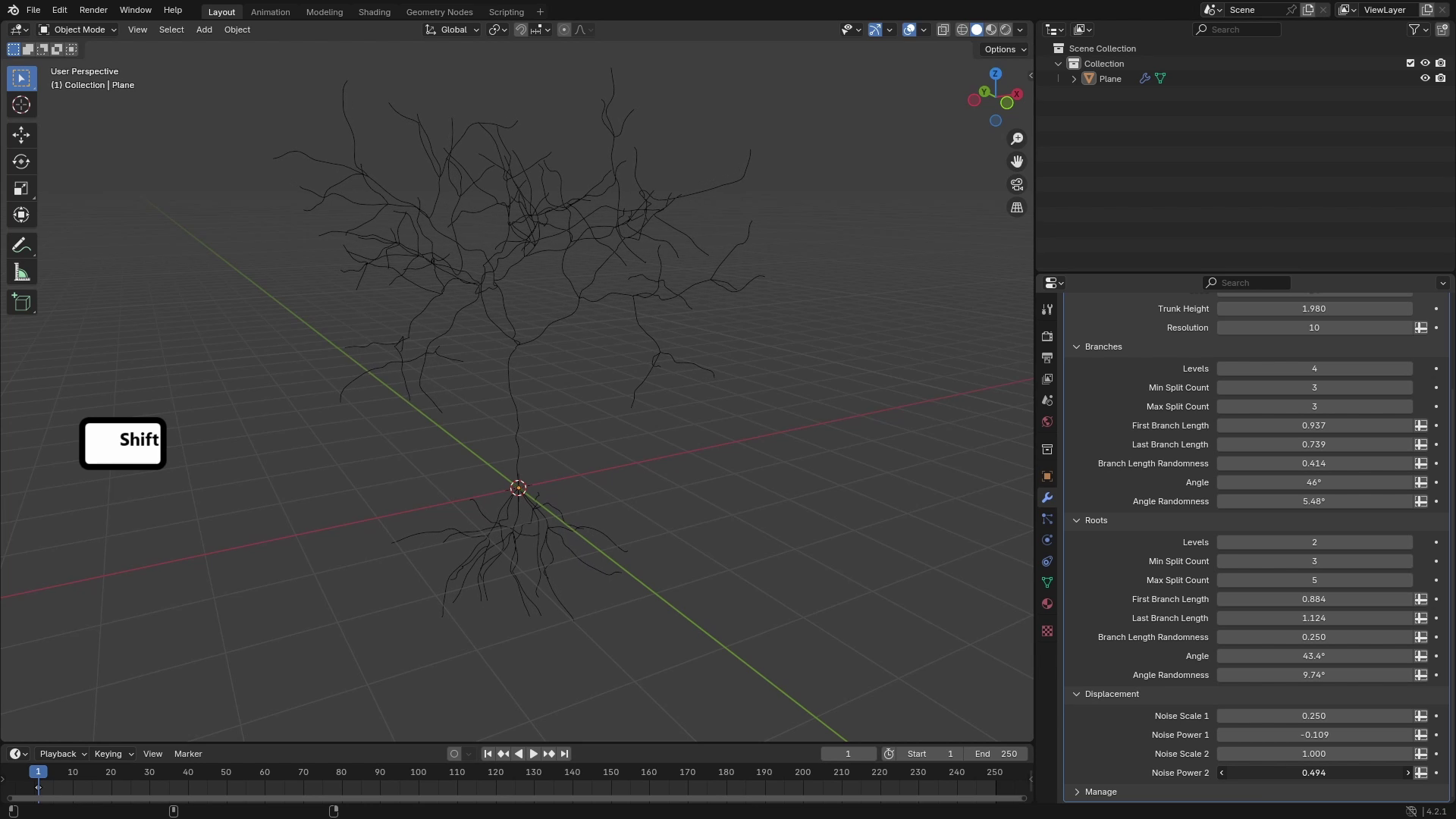
vector into offset. Now, if I go to Modifier, you can see that we can control the impacts of these
both textures, and we can get some very
interesting results. To ensure that those noise
textures aren't the same, we can change this type
in noise texture to four D and use this W perimeter, which is something like CT. So I'll plug this W into the group input and
just move it up. And now outside of these node
groups, I'll use the set. And again, we will get
some different values from this seat with multiply Ed node. So let's add multiply ad. So first one, again, we can just use
some random values. And I'll apply this
first one to this W and the second one you
can really just use some random values and they'll probably have different
values for each seat. They'll plug this to the
second W. We can hide those and also hide a new
circuits with Control H. Now, as we change the seat, the seats of the noise textures
will change as well. To finish this up, we can select all of these notes
and call it displacement. Also this previous part, we can call it resolution.
10. Mesh Generation: Welcome back to three D trees with blender geometric nodes. In this lesson, we
will start generating the actual mesh of our tree and also add some basic UV maps. So let's go to Geometri nodes. And the first thing is that to generate a mesh from curves, we will be using a curve to mesh node, so we can add that. And for the profile, we will use a curve circle for now because
we want it to be circular. Now, if we plug this curve into profile curve and
decrease the radius, you can see that we
have not pretty nice, but we have some
really basic mesh around our curve structure. For now, we can also check this fill caps so
the ends are filled. And the first thing
which we'll do is we will play around with
the radius of the curve. If we add a set curve radius, you can see that with this note, we can control the
radius of each point, and we can control
them separately, which is very powerful. So for our tree, we want the radius here at the start to be somewhere around
one, for example, and here at the end, we want it to be
somewhere around zero, so it will be decreasing as it's going or as it's approaching
the ends of the branches. To get this value, we can use our length attribute
which we are capturing. So if we visualize our length, you can see that it's zero at here and it's increasing
towards the ends of branches. The problem here is that
the values are very high. Here at the end is
something like 6.9, but the ideal value
would be just one, and then we can just
flip this attribute. So to remap this length from zero to this 6.9
or what the value is. We can just take the
maximum length of these branches and divide
the length by this. So for example, if
the maximum length at these branches would be seven here at this
point will be something like 0.95 or
something like that, and that's what we
are looking for. So to get the maximum
length of these branches, we can use attribute statistics. So let's add attribute
statistic note. And we want statistic
of this length. So let's plug this length
attribute to attribute, and we want to
take this maximum. Now to convert this length
to range zero to one, we can just divide
it by this maximum. And if we now visualize this, you will see that here at the
end is something like 0.99, and here at the start, it's somewhere around zero. So that's exactly what
we are looking for. The only problem now is that if you take a
look at the roots, the values at the ends
aren't really one, but they are 0.27 and so on. And that's because
the branches here at the top are much
longer than the roots. But the roots are using the maximal length of
the branches as well. So we need to separate these two parts and calculate
this factor separately. For that, we will move this calculation into
the branch system, and this will separate
those two parts. So I'll just delete
those nodes here, and I'll go to branch system, and we can calculate this factor at the end
of the repeat zone. So here at the repeat zone, at the end of repeat zone, we will add attribute
statistic node and we will take a length attribute. And just divide it
by the maximum. So the same thing
as we did before. And here we can just store this value in another attribute. So I'll add store
named attribute, and I'll call it, for example, length factor, and plug this
result into this attribute. Now, if we go back to the end of our setup and visualize
this length factor, you can see that now the
branches still have 0.99, but the roots also has
something around 0.807, and they are very close to one. So that's nice. And
for example, now, if we plug this attribute
into the radios, you will see that the
branches are thin here at the start and thicker towards
the ends of branches. We want to flip this and we want the maximum thickness at the start and
minimal at the ends. So to flip this,
we can just take the math node and subtract
this value from one. So something like this.
Now you can see that the branches or the root
is the thickest part here. And as we go to the end, they are thinner and thinner. Then you can also control the overall radius with the
radius of the curve circle, and it's looking pretty nice. Currently, the fall
off is linear. So if we draw a graph here, and here on the y axis
will be the radius, and on the X axis will
be the length factor. I'll just mark it like here. Currently, where the
length factor is zero, the radius is one, and where the length factor is
one, the radius is zero. So it looks something like this. In some cases, we might
want the branches to be thinner earlier in the tree. So we want the curve look
something like this. Or on the other hand,
we want them to be thicker longer time
as we go to the ends. So we want to we want
it to look like this. To control this, we
might use, for example, float curve where we can do
exactly something like this. So if we add a float
curve after this one, we can just play around
with this value. Now you can see that if I put it under the linear function, you can see that the
branches are thinner, and if I put it here,
they are thicker. The problem here is that we can't actually control
this float curve outside of this node group
or outside of this modifier. So we need to get a
different way to do this. So the way we will
do this is we will use function X to the A
where the X is factor or our length
factor and the A is input variable which
can be controlled by the user. Here
it's visualized. So when the A or the
exponent is set to one, the function is linear. But if I set it to
something lower than one, you can see that the function
goes more like this, which means that the branches
will be more thicker. And if it's over one,
you can see that it's going under the linear function, which means that
they'll be thinner. So to implement
this into blender, we can just take
this value and use a Bower and the exponent
will be value 0-2. So if we set it to one, you can see that we have the same results as we
get with linear function. If I set it to something smaller than one, they are thicker, and if it's higher than one, you can see that
they are thinner.
11. UV Mapping and Refinement: Hi, and welcome back to three D trees with
blender geometry rods. You can go even more than two, and you get even nicer gradient. But that's up to, I
will probably set maximum value to something like three and leave it like this. So to add some controls, I'll bring up the site menu, and the first thing which I'll
add is the overall radius. Which will be controlling
radius of this curve circle. I'll set default value to 0.15, and the second one will
be radius fall off, which will be this exponent. So I'll add a new input and
call it radius fall off. The subtype, I'll set
it to actor because it will be in small range,
so you can use that. Set Default to one
and set it 0-3. To use these group inputs, I'll just connect them
from the group input. Also the radius to
the curve circle. Now, if I go to modifier, you can see that
now I can control the radius of these curves
and their fall off. We could also set those values separately
for branches and roots. Then the best way
would be to put those controls into the
branch system as well, but I'll just stick
to this version. So to clean this
up a little bit, I'll just move this radius
here and now we can call this group of nodes radius because we are
controlling radius here. Now the next thing
which we are not controlling yet is
this resolution. One way would be to just
edit to the group input, but we can do it a
little bit smarter. We can just use this
resolution input, which we already have and just calculate how many points the
curve circle should have. So for the resolution, we are calculating here. And with this division, we get offset
between two points. So I'll just duplicate this with Shift D and parent with TP, so it's not inside the frame and just move it here to the front. And basically, the curve
circle looks like this, and we know what radius it has. So we know this R value, and we need to calculate how
many points it will have. The information we also know is the spacing between the
points this division. So we know, I'll just draw a bunch of points
here, something like this. And we know how long
this gap should be. Let's call it G as gap. And to calculate the number
of points which fit in here, we can just use
that the length of the circle is two
by times radius. This will give us
the whole length. And if we divide it by this gap, we should get the number of points which we need to create. So let's calculate this. I will just multiply this radius by two Pi like this and then just divide it by
this gap value, which is here. And if you plug this
into resolution, you will see that the
value we get is 17.6, it automatically rounds, so we don't need to
round this value. And now if we take a look at the geometry and for example,
decrease the resolution, you can also see that it decreases number of
points automatically, and we don't need
to worry about it. All right, so the last part
will be generating the UVs. To generate the UV map, we will need two variables. One of them will be increasing towards
the ends of branches, and the second one
of them will need to go around the branches, and this will generate
our texture coordinates. So first, for this one, we can just use our
length attribute because we have this
already calculated, and it should be
correctly calculated. So we can just use this one. And for the second axis, we can use a factor of this curve which you
are using for the profile. So if you look at this circle
and use a plain perimeter, which includes the factor, you can see that this factor is going 0-1 around the circle, and we can use this
value for the UV. So we need to capture
this attribute using before
generating the mesh. So let's add capture attribute, and we will want to capture
this factor for each point. And now after the mesh, we need to create the UVs. So let's add store
named attribute. The UVs are type of
vector and they are stored for each phase corner,
so we'll set it like this. The name will be UV map. And the value will be a vector. So let's combine XYZ. And for the X value, we
can use this factor, and for the Y value,
we'll use this length. If we now visualize
this, you can see that we have nice
UVs for the tree. And the only issue is that if
you look at this part here, you can see that here's zero and here it's one and
it's going around. But then there is a quick
transition back to zero. To avoid this, we need to make
this a little differently. The problem which we
are facing is that if we visualize
factor of circle, so we can just use this
and I'll erase that. You can see that the value
is zero at the start point. And on the last point, it's
something like 0.9 free free, and then it's quickly
going towards the zero. The thing we would need is we
would need to have one here as well from this direction and zero here from
this direction. To get this, instead
of curve circle, we can use spiral, which isn't a closed curve, but it has two points
in this position. So let's add curve spiral. Let's use our calculated values. So for the resolution, we
will use the same value. Rotations, we only want one rotation, so
let's set it to one. Start and end radius
will be the same. So let's plug the radius
into both of these like this and we don't want
I'll just visualize this. We don't want the
curve to have height, so let's set the height to zero. Now you can see that this curve actually has one and
zero at this point. There are actually two points
and they are overlapping. And if we use this spiral
instead of curve circle, we should get much
better results. Now you can see that
here at this seam, there is a harsh transition, which means that the
UV maps are correct. So I'll just delete
this curve circle. But now we have
another problem and that that here at this position, there are overlapping points. We can check this that if
we hover over this output, there are 35,000 vertices. And if we use merged by distance now there are
only 32,000 vertices. So there are many overlapping vertices which we need to merge. If we now look at the UV map
with the viewer, this one, you can see that again, we
have this harsh transition which we don't want here or
this quick transition 1-0. And to fix it, we will replace this surnamed attribute with
just capturing this vector. So I'll remove this and
add a capture attribute. We want to capture this vector
which stores our UV map, and the important thing
is to use a face corner. Now, if we visualize this UV map after the
merge by distance, you can see that now
it's working correctly, and because it's after
the merge by distance, the overlapping points are gone. So to finish this, let's store this attribute for the face
corner and call it UV map, and we will just connect this
captured attribute to it. Now our UV maps are
finished and we can select all of these notes and just call it mesh plus
UVs, for example. Now to check if it works
with some materials, we can use our materials, which you will get
for free discourse. So to append those materials
to the blend file, we can go to append, find the file with
the materials, and there should be in material, there are two
materials for bark. There's oak bark
and secura bark, so we can append both of these. And now when we
add set material, and if we set one
of these materials, you can see that we have
nice materials on our tree. To finish this off, we will add material input to
our group input. So let's hit to
bring up site menu, and I'll add a new input, which I'll call material
and type two material. And we'll just use
this material for group input for our branches. One more thing which
you might want to control is the scale
of these UV maps. And we can just do this by scaling this vector
here before storing it. So if we add a scale, and play around with it, you can see that
if I increase it, the textures have more
resolution or they are smaller, and you can control
that as well. So I'll just add one more input, which will be UV scale, set default value to one
and minimum to zero, and I'll just plug this
UV scale into the scale. Now, if we set it to one, you can see that we
can nicely control scale of our material and
change it very easily.
12. Leaf Distribution Basics: Welcome back to three D trees with blender geometry nodes. In this lesson, we will
start adding leaves to our tree and add three different options
to distribute them. So the three types
of distribution of the leaps which we'll be implementing were
already explained in one of the first lessons, but I'll go through
them quickly again. So the first one will be distributing leaves
all over our branches, so they will be everywhere
here on the branches. The second type
will be from end, which means that
we will just take those branches and use
some threshold value to control how far from the ends the leaves
will still be. This option gives, in my
opinion, the best results, and the last option
will be controlled by the minimum Z axis
or Z position. So we will set a threshold value and distribute leaves only on the branches or on the points which are higher than
this threshold value. Start off, we will
need some leaves on which you'll be
testing our setup, and you can find
those in the file which you will get for
free with discours. I'll go to file, append, in the file with the objects, we'll go to collection, and there are few collections, and I'll include all of them except this collection.
We don't need this one. And if we click Append you can see that this adds a bunch of objects to our scene, and they are nicely organized
in those collections. There are two main collections for oak tree and sacara tree. For each of them, there
are some different leaves. So for oak, there
are three types of leaves and also the material which we applied in
previous lesson. And for the sacara, there
are two types of leaves. There are blossomed one
and no blossomed one. And the last one, there
are flower petals which we can later use, for example, for the
particle system. So for now, I'll
just hide both of these collections and let's start distributing some leaves. Let's go to geometry nodes. And the way we will pick between those three types which are explained will be through menu. So let's open a site panel, and first, I'll add a new panel, which I'll call leaves. And to pick between those
three different types, I'll at input, which
will have type of menu. I'll call it where
because it will be controlling where the
leaves are spawning. And if we now go to Modifier, you can see that this dropdown
doesn't have any options. To add options, we
need to connect this group input to
some kind of menu node. To do this, we can
add a menu switch, which is basically
a node where you can add a bunch of options and then control
it with this menu socuit. So I will just connect this ware input to
this menu switch. And to edit those options, we will click on this menu
switch and go to Node tap. And here we can edit
all of the options. So the first option
will be branches. The second one will be from end, and the third one will be Min Z for the
minimum Z position. Now this menu switch can switch between those three
geometry inputs. And the way we will do this
is we will for each type, create a curves on which we want to
distribute the leaves, and then we will just
use this output, which will be picked with this ware and distribute
leaves on that curve. We can also check
that in the modifier, now we have those three options. We can pick any of them, and it should be picking
one of those inputs. So to create the base curves, we will be using the
curves of our tree, and I will be using those
after the radius because we will need this
radius information later when distributing
the leaves. So let's take those curves, and the first option which we
have here are the branches. That means that we only want
curves which are branches, and we need to delete
all of the others. So let's add the
delete geometry. And now to figure
out which curves are branches and which not, we can, for example, use length attribute,
which we have here, and when the length is
greater than length of the trunk because length of the trunk is
only on the trunk, and then the lengths are higher. So when the length is higher
than the trunk length, we should only get the
branches. Need the opposite. So if we delete all of the
points where length is less than the trunk height,
we should get the branches. So let's get named
attribute length. And if it's less
than trunk height, we can also visualize this, and you can see that all of those branches below
the trunk are white. But the problem is that some of the roots
here aren't picked. That's because their length is longer than the trunk height, and we don't want any
leaves on the roots. So to fix this, we can also
here at this branches stem, we can store information if those curves
are roots or not. So for this, I'll add store
named attribute set type two Bolin and call it roots. And for those top one,
those are my branches. So I'll set it to falls. And for those bottom one
which are actually roots, I'll set it to true. Now if we go to this end, we will basically pick where
the length is less than trunk height or
if they are root. So we will at named
attribute roots. And if this is true, we
also want to delete them, and this should give
us a better selection. Now, you can see that
all of those roots, including the trunk are white, which means that it will
delete all of those parts. So if we now visualize this, you can see that we only
have those branches. So that means we have
the first option done and we can plug
it into branches. And now if we output this, now we have branches selected,
so we have branches. But if we select something
else, they are empty. So let's do those as well. For the from end option, we will again use DD geometry. And we want to delete
all of the points where length from end is
greater than some threshold. So for this, we need to
add this threshold input. So I'll add new input
to this group and call it length from end. And I'll set default
value to, for example, one, and also reset it here. And now if we take named
attribute length from end, we will want to delete all of the points where the
length from end is greater than this length
from end from group input, or if there are roots. Again, we will add this or
value or it with roots. And now if we view this, you can see that we only
have ends of the branches, and we can control it with
this group input perimeter. So this part is done as well. And now the last part
is the minimum Z axis. So for this one, we will
also need a perimeter. So let's add a new input
and call it Min Z. And again, we will be
using delete geometry and we will delete all of the points which
have position on Z axis below this threshold. So we'll take position. We will get only the Z
position by separating XYZ, and if those are less than the main Z input, we
will delete them. So it will look like this. And we can plug this third
option to this menu switch. Now if we play around
with those options, we should get those
three types of curves on which we will
distribute the leaves. Also, a quick tip if you have some rear routes below each other like this and
you want to align them, you can just select them and
hit to scale X on X axis, and zero, and this will align them on the x axis to one line. We can also group these
nodes with Control J, and I'll call it leaf curves.
13. Advanced Leaf Placement: Hello, and welcome back to free D trees with
blender geometry nodes. And now let's start generating some leaves on these curves. So to create the leaves, we'll be using
instance on points. But first, we need to distribute points
along these curves. The best way to distribute points randomly
on curves is just to create a bunch
of points and then you sample curve
with random factor, and this will
distribute them nicely. So first, let's add some points. I'll add, for example, 200 of them for now. And as deposition, we'll
use a sample curve. So we'll be sampling
those curves. We want to sample all of them
so we can check all curves, and now we can just
control this factor. For each point, we want this
factor to be randomized. So let's add random value
0-1, plug it into factor. And now if you plug this
position into those points, you will see that
the points should be only distributed
on the branches. You can see that they
are changed depending on how we set those curves. But the problem now is
that we don't actually know how many points
we want because sometimes the parts will be very small and we don't want
many leaves at one place. And sometimes there
will be long curves, and we don't want large
gaps between them, and we want nice
number of points here. To calculate a great
number of points, we can just take the overall length of all of these curves with curve length. So this node gives us the overall length of
all of these curves. And now if we add a new input which we
can call, for example, density, we can just take this length and
multiply it by the density. This will result that no matter
how long the curves are, there will always be similar
density of the leaves. So if the length is
something smaller, there will be just a few points, and when this is something high, the length, there
will be many points. If we plug this
multiply to count now and set density to ten, you can see that there
are many points. But if we decrease or I'll
set it to from end and you can see that the points are always relatively
nicely distributed. All right. So now our points
are nicely distributed. We can also group this and call it distribute point leaves,
sorry, leaf points. And now we can finally instance some leaves on those points. So through this, we will
add instance on points. For the points, we will use those points which
we distributed. And for the instances, we will want to use some of the collections which
we appended from the file. For this, we will
add a new input where we will add
the collection. So let's add collection and
set Type two collection. I'll also move it
up to the panel. And set some values here. So I'll, for example, pick the sakura leaves. And now to distribute those
leaves from collection, we can just take the
collection info out. For the input, we will use
collection of our group input. We want to separate
and reset children. And we can plug those
instances into the points. You can see that now all of the leaves are facing
the same direction, and also all of the
leaves are on each point. So we only want to pick one. So through that we can
check this pi instance. And we also want to rotate
those leaves a little bit. So the simplest way
would be to just create random value or
random vector 0-2 Pi. And if we plug it into rotation, we have some relatively
nice leaves. If we now combine this
with our branch geometry, you can see that there
might be several problems. I will set densities
to something smaller, so it's a little bit
more visible and also set radius full of
something below one. This isn't probably the tree
which you want to create, but I want to show
you a little problem which we have, right? So for example, in this
curve here there is a curve, and we are instancing the points straight
on these curves. The problem is that the mesh
is not on these curves, but it's around it
because we are using a spiral or curve to create
a profile around it, and we want the leaves to grow on this mesh and
not on the curves. So to fix this, we
need to offset this, offset this point by the
radius of this curve. So the leaves actually grow on the surface and not on
the inside of the mesh. So to do this, we will before points instancing
leaves on the points, we will also set position
of these points, and we need to take radius of this curve in
the distributed point. So that will be the value
which we'll be also sampling. So I'll add radius. And now this value is the
radius at a given point. And if we take a look
at this drawing, each curve have some vectors. One of them is curve tangent, which is in the
direction of the curve, and the second one
is curve normal, which is direction perpendicular
to the curve tangent. So if we take this curve normal and scale
it by the radius, we should get a right
offset for the points. So if you plug this
point into the offset, and the important thing
is also multiplied by the overall radius
of the branch. So let's multiply it by the
radius from the group input. And now the leaf is you can see that it's on
the surface of the mesh. It's not pointing
the right direction. It should be
something like this. We are almost there. To
randomize this even more, we will take the normal vector and rotate it by random value. So if we visualize this, we have the branch, and it has a curve tangent
and also the curve normal. In this direction, we are
offsetting the leaves, but now it would affect that all of the points would
be offset in same direction, but we want to randomize this, so some of them will be in this, some of them in this,
and this direction. So to randomize this, we can take this normal
vector which we scaled by the radius and use a vector
rotation or vector rotate. Center will be 00, zero, and axis will be the tangent because that is the axis
around which we are rotating. And for the angle, we can
just pick a random value. So I'll add a random value
and put it to 022 Pi. And if you plug this
resulting vector into offset, the points should be
distributed even more randomly. Now, I'll just clean up
this math a little bit. So something like this. And we should also always connect the seed to
our random values. So I'll connect seed
from the group input to this random value and also
seed to this random value. Now, if we put radius flow
back to something more reasonable and set the density
to something like ten, you can see that we have a very nice distribution of the leaves. We can also swap between different leaves very easily because there's this collection, and it's all working nicely. One last option or one last
perimeter which we want to add is we want to be able to control scale
of these leaves. So let's add two more inputs. One of them will be scale, default to one, and the second one will
be scale randomness. The scale will be
controlled simply here where we are instancing
leaves on the points. And the way we will
generate this is we will just create a random value, and we'll take group input, and the minimum of
this random value will be scale minus randomness, and the maximum will be
scale plus randomness. So you can just plug both of those value to the random
value and also the seed. And now if you plug
this random value into the scale and set it
to default values, you can see that we have some
variations here as well. If we also check all three
types of the leaves, so branches, the leaves
are all over the branches. From end, we can control how far from the
ends of branches the leaves are and we can also
control the minimum Xs, which might get handy
in some types of trees. Everything is procedural, so we can play around
with the seed, and always we get a
very different tree.
14. Basic Particle System: Welcome back to free D trees
with Blender geometry nodes. We will add one more
detail to our tree, and it will be a very simple
particle system which will simulate falling
leaves from our branches. In this case, we will again
be using objects from the free asset back
which you will get for free with this course, and in this case, I'll use
those small secura leaves, which will be perfect
for this usage. So how this will
actually work, first, we'll be using simulation zones
inside the geometr nodes, which will allow us to simulate those falling leaves and
some kind of physics. So first thing which we
need to do is we need to add some points
to our geometry. So we'll be using similar technique as we used
for distributing leaves. We will use the same curves, but we'll just instance some simple points
on them like this. And then in simulation
zone on each frame, we will move them
a little bit down, so it will look like
they are falling and also add some noise to it, so it won't be just
straight falling leaves, but they will have some movement
or something like that. So let's go to geometry nodes, and I will be adding the points down here
under the leaf structure. The important thing is that small particles will
be falling from leaves for which we already have those curves on
which they are generated. So we'll re use these curves and distribute some
points on them. So we will use output
of this menu switch, which is picked by
this are attribute, and we will be using similar techniques
as for the leaves. So we will add simple curve
and we'll be sampling random curves from these and just assigning those
positions to new points. For now, I'll add points node, and let's say we want to
add four points each frame, so I'll set count to four. And now we need to check all curves because we want
to sample all of those, and the factor will
be random value. So let's add a random value
0-1, and plug it into factor. Now if we plug position into the points node
and visualize this, you will see that we
have some points here, and we can change the seat
with the seat attribute. To simulate the falling, we will need the
simulation zone. So let's add simulation zone. And this is very
similar to repeat zone. So it has some geometry input. Then it does some stuff
between those two nodes. In this case, this is
done for each frame, and then there's this
output geometry. So on each frame, we want to add four new
leaves to our falling points, and we will do this by joining those four points to
this existing geometry. So let's add join geometry, and we will join
those four points. Now if we output this
simulation zone, play the animation,
you can see that we still only have
those four points. That's because on each frame, those same four
points are added, and they are
overlapping each other. If I **** over this output, we should see that now we have 404 points because
we are on frame 101. To make them
variable, we need to control the seat and make it
different for each frame. This, we can use scene time, which gives us the
current frame. And if we plug this frame into the seat and reset
the animation, we should see that new points
are appearing each frame. They are gradually creating
the shape of original curves. Now, you might want to add a different number of
points for each frame. So for that, we might use a random value and just
plug it into the count. But you can see that
it's not possible because output of this
random value is field, but these points need
a constant value. So to get around this, we need to figure out
the way how to distribute or create random
points on each frame. The way we can do this is instead of those
points node which just create points on given position, we
can, for example, use distribute points on faces where we give
it some kind of mesh, and it will generate points depending on density and seat. And this will result into different number of
points for each seat. So we also need input mesh. So for that, we can use
whatever mesh you like. I'll just use grid. And
now if we visualize this, you can see that we
have this is the grid, and there are some
generated points, and on each seat, it generates different
number of points. If it's the density
to one, for example, you can see that sometimes
there are two points, sometimes only one, and
sometimes zero points. So that's pretty good. One more problem which
we might face is that this doesn't depend on the length of
those source curves, which means that no matter
how long those curves are, we will always generate
same number of points. We can fix this by controlling the size of this grid
by the curve length, which means that if we
have longer curves, it will generate larger grid and distribute more points because
there will be more space. So through that, we can just use a curve length and plug
it into X or Y axis. Now you can see that
it's generating points on this large grid. And we can also control
the density with the second size on Y axis. But I'll just stick to one,
and we'll be controlling density with this density value. Now when we have appropriate
number of points generated, we just need to distribute
them on the curves. So we'll just use set position. And as a position, we will use this randomized position
from source curves. Now you can see that if
I play the animation, it's distributing random points
across all of the curves. Right? So now, if I go
through the animation, you can see that there
are always four points, and that's because the seat of distribute points
is still the same. So I'll plug frame
to the seat as well. And now we should get some
different numbers of points. I'll maybe decrease
the density to 2.02, and you can see that there
are three points, one, one, three, zero, two, so it's
nicely randomized. Right. So now let's put
those points back to this simulation zone
and output this one. And you can see
that we are getting more and more points as
we play the animation. So let's give it a
little bit of movement. For the movement,
we can just use a set position and just give it offset on ZXs to something
like negative 0.1. Now if you play the animation, you will see that the
points are falling. That's because it always
creates those new points and all of them are moved on
the Z axis by negative 0.1. One thing which we should fix is that if we now
play the animation, you can see how fast
they are falling. But if I change frame rate
of this project to 60, for example, you will see that they are
falling much faster. That's because this offset is on 24 FPS done 24 times per second. But if we set frames
per second to 60, it's done 60 times a second,
and it's much faster. To control this, we can
use this Delta time, which gives us time
between two frames. And if we scale a vector by this value, So
something like this. And I'll say this
to negative one on Z Xs because this Delta
time is very small number. Now if you play the animation, you can see that
it's pretty slow. But if we change the frame rate, the speed shouldn't change, and it should remain
the same speed. Right, so we can call
this, for example, a gravity and we need to be
able to control this gravity, so we will want to control
this value on the Z axis. Through this, I'll
just add combine XYZ, and I'll add a new group input, which will control this Z value. For the points, I
will add a new panel, which I will call particles, and I'll add a new input, which I'll call gravity
and set default to one. Because we want to
input positive gravity, but this value needs
to be negative, we'll first multiply
this gravity input by negative one and then plug
it into the Z coordinate. Now if I go to modifier and
reset the gravity to one, sorry, I need to set
this to multiply. And now we should
get falling leaves or falling particles. I can also increase this and
you'll see that the points are falling faster or slower. All right. So now let's give it a little
bit of randomness. So the thing we
will do is we will add some random value
to this offset. And this random
value will come from noise texture because
the noise texture gives us nice smooth noise, and we can use that for
displacing those points. So let's add noisetexture. We've already used
noise textures for displacing our tree, and we did one thing, and that was remapping
this color because this is vector and we
want to use this vector, and we were remapping
it from zero, zero, zero, one, one, one to
negative ones to ones. So we get vector, which can also be positive and negative
and not only positive. So this gives us random vector. And now, if we just scale
this vector by some constant and add it
to this gravity, you will see that we have
very crazy points here. I will multiply this
by 0.1, for example, now you can see that the
points are more jiggly, some of them also
stay in the place. So one thing which
we might fix in this map ranch is that we don't want to control those
points on the Z axis, but we only want to control the movement
on the X and Y plane. So I'll just set those
Z codins to zero, and now this map
ranch will only give us random vectors
on the XY plane.
15. Advanced Particle Simulations: Hi, and welcome back to free D Trees with Blender emetinRds. You can see that the points are falling with the same speed, and they are squiggly. If we set scale to
something global, you might see that some of the points are
grouping together, and that's because
if the two points are nearby or in
the same position, the same noise is applied
to them and they then have the same path or same way. So to create a different
noise texture for each point, we can switch this to four D, and this W is something like CD. So for example, we can just
use index of each point. This index isn't actually
really the best choice because the index might change
throughout the simulation. So to fix this, we will
store some attributes before the start of simulation
for each point and then use them for
differentiating between them. So I'll add store
named attribute here after set position where we are
distributing the points. And the first thing
which we'll store will be something like index, so I'll call it and
it will be integer. And I will use combination of frame and the index to create a unique number
for each point. So for this, we
can, for example, just use multiply and add. I'll multiply the frame
by some constant, let's say, 21, and add
the index to this. This should give us a different
number for each point, and we can start in
this I attribute. And later, we can reuse this named attribute as
a seed for this noise. Now you can see that the
noise is much smoother, and we want to be able
to control how much this noise texture affects our points and also the
scale of this noise texture. So let's add two new inputs. First of them will
be noise scale, which I'll set default to
one and minimum to zero, and second will be noise power, which I'll set default to one. Ctly if you look at the setup, the weird thing here is that the gravity is scaled
by the Delta time, but the noise texture isn't, and this should
actually be fixed. So let's first add
those two vectors together like this
and after that, we will scale this whole
vector by this Delta time. Now this should be truly
independent on the frame rate, and let's plug the
inputs from group input, so I'll bring up group input
and plug the noise scale to this noise and noise power to this scale vector math node. I will also reason those values. And you can see that we have
nice falling particles. The problem you might
see is that the points are generating all of the time, but they are never deleted, and that might cause some
issues with the frame rate because there might
be too many leaves and it would get very laggy. So to fix it, we need
to at a function which would delete the points after some time of their life. So let's say we set a
lifetime of each 0.2 seconds. So if the point is older or is in the scene longer than 2 seconds,
it will be deleted. For that, we will store some attributes before
the simulation. One of them will be start, which will give us the time
when this point was created. The type will be float.
And to store this value, we'll just use the seconds, which will give us
current seconds, and we'll store it in
the start attribute. The second attribute which we
will use will be lifetime, and that will store how long
this point should live. And now I'll just set
it for 2 seconds. Later, we can randomize
this, for example. So after the movement
of the points, we will check if each point should be
still in the simulation, and if not, we will delete it. So let's add delete geometry, and now we need to pick which
points we want to delete. You will take the
named attribute start. And to figure out
how long it lives, we will just use current time and subtract this
start from this time. So this subtraction
will give us how long this point was existing. Let's say, for example,
the start is 2 seconds and currently the
time is 6 seconds. That means that the point the
point is 4 seconds alive. And when this is greater
than the lifetime, so I'll duplicate this
and set it to lifetime. We want to delete this point. So we'll plug this result
into delete geometry. And now if we play
the animation, you will see that
those points at the bottom are being deleted. That's because their
lifetime is longer than their threshold lifetime
and they are deleted. We can also randomize
this lifetime. So for that, I'll add
two group inputs. One of them will be lifetime, I'll set default to two
and minimum to zero, and second one will be
lifetime randomness. Which I'll set default to zero. And now just classic
randomization. We will add group input, and the minimum of
the random value will be lifetime
minus randomness, and the maximum will be
lifetime plus randomness. So this will give us the range in which we want the
lifetime generate. And we will plug
those two values into random value like this, and also we can set the
seed from group input. And the ID to make it
different for each point, we can reuse this I value which
we are storing here in I, and I'll just rode
it here like this. And this should give us a
different value for each point. And if we now store
it in lifetime, Yeah, there are some problems that's because our
lifetime isn't really set. So I'll set lifetime to two
and randomness to zero. So now each point
should live 2 seconds. But if I set randomness to one, the point can live from 1
second to 3 seconds. Right? So I think our very basic
particle simulation is done, and now the last part
to make actual leaves, we need to use these points and distribute some
objects on them. So for this, I'll use
instance on points. And as the instances, we will use some leaves. So those will be in collection. And we need to first create
a group input for this. So I'll add a new group
input and collection, set type also to collection
and move it up here. And now I'll just plug this collection from group
input to collection info. I want to separate and
research children, plug these instances
into instance input, and we want each instance
to be randomized, so I'll check this big instance. Now we can see anything because we didn't pick the collection. And the collection which I will use will be those flower petals. So I can hide this again, and I'll pick
flower petals here. And now you can see that we have very basic leaves like this. There are a few problems.
They are all facing upwards. So we would like to, for example, randomize
those leaves. And the second thing that
they all have same scale, so we want to randomize
this a little bit. First, let's fix the rotation. And first thing which
we might do is we can just plug a random rotation
to this rotation socket. But to make it a little better for rendering,
for example, we can rotate them so they
face the camera always, and you can always
see the whole leaves, which might get very handy
if they are very small, they might not be
visible all the time. So this might fix that and
to figure out the rotation, how it will face
the camera, first, we need to camera
object so we can get active camera object, which will give us the
current active camera. To get location, we will use object info and
use this location. And you can see that those leaves always
are facing the Z axis. So we'll want to align the Z axis to the
direction to camera. To get direction to camera, we'll just take our
position and subtract it from a location of the camera. With vector math. So this gives
us this direction vector. And now we can just use
align rotation to vector because we want to align
our Z axis to this vector, so I'll plug it into
vector and rotation. And now, this looks
a little weird. That's probably because I don't have any camera in this scene, so I'll add a new camera. And you can see that
as I move the camera, the leaves are facing to
it and I can check it with this this one. You can see that if I
view from any angle, I can always see the leaves. And last thing, we
can also rotate them randomly around the Z axis. So through this, we can just plug a random value
to this rotation, and I'll just use
random value 0-2 Pi. And now they also should have
some randomized rotation. Alright, so that's
looking pretty good. And now for the scale, we will use classic approach. We'll just add inputs for scale and scale randomness and just calculate it
based on those inputs. So first input will be scale, default one, minimum to zero, and the second one will
be scale randomness, which will have default to
zero and minimum to zero. For value in this range, I'll subtract randomness from
scale, and for the maximum, I'll add those two
values and just plug those two values into minimum and maximum
of random value. And this should give
us the right scale. We can also use seed from
group input for the seed, and for the ID, we can use
the I named attribute. So I'll add named attribute, I and plug it into ID. So something like
this should work. And now we can plug
this value into scale, and you can see the
leaves are randomized. I will set scale to oh, yeah, the scale is on one. I'll set scale to something like 0.2 and random as to 0.1. And now we have those
nice small leaves. I will decrease the gravity, so it's a little slower. And the last input which we
forget to add is density. So let's also fix this. The points are distributed here in this
distribute on faces, and we want to be able
to control this density. So I will add a new
input, call it density. Sent devot to
something like 0.5, and I'll plug it into
this density input. If we now reset this, we have many points here, and I might increase the scale
of the noise a little bit. And if I want just a few leaves, I'll set it to 0.05, but I still have many leaves. I'll decrease this even more
and increase the lifetime. Now you can see that we have
some pretty nice leaves. And to combine this
with the original tree, I'll just add the joint geometry and just plug those
two things together. And now what we have is this beautiful tree
with falling leaves.
 3D Tudor, Bestselling Blender Author & 3D Educator