Transcripts
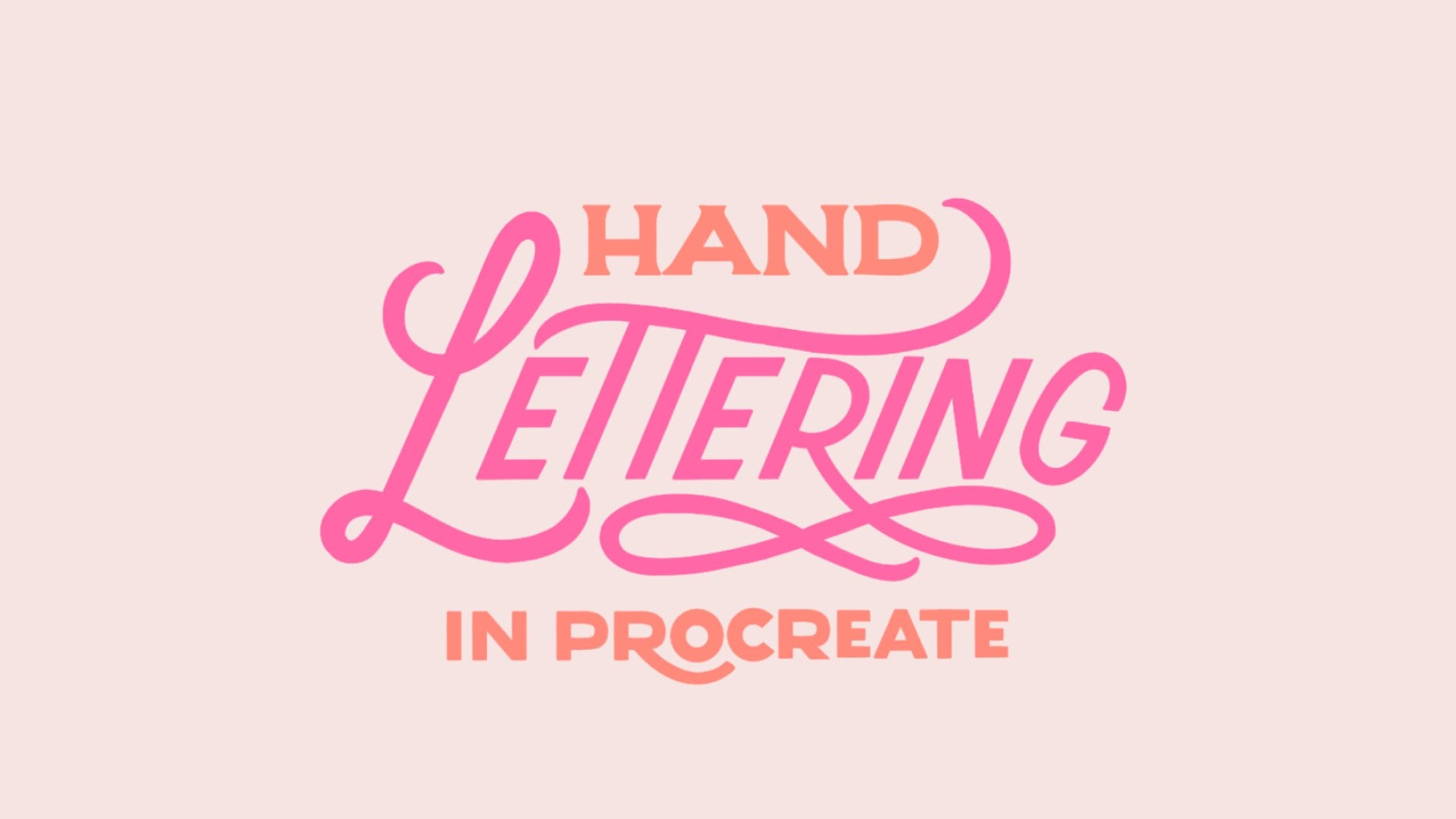
1. Introduction: Hello and welcome to this class. My name is Jessica.
I am a designer, lettering artist, and
teacher business in Brazil. And in this class, I
want to show you how you can create your own
lettering in 3D. We're going to be
modeling in the three-dimensional
now just drawing in an app or on paper they use of 3D modeling has really
exploded in past years. Especially because many apps and software have been incorporating augmented reality and 3D
modeling even Procreate now led to its style and
paint in 3D models, we will be using the
app sharp or 3D on our pads to create
our lettering model. And we're going to
be used Procreate to his dilate at the end. In the next lesson, I'm
going to show you how to install every one of these apps and how it's going
to be our project. This class is great if you are letting artists
and wanted to take your 2D skills into the
3D world or if you want, I just want to understand how to model introduced using
the sharper 3D app. I hope to see you in
the next lesson to go over our projects
for this class.
2. Class Project: For our projects in this class, we're going to letter word quotes using
the sharper 3D app. I chose this quote
because it's really easy. We're going to put
some design elements around it so that you have a better understanding of the tools that we're
going to be used. You're going to
need, first of all, the sharper through the app, which is the 3D modeling app
of choice for this class. You can download it for
free in the App Store. Although the free version
is really limited, they have a Fortran 14
day trial that you can use to experiment with
all the advances, tools and supporting tools
that we use in this class. So go ahead and sign up
for the 14, the dryer. And if you don't feel like
keeping the software later, you can just cancel it before the trial ends
in your charged. It's going to be enough
for this class, this 14, the driver, if you like it, you can buy it later. You also going to need the
Procreate app on your record, which I think probably
you already have. But if you don't go
to the App Store, and it's not a
very expensive app and it's a great app to have. I really recommend
you getting it. And because of the
nature of Procreate, we're going to need uttered app. So this is how it's
going to work. We're going to start
modelling in shopper treaty. Then we're going to have
to move it to Procreate, to style it, and
textures and colors, paint and make it pretty. But Procreate has
a few limitations in which models
they, they accept. When we exported the
model from sharper 3D, we're going to have to make
a few adjustments so that Procreate accepts our model. And we're going to do that
in the software Blender 3D, which is a software
for computers only, but it works with any operating
system in any computer, so you can download it
for absolutely free. And it's just a step for
adjusting the formats in the file so
that Procreate can finally accept our model. As for now, that's the
best solution are found. So go ahead and
hold all three of those apps so we can
start next lesson. For reference, I put
a PDF down below in this class so
that you can refer to find the links and
a few instructions of what you have to do in
the installation process. I see you in the next lesson.
3. Introduction to Shapr3D: Welcome to this first class, where we're going to
dive into sharper 3D, which is our main app
for these clients. These interface that
you see on your screen right now is basically
what you will see. Once you always start your
shape or treaty effort. You will have this button on the top right for a new design. So you can start
to design there. Right below it, you're
going to have a light with all your most recent projects and yours might be empty
if you just download it. Next, you'll have
some news, the app, which sometimes
are really useful, so you can do it
into that later. Down on the bottom, you have a minimum. We eat five tabs. This is the discovery
tap, your startup tab. You have the design step. With all your designs here. More buttons to
create new designs, to import the design, or even to edit your
gallery of projects. Next you have the tab. Learn is the total
job in the middle. And you have tutorials
from shape or 3D. Lot of tutorials and articles
and manuals and everything. You can dive into
that if you want to get deeper into how
they had products. You have the forums, right? Besides learning. Here, you can log into your
account, ask questions, answer questions, seek questions that other users had
about shape or 3D. And you can learn a
little bit more even so some problems if you
have one along the way. And the last tab is
the Settings tab. In this tab, you are
going to have right on top your login information. May you, and even buttons to your subscription or to start a subscription if you
don't have one already. And remember, you need a subscription to
complete this course. But they have a 14 day trial
that you can sign up for and use the app for this course and decide later if you
want to keep it or not, or if you want to cancel
the subscription. But what matters for us now? What's below it? You will have some settings, preferences like language, which is the default for your iPads. The theme is the default
for your system, but you can choose
between light and dark. By clicking on it. You have the interface being
left or right. I like I laughed
interface because your menu is going to be right here on the left
side of the screen, but you can change that later
if you decided it's better. On the right side. The basic brochure can
be right or heart. We're going to see
where it comes to play and also the spline
points fit or control. When we're going over
the Canvas interface. In the next lesson, you'll have these two-finger rotation, which allows you to use two fingers to
rotate your canvas. I'll actually read on. You can leave it on as well. In the bottom, you have some
information about the app. This is the basics of your app. And in the next lesson, I want to show you a new
canvas and how it works. It needs interface. I see you there.
4. The Shapr3D Interface: Welcome. In this lesson, we want to show you how to create
a new canvas and what you get when you start trying to draw
on shape or treaty. As I showed you before, you
can start a new drawing from the Discovery tab
right here in design, or from the Design tab, clicking on this plus sign on the upper right corner of
your canvas, shows each one. And it's gonna pop up this
little window right here. You want to choose new design. If you have another design, if you save one of
your designs later, you can import it. But now we are going
to create a new one. Just press on it. And this is what you get
for a building campus. You have your three-dimensional
canvas right here. And these colored lines
in red, green, and blue. They are your x's. You can refer to the
top-right corner. You will see this little
cube that you can turn around to find the
view that you want. And you can see how the xs
are working within this cube. For now, just leave it at that. On top of the cube, you
have this cube icon. If you click on it, you
can also change your views just by clicking on the
different options here. But I rarely come here. I usually just rotate
the cube right here so that I can choose
any of you that I worked. Besides that, you have these units panel where you can choose the units
you're working with. I like to work in
millimeters and this UML, the grease right here, but you can choose the
units if you want. The bottom right, you have these settings menu and
the little cog it ends. Just going to take you to the Settings panel that
we saw in the last video. So don't need to go there again. You have magnetics
that help you too. Isn't that your lines and points to the grid that you
have on your Canvas. I like to leave everything on. But if you notice
that you're not getting your points to
go, where do you want? You can come here and
start deselecting it. For now. Just leave
it off next to it. You have this little
wall symbol right here. Don't worry too much about that. But I'm going to show
you what it does. Let's go to an old project
of mine, the house here. And you can see that
I have a lot of walls and shapes around. Let's say I want to edit something in this
world right here. But if I double-click it, it has a lot of things
in front of it. It has this wall in front of it has those objects
in front of it. So I can't really have
just a view of that wall. Unless after double-clicking it, I go to this menu right
here on the bottom. And if you move it around, you can see that the rest of the routes or the house
just disappeared. So that lets you edit whatever you want in
that specific plane. Double-click it. But we're not doing that. Let's just go back to normal. Let's go back to
our blank canvas. On the bottom left, you have your Layers menu. And you'll notice that mine
just showed Layers menu, working egg layers on in that you see your
created objects. But if you click this
little pin button, you can turn it
into a side panel. If you click the X
on the top, it goes. So it's up to you. What do you prefer, the
pop-up or this item? And I'm gonna leave mine
at the popup format. Besides it, you have
the undo and redo buttons for yourself
creating your designs. On the top left, you have your gallery broken, but you take it back
to the you have a question mark
that he's going to show you tips and tutorials. And you have the input
function to import images to use as reference or take photos to
use as reference. Open ports, order
models that you may have on your photos,
Dropbox or anything. But we're not doing
that just now. You have the export
function that doesn't work now because we don't have anything
on our Canvas. Just put something in here. When you click Export, you have a lot of options
to export your work. And this is one of the reasons why you
need a subscription, because most of the export
functions, they are limited. If you are using
the free version. If you didn't sign up for the
subscription yet, do that, and I will see you in
the next lesson to learn how to actually
start drawing a shape or 2D and using those tools
in the left side menu. Right here. I see you
in the next lesson.
5. Lines and Shapes: Okay, Welcome again. We are still here on our blank canvas. And now I want to
teach you why you can do with these menu here. And the left. This is
the main menu with the drawing and shaping tools that you need
to build your model. The first one, the most
important one is the sketch. A function just click on it. And it's going to open all these options to
you to draw lines, shapes, and even to treatment little parts of your design. Let's leave it at that for now and let's go to
the older tools. So clicking in the x, and it's gonna take you
back to the main menu. You have the add function
to add new planes, images, FIOS, and even text, which is a new tool. Go back again by clicking the X. And the transform function has the movement and editing
functions of the app. You can rotate, you can
escape geo translates. You can rotate around something, mirror objects, align things,
everything from here. And the tools that you have, the end of the menu, you can split or
combine objects. You can offset parts of an object you can
revolve to create a body. And this is basically the menu that is going
to help us to create, to turn 2D drawings into 3D. However, I rarely use those
two options right here, the transform and the tools. And I'm going to show you why. If I go to any open projects
that I have, for example, this one, let's say that I
click on one of my shapes. Once I do that, the menu on the left side, it automatically shows
the options that I have to edit these a specific shape and I can start creating things. If I keep selecting
different ports, it shows me only the
tools that I can use, my shape that he selected or with the
body that is selected. So I don't really worry about going into those
two-minute menus, transforming tools because
they are going to show naturally once we decided
what we want to edit. Just keep going
with this lesson. Let's just start drawing. Now we went through only
do 2D lines and shapes. And in the next lesson, we are going to
learn how to turn all of these into 3D shapes. To draw. I recommend you to click on this little cube
on the top view. So you're going to
have a flat canvas to work on exactly what
you want onto D. Once we ready, we're
going to go back to 3D and make everything
work from that. But right now, just draw
by using the top view. In a sketch minute
you have line or arc, and once you click the
white button below the two, you're going to have some
options for the line and RQ have automatic
line and art. You can choose line
and you're only going to draw lines any
way you want it. You can choose arc
and you only going to draw any direction you go. Or you can Joyce I do. And leave it as automatic. And the app will, by itself recognize when
you want to do line for, when you want to do an arc. And I think that's a lot better than selecting what I want. I just leave it in automatic. Next you have the
spline function and you have two
options right here. You can choose between
control and feet, and you can choose
between light and hard. Light and heart. They refer to how hard or how light you press your
pencil on your canvas. To create a spline. You are going to draw
a curved, curved line. For example, let me start throwing breast each
point with my pencil. And these press. I like to be light, so I am not putting too much force into the
glass of my screen. You can see how it worked. I created a very
complex line here. So it's a lot better
than just having the option for line curves, arcs that we had before. But these one, I created
the feet option, which works similar to apps
like Illustrator that use vector points so that you can have some
handles and you can edit how the curve,
the curve works. If you click each point, you can move that specific point. Or even more than 1 at one. That's good. And if you want to
try that, do it. But I prefer control. If I try to draw the
same thing using the control function,
they control, Let's my lines being lot nor most say start messing
around with the points. I don't really break too
much the flow of my curve. So I like to work
with that better. That can be a little
bit tricky at first. You have to get used to it. But I do think it's a better option if you don't
get used to it, don't worry. You can do everything with the feet function and
you're going to be fine. Don't worry about it. Do the option that you few
more comfortable with, okay? Next we have
rectangles and you can draw a return that by
using the diagonal, by using the center or
by using three points. Using the diagonal, you just draw the diagonal
of the rectangle, any drove it using the center. You just draw a rectangle
from the center. And using the three points, you'd have to draw three of
the points of this rectangle. And the shape is gonna
take form on your Canvas. You have circle, which is
always from the center. You also have a ellipse, which is also from the center. Notice that every
time I draw a shape, these little buttons show up with the dimensions
that I'm creating. If you want to create
any specific dimension, you just come here, click on them and you can type
the number that you want. And it's going to adjust
everything to what you want. So you can see, I can edit
even after I've drawn it. Next we have polygon and
you can draw triangles, pentagons, hexagons,
and octagons. You just choose the shape that you want and you
start drawing it. Pretty easy, right? You also
have the string function. How does that work? Let's go to this square
here that I drew. I'm going to use some
lines crossing in here, not exactly in the middle, but just create some lines. Now let's say what I
want to really ease these triangle at the middle here. I don't want
anything else. Now, I can just get my
drink function trimmed. Everything that is around it to leave only these
triangle, the center. So these are the
drawing functions. You can start
practicing with them to get used to every single two. And in the next lesson, I will show you how to
turn those shapes into 3D objects using
some other tools that we have in shape or treaty. I see in the next lesson.
6. 3D Bodies: Hello, we're back
to another lesson. In this lesson,
let's try to turn those 2D shapes into 3D. The next lesson we were
on these top view. Now you can use your
fingers to move around your canvas and you will
see the treaty view again. And notice our drawings are flights on the view
that we chose before. Now, notice something
back to the top view. You only have your drawings
in this blue line. But once you go
into the 3D view, these shapes is thought
to be filled with some kind of light blue. If you click on any of
those shapes, electrons, the blue gets a little bit more intense and you see two arrows. The first one is this curved one that can
help you rotate things. But we don't want to rotate. We want to run out these
top down arrow on it. Your body takes shape
and the direction IPO. And again, you can click this button to choose
the size that you want. In this case, it's the height. You can do the same
to anything else. In here. Just make sure you select the right object and
start pulling it. See, now we are creating shapes. You can also create some
more complex shapes. Notice that this one right here, it's a little bit cut outs in the center because we
drill various lines on it. If I select, see
that it's selected only the external
part of the triangle. If I selected a triangle, Everything's going
to be selected. But if I select click outside of the shape, it
deselects everything. And if I click on the triangle, it only selects the triangle. If I click again,
it deselect it, this oxide quarter
and bring it up. See how we created a shape with these triangular
hole in the middle. Now you know that you can
create more complex shapes. So let's say for example, let's go back to the top view
in the circle right here. And let's create another
circle from the center. If we go back to the 3D view, our fingers to the
outside circle. Now we have these more
interesting shape. You can do that with any shape. That's the first way
you can create bodies. You can also create
more complex bodies by drawing on these specific
bodies that you have. So I clicked twice on
this shape right here. And I'm going to draw now in
triangle just using lines. Now I have my triangle here. Notice how it's exactly on the shape that I
decided to pick twice. Now let's go to the 3D view. Notice that my triangle is
a little bit blue inside. Click on it. And now I can cut this piece out of my shape. You can draw afterwards
and cut some pieces out. This is also very useful depending on the
work you want to do. Now let's say I wanted
to do the same, but now in this
shape right here, click oxides to deselect
it, picture ice on it. But there are a lot of
other shapes around it. Let's go to the wall function
right here at the bottom. Click on it. And now you can only see that object and the
ones that are after it. You cannot see
anything before it. If I click the Oregon, everything comes back to normal. But I want these ones. So flick the wall. And now I can draw
maybe a circle in here. And let's do the same. Click the circle and could eat out just by moving that arrow. Those are some ways to
make shapes and puts them. Now, what if you want
something more like a sphere or something that
revolves around something? How do we do that? Let's go back to the top view. We want to draw some things now. Gonna find an empty space here. I'm going to draw a circle. We have this circle right here. I'm going to draw this line, cutting it in half. Now, go back to the 3D view. You'll see the light blue color. Select the half of the circle. And now you will have the options showing
on the left side, click on the More button, which are those three dots. And you have these options,
revolve right here. Click on it. Now we have to choose a round. What do we want that
shape to revolve? I wanted to revolve around these middle line and see
how it created a sphere. Pretty nice. And he doesn't have to
be only for spheres. Lot see, first of all, can come down here
so you can keep those changes that you've made. Let's go here. The top view. Let's create another shape. I'm going to create
these triangular shape. We took curve and decide, just to show you that you can
get really complex shapes. Now back to 3D, you can see the
right blue selected. Now it's a little bit darker. And again, the more button
In three dots revolve. And now I want to revolve
around these line break here. Once I click on it and
I go back to the 3D so you can see I have
some kind of cone shape. You can do a lot with
the revoke function. Another shape option that
I wanted to show you. Let's go back to the top view. I just prefer to draw
on the top view. It's a lot easier. Be aware of these
load line here. This is the x-axis. I want you to start on it. They wanted to create
it in applying. Kirchhoff's more or
less like this one. Now, what I'm going to do
is go to the prone to view. Notice the darker line right
here inside the red line, and this is where our
explain line was drawn. We know that it starts in here. In this point around here. I want you to draw
there maybe a polygon. You can draw a circle, you can draw a square. It
doesn't matter. I'm gonna draw a
polygon just to show you that you can get
really complex shapes. I put here an accident. Now go back to the
3D view again. Now see that our excellent is
perpendicular to this line. Needs light blue, which
means that we can click it. Whoops. Be careful to pick the face. Yes. Now that we clicked it, go back to the more
boats on the three dots. You'll have these sweep
option, click Connect. And now we have to choose a line around what you want
that shape to travel. So I'm gonna choose
my line and see how it created a hexagon tube. It can do that with any shape I chose an excellent
For this one. That's another way you can make more complex shapes
for yourself. So these kicked down to finance. These are just the main ways you can create shapes
if you go explore it. And the transform menu, you can find a lot more. And we are going to
use some more on the next slide sense
when we're starting to create our lettering. But for now let's
practice a little bit with those tools before
getting to the next lesson. And I'll see you there.
7. Creating Block Letters: Welcome to this class. And now we really
start to create our 3D model of our library. One. We wanted to create
this one right here. So you're gonna model
everything sharper treaty. And then they're
gonna bring it to procreate so we can call her in, give these nice
effect to everything. Let's go back to sharper 3D
and create a new project. Once you earn your
blank Canvas, remember, the best way to stop drawing here by going to the top view, at least that's what I prefer. Now, we want to
start by creating. The more our lettering, create more they
created using coercive, lighter and the more ease in block letters that
he started with a bulk letters because I
think they are easier. Few ways you can do that. The first one is
simply come here to add and adding the text. You can choose a
font that you like. I do prefer drawing
my letters by hand. But I'm gonna show you how
it works with this one. So you have all your letters here and you just
select everything. And do as we learned
in every face that we just created our world. But as I said, I prefer to draw the letter
and myself are first. Because you can add some
specific approaches to your letters and
make them as you want. For example, this M right here. I don't like the am
curved like this. I want to draw the
more straight up. I'm gonna do that by hand. Other way you can do that is just drawing that
you deed on paper, something that you did
another drawing program so that you can trace it here. But I'm not gonna
do that. I'm gonna do something a little
bit different. I'm going to import
these great beauty that I built myself. I'm going to put the
opacity a little bit. Yes. I am going to select it. And I'm going on
the side and choose a scale that it can reduce
the size a little bit. That's enough. So
click outside and you can move to the police
who wanted to be. For me, this is
here. Ladder builder is just for me to
draw the letters consistently and it's
part of another process. Hearing sharp. Let's just satirizing for me. I'm going to take a
little bit of snapping. I'm going to start drawing
my half of my animals. And since they gonna put
My isn't acting again. Since the East pretty
symmetrical letter. I'm just gonna copy
it and mirror. How do I do that? Cdc tiny button you have
next to your arrows. We're going to use them. Just click on it
and you'll later be far from what he
began. Blows again. So it stops the beginning. If you've already
highlighted like this, it's going to duplicate every
time you try to move it. So that's an offer has now, now with this one selected, I want to IBEC and choose these mirror
option on the left. And see how we can move
to the letter. Pick. What I'm going to do. These spots that I don't need. You could of course, have just letter from
this first part. But then everything would
be connected to the side. While here, it would be
pleasant to disconnect them. I just prefer to duplicating and then training
everything off. We have to just in a preferred choice
but just cutting out the trig functions, the little pieces
that are coming up. We have a more straight
AM, which I like. I am going to move, migrate to the
site so that now I can draw the circle. Basically. I draw and I can take it again and start
moving it to where I want. It doesn't have to be
perfect. I just want to create my letter in now. I want to create a center of you may notice that I'm not following perfectly
my guide thought, I think that's
working fine for me. Motivate again. And
let's round the R, which is a bit more difficult than the other letters because he has thoughts that are straight and it has
parts that are curved. In the adduced, the
circular curved parts. It's all we need to use ellipses the best that it can. You can start trying
out some sizes to see. Yes, see, I got it now. More or less what I wanted. You can start reducing
the older side, maybe 1.8 to be enough for me. I think it's too much
to 1.66 seems fine. And by trim, what I
am not going to use. Now, the outer curve, I'm going to use
the same method. The less ladder we have to do. Ease the e, which is the
easiest of them all. Because it's just a bunch of now we have everything is looking nice. Since we finished
with our guide, we can just come to the
layers panel and hide image. You're not gonna
need that for now. And you can start
selecting the letters. And just bullet. I think Sikhs, It's a
good height for me. I'm gonna leave it at that. And there we haven't
the word more. In the next lesson,
we're going to go over the word create and cursive writing
on shape or 3D. I hope to see you there.
8. Drawing Cursive Letters: Welcome back. Hopefully you got to your
block letters downwards law. Now we're gonna go for
the recursive part. Let's go back to our reference. So we have the booklet interests and we have the
create in cursive. Now we're going to draw that. Let's come here. First
thing we're going to do here is notice that we have now body for its the body
one is the body too. It's the URL and body tree. It's the bulls are litres. You can rename them by just sliding to the left and
clicking on the middle button. And you can put the name of each letter to make
it easy for you. I'm not gonna do that now
just for time's sake. But I'm going to
create a folder. So I selected everything. You just click to
select income here to the plus button and new folder. So now they want more
East in its own folder. Click outside to
deselect everything. This is gonna make
sense later when we are putting everything together before getting to procreate, because this is going
to be a single body. All the four letters
is going to be a single body inside Procreate. Let's just to make
things easier to paint. But you can also do each letter separated in paint,
each one of them. One letter in a different style. That's no problem. I just
want to put it as one. Let's hide this folder, which means picking
on the little eye so you can hide the
bodies that we created. Go back to the top view. Now we're gonna start
with the create words. And I just hit everything here. So it's easier for us to see the creation
of the next word. For this one, I'm
going to import image. And I had this draw
in another problem. So we can do that as well. I'm just going to move
that a little bit up. I think that's enough. Now I'm going to lower the
opacity a little bit. I don't know. Yeah, that's fine. Make things similar to reference. We're going to need a little space here
for a pencil, right? Let's just double-click our
Create click on the scale. So we can reduce that upsides to finish it
again so you can move it. And position needs. Here. Maybe it's a little too small. Scale it up a little more. That's fine. Just positioning. I think that's enough.
That's gonna work for us. People tags to deselect it. Now on your layers, you have another image. You can put it down here
so they're all together. That doesn't make
any difference, does better for organization. Now, we have to recreate
these contacts. Curved word. I told you before we're
going to use the explain. And again, I like control
in light pressure, but you can change those and see which one works
better for you. The feet one. I'm gonna show you a
little bit of both. If you choose the feet one. Basically work just long. You would only such
as Illustrator or Affinity Designer
or any other app there has Victorial
capabilities. So you can see, this
is just an example. I'm not going to do everything.
You can click a point and start moving it to put
it on the red side. Again, you can come down to the It's nothing new,
deselect everything. So it's gonna be better, easier to move things. I just don't like too much
to mess with those handles. The sometimes mess up
everything else around them, not just the police I'm working. That's why I prefer
using control. You can do whatever
works for you. So if you go to control, you basically do the same. And don't worry, when
using controlled some things going
on look really off. As you can see. Again, I prefer it
because I feel like I have most lines. I did the spot. Now I'm going to
correct it a little bit to do to get this the right place. Again, that's my preference. But you can definitely use the feet 11 thing I
want to show you. If you start to later
and then you stop, you can pick it up
again by clicking, by starting from one of
the points that you lift. Unconnected. When you fit the line, you'll see it's one thing you double-click and it
selects everything so you can still work. If you stopped your
line exon point. It's even easier to draw a few, do in small portions
and keep going. That's gonna take a while. So I'm going to finish
this. You finish that too. I'm gonna come back with
everything traced in here. See you in a second. So here it is. This is how
it should look more or less. You can see that I
was not perfect, but I got the outline off
the waters that I want. Now I'm going to just
hide the reference I hat. Now I have exactly the
letter that I want it. Now let's go back to 3D again. And we did before, select the face
of the design up. And for this one
I think I'm going 43 millimeter this time. Now bring back the first one we created to see
if that's okay. Yeah, I think that works for me. That's good enough for you now, have most of your
lettering already done. Now we're going to have to add the elements of the
pencil, the side here. And we'll do that
in the next class.
9. Modeling illustrative elements: In the last lesson, we had
our words already done. Now we want to create the
benzo around these regions. But I'm not just going
to use arc here. I want to use a spline, but before using the
spline, Let's do something. Go to the front view. Right here, right at this point, you're going to
create any shape. I'm gonna put a
rectangle and I prefer to draw return goes by diagonal. So there I have it, a rectangle. Now, what I'm going to do is select that face of
this rectangle we created. You will have here the
option add plain rectangle, help those to create a nucleus. I'm going to select
this point and move it where I want the
banks to start. And it's here. So basically
I'm going to start my things in this area behind the plane is going to
be the erase parts. The plane is going to
be the actual pencil. And I wanted to keep coming in the curve around the C,
something like that. Now go back to the top view. Now we know our plane. Our pencil is going
to be circular, so just create the circle here. By the center. I'm going to activate my
napping again because I want my circle to
start the center. So yeah, that's better. Check if the size is good. I think it shows mode. So I'm going to increase it the size to the size of
my plane, more or less. Back to the top view now window where our paints
and we will start right at the center here. So we can draw a
spline from there. Kind of goof around our pencil. I taught you these in
a previous lesson. You're going to select
the face of your circle. Girl tool, three dots
more and it shows sweep, sweep around these line
that we just created. I think that's
good enough. Dawn. And now we have the main
body of water pencil. We need to now the eraser
and the point of the pencil. Let's start today eraser
because they think it's a bit easier. The first thing we will do here, actually selecting our plane and moving a little bit
inside the bits. We're going to create
that metal part, that usually ceramic
eraser and pencil. What do we do now is
global type with your pen. So with your Apple pencil,
double-tap the body. These tubes that
we just created. Now go to more three dots and choose Split Body right here. Now we're going to
click on these links. And it's going to tell the shopper 3D where we
want to split the body. Click Done. And now you have one
piece, two pieces. For these is small
piece right here. We want to scale
it a little bit. Upset things. You just select the sides. Let me go against you,
you can see better. So double-click, double-click to select everything we
didn't want you to select everything.
We wanted to select. These external phase. You see only the sides. You just below. Its gets larger than
our first tube. I think that's enough. After that, we want to
create the eraser and form the reason we're
going to create a sphere. Select this face. We're going to
create another plane because we move
to our first one. Now we double-tap on display. Bobo tap with your
fingers, not the pencil. Double-tap and with the finger. We're going to use we have a circle from the center,
not going all the way. So you can just stop. I'm gonna be closer. Ends. Remember what we did
to create this sphere? We need a line. To divide those center. In the treaty, we're going to select a
half of the circle. Click on Review, and select the middle line as our
option. Click Run. And I am going to actually hide the parts of those
feared that we already had. Selects the whole sphere. Teach more and speak, and click on the
plane in the middle. And we can delete this
second part right here, just to get rid of
it. Bring back. You can see taking nice mix. Now let's point of the pencil. First thing selected only
this face, this round face. The pencil creates a nice, We have another plane here. Now you select this plane. Click on the plus button
next to the arrows, which is duplicates selected. You start rotating. So go from that is a
little bit, it's rotating. We want to rotate it 90 degrees. Our overplaying, nice. Click outside to
deselect everything. Click on this plane right here. Selected the wrong function
at the bottom, right. This is going to help us
to create the points. How do we do that? Draw a triangle from the
start of the pencil. Can get a little cooler so
that against the right point. It started on the
size of the pencil. And whatever point
to connect the two to make your half angle. And now we can go
back to the 3D view, deselected the wall function. Select your triangle, go again to the menu
and click Revolve. This time we want
to revolve around these side of the triangle. So select it. Now, you have
the points of our things. Let me go back to the top. You can see that our
pencil, I forgot. I forgot to take him
down, so it's gone. But let's do that again. So these sides clicked on to make sure you
have your shape. Now we have our pencil go
back to the top view so you can see how things
are working here. Let's now put the paint a little bit closer
to the letters. Let's select all the
ports of the specific. But first, let's
do something here. We have a few things here. I want this plane. If you can see the base
of the triangular part, duplicated by clicking the plus and we get up because
we want to put little tip of the pencil outside to deselect
everything and selected a full
colon of the points, go to more, split and
chose the plane to split the legal tip of your pencil back to top view because we want
to reposition our pencil. It's better to just draw and
create all the bodies first. And then you move it
around to where you want it to be. Let's select. That is important into
our pencil like this. And we can start moving things around and even rotating a little bit
if it makes sense. This is going to be this one. And as you can see, we have our illustrative elements now,
physicians, our lettering. In the next class I'm going
to show you how to make some refinements and
export everything. Adjust before going
into appropriate. See you in the next class.
10. Refining and Exporting: So our model is ready. We just need to embellish it a little bit before
going into procreate, so everything is nice. First thing I'm going to
do is hiding all the blame Debbie created so you can hide them and all the sketch planes. Everything that is called
plane or a sketch plane, you will height here. Okay, I think that was
one thing I want to show you is smoothing
the edges. Here. You can see it's very sharp. However, if we go back
to our main model, let me open Procreate
to show you. If we go back to our main model, you can see that the edges
are a little bit more soft. They are not as sharp as they seem to be in here.
So how do we do that? You have to select the edges and I'm gonna just
do a few of them. So you can go ahead
and select as maintenance you
can do with width. And once you select
the edges only, you're going to see arrow, just like this one opened up. You can then move this arrow
down for me even move up, it starts to soften. The edge is so we can do that. Other edges as well. I would start
softening everything. So you can do that
for all your letters, even the course of one. So go ahead and do this
for the bulk layers. But run TPP East, the book read as they look
better if he just soften a little bit and make
sure if you use 0.5, for example, in one of them, you're going to use
the same thing, 0.5 in the orders. Make sure that everything's
consistent around here. You can click everything. Just 0.5 to all of your
booklet on the course as well. I'm just going to do
a feed off the edges and you can replicate to
all of the other ones. You are growing a
little bit more. Let's see. Since they are smaller, smaller letter, you don't
have to worry too much. It's gonna look like
a more organic body. So I recommend you to the block that is a
little bit small. Cursive letters just to make things more pretty event
you do everything. Everyone. I'm just going to end up with
something like this. And don't worry about the
colors that you see here in this description
for the trial version, you can select the body and
come here to the side in color and choose the color
you want the thing to be. It's not gonna interfering Anything later is
diapering procreate is just for Shepard Trudy doesn't translate to
anyway, that was okay. So go ahead and
soften those edges. Whilst you do that. I'm going to work
in these one that is already softened up. Just to make it look
more like you are actually going to select
everything I have here. The default before bold colors. Now, join sports. Make sure you have these
structure right here. Don't worry about this folder. This folder contains all
the plane is in sketches. I put everything together
so it's not messy. You want to be in one folder. You will until they
create all by itself. You want each part of
the pencil separated. So you want the eraser. Then you went blind. Tip of the pencil. You wanted to metal parts. You want the pencil and again, rename it just as light
to the left and clicking Rename button gel that we
also have this structure, how the planes and sketches
minor in this folder. So I hate everything
you can come to export. On the top, you're
going to export this model using the format. It will be g, This
one right here. So click it and you
can name it here. But you can also select those two options
include mesh bodies and save each first-level
items separately. This we do save all of those
layers into separate files. For the next step
that's going to be very useful because once we put everything together and export the final file to Procreate, procreate can recognize each
part which is going to make our lives a lot easier
on painting it. Do that. Click on Continue. And it's going to ask you, where do you want to
save those files? I like to save it.
You might find apps, but you can Save to Dropbox or Google Drive
wherever we want. It's going to create a zip file. Go ahead and save it. Once you
go through your files app. Let me come here. You will see
these zip file right here. Once you extract everything, you're going to have a
folder with overlay your separated into singular files. And we go to the
next step which is going to be on our
computers weeks the Blender 3D on a PDF
that I left for you below, there's instructions on
how to get the blender, which is completely free. And you can using any computer, go ahead install it, and I'll see you in
the next lesson.
11. Adjusting File in Blender: So now I have here
in my computer open the files that we
exported on sharper 3D. And you can see that the
points depends who the more the eraser metaphors
and create a separate here. That's really important. And we're going to import
all those into Blender. This is the icon, the program you download
it and installed. It's completely
freed and you can actually model in 3D
directly on Blender, but I find it a lot complex, and I really do prefer my iPad and it's Our
tester about easier. So I just use Blender for adjusting the format
for Procreate. Why do we have to adjust
this format for Procreate? Let's use this cube
as an example. When you open Blender, it gives you these
basic basic format. And you can see the UV Editing by clicking
in this menu UV editor. This is exactly what we
want to create because we have here a 3D object. But we want to create
these 2D format. Every 3D objects that we
model can be translated into a 2D object,
procreate and needs. That's because we are
going to paint on it. So Procreate needs to know
where our brushes are going, which surface are we in? And that's why we need these UVs and sharper
3D at this time. It does not create UV
map for Procreate. And procreate does not accept your fire without the UV map. So that's why we
need to do this. So this is what we
want to create, but let's first of all
go back to the layout. Whereas an x, Yes, and now you delete. Something else I want
you to do is deleting all those lightings
and everything. So you just select it with your Delete with the X
key of your keyboard. It's completely empty now. And we're going to import our files from shop
or 3D, all of them. So clicking File Import and
you want wavefront, RBG. Go to the folder where you
saved all those files. Remember that it came in a zip format and you
have to unzip it. But after you do that, you can start important and you can import more
than one at a time. So let's just keep open
in importing them. Here. Once you import
the first one, you can put it closer so you can see
what's happening and keeping hoarding
the older files. Now that you have
everything in here, what you're going to do. First of all, we'd like
to work directly open these UV Editing Tab. Don't worry about what is
showing up in the sides. It might be very
different for you. What we're going to do
now is, first of all, it's saying on the
object mode, for now, what you're going to do
is select everything. So if you click
on your keyboard, It's going to select everything. You can also drag your mouse and it will
select everything as well. Once everything is
selected, click Edit Mode. It's going to bring
the edit mode. Again, decide it. You'll be a lot messier for you. That's because I have my
template already kinda adjusted, but yours is going to be
a big mess, probably, don't worry what you're
going to do now that everything is
selected and you are in edit mode is click U on your keyboard and click
on Smart UV project. You smart UV project, click on that and press
OK. Once you press Okay, and it does the job, it's going to look
more like this. Everything's gonna
be well fit in, well divided into these
square or into the shape that showed to you on your
UV editing panel. That's what we got to do. After we do that, I want you to press Shift and N, as in Nancy from your keyboard. So Shift N and it's
going to recalculate the normal directions
of everything. Just press it and you'll be fine now that
everything's ready, we just got to export it. And since we put everything
together here and in layers, as you can see
here, everything's gonna be perfect for Procreate. So just export in the File menu. And you're going to
choose a width front RBG, because it's the format
that Procreate accepts. I'm going to actually
choose the same folder and I am going to name it. Creates more as
it's our lettering. So you just click export
OBJ and you wait a while for it to just export
everything in. I'm exporting
directly to my files folder because it's on iCloud and it's
connected to my iPad, so it's going to just upload to a cloud and I can access
directly on my iPad. But you can also
use Google Drive or Dropbox or anything you prefer. This is just going
to take awhile. You depend on the
size of your model, is gonna take a little longer,
but it's gonna happen. And if you open the folder, you have now two more files, which is this blender
generated file, MTL, but the one we want
to ease the OBJ so you can see it's
uploading right now. And in the next lesson
we're going to start importing it into Procreate
and painting the styling, everything that way you want. I see you in the next lesson.
12. Coloring and styling in Procreate: Procreate. I already
have my fire painted, but I'm going to show you from the beginning
how you do this, how you get these effects. And you can do it for
yourself and even change the brushes and the
colors and create your. I'm going to import
again the same file. So it's going to show
me my iCloud Drive. I can go to the folder
where I saved everything. And you can see
here that we have the create more file
that we saved the file. We also have these in MTL file, but we want this one, which is the OBJ file. We wafer two inputs and now you have the model
hearing procreate. And if you click
with your finger into any of the elements
that you have here, it's going to highlight in blue. And you know that this is the elements that
you are painting. That's the reason why we wanted everything separated
when we exported from shaper 3D some
parts of our blundering. I want to be just solid color. So I'm going to go ahead
and just color them. The fastest way is
to click on it. For example, now the body of the pencil icon color and
just drag and drop it using your pencil
so you oblique on the color and you drag
and drop it here. The same for the
other colors that are themselves like
the tip of dispensing these little part
of the pencil as well with the light
yellow for the eraser. Reddish color. These spots right here, I'm going to color it blue, reddish color for now, but it's going to be the
metallic thing. By the end. We want you to put
a texture there. So go ahead and
click on the word you're gonna see
to highlight it. It's like my knees
highlighting here. Remember that you
have to click with your fingers and
not VT or pencil. I'm going to choose a color. I want a bronchiole. I'm going to just mix it here. Maybe this one is good enough.
Maybe a little lighter. I'm willing to bet.
Thanks. Sure. Brushes in Procreate and get the
wood brush to paint. Coming here to upper left sides and click on the Actions menu. Muslim, click on
it. You're going to have all these
options right here. Choose the 3D tab. Selected the show
to the texture. And we're going to see these
completely blank part, completely blank, blank square. Go ahead and just paint using the texture you choose for meat was this, would the extra. If you want to see
how it's going, you can go back here
to the Actions menu. You can come to Canvas, the tab canvas and select the reference so that you can see how the
texture is coming up. And I think it's pretty good. It doesn't look like wood. So I'm going to
leave it at that. You can come back to the Actions panel,
deselect the reference. We're back to 3D and deselect, show to the texture. Now, let's work on the create
your finger and select it. Once it's selected, the
first thing I want to do is put a color on it. Again. You take the color from the little circle right
here and just drag it. The word. I also want to put yellow texture on
it, yellow pattern. Before doing that. From here to the layers
panel on the top right, you'll see that you survived. It has selected the basal layer. Click on the pull side, right on top of
these layers panel. And it's going to create
a new layer for loop. We're going to work
on this layer. Now that this layer is created, you can get out of the leaders. Go back to your actions panel, go back to 3D and
select the texture. Again, I'm going to show the reference because
I want to see what happens if I have to raise
things and try again. So I'm gonna leave
it here at the site. John Murray about these
color that is there. Just make sure you are in the layer that you just created. I have now to select a brush. And those two here
in the Texture menu, I'm going to use
this decimal ones because it's one that
you already have there, but you can use any other
pattern that you like. Since you have the color
that I want for me, it's yellow. You can start. Painting. Remember that when you
are painting a texture, not lift your pencil
from the canvas, or it may mess up the
connection of the texture. So I just keep my thing so the canvas and drag it around the
Jewish fuel, everything. They can lift it. You can see that it
created the pattern there. Online. Create. For now. This is okay if you have
a boat or polka dots, little better Dots
brush, you can use one. But for now, this selected the reference and
again go back to 3D and deselect the 2D texture. But you can see that
it's non-metallic yet and we went to
a metallic texture. Let's go back to a reference. The first one that
I did see that I have a metallic effect on the create and also on the
fanciful metallic parts. That's what we want
to do here as well. First thing we want to do is come here to this base layer
in the list that you have. If you click on these
3D symbol right here, you have roughness and metallic. Roughness is kind of a
grayish or even the right. And then metallic is in black. Once you go to the layer
that you just created and click on the same a 3D button, you're going to see that
it's basically empty. What we're going to do
is in this metallic one, we want to fill it with white. Go ahead and fill it with white. In the roughness Guan, you want black color? Go ahead, select and
click fill layer. And now you can see you have a metallic shimmer, really 3D. We're going to do the same for these metallic part
of our pencil. We call it white. So now we come up here and the plus sign and
created a new layer. And this newly freed
under 3D symbol. Now, we selected the
color that we want for the cover for these. Just feel roughness
should be buck. So go ahead and put black. Metallic should be white.
So feel that again. And as you can see, now you have a metallic, metallic field to your pencil. At least this part right here. Just to make things
a little bit cuter. I can get the sketch by color
on the body of your pencil. You can even create new layer here so you don't
mess around with anything. You can drop that number to. Let me get another brush. I'm going to get them
on the liner brush. It's gonna be faster. You can. There you have it. You're flattering, model,
completely tired in Procreate. And again, you can change
the textures that you use. You can change the
colors that you use. You can even create a folder, quotes or their
letters or the words, and make it your own. This is it for now. We want to exploit these guy here in the next lesson and we are finished.
See you there.
13. Exporting and Sharing: Now we're ready to export
in shadow work with the word a couple
of things before. Let's go back to
the Actions panel. On the top left. You can see that
it's an odd function here called Edit,
right? Environment. If you come to
writing environments, this square root here is
the light of these model. And you can add more
lights up to four lights. Don't need all the forms. I'm going to delete, but you
can play around and see how well illuminated your model. And you can also choose
which environment you're in. I'm right now at the studio with a 125% exposures so I can lower or you can choose
a savage Dorian city. You can play around to see other environments or even
hide environment altogether. I'm going to leave
mine at Studio. And once you click on
the upper-right corner, you have your model
ready to be exported. Now, you can play around with the angle if you want to image. Let's see. Let's say that
this one is good enough. Okay. You come back to
the Actions panel. You'll come to the share. I'm an engineer, you can
share the model if you want to send to somebody else
or to any other app, maybe to do some other
type of styling. I don't know, but you can
also show a image, JPEG, PNG, for example, much Share
JPEG image over our model. And I'm going to save
the image to my iPad, but you can also
choose to copy it or save to your files,
saved to my iPad. And if I open my iPad here, you have the image
we just saved. But you can also save a video. So go back to the Share tab. You can share it. You can try to give a
chosen for now and you can hear on top patrols
the size of this video. This is going to give you the size squares or in video format
in different resolutions. The type of animation
can be rotating, Earth swinging, just like this. As you can see, there are
two types of innovations. You can choose the
duration of animation, which is going to make it
go a little bit slower, which is better for
reading the text. The Zoom distance is
basically how close from you it's going to
come off for the camera. I suppose. It's going to come
on the animation. And the ease like how
it was most animation. You can also play
around with it. Right here. You can show or hide. The environment is up to you. And finally, when
everything is ready, you can export it by clicking the Export
button on the top. Export it, wait for it
to finish exporting. Choose if you want to save
to your camera roll or true any folder I'm gonna save
to my camera roll here. And wellness we go There. You have it. The video with all the settings
that we put on it. Before exporting. I hope you liked this class. We're going to wrap everything
up in the next lesson. I'll see you there. And I'm hoping to see your projects
in the project section below.
14. Class Conclusion: So that's it for
our class today. I hope you enjoyed it. I hope you've created amazing
lateral ends with me. Share your creations in
the project section, I will be amazed to see
everything you create. Any few started to
feel a little bit of a won't buy every two and
everything that has to be done, you can start creating
a single virus or a single word before moving
to more complex creations. And remember, you can apply
that to physical projects you can use as hero images
on your site, on websites, you can make a phone card for a friend and you can even use augmented reality with within
the apps that we chose. So if you go to the export
function in each one of them, you have the option to use
the iPads, augmented reality. And it will be like
placing your design somewhere around where
you are in your camera. You will record as if it was
part of that environment. That's really fun as well. If you're sharing social media, make sure you tag me. All the information
is inaccurate file. And I hope to see you
in another class. You can check my profile. You'll just see other classes on lettering and creativity. I see you in the next class.
15. BONUS - Update in Shapr3D (Materials): Hello and welcome to
this bonus lesson. This is an extra
awesome for our class because shape or three
digits updated the app. It has a new function
that's going to be awesome for 3D
lettering modelling. You remember from our
class that we exported this model into the
file that we then adjusted in Blender
3D network computers and later would be
imported it into Procreate so that we can stylize
and give it some textures to the letters and the
elements that we put into our 3D lettering right now, shape or 3D has a new function that if you select any
part of your model, let's say I wanted
to select these creates lettering in cursive. Remember you
double-tap your model and it's going to select
everything that is connected. Now, we have these option
here called visualize. This used to be
the color option. The color is still there. If you click it. Now, aside from color, you're going to have materials. And you can see here that
I was editing this model. And I have some
materials applied. This create lettering parts. I have these gold
metal material, but it can change it to
anything, to any material. And you have here a plastic, you have metals, you can have wood materials,
various types. And you have glass, stone, letter, some standard materials. I'm going to leave it
at this so that I can show you what is happening here. Let me close this menu
and see how I applied wood texture to my
more gold texture, to my create meadow
texture here in Fen, colors into my fan. A wood texture here into
the tip of the pencil. I just, I just love it. What would you to apply
that to your model with any model in lettering
that you're creating, shape or to do is just select, double-click to select
any part of it. You come heating to change and mine is with a metal
texture right now, let me click on these things. So body, in this pencil body, if you didn't apply
any material yet, it's going to have the option
of the standard material, that is the standard
for shape or 2D. The color I apply the standard material here
with the color yellow. Let's go back to the Create. Once you apply the material, you can come to
these Change button. And it's going to show
in the first section or you're used materials
for these model. And then you can have all the materials that are available. Let's say that I don't want the screen to be a
gold medal anymore. I wanted to be a plastic. So you can come here
into the plastics. Once you get out of the menu. Now, the yellow plastic
is applied to my creates. If I come back to
the menu on the top, I can modify my colors again, click again on the material. I can modify the material again. I think I'm going back
to the metal gold that I chose before. I just, it was really beautiful. So yes, nice rates. The same thing for
the older bodies. So let me select the More. And I can select Emulator here. I have right now OK board. And it can change to
other types of wood. For example, let's go down to, let's say I weren't these darker mahogany wood sides and close the menu
and you have it. The material of light. The good thing about
these updates is that you no longer need to go to
Procreate if you don't want to, you can just tell you
everything in here and click this top bottom
Capture to capture your image to your camera roll. It's just basically taking a picture of this
image right here. Of course, I do like to
go back to procreate because I can have
different textured brushes. And in here, you only have the materials which
are already great. But if I want to create as I
did for our previous model, I can open it right
here into my 3D models. You can see that I have
a polka dot texture into my creates. These is not possible
within shape or 3D. That's why I like to
come to procreate. But again, I like these updated. This is a nice, nice feature. I just wanted to show it to
you in this bonus lesson. I hope you enjoy it. Make sure you practice it. You create a lot of Greek models and share your creations in the
project section below, I would love to see that. I hope to see you
in another class. Bye.
 Jéssika Rocha, Creativity & Productivity