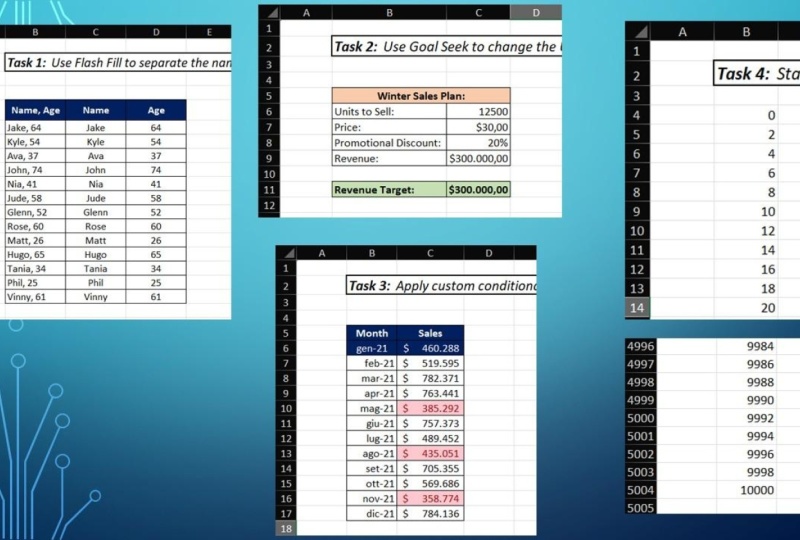
Transcrições
1. Apresentação: Bem-vindo a esta aula sobre dicas e truques do
Excel. Meu nome é Julian, e tenho trabalhado e ensinando XL nos últimos dez anos
como profissional de marketing digital. Exile é um software incrivelmente
poderoso, mas muitas vezes as pessoas não estão cientes de muitos de seus recursos que poderiam poupar tempo e tornar sua análise de dados mais forte. Para esta aula, escolhi
o que acho que são alguns dos melhores recursos do Excel que são mais fáceis de aprender, rápidos de usar e muito poderosos. A turma é projetada
para alunos que já têm
um nível
de experiência iniciante usando o Excel e desejam expandir
seu conjunto de habilidades. Se você é completamente
novo no Excel, eu recomendaria minha aula do Excel para
iniciantes. Nesta classe, abordaremos Flash Fill e como ele pode
automatizar tarefas manuais. O recurso Goalseek, opções de formatação
condicional. Abordagens de melhores práticas para
criar e formatar dados. E muito mais. As lições foram projetadas para que você possa
assisti-las em qualquer ordem. O que significa que você pode ignorar
todas as lições que cobrem tópicos com os quais você
já está confortável. Depois de terminar a aula, você poderá
testar o que
aprendeu com o projeto da classe. Obrigado por se inscrever nesta
aula e vamos começar.
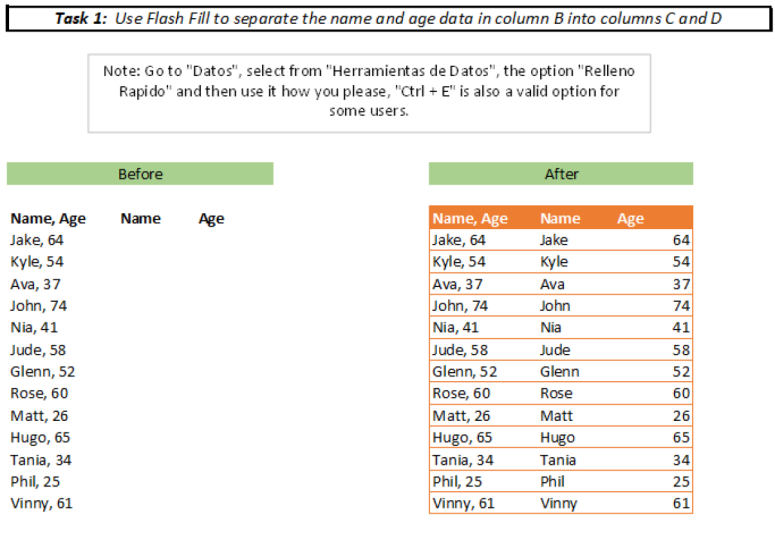
2. Automatize tarefas manuais com preenchimento instantâneo: Nesta lição,
vamos dar uma olhada no recurso Flash
Fill. Agora, o que o Flash Fill faz é detectar um
padrão nos dados e preenche automaticamente
as células restantes com base nesse padrão. Temos um exemplo aqui em que
temos o FirstName está na coluna a e o
segundo nome da pessoa na coluna D. E o que
queremos fazer é preencher todas as células na coluna
C com o nome completo, o primeiro nome, mais
o segundo nome. Agora, existem algumas maneiras pelas quais podemos fazer com que o Flash Fill funcione. Mas primeiro,
só precisamos escrever
no primeiro. Então, Amy Larson. Então, uma das
maneiras mais rápidas que muitas vezes funcionará, podemos começar a
digitar o segundo
exemplo, assim. E você pode ver como o Excel está preenchendo todas as células
e da maneira exata que
você deseja fazer, eu posso simplesmente clicar em Enter e, em seguida todos os nossos
nomes completos foram repreenchidos. A outra opção,
nem precisamos digitar nada aqui. Podemos apenas chegar
ao menu Preenchimento
na guia Início da faixa de opções
e selecionar Flash Fill. Então, novamente, XL é
preenchido todas
essas células exatamente como
queremos que elas sejam preenchidas. Por fim, há um
atalho de teclado, Flash Fill, e é Control
E. Basta fazer o Control E. E então todos nós mesmos e
preenchê-lo exatamente assim. Em seguida,
veremos um exemplo de Flash Fill. E, na verdade, vamos
fazer o oposto ao que fizemos
no primeiro exemplo. Aqui temos o nome completo
escrito na coluna a. E o que queremos fazer é dividir
o nome completo no
primeiro segundo nome nas
colunas B e C, respectivamente. Então o que vou fazer é
escrever Amy e o celular B2. E vou mover a
tosse para a célula C2. E certo, Lawson. Agora, é claro que
existem algumas maneiras de
fazer com que o Flash Fill funcione. Eu vou apenas
controlar a opção aqui, Controle E. E então você pode ver todos os nossos primeiros nomes
foram preenchidos na coluna B, encontrar a coluna C e eu vou fazer o Control Z novamente. E agora temos isso. Todos os nossos segundos nomes
agora preencheram a coluna C. Vamos ver mais
um exemplo de como
você pode usar o Flash Fill. Este é um pouco diferente. Desta vez, temos
o nome do representante de vendas e as
vendas, tudo em uma coluna separados
por uma vírgula e um espaço. E o que queremos fazer é
colocar o nome do representante de vendas na coluna B e a
figura de vendas na coluna C. Novamente, tudo o que temos que fazer é apenas escrever essa primeira linha. Então aperte Enter e eu vou
fazer Control a e Control E. E então, incidentemente, você
pode ver como preenchemos todas essas células de
uma maneira muito rápida. Então, temos os dados que queremos divididos em duas colunas
diferentes agora.
3. Busca de Objetivos: Deixe o Excel fazer as Matemáticas para você!: Nesta lição,
vamos dar uma olhada no recurso Objetivo Seek no Excel. Agora, a melhor maneira de explicar o recurso Goalseek
e mostrar o que é útil é
entrar em um exemplo. Então, temos um plano fictício de vendas de
verão. Aqui. Estamos procurando vender 7 mil unidades de
um item a um preço de US $40 com um desconto de 20% pois é uma venda sendo
aplicada a esse preço. E o que isso significa
é que, se levarmos as unidades para vendê-lo
vezes pelo preço, mas depois aplicamos esse desconto
promocional de 20% para US $40 seria realmente um preço
efetivo de $ 32. Se obtivermos um
resultado de receita de US$224 mil. Agora, digamos que
temos um chefe que diz, depois que eles deram
uma olhada
nisso, não é ambicioso o suficiente e
que agora temos uma meta
de receita de US $250 mil. Agora, há algumas
maneiras pelas quais podemos mudar esse plano
para atingir esse alvo. Por exemplo, poderíamos aumentar o número de unidades
que planejamos vender. Poderíamos aumentar
o preço ou
podemos reduzir o desconto
que estamos dando. Agora, descobrir o quanto
precisamos mudar as coisas é um caso de
matemática ou adivinhação. Por exemplo, poderíamos dizer, bem, tal se
vendemos 70.300 unidades? E eu entro nisso, então
posso ver que
tomei esse palpite, mas ainda não é suficiente. É aqui que entra o Goalseek. Digamos que vamos
selecionar essa célula e
queremos que isso acabe
sendo 250 mil. E queremos fazer isso aumentando o
número de unidades vendidas. Então, o que posso fazer é ir para
a guia Dados e selecionar análise
hipotética e, em seguida,
Goalseek. O que temos aqui. Temos essa parte celular definida aqui. Então, C6, eu já
selecionei isso. Então preciso especificar o que
quero que esse valor mude também. Quero que sejam 250 mil. Então, estou atingindo esse alvo. Então podemos selecionar, e esse é o
poder do Goalseek, qual célula queremos
mudar para que isso aconteça. Vou selecionar a célula C3 com as unidades para vender
. Eu seleciono. Certo? Então você pode ver que
a matemática seleciona, ok? E agora sabemos que
precisamos vender 7.813 unidades. E podemos ver que
a receita foi atualizada e agora estamos
atingindo essa meta. Então, o Excel
fez essa massa automaticamente e
calculou isso para nós. Pode fazer outro exemplo. Digamos que desta vez
queremos alterar o preço
do produto. Vou permanecer selecionado nesta célula
aqui porque esta é a célula onde queremos
ir de duzentos e
vinte e quatro mil, duzentos e cinquenta mil. Vou até
Análise What-If e Busca de Objetivos. E novamente, vou
colocar 250 mil. Então, ao mudar de célula,
aceito desta vez, vou selecionar o preço.
Vou selecionar. Certo. Em seguida, selecione Ok,
novamente, e você pode ver que temos US$44,64. Assim, podemos ver como, o que precisaríamos para
alterar o preço se quisermos atingir nossa meta. Como você pode ver, o Goal Seek é uma
ferramenta realmente poderosa no Excel. Basicamente, ele faz as
contas para você e é ótimo ter em
seu kit de ferramentas para economizar tempo.
4. Como configurar seus dados com o Autofit: Nesta lição,
faremos uma execução de como
você pode formatar larguras de coluna e alturas de linha para que elas se ajustem automaticamente
aos dados que estão nelas. Temos alguns dados
meteorológicos históricos aqui,
mas, como você pode ver, a formatação é realmente
confusa e inconsistente. Então, alguns dos nossos cabeçalhos de coluna
podemos ler a localização B, temperatura
máxima, mas outros estão ocultos e dois,
ler o que há neles. Temos que
clicar neles e depois procurar na barra de fórmulas. Alguns dos dados em si se escondendo porque
as larguras das colunas são muito estreitas e as alturas das linhas
também são formatadas de forma inconsistente. Então, temos uma linha 17 onde há muitos
espaços em branco vazios, por exemplo. Há algumas
maneiras de consertar isso. O primeiro eu posso apenas controlar ou comandar um em um Mac. Vá para o
menu Formatar na guia Início e selecione Largura da coluna
Ajuste automático. Então você verá todas as larguras de nossas colunas e nosso ajuste
automático aos dados. Então eu posso formatar a altura da linha de ajuste
automático. E agora temos todas as
nossas linhas formatadas
de uma maneira bem arrumada. Só volte. Bem, também
posso fazer é destacar todas as colunas e
aplicar o ajuste automático, o que posso fazer é apenas
clicar duas vezes em uma delas. E então você verá que todas as nossas colunas agora são ajustadas automaticamente. E então posso destacar
todas as linhas, clicar duas vezes em uma delas. E, novamente, todas as
nossas alturas de linha agora
também estão ajustadas.
5. Melhores práticas com o atalho de teclado AutoSum: Nesta lição,
veremos o recurso de soma automática no Excel. E, especificamente,
vamos olhar o atalho do teclado
para autossomo. Temos alguns dados de vendas aqui. Suas vendas por oficiais
Berlim, Edimburgo, Los Angeles, Manchester
pessoa, escritórios em Cingapura. E temos os dados de
vendas de 2018 até 2021, então quatro anos. Agora você notará as células aqui e essas
células aqui em baixo ou em branco. E é isso que vamos fazer, é preencher essas
células com os totais. Assim, as células
ao longo da parte inferior novamente contêm os totais de
todos os oficiais para
cada ano individual. E então as células abaixo do lado aqui vão conter
o total por todos os anos, mas para um escritório de cada vez. E então esta célula aqui, então f 11 conterá o
total de tudo. Existem algumas maneiras de
adicionar totais e Excel. Obviamente, uma maneira muito
lenta de fazer isso é apenas selecionar uma célula
de cada vez como esta, B5, B6, B7, etc que levará
muito tempo. A próxima coisa que você pode fazer é escrever manualmente igual a soma. Em seguida, podemos selecionar as células
que queremos adicioná-lo, clicar em Enter e obtemos nosso
total assim. Vale a pena estar ciente
do recurso AutoSum. Então, quando estamos na célula
que queremos nosso total, poderíamos vir aqui e
selecionar AutoSum e expirar irá preencher
instantaneamente a função de
soma e selecionar as células relevantes. Só temos que apertar enter
e obtemos nosso total novamente. Mas o objetivo
desta lição é mostrar
o atalho do teclado. Para isso, podemos fazer alt igual no Windows ou Command
Shift T no Mac, que é mais rápido do que pegar o mouse e subir
para resumir automaticamente aqui, pressione Enter e obtemos
nosso total novamente. Agora, o que podemos fazer para preencher o restante dessas células
é arrastar essa fórmula. E então poderíamos fazer
AutoSum aqui novamente. Pressione Enter e podemos arrastar isso para baixo e obtemos
tudo assim, o que é uma maneira
bastante rápida e eficiente de
somar todos os nossos totais. Mas, na verdade, há
uma maneira mais rápida em uma situação como essa. Portanto, o Excel é muito bom em entender o que você quer fazer e
analisar seus dados. Então, aqui temos um conjunto de dados em que todos os nossos
valores à frente e
temos dados
claramente rotulados e cabeçalhos de
colunas e linhas
claramente rotuladas. Então, o que
podemos fazer é apenas fazer Controle a. Você só precisa ser selecionado em
qualquer lugar do intervalo de dados. Isso não importa. Controle um que selecionará tudo
e é Command a no Mac. Então, fazemos o mesmo atalho de
teclado para o autossomo. Portanto, O2 é igual ao Windows ou
Command Shift T no Mac. Então eu só faço o Alt igual. E instantaneamente você notará que todos os nossos totais
foram adicionados. Agora tudo foi adicionado apenas com um atalho de
teclado. E dois de vocês incluem controle a ou Comando
a para começar. Essa é apenas uma habilidade do Excel muito rápida e poderosa para ter em seu kit de ferramentas que
pode permitir que você adicione
rapidamente os totais
sem ter que
fazer as coisas manualmente.
6. Formatação condicional: Facilite os seus dados a entender: Nesta lição,
vamos dar uma olhada em dois tipos de formatação
condicional. Agora, a formatação condicional
é realmente útil porque pode tornar seus dados mais fáceis de
entender rapidamente. E também faz com que os dados pareçam um pouco mais
interessantes, francamente. Portanto, temos nossos dados de vendas
por Office aqui, 2018 a 2021 em seis escritórios diferentes
em diferentes locais. E todos os dados
estão em dólares. E você pode ver que temos uma variedade de
valores diferentes aqui. Então, se eu for para o
menu de formatação condicional na guia Início, os dois tipos que
veremos nesta lição são as opções de barras de dados e escalas de
cores. Com barras de dados, há duas opções de formatação
padrão. Temos preenchimento gradiente e
preenchimento sólido. E você pode ver o
estilo diferente que esses dois têm. Para este primeiro exemplo,
vamos usar
a opção de preenchimento de gradiente azul. O que você notará
é que a barra varia em comprimento, dependendo de quão
alto ou baixo o valor é. Nosso maior valor das vendas
em Paris 2018, que é um 179407. Isso tem uma barra de dados que
cobre o atacado. E então, se olharmos para o
nosso menor valor aqui, que são as vendas de Los Angeles 2021, a barra de dados cobre
apenas uma pequena proporção
da célula. Como você pode ver,
posso alterar rapidamente a formatação para
um tipo diferente. Então, isso realmente depende do tipo de estilo
que você quer, mas é rápido e fácil de adicionar. Em seguida, vamos dar uma
olhada nas opções de escalas de cores. Como antes. Existem várias
opções diferentes em termos
do estilo de formatação
que você deseja e padrão. Se seguirmos
este primeiro, selecionarei isso para a escala de cores verde, amarelo e vermelho. O que aconteceu aqui é os valores mais altos têm
o tipo de verde mais escuro, e então ele desce
para um verde mais claro
e, em seguida,
os valores mais baixos têm uma cor graduada. Então, temos as vendas de Los Angeles
2021 com 57811. Existem várias
opções diferentes, como mostrei. Então, se formos às escalas de
cores novamente, podemos ver que
temos essas opções, que é a nossa escala de cores verde
branco. Este aqui, que é uma escala de cores branca, vermelha, etc. Então várias opções diferentes. Outra coisa a mencionar
é que você também pode adicionar esse tipo de formatação
de uma maneira ainda mais rápida. E isso é usando a ferramenta Análise
rápida. Então, depois de
destacar as células, você verá que essa pequena
opção aparece aqui. Acabamos de selecionar isso. E instantaneamente temos as opções de
formatação selecionadas. E há as
barras de dados e as escalas de cores. Agora, há apenas um tipo que
você pode adicionar aqui. Em termos de formatação, há menos opções, mas é uma maneira super
rápida de adicioná-la, então vale a pena estar ciente
dessa opção dois.
7. Como adicionar formatação condicional personalizada: Nesta lição, vamos dar uma olhada na adição de alguma formatação
condicional personalizada com
base nas regras que definimos. Então, vamos retornar às
nossas vendas por dados do Office. Vou destacar
todos os valores de dados. Venha para o menu de
formatação condicional. E desta vez
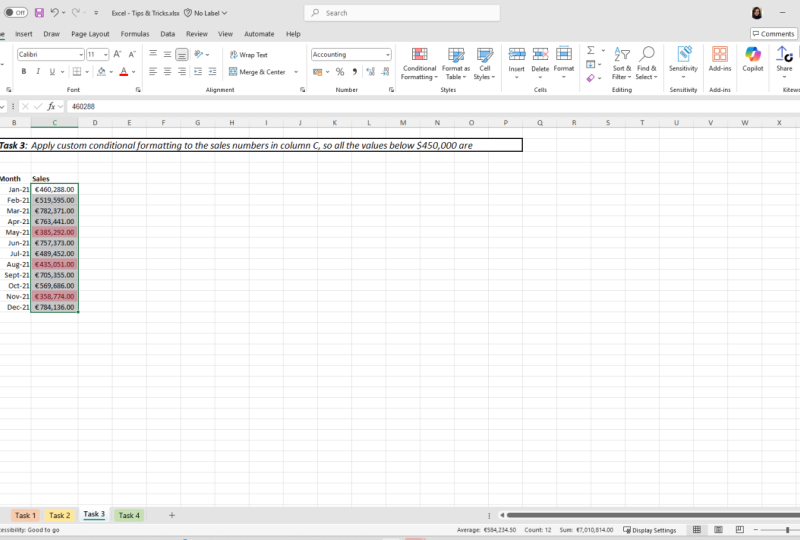
vamos com uma seção de regras de células de destaque. E vou aplicar
alguma formatação para células onde há um valor maior que US $140 mil. Então, digamos, você sabe, qualquer coisa que esteja acima
de US $140 mil é considerada muito boa. E queremos destacar isso. Vou selecionar maior do que e depois vou
escrever em 140 mil. E há várias opções de
formatação diferentes. Para isso. Vou
ir com verde, preencher com texto verde escuro,
e depois selecionar um k. você pode ver como temos todos os nossos valores que estão
acima de 140 mil. Então, o que estamos considerando, desempenho
muito bom, destacado claramente com
a formatação verde. Em seguida, vou
destacar todas as células novamente. E vou
adicionar alguma formatação para escritórios e
anos em que
temos um
desempenho particularmente ruim e vamos definir um benchmark de qualquer coisa
abaixo de US $70 mil é ruim desempenho que
queremos destacar. Por esse tempo,
vamos para a opção menor que. Vou
escrever apenas em 70 mil. Vamos deixá-lo como vermelho claro, preencher com texto vermelho escuro. Selecione. Certo? Agora você pode ver que temos dois tipos de formatação aplicados. Então, temos o verde acima
de 140 mil e o vermelho por
menos de 70 mil. Portanto, é apenas uma maneira rápida de
visualizar onde temos particularmente bom e
desempenho particularmente ruim.
8. Edição e remoção de formatação condicional: Agora, algo mais
a ter em mente com formatação
condicional
é que é fácil editar e remover regras
que você tem no lugar. Com nossos dados de vendas aqui, onde temos todos
os valores acima de US$140 mil
destacados em verde, e os valores abaixo de US$70
mil destacados em vermelho. Digamos que eu queria mudar isso
para que os valores
destacados em verde tenham
que estar acima de US $150 mil. O que posso fazer para mudar
isso, é apenas destacar
as células e, em seguida, chegar ao menu de
formatação condicional. Vá para Gerenciar regras. Você vê que temos nossas
duas regras aqui. Preciso selecionar a
regra que quero editar e, em seguida, selecionar Editar regra. Então eu mudei isso de
cento e quarenta mil, cento e cinquenta
mil, selecione, Ok? E selecione, Ok, novamente, você pode ver nossa
formatação mudou. Por exemplo, essas
duas células não
estão mais em verde porque
não estão acima de US $150 mil. Agora vamos dizer que eu
realmente só quero remover toda
a formatação condicional
que temos aqui. O que posso fazer é ir
ao menu de formatação condicional e fazer regras claras. E vou usar regras
claras de
toda a planilha, pois não
tenho essas células selecionadas. Mas se você quisesse remover a formatação condicional
apenas de algumas células específicas, você poderia destacá-las
e seguir essa opção. Mas neste caso,
vou apenas usar folha inteira
clara,
selecioná-la e, em seguida,
toda a nossa formatação,
a formatação condicional agora
é removida.
9. Série: Como fazer grandes listas rapidamente: Muitas vezes, no Excel,
você deseja criar uma lista de números ou datas. E a maneira comum de
fazer isso é escrever os dois primeiros números que estarão
nessa lista, então 12. E, em seguida, arrastá-los para baixo e preencher séries
de números como este. Então, digamos que queremos
ir até um 100. Em seguida, obtivemos uma lista que vai de um a 100. Assim mesmo. Esta é uma maneira bastante
rápida de fazer isso, certamente
é muito
mais rápida do que, por exemplo, fazer algo assim, onde entraríamos
cada um manualmente. Mas também há outra
ferramenta para estar ciente no
excel além de apenas arrastar
os números para baixo. Isso é particularmente
útil se você precisar
criar listas muito longas. Vamos
começar com uma lista que
começa de uma só vez, exceto desta vez, vamos
até as opções de preenchimento na guia Início
e selecionar séries. O que vamos fazer é criar uma lista de números que
vai de um a dez. Milhares são uma lista muito longa. E para fazer isso,
precisamos especificar
a série em colunas porque estamos indo
para baixo em uma coluna. Valor do passo,
vamos sair como um e depois digitar linear,
vamos deixar isso. Mas o valor de stop,
vamos colocar 10 mil cabelos. Então 10 mil, então tudo o
que tenho que fazer é pressionar Ok. E então, instantaneamente,
tenho uma lista que vai de um a 10 mil
assim. Então, como você pode ver, essa é uma maneira
muito rápida de criar grandes listas longas de números no Excel ou algo
mais que você possa fazer. Você pode usar as Opções da série de
preenchimento para criar linhas, linhas de números. Então, digamos que queremos criar uma linha de números que
sobe em cada vez. Então, 2468, etc. Vou começar minha linha
de números assim também. Em seguida, vou
para o menu Série de preenchimento. Vou deixar a série envolve desta vez
deixar isso como está. Vou mudar o valor do
passo para dois deles. Primeiro, vou colocar
um valor de parada de 100, e vou selecionar OK,
você verá o que acontece. Então, agora temos a tabela de duas
vezes indo 246810, etc, todo o
caminho até um 100 ali. Neste próximo exemplo
do recurso Série de preenchimento, vamos passar por
um caso de uso mais aplicado. Então, o que vamos fazer é criar uma longa lista de datas
que vão de 1º de
janeiro de 2019 até
31 de dezembro de 2022. Então, hipoteticamente,
o que
teríamos então é uma longa lista de datas que poderíamos preencher todos os
nossos números de vendas aqui. O que vou fazer
é começar com o primeiro de janeiro de 2019. E depois irei junto
com
a opção Série de preenchimento. Você pode ver que o
Excel identificou que estamos trabalhando com uma
data selecionada definida. Vou trocar
séries em linhas,
séries em colunas porque
estamos indo para baixo. Então vou
especificar o valor de stop, que é 31
de dezembro de 2022. Tudo o que tenho que fazer é selecionar. Certo. Então, assim, temos todas as nossas datas preenchidas. Então, temos todos esses
valores indo de 1º de
janeiro de 2019
até 31 de
dezembro de 2022.
10. Mesma Mudança, Folhas Diferentes: Nesta lição,
veremos como você pode fazer
a mesma alteração em várias planilhas. Agora isso é realmente
útil quando você
tem uma variedade de folhas
diferentes e quer que a mesma alteração seja feita
em todas elas, mas você não
quer ter que fazer isso manualmente três vezes ou quatro vezes ou cinco vezes ou
quantas folhas você tiver. Então aqui nós realmente temos
uma pasta de trabalho com 12 guias, uma para cada mês do ano. Vamos usar essa pasta de trabalho para colocar dados de vendas. O que eu quero fazer é ter
quatro títulos, data, unidade, vendido, preço por unidade e receita em cada uma
dessas guias. E eu quero que todos
pareçam iguais. Então, o que posso fazer, estou atualmente
na guia Janeiro e como você pode ver,
elas ficarão em branco. O que vou fazer é apenas selecionar a guia Janeiro segure Shift
e, em seguida, selecionar dezembro. E então isso agora terá todas
as folhas destacadas. Vou começar apenas
escrevendo nos cabeçalhos das colunas, apenas em uma dessas folhas. Então, estou apenas na folha
de janeiro, data, unidades vendidas, preço por
unidade e receita. Agora, vou
arrumar isso um pouco. Então, vou colocá-los em negrito. Também vou
redimensionar essas colunas
apenas para que todos os dados se encaixem corretamente e possamos ver
os cabeçalhos das colunas. Agora o que você notará
é que quando eu clico em cada uma dessas guias
individuais, você verá que todas
elas são exatamente iguais. Então, temos esses quatro
títulos de datas, unidade de venda, preço por unidade e receita em todas
essas 12 vezes, mas só tivemos que
inseri-los uma vez. Também vale a pena ter
em mente que você pode reverter essas mudanças. Então, se selecionarmos todas
as planilhas novamente
e, em seguida, se eu fosse
apenas destacar as de janeiro e, em
seguida, pressionar Excluir. E então, se olharmos
através de cada uma de nossas folhas veremos que
não há nada nessas células. Portanto, a mudança foi
aplicada a todos eles. Novamente, isso é apenas um ótimo
hack que economiza tempo e impede que você tenha que repetir a mesma tarefa
repetidas vezes.
11. Sparklines: O quê, por quê, e como: Nesta lição, vamos dar uma
olhada nos minigráficos. Agora, quais minigráficos existem mini gráficos que se encaixam
no slide uma célula. Temos alguns dados
que vamos
usar nos dois primeiros exemplos. Suas vendas por representante vão
de 2016 a 2021. Temos representantes de vendas diferentes e todos os anos diferentes. Por exemplo, em 2019, animou 67 vendas, enquanto
Leo fez 35 vendas. Em 2017. Peter fez 40 vendas e Sheldon fez 63 vendas, assim por
diante e assim por diante. Agora, para trazer os minigráficos, o que precisamos fazer
é apenas destacar todos os nossos valores
assim. E então você verá que a
opção de ferramenta Análise rápida aparece aqui. Vou selecionar isso. Então, à direita,
temos a seção de minigráficos. E depois há três tipos
diferentes. E vamos
começar com a linha. Então aqui vamos nós. Na coluna de tendência de desempenho, temos um novo pequeno
gráfico de linhas que foi adicionado. E se olharmos para a linha de Anna, o que ela está fazendo é basicamente mostrar a tendência
desses dados aqui. Então começamos bem alto, 66, depois cai. Em seguida, ele
volta novamente onde temos o valor das estatísticas de 67, e depois cai novamente. Se olharmos para Leo, por exemplo, começa bem
alto, depois desce, depois sobe novamente e desce novamente. Eu sou Peter começa muito alto, cai, meio que
mergulha no meio, mas depois começa a
subir novamente. Outra coisa a ser
consciente com minigráficos, podemos alterar a
formatação deles. Então, se eu for para a
opção sparkline na fita aqui, há várias opções
diferentes para que eu possa torná-las
verdes, por exemplo. E então você verá que a
cor deles mudou. Outra coisa que posso fazer também é destacar os
pontos altos, por exemplo. E então você notará que obtemos um pequeno marcador onde estão
os pontos altos. Em seguida, vamos dar
uma olhada em outro
tipo de minigráficos. Então, vou voltar. E então vamos manter todos esses valores destacados. Selecione as ferramentas de
Análise Rápida novamente, minigráficos e vamos dar uma olhada na
coluna desta vez. Agora, temos o mesmo tipo de
coisa acontecendo aqui realmente. Então, temos um mini gráficos, exceto que temos um
gráfico de colunas em vez das linhas. Se dermos uma olhada na
pizza, por exemplo, podemos ver essa tendência
de começar oi, ir baixo novamente, depois
subir novamente. Sheldon começando muito baixo, repente saltando para cima e
depois descendo novamente. E novamente. Existem várias opções de
formatação diferentes, então você só precisa
ir ao menu novamente. Poderíamos selecionar ponto alto
e, em seguida, você pode ver, neste caso, as colunas eram os valores mais altos
são coloridos em vermelho. Neste próximo exemplo, veremos alguns dados
um pouco diferentes. Aqui temos dados de lucros
e perdas por mês para 2018, fruta 2021. O que vou fazer é apenas
destacar todos esses valores. Venha ao menu de
minigráficos e selecione vitória ou
perda desta vez. O que você pode ver agora é
que temos marcadores vermelhos. Então aqui, por exemplo, o terceiro marcador,
todos eles são vermelhos. Podemos realmente encontrar os dados e podemos ver que todos esses valores são
negativos para março, terceiro mês, então
temos menos 50 mil, menos 23 mil, etc. E isso mostra
no minigráfico. Em seguida, outros pontos, você pode ver principalmente que temos
valores positivos de lucro, mas depois outros pontos,
por exemplo aqui. Então esse é o segundo no
mês passado em 2019, novembro. Temos um valor de menos 736. Então esse valor negativo também
está aparecendo
no minigráfico. Como você pode ver, este é
um ótimo brilho para se estar ciente quando
você está lidando com valores
positivos e negativos. E você deseja identificar
rapidamente onde os positivos e onde
estão os valores negativos.
12. Próximos passos: Obrigado por fazer a aula
e espero que você tenha gostado. Avise-me se você tiver alguma
dúvida e encontrar as instruções e
os
arquivos do projeto de classe abaixo para testar
o que aprendeu. Se você quiser saber mais
sobre o Excel, confira minhas outras aulas e siga-me para atualizações sobre novas aulas. Mais uma vez, obrigado por participar da aula e espero
vê-lo na próxima.
 Julian Blackwell, Excel teacher