Universal Search for Blender - Spotlight-Style
1 mês de Skillshare
Disponível com a compraGrátis
Todas as assinaturas serão cobradas automaticamente de forma recorrente até serem canceladas. Se estiver qualificado para um teste gratuito, cancele antes que o teste termine para evitar cobranças. Oferta válida apenas para novos assinantes pagos. Veja os termos de serviço completos aqui.
Sobre este produto

Junaid Alam
3D Artist
Stop hunting through menus. Just press F3.
Blender has thousands of operators, settings, and data types spread across editors, panels, and preferences. If you don't remember the exact menu path, you either dig through nested submenus or give up and use the mouse. Blender's built-in menu search (F3) only searches operator names, so it misses your objects, modifiers, materials, nodes, and most settings entirely.
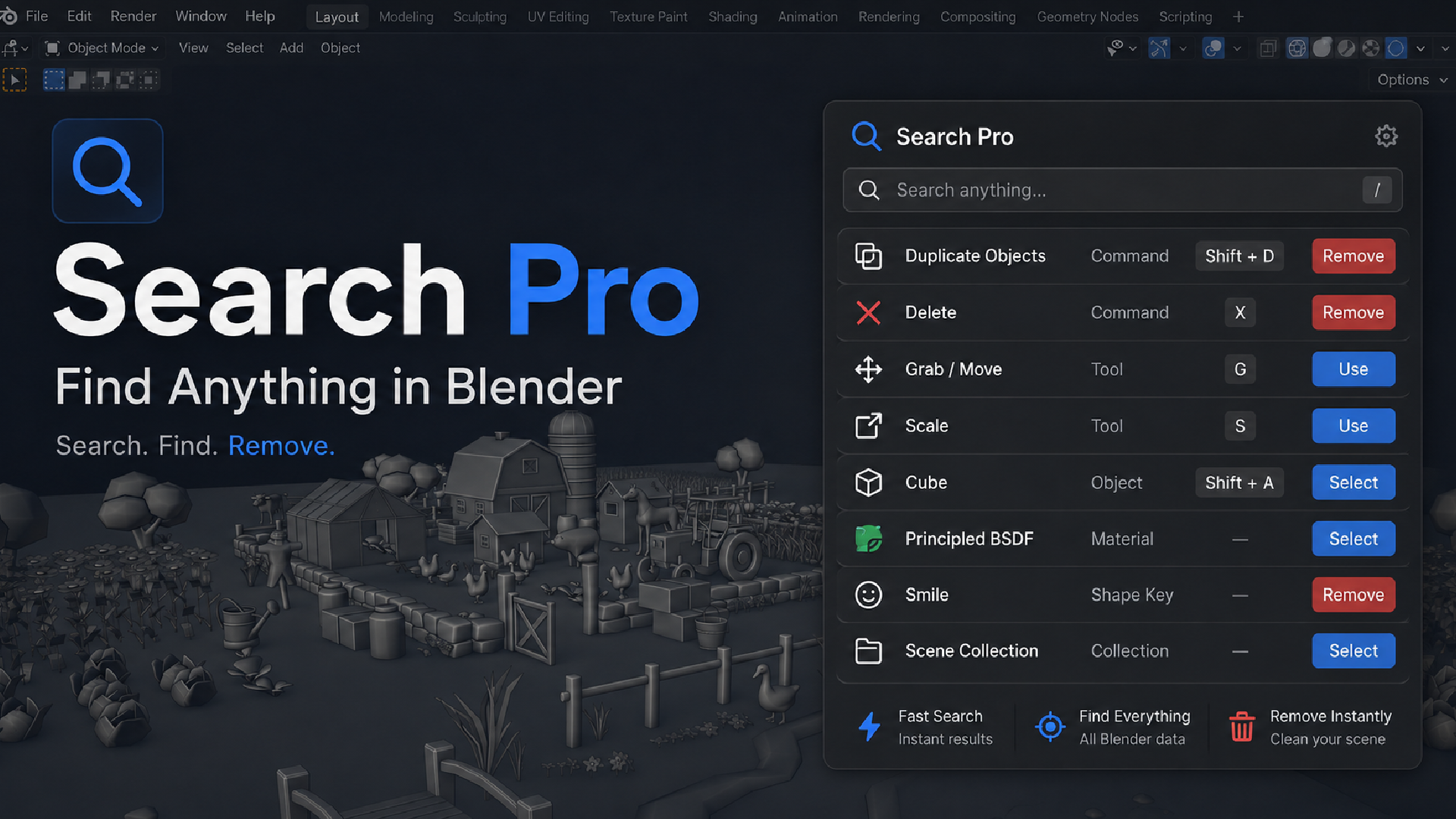
Universal Search replaces that F3 search with one search box that covers almost everything in Blender: commands, tools, shortcuts, current-file data, and interface settings. Type a few letters, see a ranked list, hit Enter, done.
What it actually searches
Universal Search indexes four kinds of content and ranks all of them together:
Commands — operators, tools, menu actions, and keyboard shortcuts
Current-file data — objects, collections, meshes, curves, grease pencil, modifiers, constraints, vertex groups, shape keys, UV maps, materials, images, textures, actions, armatures, bones, drivers, F-curves, NLA tracks, particle systems, physics, and more
Nodes — geometry nodes, shader nodes, compositor nodes, and node groups, sorted by which node family they belong to
Blender interface — preferences, editors, workspaces, themes, keymaps, add-ons, extensions, and asset libraries
If it exists in your current file or in Blender's interface, Universal Search can find it. That is not marketing shorthand — the add-on ships a taxonomy of over 90 distinct search categories, grouped into 11 sections you can filter by (Commands, Objects, Object Data, Materials & Media, Animation & Rigging, Nodes, Scene, Physics & Effects, Interface, Add-ons & Assets, File Data).

Search that understands typos and abbreviations
Universal Search does not just check if your text appears somewhere in a name. It ranks results the way a good search engine would:
Exact match
Prefix match (what you typed starts the result name)
Substring match anywhere in the name
Token match (each word you typed matches the start of a word in the result)
Fuzzy subsequence match, for abbreviations and typos — type "sbdv" and still land on "Subdivision Surface"
Results also weigh in metadata (description, operator ID, shortcut, menu location) when the name alone isn't a strong match, so a search for a shortcut key or an operator ID still finds the right result. The whole ranking pipeline is written to stay fast on repeated keystrokes: the searchable text is normalized once and cached, so typing the second and third letter of a query does not re-scan your whole file.

See exactly how to reach it manually
Every result that has a keyboard shortcut shows the actual key from your current keymap, not a hardcoded default, so if you have remapped your shortcuts, Universal Search reflects that. For results without a direct shortcut, it shows the manual path instead, for example mesh.primitive_cube_add resolves to Add > Mesh > Cube, using a semantic access-path map that fills in the gaps Blender's own keymap data does not expose. You get either "press this key" or "here's where it lives," never a dead end.
Act on results directly
Search results are not just links to menus. Selecting an object result selects and frames it in the viewport. Data-block results that represent real file content, such as modifiers, materials, node groups, or vertex groups, get a remove action with a confirmation prompt, so you can clean up unused data without leaving the search box. Static commands, settings, and menu items intentionally do not get a delete button, since removing those would not make sense.
Two ways to search
F3, anywhere — Universal Search takes over Blender's F3 shortcut while the add-on is enabled, so your existing muscle memory keeps working. Disable the add-on and F3 goes back to Blender's default menu search, no side effects left behind.
3D View Sidebar (N-panel) → Search tab — a dedicated panel with quick-search buttons for common categories (Shape Keys, Modifiers, Objects, Materials, Actions, Nodes) plus a full list of category filters and a manual index rebuild button, for when you want to browse by category instead of typing.
Built for speed, not just breadth
Searching everything in a Blender file could easily mean lag on every keystroke. Universal Search avoids that by preparing its search corpus once (name, compact name, and tokenized text) and caching it, so the first character you type is cheap and repeated typing does not re-normalize text from scratch. Heavy caches also warm up shortly after the add-on registers, not during your first F3 press, so opening search for the first time in a session still feels instant.


Perguntas frequentes
O que são produtos digitais?
Os produtos digitais da Skillshare são ferramentas, recursos e modelos criados por especialistas que estão disponíveis para compra. Com uma ampla gama de recursos para atender a todas as necessidades criativas, eles são acionáveis, tornando sua experiência de aprendizado real e inesquecível.
Como posso comprar um produto digital?
Qualquer pessoa pode comprar um produto digital na Skillshare — clique em Comprar agora para inserir suas informações de pagamento e concluir sua compra. Quando o pagamento for concluído, todos os arquivos estarão disponíveis para download instantaneamente nesta página. Você também receberá um e-mail com um link para baixar seu produto digital após a compra.
Há um limite para quantas vezes eu posso baixar um produto digital?
Não, não há limite para quantas vezes você pode baixar um produto digital. Mesmo que um produto seja removido pelo criador, geralmente você ainda pode acessar a página de download fazendo login na sua conta Skillshare.
Posso obter um reembolso ou cancelar minha compra de produto digital?
Os produtos digitais não são reembolsáveis e não podem ser devolvidos ou cancelados. Para saber mais, consulte nossa política de reembolso no Suporte da Skillshare.
Posso fazer e vender meus próprios produtos digitais?
Com certeza! Visite Como posso vender um produto digital na Skillshare? para saber como você pode criar, listar e vender seus próprios produtos digitais na Skillshare.