Auto Quad Filler Pro Blender Addon
1 mois de Skillshare
Disponible avec l'achatGratuit
Tous les abonnements seront facturés automatiquement de manière récurrente jusqu'à leur résiliation. Si vous pouvez profiter d'un essai gratuit, résiliez avant la fin de l'essai pour éviter une facturation. Offre valable uniquement pour les nouveaux abonnés payants. Consultez l'intégralité des conditions d'utilisation ici.
À propos de ce produit

Junaid Alam
3D Artist
The problem: merging uneven edge loops always ends in bad topology
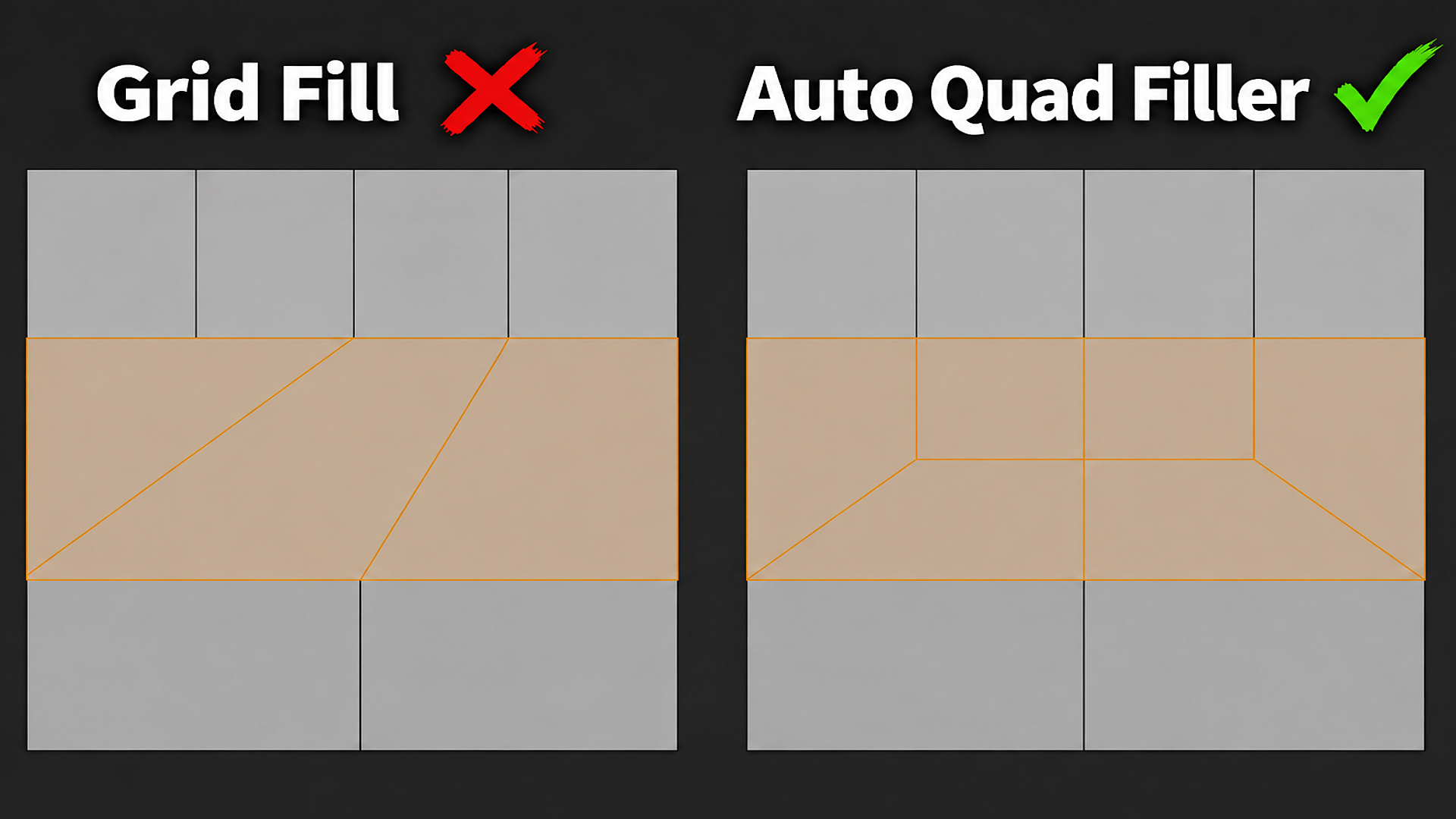
Every Blender modeler hits this wall. You have four edge loops on one side of a surface and only two on the other. Maybe it's a character's torso narrowing into an arm, a hard-surface panel stepping down, or two separately modeled parts that need to join. Blender's Grid Fill and manual Bridge Edge Loops can technically close that gap, but they do it with long diagonal edges cutting across the surface. Those diagonals turn into stretched triangles or n-gons the moment you subdivide, and they break your edge flow.
The usual fix is manual: place a pole, cut in extra edges by hand, merge vertices, clean up triangles, check the normals, and hope the flow still reads correctly after a Subdivision Surface modifier. On a simple panel that's a few minutes. Repeated across a whole character or hard-surface kit, it is hours of repetitive, error-prone work.
What Auto Quad Filler Pro actually does
Auto Quad Filler Pro is a Blender add-on that automates exactly this step. In Edit Mode, select two separate open edge chains with a different number of edges — for example a 4-edge loop and a 1-edge loop — and run the Fill operator. The add-on builds a proper quad-first topology transition between them, using the same reference-style pole patterns experienced topology artists use by hand: three or four quads feeding into one lower support face, instead of one giant fan of triangles.
It is not a general remesher and it does not touch the rest of your mesh. It only replaces the exact gap between your two selected chains. Your original boundary edges are never moved, split, or deleted — the add-on works on a temporary copy of the mesh and only commits the result if the entire transition passes validation.

How it fits your workflow
Select two open boundary edge chains in Edit Mode (the two loop ends you want connected).
Check the N-panel: it reads your selection live and shows the exact ratio, e.g. "Ready: 4 → 1".
Press Shift+F, click Fill, or right-click and choose Quad Filler from the context menu.
The transition is generated, selected, and ready for further editing or a Subdivision Surface modifier.
If the two chains have different edge-count parity (an odd difference, like 5 → 2), the add-on adds a single supporting vertex on one side automatically so the result still closes as clean quads — you do not have to work out the parity fix yourself.
Built for predictable, subdivision-ready results
Every supported ratio has a known, fixed face breakdown, so you always know what you are getting:
4 → 1: 4 quads + 1 five-sided face
3 → 2: 2 quads + 1 triangle
3 → 1: 4 quads
2 → 1: 3 quads + 1 triangle
Larger and uneven ratios (5 → 3, 6 → 2, 4 → 2, and so on) are handled by the same strip-reduction logic, splitting the difference into individual two-strip reduction points along the loop instead of one wide fan.
Every generated patch is checked against its expected quad/triangle/n-gon count before it is written to your mesh. If a candidate does not validate, the add-on rejects it and leaves your mesh exactly as it was — you get a clear error message in the status bar instead of a broken result to clean up.

Options that respect your original geometry
Preserve Symmetry — on mirrored parts (like a symmetrical character or prop), the add-on favors placing the transition so both sides land in matching positions.
Relax Internal Vertices — smooths the newly created internal points for a nicer surface flow without ever moving your selected boundary vertices.
Debug Mode — highlights the generated transition faces with a dedicated debug material and writes the full candidate scoring breakdown to a text block, useful when you want to see exactly why a particular layout was chosen.
Who this is for
Character and creature modelers building clean, subdivision-ready quad topology for rigging and deformation.
Hard-surface and game asset artists closing loop-count mismatches on panels, greebles, and mechanical parts.
Retopology artists merging loop counts from different parts of a base mesh.
Anyone tired of manually placing poles and cleaning up Grid Fill triangles every time two edge loops do not match.
Why it beats the manual workflow
Grid Fill gives you a flat fan of diagonal edges across the whole gap — one operation, one topology shape, no options. Auto Quad Filler Pro instead builds the transition the way a topology-aware artist would place it by hand: quads on the outside, a controlled pole or small n-gon only where the math requires it, and a supporting horizontal edge that keeps the surface reading correctly under subdivision. What used to take manual edge cuts, vertex merges, and cleanup now takes one selection and one keypress — and it is undo-safe, because nothing is committed until the result passes validation.


FAQ
Qu'est-ce que les produits numériques ?
Les produits numériques de Skillshare sont des outils, des ressources et des modèles développés par des pros de la création et mis à votre disposition à l'achat. Avec un large éventail de ressources répondant à tous les besoins créatifs, ils sont exploitables, rendant votre expérience d'apprentissage concrète et inoubliable.
Comment puis-je acheter un produit numérique ?
Tout le monde peut acheter un produit numérique sur Skillshare. Cliquez sur Acheter maintenant pour saisir vos informations de paiement et finaliser votre achat. Une fois le paiement effectué, tous les fichiers pourront être téléchargés instantanément à partir de cette page. Vous recevrez également un e-mail contenant un lien pour télécharger votre produit numérique après l'achat.
Y a-t-il une limite au nombre de fois que je peux télécharger un produit numérique ?
Non, il n'y a pas de limite au nombre de fois que vous pouvez télécharger un produit numérique. Même si un produit est supprimé par la personne qui l'a créé, vous pouvez toujours accéder à la page de téléchargement dans la plupart des cas en vous connectant à votre compte Skillshare.
Puis-je obtenir un remboursement ou annuler l'achat de mon produit numérique ?
Les produits numériques ne sont pas remboursables et ne peuvent être ni retournés ni annulés. Pour en savoir plus, consultez notre politique de remboursement dans le centre d'aide Skillshare.
Puis-je créer et vendre mes propres produits numériques ?
Absolument ! Consultez l'article Comment puis-je vendre un produit numérique sur Skillshare ? pour découvrir comment créer, proposer et vendre vos propres produits numériques sur Skillshare.