Modern PowerPoint Template by One Skill
Hello Everyone, when we are faced with the task of creating a PowerPoint template, we have to make many creative choices. Let me walk you through my creative workflow and hopefully help you along your creative journey.
GETTING INSPIRED
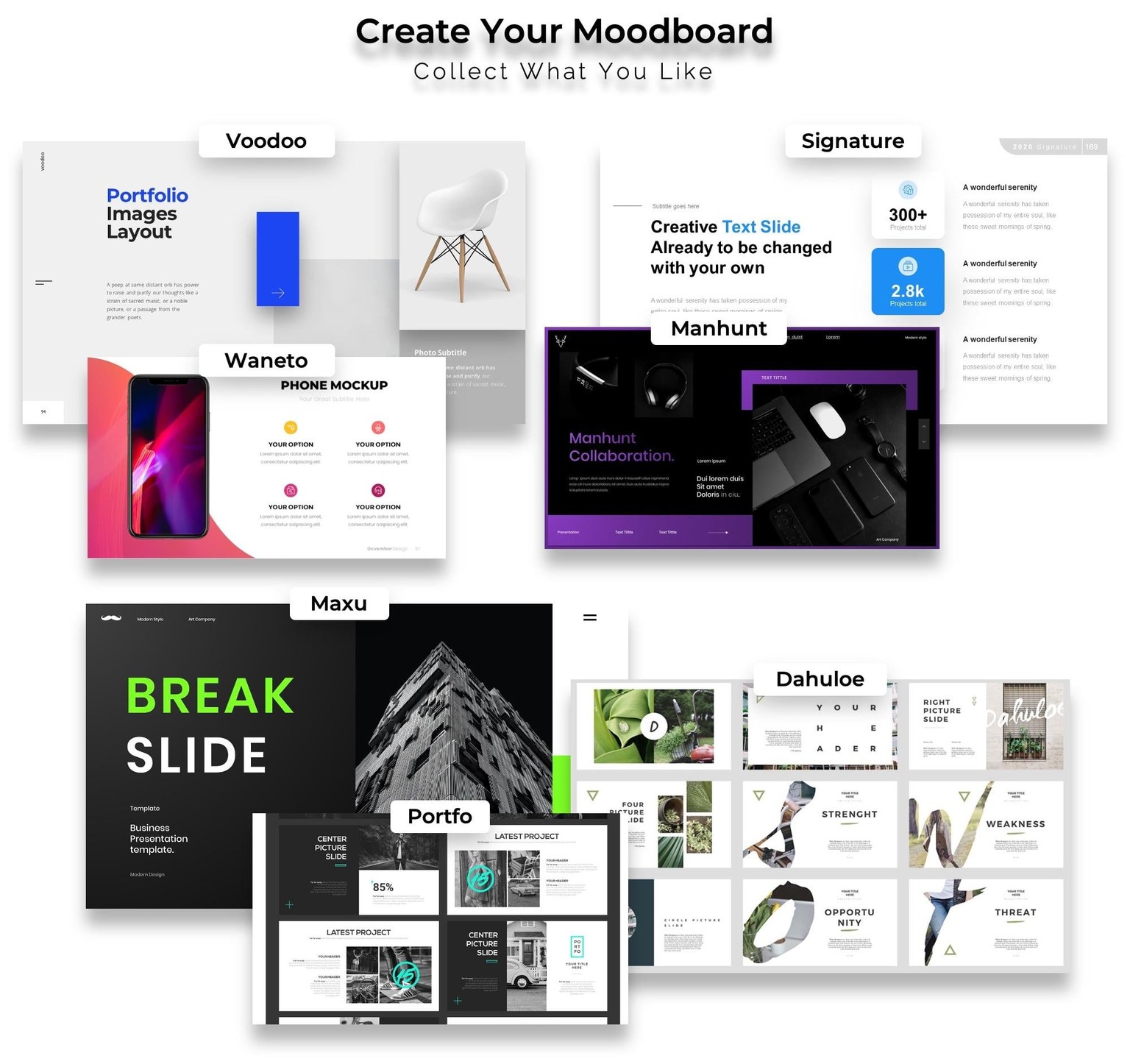
Well, first of all if you are creating a PowerPoint template for a company then in most cases you will have to follow a brandbook. In case you have complete creative freedom and want to start from scratch, then you should decide on how you would want your template to look. I would suggest creating a moodboard and collecting some screenshots of slide design that you like. Here is my moodboard. I decided to go for a modern, minimal look, with some soft shadows. I guess that is why I have picked these screenshots for inspiration.
LAYING FOUNDATIONS
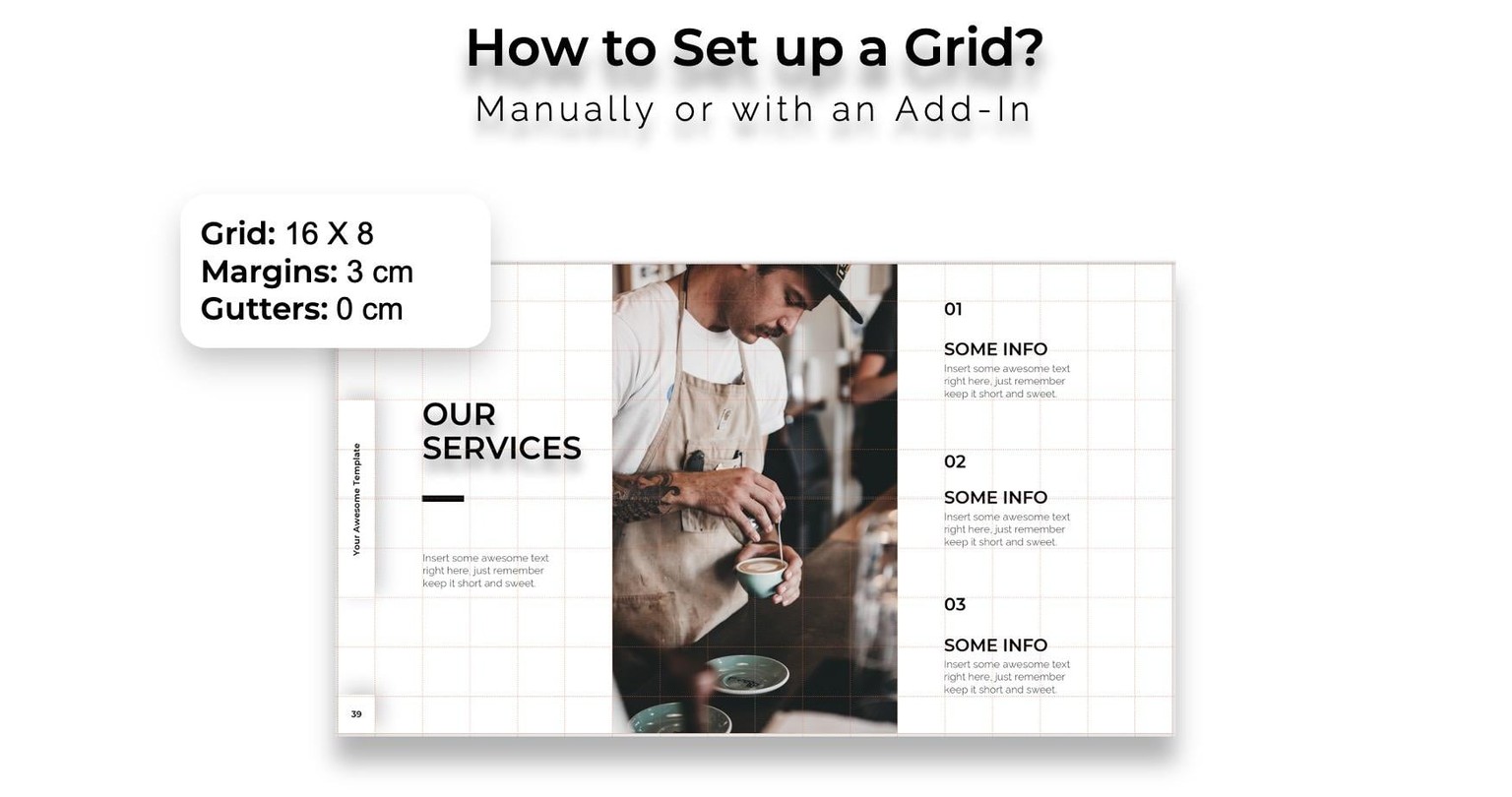
For the slide aspect ratio I have chosen 16:9 (this is pretty much the main format these days, 4:3 was used in the past). I have set my slide size to Full HD 1920 x 1080 px (by default PowerPoint creates slides of 720p resolution). Another super important thing in my opinion is setting up margins and a grid, that will help when creating balanced slide layouts. I have decided to set up a grid of 16 columns and 8 rows (with 3 cm margins).
DEFINING STYLE
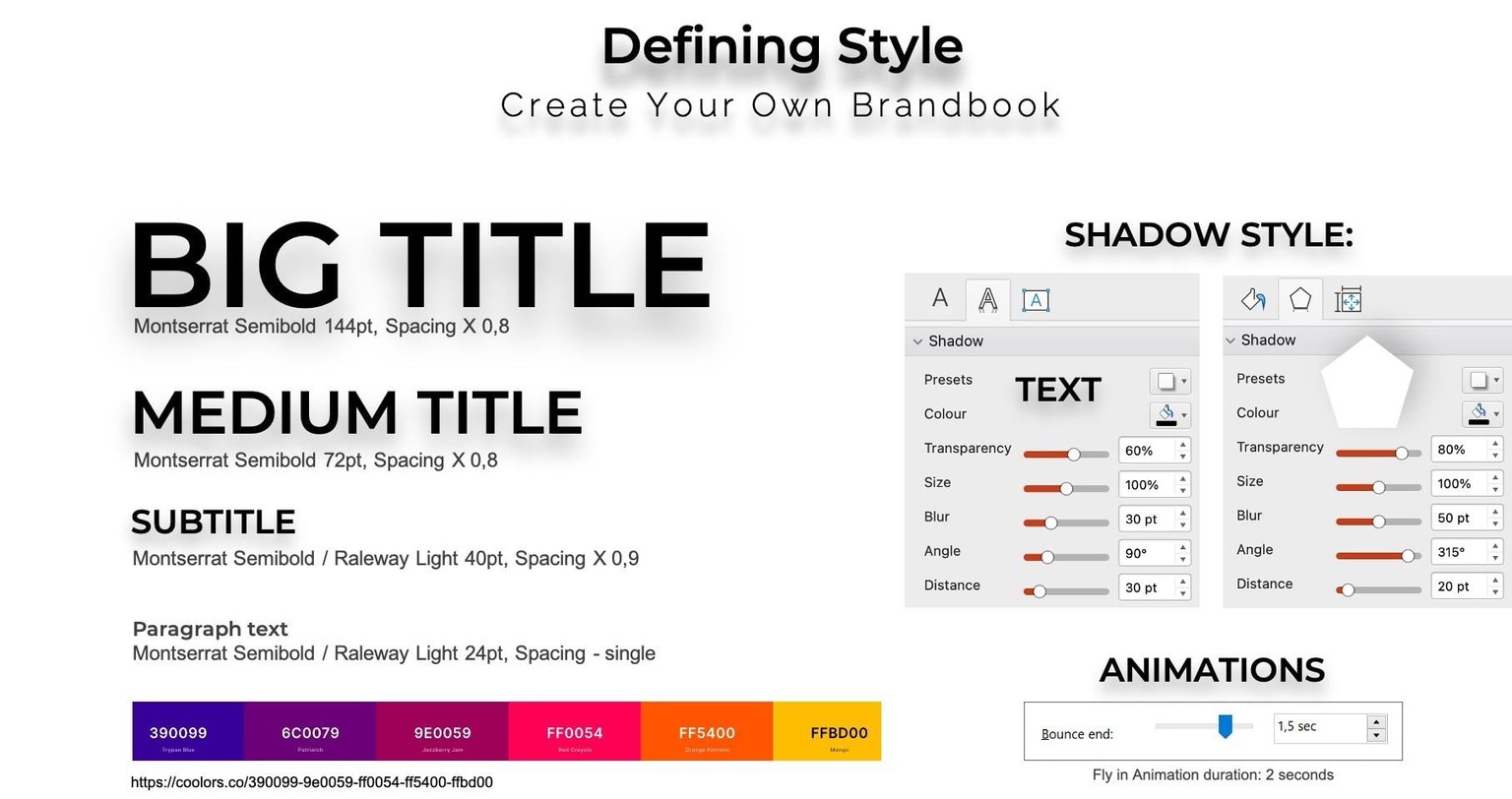
In the Slide Master you can set one font for Headings and one for Body text. I have decided to go for Montserrat Semibold (Headings) and Raleway Light (Body). Having the same font sizes for titles, subtitles and body text across the slides really helps to create a professional look, that is why I would suggest picking some sizes and sticking to them. In my template I have mostly used 72 pt for titles, subtitles 40 pt and 24 pt for body text. Sometimes there are exceptions e.g. huge welcome slide title 144 pt. In the screenshot below you can the choices I have made for my custom color palette, shadow options and animation bounce end options.
CREATING SLIDE LAYOUTS
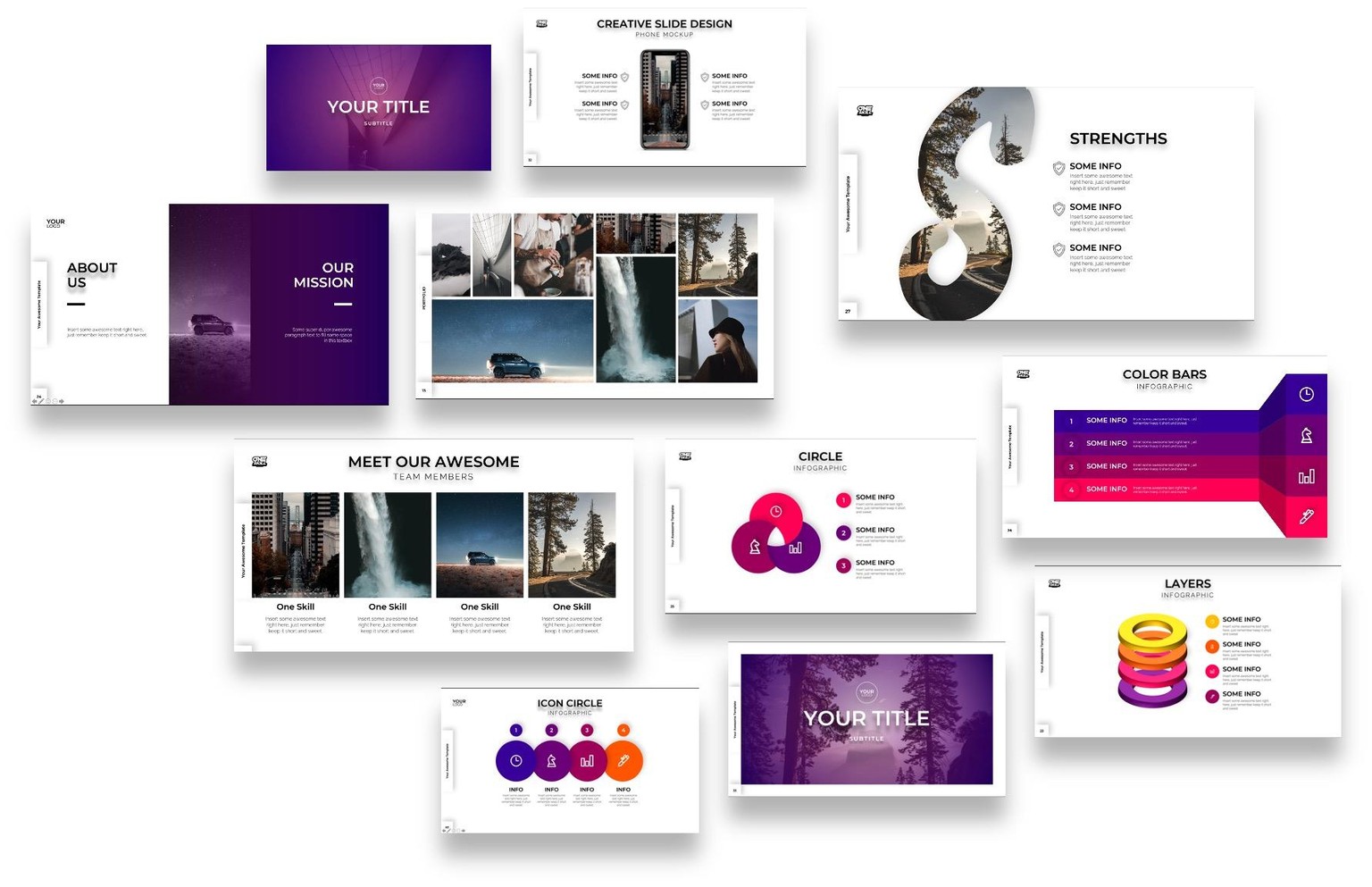
When it comes to creating slide layouts, you have to think about what kind of content people will want to present when using your template. I was thinking about a template that could be used by business people and that is why I have decided to create these slide layouts: Welcome Slide, About Us, Our Services, Team Members, Company Timeline, Portfolio, Infographics, SWOT Sides, Device Mockup, Contact Us. Of course there could be many more slides in a template, however these are pretty common in business presentations and I thought they would fit very well for our lessons.
Feel free to share your own projects that you have created while going through this class. I will be more than happy to check your projects out ^.^