Linux Essentials
Created: Fri 13th June 2025 11:49 PM GMT
Updated: Sat 14th June 2025 11:21 AM GMT
----------------------------------------------
TOC/TABLE OF CONTENTS:-
1.00 -> A PERSONAL INTRODUCTION/COMING FROM A WINDOWS BACKGROUND
EQUIVALENT WINDOWS/LINUX COMMANDS
HOW TO SET UP.../AND, USE ALIAS COMMANDS
Linux basics...
1.01 - LESSON 1: HOW TO BOTH 'OPEN/CLOSE' THE LINUX TERMINAL
APPLICATION ([CTRL]+[ALT]+[T]...[CTRL]+[D])
1.02 -> LESSON 2: THE USE OF CODE COMMENTS TO BE READ VS ACTUAL CODE COMMANDS TO BE EXECUTED (#, date)
1.03 -> LESSON 3: WRITING TEXT TO THE TERMINAL WINDOW/AND, ALSO, HOW TO CLEAR IT (echo, clear)
1.04 -> LESSON 4: FINDING YOUR WAY AROUND THE LINUX SYSTEM (prompt: ~$, whoami, pwd, $USER, $HOSTNAME)
Filing basics...
2.01 -> LESSON 5: FILING: HOW TO LIST FOLDERS/FILES(ls -al)
2.02 -> LESSON 6: FILING: WRITE/OVERWRITE/APPEND/READ/REMOVE FILES(touch fileName to create file, echo "text" > fileName to write, >> to append, rm to delete)
2.03 -> LESSON 7: FILING: HOW TO OPEN UP/AND, USE 'NANO' TEXT EDITOR
----------------------------------------------
1.00 -> A PERSONAL INTRODUCTION/COMING FROM A WINDOWS BACKGROUND
Decided to take this Skillshare class:
'Intro to Linux Command Line: Essential Commands for Beginners'
I am in essence a Windows user...; my last OS/Operating System was Windows 10...which I liked using very much.
On Windows CLI/Command Line Interface...the Terminal application is a black screen window that is commonly referred to as being called, 'The Command Prompt'; and, it can be summoned up by using keyboard shortcut: [ALT]+[R] which brings up the Run dialog box...; into which you type: CMD; then, press [OK].
However, now-a-days(years: 2024/2025), I've mostly switched to using Linux Mint OS, instead; -(that is, from at home/inside of college I now am using, Windows 11)-; and, I 'need' to master learning how to use the Linux Terminal application a lot more effectively.
-----
EQUIVALENT WINDOWS/LINUX COMMANDS
There are many command equivalents between Windows/Linux...
WINDOWS COMMAND(upper case)/LINUX COMMAND(lower case)
DIR/ls
MKDIR/mkdir
CLS/clear
ECHO/echo
-etc.
-----
NOTES:
NOTE(1): Windows commands are 'case insensitive': (DIR/Dir/dir...all mean the same)/whereas, Linux commands are 'case sensitive': (dir). Meaning, if you do NOT type in the command using the exact casing when using Linux...; the system will complain that it doesn't understand/or, recognise that command.
NOTE(2): If the Linux command is NOT the same as is in Windows...; then, it's also possible -if you wish- to set up what's called an 'alias' command...; so, that you can get to use Windows commands to work on a Linux system.
HOW TO SET UP.../AND, USE ALIAS COMMANDS
For example, the Windows command to clear the screen is: CLS/
but, there is no exact equivalent Linux command to do this...as Linux uses the command: 'clear', instead. But, I could set up an alias to work as follows...
alias CLS=clear
so, that now if I were to type into the Linux terminal the Windows command:
CLS
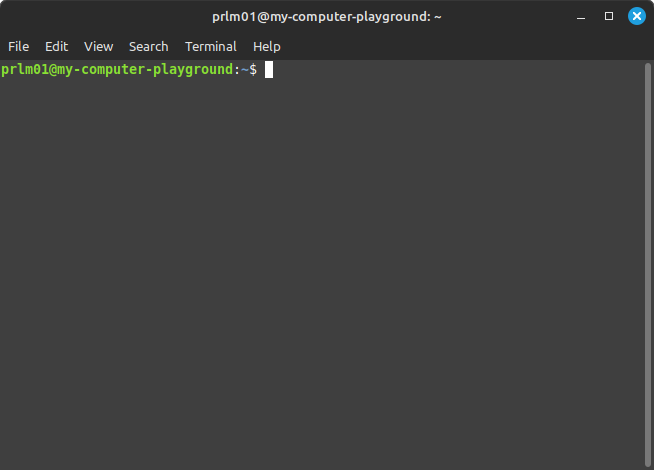
...then, next, press [ENTER]/or, [RETURN] key...; the screen would clear.
NOTE(3): Setting up an alias to work in this manner...isn't something that remains 'permanent', however; but, instead, each time you close down the Terminal application window...; and, open up a 'new' Terminal window...; then, you would have to re-set up the alias to work all over again.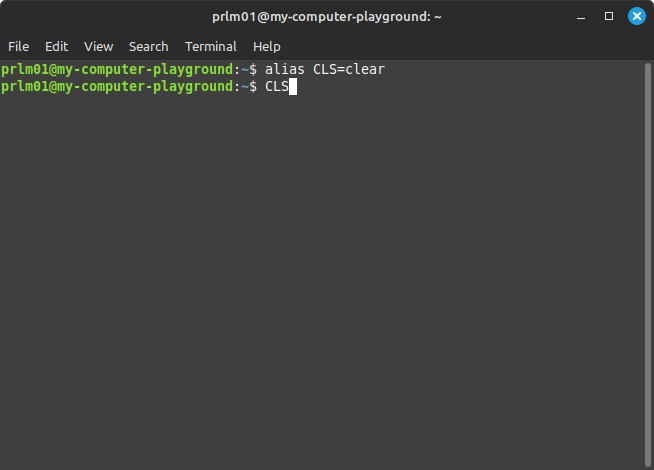
----------------------------------------------
Linux basics...
----------------------------------------------
1.01 - LESSON 1: HOW TO BOTH 'OPEN/CLOSE' THE LINUX TERMINAL
APPLICATION ([CTRL]+[ALT]+[T]...[CTRL]+[D])
OPEN TERMINAL WINDOW
5 different ways to open up a terminal window...
KEYBOARD SHORTCUT
The key board short cut used to open the Terminal application window is:
[CTRL] + [ALT] + [T]
SHORTCUT ICONS
SHORTCUT ICON(1): USING THE HORIZONTAL TASKBAR
NOTE: I'm using Linux Mint OS...; so, I can also click the terminal application 'shortcut icon' which is located on the horizontal Taskbar being seen at the bottom of the screen...it is the 4th icon from the left:
1) [LM] main menu icon, 2) explorer icon, 3) web browser icon, 4) terminal icon.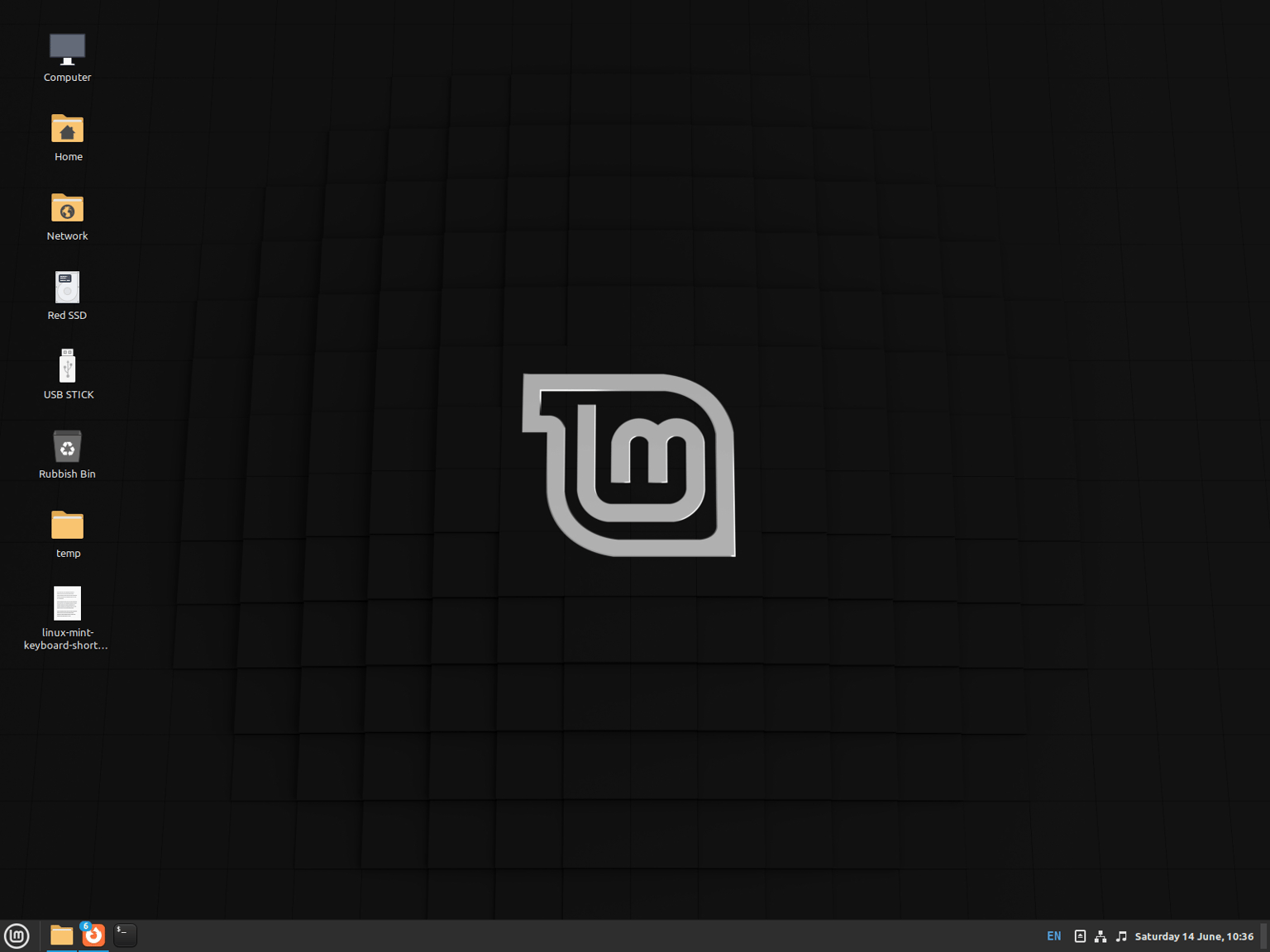
SHORTCUT ICON(2)/MAIN MENU: LEFT VERTICAL SIDEBAR
Another way is to click on the [LM] main menu icon...and, this will open up the Linux Main Menu...; located on the very left hand side of the main menu...is a vertical shortcut icon bar...; the terminal application shortcut...is the 4th one down from the top.
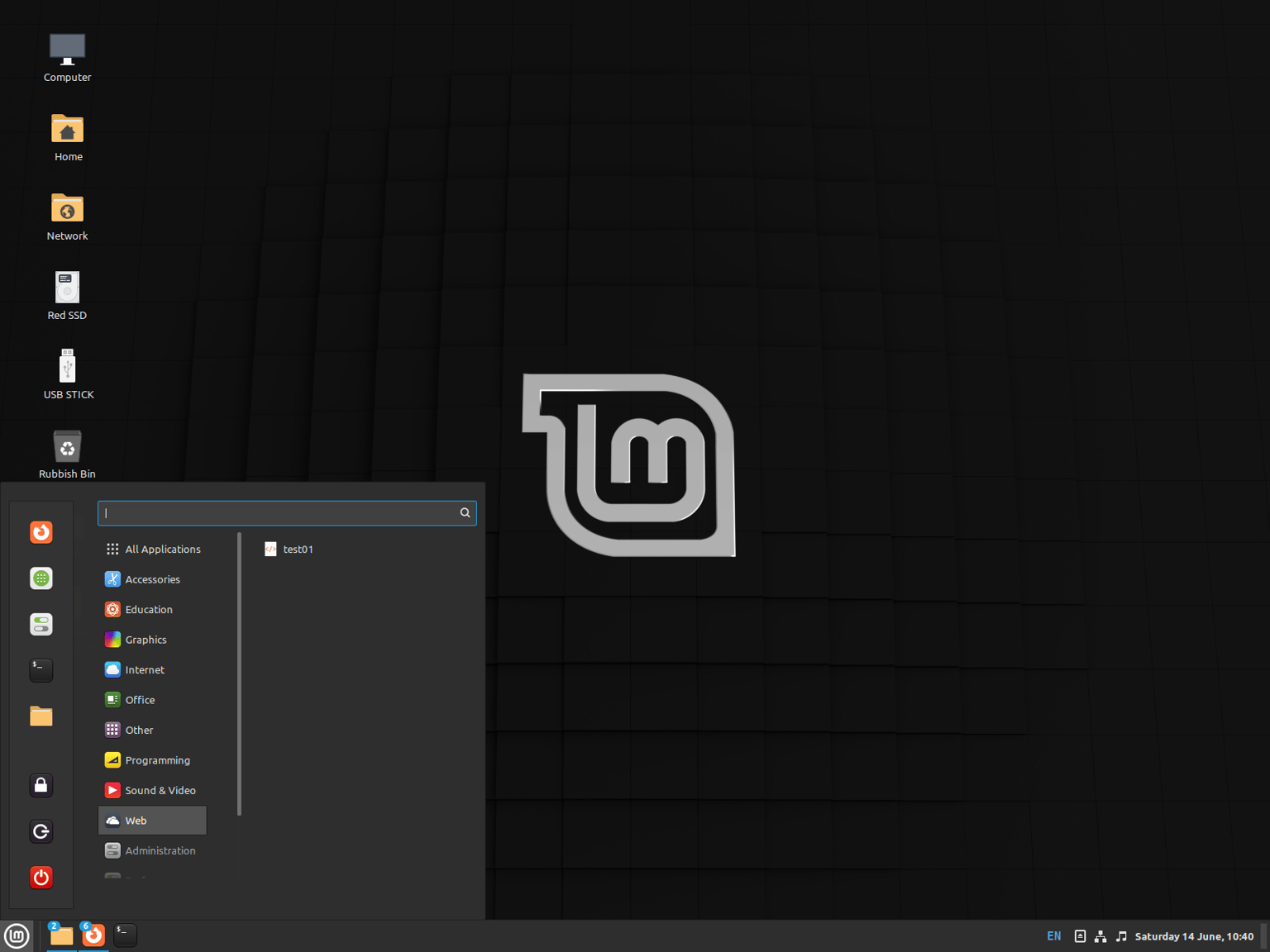
SHORTCUT ICON(3)/MAIN MENU SEARCH BOX
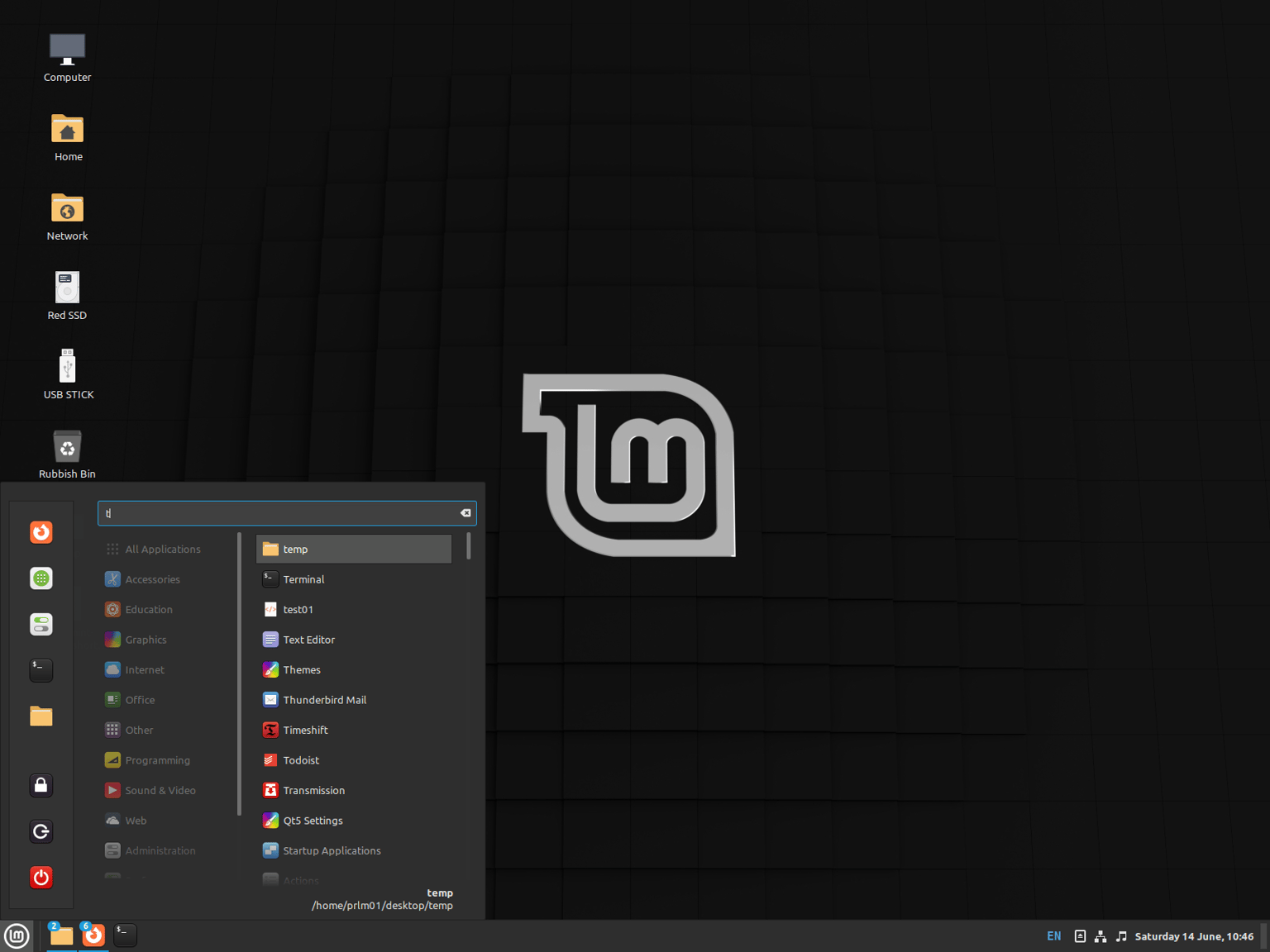
Another method is...when you click on the [LM] main menu icon...; and, the main menu opens...there is a search box at the top...type in there the letter: t...and, it will display a list of all 'folders/files' that begin with the letter 't'. The terminal application shortcut...is, usually, found at the top...in this case, it is the 2nd shortcut icon down being located on the right.
Of course, you could just type in the full word: terminal/then, when the shortcut is found...just hit the [ENTER]/or, [RETURN] key.
-----
HOW TO CLOSE DOWN THE TERMINAL APPLICATION WINDOW
5 different methods of closing down the Terminal application window.
MOUSE(1)
Left mouse button click the windows top right blue [X].
...which is pretty much the 'standard' way to close any opened window.
MOUSE(2)
Use the mouse left button to click on the above window menu options:
File > Close Window
KEYBOARD SHORTCUT(1)
[CTRL]+[SHIFT]+[Q]
KEYBOARD SHORTCUT(2)
Use keyboard short cut:
[CTRL]+[D]
KEYBOARD SHORTCUT(3)
Use keyboard shortcut:
[ALT]+[F4]
...which will close down most applications currently opened window.
TYPE TEXT
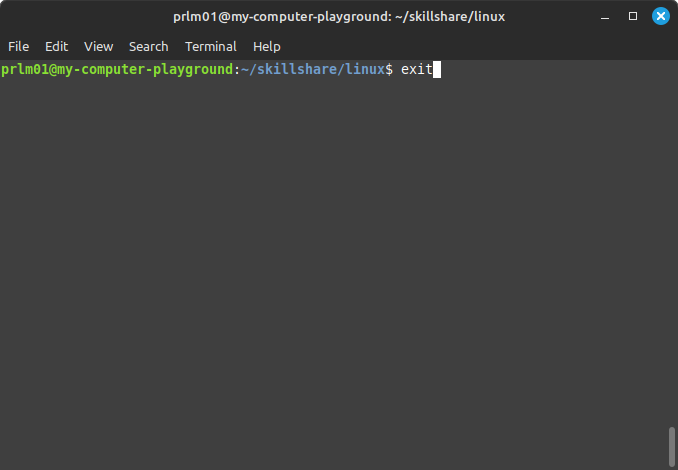
Type command:
exit
...then, press the [ENTER]/or, [RETURN] key to confirm you wish to exit.
------------------------
1.02 -> LESSON 2: THE USE OF CODE COMMENTS TO BE READ VS ACTUAL CODE COMMANDS TO BE EXECUTED (#, date)
How to use code comments: (#).../and, how code comments do differ from actual code.
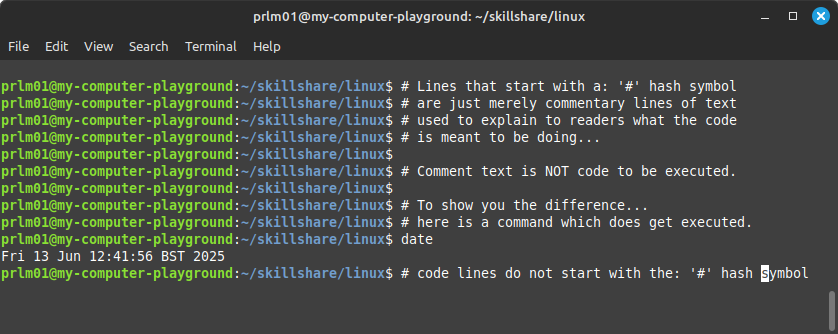
Code commentary text, begins by using the: '#' hash sign symbol.
# This is a comment.
...such comments are used to explain to people who are reading the code;
exactly what the code is meant to be doing.
-----
Code commands, on the other hand, do NOT begin with any hash symbol:
date
...for example, would output what is the current date/time.
------------------------
1.03 -> LESSON 3: WRITING TEXT TO THE TERMINAL WINDOW/AND, ALSO, HOW TO CLEAR IT (echo, clear)
WRITING TEXT TO THE TERMINAL WINDOW
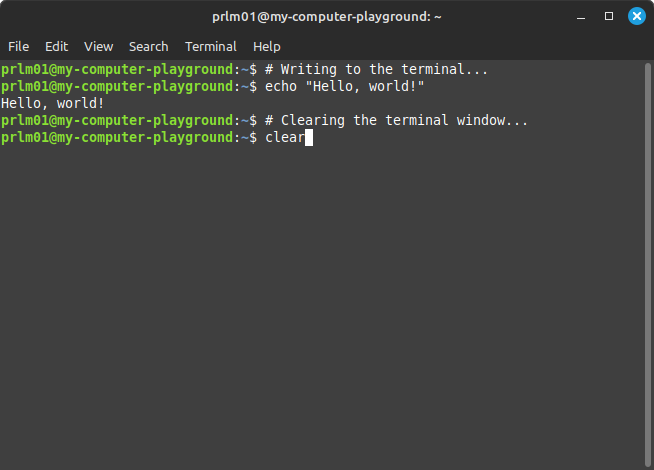
In order to write/output text into the terminal window use the command:
echo
...followed by the text you wish to see output:
echo "Hello, world!"
NOTE: If the text is just 'one' word: then, you don't need to use quotes to surround the text with/but, if it's more than 1 word...it's best to surround the text using a pair of quote marks:
echo "Text to be output goes inside here."
-----
CLEARING THE TERMINAL OF ALL TEXT
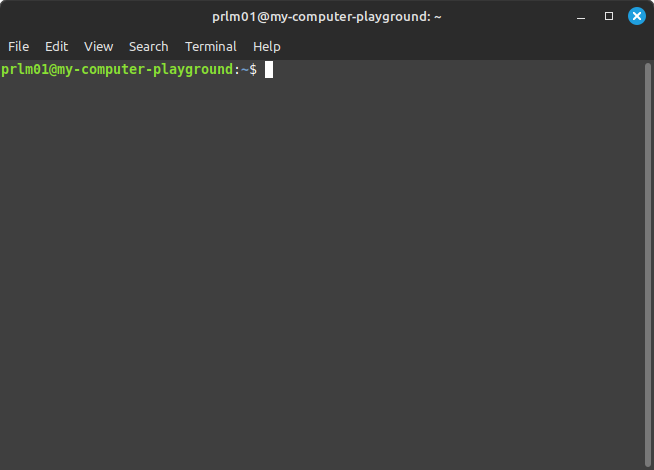
In order to clear the terminal window of all output...type the command:
clear
...then, press the [ENTER] key/or, [RETURN] key.
NOTE:
The keyboard shortcut used to clear the Terminal application window is:
[CTRL]+[L]
------------------------
1.04 -> LESSON 4: FINDING YOUR WAY AROUND THE LINUX SYSTEM (prompt: ~$, whoami, pwd, $USER, $HOSTNAME)
In order to find your way around the Linux system...
-----
READING THE PROMPT
prlm01, is the name of the currently signed in 'user' a/c.
@, the AT: '@' symbol...is used to separate the 'user' signed in a/c. name/from the computer 'hostname'
/my-computer-playground, is the computer's 'hostname'
The '~' tilde symbol...indicates we are now inside of a Linux 'home' directory. Each 'user' will have their own separate home directory folder.
$ ...the dollar sign: ($) symbol which is displayed at the end of the command line prompt, just means the computer is now waiting for the user to type in some commands to be obeyed, later on.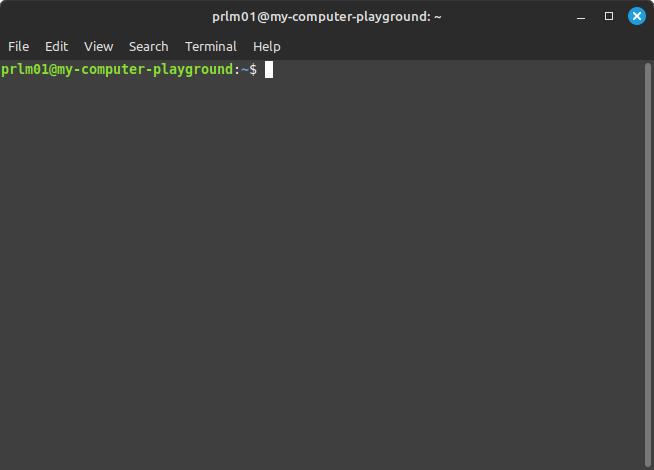
-----
NOTE: Both the user a/c. name/computer name can, actually, 'change'.
If another user were signed in...using both their 'username/password' combination...let's say that user was called, 'admin'...; then, we might see the prompt say, instead:
admin@my-computer-playground:~$
And, similarly, it's possible to change the computer 'hostname'...to become some other hostname...example, 'linux-computer'; then, the hostname might look like the following:
admin@linux-computer:~$
TIP: Both the current username/and, too, the host name are stored in what are called: 'environment variables', namely: $USER, $HOSTNAME; and, these can be printed out by using the 'echo' command:
echo $USER
echo $HOSTNAME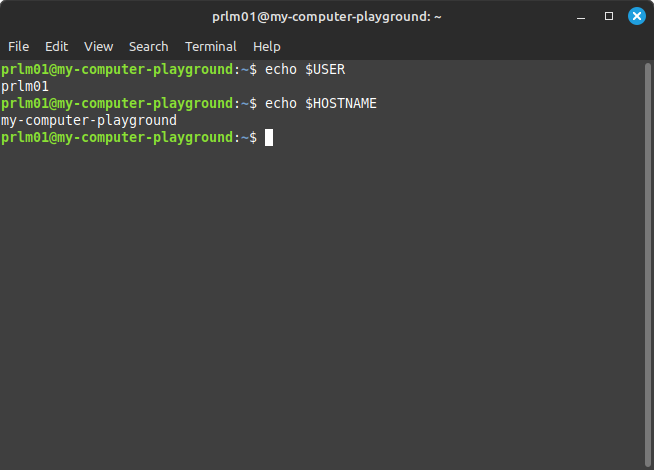
-----
FINDING WHO -OR, WHICH ACCOUNT- IS CURRENTLY SIGNED IN
whoami
prlm01
...means the current 'username/password' signed in is called: prlm01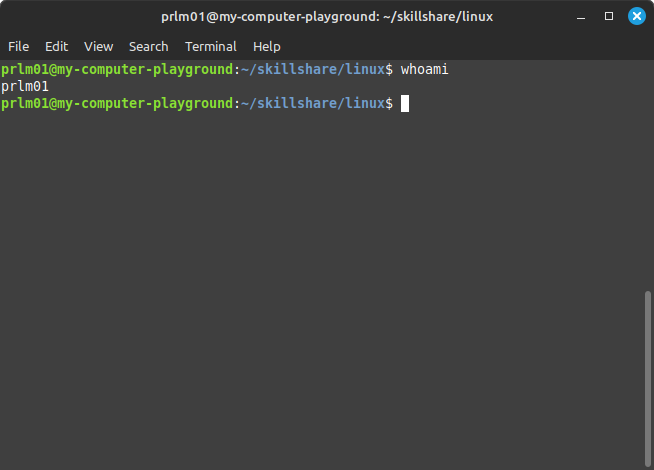
-----
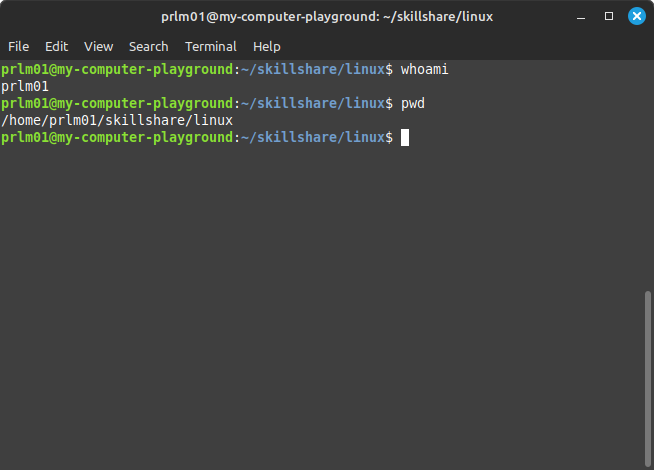
FINDING THE FULL FILE PATH TO WHERE ON THE LINUX SYSTEM WE ARE CURENTLY LOCATED
pwd
...print working directory...shows the full file path to where you are...
/home/prlm01/skillshare/linux
...means...
/home, is the main directory folder that lists all users signed in to the Linux system
/prlm01, is the currently signed in user account being used
/skillshare, is a sub-directory folder the user has created
/linux, is a further sub-directory folder created inside of the skillshare folder
----------------------------------------------
Filing basics...
----------------------------------------------
2.01 -> LESSON 5: HOW TO LIST FOLDERS/FILES(ls -al)
The command to list folders/files inside of the current folder directory is:
ls
There are also variations of the 'ls' comman you can use...by adding 'switches'.
ls -l, this gives you a 'long format listing'...which includes a lot more details...
ls -a, this gives you a listing of 'all' folder/files...including the 'hidden' folders/files.
NOTE(1): It's also possible to combine together 'switches'...:
ls -al
...which means list 'all' folders/files using 'long format'.
NOTE(2):
Hidden folders files are prefixed with a period dot: '.'
(Eg. .folderName .fileName)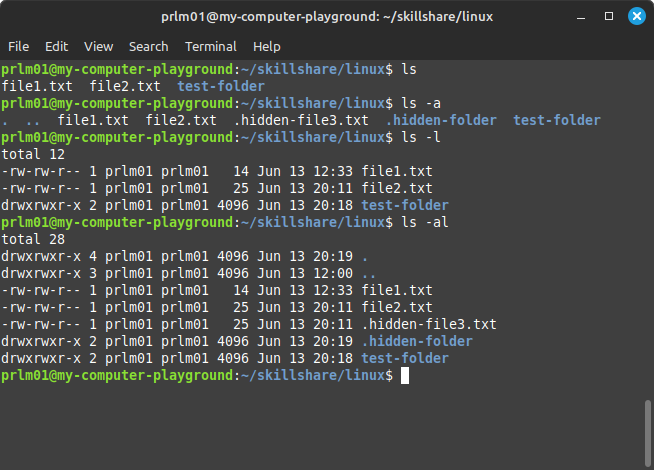
-----
2.02 -> LESSON 6: FILING: WRITE/OVERWRITE/APPEND/READ/REMOVE FILES(touch fileName to create file, echo "text" > fileName to write, >> to append, rm to delete)
A> CREATE A FILE WITH 'EMPTY' CONTENTS
In order to create an empty file use command: 'touch'...
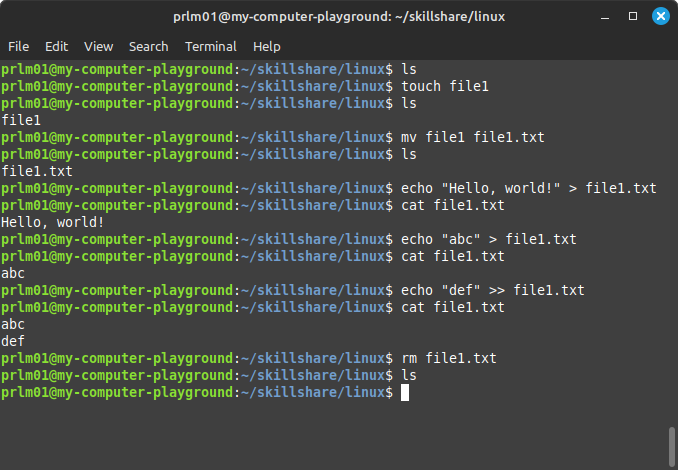
touch fileName
...where the fileName can be any file name you please.
touch file1
...would create a file called: file1
Once you've already created a file with 'empty' contents...;
you may wish to see a directory listing just to prove that the file really was created or not...? The command...
ls
...will show you what 'folders/files' are inside of the current directory folder.
B> RENAME A FILE
NOTE: Using Linux you do NOT have to include a filename extension such as: [.txt] to indicate it's a text file we are saving.
In order to rename a file we use the command: 'mv'...
mv file1 file1.txt
Then, use the list 'folders/files' command:
ls
...to prove that the file has, indeed, been renamed.
C> WRITE TO A NAMED FILE
In order to write text into a file...we can use command: 'echo'...
echo "text" > fileName
...example...
echo "Hello, world!" > file1.txt
NOTE: If the named file: 'file1.txt', does NOT already exist...; then, it will be newly created.
D> VIEW A FILE'S CONTENTS ON SCREEN (without actually opening the file)
In order to view the contents of a name filed...we use command: 'cat'...
cat fileName
...example...
cat file1.txt
...and, we will see displayed the text:
Hello, world!
E> 'OVERWRITING' A PREVIOUSLY SAVED FILE CONTENTS
NOTE: It's very important to realise that if we write to the same file, again...; then, it's contents will get completely 'overwritten'...
echo "abc" > file1.txt
...followed by the 'cat' command to show the file contents...
cat file1.txt
...and, we will see displayed the text:
abc
...this means the previous text content: 'Hello, world!' was overwritten by the new text content: 'abc'.
F> 'APPENDING' TO A PREVIOUSLY SAVED FILE/WITHOT 'OVERWRITING' THAT FILE'S CONTENTS
If we do NOT wish to 'overwrite' the file we saved contents; then, instead of using '>'...we use, instead: '>>'...
echo "def" >> file1.txt
...followed by the 'cat' command to show the file contents...
cat file1.txt
...and, we will now see displayed the text:
abc
def
...meaning, the new content was added after the previous file contents.
G> In order to 'delete' a file...we use the command: 'rm'...
rm file1.txt
...followed by the 'ls' command...which lists the current 'folders/files'...
...and, we will see displayed nothing...; which is Linux way of stating that this current folder contains no remaining 'folders/files'.
-------------------------------------------
2.03 -> LESSON 7: FILING: HOW TO OPEN UP/AND, USE 'NANO' TEXT EDITOR
Writing to files using the 'echo' command...is a very slow and laborious way to work/write files. A much quicker and easier way to write files is to use a 'text editor' application, instead.
On Linux there are quite a few different text editors that it's possible to use: Nano/Xed/gEdit/Vim/Emacs/-etc.; some of these text editor applications you will find are already 'pre-installed'; whilst others you might have to go install/and, then, maybe, set it up to work properly all by yourself.
Normally, however, text editor: Nano...comes already pre-installed; so, I'm going to work with that...as it's very simple and straight forward text editor to use...; -(the Windows equivalent would be, Notepad)-.
-----
HOW TO INSTALL NANO TEXT EDITOR (IF NOT ALREADY PRE-INSTALLED)
First, check if the Nano program is already installed:
which nano
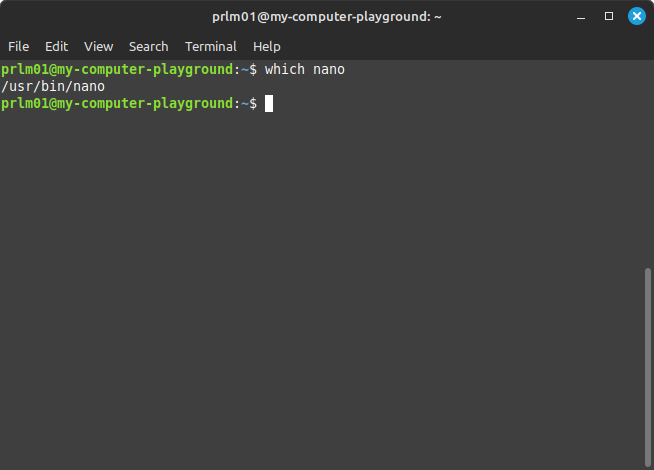
If the answer comes back as:
/usr/bin/nano
...then, you know that Nano has already been pre-installed on your Linux system...; and, therefore, you are all ready and set up to go...without needing to going through any further steps on installing the Nano software, first.
-----
NOTE: If nano is NOT already pre-installed...you can install it by using the following command:
sudo apt install nano
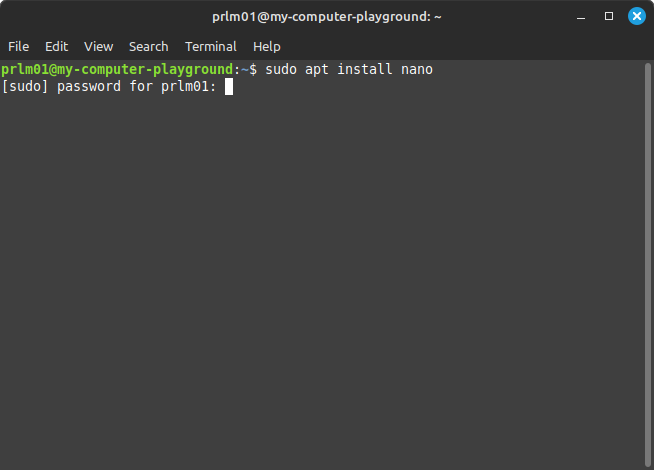
In order to install any software on Linux...which is a 'secure' OS/Operating System...; then, you will be requested to type in your password, first.
If you yourself do own the computer...; then, you should already know what is your password.
But, if you are working on somebody else's computer/or, a school/college/university/or, workplace computer...; then, you might have to ask administration for what is the password.
-----
HOW TO BOTH 'OPEN/CLOSE' NANO.../AND, ALSO, UNDERSTANDING WHAT EACH SEPARATE PART OF THE NANO UI-USER INTERFACE MEANS/TOO, HOW TO CLOSE NANO
HOW TO OPEN NANO TEXT EDITOR
In order to open up Nano...once, it has already been installed/or else, was already pre-installed. After the prompt: ($)...you just simply type the editor name:
nano
...then, next, press the [ENTER]/or, [RETURN] key.
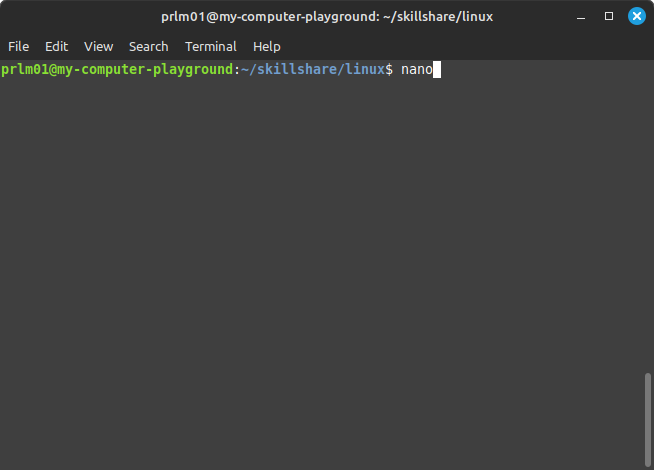
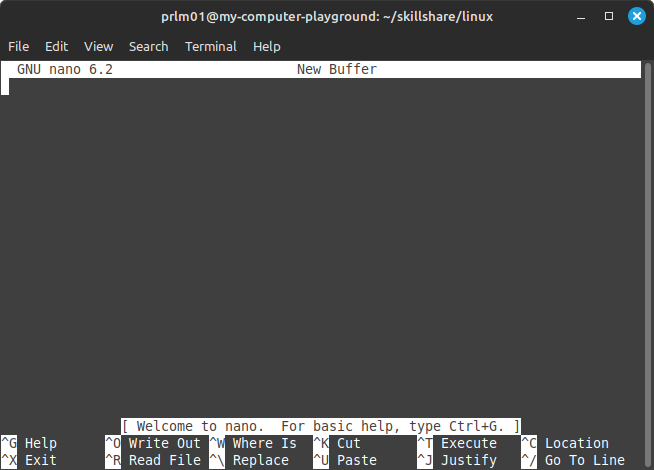
...and, this opens up a new Nano 'text editor' window...; ready for you to start typing text into:-
------------------------------------------
UNDERSTANDING WHAT EACH SEPARATE PART OF THE NANO UI-USER INTERFACE MEANS
I would suggest before we try typing into Nano any text.../and, saving files...; first, let use try and understand what each separate part of the Nano window layout...and, UI-User Interface means.
----
Starting at the topmost line...
prlm01@my-computer-playground:~/skillshare/linux
...this line tells you the location of where we are inside of the Linux OS/Operating System.
-----
The next line down lists the menu options(each of which you can left mouse button 'click' on...in order to reveal what are further options):
File Edit View Search Terminal Help
-----
Next, comes a status line...which shows:
GNU nano 6.2 (which version of Nano we are using)
...and, written in the middle of the same line is:
New Buffer
...this 'New Buffer' text will change...to become the name of any file we either open/or, save.
-----
In the middle is a 'blank space' area...;
this is the area which we will use to type our text into.
-----
At the bottom is a status line...
[ Welcome to nano. For basic help, type Ctrl+G. ]
...this line can also change...to say other things, according to the particular context of whatever it is that we are currently doing inside of Nano editor.
-----
Finally, there is the list of keyboard shortcuts...being listed using 2 separate lines at the bottom. These lines...tell you what are the keyboard shortcuts that you can press.
NOTE: The upwards pointing caret symbol: ^...means, hold down [CTRL] key...whilst at the same time pressing a next key.
HOW TO CLOSE NANO
For example, holding down both the [CTRL] key...; whilst, at the same time, pressing key: [X]...; is the command to eXit Nano text editor...; and, thus, return you straight back to the command prompt.
Let's do that, right now; before typing in any text...; just press:
[CTRL]+[X].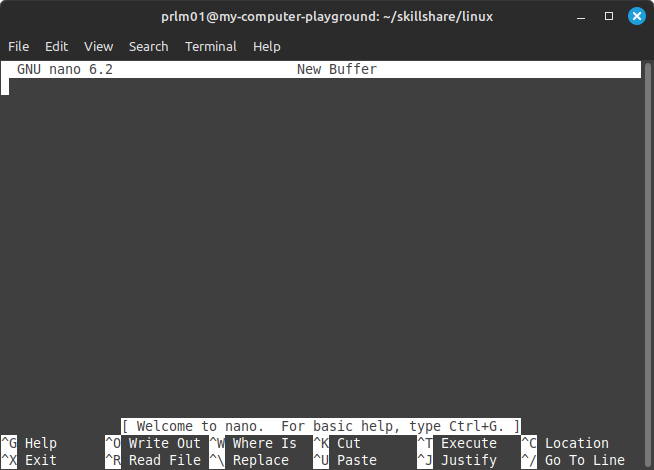
...and, so after typing in keyboard shortcut: [CTRL]+[X]...
we find ourselves having been returned straight back to the command prompt($), once more.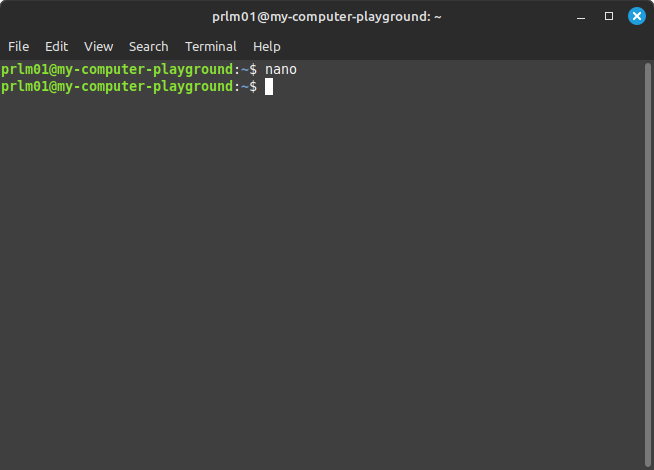
Congratulations, you now know how to both 'open/close' the Linux based Nano text editor application.
Open Nano: type 'nano'; then, press [ENTER]/or, [RETURN] key.
Close nano: Hold down [CTRL] + [X].
You also know what each separate part of the Nano text editor means.
-----
HOW TO WRITE/SAVE FILES USING NANO