Image Trace 3D - Convert 2D Logos into 3D
1 mes de Skillshare
Disponible para compraGratis
Todas las membresías se facturarán automáticamente de forma recurrente hasta que se cancelen. Si cumples los requisitos para obtener una prueba gratis, cancélala antes de que finalice para evitar que se realice el cobro. Oferta válida solo para nuevos suscriptores pagos. Consulta los Términos de servicio completos aquí
Acerca de este producto

Junaid Alam
3D Artist
What Image Trace 3D does
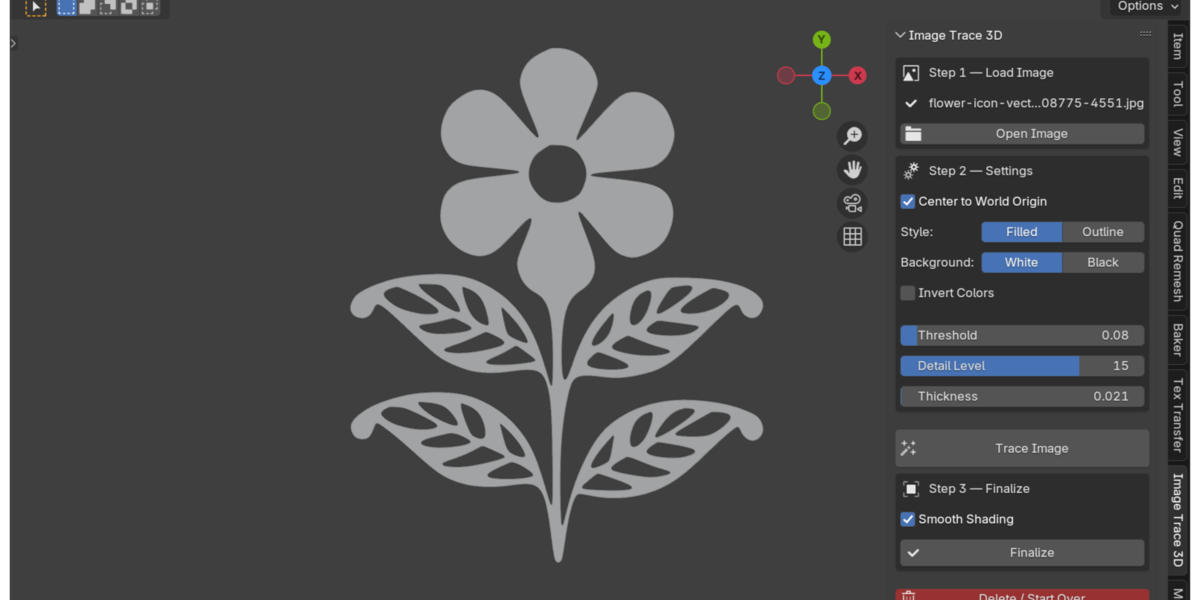
Image Trace 3D is a Blender add-on that converts a flat 2D image into a real 3D object. Load a PNG, JPG, BMP, or TGA file, click Trace Image, and the add-on traces the shape's outline and builds it as a Blender curve. From there you can extrude it into a solid filled object or keep it as a hollow outline, then finalize it into a mesh with one more click.
Everything runs inside Blender's own 3D Viewport sidebar. There is no external app to open and no file to export and re-import.
The problem it solves
Turning a logo or icon into a 3D shape usually means leaving Blender. The typical route is: open the logo in Illustrator or Inkscape, trace the bitmap, clean up the resulting paths by hand, export it as an SVG, then import that SVG back into Blender and fix the curve before you can extrude it. That is four or five steps across two programs before you even start animating.
Image Trace 3D removes that whole detour. The tracing, the curve creation, and the extrusion happen in the same window where you'll build the rest of your scene.

How it works
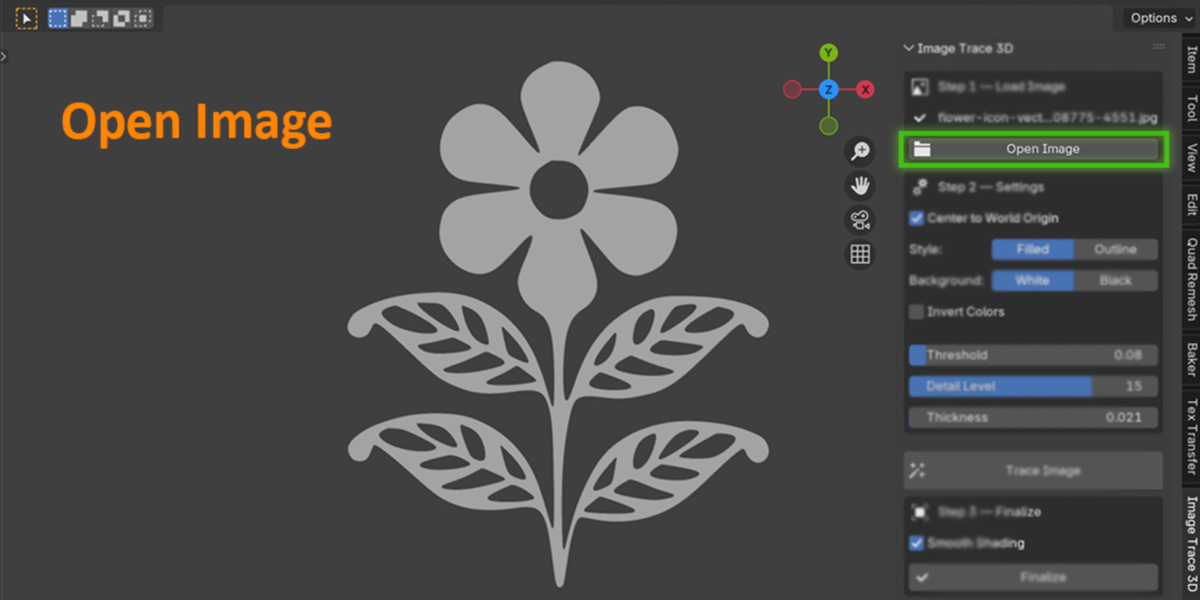
Open Image - pick a PNG, JPG, BMP, or TGA file from the sidebar.
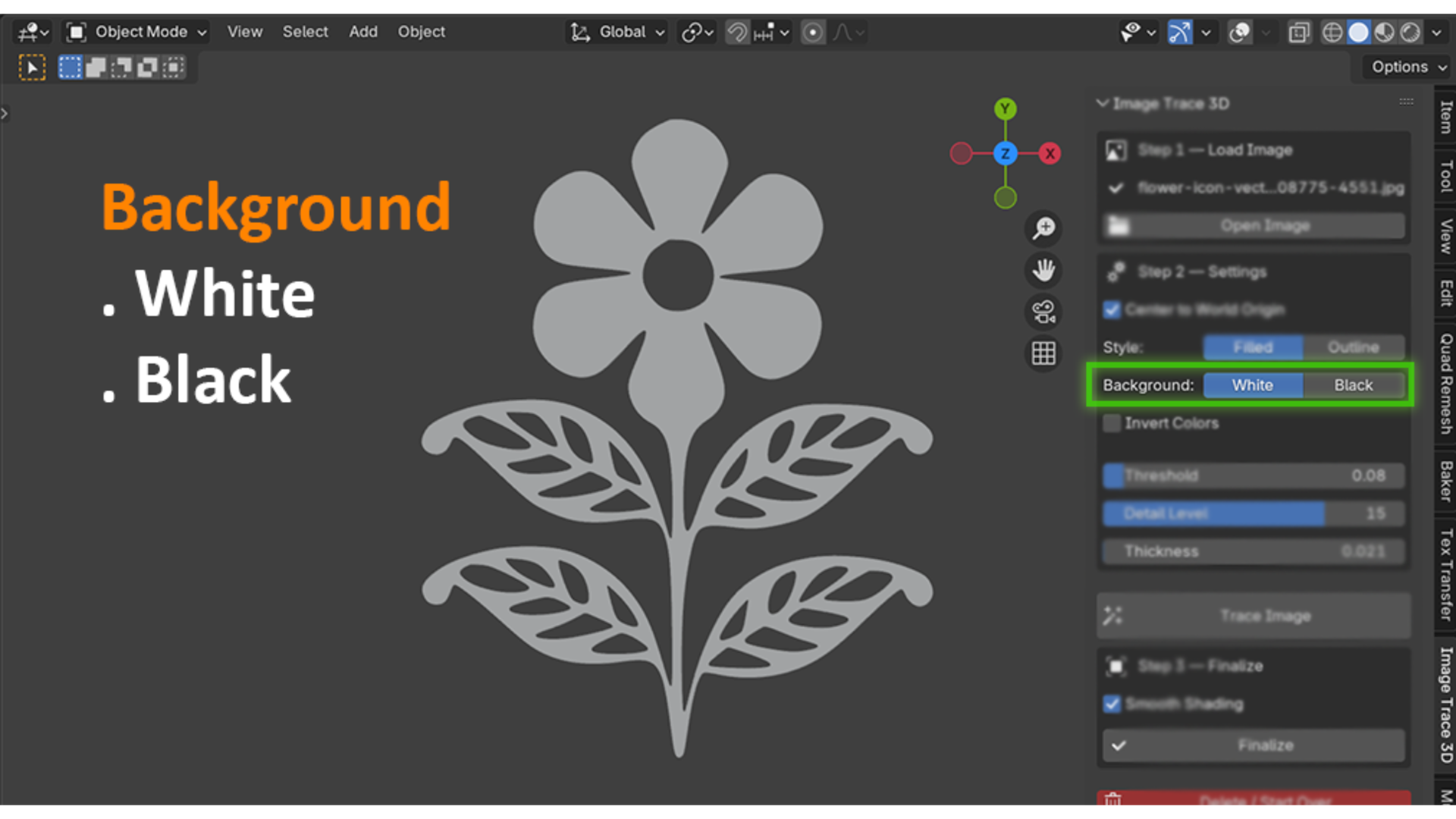
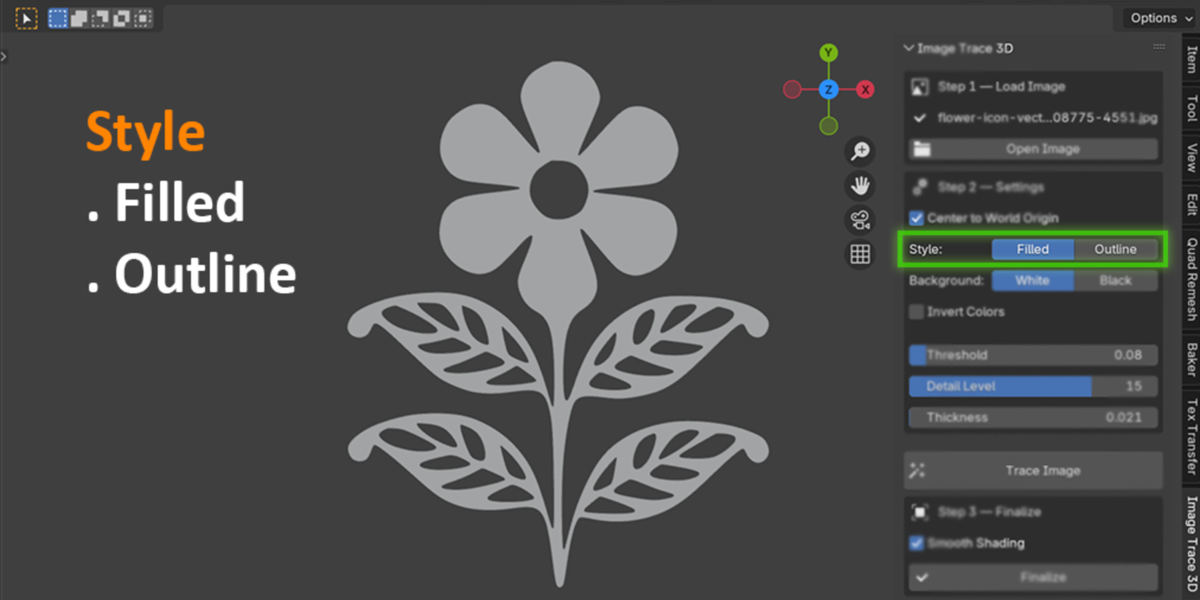
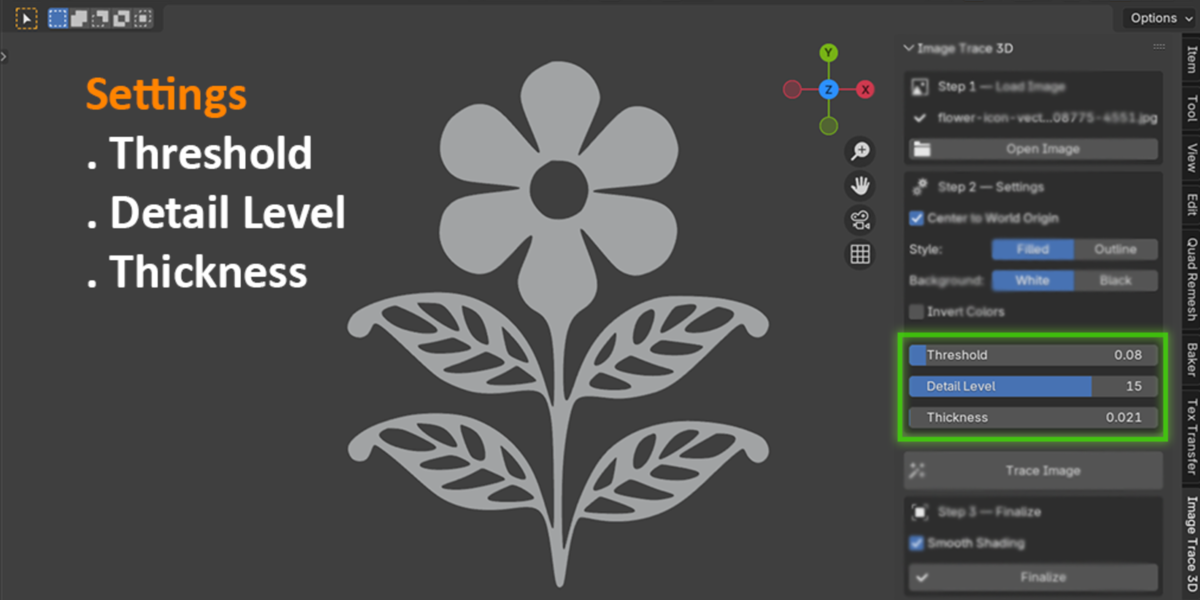
Adjust settings - choose Filled (solid 3D shape) or Outline (hollow wire shape), set the background color, and fine-tune Threshold and Detail Level until the preview shape looks clean.
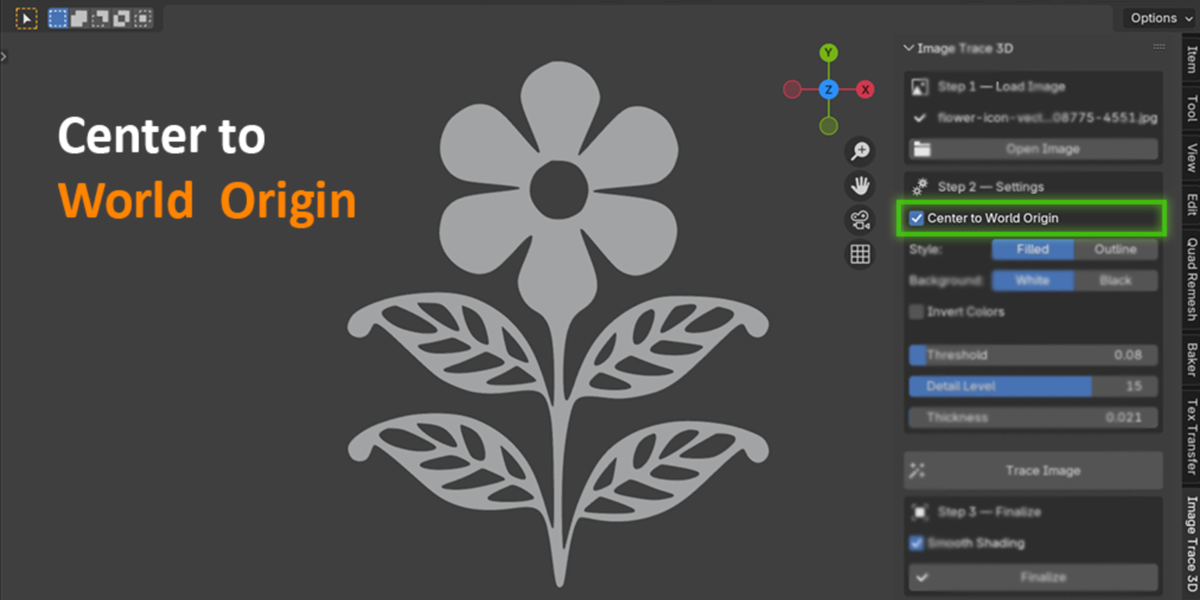
Trace Image - the add-on detects the foreground shape and builds it as a Blender curve object, automatically centered at world origin if you want.
Finalize - convert the curve to a mesh and apply smooth or flat shading, so it's ready for modifiers, booleans, or rendering.
Delete / Start Over - not happy with the result? Clear it and retrace with new settings without cluttering your scene with leftover objects.
PNGs with a transparent background are handled automatically through the alpha channel, so you don't need to set a background color for logos that already have transparency.

Who this is for
Motion designers building 3D logo reveals and channel intros
Freelancers and studios who animate client logos and need fast turnaround on revisions
Game and icon artists who need simple 3D badges, gear icons, or symbol props
Blender users who want a 3D logo without learning curve editing or vector software
Anyone who wants a scanned drawing, stamp, or icon as a quick 3D shape
Why this beats the manual workflow
Manual tracing in Blender means placing curve points by hand around every corner of a logo, which is slow and rarely symmetrical. Routing through Illustrator or Inkscape works, but it costs you a license or a second app, plus the export/import round trip every time a client asks for a small tweak. Image Trace 3D keeps the entire loop, from raster image to finished mesh, in one panel. Change the Threshold slider, click Trace again, and you have a new result in seconds.

What it's not
Image Trace 3D traces a single foreground shape against a background. It's built for logos, icons, and flat silhouette artwork, not full-color vector conversion of photographs. If you need separate colored regions like Illustrator's Image Trace produces, this add-on won't split those out. It works best on clean, high-contrast source images.
Technical notes
Built on Blender's own Python and numpy, both of which ship with Blender. Nothing extra to install.
Works fully offline. Nothing is uploaded anywhere, which matters if you're tracing an unreleased client logo.
Compatible with Blender 3.0 and later.
Once finalized to a mesh, the object is a normal Blender mesh, so it works with every standard export format Blender supports (OBJ, FBX, STL, glTF, and so on).

Preguntas frecuentes
¿Qué son los productos digitales?
Los productos digitales de Skillshare son herramientas, recursos y plantillas elaboradas por expertos y desarrolladas por los mejores creativos, que están disponibles para la compra. Con una amplia gama de recursos que se adaptan a todas las necesidades creativas, son prácticos y hacen que tu experiencia de aprendizaje sea real e inolvidable.
¿Cómo puedo comprar un producto digital?
Cualquier persona puede comprar un producto digital en Skillshare — haz clic en Comprar ahora para ingresar tu información de pago y completar tu compra. Una vez completado el pago, todos los archivos estarán disponibles para la descarga al instante desde esta página. También recibirás un correo electrónico con un enlace para descargar tu producto digital después de la compra.
¿Hay un límite en el número de veces que puedo descargar un producto digital?
No, no hay límite en la cantidad de veces que puedes descargar un producto digital. Incluso si el creador elimina un producto, aún puedes acceder a la página de descarga en la mayoría de los casos iniciando sesión en tu cuenta de Skillshare.
¿Puedo obtener un reembolso o cancelar la compra de mi producto digital?
Los productos digitales no son reembolsables y no se pueden devolver ni cancelar. Para obtener más información, consulta nuestra Política de reembolso en el Centro de ayuda de Skillshare.
¿Puedo hacer y vender mis propios productos digitales?
¡Absolutamente! Visita ¿Cómo puedo vender un producto digital en Skillshare? para aprender cómo puedes crear, listar y vender tus propios productos digitales en Skillshare.