Very original skull, snake and dagger
I did the skull motive and added some snake and dagger and played a bit with overlapping lines. It was a fantastic opportunity to get to practice what I don't like in AI; thanks!
#1 Setup and ideas
So, I decided to go for the skull. I didn't do anything too fancy, as I wanted to concentrate on the line aspect. I don't like working with lines in AI. I find that it's simply a lot of fiddly stuff, and AI doesn't have really good tools to work precise. So, to fully hit that part of the program (and probably also my shortcomings) heads on, I went for a very basic and not very original, quick motive with a skull, a snake, and a dagger.
I wanted to work with form contrasts, though, to give me some challenges with the pen tool. The snake and dagger work perfectly for that: the snake is organic, the dagger very geometrical. And the skull is literally in between.
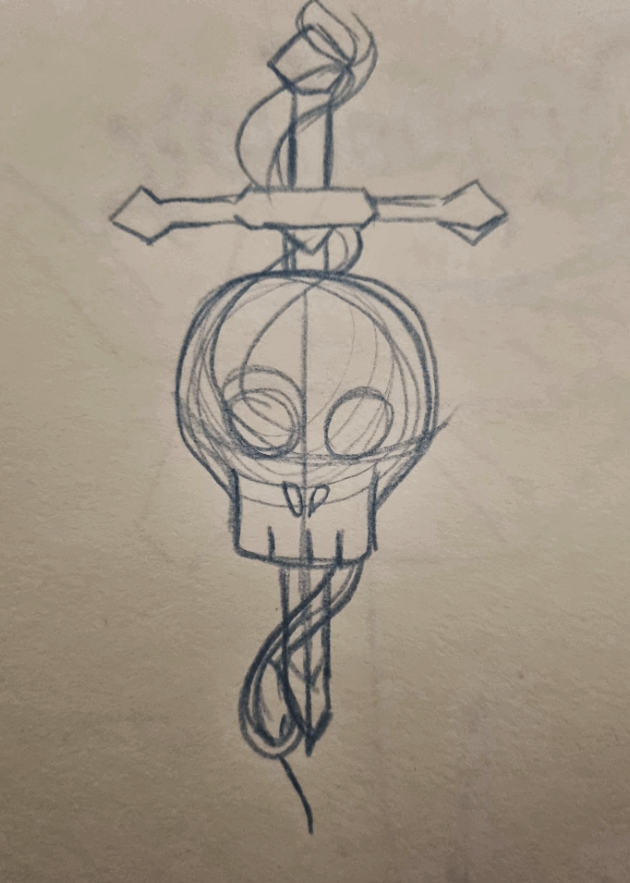
#1 Step: Sketch
It's just a really quick and dirty sketch. I already had the classical motif in mind, so there wasn't much experiment. I got my inspiration from pinterest, my go-to for such things. Although I absolutely agree that it's a huge challenge to not get stuck when you see something you want to do 1:1. To avoid that, I looked for skulls in general. I didn't need inspiration for the snake or the dagger. They are so basic and I have done a lot of vector daggers before.
## pencil on paper, ca. 10 min
2# Step: General forms
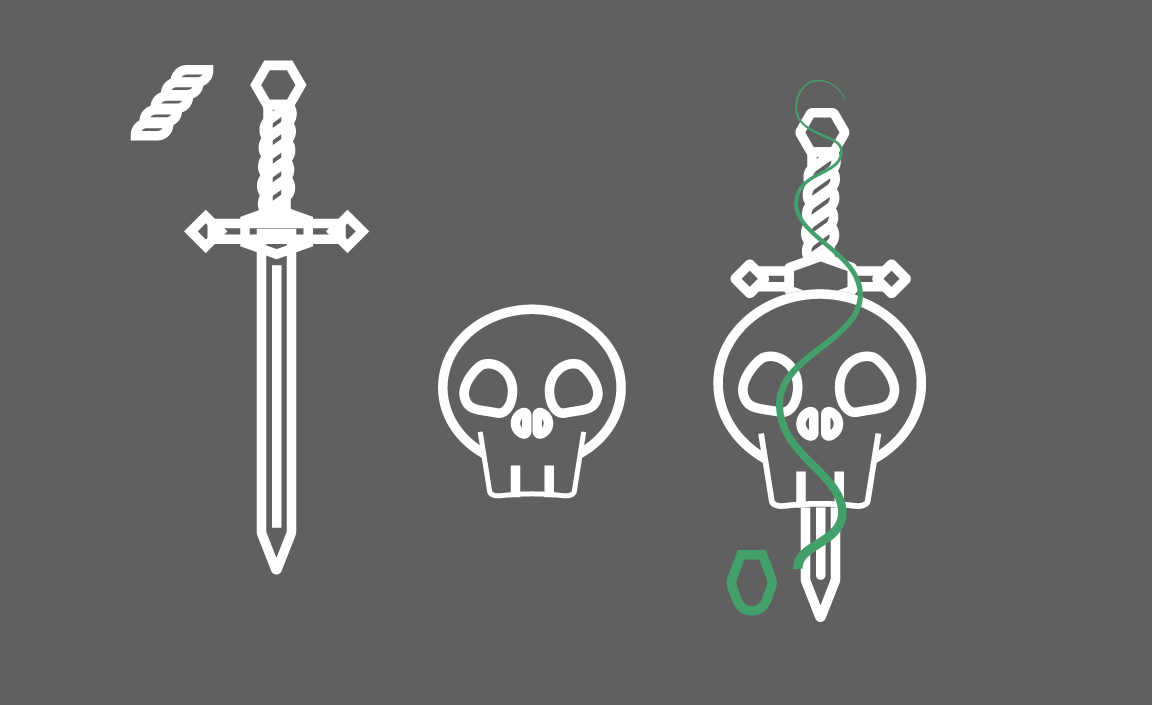
Next, I opened AI and started with the general forms. I actually didn't draw in the sketch and trace it because everything was so basic and geometrical. I merely needed the sketch to nail the composition.
I made the skull and dagger separately, put them together, and added the snake to fit its wiggly lines into the rest.
Ignore the strange line width. I accidentally converted the lines down the road without notice. RIP lines.
## Adobe Illustrator, ca. 30 min
3# Step: Puzzle everything together
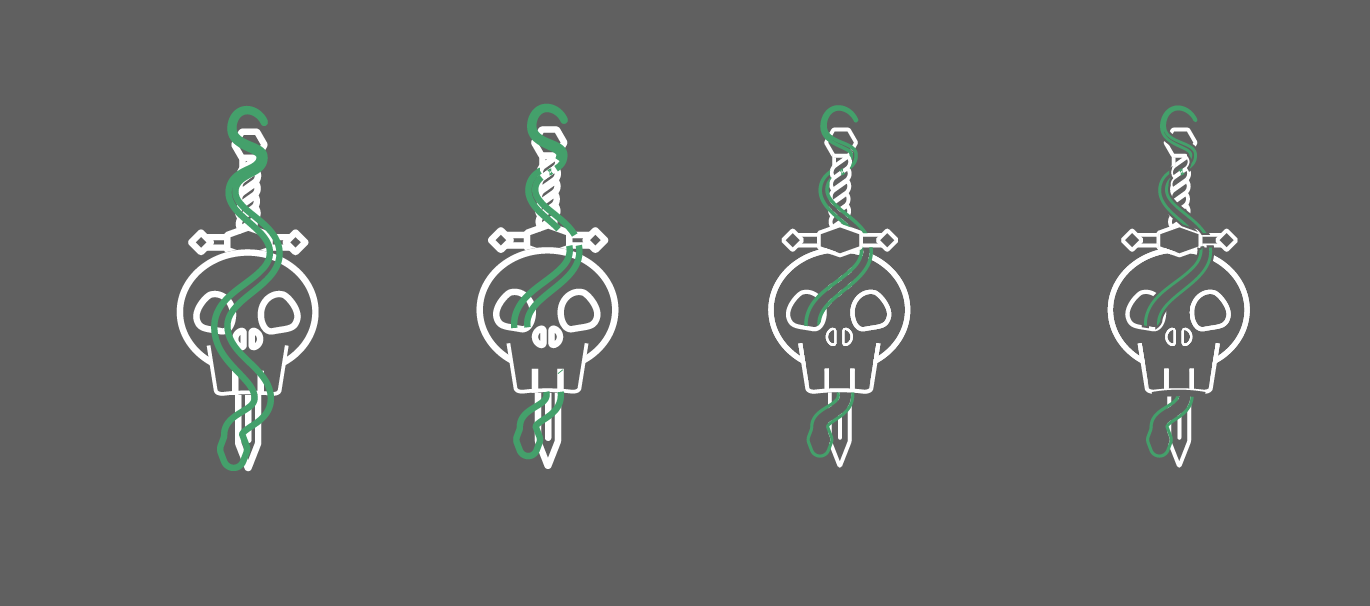
Next, I put everything together. And here the usual fight with AI started: deleting shapes, putting them together, merging lines ... yes, I can do that, but it's really a pain in the button to merge everything and align stuff. And then, there's always this one tiny fragment left that you can only see after you think you're finished and zoom out ... well, I did it in the end.
Many copies later.
## Adobe Illustrator, ca. 30min
4# Step: Correct lines & Details
I love this effect where there is a gap between the lines. Again, AI doesn't make it easy on you, although the latest version has made some improvements. But I didn't have time to look into those yet. Anyway, I added outlines to the lines to eventually delete some in between.
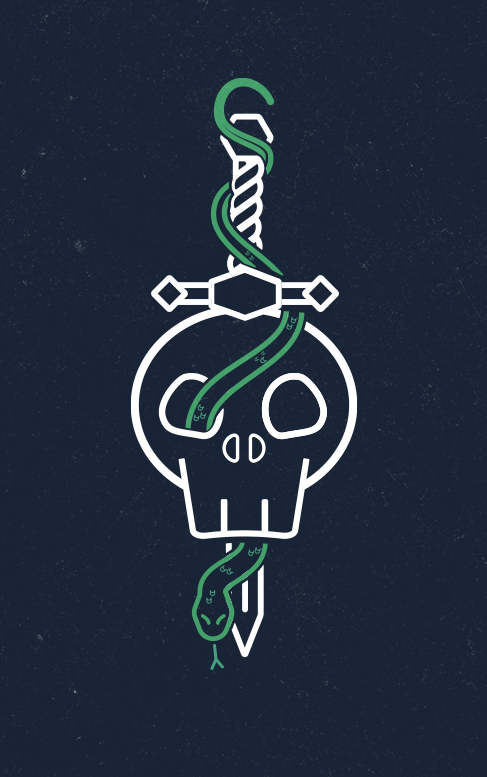
That took me nearly as long as the entire project. In the end, I also decided to add some scales to the snake to have a bit more detail and texture. I'm not entirely convinced, but I think it adds another layer of forms and geometry to the picture.
Anyway, here is the finished result. I am very happy with how it turned out and particularly with having done something line-based in Illustrator again, which is less landscapy geometrical and more challenging. I love the style, but I really don't get the hang in AI. This gave me the opportunity to practice a bit more.
## Adobe Illustrator & Photoshop, 30min
Thanks for the fantastic class!