Final Project Remove Green Screen
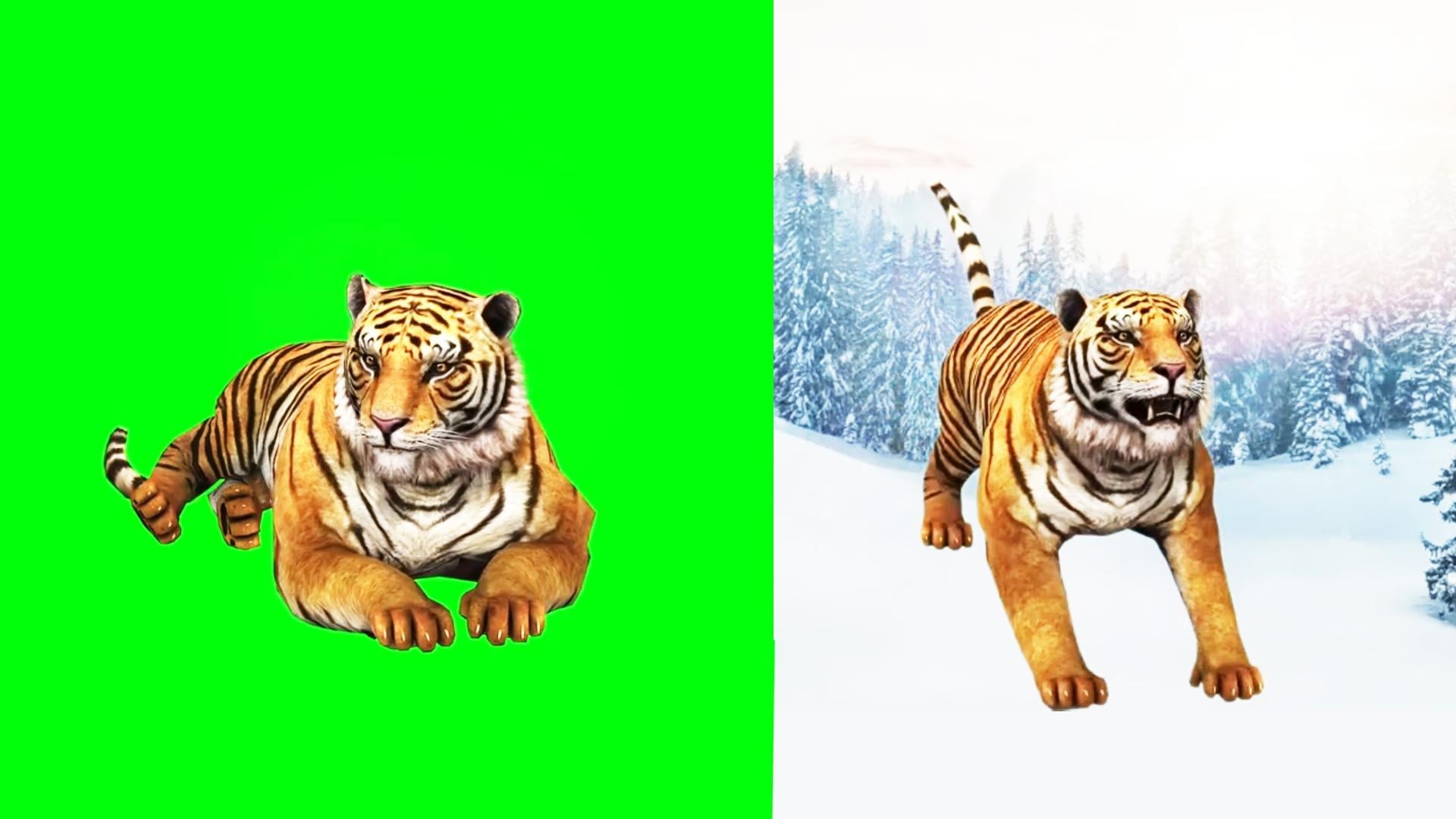
Replace the green screen background of a tiger video with a snowy background using Wondershare Filmora.
Import Your Footage: Start by importing your tiger video and the snowy background footage into Wondershare Filmora.
Add Tiger Video to Timeline: Drag and drop your tiger video onto the timeline in the Video Track.
Apply Green Screen Effect:
- Select your tiger video clip on the timeline.
- Go to the Effects tab, then choose Utility > Green Screen.
- Drag the Green Screen effect onto your tiger video clip.
Adjust Green Screen Settings:
- Double-click on your tiger video clip in the timeline to bring up the Video Effects panel.
- Click on the Green Screen tab to reveal options like Tolerance, Edge Thickness, and Edge Feather. Adjust these settings to remove the green background effectively while preserving the details of the tiger.
Add Snowy Background:
- Import your snowy background footage into Filmora.
- Drag the snowy background footage onto a track below your tiger video on the timeline.
Position and Adjust:
- Resize and position your tiger video clip to fit within the snowy background.
- Use the Scale and Position controls in Filmora to adjust the size and placement of the tiger as needed.
Fine-tune and Preview:
- Play through the timeline to preview your composite video.
- Make any additional adjustments to the green screen settings or positioning to ensure a seamless blend between the tiger and the snowy background.
Export Your Video:
- Once you're satisfied with the result, click on Export to render your video with the new snowy background.