Selective Wireframe - Per-Object Wireframe Control
1 month of Skillshare
Available with PurchaseFree
All memberships will be billed automatically on a recurring basis until canceled. If eligible for a free trial, cancel before the trial ends to avoid being charged. Offer only valid for new paid subscribers. See full terms of service here.
About this product

Salman Naseem
2d 3D Animator
TAKE COMPLETE CONTROL OF YOUR WIREFRAME OVERLAYS
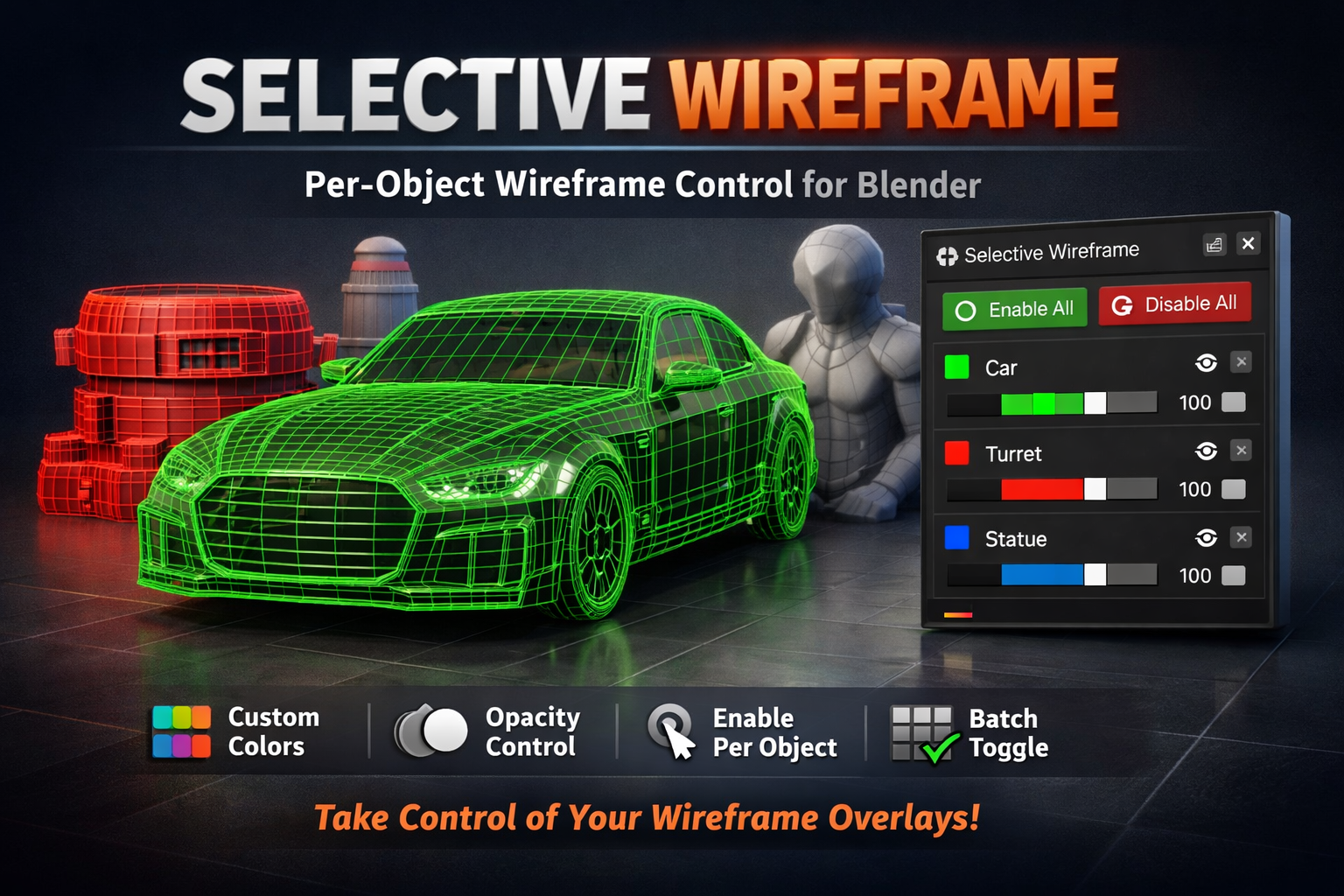
Selective Wireframe revolutionizes how you work with wireframe overlays in Blender. Unlike the default all-or-nothing wireframe view, this addon gives you precise, per-object control with custom colors and opacity - making your modeling workflow faster, cleaner, and more professional.
THE PROBLEM: Ever needed to highlight just ONE object's wireframe during a design review? Or show a client specific mesh details without cluttering the entire viewport? Blender's native wireframe mode turns on wireframes for EVERYTHING - making it hard to focus on what matters.
THE SOLUTION: Selective Wireframe lets you enable wireframes on individual objects, assign custom colors, and control transparency - all with an intuitive, real-time interface. Perfect for modeling, reviews, presentations, and collaborative work.

🎨 KEY FEATURES
Per-Object Wireframe Control Toggle wireframe overlays on/off for individual mesh objects with a single click. No more cluttered viewports - show only what you need to see.
Custom Colors for Each Object Assign unique RGB colors to each object's wireframe. Use colors to categorize objects, highlight important areas, or match your studio's color coding system.
Opacity/Transparency Control Adjust opacity from 0 (invisible) to 100% (solid) for each object. Perfect for subtle highlights or strong visual emphasis depending on your needs.
Real-Time Updates All changes apply instantly as you adjust colors and opacity. No "Apply" buttons, no waiting - see results immediately as you work.
Batch Operations "Enable All" and "Disable All" buttons let you control wireframes across your entire scene with one click. Great for quick scene-wide visualization or cleanup.
Automatic Viewport Configuration One-click button automatically configures your viewport shading to display wireframe colors correctly. No manual settings required.
Non-Destructive Workflow Original object colors are automatically saved when you enable wireframes and restored when you disable them. Your scene data stays safe.
Clean, Intuitive Interface Simple sidebar panel with clear controls for each object. No complicated menus or hidden settings - everything you need is right there.


💡 PERFECT FOR:
Modeling Workflows Focus on specific areas while modeling. Enable wireframes only on objects you're currently working on, keeping your viewport clean and focused.
Design Reviews Highlight specific mesh details during internal reviews or client presentations. Use colors to categorize issues or areas of interest.
Comparison Work Compare different versions or variations by giving each unique wireframe colors. Easily spot differences at a glance.
Educational Content Create clear tutorial screenshots and videos by highlighting specific objects with colored wireframes while keeping others neutral.
Technical Documentation Generate clean technical drawings and documentation with selective wireframe overlays showing only relevant mesh structure.
Collaborative Projects Use color-coded wireframes to communicate with team members about specific objects or areas that need attention.
🚀 HOW IT WORKS
Selective Wireframe uses Blender's native wireframe display system combined with object color properties. This means:
✓ Lightweight and fast - no performance impact ✓ Works with Blender's standard features ✓ Compatible with other addons ✓ No special viewport tricks or hacks
The addon manages these native properties through a clean interface, adding smart features like color backup/restore, batch operations, and automatic viewport configuration.
Technical Note: Wireframe colors display in Solid shading mode (with Color Type set to "Object"). The addon automatically configures this for you. Wireframe overlays remain visible in Material Preview and Render modes, but will use default colors in those modes since they're controlled by materials.
⚙️ SYSTEM REQUIREMENTS
Blender 4.2.0 or higher
Compatible with Blender 5.0
Works on Windows, macOS, and Linux
Mesh objects only (curves, empties, etc. not supported)
FAQs
What are digital products?
Digital products at Skillshare are expertly crafted tools, resources, and templates developed by top creatives that are available to you for purchase. With a wide range of resources to suit every creative need, they are actionable, making your learning experience real and unforgettable.
How can I purchase a digital product?
Anyone can purchase a digital product on Skillshare — click Buy now to enter your payment information and complete your purchase. Once payment is complete, all files will be available for download instantly from this page. You'll also receive an email with a link to download your digital product after purchase.
Is there a limit to how many times I can download a digital product?
No, there is no limit to how many times you can download a digital product. Even if a product is removed by the creator, you can still access the download page in most cases by logging in to your Skillshare account.
Can I get a refund or cancel my digital product purchase?
Digital products are non-refundable and cannot be returned or canceled. To learn more, see our refund policy in the Skillshare Help Center.
Can I make and sell my own digital products?
Absolutely! Visit How can I sell a digital product on Skillshare? to learn how you can create, list and sell your own digital products on Skillshare.