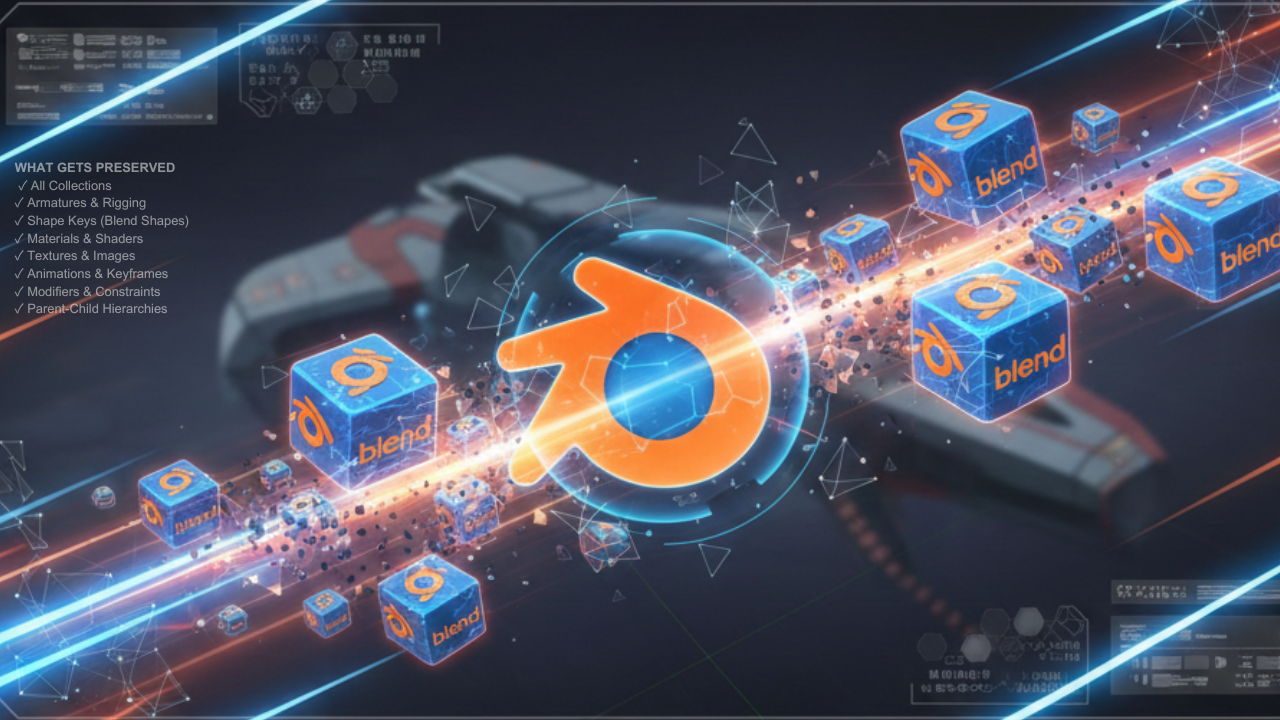
Multi Blend File Merger - Batch Import in Blender
1 month of Skillshare
Available with PurchaseFree
All memberships will be billed automatically on a recurring basis until canceled. If eligible for a free trial, cancel before the trial ends to avoid being charged. Offer only valid for new paid subscribers. See full terms of service here.
About this product

Salman Naseem
2d 3D Animator
Merge Multiple .blend Files in Seconds!
Multi Blend File Merger is a powerful time-saving addon for Blender artists working with large asset libraries, team projects, or modular workflows. Import dozens—even hundreds of .blend files with a single click and watch a live progress bar as everything merges seamlessly into your scene.
✨ Key Features
✅ Batch Import
Import 10, 50, or 100+ .blend files at once
✅ Real-Time Progress Bar
See live import progress directly in Blender
✅ Automatic Organization
Each file is imported into its own named collection
✅ Full Data Preservation
Rigs, animations, materials, textures—everything stays intact
✅ Live Scene Statistics
Instant count of collections and objects
✅ Simple & Clean UI
One-click button inside the 3D View sidebar
🎯 Perfect For
• Character artists managing multiple character files
• Environment artists importing prop libraries
• Game developers consolidating asset packs
• Animation studios merging team projects
• Anyone building modular or large-scale scenes
💡 How It Works
Press N in the 3D Viewport
Open the Multi Import tab
Click Merge Multiple Blend Files
Select multiple .blend files (Ctrl + Click)
Watch the progress bar as files merge automatically
Each imported file creates its own collection named after the file keeping your Outliner clean and organized.


🔒 What Gets Preserved
✔ Collections
✔ Armatures & Rigging
✔ Shape Keys (Blend Shapes)
✔ Materials & Shaders
✔ Textures & Images
✔ Animations & Keyframes
✔ Modifiers & Constraints
✔ Parent-Child Hierarchies
⚡ PRO TIPS
💡 Name files properly – file names become collection names
💡 Pack textures – File → External Data → Pack Resources
💡 Test first – import 2–3 files before batch importing 100
💡 Save often – before and after imports
💡 Use console – see exactly which file is importing
💡 Companion addon – “Export Each” for exporting
📌 Important Note
This addon is IMPORT ONLY.
It merges multiple .blend files into your current project.
Need exporting?
Check out my companion addon “Export Each”, which exports every object into separate .blend, Fbx and Obj files.
FAQs
What are digital products?
Digital products at Skillshare are expertly crafted tools, resources, and templates developed by top creatives that are available to you for purchase. With a wide range of resources to suit every creative need, they are actionable, making your learning experience real and unforgettable.
How can I purchase a digital product?
Anyone can purchase a digital product on Skillshare — click Buy now to enter your payment information and complete your purchase. Once payment is complete, all files will be available for download instantly from this page. You'll also receive an email with a link to download your digital product after purchase.
Is there a limit to how many times I can download a digital product?
No, there is no limit to how many times you can download a digital product. Even if a product is removed by the creator, you can still access the download page in most cases by logging in to your Skillshare account.
Can I get a refund or cancel my digital product purchase?
Digital products are non-refundable and cannot be returned or canceled. To learn more, see our refund policy in the Skillshare Help Center.
Can I make and sell my own digital products?
Absolutely! Visit How can I sell a digital product on Skillshare? to learn how you can create, list and sell your own digital products on Skillshare.