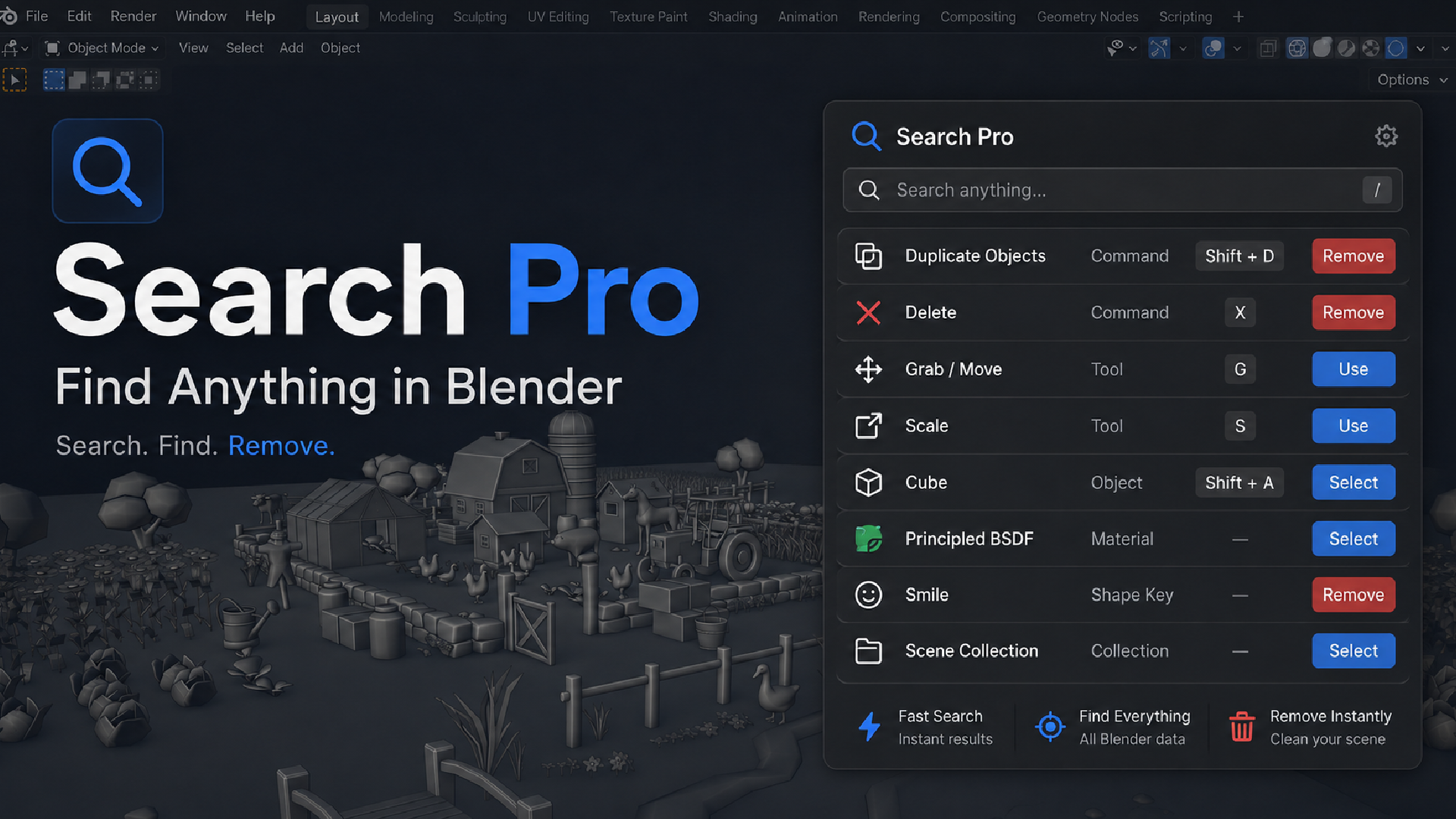
Universal Search for Blender - Spotlight-Style
1 month of Skillshare
Available with PurchaseFree
All memberships will be billed automatically on a recurring basis until canceled. If eligible for a free trial, cancel before the trial ends to avoid being charged. Offer only valid for new paid subscribers. See full terms of service here.
About this product

Junaid Alam
3D Artist
Stop hunting through menus. Just press F3.
Blender has thousands of operators, settings, and data types spread across editors, panels, and preferences. If you don't remember the exact menu path, you either dig through nested submenus or give up and use the mouse. Blender's built-in menu search (F3) only searches operator names, so it misses your objects, modifiers, materials, nodes, and most settings entirely.
Universal Search replaces that F3 search with one search box that covers almost everything in Blender: commands, tools, shortcuts, current-file data, and interface settings. Type a few letters, see a ranked list, hit Enter, done.
What it actually searches
Universal Search indexes four kinds of content and ranks all of them together:
Commands — operators, tools, menu actions, and keyboard shortcuts
Current-file data — objects, collections, meshes, curves, grease pencil, modifiers, constraints, vertex groups, shape keys, UV maps, materials, images, textures, actions, armatures, bones, drivers, F-curves, NLA tracks, particle systems, physics, and more
Nodes — geometry nodes, shader nodes, compositor nodes, and node groups, sorted by which node family they belong to
Blender interface — preferences, editors, workspaces, themes, keymaps, add-ons, extensions, and asset libraries
If it exists in your current file or in Blender's interface, Universal Search can find it. That is not marketing shorthand — the add-on ships a taxonomy of over 90 distinct search categories, grouped into 11 sections you can filter by (Commands, Objects, Object Data, Materials & Media, Animation & Rigging, Nodes, Scene, Physics & Effects, Interface, Add-ons & Assets, File Data).

Search that understands typos and abbreviations
Universal Search does not just check if your text appears somewhere in a name. It ranks results the way a good search engine would:
Exact match
Prefix match (what you typed starts the result name)
Substring match anywhere in the name
Token match (each word you typed matches the start of a word in the result)
Fuzzy subsequence match, for abbreviations and typos — type "sbdv" and still land on "Subdivision Surface"
Results also weigh in metadata (description, operator ID, shortcut, menu location) when the name alone isn't a strong match, so a search for a shortcut key or an operator ID still finds the right result. The whole ranking pipeline is written to stay fast on repeated keystrokes: the searchable text is normalized once and cached, so typing the second and third letter of a query does not re-scan your whole file.

See exactly how to reach it manually
Every result that has a keyboard shortcut shows the actual key from your current keymap, not a hardcoded default, so if you have remapped your shortcuts, Universal Search reflects that. For results without a direct shortcut, it shows the manual path instead, for example mesh.primitive_cube_add resolves to Add > Mesh > Cube, using a semantic access-path map that fills in the gaps Blender's own keymap data does not expose. You get either "press this key" or "here's where it lives," never a dead end.
Act on results directly
Search results are not just links to menus. Selecting an object result selects and frames it in the viewport. Data-block results that represent real file content, such as modifiers, materials, node groups, or vertex groups, get a remove action with a confirmation prompt, so you can clean up unused data without leaving the search box. Static commands, settings, and menu items intentionally do not get a delete button, since removing those would not make sense.
Two ways to search
F3, anywhere — Universal Search takes over Blender's F3 shortcut while the add-on is enabled, so your existing muscle memory keeps working. Disable the add-on and F3 goes back to Blender's default menu search, no side effects left behind.
3D View Sidebar (N-panel) → Search tab — a dedicated panel with quick-search buttons for common categories (Shape Keys, Modifiers, Objects, Materials, Actions, Nodes) plus a full list of category filters and a manual index rebuild button, for when you want to browse by category instead of typing.
Built for speed, not just breadth
Searching everything in a Blender file could easily mean lag on every keystroke. Universal Search avoids that by preparing its search corpus once (name, compact name, and tokenized text) and caching it, so the first character you type is cheap and repeated typing does not re-normalize text from scratch. Heavy caches also warm up shortly after the add-on registers, not during your first F3 press, so opening search for the first time in a session still feels instant.


FAQs
What are digital products?
Digital products at Skillshare are expertly crafted tools, resources, and templates developed by top creatives that are available to you for purchase. With a wide range of resources to suit every creative need, they are actionable, making your learning experience real and unforgettable.
How can I purchase a digital product?
Anyone can purchase a digital product on Skillshare — click Buy now to enter your payment information and complete your purchase. Once payment is complete, all files will be available for download instantly from this page. You'll also receive an email with a link to download your digital product after purchase.
Is there a limit to how many times I can download a digital product?
No, there is no limit to how many times you can download a digital product. Even if a product is removed by the creator, you can still access the download page in most cases by logging in to your Skillshare account.
Can I get a refund or cancel my digital product purchase?
Digital products are non-refundable and cannot be returned or canceled. To learn more, see our refund policy in the Skillshare Help Center.
Can I make and sell my own digital products?
Absolutely! Visit How can I sell a digital product on Skillshare? to learn how you can create, list and sell your own digital products on Skillshare.